Linux Users and Groups: useradd, usermod, userdel, passwd, groups and id Explained
Every person and every program on Linux runs as a user. Users are put into groups so you can give the same rights to many people at once. In this chapter you learn where users live (/etc/passwd, /etc/shadow, /etc/group) and every command to create, change, lock and delete them.
In this chapter
- Know who you are with whoami, id and groups
- Read /etc/passwd, /etc/shadow and /etc/group
- Create users with useradd and set passwords with passwd
- Change users with usermod (-aG, -L, -s) and remove them with userdel
- Manage groups with groupadd, gpasswd and groupdel
- Control password age with chage and switch users with su
1. An everyday example: a housing society
In Kothrud, the Shanti housing society gives each resident a member card with a number. The secretary keeps the member register. Passwords for the society office locker are kept in a separate sealed book that only the secretary can open. Residents are grouped: committee, gym members, parking holders. A new tenant gets a card, is added to the gym group, and when they leave the card is cancelled.
Member card number = UID. Member register = /etc/passwd. Sealed password book = /etc/shadow. Committee, gym, parking = groups in /etc/group. Giving a card = useradd. Adding to gym = usermod -aG gym. Cancelling the card = userdel. Secretary = root.
2. whoami: which user am I?
Before you run a risky command you must know if you are root or a normal user. Scripts also check this.
whoami prints the name of the user you are running as now. It changes after sudo or su.
- Check your user.
whoamiOutput:
raviYou are logged in as ravi.
- See the change with sudo.
sudo whoamiOutput:
rootsudo runs the command as root.
- Use it in a script check.
[ "$(whoami)" = root ] || echo 'Run as root'Output:
Run as rootThe command prints a warning for a non-root user. It does not stop the script.
3. id: UID, GID and all groups
Linux permission checks use numbers. A UID identifies a user, a primary GID identifies its main group, and supplementary GIDs define additional group memberships. Display names in id make these numbers easier to recognize. On a shared disk, two machines with the same name for a group still need compatible numerical IDs to agree on ordinary group ownership.
In a practice machine, inspect id from a normal login and compare it with the name and permissions of a sample file from ls -l. Read the owner, group and access bits before changing anything. Adding a group changes the account setup, while a running shell already holds a set of process credentials. Check a fresh login for the updated group before editing a file’s ownership or widening permissions.
Permission problems are almost always about which UID and groups you have. id shows them in one line.
id shows uid (user number), gid (primary group) and groups (all groups). id NAME shows another user. -u prints only the UID, -g only the GID, -G all group numbers, -n gives names.
| Option | Shows |
|---|---|
| id | Everything |
| id -u | UID number |
| id -un | User name |
| id -gn | Primary group name |
| id -Gn | All group names |
- Show your identity.
idOutput:
uid=1001(ravi) gid=1001(ravi) groups=1001(ravi),10(wheel),992(docker)ravi is in wheel (sudo) and docker.
- Check another user.
id nginxOutput:
uid=992(nginx) gid=990(nginx) groups=990(nginx)A system user for the web server.
- Only the UID.
id -uOutput:
1001Normal users start at 1000 on most systems.
- All group names.
id -Gn raviOutput:
ravi wheel dockerSame as the groups command.
4. groups: list a user's groups
You added a user to a group but access still fails. First check the group list.
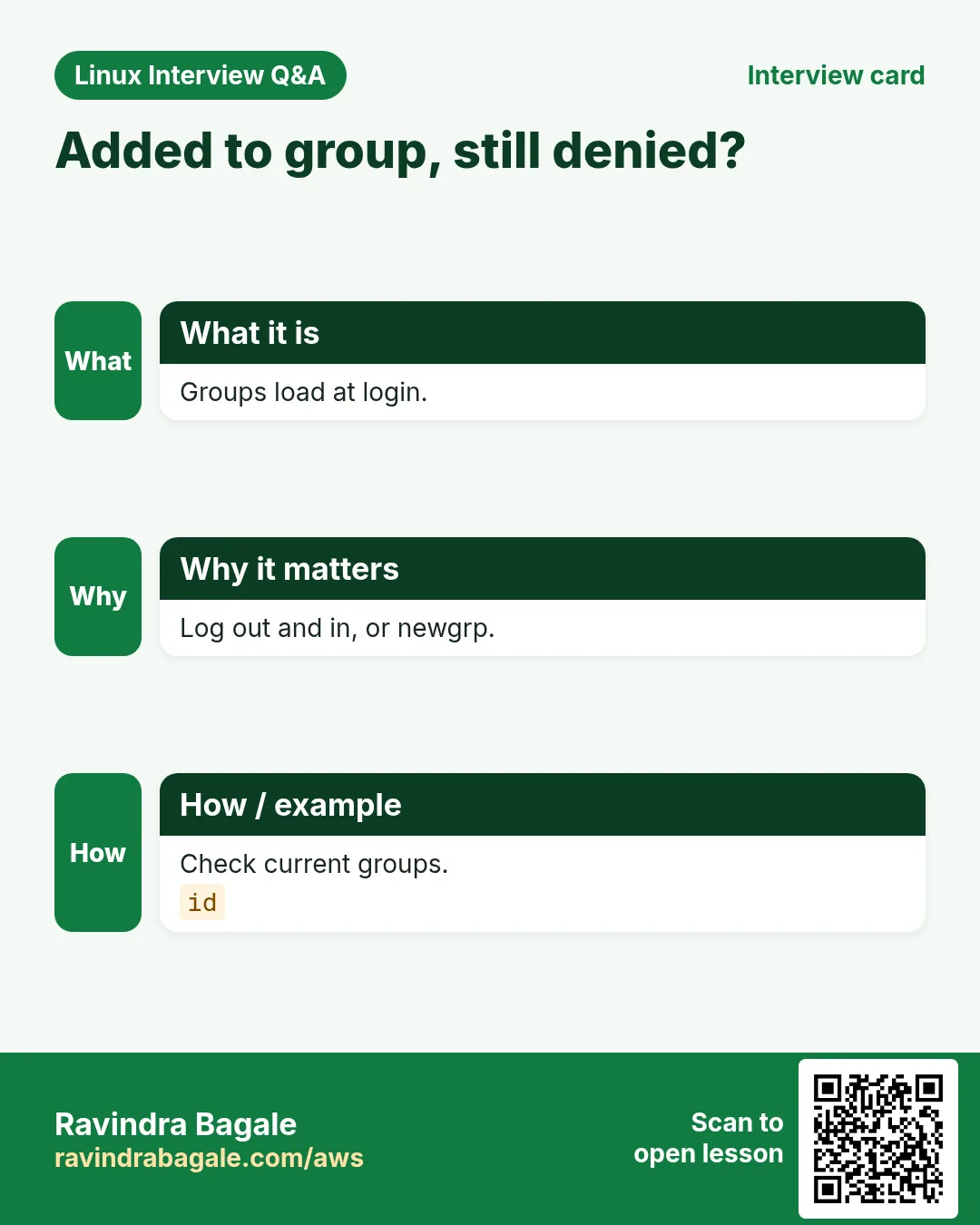
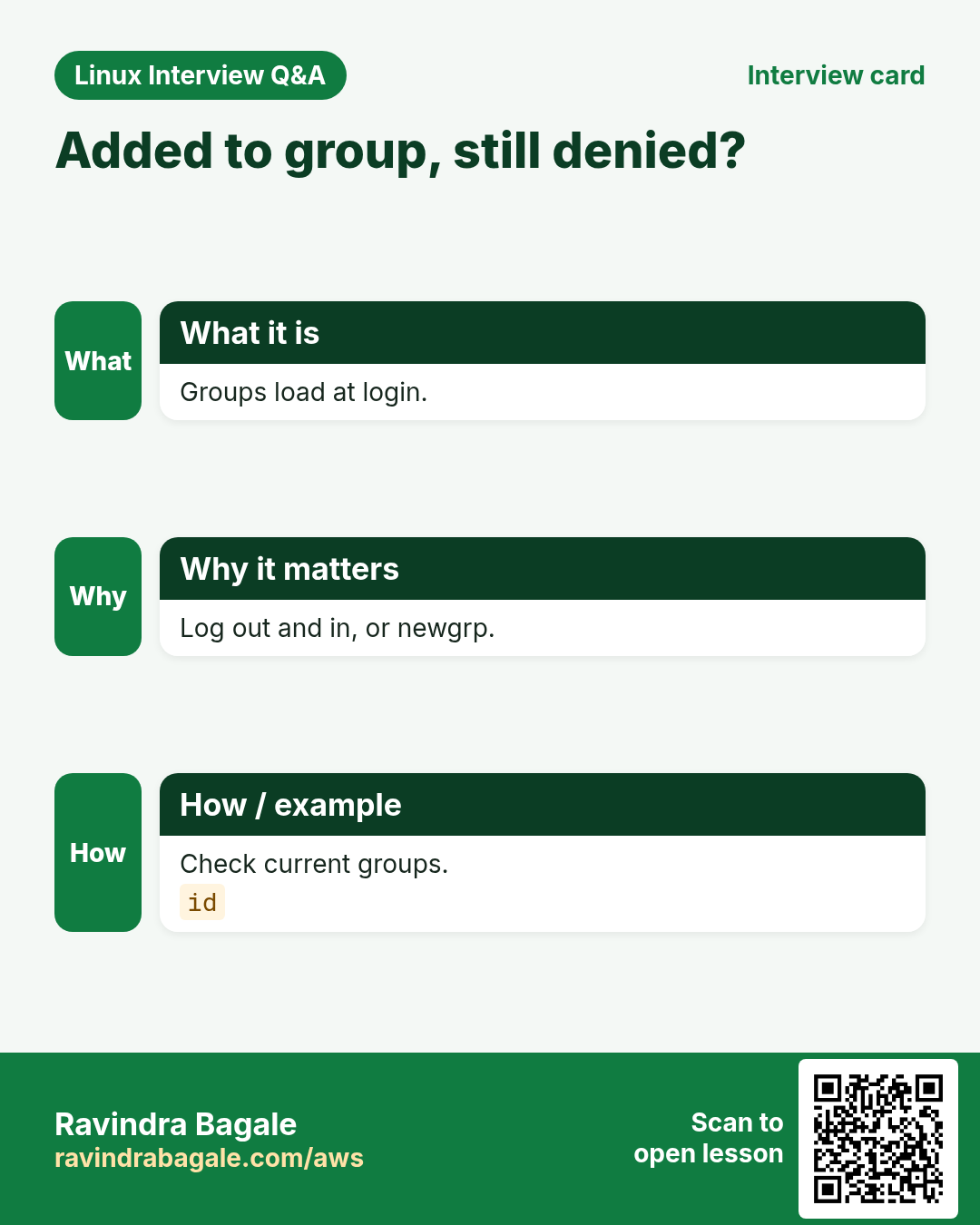
groups prints the groups of the current shell. groups NAME reads the files and shows the saved list. New groups appear in your shell only after you log out and in again, or run newgrp.
- Your groups.
groupsOutput:
ravi wheeldocker is missing in this old shell.
- Saved groups for ravi.
groups raviOutput:
ravi : ravi wheel dockerThe file already has docker.
- Load a new group now.
newgrp docker && id -GnOutput:
docker ravi wheelNo need to log out.
5. /etc/passwd: the user list
When a login fails or a service user looks wrong, you read this file to see the home folder, shell and UID.
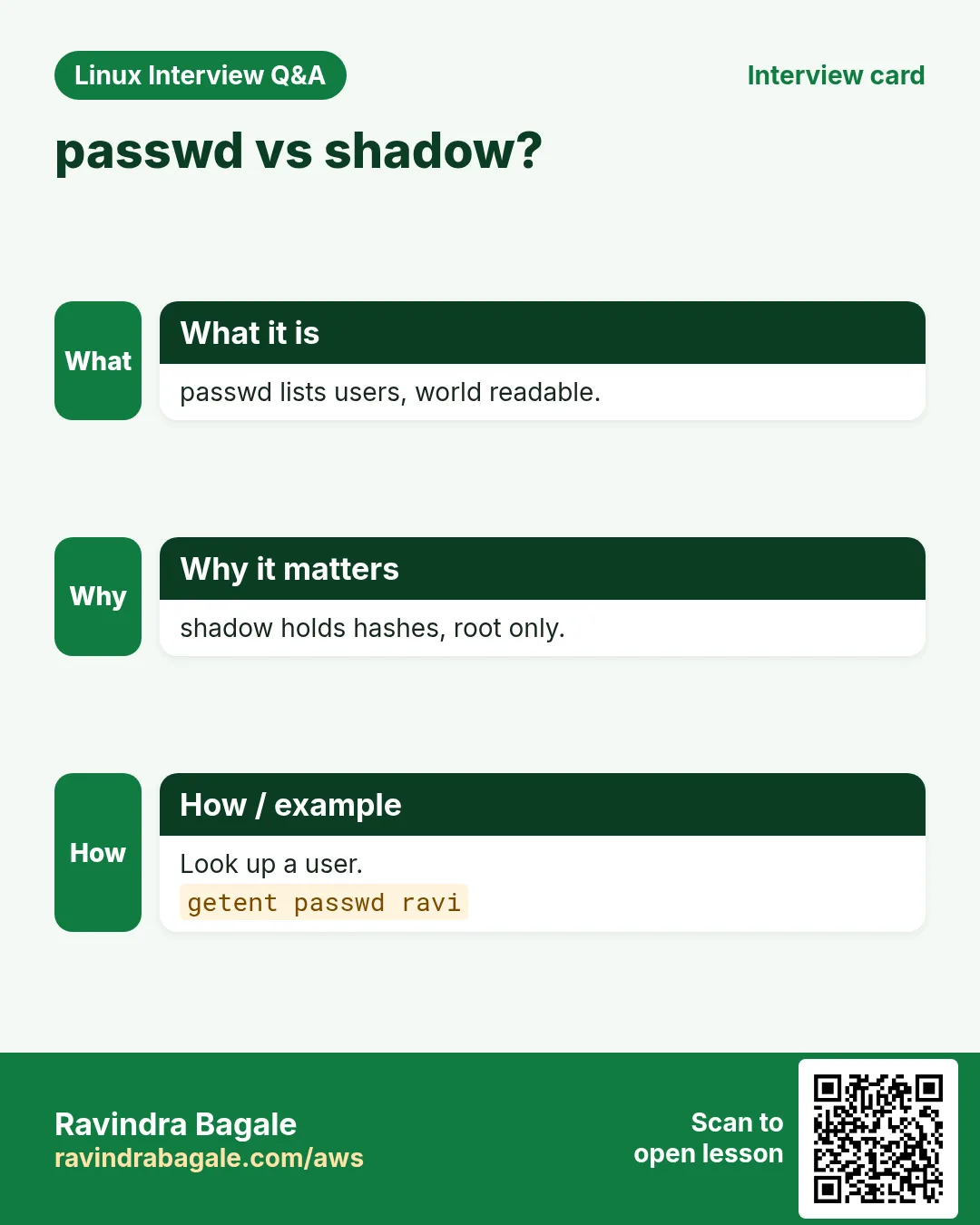
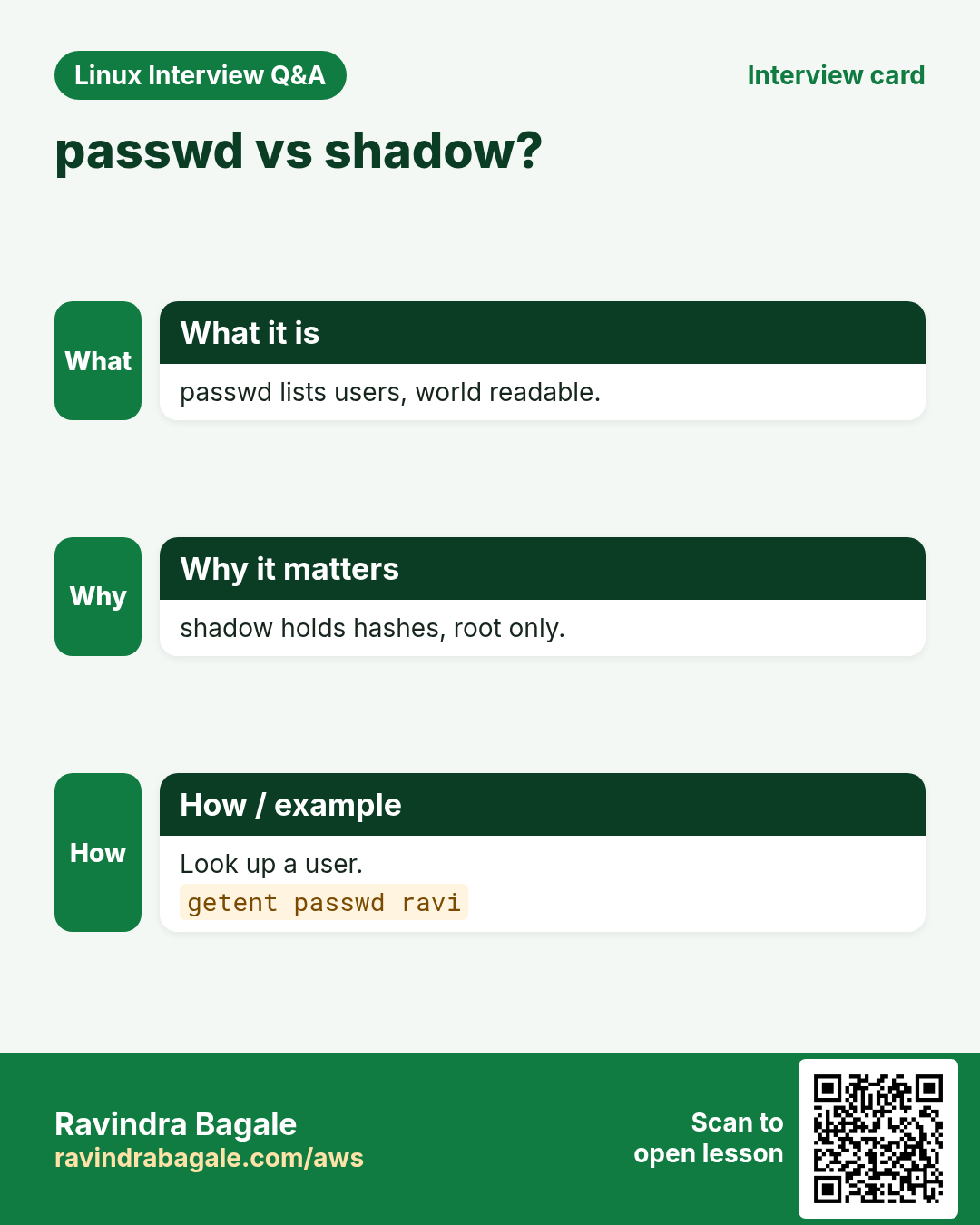
Each line has 7 fields split by ':' — name:x:UID:GID:comment:home:shell. The x means the password is in /etc/shadow. Shell /sbin/nologin blocks interactive login. Everyone can read this file. Use getent passwd NAME to also see users from LDAP or AD.
| Field | Example | Meaning |
|---|---|---|
| 1 | ravi | Login name |
| 2 | x | Password is in shadow |
| 3 | 1001 | UID |
| 4 | 1001 | Primary GID |
| 5 | Ravi B | Comment (GECOS) |
| 6 | /home/ravi | Home folder |
| 7 | /bin/bash | Login shell |
- See one user's line.
grep '^ravi:' /etc/passwdOutput:
ravi:x:1001:1001:Ravi B:/home/ravi:/bin/bashName, UID 1001, home and bash shell.
- Same with getent (works with LDAP too).
getent passwd nginxOutput:
nginx:x:992:990:Nginx web server:/var/lib/nginx:/sbin/nologinnologin: no one can log in as nginx.
- List only real users (UID 1000+).
awk -F: '$3>=1000 && $3<65534 {print $1}' /etc/passwdOutput:
ravi
priya
anil
Field 3 is the UID.
- Who has UID 0?
awk -F: '$3==0 {print $1}' /etc/passwdOutput:
rootAny other name here is a security alarm.
6. /etc/shadow: hidden passwords and ageing
You need to check if an account is locked or when its password expires.
Only root can read /etc/shadow. Fields: name:hash:lastchange:min:max:warn:inactive:expire. A hash starting with $6$ is SHA-512, $y$ is yescrypt. ! or !! at the start means locked or no password set. passwd -S shows a short status.
- Normal users cannot read it.
cat /etc/shadowOutput:
cat: /etc/shadow: Permission deniedGood. Hashes stay secret.
- Read one line as root.
sudo grep '^priya:' /etc/shadowOutput:
priya:$y$j9T$Kd...:20386:0:90:7:::Password changed on day 20386, max age 90 days, warn 7 days before.
- A locked account.
sudo grep '^anil:' /etc/shadow | cut -c1-12Output:
anil:!$y$j9TThe ! means the password is locked.
7. /etc/group and /etc/gshadow: group lists
To know who is in the docker, wheel or finance group, you read the group file.
Each line is group:x:GID:member1,member2. Members listed here have it as a secondary group. A user's primary group is in field 4 of /etc/passwd and is often not listed again. getent group NAME is the safe way to read it.
- Members of wheel.
getent group wheelOutput:
wheel:x:10:ravi,priyaravi and priya can use sudo (Red Hat family).
- Ubuntu uses sudo group.
getent group sudoOutput:
sudo:x:27:ubuntu,raviSame idea, different name.
- Count groups on the system.
wc -l < /etc/groupOutput:
58Most are system groups.
8. useradd: create a user
A new developer, an app account or a CI runner needs its own login so actions are tracked and rights are separate.
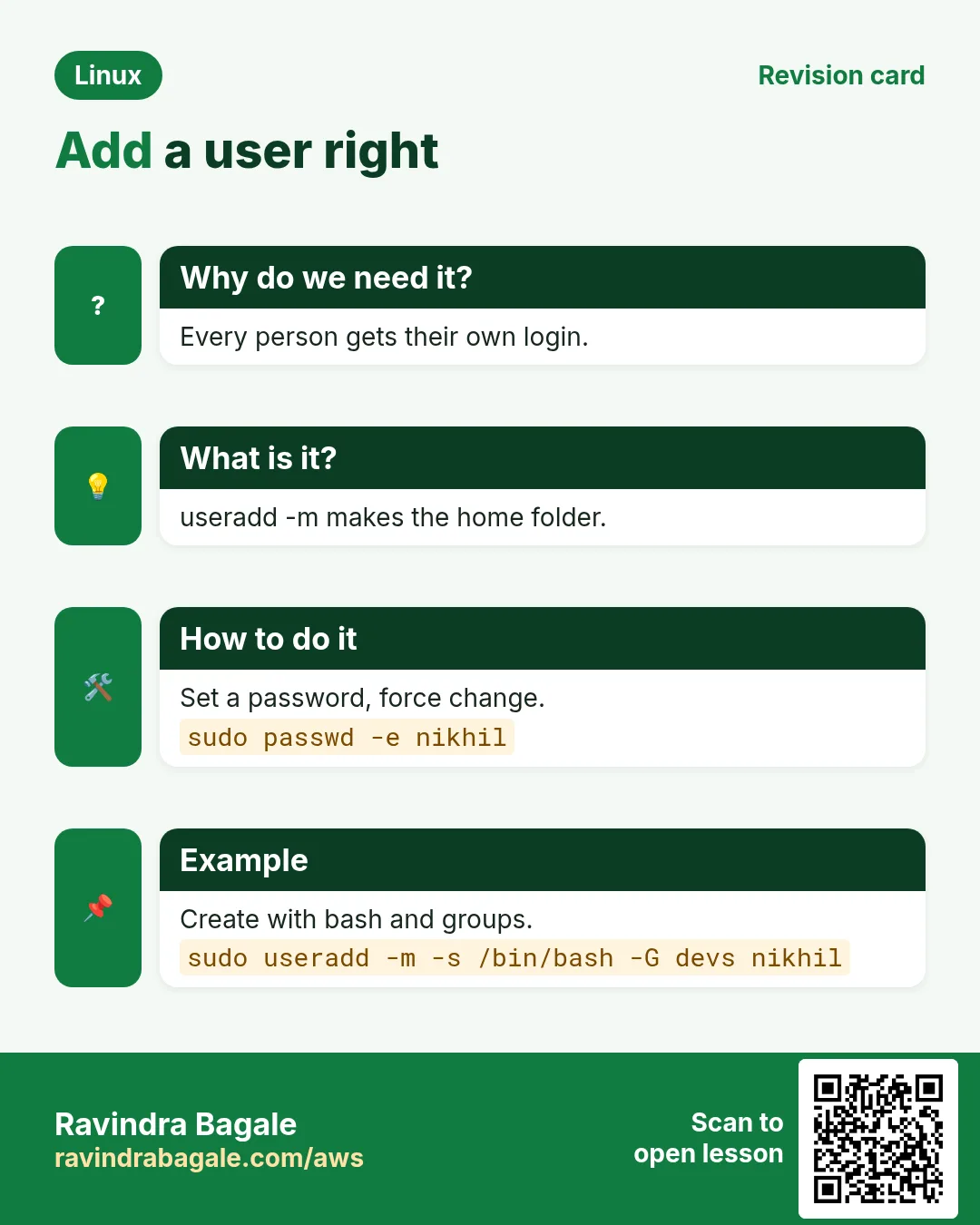
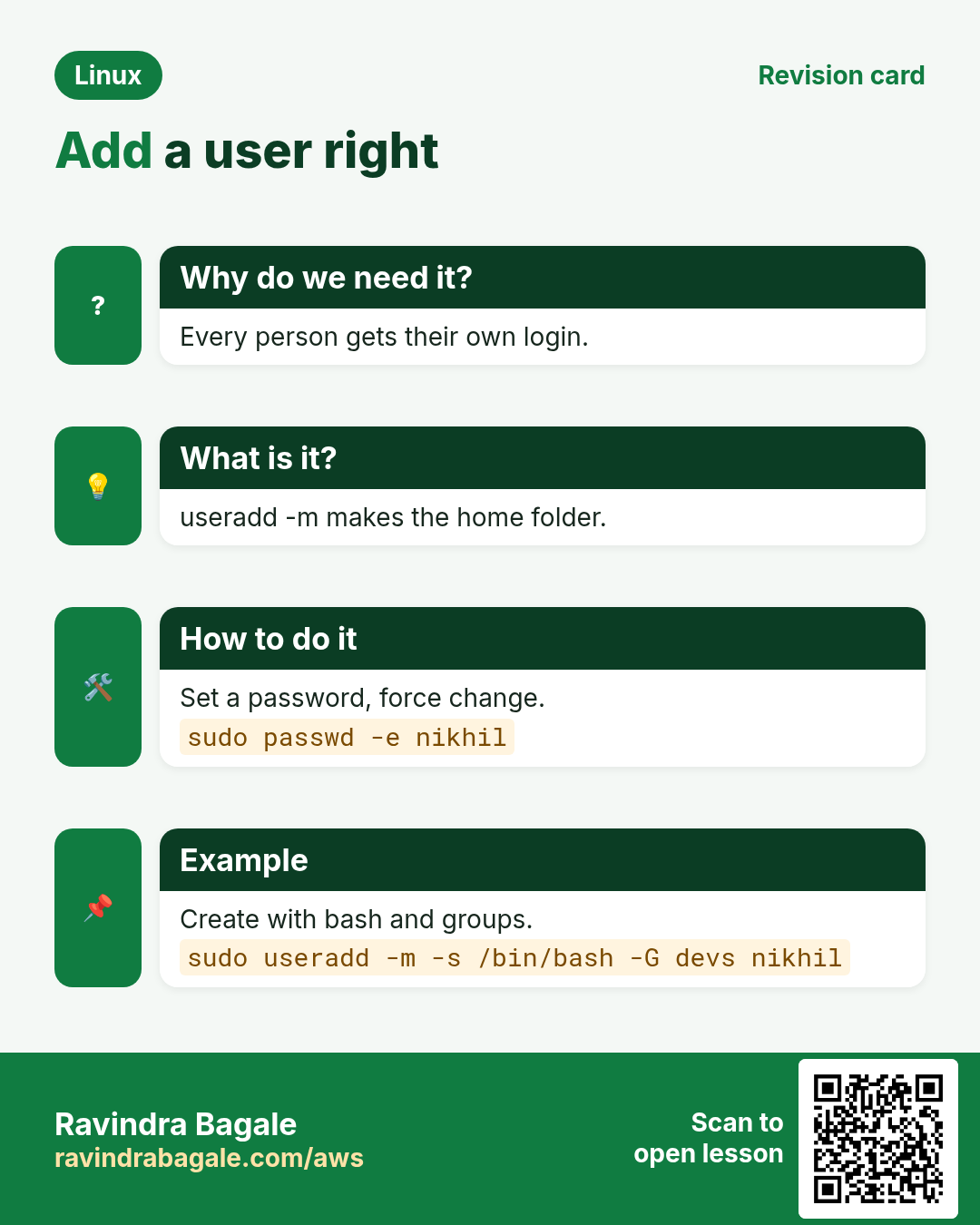
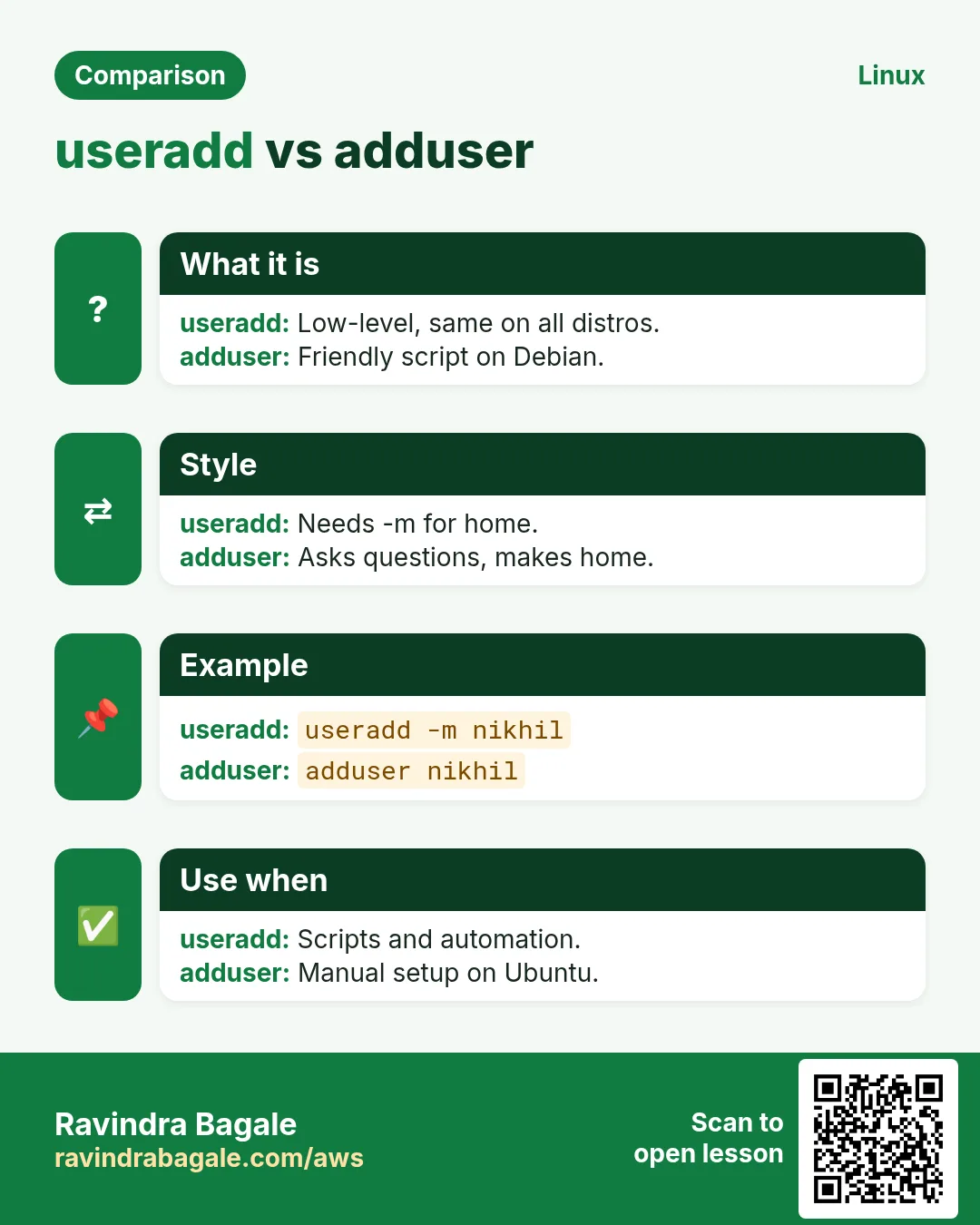
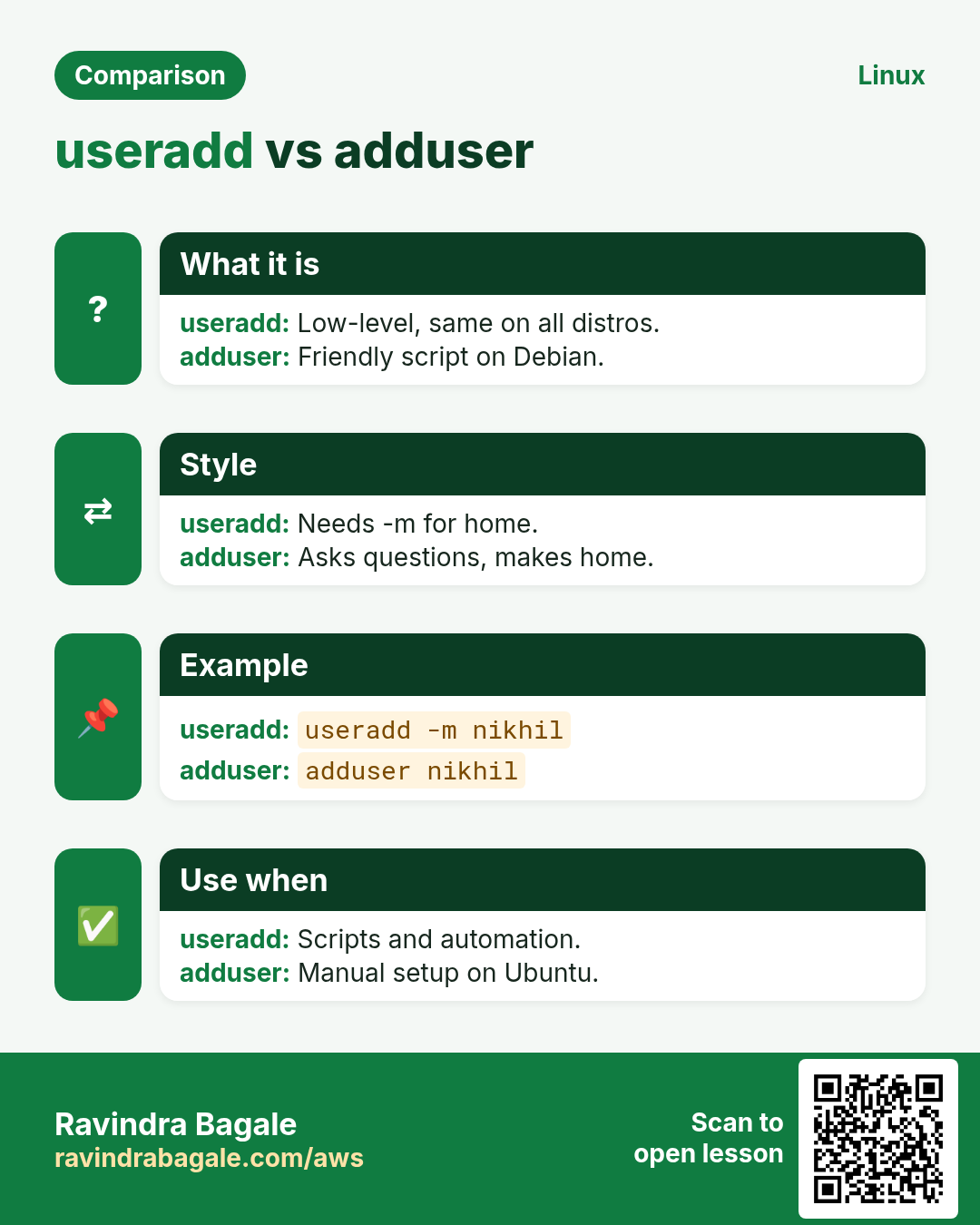
useradd NAME creates the user. Key options: -m make home folder, -d set home path, -s login shell, -c comment, -u fixed UID, -g primary group, -G extra groups, -r system user (low UID, no home by default), -e expiry date. Defaults come from /etc/default/useradd and /etc/login.defs. On Ubuntu, adduser is a friendly wrapper that asks questions.
| Option | Meaning |
|---|---|
| -m | Create home folder |
| -s /bin/bash | Login shell |
| -G a,b | Extra groups |
| -c 'text' | Full name or note |
| -u 1500 | Fixed UID |
| -r | System user |
| -e 2026-12-31 | Account expiry |
- Create a normal user with home and bash.
sudo useradd -m -s /bin/bash -c 'Priya Kulkarni' priya && getent passwd priyaOutput:
priya:x:1002:1002:Priya Kulkarni:/home/priya:/bin/bash-m made /home/priya with files from /etc/skel.
- Create a user with extra groups.
sudo useradd -m -G wheel,docker anil && id anilOutput:
uid=1003(anil) gid=1003(anil) groups=1003(anil),10(wheel),992(docker)anil gets sudo and docker on day one.
- A system user for an app (no login).
sudo useradd -r -s /sbin/nologin -d /opt/billing billing && getent passwd billingOutput:
billing:x:989:987::/opt/billing:/sbin/nologinLow UID, cannot log in. Safe for services.
- A contractor account that expires.
sudo useradd -m -e 2026-12-31 vendor1 && sudo chage -l vendor1 | grep 'Account expires'Output:
Account expires : Dec 31, 2026The account stops working after that date.
- See the defaults.
useradd -DOutput:
GROUP=100
HOME=/home
SHELL=/bin/bash
SKEL=/etc/skel
Used when you skip options.
9. passwd: set, lock and check passwords
A new user cannot log in until a password (or SSH key) is set. You also lock accounts when someone leaves.
passwd changes your own password. sudo passwd NAME sets another user's. -l lock, -u unlock, -S status, -e expire now (force change at next login), -d delete password (dangerous). To set from a script use echo 'name:pass' | sudo chpasswd.
- Set a password for priya.
sudo passwd priyaOutput:
New password:
Retype new password:
passwd: password updated successfully
Typing is hidden on screen.
- Force change at first login.
sudo passwd -e priyaOutput:
Expiring password for user priya.
passwd: Success
She must pick her own password.
- Lock and check.
sudo passwd -l anil && sudo passwd -S anilOutput:
Locking password for user anil.
passwd: Success
anil LK 2026-10-25 0 99999 7 -1
LK means locked. SSH keys may still work, so also expire the account.
- Set many passwords from a file.
sudo chpasswd < new-users.txtOutput:
(no output)Each line is name:password.
10. usermod: change an existing user
People change teams, need docker access, change their shell or must be locked out. usermod does all of this without recreating the user.
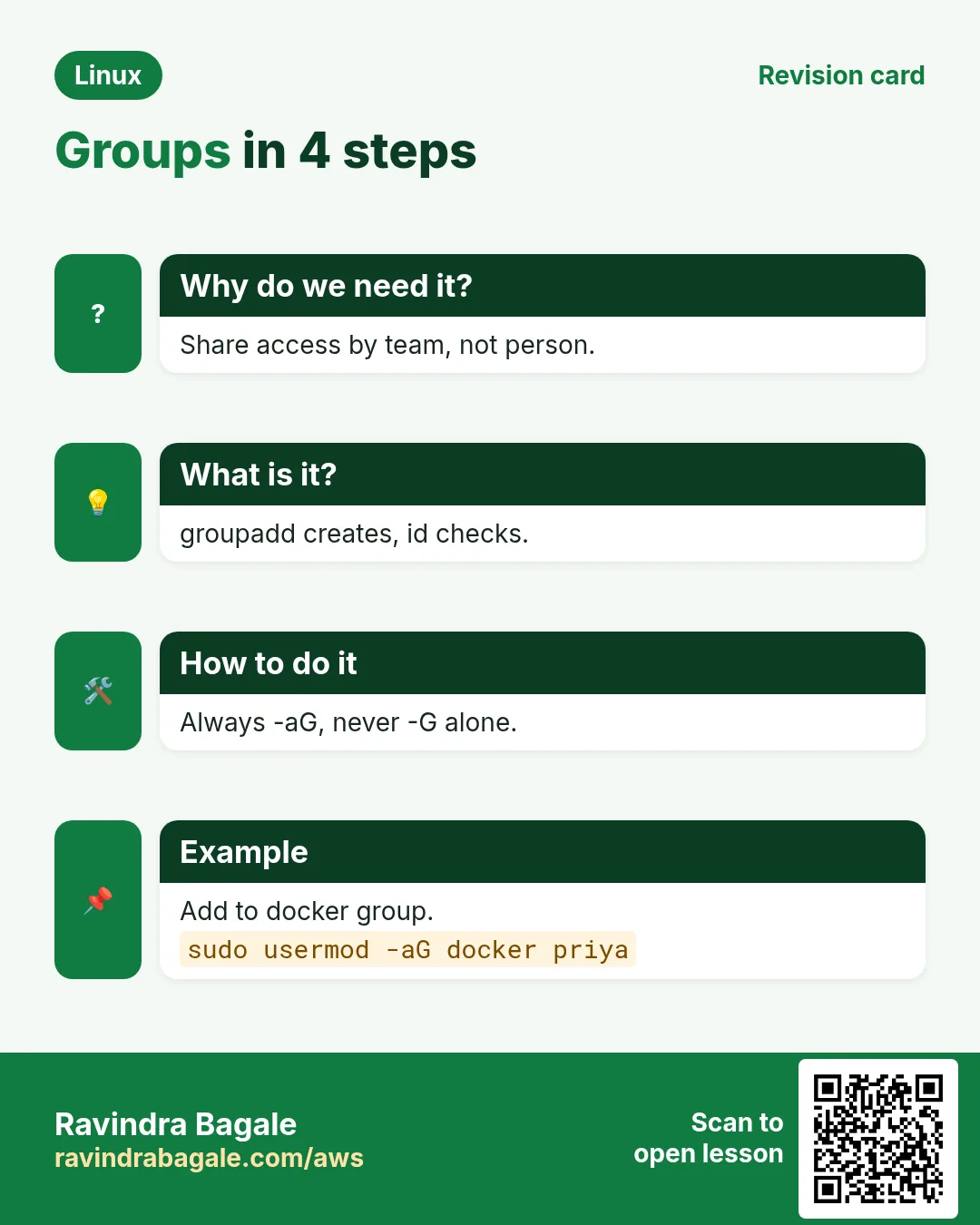
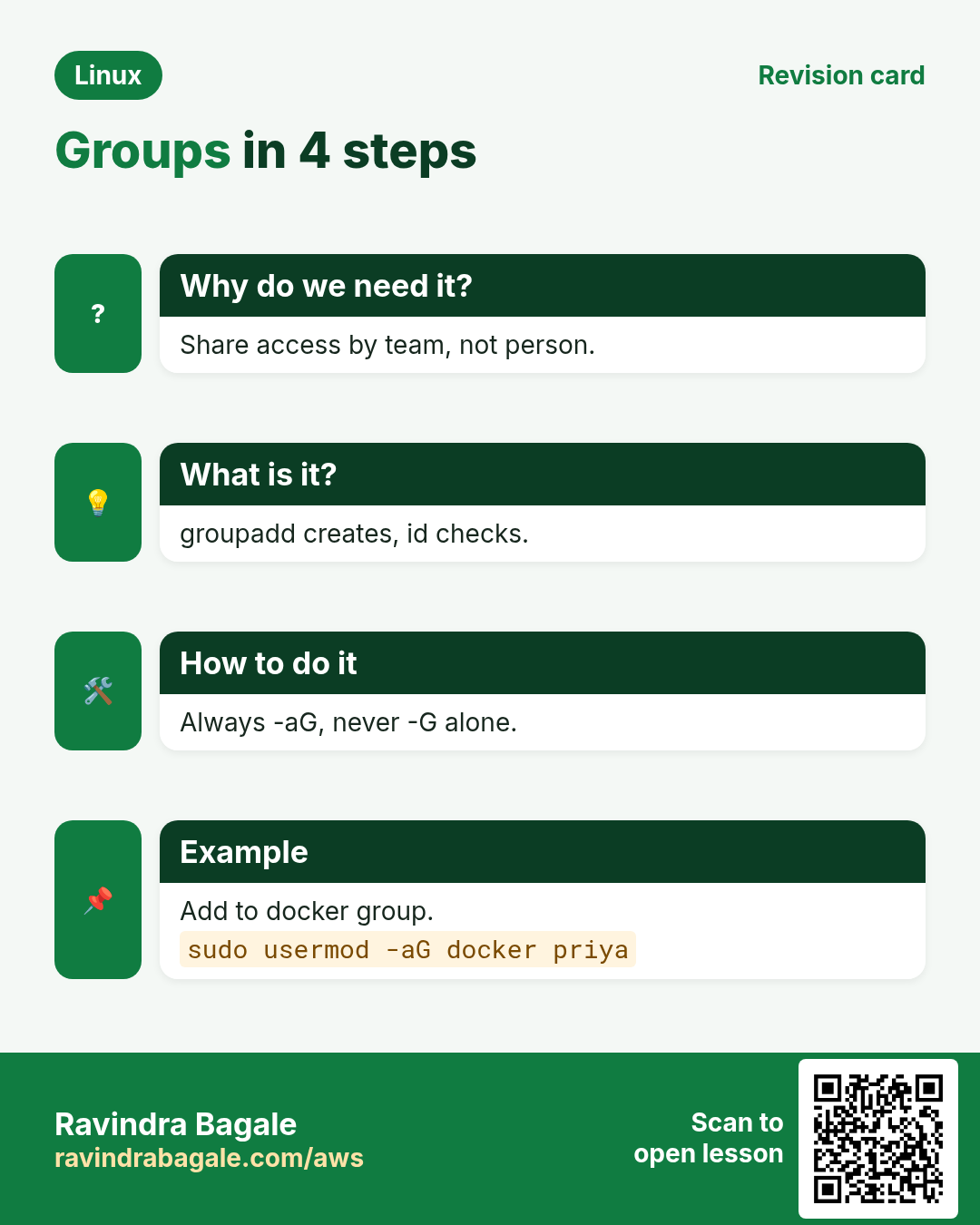
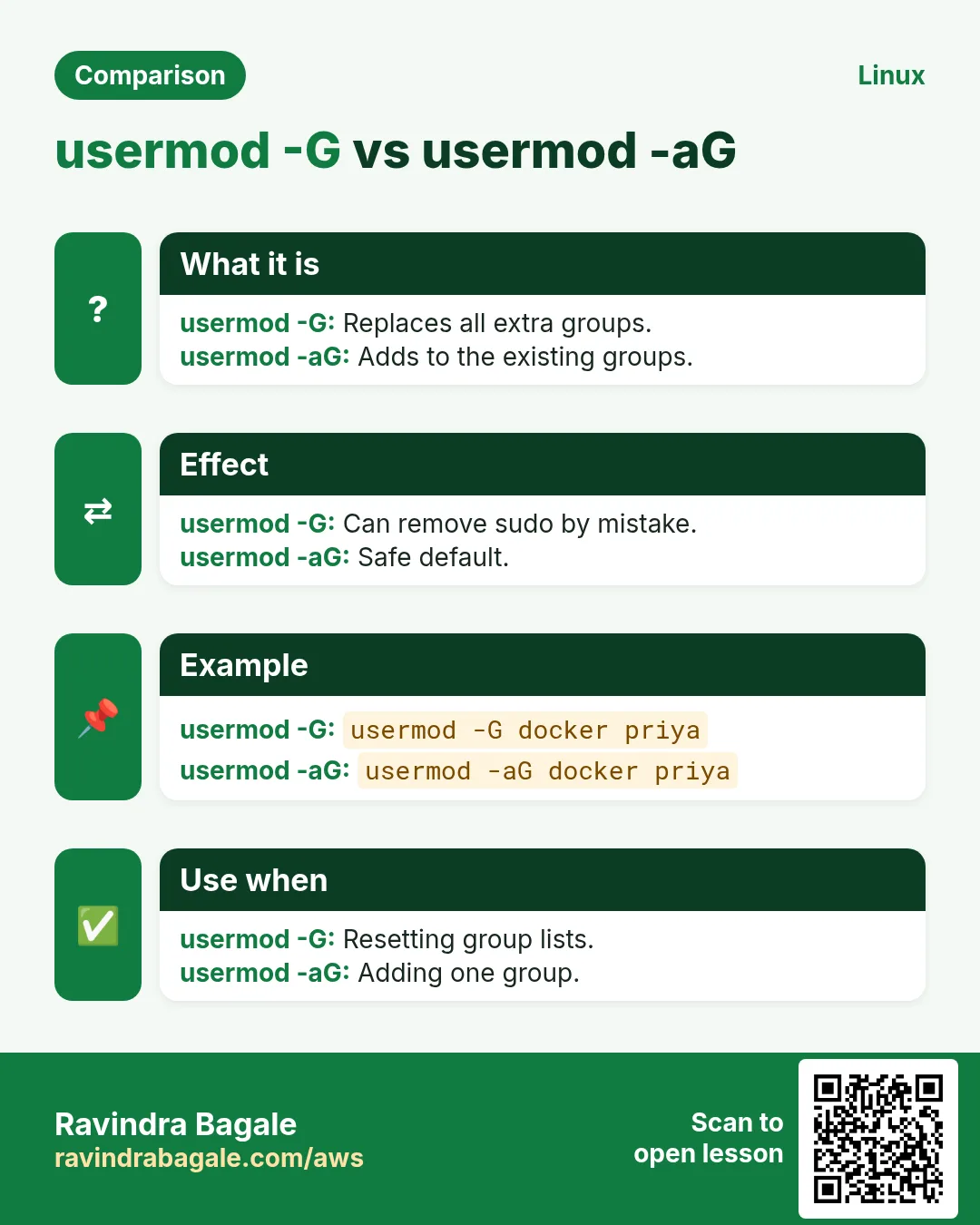
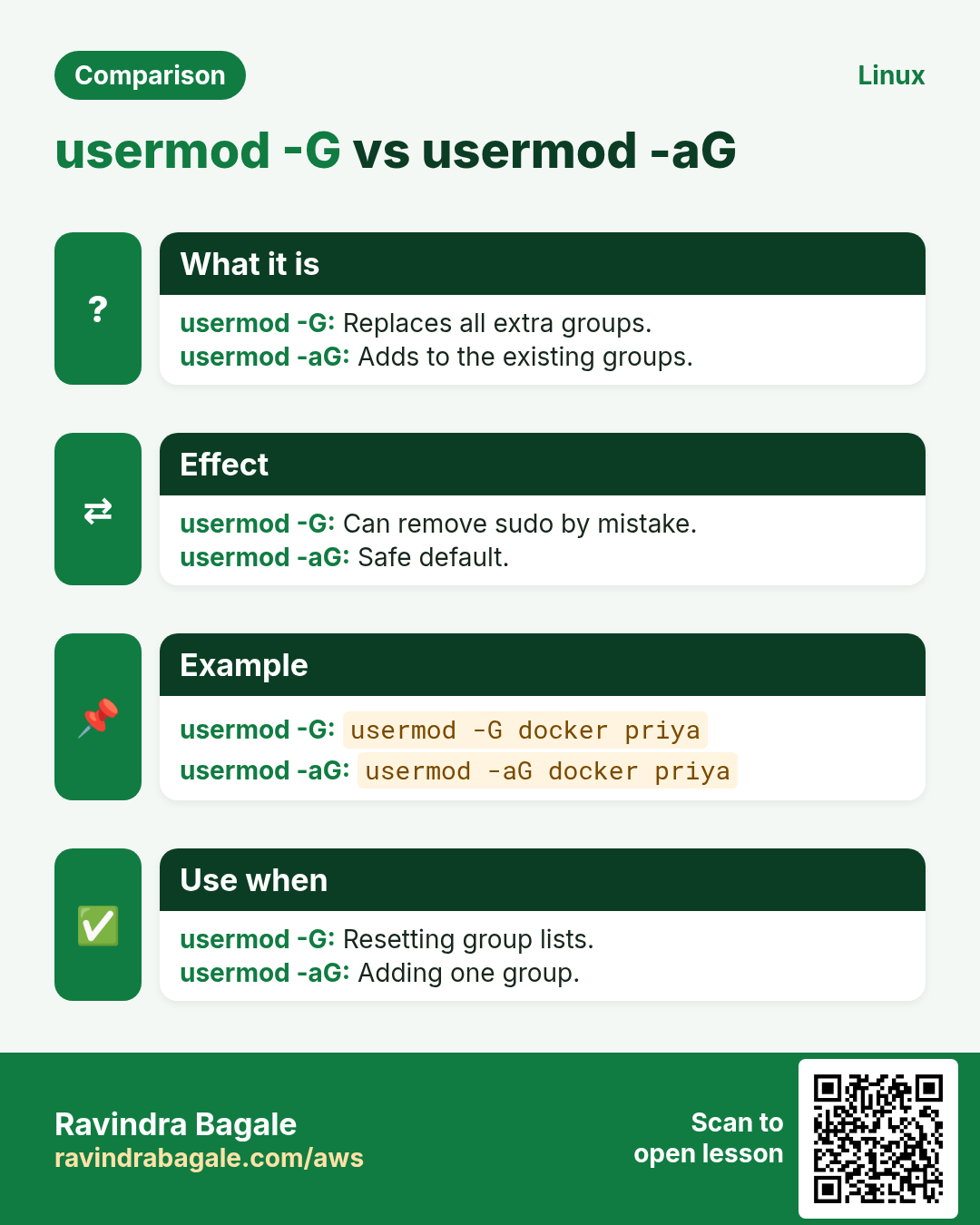
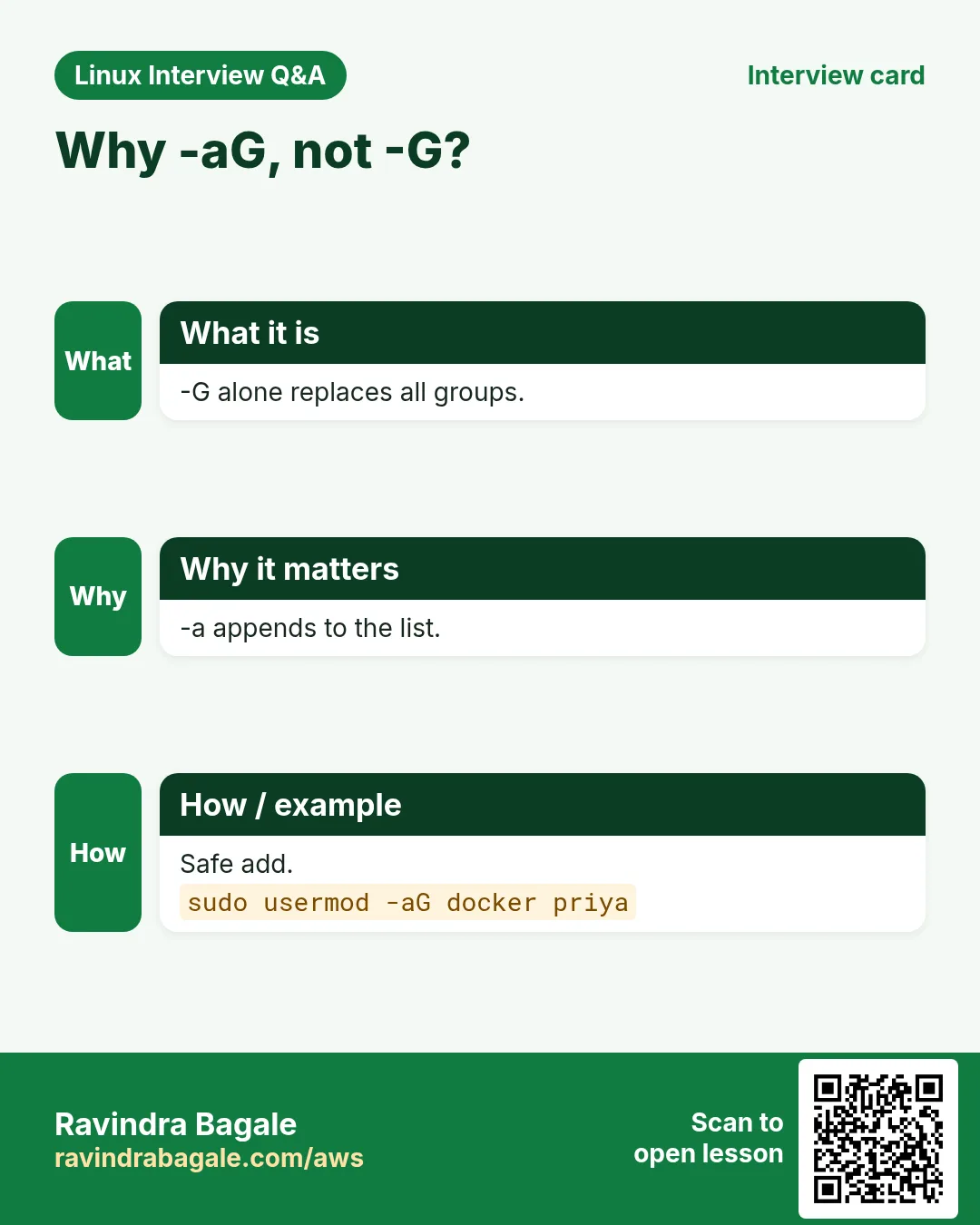
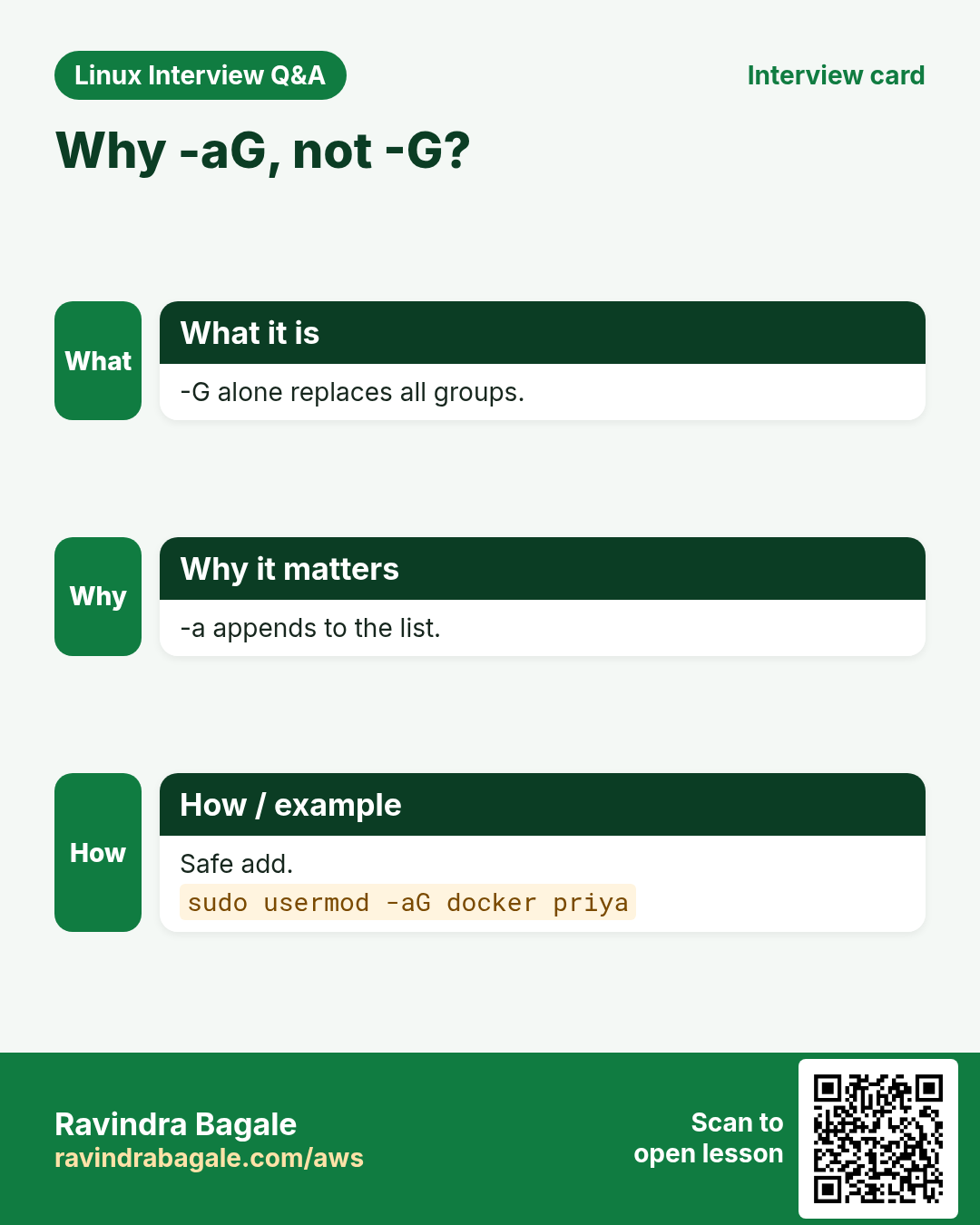
-aG GROUP append a group (ALWAYS use -a with -G, or other groups are removed). -g new primary group, -s shell, -d -m move home, -l new login name, -L lock, -U unlock, -e expiry date, -c comment.
After adding asha to reports, compare id asha with plain id inside her original login shell. The first checks the account’s configured groups, while the second shows the groups held by the running process. Start a fresh login and check again before changing the report directory’s permissions.
| Option | Meaning |
|---|---|
| -aG docker | Add to docker, keep others |
| -G docker | Set ONLY docker (removes others) |
| -s /bin/zsh | Change shell |
| -L / -U | Lock / unlock |
| -l new | Rename login |
| -e DATE | Expire on date |
- Add ravi to docker safely.
sudo usermod -aG docker ravi && groups raviOutput:
ravi : ravi wheel dockerwheel stayed because of -a.
- The common mistake.
sudo usermod -G docker ravi && groups raviOutput:
ravi : ravi dockerWithout -a, wheel was removed and ravi lost sudo.
- Change the shell.
sudo usermod -s /bin/zsh priya && getent passwd priya | cut -d: -f7Output:
/bin/zshField 7 changed.
- Lock an employee who left.
sudo usermod -L -e 1 anil && sudo chage -l anil | grep 'Account expires'Output:
Account expires : Jan 02, 1970-L locks the password, -e 1 expires the account so SSH keys stop too.
- Rename a login and move home.
sudo usermod -l priyak -d /home/priyak -m priya && ls /homeOutput:
anil priyak raviUID stays the same, files stay owned.
11. userdel: remove a user
Old accounts are a security risk. When someone leaves for good, remove the account.
userdel NAME removes the account but keeps the home folder. -r also deletes home and mail spool. Files elsewhere stay with the old UID (find them with find / -nouser). Kill the user's processes first, or userdel fails with 'user is currently used by process'.
- Back up, then delete with home.
sudo tar czf /root/anil-home.tgz /home/anil && sudo userdel -r anilOutput:
userdel: anil mail spool (/var/mail/anil) not foundJust a note; the user and home are gone.
- When the user is still logged in.
sudo userdel vendor1Output:
userdel: user vendor1 is currently used by process 4312Stop their processes first.
- Stop processes, then delete.
sudo pkill -u vendor1; sudo userdel -r vendor1 && id vendor1Output:
id: 'vendor1': no such userThe account is gone.
- Find leftover files.
sudo find / -xdev -nouser 2>/dev/nullOutput:
/srv/share/report-anil.xlsxGive them a new owner with chown.
12. groupadd, groupmod, groupdel: manage groups
Teams share folders. A group like finance or devs lets you give rights once to the whole team.
groupadd NAME creates a group (-g sets GID, -r system group). groupmod -n NEW OLD renames, -g changes GID. groupdel NAME removes it (it cannot be any user's primary group).
- Create a team group.
sudo groupadd -g 3000 finance && getent group financeOutput:
finance:x:3000:Empty group with GID 3000.
- Rename it.
sudo groupmod -n accounts finance && getent group accountsOutput:
accounts:x:3000:GID and file ownership stay.
- Delete a group.
sudo groupdel accountsOutput:
(no output)Files with GID 3000 now show just the number.
13. gpasswd: add or remove group members
usermod -aG adds one user to many groups. gpasswd is easier to add or remove one member from one group.
gpasswd -a USER GROUP adds, -d USER GROUP removes, -M u1,u2 GROUP sets the full member list, -A sets group admins.
- Add a member.
sudo gpasswd -a priya devsOutput:
Adding user priya to group devsSame as usermod -aG devs priya.
- Remove a member.
sudo gpasswd -d ravi dockerOutput:
Removing user ravi from group dockerOnly docker is removed.
- Set the whole list.
sudo gpasswd -M ravi,priya devs && getent group devsOutput:
devs:x:3001:ravi,priyaAnyone else is dropped.
14. chage: password and account ageing
Company policy says passwords expire every 90 days, and contractor accounts expire on a date.
chage -l USER lists ageing. -M max days, -m min days, -W warn days, -I inactive days after expiry, -E expiry date (YYYY-MM-DD, -1 for never), -d 0 forces change at next login. System defaults are PASS_MAX_DAYS etc. in /etc/login.defs.
- See the ageing.
sudo chage -l priyaOutput:
Last password change : Oct 25, 2026
Password expires : never
Account expires : never
No policy yet.
- Apply a 90 day policy.
sudo chage -M 90 -m 1 -W 7 priya && sudo chage -l priya | grep 'Password expires'Output:
Password expires : Jan 23, 202790 days from the last change.
- Force a change now.
sudo chage -d 0 priyaOutput:
(no output)At next login she must set a new password.
- Remove expiry.
sudo chage -E -1 vendor1Output:
(no output)-1 means never expires.
15. su: switch to another user
You need to test what a service user can see, or work as another user for a while.
su - USER starts a full login shell as USER (asks USER's password). The - loads their environment and home. su without a name means root. sudo su - or sudo -iu USER uses your own password instead. -c runs one command. -s gives a shell to a nologin user.
- Become priya.
su - priyaOutput:
Password:
[priya@web1 ~]$
Prompt shows the new user. Type exit to go back.
- Run one command as a service user.
sudo su -s /bin/bash -c 'ls /var/lib/nginx' nginxOutput:
body proxy tmpTests what nginx can read.
- Why the dash matters.
su priya -c pwd; su - priya -c pwdOutput:
/home/ravi
/home/priya
Without - you keep the old folder and environment.
16. who, w and last: who is logged in
Before a reboot, or during a security check, you need to know who is on the server and who logged in recently.
who lists current logins. w also shows what each person is running and load. last shows login history from /var/log/wtmp; lastb shows failed logins (root only). lastlog shows the last login for every user.
- Who is on now?
whoOutput:
ravi   pts/0  2026-10-25 09:12 (49.36.10.4)
priya  pts/1  2026-10-25 10:02 (103.21.5.9)
Two people are connected over SSH.
- What are they doing?
w -hOutput:
ravi  pts/0 49.36.10.4 09:12 0.00s bash
priya pts/1 103.21.5.9 10:02 2:10 vim app.conf
Warn priya before restarting.
- Recent logins.
last -n 3Output:
priya pts/1 103.21.5.9 Sun Oct 25 10:02 still logged in
ravi pts/0 49.36.10.4 Sun Oct 25 09:12 still logged in
reboot system boot 5.14.0 Sat Oct 24 22:01
Includes reboots.
- Failed logins.
sudo lastb -n 2Output:
admin ssh:notty 185.220.1.9 Sun Oct 25 03:11 - 03:11
root ssh:notty 185.220.1.9 Sun Oct 25 03:11 - 03:11
Bots guessing passwords. Use keys and fail2ban.
17. Real examples from many industries
The same Linux skill shows up in every kind of company. Seeing it in many places helps you remember it.
Each row is a made-up team. It shows who uses this and how.
| Team and city | How they use it | Command |
|---|---|---|
| Sneha, IT admin, Pune | Creates accounts for new joiners with home and groups | useradd -m -s /bin/bash -G devs NAME |
| Omar, hospital IT, Dubai | Locks accounts of staff who leave the same day | usermod -L -e 1 NAME |
| Lucy, bank compliance, London | Enforces 90 day password ageing | chage -M 90 -W 7 NAME |
| Arjun, SaaS DevOps, Bengaluru | Gives the deploy user docker access | usermod -aG docker deploy |
| Mei, university lab, Singapore | Creates 60 student accounts from a file | newusers students.txt |
| Carlos, retail ops, Mexico City | Runs apps as system users without login | useradd -r -s /sbin/nologin pos |
18. Common errors and how to fix them
Everyone hits these errors. Knowing the cause saves hours.
Read the exact message first. Then match it to a row below.
| Error you see | Why it happens | How to fix |
|---|---|---|
useradd: user 'priya' already exists | The name is taken | Pick another name or change the existing user with usermod.getent passwd priya |
useradd: Permission denied. | Normal users cannot create users | Run with sudo.sudo useradd -m priya |
usermod: group 'dockr' does not exist | Typo or the group is not created | Check the name or create it.getent group docker |
User lost sudo after usermod -G | -G without -a replaced all groups | Add back with -aG.sudo usermod -aG wheel ravi |
permission denied while trying to connect to the Docker daemon socket | New group not active in the old shell | Log out and in, or newgrp.newgrp docker |
userdel: user vendor1 is currently used by process 4312 | The user still has running processes | Stop them first.sudo pkill -u vendor1 |
su: Authentication failure | Wrong password, or root has no password (Ubuntu) | Use sudo -i with your own password.sudo -i |
This account is currently not available. | Shell is /sbin/nologin | Expected for service users; use -s to test.sudo su -s /bin/bash -c id nginx |
passwd: Authentication token manipulation error | Disk full, read-only root, or /etc/shadow locked | Check df -h and mount; remove stale lock files.df -h /; ls /etc/*.lock |
Your account has expired; please contact your system administrator | Account expiry date passed | Extend with chage -E.sudo chage -E 2027-03-31 vendor1 |
19. Troubleshooting step by step
When a user cannot log in or cannot access something, check identity, account state and groups in this order.
Go top to bottom. Stop at the first step that shows the problem.
- Does the user exist?
getent passwd priya- Is the shell a real shell?
getent passwd priya | cut -d: -f7- Is the password locked or expired?
sudo passwd -S priya; sudo chage -l priya- Which groups does the user have?
id priya- Did the group change need a new login?
sudo -iu priya id -Gn- Check the auth log.
sudo journalctl -u sshd --since '10 min ago' | tail20. Lab 1: Onboard and offboard an employee
Create a user with groups and a forced password change, then lock and remove them safely.
A full hands-on lab. Run every step on a test Linux machine (an EC2 instance, a VM, or WSL).
- Create a team group.
sudo groupadd devs && getent group devsOutput:
devs:x:3001:- Create the user.
sudo useradd -m -s /bin/bash -c 'Lab User' -G devs labuser && id labuserOutput:
uid=1004(labuser) gid=1004(labuser) groups=1004(labuser),3001(devs)- Set a password and force change.
echo 'labuser:Temp@12345' | sudo chpasswd && sudo chage -d 0 labuser && sudo chage -l labuser | head -2Output:
Last password change : password must be changed
Password expires : password must be changed- Lock the user on the last day.
sudo usermod -L -e 1 labuser && sudo passwd -S labuserOutput:
labuser LK 1970-01-01 0 99999 7 -1- Back up home and delete.
sudo tar czf /root/labuser.tgz /home/labuser && sudo userdel -r labuser && id labuserOutput:
id: 'labuser': no such user21. Lab 2: Read the user databases
Use awk and getent to answer real admin questions from /etc/passwd and /etc/group.
A full hands-on lab. Run every step on a test Linux machine (an EC2 instance, a VM, or WSL).
- List human users.
awk -F: '$3>=1000 && $3<65534 {print $1, $6}' /etc/passwdOutput:
ravi /home/ravi
priya /home/priya- Users who can log in.
grep -v -E 'nologin|false' /etc/passwd | cut -d: -f1Output:
root
ravi
priya- Check for extra UID 0.
awk -F: '$3==0' /etc/passwdOutput:
root:x:0:0:root:/root:/bin/bash- Who can use sudo?
getent group wheel sudoOutput:
wheel:x:10:ravi,priya- Accounts with no password set.
sudo awk -F: '$2=="" {print $1}' /etc/shadowOutput:
(no output)Ravindra Bagale's Tip
Always use usermod -aG (with -a) to add a group. Plain -G silently removes every other group, and people lose sudo or docker. After adding a group, the user must log in again before it works.
Ravindra Bagale's Tip – मराठी
Group जोडायला नेहमी usermod -aG (-a सह). फक्त -G बाकी सगळे groups शांतपणे काढतो, आणि लोकांचं sudo किंवा docker जातं. Group जोडल्यावर user ने परत login केल्यावरच तो चालतो.
Ravindra Bagale's Tip – हिंदी
Group जोड़ने के लिए हमेशा usermod -aG (-a के साथ) लगाएं. सिर्फ -G बाकी सारे groups चुपचाप हटा देता है, और लोगों का sudo या docker चला जाता है. Group जोड़ने के बाद user को दोबारा login करना पड़ता है.
22. Frequently asked questions
Q. useradd or adduser?
useradd works the same on every distro. adduser (Debian/Ubuntu) is an interactive helper that creates the home and asks for a password.
Q. What is the difference between primary and secondary groups?
The primary group (field 4 of /etc/passwd) owns new files you create. Secondary groups give extra access.
Q. Why is the password field 'x'?
Hashes moved to /etc/shadow, which only root can read.
Q. What UID do normal users get?
Usually 1000 and up (UID_MIN in /etc/login.defs). System users are below that.
Q. Does passwd -l stop SSH key logins?
No. Also expire the account (usermod -e 1) or remove the key.
Q. Can I edit /etc/passwd by hand?
Use vipw or vigr if you must; they lock the file. Prefer useradd and usermod.
Q. Why do my new groups not show?
Groups load at login. Log out and back in, or use newgrp.
Q. Where do new home files come from?
From /etc/skel. Put a default .bashrc there for all new users.
23. Interview questions and answers
Beginner level
Q. How do you see your UID and groups?
id.
Q. Where are user accounts stored?
/etc/passwd, passwords in /etc/shadow, groups in /etc/group.
Q. How do you create a user with a home folder?
sudo useradd -m NAME, then sudo passwd NAME.
Q. What is UID 0?
root, the super user.
Mid level level
Q. How do you add a user to docker without removing other groups?
sudo usermod -aG docker USER, then log in again.
Q. How do you lock a user completely?
usermod -L to lock the password and usermod -e 1 (or chage -E 0) to expire the account; also remove SSH keys.
Q. What is a system user?
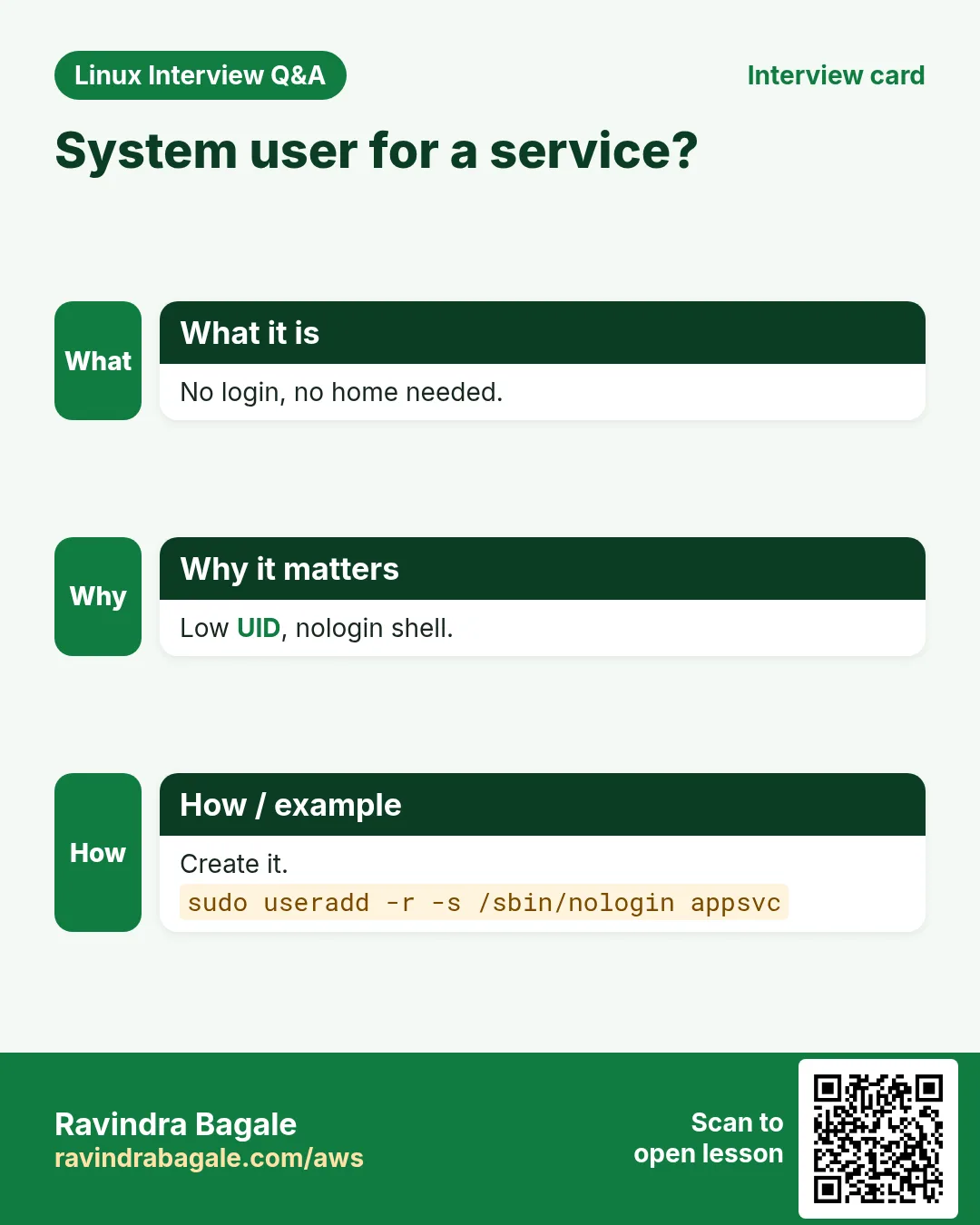
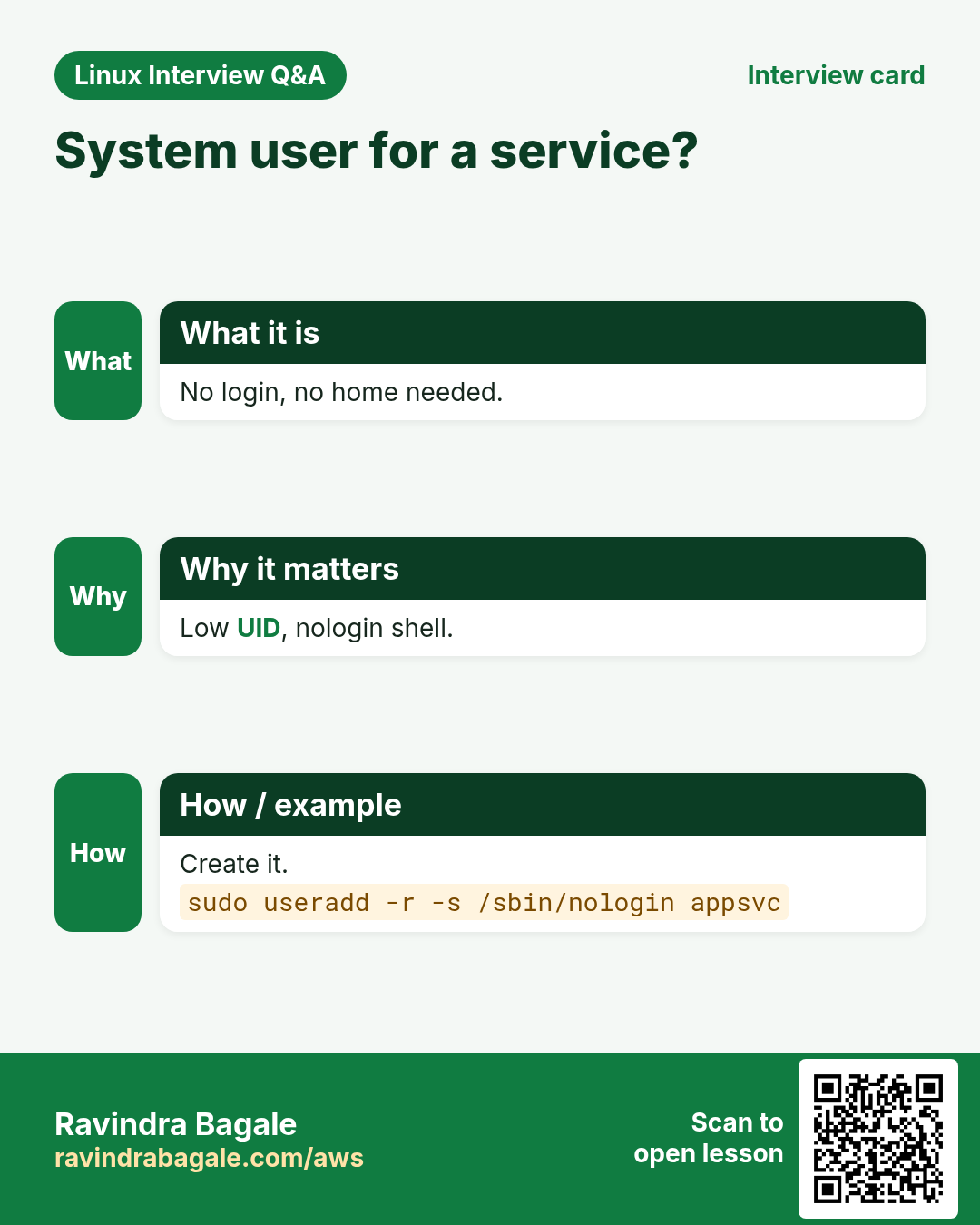
An account for a service with a low UID and usually /sbin/nologin, created with useradd -r.
Q. How do you force a password change at next login?
chage -d 0 USER or passwd -e USER.
Senior level
Q. Users exist in LDAP, but getent passwd does not show them. What do you check?
nsswitch.conf (passwd: files sss), sssd status and logs, network to the directory, and cache (sss_cache -E).
Q. Same user has different UIDs on two servers sharing NFS. What happens and how do you fix it?
Files show wrong owners. Use central identity (LDAP/IPA/AD) or fixed UIDs with useradd -u, then chown files to the right UID.
Q. How would you offboard an engineer across 200 servers?
Disable in the central directory, revoke SSH keys and sudo rules via config management, expire local accounts, rotate shared secrets, and audit with last and find -user.
Q. Why is a second UID 0 account dangerous even with another name?
Linux checks the number, so it is full root and easy to miss in audits.
Try at home
- On a test machine, create user 'guest1' with a home folder, add it to a new group 'readers', set a password that must be changed at first login, then lock and delete it.
- Use awk on /etc/passwd to print every user whose shell is /bin/bash.
Practise this chapter
Interview questions and answers
A shared report remains unreadable after you add a user to a group. What would you inspect?
I would compare group membership in a fresh process with the file’s numeric group and permission bits, including the containing directories. A long-running process may still have old memberships. On shared storage, matching group names do not prove the numerical IDs are aligned.
Check your understanding
Choose an answer, then compare your reasoning with the explanation.
Practice Tasks
Practice checks run in your browser. They check the answer for this exercise; they do not create resources or connect to your AWS account.
About this scenarioMaple Leaf Books is a bookselling business in Toronto. Emily Tremblay looks after its IT and cloud work. They count money in CAD and run their AWS resources in the ca-central-1 Region. In the tasks below you do real jobs for them using what this lesson teaches. All names, account IDs, IP addresses and numbers are made up for practice.
0 / 17
Easy My primary group
Check before running admin work.
Emily Tremblay at Maple Leaf Books wants to print only the name of user kavya's primary group.
- Find the Linux command that does this job.
- Add the options (like -r or -h) the task needs.
- Add the file names, folders or users in the right order.
- Use sudo if the job changes system files or users. Click Check answer.
Easy UID and groups
Access problems start with groups.
Show the UID, GID and groups of user kavya.
- Find the Linux command that does this job.
- Add the options (like -r or -h) the task needs.
- Add the file names, folders or users in the right order.
- Use sudo if the job changes system files or users. Click Check answer.
Easy Only group names
Quick check of membership.
List only the group names of user deploy.
- Find the Linux command that does this job.
- Add the options (like -r or -h) the task needs.
- Add the file names, folders or users in the right order.
- Use sudo if the job changes system files or users. Click Check answer.
Easy Create a user with home
New joiner at BIZ.
Create user nikhil with a home folder.
- Find the Linux command that does this job.
- Add the options (like -r or -h) the task needs.
- Add the file names, folders or users in the right order.
- Use sudo if the job changes system files or users. Click Check answer.
Easy Set a password
A new user needs a password.
Set the password of user nikhil (as root).
- Find the Linux command that does this job.
- Add the options (like -r or -h) the task needs.
- Add the file names, folders or users in the right order.
- Use sudo if the job changes system files or users. Click Check answer.
Easy Create a group
Teams share files through groups.
Create a group named finance.
- Find the Linux command that does this job.
- Add the options (like -r or -h) the task needs.
- Add the file names, folders or users in the right order.
- Use sudo if the job changes system files or users. Click Check answer.
Easy Recent logins
Who logged in after the incident?
Show the last 5 logins.
- Find the Linux command that does this job.
- Add the options (like -r or -h) the task needs.
- Add the file names, folders or users in the right order.
- Use sudo if the job changes system files or users. Click Check answer.
Medium Look up a user entry
Works for local and LDAP users.
Print the passwd entry for user ravi using the name service lookup tool.
- Find the Linux command that does this job.
- Add the options (like -r or -h) the task needs.
- Add the file names, folders or users in the right order.
- Use sudo if the job changes system files or users. Click Check answer.
Medium User with shell and groups
Developers need bash and the devs group.
Create user asha with a home, bash as shell and extra group devs.
- Find the Linux command that does this job.
- Add the options (like -r or -h) the task needs.
- Add the file names, folders or users in the right order.
- Use sudo if the job changes system files or users. Click Check answer.
Medium System user for a service
Services must not log in.
Create a system user named appsvc with no login shell (/sbin/nologin).
- Find the Linux command that does this job.
- Add the options (like -r or -h) the task needs.
- Add the file names, folders or users in the right order.
- Use sudo if the job changes system files or users. Click Check answer.
Medium Force change at next login
Temporary passwords must be changed.
Expire the password of nikhil so he must change it at next login.
- Find the Linux command that does this job.
- Add the options (like -r or -h) the task needs.
- Add the file names, folders or users in the right order.
- Use sudo if the job changes system files or users. Click Check answer.
Medium Add to a group safely
Without -a, other groups are removed.
Add user priya to the docker group without removing her other groups.
- Find the Linux command that does this job.
- Add the options (like -r or -h) the task needs.
- Add the file names, folders or users in the right order.
- Use sudo if the job changes system files or users. Click Check answer.
Medium Lock an account
Someone is on long leave.
Lock the account of user rahul with usermod.
- Find the Linux command that does this job.
- Add the options (like -r or -h) the task needs.
- Add the file names, folders or users in the right order.
- Use sudo if the job changes system files or users. Click Check answer.
Medium Remove a user and home
Leaver cleanup.
Delete user intern1 together with the home folder.
- Find the Linux command that does this job.
- Add the options (like -r or -h) the task needs.
- Add the file names, folders or users in the right order.
- Use sudo if the job changes system files or users. Click Check answer.
Medium See password ageing
Audits ask for expiry.
List the password ageing details of user kavya.
- Find the Linux command that does this job.
- Add the options (like -r or -h) the task needs.
- Add the file names, folders or users in the right order.
- Use sudo if the job changes system files or users. Click Check answer.
Medium Become a user with login shell
Test what deploy sees.
Switch to user deploy with a full login environment using su.
- Find the Linux command that does this job.
- Add the options (like -r or -h) the task needs.
- Add the file names, folders or users in the right order.
- Use sudo if the job changes system files or users. Click Check answer.
Hard Max password age 90 days
Policy at BIZ says 90 days.
Set the maximum password age of priya to 90 days.
- Find the Linux command that does this job.
- Add the options (like -r or -h) the task needs.
- Add the file names, folders or users in the right order.
- Use sudo if the job changes system files or users. Click Check answer.
24. Related chapters
- Linux Ops Refresh for DevOps
- Bash Scripting for Automation
- Linux grep and find Commands with Examples
- How to Set Up Passwordless SSH Between Linux Servers
In short
- whoami, id and groups show who you are.
- /etc/passwd 7 fields; hashes in /etc/shadow; groups in /etc/group.
- useradd -m -s -G -r -e creates users.
- usermod -aG adds a group; never plain -G.
- passwd -l, usermod -L -e 1 and userdel -r offboard users.
- chage sets ageing; su - switches users; last shows history.
Revision, comparison and interview cards
Revise this lesson in a few minutes. Save the cards on your phone or download them as PNG files. The QR code on each card opens this lesson.
More cards: Ravi Sir's Cards.