Shell Scripting Complete 8: String Manipulation and Parameter Expansion (${var#}, ${var%}, ${var//}) Explained Simply
Scripts work with text all the time: file names, dates, versions, URLs, log lines and user input. Bash can cut, replace, trim, change case and measure text by itself, without calling sed or awk. This is called parameter expansion. In this chapter you learn ${#var} for length, ${var:start:len} for substrings, # and % to remove prefixes and suffixes, / to replace, ^^ and ,, for case, defaults with :- := :? and :+, indirect names, and printf for clean formatting. Every command has an everyday example first and then examples from many industries.
In this chapter
- Measure length and cut substrings
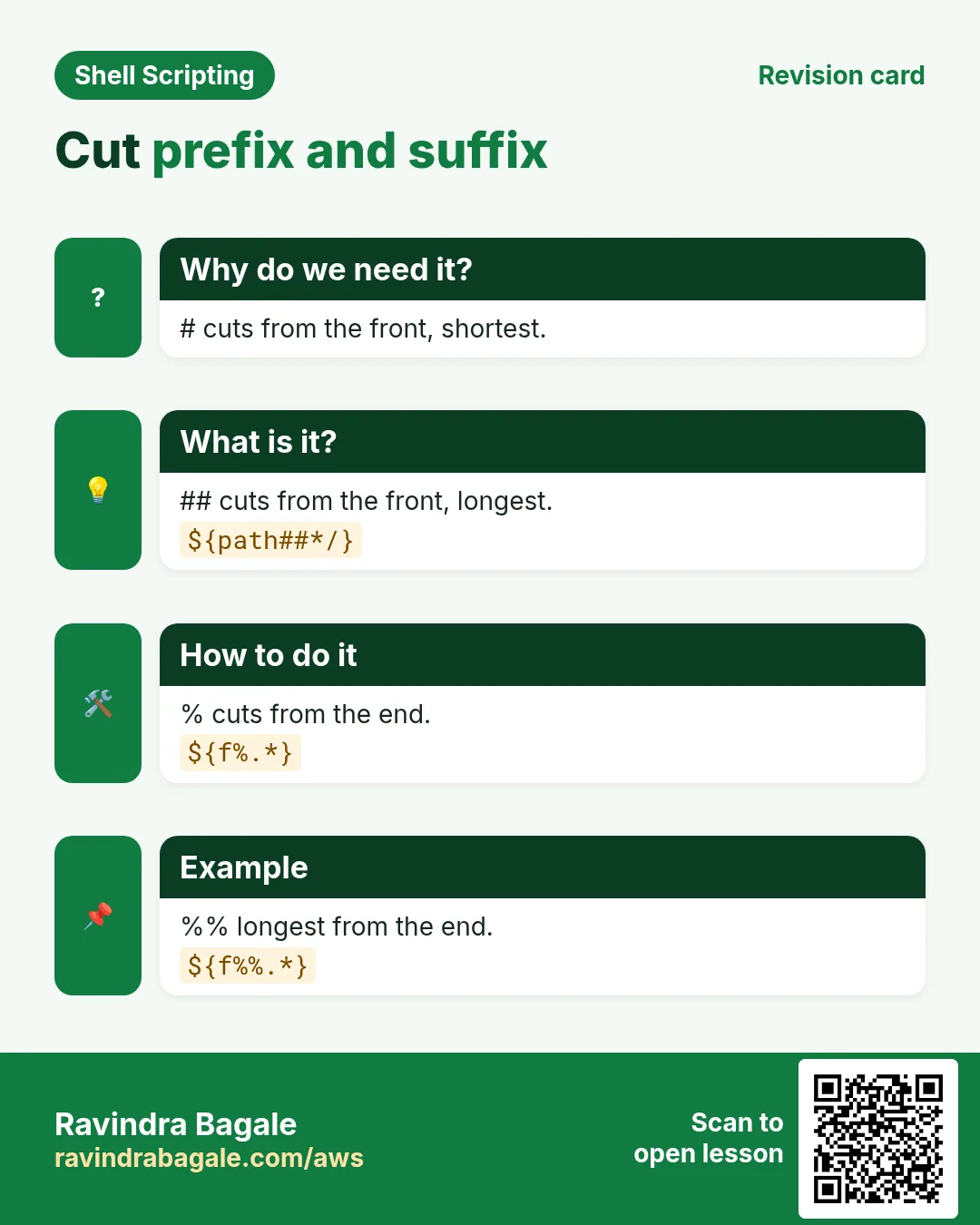
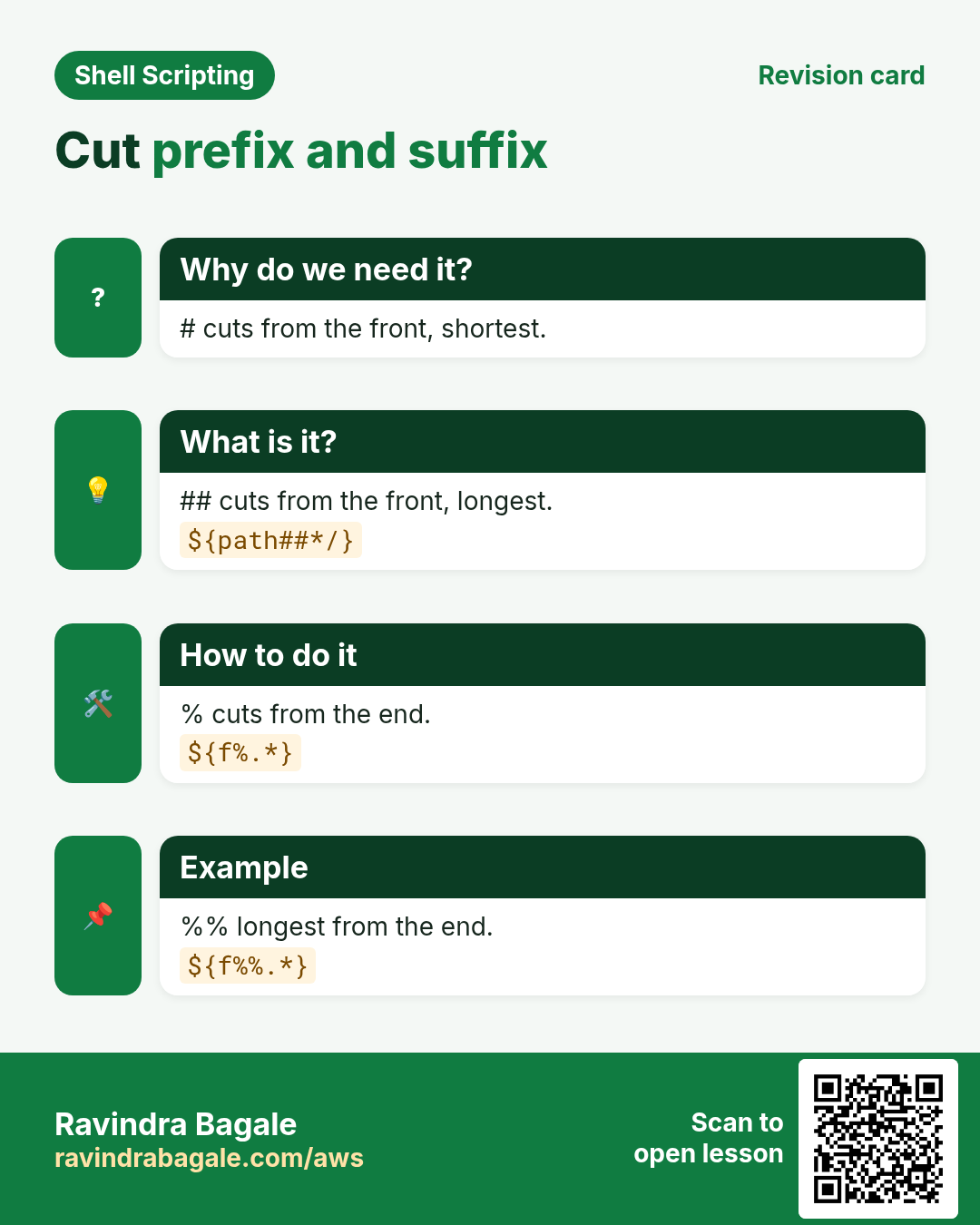
- Remove prefixes and suffixes with # and %
- Replace text with / and //
- Change case with ^^ and ,,
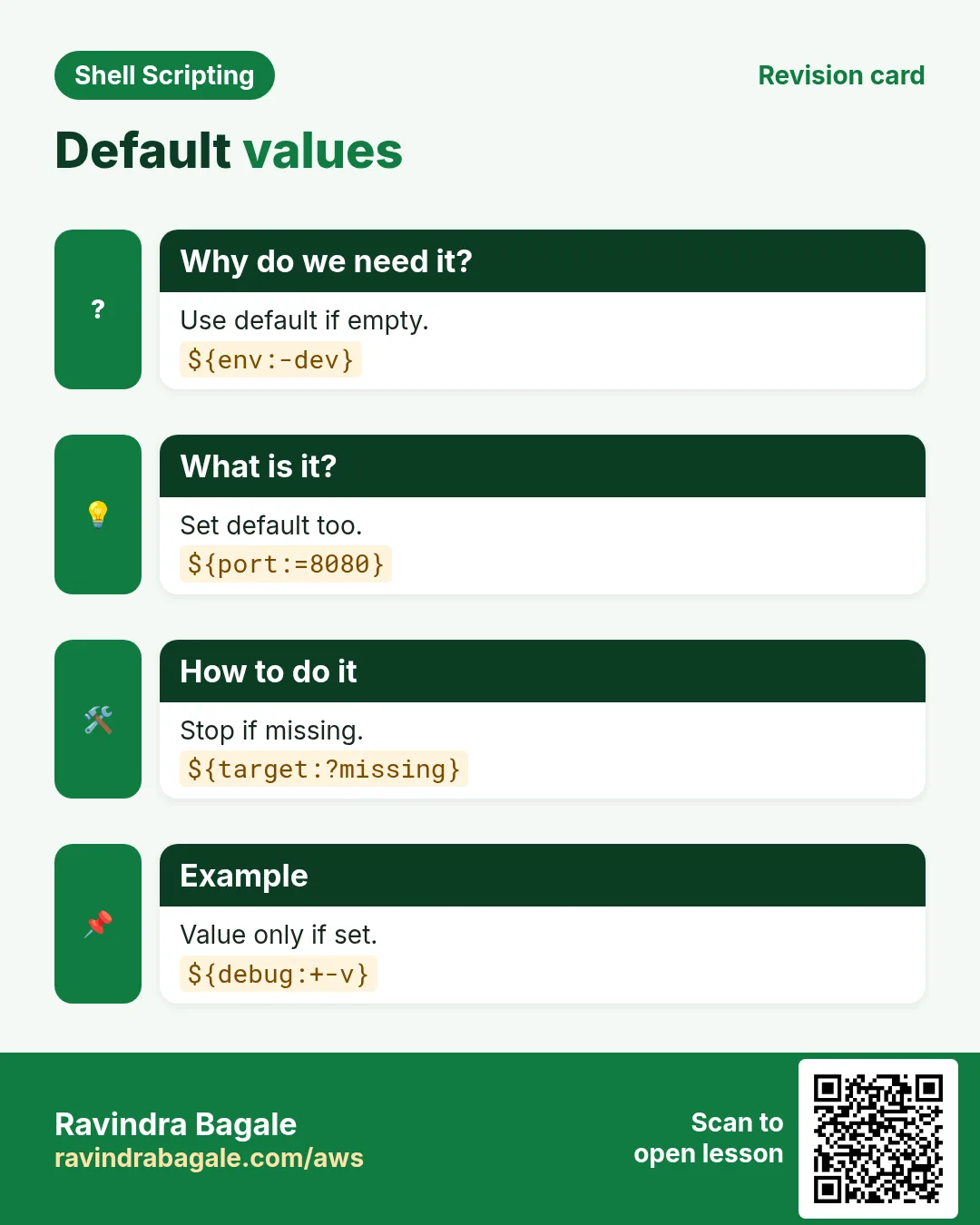
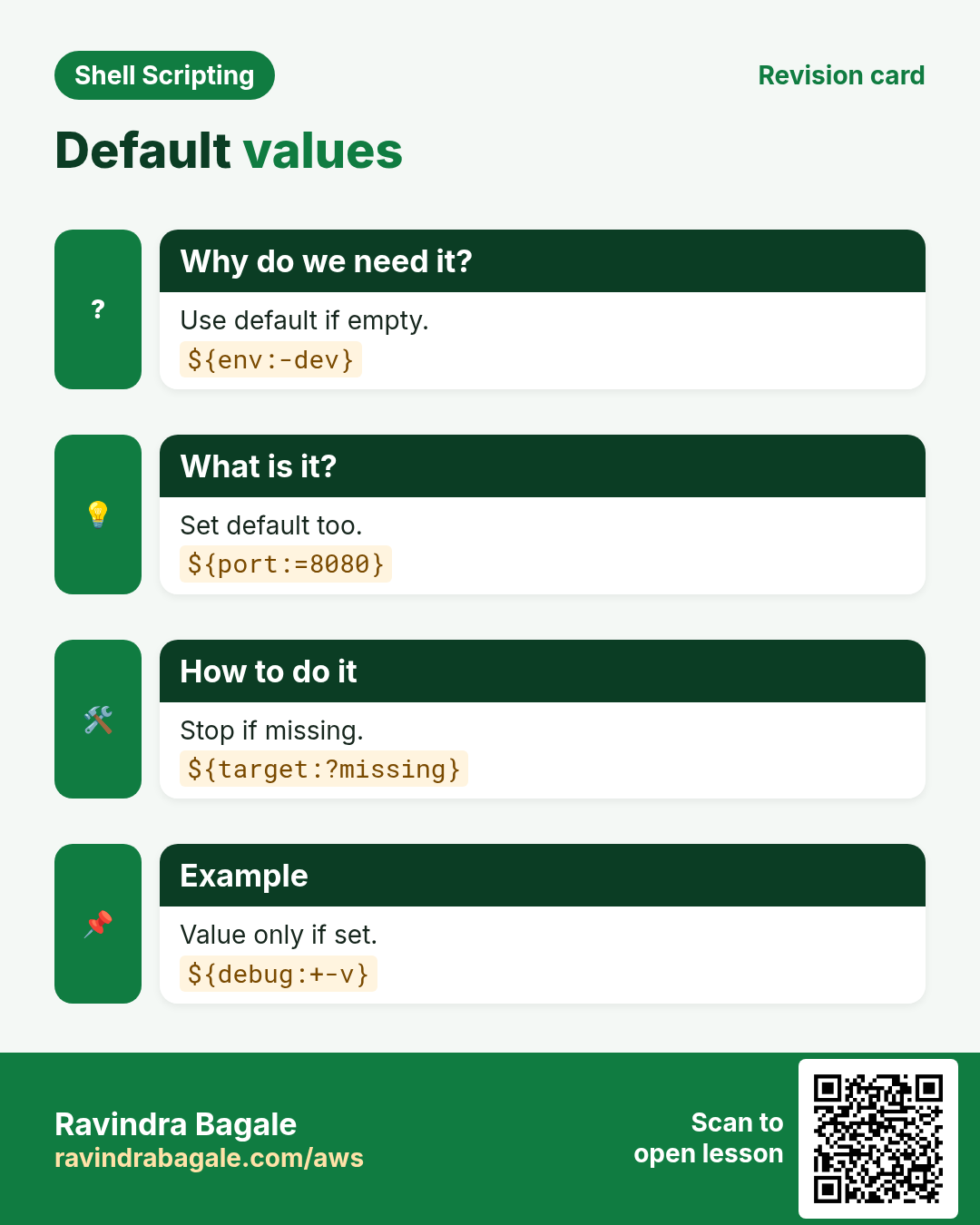
- Use defaults :- := :? :+
- Format output with printf
1. An everyday example: a tailor and a long cloth
A tailor gets a long cloth. He measures it, cuts the first part, trims the edges, and sometimes changes a patch. He never sends the cloth to another shop for this; he has scissors and tape on his own table. Bash parameter expansion is the scissors and tape for text, right inside your script.
Cloth = the string in a variable. Tape = ${#var} length. Cutting a piece = ${var:start:len}. Trimming the left edge = ${var#pattern}. Trimming the right edge = ${var%pattern}. Changing a patch = ${var/old/new}. Spare cloth when none given = ${var:-default}.
2. Length and substrings
You often need to check if a PIN code has 6 digits, or take the year from a date like 2026-10-25.
${#v} gives the number of characters. ${v:start} gives everything from position start (counting from 0). ${v:start:len} gives len characters. A negative start counts from the end but needs a space: ${v: -4}. These are built into bash, so they are fast even inside big loops.
| Form | Gives |
|---|---|
| ${#v} | length |
| ${v:2} | from index 2 to end |
| ${v:0:4} | first 4 chars |
| ${v: -3} | last 3 chars |
| ${v:2:-1} | from 2, drop last 1 |
- Length of a PIN.
pin=411038; echo ${#pin}Output:
6Six characters.
- Year from a date.
d=2026-10-25; echo "${d:0:4}"Output:
2026Start 0, take 4.
- Month.
echo "${d:5:2}"Output:
10Start 5, take 2.
- Last four of a card.
card=4111222233334444; echo "XXXX-${card: -4}"Output:
XXXX-4444Space before minus is needed.
- Check length in an if.
mob=98220; (( ${#mob} == 10 )) || echo 'mobile must be 10 digits'Output:
mobile must be 10 digitsSimple input validation.
3. Remove a prefix with # and ##
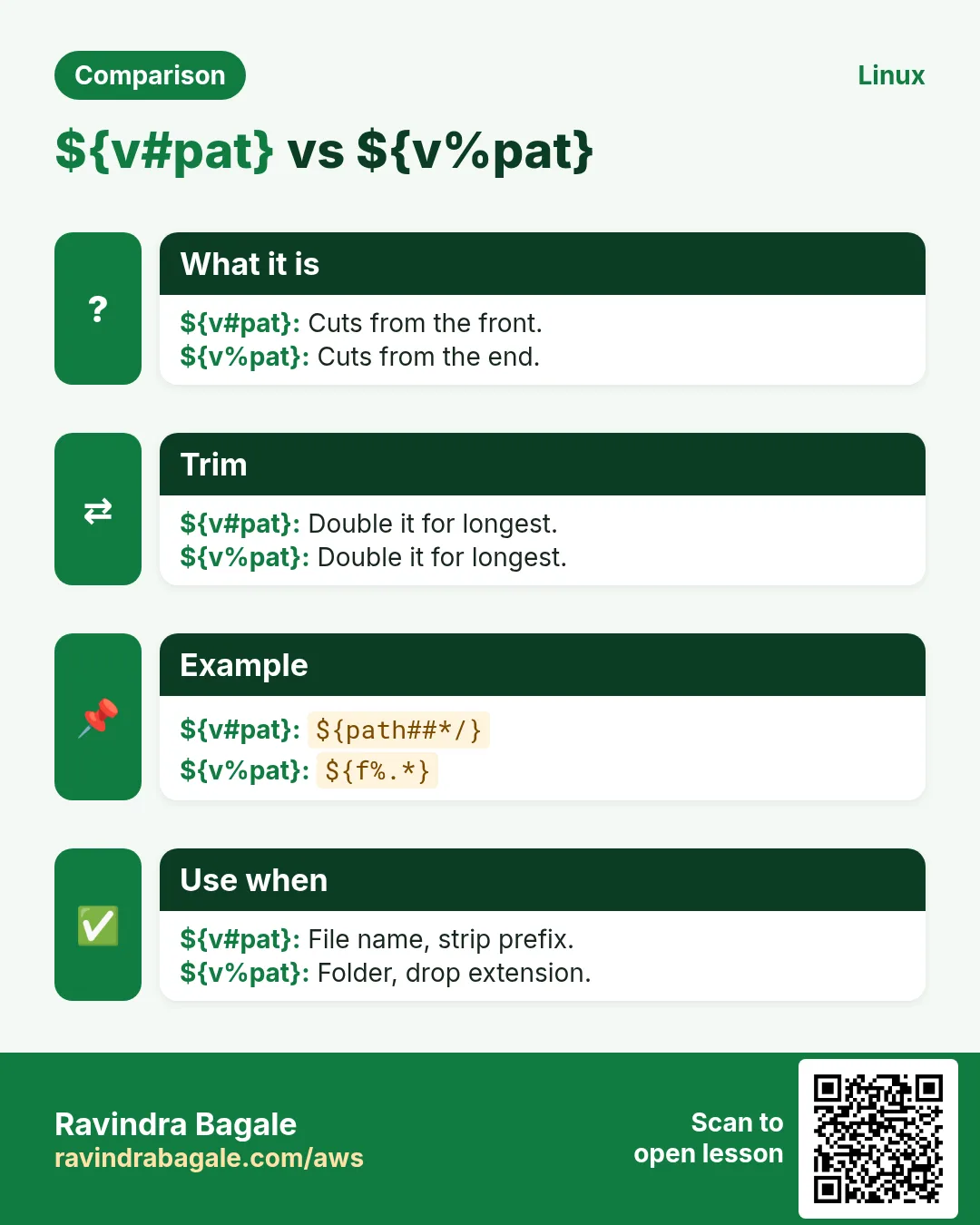
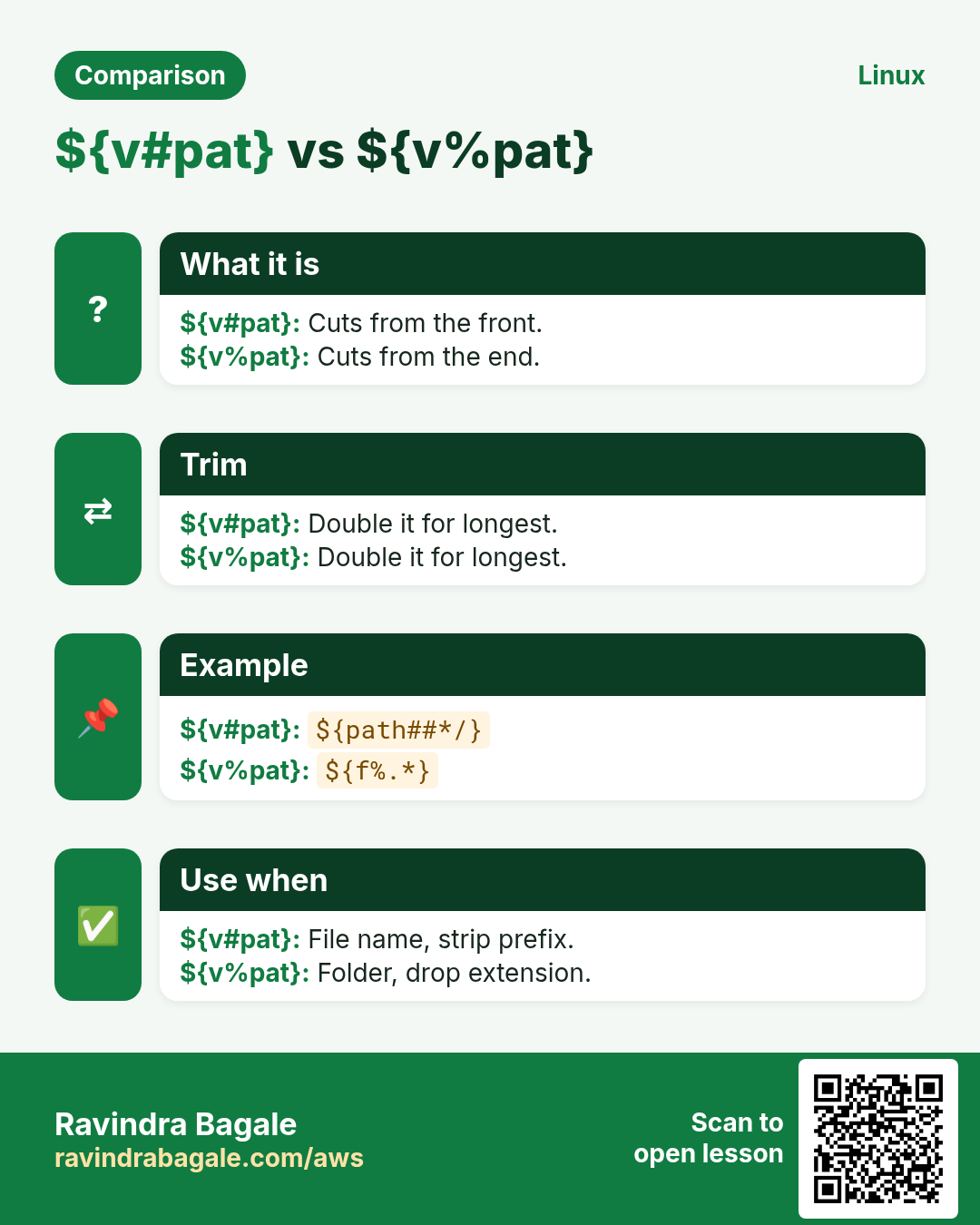
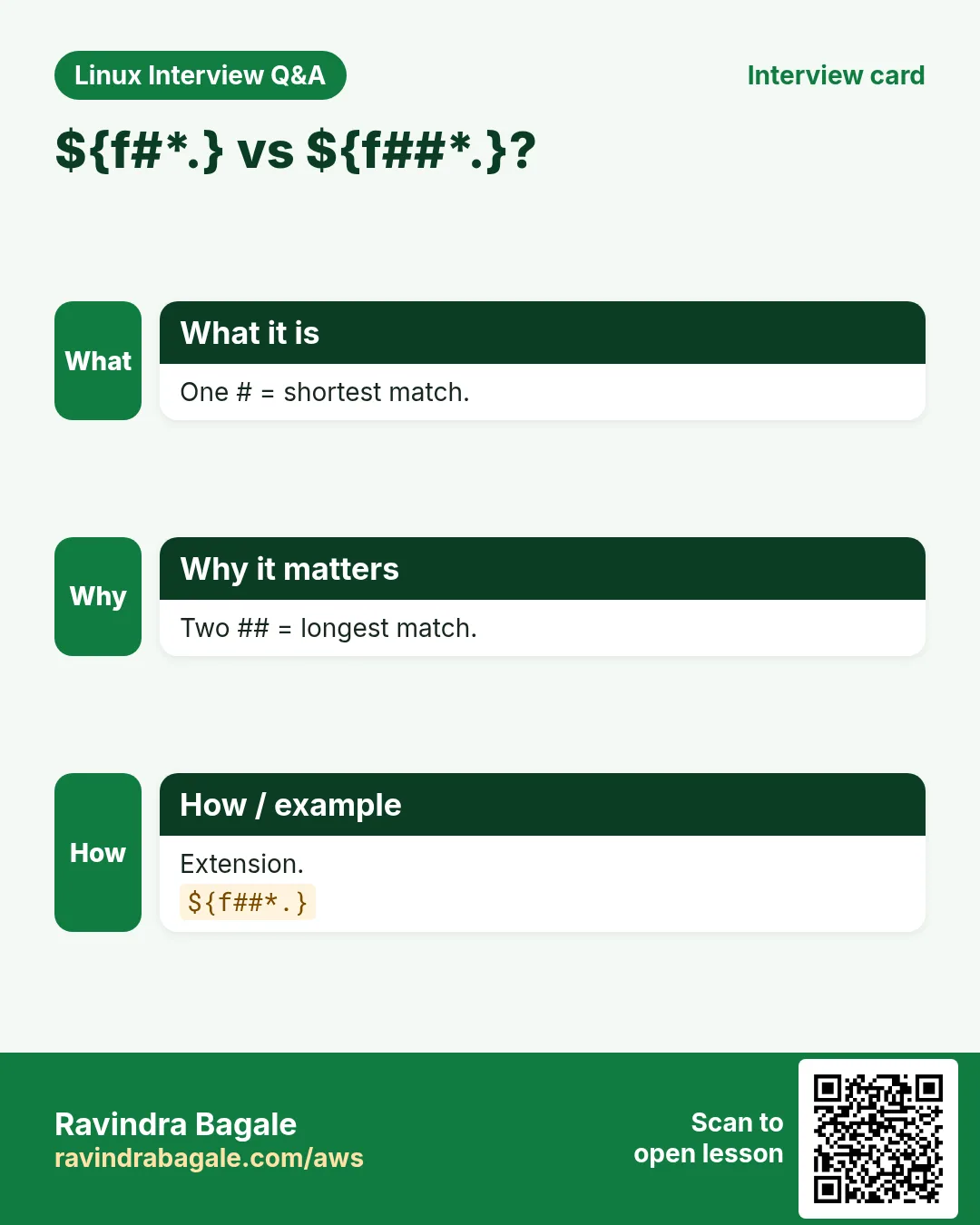
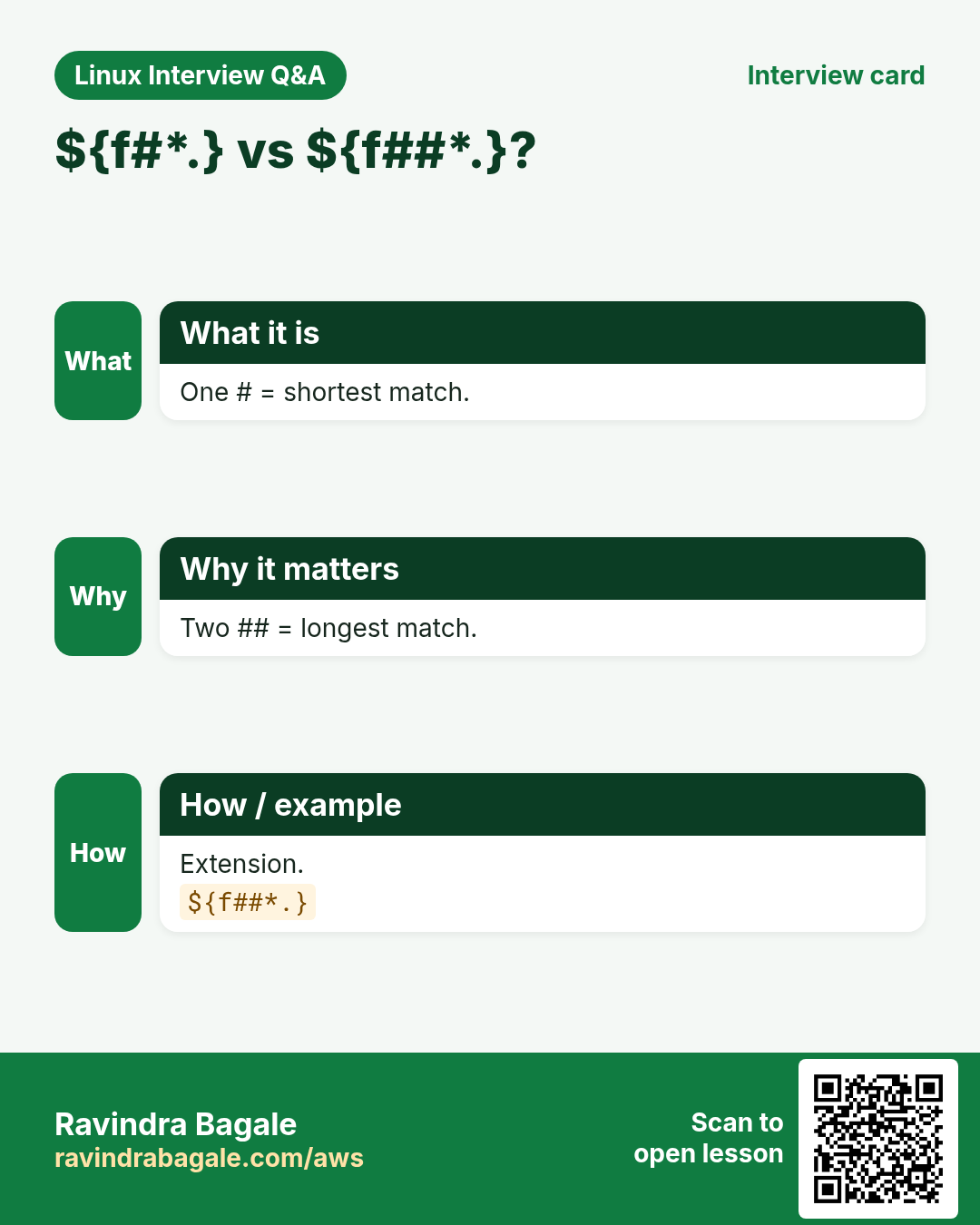
Read the symbols as a request to remove a matching pattern from the start of a value. For path=reports/2026/April.csv, ${path#*/} removes through the first slash and gives 2026/April.csv. ${path##*/} removes the longest matching prefix and leaves just April.csv. Print each result in brackets. You can check whether the pattern matched by comparing the output with the original value before using it to name a file.
Paths and URLs have parts you want to drop: the folder, the https:// part, a v from v1.4.2.
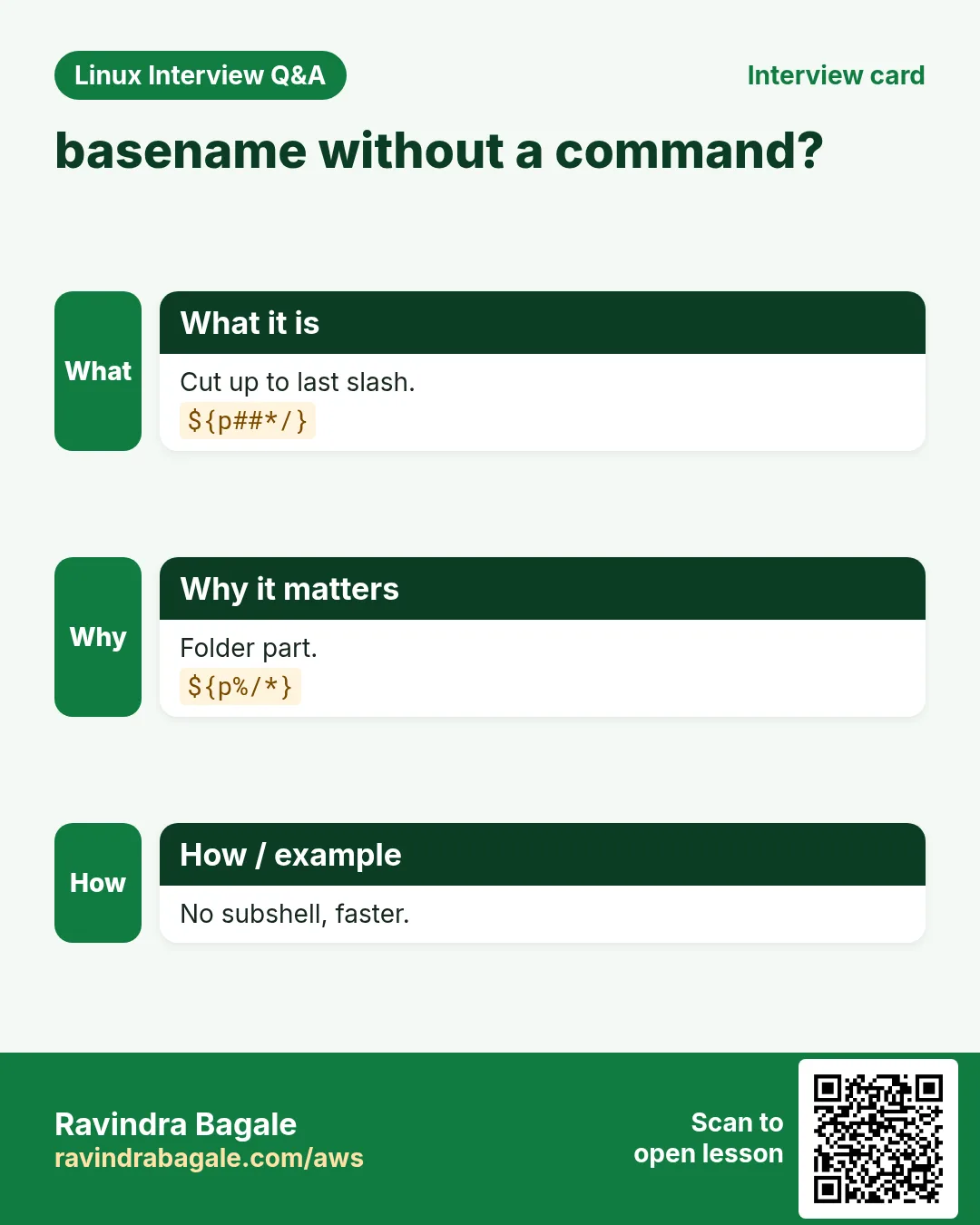
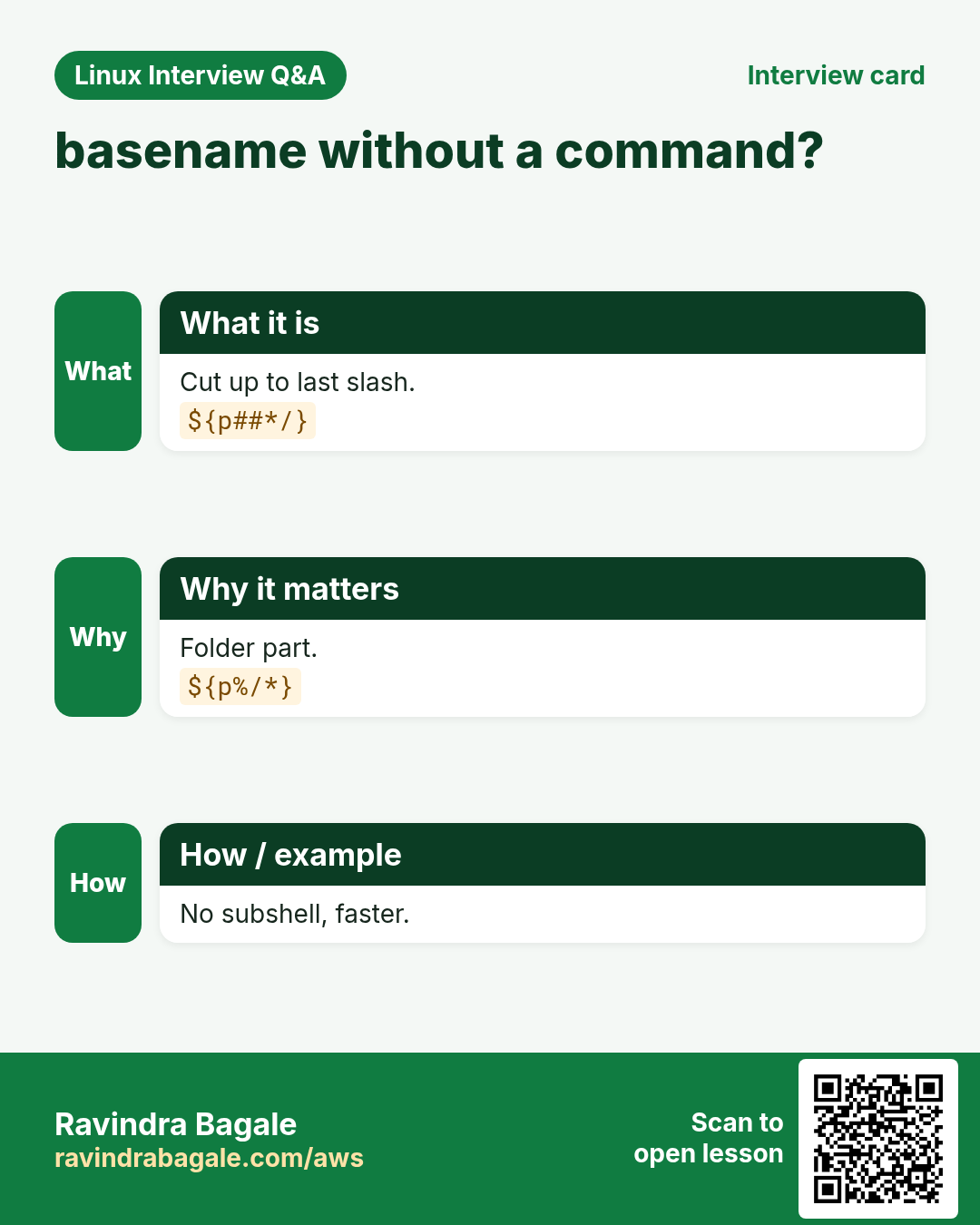
${v#pat} removes the shortest match of pat from the start. ${v##pat} removes the longest match. pat is a glob, so * means any text. ${path##*/} keeps only the file name, like basename, but without starting a new process.
- File name from a path.
p=/var/log/nginx/access.log; echo "${p##*/}"Output:
access.logLongest */ removed.
- Shortest vs longest.
echo "${p#*/}"Output:
var/log/nginx/access.logOnly the first / removed.
- Drop the scheme.
u=https://shop.example.in/cart; echo "${u#*://}"Output:
shop.example.in/cartEverything up to :// removed.
- Version without v.
tag=v1.4.2; echo "${tag#v}"Output:
1.4.2A fixed prefix works too.
4. Remove a suffix with % and %%
At the end of a name, a short suffix pattern can remove one extension at a time. Start with backup.tar.gz. ${name%.*} leaves backup.tar because the shortest matching suffix is .gz. ${name%%.*} leaves backup because the longest match begins at the first dot. Try README as a control. With no match, the expansion leaves the value unchanged. Decide which result you need before renaming sample files.
Changing report.csv to report.json, or getting the folder from a path, needs the end removed.
${v%pat} removes the shortest match from the end; ${v%%pat} removes the longest. ${f%.*} drops the last extension. ${f%%.*} drops all extensions (backup.tar.gz becomes backup). ${p%/*} gives the folder, like dirname. Easy memory trick: # is on the left of $ on the keyboard, % is on the right.
- Change extension.
f=sales-2026.csv; echo "${f%.csv}.json"Output:
sales-2026.jsonRemove .csv, add .json.
- Last vs all extensions.
b=backup.tar.gz; echo "${b%.*} ${b%%.*}"Output:
backup.tar backup% shortest, %% longest.
- Folder of a path.
p=/srv/app/conf/app.yml; echo "${p%/*}"Output:
/srv/app/confLike dirname.
- Rename all in a loop.
for f in *.jpeg; do mv -- "$f" "${f%.jpeg}.jpg"; done; lsOutput:
a.jpg b.jpgNo sed needed.
5. Replace text with / and //
Spaces in names, a wrong city code, or a password in a log line: you need to swap text.
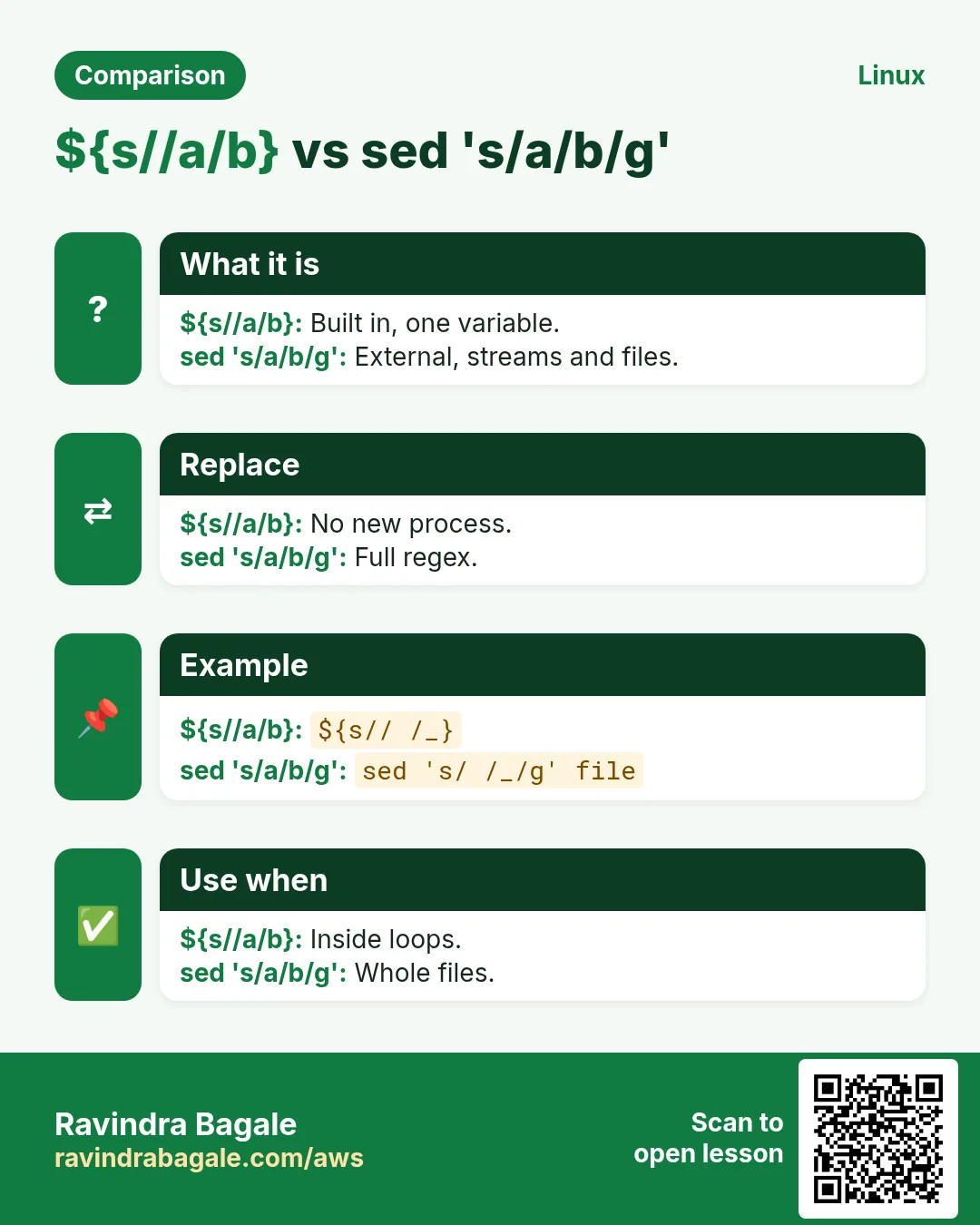
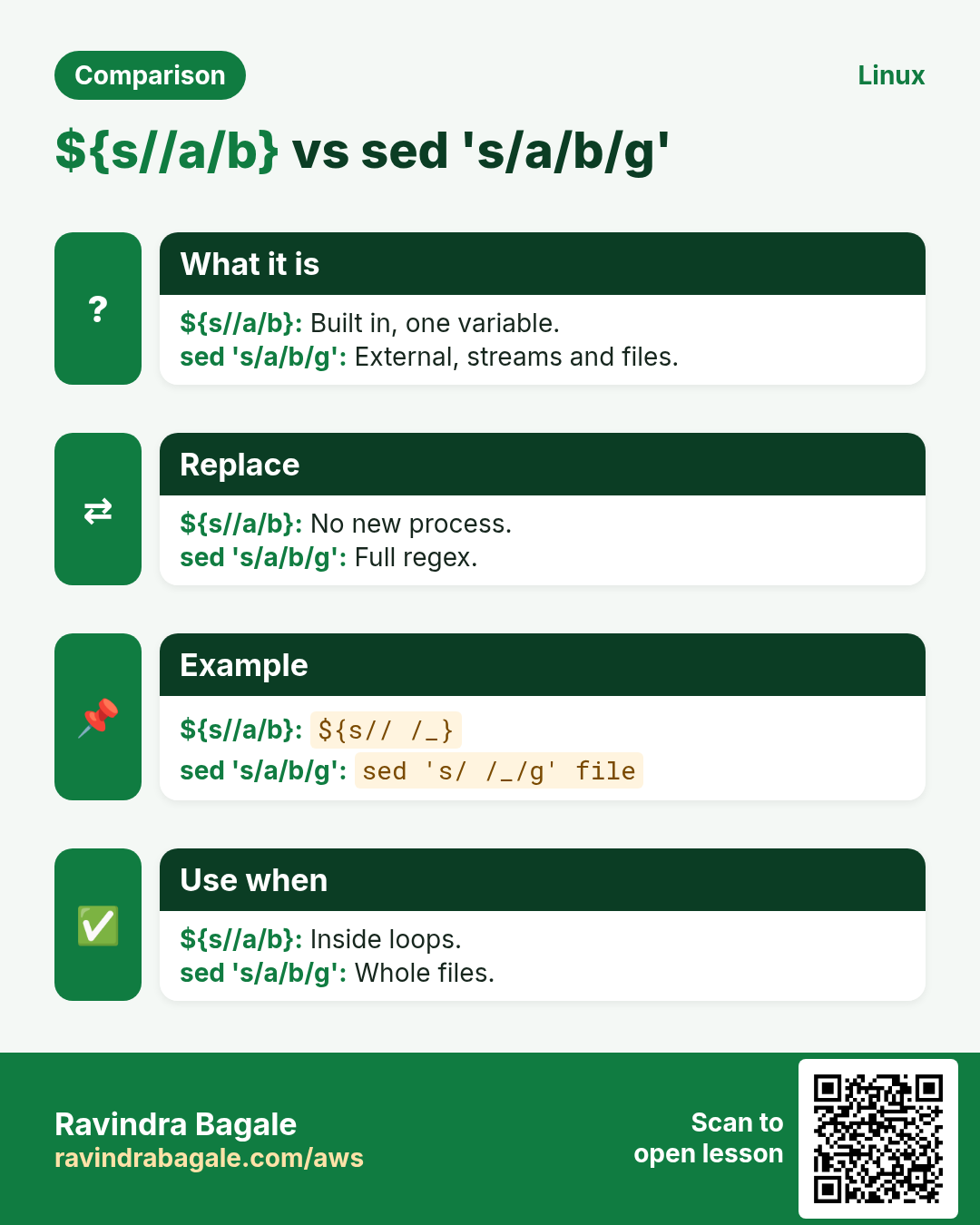
${v/old/new} replaces the first match. ${v//old/new} replaces all. ${v/#old/new} only at the start, ${v/%old/new} only at the end. Leave new empty to delete: ${v// /}. old is a glob pattern, so ${v//[0-9]/#} hides all digits.
| Form | Does |
|---|---|
| ${v/a/b} | first a to b |
| ${v//a/b} | every a to b |
| ${v/#a/b} | a at start |
| ${v/%a/b} | a at end |
| ${v// /} | delete all spaces |
- Spaces to underscores.
n='Q3 sales report.pdf'; echo "${n// /_}"Output:
Q3_sales_report.pdfAll spaces replaced.
- First only.
echo "${n/ /_}"Output:
Q3_sales report.pdfSingle slash = first.
- Mask digits.
acct=AC-9876-5432; echo "${acct//[0-9]/*}"Output:
AC-****-****Pattern [0-9].
- Fix at the end.
host=web1.local; echo "${host/%.local/.prod.in}"Output:
web1.prod.in/% anchors the end.
- Remove all dashes.
ph=98-22-11-00-00; echo "${ph//-/}"Output:
9822110000Empty replacement deletes.
6. Change case with ^ ^^ , ,,
Users type Yes, YES or yes. Environment names should be lowercase in paths but uppercase in labels.
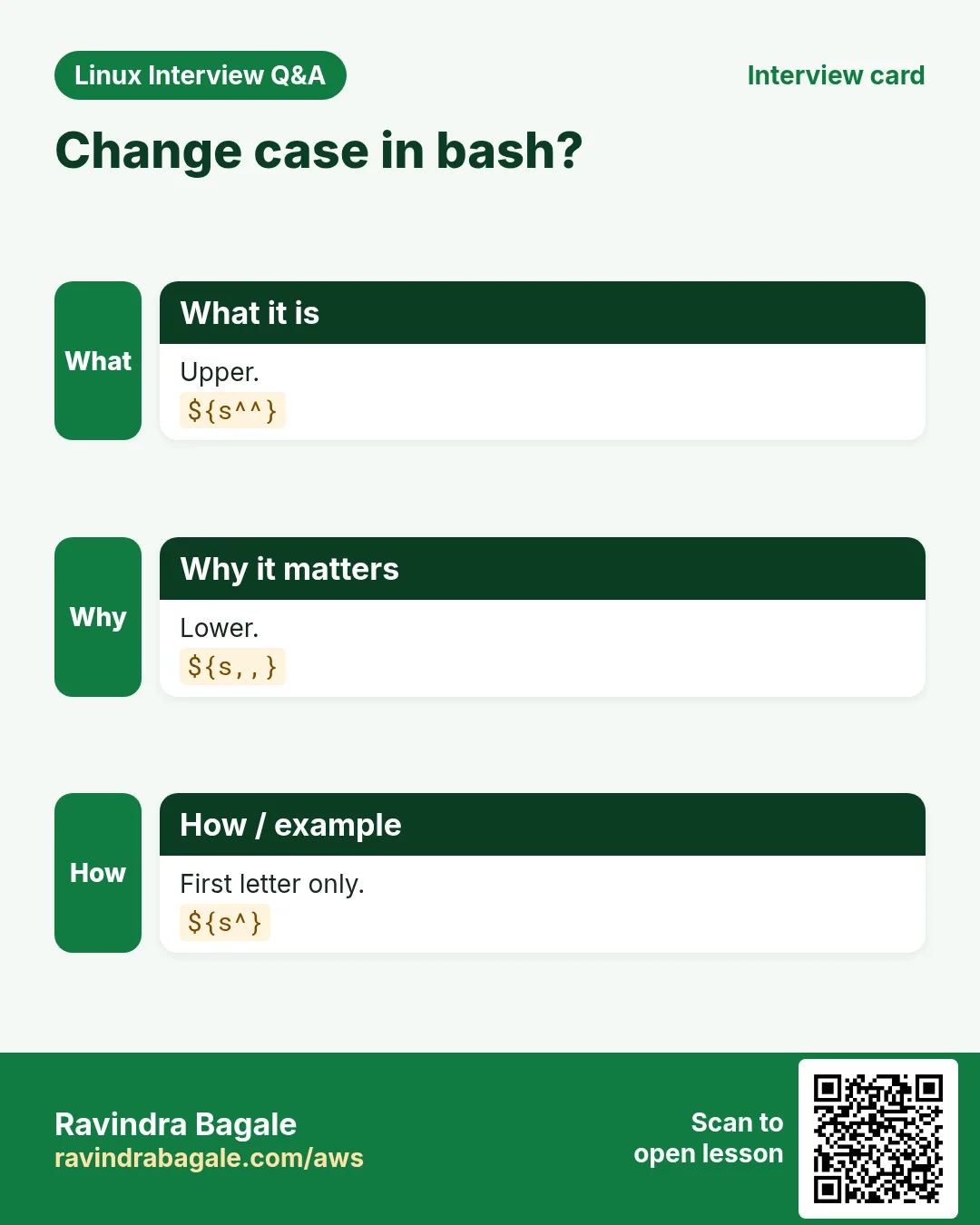
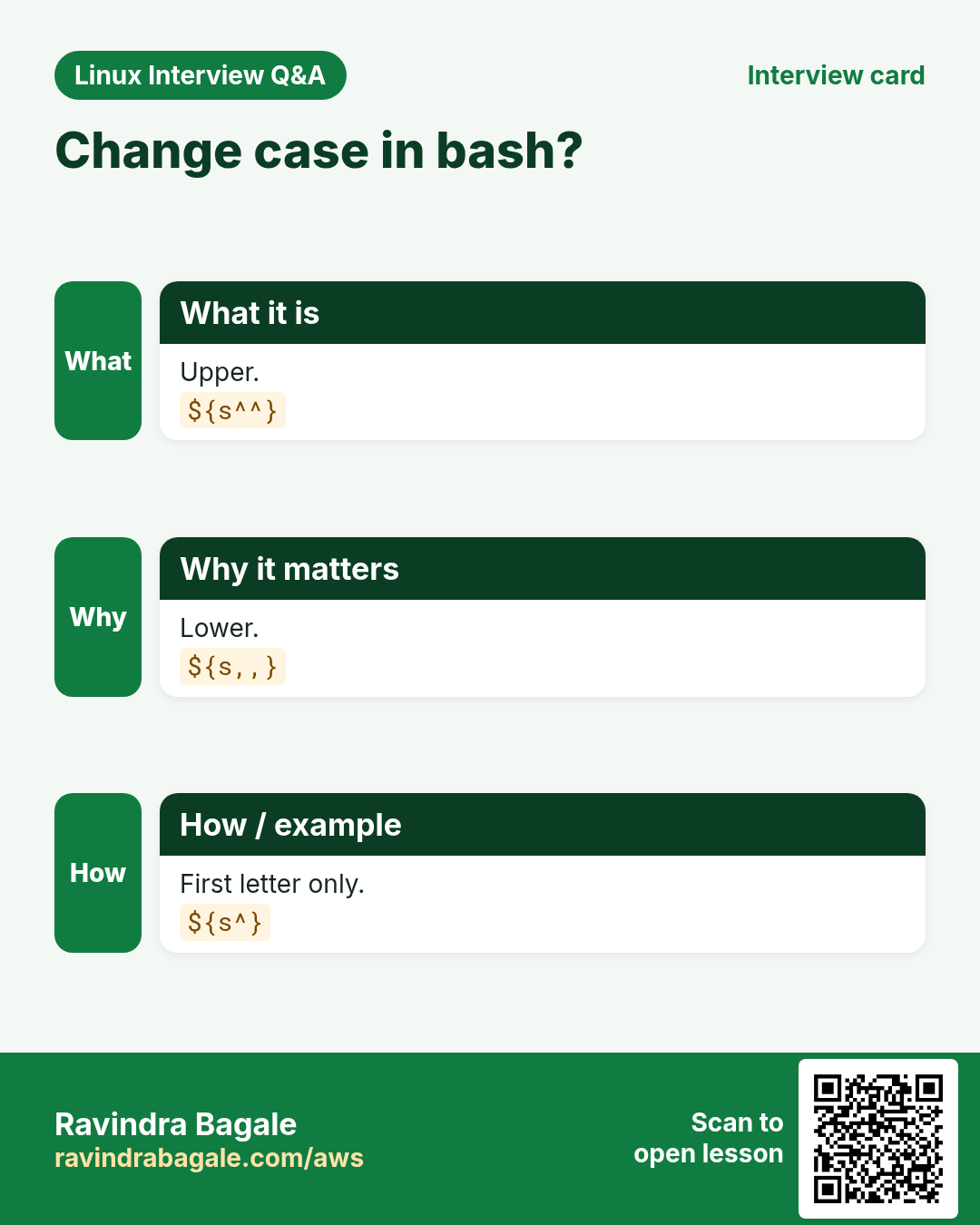
${v^^} makes all uppercase, ${v,,} makes all lowercase. ${v^} uppercases only the first letter, ${v,} lowercases only the first. This needs bash 4 or newer. Compare answers after lowercasing: [[ ${ans,,} == y* ]].
- Uppercase label.
env=prod; echo "[${env^^}]"Output:
[PROD]All letters up.
- Lowercase input.
ans=YeS; echo "${ans,,}"Output:
yesEasy to compare.
- Capitalise a name.
city=pune; echo "${city^}"Output:
PuneOnly first letter.
- Case-free yes check.
read -rp 'Continue? ' a; [[ ${a,,} == y* ]] && echo goOutput:
Continue? Y
go
Y, y, yes all work.
7. Defaults: :- := :? :+
Scripts must behave well when a variable or argument is missing, especially with set -u.
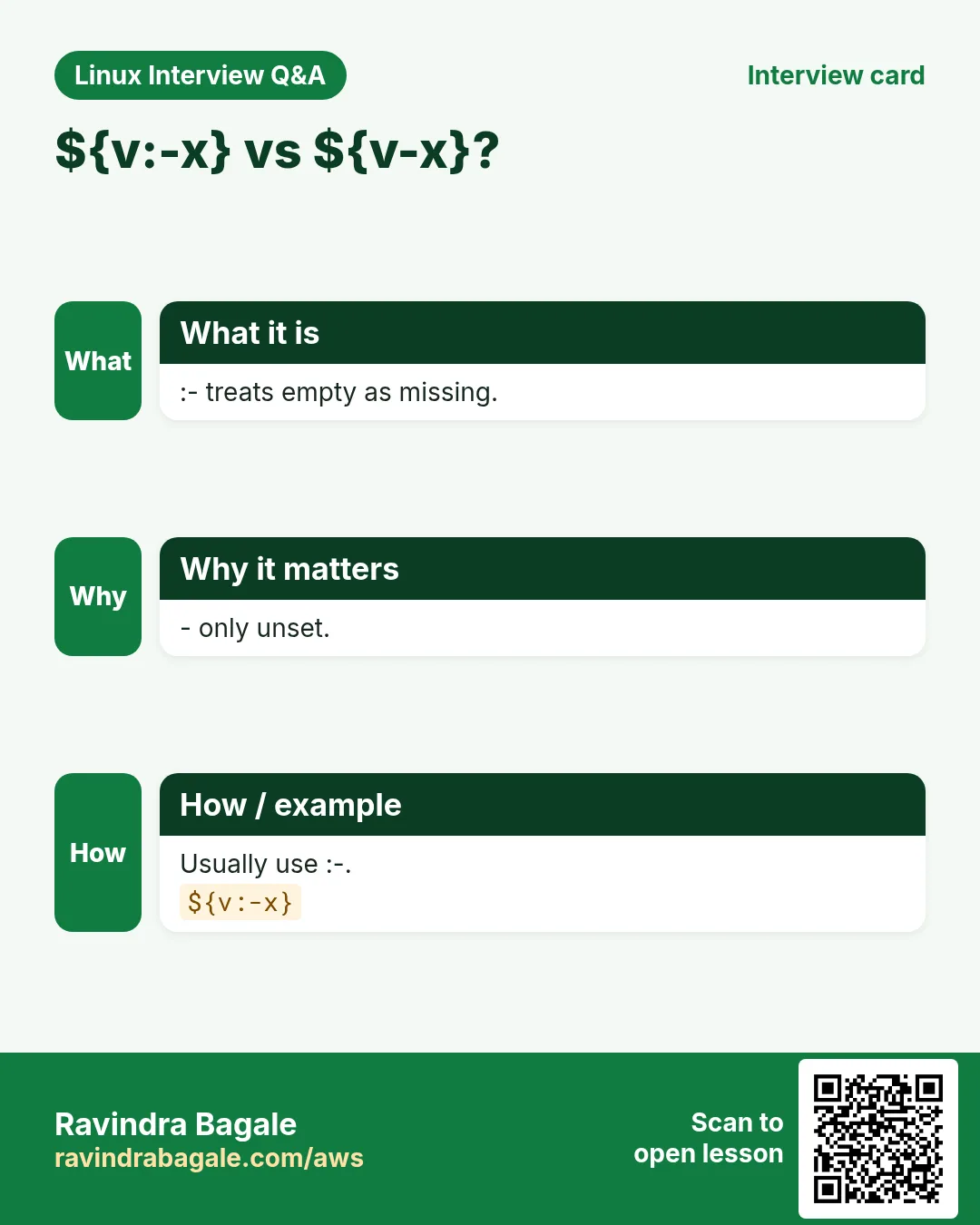
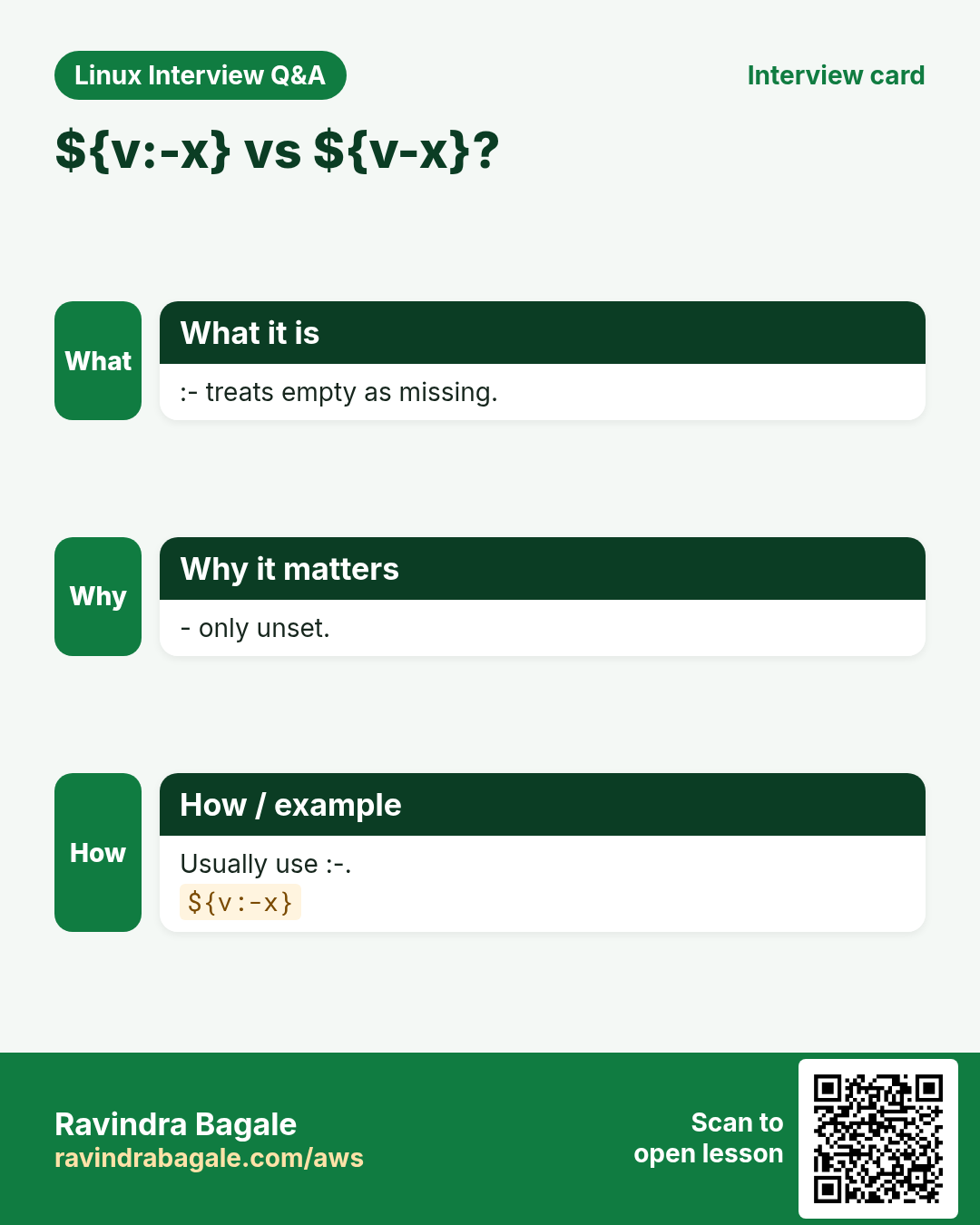
${v:-x} uses x if v is empty or unset, but does not change v. ${v:=x} also sets v to x. ${v:?message} stops the script with message if v is empty. ${v:+x} gives x only if v has a value (good for optional flags). Without the colon (${v-x}) only unset counts, not empty.
| Form | If v is empty |
|---|---|
| ${v:-x} | gives x |
| ${v:=x} | gives x and sets v |
| ${v:?msg} | prints msg, exits |
| ${v:+x} | gives nothing (x only if set) |
- Default env.
env=${1:-dev}; echo "deploying to $env"Output:
deploying to devNo argument given.
- Set if missing.
unset PORT; : "${PORT:=8080}"; echo $PORTOutput:
8080: runs nothing but expands.
- Required value.
unset DB_HOST; echo "${DB_HOST:?DB_HOST is required}"Output:
bash: DB_HOST: DB_HOST is requiredScript stops here.
- Optional flag.
verbose=1; echo rsync -a ${verbose:+-v} src/ dst/Output:
rsync -a -v src/ dst/Flag only when set.
8. Indirect names and listing variables
Config like PORT_web and PORT_db is easier when you build the name from another variable.
${!name} reads the variable whose name is stored in name. ${!PREFIX@} lists all variable names that start with PREFIX. declare -n creates a nameref, a second name for a variable, useful in functions. Prefer associative arrays for new code; indirect names are for existing env-style config.
- Indirect read.
PORT_web=80; PORT_db=5432; s=db; k=PORT_$s; echo "${!k}"Output:
5432Name built from s.
- List by prefix.
echo ${!PORT_@}Output:
PORT_db PORT_webAll names starting PORT_.
- Nameref.
set_out(){ declare -n r=$1; r=done; }; set_out status; echo $statusOutput:
doneFunction wrote into status.
9. Trim spaces and clean input
Values from CSV files and forms often have extra spaces or Windows line endings that break comparisons.
Remove a Windows carriage return with ${v%$'\r'}. Trim leading spaces with ${v#"${v%%[![:space:]]*}"} and trailing with ${v%"${v##*[![:space:]]}"}. That looks hard, so many people wrap it in a trim function once. read with default IFS also trims spaces at both ends.
- Drop Windows CR.
line=$'pune\r'; line=${line%$'\r'}; [[ $line == pune ]] && echo cleanOutput:
cleanComparison now works.
- Trim function.
trim(){ local s=$1; s=${s#"${s%%[![:space:]]*}"}; s=${s%"${s##*[![:space:]]}"}; printf '%s' "$s"; }; echo "[$(trim ' Asha Patil ')]"Output:
[Asha Patil]Both ends cleaned, middle space kept.
- read trims too.
read -r x <<< ' nashik '; echo "[$x]"Output:
[nashik]Default IFS trims.
10. printf for clean output
echo behaves differently on different systems. Reports need aligned columns and fixed decimals.
printf FORMAT args. %s is a string, %d an integer, %5.2f a number with 2 decimals, %-10s a left-aligned 10-wide column, \n a new line. printf repeats the format for extra arguments. printf -v var stores the result in a variable instead of printing. printf '%(%F %T)T' prints the time without calling date.
- Aligned table.
printf '%-8s %6s\n' City Orders Pune 1200 Nagpur 85Output:
City     Orders
Pune       1200
Nagpur       85
Format repeats per pair.
- Two decimals.
printf 'Total: %.2f\n' 1499.5Output:
Total: 1499.50Money format.
- Zero padding.
printf 'INV-%05d\n' 42Output:
INV-00042Invoice numbers.
- Into a variable.
printf -v stamp '%(%Y%m%d)T' -1; echo "backup-$stamp.tgz"Output:
backup-20261025.tgz-1 means now.
11. Real examples from many industries
The same Linux skill shows up in every kind of company. Seeing it in many places helps you remember it.
Each row is a made-up team. It shows who uses this and how.
| Team and city | How they use it | Command |
|---|---|---|
| Aditi, e-commerce, Pune | Rename product images .jpeg to .jpg | mv "$f" "${f%.jpeg}.jpg" |
| Ben, broadcasting, London | File name from upload path | echo "${p##*/}" |
| Min-jun, gaming, Seoul | Strip v from release tags | echo "${tag#v}" |
| Layla, airline, Cairo | Mask passport numbers in logs | echo "${id//[0-9]/*}" |
| Mateo, fintech, Buenos Aires | Invoice IDs with zero padding | printf 'INV-%05d' "$n" |
| Swapnil, insurance, Nagpur | Default region when not passed | region=${1:-ap-south-1} |
12. Common errors and how to fix them
Everyone hits these errors. Knowing the cause saves hours.
Read the exact message first. Then match it to a row below.
| Error you see | Why it happens | How to fix |
|---|---|---|
bad substitution | Typo or sh instead of bash | Run with bash; check braces.bash script.sh |
${v: -3} gives the whole string | Wrote ${v:-3} without space | Add a space before minus.echo "${v: -3}" |
^^ prints bad substitution on Mac | bash 3.2 | Use bash 4+ or tr.tr '[:lower:]' '[:upper:]' |
Comparison fails though text looks same | Hidden \r from Windows file | Strip CR.v=${v%$'\r'} |
Removed too much of the path | Used ## instead of # | Pick shortest or longest correctly.echo "${p#*/}" |
parameter null or not set | ${v:?} triggered | Pass the value or set it.export DB_HOST=db1 |
printf: invalid number | Text passed to %d | Pass a number or use %s.printf '%s\n' "$x" |
echo -e prints -e | sh echo differs | Use printf.printf 'a\tb\n' |
Glob in pattern matched files | Unquoted result | Quote the expansion.echo "${v//x/*}" |
13. Troubleshooting step by step
Print the value inside brackets before and after each step so you can see hidden spaces and characters.
Go top to bottom. Stop at the first step that shows the problem.
- Show with brackets.
printf '[%s]\n' "$v"- Show hidden characters.
printf '%s' "$v" | od -c- Length.
echo ${#v}- Bash version.
echo $BASH_VERSION- Trace the step.
set -x; out=${v%.*}; set +x- Lint.
shellcheck s.sh14. Lab 1: Bulk rename and clean file names
Make a small mapping from old names to proposed new names before moving anything. Include two sample files that clean to the same proposed name, such as one with a space and one already using your chosen separator. Print both results. A script needs to check for an existing destination and report the collision so the learner can choose distinct names. Practise with disposable files. Compare the resulting directory listing with the mapping to see that each original reached the intended name.
Create messy file names, then clean them with only parameter expansion: spaces to underscores, lowercase, and .jpeg to .jpg.
A full hands-on lab. Run every step on a test Linux machine (an EC2 instance, a VM, or WSL).
- Folder and files.
mkdir -p ~/lab44 && cd ~/lab44 && touch 'Diwali Sale.JPEG' 'Shop Front.jpeg' 'logo.jpeg'- See them.
lsOutput:
Diwali Sale.JPEG Shop Front.jpeg logo.jpeg- Dry run.
for f in *; do n=${f,,}; n=${n// /_}; n=${n%.jpeg}.jpg; echo "$f -> $n"; doneOutput:
Diwali Sale.JPEG -> diwali_sale.jpg
Shop Front.jpeg -> shop_front.jpg
logo.jpeg -> logo.jpg- Rename.
for f in *; do n=${f,,}; n=${n// /_}; n=${n%.jpeg}.jpg; [[ $f == "$n" ]] || mv -n -- "$f" "$n"; done; lsOutput:
diwali_sale.jpg logo.jpg shop_front.jpg- Clean up.
cd ~ && rm -r ~/lab4415. Lab 2: Parse a URL and a version string
Split a URL into scheme, host and path, and split a version into major, minor and patch, all without sed or cut.
A full hands-on lab. Run every step on a test Linux machine (an EC2 instance, a VM, or WSL).
- Set values.
u='https://api.shop.in/v2/orders?id=7'; ver=v3.12.5- Scheme.
echo "${u%%://*}"Output:
https- Host.
rest=${u#*://}; echo "${rest%%/*}"Output:
api.shop.in- Path without query.
path=/${rest#*/}; echo "${path%%\?*}"Output:
/v2/orders- Version parts.
v=${ver#v}; major=${v%%.*}; minor=${v#*.}; minor=${minor%.*}; patch=${v##*.}; echo "$major $minor $patch"Output:
3 12 5- Bump patch.
echo "v$major.$minor.$((patch+1))"Output:
v3.12.6Ravindra Bagale's Tip
Learn # for the start and % for the end, one sign for the shortest match and two for the longest. With that rule plus ${v//old/new} and ${v:-default}, you can replace most small sed and basename calls in your scripts.
Ravindra Bagale's Tip – मराठी
# सुरुवातीसाठी आणि % शेवटासाठी, एक चिन्ह सगळ्यात लहान match आणि दोन सगळ्यात मोठा. हा नियम आणि ${v//old/new} व ${v:-default} शिकलात की scripts मधले बहुतेक छोटे sed आणि basename calls बदलू शकता.
Ravindra Bagale's Tip – हिंदी
# शुरुआत के लिए और % अंत के लिए, एक चिह्न सबसे छोटा match और दो सबसे बड़ा. यह नियम और ${v//old/new} व ${v:-default} सीख लिया तो scripts के ज़्यादातर छोटे sed और basename calls बदल सकते हैं.
16. Frequently asked questions
Q. Is parameter expansion faster than sed?
Yes for small strings, no new process.
Q. Does it work in sh?
# % :- yes; / ^^ substrings are bash only.
Q. Regex in patterns?
No, globs only; use [[ =~ ]] for regex.
Q. Count characters with spaces?
${#v} counts them.
Q. Unicode length?
Correct in a UTF-8 locale.
Q. Difference :- and -?
Colon also treats empty as missing.
Q. Why printf over echo?
Same output everywhere.
Q. Split on a comma?
IFS=, read -ra parts <<< "$v".
17. Interview questions and answers
Beginner level
Q. Length of a variable?
${#v}.
Q. First 3 characters?
${v:0:3}.
Q. Default value?
${v:-x}.
Q. All uppercase?
${v^^}.
Mid level level
Q. File name without folder?
${p##*/}.
Q. Change extension?
${f%.*}.new.
Q. Replace all spaces?
${v// /_}.
Q. Fail if missing?
${v:?msg}.
Senior level
Q. Why avoid basename in loops?
Each call starts a process; expansion is built in.
Q. When use sed instead?
Regex or multi-line edits on files.
Q. Nameref use?
Return values into a caller's variable.
Q. Handle CRLF input?
Strip \r with ${v%$'\r'} or dos2unix.
Try at home
- Write a script that takes a full name like 'asha patil' and prints 'Asha Patil' and the initials 'AP'.
- Make a printf table of 5 cities and their PIN codes with aligned columns.
Practise this chapter
Interview questions and answers
How would you avoid overwriting a file when cleaning a group of filenames?
Generate and print each proposed destination first. Detect duplicates between proposals and names already there. Test a sample that deliberately produces a collision. Apply the rename only after the mapping is unambiguous, then compare the folder with the plan.
Check your understanding
Choose an answer, then compare your reasoning with the explanation.
Practice Tasks
Practice checks run in your browser. They check the answer for this exercise; they do not create resources or connect to your AWS account.
About this scenarioMaple Leaf Books is a bookselling business in Toronto. Emily Tremblay looks after its IT and cloud work. They count money in CAD and run their AWS resources in the ca-central-1 Region. In the tasks below you do real jobs for them using what this lesson teaches. All names, account IDs, IP addresses and numbers are made up for practice.
0 / 21
Easy Length
BIZ cleans names, paths and IDs inside scripts every day.
Emily Tremblay at Maple Leaf Books stores an order id in variable id. Print how many characters it has.
- Find the Linux command that does this job.
- Add the options (like -r or -h) the task needs.
- Add the file names, folders or users in the right order.
- Use sudo if the job changes system files or users. Click Check answer.
Easy Substring
BIZ cleans names, paths and IDs inside scripts every day.
Print the first 4 characters of variable code.
- Find the Linux command that does this job.
- Add the options (like -r or -h) the task needs.
- Add the file names, folders or users in the right order.
- Use sudo if the job changes system files or users. Click Check answer.
Easy File name only
BIZ cleans names, paths and IDs inside scripts every day.
Variable path holds a full path. Print only the file name using expansion.
- Find the Linux command that does this job.
- Add the options (like -r or -h) the task needs.
- Add the file names, folders or users in the right order.
- Use sudo if the job changes system files or users. Click Check answer.
Easy Folder only
BIZ cleans names, paths and IDs inside scripts every day.
From variable path, print only the folder part.
- Find the Linux command that does this job.
- Add the options (like -r or -h) the task needs.
- Add the file names, folders or users in the right order.
- Use sudo if the job changes system files or users. Click Check answer.
Easy Replace first
BIZ cleans names, paths and IDs inside scripts every day.
In variable s, replace the first space with an underscore and print it.
- Find the Linux command that does this job.
- Add the options (like -r or -h) the task needs.
- Add the file names, folders or users in the right order.
- Use sudo if the job changes system files or users. Click Check answer.
Easy Replace all
BIZ cleans names, paths and IDs inside scripts every day.
In variable s, replace every space with an underscore and print it.
- Find the Linux command that does this job.
- Add the options (like -r or -h) the task needs.
- Add the file names, folders or users in the right order.
- Use sudo if the job changes system files or users. Click Check answer.
Easy Upper case
BIZ cleans names, paths and IDs inside scripts every day.
Print variable city in all capital letters.
- Find the Linux command that does this job.
- Add the options (like -r or -h) the task needs.
- Add the file names, folders or users in the right order.
- Use sudo if the job changes system files or users. Click Check answer.
Easy Lower case
BIZ cleans names, paths and IDs inside scripts every day.
Print variable email in all small letters.
- Find the Linux command that does this job.
- Add the options (like -r or -h) the task needs.
- Add the file names, folders or users in the right order.
- Use sudo if the job changes system files or users. Click Check answer.
Easy Default value
BIZ cleans names, paths and IDs inside scripts every day.
Print variable env, or the word dev if it is empty or unset.
- Find the Linux command that does this job.
- Add the options (like -r or -h) the task needs.
- Add the file names, folders or users in the right order.
- Use sudo if the job changes system files or users. Click Check answer.
Medium Last three
BIZ cleans names, paths and IDs inside scripts every day.
Print the last 3 characters of variable code (note the space before minus).
- Find the Linux command that does this job.
- Add the options (like -r or -h) the task needs.
- Add the file names, folders or users in the right order.
- Use sudo if the job changes system files or users. Click Check answer.
Medium Extension
BIZ cleans names, paths and IDs inside scripts every day.
Variable f holds report.final.csv. Print only the extension after the last dot.
- Find the Linux command that does this job.
- Add the options (like -r or -h) the task needs.
- Add the file names, folders or users in the right order.
- Use sudo if the job changes system files or users. Click Check answer.
Medium Drop extension
BIZ cleans names, paths and IDs inside scripts every day.
Print variable f without its last extension.
- Find the Linux command that does this job.
- Add the options (like -r or -h) the task needs.
- Add the file names, folders or users in the right order.
- Use sudo if the job changes system files or users. Click Check answer.
Medium Capital first
BIZ cleans names, paths and IDs inside scripts every day.
Print variable name with only its first letter capitalised.
- Find the Linux command that does this job.
- Add the options (like -r or -h) the task needs.
- Add the file names, folders or users in the right order.
- Use sudo if the job changes system files or users. Click Check answer.
Medium Set default
BIZ cleans names, paths and IDs inside scripts every day.
Print variable port, assigning 8080 to it if it is empty.
- Find the Linux command that does this job.
- Add the options (like -r or -h) the task needs.
- Add the file names, folders or users in the right order.
- Use sudo if the job changes system files or users. Click Check answer.
Medium Required
BIZ cleans names, paths and IDs inside scripts every day.
Print variable target, but stop with message missing target if it is empty.
- Find the Linux command that does this job.
- Add the options (like -r or -h) the task needs.
- Add the file names, folders or users in the right order.
- Use sudo if the job changes system files or users. Click Check answer.
Medium Strip prefix
BIZ cleans names, paths and IDs inside scripts every day.
Variable tag holds v2.4.1. Print it without the leading v.
- Find the Linux command that does this job.
- Add the options (like -r or -h) the task needs.
- Add the file names, folders or users in the right order.
- Use sudo if the job changes system files or users. Click Check answer.
Medium Padded print
BIZ cleans names, paths and IDs inside scripts every day.
Print variable n as a 5-digit number padded with zeros using printf.
- Find the Linux command that does this job.
- Add the options (like -r or -h) the task needs.
- Add the file names, folders or users in the right order.
- Use sudo if the job changes system files or users. Click Check answer.
Medium Field from string
BIZ cleans names, paths and IDs inside scripts every day.
Variable line holds asha:1001:pune. Print the third field using cut on colon.
- Find the Linux command that does this job.
- Add the options (like -r or -h) the task needs.
- Add the file names, folders or users in the right order.
- Use sudo if the job changes system files or users. Click Check answer.
Hard Alternate value
BIZ cleans names, paths and IDs inside scripts every day.
Print the text --verbose only when variable debug is set and not empty.
- Find the Linux command that does this job.
- Add the options (like -r or -h) the task needs.
- Add the file names, folders or users in the right order.
- Use sudo if the job changes system files or users. Click Check answer.
Hard Indirect
BIZ cleans names, paths and IDs inside scripts every day.
Variable k holds the name of another variable. Print that other variable value.
- Find the Linux command that does this job.
- Add the options (like -r or -h) the task needs.
- Add the file names, folders or users in the right order.
- Use sudo if the job changes system files or users. Click Check answer.
Hard Trim leading spaces
BIZ cleans names, paths and IDs inside scripts every day.
Print variable s with leading spaces removed using sed.
- Find the Linux command that does this job.
- Add the options (like -r or -h) the task needs.
- Add the file names, folders or users in the right order.
- Use sudo if the job changes system files or users. Click Check answer.
18. Related chapters
- Linux Ops Refresh for DevOps
- Bash Scripting for Automation
- Linux grep and find Commands with Examples
- How to Set Up Passwordless SSH Between Linux Servers
In short
- ${#v} length, ${v:s:n} substring.
- # and ## remove from the start.
- % and %% remove from the end.
- / and // replace.
- ^^ ,, change case.
- :- := :? :+ handle missing values; printf formats.
Revision, comparison and interview cards
Revise this lesson in a few minutes. Save the cards on your phone or download them as PNG files. The QR code on each card opens this lesson.
More cards: Ravi Sir's Cards.