Linux find Command with xargs: Search Files by Name, Size, Time and Run Actions
find walks through folders and lists files that match tests like name, type, size, age, owner or permission, and can run a command on each one. xargs takes a list of items and turns them into arguments for another command, fast and in parallel. Together they clean disks, fix permissions, audit security and batch-process thousands of files.
In this chapter
- Find by name and type
- Find by size and time
- Find by owner and permission
- Control depth, prune folders and combine tests
- Run actions with -exec and -delete
- Use xargs safely with -0, -n, -P and -I; know locate
1. An everyday example: cleaning a messy cupboard
Shalini cleans her big cupboard before Diwali. She looks for: everything named 'bill', only boxes (not papers), things heavier than 5 kg, things not touched for a year, and things that belong to her brother. Then for each old bill she does the same action: put it in the recycle bag. Her son helps by taking a whole pile at once instead of one by one.
Named bill = -name. Only boxes = -type d. Heavier than 5 kg = -size +5G. Not touched for a year = -mtime +365. Brother's = -user. Same action on each = -exec. Son taking a pile = xargs (many items per command).
2. find by name: -name, -iname, -path
You know part of a file name but not where it is.
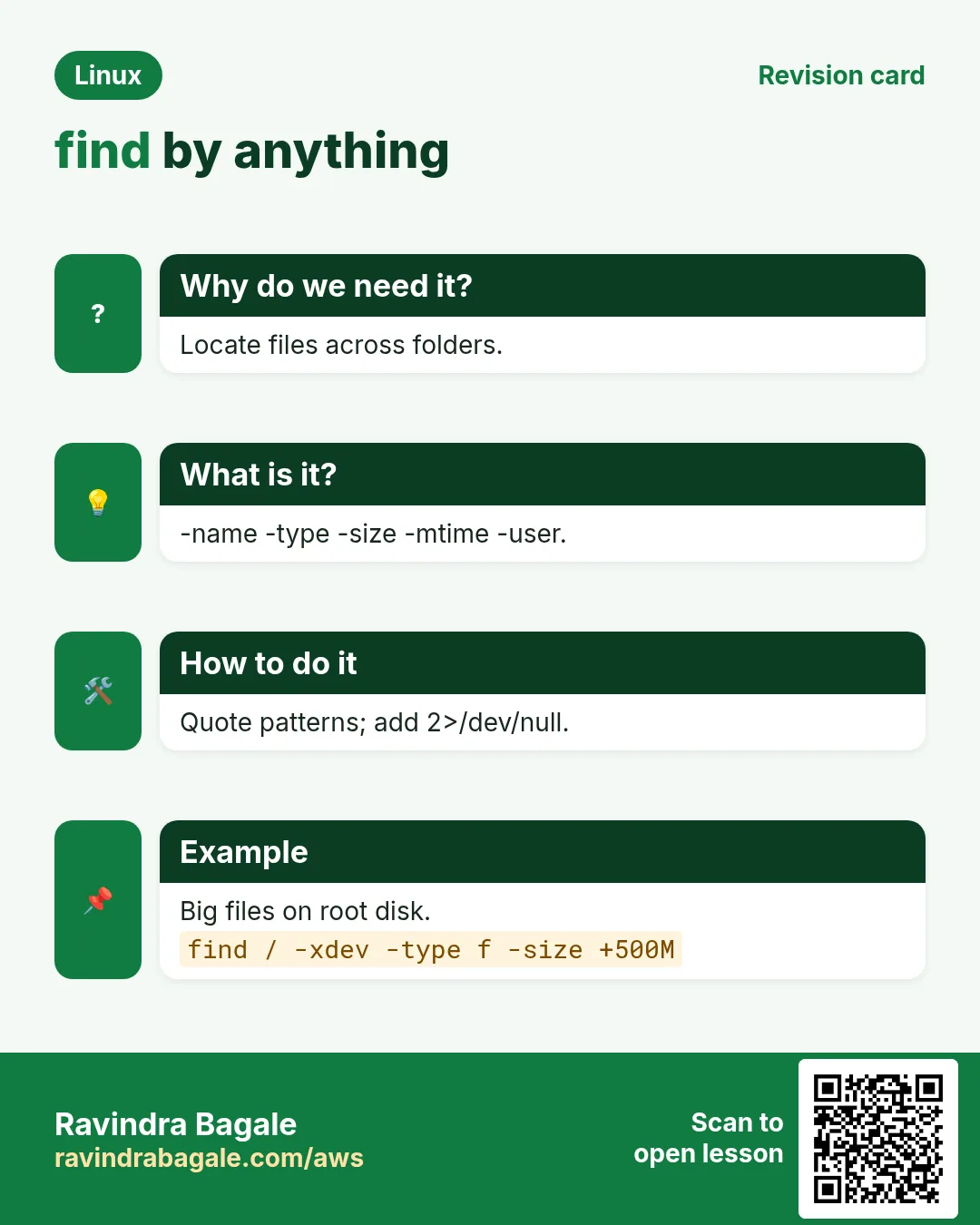
find START -name 'pattern' matches the file name with shell wildcards (* ? [ ]). Always quote the pattern so the shell does not expand it first. -iname ignores case. -path '*/conf.d/*' matches the full path. -regex uses a regex on the whole path. Send errors away with 2>/dev/null.
- Find a file by exact name.
find /etc -name 'nginx.conf' 2>/dev/nullOutput:
/etc/nginx/nginx.conf2>/dev/null hides Permission denied noise.
- All .log files under /var/log.
find /var/log -name '*.log' | head -3Output:
/var/log/dnf.log
/var/log/nginx/access.log
/var/log/nginx/error.log
Quotes keep *.log for find.
- Ignore case.
find ~/Downloads -iname '*invoice*'Output:
/home/ravi/Downloads/Invoice-Oct.pdf
/home/ravi/Downloads/invoice_amazon.pdf
Matches Invoice and invoice.
- Match on the path.
find /etc -path '*/conf.d/*.conf'Output:
/etc/nginx/conf.d/shop.conf
/etc/httpd/conf.d/ssl.conf
Only .conf files inside any conf.d folder.
- Several names with OR.
find . \( -name '*.jpg' -o -name '*.png' \) | wc -lOutput:
342\( \) groups, -o is OR.
3. find by type: -type f, d, l
You want only folders, or only regular files, or only symlinks.
-type f regular file, d directory, l symlink, s socket, p named pipe, b/c device files. -xtype l with broken links. -empty finds empty files or folders.
- Only folders.
find /srv/app -maxdepth 1 -type dOutput:
/srv/app
/srv/app/releases
/srv/app/shared
-type d means directory.
- Only files, counted.
find /etc -type f 2>/dev/null | wc -lOutput:
1874Folders and links are skipped.
- Broken symlinks.
find /srv/app -xtype lOutput:
/srv/app/currentcurrent points to a deleted release.
- Empty files and folders.
find /tmp/build -emptyOutput:
/tmp/build/out.log
/tmp/build/cache
Safe to clean.
4. find by size: -size
The disk is full. You need the biggest files fast.
-size +100M bigger than 100 MiB, -size -1k smaller than 1 KiB, -size 0 empty. Units: c bytes, k KiB, M MiB, G GiB. Stay on one disk with -xdev. Combine with -exec du -h or ls -lh to see sizes.
- Files over 500 MB on the root disk.
sudo find / -xdev -type f -size +500M -exec ls -lh {} + 2>/dev/nullOutput:
-rw-r----- 1 root root 2.1G /var/log/journal/x/system.journal
-rw-r--r-- 1 app app 900M /srv/app/shared/dump.sql
-xdev skips /proc and other disks.
- Top 5 biggest files.
find /var -type f -printf '%s %p\n' 2>/dev/null | sort -nr | head -5Output:
2254857830 /var/log/journal/x/system.journal
943718400 /var/lib/mysql/ibdata1
-printf %s is size in bytes, %p the path.
- Small files under 1 KB.
find ~/notes -type f -size -1k | wc -lOutput:
48- means smaller than.
5. find by time: -mtime, -mmin, -newer
Delete logs older than 7 days, or see which files changed in the last 10 minutes during an incident.
-mtime +7 modified more than 7 days ago, -mtime -1 within the last day, -mmin -10 within 10 minutes. -atime/-amin access time, -ctime/-cmin change of inode (permissions, owner). -newer ref finds files newer than a reference file. -newermt '2026-10-25 10:00' uses a date (GNU).
| Test | Means |
|---|---|
| -mtime +7 | Older than 7 days |
| -mtime -1 | Changed in the last 24 h |
| -mmin -30 | Changed in the last 30 min |
| -newer f | Newer than file f |
| -newermt DATE | Newer than a date |
- Logs older than 7 days.
find /var/log/app -name '*.log' -mtime +7Output:
/var/log/app/app-2026-10-10.log
/var/log/app/app-2026-10-12.log
Always list before you delete.
- Changed in the last 10 minutes.
sudo find /etc -mmin -10 -type fOutput:
/etc/nginx/conf.d/shop.confWho changed this right before the outage?
- Newer than a deploy marker.
find /srv/app -newer /srv/app/.deployed -type f | head -3Output:
/srv/app/shared/uploads/a.pngFiles written after the deploy.
- Between two dates.
find /data -newermt '2026-10-01' ! -newermt '2026-10-08' -type f | wc -lOutput:
1204! negates the second test.
6. find by owner and permission: -user, -group, -perm
Security audits ask: which files are world-writable, which have SUID, which belong to a deleted user.
-user name, -group name, -nouser, -nogroup (orphaned files). -perm 644 exact mode, -perm -o+w at least these bits (world-writable), -perm /u+s any of these bits, -perm -4000 SUID. -readable, -writable, -executable test for the current user.
- Files owned by a user.
sudo find /home -user rahul -type f | wc -lOutput:
2310Before deleting rahul's account.
- World-writable files (risky).
sudo find / -xdev -type f -perm -o+w 2>/dev/nullOutput:
/srv/app/shared/config.phpAnyone can change this file. Fix it.
- SUID programs.
sudo find / -xdev -perm -4000 -type f 2>/dev/null | head -3Output:
/usr/bin/passwd
/usr/bin/sudo
/usr/bin/mount
Compare against a known list in audits.
- Orphaned files.
sudo find / -xdev -nouser 2>/dev/nullOutput:
/opt/old/app.jarOwner UID no longer exists.
7. Depth, prune and combining tests
Before combining tests, decide which names belong in the output. An implicit AND requires both tests to succeed. -o combines alternatives. To match regular files with either .txt or .csv, put the name alternatives together in quoted or escaped parentheses. If you omit that grouping, the second name test can admit paths that did not pass the file-type test.
Use a scratch tree with two ordinary files and a directory whose name ends in .csv. Predict two matching paths and run find . -type f \( -name '*.txt' -o -name '*.csv' \) -print. Confirm the directory is absent. Preview the exact candidate list before replacing any display action with a command that changes files.
Searching / or a big repo is slow, and you want to skip .git, node_modules or /proc.
-maxdepth N stops going deeper than N levels, -mindepth N skips the top levels (put both first). -prune stops find from entering a folder: find . -path ./node_modules -prune -o -name '*.js' -print. -xdev stays on one file system. Tests join with AND; -o is OR; ! or -not negates; \( \) groups.
- Only the top level.
find /var/log -maxdepth 1 -type f -name '*.log'Output:
/var/log/dnf.log
/var/log/boot.log
Does not go into sub-folders.
- Skip node_modules.
find . -path ./node_modules -prune -o -name '*.js' -print | head -3Output:
./src/app.js
./src/cart.js
-prune cuts that branch; -print is needed at the end.
- NOT a pattern.
find . -type f ! -name '*.md' | head -2Output:
./src/app.js
./Dockerfile
! negates -name.
- Combine: big AND old.
find /backup -type f -size +1G -mtime +30Output:
/backup/db-2026-09-01.sql.gzBoth tests must be true.
8. Actions: -exec, -ok, -delete, -printf
Finding is half the job. You need to delete, compress, chmod or copy what you found.
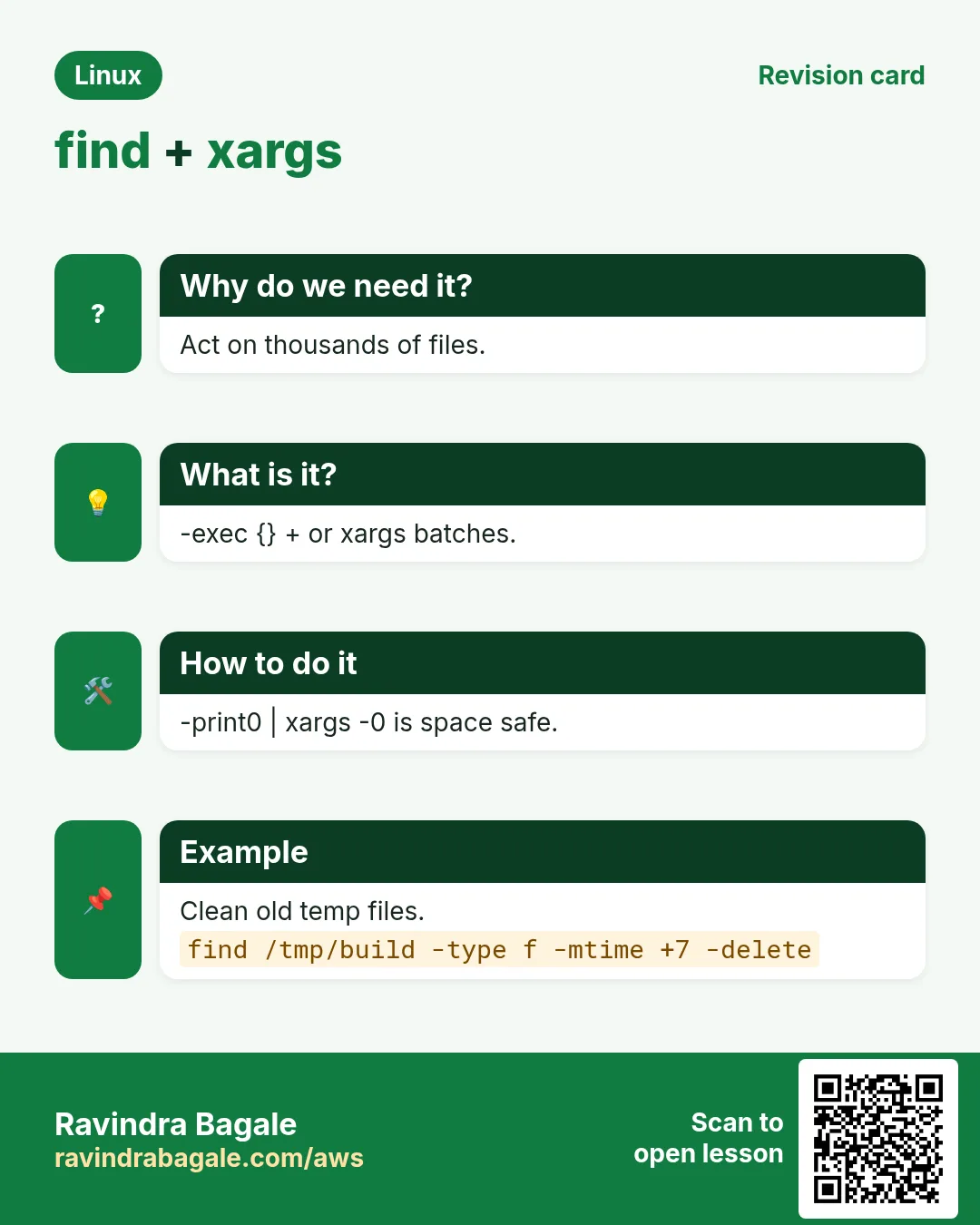
-exec cmd {} \; runs cmd once per file ({} is the file). -exec cmd {} + passes many files at once (much faster). -ok asks before each run. -delete removes matches (put it last; it implies -depth). -printf formats output: %p path, %s size, %TY-%Tm-%Td date, %u owner. -ls prints like ls -l.
- Compress old logs.
find /var/log/app -name '*.log' -mtime +3 -exec gzip {} +Output:
(no output){} + gives gzip many files per run.
- Fix folder permissions.
find /srv/www -type d -exec chmod 755 {} + && find /srv/www -type f -exec chmod 644 {} +Output:
(no output)Folders 755, files 644: the classic web fix.
- Ask before each delete.
find ~/tmp -name '*.bak' -ok rm {} \;Output:
< rm ... /home/ravi/tmp/a.bak > ? yType y to confirm each one.
- Delete old temp files (list first!).
find /tmp/build -type f -mtime +7 -print; find /tmp/build -type f -mtime +7 -deleteOutput:
/tmp/build/x.o
/tmp/build/y.o
Same tests, -print first, then -delete.
- Custom output.
find /srv/app -maxdepth 1 -printf '%TY-%Tm-%Td %u %p\n'Output:
2026-10-25 deploy /srv/app/releases
2026-10-20 deploy /srv/app/shared
Like a report.
- Copy found files.
find ~/Photos -name '*.jpg' -newermt '2026-10-01' -exec cp -t /backup/oct/ {} +Output:
(no output)cp -t puts the target first so {} + works.
9. xargs: turn a list into arguments
Many commands (rm, gzip, grep) take file names as arguments, not from stdin. With huge lists you also hit 'Argument list too long'.
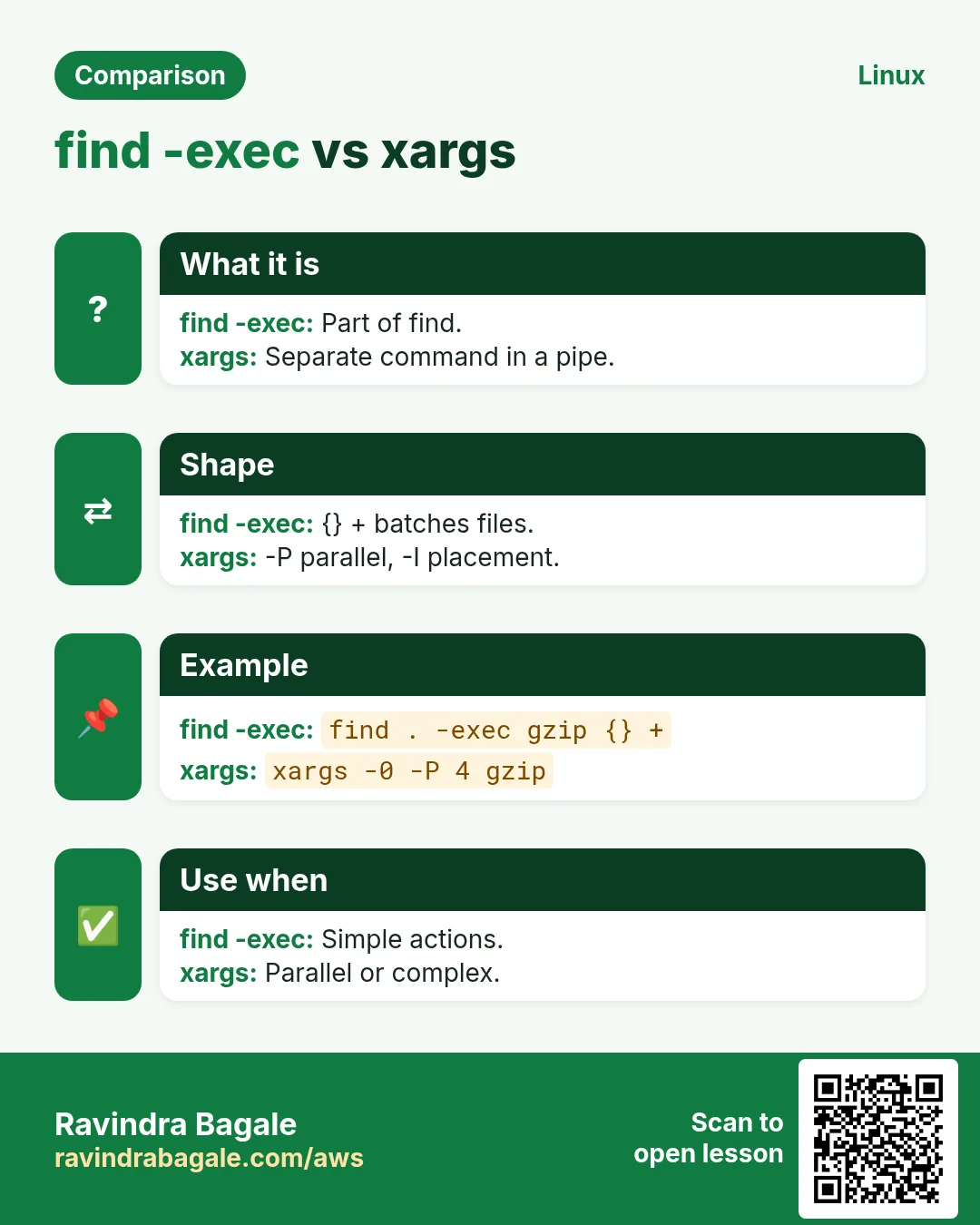
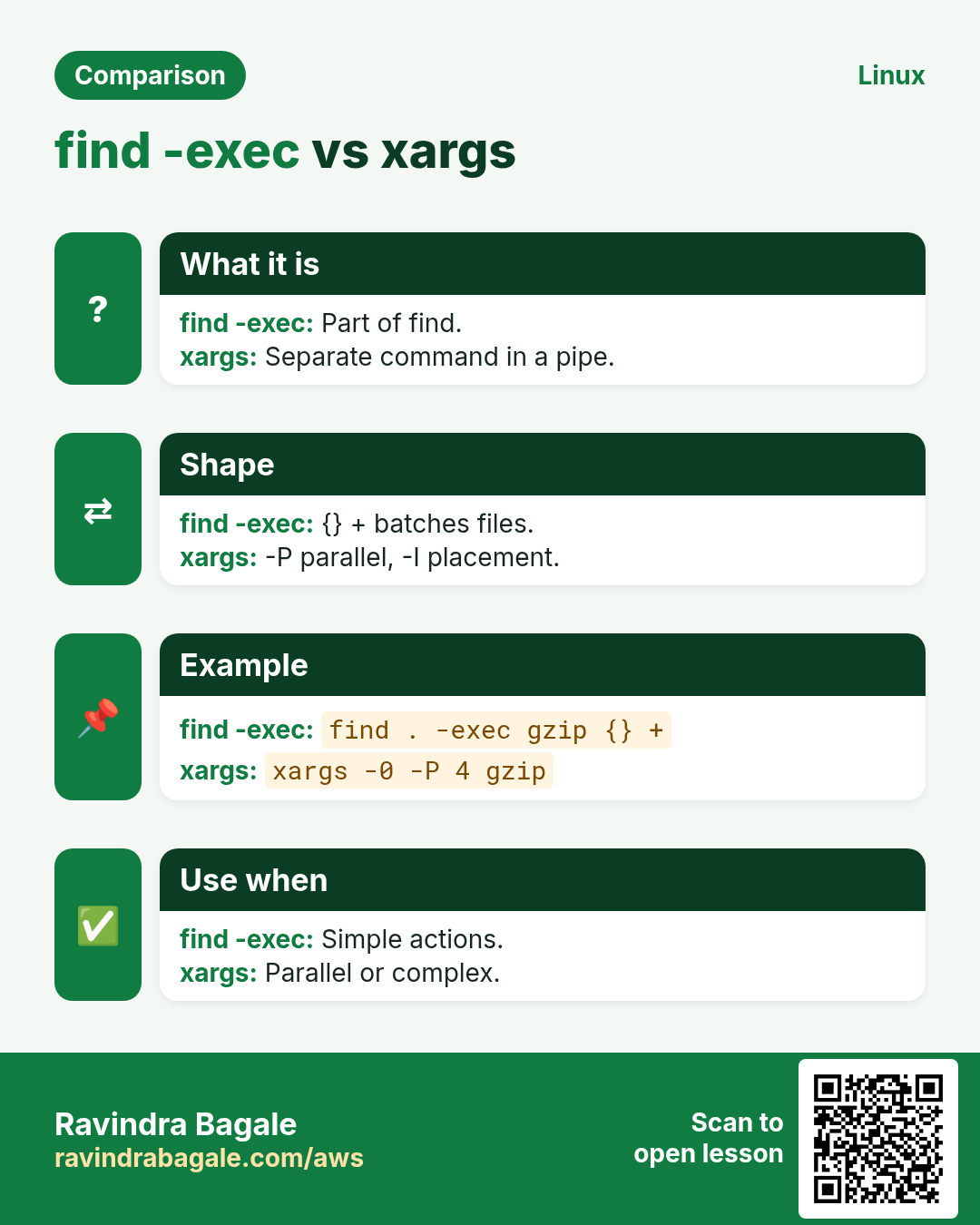
cmd1 | xargs cmd2 reads items from stdin and runs cmd2 with them, packing as many as fit. -0 reads NUL-separated items (pair with find -print0, safe for spaces and new lines in names). -n N items per run, -P N run N in parallel, -I{} puts each item where {} is (one item per run), -r (GNU) does not run if input is empty, -t prints each command first, -p asks.
| Option | Use |
|---|---|
| -0 | NUL separated input (with -print0) |
| -n N | N items per command |
| -P N | N commands in parallel |
| -I{} | Place item anywhere |
| -r | Skip if no input |
| -t | Show commands |
- Delete found files safely.
find /tmp/cache -name '*.tmp' -print0 | xargs -0 -r rm -fOutput:
(no output)Works even with spaces in names; -r skips when nothing found.
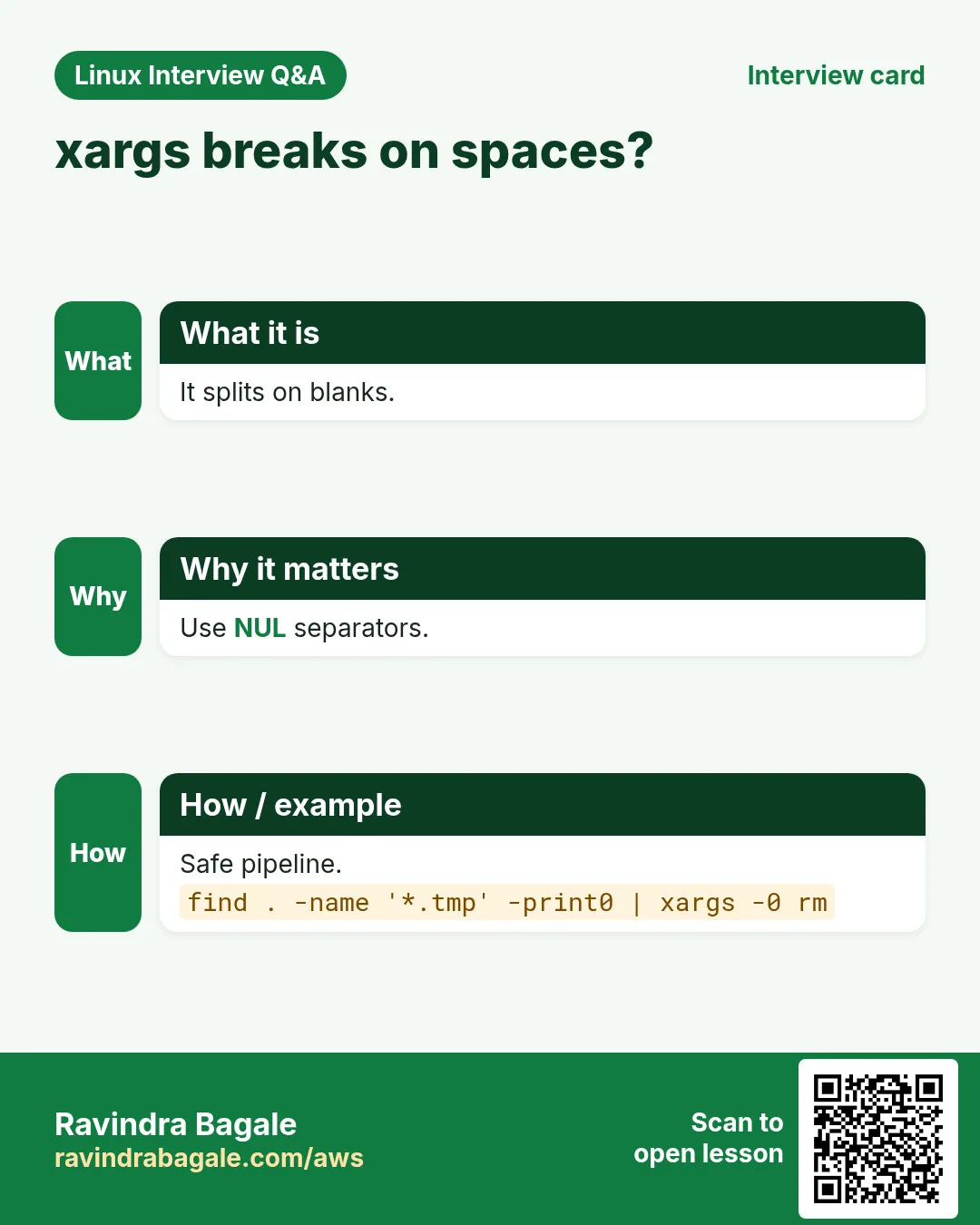
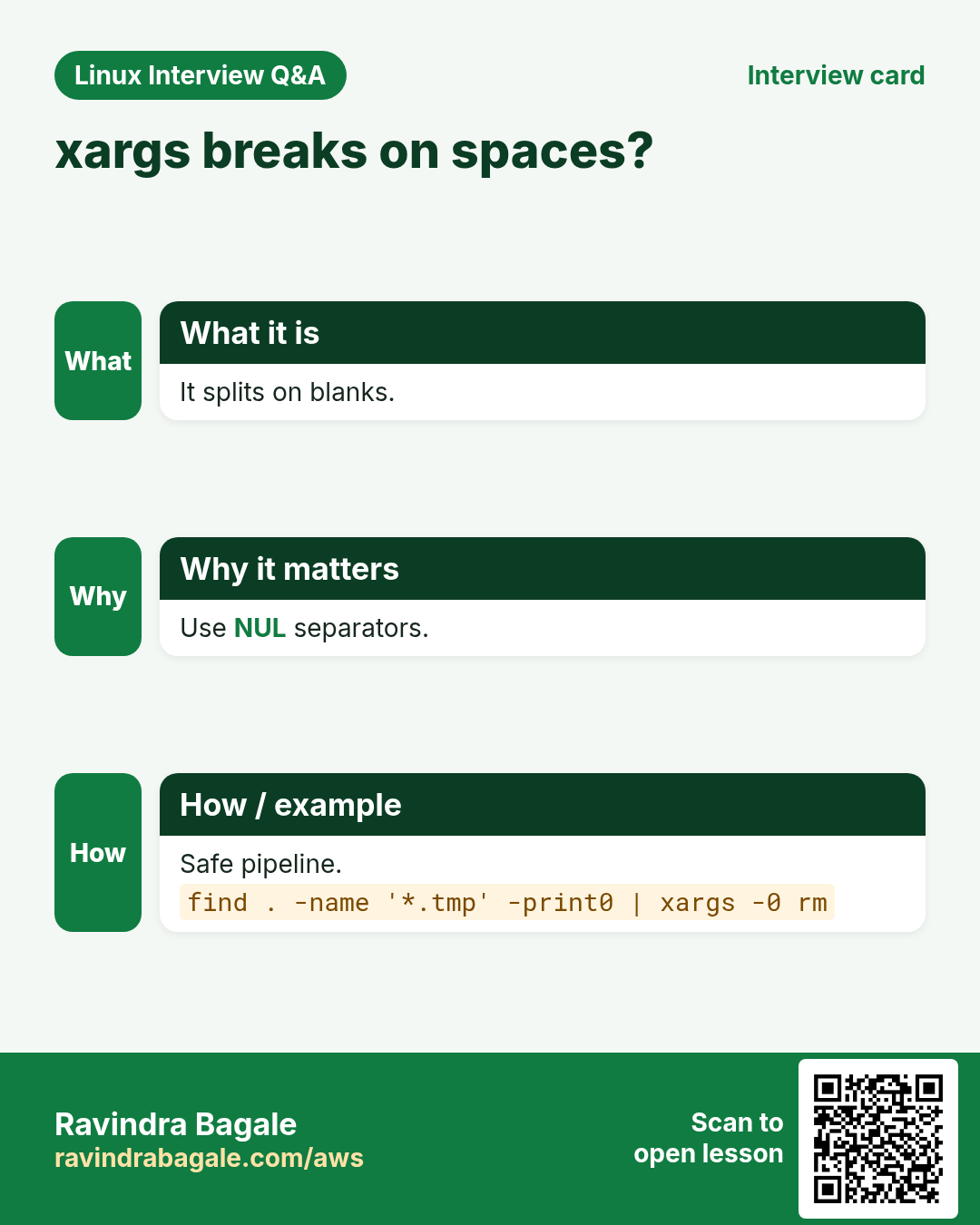
- Why -0 matters.
touch 'my file.txt'; find . -name '*.txt' | xargs lsOutput:
ls: cannot access './my': No such file or directory
ls: cannot access 'file.txt': No such file or directory
Without -print0/-0 the space split the name.
- Grep inside found files.
find . -name '*.py' -print0 | xargs -0 grep -l 'boto3'Output:
./sync/main.pyxargs gives grep many files at once.
- Parallel compression.
find /data/logs -name '*.log' -print0 | xargs -0 -n 1 -P 4 gzipOutput:
(no output)4 gzip jobs at the same time on 4 CPUs.
- Place each item with -I.
cat servers.txt | xargs -I{} ssh {} 'uptime'Output:
web1  10:40 up 12 days
web2  10:40 up 3 days
{} becomes each server name.
- Show and batch.
seq 1 5 | xargs -t -n 2 echoOutput:
echo 1 2
1 2
echo 3 4
3 4
echo 5
5
-t prints the command, -n 2 groups by two.
- Fix 'Argument list too long'.
find /var/spool/mail/old -type f -print0 | xargs -0 rm -fOutput:
(no output)rm /var/spool/mail/old/* would fail with 200,000 files.
10. locate and updatedb: instant name search
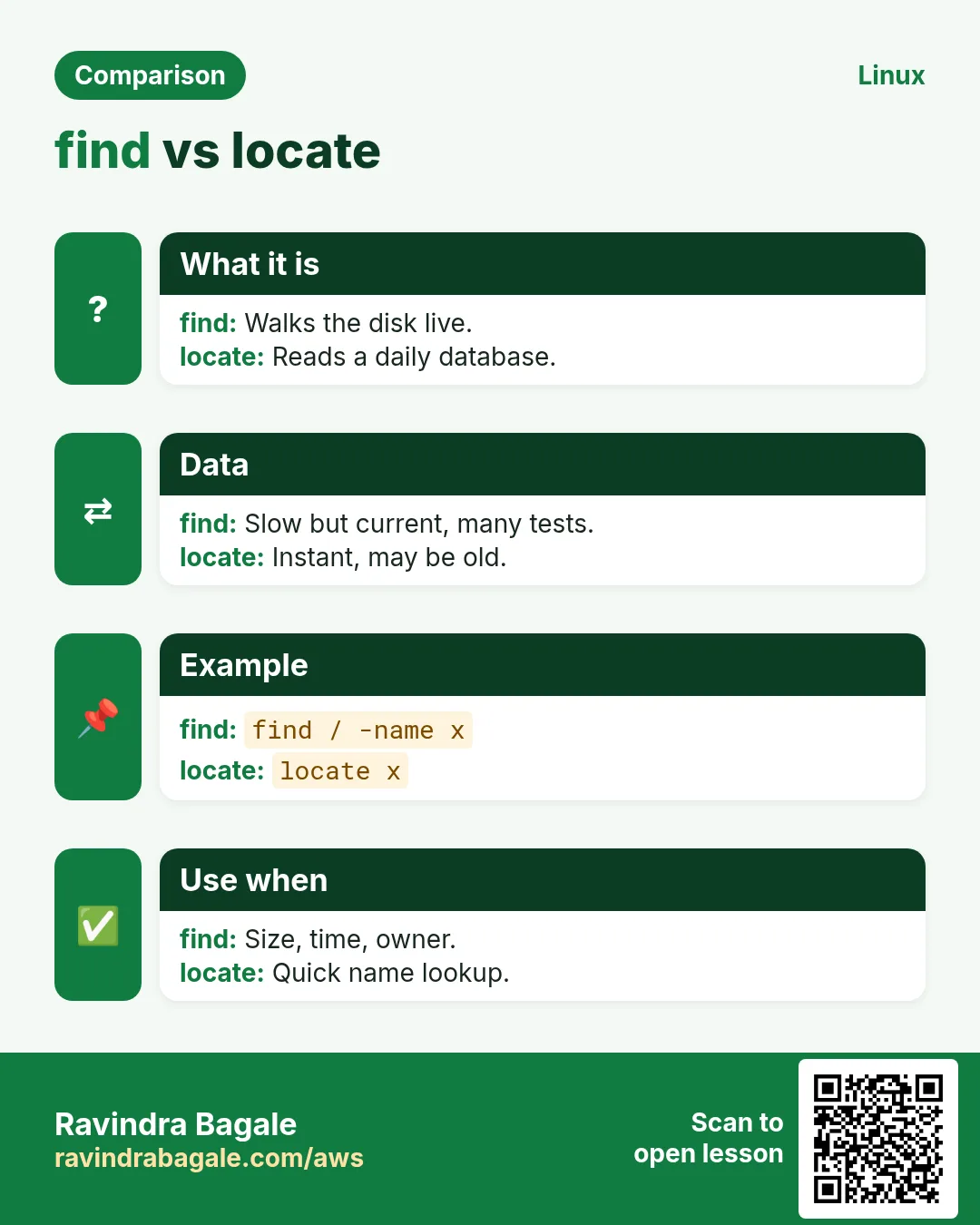
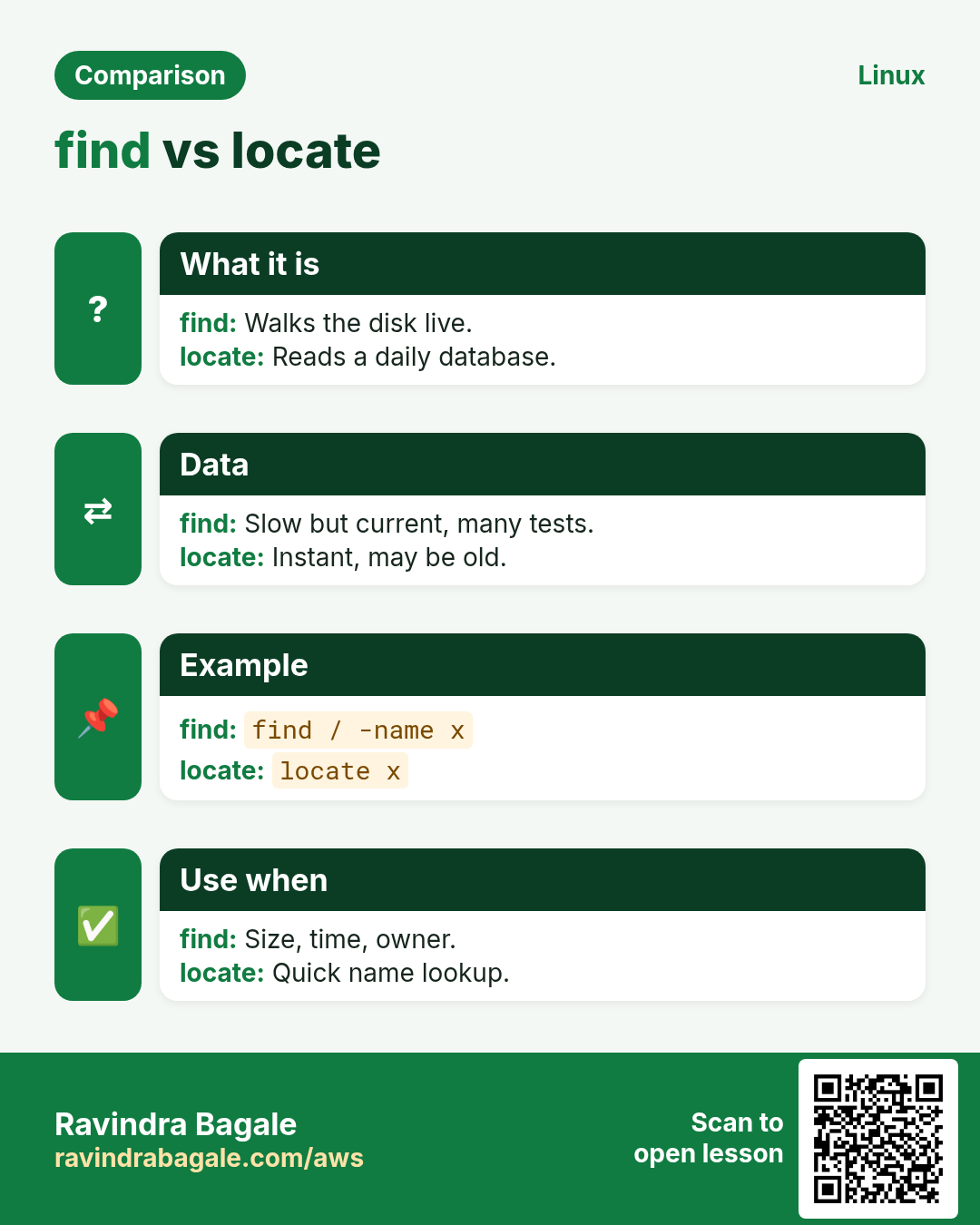
find walks the disk every time. For a quick 'where is that file?' a database is faster.
locate (plocate/mlocate package) searches a database built by updatedb, usually daily. -i ignore case, -c count, -n 5 limit, -e only existing files. New files appear only after updatedb.
- Instant name search.
locate -i nginx.confOutput:
/etc/nginx/nginx.conf
/usr/share/doc/nginx/nginx.conf.default
Very fast, from the database.
- Refresh the database.
sudo updatedb && locate -c '*.log'Output:
213New files appear only after updatedb (runs daily by timer).
11. which: which program will run
Two versions of python or java are installed. Which one runs when you type the name?
which cmd searches your PATH and prints the first match. -a prints all matches.
- Which python runs?
which python3Output:
/usr/bin/python3First match in PATH.
- All matches.
which -a python3Output:
/usr/local/bin/python3
/usr/bin/python3
The first one wins.
12. whereis: binary, source and manual
You want to see where a command and its manual page live.
whereis cmd lists binary, source and man page paths from standard places. -b binary only, -m man only.
- All places of a command.
whereis tarOutput:
tar: /usr/bin/tar /usr/share/man/man1/tar.1.gzBinary and manual page.
- Binary only.
whereis -b nginxOutput:
nginx: /usr/sbin/nginx-b hides man pages.
13. type: alias, builtin, function or file
A command behaves oddly. Maybe it is an alias or a shell function, not the real program.
type is a shell builtin. It says if a name is an alias, keyword, function, builtin or a file on disk. type -a shows all, type -t prints just the kind.
- Alias or file?
type llOutput:
ll is aliased to `ls -l --color=auto'type knows shell aliases; which may not.
- Builtin vs file.
type -a echoOutput:
echo is a shell builtin
echo is /usr/bin/echo
The builtin runs first.
14. Real examples from many industries
The same Linux skill shows up in every kind of company. Seeing it in many places helps you remember it.
Each row is a made-up team. It shows who uses this and how.
| Team and city | How they use it | Command |
|---|---|---|
| Manoj, hosting support, Indore | Frees a full disk by finding files over 1 GB | find / -xdev -type f -size +1G -exec ls -lh {} + |
| Laura, security audit, Madrid | Lists world-writable and SUID files | find / -xdev \( -perm -4000 -o -perm -o+w \) -type f |
| Kwame, media pipeline, Accra | Converts thousands of images in parallel | find in/ -name '*.png' -print0 | xargs -0 -P 8 -I{} convert {} {}.webp |
| Tanvi, data team, Pune | Deletes temp exports older than 14 days via cron | find /data/tmp -type f -mtime +14 -delete |
| Ben, DevOps, Sydney | Finds configs changed just before an outage | find /etc -type f -mmin -30 |
| Riya, web agency, Jaipur | Resets web file permissions | find /var/www -type f -exec chmod 644 {} + |
15. Common errors and how to fix them
Everyone hits these errors. Knowing the cause saves hours.
Read the exact message first. Then match it to a row below.
| Error you see | Why it happens | How to fix |
|---|---|---|
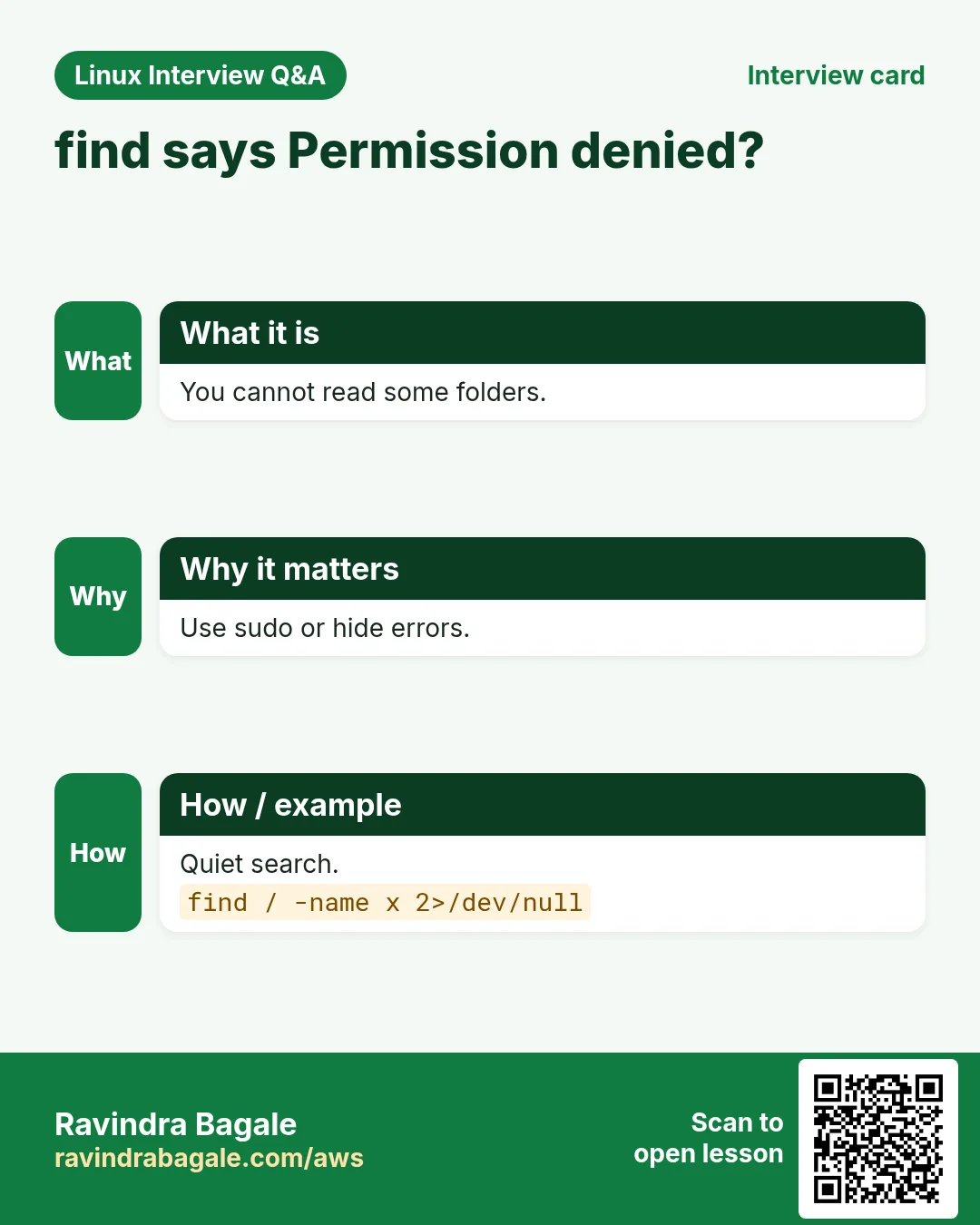
find: '/proc/1234': Permission denied | Normal user cannot read some folders | Use sudo, -xdev, or hide with 2>/dev/null.sudo find / -xdev -name x 2>/dev/null |
find: paths must precede expression: 'b.txt' | Unquoted *.txt was expanded by the shell | Quote the pattern.find . -name '*.txt' |
find: missing argument to `-exec' | Forgot \; or + at the end | End -exec with \; or +.find . -name '*.log' -exec gzip {} + |
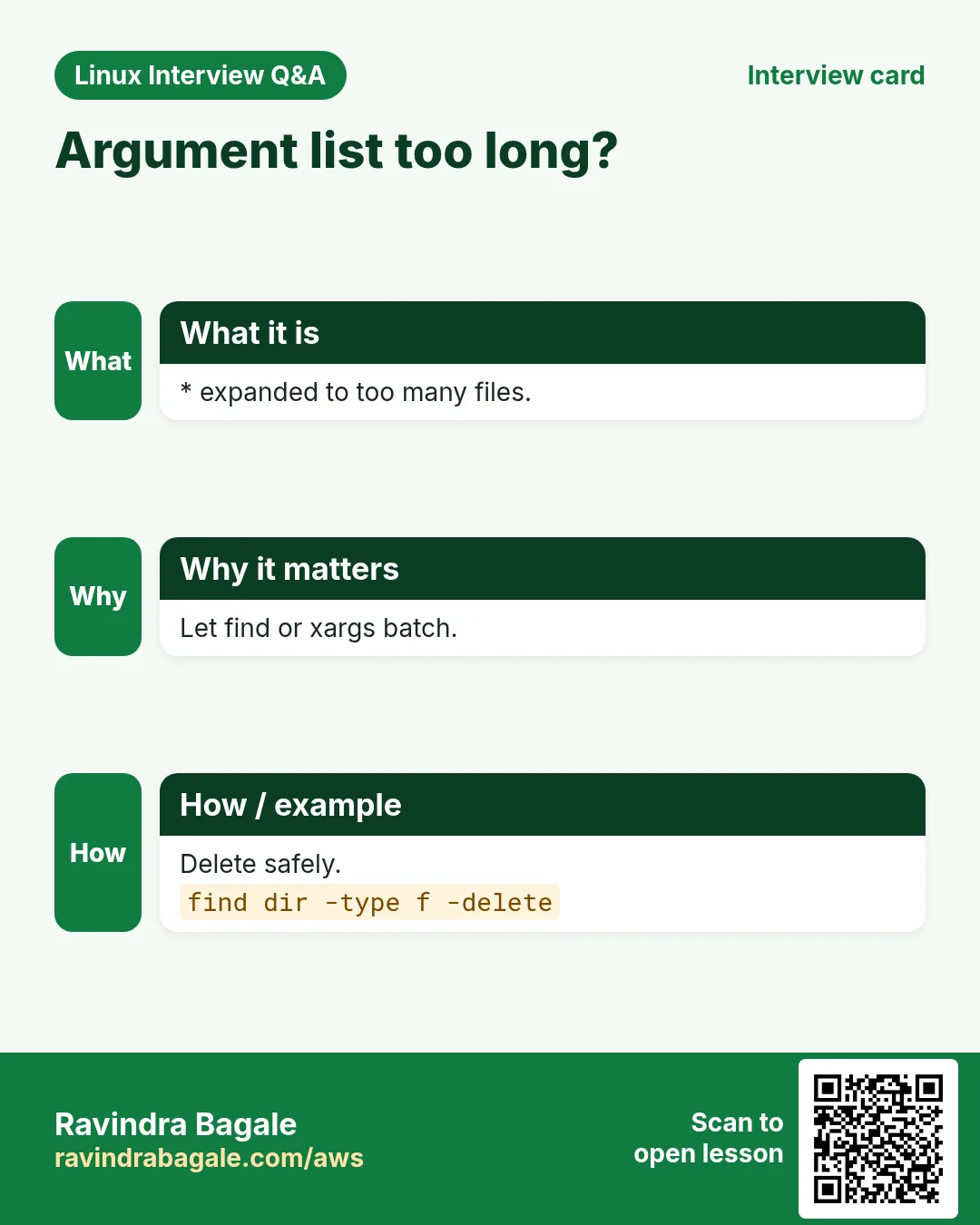
-bash: /usr/bin/rm: Argument list too long | Too many files from a glob like * | Use find -delete or xargs.find dir -type f -delete |
xargs: unmatched single quote | A file name has a quote and you did not use -0 | Use find -print0 | xargs -0.find . -print0 | xargs -0 ls -l |
rm runs with no files and errors (xargs) | Empty input still ran the command | Add -r (GNU xargs).find . -name '*.tmp' -print0 | xargs -0 -r rm |
-delete removed more than expected | -delete was placed before the tests | Put -delete last, and dry-run with -print.find /tmp -name '*.tmp' -print |
find -mtime 7 finds nothing | Exactly 7 means 'between 7 and 8 days' | Use +7 for older than or -7 for newer.find . -mtime +7 |
locate: can not stat () `/var/lib/plocate/plocate.db' | The database is not built yet | Run updatedb.sudo updatedb |
-prune does not skip the folder | Missing -o ... -print, or the path does not match exactly | Use the -path X -prune -o ... -print form.find . -path ./node_modules -prune -o -type f -print |
16. Troubleshooting step by step
When find returns nothing or too much, build the command one test at a time and always -print before any action.
Go top to bottom. Stop at the first step that shows the problem.
- Start broad and check results exist.
find /var/log -type f | head- Add one test at a time.
find /var/log -type f -name '*.log' | head- Check the time maths.
find /var/log -type f -name '*.log' -mtime +7 -printf '%TY-%Tm-%Td %p\n' | head- Check the count before acting.
find /var/log -type f -name '*.log' -mtime +7 | wc -l- Dry-run xargs with echo or -t.
find . -name '*.tmp' -print0 | xargs -0 -r echo rm- Then run the real action.
find . -name '*.tmp' -print0 | xargs -0 -r rm -f17. Lab 1: Free a full disk safely
Create test files, find big and old ones, compress and delete safely.
A full hands-on lab. Run every step on a test Linux machine (an EC2 instance, a VM, or WSL).
- Create files of different sizes and ages.
mkdir -p ~/lab12/logs && cd ~/lab12/logs && for i in 1 2 3 4 5; do truncate -s ${i}0M app$i.log; touch -d "$((i*3)) days ago" app$i.log; done; ls -lhOutput:
-rw-r--r-- 1 ravi ravi 10M app1.log ... 50M app5.log- Files bigger than 25 MB.
find . -type f -size +25M -printf '%s %p\n' | sort -nrOutput:
52428800 ./app5.log
41943040 ./app4.log
31457280 ./app3.log- Files older than 7 days.
find . -name '*.log' -mtime +7Output:
./app3.log
./app4.log
./app5.log- Compress them.
find . -name '*.log' -mtime +7 -exec gzip {} + && lsOutput:
app1.log app2.log app3.log.gz app4.log.gz app5.log.gz- Delete gz files older than 12 days (print first).
find . -name '*.gz' -mtime +12 -print -deleteOutput:
./app5.log.gz18. Lab 2: Names with spaces and xargs
See how spaces break pipelines and fix them with -print0 and -0; run jobs in parallel.
A full hands-on lab. Run every step on a test Linux machine (an EC2 instance, a VM, or WSL).
- Make tricky file names.
mkdir -p ~/lab12/docs && cd ~/lab12/docs && touch 'Oct bill.txt' 'Nov bill.txt' plain.txtOutput:
(no output)- Unsafe way.
find . -name '*.txt' | xargs ls 2>&1 | head -2Output:
ls: cannot access './Oct': No such file or directory
ls: cannot access 'bill.txt': No such file or directory- Safe way.
find . -name '*.txt' -print0 | xargs -0 lsOutput:
./Nov bill.txt ./Oct bill.txt ./plain.txt- Parallel jobs with -P and -I.
find . -name '*.txt' -print0 | xargs -0 -P 3 -I{} sh -c 'echo "done: $1"' _ {}Output:
done: ./plain.txt
done: ./Oct bill.txt
done: ./Nov bill.txt- Fix permissions in one go.
find ~/lab12 -type f -exec chmod 644 {} + && find ~/lab12 -type f ! -perm 644 | wc -lOutput:
0Ravindra Bagale's Tip
Before any find -delete or xargs rm, run the exact same find with -print (or xargs echo) and check the count with wc -l. Deleting the wrong 10,000 files takes one second; getting them back may be impossible.
Ravindra Bagale's Tip – मराठी
कोणत्याही find -delete किंवा xargs rm आधी तोच find -print सह (किंवा xargs echo) चालवा आणि wc -l ने count बघा. चुकीच्या 10,000 files delete व्हायला एक second लागतो; परत मिळवणं अशक्य असू शकतं.
Ravindra Bagale's Tip – हिंदी
किसी भी find -delete या xargs rm से पहले वही find -print के साथ (या xargs echo) चलाएं और wc -l से count देखें. गलत 10,000 files delete होने में एक second लगता है; वापस पाना नामुमकिन हो सकता है.
19. Frequently asked questions
Q. find or locate?
locate is instant but uses a daily database. find is always current and can test size, time and owner.
Q. Why quote '*.txt'?
Without quotes the shell expands it to file names in the current folder before find sees it.
Q. -exec {} \; or {} +?
\; runs once per file (slow). + passes many files per run (fast). Use + when the command accepts many files.
Q. Why -print0 and xargs -0?
File names can contain spaces, quotes or new lines. NUL can never be in a name, so it is a safe separator.
Q. What does -mtime +7 mean exactly?
Modified more than 7 full days (×24 h) ago. -mtime 7 means between 7 and 8 days.
Q. Why use -xdev?
It stops find from crossing into other disks, network mounts, /proc and /sys.
Q. xargs or a while read loop?
xargs is faster and can run in parallel. A while loop is easier for complex logic per file.
Q. Is find -delete safe?
Yes, if you test the same command with -print first and keep -delete as the last option.
20. Interview questions and answers
Beginner level
Q. How do you find a file named app.conf under /etc?
find /etc -name app.conf.
Q. How do you find only folders?
find PATH -type d.
Q. How do you find files bigger than 100 MB?
find / -xdev -type f -size +100M.
Q. What does xargs do?
It turns lines from stdin into arguments for a command.
Mid level level
Q. Delete .log files older than 30 days.
find /var/log/app -name '*.log' -mtime +30 -delete (print first).
Q. Difference between -exec {} \; and {} +?
\; one process per file; + batches many files into one process, like xargs.
Q. How do you handle spaces in file names with xargs?
find ... -print0 | xargs -0 cmd.
Q. Find files changed in the last 15 minutes.
find /path -mmin -15 -type f.
Senior level
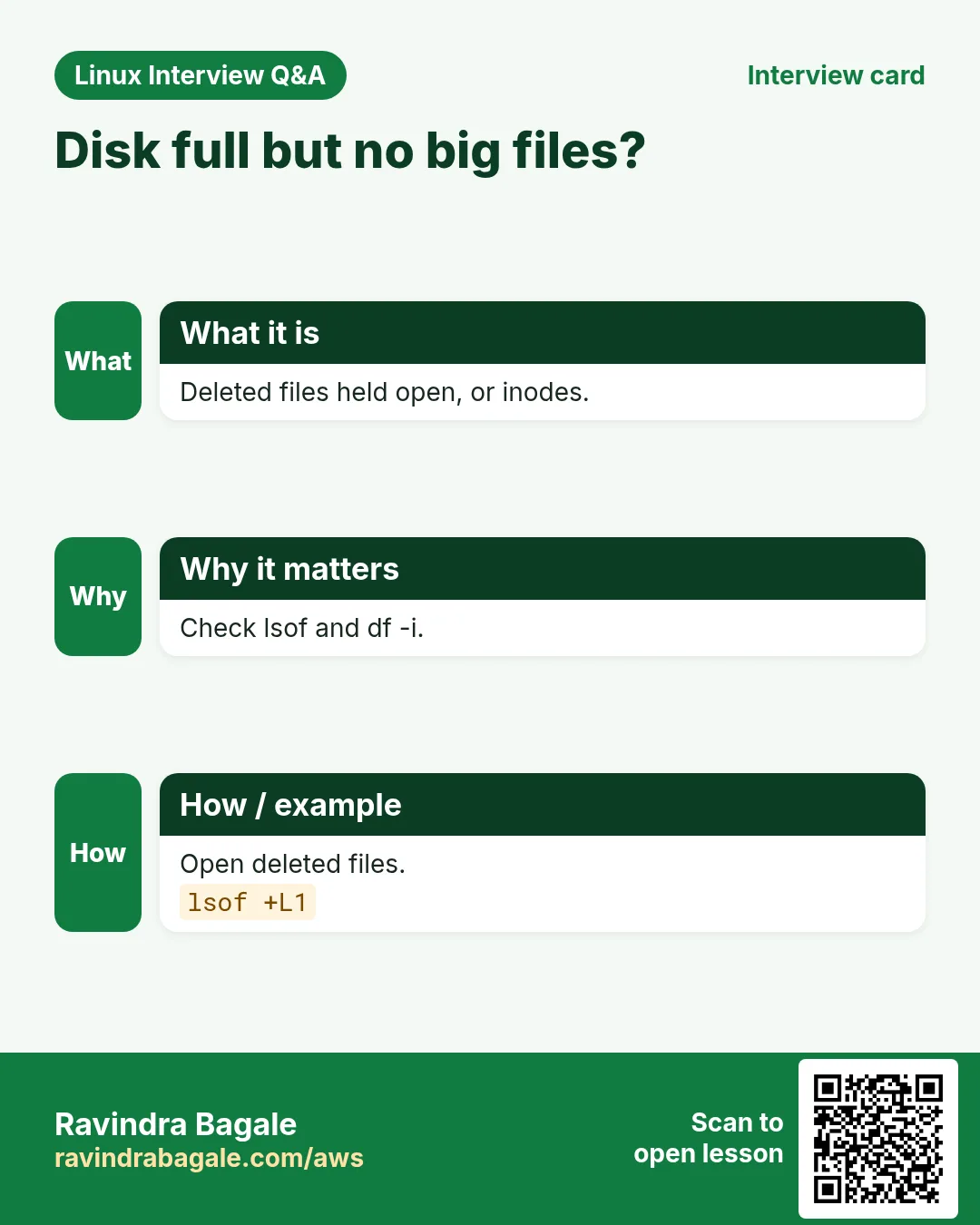
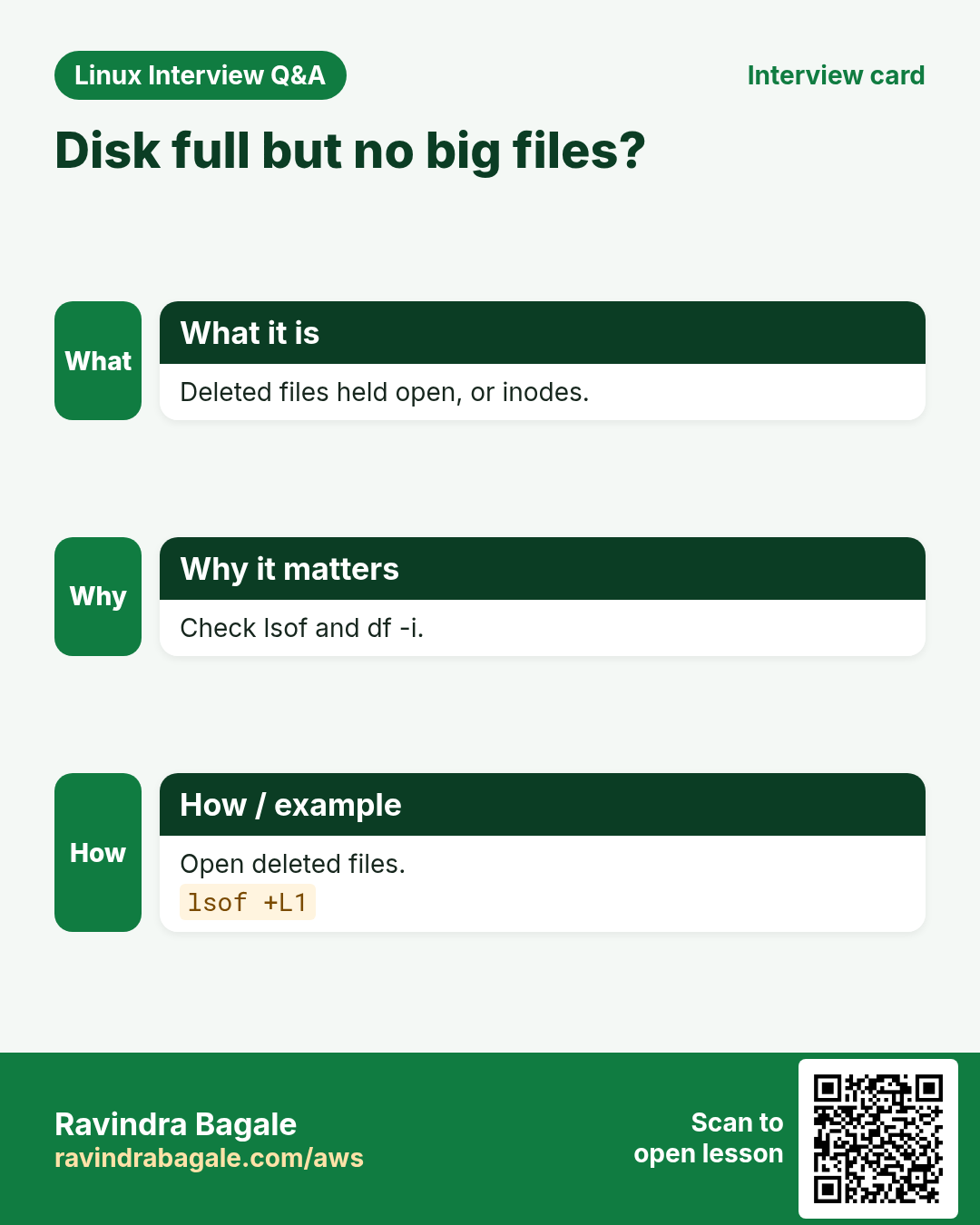
Q. Disk is 100% but find shows no big files. Why?
Deleted files still held open (lsof +L1), files hidden under a mount point, inode exhaustion (df -i), or reserved blocks. Check each.
Q. Process 2 million files with a command, fast and safely.
find -print0 | xargs -0 -n 500 -P $(nproc) cmd; or find -exec cmd {} +; tune -n for memory, avoid one-process-per-file.
Q. How do you audit SUID/SGID and world-writable files across a fleet?
find / -xdev -type f \( -perm -4000 -o -perm -2000 \) and -perm -o+w, ship results via Ansible/SSM, diff against a baseline and alert on new entries.
Q. Why is find . -name '*.tmp' -delete -o -name '*.bak' dangerous if written wrongly?
Operator precedence: AND binds tighter than OR, and -delete placed before tests deletes everything it reaches. Group with \( \) and put -delete last.
Try at home
- In your Downloads folder, find all PDF files bigger than 1 MB and older than 30 days, and print them with their size.
- Make 3 files with spaces in the names and list them safely with find -print0 | xargs -0 ls -l.
Practise this chapter
Interview questions and answers
Why might a find expression return directories even though it contains -type f?
An ungrouped OR can allow a later name test to match a directory without also requiring the file-type test. I would group the name alternatives and preview the result on a tree with both regular files and a directory ending with the same extension.
Check your understanding
Choose an answer, then compare your reasoning with the explanation.
Practice Tasks
Practice checks run in your browser. They check the answer for this exercise; they do not create resources or connect to your AWS account.
About this scenarioAhmednagar Sugar Co-op is a sugar co-operative business in Ahilyanagar. Balasaheb Pawar looks after its IT and cloud work. They count money in INR and run their AWS resources in the ap-south-1 Region. In the tasks below you do real jobs for them using what this lesson teaches. All names, account IDs, IP addresses and numbers are made up for practice.
0 / 18
Easy Find by name
Lost config file.
Find files named app.conf under /etc.
- Find the Linux command that does this job.
- Add the options (like -r or -h) the task needs.
- Add the file names, folders or users in the right order.
- Use sudo if the job changes system files or users. Click Check answer.
Easy Find by extension
All logs in one list.
Find all files ending in .log under /opt/app/logs. Quote the pattern.
- Find the Linux command that does this job.
- Add the options (like -r or -h) the task needs.
- Add the file names, folders or users in the right order.
- Use sudo if the job changes system files or users. Click Check answer.
Easy Ignore case
Invoice or receipt.
Find files under ~/Documents whose name contains receipt in any case. Pattern '*receipt*'.
- Find the Linux command that does this job.
- Add the options (like -r or -h) the task needs.
- Add the file names, folders or users in the right order.
- Use sudo if the job changes system files or users. Click Check answer.
Easy Only folders
Count project folders.
Find only directories under /srv/app.
- Find the Linux command that does this job.
- Add the options (like -r or -h) the task needs.
- Add the file names, folders or users in the right order.
- Use sudo if the job changes system files or users. Click Check answer.
Easy Instant name lookup
find is slow on big disks.
Search the file name database for php.ini, ignoring case.
- Find the Linux command that does this job.
- Add the options (like -r or -h) the task needs.
- Add the file names, folders or users in the right order.
- Use sudo if the job changes system files or users. Click Check answer.
Easy Which program runs
Two pythons installed.
Show the path of the pip3 that runs from your PATH.
- Find the Linux command that does this job.
- Add the options (like -r or -h) the task needs.
- Add the file names, folders or users in the right order.
- Use sudo if the job changes system files or users. Click Check answer.
Medium Big files
Disk is full.
Find regular files bigger than 500 MB under /var.
- Find the Linux command that does this job.
- Add the options (like -r or -h) the task needs.
- Add the file names, folders or users in the right order.
- Use sudo if the job changes system files or users. Click Check answer.
Medium Old files
Logs older than a week.
Find files under /var/log/app modified more than 7 days ago.
- Find the Linux command that does this job.
- Add the options (like -r or -h) the task needs.
- Add the file names, folders or users in the right order.
- Use sudo if the job changes system files or users. Click Check answer.
Medium Recently changed
What changed before the outage?
Find files under /etc/systemd changed in the last 15 minutes.
- Find the Linux command that does this job.
- Add the options (like -r or -h) the task needs.
- Add the file names, folders or users in the right order.
- Use sudo if the job changes system files or users. Click Check answer.
Medium Files of a user
Before removing an account.
Find files under /home owned by the user sneha.
- Find the Linux command that does this job.
- Add the options (like -r or -h) the task needs.
- Add the file names, folders or users in the right order.
- Use sudo if the job changes system files or users. Click Check answer.
Medium Top level only
Do not walk deep folders.
Find .log files directly inside /srv/logs only (depth 1). Put -maxdepth first.
- Find the Linux command that does this job.
- Add the options (like -r or -h) the task needs.
- Add the file names, folders or users in the right order.
- Use sudo if the job changes system files or users. Click Check answer.
Medium Compress found files
Save disk space.
Gzip .log files under /srv/api/logs older than 5 days, batching many files per gzip run with {} +.
- Find the Linux command that does this job.
- Add the options (like -r or -h) the task needs.
- Add the file names, folders or users in the right order.
- Use sudo if the job changes system files or users. Click Check answer.
Medium Delete old temp files
Cron cleanup.
Delete regular files under /var/tmp/cache older than 10 days using find's own delete action.
- Find the Linux command that does this job.
- Add the options (like -r or -h) the task needs.
- Add the file names, folders or users in the right order.
- Use sudo if the job changes system files or users. Click Check answer.
Medium Safe delete with xargs
Names may contain spaces.
Find *.bak files in the current folder and remove them with xargs, safely handling spaces (-print0 and -0).
- Find the Linux command that does this job.
- Add the options (like -r or -h) the task needs.
- Add the file names, folders or users in the right order.
- Use sudo if the job changes system files or users. Click Check answer.
Hard World-writable files
Security audit.
Find regular files under /srv that are writable by others. Use -perm -o+w.
- Find the Linux command that does this job.
- Add the options (like -r or -h) the task needs.
- Add the file names, folders or users in the right order.
- Use sudo if the job changes system files or users. Click Check answer.
Hard Skip a folder
vendor is huge.
From the current folder, list *.php files but skip ./vendor using -path ... -prune -o ... -print.
- Find the Linux command that does this job.
- Add the options (like -r or -h) the task needs.
- Add the file names, folders or users in the right order.
- Use sudo if the job changes system files or users. Click Check answer.
Hard Parallel gzip
Use all CPUs.
Gzip all *.log files under /data, one file per gzip, 4 at a time. Use -print0, xargs -0 -n 1 -P 4.
- Find the Linux command that does this job.
- Add the options (like -r or -h) the task needs.
- Add the file names, folders or users in the right order.
- Use sudo if the job changes system files or users. Click Check answer.
Hard Run a command per server
Check uptime everywhere.
Read servers.txt with cat and, for each line, run ssh SERVER uptime using xargs -I{}.
- Find the Linux command that does this job.
- Add the options (like -r or -h) the task needs.
- Add the file names, folders or users in the right order.
- Use sudo if the job changes system files or users. Click Check answer.
21. Related chapters
- Linux Ops Refresh for DevOps
- Bash Scripting for Automation
- Linux grep and find Commands with Examples
- How to Set Up Passwordless SSH Between Linux Servers
In short
- find START tests actions; quote patterns.
- -name -iname -type -size -mtime -mmin -user -perm.
- -maxdepth, -prune, -xdev, ! and -o.
- -exec {} + is fast; -delete goes last; always -print first.
- find -print0 | xargs -0 -r -n -P -I.
- locate for instant name lookups; which/whereis/type for commands.
Revision, comparison and interview cards
Revise this lesson in a few minutes. Save the cards on your phone or download them as PNG files. The QR code on each card opens this lesson.
More cards: Ravi Sir's Cards.