Linux Package Management: apt, dnf, yum, rpm, dpkg and snap Commands Explained
Software on Linux comes in packages. A package manager downloads the right package, checks it, installs its dependencies, and can update or remove it later. Debian and Ubuntu use apt with dpkg underneath. RHEL, Amazon Linux, Rocky and Fedora use dnf (yum on older systems) with rpm underneath. snap works on many distros. We cover each command and key option one by one.
In this chapter
- Refresh lists and install, remove and purge with apt
- Search, show and upgrade packages safely
- Use dnf/yum for install, update, provides, history and undo
- Query installed files with rpm and dpkg
- Add repositories and hold versions
- Install and manage snaps
1. An everyday example: ordering from a trusted wholesaler
A Pune shopkeeper does not make biscuits. He orders from a trusted wholesaler's catalogue. The catalogue is updated every week. When he orders tea, the wholesaler also sends the sugar it needs. Every box has a seal, so he knows it is genuine.
Wholesaler = repository. Catalogue = package index (apt update / dnf makecache). Tea plus sugar = dependencies. Seal = GPG signature. The shopkeeper's order book = apt/dnf history.
2. apt update: refresh the catalogue
Think of the repository as the place that publishes software packages and their version information. Updating the local index downloads that information so the package manager knows which versions it could install. Compare your current package version before and after apt update. The installed version stays the same. At installation time, the package manager downloads the selected package and the other packages it depends on. Keep those two steps straight when an “update finished” message appears but the running program still reports its older version.
Without a fresh index, apt does not know about new versions and may try to download files that no longer exist (404).
sudo apt update downloads the package lists from every repo. It does not install or upgrade anything. Run it before install or upgrade.
- Refresh.
sudo apt updateOutput:
Hit:1 http://archive.ubuntu.com/ubuntu noble InRelease
Get:2 http://security.ubuntu.com/ubuntu noble-security InRelease [126 kB]
Reading package lists... Done
12 packages can be upgraded. Run 'apt list --upgradable' to see them.
Only the lists changed.
- What can be upgraded?
apt list --upgradableOutput:
openssl/noble-updates 3.0.13-0ubuntu3.4 amd64 [upgradable from: 3.0.13-0ubuntu3.1]Name, new version, old version.
3. apt install: install packages
This is how you get nginx, git, python and almost everything else.
sudo apt install NAME [NAME...] installs with dependencies. -y says yes automatically (use in scripts). NAME=VERSION installs a specific version. --no-install-recommends skips optional extras. apt install ./file.deb installs a local file and its deps.
- Install nginx.
sudo apt install -y nginxOutput:
The following NEW packages will be installed:
  libnginx-mod-http-geoip2 nginx nginx-common
Setting up nginx (1.24.0-2ubuntu7) ...
Dependencies came along.
- A slim install.
sudo apt install -y --no-install-recommends python3-pipOutput:
(fewer packages listed)Good for small images.
- Exact version.
sudo apt install -y nginx=1.24.0-2ubuntu7Output:
nginx is already the newest version (1.24.0-2ubuntu7).Pin a version you tested.
4. apt remove, purge and autoremove
Removing software you do not need saves disk and reduces security risk. Sometimes you also want its config gone for a clean reinstall.
apt remove NAME removes the program but keeps config files in /etc. apt purge NAME removes config too. apt autoremove removes dependencies nobody needs any more.
- Remove but keep config.
sudo apt remove -y nginx && ls /etc/nginx | head -2Output:
conf.d
nginx.conf
Config is still there.
- Remove everything.
sudo apt purge -y nginx nginx-commonOutput:
Removing nginx-common ...
Purging configuration files for nginx-common ...
/etc/nginx is gone.
- Clean leftovers.
sudo apt autoremove -yOutput:
Removing libnginx-mod-http-geoip2 ...Orphans removed.
5. apt upgrade and full-upgrade
Before answering yes to an upgrade, read the proposed changes in groups: new packages, upgrades and removals. A dependency is a package that another package needs to work. A larger upgrade can replace one dependency with another. Compare a simulated apt-get -s upgrade and apt-get -s dist-upgrade on your practice VM. Check whether packages are held back or proposed for removal. If a proposal removes a package you still need, stop and understand the dependency before applying it.
Security fixes arrive as updates. Patching is a normal weekly job.
apt upgrade installs newer versions but never removes packages. apt full-upgrade may remove or add packages to finish the upgrade (for example new kernels). apt install --only-upgrade NAME upgrades one package. Check /var/run/reboot-required after kernel updates.
- Patch the server.
sudo apt update && sudo apt upgrade -yOutput:
12 upgraded, 0 newly installed, 0 to remove and 0 not upgraded.Nothing was removed.
- Only openssl.
sudo apt install --only-upgrade -y opensslOutput:
openssl is already the newest versionTargeted patch.
- Reboot needed?
cat /var/run/reboot-required 2>/dev/null || echo no rebootOutput:
*** System restart required ***A kernel was updated.
6. apt search, show and list
Before you install, you want to know the exact name, version, size and what it depends on.
apt search WORD searches names and descriptions. apt show NAME shows version, size, depends, description. apt list --installed lists installed packages. apt-cache policy NAME shows candidate versions and which repo they come from.
- Find a JSON tool.
apt search --names-only '^jq$'Output:
jq/noble 1.7.1-3build1 amd64
  lightweight and flexible command-line JSON processor
Exact name match.
- Details.
apt show jq 2>/dev/null | grep -E 'Version|Depends|Installed-Size'Output:
Version: 1.7.1-3build1
Installed-Size: 102 kB
Depends: libjq1 (= 1.7.1-3build1), libc6 (>= 2.34)
Small and simple.
- Which repo and version?
apt-cache policy nginxOutput:
nginx:
  Installed: (none)
  Candidate: 1.24.0-2ubuntu7
  Version table:
     1.24.0-2ubuntu7 500
        500 http://archive.ubuntu.com/ubuntu noble/main amd64 Packages
Candidate is what install would pick.
7. dpkg: the low-level Debian tool
You need to ask: which package owns this file? What files did this package install? Is it really installed?
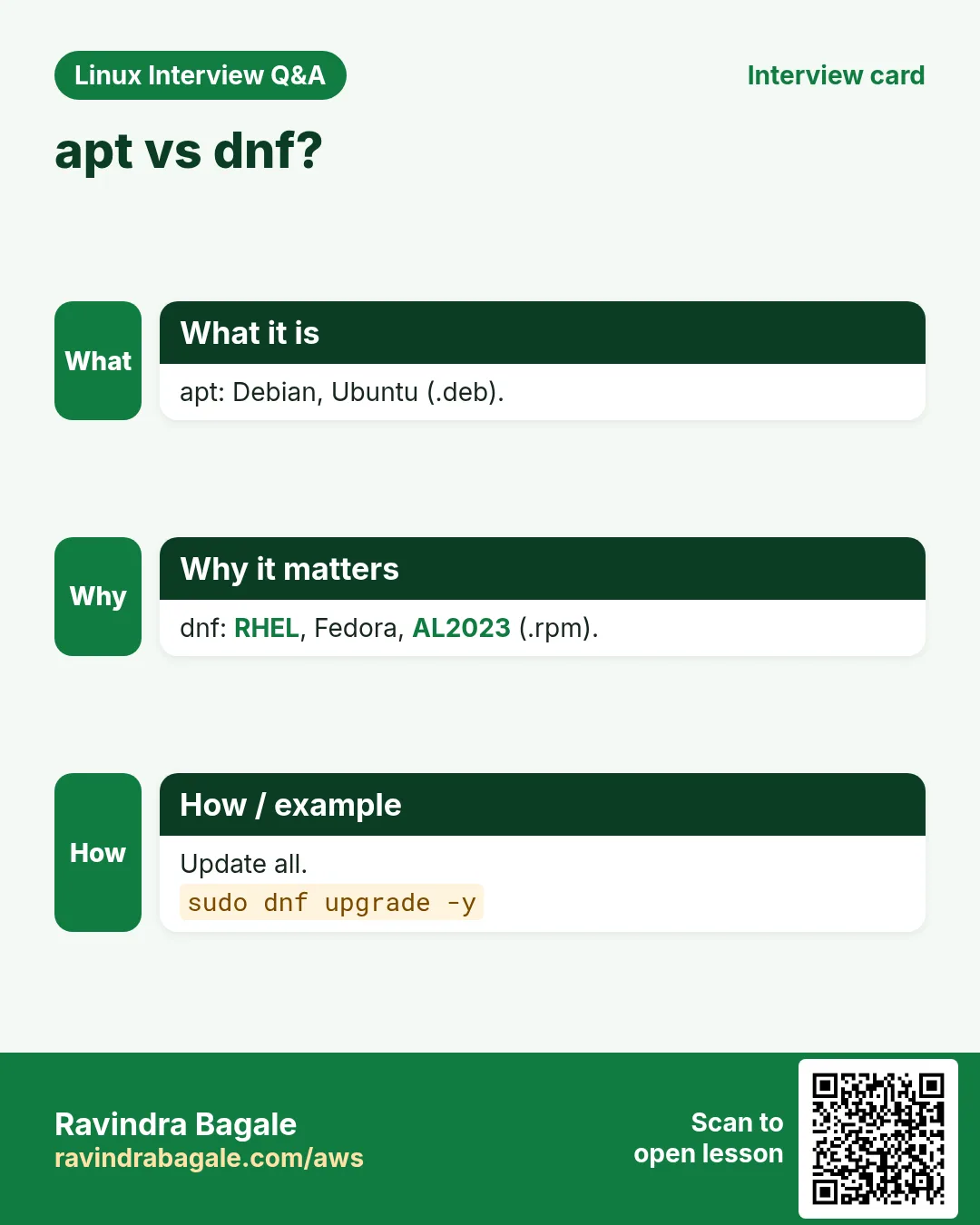
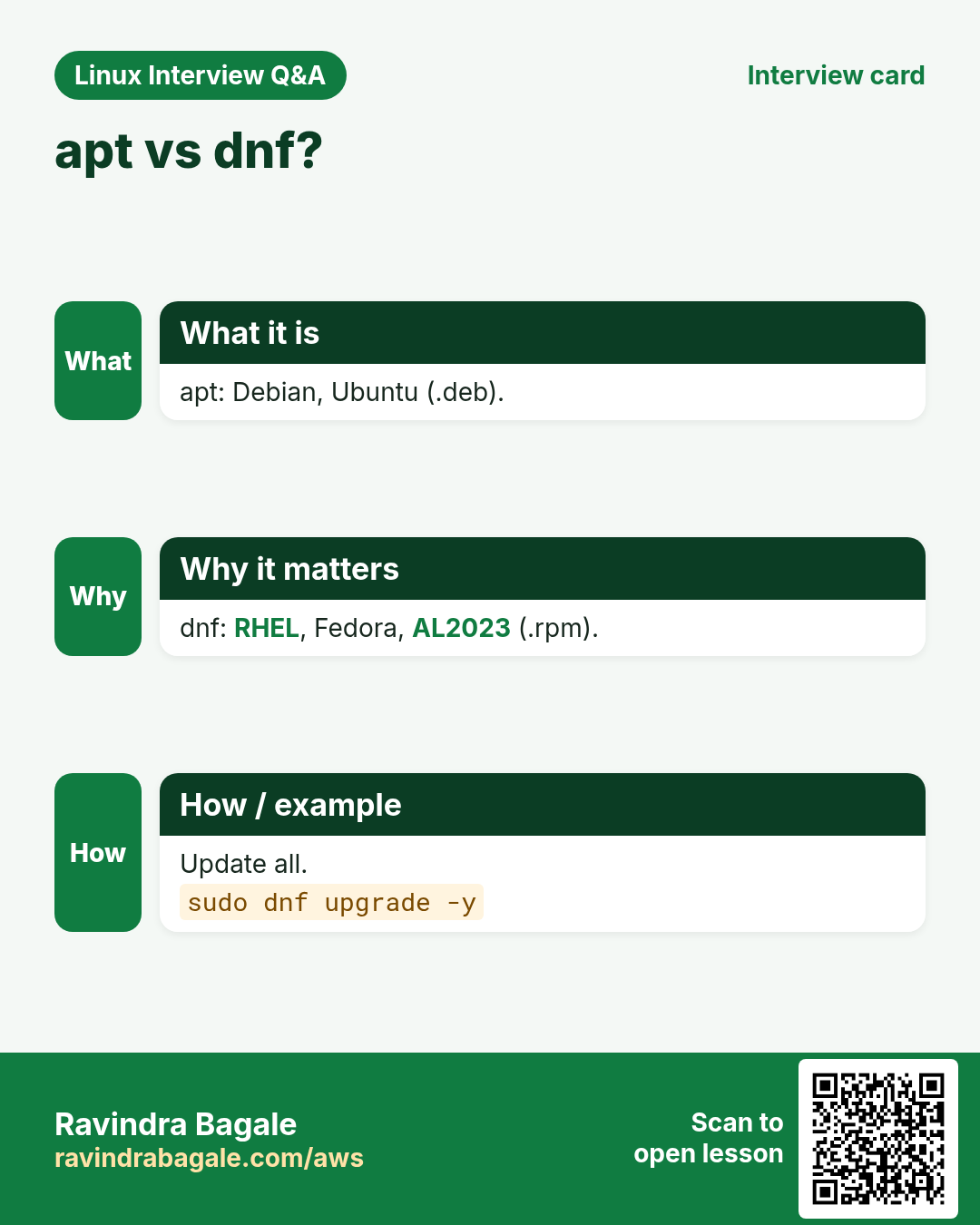
dpkg -l lists packages (ii = installed). dpkg -L NAME lists its files. dpkg -S /path finds the owner. dpkg -s NAME shows status. dpkg -i file.deb installs a local file but does not fetch deps (fix with apt -f install).
- Is curl installed?
dpkg -l curl | tail -n1Output:
ii curl 8.5.0-2ubuntu10.4 amd64 command line tool for transferring data with URL syntaxii = installed OK.
- Who owns this file?
dpkg -S /usr/bin/curlOutput:
curl: /usr/bin/curlPackage name first.
- Files of a package.
dpkg -L jq | grep binOutput:
/usr/bin/jqWhere it put the binary.
- Local .deb with missing deps.
sudo dpkg -i tool_1.0_amd64.deb; sudo apt -f install -yOutput:
dpkg: dependency problems prevent configuration of tool ...
Setting up tool (1.0) ...
apt fixes the deps.
8. dnf and yum install, remove and reinstall
Amazon Linux, RHEL, Rocky, Alma and Fedora servers are very common in companies.
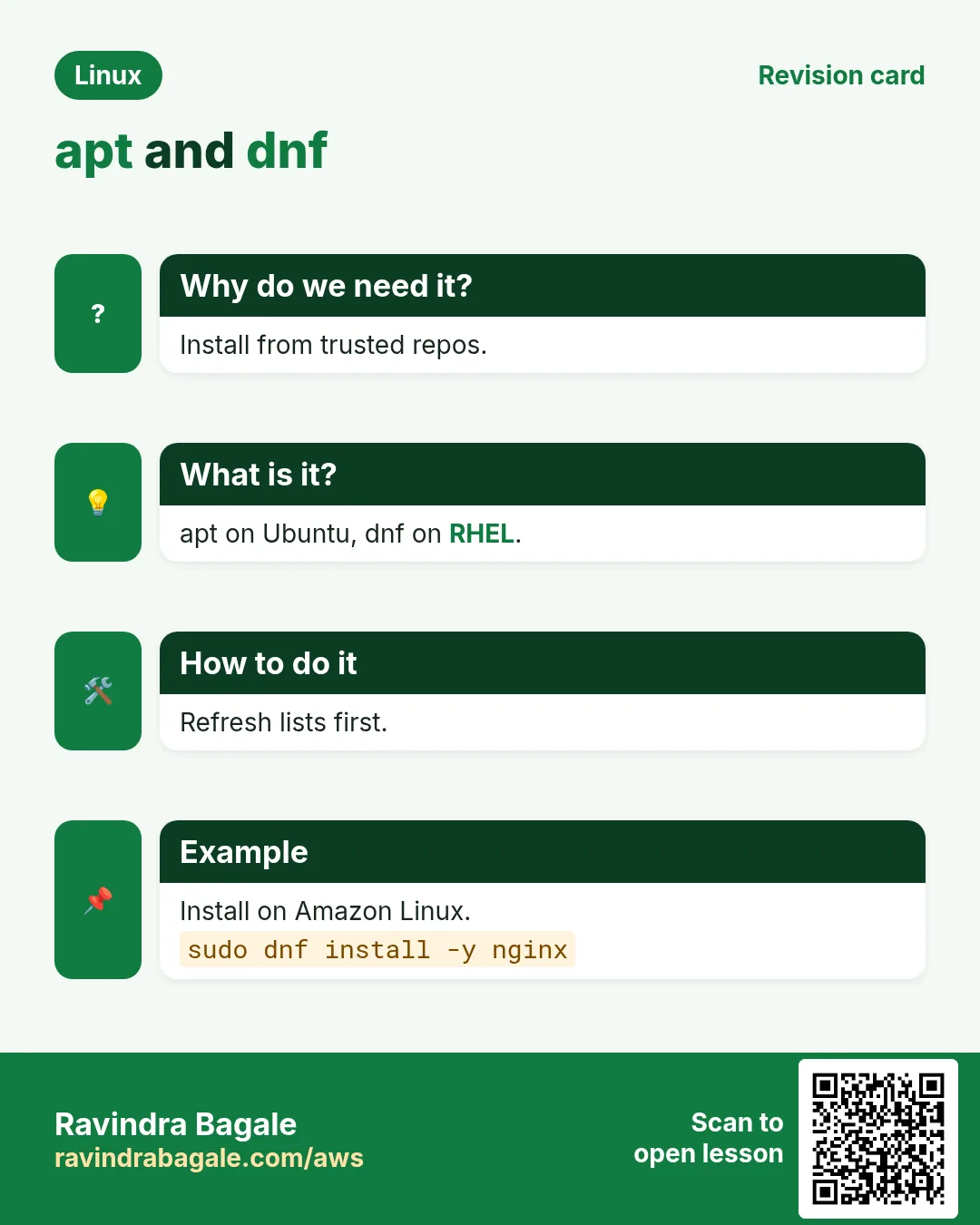
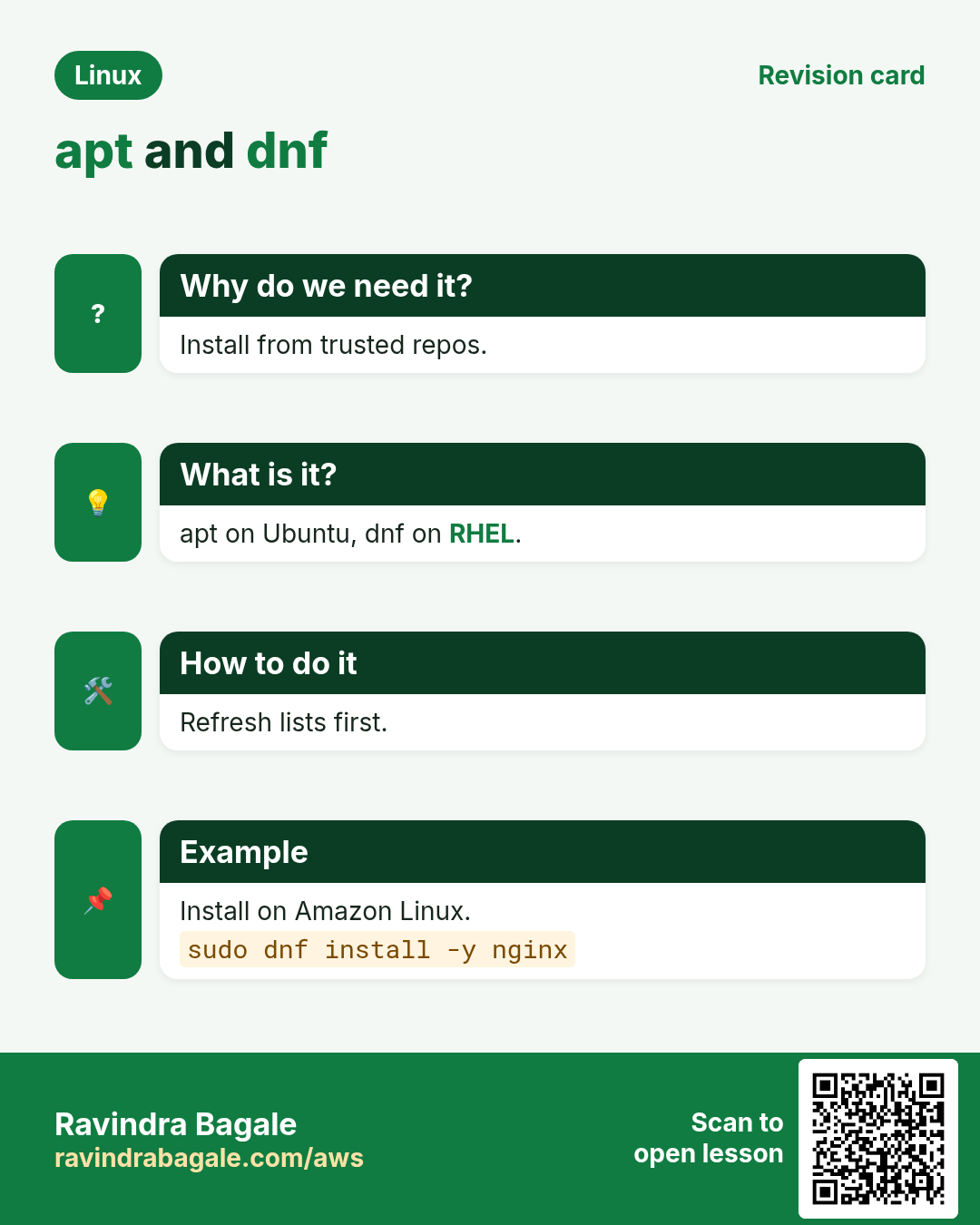
sudo dnf install NAME (yum works the same on older systems; on new ones yum is a link to dnf). -y for yes. dnf remove NAME removes it and unused deps. dnf reinstall NAME restores broken files. dnf install ./file.rpm installs a local file with deps. There is no separate update-the-list step: dnf refreshes metadata when it is old (dnf makecache forces it).
- Install nginx.
sudo dnf install -y nginxOutput:
Installed:
  nginx-1:1.24.0-1.amzn2023.0.4.x86_64  nginx-core-1:1.24.0-1.amzn2023.0.4.x86_64
Complete!
Complete! means success.
- Remove.
sudo dnf remove -y nginxOutput:
Removed:
  nginx-1:1.24.0-1.amzn2023.0.4.x86_64
Complete!
Also removes unused deps.
- Fix a deleted binary.
sudo dnf reinstall -y curlOutput:
Reinstalled:
  curl-minimal-8.5.0-1.amzn2023.0.4.x86_64
Files restored.
9. dnf check-update, update and upgrade --security
Patching RHEL-family servers safely, sometimes only security fixes.
dnf check-update reports 0 when nothing needs updating and 100 when updates are available. In a script, handle those two results separately and report any other status as a check failure. This command only checks for updates. dnf update or dnf upgrade upgrades all (same thing). dnf upgrade NAME for one. dnf upgrade --security only security errata. needs-restarting -r tells if a reboot is needed.
- What would change?
dnf check-updateOutput:
openssl-libs.x86_64 1:3.0.8-1.amzn2023.0.14 amazonlinuxOne update waiting.
- Security only.
sudo dnf upgrade --security -yOutput:
Upgraded:
  openssl-libs-1:3.0.8-1.amzn2023.0.14.x86_64
Complete!
Minimal change.
- Reboot needed?
sudo dnf needs-restarting -rOutput:
Core libraries or services have been updated since boot-up:
  * kernel
Reboot is required to fully utilize these updates.
Plan a reboot.
10. dnf search, info, provides and list
'command not found': which package gives me this command? dnf provides answers that.
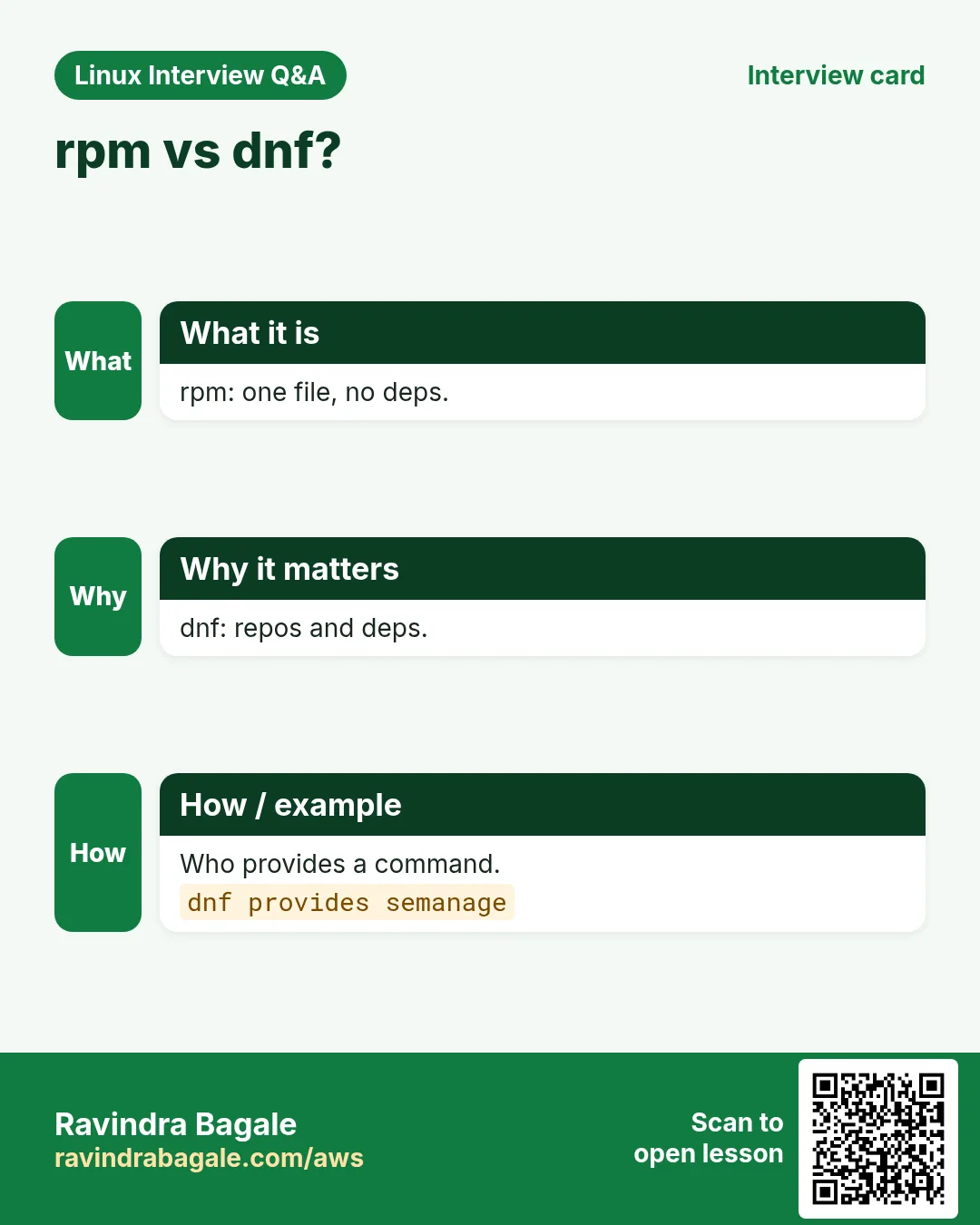
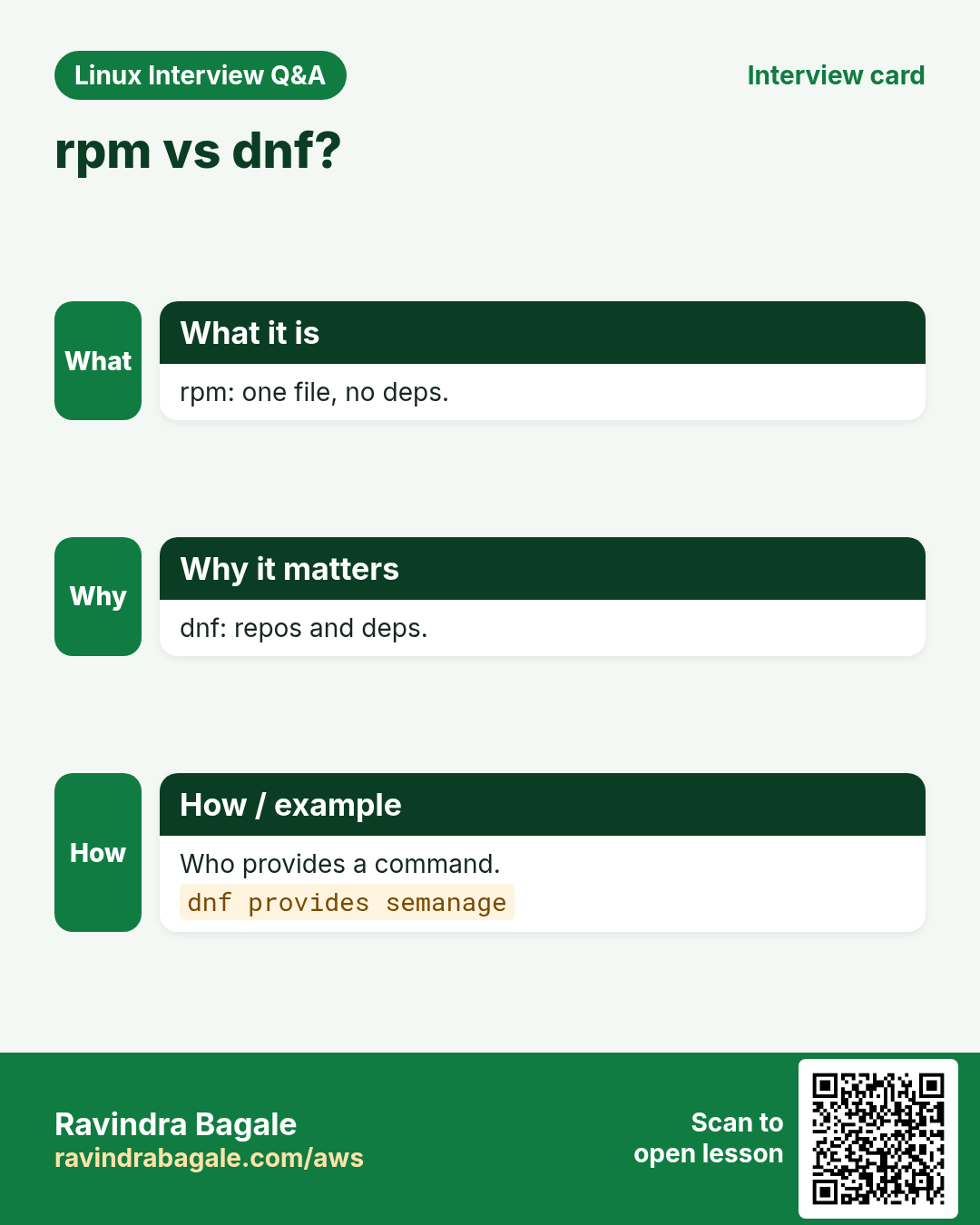
dnf search WORD. dnf info NAME shows version, repo, size. dnf provides '*/bin/NAME' or a file path finds the package. dnf list installed. dnf repoquery -l NAME lists files before install.
- Who gives the dig command?
dnf provides '*/bin/dig'Output:
bind-utils-32:9.18.28-1.amzn2023.0.1.x86_64 : Utilities for querying DNS name servers
Repo        : amazonlinux
Matched from:
Filename    : /usr/bin/dig
Install bind-utils.
- Info.
dnf info jq | grep -E 'Version|Repository'Output:
Version      : 1.7.1
Repository   : amazonlinux
From the official repo.
- Is it installed?
dnf list installed | grep -i nginxOutput:
nginx.x86_64 1:1.24.0-1.amzn2023.0.4 @amazonlinux@ = installed from that repo.
11. dnf history and undo
A patch broke the app. You want to see exactly what changed and roll it back.
dnf history lists transactions with IDs. dnf history info ID shows packages. sudo dnf history undo ID reverses it (needs old versions in the repo). dnf downgrade NAME goes to an older version. On apt, see /var/log/apt/history.log.
- Recent changes.
sudo dnf history | head -4Output:
ID | Command line              | Date and time    | Action(s) | Altered
14 | upgrade --security -y     | 2026-10-25 13:10 | Upgrade   |    1
13 | install -y nginx          | 2026-10-25 12:55 | Install   |    2
Who did what, when.
- Undo the patch.
sudo dnf history undo 14 -yOutput:
Downgraded:
  openssl-libs-1:3.0.8-1.amzn2023.0.12.x86_64
Complete!
Rolled back.
- apt's record.
grep -A2 'Start-Date' /var/log/apt/history.log | tail -n3Output:
Start-Date: 2026-10-25  13:12:01
Commandline: apt upgrade -y
Upgrade: openssl:amd64 (3.0.13-0ubuntu3.1, 3.0.13-0ubuntu3.4)
Old and new versions.
12. rpm queries: -qa, -qi, -ql, -qf
When you find a command already installed but don’t know its package, trace from the file back to the package. On an RPM-based system, use command -v curl and then rpm -qf with the absolute file path. The answer can be a distribution-specific package name such as curl-minimal. Compare it with rpm -qi to inspect its version and description. That answers who installed the file before you decide whether a reinstall is the right repair.
rpm reads the package database directly and fast. Great for audits and scripts.
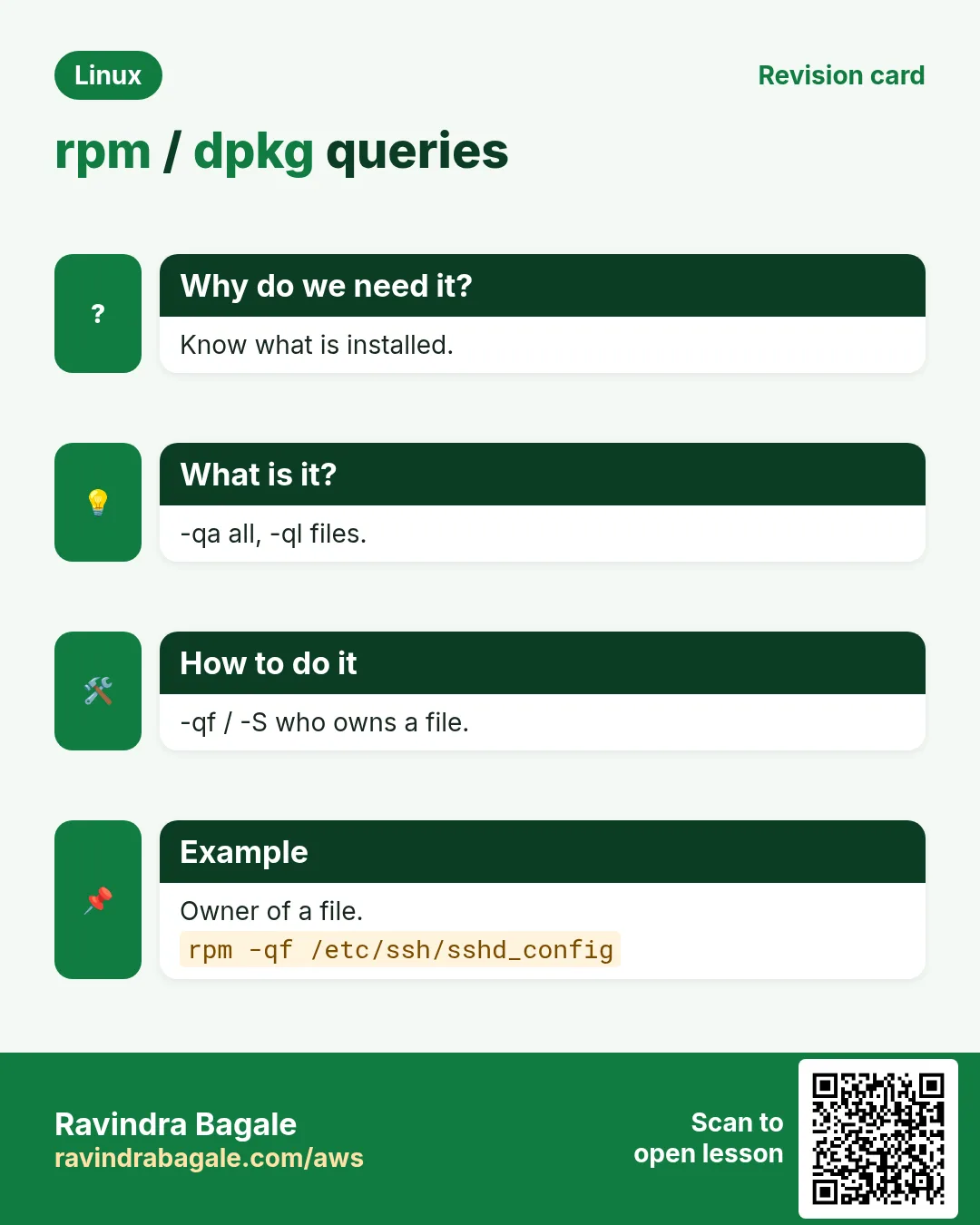
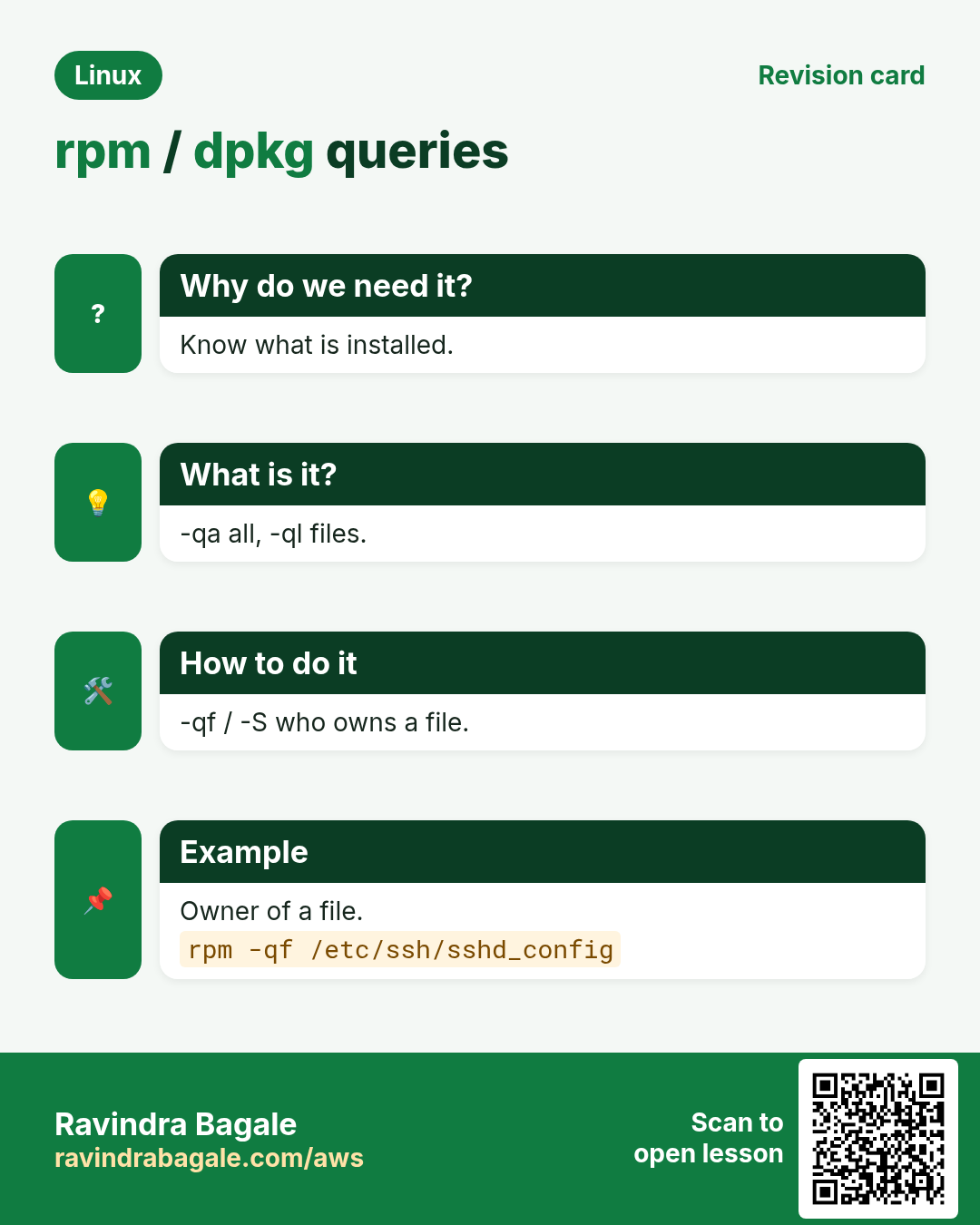
rpm -qa lists all installed (pipe to grep). rpm -qi NAME info. rpm -ql NAME files. rpm -qf /path owner. rpm -V NAME verifies files against the database. rpm -qp --requires file.rpm reads a file not yet installed. Avoid rpm -i for installing; it does not resolve deps.
- Find kernel packages.
rpm -qa | grep '^kernel-6'Output:
kernel-6.1.112-122.189.amzn2023.x86_64
kernel-6.1.115-126.197.amzn2023.x86_64
Two kernels installed.
- Owner of a file.
rpm -qf /etc/ssh/sshd_configOutput:
openssh-server-8.7p1-8.amzn2023.0.11.x86_64The package that owns it.
- Config files of a package.
rpm -qc nginx-core | head -2Output:
/etc/nginx/fastcgi.conf
/etc/nginx/mime.types
-qc = config only.
- Was anything changed?
rpm -V openssh-serverOutput:
S.5....T. c /etc/ssh/sshd_configSize, checksum and time changed: someone edited it.
13. Repositories: add, list and enable
Many tools (Docker, Node.js, PostgreSQL) give newer versions from their own repo.
apt: a .list or .sources file in /etc/apt/sources.list.d with signed-by= pointing to a key in /etc/apt/keyrings; then apt update. dnf: a .repo file in /etc/yum.repos.d (dnf config-manager --add-repo URL); dnf repolist shows enabled repos; --enablerepo/--disablerepo for one command. Only add repos you trust.
- Enabled dnf repos.
dnf repolistOutput:
repo id              repo name
amazonlinux          Amazon Linux 2023 repository
kernel-livepatch     Amazon Linux 2023 Kernel Livepatch repository
Where packages come from.
- Add Docker's repo (Fedora/RHEL).
sudo dnf config-manager --add-repo https://download.docker.com/linux/fedora/docker-ce.repoOutput:
Adding repo from: https://download.docker.com/linux/fedora/docker-ce.repoA .repo file now exists.
- apt repo with a key.
curl -fsSL https://download.docker.com/linux/ubuntu/gpg | sudo gpg --dearmor -o /etc/apt/keyrings/docker.gpg
echo 'deb [signed-by=/etc/apt/keyrings/docker.gpg] https://download.docker.com/linux/ubuntu noble stable' | sudo tee /etc/apt/sources.list.d/docker.list
sudo apt update
Output:
Get:5 https://download.docker.com/linux/ubuntu noble InRelease [48.8 kB]The key is scoped to this repo only.
14. Holding versions: apt-mark hold and dnf versionlock
A database or Kubernetes package must not jump versions during a routine patch.
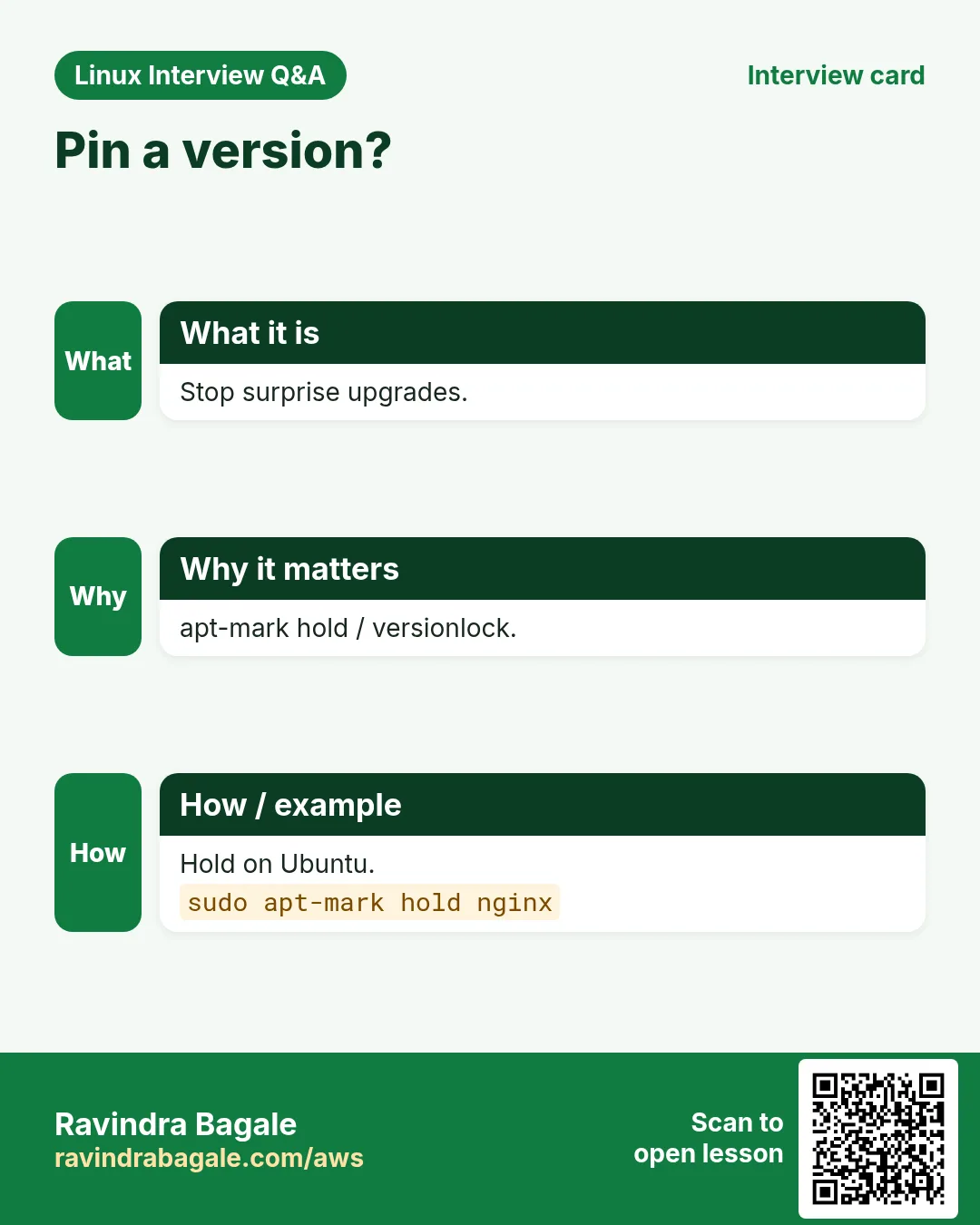
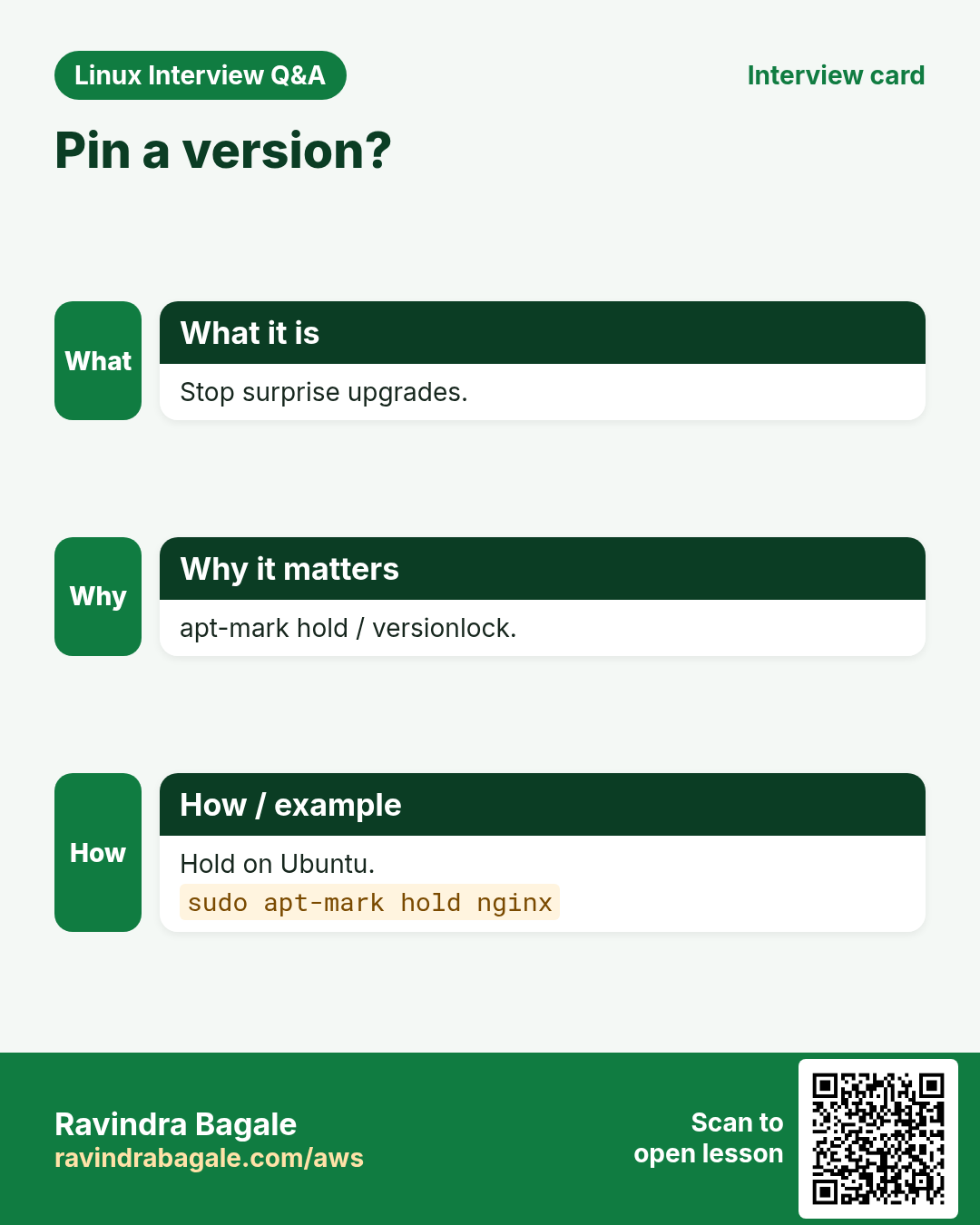
apt-mark hold NAME stops upgrades; apt-mark showhold lists; unhold releases. dnf: install python3-dnf-plugin-versionlock, then dnf versionlock add NAME, list, delete. Or exclude=NAME in /etc/dnf/dnf.conf.
- Hold kubelet.
sudo apt-mark hold kubelet kubeadm && apt-mark showholdOutput:
kubelet set on hold.
kubeadm set on hold.
kubeadm
kubelet
Upgrades skip them.
- Lock on dnf.
sudo dnf versionlock add postgresql16-serverOutput:
Adding versionlock on: postgresql16-server-0:16.4-1.amzn2023.0.1.*Locked to this version.
- Release.
sudo apt-mark unhold kubeletOutput:
Canceled hold on kubelet.Upgrade when you are ready.
15. Cleaning caches
Downloaded package files pile up and fill small disks and container images.
apt clean deletes /var/cache/apt/archives. apt autoclean deletes only old versions. dnf clean all deletes dnf caches. In Dockerfiles, clean in the same RUN line.
- Cache size.
sudo du -sh /var/cache/apt /var/cache/dnf 2>/dev/nullOutput:
412M /var/cache/aptSpace you can get back.
- Clean.
sudo apt clean && sudo du -sh /var/cache/aptOutput:
36K /var/cache/aptFreed.
- Dockerfile pattern.
RUN apt-get update && apt-get install -y --no-install-recommends curl && rm -rf /var/lib/apt/lists/*Output:
(image layer)Smaller image.
16. snap: install, list, refresh, remove
Some tools ship as snaps with all their libraries inside and auto updates, the same on every distro.
sudo snap install NAME. --classic for tools that need full system access (like code editors). snap list shows installed. snap refresh updates now; snap refresh --hold pauses updates. snap remove NAME. snap info NAME shows channels (stable, edge).
- Install a snap.
sudo snap install aws-cli --classicOutput:
aws-cli (v2/stable) 2.18.10 from Amazon Web Services (aws✓) installed✓ = verified publisher.
- List.
snap listOutput:
Name     Version   Rev   Tracking   Publisher   Notes
aws-cli  2.18.10   1211  v2/stable  aws✓        classic
core22   20241001  1663  latest/stable canonical✓ base
Tracking = channel.
- Pause updates during an event.
sudo snap refresh --hold=72h aws-cliOutput:
General refreshes of "aws-cli" held until 2026-10-28T13:20:00+05:30No surprises for 3 days.
17. Real examples from many industries
The same Linux skill shows up in every kind of company. Seeing it in many places helps you remember it.
Each row is a made-up team. It shows who uses this and how.
| Team and city | How they use it | Command |
|---|---|---|
| Rohit, SaaS startup, Pune | Weekly security patching on Ubuntu | apt update && apt upgrade -y |
| Emma, bank, Zurich | Pins PostgreSQL to a tested version | dnf versionlock add postgresql16-server |
| Yusuf, telecom, Istanbul | Finds which package owns a changed file | rpm -qf /etc/ssh/sshd_config |
| Mei, AI lab, Singapore | Slim GPU images with no recommends | apt-get install --no-install-recommends |
| Carlos, retail, Madrid | Rolls back a bad patch | dnf history undo 14 |
| Sana, college, Aurangabad | Installs tools as snaps on lab PCs | snap install code --classic |
18. Common errors and how to fix them
Everyone hits these errors. Knowing the cause saves hours.
Read the exact message first. Then match it to a row below.
| Error you see | Why it happens | How to fix |
|---|---|---|
E: Unable to locate package nginxx | Typo or apt update not run | Update lists and check the name.sudo apt update && apt search nginx |
E: Could not get lock /var/lib/dpkg/lock-frontend. It is held by process 2101 (unattended-upgr) | Another apt is running (auto updates) | Wait for it; do not delete the lock.ps -p 2101 -o cmd |
E: Failed to fetch ... 404 Not Found | Old package lists | Run apt update first.sudo apt update |
dpkg: dependency problems prevent configuration | dpkg -i does not install deps | Let apt fix it.sudo apt -f install -y |
E: dpkg was interrupted, you must manually run 'sudo dpkg --configure -a' | An install was killed midway | Finish configuring.sudo dpkg --configure -a |
Error: Unable to find a match: htop | Package is in a repo you do not have (e.g. EPEL) | Search, or enable the right repo.dnf search htop |
GPG check FAILED / NO_PUBKEY | Repo key missing or wrong | Import the vendor key; never disable checks.sudo rpm --import KEY_URL |
Error: Failed to download metadata for repo | Network, proxy or bad repo URL | Check the URL; disable that repo for now.sudo dnf --disablerepo=REPO makecache |
Problem: conflicting requests ... nothing provides libfoo.so | Mixed incompatible repos | Remove the third-party repo or pick a matching version.dnf repolist |
error: snap "code" requires classic confinement | The snap needs --classic | Add --classic if you trust it.sudo snap install code --classic |
19. Troubleshooting step by step
When an install fails, check name, repos, locks and keys in that order.
Go top to bottom. Stop at the first step that shows the problem.
- Refresh and search the name.
sudo apt update && apt search --names-only NAME- Check which repos are on.
dnf repolist; ls /etc/apt/sources.list.d- See who holds the lock.
sudo lsof /var/lib/dpkg/lock-frontend- Finish half-done installs.
sudo dpkg --configure -a && sudo apt -f install- Look at history.
sudo dnf history | head; tail /var/log/apt/history.log- Clean caches and retry.
sudo dnf clean all && sudo dnf makecache20. Lab 1: Full package life cycle on Ubuntu
Search, inspect, install, query files, hold, remove and purge a package.
A full hands-on lab. Run every step on a test Linux machine (an EC2 instance, a VM, or WSL).
- Refresh and search.
sudo apt update -qq && apt search --names-only '^tree$'Output:
tree/noble 2.1.1-2 amd64- Install.
sudo apt install -y treeOutput:
Setting up tree (2.1.1-2) ...- Query files and owner.
dpkg -L tree | grep bin; dpkg -S $(which tree)Output:
/usr/bin/tree
tree: /usr/bin/tree- Hold and check.
sudo apt-mark hold tree && apt-mark showholdOutput:
tree set on hold.
tree- Unhold and purge.
sudo apt-mark unhold tree && sudo apt purge -y tree && dpkg -l tree | tail -n1Output:
dpkg-query: no packages found matching tree21. Lab 2: dnf with history undo and rpm audit
Install with dnf, find what you got with rpm, verify files, then undo the install.
A full hands-on lab. Run every step on a test Linux machine (an EC2 instance, a VM, or WSL).
- Find who gives a command.
dnf provides '*/bin/tree'Output:
tree-2.1.0-1.amzn2023.0.2.x86_64 : File system tree viewer- Install.
sudo dnf install -y treeOutput:
Complete!- rpm info and files.
rpm -qi tree | head -3; rpm -ql tree | grep binOutput:
Name        : tree
Version     : 2.1.0
/usr/bin/tree- Verify.
rpm -V tree && echo cleanOutput:
clean- Undo the last transaction.
sudo dnf history undo last -yOutput:
Removed:
  tree-2.1.0-1.amzn2023.0.2.x86_64
Complete!Ravindra Bagale's Tip
Install with apt or dnf, ask questions with dpkg or rpm. And before any patch on a production server, note the history ID or save apt-mark showmanual, so you can roll back in minutes.
Ravindra Bagale's Tip – मराठी
Install apt किंवा dnf ने, प्रश्न dpkg किंवा rpm ने. आणि production server वर कोणत्याही patch आधी history ID नोंदवा किंवा apt-mark showmanual save करा, म्हणजे minutes मधे rollback.
Ravindra Bagale's Tip – हिंदी
Install apt या dnf से, सवाल dpkg या rpm से. और production server पर किसी भी patch से पहले history ID नोट करें या apt-mark showmanual save करें, ताकि minutes में rollback हो सके.
22. Frequently asked questions
Q. apt or apt-get?
apt for people (nicer output); apt-get in scripts (stable output).
Q. yum or dnf?
dnf is the new yum; on RHEL 8+ yum points to dnf.
Q. Why do I need apt update but not dnf update before install?
apt never refreshes lists on its own; dnf refreshes old metadata automatically.
Q. Is dnf update the same as dnf upgrade?
Yes.
Q. Can I install a .deb on Amazon Linux?
No, use the .rpm or a container.
Q. remove vs purge?
purge also deletes config files.
Q. Snap or apt?
apt for system packages; snap for apps that want their own bundle and auto updates.
Q. Is it safe to delete the dpkg lock?
No. Wait or find the process; deleting can corrupt the database.
23. Interview questions and answers
Beginner level
Q. Install nginx on Ubuntu?
sudo apt update && sudo apt install nginx.
Q. Install nginx on Amazon Linux?
sudo dnf install nginx.
Q. What does apt update do?
Refreshes package lists only.
Q. Which package owns /usr/bin/curl?
dpkg -S or rpm -qf /usr/bin/curl.
Mid level level
Q. upgrade vs full-upgrade?
full-upgrade may remove or add packages to finish.
Q. How do you roll back a dnf change?
dnf history undo ID.
Q. How do you stop a package from upgrading?
apt-mark hold or dnf versionlock add.
Q. Find the package for a missing command?
dnf provides '*/bin/cmd' or apt-file search.
Senior level
Q. How do you patch 300 servers safely?
Staged rings, a local mirror or snapshot repo, holds for critical packages, history IDs, health checks, automatic reboot windows.
Q. Why is signed-by better than apt-key?
The key is trusted only for that repo, not every repo.
Q. How do you detect tampered system files?
rpm -Va or debsums, compare against the package database.
Q. Reproducible builds with packages?
Pin exact versions, use snapshot repos, lock files, and build images once.
Try at home
- On your machine, list how many packages are installed (dpkg -l | grep -c ^ii or rpm -qa | wc -l). Find the owner of /bin/ls.
- Install htop, hold it, try an upgrade, then unhold and remove it. Write each command you used.
Practise this chapter
Interview questions and answers
How would you check what package supplied an installed command?
Find the path your shell chose with command -v or type. On an RPM-based system, ask the installed package database which package owns that path with rpm -qf. Inspect its version with rpm -qi before replacing anything. The executable name and package name can differ.
Check your understanding
Choose an answer, then compare your reasoning with the explanation.
Practice Tasks
Practice checks run in your browser. They check the answer for this exercise; they do not create resources or connect to your AWS account.
About this scenarioAmravati Agro Market is a agriculture business in Amravati. Anjali Thakre looks after its IT and cloud work. They count money in INR and run their AWS resources in the ap-south-1 Region. In the tasks below you do real jobs for them using what this lesson teaches. All names, account IDs, IP addresses and numbers are made up for practice.
0 / 16
Easy Refresh lists
Software must be installed safely.
On Ubuntu, refresh package lists.
- Find the Linux command that does this job.
- Add the options (like -r or -h) the task needs.
- Add the file names, folders or users in the right order.
- Use sudo if the job changes system files or users. Click Check answer.
Easy Install with apt
Software must be installed safely.
Install nginx on Ubuntu without a prompt.
- Find the Linux command that does this job.
- Add the options (like -r or -h) the task needs.
- Add the file names, folders or users in the right order.
- Use sudo if the job changes system files or users. Click Check answer.
Easy Search apt
Software must be installed safely.
Search apt for redis.
- Find the Linux command that does this job.
- Add the options (like -r or -h) the task needs.
- Add the file names, folders or users in the right order.
- Use sudo if the job changes system files or users. Click Check answer.
Easy Install with dnf
Software must be installed safely.
On Amazon Linux, install git without a prompt.
- Find the Linux command that does this job.
- Add the options (like -r or -h) the task needs.
- Add the file names, folders or users in the right order.
- Use sudo if the job changes system files or users. Click Check answer.
Easy All rpm packages
Software must be installed safely.
List all installed rpm packages.
- Find the Linux command that does this job.
- Add the options (like -r or -h) the task needs.
- Add the file names, folders or users in the right order.
- Use sudo if the job changes system files or users. Click Check answer.
Easy dpkg list
Software must be installed safely.
List packages with dpkg and filter for nginx.
- Find the Linux command that does this job.
- Add the options (like -r or -h) the task needs.
- Add the file names, folders or users in the right order.
- Use sudo if the job changes system files or users. Click Check answer.
Easy List snaps
Software must be installed safely.
List installed snaps.
- Find the Linux command that does this job.
- Add the options (like -r or -h) the task needs.
- Add the file names, folders or users in the right order.
- Use sudo if the job changes system files or users. Click Check answer.
Medium Remove with config
Software must be installed safely.
Remove apache2 including its config files.
- Find the Linux command that does this job.
- Add the options (like -r or -h) the task needs.
- Add the file names, folders or users in the right order.
- Use sudo if the job changes system files or users. Click Check answer.
Medium Who provides a file?
Software must be installed safely.
Find which package provides the semanage command.
- Find the Linux command that does this job.
- Add the options (like -r or -h) the task needs.
- Add the file names, folders or users in the right order.
- Use sudo if the job changes system files or users. Click Check answer.
Medium dnf history of a package
Software must be installed safely.
Show the dnf transaction history list only for nginx.
- Find the Linux command that does this job.
- Add the options (like -r or -h) the task needs.
- Add the file names, folders or users in the right order.
- Use sudo if the job changes system files or users. Click Check answer.
Medium Updates available?
Software must be installed safely.
List available updates without installing.
- Find the Linux command that does this job.
- Add the options (like -r or -h) the task needs.
- Add the file names, folders or users in the right order.
- Use sudo if the job changes system files or users. Click Check answer.
Medium Which package owns a file
Software must be installed safely.
Find which package owns /etc/ssh/sshd_config.
- Find the Linux command that does this job.
- Add the options (like -r or -h) the task needs.
- Add the file names, folders or users in the right order.
- Use sudo if the job changes system files or users. Click Check answer.
Medium Files in a package
Software must be installed safely.
List files installed by the nginx rpm.
- Find the Linux command that does this job.
- Add the options (like -r or -h) the task needs.
- Add the file names, folders or users in the right order.
- Use sudo if the job changes system files or users. Click Check answer.
Medium dpkg owner
Software must be installed safely.
Find which package owns /usr/bin/curl on Ubuntu.
- Find the Linux command that does this job.
- Add the options (like -r or -h) the task needs.
- Add the file names, folders or users in the right order.
- Use sudo if the job changes system files or users. Click Check answer.
Medium Install a .deb
Software must be installed safely.
Install the local file app_1.2_amd64.deb with dpkg.
- Find the Linux command that does this job.
- Add the options (like -r or -h) the task needs.
- Add the file names, folders or users in the right order.
- Use sudo if the job changes system files or users. Click Check answer.
Medium Install a snap
Software must be installed safely.
Install the classic snap code.
- Find the Linux command that does this job.
- Add the options (like -r or -h) the task needs.
- Add the file names, folders or users in the right order.
- Use sudo if the job changes system files or users. Click Check answer.
24. Related chapters
- Linux Ops Refresh for DevOps
- Bash Scripting for Automation
- Linux grep and find Commands with Examples
- How to Set Up Passwordless SSH Between Linux Servers
In short
- apt update refreshes; apt install, remove, purge, autoremove.
- apt search, show, apt-cache policy before install.
- dpkg -l, -L, -S answer questions.
- dnf install, upgrade --security, provides, history undo.
- rpm -qa, -qf, -ql, -V for audits.
- Repos with signed keys; hold versions; snap for bundled apps.
Revision, comparison and interview cards
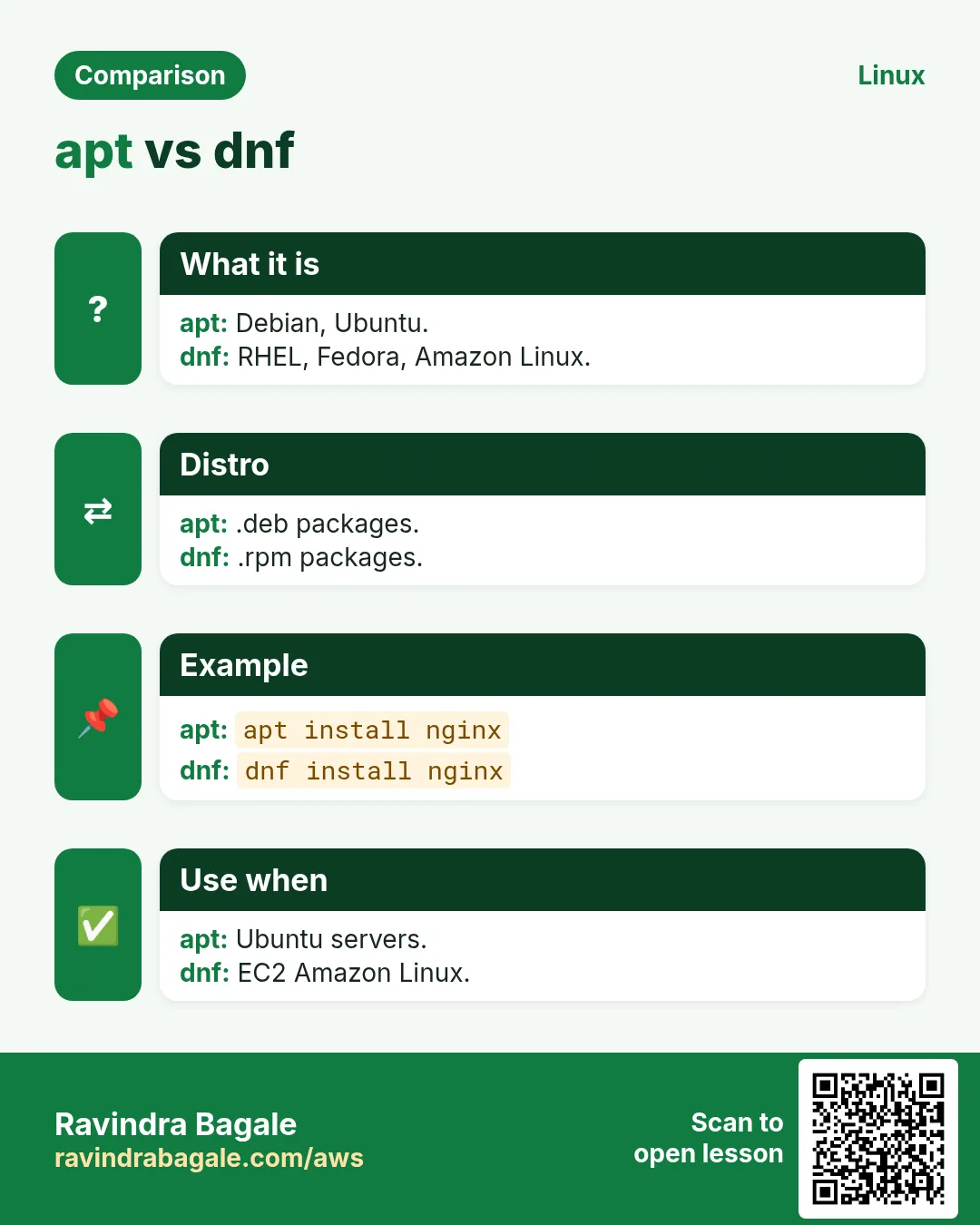
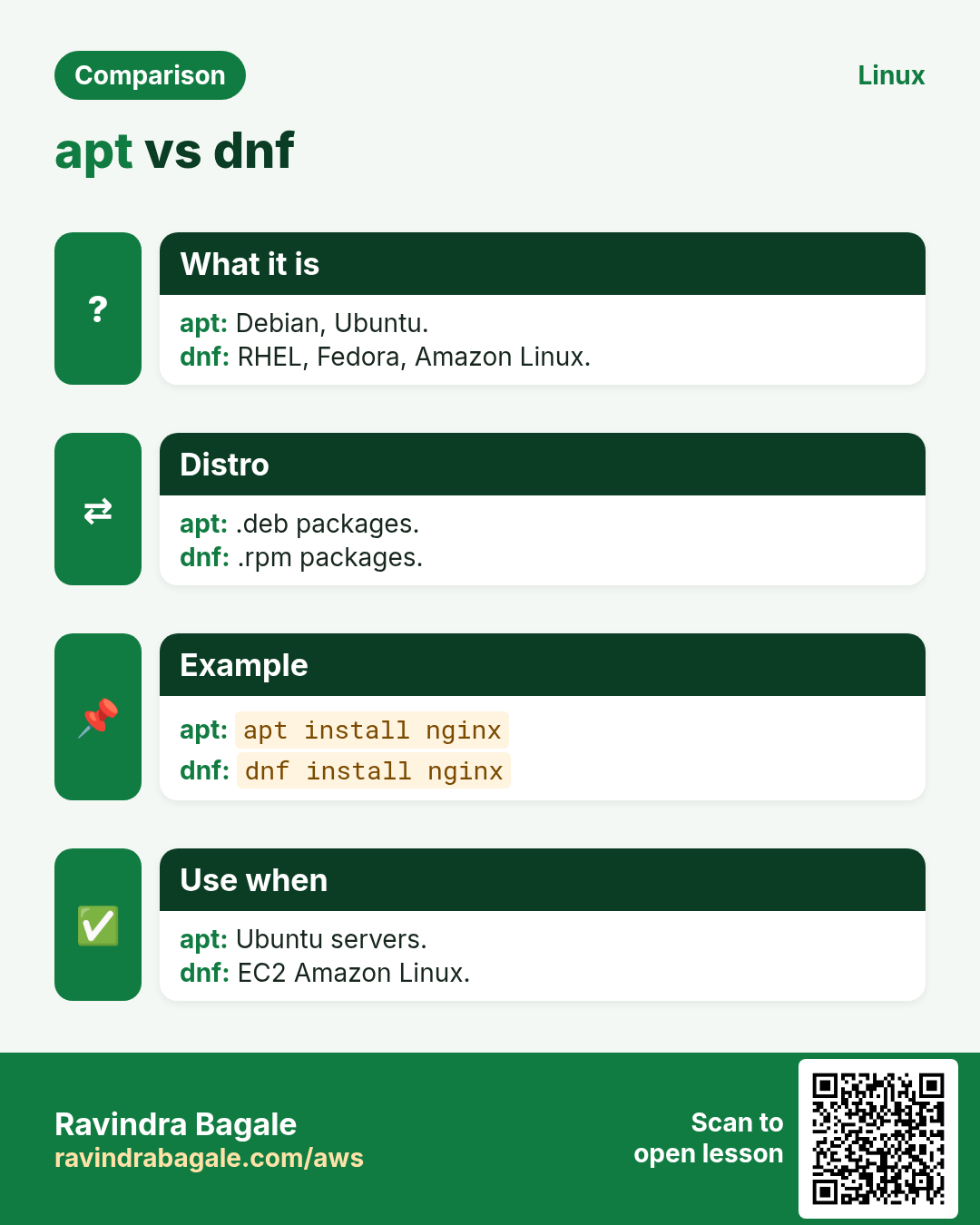
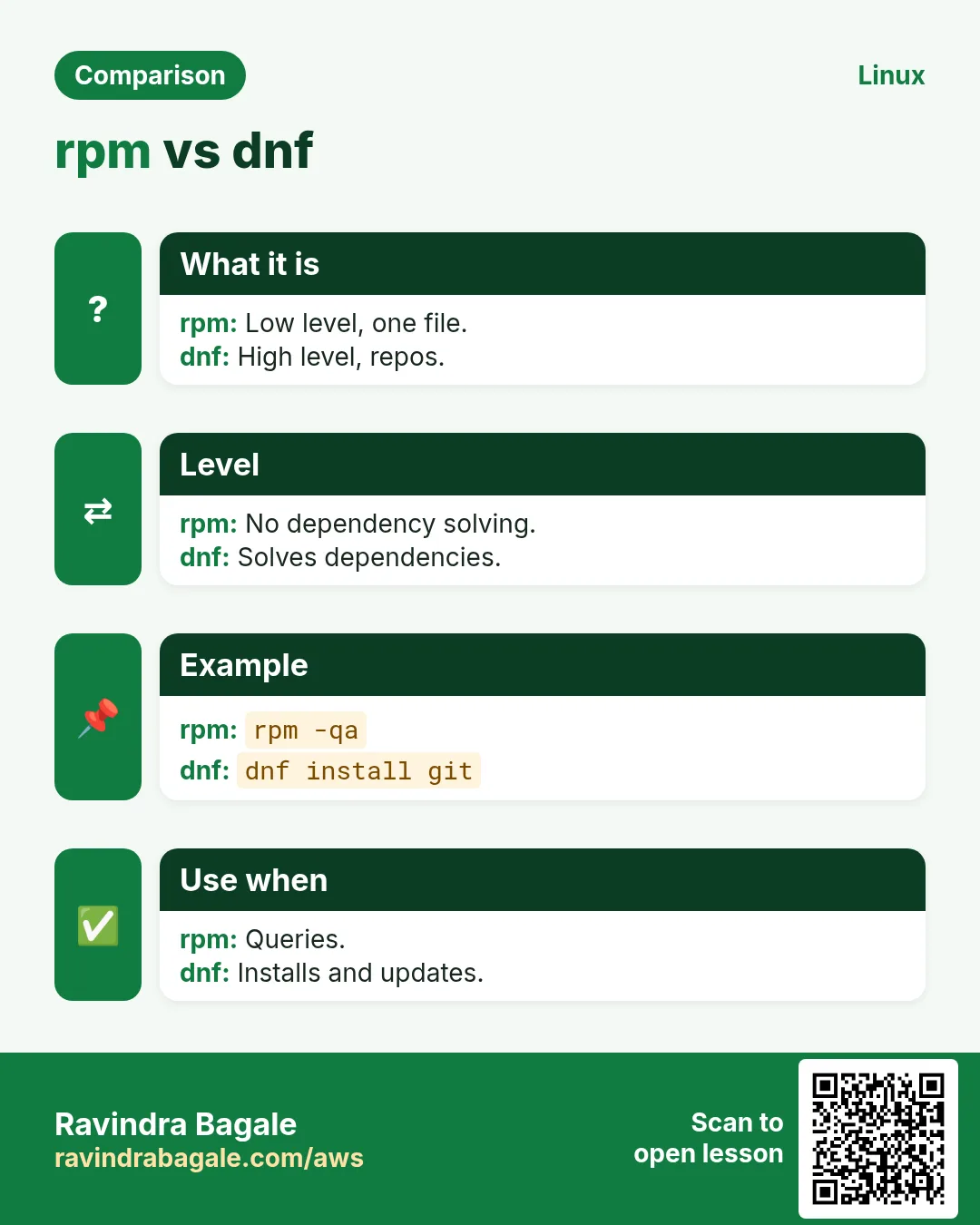
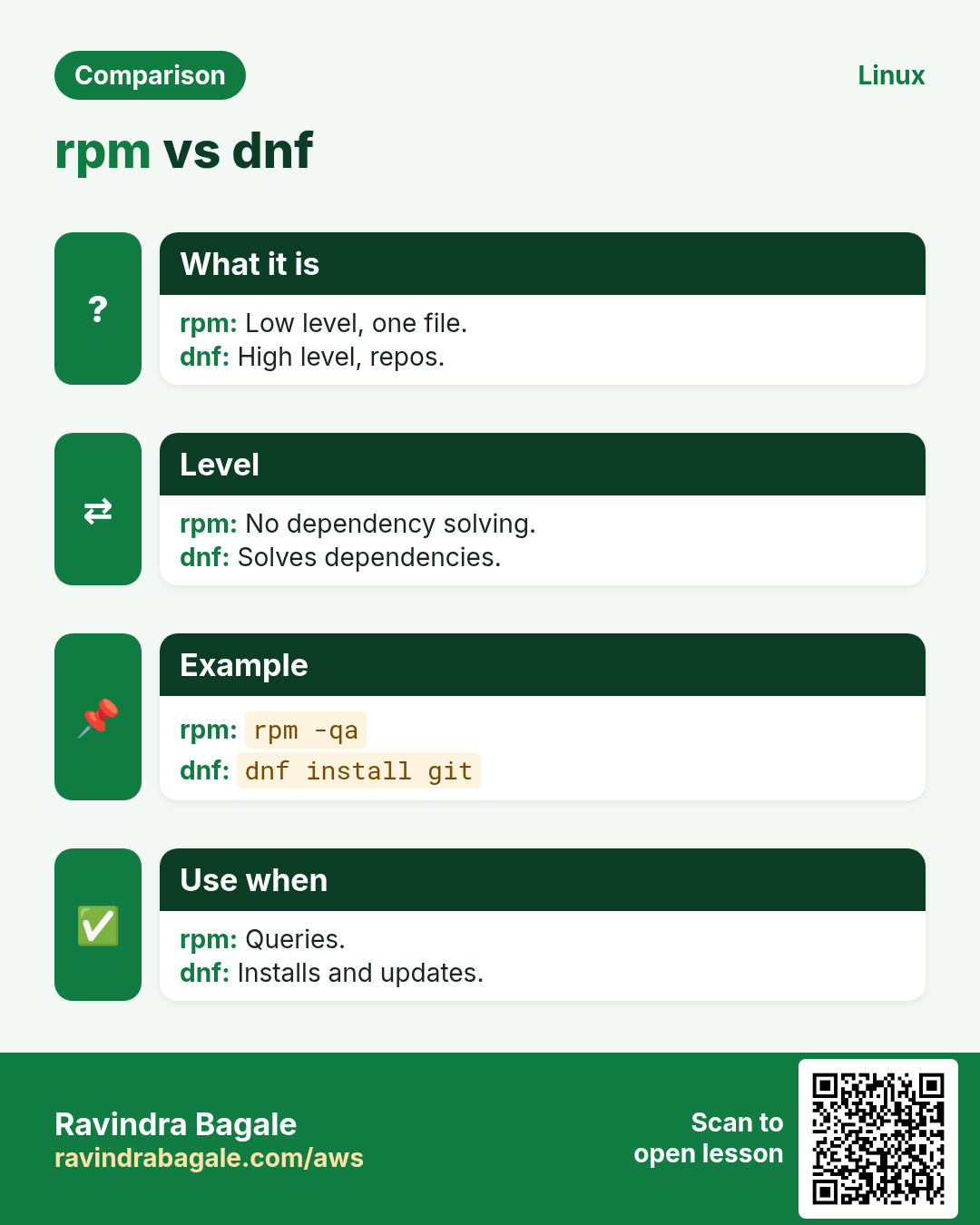
Revise this lesson in a few minutes. Save the cards on your phone or download them as PNG files. The QR code on each card opens this lesson.


More cards: Ravi Sir's Cards.