Linux cat, less, head, tail, wc and tee Commands with Examples (View and Follow Files)
Most of your Linux day is reading text: logs, configs, CSV files and command output. cat, less, head, tail, wc and tee are the six tools you use to look at text, follow it live, count it and save it while you watch. Learn these well and every later tool (grep, sed, awk) becomes easy.
In this chapter
- Print and join files with cat, tac and nl
- Read big files safely with less
- Take the start or end with head and tail
- Follow live logs with tail -f and -F
- Count lines, words and bytes with wc
- Save and show output together with tee
1. An everyday example: reading a long WhatsApp chat
Sunita exports her society WhatsApp group chat to a text file. It has 40,000 lines. She does not read it all. She looks at the first few messages to see when the group started, jumps to the last messages to see today's news, scrolls slowly through the middle, counts how many messages there are, and keeps watching for new ones. She also forwards the news to her husband while reading it herself.
First messages = head. Last messages = tail. Slow scrolling = less. Counting = wc. Watching for new ones = tail -f. Reading and forwarding at the same time = tee. Printing the whole chat = cat.
2. cat: print, join and create files
You often need to see a short file fully, or join parts into one file.
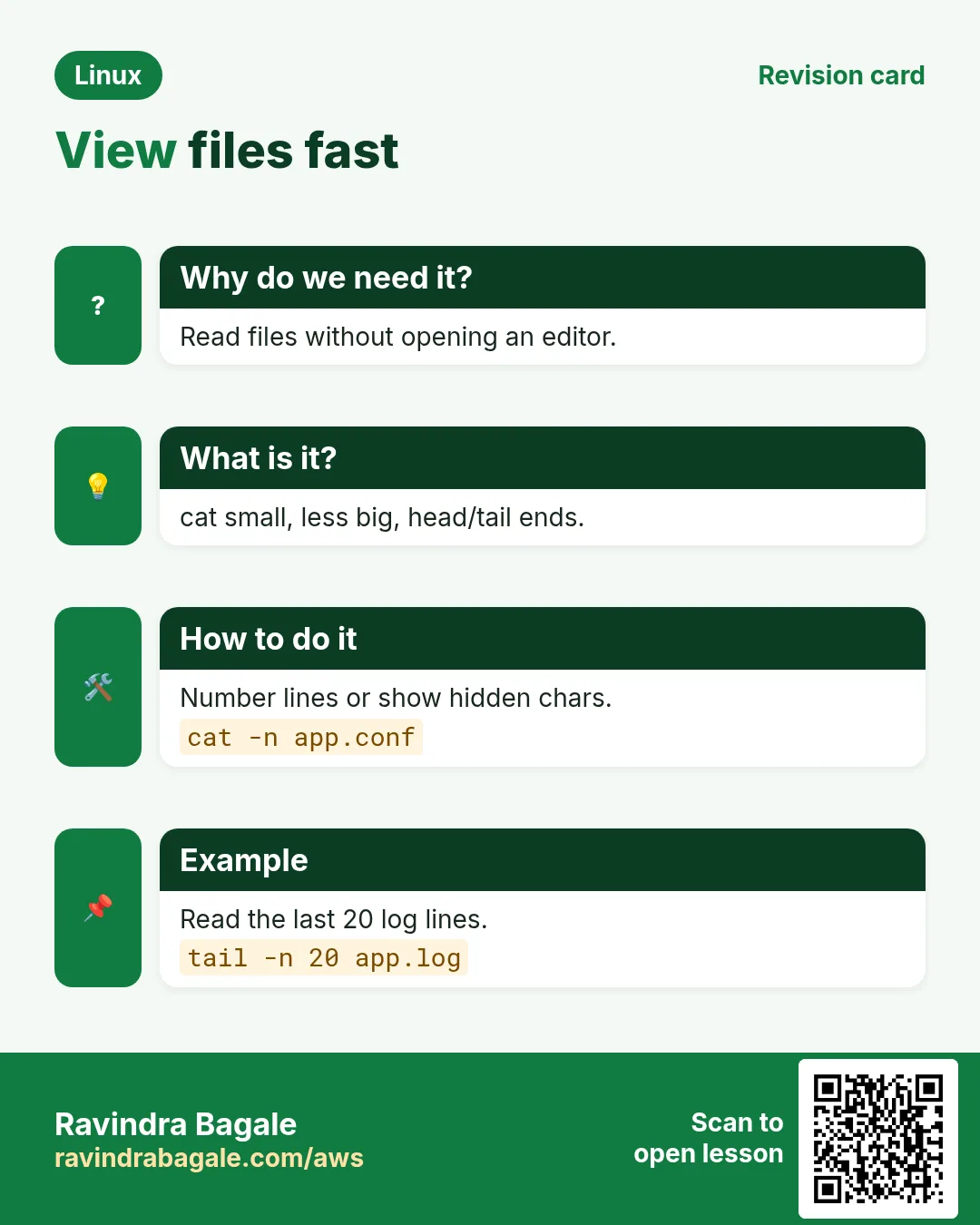
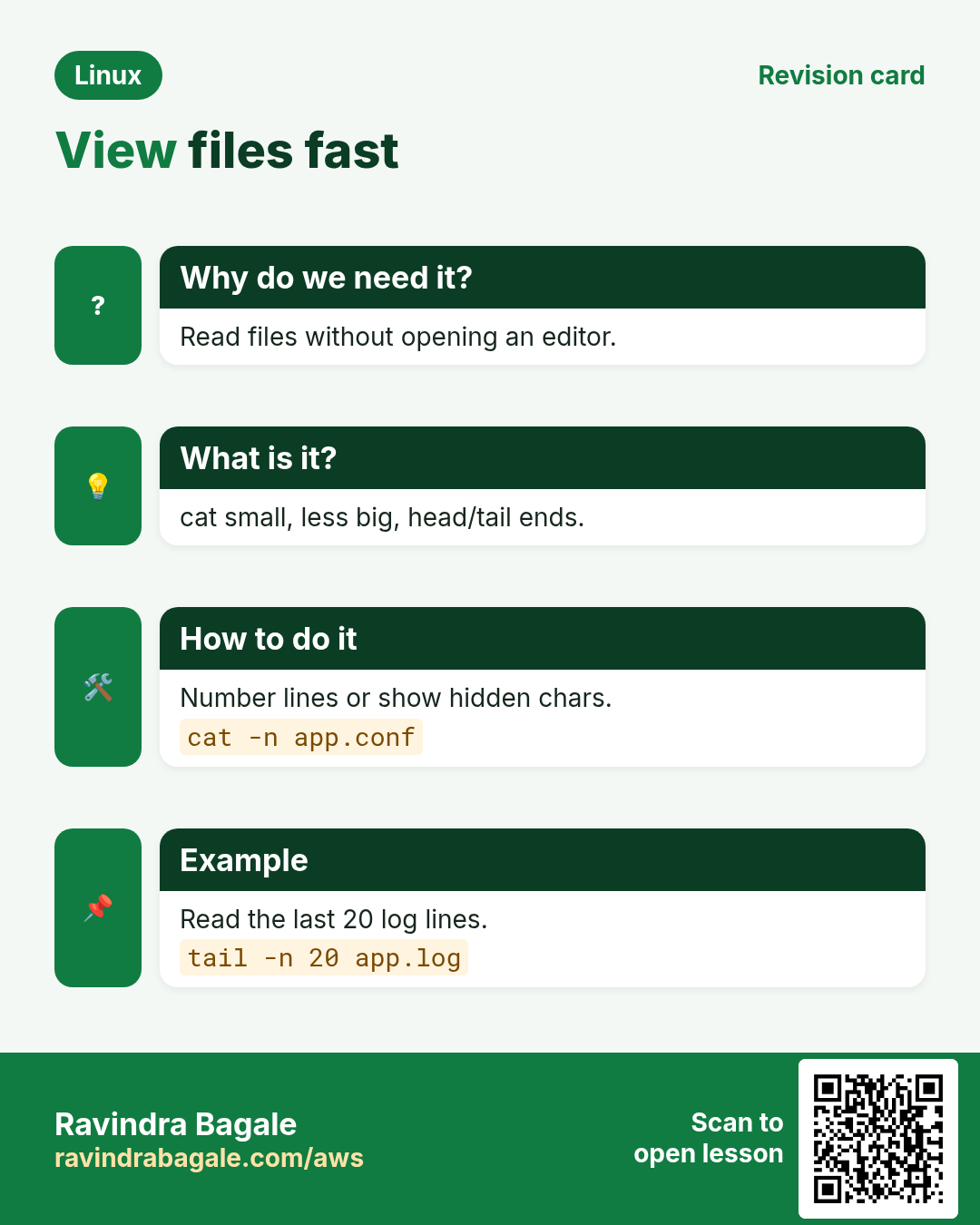
cat (concatenate) prints files one after another. cat a b > c joins files, >> appends. Options: -n number all lines, -b number non-empty lines, -A show tabs (^I), line ends ($) and Windows CR (^M), -s squeeze repeated empty lines. cat > file <<'END' writes a quick file. Use cat only for short files; for long ones use less.
- Print a small file.
cat /etc/hostnameOutput:
web-pune-01The machine's name is in this file.
- Number the lines.
cat -n shopping.txtOutput:
     1	milk
     2	bread
     3
     4	eggs
Line 3 is empty but still numbered.
- Show hidden characters.
cat -A config.ymlOutput:
name: shop$
port:^I8080$
mode: prod ^M$
^I is a tab, ^M is a Windows line end. Both often break YAML and scripts.
- Join parts into one file.
cat part1.csv part2.csv > all.csv && wc -l all.csvOutput:
2000 all.csv> creates or overwrites all.csv. Use >> to add to the end.
- Write a quick file with a here-doc.
cat > note.txt <<'END'
Server: web-01
Owner: Aditi
END
cat note.txt
Output:
Server: web-01
Owner: Aditi
Everything until END goes into the file.
cat with > and >>: overwrite vs append
Saving output to a file is daily work. One extra > is the difference between adding a line and wiping a file.
> sends output to a file and first empties it (overwrite). >> adds to the end (append). Both create the file if missing. cat > file reads what you type until Ctrl+D.
Common options
| Option | What it does |
|---|---|
cat a > b | Write a into b; old b content is lost. |
cat a >> b | Add a to the end of b. |
cat > f | Type text into f; Ctrl+D to save. |
cat >> f | Type text and add it to f. |
set -o noclobber | Make > refuse to overwrite. |
- Write a new file by typing.
cat > guests.txt
Rohan
Meera
(press Ctrl+D)
Two lines saved in guests.txt.
- Add one more name with >>.
cat >> guests.txt
Kabir
(press Ctrl+D)
cat guests.txt
Output:
Rohan
Meera
Kabir
>> kept the old lines and added Kabir.
- See what > does to it.
cat > guests.txt
Zoya
(press Ctrl+D)
cat guests.txt
Output:
Zoya> emptied the file first. The other names are gone.
- Protect files from >.
set -o noclobber
cat menu.txt > guests.txt
Output:
bash: guests.txt: cannot overwrite existing fileNow > refuses. Use >| if you really mean it.
Practise this in the tasks below: Practice tasks
3. tac: print lines in reverse
Logs keep the newest lines at the bottom. Sometimes you want the newest first.
tac prints the last line first and the first line last. It is cat spelled backwards. Do not confuse it with rev, which reverses the characters inside each line.
- Newest lines first with tac.
tac app.log | head -3Output:
10:05 order 1003 paid
10:04 order 1002 paid
10:03 order 1001 created
tac = cat backwards.
- Compare with rev.
echo 'Pune' | revOutput:
enuPrev flips characters, tac flips lines.
4. nl: number lines
In reviews and tickets you say 'see line 14'. Numbers make that easy.
nl numbers non-empty lines by default (like cat -b). -ba numbers all lines, -w3 sets the width, -s': ' sets the separator.
- nl skips empty lines.
nl shopping.txtOutput:
     1	milk
     2	bread

     3	eggs
Good for code reviews.
- Number every line with a custom separator.
nl -ba -w2 -s': ' shopping.txtOutput:
 1: milk
 2: bread
 3:
 4: eggs
-ba includes the empty line 3.
5. less: read big files without fear
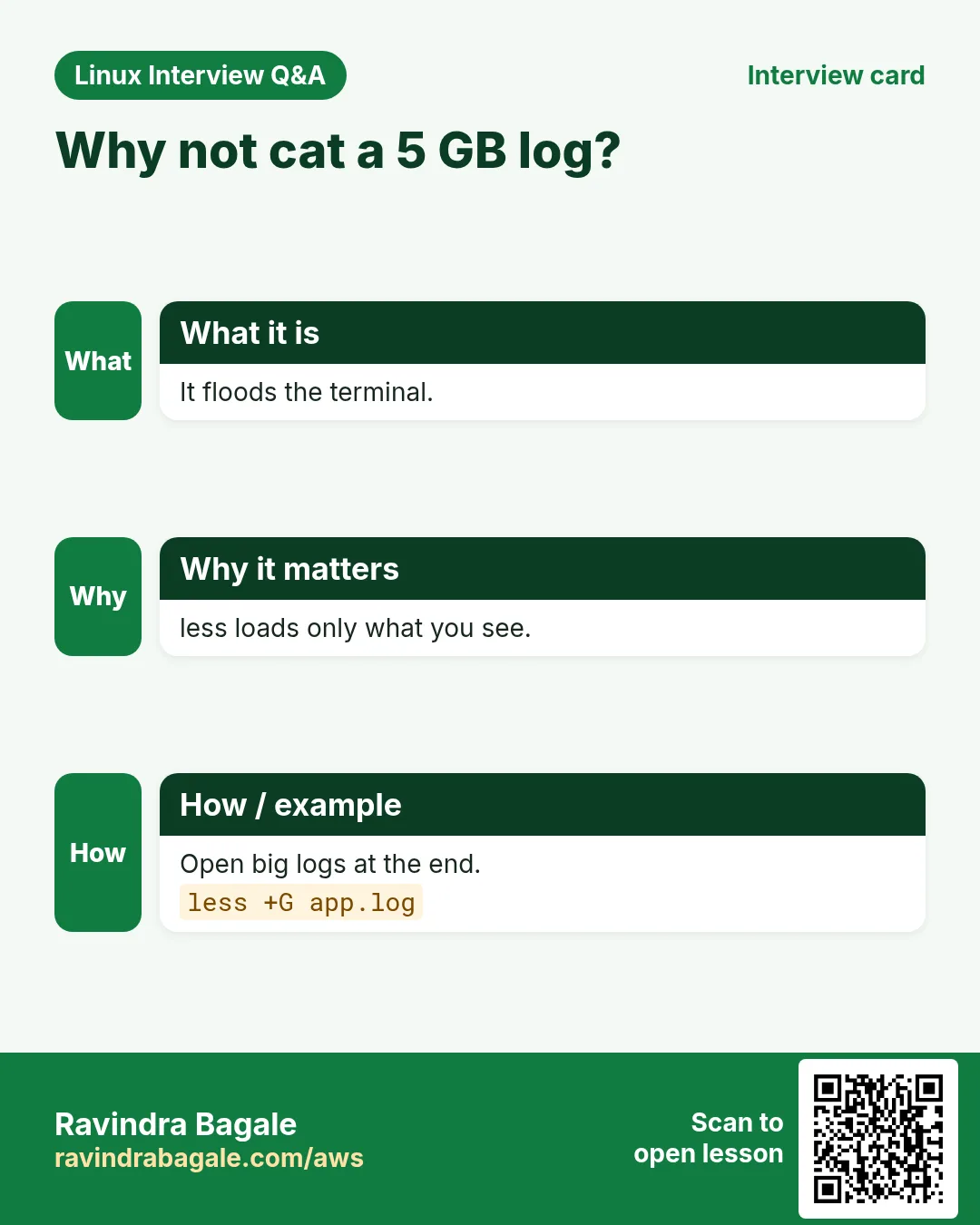
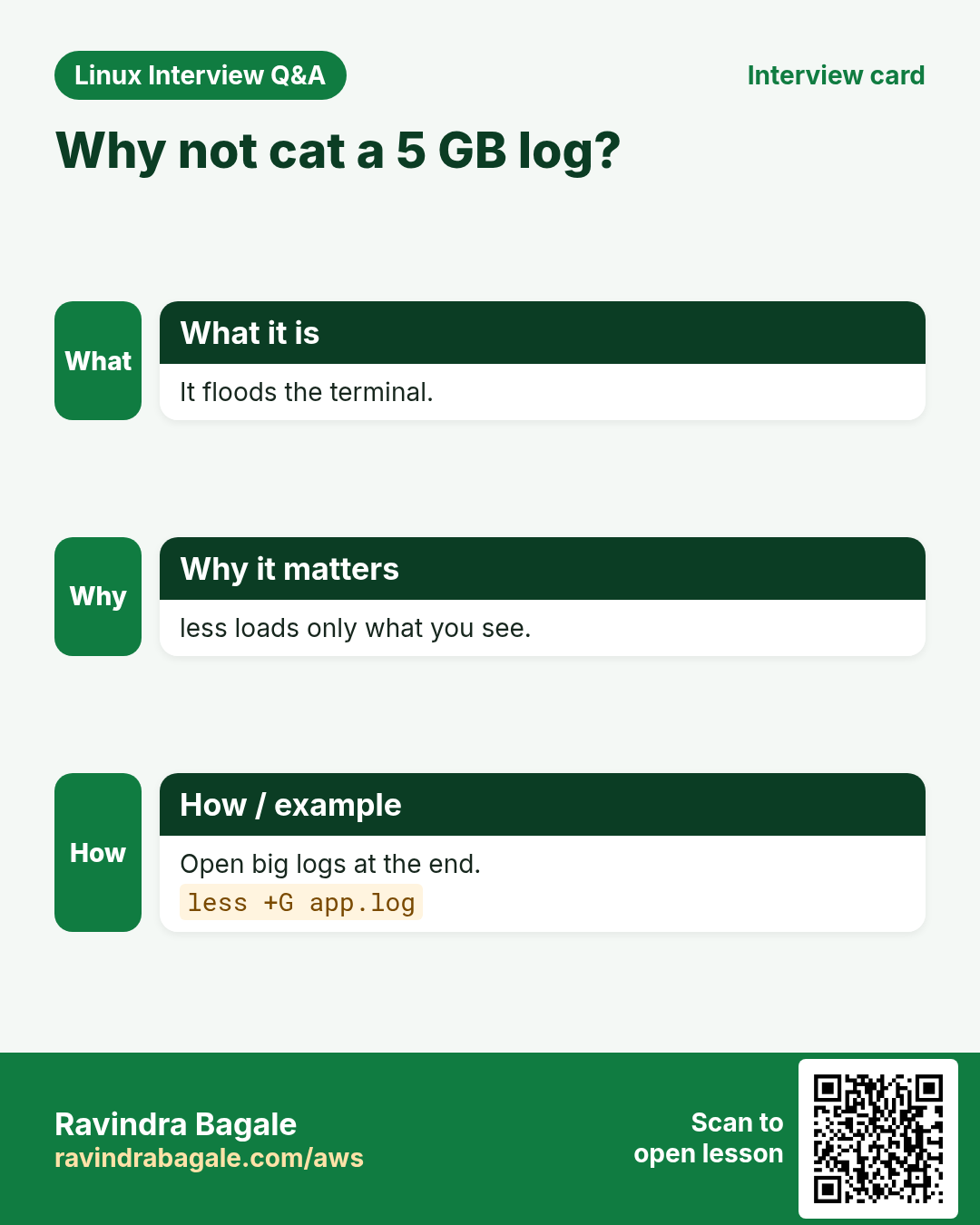
A 2 GB log printed with cat floods your screen and can freeze a slow SSH session. You need to scroll, search and jump.
less opens a file one screen at a time and does not load it all into memory. Keys: Space or f next page, b back, g top, G bottom, /word search forward, ?word search back, n next match, N previous, q quit, F follow like tail -f (Ctrl+C to stop). Options: -N line numbers, -S no wrap for wide lines, +G open at the end, -R keep colours. more is the older, simpler pager.
| Key | What it does |
|---|---|
| Space / b | Next / previous page |
| g / G | Top / bottom |
| /text | Search forward |
| n / N | Next / previous match |
| F | Follow new lines |
| &text | Show only lines with text |
| q | Quit |
- Open a big log.
less /var/log/syslogOutput:
Oct 25 09:00:01 web-01 CRON[1201]: (root) CMD (backup.sh)
:
The : at the bottom means less waits for a key.
- Open at the end with line numbers.
less -N +G /var/log/nginx/access.logOutput:
48211 10.0.0.7 - - [25/Oct/2026:10:15:02] "GET /cart HTTP/1.1" 200You land on the last line, number 48211.
- Search for an error inside less.
/ERROROutput:
10:12:44 ERROR payment timeout order=8812Press n to jump to the next ERROR.
- Read command output page by page.
ps aux | less -SOutput:
USER  PID %CPU %MEM COMMAND
root    1  0.0  0.1 /sbin/init
-S stops long lines from wrapping. Use arrow keys left and right.
- Read a compressed log without unzipping.
zless /var/log/syslog.2.gzOutput:
Oct 23 00:00:01 web-01 systemd[1]: Started Daily apt upgradezless, zcat and zgrep work on .gz files directly.
6. more: the simple pager
On tiny systems (rescue mode, BusyBox) less may not exist, but more always does.
more shows one screen at a time. Space next page, Enter next line, /text search, q quit. It cannot scroll back well. Prefer less when it is there.
- Page through a file.
more /etc/servicesOutput:
# /etc/services
tcpmux 1/tcp
--More--(2%)
--More-- shows how far you are.
- Page command output.
dmesg | moreOutput:
[    0.000000] Linux version 6.1.0
--More--
Works in a pipe too.
7. head and tail: the start and the end
Usually you only need the header of a CSV or the last few lines of a log.
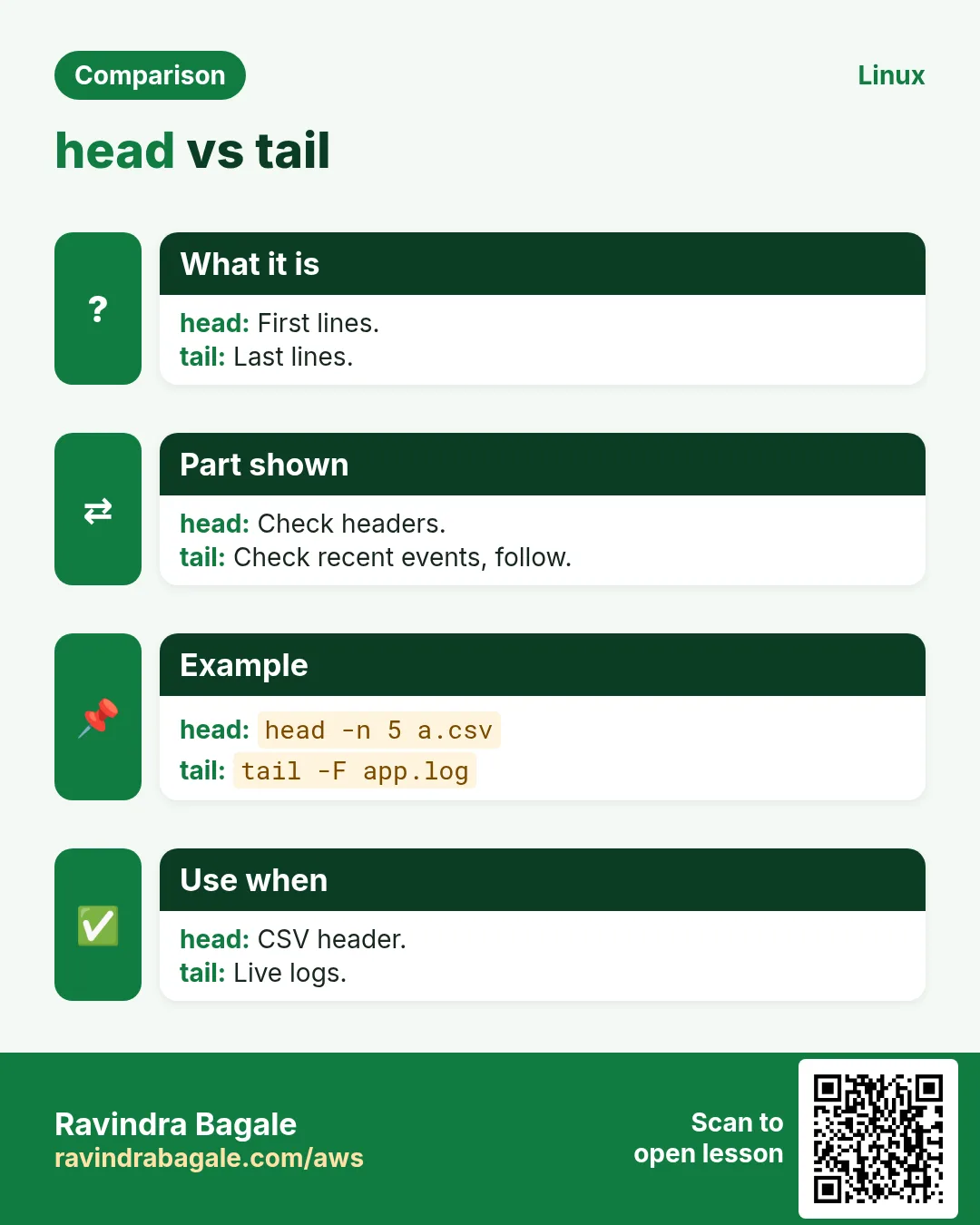
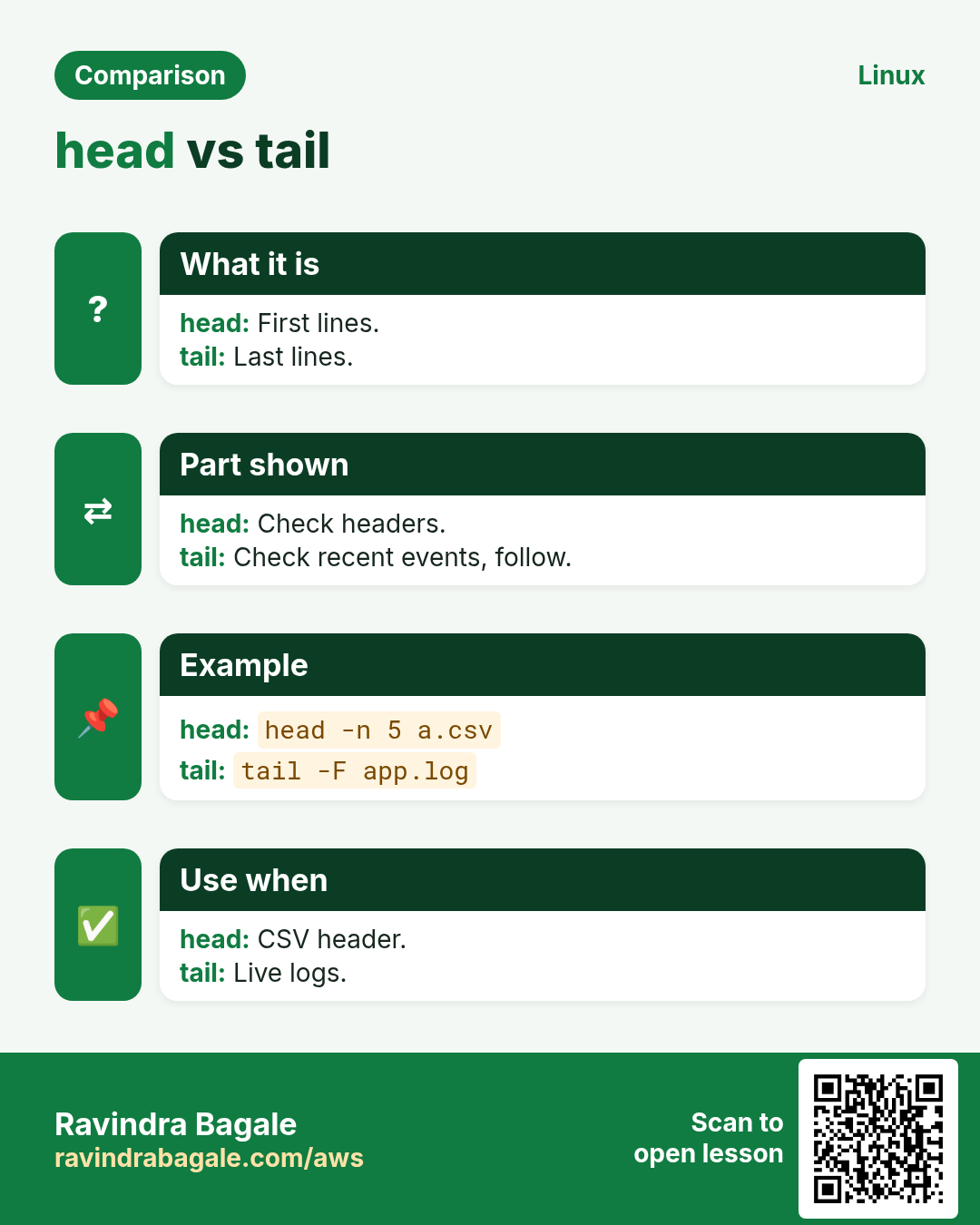
head shows the first 10 lines, tail the last 10. -n N picks N lines. head -c N gives N bytes. head -n -5 gives all but the last 5. tail -n +2 starts at line 2 (skip a header). Combine them to cut a middle range: head -n 30 | tail -n 11 gives lines 20 to 30.
- First 3 lines of a CSV.
head -n 3 sales.csvOutput:
date,city,amount
2026-10-01,Pune,4500
2026-10-01,Nashik,3200
Line 1 is the header.
- Last 5 lines of a log.
tail -n 5 /var/log/auth.logOutput:
Oct 25 10:20:11 web-01 sshd[2231]: Accepted publickey for ravi from 10.0.0.5The newest events are at the end.
- Skip the header.
tail -n +2 sales.csv | head -n 2Output:
2026-10-01,Pune,4500
2026-10-01,Nashik,3200
+2 means start from line 2.
- Lines 20 to 30.
head -n 30 app.log | tail -n 11Output:
(11 lines: 20..30)Or use sed -n '20,30p' app.log (next chapters).
- Several files at once.
head -n 1 *.csvOutput:
==> jan.csv <==
date,city,amount

==> feb.csv <==
date,city,amount
head prints a ==> name <== banner per file. -q hides it.
- Top 5 biggest folders.
du -sh /var/* 2>/dev/null | sort -rh | head -5Output:
2.1G /var/log
800M /var/lib
120M /var/cache
head is the last step of many 'top N' pipelines.
8. tail -f and tail -F: watch logs live
A log can grow while a program writes to it. tail -f keeps showing appended lines, typically following the file it opened. During rotation, a program might rename that file and create a fresh file at the old path. GNU tail -F follows the name and retries opening it. Choose the behavior that matches the log you need to watch.
Practise with two terminals and a dummy log. Follow the path in the first, append a distinctive line in the second, then rename the file and create a fresh log under the original name. Append a different marker to the new log. Compare which marker appears with the two follow modes, giving the watcher time to notice the change. Press Ctrl+C to stop the watcher.
When you deploy or debug, you want to see new log lines the moment they are written.
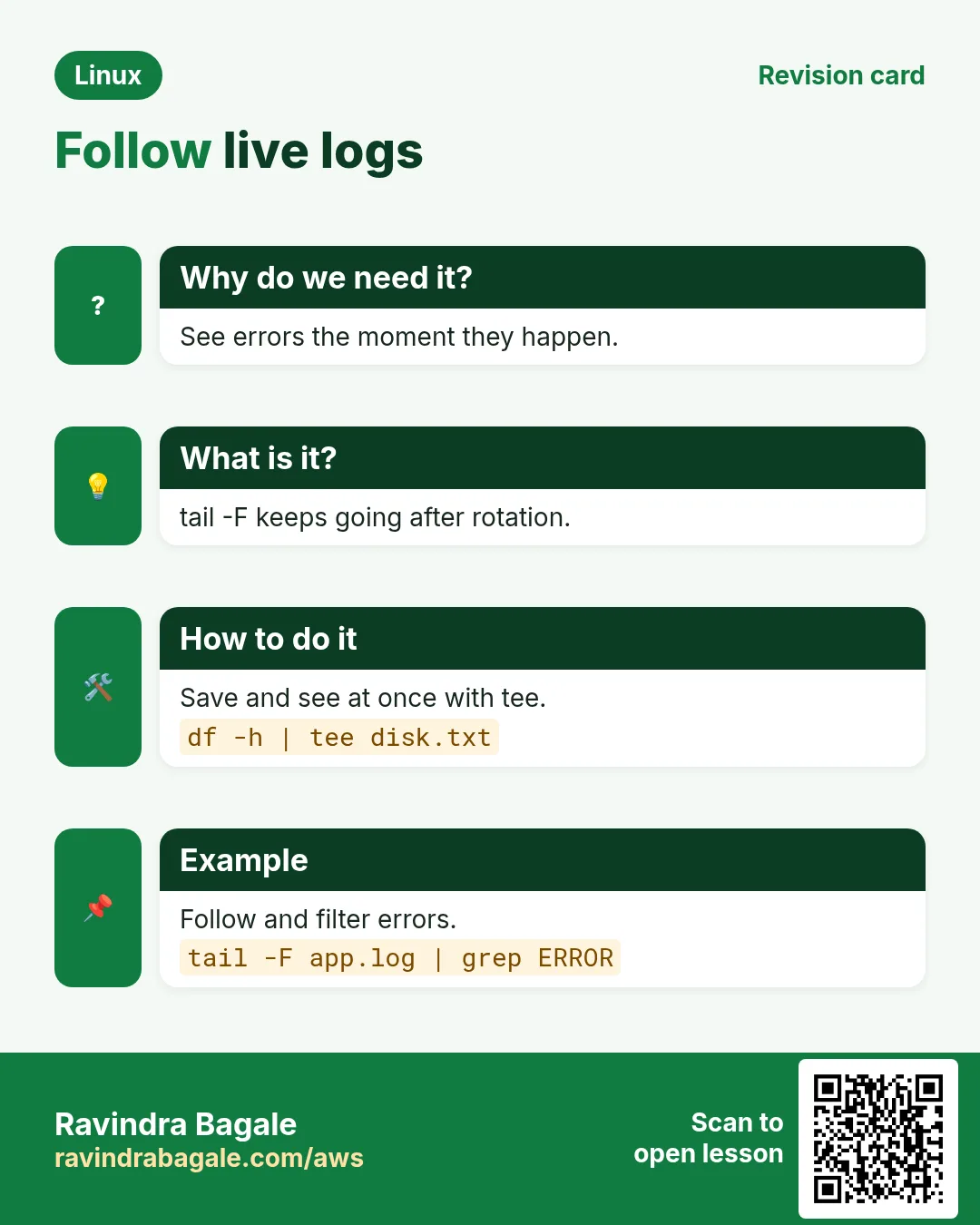
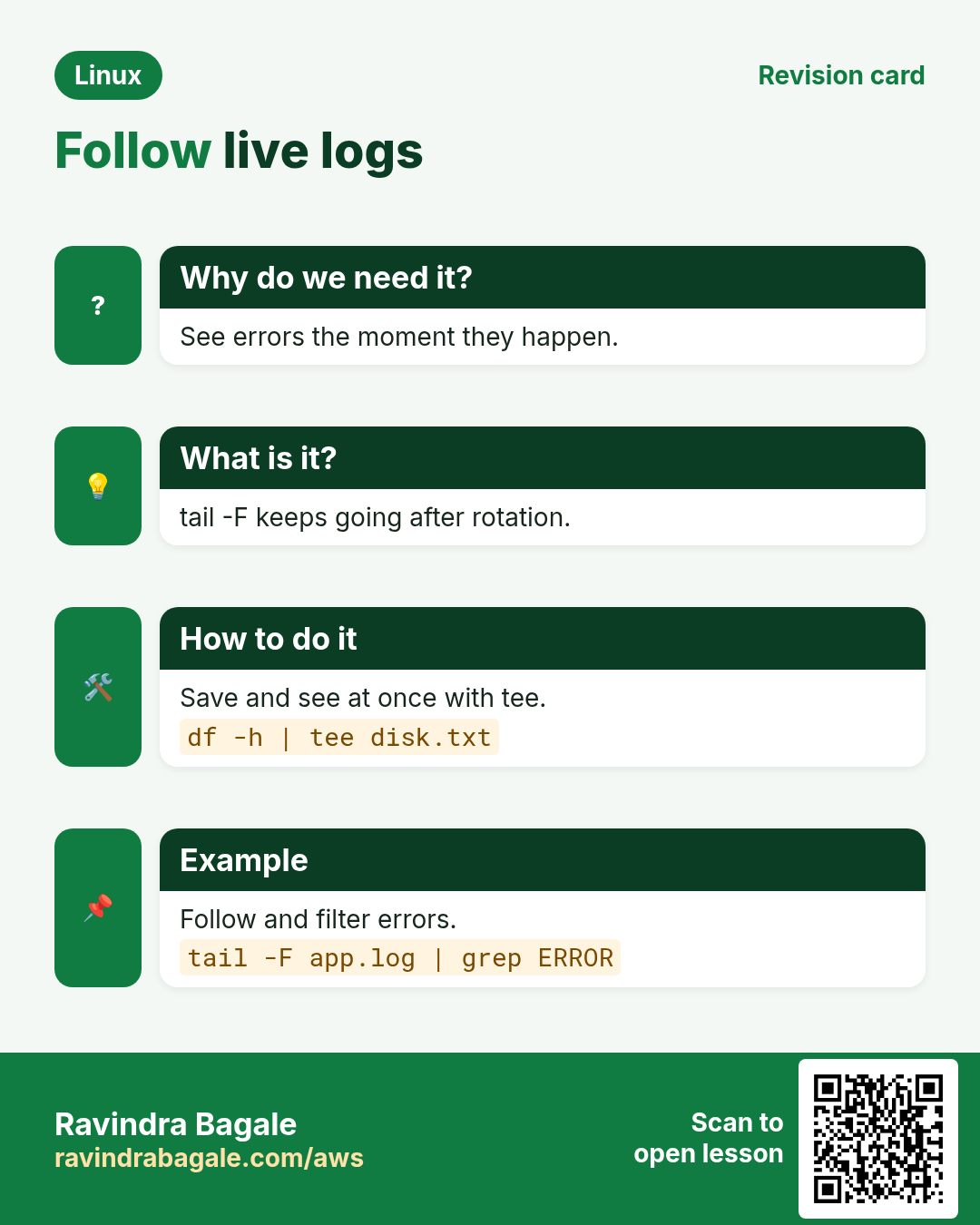
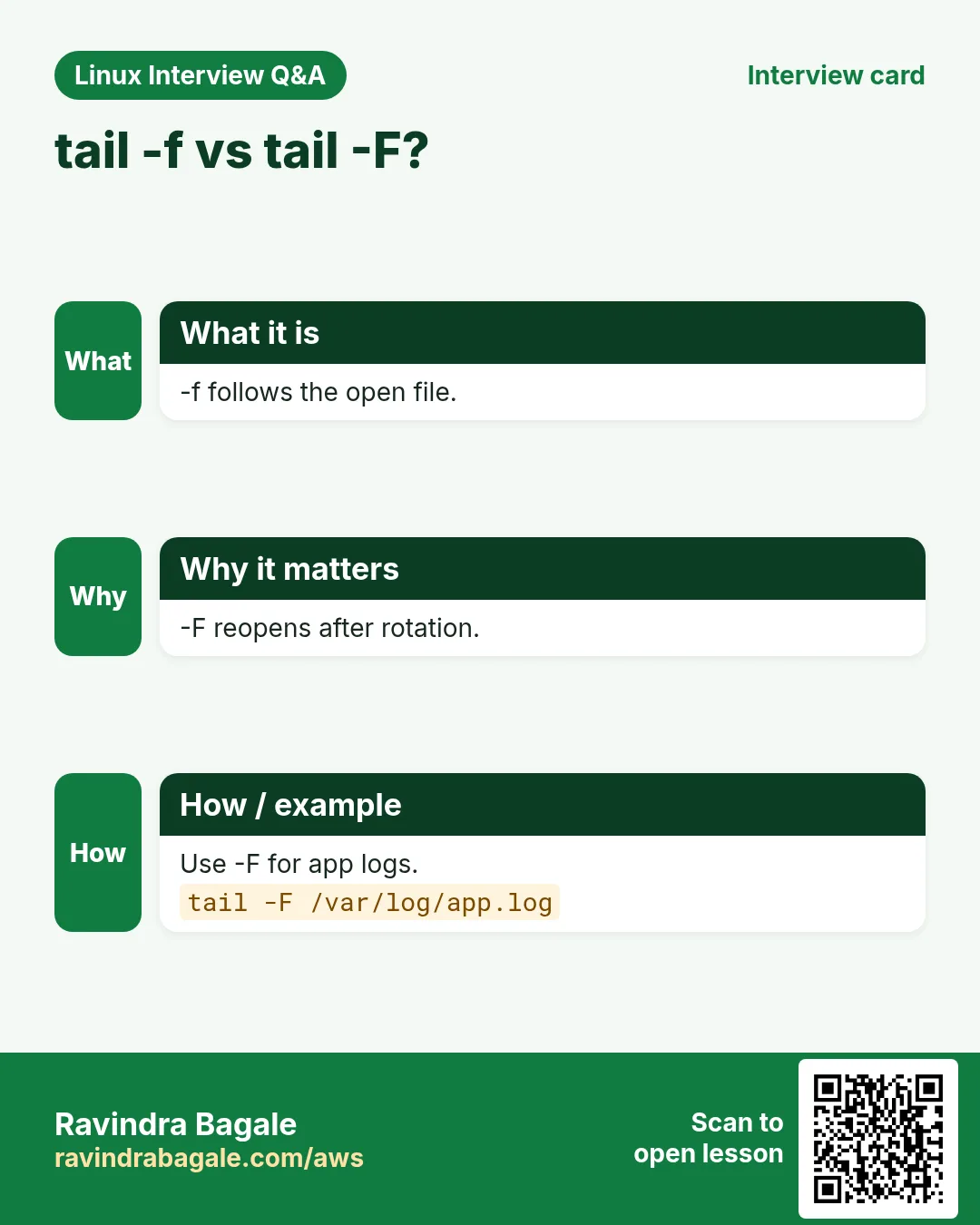
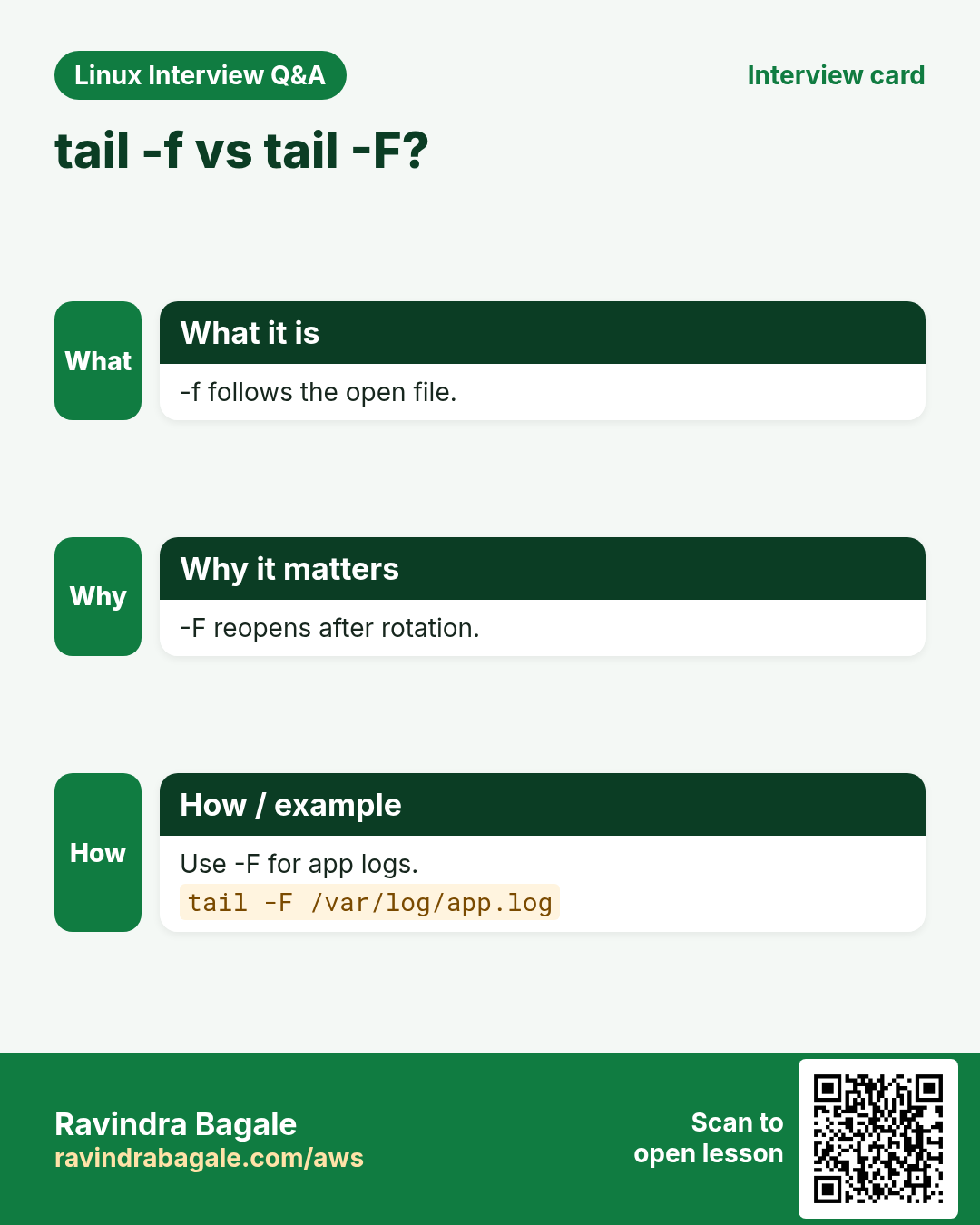
tail -f keeps the file open and prints new lines. If the log is rotated (renamed and a new file made), -f keeps watching the old file and goes silent. tail -F (same as --follow=name --retry) re-opens the new file by name, so use -F on servers. Stop with Ctrl+C. --pid=PID stops when a process ends. For systemd services use journalctl -u name -f.
- Follow a web log.
tail -f /var/log/nginx/access.logOutput:
10.0.0.9 - - [25/Oct/2026:10:30:01] "GET / HTTP/1.1" 200 612
(waits for new lines...)
The cursor stays. New requests appear live.
- Follow safely across log rotation.
tail -F /var/log/app/app.logOutput:
tail: '/var/log/app/app.log' has been replaced;  following new file
10:31:00 INFO started
-F noticed the new file and kept going.
- Follow two logs together.
tail -F app.log worker.logOutput:
==> app.log <==
10:32 GET /api/orders

==> worker.log <==
10:32 job 77 done
Banners show which file each line came from.
- Follow and filter only errors.
tail -F app.log | grep --line-buffered ERROROutput:
10:33:12 ERROR db timeout--line-buffered makes grep print at once in a pipe.
- Follow a systemd service.
journalctl -u nginx -fOutput:
Oct 25 10:34:01 web-01 nginx[880]: reload donejournalctl is the tail -f for services that log to the journal.
9. wc: count lines, words and bytes
How many users? How many errors today? Is this file empty? Counting answers many ops questions fast.
wc prints lines, words and bytes. -l lines, -w words, -c bytes, -m characters (Unicode safe), -L longest line. With a pipe it prints only the number (no file name), which is great in scripts. Note: wc -l counts newline characters, so a last line without a newline is not counted.
- Count everything.
wc notes.txtOutput:
12 85 512 notes.txt12 lines, 85 words, 512 bytes.
- Count only lines.
wc -l /etc/passwdOutput:
38 /etc/passwd38 user accounts.
- Only the number, for scripts.
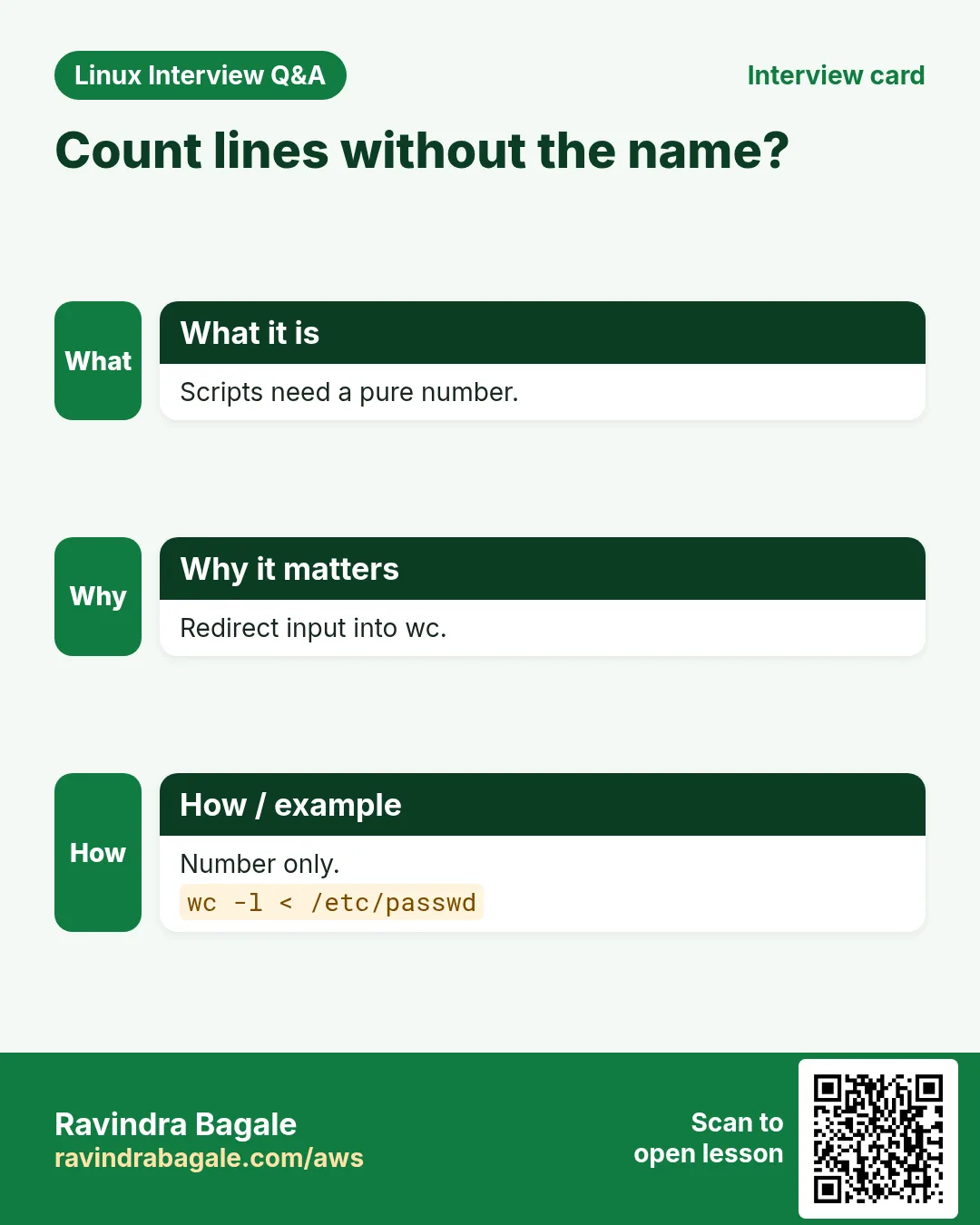
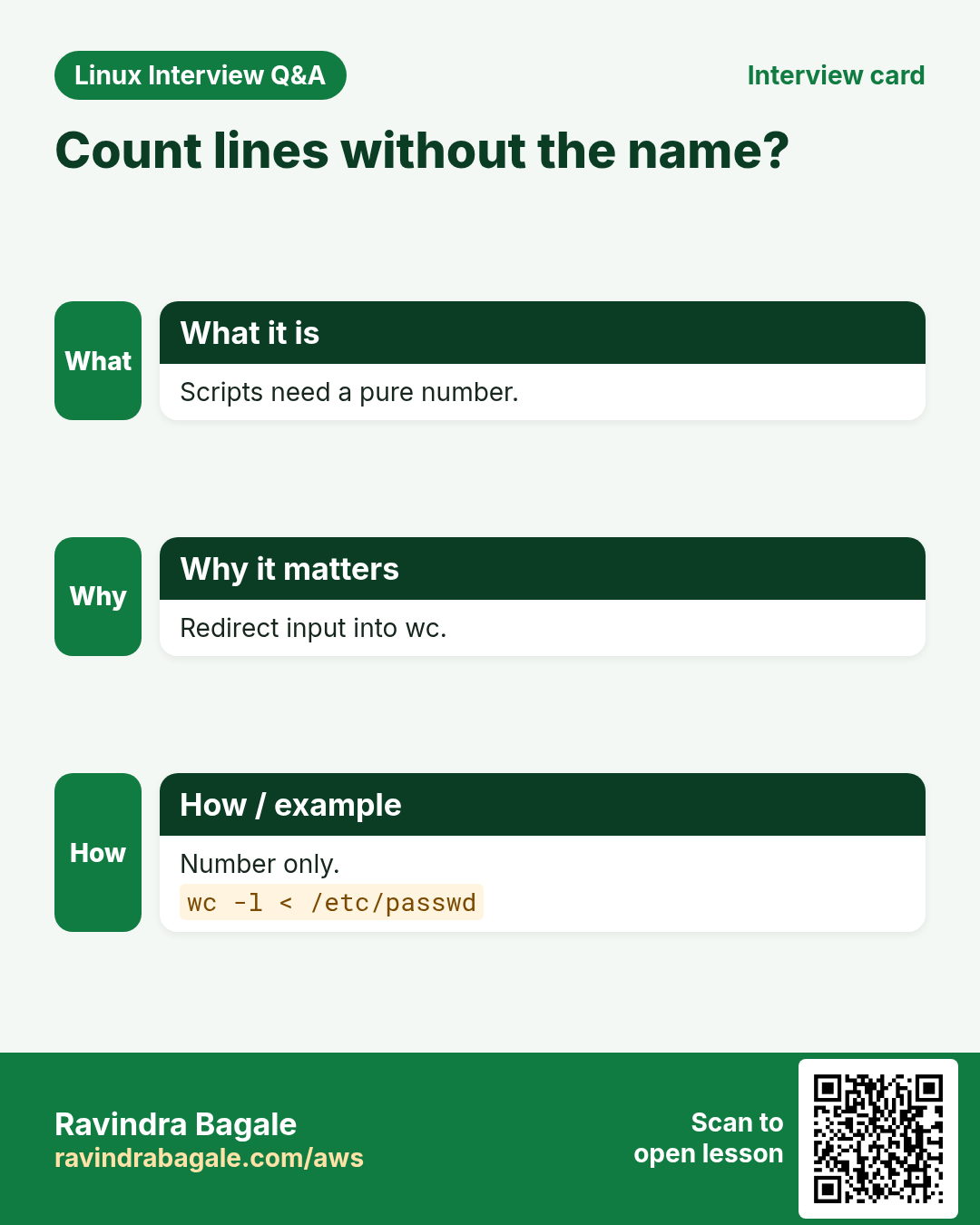
wc -l < /etc/passwdOutput:
38Redirect < hides the file name.
- Count errors in a log.
grep ERROR app.log | wc -lOutput:
27Same as grep -c ERROR app.log.
- Bytes vs characters in Marathi text.
echo -n 'पुणे' | wc -c; echo -n 'पुणे' | wc -mOutput:
12
4
Each Devanagari character takes 3 bytes in UTF-8.
- Count files in a folder.
ls /etc/nginx/conf.d | wc -lOutput:
4Quick count. For odd names use find (chapter 12).
10. tee: save output and see it too
During an upgrade you want to watch the output and also keep a log file for later. Or you need to write into a root-owned file from a normal shell.
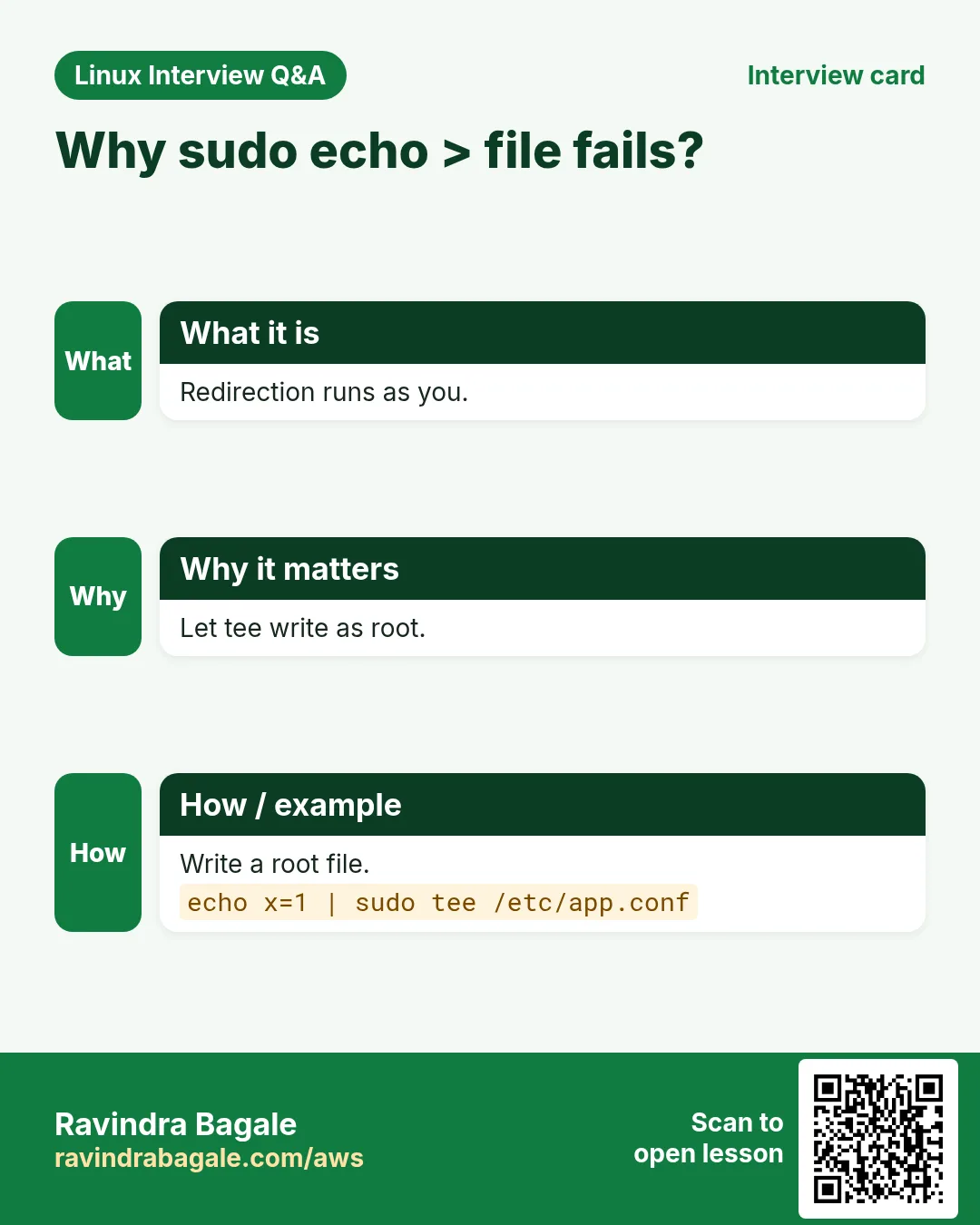
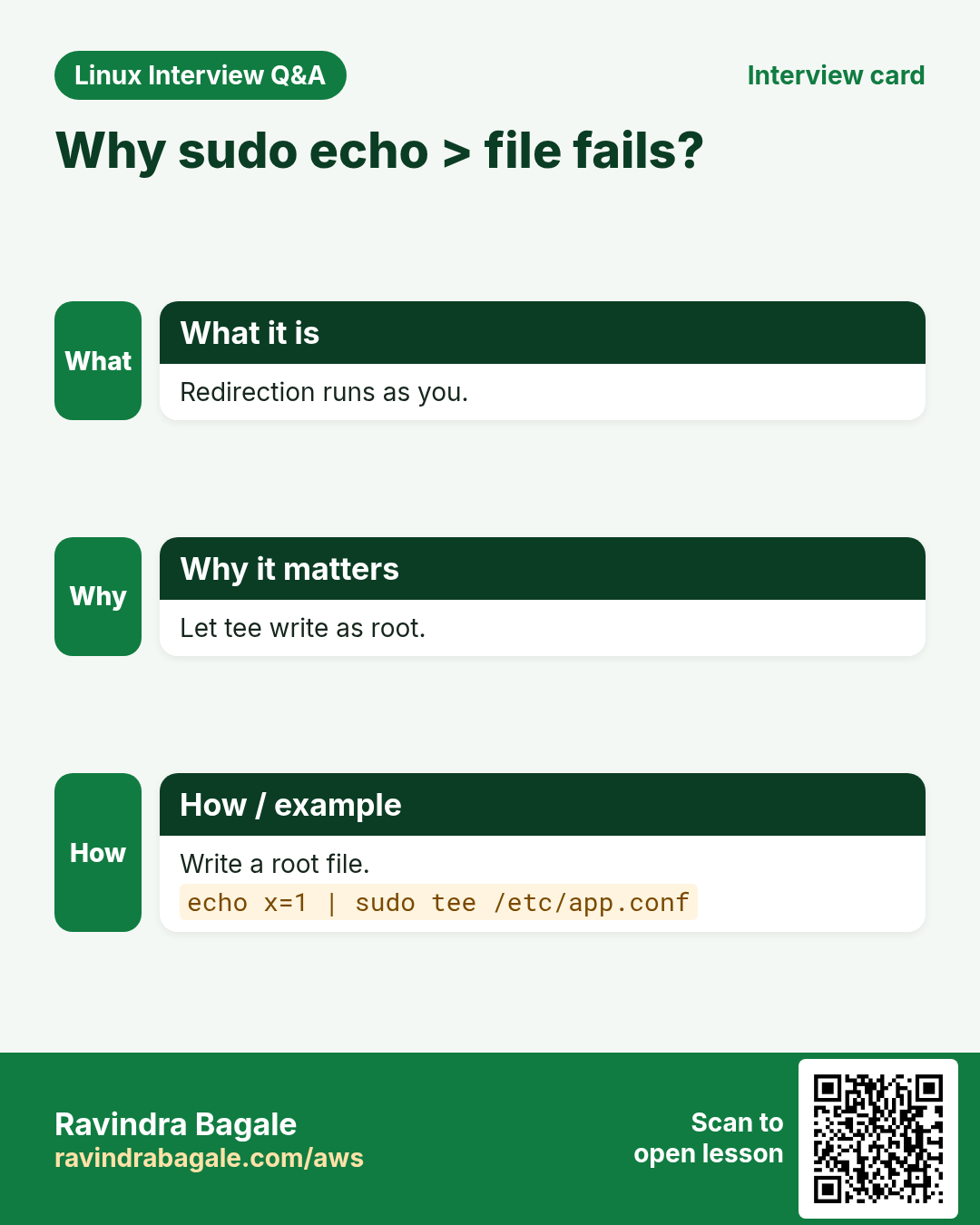
tee reads input and writes it to the screen and to one or more files, like a T-shaped pipe joint. -a appends instead of overwriting. sudo tee file is the right way to write into protected files, because in sudo echo x > file the > runs as you, not as root. Add > /dev/null to hide the screen copy.
- Watch and save an upgrade.
sudo dnf -y upgrade 2>&1 | tee upgrade-$(date +%F).logOutput:
Upgrading: openssl 3.0.7 ...
Complete!
2>&1 also captures errors. The log is named by date.
- Append to a log.
echo "$(date +%T) deploy v42 by Neha" | tee -a deploy.logOutput:
10:40:02 deploy v42 by Neha-a keeps old lines.
- Write a root file the right way.
echo 'vm.swappiness=10' | sudo tee /etc/sysctl.d/99-swap.confOutput:
vm.swappiness=10Works. sudo echo ... > file would fail with Permission denied.
- Save to two files.
df -h | tee disk-now.txt disk-$(hostname).txt > /dev/null && ls disk-*Output:
disk-now.txt disk-web-01.txt> /dev/null hides the screen copy.
- Save the middle of a pipe.
cat access.log | tee raw.txt | grep ' 500 ' | wc -lOutput:
14raw.txt has all lines, the count is only for 500 errors.
11. Real examples from many industries
The same Linux skill shows up in every kind of company. Seeing it in many places helps you remember it.
Each row is a made-up team. It shows who uses this and how.
| Team and city | How they use it | Command |
|---|---|---|
| Priya, e-commerce SRE, Bengaluru | Follows checkout logs live during sale hours | tail -F /var/log/shop/checkout.log |
| Lukas, bank ops, Frankfurt | Keeps a signed log of every patch run | sudo apt upgrade 2>&1 | tee -a patch.log |
| Fatima, telecom NOC, Dubai | Counts dropped calls per hour | grep DROP cdr.log | wc -l |
| Arjun, hospital IT, Nagpur | Checks the CSV header before importing patient data | head -n 1 patients.csv |
| Chen, game studio, Taipei | Reads crash logs page by page with search | less -N crash.log |
| Olivia, media, London | Joins daily view files into one monthly file | cat views-2026-10-*.csv > views-oct.csv |
12. Common errors and how to fix them
Everyone hits these errors. Knowing the cause saves hours.
Read the exact message first. Then match it to a row below.
| Error you see | Why it happens | How to fix |
|---|---|---|
cat: app.log: No such file or directory | Wrong path or name (Linux is case sensitive) | Check with ls and use Tab completion.ls -l /var/log/app/ |
cat: /var/log/secure: Permission denied | The file is readable only by root or a group | Use sudo, or join the adm group on Ubuntu.sudo less /var/log/secure |
bash: /etc/sysctl.d/x.conf: Permission denied (with sudo echo >) | The > redirect runs as your user, not root | Pipe into sudo tee.echo 'x=1' | sudo tee /etc/sysctl.d/x.conf |
tail -f shows nothing after midnight | logrotate replaced the file; -f watches the old one | Use tail -F.tail -F /var/log/app.log |
Screen full of strange symbols after cat | You printed a binary file | Check with file first, run reset to fix the terminal.file data.bin; reset |
cat: big.log: input file is output file | You redirected a file into itself | Write to a new file, then move.cat a big.log > new.log && mv new.log big.log |
wc -l shows one less than expected | The last line has no newline at the end | Add a newline or count with grep -c ''.grep -c '' file.txt |
head: invalid number of lines: '5x' | Bad number after -n | Give a plain number.head -n 5 file.txt |
less: WARNING: terminal is not fully functional | TERM is not set (often in cron or odd SSH) | Set TERM.export TERM=xterm-256color |
Pipe output appears late with tail -f | grep | grep buffers output in a pipe | Add --line-buffered.tail -F app.log | grep --line-buffered ERROR |
13. Troubleshooting step by step
When a log looks wrong or empty, check the file, its size, permissions and whether it is still being written.
Go top to bottom. Stop at the first step that shows the problem.
- Does the file exist and how big is it?
ls -lh /var/log/app/app.log- Is it text or binary?
file /var/log/app/app.log- Can you read it?
head -n 2 /var/log/app/app.log || sudo head -n 2 /var/log/app/app.log- Is anything writing to it right now?
sudo lsof /var/log/app/app.log- Was it rotated? Look for .1 or .gz files.
ls -lt /var/log/app/ | head- Is the app logging to the journal instead?
journalctl -u app --since '10 min ago'- Check for Windows line ends or tabs.
cat -A /var/log/app/app.log | head -314. Lab 1: Inspect and follow a web server log
Make a fake access log, read it with head, tail and less, follow it live and count errors.
A full hands-on lab. Run every step on a test Linux machine (an EC2 instance, a VM, or WSL).
- Create a folder and a sample log.
mkdir -p ~/lab7 && cd ~/lab7 && for i in $(seq 1 200); do echo "10.0.0.$((i%9)) GET /p$i $([ $((i%10)) -eq 0 ] && echo 500 || echo 200)"; done > access.logOutput:
(no output)- Count lines.
wc -l access.logOutput:
200 access.log- Look at the start and the end.
head -n 3 access.log; tail -n 2 access.logOutput:
10.0.0.1 GET /p1 200
10.0.0.2 GET /p2 200
10.0.0.3 GET /p3 200
10.0.0.1 GET /p199 200
10.0.0.2 GET /p200 500- Count 500 errors.
grep -c ' 500$' access.logOutput:
20- Follow live in one terminal.
tail -F access.logOutput:
(waits)- In a second terminal, add a line.
echo '10.0.0.7 GET /new 200' >> ~/lab7/access.logOutput:
(first terminal shows the new line)- Stop with Ctrl+C and open in less at the end.
less -N +G access.logOutput:
201 10.0.0.7 GET /new 20015. Lab 2: Save a patch run with tee
Run a command, watch it and keep a dated log. Write a root-owned file safely.
A full hands-on lab. Run every step on a test Linux machine (an EC2 instance, a VM, or WSL).
- Run and log at the same time.
uname -a 2>&1 | tee -a ~/lab7/run-$(date +%F).logOutput:
Linux web-01 6.1.0 x86_64 GNU/Linux- Run again and check the log grew.
uptime | tee -a ~/lab7/run-$(date +%F).log >/dev/null; wc -l ~/lab7/run-*.logOutput:
2 /home/ravi/lab7/run-2026-10-25.log- Try the wrong way to write a root file.
sudo echo 'hello' > /etc/lab7.confOutput:
bash: /etc/lab7.conf: Permission denied- Do it the right way.
echo 'hello' | sudo tee /etc/lab7.confOutput:
hello- Clean up.
sudo rm /etc/lab7.confOutput:
(no output)Ravindra Bagale's Tip
On servers always use tail -F, not tail -f. Logs get rotated at night, and -F keeps following the new file so you do not miss the error you are waiting for.
Ravindra Bagale's Tip – मराठी
Servers वर नेहमी tail -F वापरा, tail -f नाही. रात्री logs rotate होतात, आणि -F नवी file follow करत राहतो, त्यामुळे ज्या error ची वाट बघताय तो चुकत नाही.
Ravindra Bagale's Tip – हिंदी
Servers पर हमेशा tail -F इस्तेमाल करें, tail -f नहीं. रात में logs rotate होते हैं, और -F नई file को follow करता रहता है, ताकि जिस error का इंतज़ार है वो छूटे नहीं.
16. Frequently asked questions
Q. Why not use cat for everything?
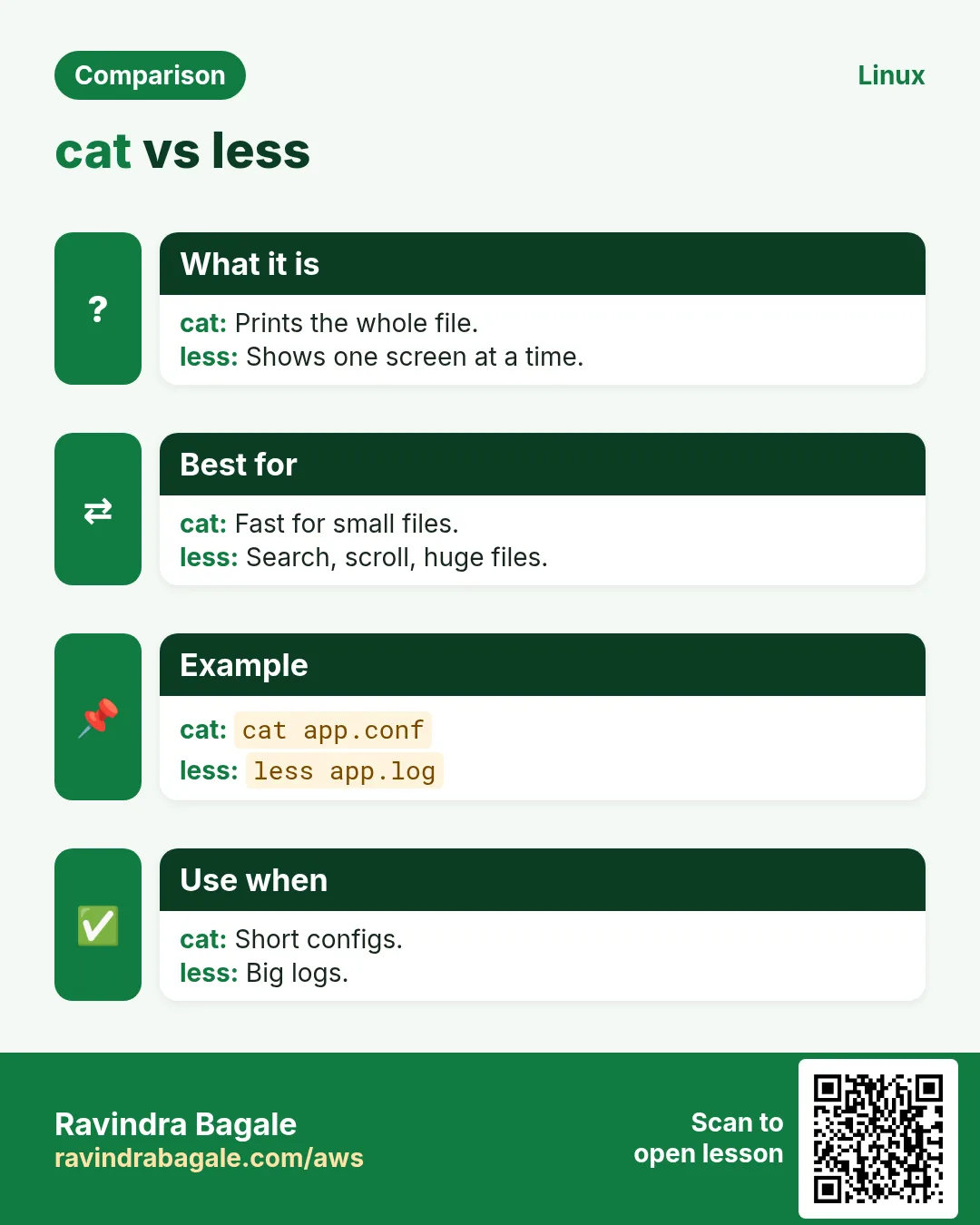
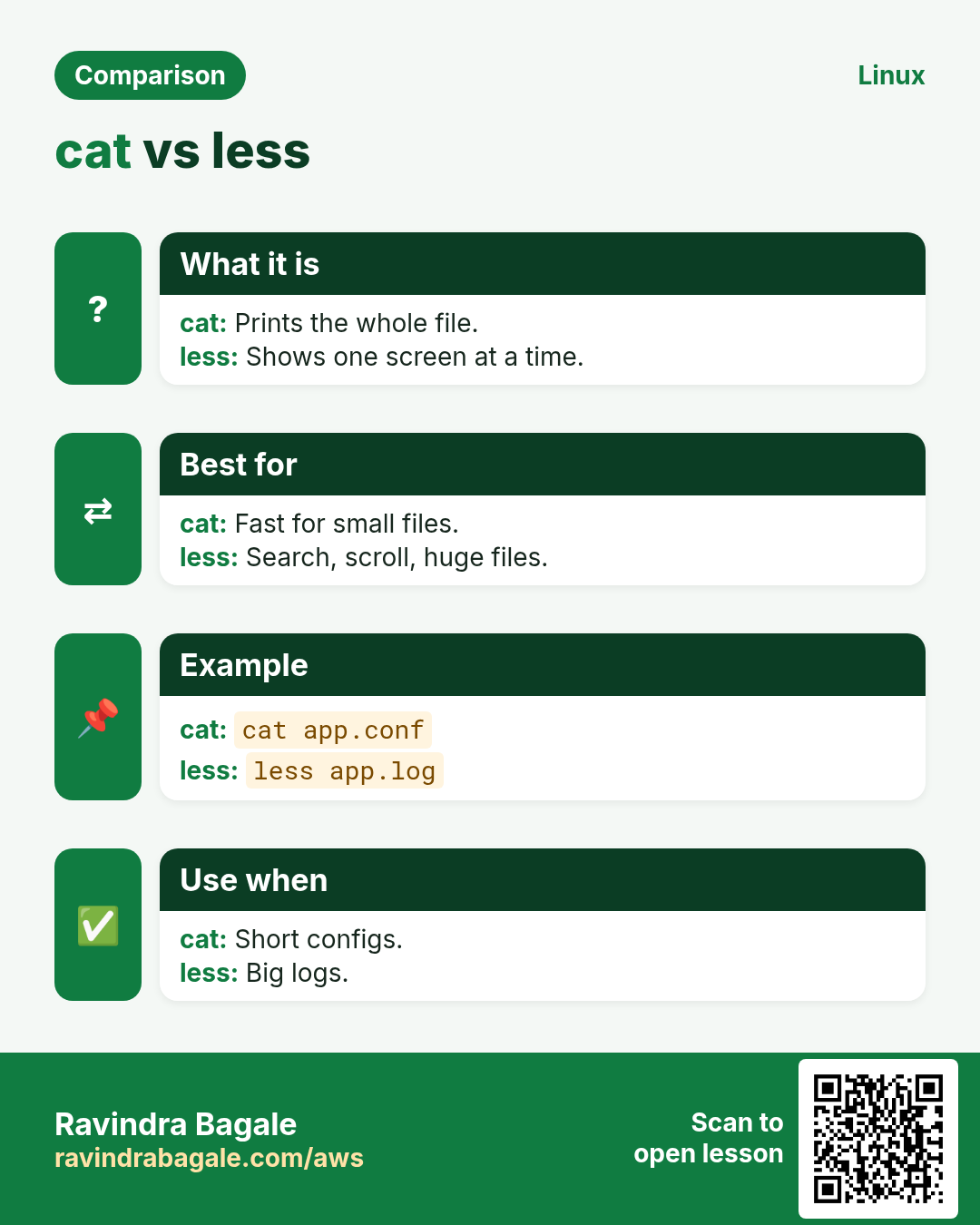
cat is fine for short files. For long files it floods the screen. less lets you scroll and search, and head or tail give just the part you need.
Q. What is 'useless use of cat'?
cat file | grep x works but starts an extra process. grep x file does the same. It matters little, but interviewers like the cleaner form.
Q. Difference between tail -f and tail -F?
-f follows the open file. -F follows the name and retries, so it survives log rotation.
Q. Does less load the whole file?
No. It reads what it needs, so it opens huge files fast.
Q. Why does wc -c differ from wc -m?
-c counts bytes, -m counts characters. Non-English letters use more than one byte in UTF-8.
Q. How do I see lines 100 to 120?
head -n 120 file | tail -n 21, or sed -n '100,120p' file.
Q. Can tee write to many files?
Yes, list them all: tee a.txt b.txt.
Q. How do I read .gz logs?
Use zcat, zless or zgrep. No need to unzip.
17. Interview questions and answers
Beginner level
Q. What does cat do?
It prints one or more files to the screen and can join them into one.
Q. How do you see the last 20 lines of a file?
tail -n 20 file.
Q. How do you count lines in a file?
wc -l file, or wc -l < file for only the number.
Q. How do you quit less?
Press q.
Mid level level
Q. Why use tail -F on production?
Logs rotate. -F follows by name and reopens the new file; -f would watch the old renamed one.
Q. Why does 'sudo echo x > /etc/file' fail?
The shell does the > redirect as your user before sudo runs. Use echo x | sudo tee /etc/file.
Q. How do you print lines 50 to 60?
head -n 60 f | tail -n 11, or sed -n '50,60p' f.
Q. How do you skip a CSV header?
tail -n +2 file.csv.
Senior level
Q. A script counts lines with wc -l and is off by one. Why?
The last line has no trailing newline. wc counts newline characters. Fix the producer or use grep -c ''.
Q. tail -f | grep shows lines late. Why and fix?
grep block-buffers when stdout is a pipe or file. Use --line-buffered, or stdbuf -oL.
Q. How would you safely view a 20 GB log on a small server?
less (does not load all), or tail/head, zless for gz. Avoid cat and editors that load the file into RAM.
Q. Disk shows full but you deleted a big log. What happened?
A process still has the file open, so space is not freed. Find it with lsof +L1 and restart it, or truncate with : > file before deleting next time.
Try at home
- Export any chat or long text to a file. Use wc to count lines and words, head and tail to see the first and last messages, and less to search a name.
- Run 'ping -c 5 google.com | tee ping.txt' and check ping.txt has the same output you saw.
Choose a tool by how much data you need to read
Use head for a first sample, tail for a last sample, less for browsing, and tee when you need a second copy of standard output. Count lines with wc -l and remember it counts newline characters. Try tail -f on a scratch file you append to in another terminal.
Interview check What is the difference between tee and tee -a?
tee opens the output file for replacement by default. The -a option appends. Inspect the destination before using either on important files.
Practise this chapter
Interview questions and answers
Why might a log watcher become silent immediately after rotation?
It may be following the file descriptor for the old log, while new application lines go to a different file at the same name. I would verify the new log is receiving writes and use name-follow behavior when I need the replacement path.
Check your understanding
Choose an answer, then compare your reasoning with the explanation.
Practice Tasks
Practice checks run in your browser. They check the answer for this exercise; they do not create resources or connect to your AWS account.
About this scenarioMaple Leaf Books is a bookselling business in Toronto. Emily Tremblay looks after its IT and cloud work. They count money in CAD and run their AWS resources in the ca-central-1 Region. In the tasks below you do real jobs for them using what this lesson teaches. All names, account IDs, IP addresses and numbers are made up for practice.
0 / 21
Easy Print a file with line numbers
Line numbers help in reviews.
Emily Tremblay wants to see app.conf of Maple Leaf Books with every line numbered, using cat.
- Find the Linux command that does this job.
- Add the options (like -r or -h) the task needs.
- Add the file names, folders or users in the right order.
- Use sudo if the job changes system files or users. Click Check answer.
Easy Newest log lines first
Newest events are at the bottom.
Print audit.log in reverse line order.
- Find the Linux command that does this job.
- Add the options (like -r or -h) the task needs.
- Add the file names, folders or users in the right order.
- Use sudo if the job changes system files or users. Click Check answer.
Easy Read a big log with numbers
Do not cat a 2 GB file.
Open /var/log/messages in less with line numbers.
- Find the Linux command that does this job.
- Add the options (like -r or -h) the task needs.
- Add the file names, folders or users in the right order.
- Use sudo if the job changes system files or users. Click Check answer.
Easy First 5 lines
Check a CSV header quickly.
Show the first 5 lines of sales.csv of Maple Leaf Books.
- Find the Linux command that does this job.
- Add the options (like -r or -h) the task needs.
- Add the file names, folders or users in the right order.
- Use sudo if the job changes system files or users. Click Check answer.
Easy Last 20 lines
Recent errors are at the end.
Show the last 20 lines of /var/log/secure.
- Find the Linux command that does this job.
- Add the options (like -r or -h) the task needs.
- Add the file names, folders or users in the right order.
- Use sudo if the job changes system files or users. Click Check answer.
Easy Count lines
How many users exist?
Count the lines in /etc/group.
- Find the Linux command that does this job.
- Add the options (like -r or -h) the task needs.
- Add the file names, folders or users in the right order.
- Use sudo if the job changes system files or users. Click Check answer.
Easy Count words
Blog posts have word limits.
Count the words in post.md.
- Find the Linux command that does this job.
- Add the options (like -r or -h) the task needs.
- Add the file names, folders or users in the right order.
- Use sudo if the job changes system files or users. Click Check answer.
Easy Quit less
New users get stuck.
Which single key quits less?
- Write down the numbers the task gives you.
- Work it out step by step on paper.
- Type only the final answer in the box.
- Click Check answer.
Easy Append operator
Logs must grow, not reset.
Which operator adds output to the END of a file without deleting what is there?
- Write down the numbers the task gives you.
- Work it out step by step on paper.
- Type only the final answer in the box.
- Click Check answer.
Easy Overwrite operator
Know what wipes a file.
Which single operator sends output to a file and empties the file first?
- Write down the numbers the task gives you.
- Work it out step by step on paper.
- Type only the final answer in the box.
- Click Check answer.
Easy Finish cat input
Users get stuck in cat.
You typed lines into cat into a file. Which key combo ends the input and saves?
- Write down the numbers the task gives you.
- Work it out step by step on paper.
- Type only the final answer in the box.
- Click Check answer.
Medium Show hidden characters
Windows line ends break scripts.
Show tabs and line ends in deploy.sh so you can spot ^M.
- Find the Linux command that does this job.
- Add the options (like -r or -h) the task needs.
- Add the file names, folders or users in the right order.
- Use sudo if the job changes system files or users. Click Check answer.
Medium Join two files
Monthly exports come in parts.
Join jan.csv and feb.csv (in that order) into q1.csv.
- Find the Linux command that does this job.
- Add the options (like -r or -h) the task needs.
- Add the file names, folders or users in the right order.
- Use sudo if the job changes system files or users. Click Check answer.
Medium Number all lines with nl
Blank lines count too in some reviews.
Use nl to number every line of notes.txt, including empty ones.
- Find the Linux command that does this job.
- Add the options (like -r or -h) the task needs.
- Add the file names, folders or users in the right order.
- Use sudo if the job changes system files or users. Click Check answer.
Medium Skip the header row
Totals must not include the header.
Print leads.csv starting from line 2.
- Find the Linux command that does this job.
- Add the options (like -r or -h) the task needs.
- Add the file names, folders or users in the right order.
- Use sudo if the job changes system files or users. Click Check answer.
Medium Follow a rotating log
-f stops after logrotate.
Follow /var/log/api/api.log live so it keeps working after the file is rotated.
- Find the Linux command that does this job.
- Add the options (like -r or -h) the task needs.
- Add the file names, folders or users in the right order.
- Use sudo if the job changes system files or users. Click Check answer.
Medium Count error lines
A quick health number.
Count lines containing WARN in worker.log using grep and wc in a pipe.
- Find the Linux command that does this job.
- Add the options (like -r or -h) the task needs.
- Add the file names, folders or users in the right order.
- Use sudo if the job changes system files or users. Click Check answer.
Medium Save and see output
Keep a record of upgrades.
Run df -h and save its output to disk.txt while still showing it on screen.
- Find the Linux command that does this job.
- Add the options (like -r or -h) the task needs.
- Add the file names, folders or users in the right order.
- Use sudo if the job changes system files or users. Click Check answer.
Medium Append with tee
Do not lose old records.
Append the output of date to deploy.log using tee, keeping old lines.
- Find the Linux command that does this job.
- Add the options (like -r or -h) the task needs.
- Add the file names, folders or users in the right order.
- Use sudo if the job changes system files or users. Click Check answer.
Medium Protect from overwrite
One typo can wipe a file.
Which bash option name (used with set -o) makes > refuse to overwrite existing files?
- Write down the numbers the task gives you.
- Work it out step by step on paper.
- Type only the final answer in the box.
- Click Check answer.
Hard Write a root file from a pipe
sudo echo > file does not work.
Write the line vm.max_map_count=262144 into /etc/sysctl.d/99-maps.conf using echo and sudo tee.
- Find the Linux command that does this job.
- Add the options (like -r or -h) the task needs.
- Add the file names, folders or users in the right order.
- Use sudo if the job changes system files or users. Click Check answer.
18. Related chapters
- Linux Ops Refresh for DevOps
- Bash Scripting for Automation
- Linux grep and find Commands with Examples
- How to Set Up Passwordless SSH Between Linux Servers
In short
- cat prints and joins; -n numbers, -A shows hidden characters.
- less is for big files: /search, n, G, q, F.
- head and tail pick the start and end; tail -n +2 skips a header.
- tail -F follows logs across rotation.
- wc -l counts lines; wc -l < file gives just the number.
- tee saves and shows; sudo tee writes root files.
Revision, comparison and interview cards
Revise this lesson in a few minutes. Save the cards on your phone or download them as PNG files. The QR code on each card opens this lesson.
More cards: Ravi Sir's Cards.