Linux File and Directory Commands Cheat Sheet: ls, cd, cp, mv, rm, mkdir with Examples
These seven commands are the first thing you learn and the last thing you forget: ls, cd, pwd, mkdir, touch, cp, mv and rm. You will type them thousands of times. Here you learn each one, its useful options, and the mistakes that delete real data.
In this chapter
- Move around with pwd, cd and ls
- Create files and folders with touch and mkdir -p
- Copy with cp -r, -a, -i, -u
- Move and rename with mv
- Delete safely with rm, rm -r, rmdir
- Wildcards, brace expansion and a printable cheat sheet
1. An everyday example: arranging a cupboard
Pooja is sorting her office cupboard in Thane. She checks where she is standing, opens a shelf to look, makes new boxes, photocopies a file, moves a folder to another shelf, and throws away old papers.
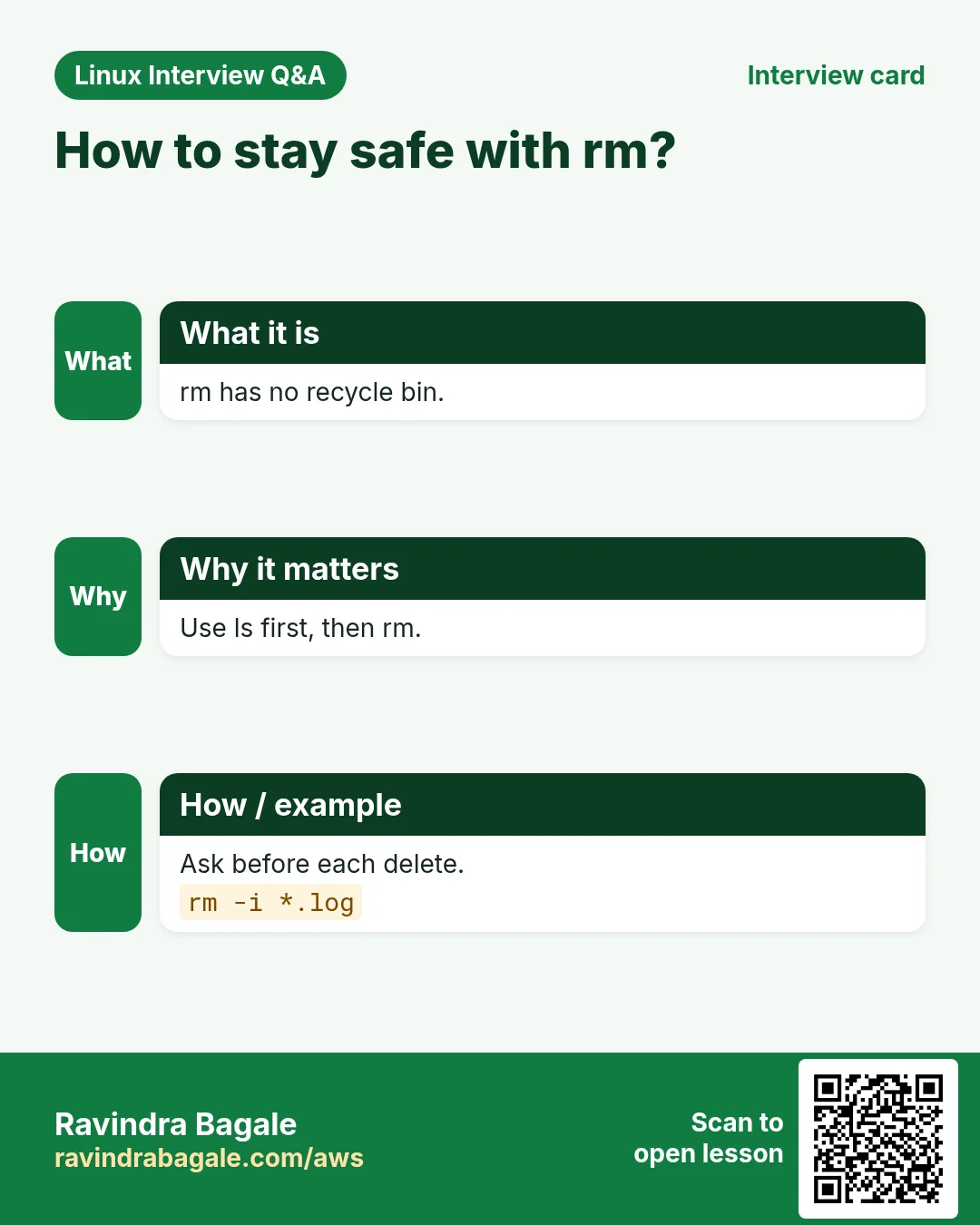
Where am I = pwd. Look in the shelf = ls. Walk to another shelf = cd. New box = mkdir. Blank sheet = touch. Photocopy = cp. Move to another shelf = mv. Throw away = rm. Linux has no dustbin, so rm is final.
2. pwd and cd: where am I and how to move
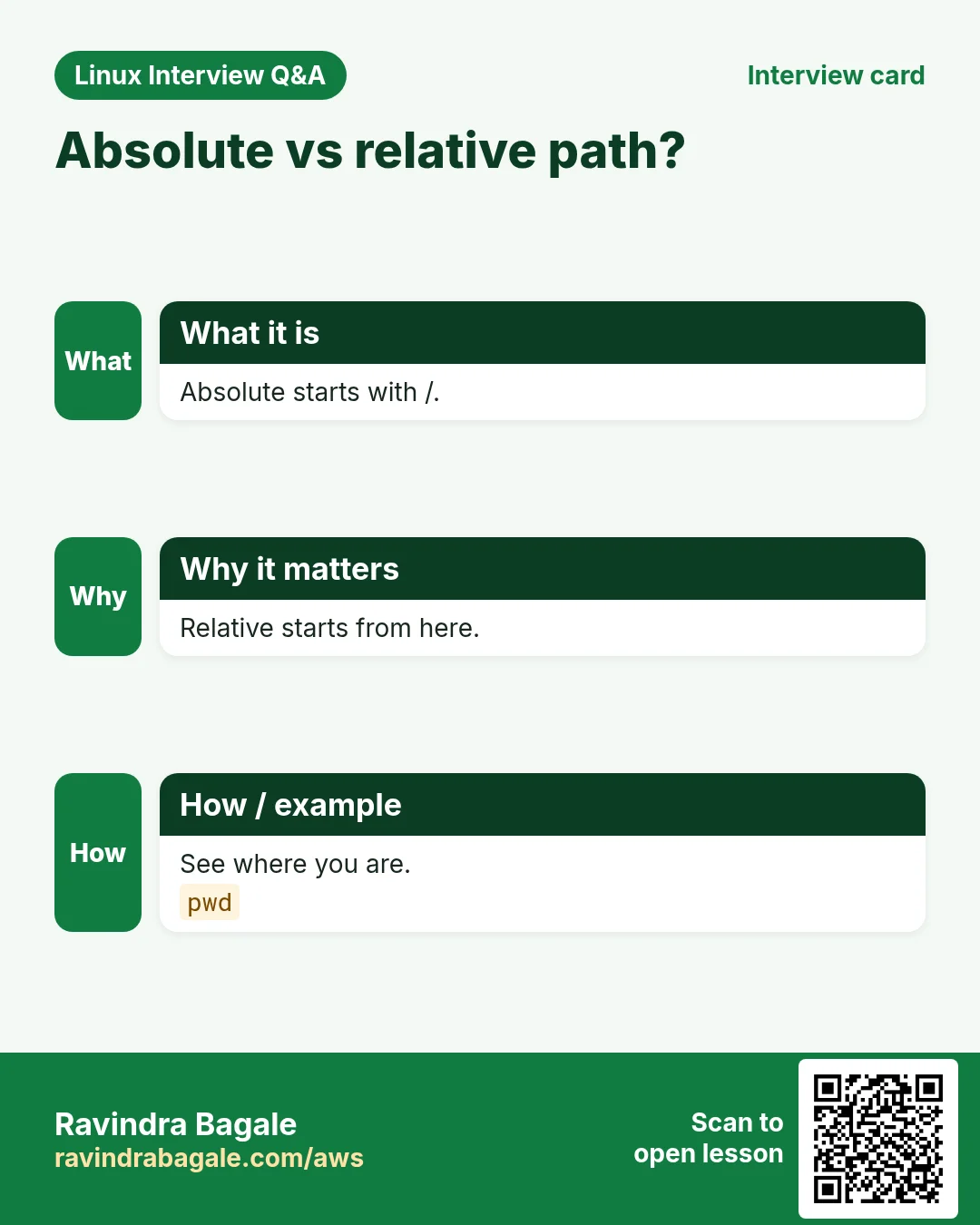
Before typing a command that changes files, read the prompt as a clue and use pwd for the working directory. A path beginning with / starts at the file-system root. A relative path starts in your current directory. If you are in /home/asha/lab, notes.txt means /home/asha/lab/notes.txt, while ../notes.txt goes up one level to /home/asha/notes.txt.
Practise inside a dedicated lab directory. Use ls to inspect both the source and destination before a copy or move. A name such as my notes.txt needs quotes in the shell so it is passed as one argument. When a wildcard is involved, list what it matches before trying a destructive command. Checking both paths also helps you notice whether a destination already exists.
Every command works on the current folder unless you give a path. Running rm in the wrong folder is a classic disaster.
pwd prints the working directory. cd changes it. cd alone or cd ~ goes home. cd - goes back to the previous folder. cd .. goes one up.
| Command | Goes to |
|---|---|
| cd /var/log | Absolute path |
| cd logs | Sub folder from here |
| cd .. | Parent |
| cd ../.. | Two up |
| cd ~ or cd | Home |
| cd - | Previous folder |
- Print where you are.
pwdOutput:
/home/arjunYou are in Arjun's home.
- Jump to logs and back.
cd /var/log && pwd && cd - Output:
/var/log
/home/arjun
cd - returns and prints the old folder.
- Go two levels up.
cd /etc/nginx/sites-enabled && cd ../.. && pwdOutput:
/etcEach .. removes one part of the path.
- Names with spaces need quotes.
cd "Project Files"Without quotes, cd sees two words and fails.
cd in depth: cd ~, cd - and cd ..
You move between folders all day. Knowing the short forms saves time and stops you from working in the wrong place.
cd means change directory. It takes one path. With no path it goes to your home folder.
Common options
| Option | What it does |
|---|---|
cd ~ | Go to your home folder (same as plain cd). |
cd ~priya | Go to the home of user priya. |
cd - | Go back to the folder you were in before, and print it. |
cd .. | Go one folder up (the parent). |
cd ../.. | Go two folders up. |
cd / | Go to the root of the disk tree. |
- Start in a deep folder.
cd /var/www/shop/images && pwdOutput:
/var/www/shop/imagesYou are inside images.
- Go one up with ..
cd .. && pwdOutput:
/var/www/shop.. is the parent of the current folder.
- Jump home with ~
cd ~ && pwdOutput:
/home/arjun~ is short for your home path.
- Go back with -
cd -Output:
/var/www/shopcd - swaps between the last two folders.
Practise this in the tasks below: Practice tasks
3. ls: see what is in a folder
You need to see names, sizes, owners, dates and hidden files before you act.
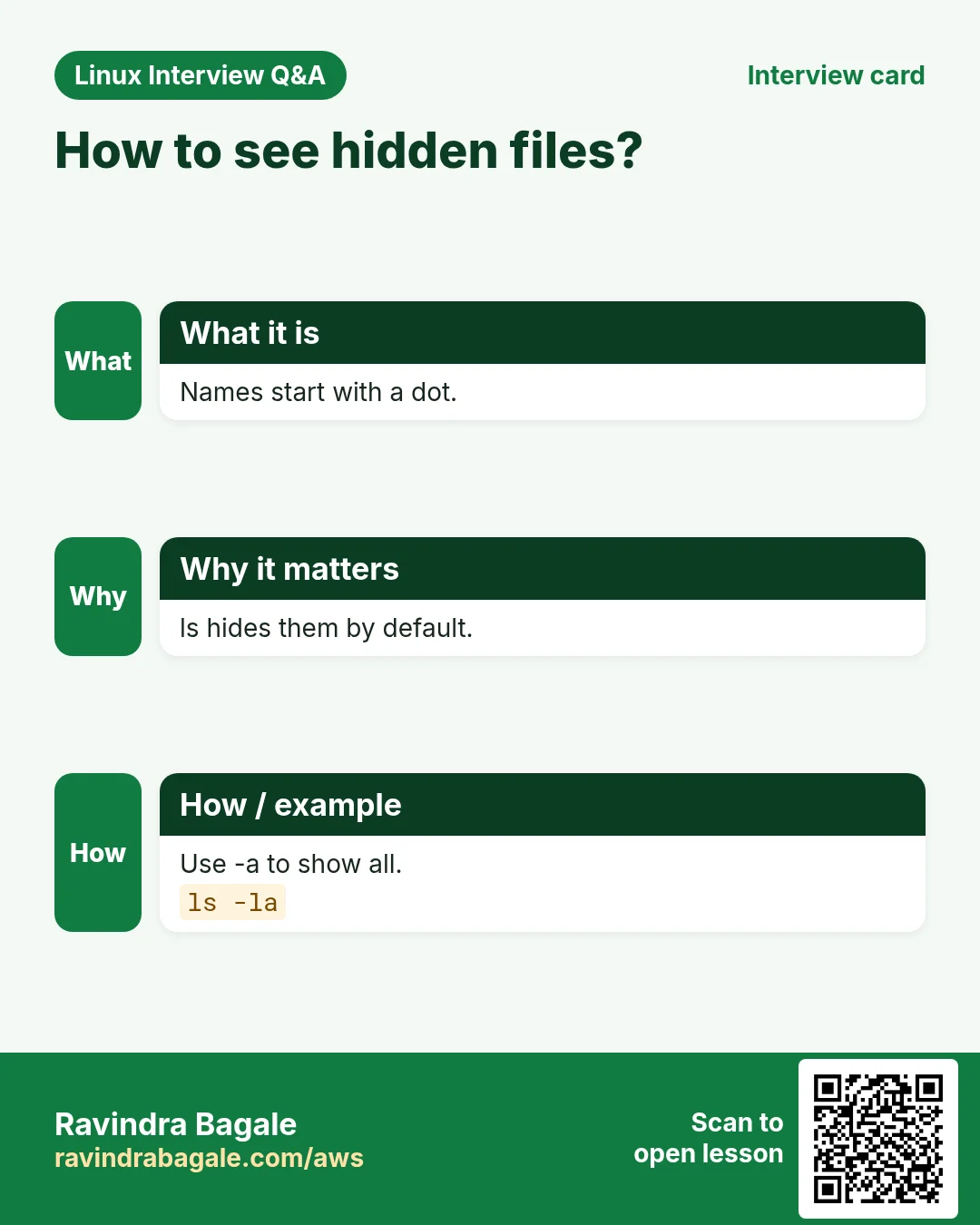
ls lists files. Useful options: -l long format, -a show hidden (names starting with .), -h human sizes, -t newest first, -r reverse, -S biggest first, -R recursive, -d show the folder itself, -i inode numbers.
- Long list with human sizes and hidden files.
ls -lahOutput:
total 24K
drwxr-x--- 4 arjun arjun 4.0K Oct 25 10:00 .
drwxr-xr-x 5 root  root  4.0K Oct 20 09:00 ..
-rw-r--r-- 1 arjun arjun  220 Oct 20 09:00 .bashrc
drwxrwxr-x 2 arjun arjun 4.0K Oct 25 10:00 app
-rw-rw-r-- 1 arjun arjun 1.2M Oct 25 09:58 data.csv
Type+permissions, links, owner, group, size, date, name.
- Newest files first (find what just changed).
ls -lt /var/log | head -4Output:
total 2140
-rw-r----- 1 syslog adm  81234 Oct 25 10:52 syslog
-rw-r----- 1 syslog adm  20211 Oct 25 10:51 auth.log
drwxr-xr-x 2 root   root  4096 Oct 25 10:40 nginx
syslog changed last.
- Biggest files first.
ls -lhS ~/downloads | head -3Output:
total 3.1G
-rw-r--r-- 1 arjun arjun 2.8G Oct 21 ubuntu.iso
-rw-r--r-- 1 arjun arjun 210M Oct 22 video.mp4
The ISO is taking most of the space.
- Show info about the folder itself.
ls -ld /etcOutput:
drwxr-xr-x 142 root root 12288 Oct 25 08:00 /etcWithout -d, ls would list what is inside.
- Match with a wildcard.
ls *.logOutput:
app.log error.log* matches any text. ? matches one character.
4. mkdir and touch: create folders and files
Projects need a folder structure. Scripts need empty files to start with or to mark that a step is done.
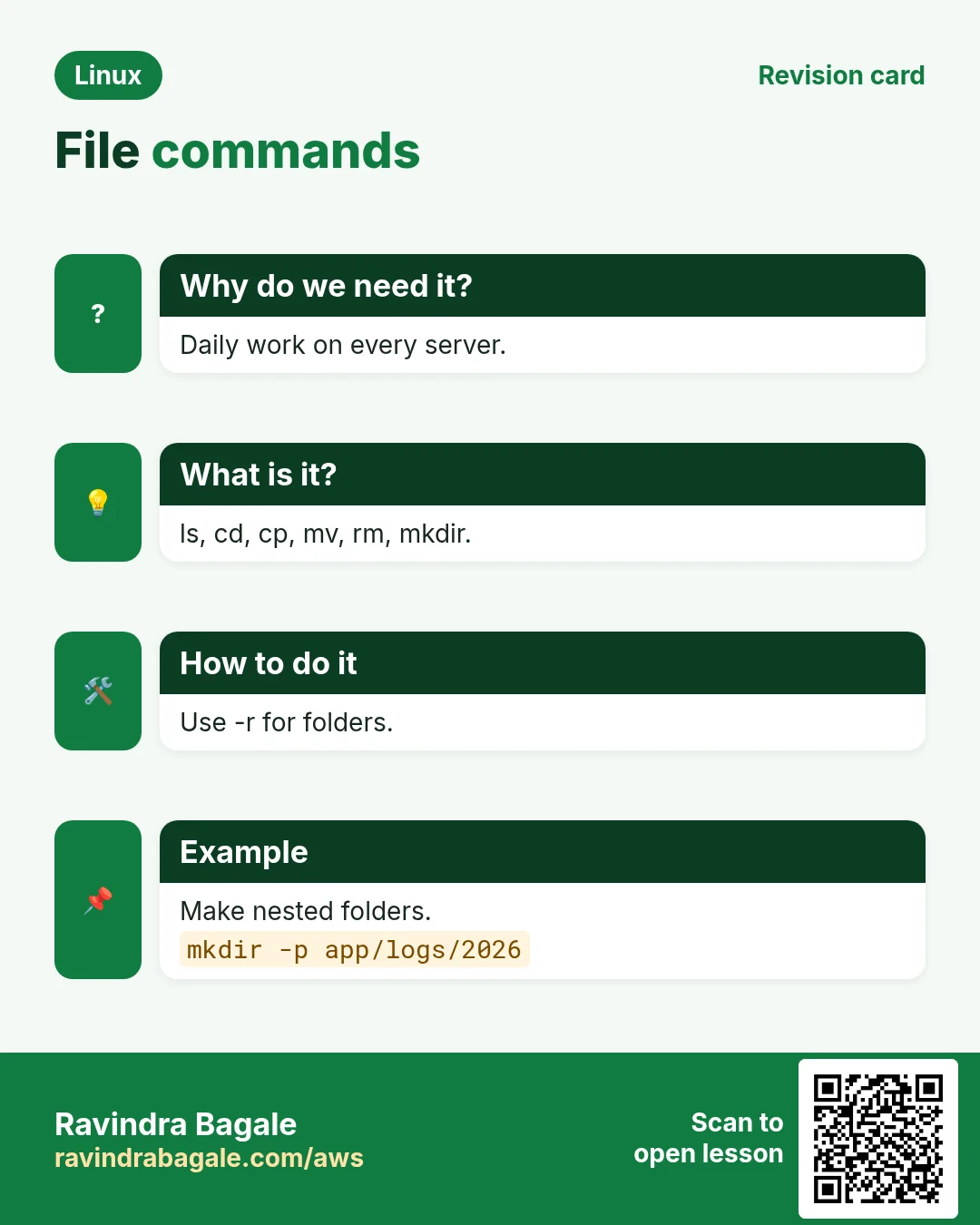
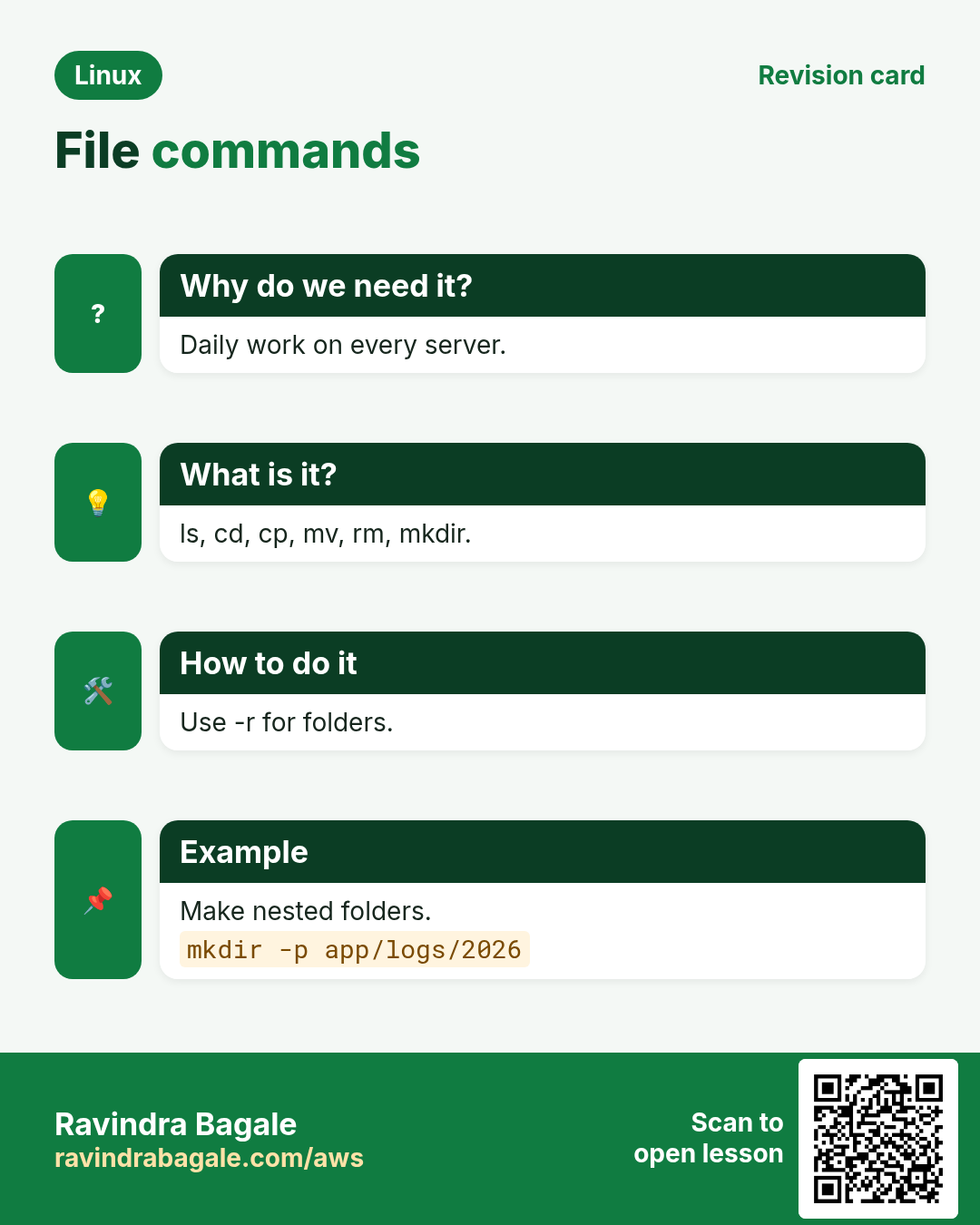
mkdir makes folders. -p makes parent folders too and does not fail if they exist. -v prints what it made. -m sets permissions. touch makes an empty file, or updates the time of an existing file.
- Make a nested project tree in one go.
mkdir -pv shop/{src,tests,docs}Output:
mkdir: created directory 'shop'
mkdir: created directory 'shop/src'
mkdir: created directory 'shop/tests'
mkdir: created directory 'shop/docs'
{a,b,c} is brace expansion. -p made shop first.
- Make many files at once.
touch shop/src/{app,db,utils}.py && ls shop/srcOutput:
app.py db.py utils.pyBrace expansion works with touch too.
- Make month folders with a range.
mkdir -p reports/2026-{01..12} && ls reports | head -3Output:
2026-01
2026-02
2026-03
{01..12} counts with leading zeros.
- Update a file time.
touch -d '2026-01-01 09:00' old.txt && ls -l old.txtOutput:
-rw-rw-r-- 1 arjun arjun 0 Jan 1 09:00 old.txtUseful to test cleanup scripts that delete old files.
mkdir in depth: -p, -v and -m
Apps, backups and logs all need folders. A script must not fail just because a folder already exists.
mkdir makes a new folder. Without -p it fails if the parent is missing or the folder already exists.
Common options
| Option | What it does |
|---|---|
mkdir NAME | Make one folder. |
-p | Make missing parents; no error if it exists. |
-v | Print each folder made. |
-m 750 | Set permissions at creation. |
- Try a nested path without -p.
mkdir data/2026/octOutput:
mkdir: cannot create directory 'data/2026/oct': No such file or directorydata and 2026 do not exist yet.
- Now with -p and -v.
mkdir -pv data/2026/octOutput:
mkdir: created directory 'data'
mkdir: created directory 'data/2026'
mkdir: created directory 'data/2026/oct'
-p made every missing level.
- Run it again.
mkdir -p data/2026/oct; echo $?Output:
0Exit code 0: no error even though it exists. Safe in scripts.
- Make a private folder.
mkdir -m 750 payroll && ls -ld payrollOutput:
drwxr-x--- 2 arjun arjun 4096 Oct 25 11:00 payrollOthers get no access from the start.
Practise this in the tasks below: Practice tasks
touch in depth: empty files and timestamps
Cleanup jobs, make and backups decide by file time. touch lets you create a file or set its time on purpose.
Every file has an access time (atime) and a modify time (mtime). touch FILE creates it if missing, or sets both times to now.
Common options
| Option | What it does |
|---|---|
touch f | Create f, or update its times to now. |
-a | Change only the access time. |
-m | Change only the modify time. |
-c | Do not create the file if it is missing. |
-d "2026-01-01 09:00" | Set a date you choose. |
-t 202601010900 | Same, in the [[CC]YY]MMDDhhmm form. |
-r ref | Copy the times of another file. |
- Create a new empty file.
touch todo.txt && ls -l todo.txtOutput:
-rw-rw-r-- 1 arjun arjun 0 Oct 25 11:05 todo.txtSize 0, time is now.
- See both times with stat.
stat -c '%x | %y' todo.txtOutput:
2026-10-25 11:05:10 | 2026-10-25 11:05:10%x is access, %y is modify.
- Change only the modify time.
touch -m -d '2026-09-01 08:00' todo.txt && stat -c '%x | %y' todo.txtOutput:
2026-10-25 11:05:10 | 2026-09-01 08:00:00The access time did not change.
- Do not create a missing file.
touch -c nofile.txt; ls nofile.txtOutput:
ls: cannot access 'nofile.txt': No such file or directory-c only updates files that already exist.
- Copy times from another file.
touch -r /etc/hostname todo.txt && ls -l --time-style=+%F todo.txtOutput:
-rw-rw-r-- 1 arjun arjun 0 2026-03-14 todo.txttodo.txt now has the same time as /etc/hostname.
Practise this in the tasks below: Practice tasks
5. cp: copy files and folders
Before you edit a config or change data, you take a copy. Copies are also how you deploy files.
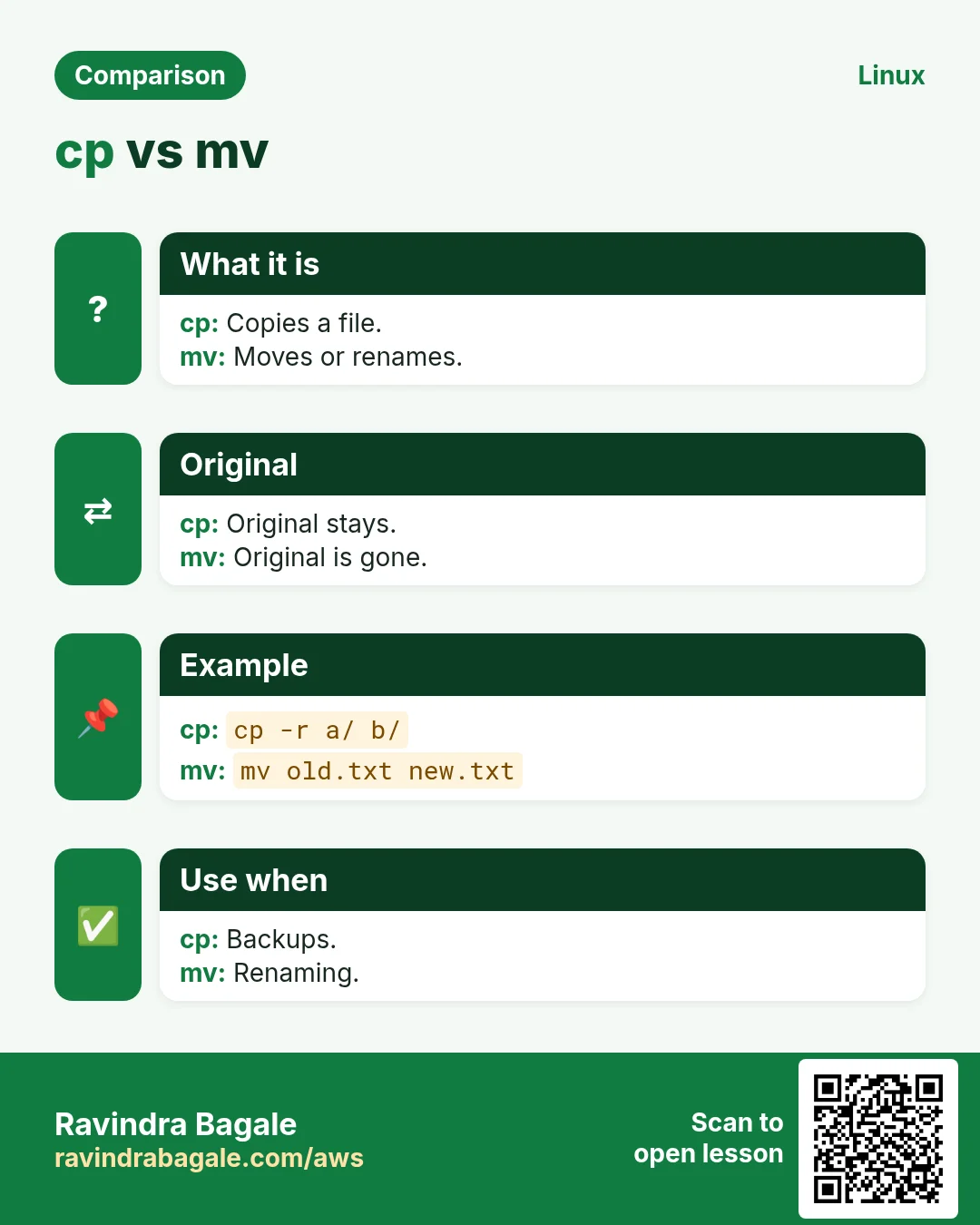
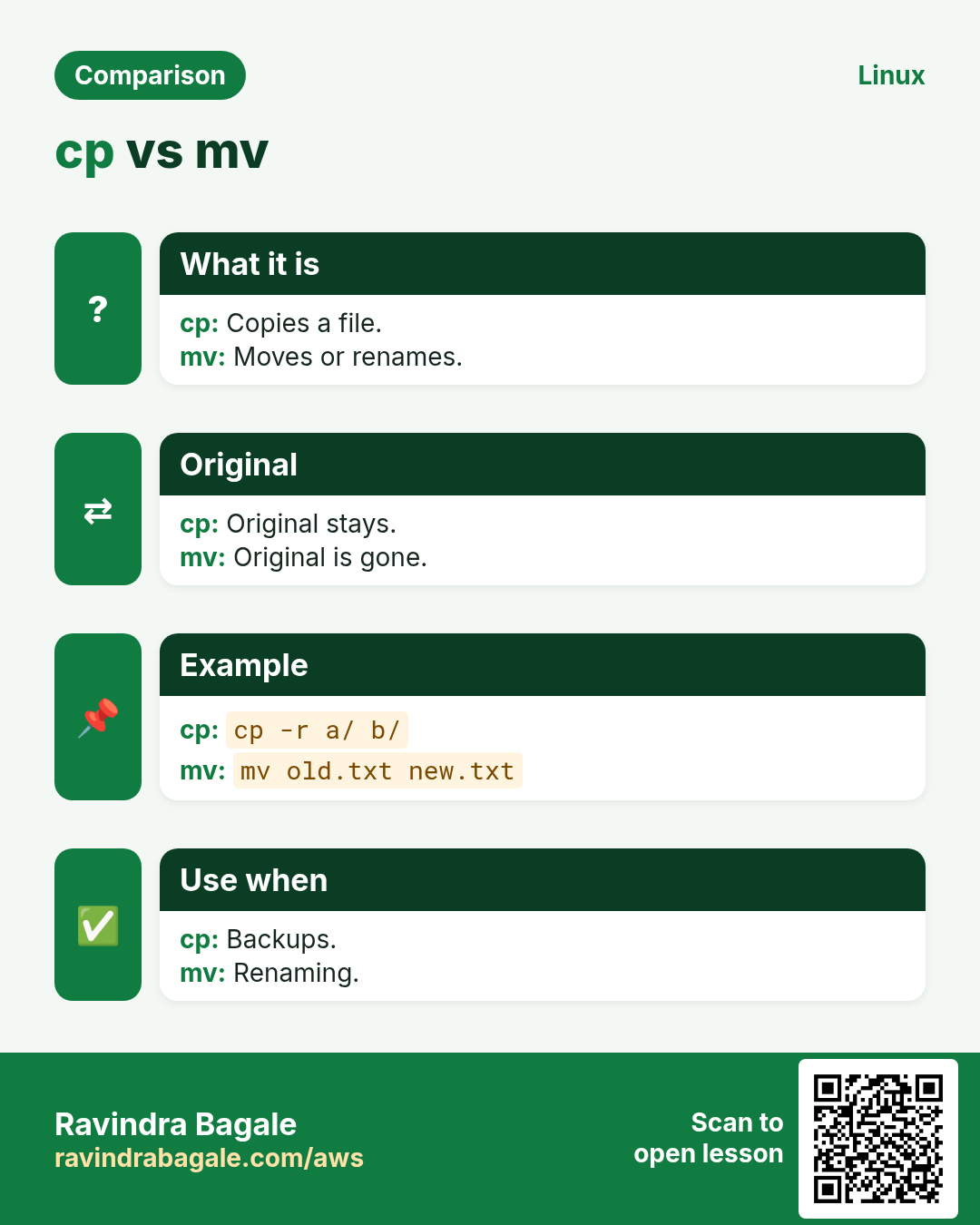
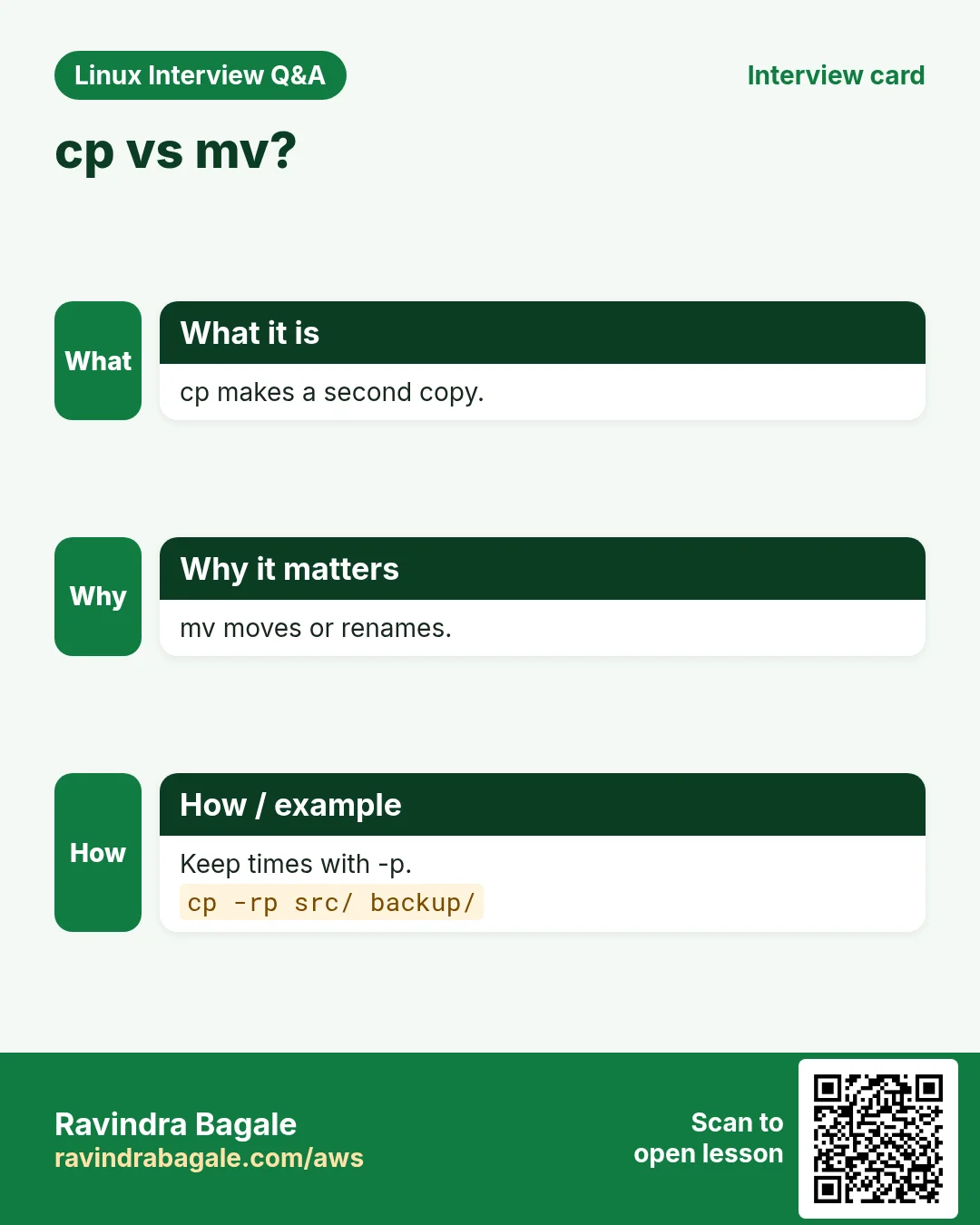
cp SOURCE DEST. -r copies folders. -a (archive) copies folders and keeps permissions, owners and times. -i asks before overwrite. -u copies only newer files. -v shows each file. -n never overwrites. Trailing / on folders matters little for cp, but the destination existing or not matters a lot.
- Back up a config with a date.
cp -a nginx.conf nginx.conf.$(date +%F)-a keeps the same permissions and time.
- Copy a folder.
cp -r shop shop-backup && lsOutput:
shop shop-backupWithout -r you get: cp: -r not specified; omitting directory.
- Copy many files into a folder.
cp -v *.csv /data/incoming/Output:
'jan.csv' -> '/data/incoming/jan.csv'
'feb.csv' -> '/data/incoming/feb.csv'
When there are many sources, the last argument must be a folder.
- Ask before overwriting.
cp -i report.pdf /share/Output:
cp: overwrite '/share/report.pdf'? nTyping n saved the old file.
- The destination-exists trap.
cp -r src dst; cp -r src dst; ls dstOutput:
app.py srcThe second time, src was copied inside dst. Use cp -r src/. dst/ to copy the contents.
cp in depth: -r, -i, -v and -p
A copy is your safety net before every change. The right option keeps folders whole, asks before damage and keeps file details.
cp SOURCE DEST copies. Plain cp skips folders and gives the copy a new owner and the current time.
Common options
| Option | What it does |
|---|---|
-r | Copy a folder and everything inside. |
-i | Ask before overwriting. |
-v | Print each file copied. |
-p | Keep mode, owner and times. |
-a | Archive: -r plus -p plus links. |
- Plain cp on a folder fails.
cp assets assets-copyOutput:
cp: -r not specified; omitting directory 'assets'cp needs -r for folders.
- Copy the folder with -r and -v.
cp -rv assets assets-copyOutput:
'assets' -> 'assets-copy'
'assets/logo.png' -> 'assets-copy/logo.png'
-v lists every file it copied.
- See the time problem without -p.
cp invoice-sep.pdf /tmp/ && ls -l --time-style=+%F invoice-sep.pdf /tmp/invoice-sep.pdfOutput:
-rw-r--r-- 1 arjun arjun 52K 2026-09-30 invoice-sep.pdf
-rw-r--r-- 1 arjun arjun 52K 2026-10-25 /tmp/invoice-sep.pdf
The copy looks new. A cleanup by date would treat it wrong.
- Keep the details with -p.
cp -p invoice-sep.pdf /backup/ && ls -l --time-style=+%F /backup/invoice-sep.pdfOutput:
-rw-r--r-- 1 arjun arjun 52K 2026-09-30 /backup/invoice-sep.pdfSame date and mode as the original.
- Ask before overwrite with -i.
cp -i notes.md /backup/Output:
cp: overwrite '/backup/notes.md'? nn keeps the old backup safe.
Practise this in the tasks below: Practice tasks
6. mv: move and rename
Files need new names and new places. On the same disk mv is instant because it only changes the name.
mv SOURCE DEST renames or moves. There is no rename command needed. -i asks before overwrite. -n never overwrites. -v prints. -b keeps a backup of an overwritten file. Moving to another disk = copy + delete.
- Rename a file.
mv draft.txt final.txt && lsOutput:
final.txtSame folder, new name.
- Move files into a folder.
mv -v *.jpg photos/Output:
renamed 'a.jpg' -> 'photos/a.jpg'
renamed 'b.jpg' -> 'photos/b.jpg'
The files are now inside photos.
- Do not overwrite an existing file.
mv -n new.conf app.conf; lsOutput:
app.conf new.confapp.conf existed, so nothing moved.
- Rename a folder.
mv shop-backup shop-oldFolders do not need -r with mv.
mv in depth: rename vs move
New users look for a rename command. In Linux, mv does both jobs, and it matters which one you get.
If DEST is an existing folder, mv moves SOURCE into it. If DEST is a new name, mv renames. Same disk = instant. Another disk = copy then delete.
Common options
| Option | What it does |
|---|---|
mv a b | b does not exist: rename a to b. |
mv a dir/ | dir is a folder: move a into it. |
mv a dir/b | Move and rename in one step. |
-i | Ask before overwriting. |
-n | Never overwrite. |
-v | Print what happened. |
- Rename in the same folder.
mv -v quote.txt quote-final.txtOutput:
renamed 'quote.txt' -> 'quote-final.txt'Same place, new name.
- Move into a folder.
mv -v quote-final.txt clients/Output:
renamed 'quote-final.txt' -> 'clients/quote-final.txt'clients existed, so the file went inside.
- Move and rename together.
mv clients/quote-final.txt archive/quote-2026.txtNew folder and new name in one step.
- The trap: a typo in the folder name.
mv report.pdf clinets; lsOutput:
clinetsNo folder clinets existed, so the file was renamed to clinets. Add a / to be safe: mv report.pdf clinets/ fails instead.
Practise this in the tasks below: Practice tasks
7. rm and rmdir: delete safely
Disks fill up and old builds must go. But Linux has no recycle bin. A wrong rm -rf can wipe a company's data.
rm deletes files. -r deletes folders and everything in them. -f forces, no questions, no error if missing. -i asks for each file. -I asks once for more than 3 files. rmdir deletes only empty folders. Modern rm refuses / unless --no-preserve-root.
- Delete one file and confirm.
rm -i old.txtOutput:
rm: remove regular empty file 'old.txt'? yy deletes it. It is gone for good.
- Delete an empty folder.
rmdir shop/docsFails if not empty: Directory not empty.
- Delete a folder tree with a preview first.
ls -R build | head; rm -rI buildOutput:
rm: remove 1 argument recursively? y-I asks once. Safer than -f.
- Delete files older than 7 days (preview, then delete).
find /tmp/reports -name '*.csv' -mtime +7 -print; find /tmp/reports -name '*.csv' -mtime +7 -deleteOutput:
/tmp/reports/sep.csvAlways run with -print first.
- Delete a file whose name starts with -.
rm -- -bad.txt-- tells rm that options are over.
rm in depth: -r, -f and -i
There is no recycle bin. You must know exactly what each rm option does before you press Enter.
rm removes files. With -r it removes folders and all inside. -f removes without asking and hides "not found" errors. -i asks for each file.
Common options
| Option | What it does |
|---|---|
rm f | Delete a file. |
-r | Delete a folder tree. |
-f | Force: no questions, no error if missing. |
-i | Ask before each delete. |
-I | Ask once for big deletes. |
-v | Print each removed file. |
- rm on a folder without -r.
rm old-buildOutput:
rm: cannot remove 'old-build': Is a directoryrm needs -r for folders.
- Delete each file with a question.
rm -i draft1.txt draft2.txtOutput:
rm: remove regular file 'draft1.txt'? y
rm: remove regular file 'draft2.txt'? n
You chose to keep draft2.txt.
- Force a missing file.
rm -f lock.pid; echo $?Output:
0No error even if lock.pid was not there. Good in scripts.
- Delete a folder tree, showing each file.
rm -rv old-buildOutput:
removed 'old-build/app.js'
removed directory 'old-build'
Check the path twice before -r. Never combine -rf with a variable that may be empty.
Practise this in the tasks below: Practice tasks
rmdir vs rm -r
Sometimes you want to delete a folder only if it is really empty. rmdir is the safe tool for that.
rmdir deletes only empty folders and refuses otherwise. rm -r deletes the folder and everything inside, no matter what.
Common options
| Option | What it does |
|---|---|
rmdir d | Delete d only if empty. |
rmdir -p a/b/c | Delete c, then b, then a, if each becomes empty. |
-v | Print each removed folder. |
rm -r d | Delete d and all content. No safety check. |
- rmdir on a folder with files.
rmdir uploadsOutput:
rmdir: failed to remove 'uploads': Directory not emptyrmdir protected your files.
- rmdir on an empty folder.
rmdir -v empty-dirOutput:
rmdir: removing directory, 'empty-dir'Gone, because it had nothing inside.
- Remove an empty chain.
rmdir -pv tmp/x/yOutput:
rmdir: removing directory, 'tmp/x/y'
rmdir: removing directory, 'tmp/x'
rmdir: removing directory, 'tmp'
-p walked up and removed each empty parent.
- When you really mean everything.
rm -rI uploadsOutput:
rm: remove 1 argument recursively? yUse rm -r only when you are sure. -I asks once.
Practise this in the tasks below: Practice tasks
8. The cheat sheet
A one-page reference saves time during work and interviews.
Here are the commands of this chapter with their best options.
| Task | Command |
|---|---|
| Where am I | pwd |
| Go home / back / up | cd ~ / cd - / cd .. |
| Detailed list | ls -lah |
| Newest first | ls -lt |
| Biggest first | ls -lhS |
| Make folder tree | mkdir -p a/b/c |
| Empty file | touch f.txt |
| Copy folder keeping info | cp -a src dst |
| Copy, ask first | cp -i a b |
| Rename / move | mv old new |
| Move, no overwrite | mv -n a dir/ |
| Delete, ask | rm -i f |
| Delete folder | rm -r dir |
| Delete empty folder | rmdir dir |
| Show folder tree | tree -L 2 |
- See the tree you built.
tree -L 2 shopOutput:
shop
├── src
│   ├── app.py
│   ├── db.py
│   └── utils.py
└── tests

2 directories, 3 files
tree shows the structure at a glance.
9. Real examples from many industries
The same Linux skill shows up in every kind of company. Seeing it in many places helps you remember it.
Each row is a made-up team. It shows who uses this and how.
| Team and city | How they use it | Command |
|---|---|---|
| Arjun, Java backend, Bengaluru | Copies the new JAR and keeps the old one | cp -a app.jar app.jar.bak |
| Emma, data science, Toronto | Makes dated folders for daily data | mkdir -p data/$(date +%F) |
| Wei, frontend, Singapore | Cleans old builds before a fresh build | rm -rf dist/ |
| Lakshmi, QA, Chennai | Moves failed test reports aside | mv reports/failed-* archive/ |
| Pedro, media, Lisbon | Finds the biggest video files | ls -lhS /media/videos |
| Nikhil, sysadmin, Nagpur | Backs up /etc before changes | sudo cp -a /etc /root/etc-$(date +%F) |
| Amara, NGO IT, Nairobi | Creates donor report folders by month | mkdir -p donors/2026-{01..12} |
10. Common errors and how to fix them
Everyone hits these errors. Knowing the cause saves hours.
Read the exact message first. Then match it to a row below.
| Error you see | Why it happens | How to fix |
|---|---|---|
cp: -r not specified; omitting directory 'shop' | You tried to copy a folder without -r | Add -r or -a.cp -a shop shop2 |
rmdir: failed to remove 'docs': Directory not empty | rmdir only removes empty folders | Look inside, then use rm -r if sure.ls docs; rm -r docs |
mkdir: cannot create directory 'a/b/c': No such file or directory | Parent folders do not exist | Use -p.mkdir -p a/b/c |
mkdir: cannot create directory 'logs': File exists | Name already used | Use mkdir -p (no error if it exists) or pick another name.mkdir -p logs |
cp: target 'backup' is not a directory | Many sources but the last argument is not a folder | Create the folder first.mkdir backup && cp *.csv backup/ |
rm: cannot remove 'file': Permission denied | You do not have write permission on the folder | Check ls -ld of the folder; use sudo only if it is a system file you mean to delete.ls -ld . |
mv: cannot move 'a' to 'b/a': Directory not empty | Target folder of the same name already exists with files | Merge with cp -a then delete, or rename.cp -a a/. b/a/ && rm -r a |
ls: cannot access '*.log': No such file or directory | No file matches the wildcard | Check the folder and the pattern.ls -la |
rm: invalid option -- 'b' | File name starts with - | Use -- or ./ before the name.rm ./-bad.txt |
bash: cd: too many arguments | Folder name has spaces and no quotes | Use quotes.cd "My Files" |
11. Troubleshooting step by step
When a file command does something you did not expect, slow down and check these.
Go top to bottom. Stop at the first step that shows the problem.
- Where am I?
pwd- What will the wildcard expand to?
echo rm *.log- Does the destination exist and is it a folder?
ls -ld dest- Do I own the folder?
ls -ld . ; id- Is it a link or a real folder?
ls -l name- Is there a backup?
ls -l *.bak12. Lab 1: Organise a messy downloads folder
Zoya runs a design studio in Lucknow. Her downloads folder has 300 mixed files. Sort them into folders by type.
A full hands-on lab. Run every step on a test Linux machine (an EC2 instance, a VM, or WSL).
- Create test files.
mkdir -p ~/dl && cd ~/dl && touch logo{1..3}.png brief{1..2}.pdf song.mp3 invoice-{jan,feb}.pdf- Look first.
lsOutput:
brief1.pdf brief2.pdf invoice-feb.pdf invoice-jan.pdf logo1.png logo2.png logo3.png song.mp3- Make type folders.
mkdir -p images docs music- Move by type.
mv -v *.png images/ && mv -v *.pdf docs/ && mv -v *.mp3 music/Output:
renamed 'logo1.png' -> 'images/logo1.png'
...- Put invoices in a sub-folder.
mkdir -p docs/invoices && mv docs/invoice-* docs/invoices/- Check the result.
treeOutput:
.
├── docs
│   ├── brief1.pdf
│   ├── brief2.pdf
│   └── invoices
│       ├── invoice-feb.pdf
│       └── invoice-jan.pdf
├── images
│   ├── logo1.png ...
└── music
└── song.mp3- Back up and clean.
cp -a ~/dl ~/dl-backup && rm -rI ~/dl-backup/musicOutput:
rm: remove 1 argument recursively? y13. Lab 2: Safe deploy with copies
Deploy a new version of a site and be able to roll back in one command.
A full hands-on lab. Run every step on a test Linux machine (an EC2 instance, a VM, or WSL).
- Create releases.
mkdir -p /srv/site/releases/{v1,v2} && echo v1 > /srv/site/releases/v1/index.html && echo v2 > /srv/site/releases/v2/index.html- Copy v1 live.
cp -a /srv/site/releases/v1/. /srv/site/live/ 2>/dev/null || { mkdir -p /srv/site/live && cp -a /srv/site/releases/v1/. /srv/site/live/; }; cat /srv/site/live/index.htmlOutput:
v1- Back up live, deploy v2.
cp -a /srv/site/live /srv/site/live.bak && cp -a /srv/site/releases/v2/. /srv/site/live/ && cat /srv/site/live/index.htmlOutput:
v2- Roll back.
rm -r /srv/site/live && mv /srv/site/live.bak /srv/site/live && cat /srv/site/live/index.htmlOutput:
v1Ravindra Bagale's Tip
Before any rm with a wildcard, run the same line with echo in front. echo rm *.log shows exactly what will be deleted, and deletes nothing.
Ravindra Bagale's Tip – मराठी
Wildcard असलेल्या कोणत्याही rm आधी त्याच line च्या पुढे echo लावा. echo rm *.log नेमकं काय delete होईल ते दाखवतो, आणि काहीच delete करत नाही.
Ravindra Bagale's Tip – हिंदी
Wildcard वाले किसी भी rm से पहले उसी line के आगे echo लगाइए। echo rm *.log ठीक-ठीक दिखाता है कि क्या delete होगा, और कुछ delete नहीं करता।
14. Frequently asked questions
Q. Can I undo rm?
No. There is no recycle bin. Restore from backup or snapshot.
Q. cp -r vs cp -a?
-a = -r plus keep permissions, owner, times and links. Use -a for backups.
Q. How do I see hidden files?
ls -a. Hidden files start with a dot, like .bashrc.
Q. How do I rename many files?
Use a loop: for f in *.jpeg; do mv "$f" "${f%.jpeg}.jpg"; done.
Q. Why is mv instant for a 10 GB file?
On the same file system it only changes the directory entry. The data does not move.
15. Interview questions and answers
Beginner level
Q. How do you create nested folders?
mkdir -p a/b/c.
Q. How do you copy a folder?
cp -r src dst, or cp -a to keep attributes.
Q. How do you rename a file?
mv old new.
Q. What does cd - do?
Goes back to the previous folder.
Mid level level
Q. rm -i vs rm -I?
-i asks for every file. -I asks once when deleting more than 3 files or recursively.
Q. Why does cp -r src dst behave differently the second time?
If dst exists, src is copied inside it as dst/src. Use src/. to copy contents.
Q. How do you delete a file named -f?
rm -- -f or rm ./-f.
Q. How to list files sorted by size?
ls -lhS.
Senior level
Q. How do you protect production from a careless rm -rf?
Least privilege, no root shells, backups and snapshots, immutable infra, set -u in scripts so empty variables do not become rm -rf /, and code review.
Q. A script runs rm -rf $DIR/. What can go wrong?
If DIR is empty it becomes rm -rf /. Use ${DIR:?} and set -u.
Q. cp vs rsync for big folders?
rsync copies only changes, can resume, shows progress and works over SSH. cp copies everything each time.
Q. Why is mv across disks slower and riskier?
It copies then deletes. A crash in the middle can leave half data. Use rsync then delete after a check.
Try at home
- Create a folder tree for a pretend shop with mkdir -p and brace expansion.
- Use ls -lt and ls -lhS in your downloads folder.
- Practise echo rm *.tmp before a real rm.
Practise file changes in a disposable directory
Make a temporary directory and two harmless files. Verify pwd and list contents before cp, mv or rm. Use -- before path operands that could start with a hyphen, and preview wildcard expansion before deletion.
Interview check Why does rm ./* differ from rm -r directory?
The shell expands ./* before calling rm, usually excluding dotfiles. A recursive directory operand lets rm traverse that directory, including hidden contents, subject to the flags used.
Practise this chapter
Interview questions and answers
How do you make a file move predictable when both the source and destination are relative?
I would run pwd and inspect each path before moving anything. I would confirm whether the destination already exists and is a directory or file. I would quote names with spaces and verify the source is gone and the expected destination now contains the file.
Check your understanding
Choose an answer, then compare your reasoning with the explanation.
Practice Tasks
Practice checks run in your browser. They check the answer for this exercise; they do not create resources or connect to your AWS account.
About this scenarioAmravati Agro Market is a agriculture business in Amravati. Anjali Thakre looks after its IT and cloud work. They count money in INR and run their AWS resources in the ap-south-1 Region. In the tasks below you do real jobs for them using what this lesson teaches. All names, account IDs, IP addresses and numbers are made up for practice.
0 / 30
Easy Where am I?
Never delete in the wrong folder.
Print the current folder on the Amravati Agro Market server with every symlink resolved (the physical path).
- Find the Linux command that does this job.
- Add the options (like -r or -h) the task needs.
- Add the file names, folders or users in the right order.
- Use sudo if the job changes system files or users. Click Check answer.
Easy Another user home
Switch between two folders fast.
Go to the home folder of user kavya using the tilde shortcut.
- Find the Linux command that does this job.
- Add the options (like -r or -h) the task needs.
- Add the file names, folders or users in the right order.
- Use sudo if the job changes system files or users. Click Check answer.
Easy Long list with hidden files
.env files are hidden.
List everything in /etc/nginx including hidden files, in long format with human sizes.
- Find the Linux command that does this job.
- Add the options (like -r or -h) the task needs.
- Add the file names, folders or users in the right order.
- Use sudo if the job changes system files or users. Click Check answer.
Easy Newest first
See what changed just now.
List /var/log/nginx in long format with the newest files first.
- Find the Linux command that does this job.
- Add the options (like -r or -h) the task needs.
- Add the file names, folders or users in the right order.
- Use sudo if the job changes system files or users. Click Check answer.
Easy Nested folders
One command, full tree.
Create amravatiagro/src/api including the parent folders.
- Find the Linux command that does this job.
- Add the options (like -r or -h) the task needs.
- Add the file names, folders or users in the right order.
- Use sudo if the job changes system files or users. Click Check answer.
Easy Create an empty file
Placeholders and markers.
Create an empty file named README.md in the current folder.
- Find the Linux command that does this job.
- Add the options (like -r or -h) the task needs.
- Add the file names, folders or users in the right order.
- Use sudo if the job changes system files or users. Click Check answer.
Easy Copy a folder
Folders need a recursive copy.
Copy the folder site to site-old.
- Find the Linux command that does this job.
- Add the options (like -r or -h) the task needs.
- Add the file names, folders or users in the right order.
- Use sudo if the job changes system files or users. Click Check answer.
Easy Rename a file
There is no separate rename needed.
Rename notes-v1.txt to notes-final.txt.
- Find the Linux command that does this job.
- Add the options (like -r or -h) the task needs.
- Add the file names, folders or users in the right order.
- Use sudo if the job changes system files or users. Click Check answer.
Easy Delete with a question
No recycle bin in Linux.
Delete old.log but ask for confirmation first.
- Find the Linux command that does this job.
- Add the options (like -r or -h) the task needs.
- Add the file names, folders or users in the right order.
- Use sudo if the job changes system files or users. Click Check answer.
Easy Delete an empty folder
Safe: fails if not empty.
Remove the empty folder tmpdir.
- Find the Linux command that does this job.
- Add the options (like -r or -h) the task needs.
- Add the file names, folders or users in the right order.
- Use sudo if the job changes system files or users. Click Check answer.
Easy Go to another user home
Admins check user folders.
Go to the home folder of the user deploy using the tilde form.
- Find the Linux command that does this job.
- Add the options (like -r or -h) the task needs.
- Add the file names, folders or users in the right order.
- Use sudo if the job changes system files or users. Click Check answer.
Easy Go three folders up
Leave a deep path fast.
You are deep in a project. Move up three levels in one cd command.
- Find the Linux command that does this job.
- Add the options (like -r or -h) the task needs.
- Add the file names, folders or users in the right order.
- Use sudo if the job changes system files or users. Click Check answer.
Easy Nested folders, verbose
Scripts should show what they made.
Create logs/2027/jan including missing parents and print each folder created.
- Find the Linux command that does this job.
- Add the options (like -r or -h) the task needs.
- Add the file names, folders or users in the right order.
- Use sudo if the job changes system files or users. Click Check answer.
Easy Update only if it exists
Do not create stray files.
Update the time of report.csv but do not create it if it is missing.
- Find the Linux command that does this job.
- Add the options (like -r or -h) the task needs.
- Add the file names, folders or users in the right order.
- Use sudo if the job changes system files or users. Click Check answer.
Easy Copy a folder verbosely
See every file copied.
Copy the folder themes to themes-bak and print each file copied.
- Find the Linux command that does this job.
- Add the options (like -r or -h) the task needs.
- Add the file names, folders or users in the right order.
- Use sudo if the job changes system files or users. Click Check answer.
Easy Move into a folder
Keep HR files together.
Move salary.xlsx into the existing folder hr.
- Find the Linux command that does this job.
- Add the options (like -r or -h) the task needs.
- Add the file names, folders or users in the right order.
- Use sudo if the job changes system files or users. Click Check answer.
Easy Delete, no error if missing
Cleanup scripts must not stop.
Delete app.pid without any question and without an error if it does not exist.
- Find the Linux command that does this job.
- Add the options (like -r or -h) the task needs.
- Add the file names, folders or users in the right order.
- Use sudo if the job changes system files or users. Click Check answer.
Medium Biggest first
Find space hogs.
List /srv/amravatiagro/uploads in long format, human sizes, biggest first.
- Find the Linux command that does this job.
- Add the options (like -r or -h) the task needs.
- Add the file names, folders or users in the right order.
- Use sudo if the job changes system files or users. Click Check answer.
Medium Backup keeping attributes
Owner and time must stay the same.
Copy the folder /etc/nginx to /root/nginx-backup keeping permissions, owners and times.
- Find the Linux command that does this job.
- Add the options (like -r or -h) the task needs.
- Add the file names, folders or users in the right order.
- Use sudo if the job changes system files or users. Click Check answer.
Medium Copy but ask first
Do not overwrite by mistake.
Copy invoice-q2.pdf into /mnt/team/ but ask before overwriting.
- Find the Linux command that does this job.
- Add the options (like -r or -h) the task needs.
- Add the file names, folders or users in the right order.
- Use sudo if the job changes system files or users. Click Check answer.
Medium Move without overwrite
Protect existing files.
Move site.new to site.conf but never overwrite if site.conf exists.
- Find the Linux command that does this job.
- Add the options (like -r or -h) the task needs.
- Add the file names, folders or users in the right order.
- Use sudo if the job changes system files or users. Click Check answer.
Medium Delete a folder tree
Old old-dists take space.
Delete the folder old-dist and everything in it, asking once.
- Find the Linux command that does this job.
- Add the options (like -r or -h) the task needs.
- Add the file names, folders or users in the right order.
- Use sudo if the job changes system files or users. Click Check answer.
Medium Private folder at creation
No window where others can read.
Create a folder named vault that only the owner can use (rwx for owner, nothing for others), in one mkdir command.
- Find the Linux command that does this job.
- Add the options (like -r or -h) the task needs.
- Add the file names, folders or users in the right order.
- Use sudo if the job changes system files or users. Click Check answer.
Medium Copy a timestamp
Keep build tools in sync.
Give site.cfg the same timestamps as master.cfg.
- Find the Linux command that does this job.
- Add the options (like -r or -h) the task needs.
- Add the file names, folders or users in the right order.
- Use sudo if the job changes system files or users. Click Check answer.
Medium Access time only
Test atime-based cleanup.
Change only the access time of stats.log to now.
- Find the Linux command that does this job.
- Add the options (like -r or -h) the task needs.
- Add the file names, folders or users in the right order.
- Use sudo if the job changes system files or users. Click Check answer.
Medium Copy and keep details
Audits need original dates.
Copy contract.pdf into /archive/ keeping its mode, owner and timestamps.
- Find the Linux command that does this job.
- Add the options (like -r or -h) the task needs.
- Add the file names, folders or users in the right order.
- Use sudo if the job changes system files or users. Click Check answer.
Medium Copy folder, ask first
Do not overwrite live files by mistake.
Copy the folder assets into public/ but ask before overwriting any file.
- Find the Linux command that does this job.
- Add the options (like -r or -h) the task needs.
- Add the file names, folders or users in the right order.
- Use sudo if the job changes system files or users. Click Check answer.
Medium Delete folder, ask each
Careful cleanup.
Delete the folder tmp-build and ask before each file.
- Find the Linux command that does this job.
- Add the options (like -r or -h) the task needs.
- Add the file names, folders or users in the right order.
- Use sudo if the job changes system files or users. Click Check answer.
Medium Remove an empty chain
Tidy empty parents too.
cache/a/b is empty. Remove b, then a, then cache, with one rmdir command.
- Find the Linux command that does this job.
- Add the options (like -r or -h) the task needs.
- Add the file names, folders or users in the right order.
- Use sudo if the job changes system files or users. Click Check answer.
Hard Delete a file named -x
Names starting with - confuse commands.
Delete the file named -x in the current folder.
- Find the Linux command that does this job.
- Add the options (like -r or -h) the task needs.
- Add the file names, folders or users in the right order.
- Use sudo if the job changes system files or users. Click Check answer.
16. Related chapters
- Linux Ops Refresh for DevOps
- Bash Scripting for Automation
- Linux grep and find Commands with Examples
- How to Set Up Passwordless SSH Between Linux Servers
In short
- pwd, cd, ls to look around.
- mkdir -p and touch to create.
- cp -a to copy safely, mv to move or rename.
- rm is final: preview with echo, use -i or -I.
Revision, comparison and interview cards
Revise this lesson in a few minutes. Save the cards on your phone or download them as PNG files. The QR code on each card opens this lesson.
More cards: Ravi Sir's Cards.