Linux LVM Tutorial: pvcreate, vgcreate, lvcreate, lvextend, Snapshots and Resizing Explained
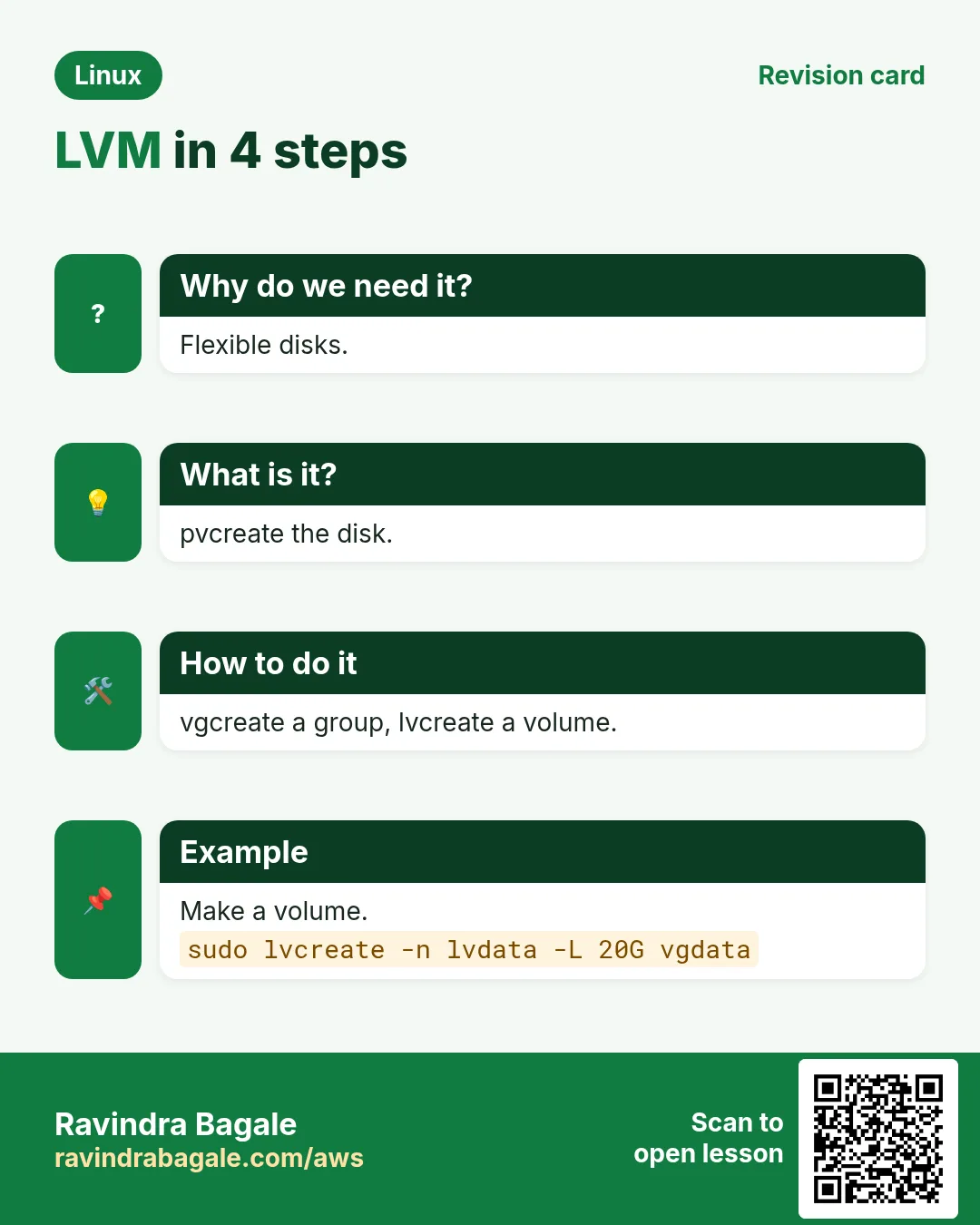
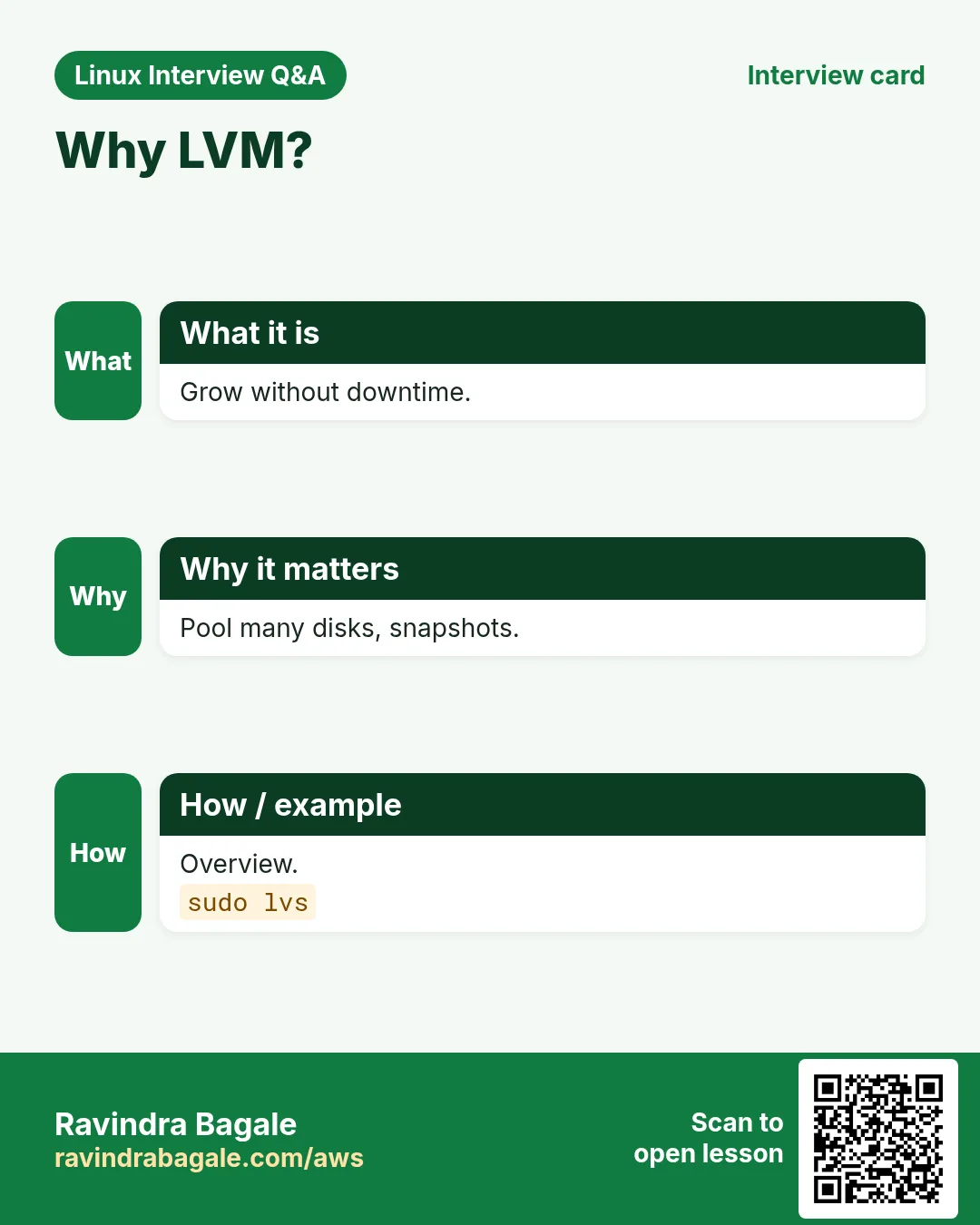
Plain partitions are hard to resize and cannot span disks. LVM (Logical Volume Manager) puts a flexible layer between disks and filesystems: you pool disks into a volume group and cut logical volumes of any size from it, grow them online, add new disks later, and take snapshots. This chapter covers pvcreate, vgcreate, lvcreate, lvextend, lvreduce, vgextend, pvmove, snapshots and thin pools.
In this chapter
- Understand PV, VG, LV and extents
- Create PVs, VGs and LVs
- Grow an LV and its filesystem online
- Add disks and move data with vgextend and pvmove
- Take and restore snapshots
- Read pvs, vgs, lvs and fix common errors
1. An everyday example: a family money pool
Three brothers each put their savings into one joint account. From that account the family keeps separate envelopes: house, school fees, travel. If school fees need more, they move money from the joint account to that envelope. If a fourth brother joins, his money adds to the pool.
Each brother's savings = physical volume (PV, a disk). Joint account = volume group (VG). Envelopes = logical volumes (LV). Moving money into an envelope = lvextend. Fourth brother = vgextend.
2. LVM words: PV, VG, LV, PE
Every LVM command and error uses these four words. Learn them once.
PV: a disk or partition prepared for LVM. VG: a pool made of one or more PVs. LV: a slice of a VG that behaves like a partition (/dev/VG/LV or /dev/mapper/VG-LV). PE: physical extent, the small block size of the pool. Package: lvm2.
Start from a folder the app already knows, such as /var/lib/pgsql. Files in that folder live in a filesystem, which keeps track of names, folders and free space. The filesystem sits on a block device. With LVM, that device is the LV. The VG keeps track of which chunks of its PVs belong to that LV. The database keeps using the same folder even when you move those chunks onto a different disk.
Read the lsblk example from left to right. nvme0n1 is the disk, the indented nvme0n1p2 is a partition inside it, and rhel-root is an LV allocated from that physical storage. The slash at the end means it holds the running system’s root filesystem. Leave that branch alone during the lab. Follow the separate lab devices you attached.
| Word | Meaning | Command |
|---|---|---|
| PV | Disk for LVM | pvcreate, pvs |
| VG | Pool of PVs | vgcreate, vgs |
| LV | Slice of a VG | lvcreate, lvs |
| PE | Allocation unit | vgdisplay |
- Install tools.
sudo dnf install -y lvm2 && lvm version | head -1Output:
LVM version: 2.03.23Ready.
- See existing LVM.
lsblkOutput:
nvme0n1 disk
├─nvme0n1p2 part
│ ├─rhel-root lvm /
│ └─rhel-swap lvm [SWAP]
Many RHEL installs use LVM already.
3. pvcreate and pvs: prepare disks
LVM must label a disk before it can use it.
sudo pvcreate DEV [DEV...] writes the LVM label. pvs lists PVs with VG, size and free. pvdisplay DEV gives details. pvremove removes the label (only when the PV is not in a VG). Wipe old signatures first with wipefs -a if needed.
- Two disks.
sudo pvcreate /dev/nvme1n1 /dev/nvme2n1Output:
Physical volume "/dev/nvme1n1" successfully created.
Physical volume "/dev/nvme2n1" successfully created.
Labelled.
- List.
sudo pvsOutput:
PV           VG Fmt  Attr PSize   PFree
/dev/nvme1n1    lvm2 ---  100.00g 100.00g
/dev/nvme2n1    lvm2 ---  100.00g 100.00g
Not in a VG yet.
- Old signature.
sudo pvcreate /dev/nvme3n1Output:
WARNING: xfs signature detected on /dev/nvme3n1. Wipe it? [y/n]Check the disk is really free.
4. vgcreate and vgs: build the pool
The VG is the pool you will cut volumes from and grow later.
sudo vgcreate NAME PV... creates it. vgs shows size, free, PV and LV count. vgdisplay NAME shows PE size and free PE. Choose clear names like vgdata or vg_db.
Read the columns from the example in pairs. #PV 2 counts the two inputs. #LV 0 means nobody has taken an allocation yet, so VFree equals VSize. Both are close to 200 GiB. When Linux prepares the disks, a small amount is reserved for metadata and alignment. LVM allocates what remains in whole extents. Here an extent is 4 MiB, so the 51,198 free extents shown are just under 200 GiB.
- Create.
sudo vgcreate vgdata /dev/nvme1n1 /dev/nvme2n1Output:
Volume group "vgdata" successfully created200G pool.
- Check.
sudo vgsOutput:
VG     #PV #LV #SN Attr   VSize   VFree
vgdata   2   0   0 wz--n- 199.99g 199.99g
All free.
- Details.
sudo vgdisplay vgdata | grep -E 'PE Size|Free PE'Output:
PE Size               4.00 MiB
Free  PE / Size       51198 / 199.99 GiB
Extents count.
5. lvcreate: make logical volumes
Apps need separate volumes (database, logs, uploads) so one cannot fill the other.
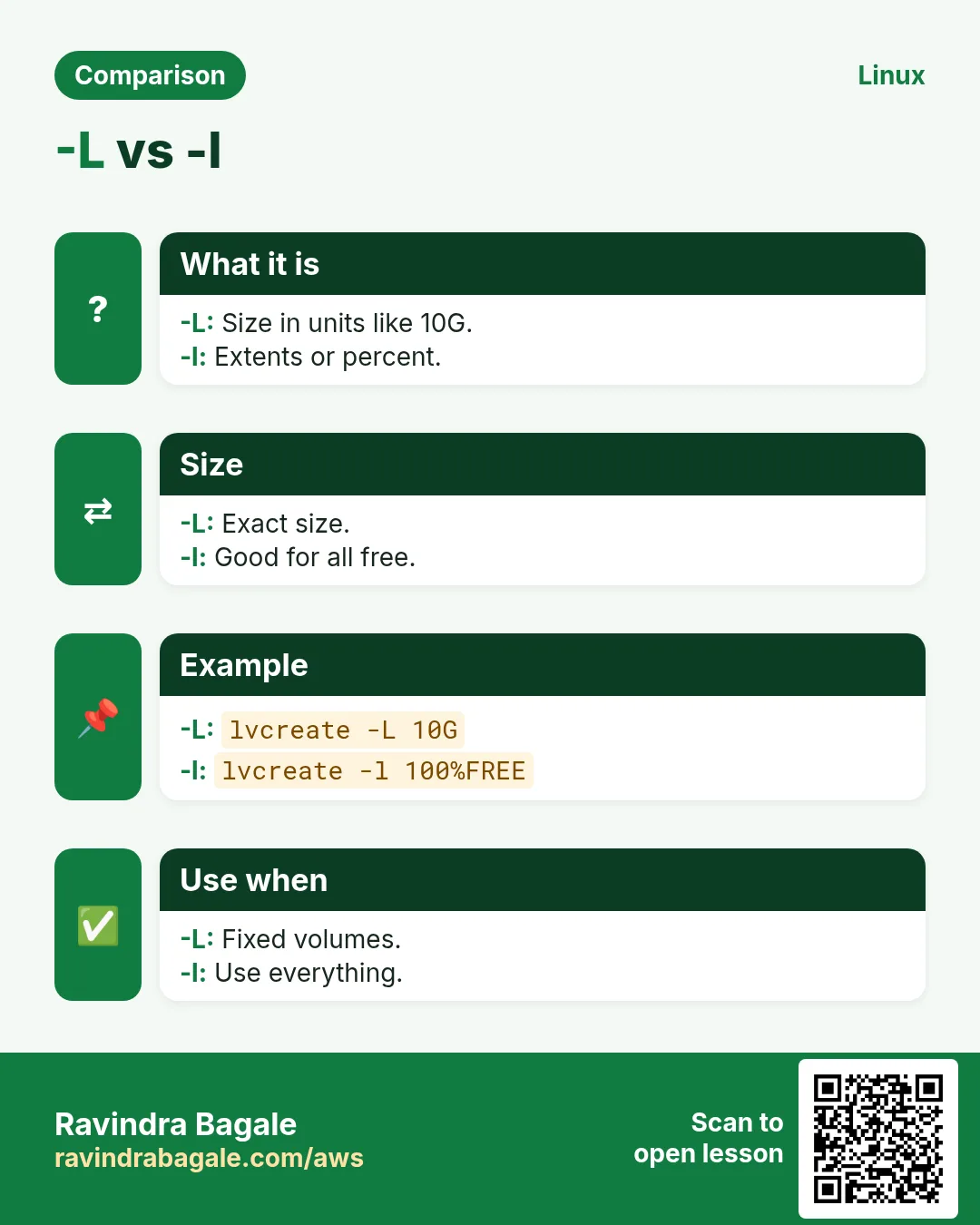
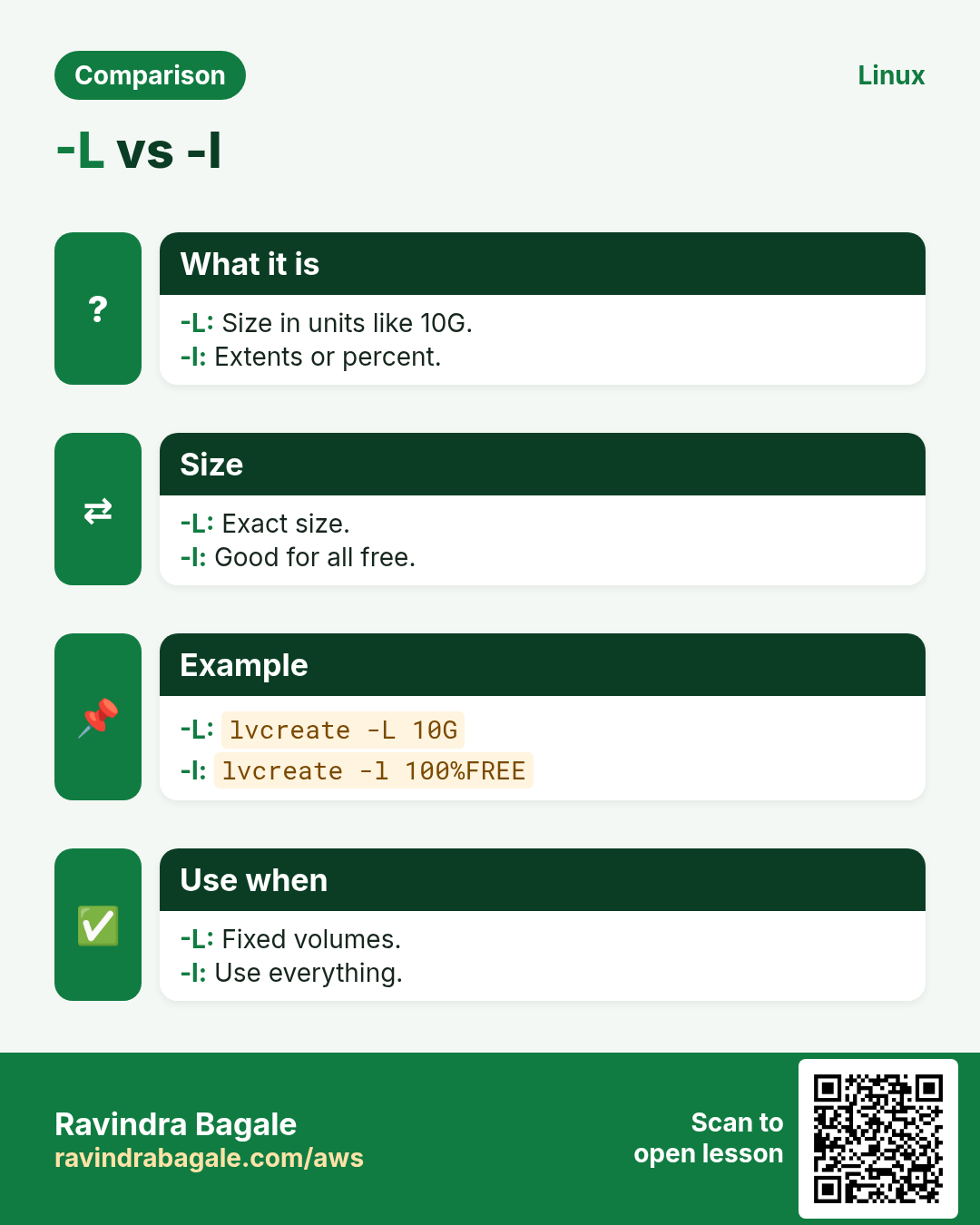
lvcreate -n NAME -L SIZE VG makes an LV of fixed size (50G). -l 100%FREE uses all free space; -l 50%VG half the VG. Then mkfs, mount and fstab using /dev/VG/LV or /dev/mapper/VG-LV (stable names).
Work through the numbers in order. The first LV takes 80 GiB out of almost 200 GiB, leaving nearly 120 GiB. 25%FREE then takes one quarter of that remaining space, about 30 GiB for logs. Roughly 90 GiB stays in the VG for future LVs or growth. If you give the logs all the free space now, the database LV has no unused extents to grow into later.
Follow the mount only after creating a filesystem on the new, empty LV. A mount makes that filesystem visible at a folder in the directory tree. Mounting over a folder with existing database files hides those files until you unmount. For a student lab, use an empty mount folder on a disposable machine so you can clearly tell where new files are written.
- Fixed size.
sudo lvcreate -n lvdb -L 80G vgdataOutput:
Logical volume "lvdb" created.80G for the database.
- Percent.
sudo lvcreate -n lvlogs -l 25%FREE vgdataOutput:
Logical volume "lvlogs" created.A quarter of what is left.
- Format and mount.
sudo mkfs.xfs /dev/vgdata/lvdb && sudo mkdir -p /var/lib/pgsql && sudo mount /dev/vgdata/lvdb /var/lib/pgsqlOutput:
meta-data=/dev/vgdata/lvdb ...Ready.
- fstab line.
echo '/dev/mapper/vgdata-lvdb /var/lib/pgsql xfs defaults 0 0' | sudo tee -a /etc/fstabOutput:
/dev/mapper/vgdata-lvdb /var/lib/pgsql xfs defaults 0 0LV paths are stable.
6. lvs, lvdisplay: read the volumes
To plan growth you must see sizes and free space at all three layers quickly.
lvs lists LVs with VG, attributes and size. lvs -a -o +devices shows which PVs each LV uses. lvdisplay gives full detail. The attr column: o = open (mounted), s = snapshot, t = thin pool, V = thin volume.
- All three.
sudo pvs; sudo vgs; sudo lvsOutput:
... VFree 89.99g
LV     VG     Attr       LSize
lvdb   vgdata -wi-ao---- 80.00g
lvlogs vgdata -wi-ao---- 30.00g
About 90 GiB free in the pool.
- Where is it stored?
sudo lvs -o +devices vgdataOutput:
lvdb vgdata -wi-ao---- 80.00g /dev/nvme1n1(0)On the first disk.
Grow the logical volume and the filesystem
Increasing a storage layer does not automatically enlarge every layer above it. Compare lvs with df as a database filesystem grows.
Read all steps
- Read the starting sizes
Suppose a 200 GiB volume group contains an 80 GiB database logical volume and an approximately 30 GiB logs volume. About 90 GiB remains unallocated, allowing for allocation details. Confirm the actual free amount with vgs.
- Extend the logical volume
Assign another 20 GiB to the database LV. After a successful LV-only extension, lvs reports 100 GiB, but the filesystem may still expose its previous capacity. This difference is expected, not evidence that the extension vanished.
- Grow the filesystem
Use the filesystem-appropriate growth method, or a supported lvextend -r operation that also resizes it. XFS and ext4 have different tools and constraints. Confirm the filesystem type and mount before acting.
- Verify both layers
lvs should show the intended LV capacity and df -h on the mount should show the enlarged usable filesystem. Usable space may differ from the nominal LV size because of filesystem metadata. Existing files should remain available.

7. lvextend -r: grow online
The database volume is 90% full at midnight. LVM lets you add space in seconds without downtime.
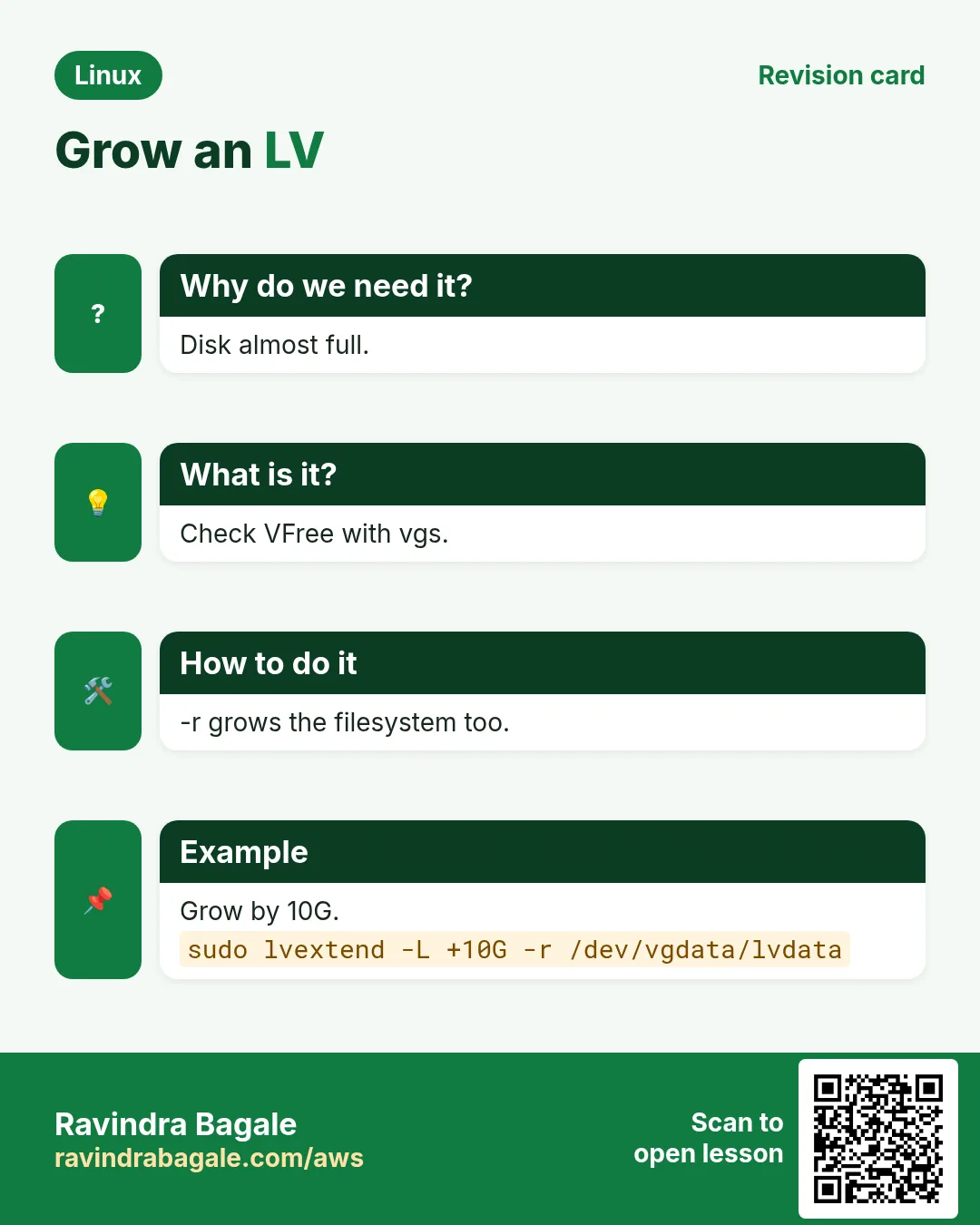
sudo lvextend -L +20G -r /dev/VG/LV adds 20G and (-r) resizes the filesystem too. -L 120G sets the total. -l +100%FREE takes all free space. Without -r run xfs_growfs MOUNT or resize2fs DEV yourself.
Read the two output lines separately. The first line reports the LV going from 80 to 100 GiB. The data blocks changed line reports XFS using the extra space. If 72 GiB of files stay in place, a bigger filesystem reduces the percentage used because the total is larger. If you only see the first line, check df -hT /var/lib/pgsql and confirm the filesystem type and mount point before choosing its growth command.
Keep the plus sign in the command in view: +20G asks for 20 GiB more, and 100G asks for a total of 100 GiB. An insufficient-extents error tells you the pool could not supply the request. Read VFree first. If the pool is short, the next section adds capacity to the pool before you try the growth again.
- Grow by 20G.
sudo lvextend -L +20G -r /dev/vgdata/lvdbOutput:
Size of logical volume vgdata/lvdb changed from 80.00 GiB to 100.00 GiB.
data blocks changed from 20971520 to 26214400
Filesystem grown too.
- Check.
df -h /var/lib/pgsqlOutput:
/dev/mapper/vgdata-lvdb 100G 72G 28G 73% /var/lib/pgsqlSpace added live.
- Not enough space.
sudo lvextend -L +500G /dev/vgdata/lvdbOutput:
Insufficient free space: 128000 extents needed, but only 12799 availableAdd a disk first.
8. vgextend: add a new disk to the pool
When the pool is empty you add another disk, and every LV in the VG can use it.
pvcreate NEWDEV, then vgextend VG NEWDEV. vgs shows the extra free space. Now lvextend works. In the cloud, growing an existing PV is also possible: resize the volume, then pvresize DEV.
- Add a disk.
sudo pvcreate /dev/nvme3n1 && sudo vgextend vgdata /dev/nvme3n1Output:
Volume group "vgdata" successfully extendedPool bigger.
- Grow an existing PV.
sudo pvresize /dev/nvme1n1 && sudo vgs vgdataOutput:
Physical volume "/dev/nvme1n1" changed
vgdata 3 2 0 wz--n- 349.99g 150.00g
After EBS resize.
9. pvmove and vgreduce: replace a disk live
A disk is slow or old. You want data on a new disk without stopping the app.
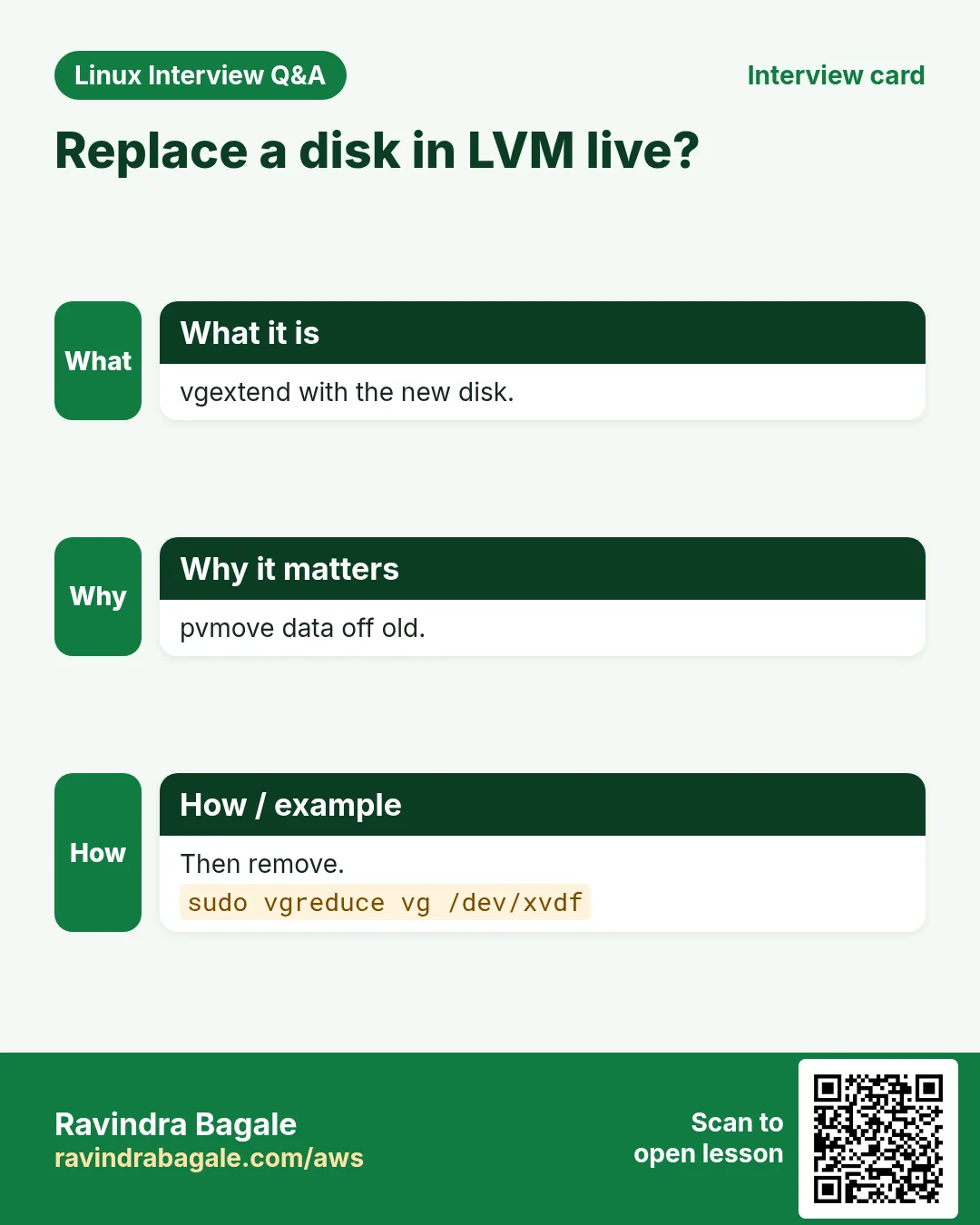
Add the new PV to the VG, then sudo pvmove OLDPV [NEWPV] moves all extents live. When done, vgreduce VG OLDPV removes it from the pool and pvremove OLDPV clears the label. Then detach the disk.
- Move.
sudo pvmove /dev/nvme1n1 /dev/nvme3n1Output:
/dev/nvme1n1: Moved: 25.00%
/dev/nvme1n1: Moved: 100.00%
Data moved online.
- Remove old disk.
sudo vgreduce vgdata /dev/nvme1n1 && sudo pvremove /dev/nvme1n1Output:
Removed "/dev/nvme1n1" from volume group "vgdata"
Labels on physical volume "/dev/nvme1n1" successfully wiped.
Safe to detach.
10. lvreduce: shrink (carefully)
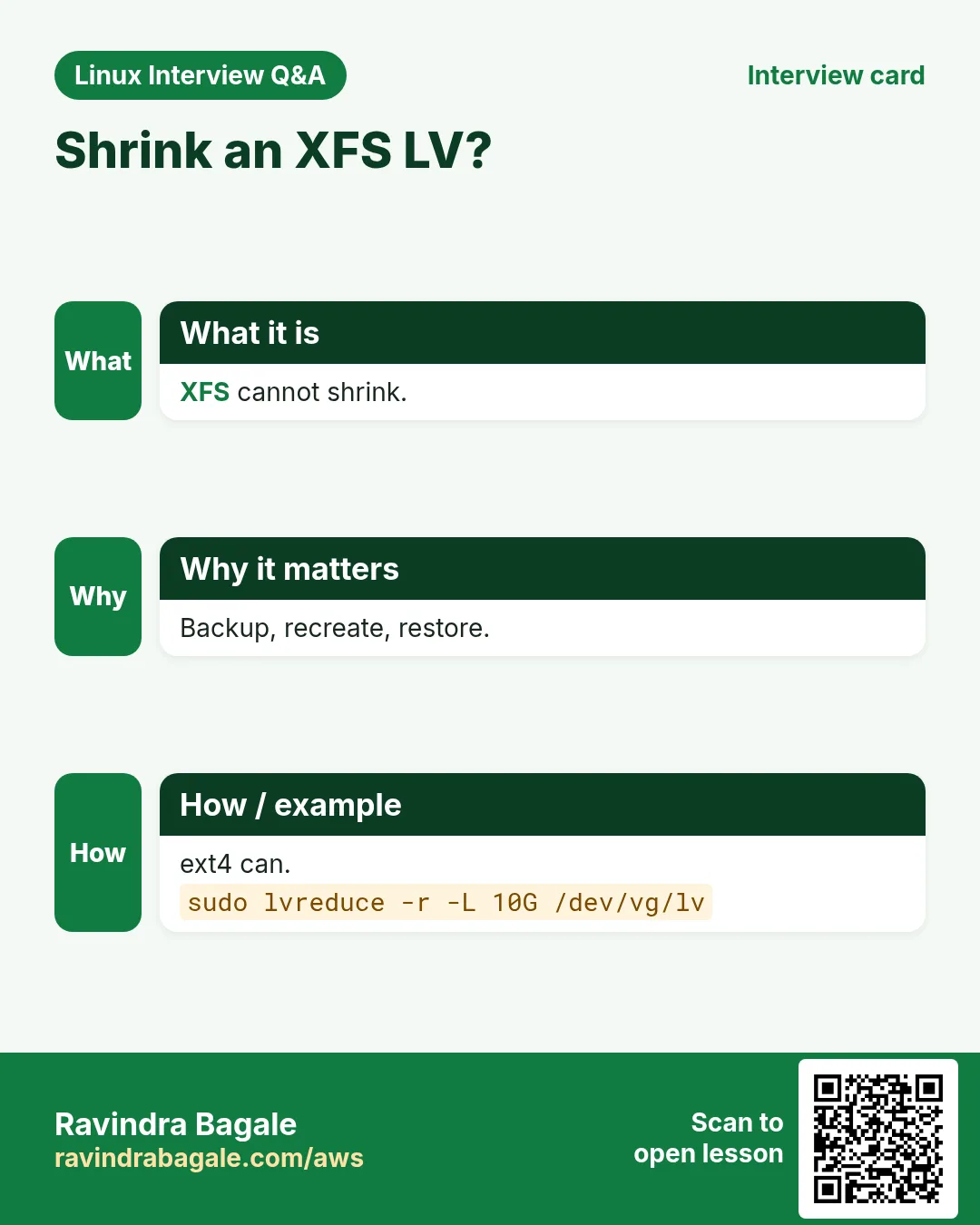
Sometimes one LV got too much space. You can shrink ext4 (offline) but never xfs.
For ext4: backup, umount, then sudo lvreduce -L 20G -r /dev/VG/LV (-r runs fsck and resize2fs first). Never lvreduce below the filesystem size without -r: data is destroyed. For xfs: make a new smaller LV, copy, switch.
- Shrink ext4.
sudo umount /srv/logs && sudo lvreduce -L 20G -r /dev/vgdata/lvlogsOutput:
fsck from util-linux
Resizing the filesystem on /dev/mapper/vgdata-lvlogs to 5242880 (4k) blocks.
Size of logical volume vgdata/lvlogs changed from 30.00 GiB to 20.00 GiB.
Safe order.
- xfs refuses.
sudo lvreduce -L 50G -r /dev/vgdata/lvdbOutput:
fsadm: Xfs filesystem shrinking is unsupported.Use copy-and-switch.
11. Snapshots: lvcreate -s
Before a risky upgrade, a snapshot lets you roll back in minutes or take a consistent backup.
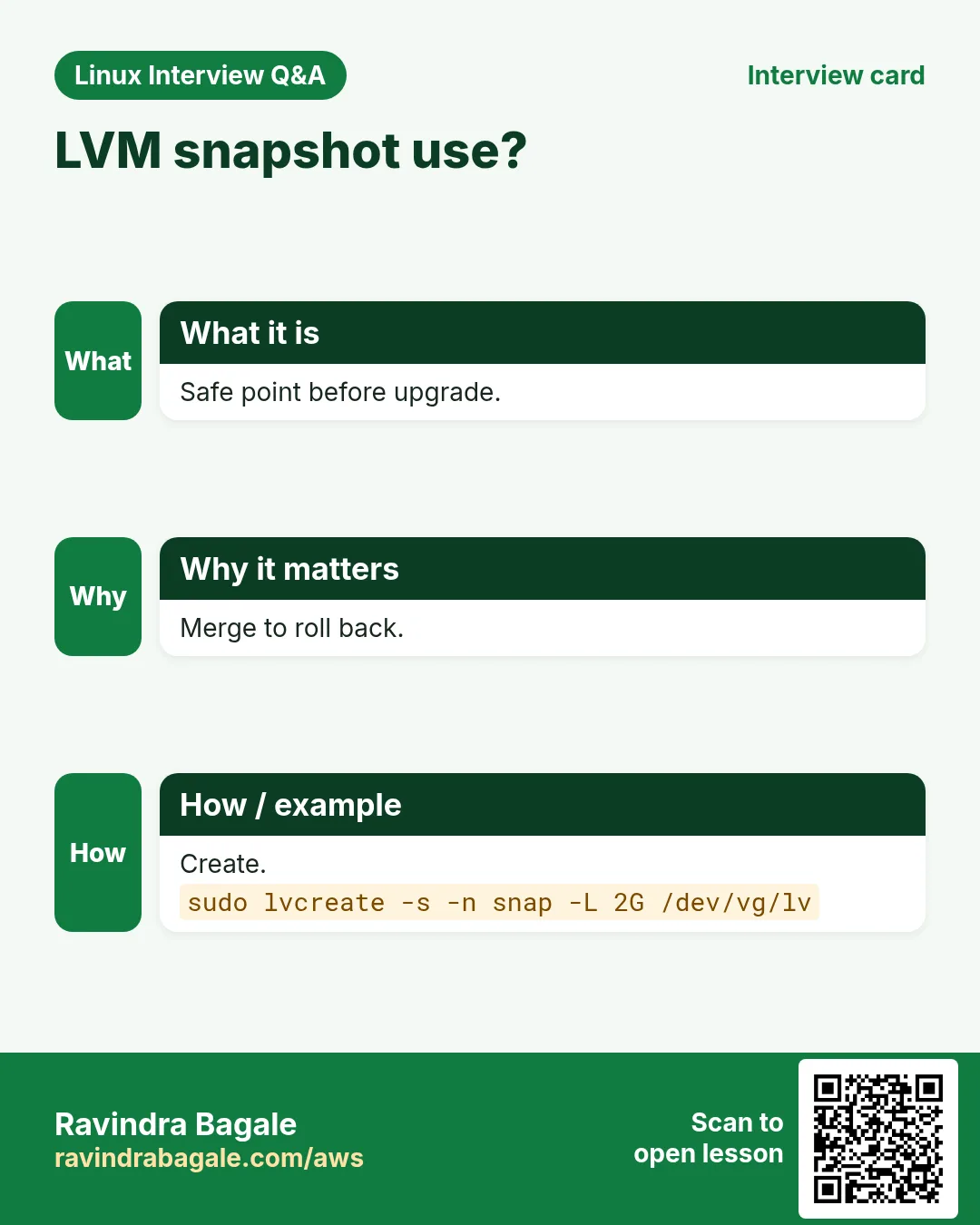
sudo lvcreate -s -n SNAP -L 5G /dev/VG/LV creates a copy-on-write snapshot; 5G is space for changes. If it fills to 100% it becomes invalid. Mount it read-only to back up. To roll back: lvconvert --merge /dev/VG/SNAP (applies on next activation). Remove with lvremove.
Imagine the lab config says good when you take the snapshot. The first time a block is about to change, LVM saves the block’s old contents in the snapshot area. Reading the snapshot still gives you the earlier file. That is why the 10 GiB in this example is a budget for changed blocks. A write-heavy upgrade can quickly use that space. Check the usage during the work and keep any long-term backup on separate storage.
For a database, learn one more distinction. A filesystem view at one instant may be usable after crash recovery, while a database backup needs a recoverable set of files and logs. Use the database’s backup procedure, or coordinate writes as its documentation requires, before relying on a volume snapshot. In Lab 2, the single text file gives you a simple way to check the snapshot behavior with cat.
- Take a snapshot.
sudo lvcreate -s -n lvdb_pre -L 10G /dev/vgdata/lvdbOutput:
Logical volume "lvdb_pre" created.Before the upgrade.
- Watch usage.
sudo lvs vgdataOutput:
lvdb_pre vgdata swi-a-s--- 10.00g lvdb 3.123% of change space used.
- Backup from it (xfs needs nouuid).
sudo mount -o ro,nouuid /dev/vgdata/lvdb_pre /mnt/snap && sudo tar -czf /backup/db.tgz -C /mnt/snap .Output:
(no output)Consistent copy.
- Roll back.
sudo umount /var/lib/pgsql && sudo lvconvert --merge /dev/vgdata/lvdb_preOutput:
Merging of volume vgdata/lvdb_pre started.Back to before the upgrade.
12. Thin pools: overcommit space
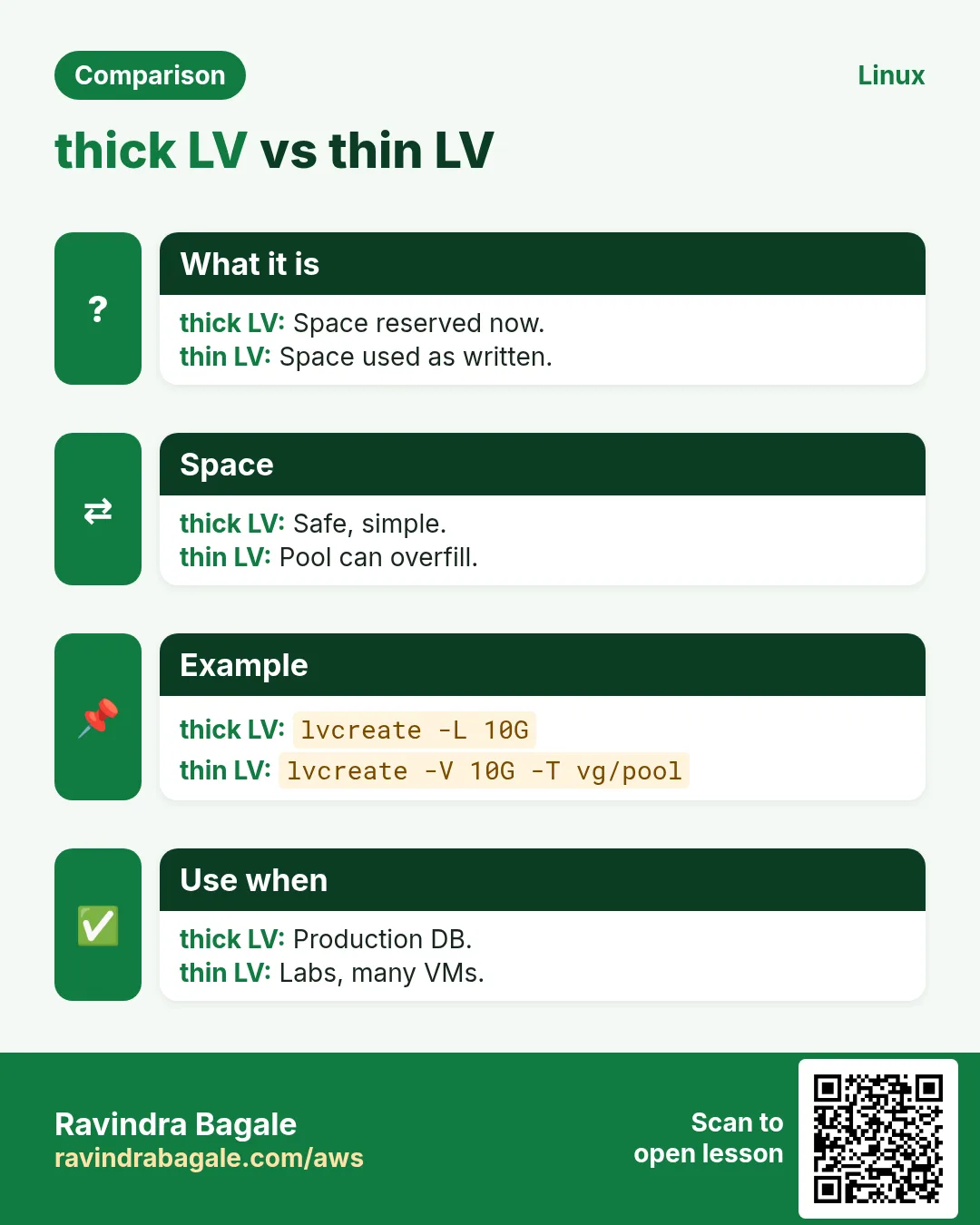
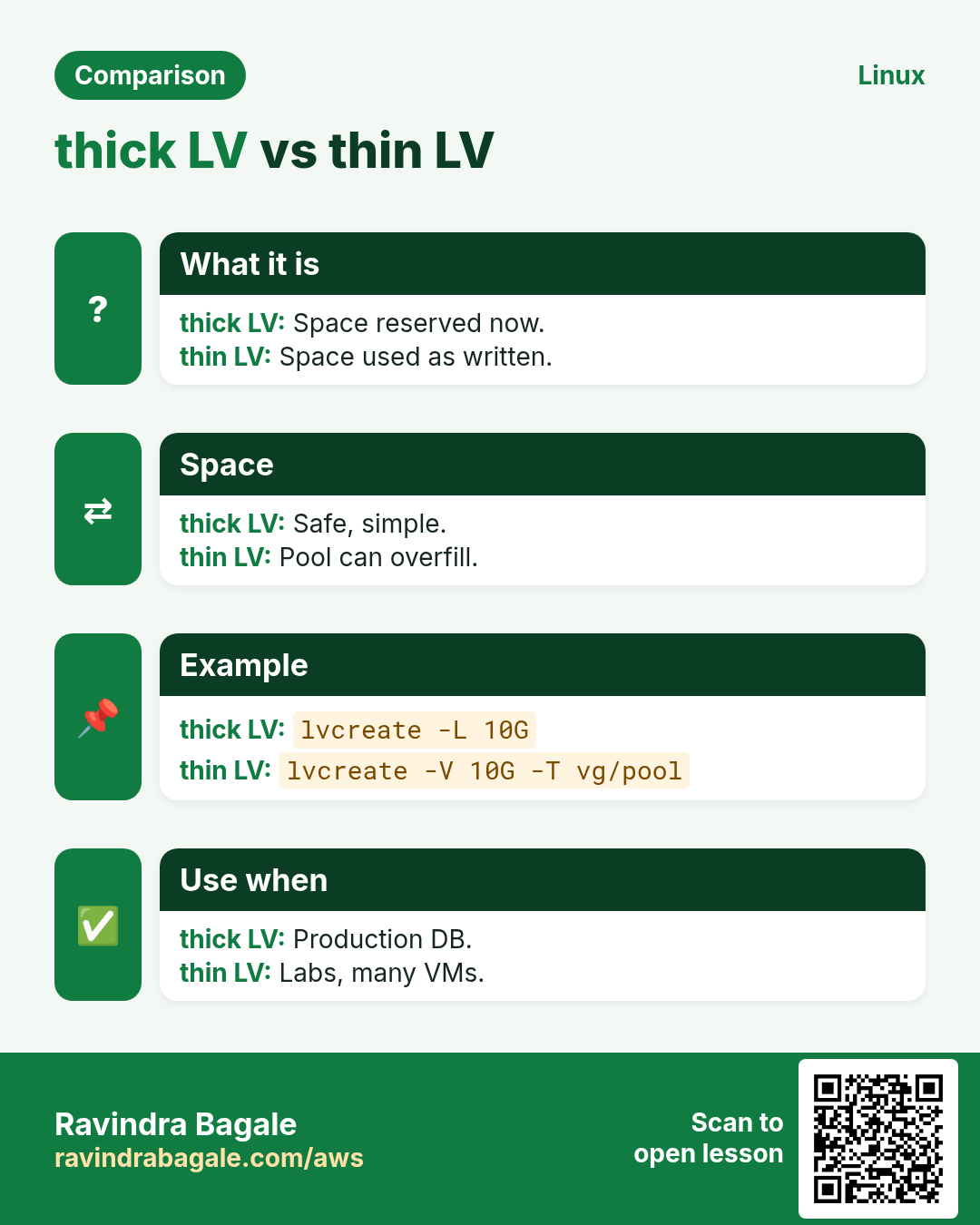
Many test environments each want 100G but use only 10G. Thin volumes give big virtual sizes and use real space only when written.
lvcreate --type thin-pool -L 100G -n tpool VG makes a pool. lvcreate -V 50G --thin -n tv1 VG/tpool makes a thin LV. Watch Data% in lvs: a full pool can freeze all thin volumes. Thin snapshots are fast and need no size.
The two numbers answer different questions. An LV with a virtual size of 100 GiB can report that capacity to its filesystem, even though the 50 GiB pool contains less physical space. When the pool shows Data% 12.40, about 6.2 GiB is in use. If other thin volumes in the same pool write more data, they use the same physical space. Check Meta% too. It measures the space used by the map that records which blocks belong to each thin volume. Either running full can interrupt writes.
- Pool and volume.
sudo lvcreate --type thin-pool -L 50G -n tpool vgdata && sudo lvcreate -V 100G --thin -n tvtest vgdata/tpoolOutput:
Logical volume "tpool" created.
WARNING: Sum of all thin volume sizes (100.00 GiB) exceeds the size of thin pool
Overcommitted on purpose.
- Watch it.
sudo lvs -o lv_name,lv_size,data_percent vgdataOutput:
tpool  50.00g 12.40
tvtest 100.00g 6.20
Real use 12%.
13. Real examples from many industries
The same Linux skill shows up in every kind of company. Seeing it in many places helps you remember it.
Each row is a made-up team. It shows who uses this and how.
| Team and city | How they use it | Command |
|---|---|---|
| Nikhil, banking, Pune | Grows DB volumes online with -r | lvextend -L +20G -r /dev/vgdata/lvdb |
| Chloe, SaaS, Paris | Snapshots before upgrades | lvcreate -s -n pre -L 10G /dev/vg/lv |
| Ravi K., telecom, Chennai | Replaces disks with pvmove | pvmove /dev/sdb /dev/sdd |
| Ingrid, research, Stockholm | Thin pools for lab VMs | lvcreate --type thin-pool |
| Musa, retail, Lagos | Adds disks to VG in peak season | vgextend vgdata /dev/nvme3n1 |
| Snehal, hospital, Nagpur | Separate LVs for app, logs, uploads | lvcreate -n lvuploads -L 40G vgdata |
14. Common errors and how to fix them
Everyone hits these errors. Knowing the cause saves hours.
Read the exact message first. Then match it to a row below.
| Error you see | Why it happens | How to fix |
|---|---|---|
Insufficient free space: N extents needed | VG has no room | vgextend or pvresize first.sudo vgs |
Device /dev/sdb excluded by a filter | Old signature or lvm.conf filter | wipefs the free disk or fix the filter.sudo wipefs -n /dev/sdb |
Can't open /dev/sdb exclusively. Mounted filesystem? | Disk in use | Use a free disk.lsblk -f |
df shows old size after lvextend | Forgot -r / no fs resize | Grow the filesystem.sudo xfs_growfs /var/lib/pgsql |
fsadm: Xfs filesystem shrinking is unsupported | xfs cannot shrink | Copy to a smaller LV.sudo lvcreate -n lvnew -L 50G vgdata |
Snapshot is invalid / 100% full | Change space ran out | Remove it; make larger next time.sudo lvremove vgdata/lvdb_pre |
Physical volume still in use | pvremove while in VG | vgreduce first (after pvmove).sudo vgreduce vgdata /dev/nvme1n1 |
Logical volume contains a filesystem in use | lvremove on mounted LV | Unmount first.sudo umount /srv/logs |
mount: wrong fs type ... duplicate UUID (xfs snapshot) | xfs snapshot has same UUID | Mount with nouuid.sudo mount -o ro,nouuid /dev/vg/snap /mnt/snap |
Thin pool Data% 100, I/O errors | Thin pool full | Extend the pool now.sudo lvextend -L +20G vgdata/tpool |
15. Troubleshooting step by step
Look at all three layers, then the filesystem.
Go top to bottom. Stop at the first step that shows the problem.
- PVs.
sudo pvs- VG free.
sudo vgs- LVs and attrs.
sudo lvs -a -o +devices- Filesystem size.
df -h- Disk tree.
lsblk- LVM messages.
journalctl -b | grep -i lvm | tail16. Lab 1: Build LVM on loop devices
Create two fake disks, a VG and an LV, then grow it.
A full hands-on lab. Run every step on a test Linux machine (an EC2 instance, a VM, or WSL).
A loop device makes a file behave like a small disk, so you can practise using a pair of image files. Write down the two device names printed by losetup in your run. Yours may differ from the names shown. Before pvcreate, confirm both mappings with sudo losetup -l and check that the backing files are the two images you just created. Save this lab for a disposable Linux VM and keep the volume mounted for Lab 2.
- Fake disks.
for i in 1 2; do truncate -s 1G /tmp/pv$i.img; sudo losetup -f --show /tmp/pv$i.img; doneOutput:
/dev/loop1
/dev/loop2- PV and VG.
sudo pvcreate /dev/loop1 /dev/loop2 && sudo vgcreate vglab /dev/loop1 /dev/loop2Output:
Volume group "vglab" successfully created- LV and fs.
sudo lvcreate -n lv1 -L 500M vglab && sudo mkfs.ext4 -q /dev/vglab/lv1 && sudo mkdir -p /mnt/lv1 && sudo mount /dev/vglab/lv1 /mnt/lv1Output:
(no output)- Grow.
sudo lvextend -L +700M -r /dev/vglab/lv1 && df -h /mnt/lv1Output:
/dev/mapper/vglab-lv1 1.2G ...- Check layers.
sudo pvs; sudo vgs; sudo lvsOutput:
vglab ... lv1 1.17g17. Lab 2: Snapshot and roll back
Take a snapshot, break a file, and merge back.
A full hands-on lab. Run every step on a test Linux machine (an EC2 instance, a VM, or WSL).
- Write a file.
echo good | sudo tee /mnt/lv1/app.confOutput:
good- Snapshot.
sudo lvcreate -s -n lv1snap -L 200M /dev/vglab/lv1Output:
Logical volume "lv1snap" created.- Break it.
echo broken | sudo tee /mnt/lv1/app.confOutput:
broken- Merge back.
sudo umount /mnt/lv1 && sudo lvconvert --merge /dev/vglab/lv1snap && sudo mount /dev/vglab/lv1 /mnt/lv1Output:
Merging of volume vglab/lv1snap started.- Check.
cat /mnt/lv1/app.confOutput:
goodRavindra Bagale's Tip
Always use lvextend with -r. It grows the logical volume and the filesystem in one step, so you never end up with a bigger volume but the same df size. For shrinking, -r also protects you by resizing the filesystem first.
Ravindra Bagale's Tip – मराठी
lvextend नेहमी -r सह वापरा. ते logical volume आणि filesystem एकाच step मधे वाढवतं, म्हणून volume मोठा पण df तोच असं कधी होत नाही. कमी करताना पण -r आधी filesystem resize करून वाचवतो.
Ravindra Bagale's Tip – हिंदी
lvextend हमेशा -r के साथ चलाइए. यह logical volume और filesystem एक ही step में बढ़ाता है, इसलिए volume बड़ा पर df वही, ऐसा कभी नहीं होता. घटाते समय भी -r पहले filesystem resize करके बचाता है.
18. Frequently asked questions
Q. Is LVM slower?
Overhead is tiny; flexibility is worth it.
Q. LV path: /dev/VG/LV or /dev/mapper?
Both point to the same device; use either in fstab.
Q. Can an LV span two disks?
Yes, that is a key feature (linear by default).
Q. Is a snapshot a backup?
No, it lives on the same disks; copy it elsewhere.
Q. Does LVM give redundancy?
Not by default; use RAID (chapter 32) or lvcreate --type raid1.
Q. Can I shrink xfs?
No.
Q. Should I partition before pvcreate?
Optional; whole disks are common in the cloud.
Q. What is 100%FREE?
All free extents in the VG.
19. Interview questions and answers
Beginner level
Q. What is a VG?
A pool of PVs.
Q. List LVs?
lvs.
Q. Create PV?
pvcreate DEV.
Q. Make a 10G LV?
lvcreate -n NAME -L 10G VG.
Mid level level
Q. Grow LV and fs together?
lvextend -L +N -r.
Q. Add disk to VG?
pvcreate then vgextend.
Q. Remove a disk live?
pvmove, vgreduce, pvremove.
Q. Why does a snapshot become invalid?
Its change space filled up.
Senior level
Q. Plan LVM for a DB server?
Separate LVs for data, WAL and logs, keep VG free space for snapshots and growth, monitor.
Q. Risk of thin provisioning?
Pool fills and all thin LVs stop; monitor Data% and autoextend.
Q. Migrate data to new SAN with no downtime?
Add new PVs, pvmove, vgreduce old.
Q. Snapshot vs cloud EBS snapshot?
LVM snapshot is local and short-lived; EBS snapshot is stored in S3 and durable.
Try at home
- Do Lab 1, then add a third loop disk with vgextend and grow the LV to use all free space.
- Write a one-page runbook: 'DB volume full at 2 AM' using LVM commands.
Practise this chapter
Interview questions and answers
You grew an LV from 80 GiB to 100 GiB and df still reports 80 GiB. What do you explain?
lvs shows the logical block device grew. df measures the filesystem inside it. Confirm which filesystem is mounted and use its supported growth procedure. Recheck both values and a sample read so you know the application can use the additional capacity.
Check your understanding
Choose an answer, then compare your reasoning with the explanation.
Practice Tasks
Practice checks run in your browser. They check the answer for this exercise; they do not create resources or connect to your AWS account.
About this scenarioAhmednagar Sugar Co-op is a sugar co-operative business in Ahilyanagar. Balasaheb Pawar looks after its IT and cloud work. They count money in INR and run their AWS resources in the ap-south-1 Region. In the tasks below you do real jobs for them using what this lesson teaches. All names, account IDs, IP addresses and numbers are made up for practice.
0 / 17
Easy Create a PV
Flexible volumes avoid downtime.
Prepare /dev/xvdj for LVM.
- Find the Linux command that does this job.
- Add the options (like -r or -h) the task needs.
- Add the file names, folders or users in the right order.
- Use sudo if the job changes system files or users. Click Check answer.
Easy List PVs
Flexible volumes avoid downtime.
Show the PV report for /dev/xvdj only.
- Find the Linux command that does this job.
- Add the options (like -r or -h) the task needs.
- Add the file names, folders or users in the right order.
- Use sudo if the job changes system files or users. Click Check answer.
Easy Create a VG
Flexible volumes avoid downtime.
Create volume group vgweb from /dev/xvdj and /dev/xvdk.
- Find the Linux command that does this job.
- Add the options (like -r or -h) the task needs.
- Add the file names, folders or users in the right order.
- Use sudo if the job changes system files or users. Click Check answer.
Easy List VGs
Flexible volumes avoid downtime.
Show the VG report for vgweb only.
- Find the Linux command that does this job.
- Add the options (like -r or -h) the task needs.
- Add the file names, folders or users in the right order.
- Use sudo if the job changes system files or users. Click Check answer.
Easy List LVs
Flexible volumes avoid downtime.
List all LVs in vgweb, including hidden ones.
- Find the Linux command that does this job.
- Add the options (like -r or -h) the task needs.
- Add the file names, folders or users in the right order.
- Use sudo if the job changes system files or users. Click Check answer.
Medium Create a 30G LV
Flexible volumes avoid downtime.
Create LV lvcache of 30G in vgweb.
- Find the Linux command that does this job.
- Add the options (like -r or -h) the task needs.
- Add the file names, folders or users in the right order.
- Use sudo if the job changes system files or users. Click Check answer.
Medium Use all free
Flexible volumes avoid downtime.
Create LV lvrest in vgweb using all free space.
- Find the Linux command that does this job.
- Add the options (like -r or -h) the task needs.
- Add the file names, folders or users in the right order.
- Use sudo if the job changes system files or users. Click Check answer.
Medium LVs with devices
Flexible volumes avoid downtime.
List LVs of vgweb with the devices they use.
- Find the Linux command that does this job.
- Add the options (like -r or -h) the task needs.
- Add the file names, folders or users in the right order.
- Use sudo if the job changes system files or users. Click Check answer.
Medium Add disk to VG
Flexible volumes avoid downtime.
Add PV /dev/xvdl to vgweb.
- Find the Linux command that does this job.
- Add the options (like -r or -h) the task needs.
- Add the file names, folders or users in the right order.
- Use sudo if the job changes system files or users. Click Check answer.
Medium Grow a PV
Flexible volumes avoid downtime.
After resizing the cloud volume, grow PV /dev/xvdj.
- Find the Linux command that does this job.
- Add the options (like -r or -h) the task needs.
- Add the file names, folders or users in the right order.
- Use sudo if the job changes system files or users. Click Check answer.
Medium Snapshot
Flexible volumes avoid downtime.
Create a 4G snapshot named cache_snap of /dev/vgweb/lvcache.
- Find the Linux command that does this job.
- Add the options (like -r or -h) the task needs.
- Add the file names, folders or users in the right order.
- Use sudo if the job changes system files or users. Click Check answer.
Medium Remove LV
Flexible volumes avoid downtime.
Delete LV vgweb/cache_snap.
- Find the Linux command that does this job.
- Add the options (like -r or -h) the task needs.
- Add the file names, folders or users in the right order.
- Use sudo if the job changes system files or users. Click Check answer.
Hard Grow with fs
Flexible volumes avoid downtime.
Grow /dev/vgweb/lvcache by 15G and its filesystem in one step.
- Find the Linux command that does this job.
- Add the options (like -r or -h) the task needs.
- Add the file names, folders or users in the right order.
- Use sudo if the job changes system files or users. Click Check answer.
Hard Grow to all free
Flexible volumes avoid downtime.
Grow /dev/vgweb/lvrest with all remaining free space and resize its filesystem.
- Find the Linux command that does this job.
- Add the options (like -r or -h) the task needs.
- Add the file names, folders or users in the right order.
- Use sudo if the job changes system files or users. Click Check answer.
Hard Move data off
Flexible volumes avoid downtime.
Move all data from /dev/xvdj to /dev/xvdl.
- Find the Linux command that does this job.
- Add the options (like -r or -h) the task needs.
- Add the file names, folders or users in the right order.
- Use sudo if the job changes system files or users. Click Check answer.
Hard Remove PV from VG
Flexible volumes avoid downtime.
Remove /dev/xvdj from vgweb.
- Find the Linux command that does this job.
- Add the options (like -r or -h) the task needs.
- Add the file names, folders or users in the right order.
- Use sudo if the job changes system files or users. Click Check answer.
Hard Roll back
Flexible volumes avoid downtime.
Merge snapshot vgweb/cache_snap back into its origin.
- Find the Linux command that does this job.
- Add the options (like -r or -h) the task needs.
- Add the file names, folders or users in the right order.
- Use sudo if the job changes system files or users. Click Check answer.
20. Related chapters
- Linux Ops Refresh for DevOps
- Bash Scripting for Automation
- Linux grep and find Commands with Examples
- How to Set Up Passwordless SSH Between Linux Servers
In short
- PV, VG, LV, PE.
- pvcreate, vgcreate, lvcreate.
- pvs, vgs, lvs read the layers.
- lvextend -r grows online; vgextend adds disks.
- pvmove replaces disks live; lvreduce only for ext4.
- Snapshots and thin pools need monitoring.
Revision, comparison and interview cards
Revise this lesson in a few minutes. Save the cards on your phone or download them as PNG files. The QR code on each card opens this lesson.
More cards: Ravi Sir's Cards.