Shell Scripting Complete 11: trap, Signals, flock Locks and Background Jobs
Scripts get stopped: someone presses Ctrl+C, a server shuts down, or a timeout kills them. Two copies of the same cron job may also start at once and fight over the same files. In this chapter you learn signals (INT, TERM, HUP, KILL), trap to clean up on EXIT and ERR, kill and timeout, background jobs with &, wait, jobs, fg, bg, nohup and disown, running many jobs in parallel safely, and flock to make sure only one copy runs. Every topic starts with an everyday example and then shows examples from many industries.
In this chapter
- Know common signals and their numbers
- Clean up with trap on EXIT, INT, TERM and ERR
- Run and wait for background jobs
- Keep jobs alive after logout
- Limit parallel jobs
- Allow only one copy with flock
1. An everyday example: a shop closing at night
At a Laxmi Road saree shop, closing time has a routine: count cash, switch off lights, lock the shutter. Even if the owner must leave suddenly, he still locks the shutter. Only one person holds the key, so two people never open the shop at the same time. trap is that closing routine, signals are the reasons to close, and flock is the single key.
Closing routine = trap cleanup EXIT. Sudden leave = INT (Ctrl+C) or TERM. Power cut = KILL, which no routine can catch. Helpers working in parallel = background jobs with &. Waiting till all helpers finish = wait. One key = flock.
2. Signals and kill
Stopping a stuck process, asking nginx to reload, or seeing why a job died all need signals.
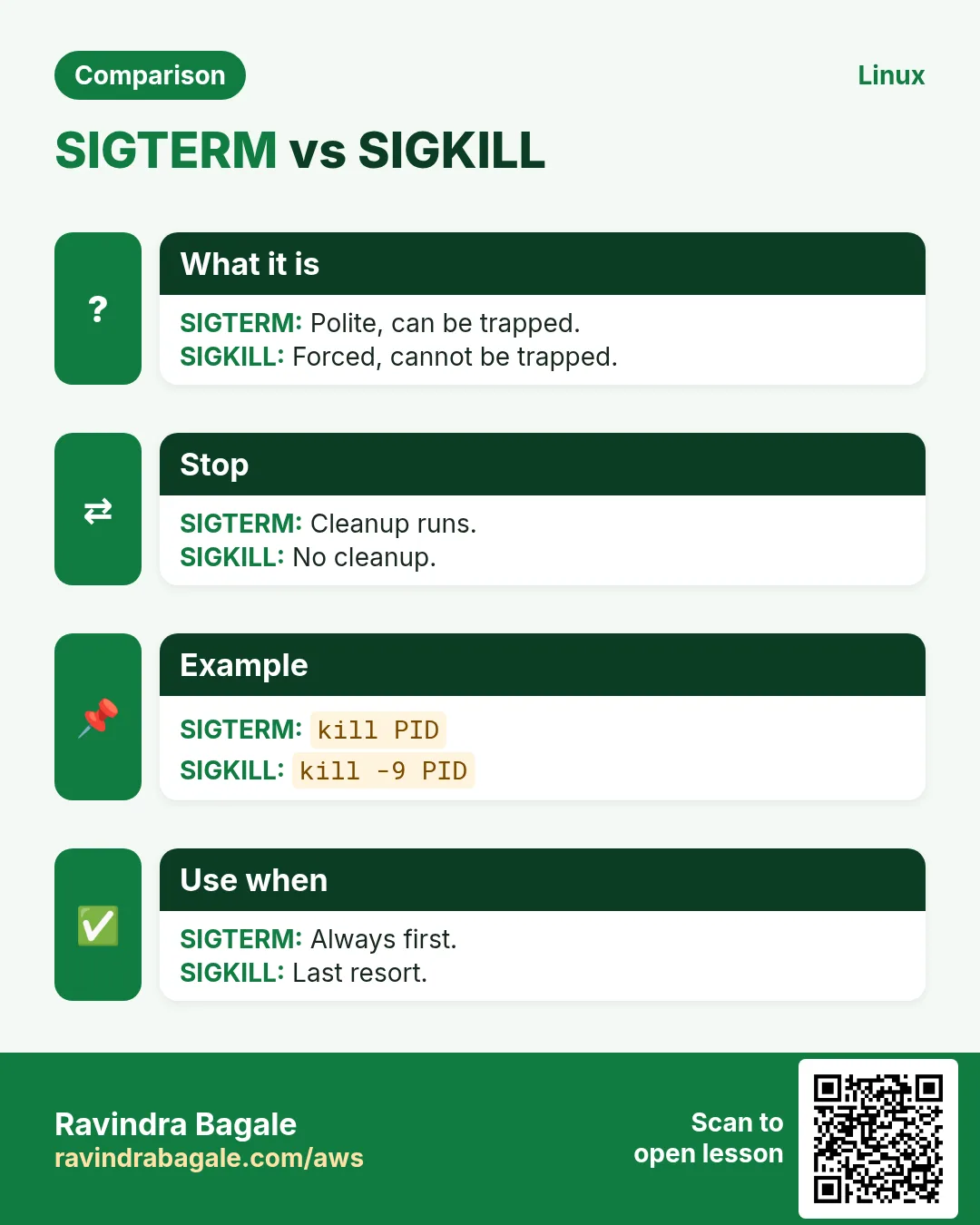
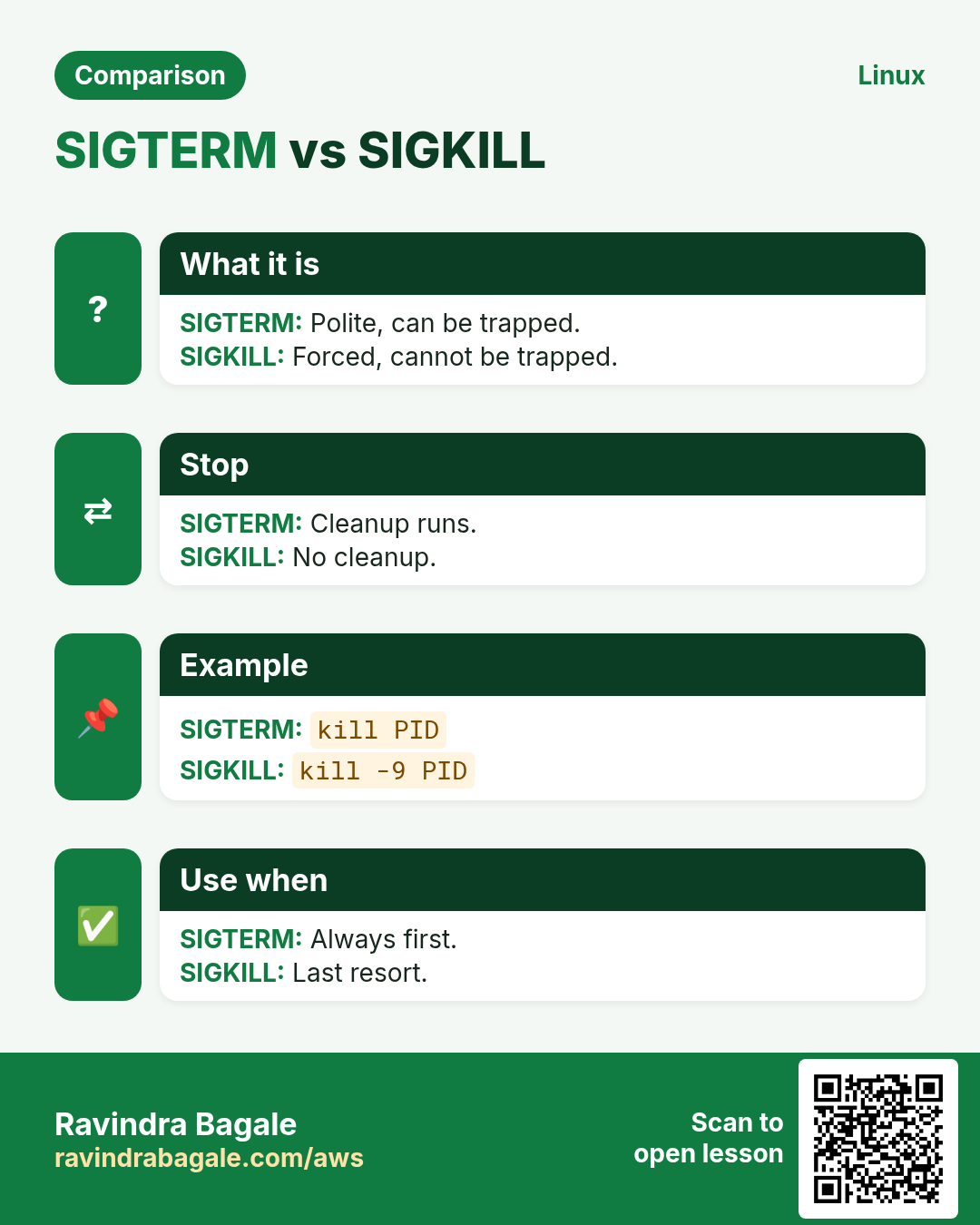
A signal is a small message to a process. INT (2) is Ctrl+C. TERM (15) is a polite stop and the default of kill. HUP (1) often means reload config. KILL (9) stops at once and cannot be caught. STOP and CONT pause and resume. kill -l lists them. A process killed by signal N exits with 128+N, so 130 is INT and 143 is TERM.
| Signal | Number and use |
|---|---|
| HUP | 1, reload config |
| INT | 2, Ctrl+C |
| KILL | 9, force, cannot trap |
| TERM | 15, polite stop |
| STOP/CONT | pause/resume |
- List signals.
kill -l | head -2Output:
 1) SIGHUP  2) SIGINT  3) SIGQUIT  4) SIGILL
 9) SIGKILL 15) SIGTERM
Names and numbers.
- Polite stop.
kill 4321; sleep 2; ps -p 4321 || echo goneOutput:
goneTERM first.
- Reload nginx.
sudo kill -HUP $(cat /run/nginx.pid)Config reloaded, no downtime.
- By name.
pkill -f 'python report.py'Matches full command line.
- Exit code from a signal.
sleep 100 & kill $!; wait $!; echo $?Output:
143128+15.
3. trap: clean up on EXIT, INT, TERM
A trap tells Bash which code to run when a selected event occurs. EXIT is useful for cleaning up a temporary file while the script still controls its own exit. In the disposable lab, create one temporary file, print its path and stop in two ways: a normal completion and the handled interruption from the chapter. Check the printed path after both. A forced kill cannot run Bash cleanup, so keep the next run able to recognise an incomplete temporary file and start safely.
Temp files, half-written downloads and lock files should not be left behind when a script stops.
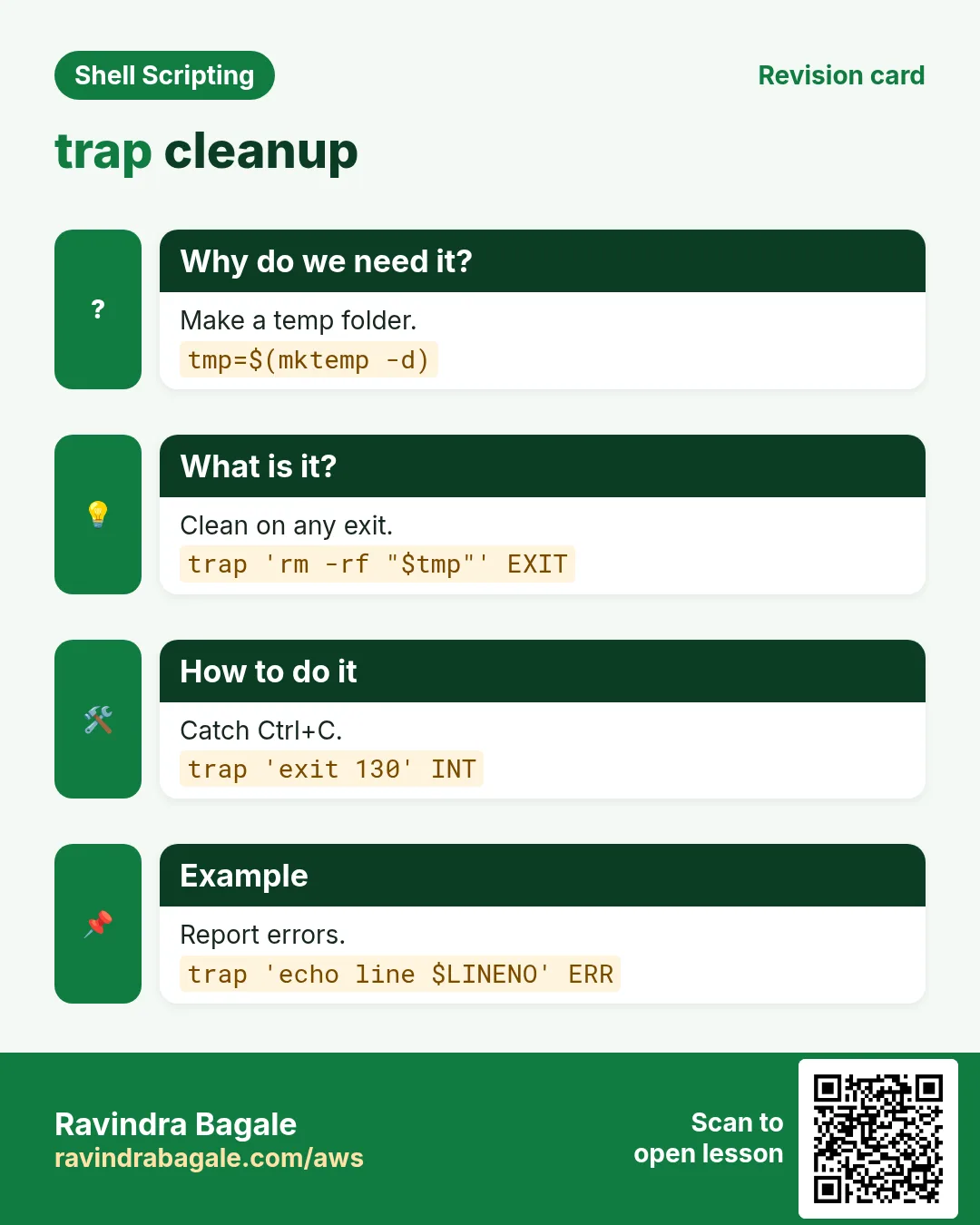
trap 'commands' SIGNALS runs commands when those signals arrive. trap cleanup EXIT runs when the script ends for any reason except KILL, so it is the best single place for cleanup. Trap INT and TERM to print a message and exit with 130 or 143. Use single quotes so variables are read when the trap runs. trap - EXIT removes it; trap -p shows current traps.
- Cleanup on exit.
tmp=$(mktemp -d); trap 'rm -rf "$tmp"' EXIT; echo work > "$tmp/a"; ls "$tmp"Output:
aFolder removed when script ends.
- Ctrl+C message.
trap 'echo "stopped by user" >&2; exit 130' INT; sleep 60Output:
^Cstopped by userClean stop.
- Function style.
cleanup(){ rm -f /tmp/report.$$; echo 'cleaned'; }; trap cleanup EXIT INT TERMOutput:
cleanedOne place for all exits.
- Show traps.
trap -pOutput:
trap -- 'cleanup' EXITCheck what is set.
4. trap ERR and the failing line
When a 300-line script fails at 2 a.m., the log should say which line and which command.
trap '...' ERR runs whenever a command fails (same rules as set -e). Inside it $LINENO is the line, $BASH_COMMAND is the command and $? is the code. Add set -E so functions and subshells inherit the ERR trap.
- Report failure.
set -Eeuo pipefail
trap 'echo "ERR line $LINENO: $BASH_COMMAND (rc=$?)" >&2' ERR
cp /nope /tmp/
Output:
cp: cannot stat '/nope': No such file or directory
ERR line 3: cp /nope /tmp/ (rc=1)
Exact place.
- Send alert on error.
trap 'curl -fsS -d "backup failed line $LINENO" "$HOOK"' ERRChat alert with line.
5. Background jobs: &, jobs, fg, bg, wait
A background command can fail after the shell has already moved on. Start one test command that exits successfully and one that exits with a known failure code. Save each PID from $! as you start it. Use wait for each PID to collect its status and label which task it belonged to. The main script can then decide whether to publish the combined report. This is how you avoid calling a parallel run successful just because all of its processes disappeared.
Copying to five servers one by one takes five times longer than doing it together.
cmd & starts cmd in the background and returns at once. $! is its PID. jobs lists jobs of this shell, fg %1 brings one to the front, Ctrl+Z pauses the front job and bg resumes it in the background. wait waits for all; wait $pid waits for one and returns its exit code, so collect codes to know if any failed. wait -n waits for the next one to finish.
- Start and see.
sleep 30 & jobsOutput:
[1]+ Running sleep 30 &Job 1.
- PID.
sleep 30 & echo "pid $!"Output:
pid 5120Use it with kill or wait.
- Parallel copy.
for h in web1 web2 web3; do scp -q app.tgz "$h:/tmp/" & done; wait; echo 'all copied'Output:
all copiedThree at once.
- Check each result.
pids=(); for h in web1 web2; do ssh "$h" uptime & pids+=($!); done; fail=0; for p in "${pids[@]}"; do wait "$p" || fail=1; done; echo fail=$failOutput:
10:01 up 9 days
10:01 up 3 days
fail=0
Know if any failed.
- Pause and resume.
tar czf big.tgz /data   # press Ctrl+Z
bg; jobs
Output:
[1]+ Running tar czf big.tgz /data &Moved to background.
6. Survive logout: nohup, disown, setsid
A long data migration started over SSH dies when your Wi-Fi drops, unless you protect it.
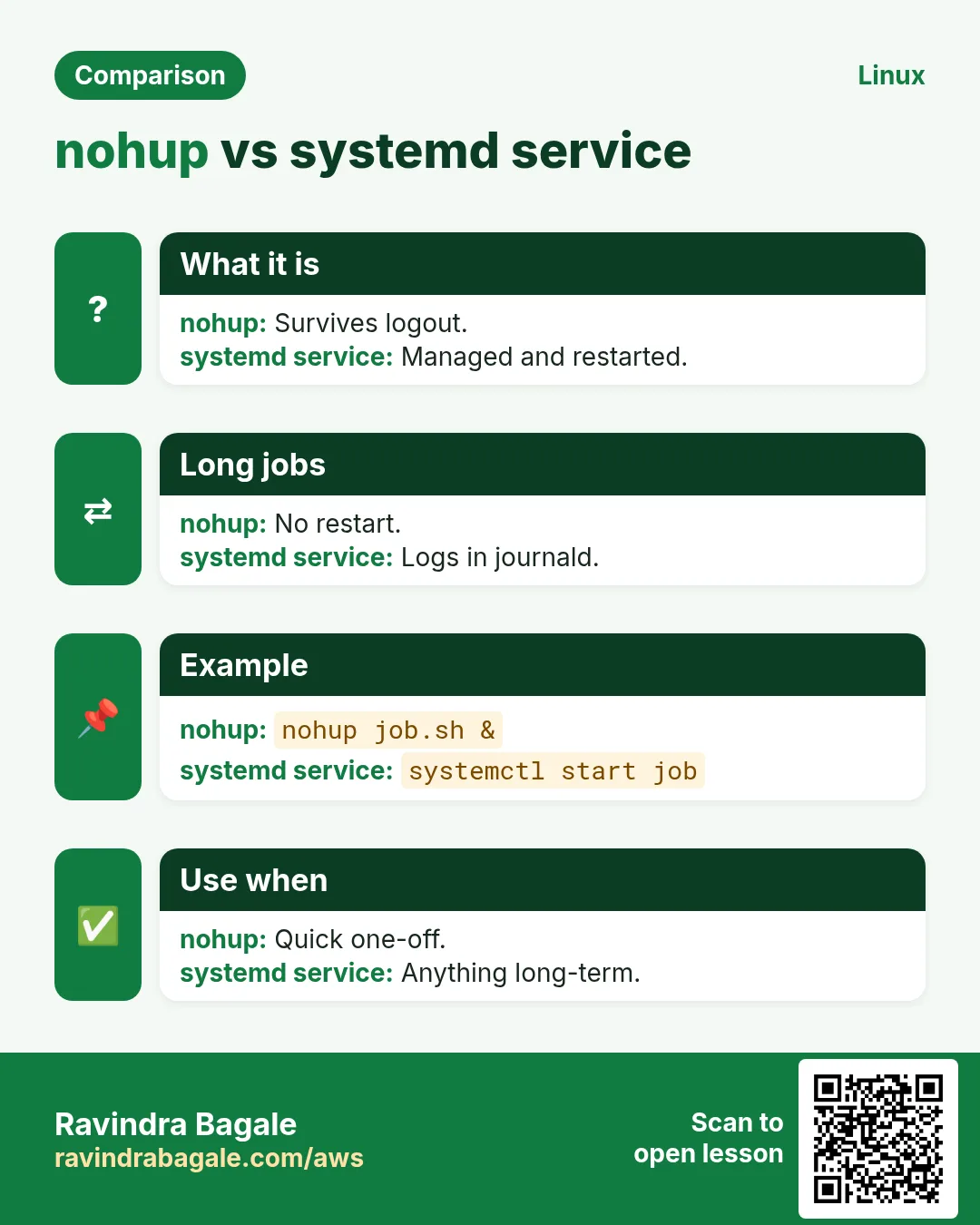
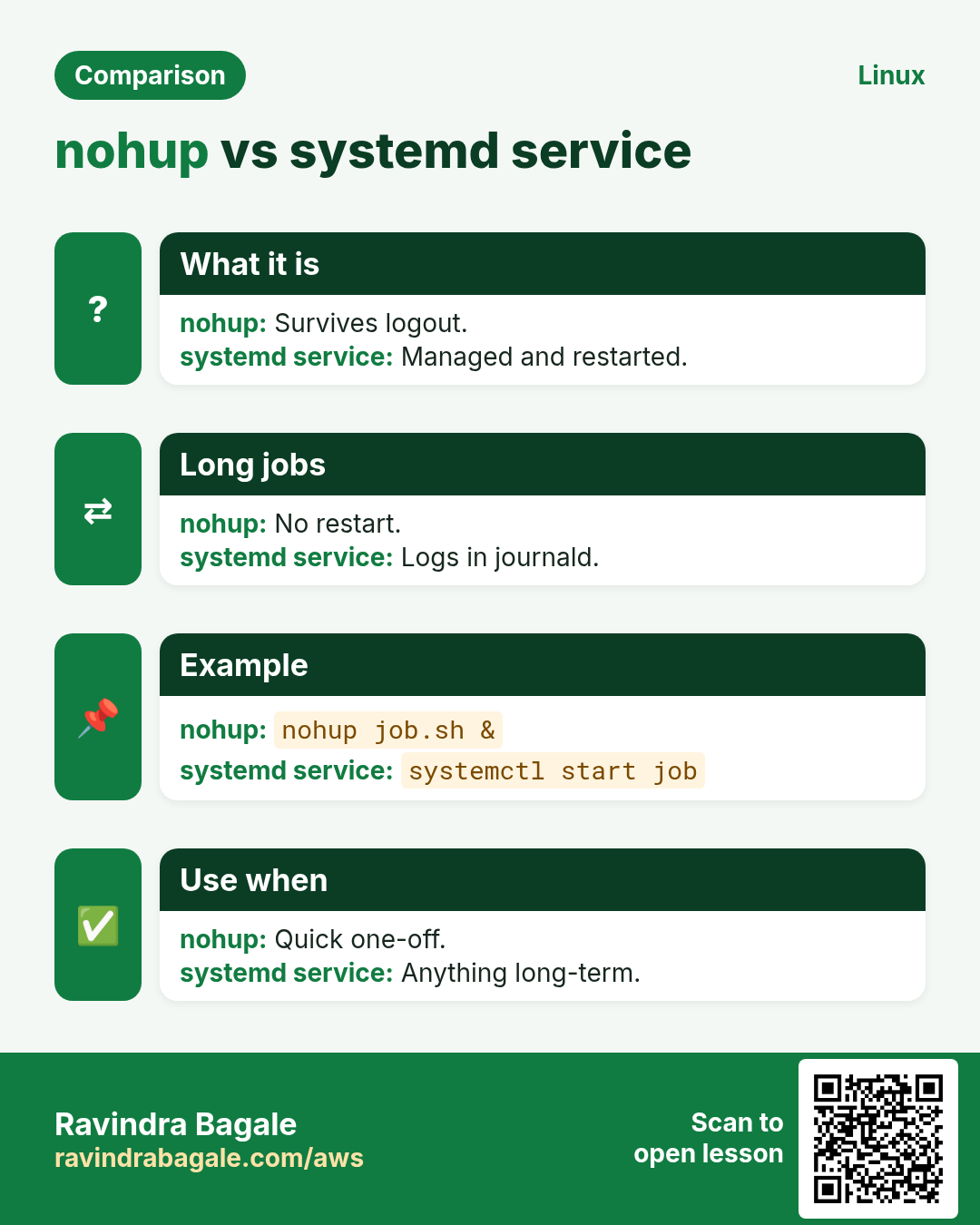
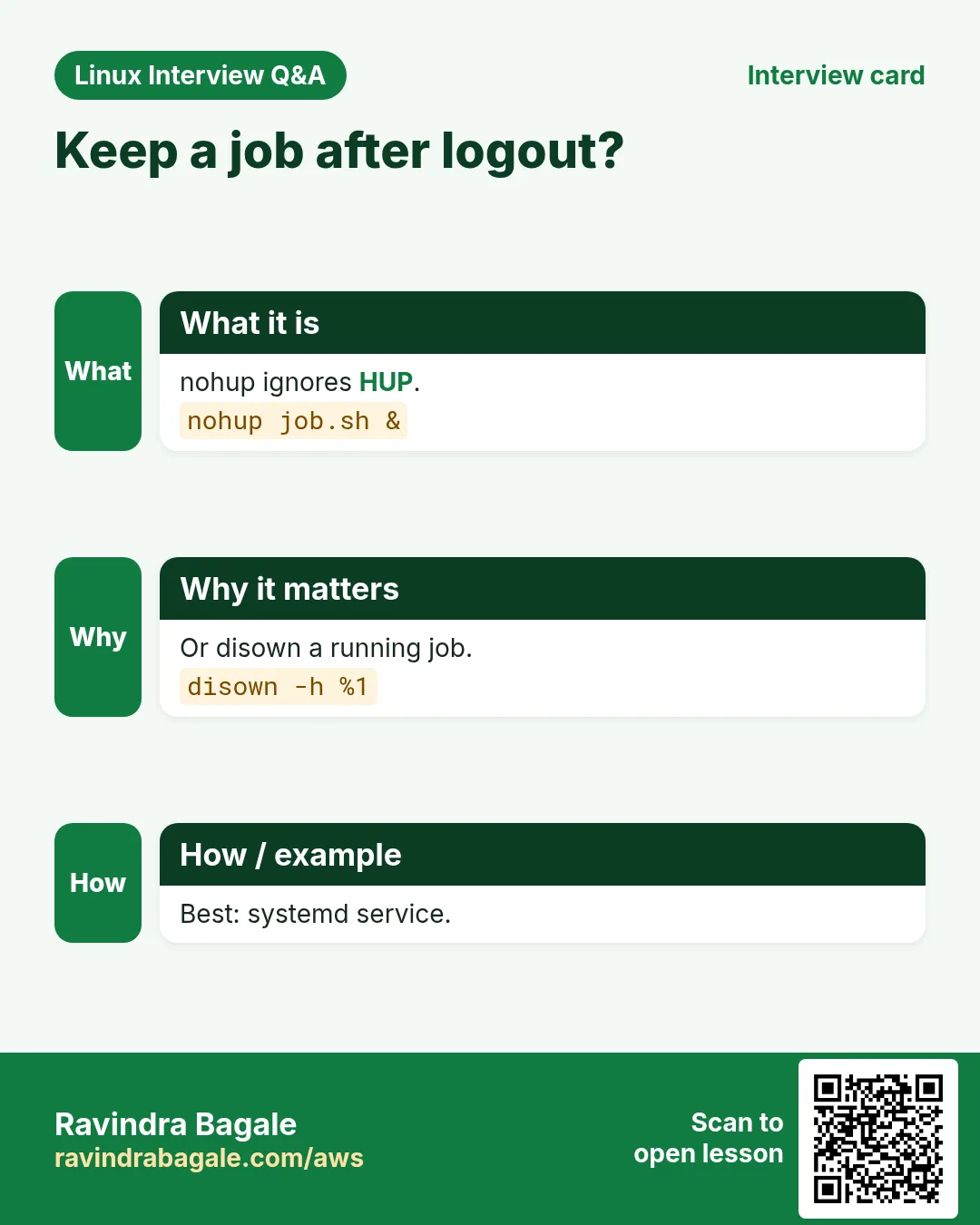
When the terminal closes, jobs get HUP and usually stop. nohup cmd & ignores HUP and writes output to nohup.out. disown removes a running job from the shell so HUP is not sent. setsid starts it in a new session. For real long-running work, prefer tmux or screen to reattach, or a systemd unit for services.
- nohup.
nohup ./migrate.sh > migrate.log 2>&1 &Output:
[1] 6012Safe from logout.
- Forgot nohup.
./long.sh & disown; exitKeeps running after exit.
- tmux way.
tmux new -s mig './migrate.sh'Detach Ctrl+B D, attach with tmux a -t mig.
7. Limit parallel jobs
Starting 500 downloads at once can crash your machine or get you blocked by the server.
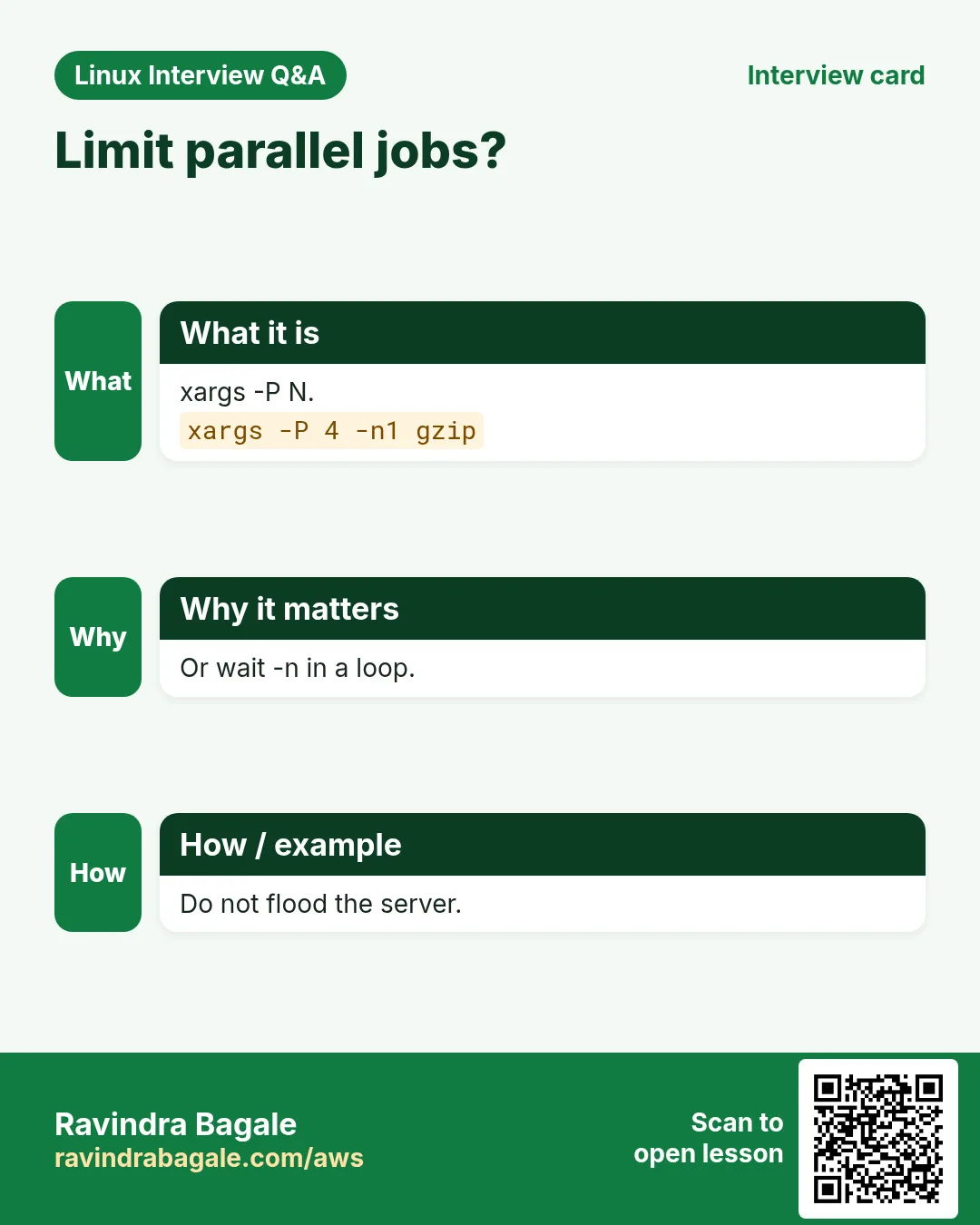
Keep at most N jobs running: before starting a new one, if jobs -rp shows N or more, wait -n for one to finish. xargs -P N is another simple way: it runs N at a time from a list. GNU parallel is more powerful if installed.
- Max 4 with wait -n.
while read -r u; do (( $(jobs -rp | wc -l) >= 4 )) && wait -n; curl -fsSO "$u" & done < urls.txt; waitNever more than 4.
- xargs -P.
xargs -P 4 -n 1 curl -fsSO < urls.txt4 at a time.
- Compress logs in parallel.
find /var/log/app -name '*.log' -mtime +1 -print0 | xargs -0 -P 3 -n 1 gzip3 gzip at once.
8. Only one copy: flock
A lock is a way for cooperating copies of a script to agree that only one is working on the shared report. Keep a separate lock file and hold the lock for the whole update. Try starting the lab script in two terminals while the first is still running. If you choose a nonblocking lock, the second copy should report that it could not acquire it and exit without touching the report. After the first process releases the lock, a third run should be able to enter. The lock file can remain present between runs.
If a cron job runs every 5 minutes but sometimes takes 7, two copies overlap and corrupt data.
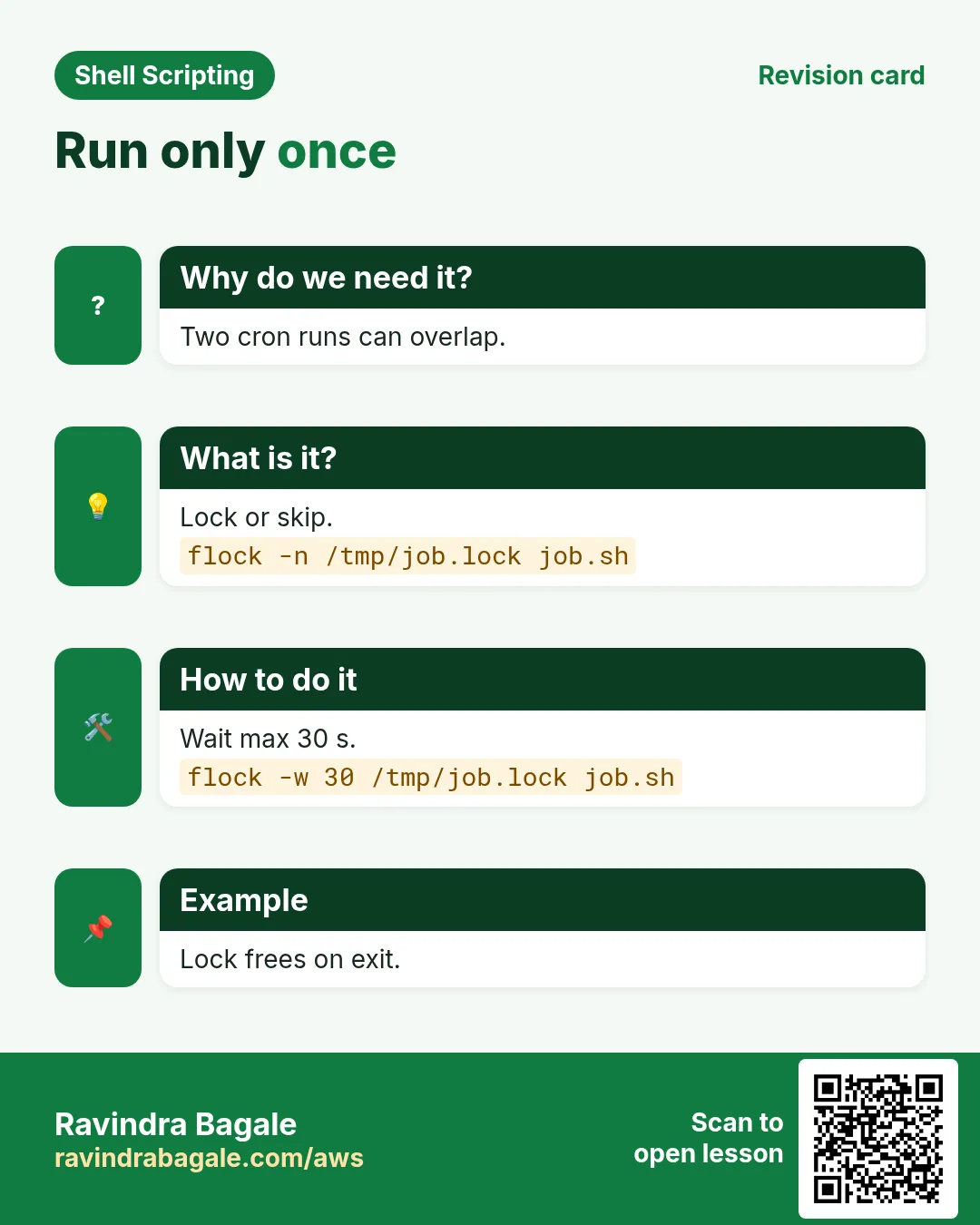
flock takes a lock on a file. flock -n /tmp/x.lock cmd runs cmd only if no one else holds the lock, else exits 1 at once. Without -n it waits; -w 30 waits up to 30 seconds. Inside a script use exec 9>/tmp/x.lock; flock -n 9 || exit 1, and the lock is released when the script ends, even on crash. This is much safer than checking if a pid file exists.
| Form | Behaviour |
|---|---|
| flock -n f cmd | skip if locked |
| flock f cmd | wait for lock |
| flock -w 30 f cmd | wait max 30 s |
| exec 9>f; flock -n 9 | lock whole script |
- In cron.
*/5 * * * * flock -n /tmp/sync.lock /opt/bin/sync.shOverlaps skipped.
- Second copy.
flock -n /tmp/sync.lock sleep 60 & sleep 1; flock -n /tmp/sync.lock echo hi; echo rc=$?Output:
rc=1Lock held by the first.
- Script header.
exec 9>/var/lock/backup.lock
flock -n 9 || { echo 'backup already running' >&2; exit 1; }
Output:
backup already runningAuto-released at exit.
- Wait with limit.
flock -w 30 /tmp/deploy.lock ./deploy.sh || echo 'gave up after 30s'Output:
gave up after 30sQueue for a short time.
9. Real examples from many industries
The same Linux skill shows up in every kind of company. Seeing it in many places helps you remember it.
Each row is a made-up team. It shows who uses this and how.
| Team and city | How they use it | Command |
|---|---|---|
| Kiran, stock broking, Mumbai | Single-copy price import every minute | flock -n /tmp/px.lock ./import.sh |
| Sarah, research lab, Boston | Clean scratch dirs on Ctrl+C | trap 'rm -rf "$tmp"' EXIT |
| Arjun, travel, Goa | Ping 50 hotels' APIs in parallel | xargs -P 10 -n 1 curl -fs |
| Chen, gaming, Shenzhen | Reload game server config | kill -HUP "$pid" |
| Maria, logistics, Madrid | Migration that survives logout | nohup ./migrate.sh & |
| Tejas, dairy co-op, Kolhapur | Line number on failure | trap 'echo line $LINENO' ERR |
10. Common errors and how to fix them
Everyone hits these errors. Knowing the cause saves hours.
Read the exact message first. Then match it to a row below.
| Error you see | Why it happens | How to fix |
|---|---|---|
Temp files left after Ctrl+C | No trap | Add trap cleanup EXIT.trap 'rm -rf "$tmp"' EXIT |
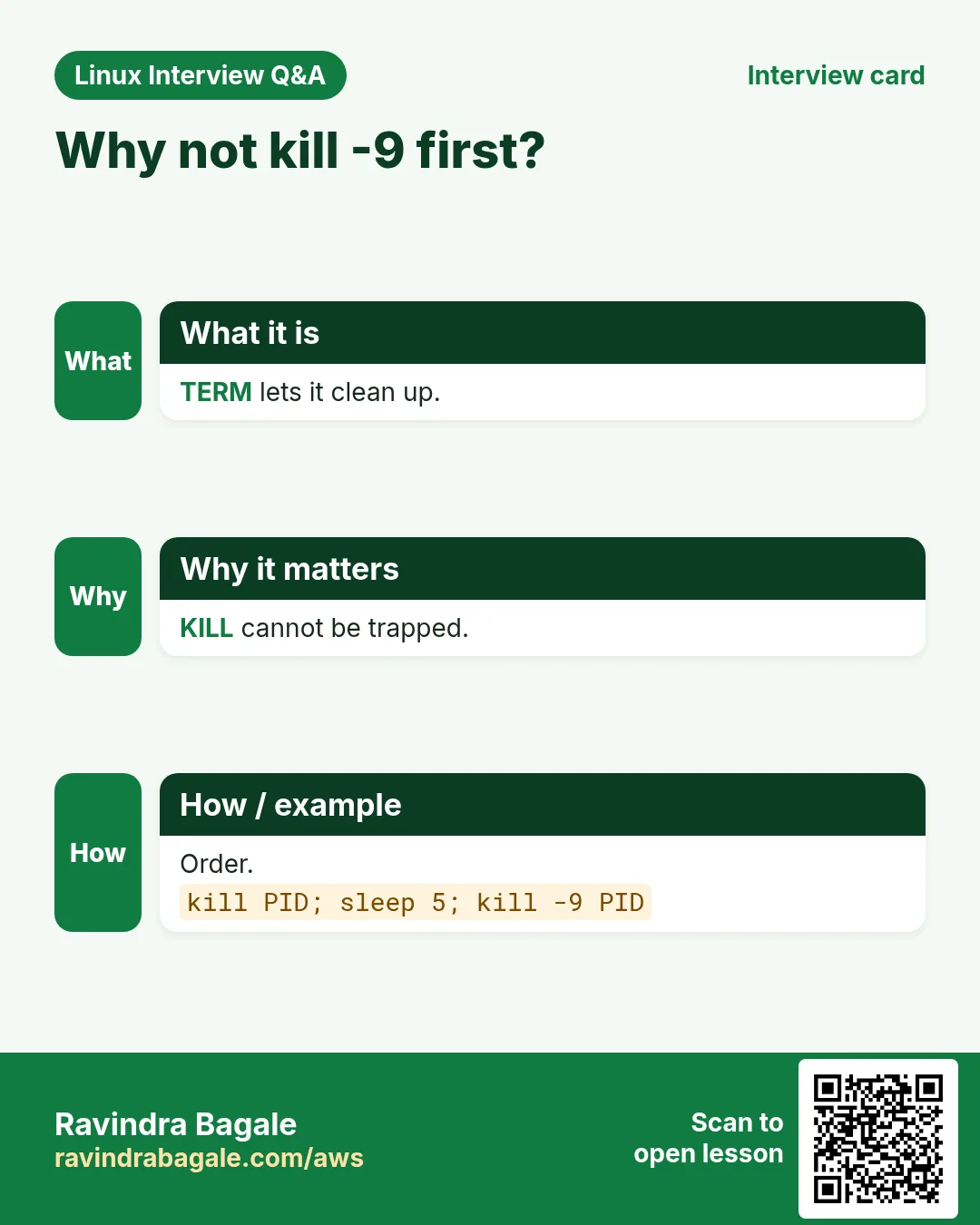
Process ignores kill | Catches TERM or stuck in D state | Wait, then -9 as last resort.kill -9 PID |
Job died after SSH dropped | HUP on logout | Use nohup or tmux.nohup ./job.sh & |
Two cron runs corrupt data | Overlap | Use flock -n.flock -n /tmp/j.lock ./j.sh |
wait: pid is not a child of this shell | Job started in another shell | wait only on your own jobs.wait $! |
Script reports success though a background job failed | Plain wait returns 0 | wait each pid and check.wait "$p" || fail=1 |
flock: command not found | util-linux missing | Install util-linux.sudo dnf install -y util-linux |
Trap shows old value | Double quotes expanded early | Use single quotes.trap 'echo $x' EXIT |
Machine slow after loop | Too many parallel jobs | Limit with wait -n or xargs -P.xargs -P 4 |
11. Troubleshooting step by step
When jobs vanish, hang or overlap, look at processes, signals and locks.
Go top to bottom. Stop at the first step that shows the problem.
- List jobs.
jobs -l- Find process.
pgrep -af sync.sh- Process tree.
ps -ef --forest | grep -A3 sync- Who holds the lock?
sudo lsof /tmp/sync.lock- Show traps.
trap -p- Exit code.
wait $!; echo $?12. Lab 1: trap cleanup and Ctrl+C handling
Write a script that makes a temp folder, does slow work and always removes the folder, whether it ends normally or you press Ctrl+C.
A full hands-on lab. Run every step on a test Linux machine (an EC2 instance, a VM, or WSL).
- Script.
cat > ~/slow.sh <<'X'
#!/usr/bin/env bash
set -euo pipefail
tmp=$(mktemp -d)
cleanup(){ rm -rf "$tmp"; echo "cleaned $tmp"; }
trap cleanup EXIT
trap 'echo "stopped by user" >&2; exit 130' INT TERM
for i in 1 2 3 4 5; do echo "step $i" > "$tmp/s$i"; sleep 2; done
echo done
X
chmod +x ~/slow.sh- Normal run.
~/slow.shOutput:
done
cleaned /tmp/tmp.Ab12Cd- Press Ctrl+C.
~/slow.sh # Ctrl+C after 3 s; echo rc=$?Output:
^Cstopped by user
cleaned /tmp/tmp.Xy34Zq
rc=130- From another terminal.
~/slow.sh & sleep 3; kill $!; wait $!; echo rc=$?Output:
stopped by user
cleaned /tmp/tmp.Pq56Rs
rc=130- No temp left.
ls -d /tmp/tmp.* 2>/dev/null | wc -lOutput:
013. Lab 2: Parallel jobs with a flock guard
Run 6 fake jobs, at most 3 at a time, protect the whole script with flock, and prove a second copy is refused.
A full hands-on lab. Run every step on a test Linux machine (an EC2 instance, a VM, or WSL).
- Script.
cat > ~/par.sh <<'X'
#!/usr/bin/env bash
exec 9>/tmp/par.lock
flock -n 9 || { echo 'already running' >&2; exit 1; }
for i in 1 2 3 4 5 6; do
  (( $(jobs -rp | wc -l) >= 3 )) && wait -n
  ( sleep 2; echo "job $i done" ) &
done
wait; echo all done
X
chmod +x ~/par.sh- Time it.
time ~/par.shOutput:
job 1 done
job 2 done
job 3 done
job 4 done
job 5 done
job 6 done
all done
real 0m4.0s- Two copies.
~/par.sh & sleep 0.5; ~/par.sh; echo rc=$?; waitOutput:
already running
rc=1- Clean.
rm ~/par.sh /tmp/par.lockRavindra Bagale's Tip
Put three lines at the top of every long or scheduled script: a flock guard, a mktemp temp folder, and trap cleanup EXIT. Then use kill (TERM) before kill -9, and wait on each background PID so a hidden failure never looks like success.
Ravindra Bagale's Tip – मराठी
प्रत्येक long किंवा scheduled script च्या वर तीन lines ठेवा: flock guard, mktemp temp folder आणि trap cleanup EXIT. मग kill -9 आधी kill (TERM) वापरा, आणि प्रत्येक background PID वर wait करा म्हणजे लपलेलं failure कधी success सारखं दिसणार नाही.
Ravindra Bagale's Tip – हिंदी
हर long या scheduled script के ऊपर तीन lines रखिए: flock guard, mktemp temp folder और trap cleanup EXIT. फिर kill -9 से पहले kill (TERM) इस्तेमाल कीजिए, और हर background PID पर wait कीजिए ताकि छिपा failure कभी success जैसा न दिखे.
14. Frequently asked questions
Q. Can I trap KILL?
No, nor STOP.
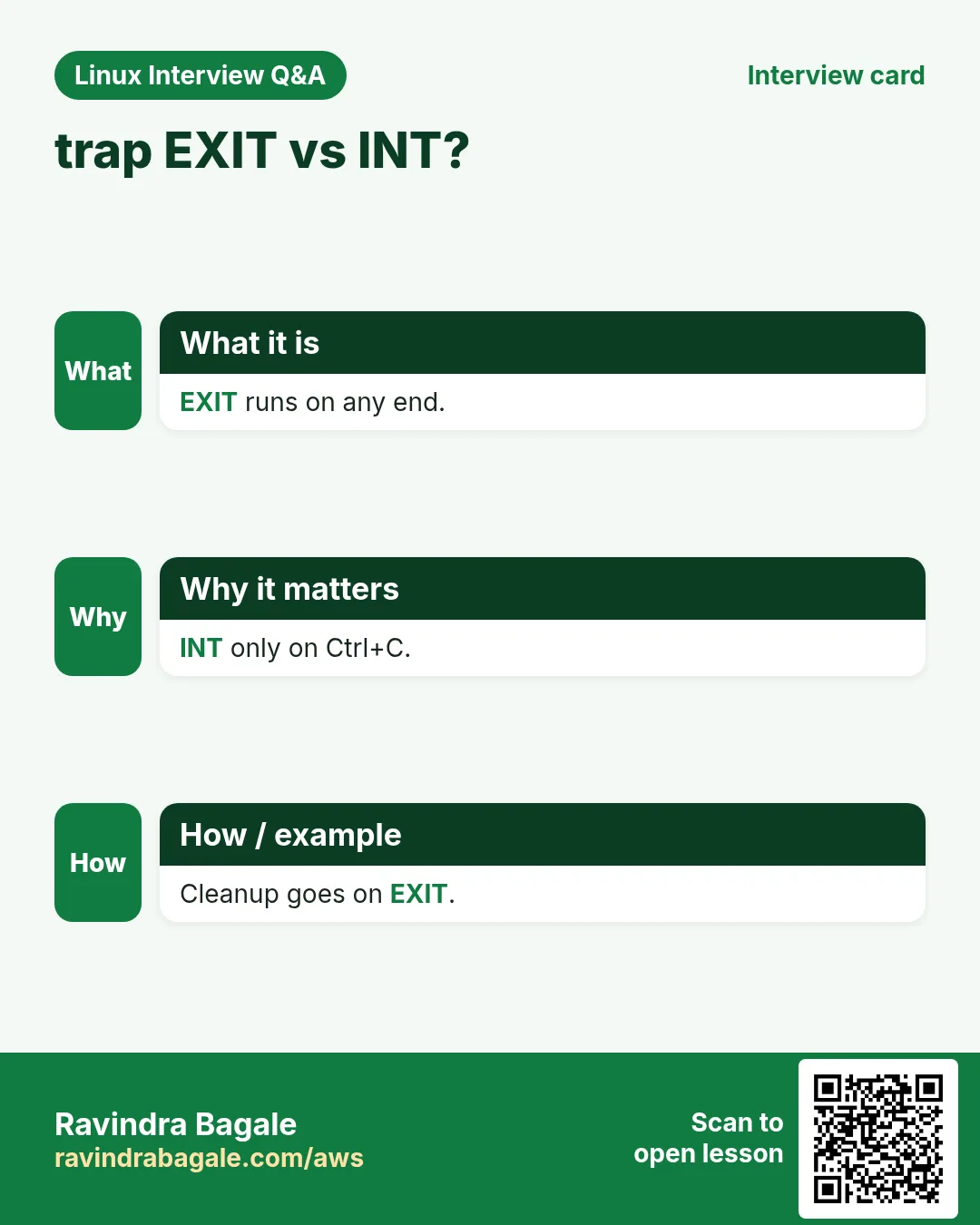
Q. EXIT vs INT trap?
EXIT runs on every end.
Q. What is $!?
PID of the last background job.
Q. Is flock lock removed on crash?
Yes, released by the kernel.
Q. nohup vs tmux?
tmux lets you reattach.
Q. Why exit 130?
128+2 for INT.
Q. wait -n needs?
bash 4.3+.
Q. flock on NFS?
Avoid; use local disk.
15. Interview questions and answers
Beginner level
Q. Ctrl+C sends?
INT.
Q. Run in background?
Add &.
Q. Default kill signal?
TERM 15.
Q. List jobs?
jobs.
Mid level level
Q. Cleanup on any exit?
trap cleanup EXIT.
Q. Survive logout?
nohup or tmux.
Q. Stop cron overlap?
flock -n.
Q. Wait for all jobs?
wait.
Senior level
Q. Why flock over pid files?
Atomic and auto-released.
Q. Detect a failed background job?
wait each PID and check codes.
Q. Find failing line?
trap ERR with $LINENO and set -E.
Q. Graceful shutdown order?
TERM, wait, then KILL.
Try at home
- Write a script that downloads 10 images with at most 3 at a time and prints how many failed.
- Add a trap to one of your old scripts so its temp files are always removed.
Practise this chapter
Interview questions and answers
How do you prove a scheduled job’s lock is really held through the update?
Start two disposable copies while the first is active. The second should report contention without touching shared output. When the first finishes, try one more run and check it can acquire the lock. Keep the lock file separate from the output and agree to use it in every copy.
Check your understanding
Choose an answer, then compare your reasoning with the explanation.
Practice Tasks
Practice checks run in your browser. They check the answer for this exercise; they do not create resources or connect to your AWS account.
About this scenarioAmravati Agro Market is a agriculture business in Amravati. Anjali Thakre looks after its IT and cloud work. They count money in INR and run their AWS resources in the ap-south-1 Region. In the tasks below you do real jobs for them using what this lesson teaches. All names, account IDs, IP addresses and numbers are made up for practice.
0 / 21
Easy Cleanup trap
BIZ jobs must clean up and never run twice at once.
Anjali Thakre at Amravati Agro Market created a temp folder in variable work. Remove it automatically when the script ends.
- Find the Linux command that does this job.
- Add the options (like -r or -h) the task needs.
- Add the file names, folders or users in the right order.
- Use sudo if the job changes system files or users. Click Check answer.
Easy Temp folder
BIZ jobs must clean up and never run twice at once.
Create a safe temp folder and store its path in work.
- Find the Linux command that does this job.
- Add the options (like -r or -h) the task needs.
- Add the file names, folders or users in the right order.
- Use sudo if the job changes system files or users. Click Check answer.
Easy List signals
BIZ jobs must clean up and never run twice at once.
Print the name of signal number 15.
- Find the Linux command that does this job.
- Add the options (like -r or -h) the task needs.
- Add the file names, folders or users in the right order.
- Use sudo if the job changes system files or users. Click Check answer.
Easy Polite stop
BIZ jobs must clean up and never run twice at once.
Ask process 5150 to stop politely with SIGTERM.
- Find the Linux command that does this job.
- Add the options (like -r or -h) the task needs.
- Add the file names, folders or users in the right order.
- Use sudo if the job changes system files or users. Click Check answer.
Easy List jobs
BIZ jobs must clean up and never run twice at once.
Print only the PIDs of the background jobs of this shell.
- Find the Linux command that does this job.
- Add the options (like -r or -h) the task needs.
- Add the file names, folders or users in the right order.
- Use sudo if the job changes system files or users. Click Check answer.
Easy Wait for all
BIZ jobs must clean up and never run twice at once.
Wait only for the background job with PID 5150.
- Find the Linux command that does this job.
- Add the options (like -r or -h) the task needs.
- Add the file names, folders or users in the right order.
- Use sudo if the job changes system files or users. Click Check answer.
Easy Own PID
BIZ jobs must clean up and never run twice at once.
Print the PID of the current shell.
- Find the Linux command that does this job.
- Add the options (like -r or -h) the task needs.
- Add the file names, folders or users in the right order.
- Use sudo if the job changes system files or users. Click Check answer.
Easy Find PID by name
BIZ jobs must clean up and never run twice at once.
Find the PIDs of processes named nginx.
- Find the Linux command that does this job.
- Add the options (like -r or -h) the task needs.
- Add the file names, folders or users in the right order.
- Use sudo if the job changes system files or users. Click Check answer.
Easy Foreground
BIZ jobs must clean up and never run twice at once.
Bring job number 2 to the foreground.
- Find the Linux command that does this job.
- Add the options (like -r or -h) the task needs.
- Add the file names, folders or users in the right order.
- Use sudo if the job changes system files or users. Click Check answer.
Easy Pause
BIZ jobs must clean up and never run twice at once.
Pause the script for 5 seconds.
- Find the Linux command that does this job.
- Add the options (like -r or -h) the task needs.
- Add the file names, folders or users in the right order.
- Use sudo if the job changes system files or users. Click Check answer.
Medium Catch Ctrl+C
BIZ jobs must clean up and never run twice at once.
Make the script print stopped by user and exit 130 on Ctrl+C.
- Find the Linux command that does this job.
- Add the options (like -r or -h) the task needs.
- Add the file names, folders or users in the right order.
- Use sudo if the job changes system files or users. Click Check answer.
Medium Ignore hangup
BIZ jobs must clean up and never run twice at once.
Make the current script ignore SIGHUP.
- Find the Linux command that does this job.
- Add the options (like -r or -h) the task needs.
- Add the file names, folders or users in the right order.
- Use sudo if the job changes system files or users. Click Check answer.
Medium Force kill
BIZ jobs must clean up and never run twice at once.
Force-kill process 4321 which ignores TERM.
- Find the Linux command that does this job.
- Add the options (like -r or -h) the task needs.
- Add the file names, folders or users in the right order.
- Use sudo if the job changes system files or users. Click Check answer.
Medium Last background PID
BIZ jobs must clean up and never run twice at once.
Print the PID of the last background job.
- Find the Linux command that does this job.
- Add the options (like -r or -h) the task needs.
- Add the file names, folders or users in the right order.
- Use sudo if the job changes system files or users. Click Check answer.
Medium Lock or skip
BIZ jobs must clean up and never run twice at once.
Run backup.sh under lock file /tmp/backup.lock, skipping immediately if it is already locked.
- Find the Linux command that does this job.
- Add the options (like -r or -h) the task needs.
- Add the file names, folders or users in the right order.
- Use sudo if the job changes system files or users. Click Check answer.
Medium Time limit
BIZ jobs must clean up and never run twice at once.
Run report.sh but kill it if it runs longer than 60 seconds.
- Find the Linux command that does this job.
- Add the options (like -r or -h) the task needs.
- Add the file names, folders or users in the right order.
- Use sudo if the job changes system files or users. Click Check answer.
Medium Reload by name
BIZ jobs must clean up and never run twice at once.
Send SIGHUP to processes named nginx by name.
- Find the Linux command that does this job.
- Add the options (like -r or -h) the task needs.
- Add the file names, folders or users in the right order.
- Use sudo if the job changes system files or users. Click Check answer.
Medium Remove trap
BIZ jobs must clean up and never run twice at once.
Remove any trap set on INT so Ctrl+C works normally again.
- Find the Linux command that does this job.
- Add the options (like -r or -h) the task needs.
- Add the file names, folders or users in the right order.
- Use sudo if the job changes system files or users. Click Check answer.
Hard Wait up to 30s
BIZ jobs must clean up and never run twice at once.
Run sync.sh under lock /tmp/sync.lock, waiting at most 30 seconds for the lock.
- Find the Linux command that does this job.
- Add the options (like -r or -h) the task needs.
- Add the file names, folders or users in the right order.
- Use sudo if the job changes system files or users. Click Check answer.
Hard Disown
BIZ jobs must clean up and never run twice at once.
Keep job 2 in the list but stop the shell sending it SIGHUP on logout.
- Find the Linux command that does this job.
- Add the options (like -r or -h) the task needs.
- Add the file names, folders or users in the right order.
- Use sudo if the job changes system files or users. Click Check answer.
Hard Parallel 4
BIZ jobs must clean up and never run twice at once.
Gzip all .log files in this folder 4 at a time using xargs.
- Find the Linux command that does this job.
- Add the options (like -r or -h) the task needs.
- Add the file names, folders or users in the right order.
- Use sudo if the job changes system files or users. Click Check answer.
16. Related chapters
- Linux Ops Refresh for DevOps
- Bash Scripting for Automation
- Linux grep and find Commands with Examples
- How to Set Up Passwordless SSH Between Linux Servers
In short
- TERM polite, KILL force, INT is Ctrl+C.
- trap cleanup EXIT always.
- trap ERR with $LINENO.
- & and wait; check each PID.
- nohup, disown, tmux for long work.
- flock -n for one copy.
Revision, comparison and interview cards
Revise this lesson in a few minutes. Save the cards on your phone or download them as PNG files. The QR code on each card opens this lesson.
More cards: Ravi Sir's Cards.