Shell Scripting Complete 3: Script Input with Arguments, $@, shift, read and getopts
A script becomes useful when it can take input: a file name, a server, a number of days. This chapter shows the three ways a script gets input: from the user with read, from the command line with $1, $2, $@ and shift, and as options like -v or -d DIR with getopts. You will also learn to print a usage message, check input, read passwords safely and read from a pipe or a here-document.
In this chapter
- Ask the user with read -p, -s and -t
- Use $1, $#, $@ and shift
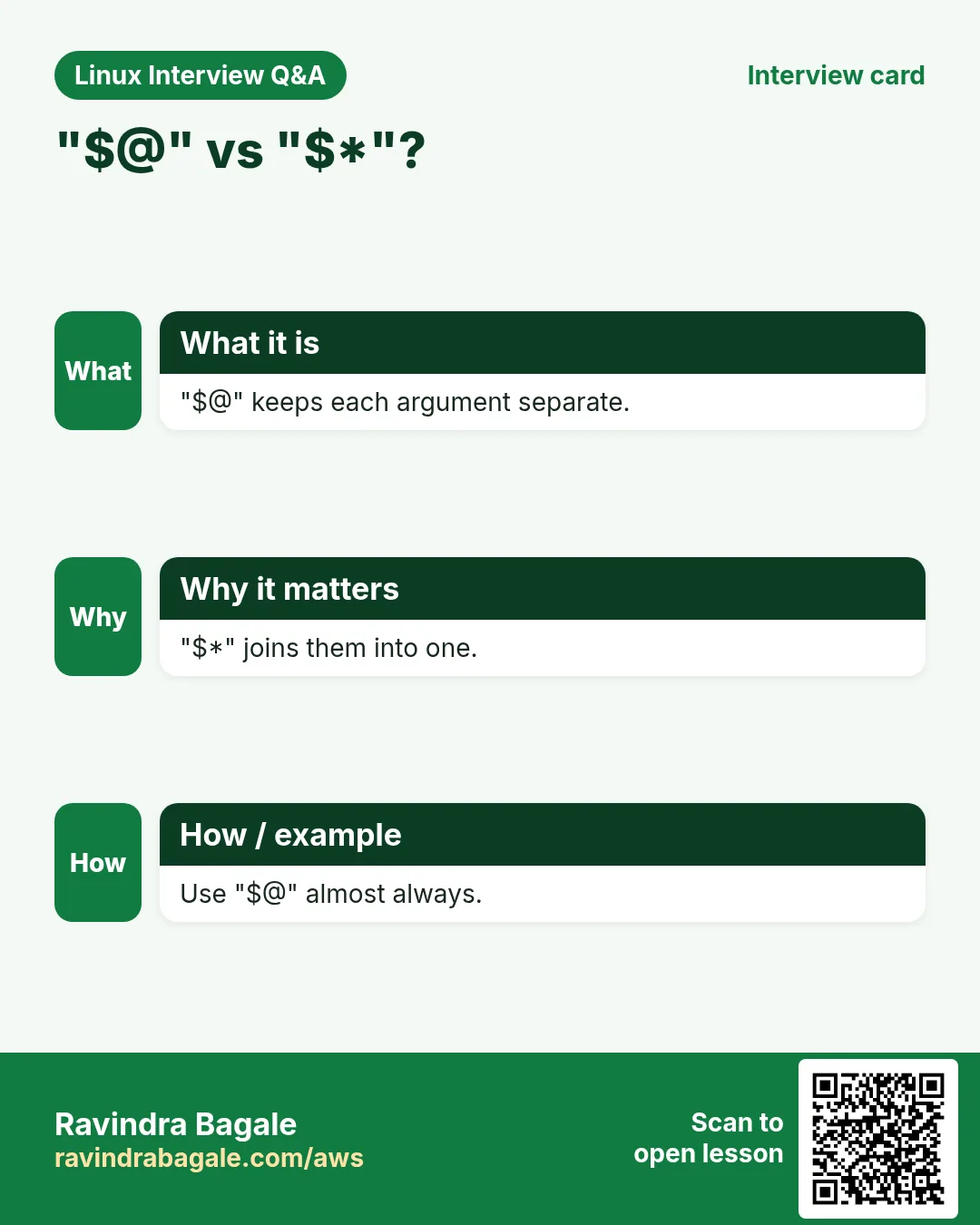
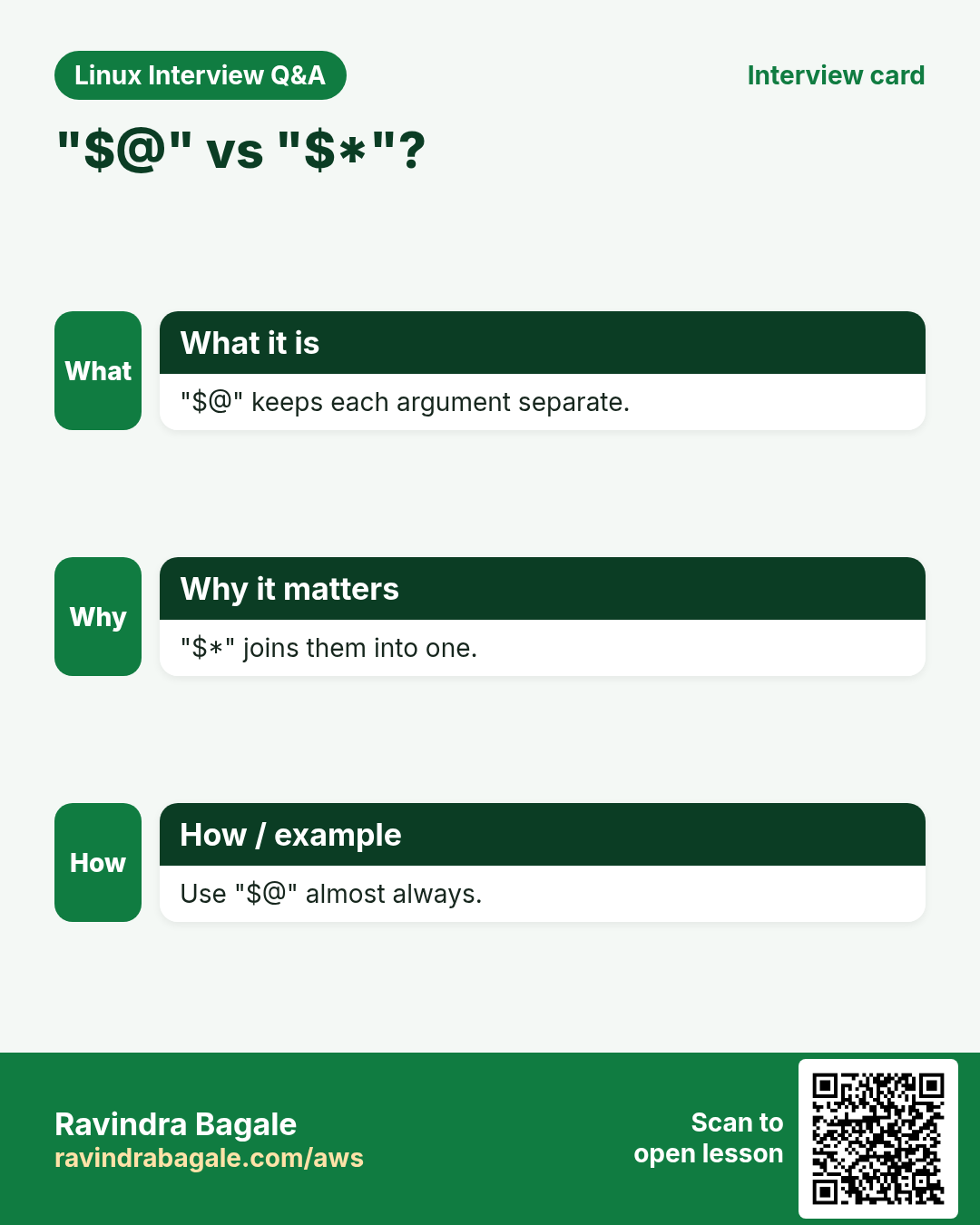
- Know "$@" vs "$*"
- Parse options with getopts
- Print usage and validate input
- Read from stdin, pipes and here-docs
1. An everyday example: ordering at a chai stall
At a chai stall you can order in three ways. You can wait for the owner to ask 'kiti?' and answer (read). You can say everything at once, 'two cutting, one without sugar' (arguments). Or you can use the menu codes, 'C2 -S' (options). A good stall understands all three and tells you the menu if you say something wrong.
Owner asks = read. Saying it all at once = $1 $2. Count of items = $#. Menu codes = getopts options. Showing the menu = usage message. Wrong order = exit 2.
2. read: ask the user
Some scripts need a value only a person can give, like a ticket number or a yes/no.
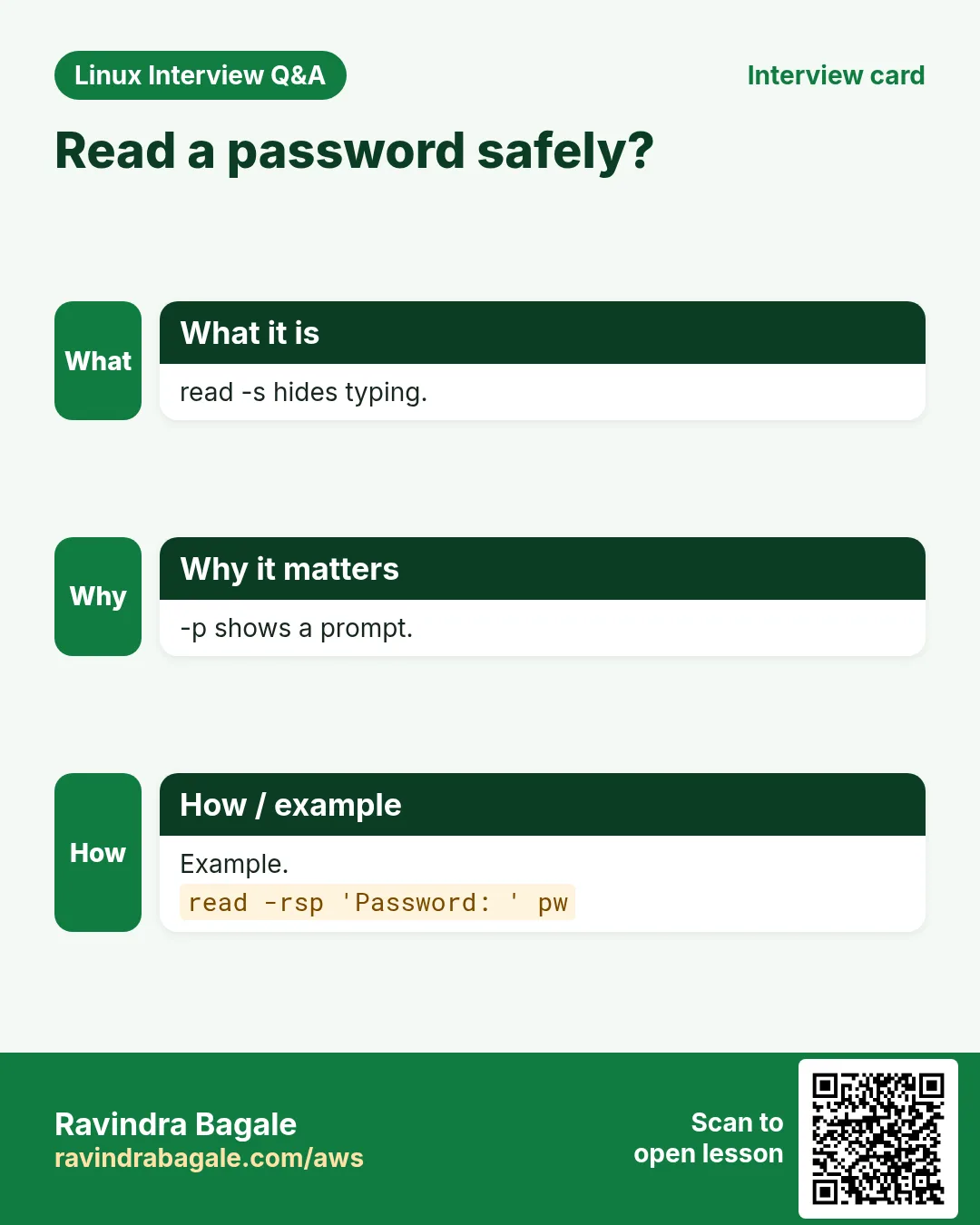
read name waits for a line and stores it in name. -p 'text' shows a prompt. -r keeps backslashes as typed (always use it). -s hides typing (passwords). -t 10 gives up after 10 seconds. -n 1 reads one key. With several names, words go to each and the rest to the last. With no name, the line goes to $REPLY.
| Option | Does |
|---|---|
| -p TEXT | show a prompt |
| -r | raw, keep backslashes |
| -s | silent, hide input |
| -t N | timeout in seconds |
| -n N | read N characters |
| -a ARR | words into an array |
- Ask a name.
read -rp 'Your city: ' city; echo "Hello from $city"Output:
Your city: Nashik
Hello from Nashik
The typed text went into city.
- Two values at once.
read -rp 'First Last: ' first last; echo "$last, $first"Output:
First Last: Sachin Tendulkar
Tendulkar, Sachin
Words split on spaces.
- Hidden password.
read -rsp 'DB password: ' pw; echo; echo "got ${#pw} chars"Output:
DB password:
got 9 chars
Nothing was shown while typing.
- Timeout.
read -t 5 -rp 'Continue? ' ans || echo ' no answer, using default'Output:
Continue? no answer, using defaultread returns non-zero on timeout.
3. Yes/no confirmation before danger
Deleting, restarting or deploying should ask first, so a slip of the finger does not cause an outage.
Read one answer, lower-case it, and continue only on y or yes. Treat everything else (including Enter) as no. Allow a -y option (taught below) so automation can skip the question.
- Confirm.
read -rp 'Restart nginx? [y/N] ' a; [[ ${a,,} == y* ]] && echo restarting || echo cancelledOutput:
Restart nginx? [y/N] N
cancelled
Default is No.
- One key.
read -n1 -rp 'Press any key to go on...'; echoOutput:
Press any key to go on...Waits for a single key.
- Not a terminal?
[ -t 0 ] && echo interactive || echo 'no tty, skip questions'Output:
interactiveIn cron [ -t 0 ] is false, so do not ask.
4. Positional arguments: $1, $2, $#, $0
Imagine ./greet.sh "Asha Rao" Mumbai. The command name goes in $0, the quoted name is one argument in $1, and Mumbai goes in $2. $# is 2. Test with a print statement that surrounds each argument with brackets, then take the quotes away and compare. The change happens before the script receives the arguments. Once you can see it, it is easier to diagnose why an unquoted full name ended up taking two positions.
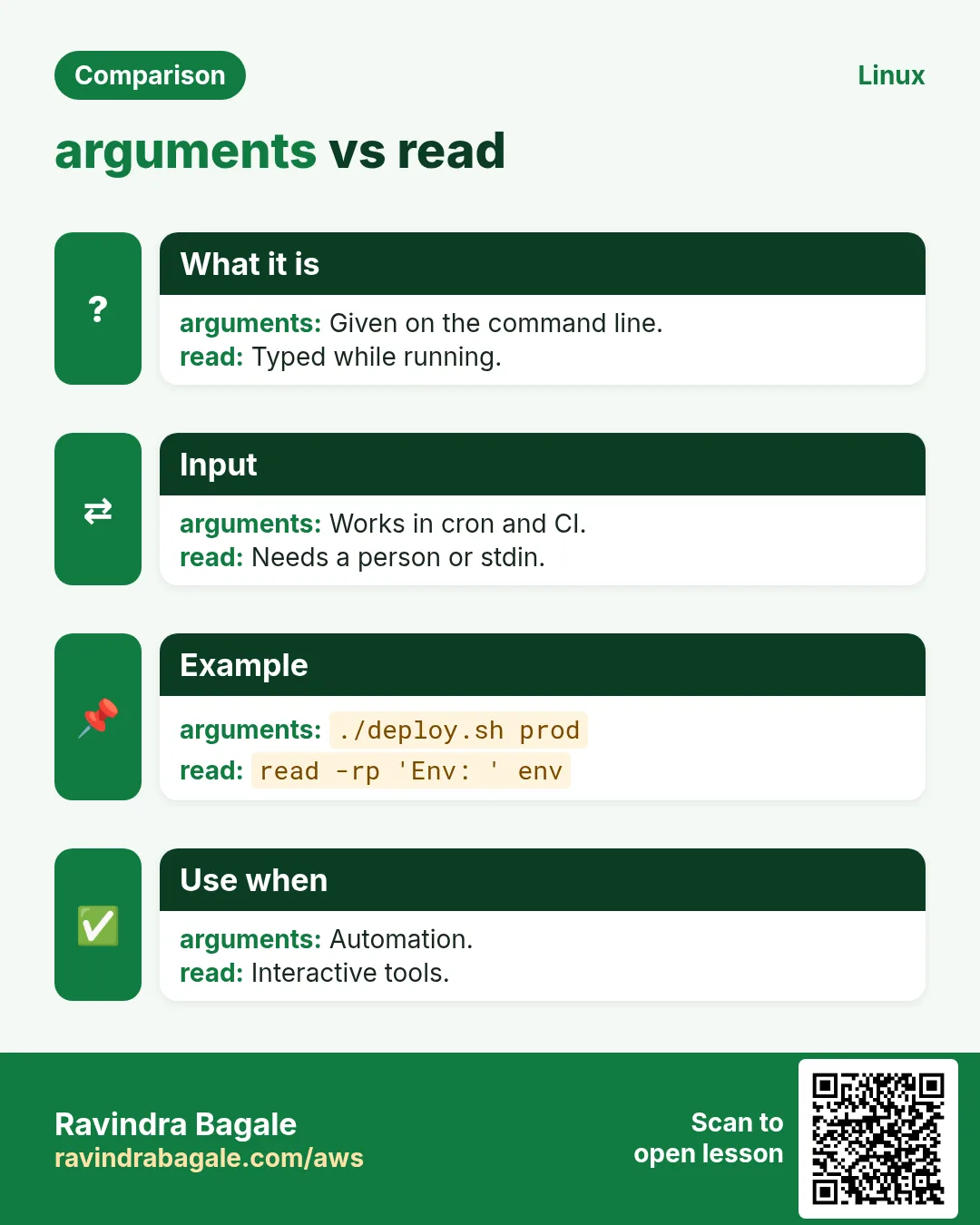
Arguments let other people and cron run your script without questions: ./deploy.sh shop prod.
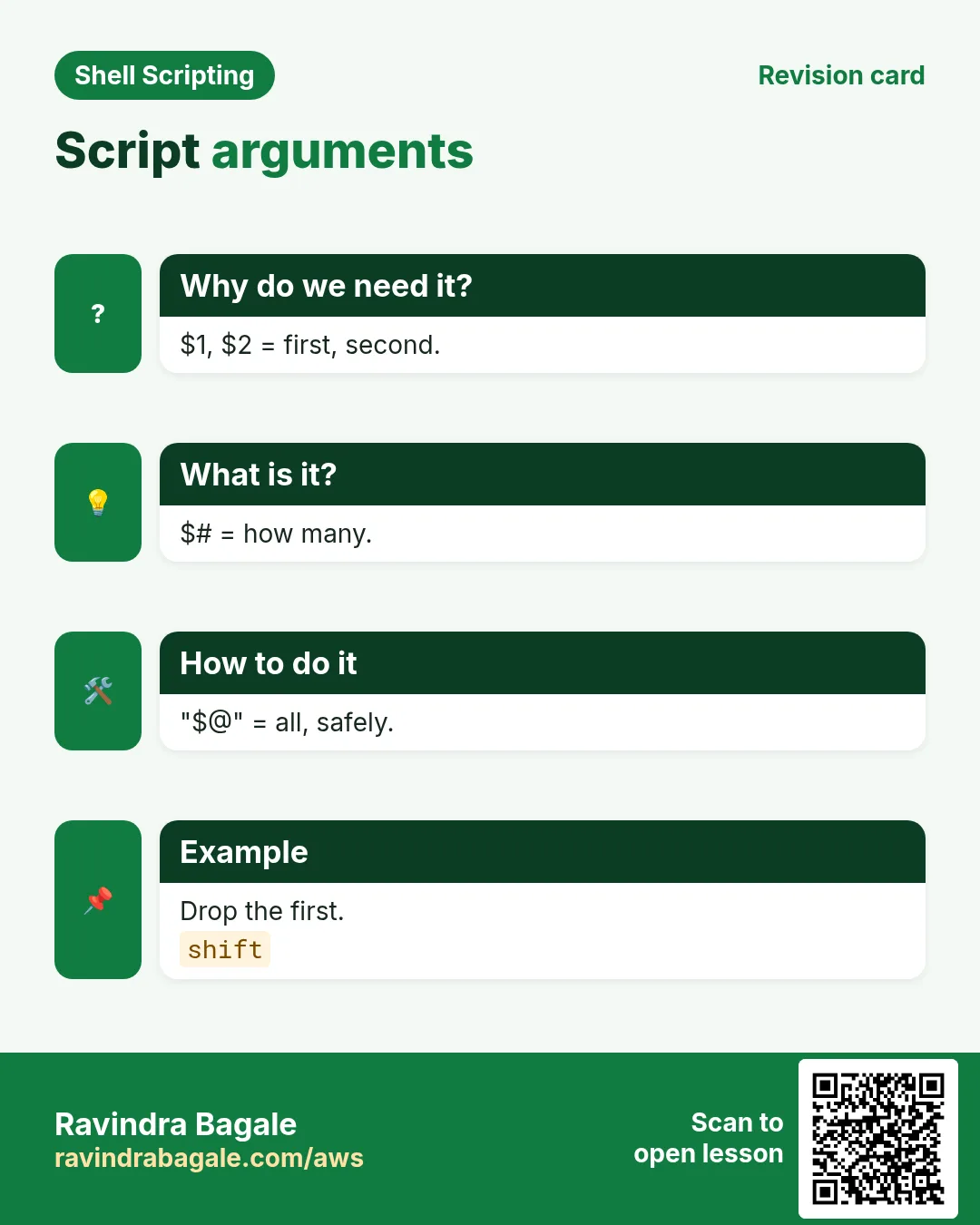
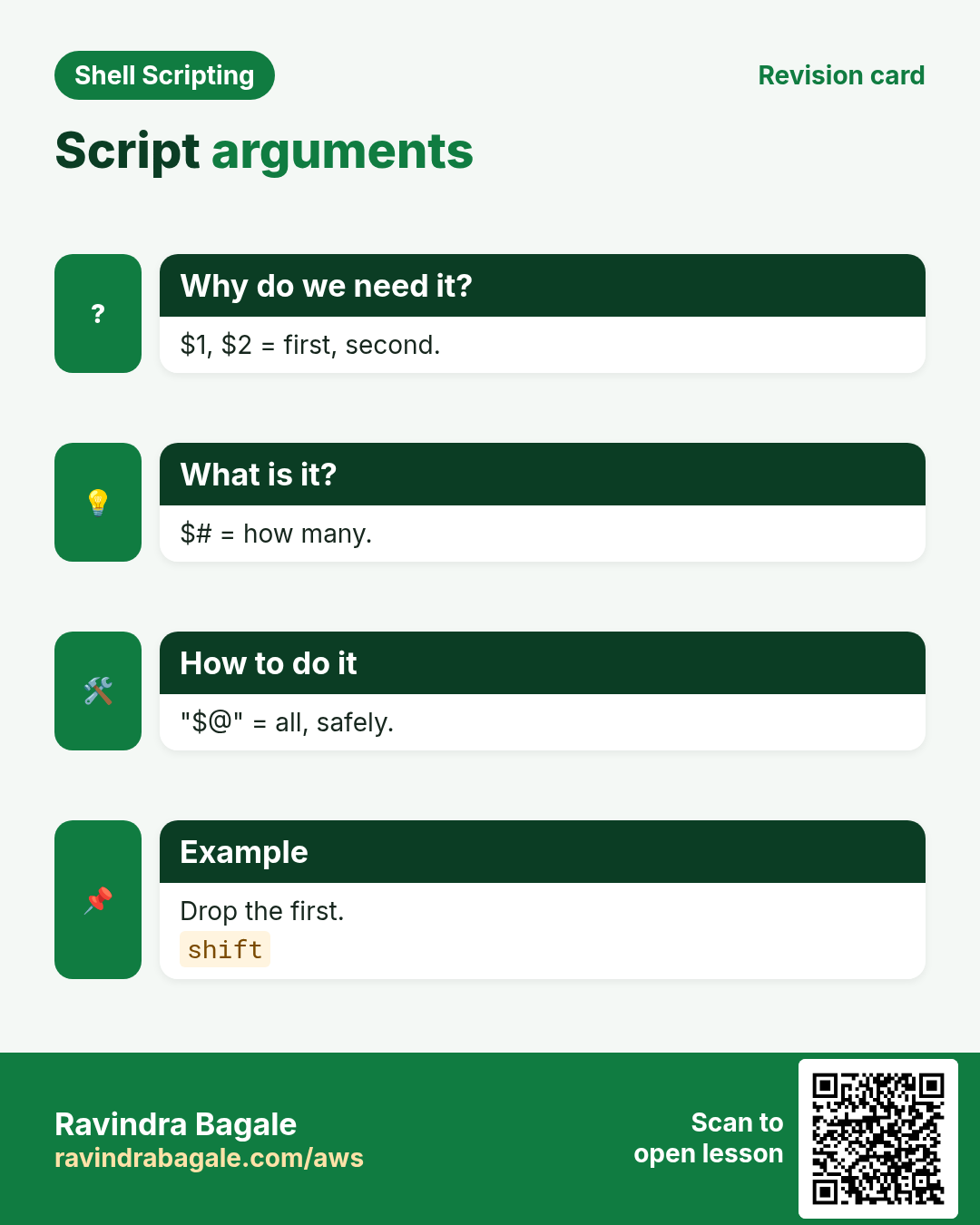
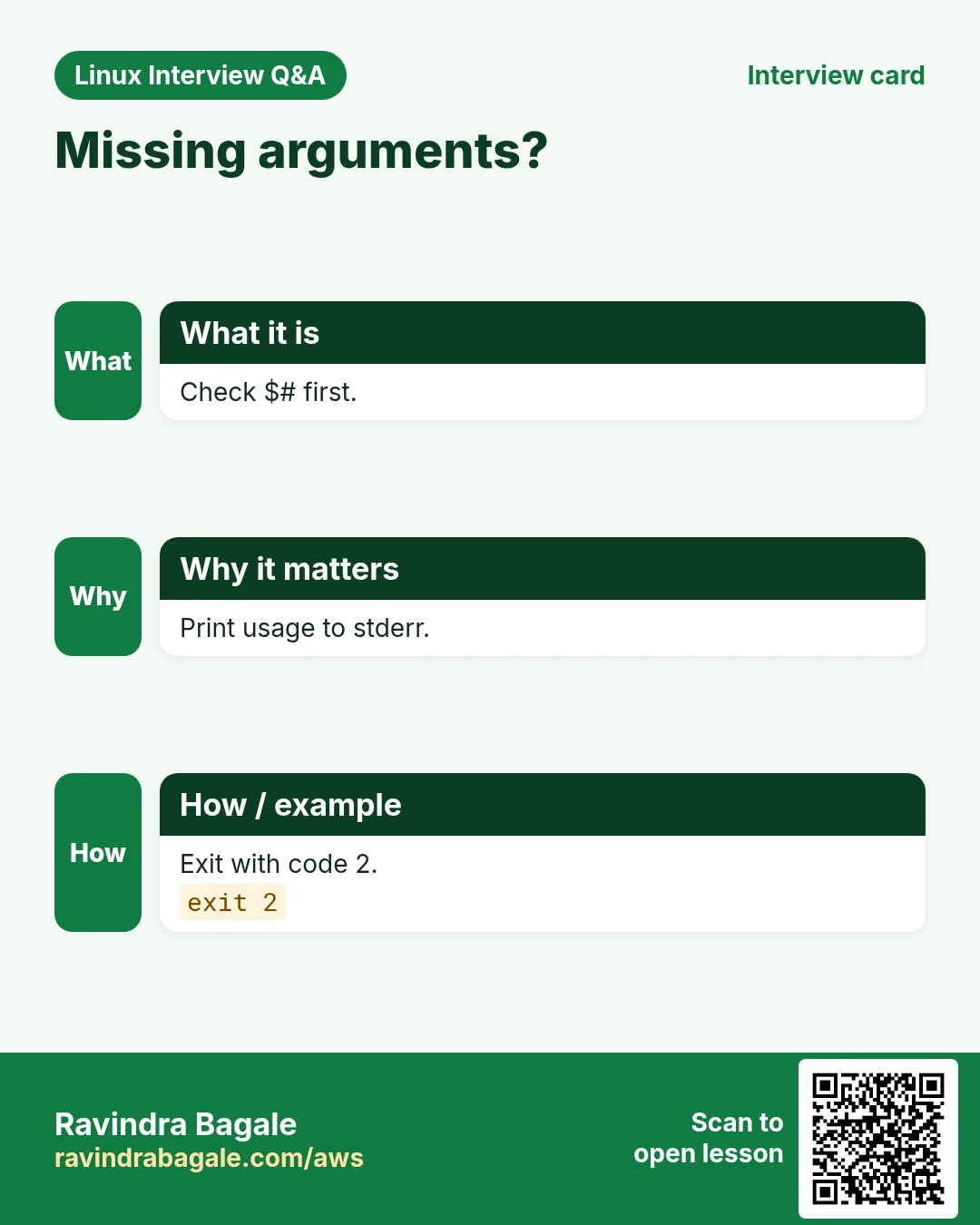
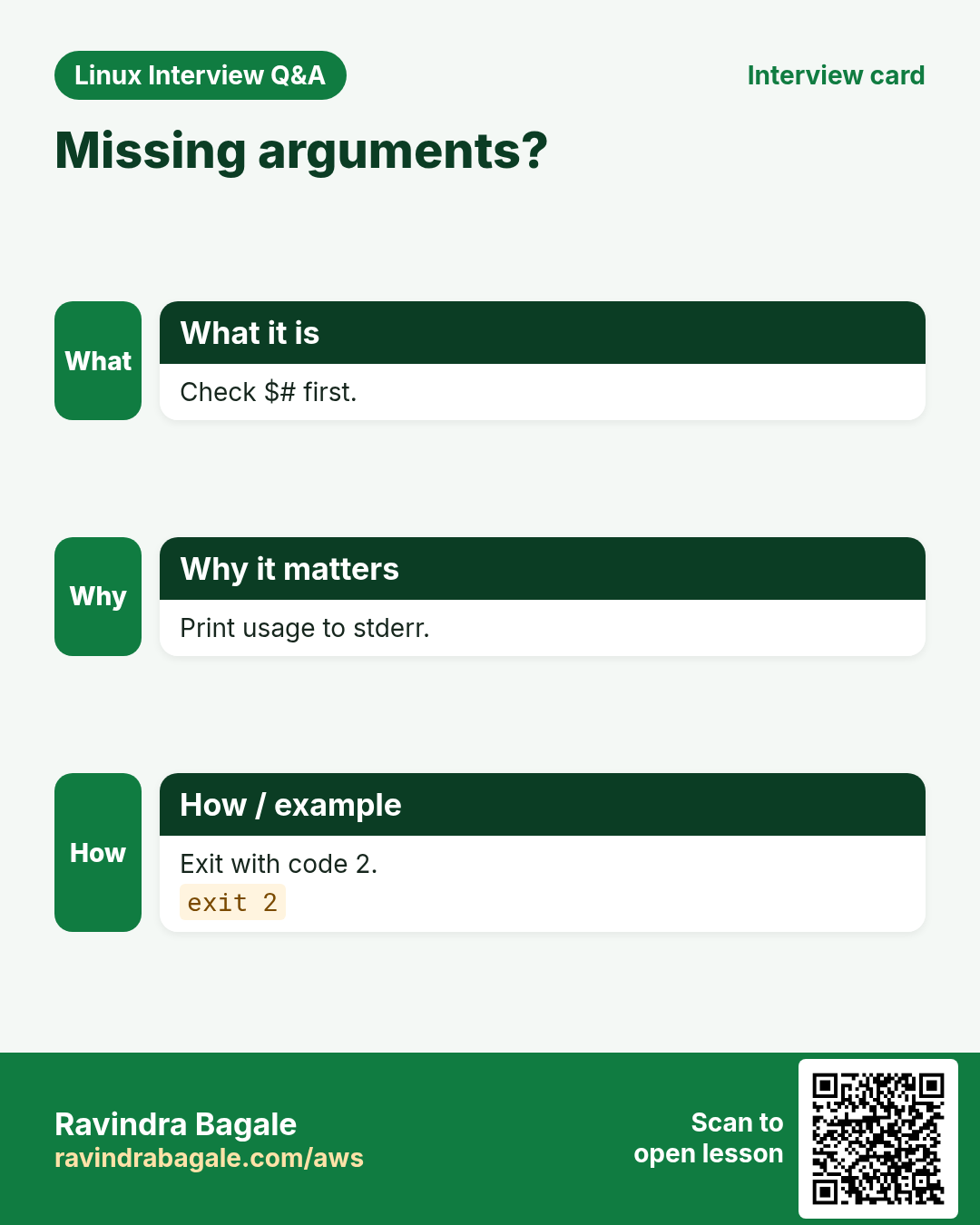
Words after the script name become $1, $2 ... ${10} (braces from 10). $# is how many there are. $0 is the script name. Arguments with spaces must be quoted by the caller: ./s.sh "my file". Check $# first and stop with a usage message when something is missing.
- See them.
printf '#!/bin/bash\necho "script=$0 count=$# first=$1 second=$2"\n' | tee args.sh && bash args.sh shop prodOutput:
script=args.sh count=2 first=shop second=prodEach word got a number.
- Quoted argument.
bash args.sh "Pune Camp" eastOutput:
script=args.sh count=2 first=Pune Camp second=eastQuotes kept 'Pune Camp' as one.
- Usage check.
bash -c '[ $# -ge 1 ] || { echo "usage: $0 FILE"; exit 2; }; echo ok' myscriptOutput:
usage: myscript FILEWith bash -c the first word after the code becomes $0.
- Tenth argument.
set -- a b c d e f g h i j; echo "${10}"Output:
jset -- sets the arguments; ${10} needs braces.
5. "$@" vs "$*" and passing arguments on
Wrappers and loops over arguments break on spaces unless you use the right form.
"$@" expands to every argument as a separate, quoted word. It is what you want 99% of the time. "$*" joins all arguments into one string with a space (the first char of IFS). Unquoted $@ and $* split on spaces again, so avoid them. To pass all arguments to another command: other_cmd "$@".
| Form | With args: 'a b' c | Gives |
|---|---|---|
| "$@" | 2 words | [a b] [c] |
| "$*" | 1 word | [a b c] |
| $@ | 3 words | [a] [b] [c] |
- Loop safely.
set -- 'a b' c; for x in "$@"; do echo "[$x]"; doneOutput:
[a b]
[c]
Each argument kept whole.
- Joined.
set -- 'a b' c; echo "[$*]"Output:
[a b c]One string.
- A wrapper.
printf '#!/bin/bash\necho "[wrapper] running ls $*"\nexec ls -l "$@"\n' | tee myls.sh && bash myls.sh /etc/hostsOutput:
[wrapper] running ls /etc/hosts
-rw-r--r-- 1 root root 220 Oct 1 /etc/hosts
$* for the message, "$@" for the command.
6. shift: walk through arguments
When the first arguments are special (like a command name) you want to remove them and treat the rest as a list.
shift drops $1 and moves every argument one place left, so $2 becomes $1 and $# goes down by one. shift 2 drops two. A common loop is while [ $# -gt 0 ]; do ...; shift; done. Use it for simple long options like --dry-run that getopts cannot handle.
- Basic.
set -- deploy web1 web2; cmd=$1; shift; echo "$cmd on: $*"Output:
deploy on: web1 web2The command is removed from the list.
- Loop.
set -- x y z; while [ $# -gt 0 ]; do echo "item $1 (left $#)"; shift; doneOutput:
item x (left 3)
item y (left 2)
item z (left 1)
Each shift moves to the next.
- Long options by hand.
set -- --dry-run --env stage app; while [ $# -gt 0 ]; do case $1 in --dry-run) dry=1;; --env) env=$2; shift;; *) break;; esac; shift; done; echo "dry=$dry env=$env rest=$*"Output:
dry=1 env=stage rest=app--env takes a value, so it shifts twice.
7. getopts: proper options like -v and -d DIR
Trace a call such as ./report.sh -v -d "daily exports" summary.txt. The first option turns on a flag. The second takes one value, so the parser stores daily exports in OPTARG. After option parsing, shift away the consumed words and inspect the remaining argument, summary.txt. Run one test with the correct call and one with a missing -d value. The second should show usage and exit before the script reads any files.
Users expect tools to accept -h, -v, -n 5 in any order and combined like -vn 5. getopts does this for you.
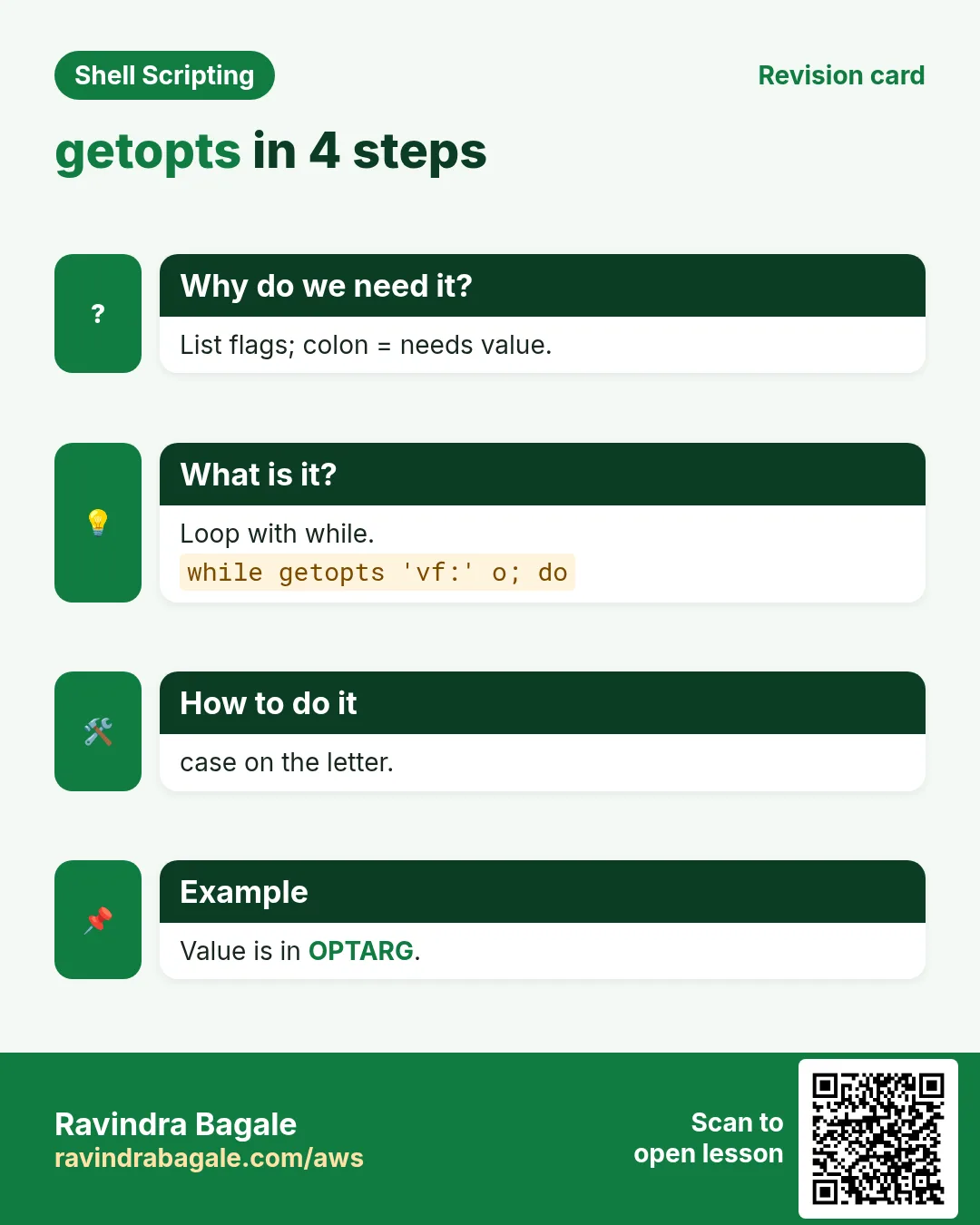
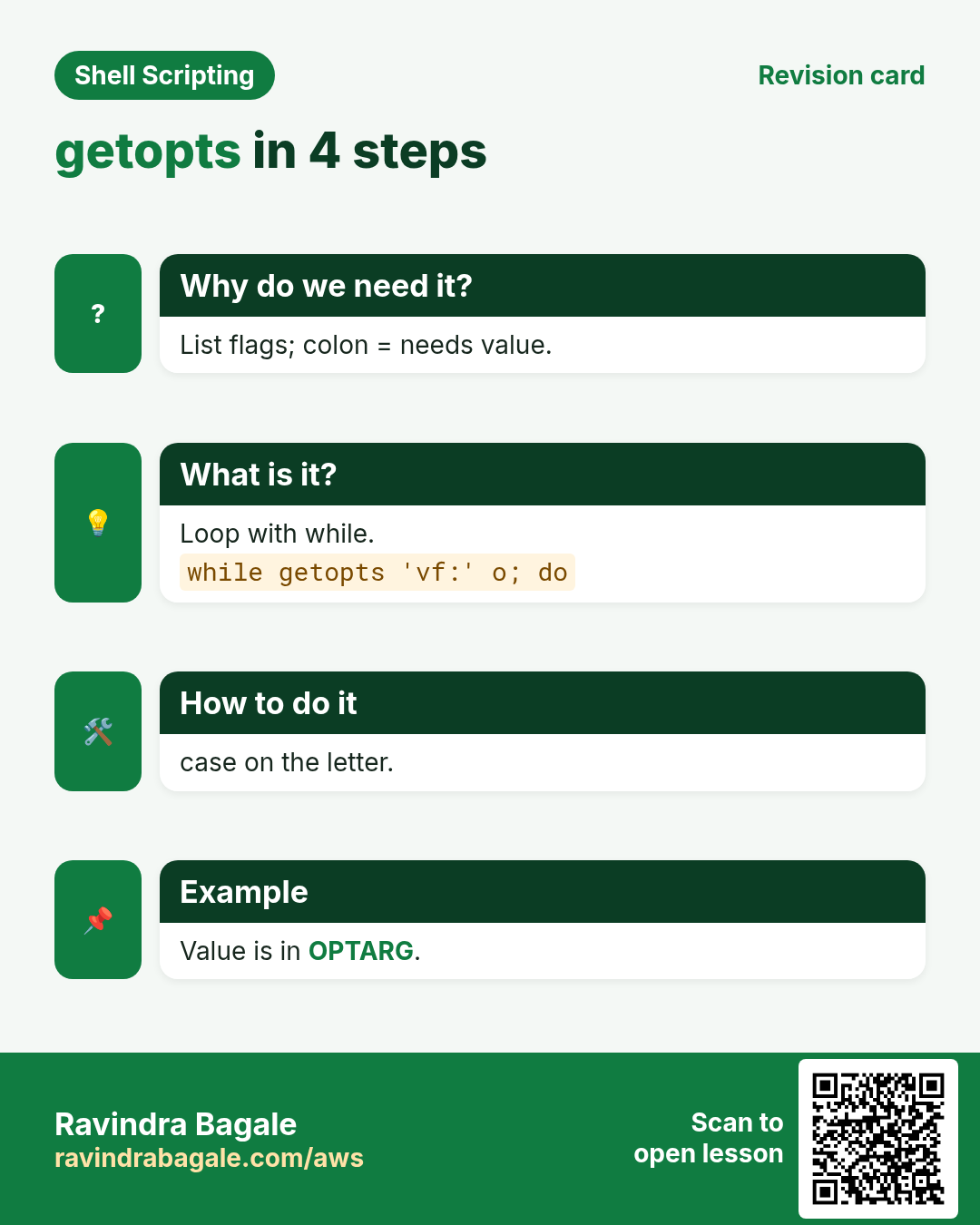
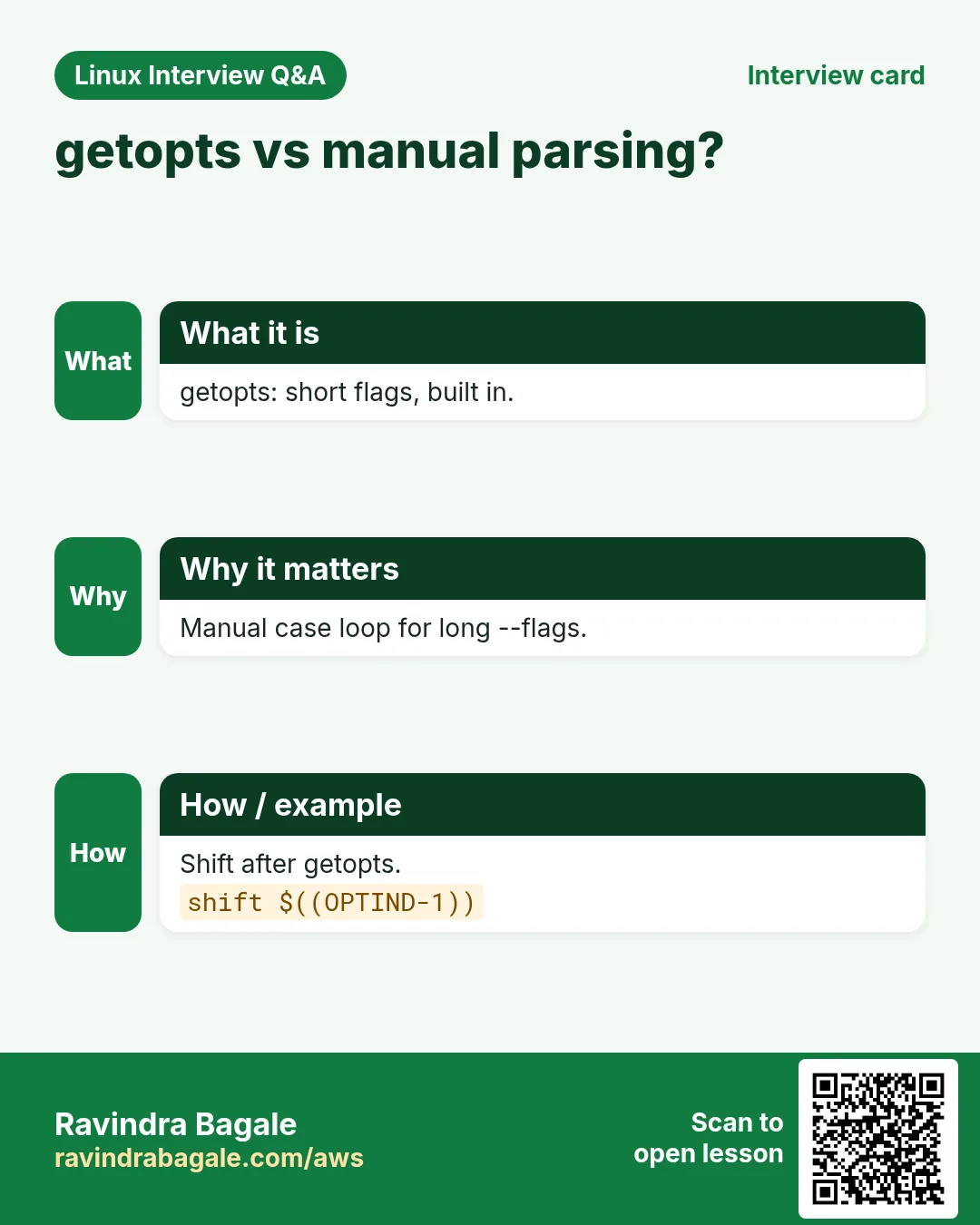
while getopts 'hvd:' opt; do case $opt in ... esac; done. Each letter is an option; a colon after it (d:) means it needs a value, found in $OPTARG. A leading colon (':hvd:') lets you handle errors yourself: \? for an unknown option and : for a missing value. After the loop, shift $((OPTIND-1)) removes the options so $1 is the first normal argument. getopts only handles short options.
| Piece | Meaning |
|---|---|
| 'hvd:' | options h, v and d with a value |
| $opt | the letter found |
| $OPTARG | value of d |
| $OPTIND | index of the next argument |
| leading : | silent errors you handle |
- A script.
cat backup.shOutput:
#!/bin/bash
verbose=0; dest=/backup
while getopts ':hvd:' opt; do
  case $opt in
    h) echo "usage: $0 [-v] [-d DIR] SRC..."; exit 0;;
    v) verbose=1;;
    d) dest=$OPTARG;;
    :) echo "-$OPTARG needs a value"; exit 2;;
    \?) echo "unknown -$OPTARG"; exit 2;;
  esac
done
shift $((OPTIND-1))
echo "verbose=$verbose dest=$dest sources=$*"
h and v are flags; d needs a value.
- Use it.
./backup.sh -v -d /mnt/usb /etc /homeOutput:
verbose=1 dest=/mnt/usb sources=/etc /homeAfter shift only the folders remain.
- Combined flags.
./backup.sh -vd /srv/bk /var/wwwOutput:
verbose=1 dest=/srv/bk sources=/var/www-vd /srv/bk is the same as -v -d /srv/bk.
- Errors.
./backup.sh -x; ./backup.sh -dOutput:
unknown -x
-d needs a value
Clear messages and exit 2.
8. Usage message and input checks
Most bad runs come from wrong input. Check it at the top and explain how to use the script.
Write a usage() function that prints the syntax to stderr (>&2) and exits 2. Call it when $# is wrong or -h is given. Check that numbers are numbers ([[ $n =~ ^[0-9]+$ ]]), that files exist ([ -f ]), and that folders are writable ([ -w ]). The if chapter explains these tests.
- Usage function.
usage(){ echo "usage: cleanup.sh DAYS DIR" >&2; exit 2; }; type usage | head -1Output:
usage is a functionIt prints to stderr and exits.
- Number check.
n=abc; [[ $n =~ ^[0-9]+$ ]] && echo number || echo 'not a number'Output:
not a numberRegex keeps only digits.
- File check.
f=/etc/nope.conf; [ -f "$f" ] || echo "missing $f" >&2Output:
missing /etc/nope.confStop before doing anything.
9. Reading from stdin, pipes and files
Standard input is where a program reads incoming text if its command is built to read from there. It can come from your keyboard, a file or the output of another command. In the lab, send two lines from printf into the same reading loop you used for a file. The loop reads the same text in the same order. If an interactive read cannot get a line because it has reached end of input, check its status before proceeding with an empty answer.
Good tools work in pipes: cat list.txt | ./check.sh. Your script can read lines the same way.
If no file is given, read from standard input. while IFS= read -r line; do ...; done reads one line at a time (chapter 5 explains IFS). < file sends a file in. A here-string <<< "text" sends one string. A here-document sends multiple lines to the same command. Start with <<EOF and end with EOF on a line by itself. Use <<'EOF' to keep variables such as $USER as literal text.
- Pipe in.
printf 'web1\nweb2\n' | while IFS= read -r h; do echo "checking $h"; doneOutput:
checking web1
checking web2
Each line in turn.
- Here-string.
read -r a b <<< 'Pune 411001'; echo "$b $a"Output:
411001 PuneOne string into read.
- Here-document.
cat <<EOF
Host: $(hostname)
User: $USER
EOF
Output:
Host: web01
User: asha
Variables expanded inside.
- File or stdin.
in=${1:-/dev/stdin}; wc -l < "$in"Output:
3/dev/stdin is used when no file is given.
10. Real examples from many industries
The same Linux skill shows up in every kind of company. Seeing it in many places helps you remember it.
Each row is a made-up team. It shows who uses this and how.
| Team and city | How they use it | Command |
|---|---|---|
| Kiran, school ERP, Kolhapur | Ask a class name with read -p | read -rp 'Class: ' cls |
| Emma, retail, Dublin | getopts in a report tool | while getopts 'd:o:' o |
| Wei, fintech, Shanghai | Silent password prompt | read -rsp 'Pass: ' p |
| Omar, airline, Doha | Wrapper passing "$@" | exec ansible "$@" |
| Julia, media, Berlin | Batch from a pipe | cut -d, -f1 ids.csv | ./fetch.sh |
| Vikram, logistics, Chennai | Usage and exit 2 | usage(){ ...; exit 2; } |
11. Common errors and how to fix them
Everyone hits these errors. Knowing the cause saves hours.
Read the exact message first. Then match it to a row below.
| Error you see | Why it happens | How to fix |
|---|---|---|
read hangs in cron | No terminal to type in | Use arguments or [ -t 0 ].[ -t 0 ] || exit 1 |
Backslashes vanished from input | read without -r | Use read -r.read -r line |
$10 printed as first argument plus 0 | $10 means $1 then 0 | Use braces.echo "${10}" |
File with spaces split into two arguments | Used $@ or $* unquoted | Use "$@".for a in "$@" |
illegal option -- x | Unknown option to getopts | Add it or handle \?.getopts ':ab:' o |
option requires an argument -- d | -d given without a value | Give a value or handle :../s.sh -d /tmp |
Arguments still include -v after getopts | Forgot shift $((OPTIND-1)) | Shift the options away.shift $((OPTIND-1)) |
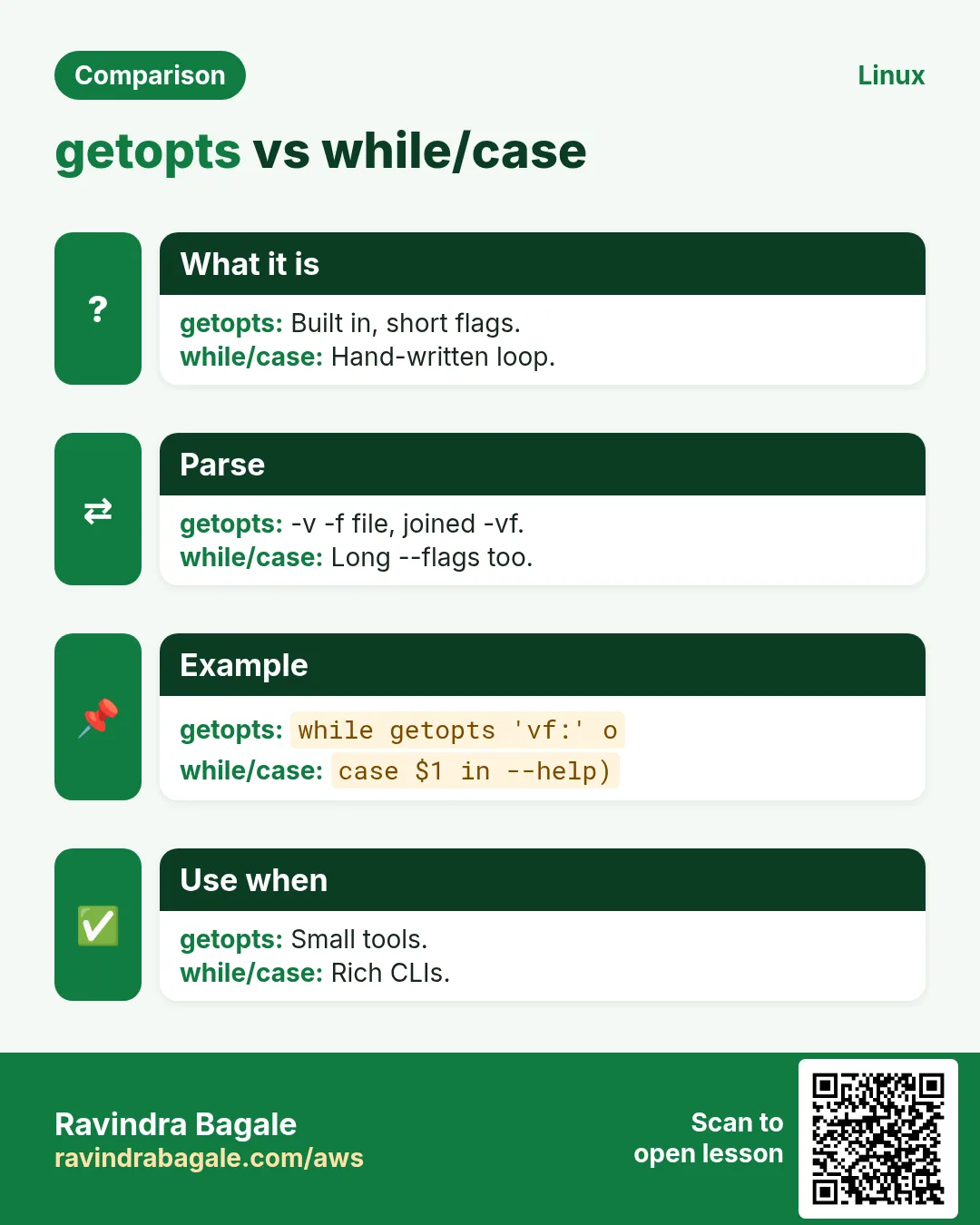
getopts ignores --long | getopts is short options only | Use a while/case loop or getopt.case $1 in --env) ...;; esac |
shift count out of range | shift with no arguments left | Check $# before shift.[ $# -gt 0 ] && shift |
12. Troubleshooting step by step
Print what the script really received.
Go top to bottom. Stop at the first step that shows the problem.
- Count.
echo "count=$#"- Each argument.
printf '[%s]\n' "$@"- Option state.
echo "OPTIND=$OPTIND OPTARG=$OPTARG"- Terminal?
[ -t 0 ] && echo tty- Trace parsing.
bash -x s.sh -v -d /tmp x- Hidden characters in input.
printf '%q\n' "$1"13. Lab 1: A greeting script with read and arguments
Write greet.sh that uses $1 if given, otherwise asks with read, and checks the input.
A full hands-on lab. Run every step on a test Linux machine (an EC2 instance, a VM, or WSL).
- Folder.
mkdir -p ~/lab39 && cd ~/lab39- Write.
printf '#!/bin/bash\nname=${1:-}\nif [ -z "$name" ]; then read -rp "Name: " name; fi\n[ -n "$name" ] || { echo "name required" >&2; exit 2; }\necho "Namaskar, $name!"\n' | tee greet.sh && chmod +x greet.sh- With an argument.
./greet.sh MeeraOutput:
Namaskar, Meera!- Without.
./greet.shOutput:
Name: Raj
Namaskar, Raj!- Empty input.
./greet.sh <<< ''; echo $?Output:
name required
2- From a pipe.
echo Sara | ./greet.shOutput:
Namaskar, Sara!14. Lab 2: A real getopts tool
Build findbig.sh with -n COUNT, -d DIR and -h, which lists the largest files.
A full hands-on lab. Run every step on a test Linux machine (an EC2 instance, a VM, or WSL).
- Write the parser.
printf '#!/bin/bash\nn=5; d=.\nwhile getopts ":hn:d:" o; do case $o in h) echo "usage: $0 [-n N] [-d DIR]"; exit 0;; n) n=$OPTARG;; d) d=$OPTARG;; :) echo "-$OPTARG needs value" >&2; exit 2;; \\?) echo "bad -$OPTARG" >&2; exit 2;; esac; done\nshift $((OPTIND-1))\n[[ $n =~ ^[0-9]+$ ]] || { echo "N must be a number" >&2; exit 2; }\ndu -ah "$d" 2>/dev/null | sort -rh | head -n "$n"\n' | tee findbig.sh && chmod +x findbig.sh- Help.
./findbig.sh -hOutput:
usage: ./findbig.sh [-n N] [-d DIR]- Default.
./findbig.sh -d /var/log | head -2Output:
1.2G /var/log
800M /var/log/journal- Three in /etc.
./findbig.sh -n 3 -d /etcOutput:
6.1M /etc
3.0M /etc/selinux
1.1M /etc/ssl- Bad number.
./findbig.sh -n many; echo $?Output:
N must be a number
2- Missing value.
./findbig.sh -dOutput:
-d needs valueRavindra Bagale's Tip
Always quote "$@" when you pass arguments on, and always end a getopts loop with shift $((OPTIND-1)). These two lines are where most argument bugs hide.
Ravindra Bagale's Tip – मराठी
Arguments पुढे देताना नेहमी "$@" quote करा, आणि getopts loop नेहमी shift $((OPTIND-1)) ने संपवा. बहुतेक argument bugs याच दोन lines मधे लपलेले असतात.
Ravindra Bagale's Tip – हिंदी
Arguments आगे भेजते समय हमेशा "$@" quote कीजिए, और getopts loop हमेशा shift $((OPTIND-1)) से खत्म कीजिए. ज़्यादातर argument bugs इन्हीं दो lines में छिपे होते हैं.
15. Frequently asked questions
Q. read or arguments?
Arguments for automation, read for people.
Q. Why read -r?
Keeps backslashes.
Q. Long options with getopts?
Not supported; use a case loop or GNU getopt.
Q. What is OPTIND?
Index of the next argument to process.
Q. Why exit 2 for bad usage?
Convention for misuse.
Q. Where should usage go?
To stderr with >&2.
Q. Can I read a password from a file?
Yes; read -r pw < file with chmod 600.
Q. What is $REPLY?
Default variable of read.
16. Interview questions and answers
Beginner level
Q. First argument?
$1.
Q. Number of arguments?
$#.
Q. Prompt the user?
read -p.
Q. Hide a password?
read -s.
Mid level level
Q. "$@" vs "$*"?
Separate words vs one string.
Q. What does shift do?
Drops $1 and moves the rest.
Q. getopts value for -d?
d: in the spec, value in $OPTARG.
Q. Why shift $((OPTIND-1))?
To leave only non-option args.
Senior level
Q. Design CLI for a deploy script?
getopts for flags, positional for targets, usage, validation, -y to skip prompts.
Q. Script must work in pipes and with files?
Read from "${1:-/dev/stdin}".
Q. Silent vs normal getopts errors?
Leading colon: you handle \? and :.
Q. Safely accept secrets?
Env var or file, not argument (visible in ps).
Try at home
- Write add.sh that adds all numbers given as arguments and prints the total. Reject anything that is not a number.
- Add -q (quiet) and -h (help) options to it with getopts.
Practise this chapter
Interview questions and answers
How do you prove a Bash option parser handles spaces and missing values?
Run it with a quoted two-word directory after an option requiring a value. Check that it produces one OPTARG and leaves the expected positional inputs after shifting. Then omit the value and expect a clear usage message and nonzero exit before doing work.
Check your understanding
Choose an answer, then compare your reasoning with the explanation.
Practice Tasks
Practice checks run in your browser. They check the answer for this exercise; they do not create resources or connect to your AWS account.
About this scenarioLondon Legal LLP is a law business in London. Oliver Hughes looks after its IT and cloud work. They count money in GBP and run their AWS resources in the eu-west-2 Region. In the tasks below you do real jobs for them using what this lesson teaches. All names, account IDs, IP addresses and numbers are made up for practice.
0 / 21
Easy Ask for a name
BIZ tools must take options like real commands.
Ask "Branch: " and store the answer in br, keeping backslashes.
- Find the Linux command that does this job.
- Add the options (like -r or -h) the task needs.
- Add the file names, folders or users in the right order.
- Use sudo if the job changes system files or users. Click Check answer.
Easy How many
BIZ tools must take options like real commands.
Print how many arguments the script got.
- Find the Linux command that does this job.
- Add the options (like -r or -h) the task needs.
- Add the file names, folders or users in the right order.
- Use sudo if the job changes system files or users. Click Check answer.
Easy First argument
BIZ tools must take options like real commands.
Print the first argument in quotes.
- Find the Linux command that does this job.
- Add the options (like -r or -h) the task needs.
- Add the file names, folders or users in the right order.
- Use sudo if the job changes system files or users. Click Check answer.
Easy Script name
BIZ tools must take options like real commands.
Print the name the script was called with.
- Find the Linux command that does this job.
- Add the options (like -r or -h) the task needs.
- Add the file names, folders or users in the right order.
- Use sudo if the job changes system files or users. Click Check answer.
Easy Drop three
BIZ tools must take options like real commands.
Drop the first three arguments.
- Find the Linux command that does this job.
- Add the options (like -r or -h) the task needs.
- Add the file names, folders or users in the right order.
- Use sudo if the job changes system files or users. Click Check answer.
Easy Option value
BIZ tools must take options like real commands.
Store the current option value into outdir.
- Find the Linux command that does this job.
- Add the options (like -r or -h) the task needs.
- Add the file names, folders or users in the right order.
- Use sudo if the job changes system files or users. Click Check answer.
Medium Hidden PIN
BIZ tools must take options like real commands.
Read a hidden value into pin with the prompt "PIN: ".
- Find the Linux command that does this job.
- Add the options (like -r or -h) the task needs.
- Add the file names, folders or users in the right order.
- Use sudo if the job changes system files or users. Click Check answer.
Medium Timeout
BIZ tools must take options like real commands.
Read into ans with a 15 second timeout, raw mode.
- Find the Linux command that does this job.
- Add the options (like -r or -h) the task needs.
- Add the file names, folders or users in the right order.
- Use sudo if the job changes system files or users. Click Check answer.
Medium One key
BIZ tools must take options like real commands.
Read exactly one character into key.
- Find the Linux command that does this job.
- Add the options (like -r or -h) the task needs.
- Add the file names, folders or users in the right order.
- Use sudo if the job changes system files or users. Click Check answer.
Medium Eleventh
BIZ tools must take options like real commands.
Print the eleventh argument.
- Find the Linux command that does this job.
- Add the options (like -r or -h) the task needs.
- Add the file names, folders or users in the right order.
- Use sudo if the job changes system files or users. Click Check answer.
Medium Each argument on a line
BIZ tools must take options like real commands.
Print every argument on its own line with printf, keeping spaces.
- Find the Linux command that does this job.
- Add the options (like -r or -h) the task needs.
- Add the file names, folders or users in the right order.
- Use sudo if the job changes system files or users. Click Check answer.
Medium Set arguments
BIZ tools must take options like real commands.
Set the arguments to alpha beta gamma.
- Find the Linux command that does this job.
- Add the options (like -r or -h) the task needs.
- Add the file names, folders or users in the right order.
- Use sudo if the job changes system files or users. Click Check answer.
Medium getopts spec
BIZ tools must take options like real commands.
Start a getopts loop for flags q and f, where f needs a value, storing the letter in o.
- Find the Linux command that does this job.
- Add the options (like -r or -h) the task needs.
- Add the file names, folders or users in the right order.
- Use sudo if the job changes system files or users. Click Check answer.
Medium Remove options
BIZ tools must take options like real commands.
Remove all parsed options after the getopts loop.
- Find the Linux command that does this job.
- Add the options (like -r or -h) the task needs.
- Add the file names, folders or users in the right order.
- Use sudo if the job changes system files or users. Click Check answer.
Medium Output to terminal?
BIZ tools must take options like real commands.
Test whether standard output is a terminal and print term if it is.
- Find the Linux command that does this job.
- Add the options (like -r or -h) the task needs.
- Add the file names, folders or users in the right order.
- Use sudo if the job changes system files or users. Click Check answer.
Medium Here-string
BIZ tools must take options like real commands.
Read "Satara 415001" into the variables town and code with a here-string.
- Find the Linux command that does this job.
- Add the options (like -r or -h) the task needs.
- Add the file names, folders or users in the right order.
- Use sudo if the job changes system files or users. Click Check answer.
Medium Pass on
BIZ tools must take options like real commands.
Run rsync passing all of the script arguments safely.
- Find the Linux command that does this job.
- Add the options (like -r or -h) the task needs.
- Add the file names, folders or users in the right order.
- Use sudo if the job changes system files or users. Click Check answer.
Hard Words into array
BIZ tools must take options like real commands.
Read one line into the array words, raw mode.
- Find the Linux command that does this job.
- Add the options (like -r or -h) the task needs.
- Add the file names, folders or users in the right order.
- Use sudo if the job changes system files or users. Click Check answer.
Hard Silent getopts
BIZ tools must take options like real commands.
Start a silent-error getopts loop for h and n with a value, letter in opt.
- Find the Linux command that does this job.
- Add the options (like -r or -h) the task needs.
- Add the file names, folders or users in the right order.
- Use sudo if the job changes system files or users. Click Check answer.
Hard File or stdin
BIZ tools must take options like real commands.
Set src to the first argument, or /dev/stdin if none.
- Find the Linux command that does this job.
- Add the options (like -r or -h) the task needs.
- Add the file names, folders or users in the right order.
- Use sudo if the job changes system files or users. Click Check answer.
Hard Is a number
BIZ tools must take options like real commands.
Test with [[ ]] that the variable qty is only digits and print ok.
- Find the Linux command that does this job.
- Add the options (like -r or -h) the task needs.
- Add the file names, folders or users in the right order.
- Use sudo if the job changes system files or users. Click Check answer.
17. Related chapters
- Linux Ops Refresh for DevOps
- Bash Scripting for Automation
- Linux grep and find Commands with Examples
- How to Set Up Passwordless SSH Between Linux Servers
In short
- read -rp asks; -s hides; -t times out.
- $1..$9, ${10}, $# and $0 hold arguments.
- Pass arguments on with "$@".
- shift moves through arguments.
- getopts 'hvd:' with $OPTARG, then shift $((OPTIND-1)).
- Validate input and print usage to stderr with exit 2.
Revision, comparison and interview cards
Revise this lesson in a few minutes. Save the cards on your phone or download them as PNG files. The QR code on each card opens this lesson.
More cards: Ravi Sir's Cards.