Shell Scripting Complete 10: Redirection, Pipes, tee, Here-docs and Process Substitution
Every Linux command has three doors: input (stdin), normal output (stdout) and error output (stderr). Redirection decides where each door points. In this chapter you learn > and >> to write files, 2> and &> for errors, < to read, pipes | to join commands, tee to save and show, here-docs <<EOF to write whole files or send many lines, here-strings <<<, and process substitution <( ) to treat a command's output like a file. Every topic starts with an everyday example and then shows examples from many industries.
In this chapter
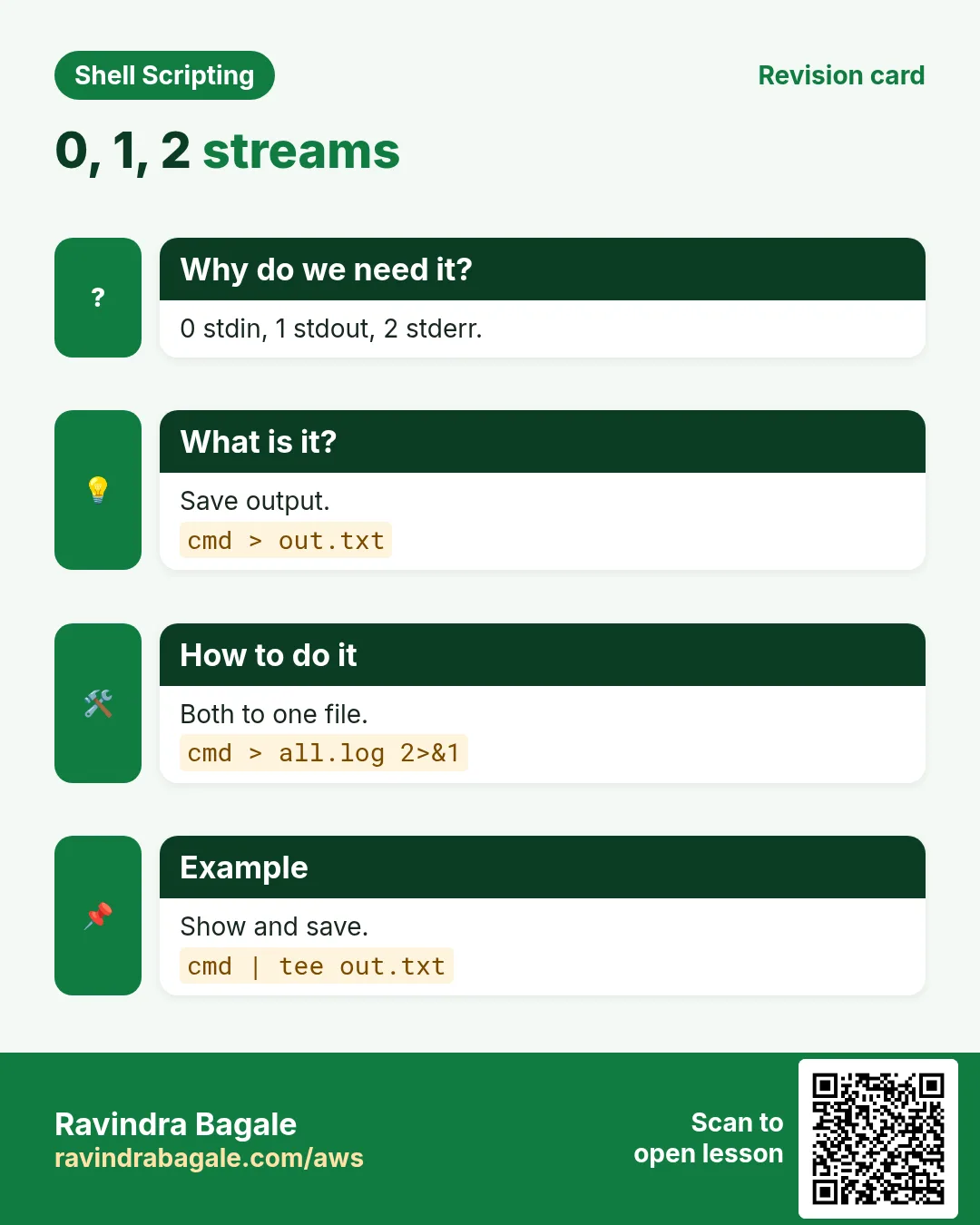
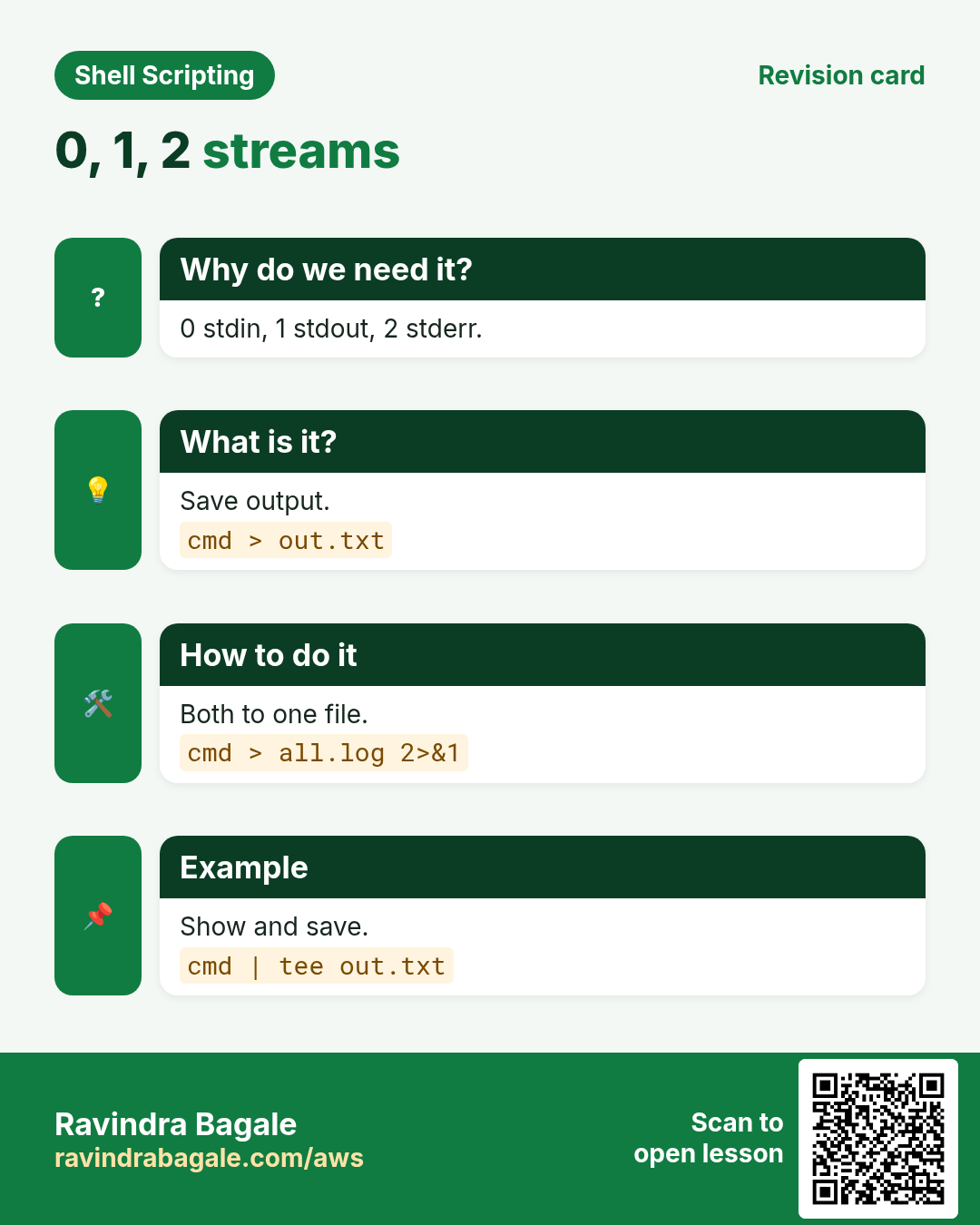
- Know stdin, stdout and stderr (0, 1, 2)
- Write and append with > and >>
- Split or join errors with 2> and 2>&1
- Build pipes and use tee
- Write files with here-docs
- Compare outputs with <( )
1. An everyday example: water pipes in a building
In a Kothrud society, water comes from the tank (input), goes to the kitchen tap (normal output), and waste water goes to a separate drain (errors). A plumber can send the tap water into a bucket instead, join two pipes, or add a T-joint so water goes two ways at once. Redirection and pipes are plumbing for data.
Tank = stdin (0). Tap = stdout (1). Drain = stderr (2). Bucket = a file with >. Joining pipes = |. T-joint = tee. A tanker delivering many litres at once = a here-doc.
2. Write and append: > and >>
Think of standard output as a stream that normally appears on your terminal. With > report.txt Bash opens the file for writing before running the command and truncates an existing file. >> opens it for appending. In a disposable folder, print the same line twice with >> and count the lines, then write with > and count again. You should see two lines followed by one. Choose a separate output file when you are reading the original through the same command.
Reports, logs and generated configs must land in files, not just on the screen.
cmd > file writes stdout to file and replaces old content. cmd >> file adds to the end. > file alone (or : > file) empties a file without deleting it, good for log files a program has open. set -o noclobber stops > from overwriting by mistake; >| forces it.
| Form | Does |
|---|---|
| > f | overwrite |
| >> f | append |
| : > f | empty the file |
| < f | read input from f |
| >| f | overwrite even with noclobber |
- Save a list.
ls /etc > etc-list.txt; wc -l etc-list.txtOutput:
212 etc-list.txtScreen shows nothing.
- Append a line.
date >> run.log; date >> run.log; wc -l run.logOutput:
2 run.logTwo lines.
- Empty a log.
: > /var/log/app/app.log; ls -l /var/log/app/app.logOutput:
-rw-r--r-- 1 app app 0 Oct 25 10:12 /var/log/app/app.logSize 0, file kept.
- Protect files.
set -o noclobber; echo hi > etc-list.txtOutput:
bash: etc-list.txt: cannot overwrite existing fileSafety on.
- Read from a file.
wc -l < etc-list.txtOutput:
212No file name printed.
See why redirection order changes the result
Bash applies redirections from left to right. Descriptor 1 is standard output; descriptor 2 is standard error. Copying a descriptor copies its destination at that moment.
Read all steps
- Start with two streams
A program can write ordinary output to descriptor 1 and errors to descriptor 2. Initially both may point to the terminal, but they remain separate streams that the shell can redirect independently.
- Follow > log 2>&1
The first redirection opens log for output and points descriptor 1 there. Next, 2>&1 makes descriptor 2 use descriptor 1’s current destination. Both ordinary output and errors now go to log.
- Follow 2>&1 > log
This time 2>&1 runs while descriptor 1 still points to the terminal. Descriptor 2 copies that terminal destination. Then > log changes only descriptor 1. Ordinary output goes to log; errors still appear on the terminal.
- Predict before running
For a command that prints one ordinary line and one error line, predict each destination before testing. The second form does not create a permanent link between descriptors 1 and 2; it copies the destination at that step.

3. Errors: 2>, &> and 2>&1
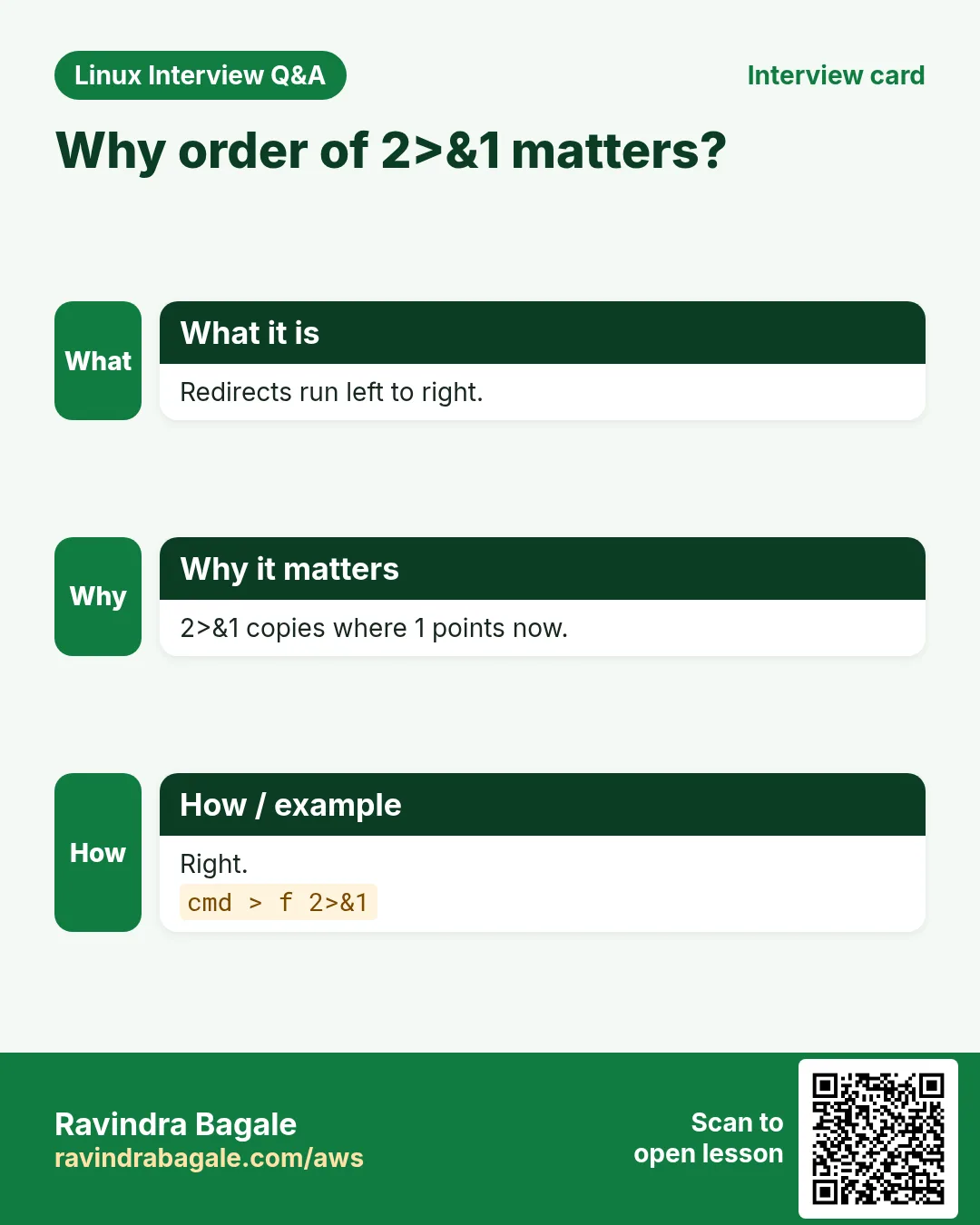
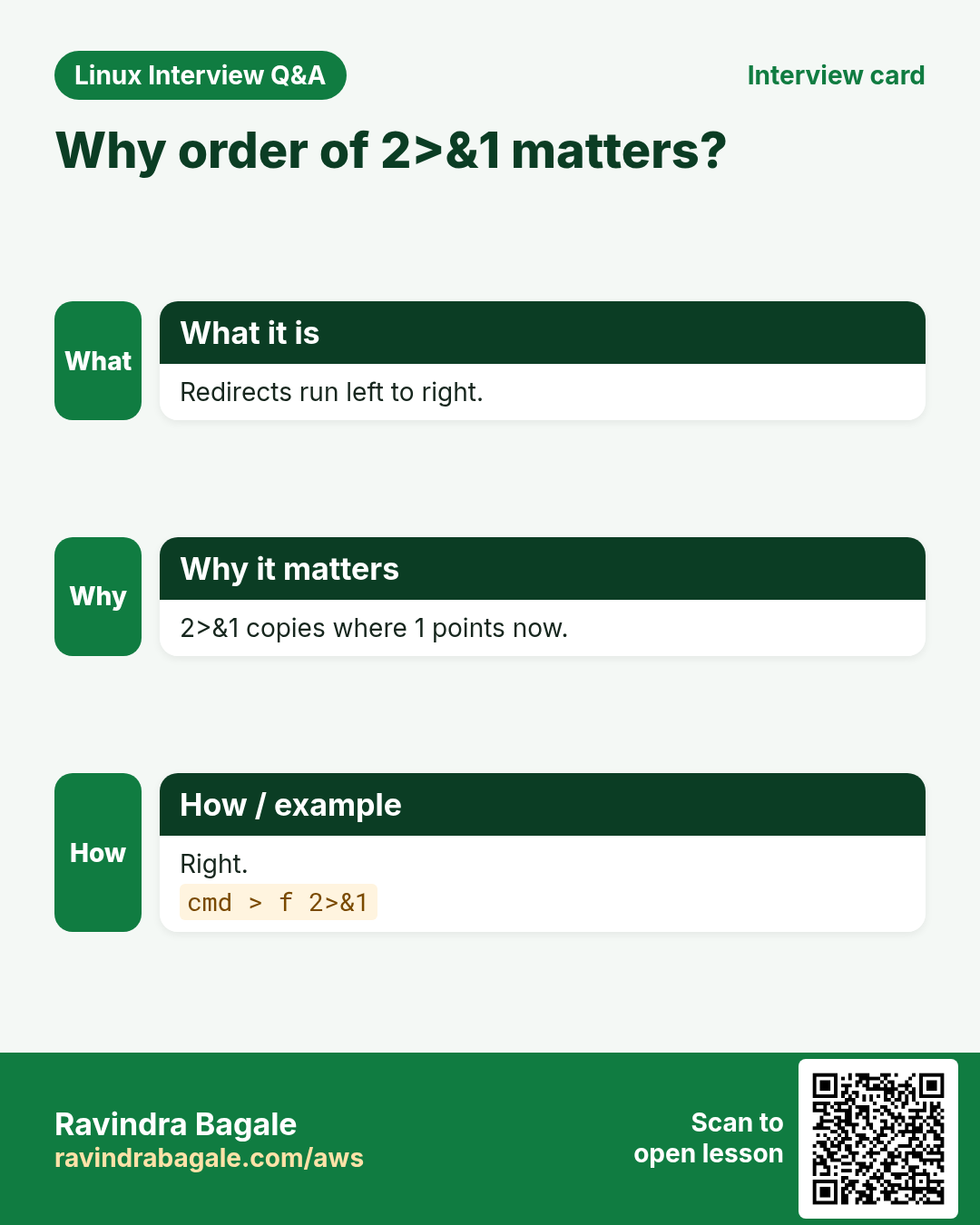
Read redirections in order. File descriptor 1 is standard output and 2 is standard error. > log 2>&1 first points 1 at the file, then copies that destination for 2. With 2>&1 > log, Bash first copies the old destination and then changes only 1. Try both orders with a harmless command group that writes one line to each stream. Compare your terminal with the contents of log so you can see what each part actually redirects.
In cron jobs you want errors in a log, and noisy warnings away from your report.
2> file sends only errors to file. 2>/dev/null throws errors away. cmd > out.log 2>&1 sends both to the same file: first move 1, then point 2 at 1. &> file is the bash short form for both. |& pipes both to the next command. Do not hide errors you need; hide only known noise.
- Errors only.
find / -name '*.pem' 2> find-errors.txt | head -2Output:
/etc/pki/tls/cert.pem
/workspace/key.pem
Permission errors went to the file.
- Hide noise.
find / -name sshd_config 2>/dev/nullOutput:
/etc/ssh/sshd_configClean output.
- Both in a log.
./backup.sh > backup.log 2>&1; tail -2 backup.logOutput:
tar: /data/x: Cannot open: Permission denied
backup done
Errors and output together.
- Short form.
./backup.sh &>> backup.logAppend both.
- Separate files.
./import.sh > ok.log 2> err.logEasy to check err.log size.
4. Pipes | and tee
Small tools joined together answer big questions: which IP hit us most, which product sold most.
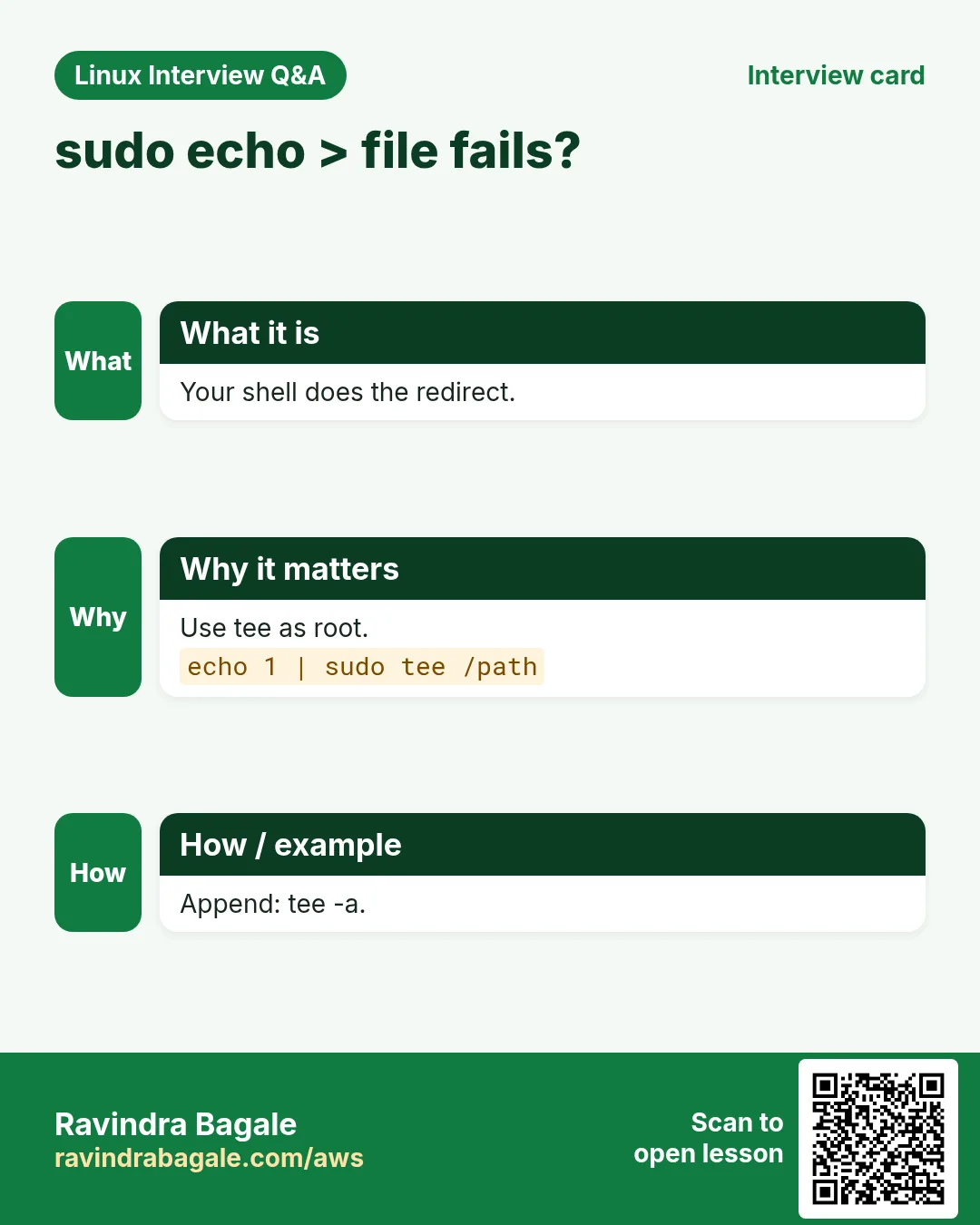
a | b sends a's stdout into b's stdin. Chain as many as you need. tee file writes to file and passes data on, so you can save a middle step and still see it. tee -a appends. sudo tee is the way to write a root-owned file, because sudo echo x > file does not give the > root rights.
- Top IPs.
awk '{print $1}' access.log | sort | uniq -c | sort -rn | head -3Output:
  540 49.36.12.8
  311 103.21.4.9
   97 66.249.66.1
Five tools, one answer.
- Save and show.
df -h | tee disk-report.txtOutput:
Filesystem Size Used Avail Use% Mounted on
/dev/xvda1 20G 8.1G 12G 41% /
Seen and saved.
- Root file.
echo '10.0.1.5 db1' | sudo tee -a /etc/hostsOutput:
10.0.1.5 db1Works where sudo echo > fails.
- Count lines in a pipe.
journalctl -u nginx --since today | grep -c errorOutput:
4Errors today.
5. Here-docs: <<EOF
Writing a config file, an SQL script or an email body line by line with echo is ugly and error-prone.
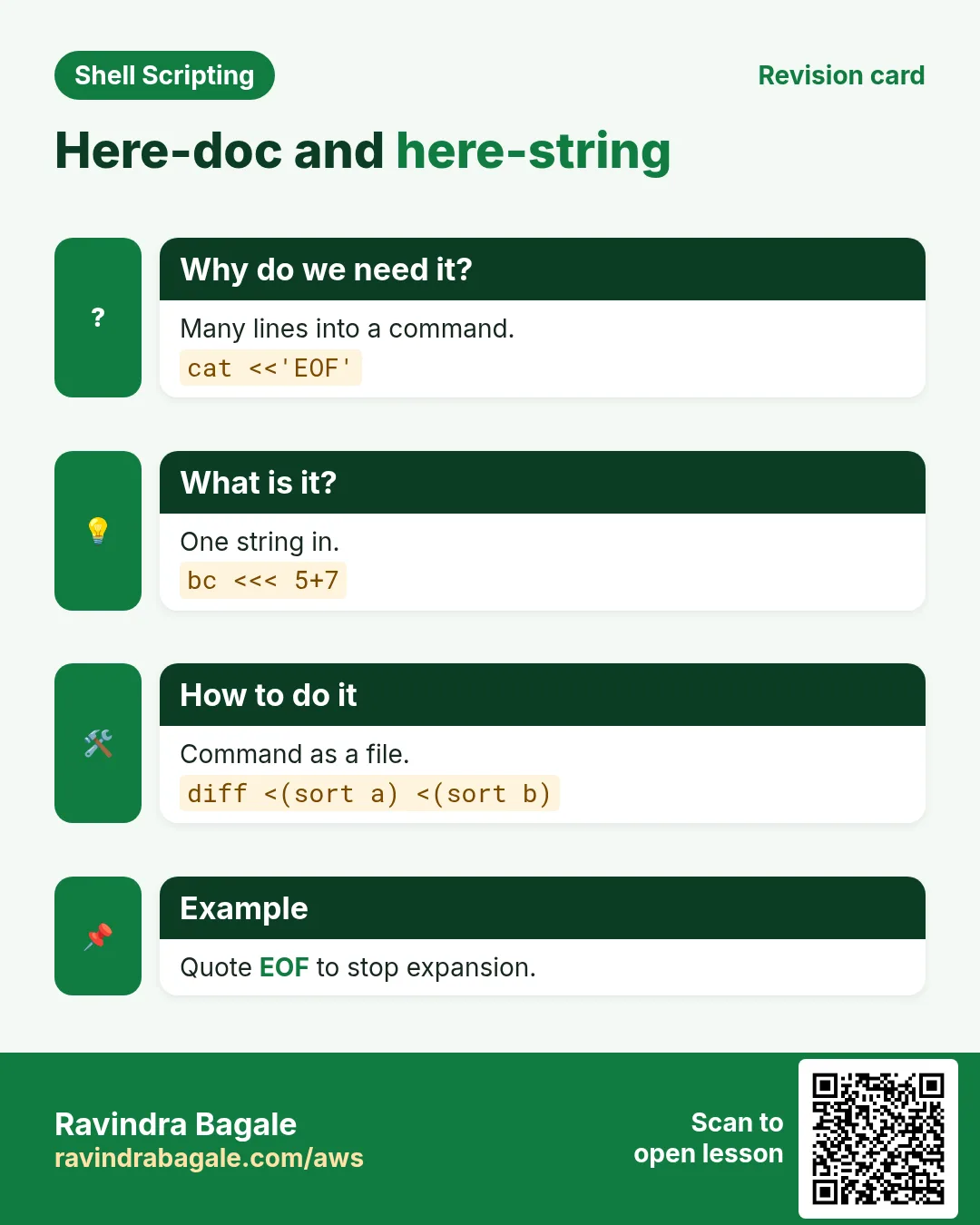
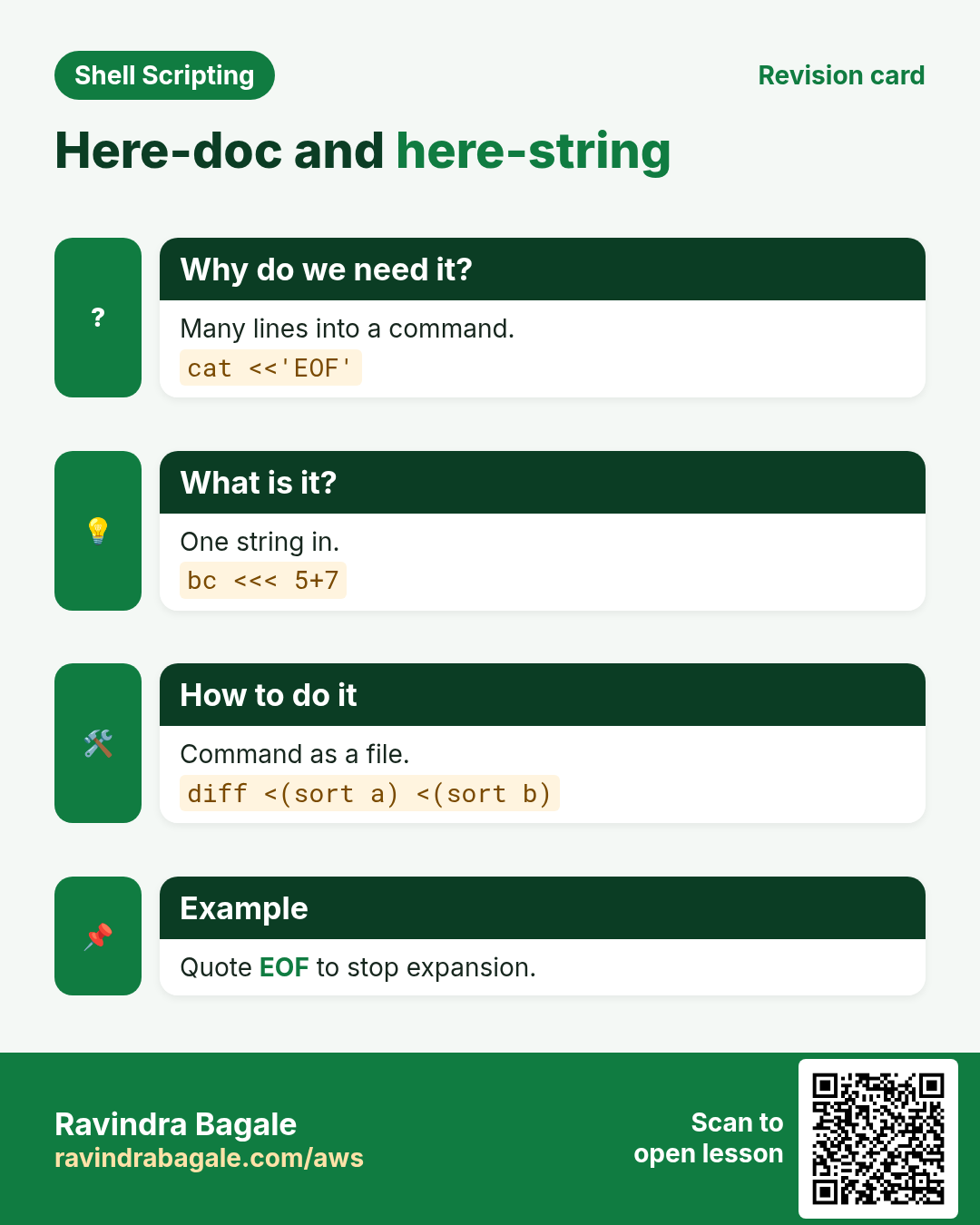
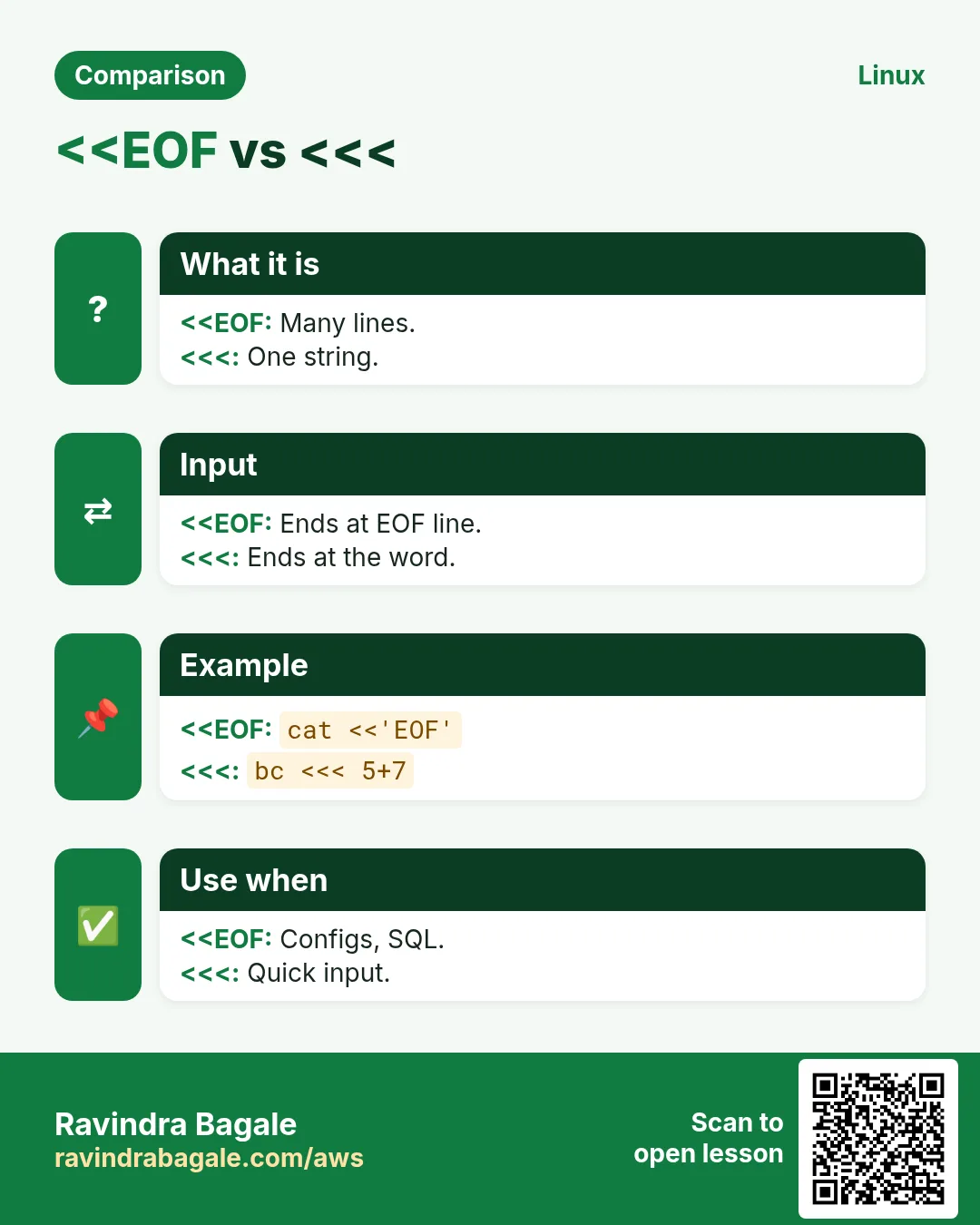
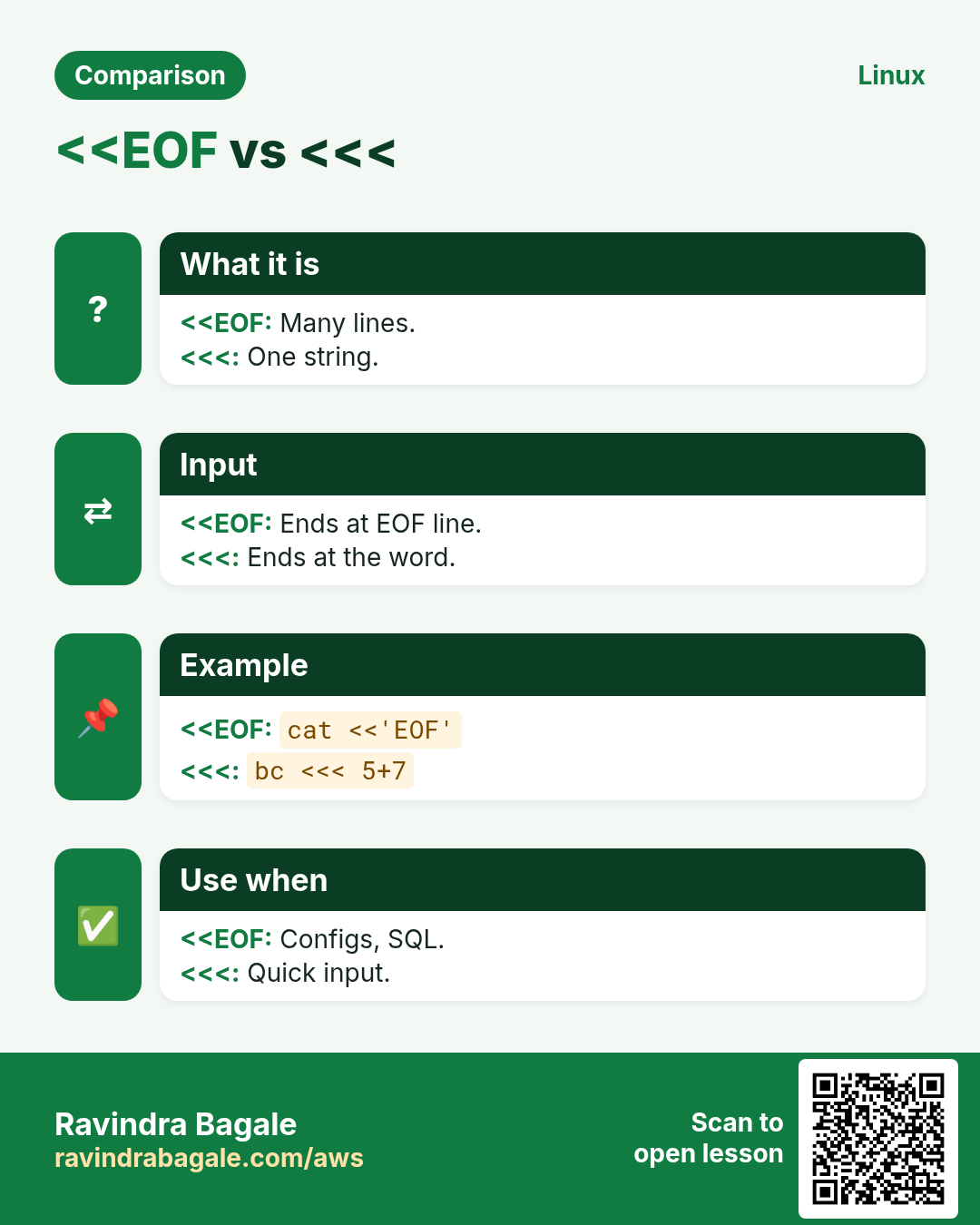
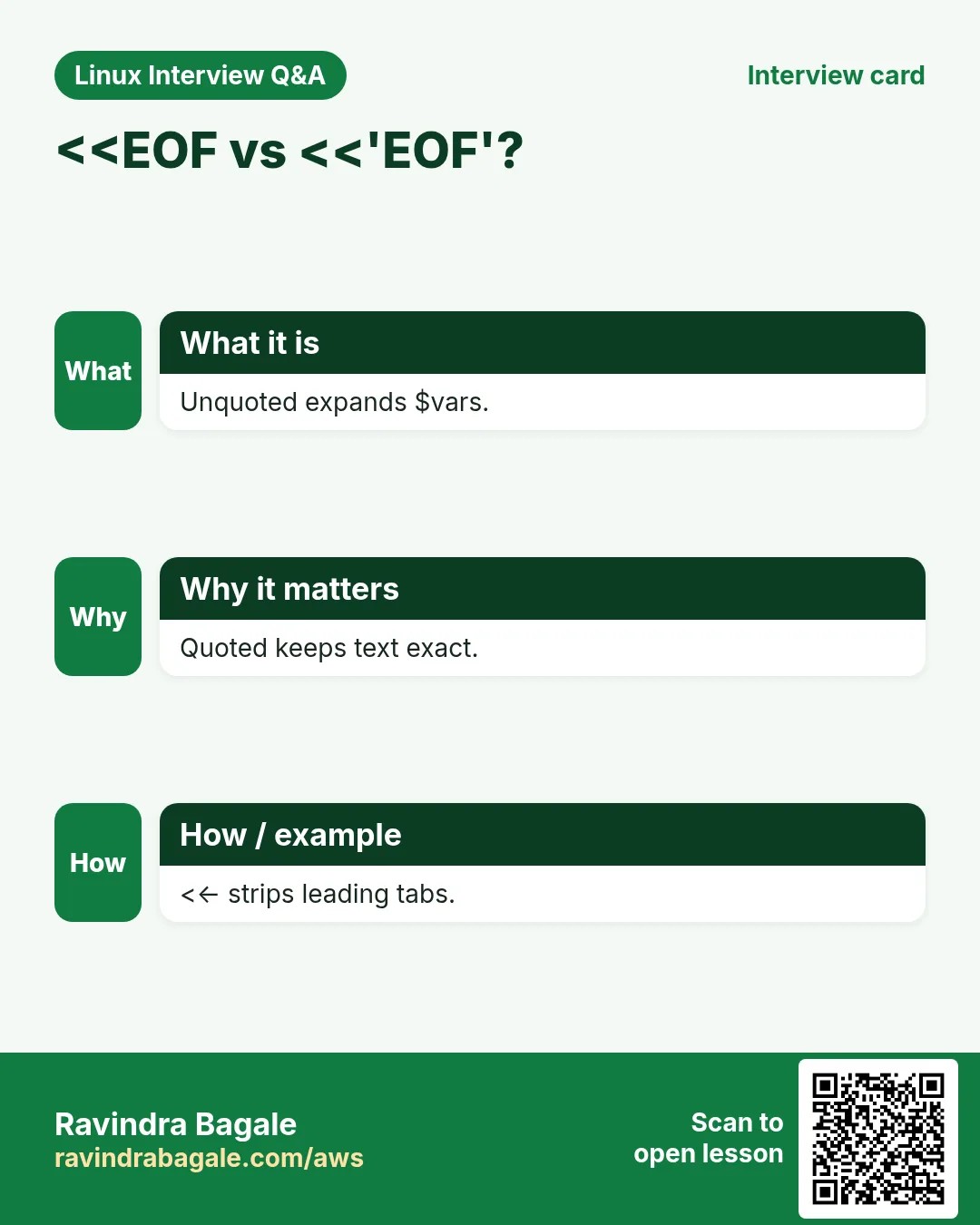
cmd <<EOF gives cmd every line up to the closing EOF as input. An unquoted opening delimiter lets Bash expand variables, command substitutions and arithmetic while building that input. Use <<'EOF' to write a script that should expand $USER later, when it runs. Close either form with EOF on its own line without spaces. <<-EOF also lets you indent with tabs, which Bash strips.
| Form | Effect |
|---|---|
<<EOF | expand $vars |
<<'EOF' | no expansion |
<<-EOF | strip leading tabs |
<<< | one string as input |
- Write a config.
app=shop; cat > /tmp/app.conf <<EOF
name=$app
port=8080
EOF
cat /tmp/app.conf
Output:
name=shop
port=8080
$app expanded.
- Keep $ as text.
cat > /tmp/hello.sh <<'EOF'
echo "Hello $USER"
EOF
cat /tmp/hello.sh
Output:
echo "Hello $USER"Quoted word, no expansion.
- SQL in one go.
psql -h db1 -U app shop <<'SQL'
SELECT city, count(*) FROM orders GROUP BY city;
SQL
Output:
  city  | count
 Pune   |  1200
Many lines to psql.
- Root file with here-doc.
sudo tee /etc/motd > /dev/null <<'EOF'
Authorized users only. Managed by ops team.
EOF
tee writes as root.
6. Here-strings <<<
Sometimes you have one value in a variable and a command wants it on stdin.
cmd <<< "$v" feeds the string plus a newline to cmd. It avoids echo "$v" | cmd and, unlike a pipe, read runs in the current shell, so variables it sets stay after.
- Split a CSV line.
IFS=, read -r id city amt <<< '101,Pune,499'; echo "$city $amt"Output:
Pune 499Variables stay set.
- Count words.
wc -w <<< 'build test deploy'Output:
3No echo needed.
- bc input.
bc <<< 'scale=2; 22/7'Output:
3.14Short maths.
7. Process substitution <( ) and >( )
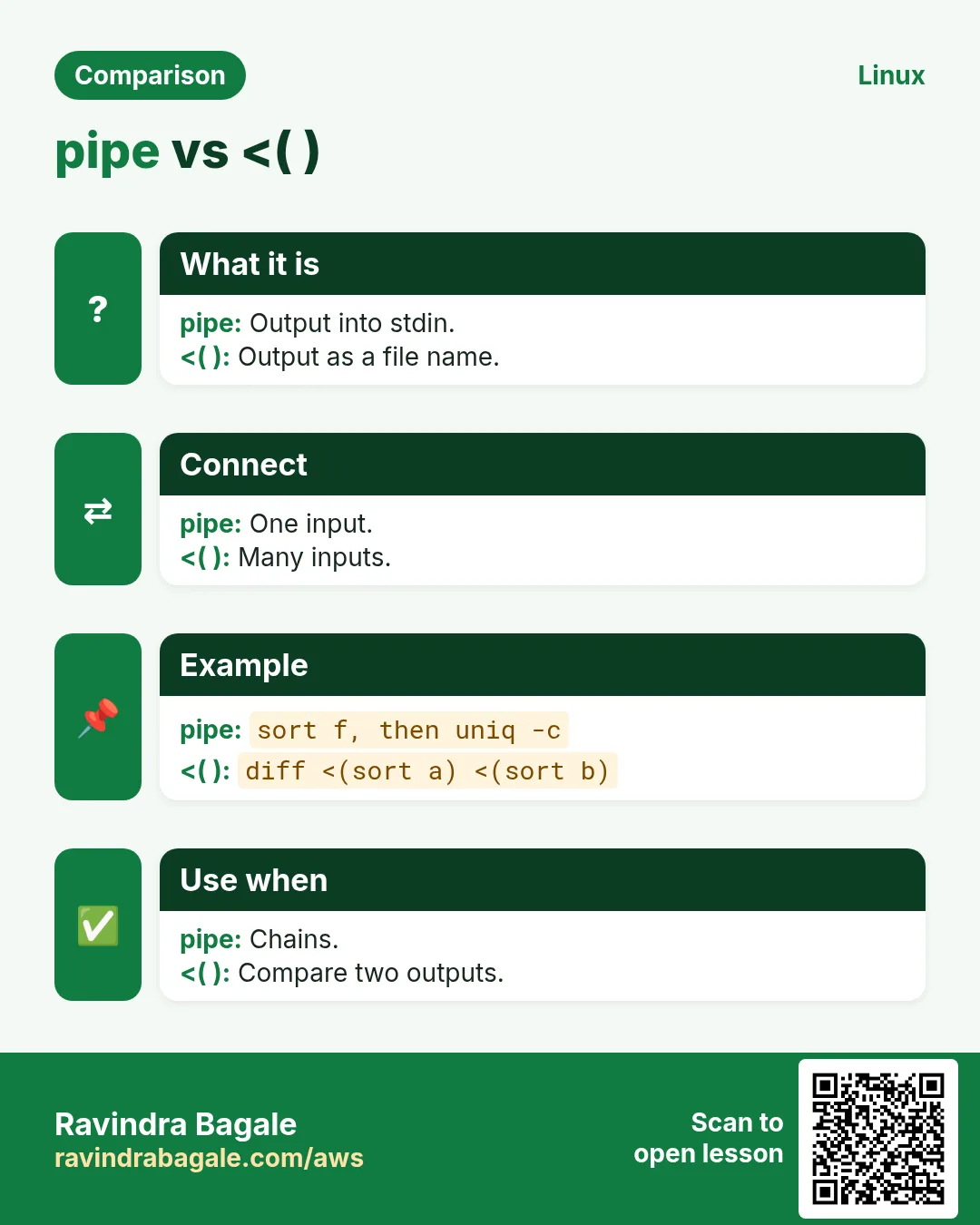
When you use diff <(command1) <(command2), the two commands each produce text and diff reads it from the paths Bash supplies. Start with two harmless producers that print workers=4 and workers=8. Read the lines beginning with < as text from the first input and lines with > as text from the second. Then try equal values. That comparison gives you a short way to check changes without editing any configuration file.
diff and comm want two files, but you have two command outputs, for example packages on two servers.
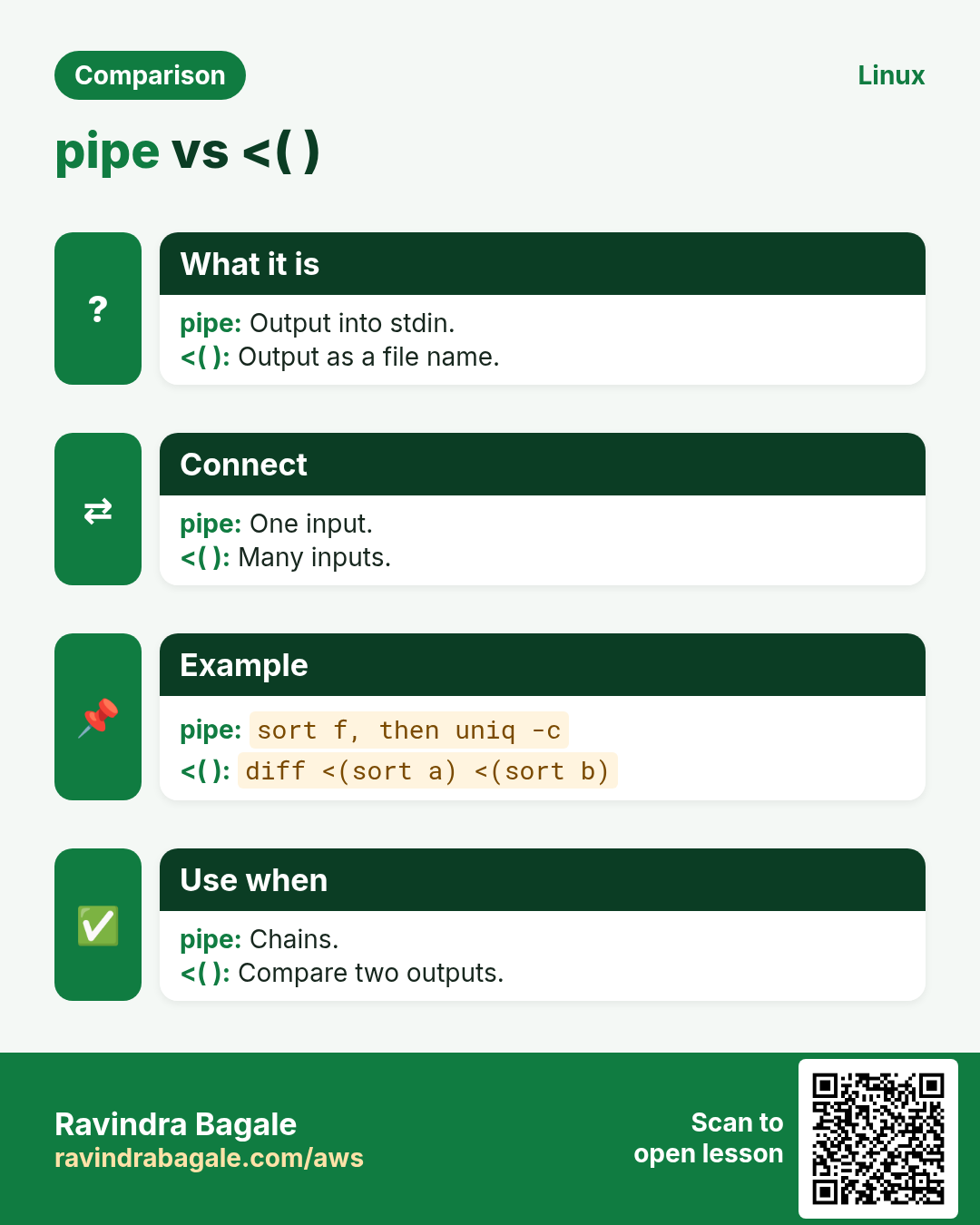
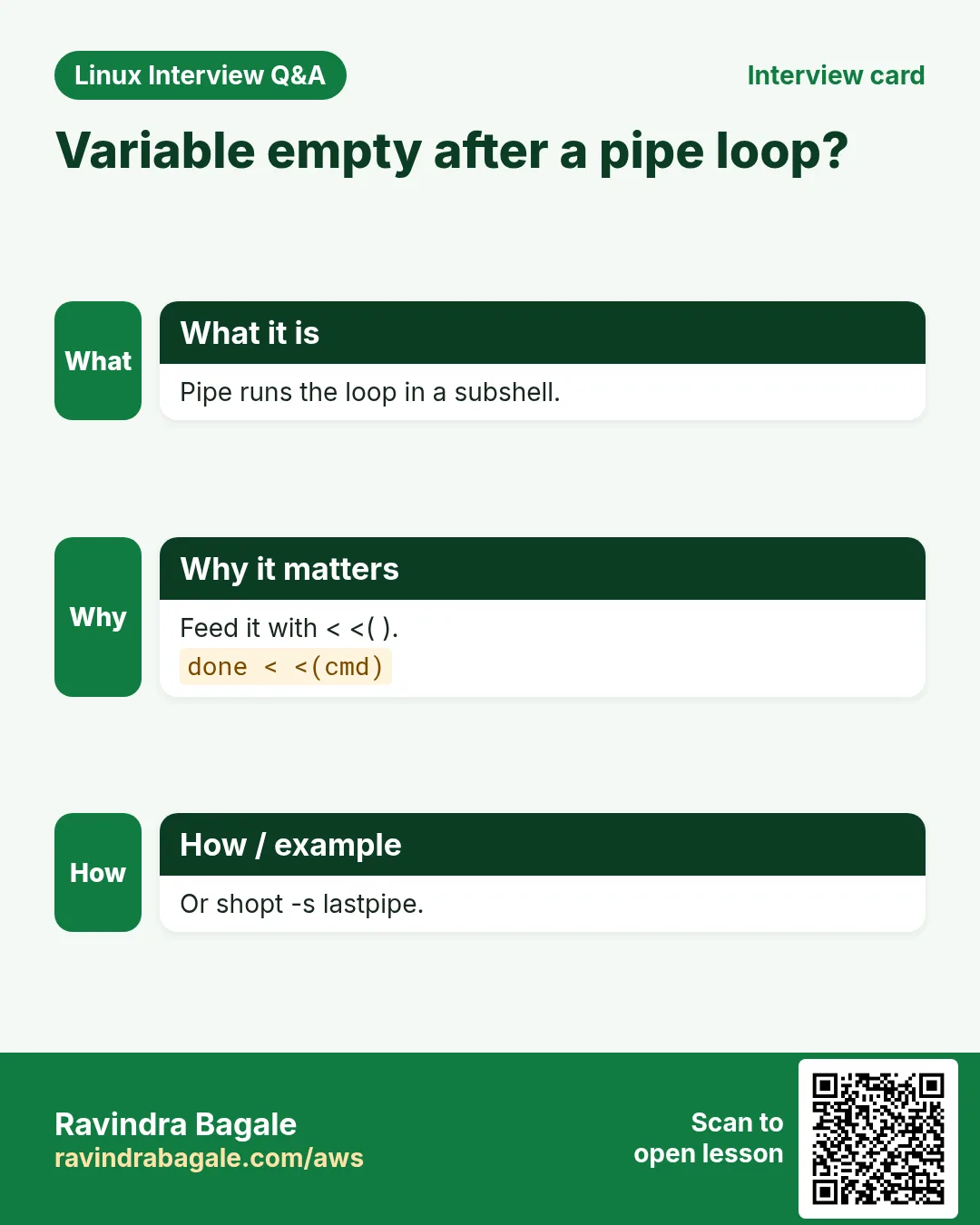
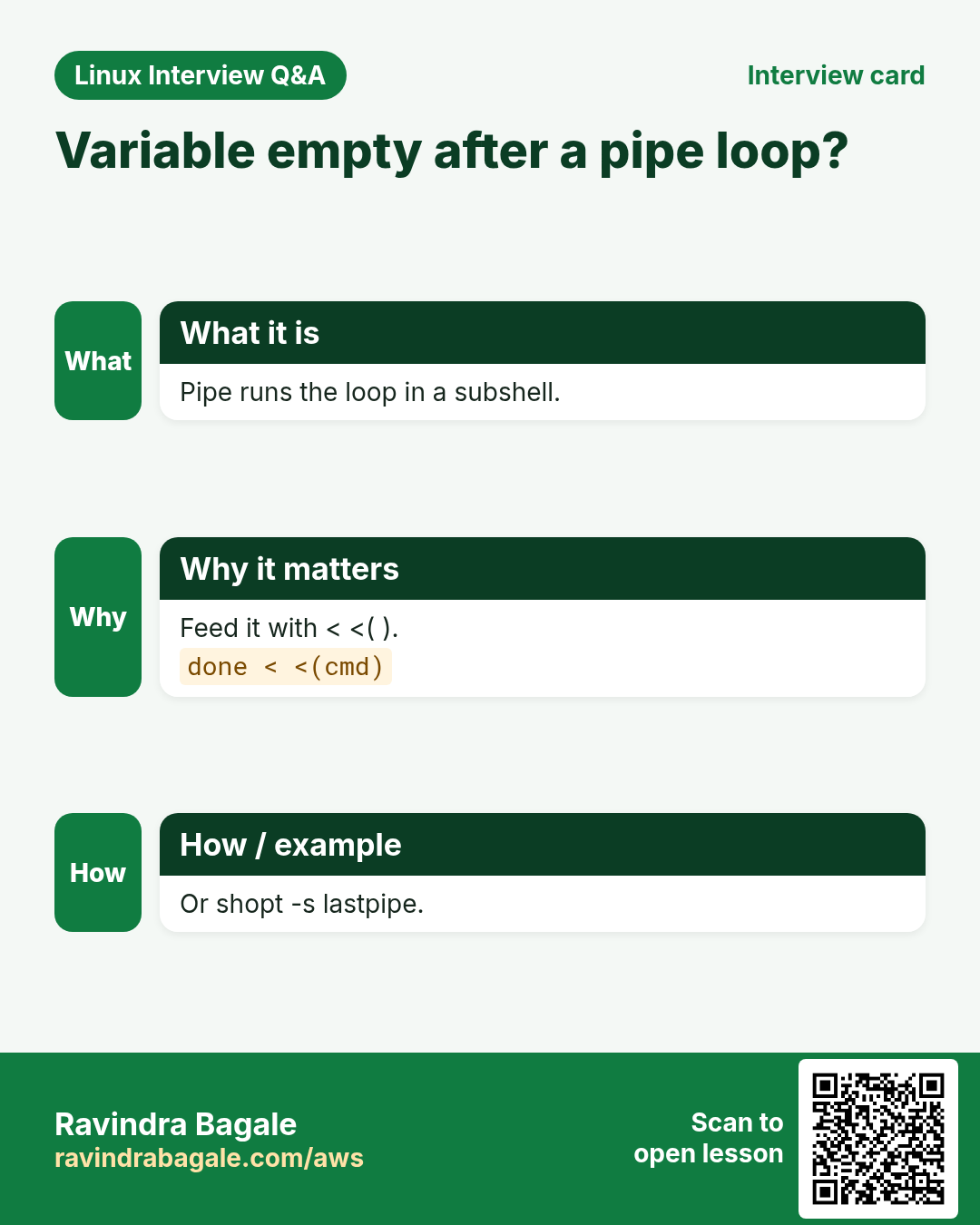
<(cmd) runs the producer and gives you a path like /dev/fd/63 that another command can read as a stream. Use it with diff to compare two streams. If a program needs to seek or read its input twice, save the result to a regular file. With >(cmd), whatever you write to the path goes to the command’s input. In done < <(cmd), the first < redirects the loop’s input, and <(cmd) supplies the path. The loop stays in the current shell, so its counters survive.
- Diff two servers.
diff <(ssh web1 'rpm -qa | sort') <(ssh web2 'rpm -qa | sort')Output:
< nginx-1.24.0-1
> nginx-1.22.1-1
Version drift found.
- What is it?
echo <(true)Output:
/dev/fd/63A file name.
- Loop keeps counter.
n=0; while read -r u; do ((n++)); done < <(cut -d: -f1 /etc/passwd); echo $nOutput:
34With a pipe n would be 0.
- Write to two places.
./export.sh | tee >(gzip > export.gz) | wc -lOutput:
5000Count and compress at once.
8. File descriptors and exec
Long scripts want all output logged without adding > log to every line.
exec > file redirects the rest of the script's stdout. exec > >(tee -a run.log) 2>&1 logs everything while still showing it. exec 3> file opens a new descriptor 3; write with >&3 and close with exec 3>&-. /dev/null is the black hole; /dev/stderr is a name for fd 2.
- Log the whole script.
exec > >(tee -a /var/log/nightly.log) 2>&1
echo 'nightly start'
Output:
nightly startEvery later line is logged.
- Extra descriptor.
exec 3>> audit.log; echo 'user asha ran deploy' >&3; exec 3>&-; cat audit.logOutput:
user asha ran deployAudit kept apart.
- Read from fd.
exec 4< servers.txt; read -r first <&4; echo $firstOutput:
web1Read one line.
9. Real examples from many industries
The same Linux skill shows up in every kind of company. Seeing it in many places helps you remember it.
Each row is a made-up team. It shows who uses this and how.
| Team and city | How they use it | Command |
|---|---|---|
| Rohan, banking, Mumbai | Separate error log for EOD batch | ./eod.sh > eod.log 2> eod.err |
| Emma, media, Berlin | Top referrers from access log | awk '{print $11}' a.log | sort | uniq -c | sort -rn |
| Kenji, robotics, Tokyo | Write device config with here-doc | cat > dev.conf <<EOF |
| Fatima, government, Riyadh | Compare user lists of two servers | comm -3 <(sort a) <(sort b) |
| Lucas, SaaS, Sao Paulo | Log whole deploy script | exec > >(tee -a deploy.log) 2>&1 |
| Pooja, pharma, Hyderabad | Append to root-owned hosts | echo "$ip db" | sudo tee -a /etc/hosts |
10. Common errors and how to fix them
Everyone hits these errors. Knowing the cause saves hours.
Read the exact message first. Then match it to a row below.
| Error you see | Why it happens | How to fix |
|---|---|---|
Permission denied with sudo echo x > file | > runs as you, not root | Use sudo tee.echo x | sudo tee file |
Errors still on screen after 2>&1 > f | Wrong order | Put > f first.cmd > f 2>&1 |
File became empty | > on a file you read | Write to a temp then move.sort f > f.tmp && mv f.tmp f |
warning: here-document delimited by end-of-file | Closing word missing or indented | Put EOF alone at line start.EOF |
Variables empty after while loop | Pipe runs loop in a subshell | Use < <(cmd).done < <(cmd) |
cannot overwrite existing file | noclobber is on | Use >| or set +o noclobber.echo x >| f |
syntax error near unexpected token `(' | Process substitution in sh | Run with bash.bash script.sh |
$VAR printed literally in file | Used <<'EOF' | Use unquoted EOF to expand.cat <<EOF |
Disk full from a log | >> never rotated | Empty or rotate it.: > big.log |
11. Troubleshooting step by step
When output goes to the wrong place, test each stream on its own.
Go top to bottom. Stop at the first step that shows the problem.
- Only stdout.
cmd 2>/dev/null- Only stderr.
cmd > /dev/null- See open fds.
ls -l /proc/$$/fd- Check order.
cmd > f 2>&1- Pipe statuses.
echo "${PIPESTATUS[@]}"- Lint.
shellcheck s.sh12. Lab 1: Log report pipeline with tee
Build a small access log, find the top IPs and status codes with a pipe, and save the report while seeing it.
A full hands-on lab. Run every step on a test Linux machine (an EC2 instance, a VM, or WSL).
- Make a log with a here-doc.
cat > ~/access.log <<'EOF'
49.36.12.8 - - [25/Oct/2026] "GET / HTTP/1.1" 200
49.36.12.8 - - [25/Oct/2026] "GET /cart HTTP/1.1" 500
103.21.4.9 - - [25/Oct/2026] "GET / HTTP/1.1" 200
49.36.12.8 - - [25/Oct/2026] "GET /pay HTTP/1.1" 200
EOF- Top IPs.
awk '{print $1}' ~/access.log | sort | uniq -c | sort -rnOutput:
      3 49.36.12.8
1 103.21.4.9- Status codes saved.
awk '{print $NF}' ~/access.log | sort | uniq -c | tee ~/status.txtOutput:
      3 200
1 500- Errors to a file.
grep ' 500$' ~/access.log > ~/errors.txt; wc -l < ~/errors.txtOutput:
1- Clean up.
rm ~/access.log ~/status.txt ~/errors.txt13. Lab 2: Compare two configs with process substitution
Write two configs with here-docs, then compare them sorted and without comments using <( ) and no temp files.
A full hands-on lab. Run every step on a test Linux machine (an EC2 instance, a VM, or WSL).
- Config A.
cat > ~/a.conf <<'EOF'
# prod
port=80
workers=4
EOF- Config B.
cat > ~/b.conf <<'EOF'
workers=8
port=80
# staging
EOF- Plain diff is noisy.
diff ~/a.conf ~/b.conf | wc -lOutput:
8- Clean compare.
diff <(grep -v '^#' ~/a.conf | sort) <(grep -v '^#' ~/b.conf | sort)Output:
2c2
< workers=4
---
> workers=8- Clean up.
rm ~/a.conf ~/b.confRavindra Bagale's Tip
Remember the three doors 0, 1 and 2. Write > file 2>&1 in that order, use tee when you need to save and see, use <<'EOF' when writing scripts or configs into files, and use < <(cmd) when a loop must keep its variables.
Ravindra Bagale's Tip – मराठी
तीन दारं 0, 1 आणि 2 लक्षात ठेवा. > file 2>&1 याच क्रमाने लिहा, save आणि बघायचं असेल तर tee, files मधे scripts किंवा configs लिहिताना <<'EOF', आणि loop ला variables टिकवायचे असतील तर < <(cmd).
Ravindra Bagale's Tip – हिंदी
तीन दरवाज़े 0, 1 और 2 याद रखिए. > file 2>&1 इसी क्रम में लिखिए, save और देखना हो तो tee, files में scripts या configs लिखते समय <<'EOF', और loop को variables रखने हों तो < <(cmd).
14. Frequently asked questions
Q. What is /dev/null?
A file that throws data away.
Q. > vs >>?
Replace vs add.
Q. &> in sh?
No, use > f 2>&1.
Q. Here-doc indent?
Use <<- with tabs.
Q. Why tee with sudo?
Redirect runs as you.
Q. Is <( ) a real file?
A pipe shown as /dev/fd/N.
Q. Pipe both streams?
Use |&.
Q. Edit a file in place with >?
No; temp file then mv.
15. Interview questions and answers
Beginner level
Q. What is fd 2?
stderr.
Q. Append to a file?
>>.
Q. Hide errors?
2>/dev/null.
Q. Join commands?
Pipe |.
Mid level level
Q. Both streams to one file?
> f 2>&1.
Q. Save and show?
tee.
Q. Stop $ expanding in here-doc?
Quote the word.
Q. Diff two command outputs?
diff <(a) <(b).
Senior level
Q. Why does 2>&1 > f fail?
2 copies the old target of 1.
Q. Pipe and subshell?
Each part may run in a subshell; vars are lost.
Q. Log a whole script?
exec > >(tee -a log) 2>&1.
Q. Safe in-place edit?
Temp file and atomic mv.
Try at home
- Use a here-doc to create a shopping list file, then pipe it through sort and tee into a sorted copy.
- Compare the list of files in two folders with diff <( ) <( ).
Practise this chapter
Interview questions and answers
Why does 2>&1 before > log leave error text on the terminal?
Bash evaluates the redirections from left to right. It copies the original terminal destination for descriptor 2 first. Changing descriptor 1 to the file afterward leaves 2 pointing to the terminal. Show the comparison with a demo that emits one line on each stream.
Check your understanding
Choose an answer, then compare your reasoning with the explanation.
Practice Tasks
Practice checks run in your browser. They check the answer for this exercise; they do not create resources or connect to your AWS account.
About this scenarioLondon Legal LLP is a law business in London. Oliver Hughes looks after its IT and cloud work. They count money in GBP and run their AWS resources in the eu-west-2 Region. In the tasks below you do real jobs for them using what this lesson teaches. All names, account IDs, IP addresses and numbers are made up for practice.
0 / 21
Easy Save and show
BIZ pipelines move output between many commands.
Oliver Hughes at London Legal LLP runs df -h. Show the output and also save it to disk.txt.
- Find the Linux command that does this job.
- Add the options (like -r or -h) the task needs.
- Add the file names, folders or users in the right order.
- Use sudo if the job changes system files or users. Click Check answer.
Easy Append with tee
BIZ pipelines move output between many commands.
Show uptime output and append it to health.log.
- Find the Linux command that does this job.
- Add the options (like -r or -h) the task needs.
- Add the file names, folders or users in the right order.
- Use sudo if the job changes system files or users. Click Check answer.
Easy Discard errors
BIZ pipelines move output between many commands.
Find files named hosts under /etc without crossing into other filesystems.
- Find the Linux command that does this job.
- Add the options (like -r or -h) the task needs.
- Add the file names, folders or users in the right order.
- Use sudo if the job changes system files or users. Click Check answer.
Easy Count lines
BIZ pipelines move output between many commands.
Count how many lines in app.log contain ERROR.
- Find the Linux command that does this job.
- Add the options (like -r or -h) the task needs.
- Add the file names, folders or users in the right order.
- Use sudo if the job changes system files or users. Click Check answer.
Easy Sort numbers
BIZ pipelines move output between many commands.
Sort sizes.txt numerically, biggest first.
- Find the Linux command that does this job.
- Add the options (like -r or -h) the task needs.
- Add the file names, folders or users in the right order.
- Use sudo if the job changes system files or users. Click Check answer.
Easy Count users
BIZ pipelines move output between many commands.
Count the lines of /etc/passwd.
- Find the Linux command that does this job.
- Add the options (like -r or -h) the task needs.
- Add the file names, folders or users in the right order.
- Use sudo if the job changes system files or users. Click Check answer.
Easy Translate case
BIZ pipelines move output between many commands.
Convert the contents of names.txt to upper case with tr and print.
- Find the Linux command that does this job.
- Add the options (like -r or -h) the task needs.
- Add the file names, folders or users in the right order.
- Use sudo if the job changes system files or users. Click Check answer.
Easy Unique lines
BIZ pipelines move output between many commands.
Print the unique lines of list.txt in sorted order with one sort option.
- Find the Linux command that does this job.
- Add the options (like -r or -h) the task needs.
- Add the file names, folders or users in the right order.
- Use sudo if the job changes system files or users. Click Check answer.
Easy First 10
BIZ pipelines move output between many commands.
Show the first 10 lines of access.log.
- Find the Linux command that does this job.
- Add the options (like -r or -h) the task needs.
- Add the file names, folders or users in the right order.
- Use sudo if the job changes system files or users. Click Check answer.
Medium Top values
BIZ pipelines move output between many commands.
From ips.txt print the 3 most repeated lines with counts.
- Find the Linux command that does this job.
- Add the options (like -r or -h) the task needs.
- Add the file names, folders or users in the right order.
- Use sudo if the job changes system files or users. Click Check answer.
Medium Here-string
BIZ pipelines move output between many commands.
Send the text 5+7 into bc using a here-string.
- Find the Linux command that does this job.
- Add the options (like -r or -h) the task needs.
- Add the file names, folders or users in the right order.
- Use sudo if the job changes system files or users. Click Check answer.
Medium Read lines
BIZ pipelines move output between many commands.
Read servers.txt line by line into variable h and echo each.
- Find the Linux command that does this job.
- Add the options (like -r or -h) the task needs.
- Add the file names, folders or users in the right order.
- Use sudo if the job changes system files or users. Click Check answer.
Medium xargs
BIZ pipelines move output between many commands.
Delete the files listed in old.txt using xargs, doing nothing if the list is empty.
- Find the Linux command that does this job.
- Add the options (like -r or -h) the task needs.
- Add the file names, folders or users in the right order.
- Use sudo if the job changes system files or users. Click Check answer.
Medium Column total
BIZ pipelines move output between many commands.
Print the total of the second column of bills.txt with awk.
- Find the Linux command that does this job.
- Add the options (like -r or -h) the task needs.
- Add the file names, folders or users in the right order.
- Use sudo if the job changes system files or users. Click Check answer.
Medium First lines of ps
BIZ pipelines move output between many commands.
Show the 5 processes using most memory with ps sorted.
- Find the Linux command that does this job.
- Add the options (like -r or -h) the task needs.
- Add the file names, folders or users in the right order.
- Use sudo if the job changes system files or users. Click Check answer.
Medium Read compressed
BIZ pipelines move output between many commands.
Count ERROR lines in app.log.gz without unzipping to disk.
- Find the Linux command that does this job.
- Add the options (like -r or -h) the task needs.
- Add the file names, folders or users in the right order.
- Use sudo if the job changes system files or users. Click Check answer.
Medium Second field
BIZ pipelines move output between many commands.
Print the second whitespace column of every line of data.txt with awk.
- Find the Linux command that does this job.
- Add the options (like -r or -h) the task needs.
- Add the file names, folders or users in the right order.
- Use sudo if the job changes system files or users. Click Check answer.
Hard Process substitution
BIZ pipelines move output between many commands.
Compare the sorted contents of a.txt and b.txt with diff without temp files.
- Find the Linux command that does this job.
- Add the options (like -r or -h) the task needs.
- Add the file names, folders or users in the right order.
- Use sudo if the job changes system files or users. Click Check answer.
Hard Only in first
BIZ pipelines move output between many commands.
Print lines only in old.txt and not in new.txt with comm and sorted inputs.
- Find the Linux command that does this job.
- Add the options (like -r or -h) the task needs.
- Add the file names, folders or users in the right order.
- Use sudo if the job changes system files or users. Click Check answer.
Hard Write as root
BIZ pipelines move output between many commands.
Write the text 1 into /proc/sys/net/ipv4/ip_forward as root via tee.
- Find the Linux command that does this job.
- Add the options (like -r or -h) the task needs.
- Add the file names, folders or users in the right order.
- Use sudo if the job changes system files or users. Click Check answer.
Hard Loop over command
BIZ pipelines move output between many commands.
Loop over the lines of the output of ls into variable f without a pipe subshell and echo each.
- Find the Linux command that does this job.
- Add the options (like -r or -h) the task needs.
- Add the file names, folders or users in the right order.
- Use sudo if the job changes system files or users. Click Check answer.
16. Related chapters
- Linux Ops Refresh for DevOps
- Bash Scripting for Automation
- Linux grep and find Commands with Examples
- How to Set Up Passwordless SSH Between Linux Servers
In short
- 0 in, 1 out, 2 errors.
- > replace, >> append.
- > f 2>&1 or &> f for both.
- | joins, tee saves and shows.
- <<'EOF' writes files as-is.
- <( ) acts like a file.
Revision, comparison and interview cards
Revise this lesson in a few minutes. Save the cards on your phone or download them as PNG files. The QR code on each card opens this lesson.
More cards: Ravi Sir's Cards.