Linux RAID with mdadm plus df and du: Disk Space Troubleshooting Explained Simply
Disks fail. RAID keeps your server running when one does, by spreading or copying data over several disks. This chapter teaches software RAID with mdadm (create, check, replace a failed disk, save the config) and then the most common disk ticket of all: 'disk full'. You will learn df and du step by step, how to find big files, why deleted files can still use space, and what to do when inodes run out.
In this chapter
- Know RAID 0, 1, 5, 6 and 10
- Create and check arrays with mdadm
- Replace a failed disk and watch the rebuild
- Read df -h, df -i and du correctly
- Find what fills a disk
- Free space safely, including deleted-but-open files
1. An everyday example: photocopies of your documents
You keep two photocopies of your Aadhaar and property papers in different bags. If one bag is lost, you still have the other copy, and you make a new copy right away. Separately, your cupboard is full: you check which shelf is biggest, then which box inside it, until you find the old newspapers.
Two copies in two bags = RAID 1. Making a new copy = rebuild after replacing a disk. Checking the shelf = df. Checking each box = du. Old newspapers = big old logs.
2. RAID levels in simple words
A RAID array presents one device built from multiple devices. In a two-device RAID 1 lab, a copy of each block is kept on both members. Two 1 GiB members therefore give about 1 GiB of usable device space. Either member can fail and the remaining copy can keep the array running. A deletion through the mounted filesystem still takes effect on the array, which is why you keep backups separately. Compare with RAID 0, which spreads blocks across members for capacity or throughput and depends on all of them being present.
Choosing the wrong level means either lost data or wasted disks.
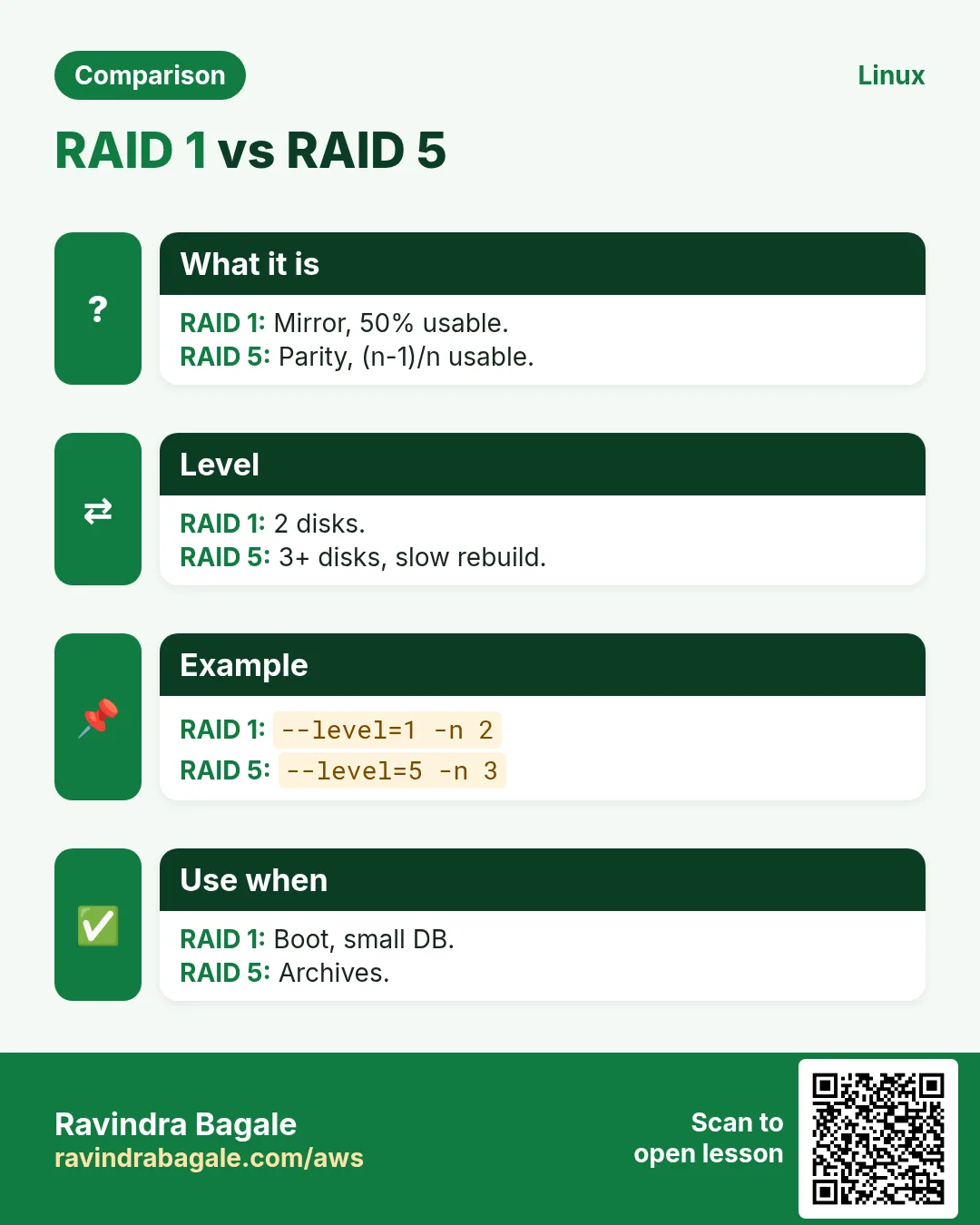
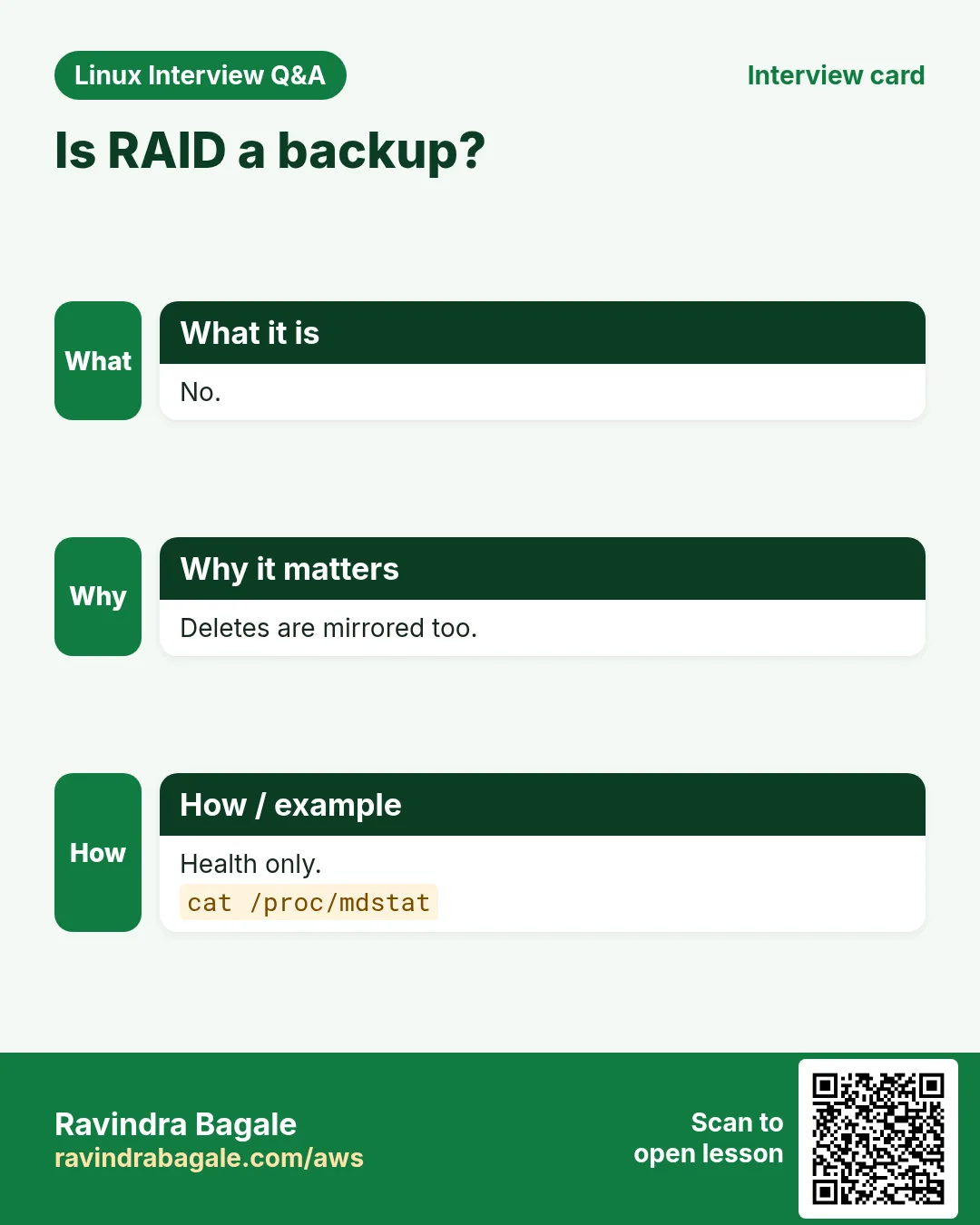
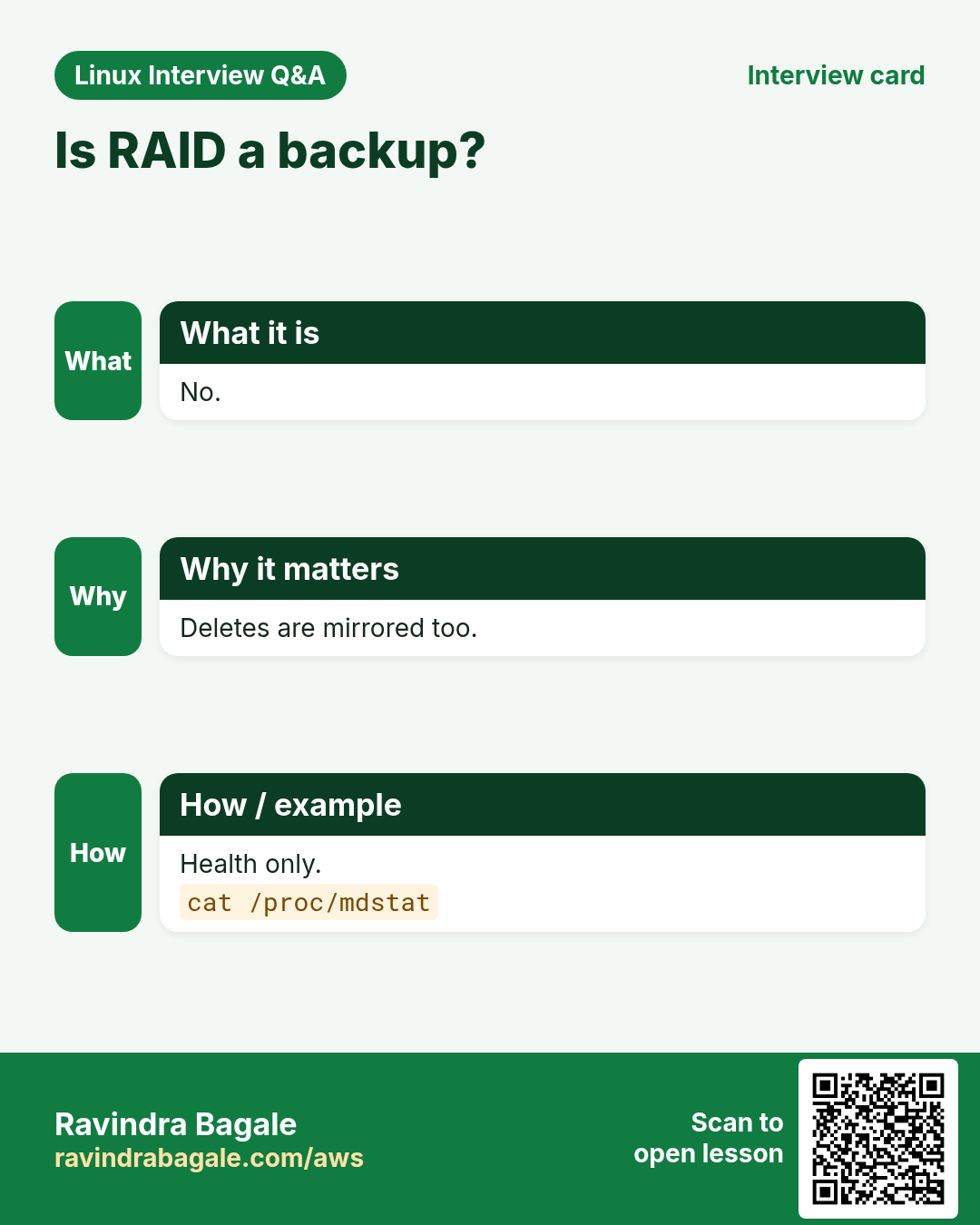
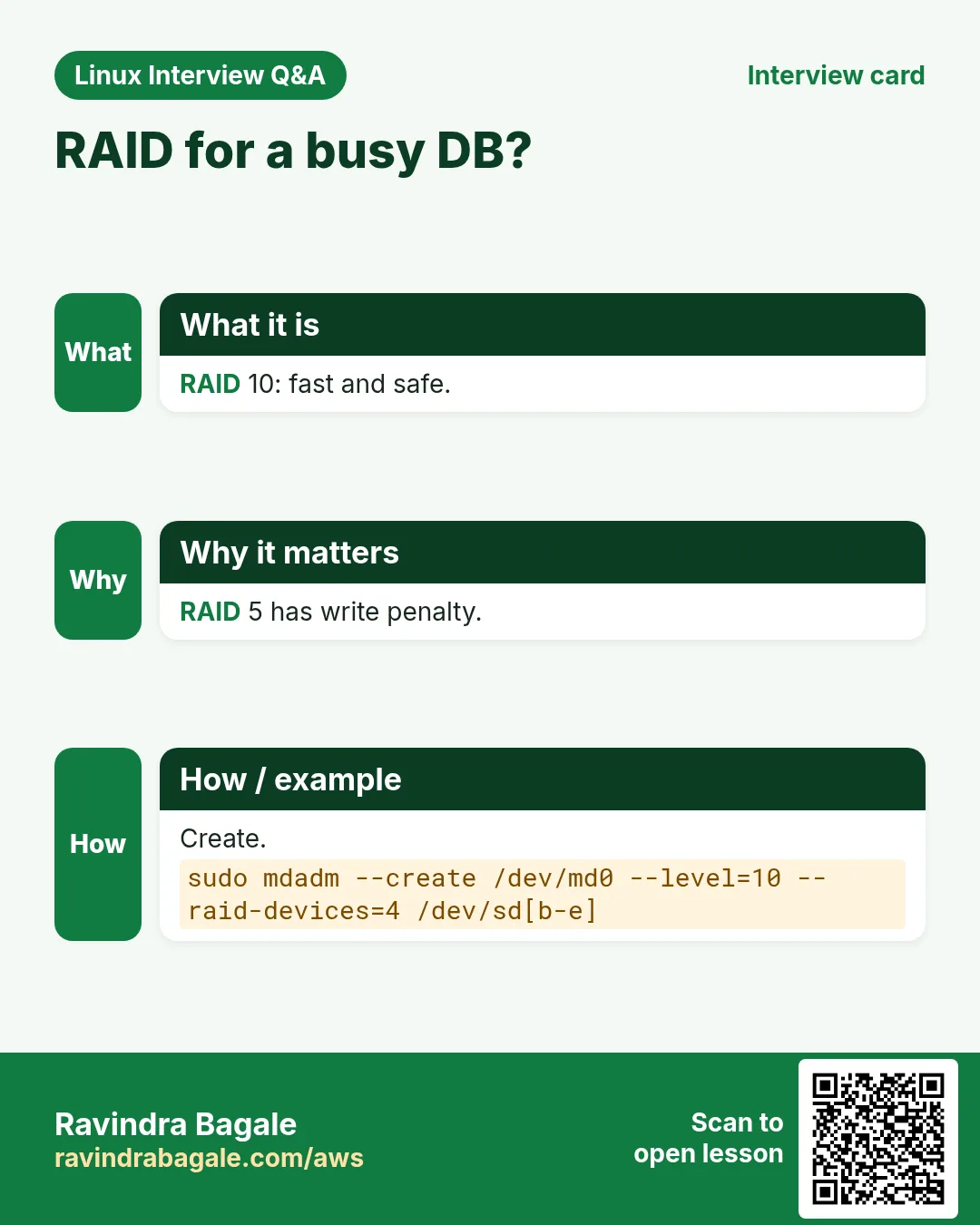
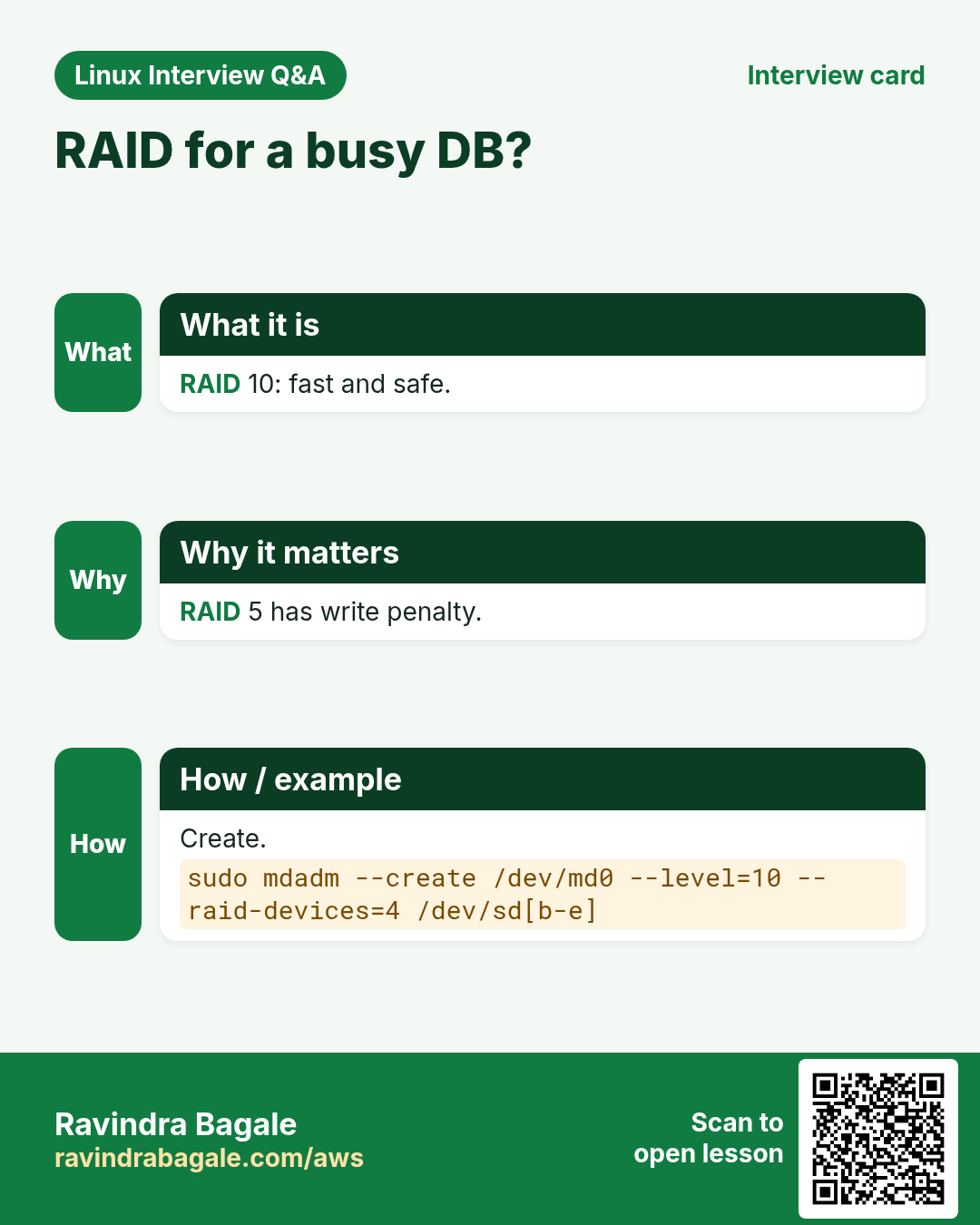
RAID 0: stripe, fast, no safety. RAID 1: mirror, half the space, survives one failure. RAID 5: parity, needs 3+ disks, survives one. RAID 6: double parity, 4+ disks, survives two. RAID 10: mirrors striped, 4+ disks, fast and safe. RAID is not a backup: deletes and ransomware are copied too.
| Level | Min disks | Survives | Usable |
|---|---|---|---|
| 0 | 2 | 0 | 100% |
| 1 | 2 | 1 | 50% |
| 5 | 3 | 1 | (n-1)/n |
| 6 | 4 | 2 | (n-2)/n |
| 10 | 4 | 1 per mirror | 50% |
- Check support.
cat /proc/mdstatOutput:
Personalities : [raid1] [raid6] [raid5] [raid4] [raid10]
unused devices: <none>
Kernel ready.
- Install mdadm.
sudo dnf install -y mdadm && mdadm --versionOutput:
mdadm - v4.2Tool ready.
3. mdadm --create: build an array
You want two disks to act as one safe disk for a database.
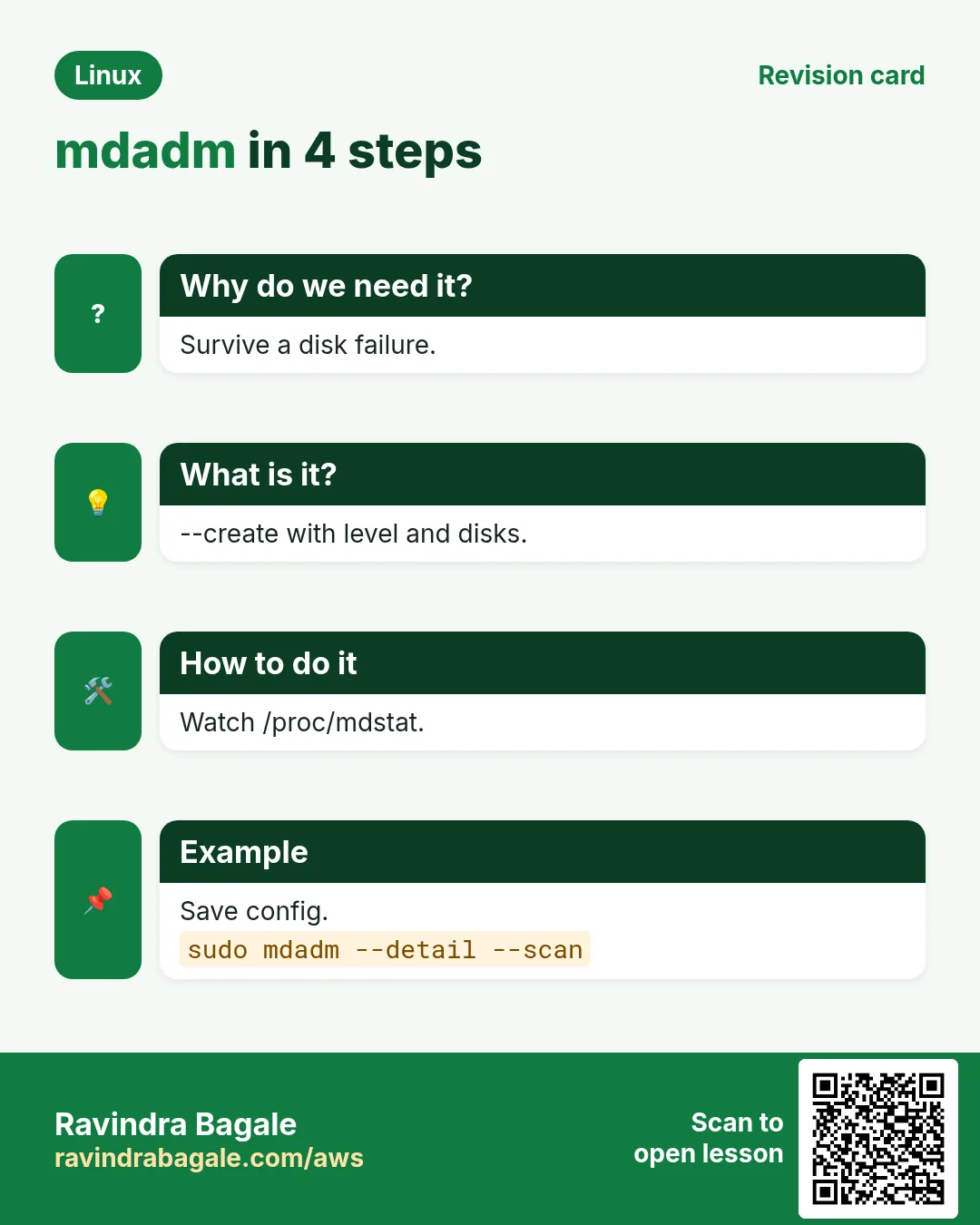
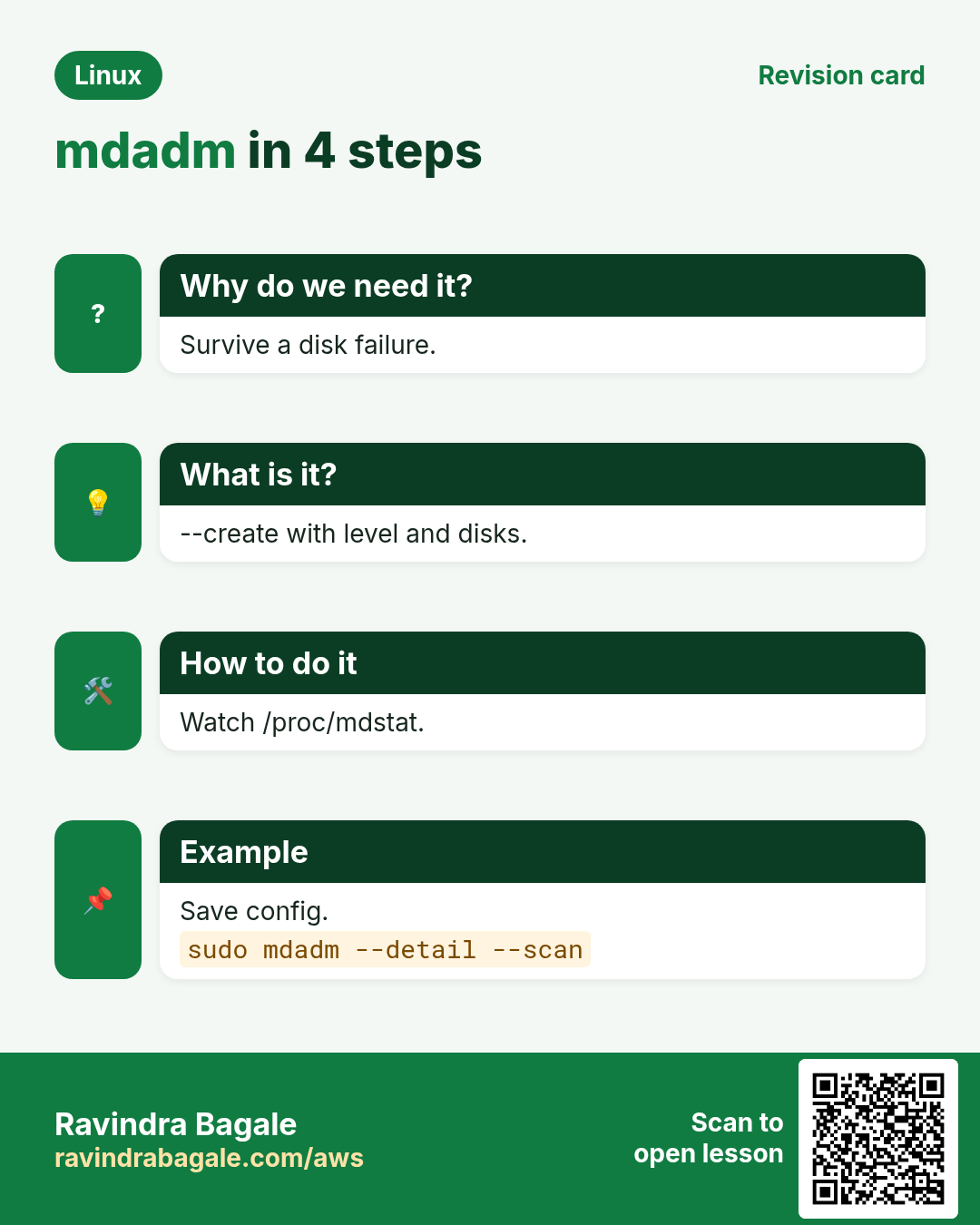
sudo mdadm --create /dev/md0 --level=1 --raid-devices=2 DEV1 DEV2. For RAID 5 use --level=5 --raid-devices=3. Add --spare-devices=1 DEV for a hot spare. The initial resync runs in the background; you can mkfs and use it at once.
- Mirror.
sudo mdadm --create /dev/md0 --level=1 --raid-devices=2 /dev/nvme1n1 /dev/nvme2n1Output:
mdadm: array /dev/md0 started.RAID 1 ready.
- RAID 5 with spare.
sudo mdadm --create /dev/md1 --level=5 --raid-devices=3 --spare-devices=1 /dev/sd[b-e]Output:
mdadm: array /dev/md1 started.3 data + 1 spare.
- Use it.
sudo mkfs.xfs /dev/md0 && sudo mkdir -p /data && sudo mount /dev/md0 /dataOutput:
meta-data=/dev/md0 ...Like any disk.
4. /proc/mdstat and mdadm --detail: check health
Read [UU] from left to right as two present members. In a two-member practice mirror, a mark such as [_U] shows one member missing. A filesystem read may succeed even while the mirror has only one copy. After adding a replacement, watch the progress line in /proc/mdstat and check mdadm --detail. Preserve the working copy until recovery finishes. Confirm both members are active before you finish the fail-and-repair exercise.
A RAID that silently runs degraded gives a false sense of safety.
cat /proc/mdstat shows each array, members, [UU] (all up) or [U_] (one missing), and resync progress. mdadm --detail /dev/md0 shows State (clean, degraded, recovering), each device's role and the UUID. watch -n2 cat /proc/mdstat follows a rebuild.
- Healthy.
cat /proc/mdstatOutput:
md0 : active raid1 nvme2n1[1] nvme1n1[0]
      104791040 blocks super 1.2 [2/2] [UU]
Both up.
- Degraded.
cat /proc/mdstatOutput:
md0 : active raid1 nvme2n1[1](F) nvme1n1[0]
      [2/1] [U_]
Disk 2 failed.
- Detail.
sudo mdadm --detail /dev/md0 | grep -E 'State|Active|Failed'Output:
State : clean, degraded
Active Devices : 1
Failed Devices : 1
Act now.
5. Replace a failed disk: --fail, --remove, --add
This is the most common RAID task in real life.
1 mdadm /dev/md0 --fail DEV (if not already F). 2 mdadm /dev/md0 --remove DEV. 3 Replace the disk. 4 mdadm /dev/md0 --add NEWDEV. 5 Watch /proc/mdstat until [UU]. With a hot spare, rebuild starts by itself.
- Fail and remove.
sudo mdadm /dev/md0 --fail /dev/nvme2n1 --remove /dev/nvme2n1Output:
mdadm: set /dev/nvme2n1 faulty in /dev/md0
mdadm: hot removed /dev/nvme2n1 from /dev/md0
Out of the array.
- Add new.
sudo mdadm /dev/md0 --add /dev/nvme3n1Output:
mdadm: added /dev/nvme3n1Rebuild starts.
- Watch.
cat /proc/mdstatOutput:
md0 : active raid1 nvme3n1[2] nvme1n1[0]
      [2/1] [U_]
      [=====>.......]  recovery = 41.2% finish=6.1min
Wait for [UU].
6. Save the config: mdadm.conf and initramfs
Without saved config the array may come back as /dev/md127 or not assemble at boot.
mdadm --detail --scan prints ARRAY lines. Append them to /etc/mdadm.conf (RHEL) or /etc/mdadm/mdadm.conf (Ubuntu). Then rebuild initramfs: dracut -f (RHEL) or update-initramfs -u (Ubuntu). Use the md device or filesystem UUID in fstab with nofail.
- Scan and save.
sudo mdadm --detail --scan | sudo tee -a /etc/mdadm.confOutput:
ARRAY /dev/md0 metadata=1.2 name=db1:0 UUID=5d2c...e1Saved.
- Initramfs.
sudo dracut -fOutput:
(no output)Boot knows the array.
- Assemble manually.
sudo mdadm --assemble --scanOutput:
mdadm: /dev/md0 has been started with 2 drives.After moving disks to a new server.
7. Monitoring RAID: mdadm --monitor
A failed disk at 2 AM should send an alert, not be found weeks later.
Set MAILADDR you@example.com in mdadm.conf and enable mdmonitor.service. mdadm --monitor --scan --oneshot --test sends a test alert. Many teams also scrape /proc/mdstat with node_exporter.
- Enable.
echo 'MAILADDR ops@example.com' | sudo tee -a /etc/mdadm.conf && sudo systemctl enable --now mdmonitorOutput:
Created symlink ... mdmonitor.serviceAlerts on.
- Test.
sudo mdadm --monitor --scan --oneshot --testOutput:
(test mail sent)Check the mailbox.
8. df -h: which filesystem is full
'Disk full' alerts come from df. First find which mount is full before searching files.
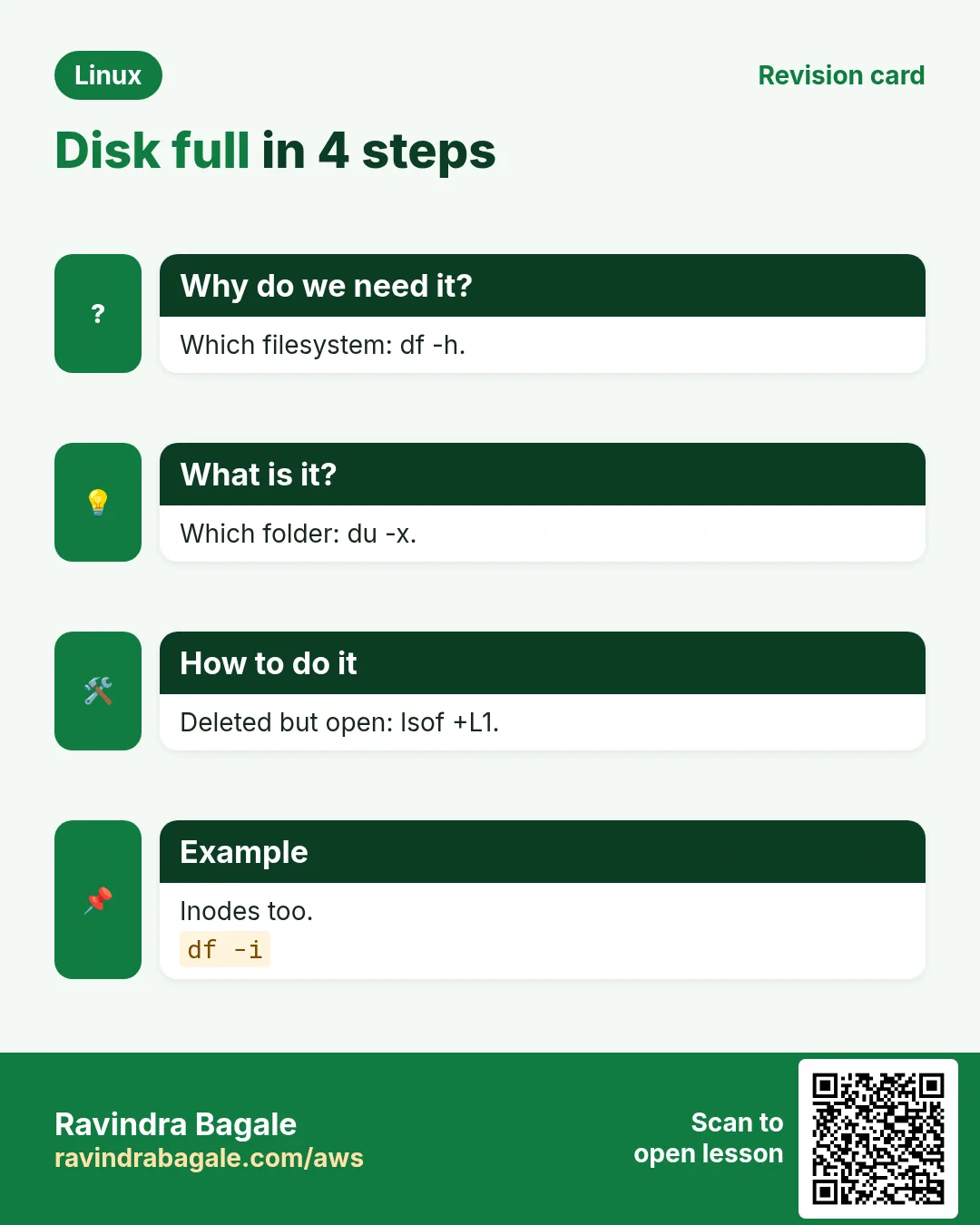
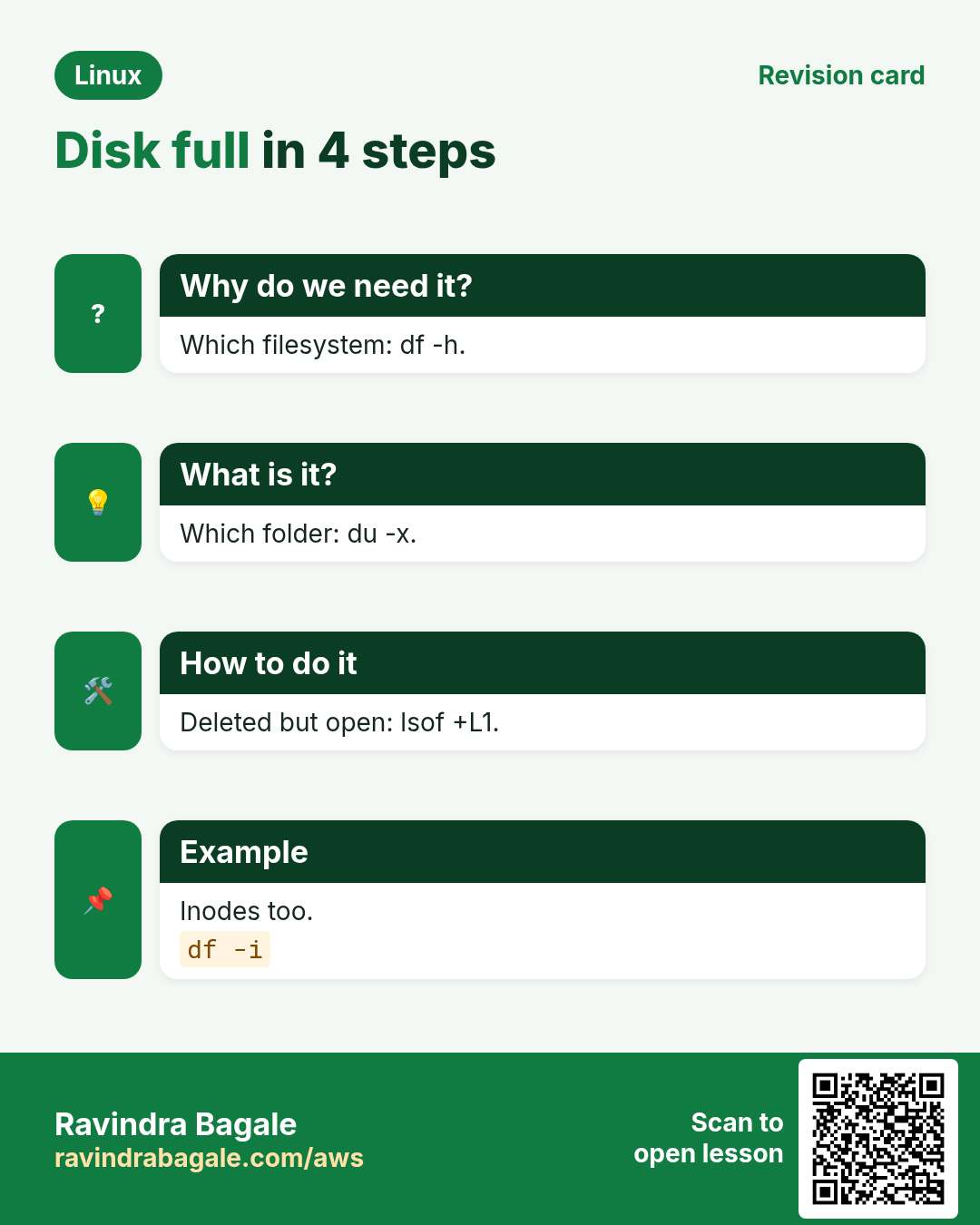
df -h shows size, used, available and Use% per mounted filesystem. df -h /var for one path. df -hT adds type. -x tmpfs -x devtmpfs hides memory filesystems. Above 85% plan cleanup; at 100% apps fail to write.
- All.
df -hT -x tmpfs -x devtmpfsOutput:
Filesystem     Type Size Used Avail Use% Mounted on
/dev/nvme0n1p1 xfs   20G  19G  1.0G  95% /
/dev/md0       xfs  100G  41G   59G  41% /data
Root is the problem.
- Which filesystem holds a path?
df -h /var/logOutput:
/dev/nvme0n1p1 20G 19G 1.0G 95% //var/log is on root.
9. du: which folder is big
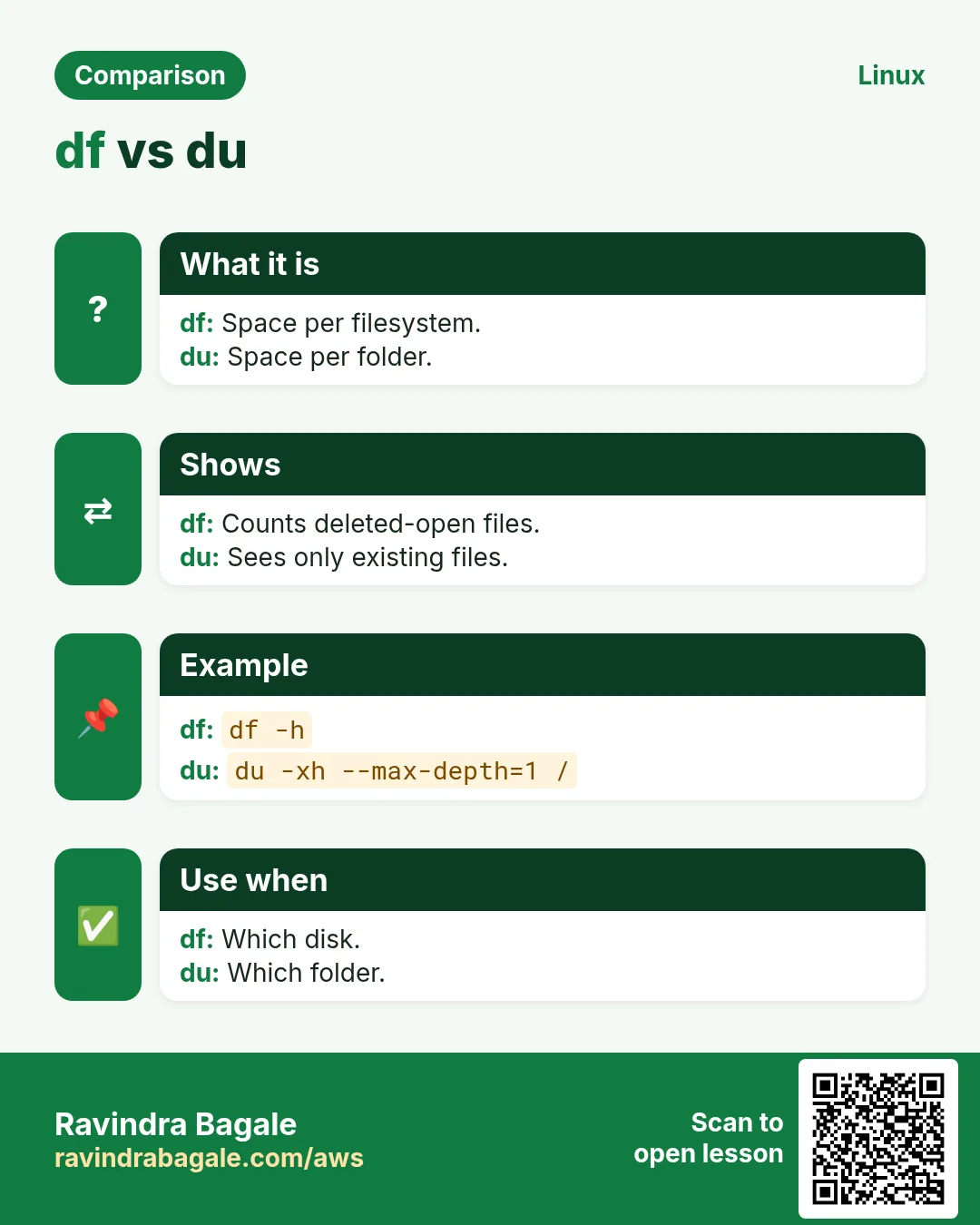
df says which filesystem; du says which folder and file use the space.
du -sh DIR total of one folder. du -h --max-depth=1 DIR | sort -h lists sub-folders by size. -x stays on one filesystem (important on /). find / -xdev -type f -size +500M -exec ls -lh {} + finds big files. ncdu is a friendly interactive version.
- Top level of root.
sudo du -xh --max-depth=1 / 2>/dev/null | sort -h | tail -4Output:
1.2G /usr
2.1G /opt
14G  /var
19G  /
/var is big.
- Drill down.
sudo du -xh --max-depth=1 /var/log | sort -h | tail -3Output:
180M /var/log/journal
11G  /var/log/app
12G  /var/log
App logs.
- Biggest files.
sudo find /var/log/app -type f -size +1G -exec ls -lh {} +Output:
-rw-r--r-- 1 app app 9.8G Oct 25 debug.logOne debug log.
- Interactive.
sudo ncdu -x /Output:
(browse with arrows)Fast to explore.
10. Freeing space safely
Deleting the wrong file or a log the app holds open can make things worse.
Truncate an active log instead of deleting: truncate -s 0 FILE (or : > FILE). Clean the journal: journalctl --vacuum-size=200M. Package caches: dnf clean all / apt clean. Old container images: docker system prune. Then fix the cause with logrotate (chapter 21).
- Empty an active log.
sudo truncate -s 0 /var/log/app/debug.log && df -h /Output:
/dev/nvme0n1p1 20G 9.2G 11G 46% /Space back at once.
- Journal.
sudo journalctl --vacuum-size=200MOutput:
Vacuuming done, freed 1.4G of archived journalsFreed.
- Caches.
sudo dnf clean allOutput:
42 files removedSmall win.
11. Deleted but still open: lsof +L1
du walks names in a directory and sums the files it finds. df asks a filesystem how many blocks it still has allocated. When a process holds a file open and someone removes its last name, the process can still use the file. du misses it, while df can still count its blocks. Use lsof +L1 to identify the open file and the owning process. Ask that program to close or reopen its file safely, then repeat the measurements to confirm when the space returns.
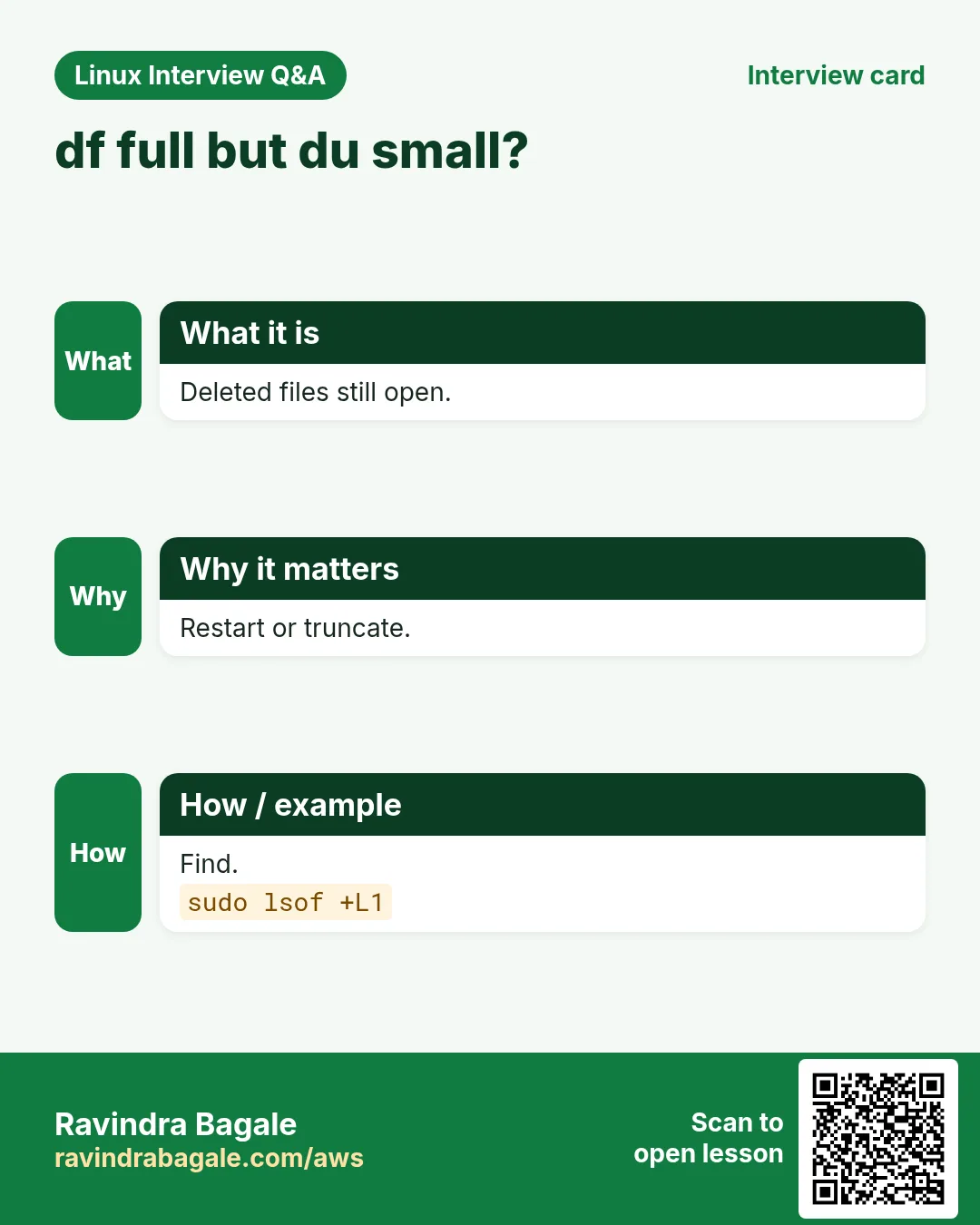
You deleted a 10G log but df still shows the disk full. The file is gone from the folder but a process still holds it open.
sudo lsof +L1 lists open files with link count 0 (deleted). Fix: restart or reload the process, or truncate via /proc/PID/fd/N. du and df disagree when this happens.
- Find them.
sudo lsof +L1Output:
COMMAND PID  USER FD SIZE/OFF   NLINK NAME
java    2201 app  5w 10737418240 0    /var/log/app/debug.log (deleted)
Java still writes it.
- Free without restart.
sudo truncate -s 0 /proc/2201/fd/5 && df -h /Output:
/dev/nvme0n1p1 20G 9.1G 11G 45% /Space released.
- Or restart.
sudo systemctl restart myappOutput:
(no output)Process closes the file.
12. Inodes: df -i
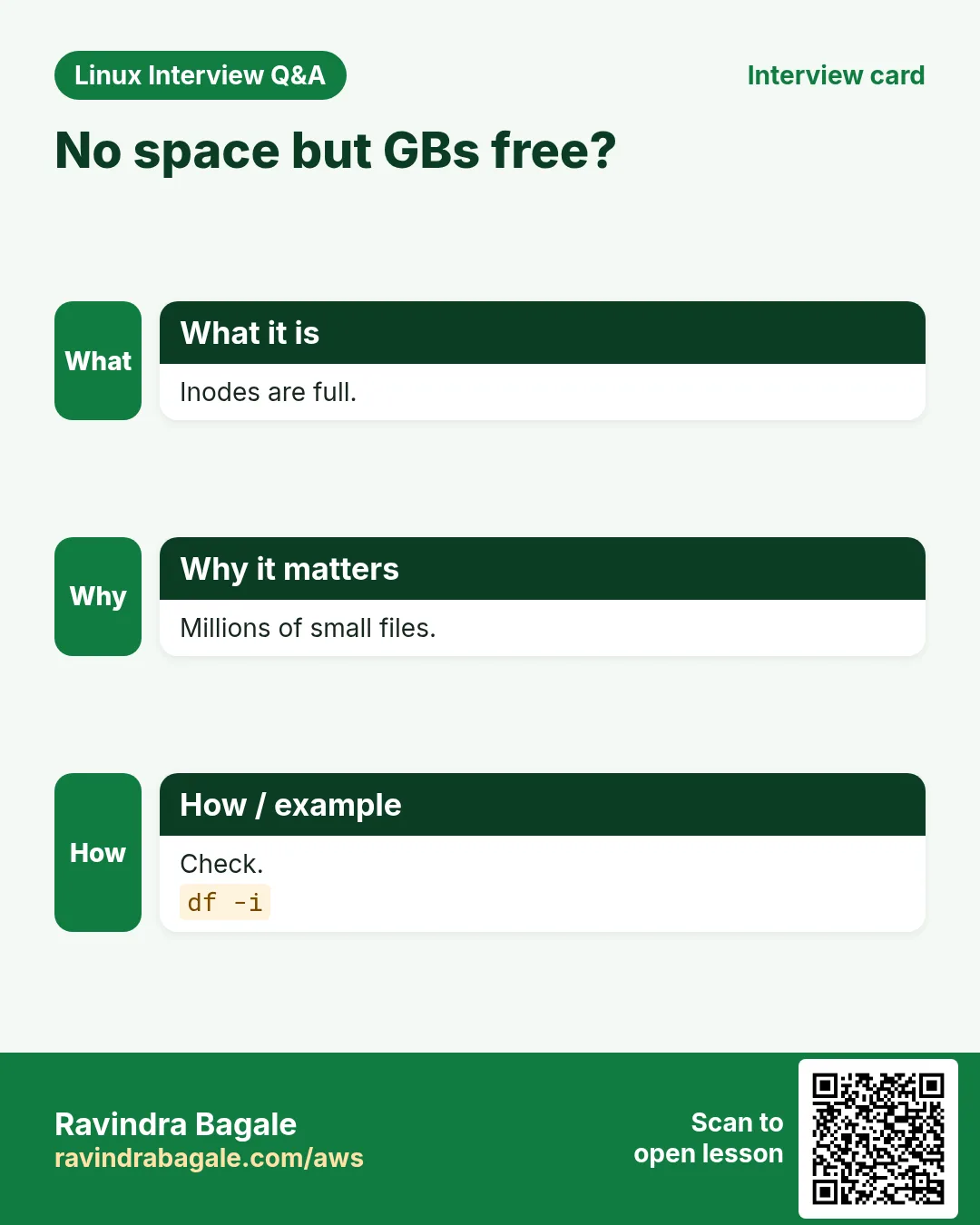
A disk can show free GBs but still say 'No space left' because it ran out of inodes (file entries), often from millions of tiny files.
df -i shows inode use per filesystem. Find folders with many files: sudo find /var -xdev -type f | cut -d/ -f2-4 | sort | uniq -c | sort -n | tail. Common causes: session files, mail queues, cache folders. Delete old ones with find -mtime +7 -delete.
- Inodes full.
df -i /Output:
Filesystem     Inodes IUsed IFree IUse% Mounted on
/dev/sdc1      1.3M  1.3M  0     100% /
Out of inodes.
- Where?
sudo find / -xdev -type f | cut -d/ -f2-4 | sort | uniq -c | sort -n | tail -2Output:
  48120 var/lib/php
1201188 var/lib/php/sessions
PHP sessions.
- Clean old ones.
sudo find /var/lib/php/sessions -type f -mmin +1440 -delete && df -i /Output:
IUse% 9%Fixed.
13. Real examples from many industries
The same Linux skill shows up in every kind of company. Seeing it in many places helps you remember it.
Each row is a made-up team. It shows who uses this and how.
| Team and city | How they use it | Command |
|---|---|---|
| Anil, stock broker, Pune | RAID 1 for trading DB | mdadm --create /dev/md0 --level=1 |
| Helen, cloud hosting, Amsterdam | RAID 10 for busy MySQL | mdadm --level=10 --raid-devices=4 |
| Takeshi, video, Kyoto | RAID 6 for big media archives | mdadm --level=6 |
| Zara, e-commerce, Karachi | Finds deleted open logs | lsof +L1 |
| Paulo, hosting, Lisbon | Fixes inode-full PHP servers | df -i |
| Meera, school portal, Nashik | Weekly du report to the team | du -xh --max-depth=1 / | sort -h |
14. Common errors and how to fix them
Everyone hits these errors. Knowing the cause saves hours.
Read the exact message first. Then match it to a row below.
| Error you see | Why it happens | How to fix |
|---|---|---|
No space left on device | Filesystem or inodes full | Check df -h and df -i.df -h; df -i |
df full but du shows less | Deleted files still open | Find and release them.sudo lsof +L1 |
md0 [U_] degraded | One disk failed | Replace it now.sudo mdadm --detail /dev/md0 |
mdadm: cannot open /dev/sdb: Device or resource busy | Disk in use or old md metadata | Check and zero superblock if free.sudo mdadm --zero-superblock /dev/sdb |
Array appears as /dev/md127 after reboot | Config not saved | Save mdadm.conf, rebuild initramfs.sudo mdadm --detail --scan |
du: cannot read directory: Permission denied | Not root | Run with sudo.sudo du -sh /var |
du takes forever on / | Crossing into other mounts (NFS) | Use -x.sudo du -xsh / |
rm deleted log but space not freed | App holds the file | Truncate or restart instead.sudo systemctl restart myapp |
mdadm: add new device failed: Invalid argument | New disk smaller than members | Use same or larger size.lsblk -b |
journal is using 4G | No size limit set | Vacuum and set SystemMaxUse.sudo journalctl --vacuum-size=200M |
15. Troubleshooting step by step
For 'disk full', go from filesystem to folder to file to process.
Go top to bottom. Stop at the first step that shows the problem.
- Which filesystem?
df -hT -x tmpfs- Inodes?
df -i- Which folder?
sudo du -xh --max-depth=1 / | sort -h- Which file?
sudo find / -xdev -type f -size +1G- Deleted but open?
sudo lsof +L1- RAID healthy?
cat /proc/mdstat16. Lab 1: RAID 1 on loop devices and a failure
Build a mirror, fail a disk, add a new one and watch rebuild.
A full hands-on lab. Run every step on a test Linux machine (an EC2 instance, a VM, or WSL).
- Three fake disks.
for i in 1 2 3; do truncate -s 300M /tmp/r$i.img; sudo losetup -f --show /tmp/r$i.img; doneOutput:
/dev/loop1
/dev/loop2
/dev/loop3- Create mirror.
sudo mdadm --create /dev/md9 --level=1 --raid-devices=2 /dev/loop1 /dev/loop2 --runOutput:
mdadm: array /dev/md9 started.- Fail one.
sudo mdadm /dev/md9 --fail /dev/loop2 --remove /dev/loop2Output:
hot removed /dev/loop2- Add the new.
sudo mdadm /dev/md9 --add /dev/loop3 && cat /proc/mdstatOutput:
recovery = ...- Stop.
sudo mdadm --stop /dev/md9Output:
mdadm: stopped /dev/md917. Lab 2: Fill, find and free
Create a big file held open by a process, delete it, and recover the space.
A full hands-on lab. Run every step on a test Linux machine (an EC2 instance, a VM, or WSL).
- Big file.
fallocate -l 1G /tmp/big.log && df -h /tmpOutput:
Used +1G- Hold it open.
tail -f /tmp/big.log &Output:
[1] 4321- Delete.
rm /tmp/big.log && df -h /tmpOutput:
Still used- Find.
lsof +L1 | grep big.logOutput:
tail 4321 ... /tmp/big.log (deleted)- Release.
kill %1 && df -h /tmpOutput:
Space backRavindra Bagale's Tip
When df and du disagree, run sudo lsof +L1 before anything else. A deleted log still held by a running app is the most common reason, and truncating it through /proc/PID/fd or restarting the app frees the space at once.
Ravindra Bagale's Tip – मराठी
df आणि du जुळत नसतील तर इतर काहीही आधी sudo lsof +L1 चालवा. चालू app ने धरलेला deleted log हे सगळ्यात सामान्य कारण, आणि /proc/PID/fd ने truncate किंवा app restart केल्यावर जागा लगेच मोकळी.
Ravindra Bagale's Tip – हिंदी
df और du मेल न खाएं तो सबसे पहले sudo lsof +L1 चलाइए. चलते app द्वारा पकड़ा deleted log सबसे आम कारण है, और /proc/PID/fd से truncate या app restart करते ही जगह तुरंत खाली हो जाती है.
18. Frequently asked questions
Q. Is RAID a backup?
No. It protects from disk failure, not from deletes or corruption.
Q. Software or hardware RAID?
mdadm is reliable and portable; hardware RAID needs vendor tools.
Q. RAID in the cloud?
EBS is already replicated; RAID 0 for speed is sometimes used.
Q. RAID 5 with big disks?
Rebuild takes long; RAID 6 or 10 is safer.
Q. Why df and du differ?
Deleted open files, reserved blocks, or mounts hiding files.
Q. What is -x in du?
Stay on one filesystem.
Q. Delete or truncate logs?
Truncate active logs; delete only closed old files.
Q. What uses inodes?
Every file and folder uses one.
19. Interview questions and answers
Beginner level
Q. Show disk usage per filesystem?
df -h.
Q. Size of a folder?
du -sh DIR.
Q. RAID 1 means?
Mirror of two disks.
Q. Check RAID status?
cat /proc/mdstat.
Mid level level
Q. Replace failed RAID disk?
--fail, --remove, then --add new, watch mdstat.
Q. df full, du not?
lsof +L1 for deleted open files.
Q. No space but GBs free?
Inodes full: df -i.
Q. Keep array name after reboot?
Save --detail --scan to mdadm.conf, rebuild initramfs.
Senior level
Q. Pick RAID for a write-heavy DB?
RAID 10: fast writes and safe; avoid RAID 5 write penalty.
Q. Disk full on prod at 3 AM: steps?
df, du -x drill-down, lsof +L1, truncate/vacuum, then root cause and alert threshold.
Q. Prevent disk full incidents?
logrotate, journald limits, separate LVs, alerts at 80%, cleanup jobs.
Q. Two disks fail in RAID 5?
Array is lost; restore from backup. That is why RAID 6/backups matter.
Try at home
- Run df -hT and sudo du -xh --max-depth=1 / | sort -h on your machine and write the top three space users.
- Do Lab 1 with RAID 5 using four loop devices (three plus one spare).
Practise this chapter
Interview questions and answers
A two-disk mirror still allows reads after one disk failed. What is its state and what do you verify after replacing the disk?
It is degraded because only one current copy remains. Check the member list and the rebuild progress in mdadm and /proc/mdstat. Keep the sound member in place. Verify both members are active after the rebuild completes, then check a known file.
Check your understanding
Choose an answer, then compare your reasoning with the explanation.
Practice Tasks
Practice checks run in your browser. They check the answer for this exercise; they do not create resources or connect to your AWS account.
About this scenarioNairobi Ride is a transport business in Nairobi. Wanjiru Kamau looks after its IT and cloud work. They count money in KES and run their AWS resources in the af-south-1 Region. In the tasks below you do real jobs for them using what this lesson teaches. All names, account IDs, IP addresses and numbers are made up for practice.
0 / 18
Easy RAID status
Disk failures and full disks stop apps.
Refresh the kernel RAID status every 5 seconds.
- Find the Linux command that does this job.
- Add the options (like -r or -h) the task needs.
- Add the file names, folders or users in the right order.
- Use sudo if the job changes system files or users. Click Check answer.
Easy Array detail
Disk failures and full disks stop apps.
Show full details of /dev/md2.
- Find the Linux command that does this job.
- Add the options (like -r or -h) the task needs.
- Add the file names, folders or users in the right order.
- Use sudo if the job changes system files or users. Click Check answer.
Easy Disk free
Disk failures and full disks stop apps.
Show disk usage of xfs filesystems only, human sizes.
- Find the Linux command that does this job.
- Add the options (like -r or -h) the task needs.
- Add the file names, folders or users in the right order.
- Use sudo if the job changes system files or users. Click Check answer.
Easy Free on a path
Disk failures and full disks stop apps.
Show which filesystem holds /srv and how full it is.
- Find the Linux command that does this job.
- Add the options (like -r or -h) the task needs.
- Add the file names, folders or users in the right order.
- Use sudo if the job changes system files or users. Click Check answer.
Easy Inodes
Disk failures and full disks stop apps.
Show inode usage of the filesystem holding /srv.
- Find the Linux command that does this job.
- Add the options (like -r or -h) the task needs.
- Add the file names, folders or users in the right order.
- Use sudo if the job changes system files or users. Click Check answer.
Easy Folder size
Disk failures and full disks stop apps.
Show the total size of /srv/uploads.
- Find the Linux command that does this job.
- Add the options (like -r or -h) the task needs.
- Add the file names, folders or users in the right order.
- Use sudo if the job changes system files or users. Click Check answer.
Medium RAID 1
Disk failures and full disks stop apps.
Create /dev/md2 as RAID 1 from /dev/xvdm and /dev/xvdn.
- Find the Linux command that does this job.
- Add the options (like -r or -h) the task needs.
- Add the file names, folders or users in the right order.
- Use sudo if the job changes system files or users. Click Check answer.
Medium Mark failed
Disk failures and full disks stop apps.
Mark /dev/xvdn as failed in /dev/md2.
- Find the Linux command that does this job.
- Add the options (like -r or -h) the task needs.
- Add the file names, folders or users in the right order.
- Use sudo if the job changes system files or users. Click Check answer.
Medium Remove from array
Disk failures and full disks stop apps.
Remove /dev/xvdn from /dev/md2.
- Find the Linux command that does this job.
- Add the options (like -r or -h) the task needs.
- Add the file names, folders or users in the right order.
- Use sudo if the job changes system files or users. Click Check answer.
Medium Add new disk
Disk failures and full disks stop apps.
Add /dev/xvdo to /dev/md2.
- Find the Linux command that does this job.
- Add the options (like -r or -h) the task needs.
- Add the file names, folders or users in the right order.
- Use sudo if the job changes system files or users. Click Check answer.
Medium Sub-folder sizes
Disk failures and full disks stop apps.
Show sizes one level deep under /srv, sorted smallest to largest.
- Find the Linux command that does this job.
- Add the options (like -r or -h) the task needs.
- Add the file names, folders or users in the right order.
- Use sudo if the job changes system files or users. Click Check answer.
Medium Stay on one fs
Disk failures and full disks stop apps.
Show the total size of /home without crossing into other filesystems.
- Find the Linux command that does this job.
- Add the options (like -r or -h) the task needs.
- Add the file names, folders or users in the right order.
- Use sudo if the job changes system files or users. Click Check answer.
Medium Empty a log
Disk failures and full disks stop apps.
Empty /srv/app/trace.log without deleting it.
- Find the Linux command that does this job.
- Add the options (like -r or -h) the task needs.
- Add the file names, folders or users in the right order.
- Use sudo if the job changes system files or users. Click Check answer.
Medium Journal by time
Disk failures and full disks stop apps.
Delete journal files older than 7 days.
- Find the Linux command that does this job.
- Add the options (like -r or -h) the task needs.
- Add the file names, folders or users in the right order.
- Use sudo if the job changes system files or users. Click Check answer.
Hard Print ARRAY lines
Disk failures and full disks stop apps.
Print ARRAY lines for all arrays (for mdadm.conf).
- Find the Linux command that does this job.
- Add the options (like -r or -h) the task needs.
- Add the file names, folders or users in the right order.
- Use sudo if the job changes system files or users. Click Check answer.
Hard Stop array
Disk failures and full disks stop apps.
Stop array /dev/md2.
- Find the Linux command that does this job.
- Add the options (like -r or -h) the task needs.
- Add the file names, folders or users in the right order.
- Use sudo if the job changes system files or users. Click Check answer.
Hard Big files
Disk failures and full disks stop apps.
Find files over 2G under /srv on that filesystem only.
- Find the Linux command that does this job.
- Add the options (like -r or -h) the task needs.
- Add the file names, folders or users in the right order.
- Use sudo if the job changes system files or users. Click Check answer.
Hard Deleted but open
Disk failures and full disks stop apps.
List deleted-but-open files on the /srv filesystem.
- Find the Linux command that does this job.
- Add the options (like -r or -h) the task needs.
- Add the file names, folders or users in the right order.
- Use sudo if the job changes system files or users. Click Check answer.
20. Related chapters
- Linux Ops Refresh for DevOps
- Bash Scripting for Automation
- Linux grep and find Commands with Examples
- How to Set Up Passwordless SSH Between Linux Servers
In short
- RAID 0/1/5/6/10 trade speed, space and safety.
- mdadm --create, --detail, /proc/mdstat.
- Replace: --fail, --remove, --add, watch rebuild.
- Save mdadm.conf and rebuild initramfs.
- df finds the filesystem, du -x the folder, find the file.
- lsof +L1 for deleted-open files; df -i for inodes.
Revision, comparison and interview cards
Revise this lesson in a few minutes. Save the cards on your phone or download them as PNG files. The QR code on each card opens this lesson.
More cards: Ravi Sir's Cards.