Install Apache on Ubuntu EC2: Change Port and Web Folder
So far every server we built ran Amazon Linux. Today we launch an Ubuntu server and do the same job there: install Apache with apt-get, put our own page live, and switch to Nginx. You'll see what stays the same and what changes. In the second half we go back to Amazon Linux and open Apache's settings file, to run the website from our own folder, on our own port, with our own first page. And when Apache refuses to start, we learn to read its report and fix it.
In this class
- Why Ubuntu, and how to launch it on EC2
- Key pairs: one per app
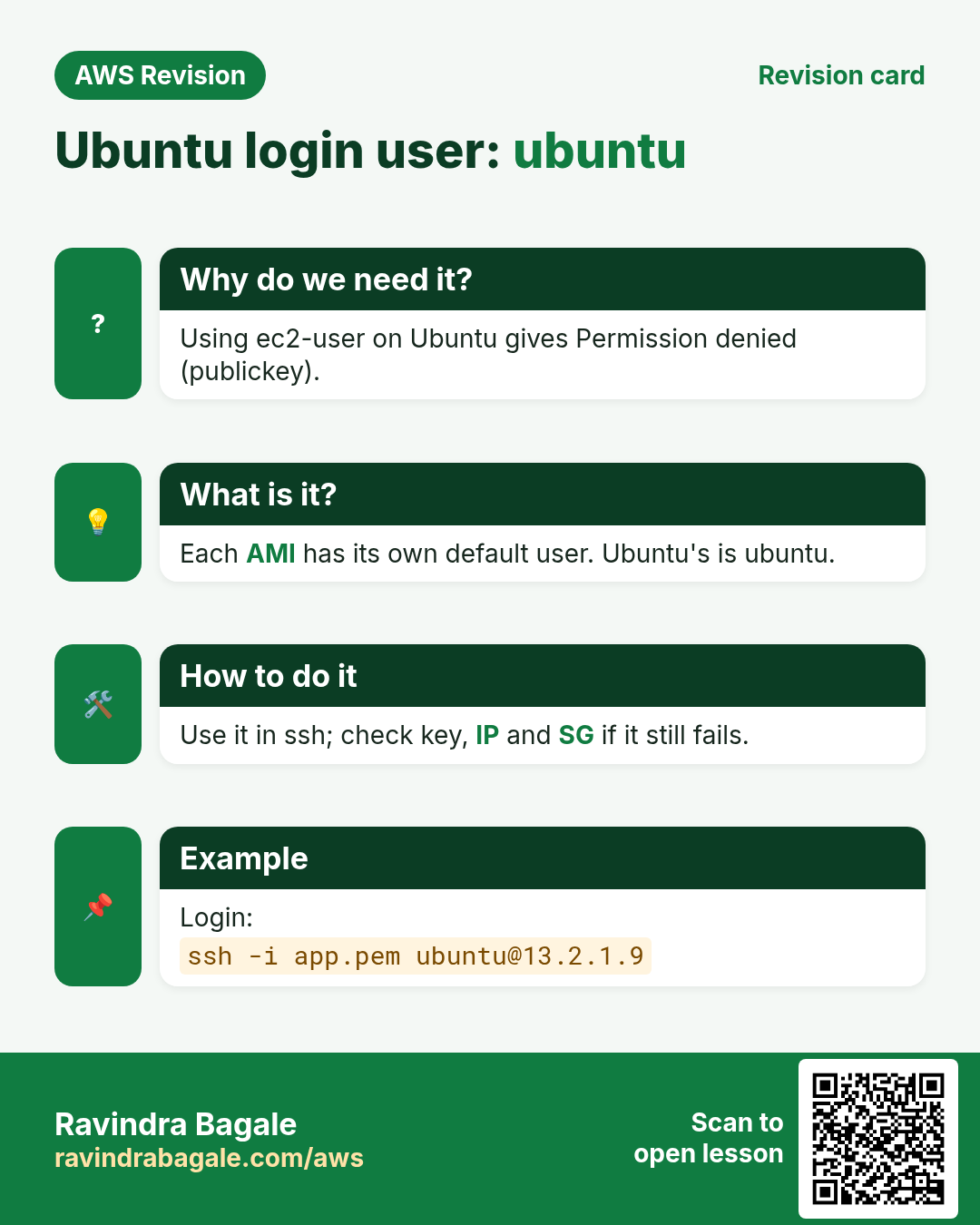
- The login user
ubuntuand the package managerapt-get sudo apt-get updatebefore installing, and what a failed fetch means- Installing, checking and starting
apache2 - Replacing Ubuntu's default page
- The four causes of
Permission denied (publickey) - Disks: the 8 GB root disk and extra disks
- Apache to Nginx on Ubuntu, and the folder differences from Amazon Linux
- Apache's settings file
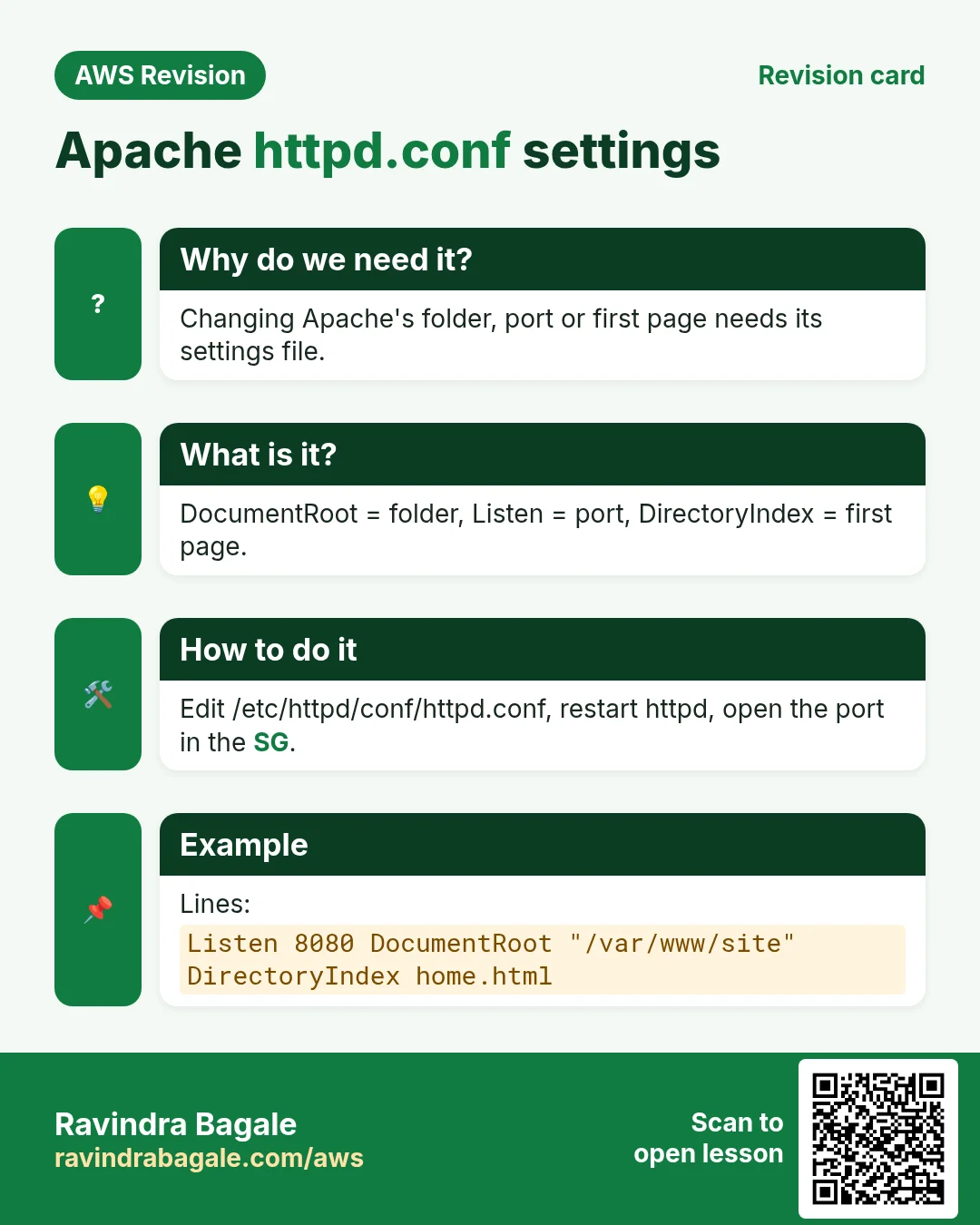
httpd.conf:DocumentRoot,Listen,DirectoryIndex - Opening a new port in the Security Group
- What to do when httpd won't start
1. Why Ubuntu
Amazon Linux is made by AWS, and you mostly meet it on AWS. Companies also run servers on Azure, Google Cloud, Oracle Cloud, IBM Cloud and DigitalOcean. Ubuntu is available on nearly every cloud, so it's one of the most common server systems you'll be handed at work.
Amazon Linux, Ubuntu, Debian, CentOS, Fedora, SUSE and Kali are all Linux distributions: each one is built on the Linux kernel and adds its own tools. Ubuntu is based on Debian. Most commands you learned (cd, ls, nano, sudo, mv) work the same. Two things change:
- The login user is
ubuntu, notec2-user. - Software is installed with
apt-get(orapt), notyumordnf.
2. Launch an Ubuntu server
Picking the right image decides the user name, the package manager and the service names for everything that follows, so pick it deliberately.
Step 1. In the EC2 console click Launch instance. Give it a name.
Step 2. Under Application and OS Images pick Ubuntu (the Free tier eligible Ubuntu Server image).
Step 3. Instance type: the free-tier one, as before.
Step 4. Key pair: choose your existing key pair, or create a new one (see below).
Step 5. Network settings: select your existing Security Group that allows port 22 (SSH) and port 80 (HTTP).
Step 6. Storage: leave the root disk at its default size. Click Launch instance.
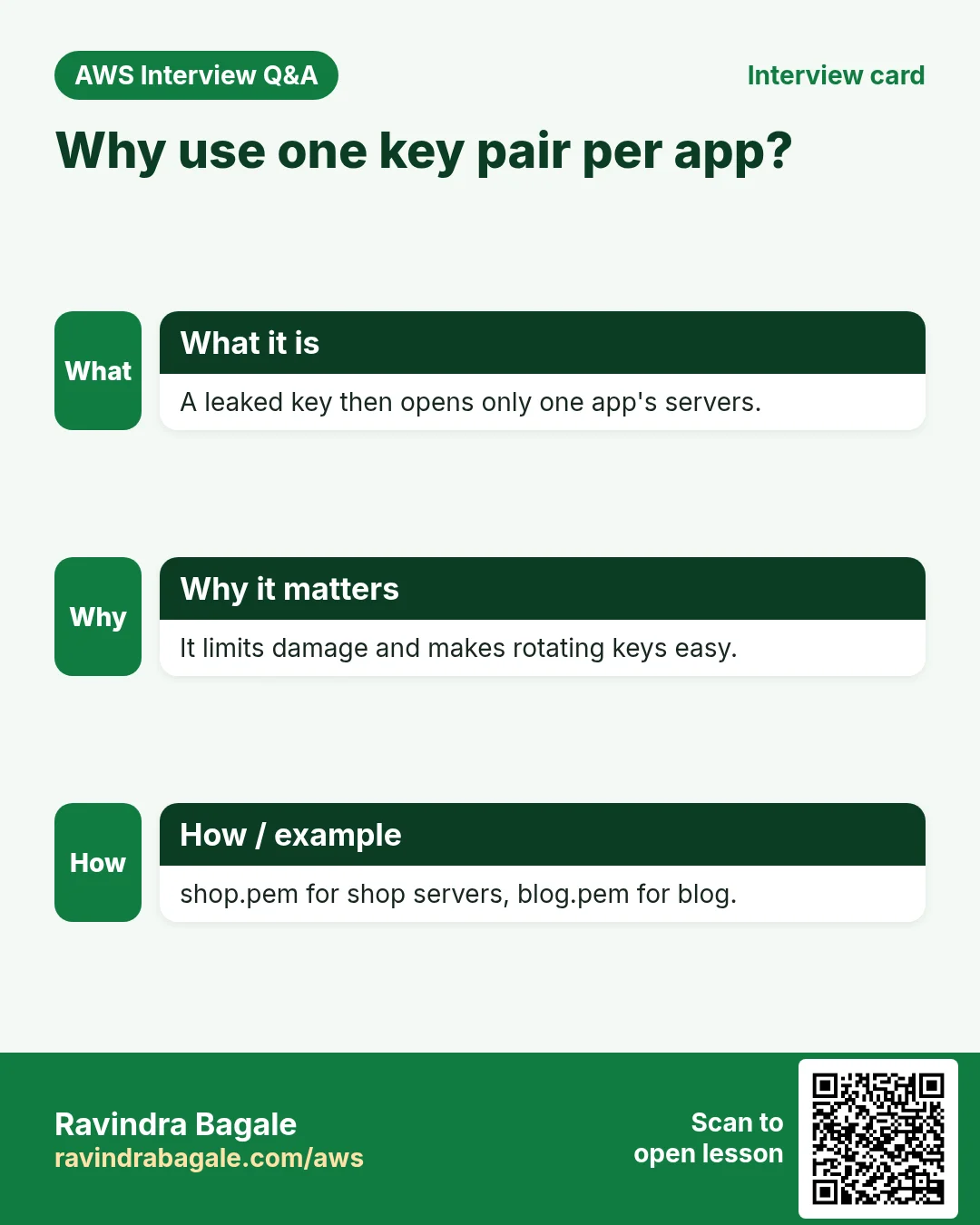
Key pairs: one per app. Servers of the same application can share one key pair. Different applications should get different key pairs.
Example 1. Suppose we run 10 Instagram servers and 10 Facebook servers. All ten Instagram servers use instagram-key.pem; all ten Facebook servers use facebook-key.pem. If one key leaks, only that app's servers are at risk, not every server you run.
Classroom line
But suppose you have ten Instagram servers and ten Facebook servers... use separate key pairs for the two.
Class मधलं वाक्य
पण समजा तुमच्याकडे Instagram चे दहा server आहेत, Facebook चे दहा server आहेत... तर दोघांसाठी वेगळ्या key pairs वापरा.
Classroom line – हिंदी
"Lekin suppose abhi aapke paas Instagram ke das server hai, Facebook ke das server hai... toh dono ke liye alag alag key pair use karo."
Figure 1. Suppose 10 Instagram and 10 Facebook servers: one key pair per app, so one leaked key does not open everything.
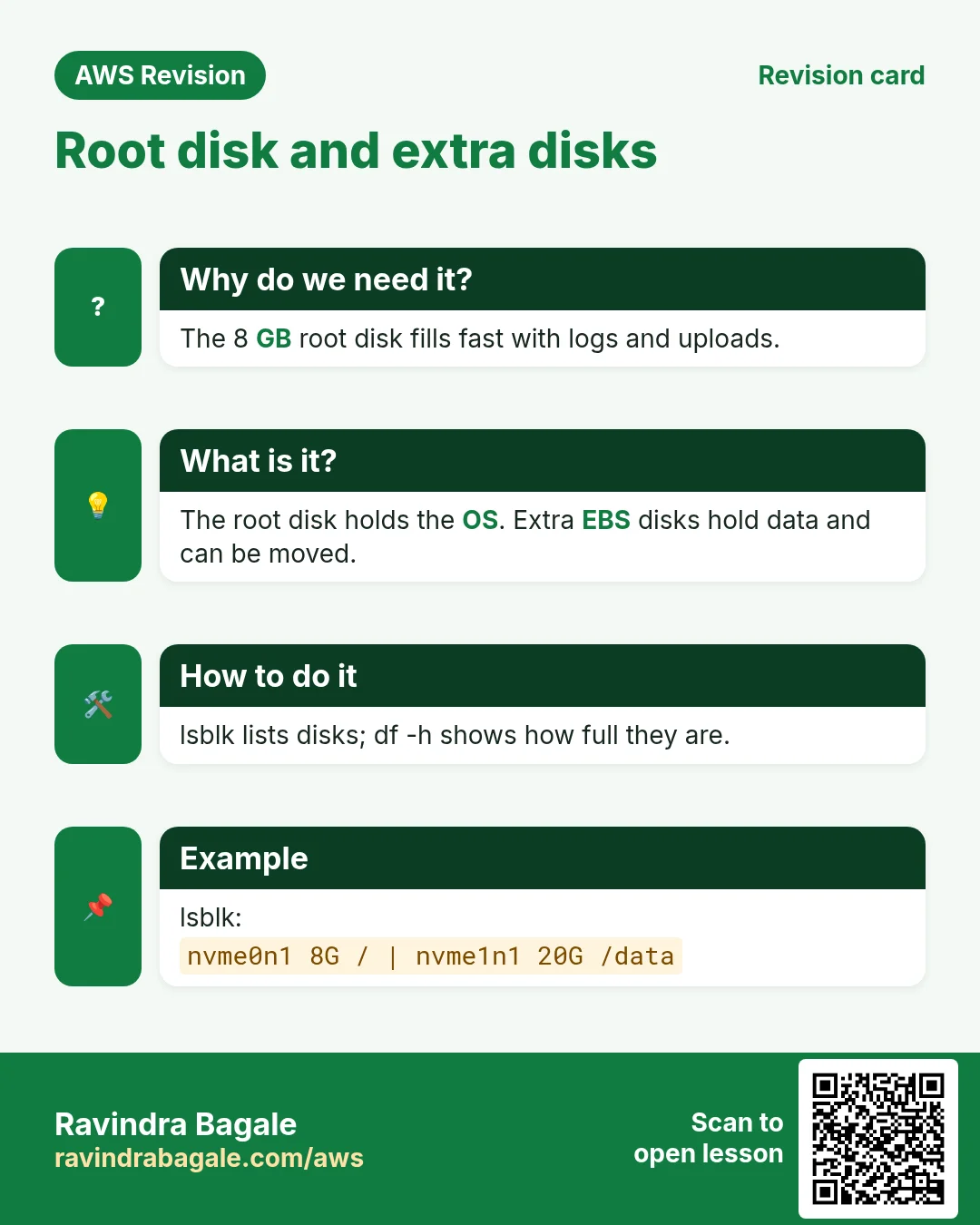
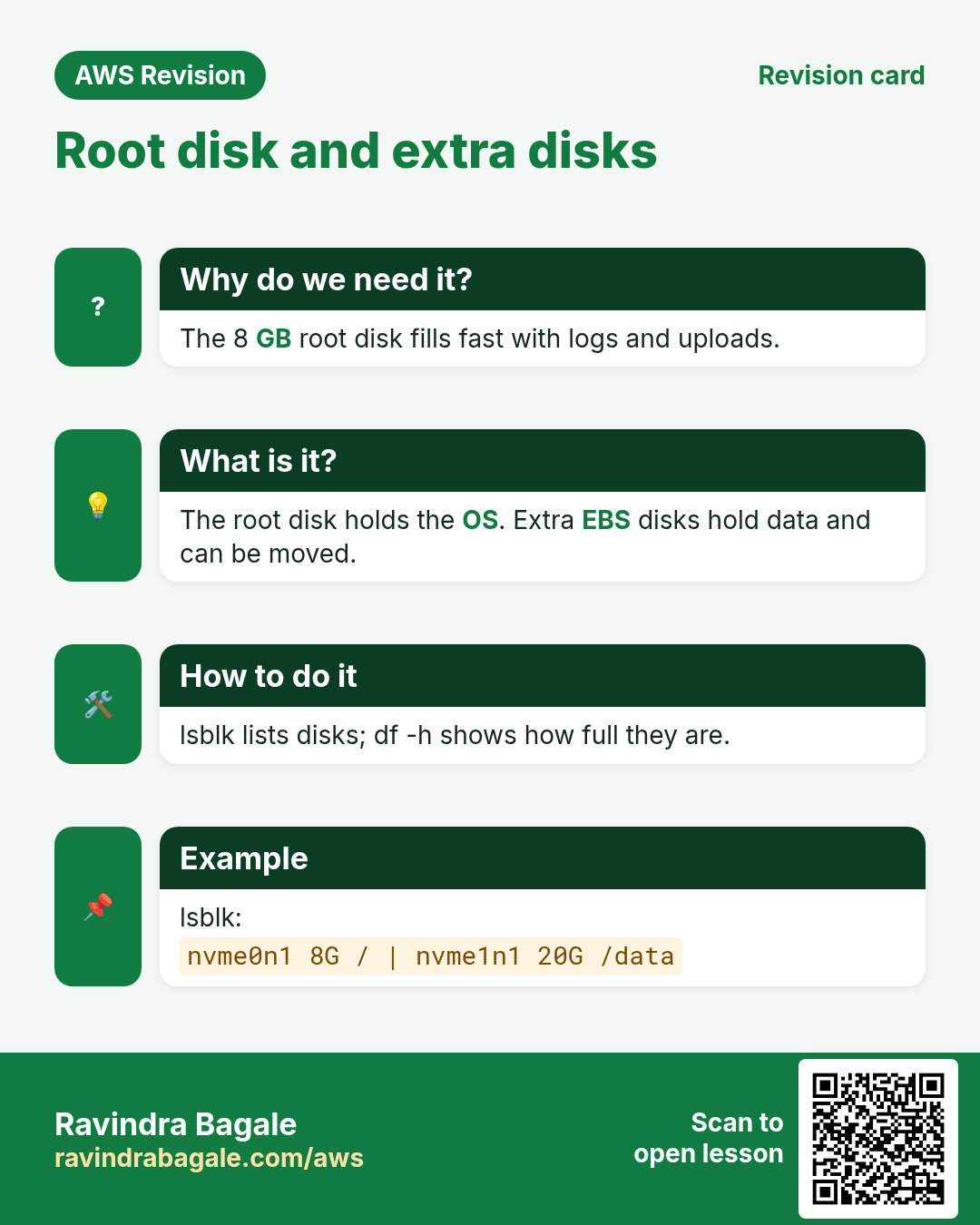
Disks. One EC2 instance can have several EBS disks:
- The root disk holds the operating system. For the Ubuntu and Amazon Linux images it is 8 GB by default. You can make it bigger at launch, and some other images, such as Windows, start bigger.
- Extra disks can be attached, of any size you choose, for example 1 GB for practice.
Classroom line
We can attach several hard disks to one server.
Class मधलं वाक्य
"Eka server la aapan multiple hard disk attach karu shakto."
एका server ला आपण multiple hard disks attach करू शकतो.
Classroom line
We can attach several hard disks to one server.
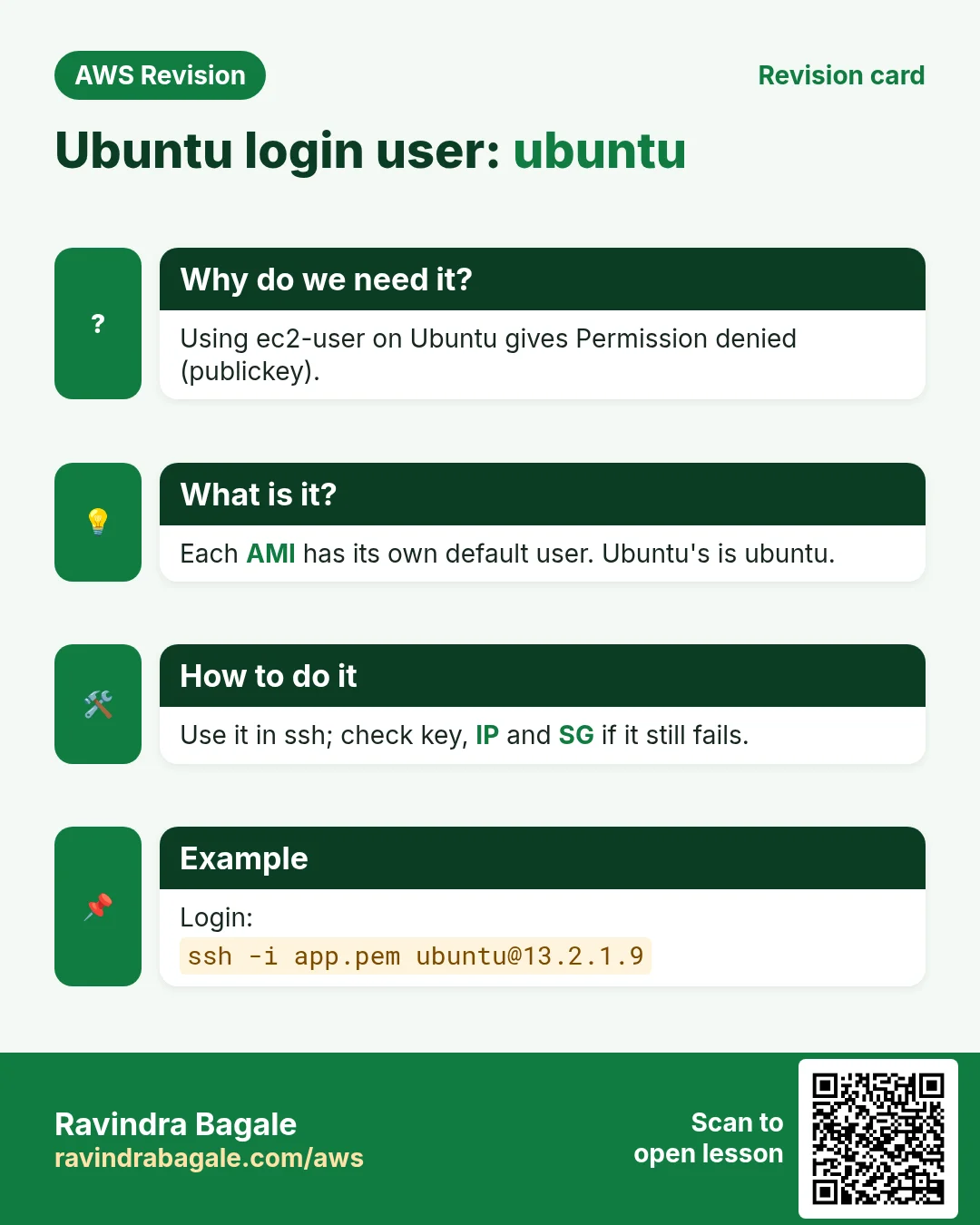
3. Connect: the user is ubuntu
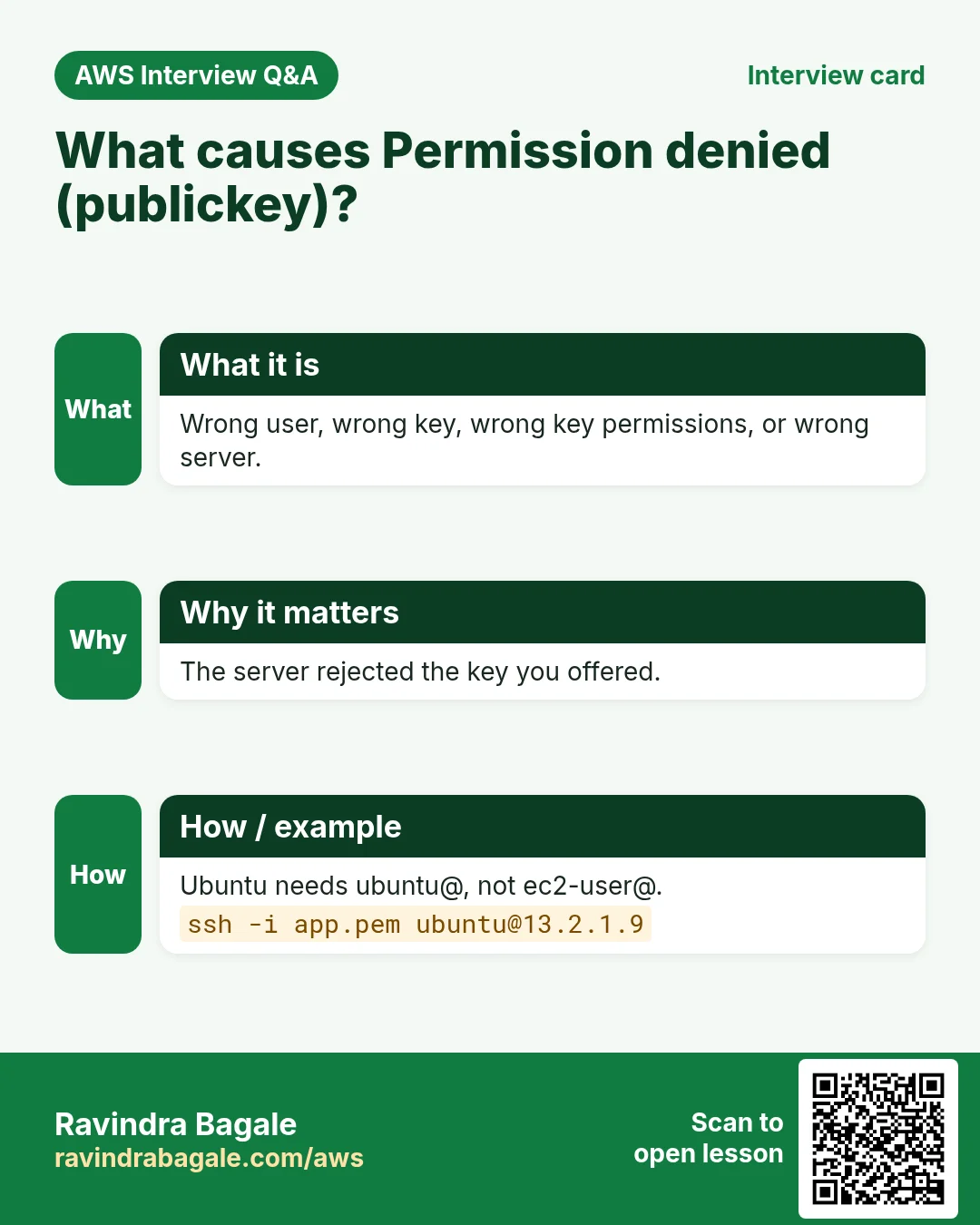
The key is the same, but the user isn't. Ubuntu images have no ec2-user, so using it gives Permission denied (publickey).
From your laptop terminal, with your key and the new server's public IP:
ssh -i mykey.pem ubuntu@PUBLIC_IP
Answer yes to the fingerprint question the first time. The prompt now looks like ubuntu@ip-172-31-xx-xx:~$.
Example 2: the same key, two servers.
- Amazon Linux:
ssh -i mykey.pem ec2-user@PUBLIC_IP - Ubuntu:
ssh -i mykey.pem ubuntu@PUBLIC_IP
Only the user name before the @ changes.
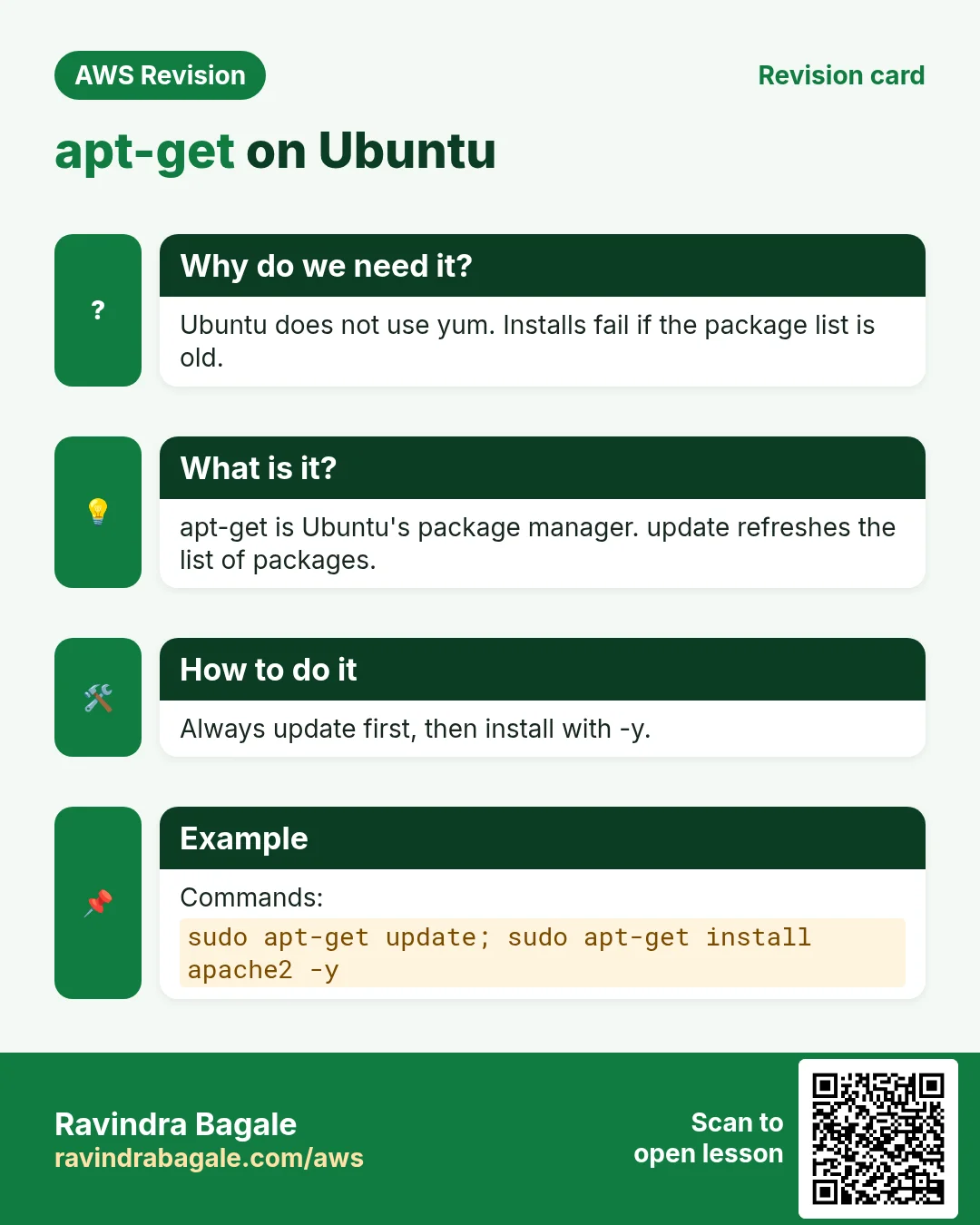
4. apt-get: update the list first, then install
Separate refreshing the package list from installing a program
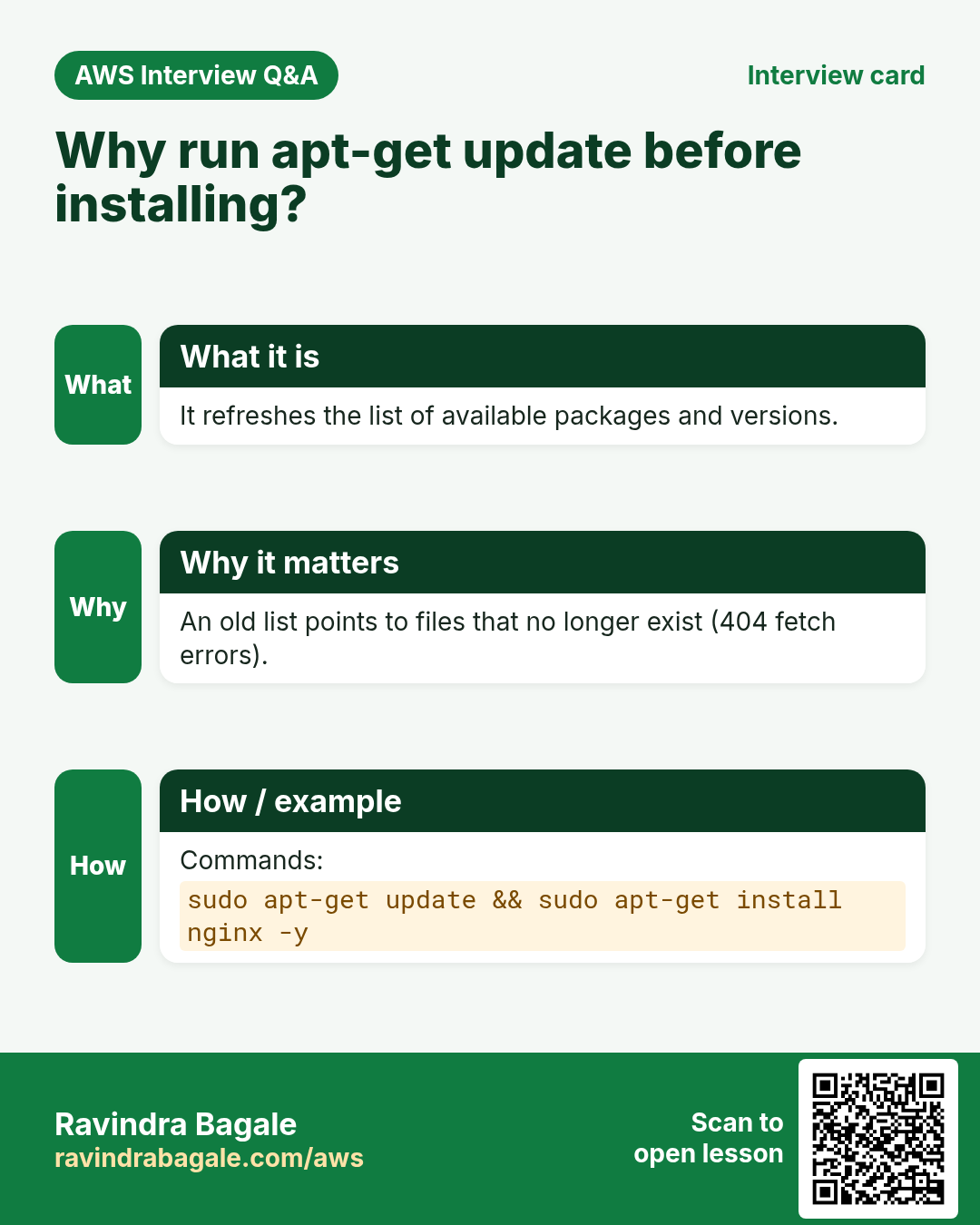
On Ubuntu, apt-get update refreshes the package information from the configured repositories. You can compare that list to a shop’s catalogue. apt-get install apache2 uses the available package information to install Apache and the dependencies it needs. Refreshing the list alone leaves the service uninstalled.
In your disposable lab, check apt-cache policy apache2 after refreshing. Look for the installed version and candidate version. After installation, check again and then inspect systemctl status apache2. This tells you separately what Apt installed and whether Apache is currently running.
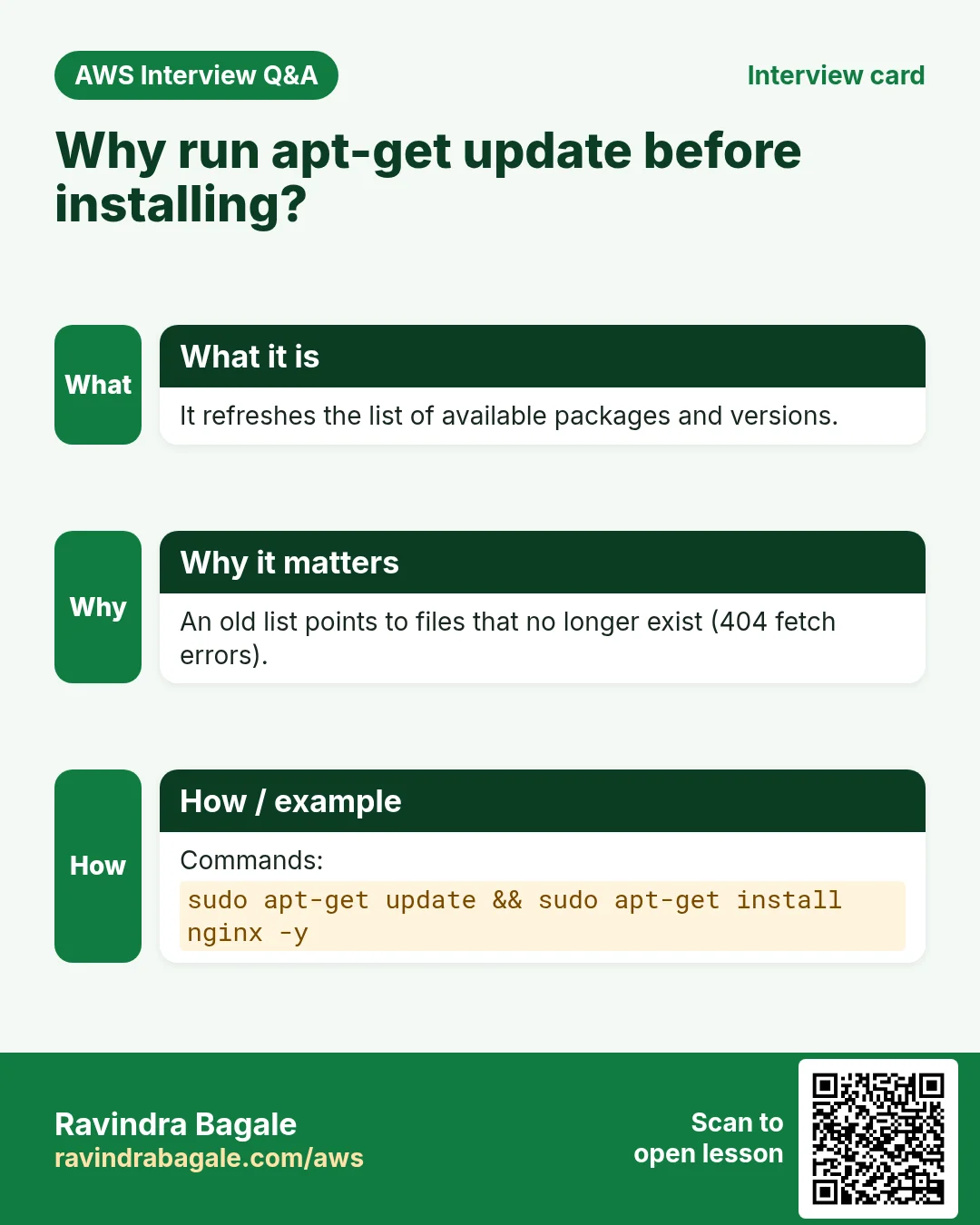
A package manager knows where to download software from. It keeps a list of packages and their download links on the server. On a brand-new server that list can be old, and old links point to files that are gone.
sudo apt-get updatedownloads a fresh list. It doesn't install anything, and it doesn't ask a question, so no-y.sudo apt-get install apache2 -yinstalls Apache. On Ubuntu, Apache's package and service are calledapache2, nothttpd.
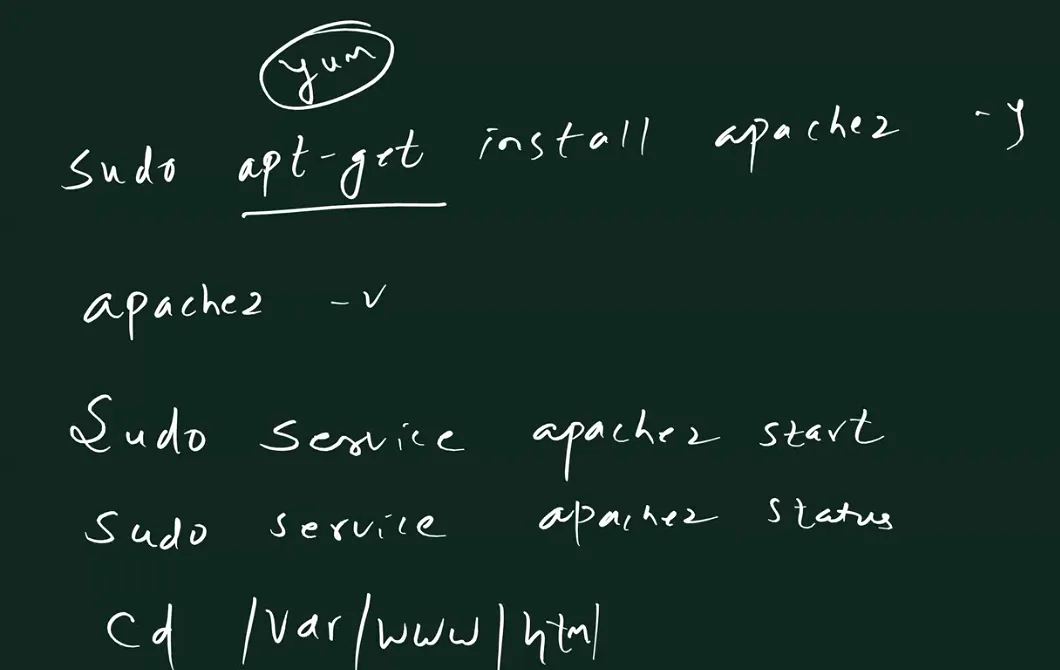
Whiteboard: the Ubuntu commands: sudo apt-get install apache2 -y (apt-get instead of yum), apache2 -v, sudo service apache2 start and status, cd /var/www/html.
Example 3: installing straight away on a new server. You run sudo apt-get install apache2 -y first. Lots of lines scroll past, so it looks like it's installing, but near the end you see:
Err:1 http://...archive.ubuntu.com/ubuntu ... apache2-bin amd64 ...
  404  Not Found [IP: ... 80]
E: Failed to fetch http://.../apache2-bin_..._amd64.deb  404  Not Found [IP: ... 80]
E: Unable to fetch some archives, maybe run apt-get update or try with --fix-missing?
Then apache2 -v says command not found. Nothing was installed. 404 Not Found and Failed to fetch mean the list is old: the spelling is right, the links are not.
Classroom line
With all that output it looks installed... but look closely: it didn't install, the install failed.
Class मधलं वाक्य
"Asa vat'ta aaplyala bharpoor kaay yetay, install jhalya sarka... pan neet laksha dila na tar install nahi jhalela ahe, fail gela ahe install."
असं वाटतं आपल्याला भरपूर काय काय येतंय, install झाल्यासारखं... पण नीट लक्ष दिलं ना तर install नाही झालेलं आहे, fail गेलंय install.
Classroom line
With all that output it looks installed... but look closely: it didn't install, the install failed.
Classroom line
If everything is right and the software still won't install, the link is probably old.
Class मधलं वाक्य
"Sagla kaay barabar astana sudha software install hot nahiye mhanje te link old asel."
सगळं काही बरोबर असताना सुद्धा software install होत नाहीये, म्हणजे ती link old असेल.
Classroom line
If everything is right and the software still won't install, the link is probably old.
Figure 2. Animation: installing on a new server fails with 404 Not Found; sudo apt-get update refreshes the list; installing again works.
Step 1. Refresh the package list:
sudo apt-get update
Step 2. Install Apache:
sudo apt-get install apache2 -y
Step 3. Check it's there:
apache2 -v
It prints two lines, Server version: Apache/... (Ubuntu) and Server built: .... If you get command not found, the install didn't happen.
Make it a habit: on every new Ubuntu server, run sudo apt-get update first, then install.
5. Start Apache and put your own page live
Installing proves nothing until a browser shows your page. Replacing Ubuntu's default page with your own is the final check that the whole chain works.
Step 1. Start Apache and check it:
sudo service apache2 start
sudo service apache2 status
Look for Active: active (running). On Ubuntu, Apache usually starts by itself after the install; running start again does no harm.
Step 2. The status screen waits for you. Press q to get your prompt back.
Classroom line
When you check the status, some of you will get stuck here... then press q.
Class मधलं वाक्य
"Status baghtana kahi janana ithe adkun rahil... ashyaveles q press karat jaava."
Status बघताना काही जणांना इथे अडकून राहील... अशा वेळेस q press करत जावा.
Classroom line
When you check the status, some of you will get stuck here... then press q.
Step 3. Open http://PUBLIC_IP/. You see the Apache2 Default Page with the Ubuntu logo. It comes from /var/www/html/index.html:
cd /var/www/html
ls
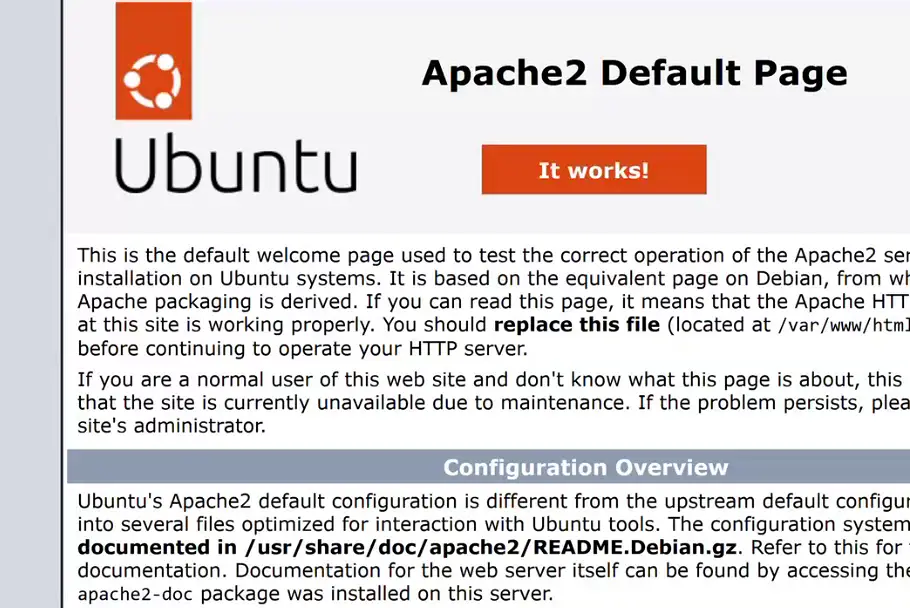
Whiteboard: Ubuntu's Apache2 Default Page: Apache is installed and serving /var/www/html/index.html.
Step 4. Replace it with your own page:
sudo rm index.html
sudo nano index.html
Type:
<h1>ubuntu</h1>
Save with Ctrl+X, Y, Enter, then refresh the browser. It shows ubuntu. To publish a real site, upload your HTML pages into /var/www/html with scp, as in the last chapter.
Classroom line
Suppose you don't want this page; so remove it.
Class मधलं वाक्य
"Samjha he page tumhala nako vatla, so tyla remove kara."
समजा हे page तुम्हाला नको वाटलं, so त्याला remove करा.
Classroom line
Suppose you don't want this page; so remove it.
Step 5. Run history to see all of it in order:
sudo apt-get update
sudo apt-get install apache2 -y
apache2 -v
sudo service apache2 start
sudo service apache2 status
cd /var/www/html
sudo rm index.html
sudo nano index.html
6. Permission denied (publickey): four causes
This is the most common SSH error, and it happens a lot when you have both Amazon Linux and Ubuntu servers.
ubuntu@PUBLIC_IP: Permission denied (publickey).
It has four usual causes:
- Wrong key file: the
.pemof a different key pair, or a wrong path to it. - Wrong IP: another server's IP, or the old IP after a stop and start.
- Wrong user name:
ubuntuon Ubuntu,ec2-useron Amazon Linux. - A different OS than you think: you launched Amazon Linux but log in as
ubuntu, or the other way round.
Classroom line
When you get publickey permission denied... there are four kinds of permission denied.
Class मधलं वाक्य
"Public key permission denied ala na... permission denied che char prakar astat."
Public key permission denied आला ना... permission denied चे चार प्रकार असतात.
Classroom line
When you get publickey permission denied... there are four kinds of permission denied.
How to check which OS it is.
Step 1. EC2 › Instances › select your instance.
Step 2. In the Details tab, read the AMI name. Ubuntu images start with ubuntu/images/...; Amazon Linux 2023 images start with al2023-ami-....
Figure 3. Permission denied (publickey): wrong key file, wrong IP, wrong user name, or a different OS. The AMI name in the instance details tells you the OS.
7. Apache to Nginx on Ubuntu
As on Amazon Linux, Apache and Nginx both want port 80, and only one program can use a port at a time. So stop Apache before you install Nginx: on Ubuntu, the Nginx package tries to start itself right after the install, and that start fails while Apache holds port 80.
Classroom line
You can install it, but you can't start it.
Class मधलं वाक्य
"Install karu shakto, start nahi karu shakat."
Install करू शकतो, start नाही करू शकत.
Classroom line
You can install it, but you can't start it.
Step 1. Stop Apache:
sudo service apache2 stop
Step 2. Install Nginx:
sudo apt-get install nginx -y
Step 3. Start it:
sudo service nginx start
Step 4. Refresh http://PUBLIC_IP/. You still see ubuntu, your own page, now served by Nginx. You didn't copy anything: on Ubuntu, Nginx also uses /var/www/html, and it serves your index.html before its own default page.
Classroom line
On Ubuntu, whether it's Apache or Nginx... both have the same website folder, /var/www/html.
Class मधलं वाक्य
"Ubuntu madhe Apache asu de, Nginx asu de... doghanch bhi website folder ek ch ahe /var/www/html"
Ubuntu मध्ये Apache असू दे, Nginx असू दे... दोघांचाही website folder एकच आहे, /var/www/html.
Classroom line
On Ubuntu, whether it's Apache or Nginx... both have the same website folder, /var/www/html.
The defaults side by side. On Amazon Linux, Apache uses /var/www/html and Nginx uses /usr/share/nginx/html, so switching means copying your files. On Ubuntu both use /var/www/html. Both systems serve index.html as the first page, on port 80 for http and 443 for https.
Figure 4. Amazon Linux and Ubuntu: login user, package manager, Apache's name, and the website folders of Apache and Nginx.
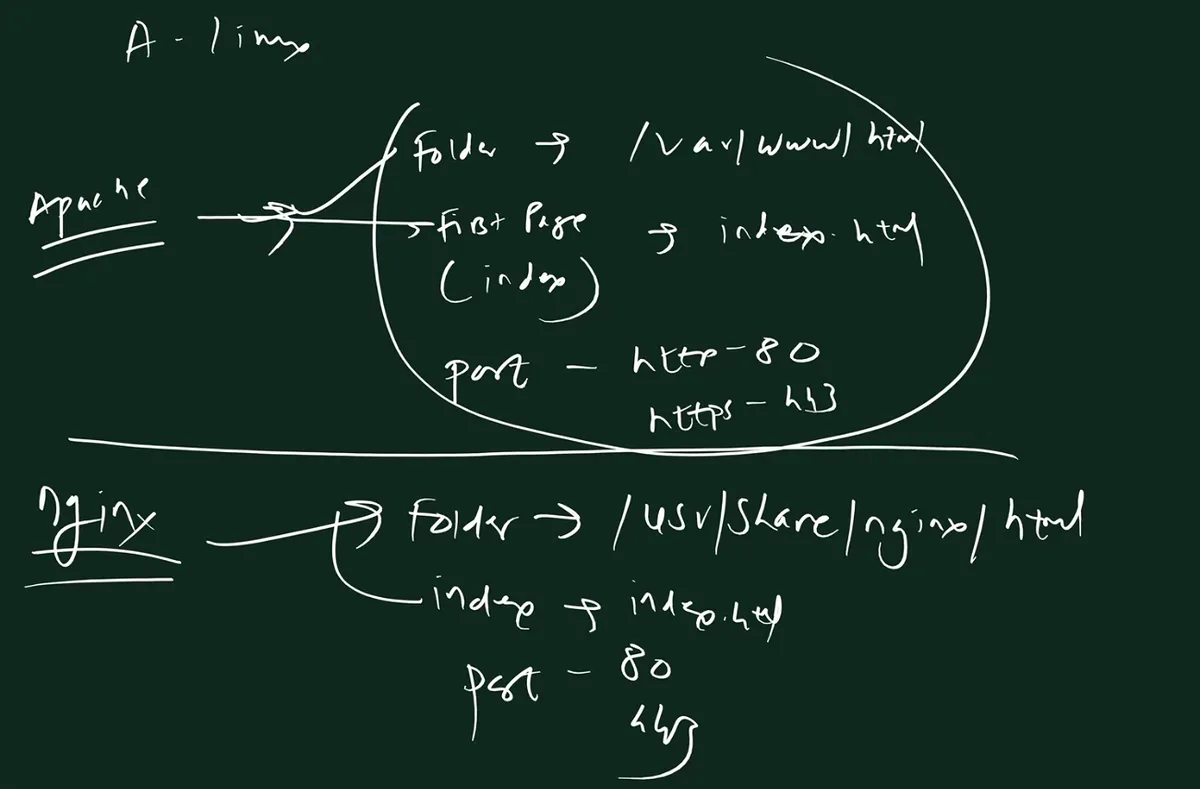
Whiteboard: the defaults on Amazon Linux: Apache serves /var/www/html, first page index.html, port 80 for http and 443 for https; Nginx serves /usr/share/nginx/html.
When you're done with the Ubuntu practice, terminate the Ubuntu instance (or stop it), so it doesn't keep running.
8. Apache's settings live in a file in /etc
The folder /var/www/html, the first page index.html and port 80 are only defaults. A project may want the site in its own folder, on another port, or with another first page. You change these in Apache's settings file.
Settings (configuration) files live in /etc:
- Apache on Amazon Linux:
/etc/httpd/conf/httpd.conf - Nginx:
/etc/nginx/nginx.conf
Folder or file? A folder is like a tiffin box, and the chapatis inside are the files. A folder holds files, and can also hold other folders. /etc/httpd/conf is a folder; httpd.conf is a file inside it.
Classroom line
A folder is like a box. It's a tiffin box. The chapatis inside it are the files.
Class मधलं वाक्य
"Folder ek box aslyasarkha ahe. Ek tiffin box ahe. Tyachya aatlya chapati ya file ahet."
Folder एक box असल्यासारखा आहे. एक tiffin box आहे. त्याच्या आतल्या चपात्या या files आहेत.
Classroom line
A folder is like a box. It's a tiffin box. The chapatis inside it are the files.
How to read httpd.conf. You don't need to learn a language. It is a plain text file:
- A line that starts with
#is a comment. Apache ignores it; it's an explanation for you. - A setting is a name, a space and a value, for example
Listen 80. - Some settings sit inside a block such as
<IfModule dir_module>...</IfModule>.
Nginx's file uses a slightly different style (each setting ends with ; and blocks use { }), but the idea is the same: find the right name and change its value.
Classroom line
Pay attention only to what you need.
Class मधलं वाक्य
"Jevdha pahije tevdhach laksha dyaycha."
जेवढं पाहिजे तेवढंच लक्ष द्यायचं.
Classroom line
Pay attention only to what you need.
The three lines we change today look like this in the file:
Listen 80
DocumentRoot "/var/www/html"
<IfModule dir_module>
    DirectoryIndex index.html
</IfModule>
DocumentRoot: the folder of the website. Only a folder, never a file.Listen: the port Apache waits on.DirectoryIndex: the first page shown when the URL ends with a folder. You can list several names; Apache tries them from left to right and serves the first one that exists.
9. Your own folder, port and first page (Amazon Linux)
Follow a request from the listener to the first page
Suppose the lab URL is http://SERVER:8080/. Listen 8080 tells Apache to accept connections on that port. The selected virtual host supplies the page settings, including DocumentRoot. The request path / names a directory there. DirectoryIndex decides which configured file to try for that directory.
After a change, test the configuration with the Apache config test command for your distribution. Then use curl -i http://127.0.0.1:8080/ on the lab server before testing from outside. If the local command shows the page, the outside attempt still needs the allowed network port. If local access displays the old page, check which virtual host served the request and which file it selected.
Real servers rarely keep the defaults. One server can host a college site on its own port and folder, so you must know exactly which three lines to change.
Example 4: what we'll build.
- Folder:
/var/www/mycollege - Port:
90 - First page:
college.html - URL:
http://PUBLIC_IP:90/
Why /var/www. Public website folders go under /var (or /usr), not under /home, which is private to each user. httpd.conf already allows Apache to read everything under /var/www (the block <Directory "/var/www"> with Require all granted), so a new folder there works straight away. A folder outside /var/www would need its own <Directory> block.
Figure 5. Animation: Listen 90 lets the request in on port 90, DocumentRoot picks the folder, DirectoryIndex picks the first page.
Step 1. Start your Amazon Linux instance, connect as ec2-user, and start Apache:
sudo service httpd start
Step 2. Open the settings file. It belongs to root, so sudo:
sudo nano /etc/httpd/conf/httpd.conf
There is a lot in it. Don't worry; you only need three lines. Use Ctrl+W in nano to search for a word.
Classroom line
There's a lot in here, but don't be scared, okay.
Class मधलं वाक्य
"Lay kaay kaay ahe ghabraycha nahi bar ka."
लय काय काय आहे, घाबरायचं नाही बरं का.
Classroom line
There's a lot in here, but don't be scared, okay.
Step 3. Change the port. Find Listen 80 and make it:
Listen 90
Step 4. Change the folder. Find DocumentRoot "/var/www/html" and make it:
DocumentRoot "/var/www/mycollege"
Step 5. Change the first page. Find DirectoryIndex index.html and make it:
DirectoryIndex college.html index.html
Now college.html is tried first, and index.html is the fallback.
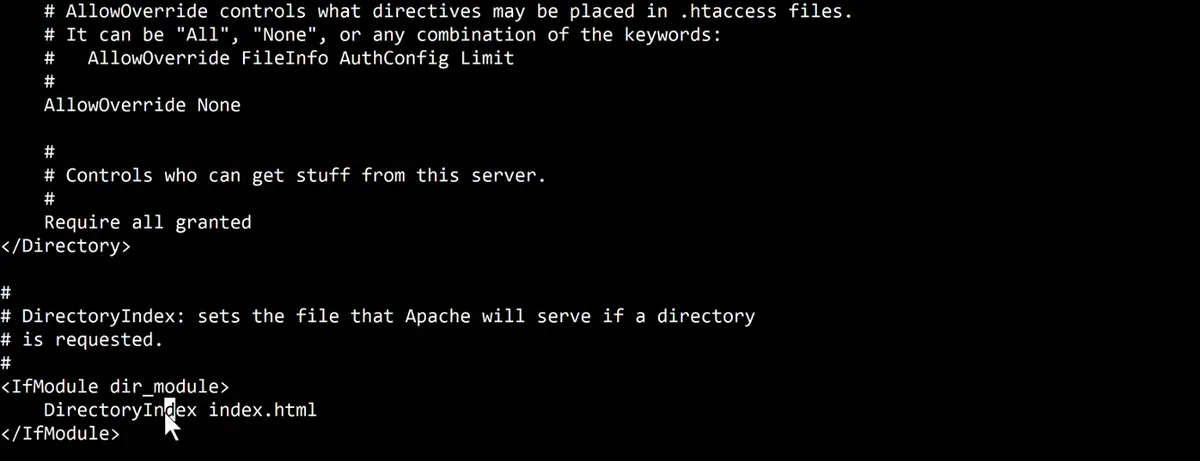
Whiteboard: httpd.conf open in nano: the DirectoryIndex line inside the IfModule dir_module block, still at its default index.html, just before it is changed.
Step 6. Save with Ctrl+X, Y, Enter.
Step 7. Create the folder and the page:
cd /var/www
sudo mkdir mycollege
cd mycollege
sudo nano college.html
Type a page. Marathi works too:
<h1>माझं कॉलेज</h1>
<p>पुण्याचा पाऊस, कॉलेजचा कट्टा आणि चहा.</p>
The terminal may show boxes instead of the Marathi letters, because its font lacks them. The browser shows them correctly.
Step 8. Tell Apache to read the file again:
[ec2-user@ip-172-31-xx-xx mycollege]$ sudo service httpd reload
Redirecting to /bin/systemctl reload httpd.service
reload makes Apache re-read httpd.conf without stopping. The Redirecting line only says that service passed your command to systemctl, the tool that manages services. sudo service httpd restart (stop, then start) works too.
Step 9. Open http://PUBLIC_IP/. It no longer opens, because Apache now waits on port 90, and a URL without a port means port 80.
Classroom line
When we don't write a port number, it becomes the default port 80.
Class मधलं वाक्य
"Jevha aapan port number nahi lihit, te default port 80 banun jaat."
जेव्हा आपण port number नाही लिहीत, तेव्हा तो default port 80 बनून जातो.
Classroom line
When we don't write a port number, it becomes the default port 80.
Step 10. Open http://PUBLIC_IP:90/. It waits and times out: the Security Group doesn't allow port 90 yet.
Step 11. Open port 90 in the Security Group:
- EC2 › Instances › select the instance › Security tab › click the Security Group.
- Edit inbound rules.
- Leave the existing rules for 22 and 80 as they are.
- Add rule: Type Custom TCP, Port range 90, Source 0.0.0.0/0 (anyone; right for a public website).
- Save rules.
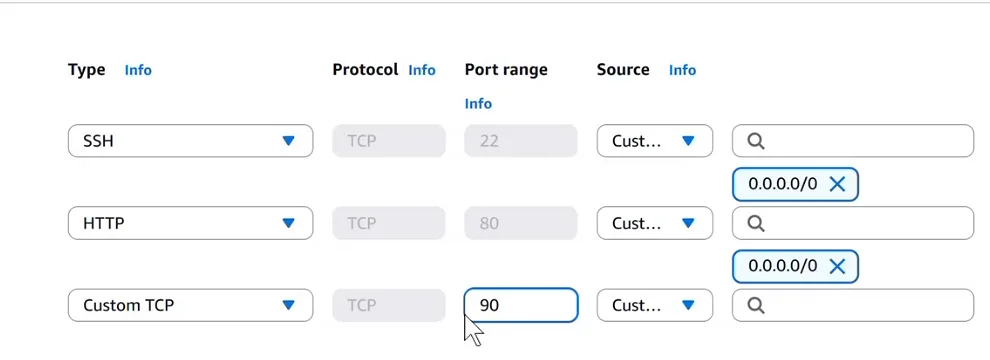
Whiteboard: Edit inbound rules: the SSH (22) and HTTP (80) rules stay as they are, and a new Custom TCP rule for port 90 is added.
Classroom line
Now here, don't touch the rules that are there. Add a new one.
Class मधलं वाक्य
"Ata ithe, je rule ahet tyala hath lavu naka. Navin add kara."
आता इथे, जे rules आहेत त्यांना हात लावू नका. नवीन add करा.
Classroom line
Now here, don't touch the rules that are there. Add a new one.
Step 12. Refresh http://PUBLIC_IP:90/. Your Marathi page from /var/www/mycollege/college.html opens.
Example 5: the first page falls back. Rename college.html to old.html and refresh. Apache finds no college.html, tries the next name, index.html, and if that's missing too, you get Apache's test page. Rename it back.
10. When httpd won't start
One wrong character in httpd.conf and Apache won't start. The server is the patient and you are the doctor: don't guess, read the report.
Classroom line
Our server is our patient and we're the doctor... we have to find out what happened to our patient.
Class मधलं वाक्य
"Apla server apla patient ahe, apan doctor ahe... kay zala apla patient la baghaycha aplyala."
आपला server आपला patient आहे, आपण doctor आहोत... काय झालं आपल्या patient ला ते बघायचं आपल्याला.
Classroom line
Our server is our patient and we're the doctor... we have to find out what happened to our patient.
What you see.
[ec2-user@ip-172-31-xx-xx ~]$ sudo service httpd restart
Redirecting to /bin/systemctl restart httpd.service
Job for httpd.service failed because the control process exited with error code.
See "systemctl status httpd.service" and "journalctl -xeu httpd.service" for details.
Step 1. Check the status of the service that failed:
sudo service httpd status
(systemctl status httpd.service shows the same.)
Classroom line
Whichever service gives the error, check that service's status.
Class मधलं वाक्य
"Kuthlya service cha error yeto, tya service cha status check karaycha."
कुठल्या service चा error येतो, त्या service चा status check करायचा.
Classroom line
Whichever service gives the error, check that service's status.
Step 2. Read the last lines. They name the file, the line number and the reason. The two most common reasons:
- The port is already taken, for example Nginx is running on the same port.
- A typo in the config file.
Example 6: a file in DocumentRoot. The status shows:
AH00526: Syntax error on line 124 of /etc/httpd/conf/httpd.conf:
DocumentRoot '/var/www/index.html' is not a directory, or is not readable
Line 124 says DocumentRoot "/var/www/index.html". DocumentRoot takes a folder; the file name belongs in DirectoryIndex. Fix the line to a folder, for example DocumentRoot "/var/www/mycollege", save, and start again:
sudo service httpd start
Step 3 (a useful habit). Before reloading, let Apache check the file:
sudo apachectl configtest
It prints Syntax OK when the file is fine, or the same error message, with the line number, when it isn't.
Figure 6. httpd won't start: read the status, find the file, line and reason, fix it, start again. DocumentRoot must be a folder.
11. The whole flow on one page
- Ubuntu: user
ubuntu, packages withapt-get. sudo apt-get update, thensudo apt-get install apache2 -y,apache2 -v,sudo service apache2 start,sudo service apache2 status(qto exit).- Your page in
/var/www/html(sudo rm index.html,sudo nano index.html). Permission denied (publickey): key file, IP, user name, OS (AMI name).- Nginx on Ubuntu:
sudo service apache2 stop,sudo apt-get install nginx -y,sudo service nginx start; same folder, no copy. - Amazon Linux settings:
sudo nano /etc/httpd/conf/httpd.conf;Listen,DocumentRoot,DirectoryIndex;sudo service httpd reload. - New port: add a Custom TCP rule in the Security Group, and put
:portin the URL. - Won't start:
sudo service httpd status, read the line, fix, start;sudo apachectl configtest.
12. A billing question? Open a free AWS Support case
While launching extra servers for practice, learners sometimes see an unexpected charge or a billing hold on their account, and don't know whom to ask.
Background. 1. Every AWS account, even on the free Basic support plan, can open Account and billing cases at no cost. 2. In the console, open the ? menu at the top right → Support Center → Create case. 3. Choose Account and billing, pick the service and the category that fit (for example General), and describe the problem: which charge, which month, what you expected. 4. AWS replies in the Support Center and by email. Technical questions need a paid support plan; billing questions don't. 5. Before you open a case, check Billing and Cost Management → Bills to see which service and Region the charge came from. Often it is a server or disk you forgot to stop or delete.
Connection to this chapter. This chapter has you run an Ubuntu server next to your Amazon Linux one. Two servers use free-tier hours twice as fast, so stopping both when you finish, and knowing where to ask if a bill looks wrong, belong to the same habit.
13. Hands-on lab: Apache on Ubuntu, then your own port and folder on Amazon Linux
The same job looks different on two Linux families, and the defaults rarely survive on a real server. This lab hosts a page on Ubuntu, then moves an Amazon Linux site to port 90, its own folder and its own first page.
- Log in to Ubuntu
- Command:
ssh -i mykey.pem ubuntu@PUBLIC_IP - You should see: A prompt like
ubuntu@ip-...:~$. - Check:
whoami→ubuntu - Why: On Ubuntu images the login user is
ubuntu.ec2-userhere givesPermission denied (publickey).
- Command:
- Refresh the package list
- Command:
sudo apt-get update - You should see:
Hit:andGet:lines, thenReading package lists... Done. - Check: No
Failed to fetchlines. - Why: A fresh Ubuntu server's list is old, so installs fail with
404 Not Found.updaterefreshes the list; it installs nothing.
- Command:
- Install Apache
- Command:
sudo apt-get install apache2 -y - You should see: Download and setup lines, ending back at the prompt.
- Check:
apache2 -v→Server version: Apache/2.4... (Ubuntu) - Why: On Ubuntu the package and the service are
apache2, nothttpd. Ubuntu also starts it for you after install.
- Command:
- Replace the default page
- Command:
cd /var/www/html && sudo rm index.html && sudo nano index.html - You should see: An empty file. Type
<h1>ubuntu</h1>, save with Ctrl+O, Enter, exit with Ctrl+X. - Check:
http://PUBLIC_IP/shows ubuntu. - Why: The Apache2 Ubuntu Default Page proves only the install. Your own page proves the whole chain: service, folder, port 80 and the security group.
- Command:
- On Amazon Linux: back up httpd.conf
- Command:
sudo cp /etc/httpd/conf/httpd.conf ~/httpd.conf.bak - You should see: Nothing.
- Check:
ls ~showshttpd.conf.bak. - Why: One wrong character stops Apache. With the copy you can always go back to a working file.
- Command:
- Make the new folder and first page
- Command:
sudo mkdir /var/www/mycollege && echo "<h1>My college</h1>" | sudo tee /var/www/mycollege/college.html - You should see:
<h1>My college</h1> - Check:
ls /var/www/mycollege→college.html - Why: Under
/var/www, Apache is already allowed to read, so the new folder works without an extra<Directory>block.teewrites as root.
- Command:
- Change the three lines
- Command:
sudo nano /etc/httpd/conf/httpd.conf - You should see: Set
Listen 90,DocumentRoot "/var/www/mycollege"andDirectoryIndex college.html index.html. Save and exit. - Check:
sudo apachectl configtest→Syntax OK - Why:
Listenis the port,DocumentRootthe folder (never a file),DirectoryIndexthe first page.configtestcatches typos before a restart takes the site down.
- Command:
- Restart and test inside
- Command:
sudo service httpd restart && curl http://localhost:90 - You should see:
<h1>My college</h1> - Check:
curl http://localhost(port 80) now fails withConnection refused. - Why: Apache reads its settings only at start. Port 80 refusing proves it really moved to 90.
- Command:
- Open port 90 and test outside
- Do: Security group → Edit inbound rules → Add rule → Custom TCP, port 90, source Anywhere-IPv4 → Save rules.
- Check:
http://PUBLIC_IP:90/shows My college. - Why: A new port is closed until the security group allows it. Without
:90the browser uses port 80.
- Restore and stop both servers
- Command:
sudo cp ~/httpd.conf.bak /etc/httpd/conf/httpd.conf && sudo service httpd restart - You should see: Nothing.
- Check:
curl http://localhostworks on port 80 again. Stop the Ubuntu and Amazon Linux instances. - Why: The backup is how you undo. Two running servers use free-tier hours twice as fast.
- Command:
- Pick the Ubuntu AMI in the launch wizard
- Do: EC2 → Launch instance → Name
ubuntu-web→ Application and OS Images: Ubuntu → Ubuntu Server 24.04 LTS (HVM), SSD Volume Type (Free tier eligible) → Instance typet2.micro/t3.micro→ your key pair → Network settings: allow SSH and Allow HTTP traffic from the internet → Launch instance. - You should see:
Success: Successfully initiated launch of instance (i-0…). - Check: Instances list: State Running, Status checks 2/2 checks passed.
- Why: Ubuntu uses
aptand userubuntu; ticking HTTP now saves a Security Group edit later.
- Do: EC2 → Launch instance → Name
- Read apt-get update output
- Command:
sudo apt-get update - You should see:
Hit:1 http://…ubuntu.com noble InRelease,Get:2 … [126 kB], last lineReading package lists... Done. - Check: No
Failed to fetchor404 Not Foundlines. - Why:
updateonly refreshes the list; installing from an old list gives 404 errors.
- Command:
- Check the service status
- Command:
systemctl status apache2 --no-pager - You should see:
Loaded: loaded (/usr/lib/systemd/system/apache2.service; enabled …)andActive: active (running). - Check:
enabledmeans it already starts at boot on Ubuntu. - Why: Ubuntu starts and enables apache2 right after install; Amazon Linux does not.
- Command:
- Open the new port in the Security Group
- Do: EC2 → Instances → your Amazon Linux instance → Security tab → security group link → Edit inbound rules → Add rule → Type Custom TCP, Port range
90, Source Anywhere-IPv4 (0.0.0.0/0) → Save rules. - You should see: Green banner
Inbound security group rules successfully modified. - Check: Rule list shows
Custom TCP | TCP | 90 | 0.0.0.0/0. - Why: Apache now listens on 90; the firewall only lets in ports you list.
- Do: EC2 → Instances → your Amazon Linux instance → Security tab → security group link → Edit inbound rules → Add rule → Type Custom TCP, Port range
- Confirm what port Apache listens on
- Command:
sudo ss -tlnp | grep httpd - You should see:
LISTEN 0 511 *:90 *:* users:(("httpd",pid=…)). - Check: Port shown is 90, not 80.
- Why: Proves the
Listen 90line took effect before you blame the browser.
- Command:
14. Try at home
Try at home
Task 1: Ubuntu web server
- Launch an Ubuntu instance and connect as
ubuntu. - Install Apache with
sudo apt-get updateandsudo apt-get install apache2 -y, and check it withapache2 -v. - Replace the default page with your own
index.html.
Task 2: Nginx on Ubuntu
- Stop Apache, install and start Nginx, and check that your page still opens.
- Terminate the Ubuntu instance when you're done.
Task 3: Permission denied
- On purpose, log in to your Amazon Linux server as
ubuntuand read the error. Then log in correctly.
Task 4: your own folder, port and first page
- On Amazon Linux, set
Listen 90,DocumentRoot "/var/www/mycollege"andDirectoryIndex college.html index.html. - Create the folder and page, reload, open port 90 in the Security Group and open
http://PUBLIC_IP:90/.
Task 5: be the doctor
- Make a copy first:
sudo cp /etc/httpd/conf/httpd.conf /etc/httpd/conf/httpd.conf.bak. - Put a file name in
DocumentRoot, restart, readsudo service httpd status, fix it, and confirm withsudo apachectl configtest. - Put the default values back (Listen 80, /var/www/html, index.html) if you want the old site again.
When you're done, stop the instance.
Common errors and fixes
| Error / symptom | Fix |
|---|---|
Unable to locate package apache2 | Run sudo apt-get update first. |
Permission denied (publickey) on Ubuntu | Log in as ubuntu@, not ec2-user@. |
Job for httpd.service failed after edit | Run sudo apachectl configtest; fix the line it names, or restore the backup. |
Page works on curl localhost:90 only | Add the port 90 inbound rule and use http://IP:90/. |
403 Forbidden on new folder | Add a <Directory "/var/www/mycollege"> Require all granted </Directory> block, or keep it under /var/www. |
FAQ
Q. Why Ubuntu at all?
Many companies use it; you must know both apt and yum families.
Q. apt vs apt-get?
Same job. apt is friendlier for people; apt-get is stable for scripts.
Q. Can I use any port?
Any free port above 1024 is safe for practice; some (like 6000) are blocked by browsers.
Q. restart vs reload?
restart stops and starts (short drop); reload re-reads the config without dropping visitors.
Recap
In short
- Ubuntu is available on nearly every cloud. Log in as
ubuntu; install withapt-get. - On a new Ubuntu server run
sudo apt-get updatefirst.404 Not FoundandFailed to fetchmean the package list is old. - Apache on Ubuntu is
apache2; check withapache2 -v, start withsudo service apache2 start, pressqto leave the status screen. - One key pair per app. The root disk of these images is 8 GB by default and can be bigger; extra disks can be added.
Permission denied (publickey): wrong key, wrong IP, wrong user, or a different OS (check the AMI name).- On Ubuntu, Apache and Nginx share
/var/www/html; stop Apache before installing Nginx. /etc/httpd/conf/httpd.conf:DocumentRoot= folder,Listen= port,DirectoryIndex= first page(s), left to right. Thensudo service httpd reload.- A new port needs a Security Group rule and
:portin the URL. If httpd won't start, read its status and fix the line it names.
Ravindra Bagale, trainer: linkedin.com/in/ravindra-bagale. The key names (mykey.pem, instagram-key.pem, facebook-key.pem), the folder mycollege, the page college.html and its Marathi text are examples for learning; PUBLIC_IP stands for your instance's public IPv4 address. Package names, links and version numbers in the outputs are shortened with "..."; the hostname in the prompt is illustrative.
Worked example: a successful syntax check but no page on port 90
Your Apache configuration passes its syntax check but the browser cannot load the class page. Follow the request from Apache to the EC2 boundary.
- On Ubuntu run
sudo apache2ctl configtest. On Amazon Linux usesudo httpd -t. Then inspect the listener withsudo ss -ltnp. The requested port must be listed with the Apache process. - Test
curl -I http://127.0.0.1:90/on the server. Local failure sends you back to the listener, virtual host, or service status. A local response and a remote timeout send you to the current public IP, security group and network route. - If Apache and Nginx are both configured to listen on the same IP and port, the second process may fail to bind. Identify the owner with
ss. Assign separate listeners on a lab server, or stop the unused service once you know it serves no other site.
Interview question: is an Apache Listen directive the same as a virtual host?
No. Listen controls the address and port where Apache accepts connections. A virtual host controls which configuration Apache uses for a request received on one of those listeners.
Practise this chapter
Interview questions and answers
Apache will not start after you edit its configuration. What would you check before changing network rules?
Run the config test and read any reported file and line to check syntax. Check the service log if the test passes. Another process can already own the requested port, so confirm a listener before investigating browser access.
Why can two Linux distributions run Apache with different package and service names?
The distributions package the same upstream software differently. Ubuntu uses apache2 for its common package and service, while Amazon Linux uses httpd. Identify the distribution and inspect its active configuration paths before reusing an example.
Check your understanding
Choose an answer, then compare your reasoning with the explanation.
Practice Tasks
Practice checks run in your browser. They check the answer for this exercise; they do not create resources or connect to your AWS account.
About this scenarioJakarta Batik is a handicrafts business in Jakarta. Siti Rahmawati looks after its IT and cloud work. They count money in IDR and run their AWS resources in the ap-southeast-3 Region. In the tasks below you do real jobs for them using what this lesson teaches. All names, account IDs, IP addresses and numbers are made up for practice.
0 / 12
Easy Restart a service after a change
Config changes only apply after the service restarts or reloads.
Restart the nginx service.
- Find the Linux command that does this job.
- Add the options (like -r or -h) the task needs.
- Add the file names, folders or users in the right order.
- Use sudo if the job changes system files or users. Click Check answer.
Easy Check if a service is running
When a site is down, first check whether the web server process is running.
Show the status of the httpd service.
- Find the Linux command that does this job.
- Add the options (like -r or -h) the task needs.
- Add the file names, folders or users in the right order.
- Use sudo if the job changes system files or users. Click Check answer.
Easy Install a package on Ubuntu
Ubuntu uses apt. Package names differ: on Ubuntu Apache is apache2.
Install the apache2 package on Ubuntu without being asked to confirm.
- Find the Linux command that does this job.
- Add the options (like -r or -h) the task needs.
- Add the file names, folders or users in the right order.
- Use sudo if the job changes system files or users. Click Check answer.
Easy Install a package on Amazon Linux
dnf is the package manager on Amazon Linux 2023. -y answers yes for you.
Install the httpd package on Amazon Linux 2023 without being asked to confirm.
- Find the Linux command that does this job.
- Add the options (like -r or -h) the task needs.
- Add the file names, folders or users in the right order.
- Use sudo if the job changes system files or users. Click Check answer.
Easy Test a website from the server
curl shows whether the web server answers, even before DNS is ready.
Request http://localhost and show only the response headers.
- Find the Linux command that does this job.
- Add the options (like -r or -h) the task needs.
- Add the file names, folders or users in the right order.
- Use sudo if the job changes system files or users. Click Check answer.
Easy Download code from GitHub
git clone copies the whole repository to the server, ready to deploy.
Clone https://github.com/jakartabatik/website.git into the current folder.
- Find the Linux command that does this job.
- Add the options (like -r or -h) the task needs.
- Add the file names, folders or users in the right order.
- Use sudo if the job changes system files or users. Click Check answer.
Medium Test the nginx config
A test catches typos before a restart takes your site down.
Check the nginx configuration files for errors.
- Find the Linux command that does this job.
- Add the options (like -r or -h) the task needs.
- Add the file names, folders or users in the right order.
- Use sudo if the job changes system files or users. Click Check answer.
Medium Start a service now and at boot
enable makes it start after reboot; --now also starts it right away.
Enable the nginx service and start it immediately, in one command.
- Find the Linux command that does this job.
- Add the options (like -r or -h) the task needs.
- Add the file names, folders or users in the right order.
- Use sudo if the job changes system files or users. Click Check answer.
Medium Open port 80 to the world
Visitors can reach your website only if the security group allows HTTP.
Allow inbound TCP port 80 from 0.0.0.0/0 on security group sg-02c4a15ab4324c3b2.
- Read the task and decide which AWS service it is about.
- Write aws, then the service name, then the operation (the action word).
- Add each needed flag (--name) followed by its value from the task.
- Flags can be in any order. Click Check answer.
Medium CloudFormation: web security group
Opening only 443 keeps the server safer.
Template with an AWS::EC2::SecurityGroup that allows TCP 443 from 0.0.0.0/0. Add a GroupDescription.
- Start from the top-level keys the task names.
- Indent child keys with 2 spaces (no tabs).
- Fill in each property with the value from the task.
- Click Check answer. Key order does not matter.
Medium Create a security group
A security group is the firewall around your instance.
Create a security group named jakartabatik-web-sg with description "Web servers" in vpc-04a15af432deadbee.
- Read the task and decide which AWS service it is about.
- Write aws, then the service name, then the operation (the action word).
- Add each needed flag (--name) followed by its value from the task.
- Flags can be in any order. Click Check answer.
Hard Enable an nginx site on Ubuntu
On Ubuntu, a site is enabled by a symbolic link from sites-available to sites-enabled.
Create a symbolic link to /etc/nginx/sites-available/jakartabatik inside /etc/nginx/sites-enabled/.
- Find the Linux command that does this job.
- Add the options (like -r or -h) the task needs.
- Add the file names, folders or users in the right order.
- Use sudo if the job changes system files or users. Click Check answer.
Revision, comparison and interview cards
Revise this lesson in a few minutes. Save the cards on your phone or download them as PNG files. The QR code on each card opens this lesson.
More cards: Ravi Sir's Cards.