Linux grep Command and Regular Expressions (Regex) Tutorial with Examples
grep finds lines that match a pattern. A regular expression (regex) is the pattern language: it lets you say 'a line that starts with ERROR', 'any IP address' or 'a word of 3 to 5 digits'. grep plus regex is the single most used skill when you debug servers, search code or audit security.
In this chapter
- Search text with grep and its key options
- Search folders recursively and list files
- Show context around matches
- Write basic regex: anchors, dot, classes, star
- Use extended regex: + ? {n,m} | ( )
- Use grep -o, -P, fixed strings and ripgrep
1. An everyday example: finding a name in a phone book
Meera's father has an old diary with 2,000 phone numbers. She wants: every line with 'Joshi', but not 'Joshi Travels'; names starting with 'D'; numbers that start with 98; and the two lines below 'Doctor' because the clinic timing is written there.
Lines with Joshi = grep Joshi. Not Travels = grep -v Travels. Names starting with D = grep '^D'. Numbers starting 98 = grep -E '\b98[0-9]{8}\b'. Two lines below = grep -A2 Doctor.
2. grep basics: the options you use daily
Logs and configs are huge. You need the few lines that matter in a second.
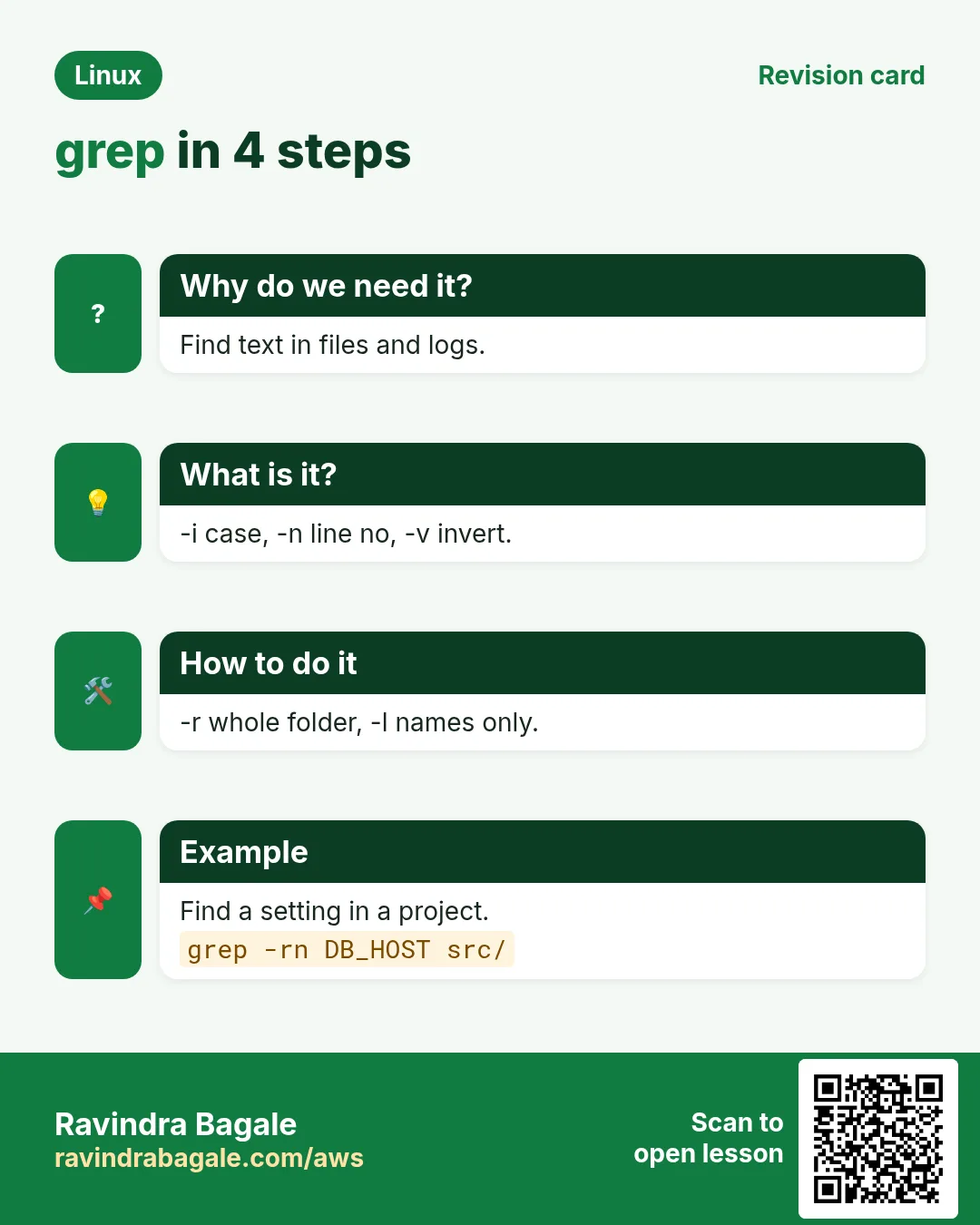
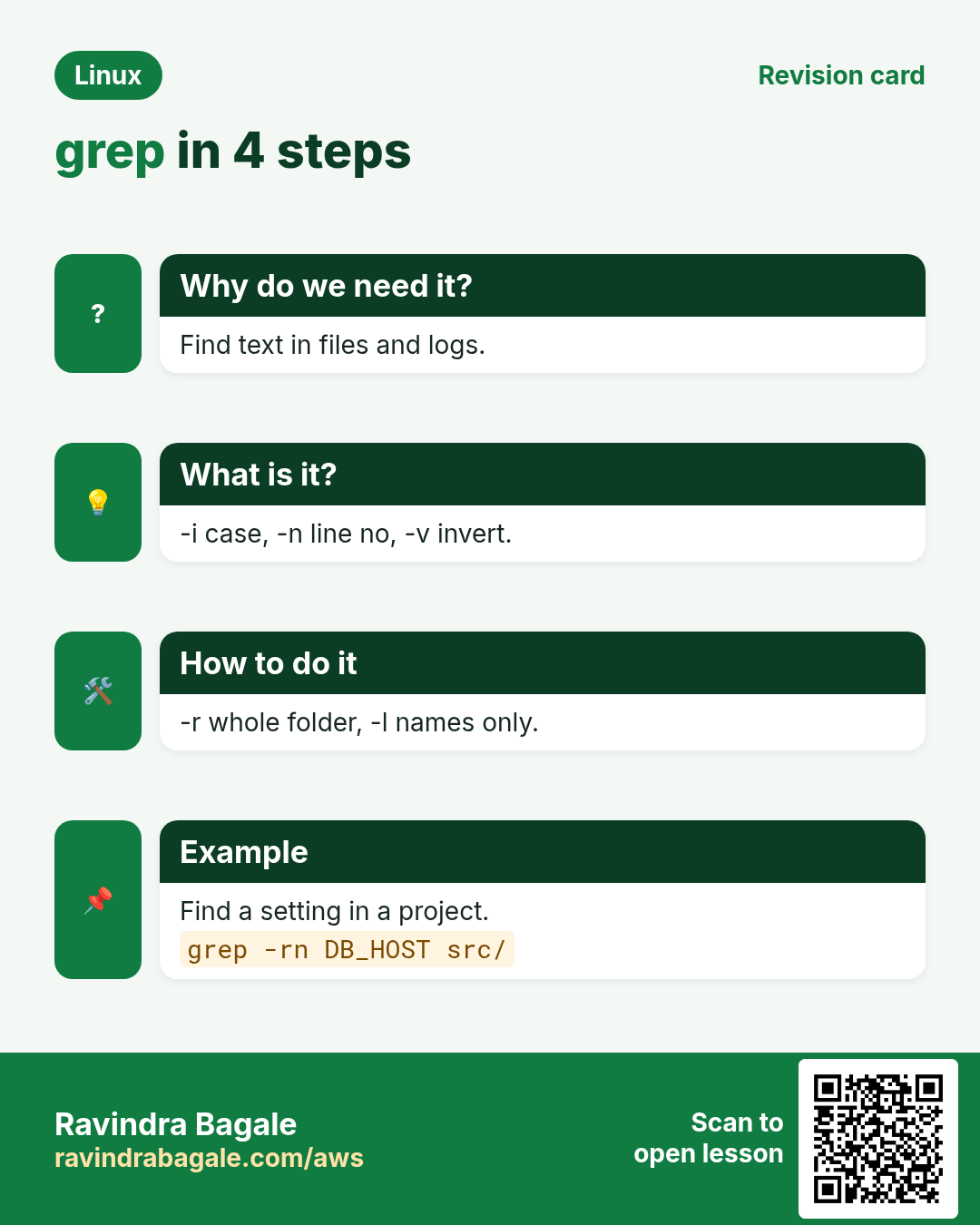
grep PATTERN FILE prints matching lines. -i ignore case, -v invert (non-matching), -n line numbers, -c count lines, -w whole word only, -x whole line only, -o print only the matched part, -m N stop after N matches, -q quiet (just the exit code), -h/-H hide/show file names, --color=auto highlight. Quote the pattern in single quotes so the shell does not change it.
For GNU grep, an exit status of 0 means a match, 1 means no lines matched, and 2 means an error. Try the same pattern in an existing file with no match and in a missing file. Both can leave ordinary output empty, but the exit codes tell you whether the search completed. In scripts that must notice read errors, be careful with -q: finding a match can return 0 even if a file error also occurred.
| Option | Meaning |
|---|---|
| -i | Ignore case |
| -v | Lines that do NOT match |
| -n | Show line numbers |
| -c | Count matching lines |
| -w | Match whole words |
| -o | Only the matched text |
| -q | Quiet, exit code only |
| -m N | Stop after N matches |
- Find errors.
grep ERROR app.logOutput:
10:12:44 ERROR payment timeout order=8812
10:15:02 ERROR db connection refused
Only lines with ERROR.
- Ignore case and number lines.
grep -in 'timeout' app.logOutput:
57:10:12:44 ERROR payment timeout order=8812
90:10:20:11 WARN Timeout on cache
57 and 90 are line numbers.
- Hide comments and empty lines of a config.
grep -v '^#' /etc/ssh/sshd_config | grep -v '^$'Output:
Port 22
PermitRootLogin no
PasswordAuthentication no
-v inverts. Now you see only real settings.
- Whole word only.
grep -w 'root' /etc/passwdOutput:
root:x:0:0:root:/root:/bin/bash-w skips words like chroot or rootless.
- Count failed logins.
sudo grep -c 'Failed password' /var/log/secureOutput:
143143 lines matched.
- Use grep in an if.
if grep -q '^ravi:' /etc/passwd; then echo exists; fiOutput:
exists-q prints nothing; exit code 0 means found.
- Many patterns at once.
grep -e ERROR -e FATAL app.log | wc -lOutput:
31-e can be repeated. Or put patterns in a file and use -f.
3. Search many files and folders
Where is this setting defined? Which file has the old password? You must search a whole folder tree.
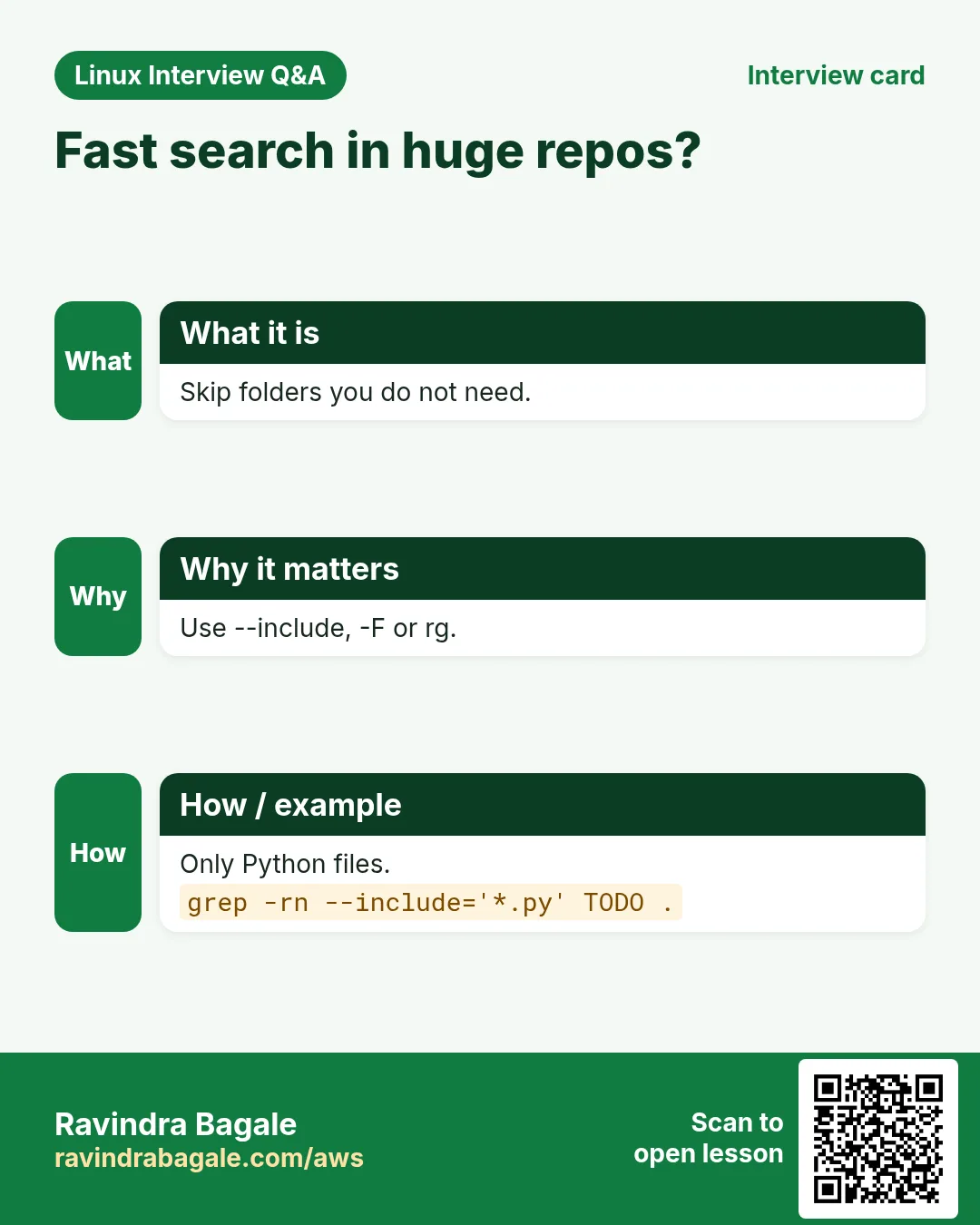
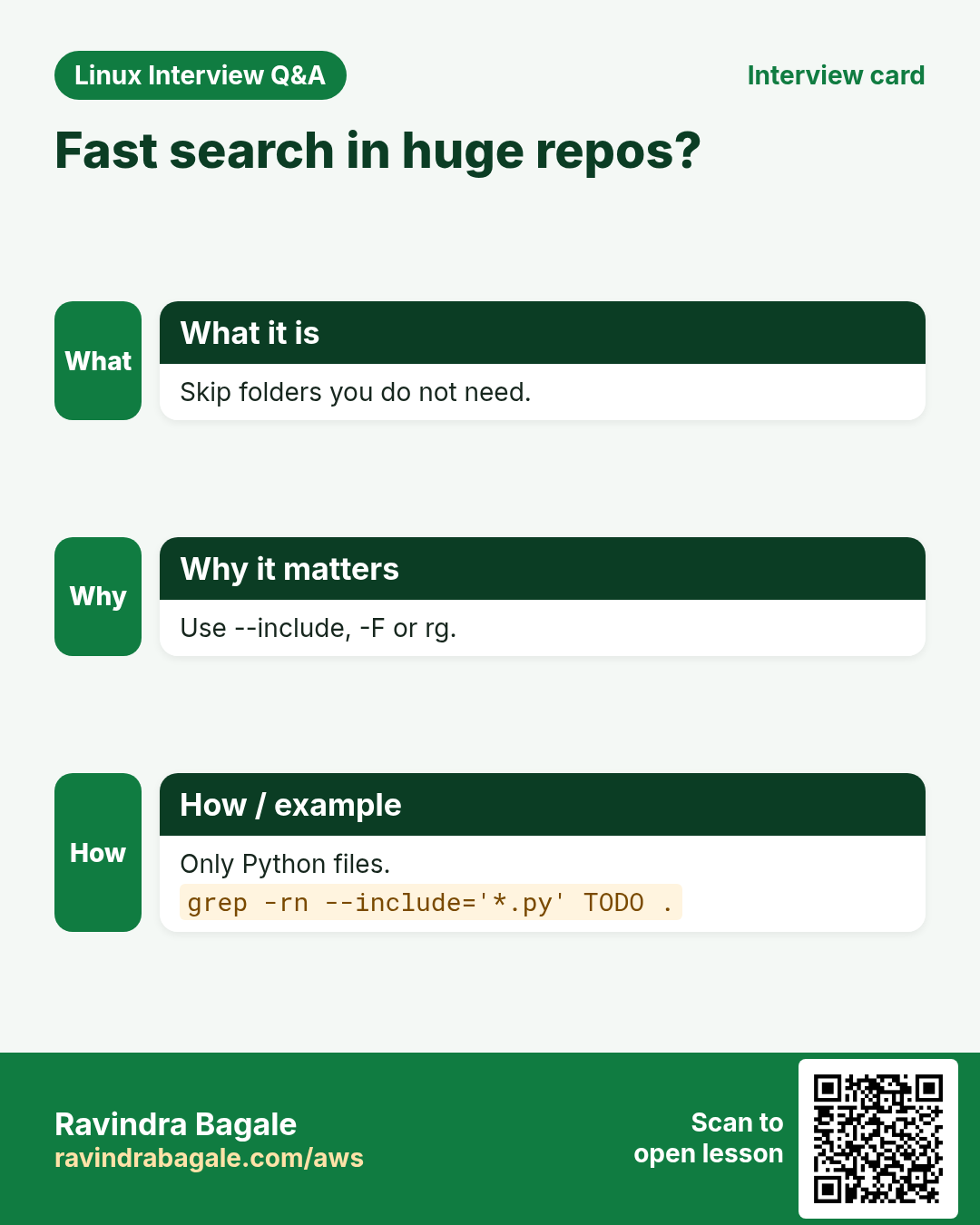
grep -r PATTERN DIR searches all files under DIR (-R also follows symlinks). -l lists only file names with matches, -L files without matches. --include='*.conf' and --exclude-dir=.git filter files. -I skips binary files. zgrep searches .gz files.
- Find where a port is set.
grep -rn 'listen 443' /etc/nginx/Output:
/etc/nginx/conf.d/shop.conf:5: listen 443 ssl;File, line number and the line.
- Only file names.
grep -rl 'DB_PASSWORD' /srv/appOutput:
/srv/app/.env
/srv/app/config/old.env
Good to find secrets left in files.
- Only some file types.
grep -rn --include='*.py' 'import boto3' ~/projectsOutput:
/home/ravi/projects/s3sync/main.py:3:import boto3Skips everything that is not .py.
- Skip .git and node_modules.
grep -rn --exclude-dir={.git,node_modules} 'TODO' .Output:
./src/cart.js:41: // TODO handle couponFaster and less noise.
- Search rotated gz logs.
zgrep -c 'Out of memory' /var/log/messages*.gzOutput:
/var/log/messages-1.gz:2
/var/log/messages-2.gz:0
No unzip needed.
- Files that do NOT contain a header.
grep -L 'Copyright' src/*.cOutput:
src/new_feature.c-L lists files without a match.
4. Context: lines before and after
An error line alone rarely tells the story. The lines before it show the cause; the lines after show the stack trace.
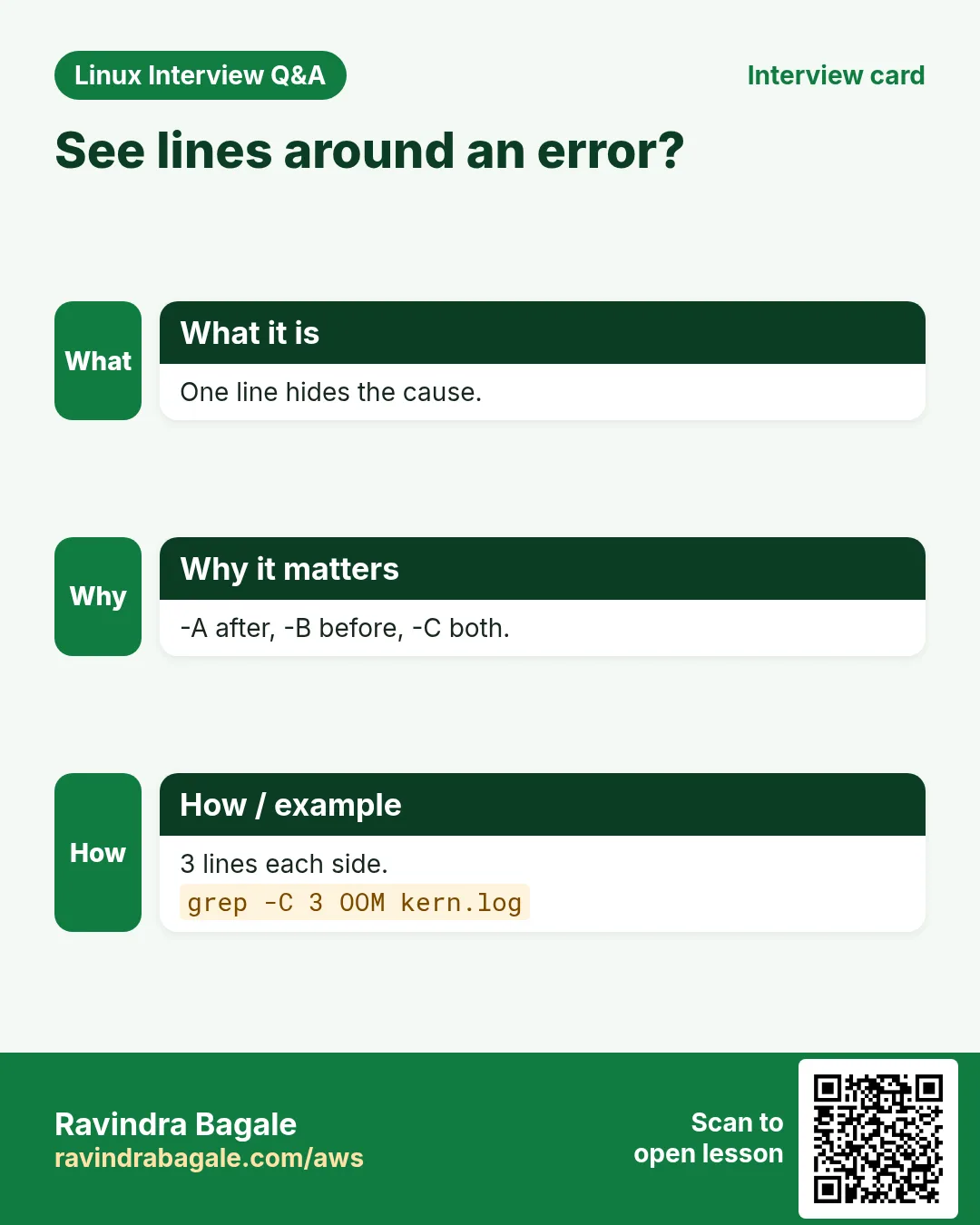
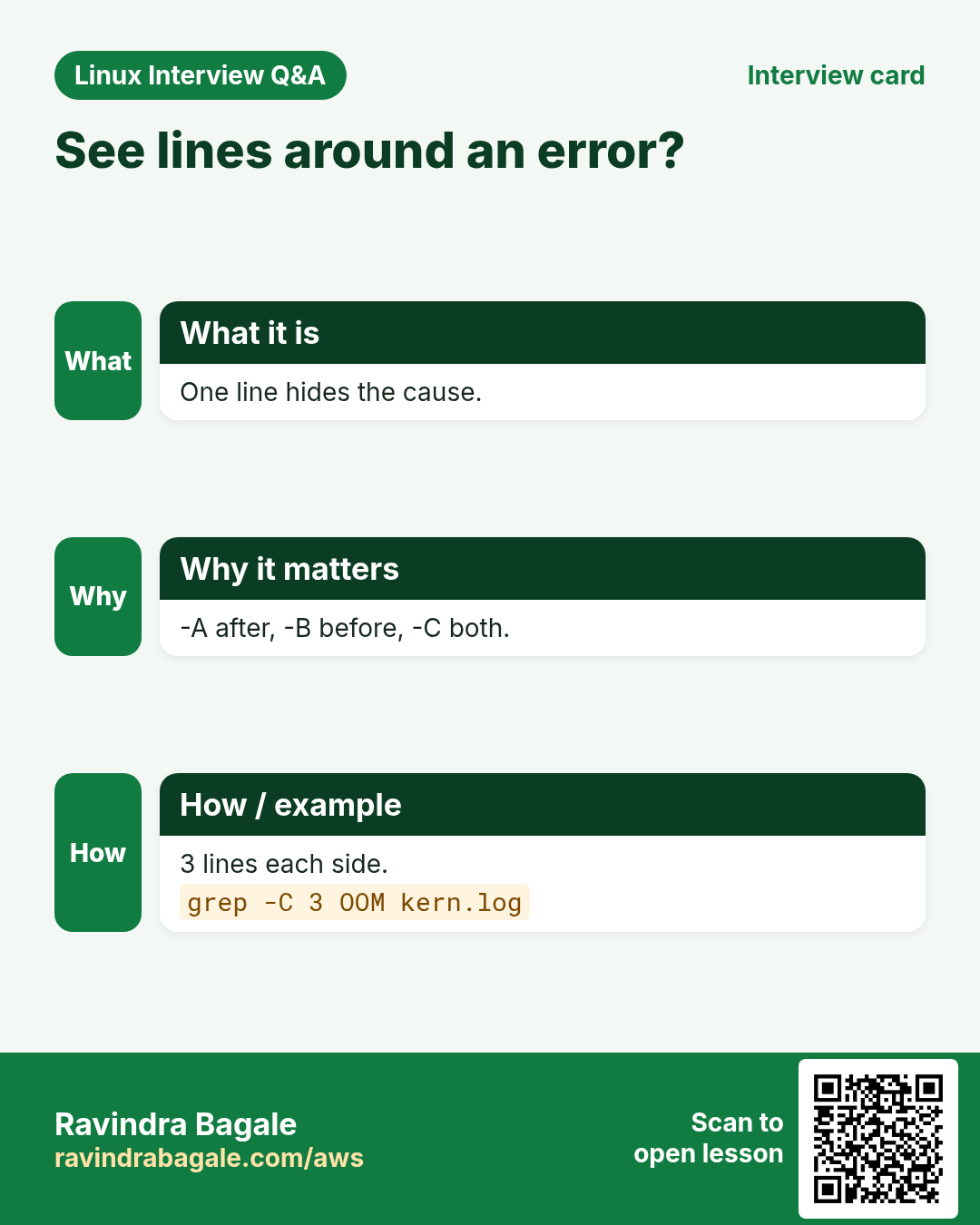
-A N shows N lines after each match, -B N before, -C N both sides. Groups are separated by --. Combine with -n to know where you are.
- Stack trace after an exception.
grep -A3 'Exception' app.logOutput:
10:20:11 ERROR NullPointerException
    at Cart.total(Cart.java:42)
    at Checkout.pay(Checkout.java:17)
    at Api.post(Api.java:88)
Three lines after the match.
- What happened before a crash.
grep -B2 'Killed process' /var/log/messagesOutput:
kernel: Out of memory: Killed process 3112 (java)-B shows the lines leading up to it.
- Both sides with line numbers.
grep -n -C1 'disk full' backup.logOutput:
41-starting upload
42:ERROR disk full
43-retry in 60s
Matches use :, context lines use -.
5. Basic regex: anchors, dot, classes and star
A regular expression describes the text pattern you want to find. ^ anchors a match to the start of a line and $ to the end. Against a file with ERROR timeout, INFO previous ERROR cleared, and ERROR, the pattern ^ERROR matches the first and third lines. ^ERROR$ matches only the third. Plain ERROR finds all three.
Try the three patterns on a scratch file and count matching lines with grep -c. Quote the pattern so the shell passes it to grep as intended. If a student is searching for a literal string that contains a dot, -F treats the dot literally. In a regex, an unescaped dot matches a character. Choosing the search mode changes what the same characters mean.
Plain words are not enough. You need 'starts with', 'ends with', 'any digit' or 'any character here'.
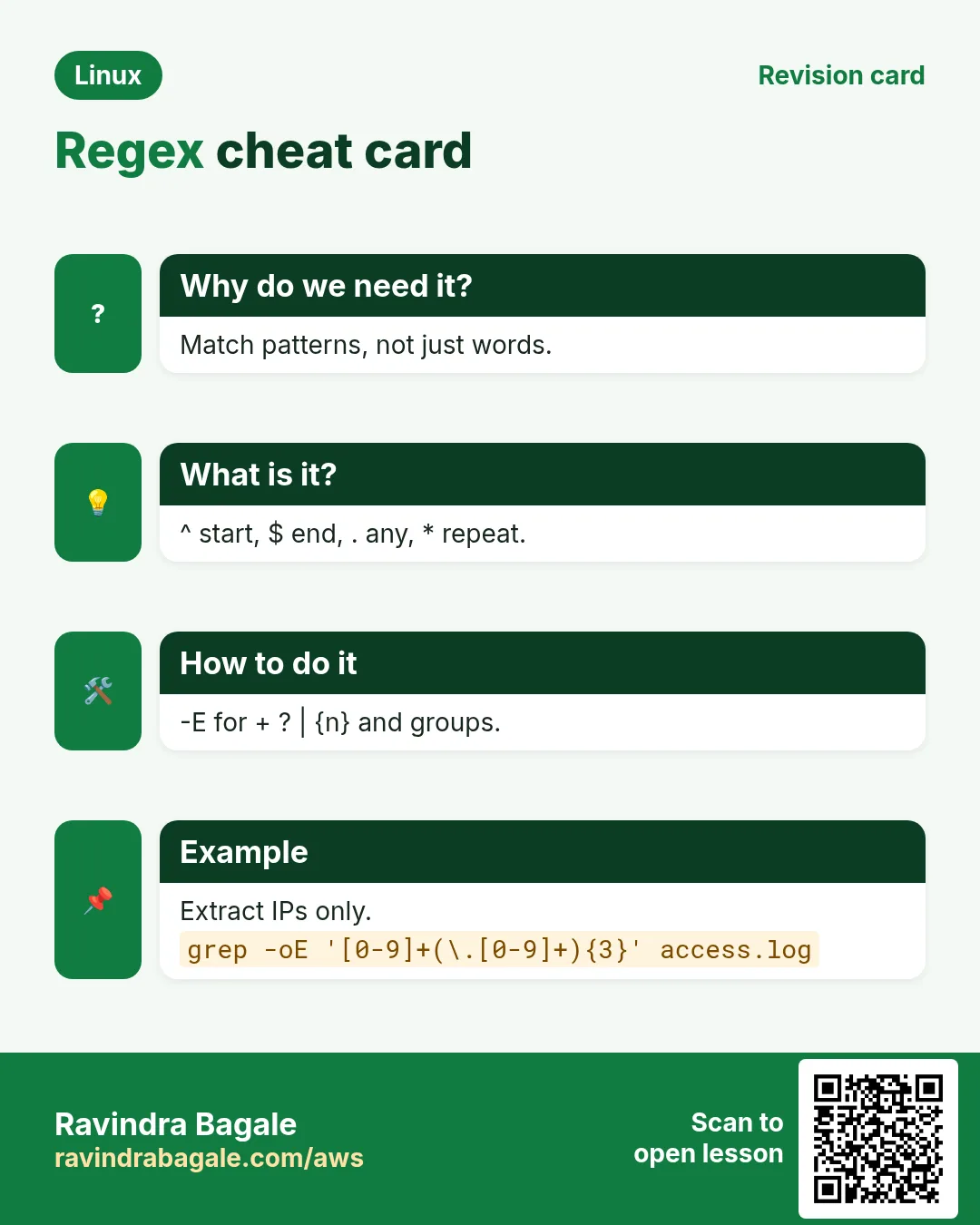
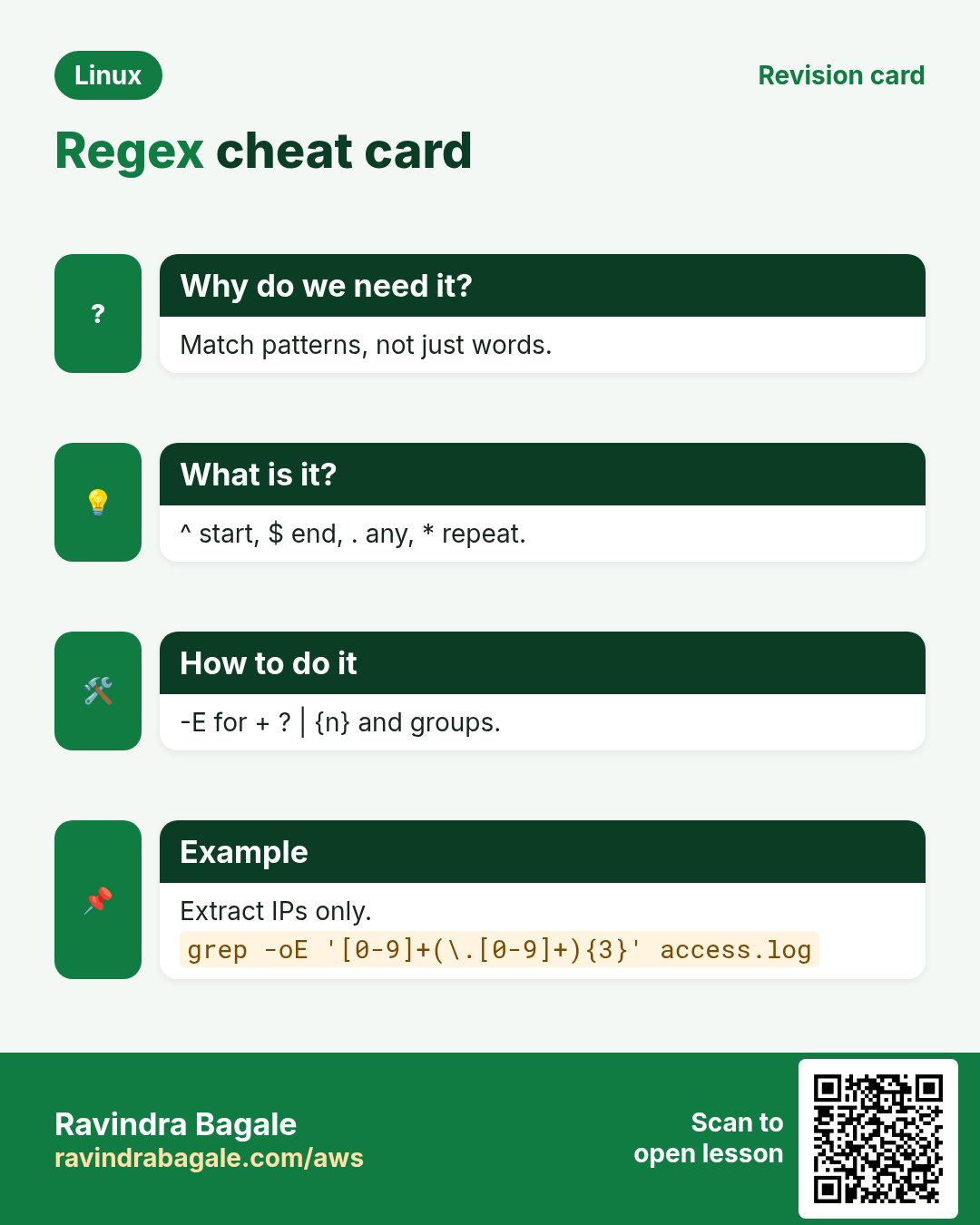
^ start of line, $ end of line, . any one character, [abc] one of a, b, c, [^abc] none of them, [0-9] a digit, [A-Za-z] a letter, * zero or more of the previous item, .* anything. POSIX classes: [[:digit:]] [[:alpha:]] [[:space:]] [[:upper:]]. \ escapes a special character: \. is a real dot. \b or \< \> mark word edges in GNU grep.
| Symbol | Means | Example |
|---|---|---|
| ^ | Start of line | ^ERROR |
| $ | End of line | \.conf$ |
| . | Any one character | h.t |
| [0-9] | One digit | [0-9][0-9] |
| [^ ] | Not a space | [^ ]* |
| * | 0 or more of previous | ab*c |
| \ | Escape special char | 1\.5 |
| \b | Word edge | \bcat\b |
- Lines that start with ERROR.
grep '^ERROR' worker.logOutput:
ERROR job 77 failed^ ties the match to the start.
- Lines ending in .conf.
ls /etc | grep '\.conf$' | head -3Output:
host.conf
ld.so.conf
resolv.conf
\. is a real dot; $ is the end.
- Empty lines.
grep -c '^$' notes.txtOutput:
6^$ means nothing between start and end.
- Any character with dot.
echo -e 'hat\nhot\nheat' | grep 'h.t'Output:
hat
hot
One character between h and t. 'heat' has two.
- HTTP 4xx or 5xx codes.
grep ' [45][0-9][0-9] ' access.log | head -2Output:
10.0.0.7 GET /cart 404 0
10.0.0.2 POST /pay 503 0
A class [45] then two digits.
- Lines without any digit.
grep -v '[0-9]' list.txtOutput:
apple
banana
-v with a digit class.
- Uppercase words only with a POSIX class.
grep -o '\b[[:upper:]][[:upper:]]*\b' notes.txt | sort -uOutput:
AWS
EC2
Works in any language setting.
6. Extended regex: + ? {n,m} | and groups
To match IPs, emails, phone numbers or 'this OR that', you need repeat counts and choices.
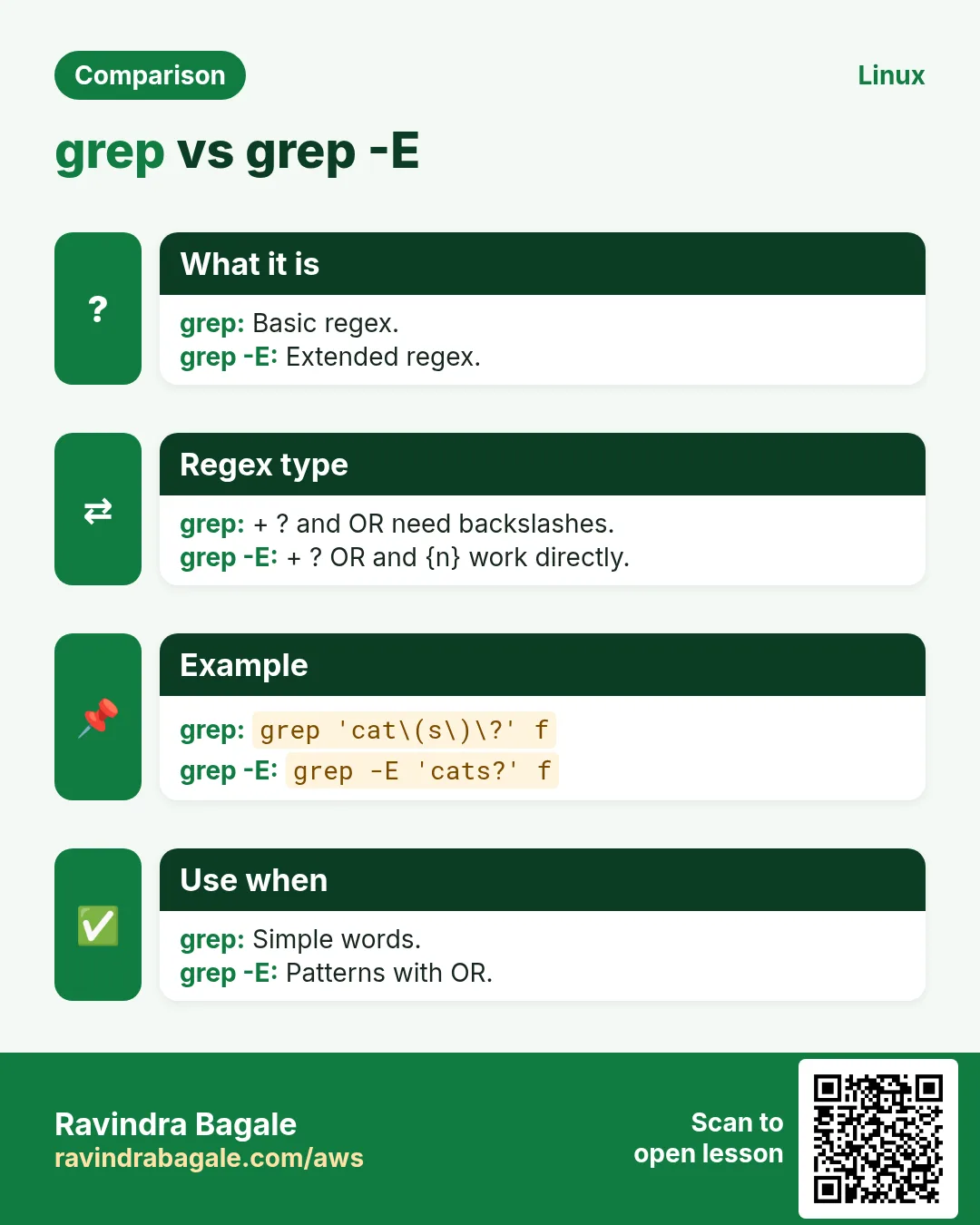
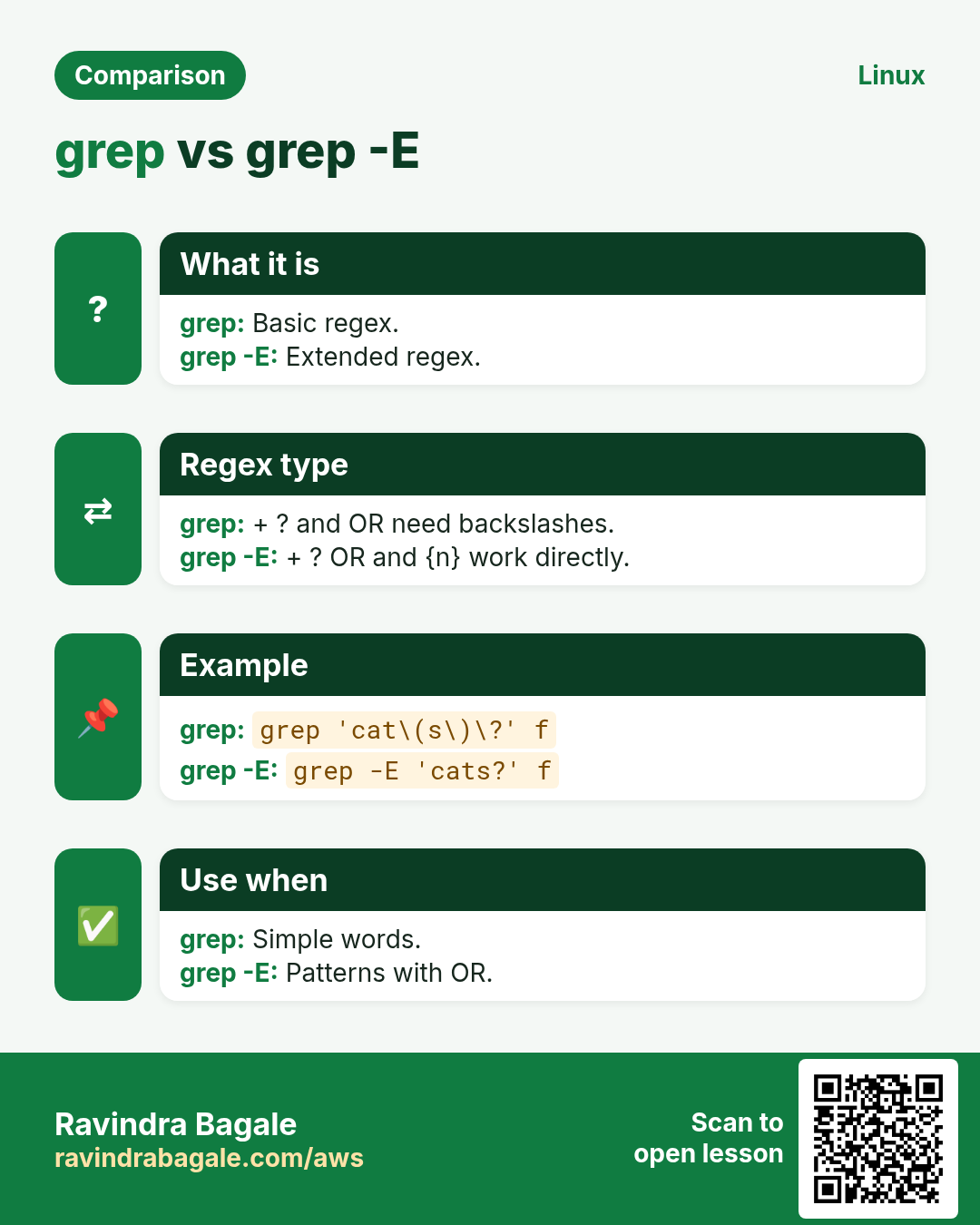
grep -E (or egrep, now deprecated) turns on extended regex. + one or more, ? zero or one, {3} exactly 3, {2,4} 2 to 4, {2,} 2 or more, a|b either, ( ) groups. In basic grep the same need backslashes: \+ \? \{3\} \| \( \). grep -P uses Perl regex with \d, \w, \s, lazy .*? and lookarounds.
| Symbol (-E) | Means |
|---|---|
| + | 1 or more |
| ? | 0 or 1 (optional) |
| {3} | Exactly 3 |
| {2,4} | 2 to 4 |
| a|b | a or b |
| ( ) | Group |
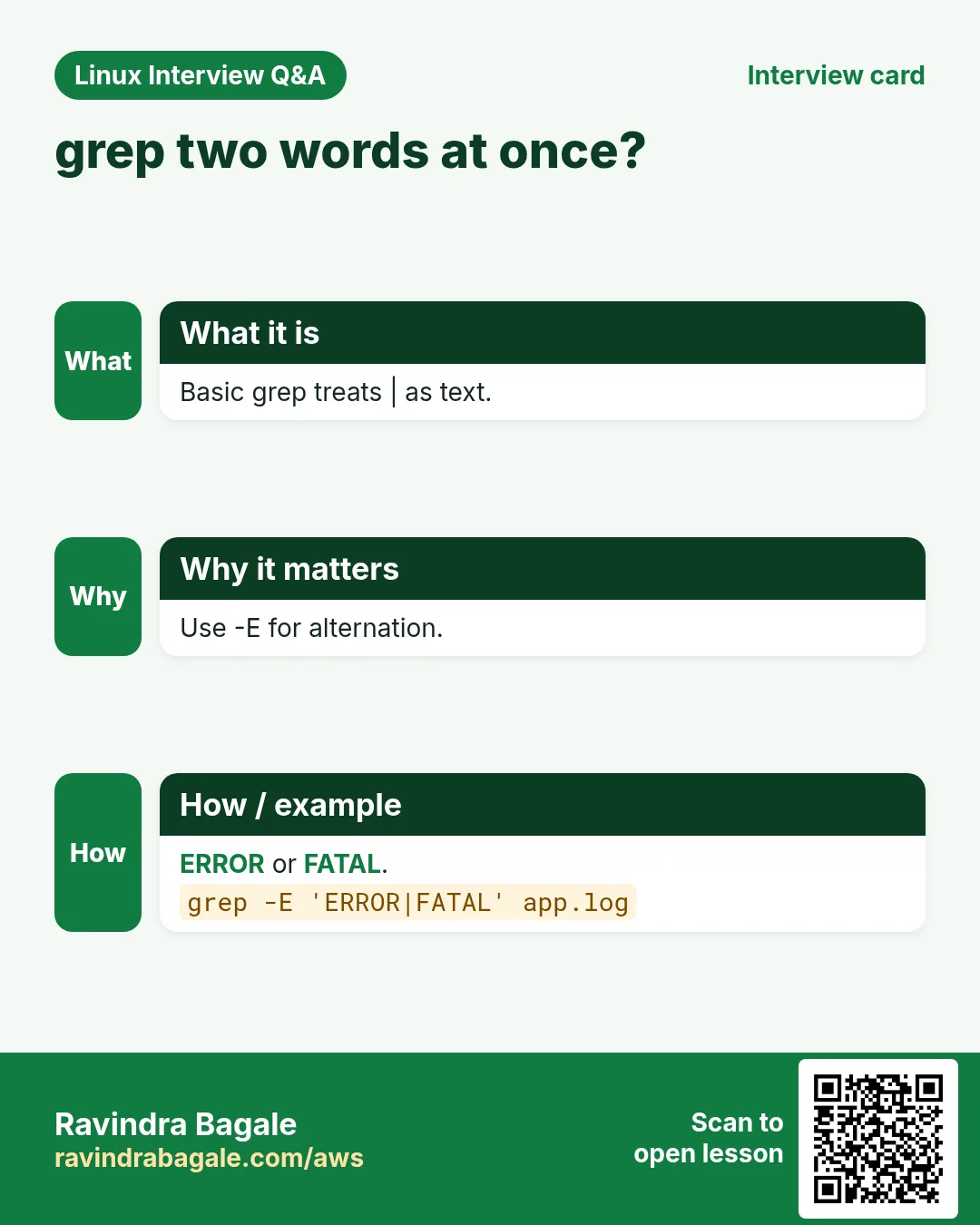
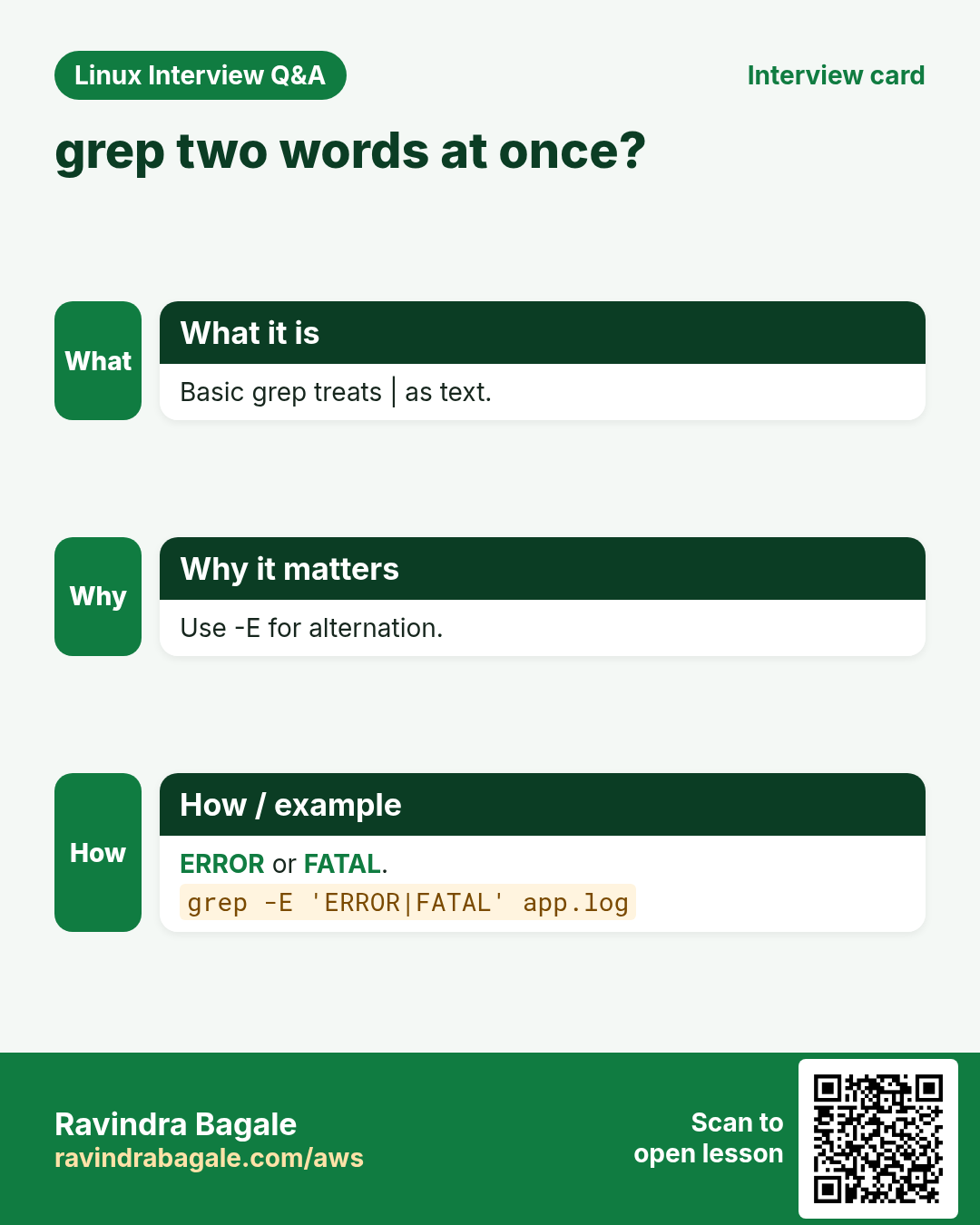
- ERROR or FATAL.
grep -E 'ERROR|FATAL' app.log | wc -lOutput:
31| means or. Needs -E.
- Find IPv4 addresses.
grep -Eo '([0-9]{1,3}\.){3}[0-9]{1,3}' auth.log | sort -u | head -3Output:
10.0.0.5
49.36.12.4
103.21.8.77
A group of 1-3 digits and a dot, 3 times, then 1-3 digits.
- Indian mobile numbers.
grep -Eo '\b[6-9][0-9]{9}\b' contacts.txtOutput:
9822012345
7020011122
Starts with 6-9, then 9 more digits.
- Emails.
grep -Eio '[a-z0-9._%+-]+@[a-z0-9.-]+\.[a-z]{2,}' users.txtOutput:
aditi@example.com
john.doe@mail.co.uk
+ means one or more allowed characters.
- Optional letter.
grep -E 'colou?r' notes.txtOutput:
color
colour
u? may or may not be there.
- Perl regex: the value after order=.
grep -oP 'order=\K\d+' app.log | head -2Output:
8812
8813
\K drops what came before from the output; \d is a digit.
- Same pattern in basic grep.
grep 'ERROR\|FATAL' app.log | wc -lOutput:
31In basic regex | needs a backslash.
7. Fixed strings, speed and ripgrep
Searching for a string full of dots or brackets, or millions of lines, needs the fast and safe way.
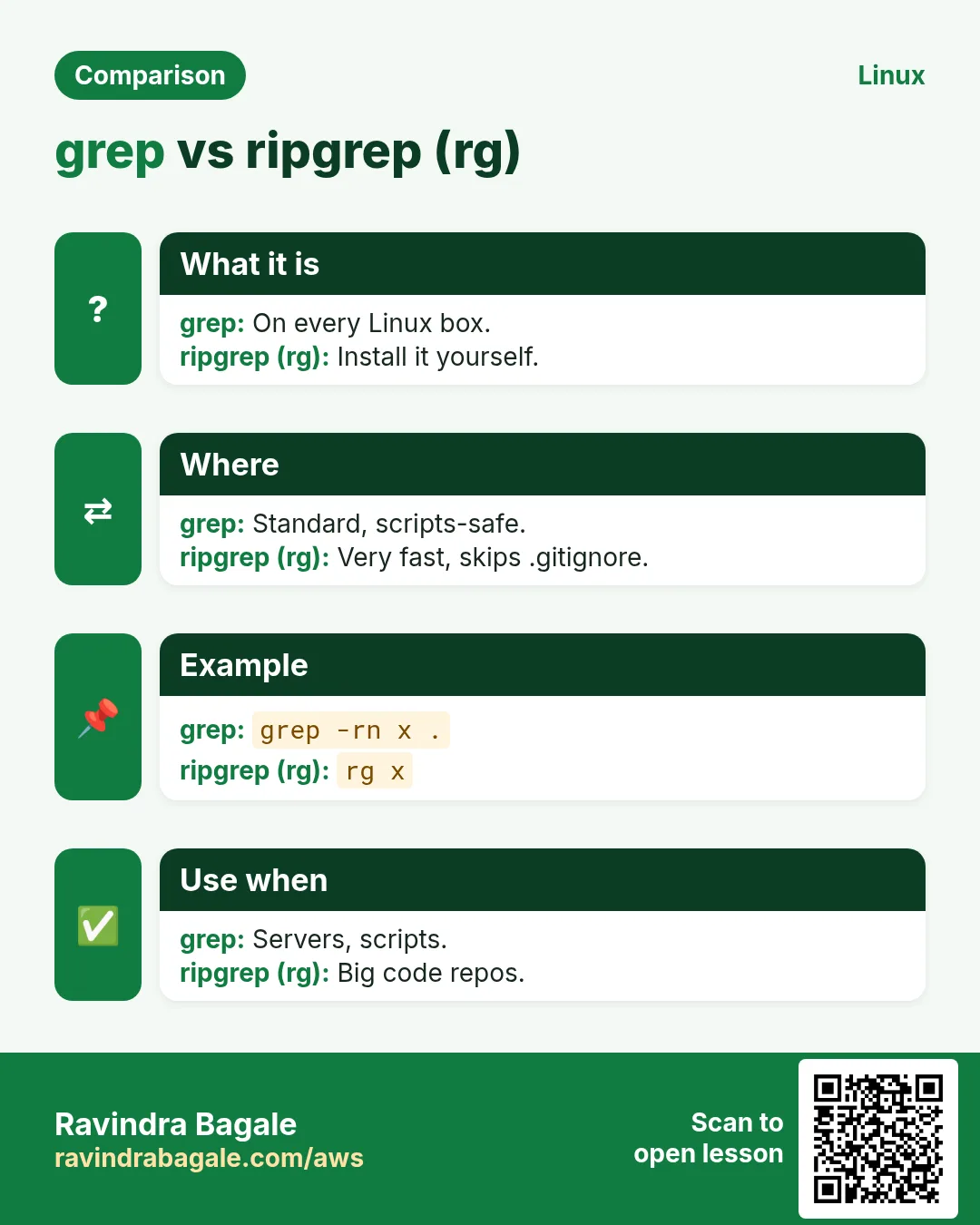
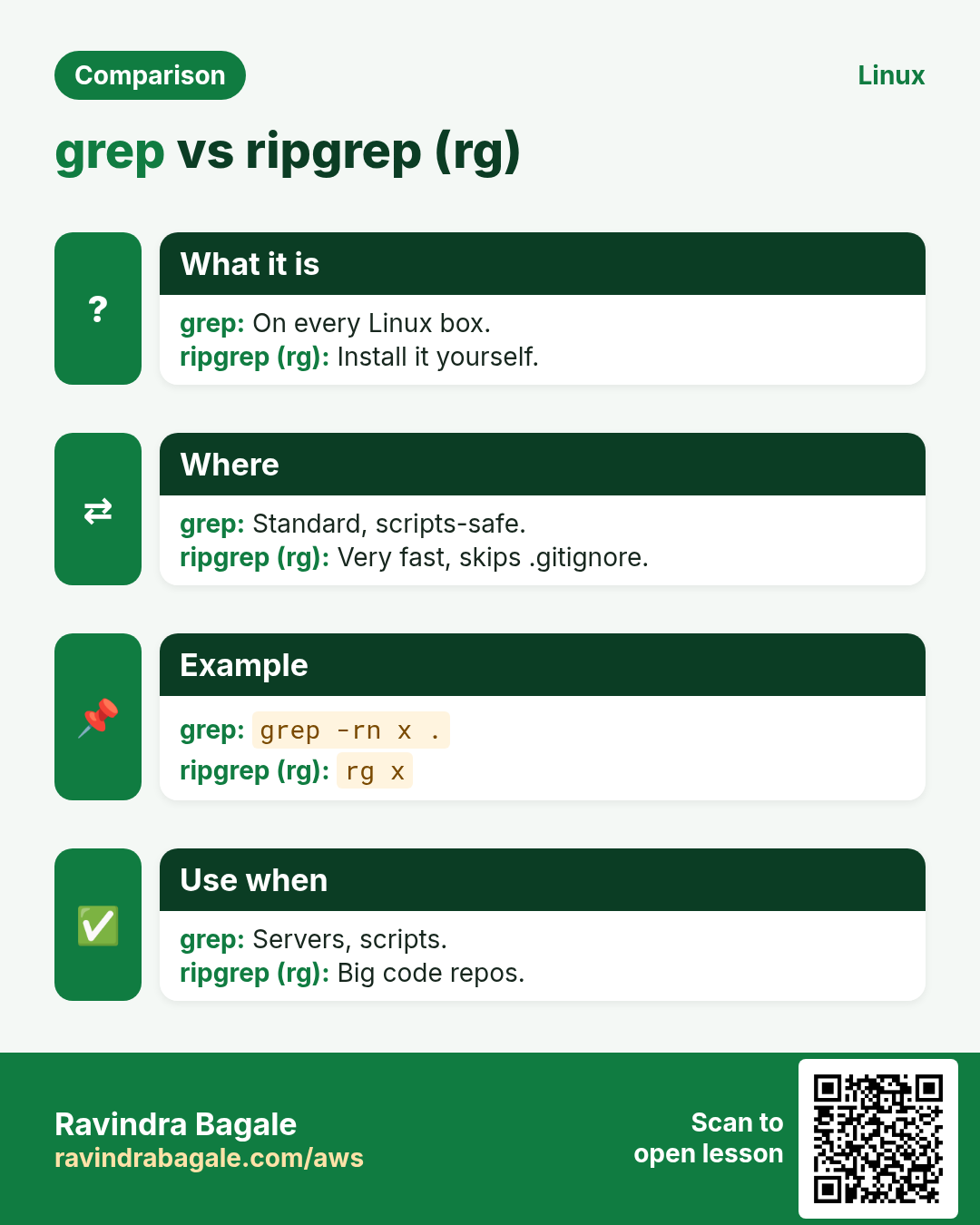
grep -F (fgrep) treats the pattern as plain text: no regex, faster and no escaping. -f file reads many patterns from a file. LC_ALL=C grep is much faster on big ASCII logs. ripgrep (rg) is a modern recursive grep: fast, respects .gitignore, shows colour and line numbers by default. ag and ack are similar tools.
- Search a string with dots safely.
grep -F '10.0.0.1' access.log | head -1Output:
10.0.0.1 GET /p1 200Without -F, . would match any character (10x0y0z1).
- Block list from a file.
grep -Ff bad_ips.txt access.log | wc -lOutput:
57Each line of bad_ips.txt is a pattern.
- Speed up on a big log.
time LC_ALL=C grep -c 'ERROR' big.logOutput:
120334
real 0m0.41s
C locale avoids slow Unicode rules.
- ripgrep in a code repo.
rg -n 'boto3.client' --type pyOutput:
src/sync.py
3:s3 = boto3.client('s3')
rg skips .gitignore files and is recursive by default.
8. Real examples from many industries
The same Linux skill shows up in every kind of company. Seeing it in many places helps you remember it.
Each row is a made-up team. It shows who uses this and how.
| Team and city | How they use it | Command |
|---|---|---|
| Vikram, SOC analyst, Gurugram | Finds brute-force IPs in SSH logs | grep 'Failed password' /var/log/secure | grep -Eo '([0-9]{1,3}\.){3}[0-9]{1,3}' | sort | uniq -c | sort -nr |
| Hannah, fintech, Zurich | Checks no card numbers are in logs | grep -rEn '\b[0-9]{16}\b' /var/log/app |
| Omar, airline ops, Doha | Shows context around booking failures | grep -C3 'PNR_FAIL' booking.log |
| Kavya, QA, Pune | Fails a CI build if TODO is left in code | ! grep -rn 'TODO' src/ |
| Mateo, e-commerce, Buenos Aires | Counts 5xx errors per minute | grep -E '" 5[0-9]{2} ' access.log | cut -c14-30 | uniq -c |
| Yuki, platform, Osaka | Finds which config sets a timeout | grep -rn --include='*.yaml' 'timeout:' k8s/ |
9. Common errors and how to fix them
Everyone hits these errors. Knowing the cause saves hours.
Read the exact message first. Then match it to a row below.
| Error you see | Why it happens | How to fix |
|---|---|---|
grep: app.log: No such file or directory | Wrong file path | Check the path with ls.ls /var/log/app/ |
grep: /var/log/secure: Permission denied | File readable only by root | Use sudo.sudo grep sshd /var/log/secure |
grep: Unmatched ( or \( | Bracket in pattern not closed or not escaped | Escape it or use -F for plain text.grep -F 'f(x)' code.c |
grep: Invalid range end | A range like [z-a] or locale issue | Write ranges low to high or use classes.grep '[[:alpha:]]' f |
Binary file app.bin matches | grep found a match in a binary file | Use -a to treat as text, or -I to skip binaries.grep -a 'version' app.bin |
Pattern with | matches nothing | | needs -E (or \| in basic regex) | Add -E.grep -E 'a|b' f |
grep -r is very slow | Searching .git, node_modules or huge binaries | Exclude folders or use rg.grep -r --exclude-dir=node_modules x . |
grep: warning: egrep is obsolescent | egrep and fgrep are deprecated | Use grep -E and grep -F.grep -E 'x|y' f |
Pattern with $ matches wrong | Double quotes let the shell expand $VAR | Use single quotes.grep 'price$' f |
grep -P: unsupported on this system | BusyBox or macOS grep has no -P | Use -E, or install GNU grep / ripgrep.grep -Eo 'order=[0-9]+' f |
10. Troubleshooting step by step
When grep finds nothing (or too much), test the pattern on a tiny sample first.
Go top to bottom. Stop at the first step that shows the problem.
- Is the text really there? Use plain -F first.
grep -F -c 'timeout' app.log- Case issue? Add -i.
grep -ic 'timeout' app.log- Test the regex on one echo line.
echo 'order=8812 ok' | grep -Eo 'order=[0-9]+'- Hidden characters (\r, tabs) in the file?
grep -m1 'timeout' app.log | cat -A- Is it binary or compressed?
file app.log- Check the exit code.
grep -q x app.log; echo $?11. Lab 1: Hunt an SSH brute-force attack
Use grep and regex to find who is attacking, how often, and which users they try.
A full hands-on lab. Run every step on a test Linux machine (an EC2 instance, a VM, or WSL).
- Create a sample auth log.
mkdir -p ~/lab9 && cd ~/lab9 && for i in $(seq 1 60); do echo "Oct 25 10:$((i%60)):01 web sshd[9$i]: Failed password for $([ $((i%3)) = 0 ] && echo invalid user admin || echo root) from 49.36.12.$((i%4)) port 5$i ssh2"; done > auth.log; echo 'Oct 25 11:00:00 web sshd[1]: Accepted publickey for ravi from 10.0.0.5' >> auth.logOutput:
(no output)- Count failures.
grep -c 'Failed password' auth.logOutput:
60- Extract the attacking IPs and count them.
grep 'Failed' auth.log | grep -Eo '([0-9]{1,3}\.){3}[0-9]{1,3}' | sort | uniq -c | sort -nrOutput:
     15 49.36.12.0
     15 49.36.12.1
     15 49.36.12.2
15 49.36.12.3- Which users were tried?
grep -oP 'for (invalid user )?\K\w+' auth.log | sort | uniq -cOutput:
     20 admin
     40 root
1 ravi- Show the good login with context.
grep -B1 'Accepted' auth.logOutput:
Oct 25 10:0:01 web sshd[960]: Failed password for invalid user admin ...
Oct 25 11:00:00 web sshd[1]: Accepted publickey for ravi from 10.0.0.5
12. Lab 2: Audit a code folder for secrets
Search recursively with include and exclude rules and list risky files.
A full hands-on lab. Run every step on a test Linux machine (an EC2 instance, a VM, or WSL).
- Make a small project.
cd ~/lab9 && mkdir -p proj/src proj/.git && echo 'AWS_SECRET=abc123' > proj/src/.env && echo 'print(1)' > proj/src/a.py && echo 'AWS_SECRET=old' > proj/.git/xOutput:
(no output)- Search everything.
grep -rn 'AWS_SECRET' projOutput:
proj/src/.env:1:AWS_SECRET=abc123
proj/.git/x:1:AWS_SECRET=old- Skip .git and list file names only.
grep -rl --exclude-dir=.git 'AWS_SECRET' projOutput:
proj/src/.env- Find AWS access key id patterns.
echo 'key=AKIAIOSFODNN7EXAMPLE' >> proj/src/a.py; grep -rEon 'AKIA[0-9A-Z]{16}' proj/srcOutput:
proj/src/a.py:2:AKIAIOSFODNN7EXAMPLERavindra Bagale's Tip
Always put grep patterns in single quotes, and test a new regex with echo on one sample line before running it on a 5 GB log. It saves time and avoids shell surprises.
Ravindra Bagale's Tip – मराठी
grep patterns नेहमी single quotes मधे ठेवा, आणि नवा regex 5 GB log वर चालवायच्या आधी echo ने एका sample line वर test करा. वेळ वाचतो आणि shell चे surprises टळतात.
Ravindra Bagale's Tip – हिंदी
grep patterns हमेशा single quotes में रखें, और नया regex 5 GB log पर चलाने से पहले echo से एक sample line पर test करें. समय बचता है और shell के surprises टलते हैं.
13. Frequently asked questions
Q. What is the difference between grep, grep -E and grep -F?
grep uses basic regex, -E extended regex (+ ? | {} without backslashes), -F plain text with no regex.
Q. Why does grep . match everything?
A dot means any character. Use \. or -F for a real dot.
Q. How do I search for a word starting with a dash?
Use -e or --: grep -e '-v' file.
Q. Does grep search across lines?
No, it works line by line. Use grep -z or -P with (?s), or awk/sed for multi-line.
Q. What does the exit code of grep mean?
0 match found, 1 no match, 2 error.
Q. Is regex the same as shell globs?
No. In globs * means anything; in regex * means 'repeat the previous item'. .* is the regex 'anything'.
Q. Should I use ripgrep?
For code search on your laptop, yes. On servers, grep is always installed, so learn grep first.
Q. How do I show only the matching text?
grep -o.
14. Interview questions and answers
Beginner level
Q. How do you search a word ignoring case?
grep -i word file.
Q. How do you show lines that do not match?
grep -v pattern file.
Q. How do you search all files in a folder?
grep -r pattern folder/ (add -n for line numbers).
Q. What do ^ and $ mean?
Start and end of a line.
Mid level level
Q. Show 5 lines after each match.
grep -A5 pattern file.
Q. Extract all IP addresses from a log.
grep -Eo '([0-9]{1,3}\.){3}[0-9]{1,3}' file.
Q. List only files that contain a string.
grep -rl string dir.
Q. Show config lines without comments and blanks.
grep -Ev '^\s*(#|$)' file.
Senior level
Q. grep on a 30 GB log is slow. How do you speed it up?
LC_ALL=C, -F for fixed strings, anchor the pattern, -m to stop early, search only the time window (sed/awk ranges), parallel over rotated files, or ripgrep.
Q. Basic vs extended vs PCRE regex?
BRE needs \ before + ? | {} (). ERE (-E) does not. PCRE (-P) adds \d \w, lazy quantifiers, lookahead/behind and \K.
Q. How would you block a CI merge that adds secrets?
A pre-commit or CI step: git diff --cached | grep -E 'AKIA[0-9A-Z]{16}|BEGIN RSA PRIVATE' and fail on exit 0; better, use gitleaks or trufflehog.
Q. Why might grep -c and grep -o | wc -l give different numbers?
-c counts lines with a match; -o prints each match, so a line with 3 matches counts 3.
Try at home
- Make a file with 10 lines of your contacts (name and phone). Use grep -E to find numbers starting with 9, and grep -c to count names with 'a'.
- Run 'grep -v ^# /etc/ssh/sshd_config | grep -v ^$' on any Linux box and list the real settings you see.
Practise this chapter
Interview questions and answers
How would you search a log for lines that begin with ERROR without matching historical mentions mid-line?
I would use a quoted pattern anchored to the beginning of the line and test it on a small fixture containing both cases. I would inspect the matched rows and exit status; an empty output can mean no match or a search error.
Check your understanding
Choose an answer, then compare your reasoning with the explanation.
Practice Tasks
Practice checks run in your browser. They check the answer for this exercise; they do not create resources or connect to your AWS account.
About this scenarioLondon Legal LLP is a law business in London. Oliver Hughes looks after its IT and cloud work. They count money in GBP and run their AWS resources in the eu-west-2 Region. In the tasks below you do real jobs for them using what this lesson teaches. All names, account IDs, IP addresses and numbers are made up for practice.
0 / 16
Easy Search ignoring case
Error, ERROR and error all matter.
Find lines with the word error in any case in app.log.
- Find the Linux command that does this job.
- Add the options (like -r or -h) the task needs.
- Add the file names, folders or users in the right order.
- Use sudo if the job changes system files or users. Click Check answer.
Easy Show line numbers
Jump to the right line in vim.
Search for timeout in app.log and show line numbers.
- Find the Linux command that does this job.
- Add the options (like -r or -h) the task needs.
- Add the file names, folders or users in the right order.
- Use sudo if the job changes system files or users. Click Check answer.
Easy Hide comment lines
See only active settings.
Print lines of sshd_config that do NOT start with #. Use the pattern '^#'.
- Find the Linux command that does this job.
- Add the options (like -r or -h) the task needs.
- Add the file names, folders or users in the right order.
- Use sudo if the job changes system files or users. Click Check answer.
Easy Count matching lines
How many 500 errors?
Count lines containing " 500 " in access.log using only grep. Use the pattern ' 500 '.
- Find the Linux command that does this job.
- Add the options (like -r or -h) the task needs.
- Add the file names, folders or users in the right order.
- Use sudo if the job changes system files or users. Click Check answer.
Easy Regex end anchor
Match the end of a line.
Which single regex character means end of line?
- Write down the numbers the task gives you.
- Work it out step by step on paper.
- Type only the final answer in the box.
- Click Check answer.
Medium Search a whole project
Where is the DB password used?
Search recursively for DB_PASS in the folder src and show line numbers.
- Find the Linux command that does this job.
- Add the options (like -r or -h) the task needs.
- Add the file names, folders or users in the right order.
- Use sudo if the job changes system files or users. Click Check answer.
Medium Only file names
You only need which files to edit.
List only the names of files under conf that contain listen, recursively.
- Find the Linux command that does this job.
- Add the options (like -r or -h) the task needs.
- Add the file names, folders or users in the right order.
- Use sudo if the job changes system files or users. Click Check answer.
Medium Whole word only
cat should not match category.
Find lines with the whole word cat in pets.txt.
- Find the Linux command that does this job.
- Add the options (like -r or -h) the task needs.
- Add the file names, folders or users in the right order.
- Use sudo if the job changes system files or users. Click Check answer.
Medium Lines after a match
Stack traces follow the error line.
Show each Exception line in app.log plus 5 lines after it.
- Find the Linux command that does this job.
- Add the options (like -r or -h) the task needs.
- Add the file names, folders or users in the right order.
- Use sudo if the job changes system files or users. Click Check answer.
Medium Context around a match
See what happened around a crash.
Show 3 lines before and after each OOM line in kern.log.
- Find the Linux command that does this job.
- Add the options (like -r or -h) the task needs.
- Add the file names, folders or users in the right order.
- Use sudo if the job changes system files or users. Click Check answer.
Medium Lines starting with a word
Pick only real directives.
Show lines in nginx.conf that start with server. Use the anchor in quotes.
- Find the Linux command that does this job.
- Add the options (like -r or -h) the task needs.
- Add the file names, folders or users in the right order.
- Use sudo if the job changes system files or users. Click Check answer.
Medium Search a literal string
Dots and stars are not regex here.
Search for the exact text 1.2.3.* in rules.txt treating it as a fixed string. Quote it.
- Find the Linux command that does this job.
- Add the options (like -r or -h) the task needs.
- Add the file names, folders or users in the right order.
- Use sudo if the job changes system files or users. Click Check answer.
Medium Find a process
Is nginx running?
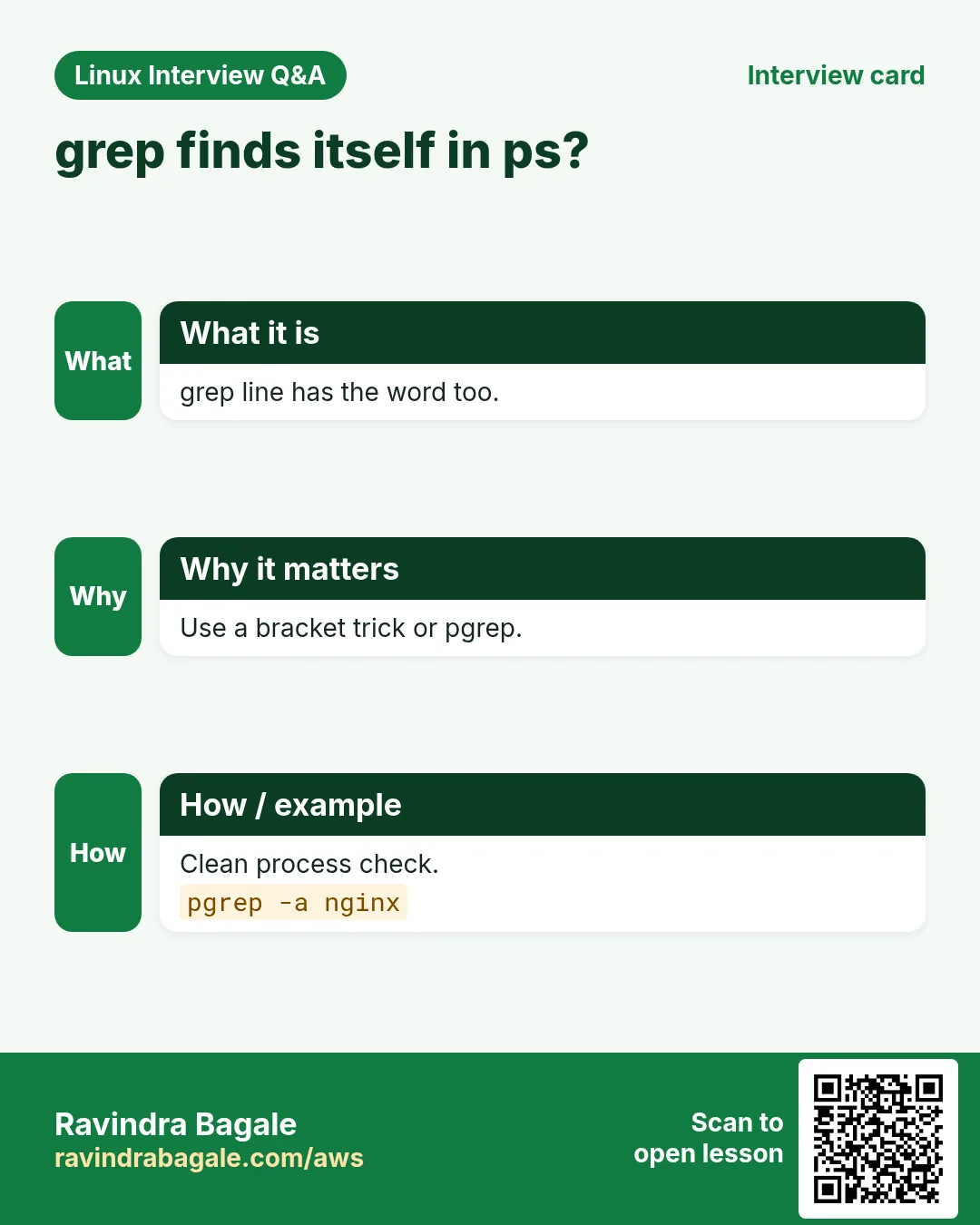
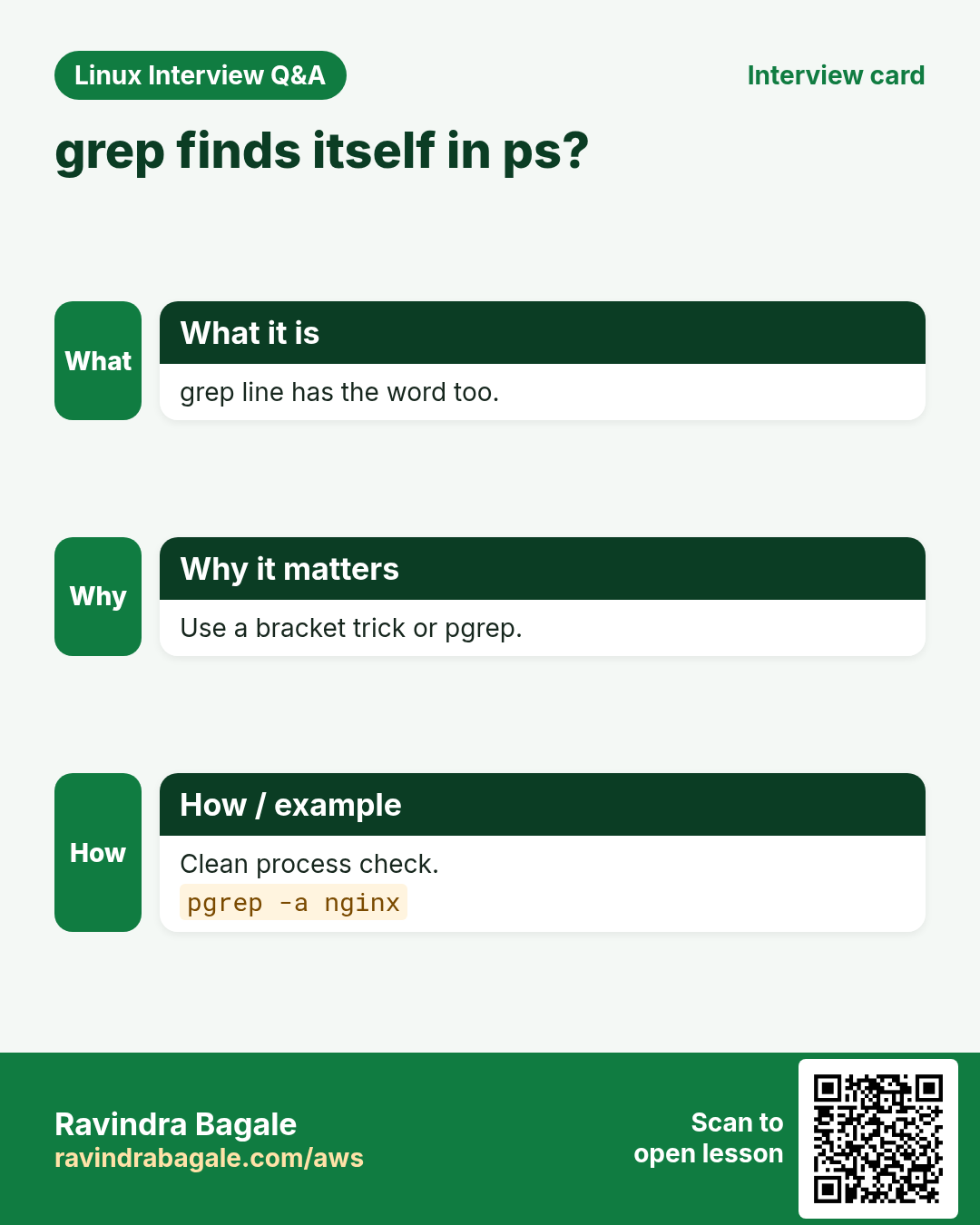
List all processes with ps aux and filter lines with nginx.
- Find the Linux command that does this job.
- Add the options (like -r or -h) the task needs.
- Add the file names, folders or users in the right order.
- Use sudo if the job changes system files or users. Click Check answer.
Hard Match two words
Find both kinds of failures.
Using extended regex, find lines in api.log with WARN or CRIT. Pattern 'WARN|CRIT'.
- Find the Linux command that does this job.
- Add the options (like -r or -h) the task needs.
- Add the file names, folders or users in the right order.
- Use sudo if the job changes system files or users. Click Check answer.
Hard Extract only IPs
Build a list of client IPs.
Print only the matching IPv4 parts from access.log using -oE and the pattern '[0-9]+(\.[0-9]+){3}'.
- Find the Linux command that does this job.
- Add the options (like -r or -h) the task needs.
- Add the file names, folders or users in the right order.
- Use sudo if the job changes system files or users. Click Check answer.
Hard Search only some file types
Skip node_modules noise.
Recursively search for TODO in the current folder (.) but only in *.py files. Use --include='*.py'.
- Find the Linux command that does this job.
- Add the options (like -r or -h) the task needs.
- Add the file names, folders or users in the right order.
- Use sudo if the job changes system files or users. Click Check answer.
15. Related chapters
- Linux Ops Refresh for DevOps
- Bash Scripting for Automation
- Linux grep and find Commands with Examples
- How to Set Up Passwordless SSH Between Linux Servers
In short
- grep -i -v -n -c -w -o -q are daily options.
- grep -rn searches folders; -l lists files; --include and --exclude-dir filter.
- -A -B -C show context.
- Basic regex: ^ $ . [ ] * \.
- grep -E adds + ? {n,m} | ( ); -P adds \d \K lookarounds.
- -F for plain text; rg for fast code search.
Revision, comparison and interview cards
Revise this lesson in a few minutes. Save the cards on your phone or download them as PNG files. The QR code on each card opens this lesson.
More cards: Ravi Sir's Cards.