Linux Environment Variables, PATH, .bashrc and alias Explained Simply
Every program you run gets a small bag of settings called environment variables: who you are, your home folder, where to look for commands, which editor you like, API endpoints and more. In this chapter you learn to read, set, export and remove them, how PATH finds commands, which startup file runs when, and how aliases save typing.
In this chapter
- Read variables with echo, env and printenv
- Set shell vs exported variables, and unset
- Understand and change PATH safely
- Use which, type and command -v
- Know .bashrc, .bash_profile, /etc/profile.d and /etc/environment
- Create aliases, functions and a better PS1
1. An everyday example: the school bag and the timetable
Every morning a child packs a school bag from the timetable stuck on the wall. Whatever is in the bag goes to school; things left on the table stay home. If the younger brother copies the bag, he gets the same books. And the child writes short nicknames for long subject names on the timetable.
Timetable on the wall = .bashrc. The bag = exported environment. Things on the table = shell-only variables. Brother copying the bag = a child process inheriting env. Nicknames = aliases.
2. echo $VAR: read one variable
You want to check a value quickly, like your home folder or which editor is set.
$NAME expands to the value. Use "$NAME" in quotes to keep spaces. ${NAME:-default} gives a default if empty. Common: HOME, USER, SHELL, PWD, LANG, EDITOR, HOSTNAME, PATH.
- Home and user.
echo "$USER lives in $HOME"Output:
ravi lives in /home/raviTwo variables in one line.
- A default value.
echo "${EDITOR:-nano}"Output:
nanoEDITOR was empty, so nano.
3. env and printenv: list the environment
When an app behaves differently on two servers, compare their environments.
env and printenv list all exported variables. printenv NAME prints one (no $). env -i CMD runs CMD with an empty environment. env VAR=x CMD runs CMD with an extra variable only for that run.
- Count and filter.
env | wc -l; env | grep -i ^langOutput:
28
LANG=en_IN.UTF-8
28 exported variables.
- One value.
printenv SHELLOutput:
/bin/bashNo $ needed.
- Run with a clean environment.
env -i /usr/bin/envOutput:
(no output)Nothing inherited.
4. Setting variables: shell vs export
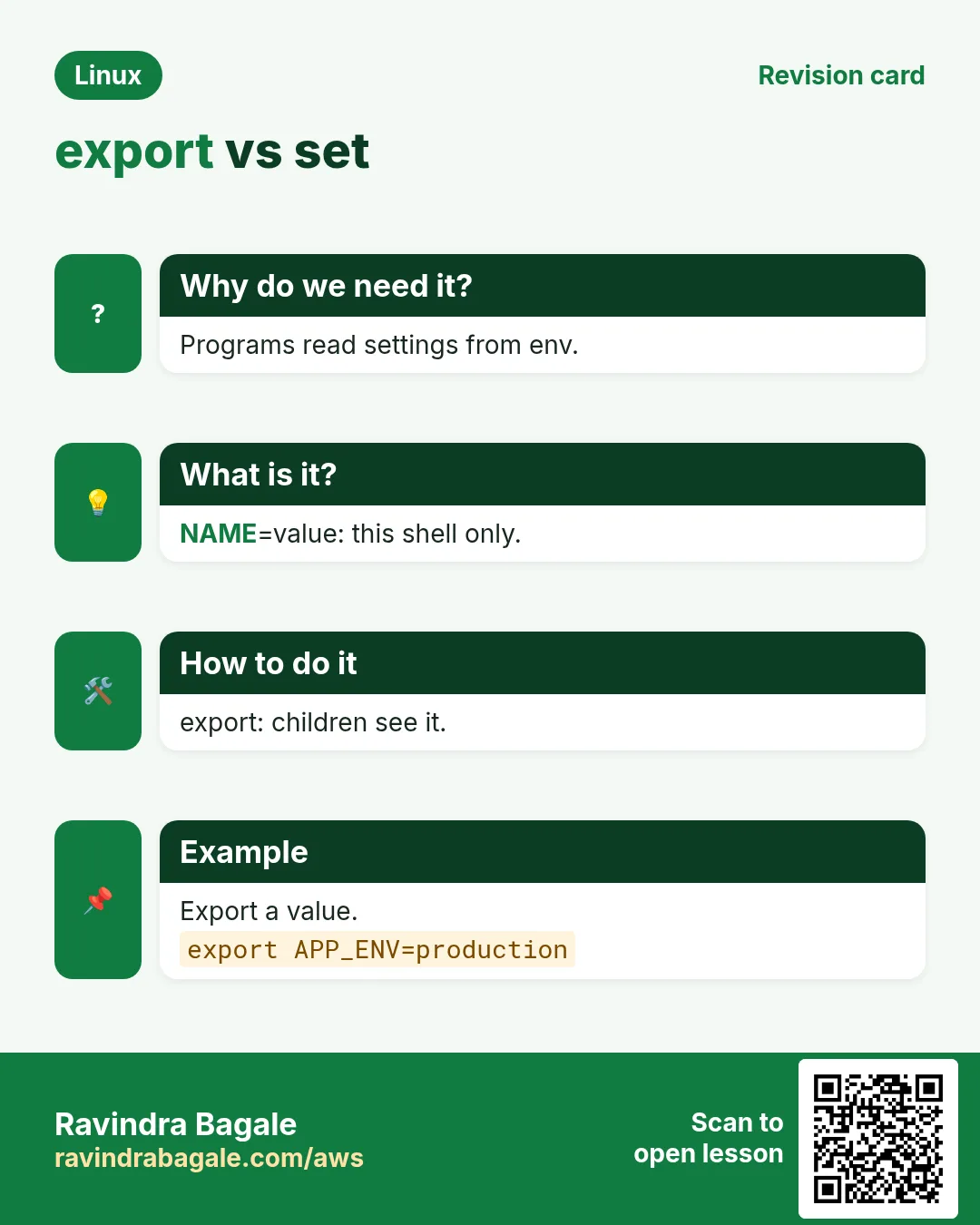
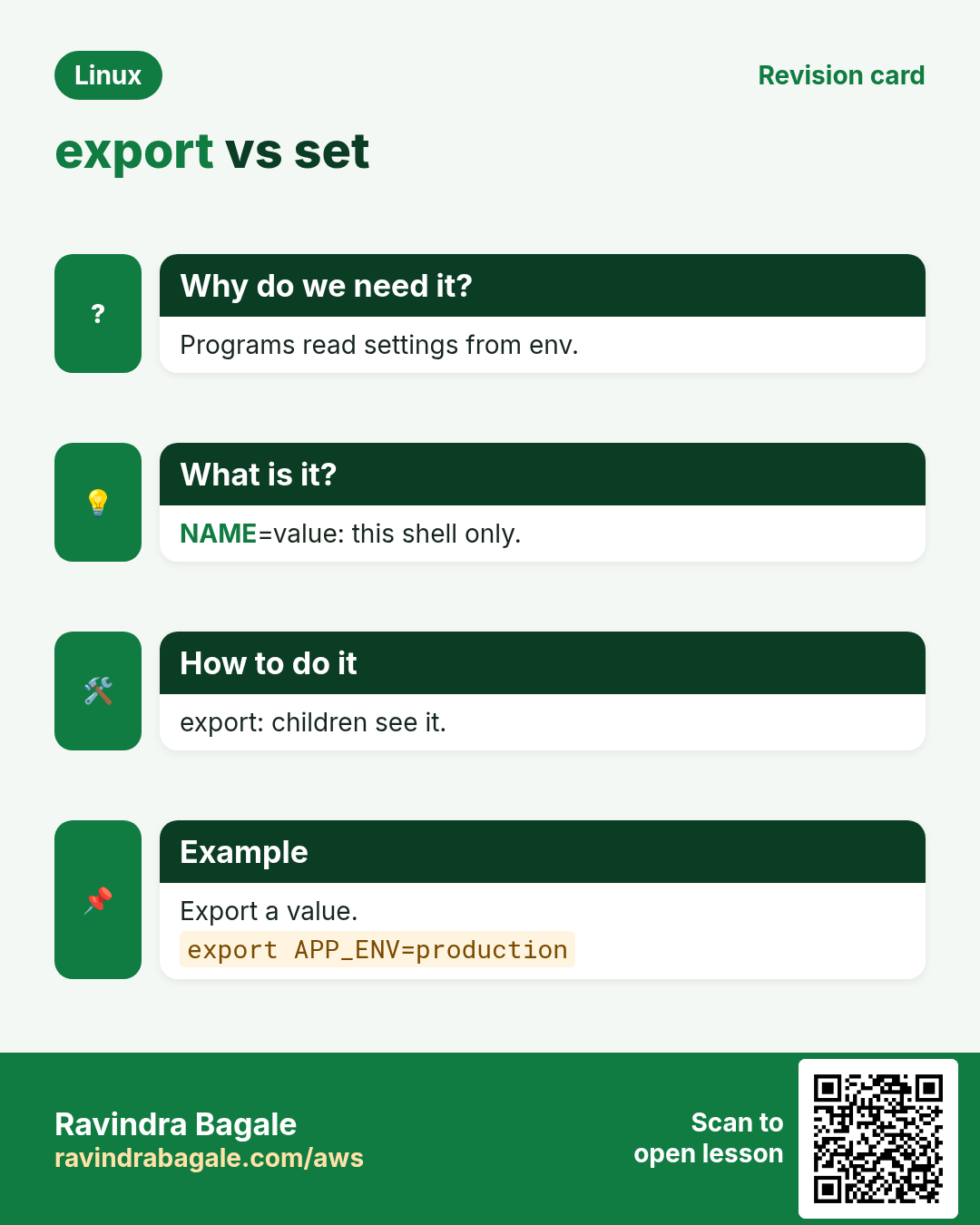
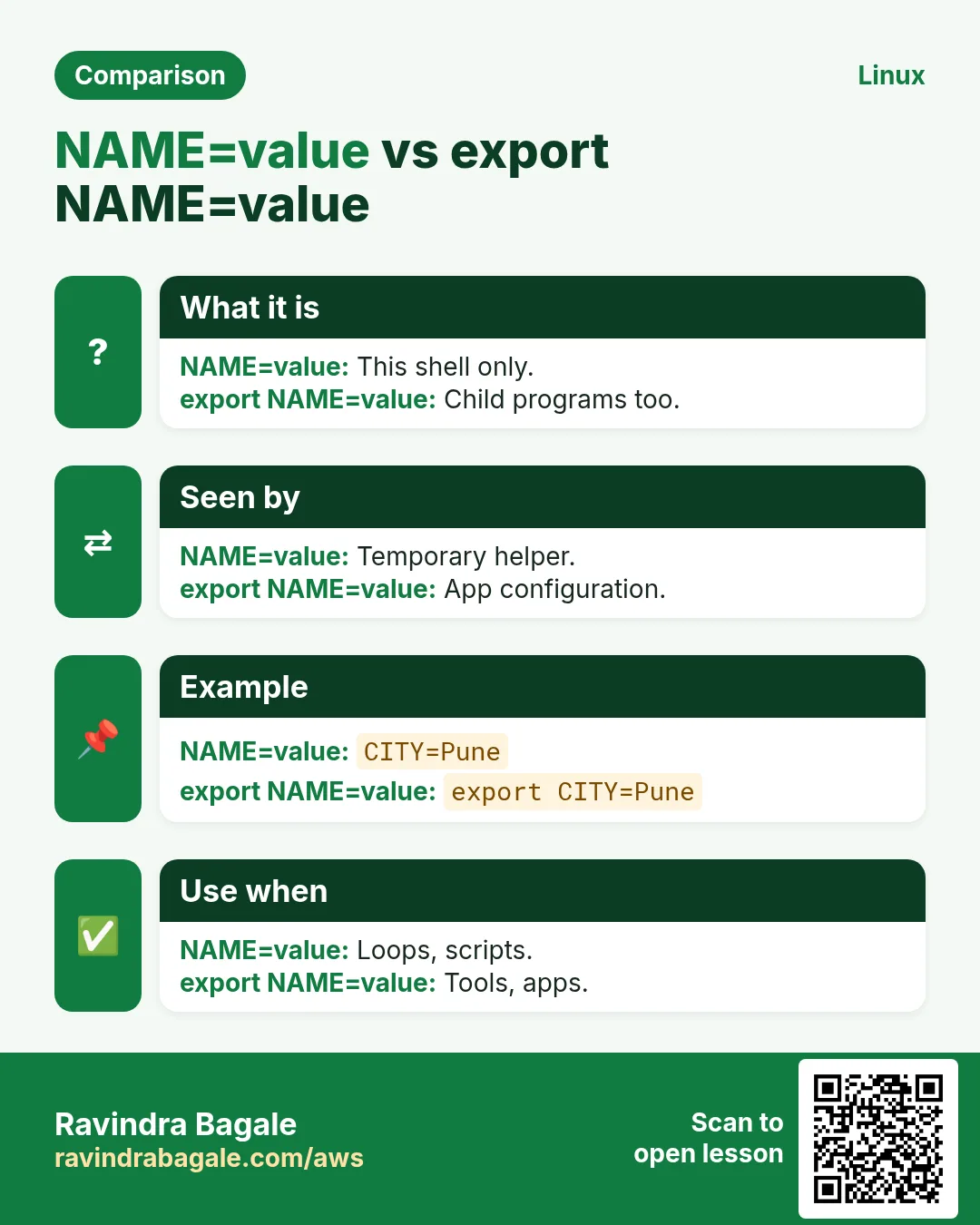
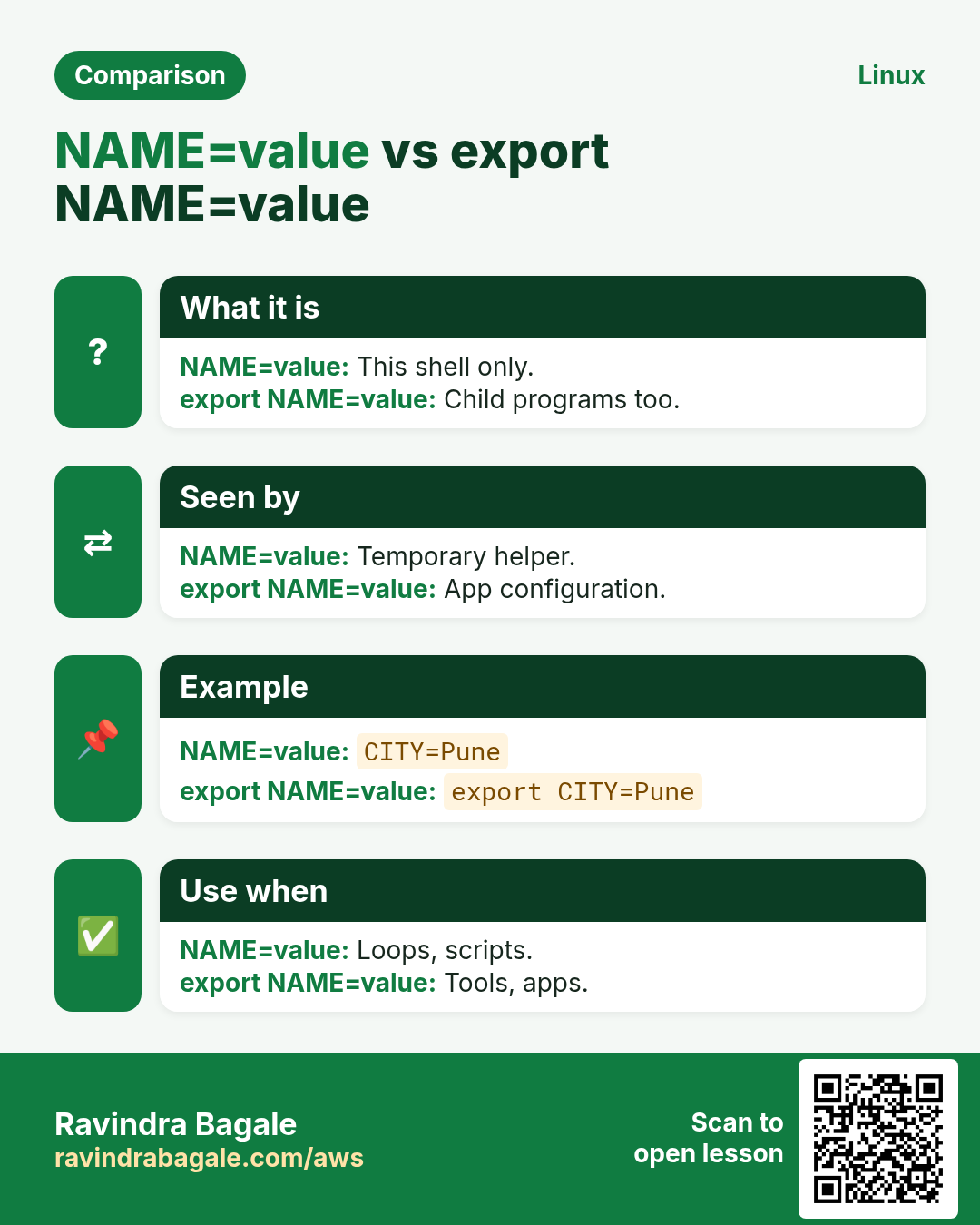
When a shell starts a program, it can send a copy of values called the environment. Try colour=blue, then compare printf '%s\n' "$colour" in the current shell with printenv colour. The shell can print its own variable. The new program only sees exported values. After export colour, printenv colour should see blue. A child process can change its copy without changing the value in its parent shell.
A variable you set is not seen by programs you start unless you export it. This confuses many beginners.
NAME=value sets a shell variable (no spaces around =). export NAME or export NAME=value puts it in the environment, so child processes get it. NAME=value cmd sets it for one command only. Changes vanish when the terminal closes unless saved in a startup file.
- Not exported.
CITY=Pune; bash -c 'echo "child sees: $CITY"'Output:
child sees: The child did not get it.
- Exported.
export CITY=Pune; bash -c 'echo "child sees: $CITY"'Output:
child sees: PuneNow it is in the bag.
- For one command.
TZ=Asia/Tokyo date +%H:%M; date +%H:%MOutput:
17:42
14:12
Only date's first run saw TZ.
- Space mistake.
CITY = PuneOutput:
bash: CITY: command not foundNo spaces around =.
5. unset and readonly
Remove a wrong or secret value from your session, or protect a value from being changed.
unset NAME removes it from the shell and environment. export -n NAME keeps it in the shell but stops exporting. readonly NAME=value makes it constant for this shell.
- Remove a token.
export API_TOKEN=abc123; unset API_TOKEN; echo "[${API_TOKEN}]"Output:
[]Gone.
- Readonly.
readonly STAGE=prod; STAGE=devOutput:
bash: STAGE: readonly variableProtected.
6. PATH: where commands are found
PATH is the ordered list of folders the shell searches for commands when you type a name such as python. Read it left to right. If two folders contain an executable with the same name, their order can decide which version starts. Compare type -a python before and after you activate a practice environment. Then use python --version to verify the program you actually invoked. Using an explicit path such as ./tool chooses that file directly.
'command not found' after installing a tool almost always means its folder is not in PATH.
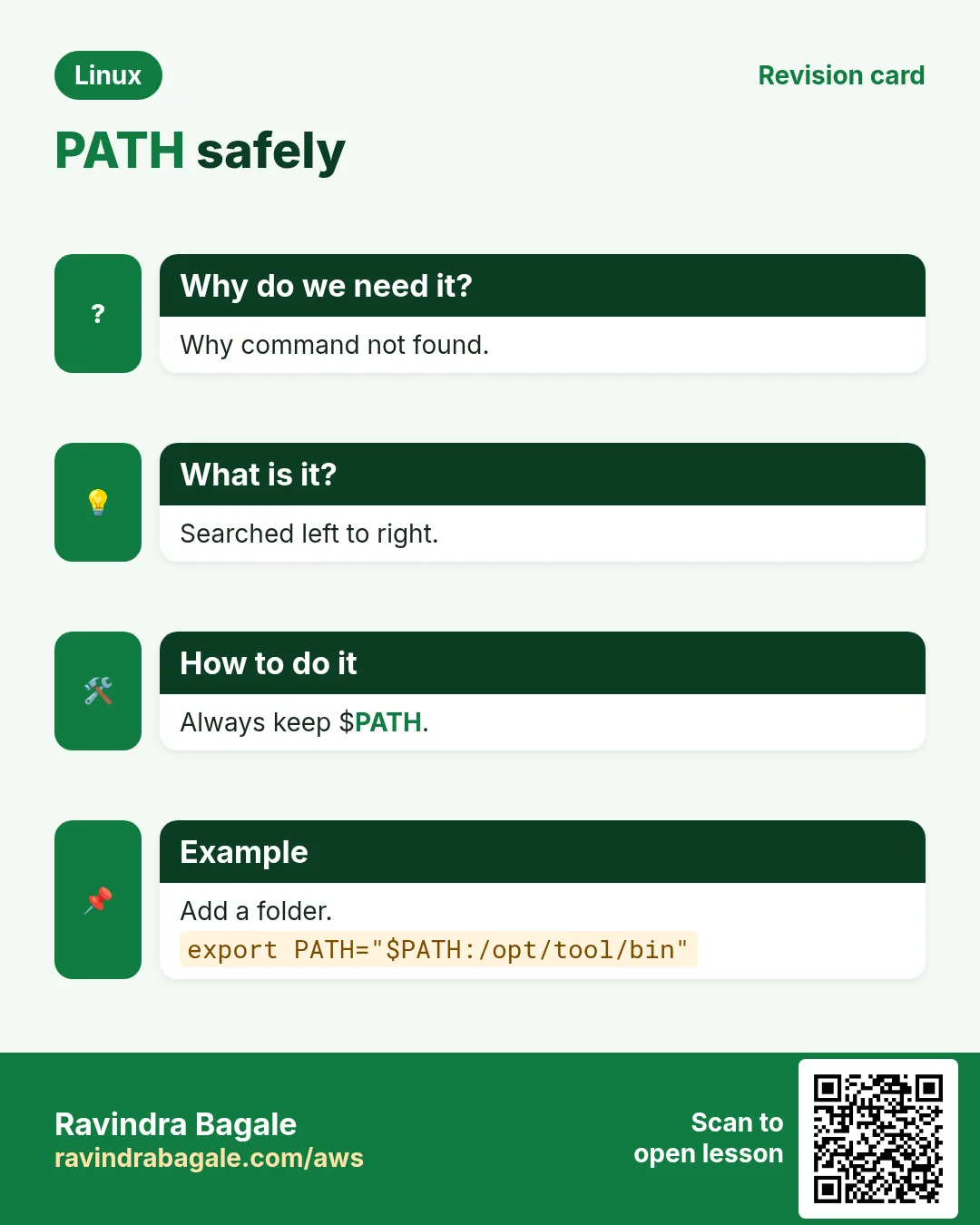
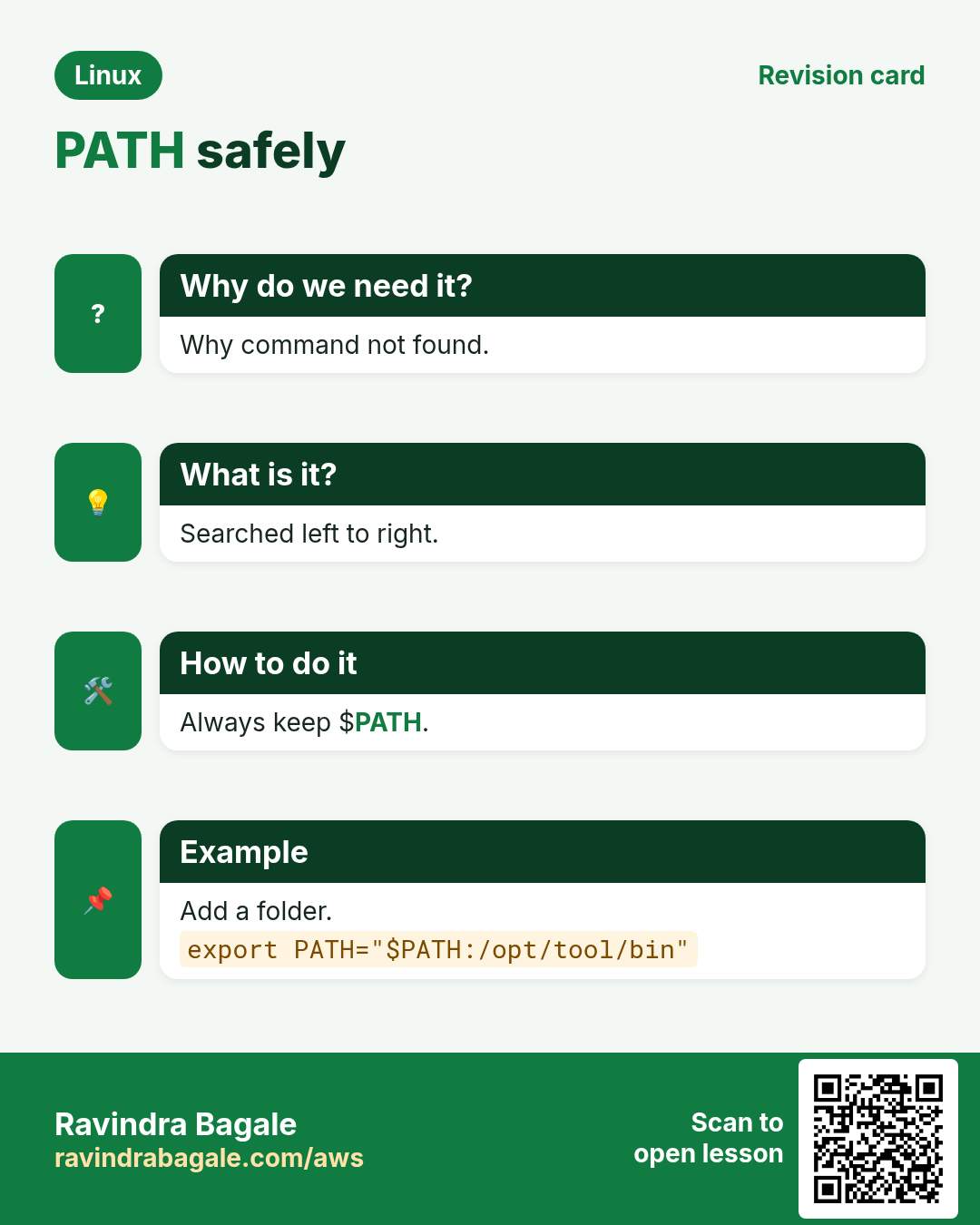
PATH is a list of folders separated by :. bash searches left to right and runs the first match. Add a folder: export PATH="$HOME/bin:$PATH" (front = wins) or "$PATH:/opt/tool/bin" (end). Never put . in PATH. hash -r clears bash's remembered locations.
- See it one folder per line.
echo "$PATH" | tr ':' '\n'Output:
/usr/local/bin
/usr/bin
/bin
/usr/local/sbin
/usr/sbin
Searched top to bottom.
- Tool not found.
terraform versionOutput:
bash: terraform: command not foundIt is in /opt/terraform.
- Add it for this session.
export PATH="$PATH:/opt/terraform" && terraform versionOutput:
Terraform v1.9.8Works now.
- Make it permanent.
echo 'export PATH="$PATH:/opt/terraform"' >> ~/.bashrc && source ~/.bashrcOutput:
(no output)Every new shell has it.
7. which, type and command -v
You type python and get the wrong version. You need to know exactly what runs.
which NAME shows the first file in PATH. which -a shows all. type NAME tells if it is an alias, function, builtin or file (more accurate). command -v NAME is the script-safe test for 'is it installed?'.
- All pythons.
which -a python3Output:
/usr/local/bin/python3
/usr/bin/python3
The first one wins.
- What is ll?
type llOutput:
ll is aliased to `ls -alF'which would not show this.
- In a script.
command -v jq >/dev/null || echo 'please install jq'Output:
please install jqClean check.
8. ~/.bashrc vs ~/.bash_profile
Think about how the shell was started. A login shell reads its profile file on entry. An interactive Bash shell that is not a login shell normally reads ~/.bashrc. A Bash script starts a non-interactive shell and follows different startup rules. Write one harmless custom prompt setting in a test account; open a new terminal and compare with a login shell. For commands used by scripts or scheduling, give the script the settings it needs explicitly, so it can run without borrowing the prompt and aliases from your terminal.
You add something and it works in a new tab but not over SSH, or the other way round. The startup file choice explains it.
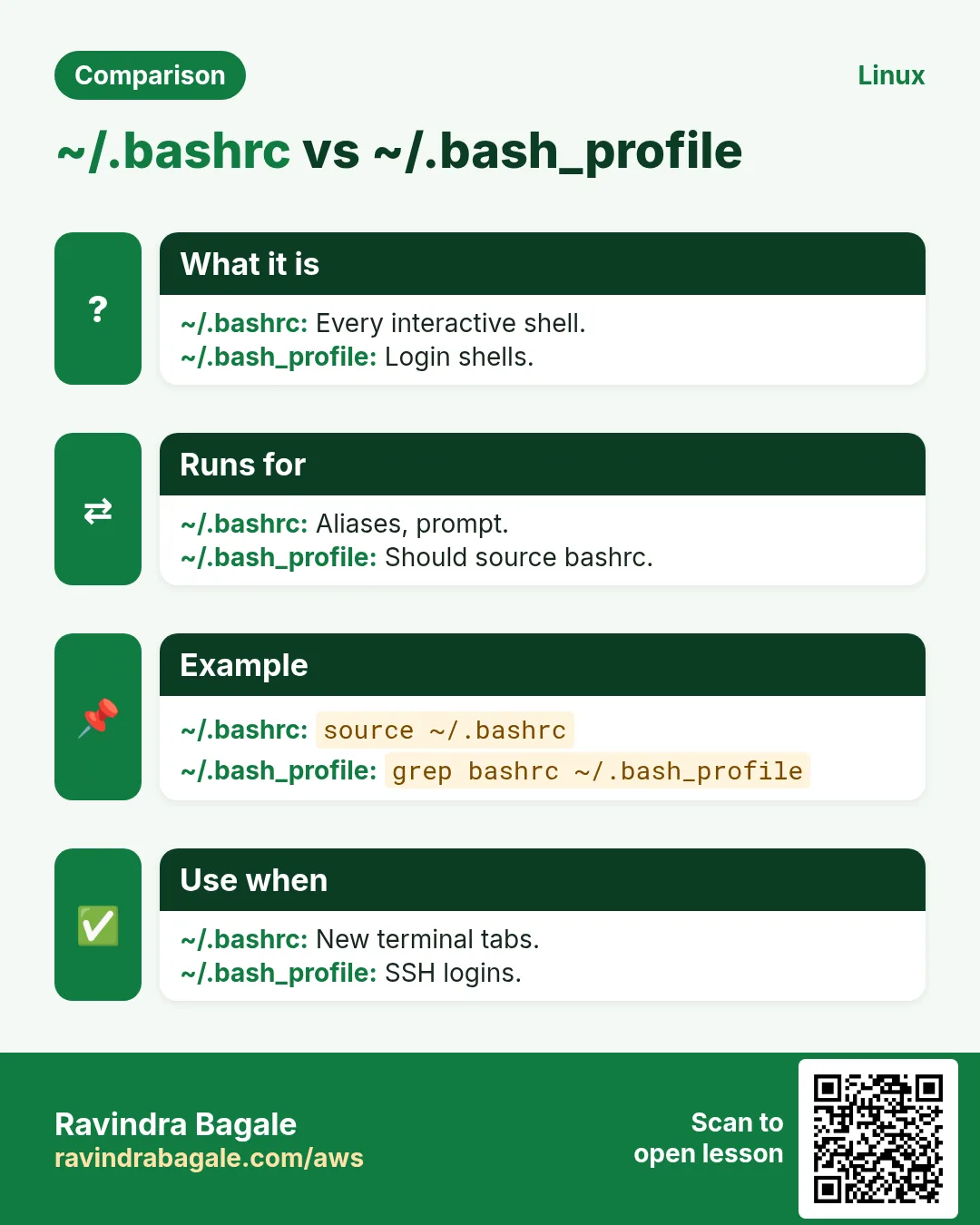
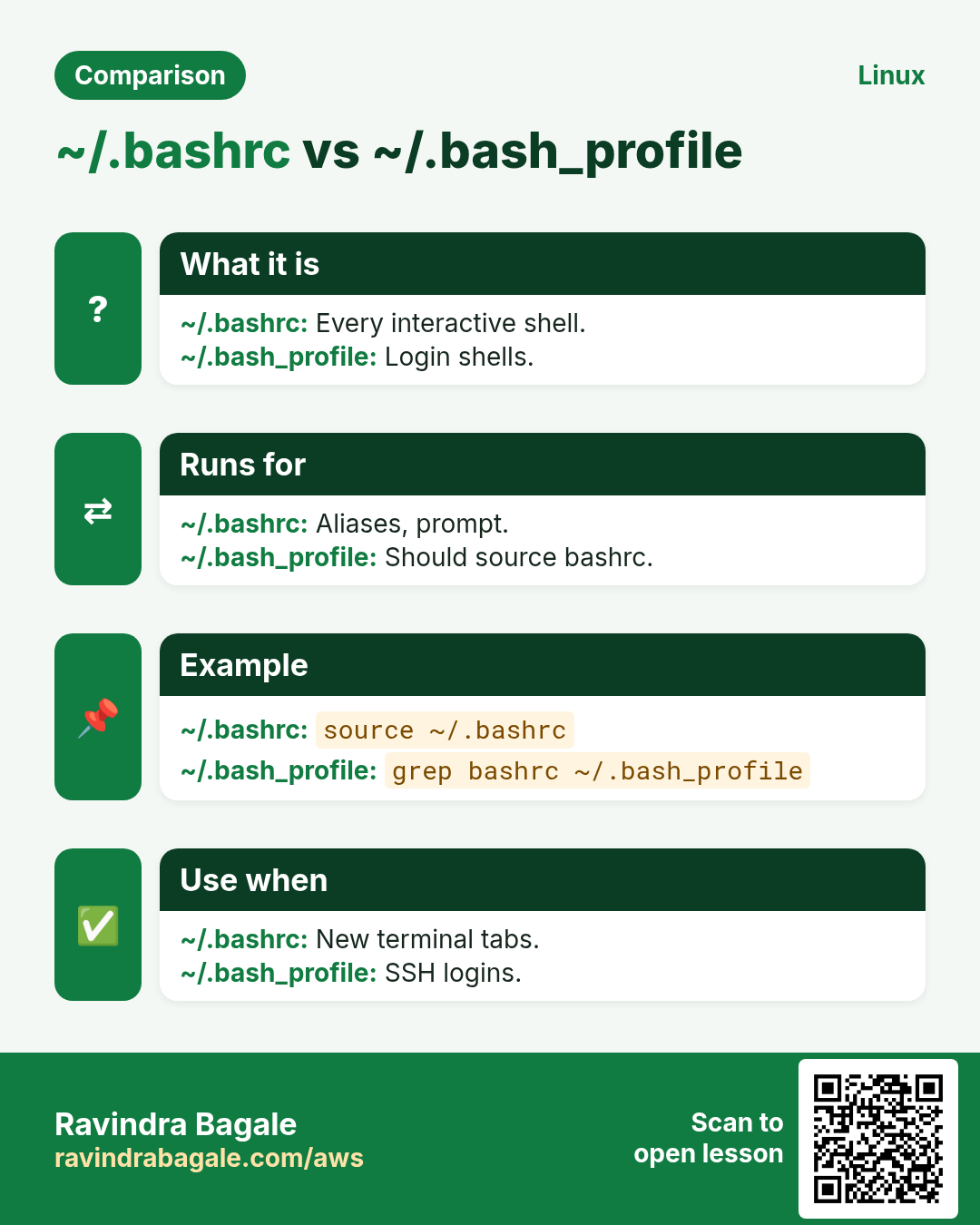
Login shells (SSH, console) read ~/.bash_profile (or ~/.profile). Interactive non-login shells (new terminal tab) read ~/.bashrc. Best practice: put everything in ~/.bashrc and make ~/.bash_profile source it. Use source ~/.bashrc (or . ~/.bashrc) to apply changes now.
| File | When it runs |
|---|---|
| /etc/profile, /etc/profile.d/*.sh | Login shells, all users |
| ~/.bash_profile or ~/.profile | Login shell, you |
| ~/.bashrc | Every interactive shell |
| /etc/bashrc or /etc/bash.bashrc | Interactive, all users |
| /etc/environment | At login by PAM, not a script |
- Check your profile sources bashrc.
grep -n bashrc ~/.bash_profileOutput:
2:[ -f ~/.bashrc ] && . ~/.bashrcGood, one place to edit.
- Is this a login shell?
shopt -q login_shell && echo login || echo non-loginOutput:
loginSSH sessions are login shells.
- Apply changes now.
source ~/.bashrcOutput:
(no output)No need to log out.
9. /etc/environment and /etc/profile.d
A proxy or a company tool path must be set for every user on the server, not only you.
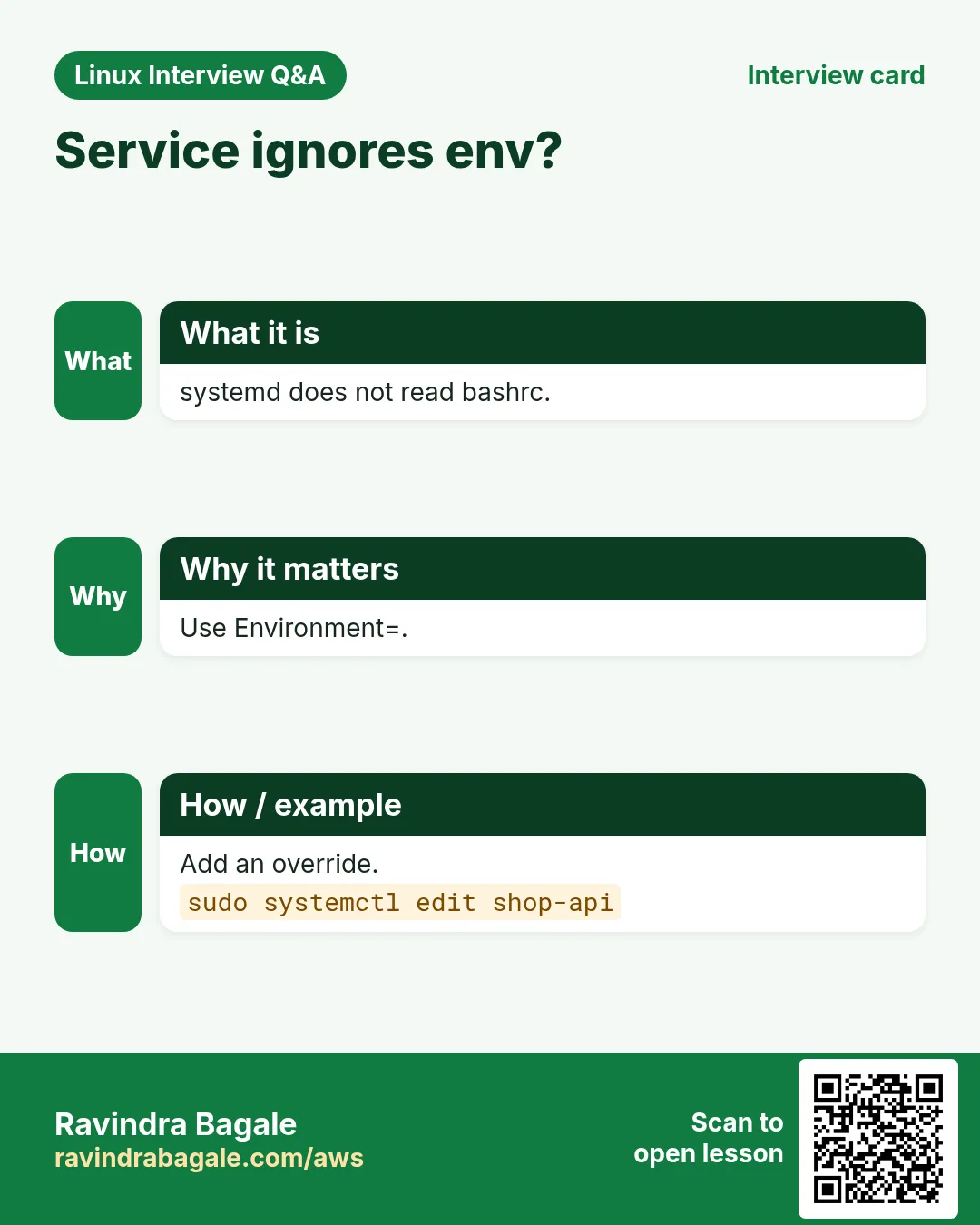
/etc/environment holds plain KEY=value lines (no export, no $VAR expansion), read at login. /etc/profile.d/NAME.sh is a script run by login shells for all users; you can use export and $PATH there. systemd services do not read these; use Environment= in the unit.
- Company proxy for all.
echo 'https_proxy=http://proxy.corp:3128' | sudo tee -a /etc/environmentOutput:
https_proxy=http://proxy.corp:3128Plain line, no export.
- Tool path for all.
echo 'export PATH="$PATH:/opt/terraform"' | sudo tee /etc/profile.d/terraform.shOutput:
export PATH="$PATH:/opt/terraform"Works after next login.
- A service needs a variable.
sudo systemctl edit shop-api
[Service]
Environment=NODE_ENV=production
Output:
(override saved)Services ignore .bashrc.
10. alias and unalias
You type the same long commands every day. An alias makes them short and adds safety flags.
alias NAME='command' creates one. alias alone lists all. unalias NAME removes it. Save in ~/.bashrc to keep. \NAME or command NAME runs the real command, skipping the alias. Aliases do not work in scripts by default.
- Short and safe.
alias ll='ls -lh' rm='rm -i' k='kubectl'Output:
(no output)rm now asks first.
- List.
alias | head -3Output:
alias k='kubectl'
alias ll='ls -lh'
alias rm='rm -i'
Your shortcuts.
- Skip the alias once.
\rm old.logOutput:
(no output)No question this time.
- Remove.
unalias k && type kOutput:
bash: type: k: not foundGone.
11. Shell functions for bigger shortcuts
Aliases cannot take arguments in the middle. Functions can, and can run several steps.
NAME() { commands; } in ~/.bashrc. $1, $2 are arguments, "$@" is all. declare -f NAME shows it. unset -f NAME removes it.
- Make a folder and enter it.
mkcd() { mkdir -p "$1" && cd "$1"; }; mkcd /tmp/demo && pwdOutput:
/tmp/demoOne word, two steps.
- Tail a service's logs.
logs() { journalctl -u "$1" -n "${2:-50}" --no-pager; }; logs nginx 5Output:
(5 nginx log lines)Default 50 lines.
12. PS1: a prompt that helps
Typing a command on the production server by mistake is a classic outage. A clear prompt shows where you are.
PS1 sets the prompt. \u user, \h host, \w folder, \$ shows # for root. Colours with \[\e[31m\] (red) and \[\e[0m\] (reset). Put it in ~/.bashrc.
- Simple.
PS1='\u@\h:\w\$ 'Output:
ravi@web1:~/app$User, host, folder.
- Red PROD tag.
PS1='\[\e[41m\]PROD\[\e[0m\] \u@\h:\w\$ 'Output:
PROD ravi@db1:~$You cannot miss it.
13. HISTSIZE, HISTCONTROL and history tricks
History saves you from retyping and helps you recall what you did during an incident.
HISTSIZE (in memory) and HISTFILESIZE (in ~/.bash_history) set how much to keep. HISTCONTROL=ignoreboth skips duplicates and lines starting with a space (use a leading space for secrets). HISTTIMEFORMAT='%F %T ' adds times. history, !N, Ctrl+R to search.
- Better history settings.
cat >> ~/.bashrc <<'X'
HISTSIZE=10000
HISTFILESIZE=20000
HISTCONTROL=ignoreboth
HISTTIMEFORMAT='%F %T '
X
Output:
(no output)Big, clean, timed history.
- With times.
source ~/.bashrc; history 2Output:
  501  2026-10-25 14:20:11 source ~/.bashrc
  502  2026-10-25 14:20:14 history 2
When you ran it.
14. Real examples from many industries
The same Linux skill shows up in every kind of company. Seeing it in many places helps you remember it.
Each row is a made-up team. It shows who uses this and how.
| Team and city | How they use it | Command |
|---|---|---|
| Shruti, fintech, Pune | Red PROD prompt on payment servers | PS1='PROD \u@\h:\w\$ ' |
| Jack, game studio, Austin | Adds the SDK to PATH for all users | /etc/profile.d/sdk.sh |
| Leila, airline, Abu Dhabi | Sets proxy via /etc/environment | https_proxy=http://proxy:3128 |
| Pedro, logistics, Lisbon | k alias for kubectl | alias k=kubectl |
| Arjun, data team, Bengaluru | Picks the right python with which -a | which -a python3 |
| Nina, SaaS, Stockholm | Service env via Environment= | Environment=NODE_ENV=production |
15. Common errors and how to fix them
Everyone hits these errors. Knowing the cause saves hours.
Read the exact message first. Then match it to a row below.
| Error you see | Why it happens | How to fix |
|---|---|---|
bash: terraform: command not found | Folder not in PATH | Add it to PATH.export PATH="$PATH:/opt/terraform" |
bash: CITY: command not found (after CITY = Pune) | Spaces around = | Write NAME=value.CITY=Pune |
Child program does not see the variable | Not exported | export it.export CITY |
Change in .bashrc not working over SSH | Login shell reads .bash_profile, which does not source .bashrc | Source .bashrc from .bash_profile.echo '. ~/.bashrc' >> ~/.bash_profile |
ls: command not found (every command broken) | PATH was overwritten, not appended | Restore PATH, fix the line.export PATH=/usr/local/bin:/usr/bin:/bin |
Service ignores my variable | systemd does not read .bashrc | Use Environment= or EnvironmentFile=.sudo systemctl edit shop-api |
bash: STAGE: readonly variable | It was made readonly | Open a new shell.bash |
Old version still runs after install | bash hash cache or earlier PATH entry | Clear the hash and check order.hash -r; which -a node |
Alias works in terminal but not in script | Aliases are off in non-interactive shells | Use the full command or a function.command -v kubectl |
sudo: mytool: command not found | sudo uses secure_path, not your PATH | Use the full path.sudo /opt/mytool/bin/mytool |
16. Troubleshooting step by step
When a command or variable is not what you expect, check what bash sees, step by step.
Go top to bottom. Stop at the first step that shows the problem.
- What is it?
type -a mytool- Where does PATH look?
echo "$PATH" | tr ':' '\n'- Is the variable set and exported?
declare -p MYVAR; printenv MYVAR- Which startup files ran?
shopt -q login_shell && echo login; grep -n bashrc ~/.bash_profile- Who sets it?
grep -rn MYVAR ~/.bashrc ~/.bash_profile /etc/profile.d /etc/environment 2>/dev/null- Test in a clean shell.
env -i bash -l -c 'echo $PATH'17. Lab 1: Variables, export and PATH
See the difference between shell and exported variables, then add your own bin folder to PATH permanently.
A full hands-on lab. Run every step on a test Linux machine (an EC2 instance, a VM, or WSL).
- Shell vs export.
A=1; export B=2; bash -c 'echo A=$A B=$B'Output:
A= B=2- Make a script in ~/bin.
mkdir -p ~/bin && printf '#!/bin/bash\necho hello from bin\n' > ~/bin/hi && chmod +x ~/bin/hiOutput:
(no output)- Not found yet?
hiOutput:
bash: hi: command not found (or it works if ~/bin is already in PATH)- Add to PATH permanently.
echo 'export PATH="$HOME/bin:$PATH"' >> ~/.bashrc && source ~/.bashrc && hiOutput:
hello from bin- Check order.
type -a hi; echo "$PATH" | tr ':' '\n' | head -n1Output:
hi is /home/ravi/bin/hi
/home/ravi/bin
18. Lab 2: Aliases, a function and a safe prompt
Add aliases and a function to ~/.bashrc, a coloured prompt, and better history.
A full hands-on lab. Run every step on a test Linux machine (an EC2 instance, a VM, or WSL).
- Back up .bashrc.
cp ~/.bashrc ~/.bashrc.bakOutput:
(no output)- Add aliases and a function.
cat >> ~/.bashrc <<'X'
alias ll='ls -lh'
alias rm='rm -i'
mkcd() { mkdir -p "$1" && cd "$1"; }
PS1='\[\e[32m\]\u@\h\[\e[0m\]:\w\$ '
HISTCONTROL=ignoreboth
X
Output:
(no output)- Load and test.
source ~/.bashrc && type ll && mkcd /tmp/lab24 && pwdOutput:
ll is aliased to `ls -lh'
/tmp/lab24- Skip an alias.
touch x && \rm x && echo removedOutput:
removed- Restore if you like.
cp ~/.bashrc.bak ~/.bashrc && source ~/.bashrcOutput:
(no output)Ravindra Bagale's Tip
When you change PATH, always keep $PATH in the new value, and back up ~/.bashrc first. One wrong line like PATH=/opt/tool breaks every command, and then you have to type full paths like /usr/bin/vi to fix it.
Ravindra Bagale's Tip – मराठी
PATH बदलताना नव्या value मधे नेहमी $PATH ठेवा, आणि आधी ~/.bashrc backup. PATH=/opt/tool सारखी एक चुकीची line प्रत्येक command तोडते, आणि मग fix करायला /usr/bin/vi सारखे full paths type करावे लागतात.
Ravindra Bagale's Tip – हिंदी
PATH बदलते समय नई value में हमेशा $PATH रखें, और पहले ~/.bashrc का backup लें. PATH=/opt/tool जैसी एक गलत line हर command तोड़ देती है, और फिर ठीक करने के लिए /usr/bin/vi जैसे full paths type करने पड़ते हैं.
19. Frequently asked questions
Q. export vs no export?
Without export, only this shell sees it. With export, programs it starts see it too.
Q. Why did my variable disappear?
It was set only in that terminal. Save it in ~/.bashrc.
Q. Front or end of PATH?
Front to override system tools, end to add new ones safely.
Q. which vs type?
type knows aliases, functions and builtins; which only files.
Q. Do I need to log out after editing .bashrc?
No, run source ~/.bashrc.
Q. Where should secrets go?
Not in .bashrc or history. Use a secrets manager or a root-only EnvironmentFile.
Q. What about zsh?
Same ideas; files are ~/.zshrc and ~/.zprofile.
Q. Why does sudo not find my command?
sudo uses secure_path from sudoers. Use the full path.
20. Interview questions and answers
Beginner level
Q. How do you see all environment variables?
env or printenv.
Q. How do you set a variable for child processes?
export NAME=value.
Q. What is PATH?
The list of folders searched for commands.
Q. How do you create an alias?
alias ll='ls -lh'.
Mid level level
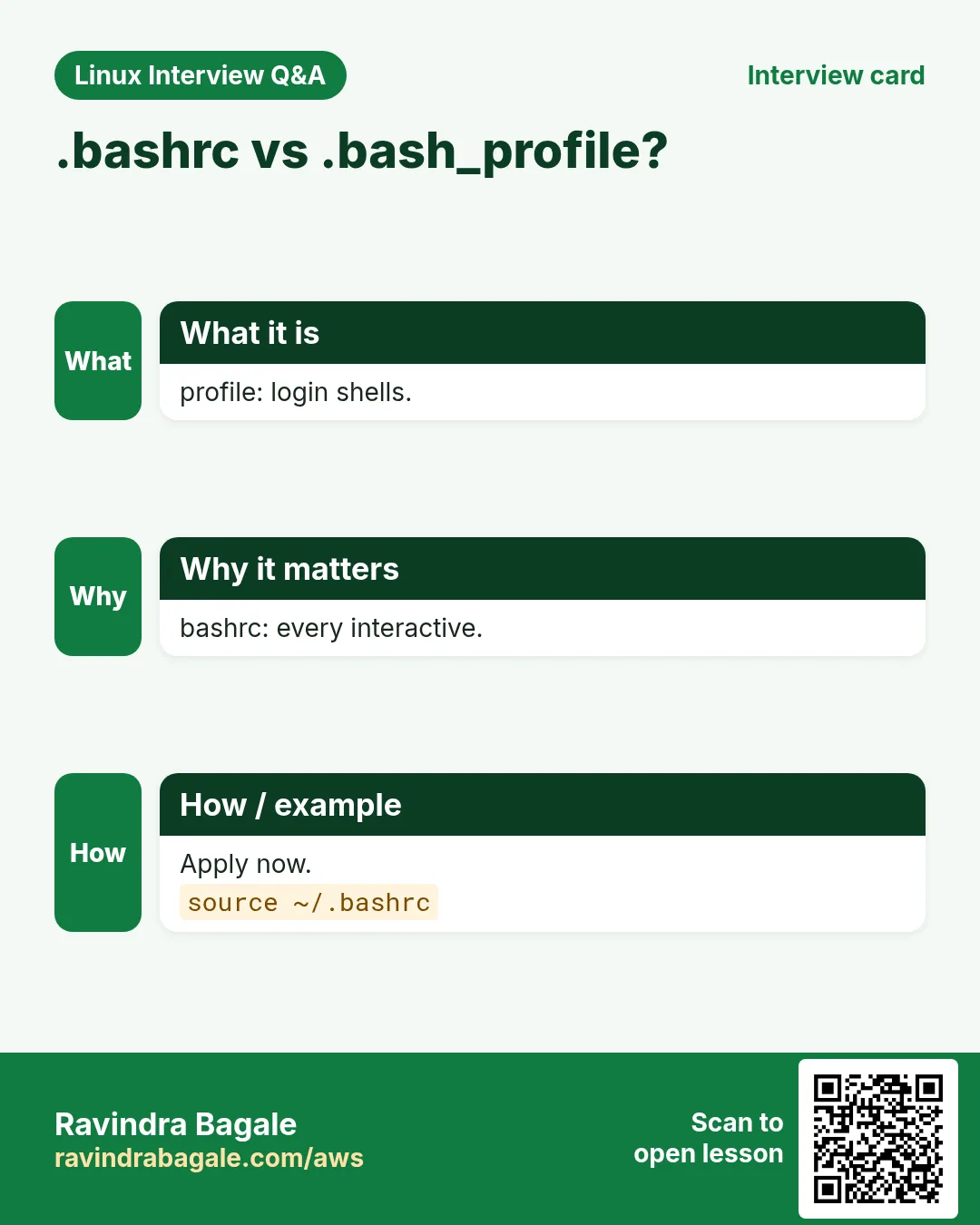
Q. .bashrc vs .bash_profile?
bashrc for every interactive shell; bash_profile for login shells, usually sources bashrc.
Q. How do you find which binary runs?
type -a or which -a.
Q. Set a variable for all users?
/etc/environment or /etc/profile.d/*.sh.
Q. Run one command with a different variable?
VAR=value command.
Senior level
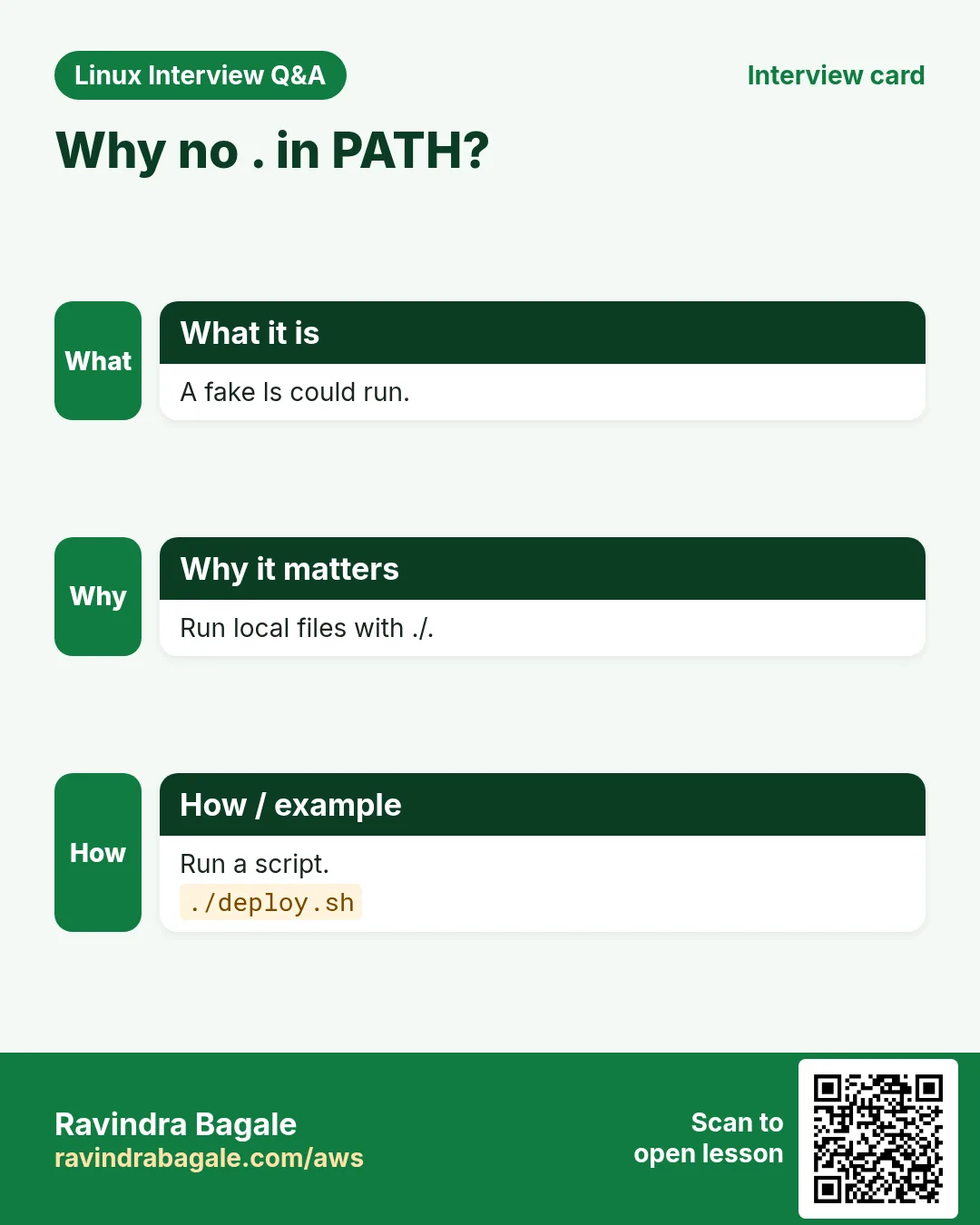
Q. Why is '.' in PATH dangerous?
A malicious file named like a common command in the current folder could run.
Q. Env vars and twelve-factor apps?
Config in env, not code; inject per environment; keep secrets out of images and logs.
Q. Why might a cron job and an SSH session have different PATH?
cron does not read profiles; it uses a minimal environment.
Q. How do you debug slow shell start-up?
bash -x -l -c exit or time bash -i -c exit; look for slow lines in rc files.
Try at home
- Write three aliases you would really use and one function that takes an argument. Put them in ~/.bashrc and show type output for each.
- Print your PATH one folder per line and explain where each folder came from.
Practise this chapter
Interview questions and answers
Why can a command work in your shell and fail when a script runs it?
Check which executable the shell chose and whether the script inherits the variables it needs. An interactive startup file can set an alias or PATH the script does not have. Give the script explicit settings or paths and rerun it from a plain environment to verify.
Check your understanding
Choose an answer, then compare your reasoning with the explanation.
Practice Tasks
Practice checks run in your browser. They check the answer for this exercise; they do not create resources or connect to your AWS account.
About this scenarioAhmednagar Sugar Co-op is a sugar co-operative business in Ahilyanagar. Balasaheb Pawar looks after its IT and cloud work. They count money in INR and run their AWS resources in the ap-south-1 Region. In the tasks below you do real jobs for them using what this lesson teaches. All names, account IDs, IP addresses and numbers are made up for practice.
0 / 16
Easy Home folder
Settings drive every program.
Print your HOME variable.
- Find the Linux command that does this job.
- Add the options (like -r or -h) the task needs.
- Add the file names, folders or users in the right order.
- Use sudo if the job changes system files or users. Click Check answer.
Easy One variable
Settings drive every program.
Print the PATH with printenv.
- Find the Linux command that does this job.
- Add the options (like -r or -h) the task needs.
- Add the file names, folders or users in the right order.
- Use sudo if the job changes system files or users. Click Check answer.
Easy Filter env
Settings drive every program.
Show env lines containing PROXY, ignoring case.
- Find the Linux command that does this job.
- Add the options (like -r or -h) the task needs.
- Add the file names, folders or users in the right order.
- Use sudo if the job changes system files or users. Click Check answer.
Easy Export a variable
Settings drive every program.
Set and export APP_ENV as production.
- Find the Linux command that does this job.
- Add the options (like -r or -h) the task needs.
- Add the file names, folders or users in the right order.
- Use sudo if the job changes system files or users. Click Check answer.
Easy Remove a variable
Settings drive every program.
Remove the variable API_TOKEN.
- Find the Linux command that does this job.
- Add the options (like -r or -h) the task needs.
- Add the file names, folders or users in the right order.
- Use sudo if the job changes system files or users. Click Check answer.
Easy Apply bashrc
Settings drive every program.
Apply changes in ~/.bashrc now.
- Find the Linux command that does this job.
- Add the options (like -r or -h) the task needs.
- Add the file names, folders or users in the right order.
- Use sudo if the job changes system files or users. Click Check answer.
Easy Make an alias
Settings drive every program.
Create alias k for kubectl.
- Find the Linux command that does this job.
- Add the options (like -r or -h) the task needs.
- Add the file names, folders or users in the right order.
- Use sudo if the job changes system files or users. Click Check answer.
Easy Remove alias
Settings drive every program.
Remove the alias k.
- Find the Linux command that does this job.
- Add the options (like -r or -h) the task needs.
- Add the file names, folders or users in the right order.
- Use sudo if the job changes system files or users. Click Check answer.
Medium Add to PATH
Settings drive every program.
Add /opt/tool/bin to the end of PATH.
- Find the Linux command that does this job.
- Add the options (like -r or -h) the task needs.
- Add the file names, folders or users in the right order.
- Use sudo if the job changes system files or users. Click Check answer.
Medium PATH per line
Settings drive every program.
Print PATH one folder per line.
- Find the Linux command that does this job.
- Add the options (like -r or -h) the task needs.
- Add the file names, folders or users in the right order.
- Use sudo if the job changes system files or users. Click Check answer.
Medium All copies
Settings drive every program.
Show all python3 locations in PATH.
- Find the Linux command that does this job.
- Add the options (like -r or -h) the task needs.
- Add the file names, folders or users in the right order.
- Use sudo if the job changes system files or users. Click Check answer.
Medium What is it?
Settings drive every program.
Find out whether ll is an alias.
- Find the Linux command that does this job.
- Add the options (like -r or -h) the task needs.
- Add the file names, folders or users in the right order.
- Use sudo if the job changes system files or users. Click Check answer.
Medium One-command variable
Settings drive every program.
Run date with TZ=Asia/Tokyo only for that command.
- Find the Linux command that does this job.
- Add the options (like -r or -h) the task needs.
- Add the file names, folders or users in the right order.
- Use sudo if the job changes system files or users. Click Check answer.
Hard Script-safe check
Settings drive every program.
Print the path of jq in a script-safe way.
- Find the Linux command that does this job.
- Add the options (like -r or -h) the task needs.
- Add the file names, folders or users in the right order.
- Use sudo if the job changes system files or users. Click Check answer.
Hard Clean environment
Settings drive every program.
Run env itself with an empty environment.
- Find the Linux command that does this job.
- Add the options (like -r or -h) the task needs.
- Add the file names, folders or users in the right order.
- Use sudo if the job changes system files or users. Click Check answer.
Hard Login shell?
Settings drive every program.
Check if this is a login shell using shopt quietly.
- Find the Linux command that does this job.
- Add the options (like -r or -h) the task needs.
- Add the file names, folders or users in the right order.
- Use sudo if the job changes system files or users. Click Check answer.
21. Related chapters
- Linux Ops Refresh for DevOps
- Bash Scripting for Automation
- Linux grep and find Commands with Examples
- How to Set Up Passwordless SSH Between Linux Servers
In short
- $VAR, env and printenv read variables.
- NAME=value sets; export shares with children; unset removes.
- PATH is searched left to right; keep $PATH when adding.
- type, which and command -v show what runs.
- bashrc for interactive, bash_profile for login, /etc for everyone.
- alias, functions, PS1 and history make the shell yours.
Revision, comparison and interview cards
Revise this lesson in a few minutes. Save the cards on your phone or download them as PNG files. The QR code on each card opens this lesson.


More cards: Ravi Sir's Cards.