Shell Scripting Complete 13: Scheduling Scripts with cron and systemd Timers
A script is most useful when it runs by itself: a backup at 2 a.m., a report every Monday, a health check every 5 minutes. Linux has two main schedulers. cron is old, simple and everywhere. systemd timers are newer, log to journald, can catch up on missed runs and give resource limits. In this chapter you learn crontab syntax, the cron environment, logging and locking cron jobs, then .service and .timer units, OnCalendar, Persistent, RandomizedDelaySec, systemctl list-timers and journalctl, and how to choose between them. Every topic starts with an everyday example and then shows examples from many industries.
In this chapter
- Read and write crontab lines
- Fix the cron environment: PATH, shell, mail
- Log and lock cron jobs
- Write a systemd service and timer
- Use OnCalendar, Persistent and delays
- Choose cron or timers
1. An everyday example: the milkman and the alarm clock
In Pune the milkman comes at 6 every morning without being called. Your alarm rings at 6:30 on weekdays only. If you were travelling, a smart alarm could tell you what you missed. cron is the milkman: fixed time, no questions. A systemd timer is the smart alarm: it keeps a record, can run a missed job when the machine wakes, and writes everything in a diary.
Milkman's fixed time = a crontab line. Weekdays only = day-of-week field 1-5. Smart alarm = .timer unit. The task it starts = .service unit. Running a missed job later = Persistent=true. Diary = journalctl.
2. crontab syntax
You must read and write schedules like 'every 15 minutes' or 'last working day at 7 p.m.' without mistakes.
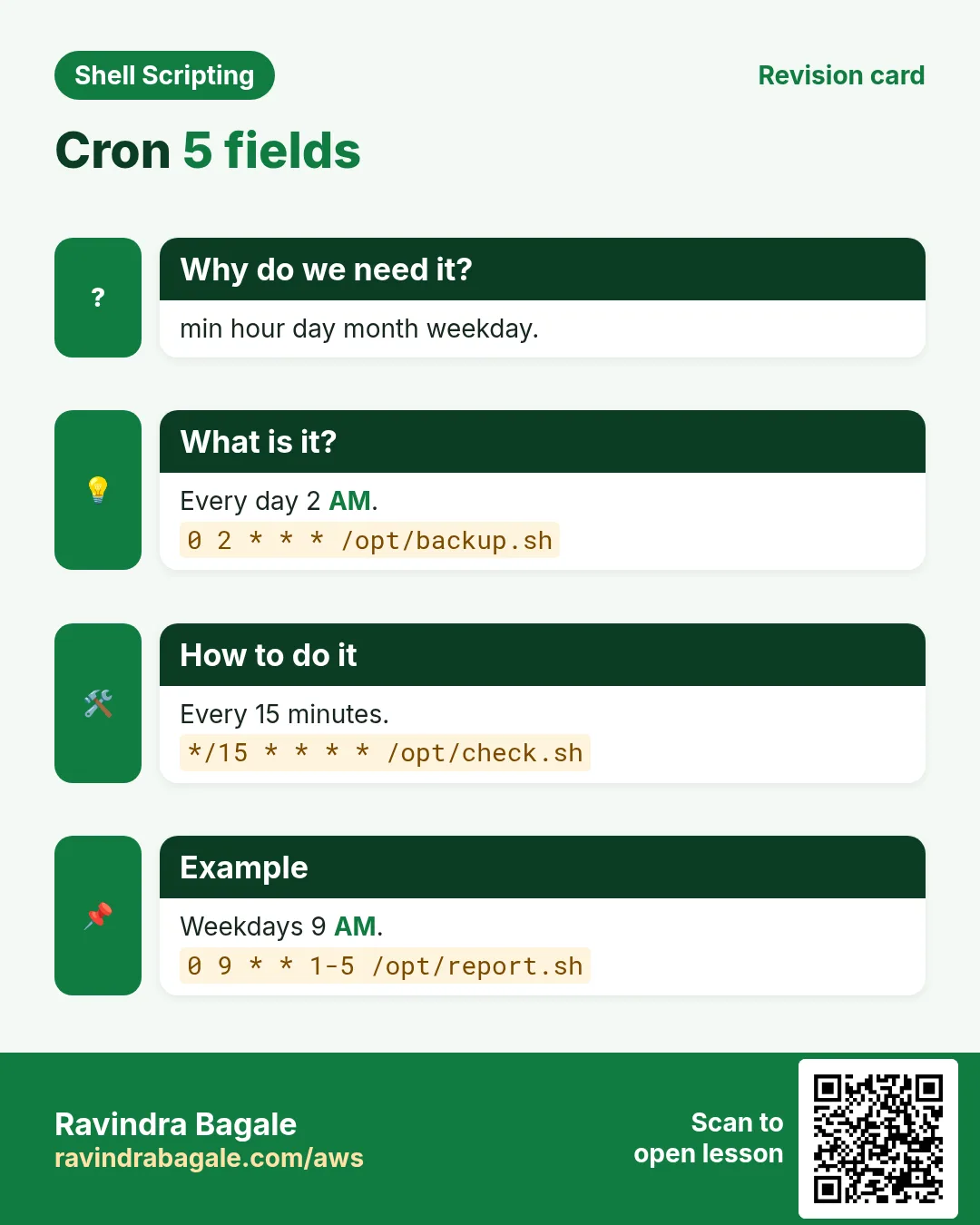
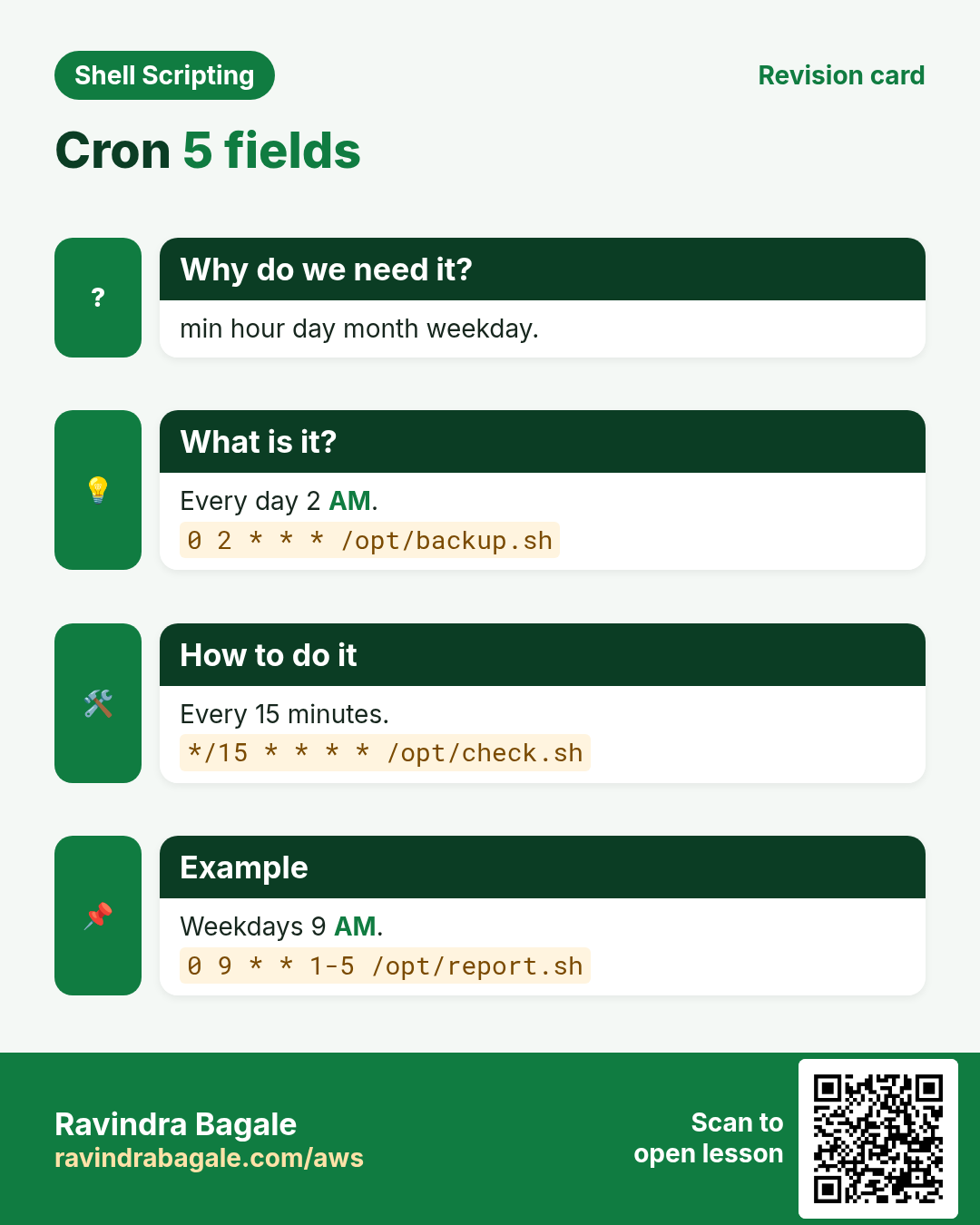
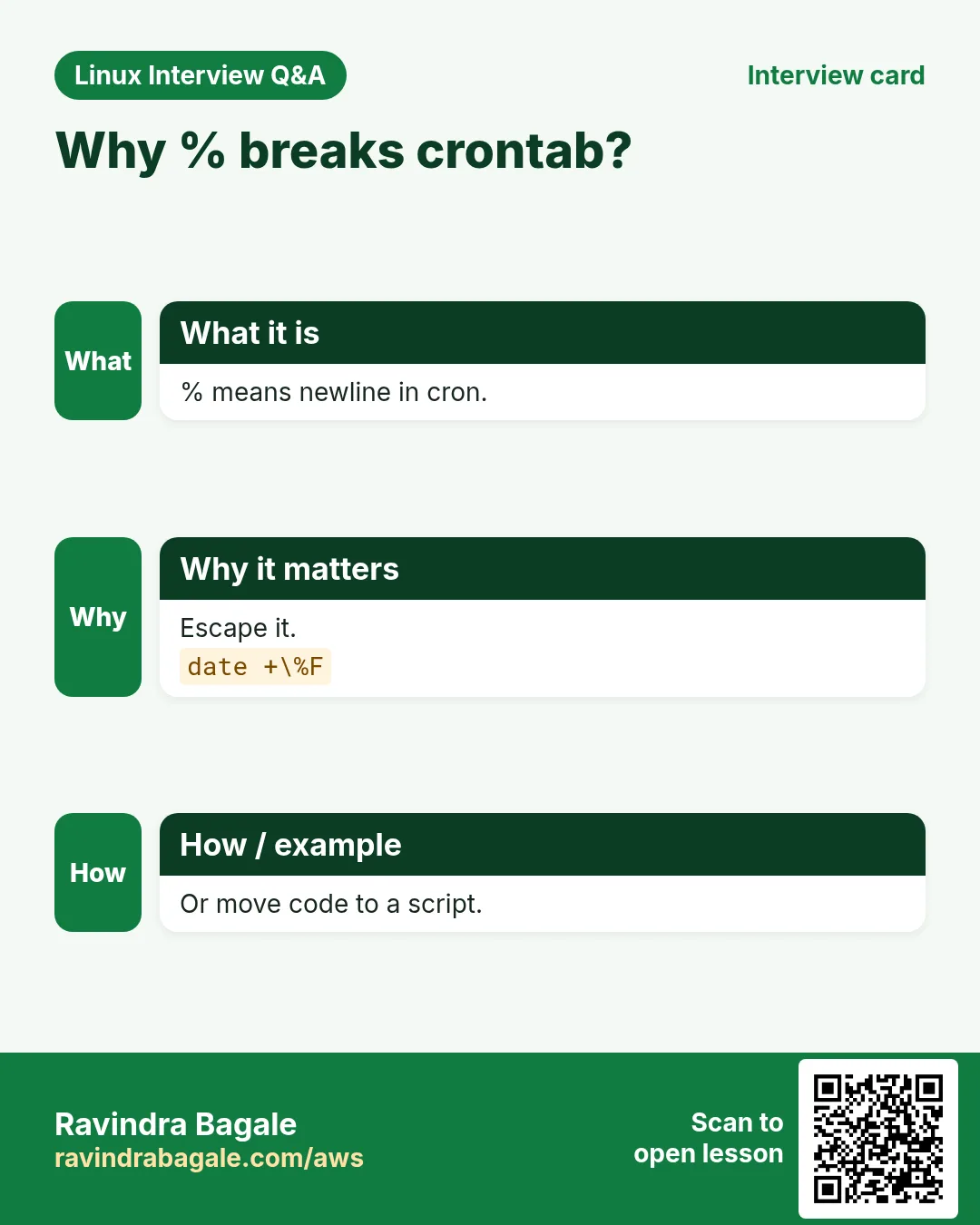
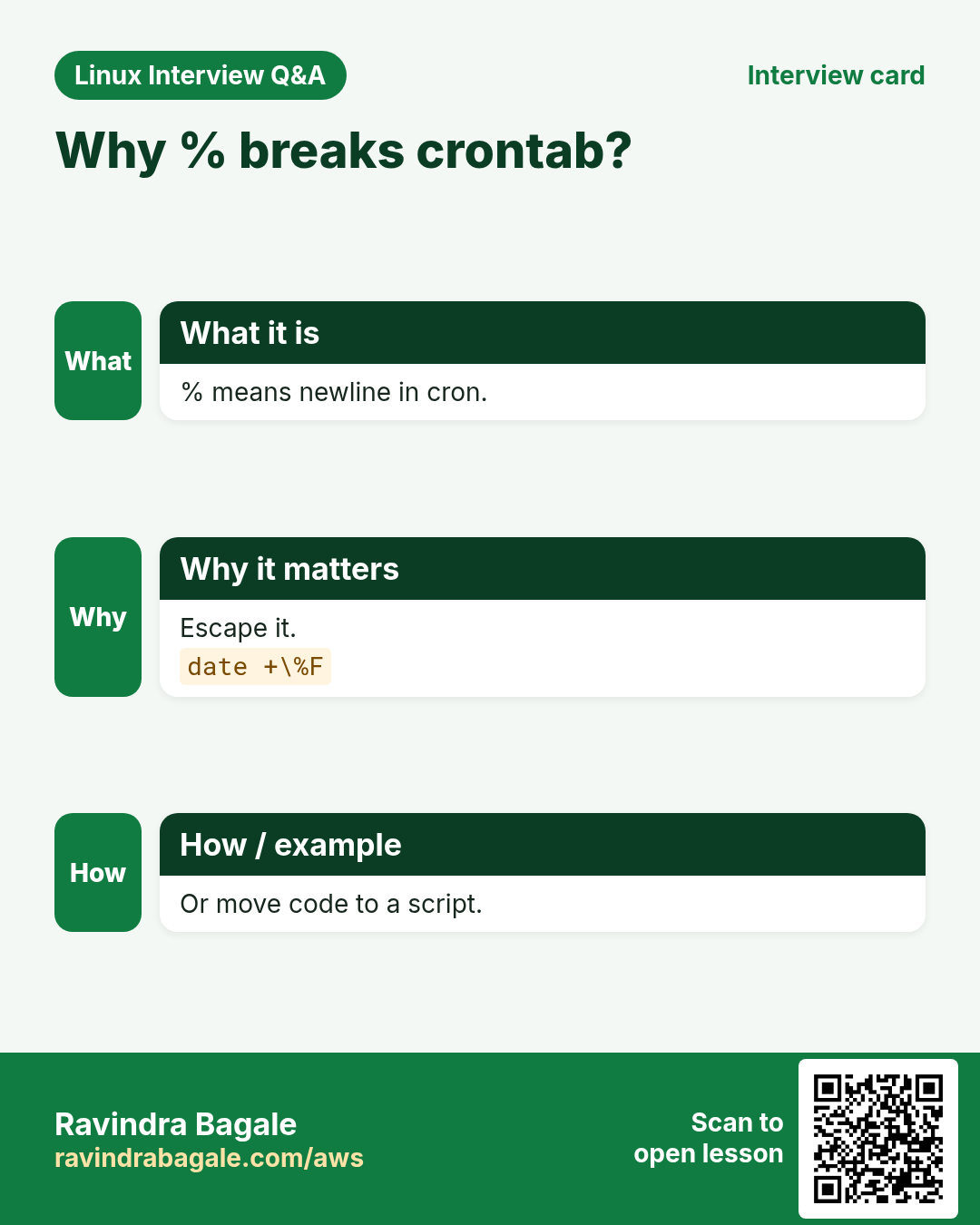
Five time fields then the command: minute (0-59), hour (0-23), day of month (1-31), month (1-12), day of week (0-7, 0 and 7 are Sunday). * means every, */15 means every 15, 1-5 a range, 1,15 a list. Shortcuts: @reboot, @daily, @hourly, @weekly. If both day fields are set, cron runs when either matches. In crontab lines, % means newline, so escape it as \% (for example in date +\%F).
| Line | Runs |
|---|---|
| */5 * * * * | every 5 minutes |
| 0 2 * * * | 2:00 every day |
| 30 18 * * 1-5 | 6:30 p.m. weekdays |
| 0 9 1 * * | 9 a.m. on the 1st |
| @reboot | once at boot |
- Edit.
crontab -eOpens your crontab in an editor.
- List.
crontab -lOutput:
0 2 * * * /opt/bin/backup.shYour jobs.
- Every 15 min.
*/15 * * * * /opt/bin/health.shMinutes 0, 15, 30, 45.
- Monday report.
0 8 * * 1 /opt/bin/weekly-report.sh8 a.m. Monday.
- Escape percent.
0 1 * * * tar czf /backup/etc-$(date +\%F).tgz /etcWithout \ the line breaks.
3. The cron environment
Make the report script work from a directory other than the one you usually use. Give it explicit paths, start it from another folder and confirm where the output landed. Then schedule a short test and record the log’s time, account, and exit result. It should write the same report. If it works by hand but fails on schedule, compare the scheduled user, working directory and PATH with the manual run. Remove the short-lived entry after the exercise.
'It works when I run it but not in cron' is the most common cron problem.
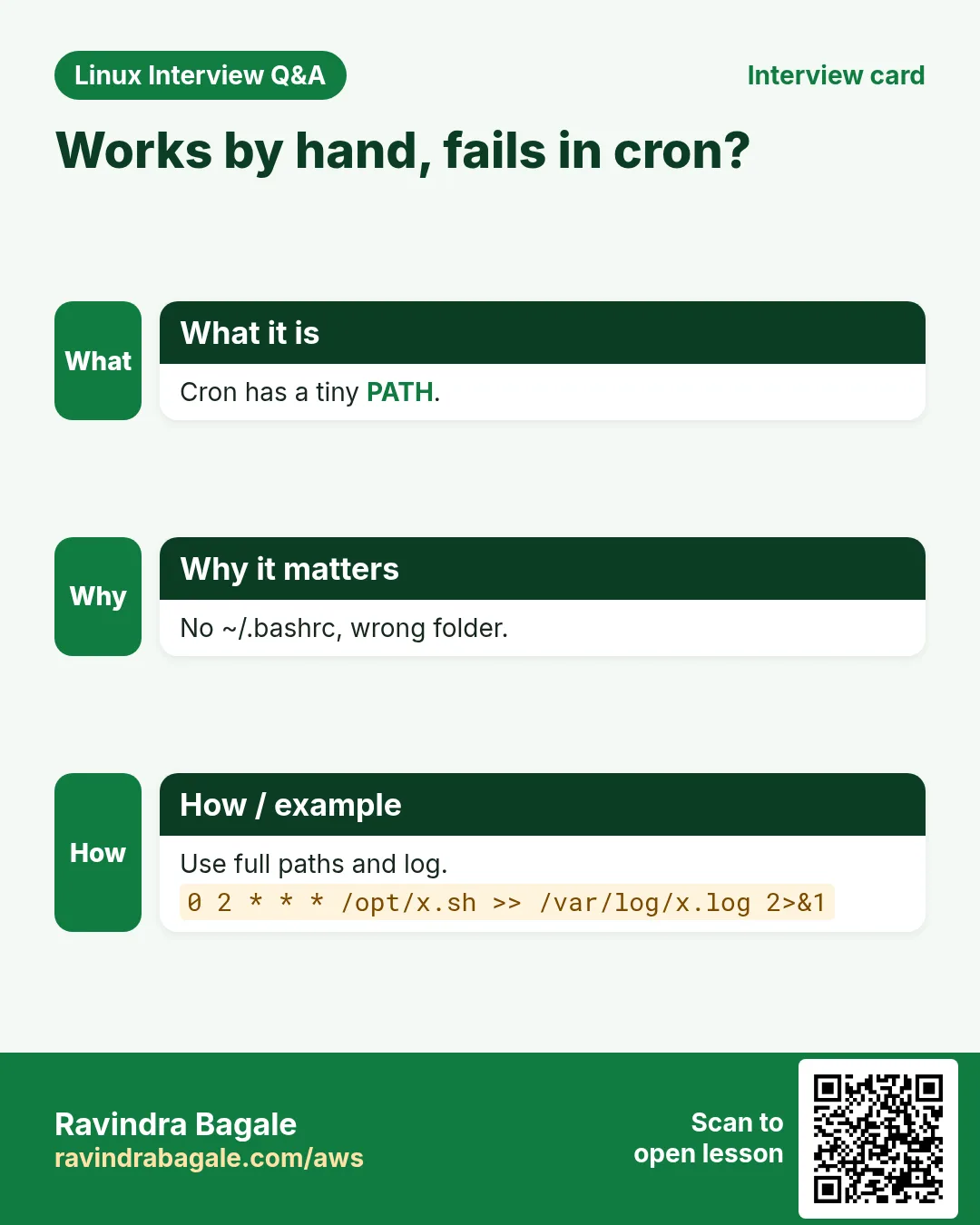
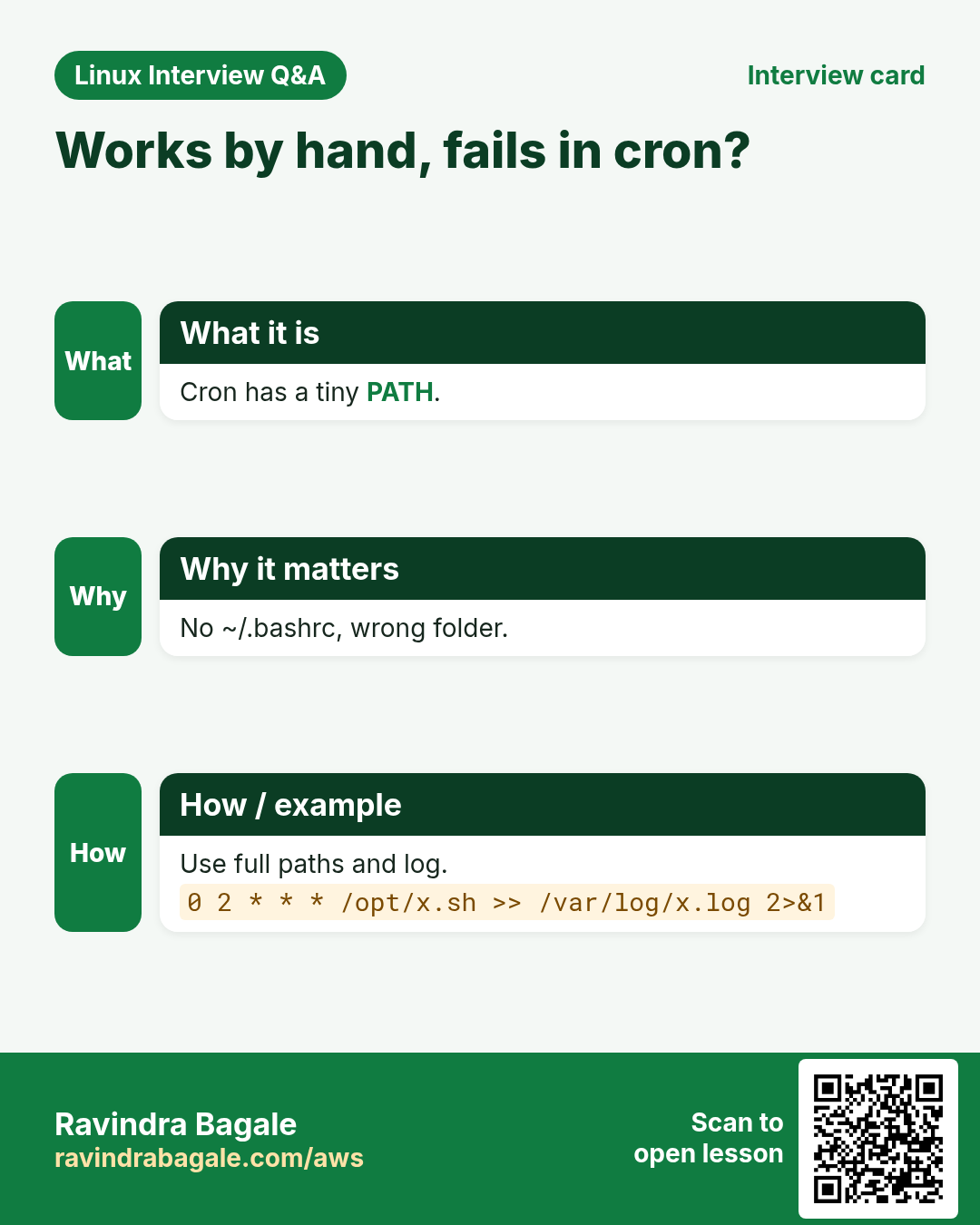
cron runs with a tiny PATH (often /usr/bin:/bin), sh as the shell, your home as working dir, and no .bashrc. So: use full paths or set PATH at the top of the crontab, set SHELL=/bin/bash if needed, cd inside the script, and load env files yourself. MAILTO=you@x sends output by mail if mail is set up; MAILTO="" turns it off. System jobs go in /etc/cron.d files with an extra user field.
- Crontab header.
SHELL=/bin/bash
PATH=/usr/local/bin:/usr/bin:/bin
MAILTO=""
Top of crontab -e.
- See cron env.
* * * * * env > /tmp/cron-env.txtOutput:
PATH=/usr/bin:/bin
SHELL=/bin/sh
HOME=/home/ec2-user
Compare with yours.
- System job.
echo '0 3 * * * root /opt/bin/rotate.sh' | sudo tee /etc/cron.d/rotateOutput:
0 3 * * * root /opt/bin/rotate.shUser field after time.
- Is cron running?
systemctl status crond # Ubuntu: cronOutput:
Active: active (running)Service must be up.
4. Log and lock cron jobs
Cron output goes nowhere by default, and slow jobs can overlap.
Append both streams to a log: >> /var/log/job.log 2>&1. Or send to journald with | logger -t job. Wrap with flock -n so a second copy skips. Add timeout so a hung job does not run forever. Check that cron itself fired with journalctl -u crond or grep CRON /var/log/syslog.
- Full safe line.
*/10 * * * * flock -n /tmp/sync.lock timeout 9m /opt/bin/sync.sh >> /var/log/sync.log 2>&1Lock, timeout, log.
- To journald.
0 2 * * * /opt/bin/backup.sh 2>&1 | logger -t backupRead with journalctl -t backup.
- Did cron fire?
journalctl -u crond --since '1 hour ago' | grep syncOutput:
Oct 25 10:10:01 host CROND[4410]: (ec2-user) CMD (flock -n /tmp/sync.lock ...)Yes at 10:10.
- Ubuntu syslog.
grep CRON /var/log/syslog | tail -2Output:
Oct 25 10:10:01 host CRON[4410]: (ubuntu) CMD (/opt/bin/sync.sh)Same check.
5. systemd service + timer
Read the two files as different jobs. The service file says which command runs and as which user. The timer says when to start that service. Run the service directly first and see its expected output in the journal. Start the timer and read the NEXT and UNIT columns. After the scheduled time, come back to the service’s journal to confirm the work succeeded, because a scheduled time by itself only tells you what systemd plans to start.
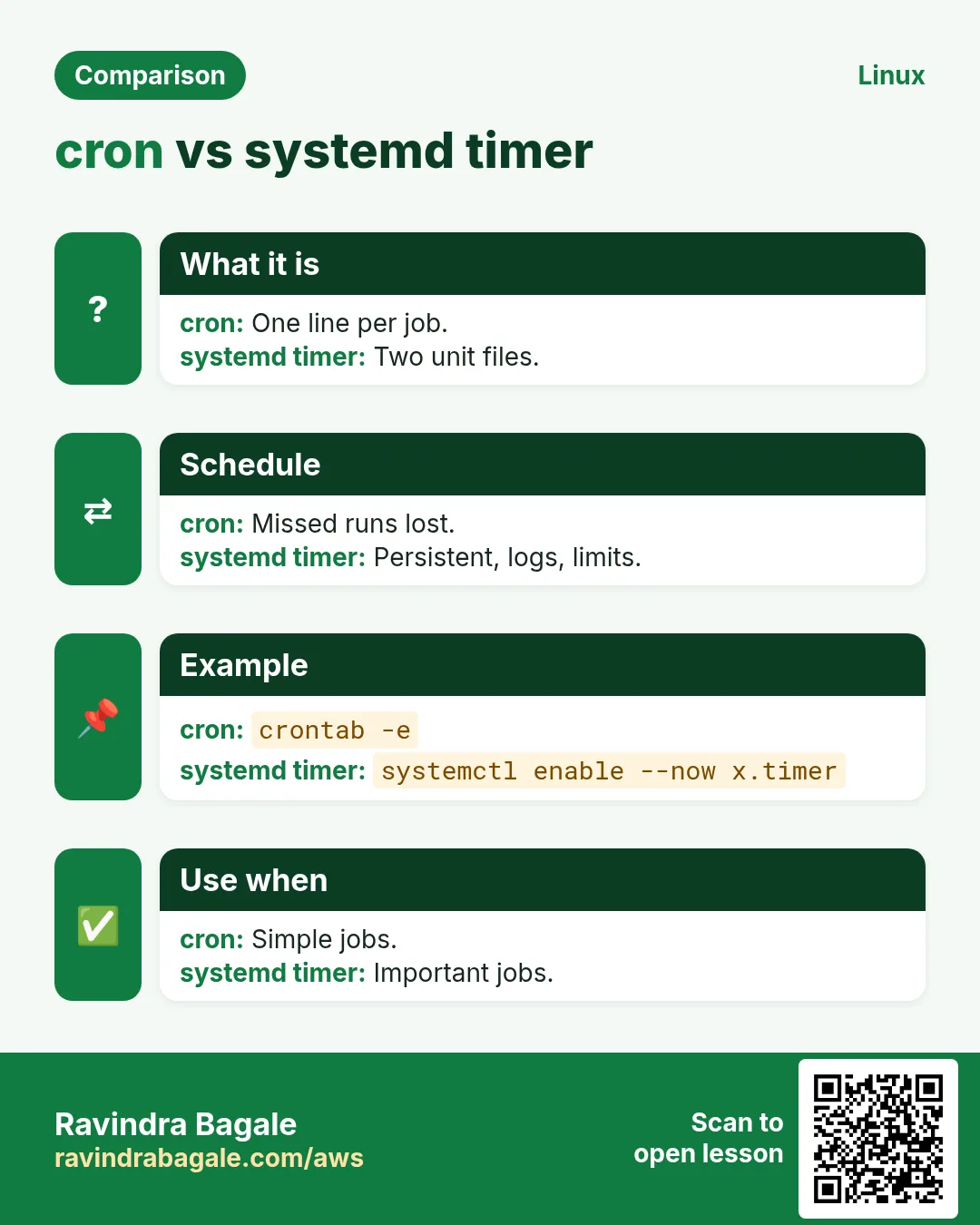
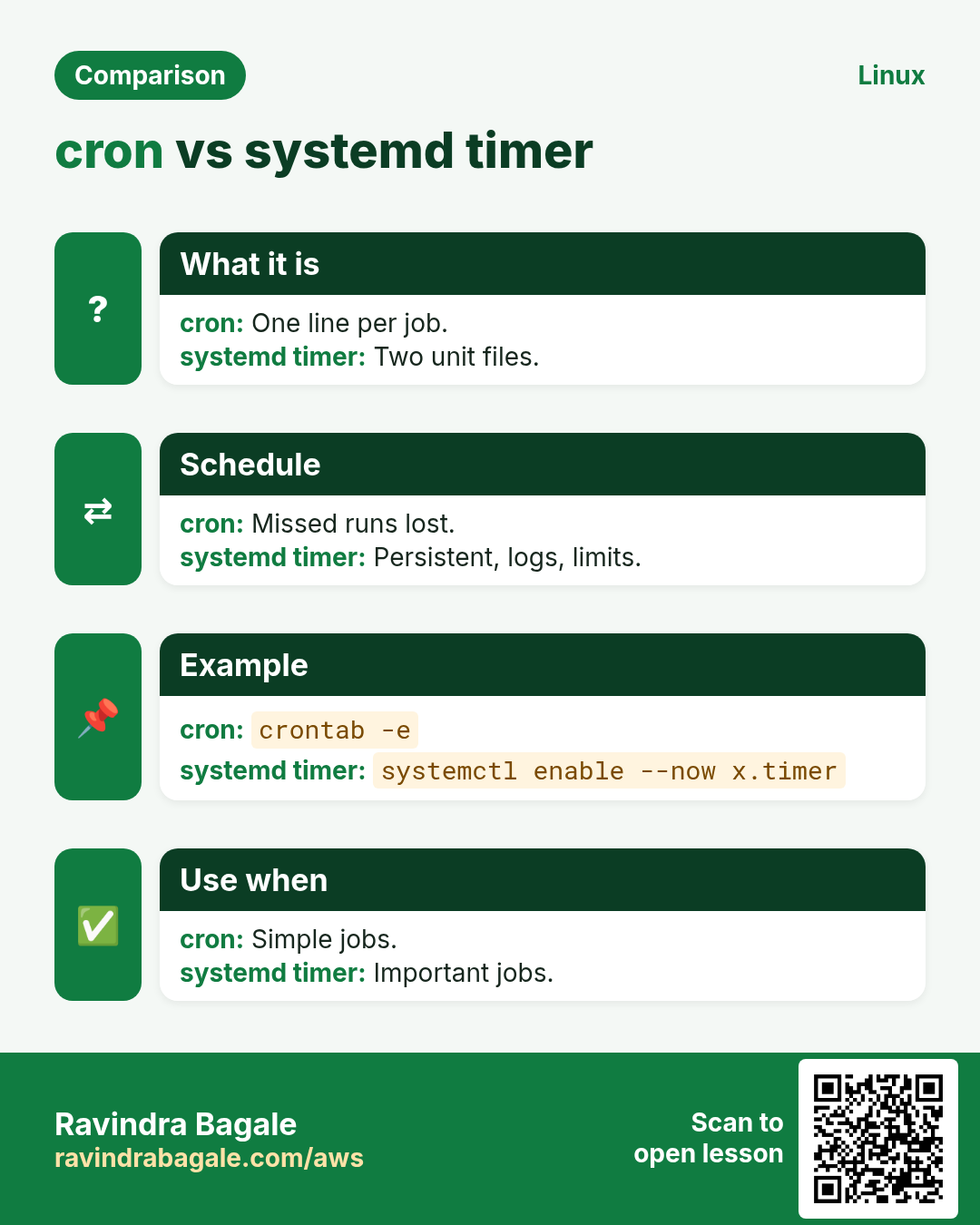
Timers give you logs in journald, exit status, retries and limits, all with systemctl commands you already know.
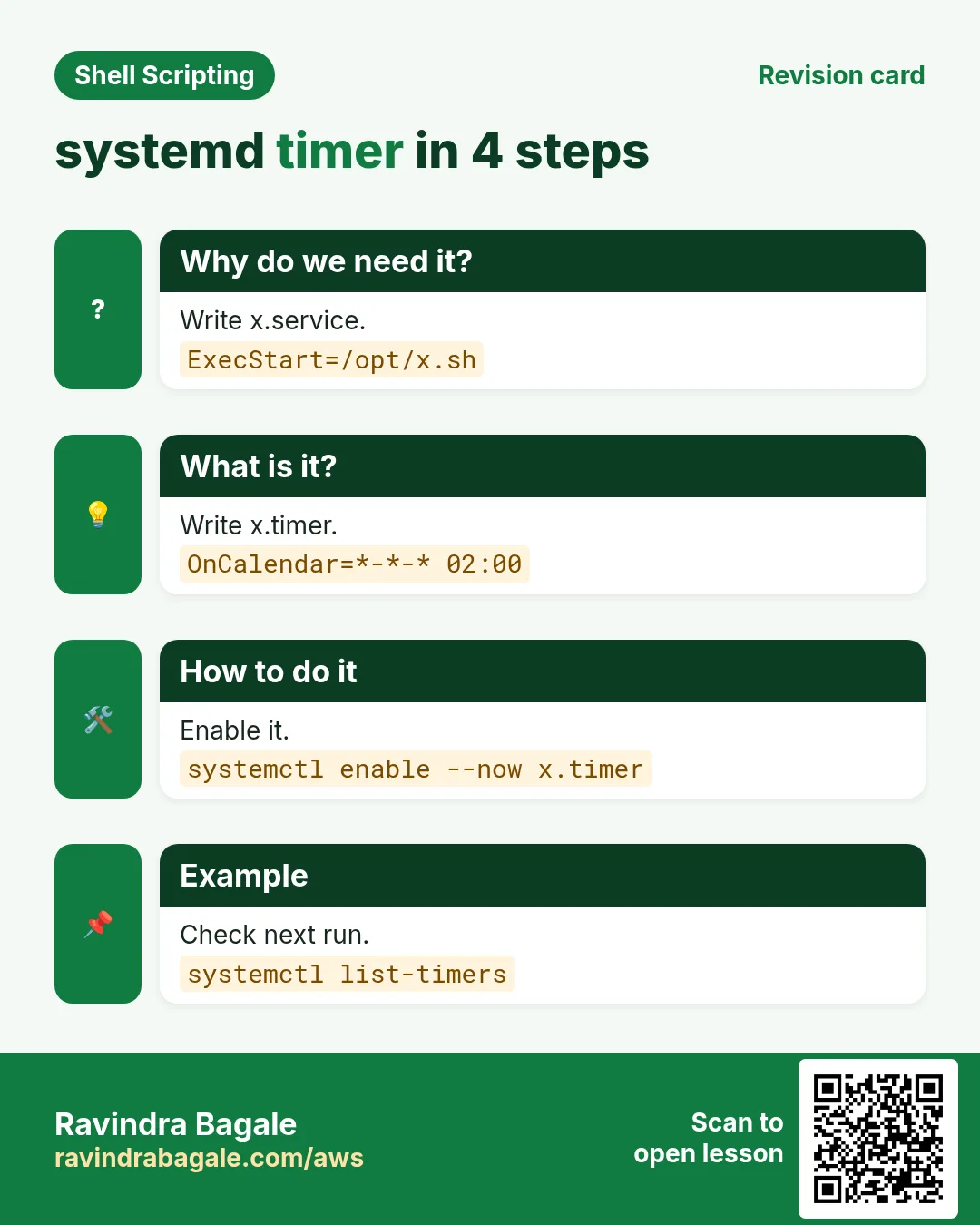
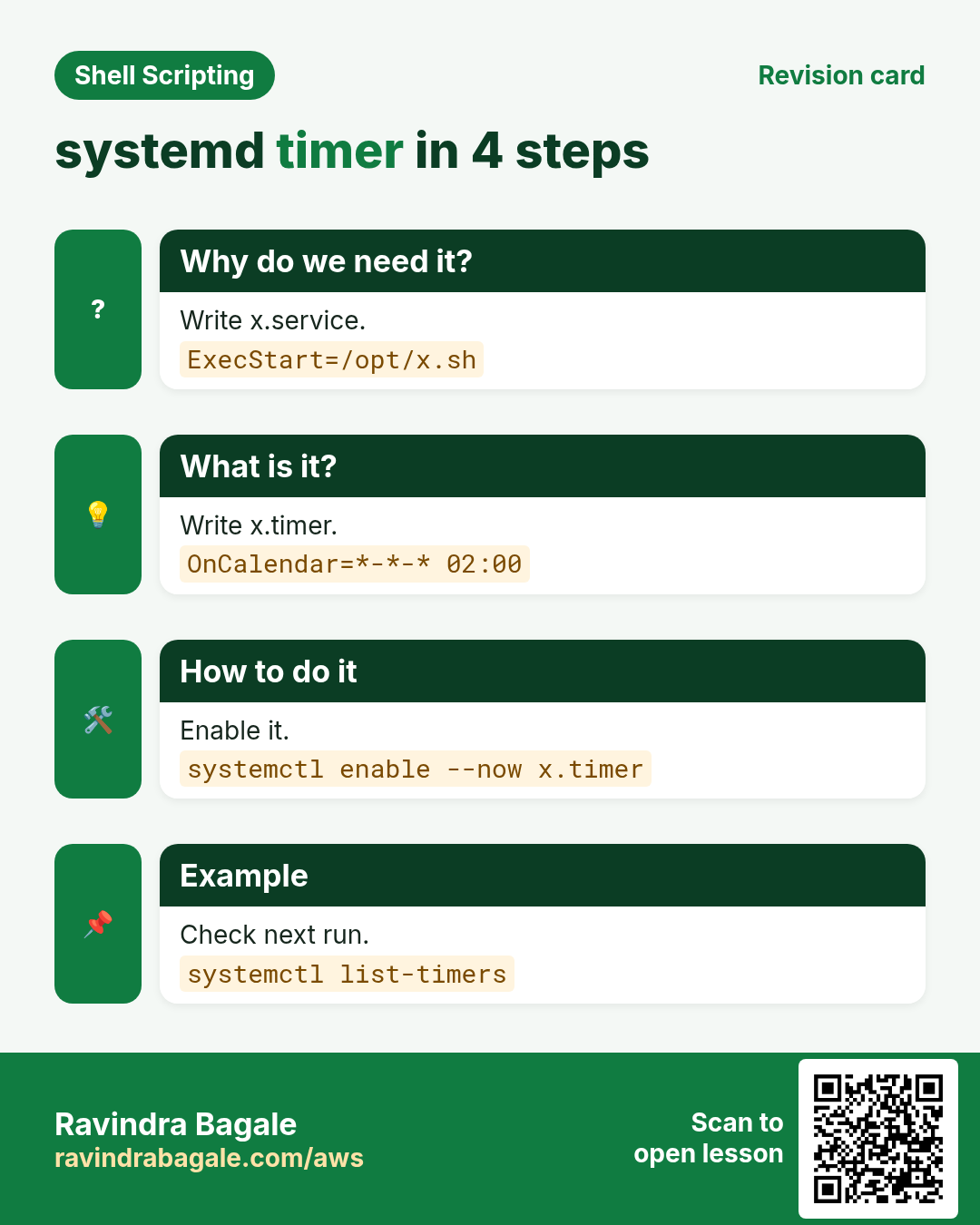
You write two files in /etc/systemd/system. name.service says what to run (Type=oneshot, ExecStart=/opt/bin/script.sh, User=). name.timer says when (OnCalendar=) and has WantedBy=timers.target. Then systemctl daemon-reload and systemctl enable --now name.timer. Run the job by hand with systemctl start name.service. User timers go in ~/.config/systemd/user with systemctl --user.
- Service file.
sudo tee /etc/systemd/system/backup.service > /dev/null <<'EOF'
[Unit]
Description=Nightly backup
[Service]
Type=oneshot
User=backup
ExecStart=/opt/bin/backup.sh
EOF
What to run.
- Timer file.
sudo tee /etc/systemd/system/backup.timer > /dev/null <<'EOF'
[Unit]
Description=Run backup daily at 02:00
[Timer]
OnCalendar=*-*-* 02:00:00
Persistent=true
[Install]
WantedBy=timers.target
EOF
When to run.
- Enable.
sudo systemctl daemon-reload && sudo systemctl enable --now backup.timerOutput:
Created symlink /etc/systemd/system/timers.target.wants/backup.timerScheduled.
- Run now.
sudo systemctl start backup.service; systemctl status backup.service --no-pager | head -3Output:
backup.service - Nightly backup
   Active: inactive (dead) since Sun 2026-10-25 11:20:04 IST
oneshot ended.
6. OnCalendar, Persistent and delays
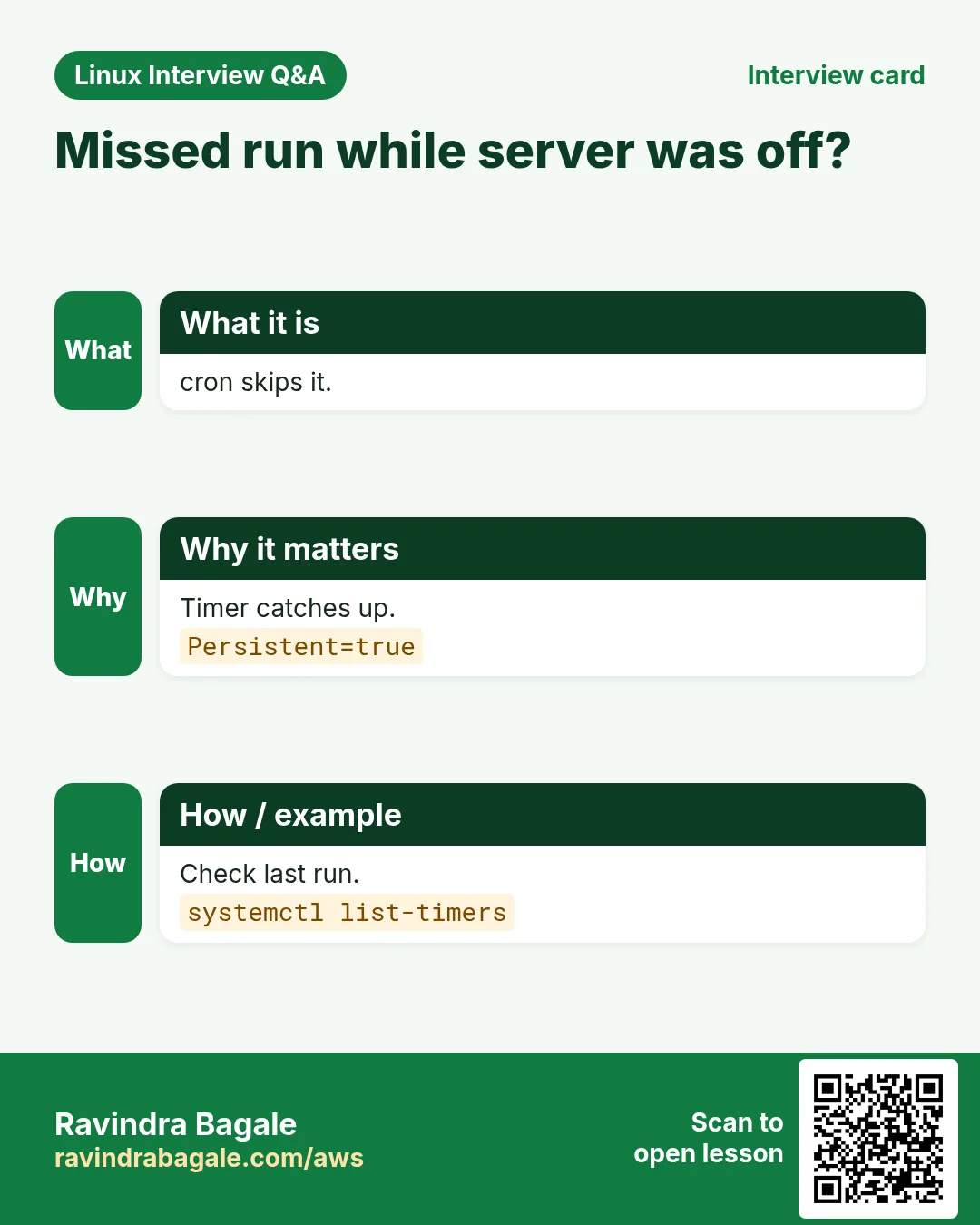
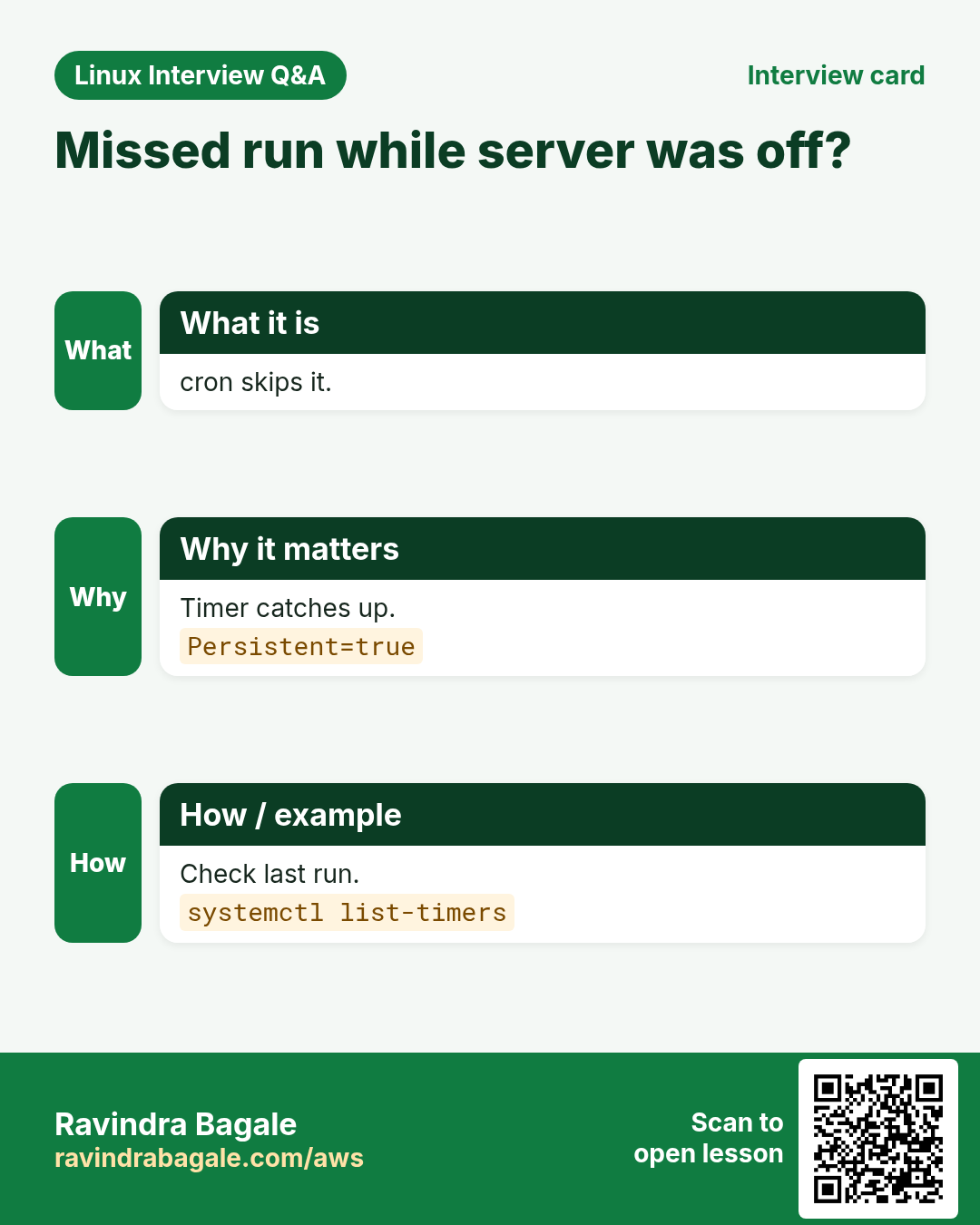
Suppose the machine was off during two nightly report times. A persistent calendar timer can fire on return because it knows it missed a scheduled run. Its service receives one start request. If you need reports for both missing dates, have the job keep a record of the latest date it finished and determine which dates it still owes. Store the new date only after that report succeeds.
Laptops sleep, servers reboot, and 500 servers hitting one API at 02:00:00 is a storm.
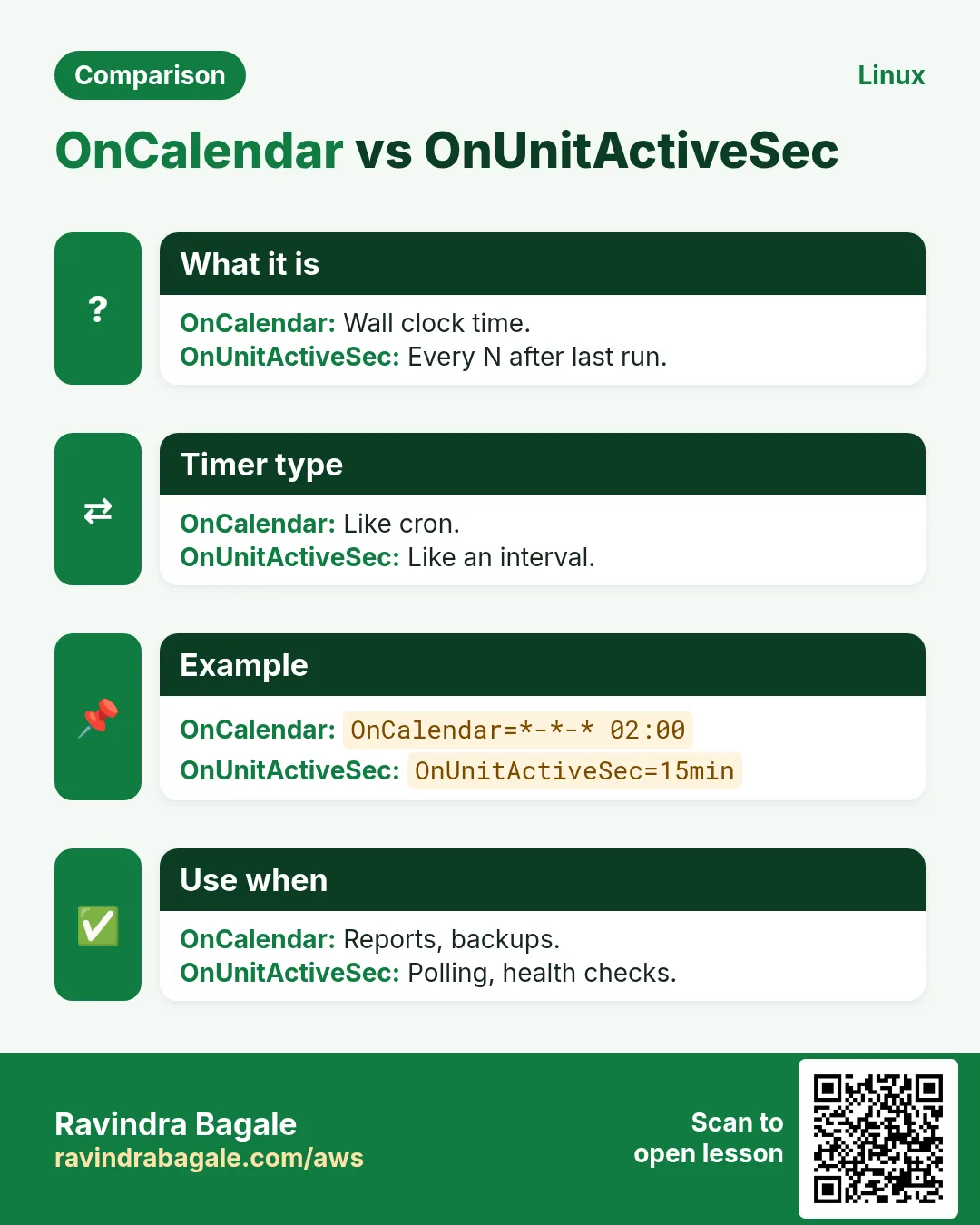
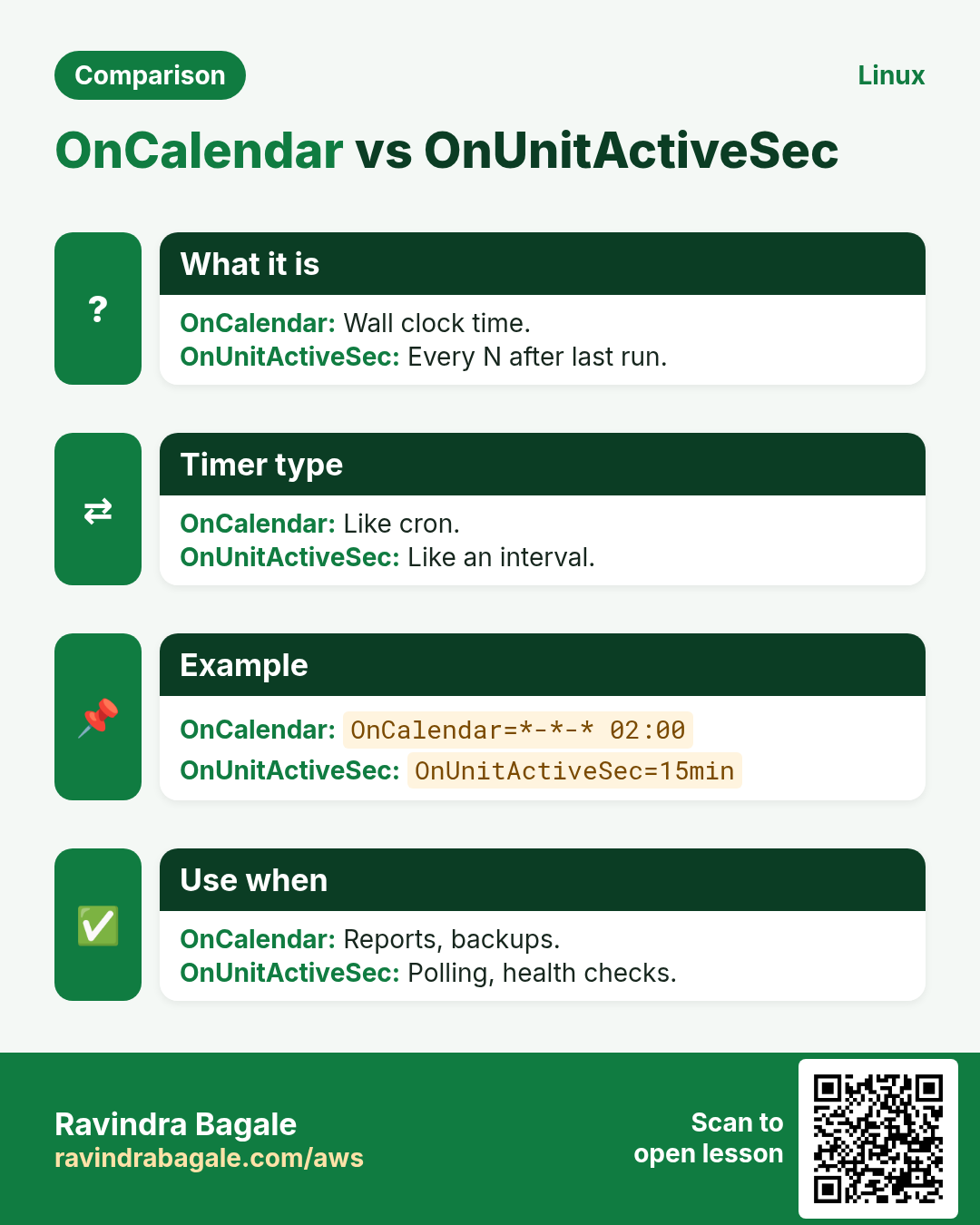
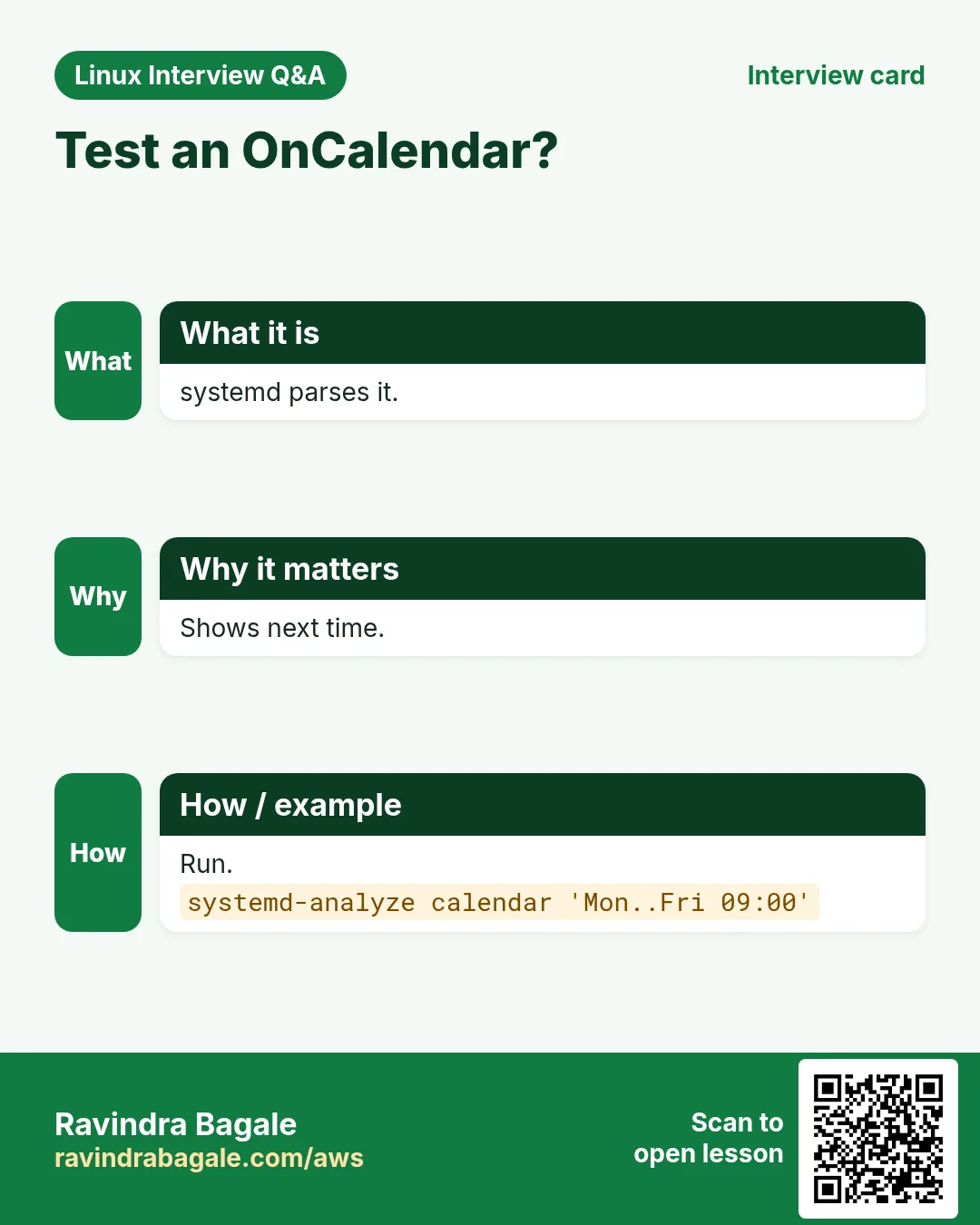
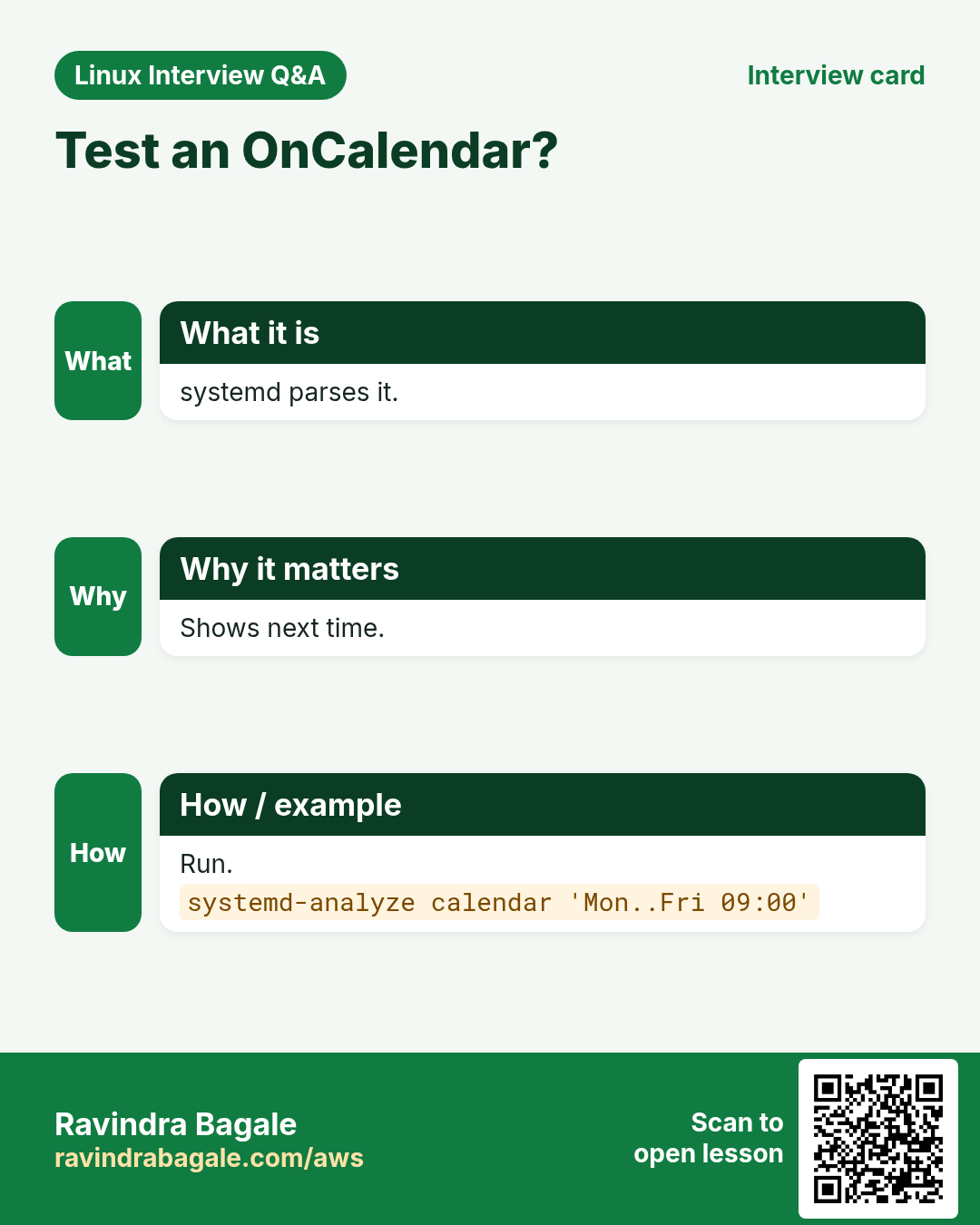
OnCalendar uses DayOfWeek Year-Month-Day Hour:Minute:Second, like Mon..Fri *-*-* 18:30 or *-*-01 09:00 or shortcuts daily, weekly, hourly. Check it with systemd-analyze calendar. OnBootSec=5min and OnUnitActiveSec=15min run relative to boot or last run. Persistent=true runs a missed job at next boot. RandomizedDelaySec=10m spreads servers out. AccuracySec sets how exact it must be.
| Setting | Meaning |
|---|---|
| OnCalendar=daily | midnight every day |
| OnCalendar=Mon..Fri 18:30 | weekdays 6:30 p.m. |
| OnUnitActiveSec=15min | 15 min after last run |
| Persistent=true | catch up missed run |
| RandomizedDelaySec=10m | random 0-10 min delay |
- Check a calendar.
systemd-analyze calendar 'Mon..Fri 18:30'Output:
  Original form: Mon..Fri 18:30
Normalized form: Mon..Fri *-*-* 18:30:00
    Next elapse: Mon 2026-10-26 18:30:00 IST
Next run shown.
- Every 15 minutes.
OnCalendar=*:0/15Like */15 in cron.
- First of month.
OnCalendar=*-*-01 09:00:00Monthly invoice run.
- Spread a fleet.
[Timer]
OnCalendar=daily
RandomizedDelaySec=30m
No thundering herd.
7. Watch timers: list-timers and journalctl
You must know when the job ran last, when it runs next and whether it worked.
systemctl list-timers shows NEXT, LEFT, LAST and PASSED for every timer. journalctl -u name.service shows the script output for each run. systemctl status name.service shows the last exit code. Add OnFailure=alert@%n.service in [Unit] to run an alert unit when the job fails.
- Next runs.
systemctl list-timers backup.timer --no-pagerOutput:
NEXT                        LEFT     LAST                        PASSED  UNIT
Mon 2026-10-26 02:00:00 IST 14h left Sun 2026-10-25 02:00:03 IST 9h ago  backup.timer
Last and next.
- Output of runs.
journalctl -u backup.service --since yesterday --no-pager | tail -2Output:
Oct 25 02:00:41 host backup.sh[1201]: backup ok 2.1G
Oct 25 02:00:41 host systemd[1]: backup.service: Deactivated successfully.
Script output in journal.
- Failed?
systemctl is-failed backup.serviceOutput:
inactiveNot failed.
- Alert on failure.
[Unit]
OnFailure=notify-fail@%n.service
Runs another unit on failure.
8. cron or systemd timer?
Both work; the right choice saves you trouble later.
Use cron for simple per-user jobs, on old or minimal systems, or when the team already knows it. Use timers when you want journald logs, catch-up after downtime, random delay across a fleet, dependencies (After=network-online.target), resource limits (MemoryMax=, CPUQuota=) and status in systemctl. Many teams move important server jobs to timers and keep cron for quick personal tasks.
| Need | cron / timer |
|---|---|
| Simple and everywhere | yes / mostly |
| Logs in journald | manual / built in |
| Catch up missed run | no (anacron) / Persistent |
| Random delay | manual sleep / RandomizedDelaySec |
| Resource limits | no / MemoryMax, CPUQuota |
- Limit memory.
[Service]
MemoryMax=512M
CPUQuota=50%
Job cannot eat the server.
- Wait for network.
[Unit]
After=network-online.target
Wants=network-online.target
No early failures at boot.
- One-off later.
sudo systemd-run --on-calendar='2026-10-26 01:00' /opt/bin/migrate.shOutput:
Running timer as unit: run-u91.timerLike at, with logs.
9. Real examples from many industries
The same Linux skill shows up in every kind of company. Seeing it in many places helps you remember it.
Each row is a made-up team. It shows who uses this and how.
| Team and city | How they use it | Command |
|---|---|---|
| Shruti, bank, Pune | Nightly EOD backup at 2 a.m. | 0 2 * * * /opt/bin/eod-backup.sh |
| Tom, newspaper, Manchester | Publish e-paper weekdays 5 a.m. | OnCalendar=Mon..Fri 05:00 |
| Wei, IoT, Shanghai | Sensor upload every 15 min with lock | */15 * * * * flock -n /tmp/u.lock /opt/bin/up.sh |
| Noura, retail, Doha | Fleet-wide cache warm with spread | RandomizedDelaySec=20m |
| Pedro, hospital, Lisbon | Catch up missed audit export | Persistent=true |
| Mangesh, APMC market, Nashik | Daily price list at 6 a.m. | 0 6 * * * /opt/bin/prices.sh >> /var/log/prices.log 2>&1 |
10. Common errors and how to fix them
Everyone hits these errors. Knowing the cause saves hours.
Read the exact message first. Then match it to a row below.
| Error you see | Why it happens | How to fix |
|---|---|---|
Job never runs | cron service down or bad line | Check service and syntax.systemctl status crond |
command not found in cron only | Small PATH | Full paths or PATH line.PATH=/usr/local/bin:/usr/bin:/bin |
Command cut at % sign | % means newline in crontab | Escape as \%.date +\%F |
No output anywhere | No redirect, no mail | Redirect to a log.>> /var/log/job.log 2>&1 |
bad minute / errors in crontab file | Wrong field count | Five fields then command.crontab -e |
Timer not in list-timers | Not enabled or no daemon-reload | Reload and enable.sudo systemctl daemon-reload && sudo systemctl enable --now x.timer |
Failed to parse calendar specification | Bad OnCalendar | Test the expression.systemd-analyze calendar 'Mon *-*-* 08:00' |
Service runs as root unexpectedly | No User= line | Add User=.User=backup |
Overlapping runs | Slow job, short interval | flock or OnUnitActiveSec.flock -n /tmp/j.lock ./j.sh |
11. Troubleshooting step by step
Find out if the scheduler fired, then if the script failed, then why.
Go top to bottom. Stop at the first step that shows the problem.
- Cron fired?
journalctl -u crond --since today | tail- Timer status.
systemctl list-timers --all- Last run output.
journalctl -u backup.service -n 30- Exit status.
systemctl status backup.service- Same env test.
env -i PATH=/usr/bin:/bin /bin/sh -c /opt/bin/backup.sh- Calendar check.
systemd-analyze calendar daily12. Lab 1: A safe cron job with log and lock
Schedule a small disk report every minute with flock, timeout and a log, confirm it runs, then remove it.
A full hands-on lab. Run every step on a test Linux machine (an EC2 instance, a VM, or WSL).
- Script.
mkdir -p ~/bin && cat > ~/bin/diskrep.sh <<'X'
#!/usr/bin/env bash
set -euo pipefail
printf '%(%F %T)T ' -1; df -h / | tail -1
X
chmod +x ~/bin/diskrep.sh && ~/bin/diskrep.sh
Output:
2026-10-25 11:40:02 /dev/xvda1 20G 8.1G 12G 41% /- Add to crontab.
( crontab -l 2>/dev/null; echo "* * * * * flock -n /tmp/diskrep.lock timeout 50 $HOME/bin/diskrep.sh >> $HOME/diskrep.log 2>&1" ) | crontab -- Check line.
crontab -l | tail -1Output:
* * * * * flock -n /tmp/diskrep.lock timeout 50 /home/ec2-user/bin/diskrep.sh >> /home/ec2-user/diskrep.log 2>&1- Wait 2 min and read.
sleep 125; cat ~/diskrep.logOutput:
2026-10-25 11:41:01 /dev/xvda1 20G 8.1G 12G 41% /
2026-10-25 11:42:01 /dev/xvda1 20G 8.1G 12G 41% /- Remove.
crontab -l | grep -v diskrep.sh | crontab -; rm ~/diskrep.log13. Lab 2: The same job as a systemd timer
Turn the disk report into a service and timer that runs every 2 minutes, see it in list-timers and journalctl, then remove it.
A full hands-on lab. Run every step on a test Linux machine (an EC2 instance, a VM, or WSL).
- Copy script.
sudo install -m 755 ~/bin/diskrep.sh /usr/local/bin/diskrep.sh- Service.
sudo tee /etc/systemd/system/diskrep.service > /dev/null <<'EOF'
[Unit]
Description=Disk report
[Service]
Type=oneshot
ExecStart=/usr/local/bin/diskrep.sh
EOF- Timer.
sudo tee /etc/systemd/system/diskrep.timer > /dev/null <<'EOF'
[Unit]
Description=Disk report every 2 minutes
[Timer]
OnCalendar=*:0/2
Persistent=true
[Install]
WantedBy=timers.target
EOF- Enable and list.
sudo systemctl daemon-reload && sudo systemctl enable --now diskrep.timer && systemctl list-timers diskrep.timer --no-pagerOutput:
NEXT                        LEFT       UNIT
Sun 2026-10-25 11:52:00 IST 1min left diskrep.timer- Logs after a run.
sleep 130; journalctl -u diskrep.service -n 2 --no-pagerOutput:
Oct 25 11:52:00 host diskrep.sh[3101]: 2026-10-25 11:52:00 /dev/xvda1 20G 8.1G 12G 41% /
Oct 25 11:52:00 host systemd[1]: diskrep.service: Deactivated successfully.- Remove.
sudo systemctl disable --now diskrep.timer && sudo rm /etc/systemd/system/diskrep.{service,timer} && sudo systemctl daemon-reloadOutput:
Removed /etc/systemd/system/timers.target.wants/diskrep.timer.Ravindra Bagale's Tip
Before you schedule anything, make the script work with full paths, set -euo pipefail, a log and a flock guard. Then test the schedule: crontab -l for cron, systemd-analyze calendar and list-timers for timers. Always check the first real run in the log instead of assuming it worked.
Ravindra Bagale's Tip – मराठी
काहीही schedule करण्याआधी script full paths, set -euo pipefail, log आणि flock guard सह चालेल असं करा. मग schedule test करा: cron साठी crontab -l, timers साठी systemd-analyze calendar आणि list-timers. चाललं असेल असं समजू नका, पहिला खरा run log मधे नेहमी तपासा.
Ravindra Bagale's Tip – हिंदी
कुछ भी schedule करने से पहले script को full paths, set -euo pipefail, log और flock guard के साथ चलने लायक बनाइए. फिर schedule test कीजिए: cron के लिए crontab -l, timers के लिए systemd-analyze calendar और list-timers. चल गया होगा, ऐसा मत मानिए; पहला असली run log में हमेशा देखिए.
14. Frequently asked questions
Q. Cron time zone?
The server's zone unless CRON_TZ is set.
Q. Run every 30 seconds?
Timer with OnUnitActiveSec=30s.
Q. Where are user crontabs?
/var/spool/cron.
Q. What is anacron?
Runs daily jobs missed while off.
Q. Timer for a user?
systemctl --user and loginctl enable-linger.
Q. Test a timer now?
systemctl start x.service.
Q. Day 0 or 7?
Both Sunday.
Q. Remove all my cron jobs?
crontab -r, careful.
15. Interview questions and answers
Beginner level
Q. Edit crontab?
crontab -e.
Q. Fields in cron?
Five, then command.
Q. Every 5 minutes?
*/5 * * * *.
Q. List timers?
systemctl list-timers.
Mid level level
Q. Why fails only in cron?
PATH and env differ.
Q. Timer needs which files?
.service and .timer.
Q. Catch up missed run?
Persistent=true.
Q. Percent in crontab?
Escape as \%.
Senior level
Q. Choose timers when?
Need logs, catch-up, limits, dependencies.
Q. Avoid fleet storms?
RandomizedDelaySec or sleep $((RANDOM%600)).
Q. Alert on failure?
OnFailure= unit or exit code monitor.
Q. Stop overlap in timers?
A oneshot service is not started twice while running.
Try at home
- Write a crontab line that runs a script at 7:30 p.m. on every weekday, Monday to Friday, and check the line carefully.
- Use systemd-analyze calendar to test three schedules: every Sunday 10 a.m., 1st of every month, every 10 minutes.
Practise this chapter
Interview questions and answers
How do you prove a timer runs the right script?
Start the associated test service manually to establish its expected log and outcome. Read the timer’s next time and unit, then let the timer start it. Compare the recorded invocation time and service result. This separates a schedule problem from an error in the command.
Check your understanding
Choose an answer, then compare your reasoning with the explanation.
Practice Tasks
Practice checks run in your browser. They check the answer for this exercise; they do not create resources or connect to your AWS account.
About this scenarioAhmednagar Sugar Co-op is a sugar co-operative business in Ahilyanagar. Balasaheb Pawar looks after its IT and cloud work. They count money in INR and run their AWS resources in the ap-south-1 Region. In the tasks below you do real jobs for them using what this lesson teaches. All names, account IDs, IP addresses and numbers are made up for practice.
0 / 21
Easy List crontab
BIZ runs reports and backups on a schedule.
Balasaheb Pawar at Ahmednagar Sugar Co-op wants to see only their cron lines that mention backup.
- Find the Linux command that does this job.
- Add the options (like -r or -h) the task needs.
- Add the file names, folders or users in the right order.
- Use sudo if the job changes system files or users. Click Check answer.
Easy Edit crontab
BIZ runs reports and backups on a schedule.
Open your crontab for editing in the nano editor.
- Find the Linux command that does this job.
- Add the options (like -r or -h) the task needs.
- Add the file names, folders or users in the right order.
- Use sudo if the job changes system files or users. Click Check answer.
Easy List timers
BIZ runs reports and backups on a schedule.
List all systemd timers including inactive ones, without a pager.
- Find the Linux command that does this job.
- Add the options (like -r or -h) the task needs.
- Add the file names, folders or users in the right order.
- Use sudo if the job changes system files or users. Click Check answer.
Easy Enable timer
BIZ runs reports and backups on a schedule.
Enable and start report.timer now.
- Find the Linux command that does this job.
- Add the options (like -r or -h) the task needs.
- Add the file names, folders or users in the right order.
- Use sudo if the job changes system files or users. Click Check answer.
Easy Reload units
BIZ runs reports and backups on a schedule.
Reload your per-user systemd manager after editing user unit files.
- Find the Linux command that does this job.
- Add the options (like -r or -h) the task needs.
- Add the file names, folders or users in the right order.
- Use sudo if the job changes system files or users. Click Check answer.
Easy Job logs
BIZ runs reports and backups on a schedule.
Show the last 50 log lines of backup.service.
- Find the Linux command that does this job.
- Add the options (like -r or -h) the task needs.
- Add the file names, folders or users in the right order.
- Use sudo if the job changes system files or users. Click Check answer.
Easy Cron service
BIZ runs reports and backups on a schedule.
Print only whether the cron daemon crond is active.
- Find the Linux command that does this job.
- Add the options (like -r or -h) the task needs.
- Add the file names, folders or users in the right order.
- Use sudo if the job changes system files or users. Click Check answer.
Easy Timer status
BIZ runs reports and backups on a schedule.
Show the status of backup.timer.
- Find the Linux command that does this job.
- Add the options (like -r or -h) the task needs.
- Add the file names, folders or users in the right order.
- Use sudo if the job changes system files or users. Click Check answer.
Easy Current time
BIZ runs reports and backups on a schedule.
Print current date and time zone settings with timedatectl.
- Find the Linux command that does this job.
- Add the options (like -r or -h) the task needs.
- Add the file names, folders or users in the right order.
- Use sudo if the job changes system files or users. Click Check answer.
Medium Other user
BIZ runs reports and backups on a schedule.
As root, list the crontab of user asha.
- Find the Linux command that does this job.
- Add the options (like -r or -h) the task needs.
- Add the file names, folders or users in the right order.
- Use sudo if the job changes system files or users. Click Check answer.
Medium Check calendar
BIZ runs reports and backups on a schedule.
Check when the OnCalendar expression Mon..Fri 09:00 next fires.
- Find the Linux command that does this job.
- Add the options (like -r or -h) the task needs.
- Add the file names, folders or users in the right order.
- Use sudo if the job changes system files or users. Click Check answer.
Medium Verify unit
BIZ runs reports and backups on a schedule.
Check backup.service for mistakes.
- Find the Linux command that does this job.
- Add the options (like -r or -h) the task needs.
- Add the file names, folders or users in the right order.
- Use sudo if the job changes system files or users. Click Check answer.
Medium Run now
BIZ runs reports and backups on a schedule.
Run the job behind report.timer once now by starting its service.
- Find the Linux command that does this job.
- Add the options (like -r or -h) the task needs.
- Add the file names, folders or users in the right order.
- Use sudo if the job changes system files or users. Click Check answer.
Medium Stop schedule
BIZ runs reports and backups on a schedule.
Disable and stop backup.timer.
- Find the Linux command that does this job.
- Add the options (like -r or -h) the task needs.
- Add the file names, folders or users in the right order.
- Use sudo if the job changes system files or users. Click Check answer.
Medium Cron logs
BIZ runs reports and backups on a schedule.
Show the last 30 journal entries of crond.
- Find the Linux command that does this job.
- Add the options (like -r or -h) the task needs.
- Add the file names, folders or users in the right order.
- Use sudo if the job changes system files or users. Click Check answer.
Medium Show unit
BIZ runs reports and backups on a schedule.
Print the contents of backup.timer as systemd sees it.
- Find the Linux command that does this job.
- Add the options (like -r or -h) the task needs.
- Add the file names, folders or users in the right order.
- Use sudo if the job changes system files or users. Click Check answer.
Medium Failed units
BIZ runs reports and backups on a schedule.
List units that have failed.
- Find the Linux command that does this job.
- Add the options (like -r or -h) the task needs.
- Add the file names, folders or users in the right order.
- Use sudo if the job changes system files or users. Click Check answer.
Medium Set zone
BIZ runs reports and backups on a schedule.
Set the server time zone to Asia/Kolkata.
- Find the Linux command that does this job.
- Add the options (like -r or -h) the task needs.
- Add the file names, folders or users in the right order.
- Use sudo if the job changes system files or users. Click Check answer.
Hard Cron-like env
BIZ runs reports and backups on a schedule.
Run report.sh with an empty environment except PATH=/usr/bin:/bin, like cron does.
- Find the Linux command that does this job.
- Add the options (like -r or -h) the task needs.
- Add the file names, folders or users in the right order.
- Use sudo if the job changes system files or users. Click Check answer.
Hard Transient timer
BIZ runs reports and backups on a schedule.
Run df -h once 10 minutes from now using systemd-run.
- Find the Linux command that does this job.
- Add the options (like -r or -h) the task needs.
- Add the file names, folders or users in the right order.
- Use sudo if the job changes system files or users. Click Check answer.
Hard Reset failed
BIZ runs reports and backups on a schedule.
Clear the failed state of backup.service.
- Find the Linux command that does this job.
- Add the options (like -r or -h) the task needs.
- Add the file names, folders or users in the right order.
- Use sudo if the job changes system files or users. Click Check answer.
16. Related chapters
- Linux Ops Refresh for DevOps
- Bash Scripting for Automation
- Linux grep and find Commands with Examples
- How to Set Up Passwordless SSH Between Linux Servers
In short
- min hour dom mon dow command.
- Cron has a tiny PATH; use full paths.
- Log, flock and timeout every job.
- .service + .timer, enable --now.
- OnCalendar, Persistent, RandomizedDelaySec.
- list-timers and journalctl -u.
Revision, comparison and interview cards
Revise this lesson in a few minutes. Save the cards on your phone or download them as PNG files. The QR code on each card opens this lesson.
More cards: Ravi Sir's Cards.