Linux DNS and HTTP Tools: dig, nslookup, host, curl, wget, nc and /etc/hosts with Examples
Most 'the network is down' tickets turn out to be a name problem or an HTTP problem. This chapter teaches the tools to check both from the command line: dig, nslookup and host to ask DNS; /etc/hosts and /etc/resolv.conf to see where names come from; curl and wget to talk HTTP and download files; and nc (netcat) to test whether a port is open.
In this chapter
- Look up names with dig, nslookup and host
- Understand /etc/hosts, resolv.conf and nsswitch
- Test web endpoints with curl
- Download files with curl and wget
- Check ports with nc
- Tell DNS, network and app problems apart
1. An everyday example: the phone contacts list
You want to call 'Aai'. Your phone looks in your contacts first. If not there, you ask the operator's directory. Once you have the number, you dial; it may ring (someone listening), be busy, or be switched off.
Contacts = /etc/hosts. Directory = DNS server in resolv.conf. Asking the directory = dig. Dialing and checking it rings = nc -zv. Having a conversation = curl.
2. dig: ask DNS directly
DNS is a way to ask for records attached to a name. An A record supplies an IPv4 address. An AAAA record supplies an IPv6 address. In the sample answer, locate the name you queried, the time-to-live value in seconds, the record type and the value. Then find the SERVER line. That is the resolver that replied to your command. If it is your usual resolver, the answer can come from its cache. This is why a repeated query can show a lower time-to-live for the same record.
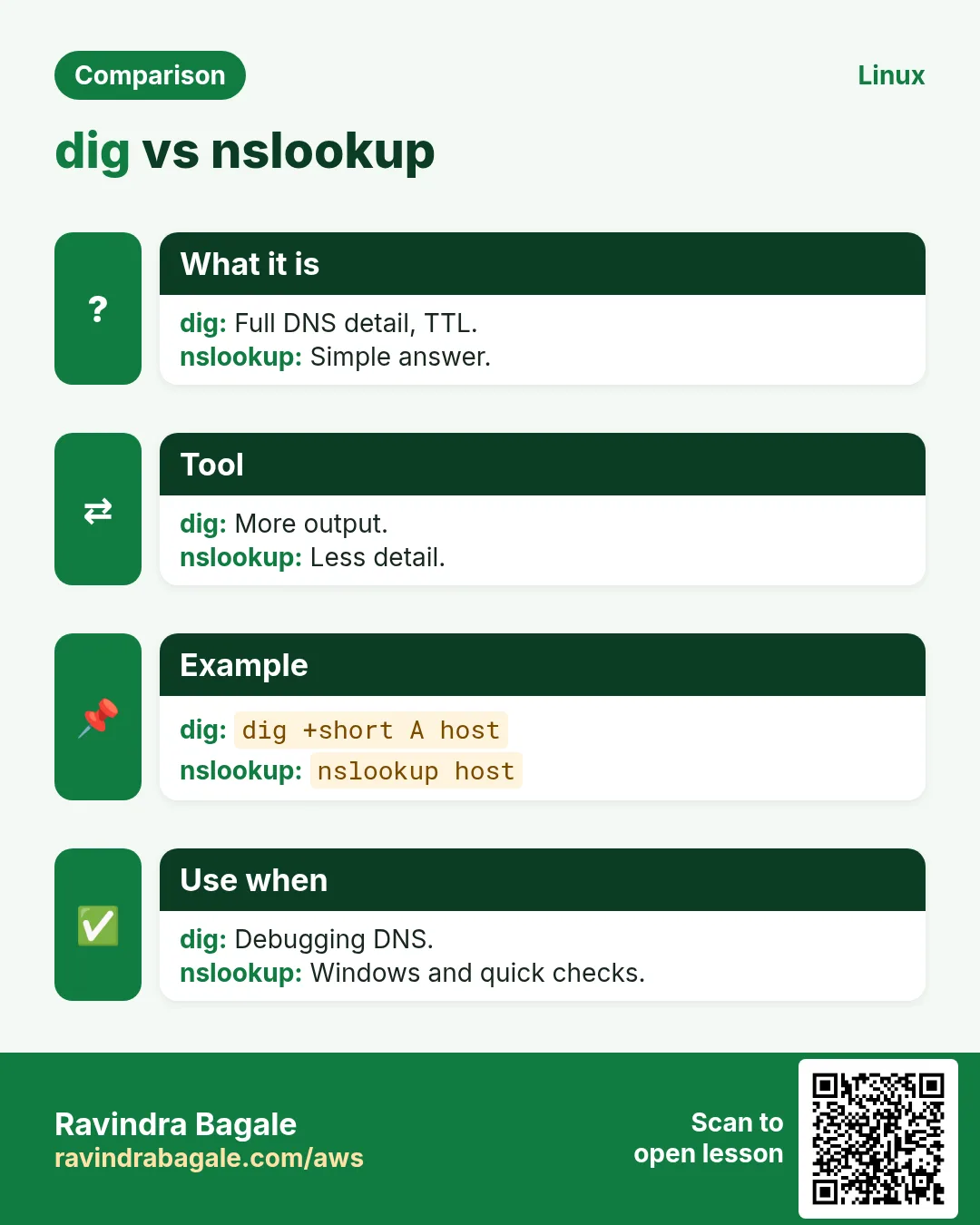
dig shows exactly what DNS answers, which server answered and how long the answer is cached (TTL).
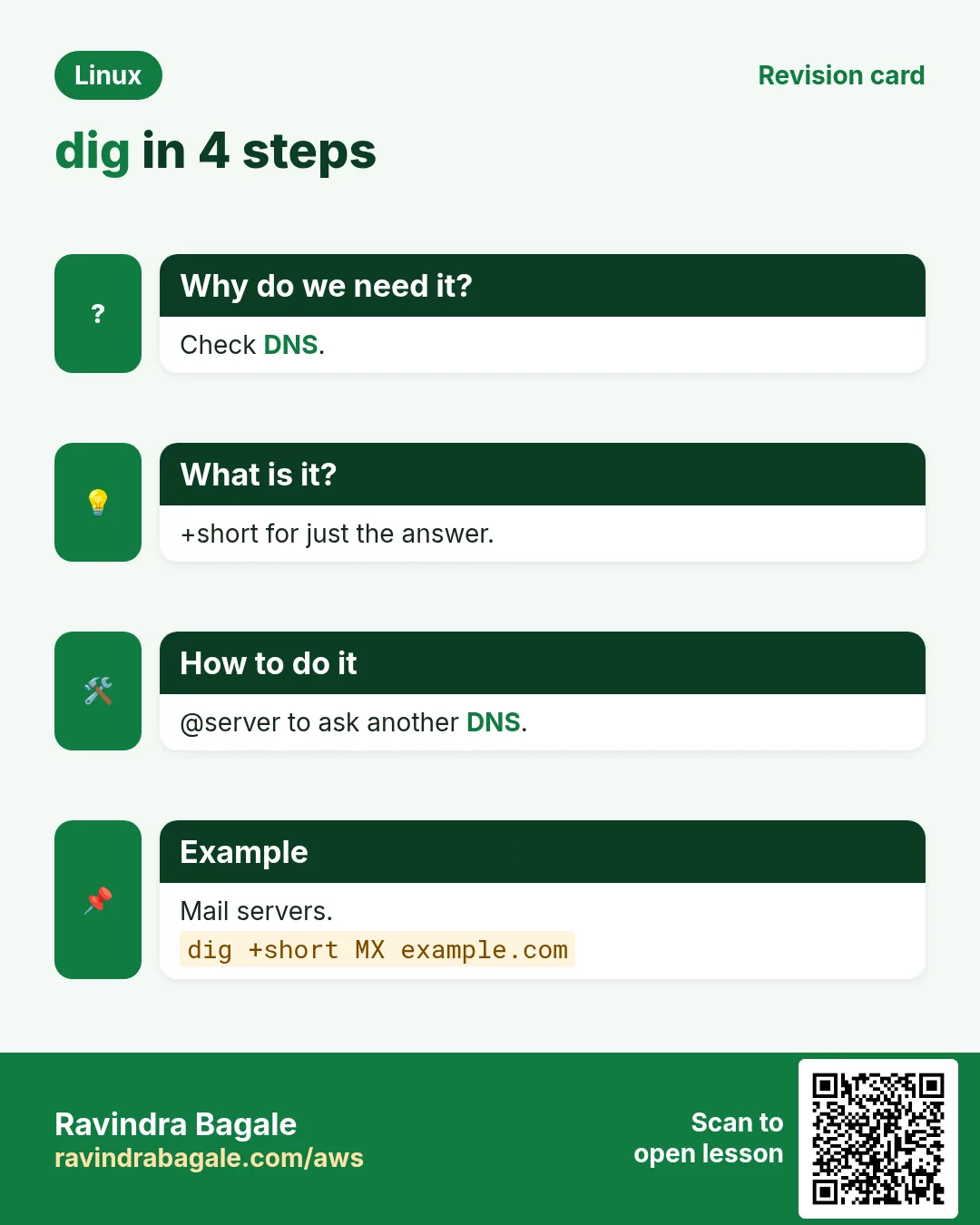
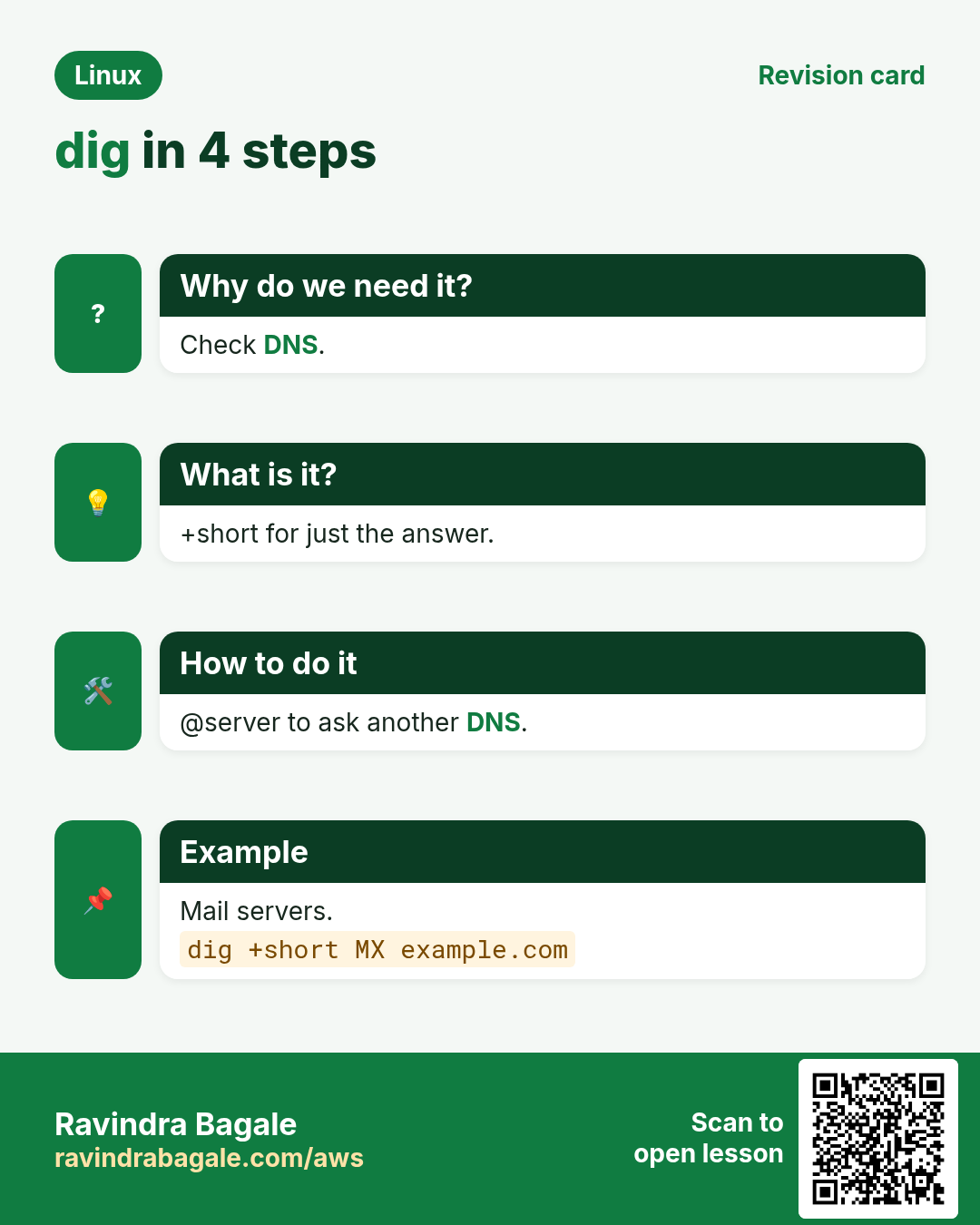
dig NAME asks for the A record. dig +short NAME prints only the answer. Add a type: A, AAAA, MX, TXT, CNAME, NS. dig @8.8.8.8 NAME asks a specific server. dig -x IP does a reverse lookup. dig +trace follows from the root down.
- Short answer.
dig +short shop.example.comOutput:
93.184.216.34One IP.
- Full answer with TTL.
dig shop.example.comOutput:
shop.example.com. 300 IN A 93.184.216.34
;; SERVER: 10.0.0.2#53
;; Query time: 2 msec
Cached 300 s; asked 10.0.0.2.
- Mail servers.
dig +short MX example.comOutput:
10 mx1.example.com.
20 mx2.example.com.
Lower number first.
- Compare with public DNS.
dig +short @1.1.1.1 shop.example.comOutput:
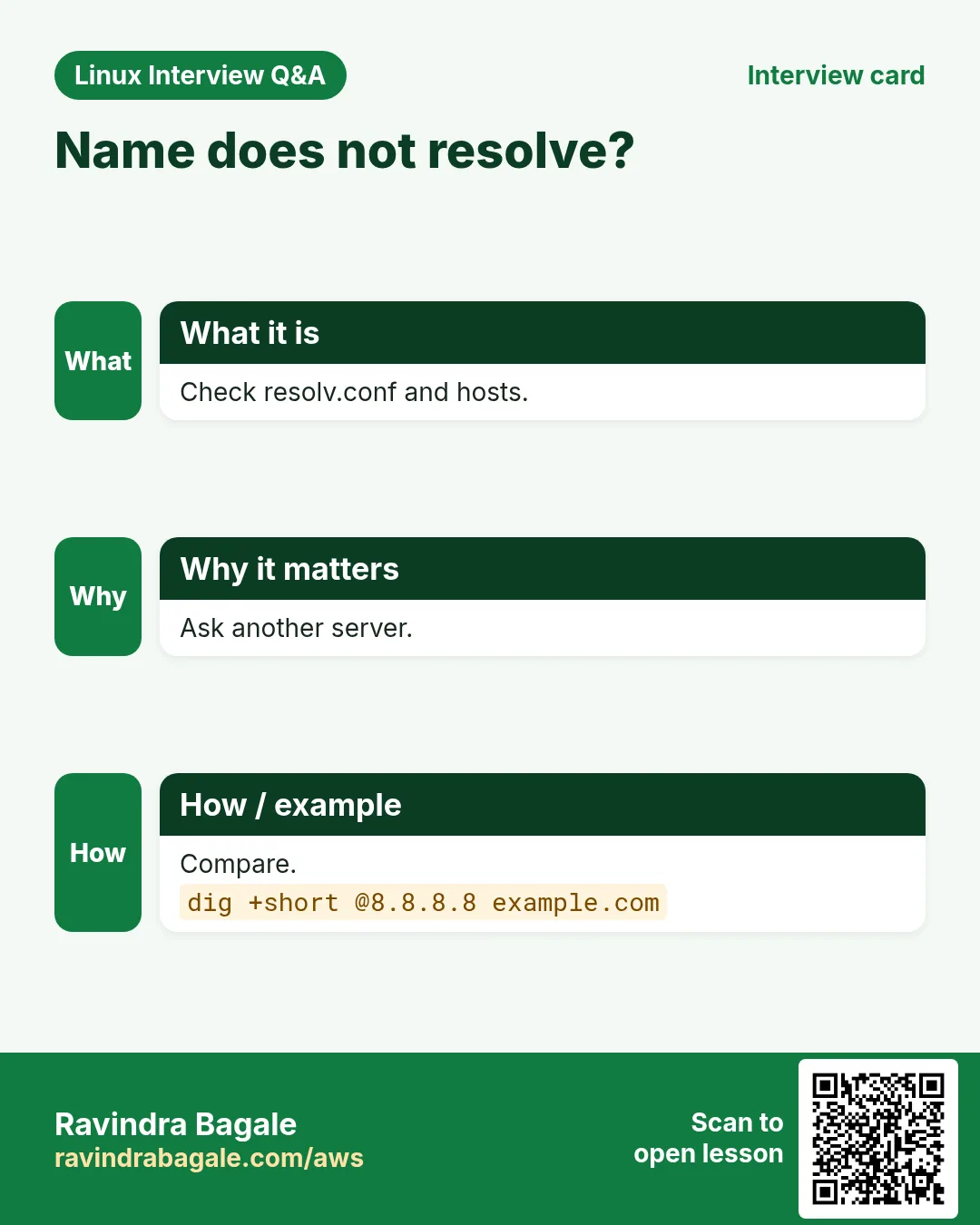
93.184.216.40Different: your resolver has old data.
3. nslookup and host: quick lookups
They exist on almost every system (including Windows for nslookup) and are quick to type.
nslookup NAME [SERVER] shows the server used and the answer. host NAME gives a one-line answer; host -t MX NAME asks a type. Both come in bind-utils (RHEL) or dnsutils (Ubuntu), same as dig.
- nslookup.
nslookup db.internalOutput:
Server:  10.0.0.2
Name:    db.internal
Address: 10.0.3.40
Answered by 10.0.0.2.
- host.
host api.example.comOutput:
api.example.com is an alias for lb-123.elb.amazonaws.com.
lb-123.elb.amazonaws.com has address 52.1.2.3
Shows the CNAME chain.
- Reverse.
host 8.8.8.8Output:
8.8.8.8.in-addr.arpa domain name pointer dns.google.PTR record.
4. dig +trace, +norecurse and TTL: debug DNS changes
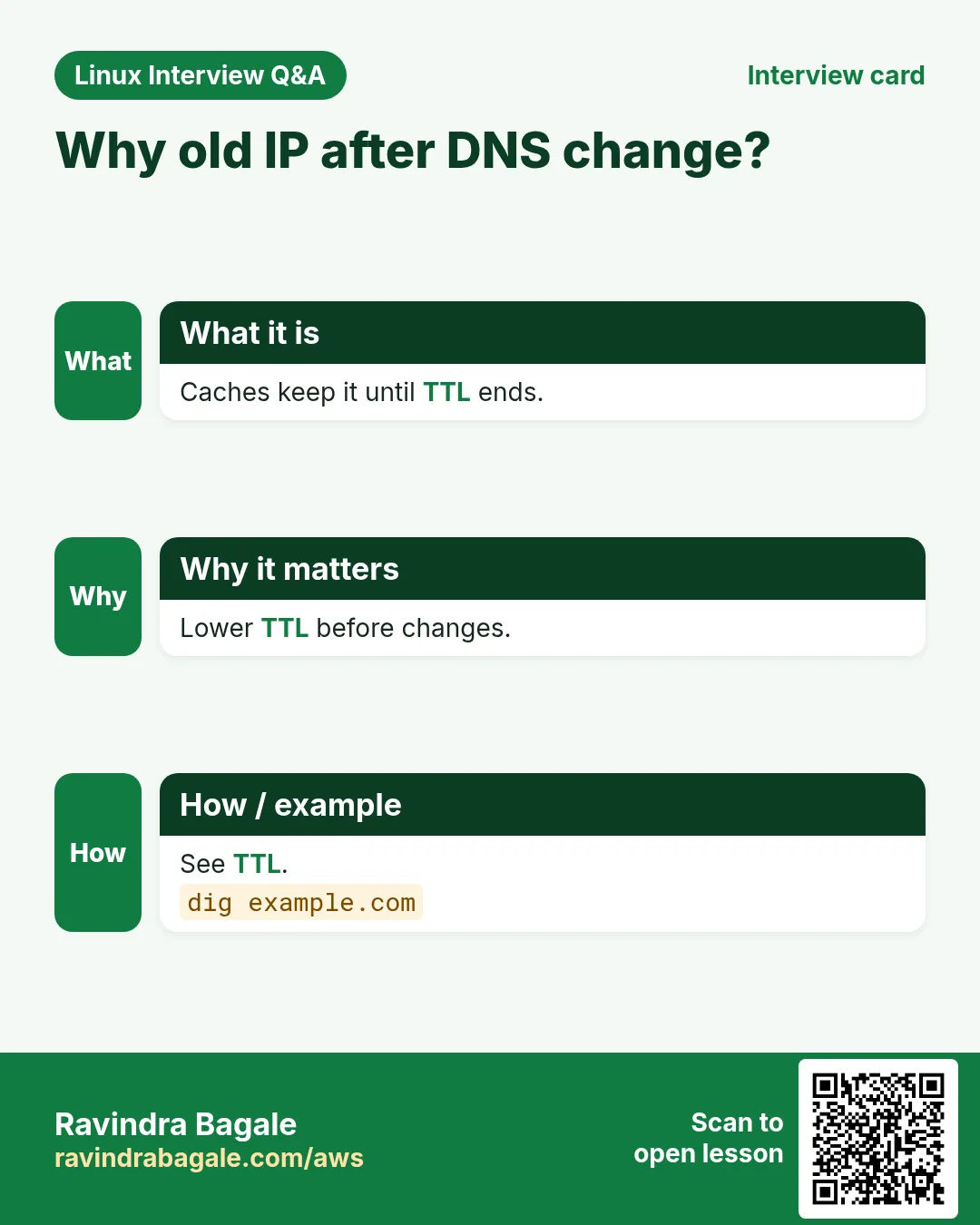
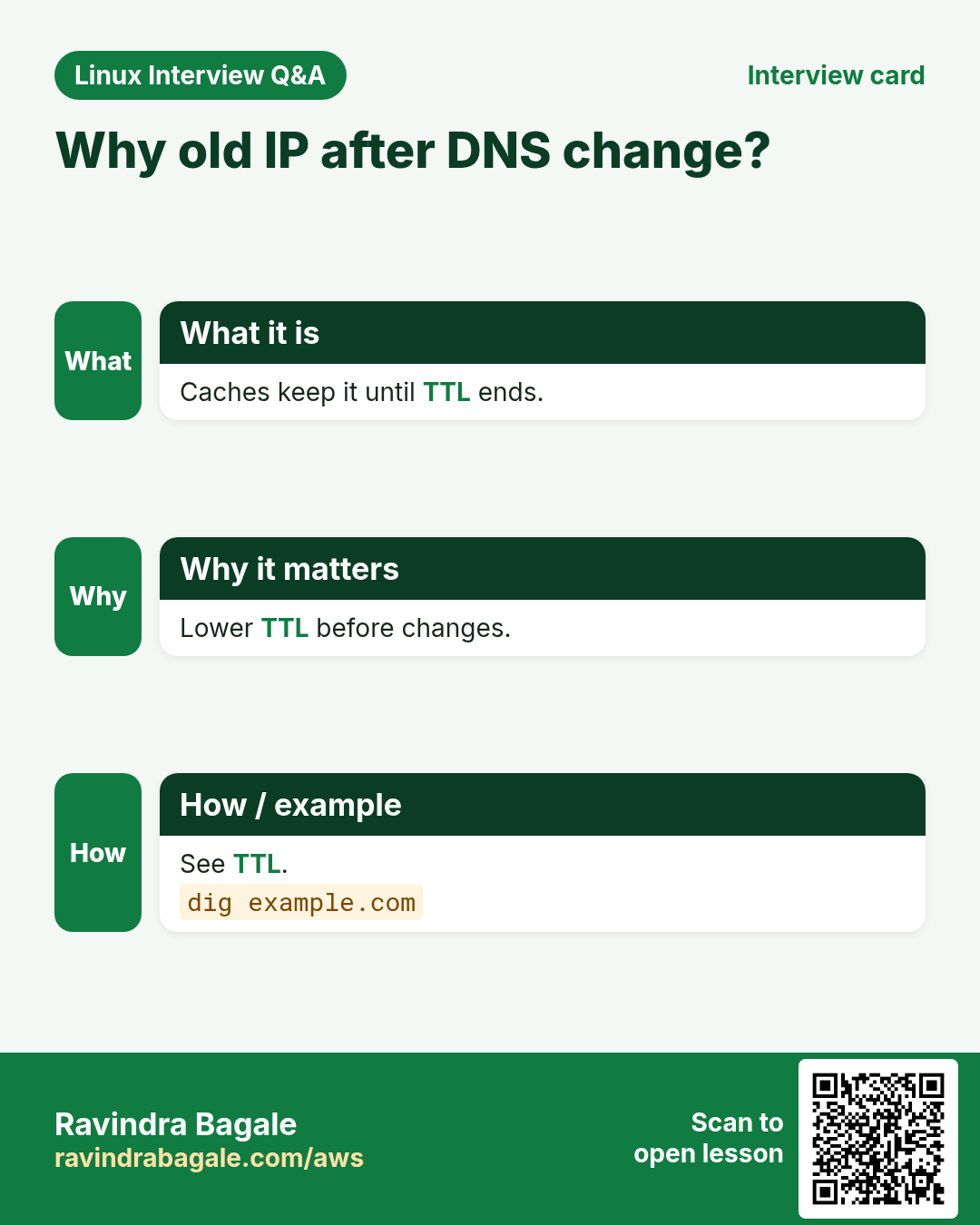
After you change a DNS record, some users see the new IP and some the old one. You need to know who is right.
dig +trace NAME walks from the root servers to the authoritative server, so it ignores caches. dig NS domain shows the authoritative servers; dig @THAT_NS NAME gives the true current answer. The TTL number in a cached answer counts down to zero; then the resolver asks again.
- Authoritative servers.
dig +short NS example.comOutput:
a.iana-servers.net.
b.iana-servers.net.
These hold the real record.
- Ask them directly.
dig +short @a.iana-servers.net shop.example.comOutput:
93.184.216.40New IP is live at the source.
- Cached TTL counting down.
dig shop.example.com | grep -A1 'ANSWER SECTION'Output:
shop.example.com. 212 IN A 93.184.216.34Old IP for 212 more seconds.
- Full path.
dig +trace shop.example.com | tail -3Output:
shop.example.com. 300 IN A 93.184.216.40
;; Received 61 bytes from 199.43.135.53#53(a.iana-servers.net)
Root to answer, no cache.
5. /etc/hosts, resolv.conf and nsswitch.conf
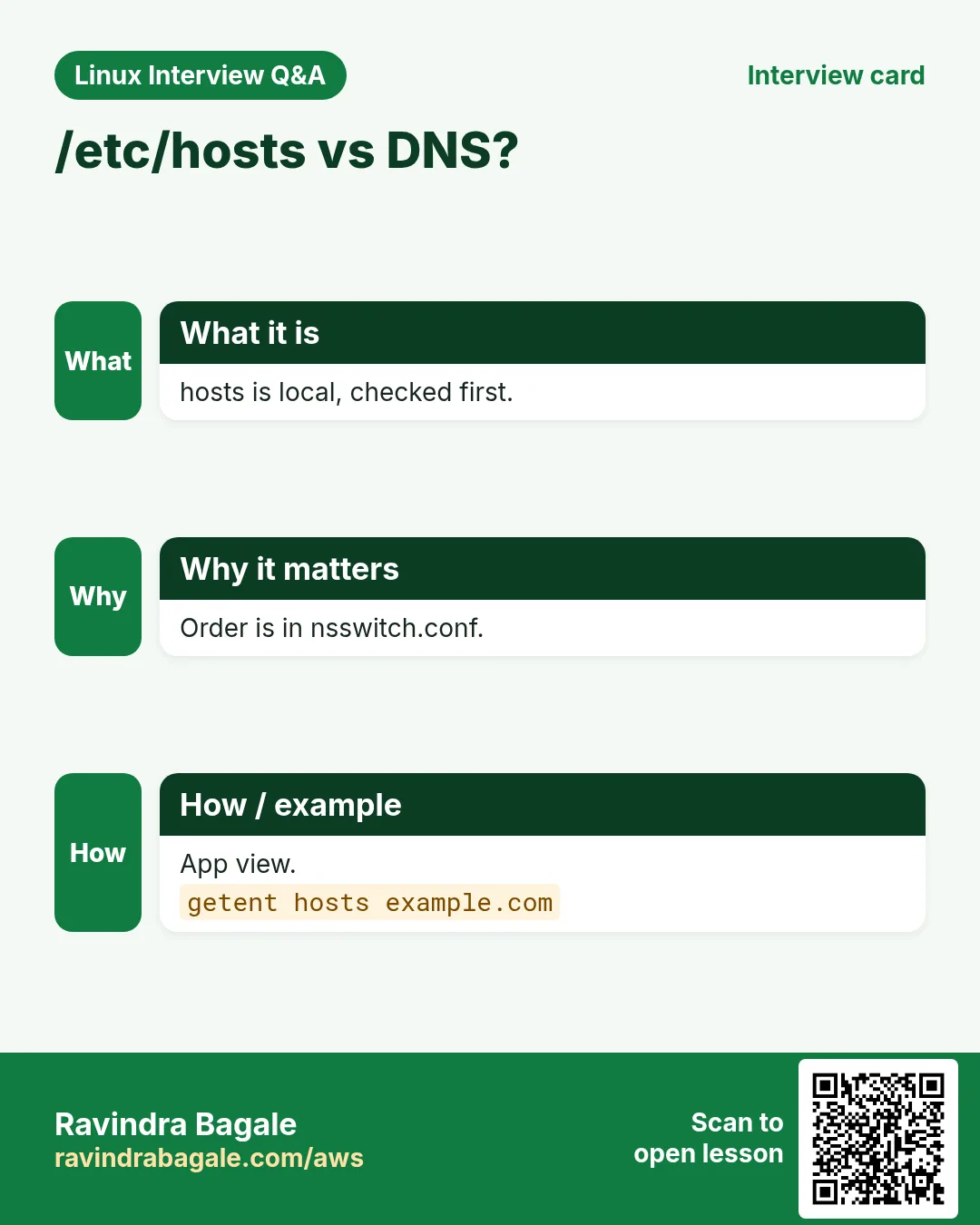
When the browser and dig disagree, check which question each tool asked. dig sends a DNS query. Many applications ask the operating system to look up a name using its configured sources. When that order puts local files first, an entry in /etc/hosts can supply the app’s answer before DNS is consulted. In the lab, compare getent hosts and dig using the same sample name. Write down both outputs and the source each test uses before you change a DNS record.
dig works but the app still gets a different IP. That is because apps also read /etc/hosts first.
/etc/hosts: 'IP name aliases' lines, checked before DNS. /etc/resolv.conf: nameserver and search lines (often managed by systemd-resolved or NetworkManager). /etc/nsswitch.conf 'hosts: files dns' sets the order. getent hosts NAME resolves like an app does (dig does not read /etc/hosts).
- Point a name to a test server.
echo '10.0.5.10 shop.example.com' | sudo tee -a /etc/hostsOutput:
10.0.5.10 shop.example.comOnly this machine sees it.
- App view vs DNS view.
getent hosts shop.example.com; dig +short shop.example.comOutput:
10.0.5.10  shop.example.com
93.184.216.34
getent uses hosts; dig does not.
- Which DNS server?
cat /etc/resolv.confOutput:
search ec2.internal
nameserver 10.0.0.2
search lets you type short names.
- systemd-resolved status.
resolvectl status | head -5Output:
Current DNS Server: 10.0.0.2Real upstream server.
6. curl: talk HTTP
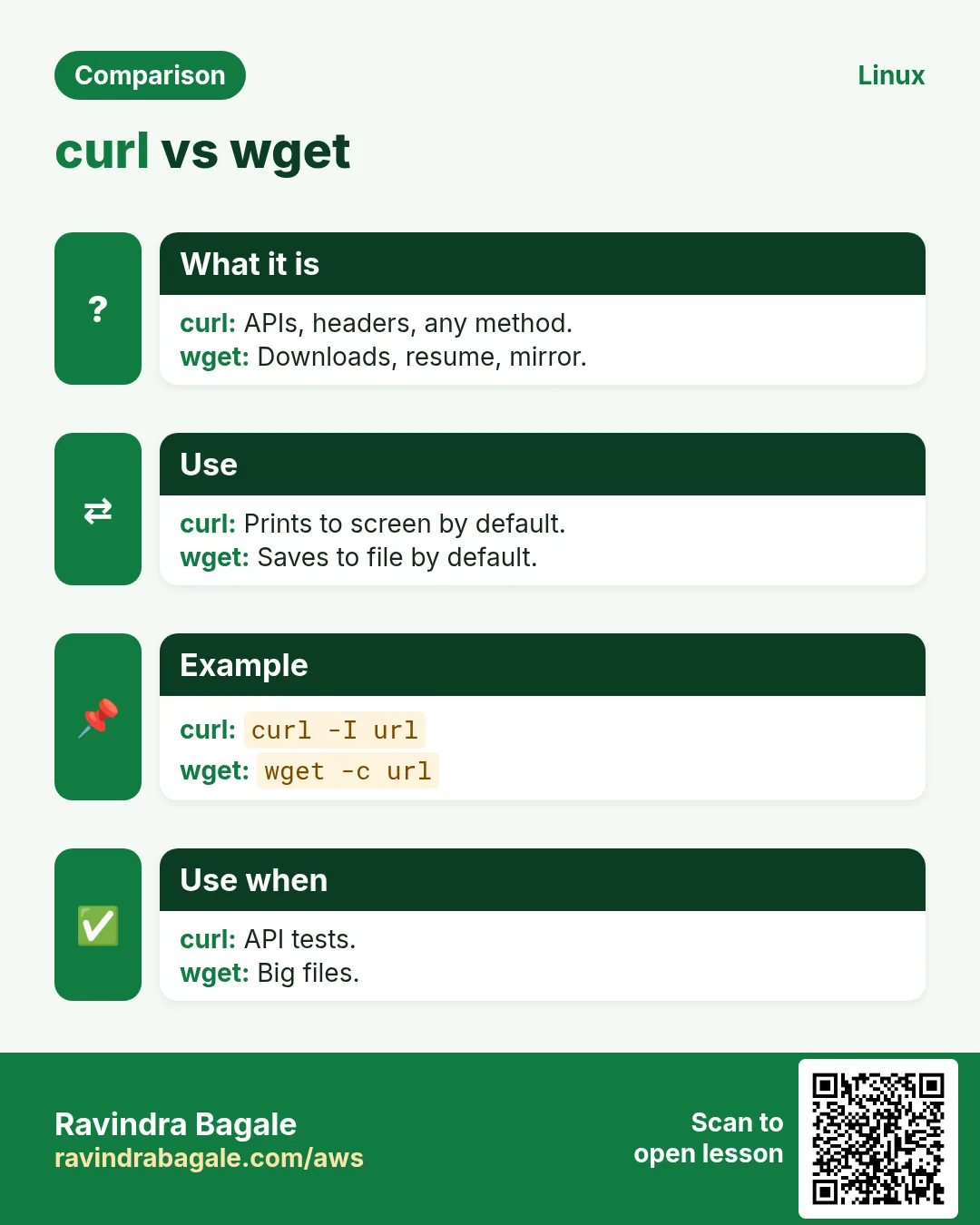
curl tests an API or website exactly as a client would, and shows status codes and errors clearly.
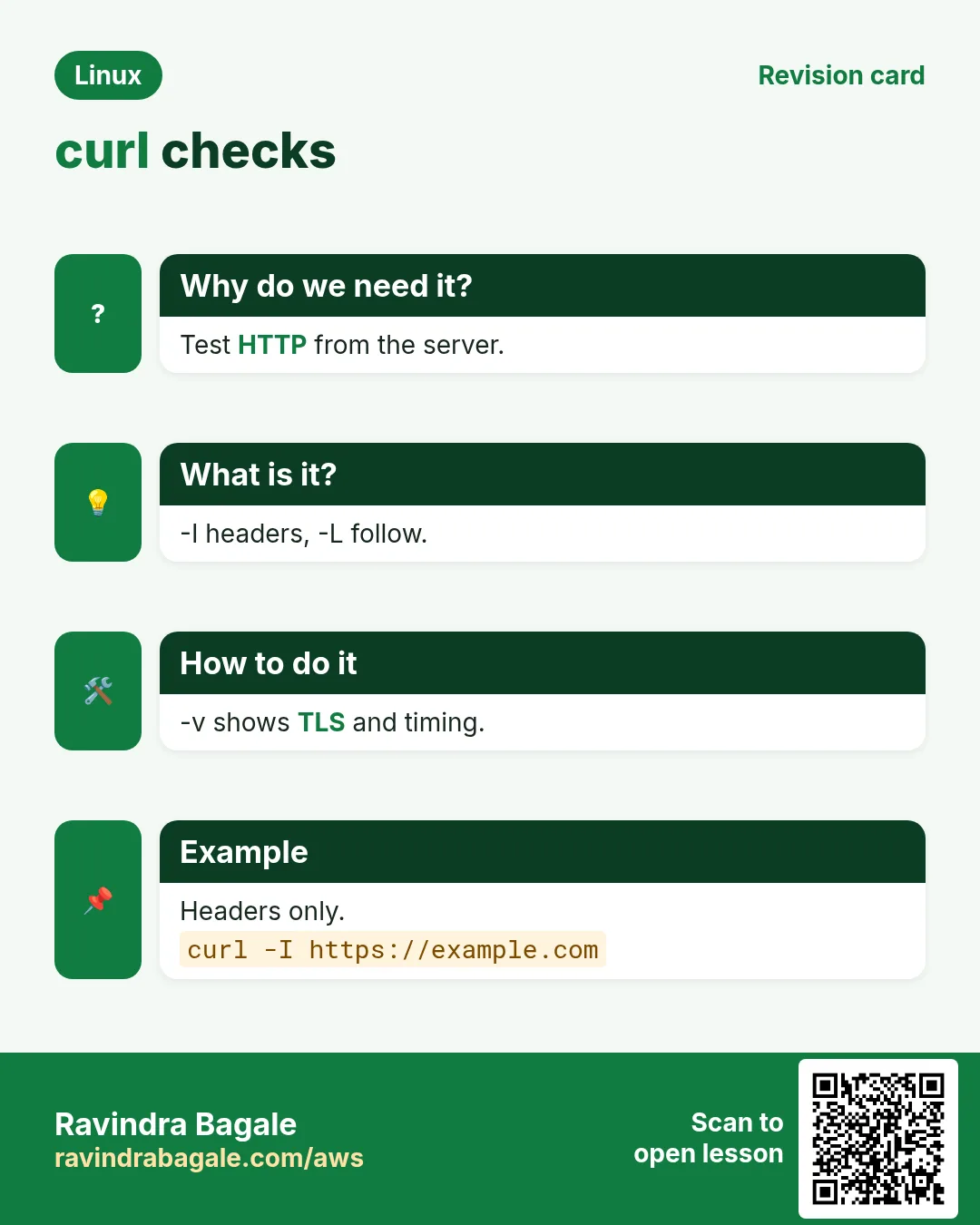
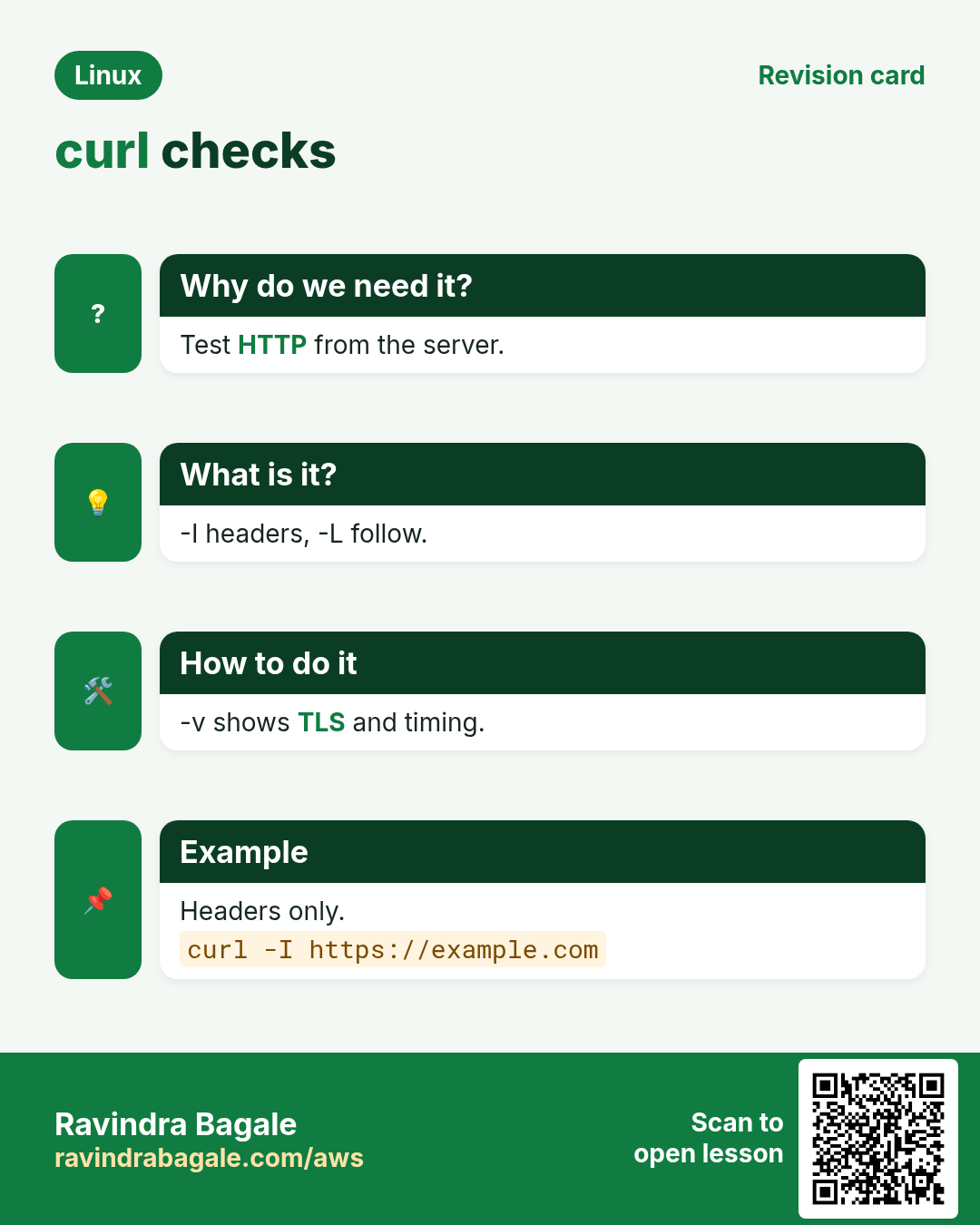
curl URL prints the body. -I headers only (HEAD). -i headers + body. -s silent, -S show errors, -L follow redirects, -o FILE save, -O keep remote name, -w custom output like '%{http_code}'. -v shows the full conversation including TLS.
| Flag | Meaning |
|---|---|
| -I | Headers only |
| -L | Follow redirects |
| -s -S | Quiet but show errors |
| -o / -O | Save to a file |
| -w | Print chosen values |
| -v | Verbose, debug |
- Headers.
curl -I https://shop.example.comOutput:
HTTP/2 200
content-type: text/html
cache-control: max-age=600
Up and cached 10 minutes.
- Only the status code.
curl -s -o /dev/null -w '%{http_code}\n' https://shop.example.com/healthOutput:
200Good for scripts and monitors.
- Timing.
curl -s -o /dev/null -w 'dns %{time_namelookup} connect %{time_connect} total %{time_total}\n' https://shop.example.comOutput:
dns 0.004 connect 0.021 total 0.380Slow part is the server, not DNS.
- Follow redirects.
curl -sIL http://example.com | grep -i '^location\|^HTTP'Output:
HTTP/1.1 301 Moved Permanently
Location: https://example.com/
HTTP/2 200
http goes to https.
7. curl for APIs: -X, -H, -d, -u
Testing a POST or an authenticated API call from a server avoids guessing whether the app or the network is wrong.
-X METHOD sets the method (POST, PUT, DELETE). -H 'Header: value' adds headers. -d DATA sends a body (implies POST). --json DATA (curl 7.82+) sets JSON headers. -u user:pass basic auth. -k skips TLS checks (only for tests!). --resolve host:443:IP tests a server before DNS changes.
- POST JSON.
curl -s -X POST -H 'Content-Type: application/json' -d '{"sku":"A1","qty":2}' https://api.example.com/cartOutput:
{"ok":true,"items":2}Created.
- Bearer token.
curl -s -H "Authorization: Bearer $TOKEN" https://api.example.com/meOutput:
{"user":"ravi"}Token from a variable, not typed.
- Test a new server before DNS.
curl -sI --resolve shop.example.com:443:10.0.5.10 https://shop.example.comOutput:
HTTP/2 200Real name, chosen IP, valid TLS.
8. curl errors you will meet
Test one layer at a time with the local web server in Lab 2. A successful TCP connection proves you reached a listener on the selected port. An HTTP response such as 404 proves the listener answered the request, so check the path or web configuration next. A name lookup error happens earlier, while curl is trying to turn the hostname into an address. An HTTPS certificate error happens after the connection while it tries to establish trust. Write down which stage failed so you choose a useful next test.
curl error messages tell you which layer failed. Learn to read them.
Could not resolve host = DNS. Connection refused = no listener. Connection timed out = firewall/route. SSL certificate problem = TLS. HTTP 4xx = client/request issue, 5xx = server issue. curl -v shows where it stops.
- DNS.
curl https://shp.example.comOutput:
curl: (6) Could not resolve host: shp.example.comTypo in the name.
- TLS.
curl https://10.0.5.10Output:
curl: (60) SSL: no alternative certificate subject name matches target host name '10.0.5.10'Use the name, or --resolve.
- Verbose.
curl -v https://shop.example.com 2>&1 | grep -E '^\* (Trying|Connected|SSL)'Output:
* Trying 93.184.216.34:443...
* Connected to shop.example.com
* SSL connection using TLSv1.3
Each step passed.
9. wget: download files
wget is made for downloads: it resumes broken downloads and can fetch many files.
wget URL saves with the remote name. -O FILE chooses the name. -c continues a partial file. -q quiet. -i list.txt downloads every URL in a file. --tries and --timeout control retries.
- Download.
wget https://downloads.example.com/tool-1.4.tar.gzOutput:
Saving to: 'tool-1.4.tar.gz'
100%[=======>] 12.4M 8.1MB/s in 1.5s
Saved with its name.
- Resume.
wget -c https://releases.example.com/ubuntu.isoOutput:
HTTP request sent... 206 Partial ContentContinues where it stopped.
- curl way.
curl -fLO https://downloads.example.com/tool-1.4.tar.gzOutput:
(progress bar)-f fails on HTTP errors.
wget in depth: -O, -c, -b, -q, --limit-rate, -i and mirror
Servers have no browser. When you need an installer, a backup or a dataset on a server, wget downloads it straight from the terminal and can resume when the network drops.
wget downloads a URL and saves it as a file. By default it keeps the name from the URL and shows a progress bar.
Common options
| Option | What it does |
|---|---|
-O FILE | Save with the name FILE (capital O). |
-c | Continue a half-finished download. |
-b | Run in the background; progress goes to wget-log. |
-q | Quiet: print nothing. |
--limit-rate=RATE | Cap the speed, e.g. 200k or 2m. |
-i FILE | Download every URL listed in FILE. |
-m | Mirror a site (recursive, keeps timestamps). |
-P DIR | Save into folder DIR. |
- Save with your own name using -O.
wget -O node.tar.xz https://nodejs.org/dist/v20.11.0/node-v20.11.0-linux-x64.tar.xzOutput:
Saving to: 'node.tar.xz'
node.tar.xz   100%[=========>]  23.7M  5.1MB/s  in 4.6s
The long URL name is replaced by node.tar.xz.
- Resume after a drop with -c.
wget -c https://releases.ubuntu.com/24.04/ubuntu-24.04-live-server-amd64.isoOutput:
HTTP request sent, awaiting response... 206 Partial Content
Length: 2.6G, 1.1G remaining
206 means the server sent only the missing part.
- Run in the background with -b.
wget -b https://files.example.com/census-2026.csv && tail -2 wget-logOutput:
Continuing in background, pid 4120.
Output will be written to 'wget-log'.
You get the prompt back. Read wget-log to see progress.
- Stay silent in scripts with -q.
wget -q https://files.example.com/rates.json && echo savedOutput:
savedNo progress bar. Check $? or use && to know it worked.
- Do not eat the office bandwidth: --limit-rate.
wget --limit-rate=300k https://files.example.com/training.mp4Output:
training.mp4 12%[=> ] 52M 300KB/sThe speed stays near 300 KB/s so others can work.
- Download a list with -i.
printf "https://files.example.com/a.pdf\nhttps://files.example.com/b.pdf\n" | tee list.txt; wget -i list.txtOutput:
FINISHED --10:21:07--
Downloaded: 2 files, 410K in 0.3s
One URL per line; wget fetches them one by one.
- Copy a small docs site with --mirror.
wget --mirror --convert-links --no-parent https://help.example.com/manual/Output:
FINISHED --10:30:44--
Downloaded: 38 files, 2.1M
A folder help.example.com/ now holds an offline copy. --convert-links makes links work offline.
Practise this in the tasks below: Practice tasks
10. nc (netcat): is the port open?
ping only tests ICMP. nc tests the real TCP port your app needs, in one second.
nc -zv HOST PORT: -z scan only (no data), -v verbose. -w 3 sets a timeout. -u for UDP. nc -l 9000 listens (to test a firewall from the other side). On RHEL, nc is the nmap-ncat package. Bash also has /dev/tcp/HOST/PORT.
- Open port.
nc -zv -w 3 10.0.3.40 5432Output:
Ncat: Connected to 10.0.3.40:5432.Database port reachable.
- Closed port.
nc -zv -w 3 10.0.3.40 6379Output:
Ncat: Connection refused.Nothing listens there.
- Firewall test both sides.
nc -l 9000   (on server B)
nc -zv B 9000   (on server A)
Output:
Ncat: Connected to B:9000.Path and firewall allow 9000.
- Without nc.
timeout 3 bash -c '</dev/tcp/10.0.3.40/5432' && echo openOutput:
openWorks on minimal images.
11. Real examples from many industries
The same Linux skill shows up in every kind of company. Seeing it in many places helps you remember it.
Each row is a made-up team. It shows who uses this and how.
| Team and city | How they use it | Command |
|---|---|---|
| Sneha, travel portal, Pune | Checks status codes in a health script | curl -s -o /dev/null -w '%{http_code}' |
| Mark, media, Toronto | Tests new servers with --resolve before DNS cutover | curl --resolve shop.example.com:443:10.0.5.10 |
| Fatima, telecom, Dubai | Finds stale DNS by comparing resolvers | dig +short @1.1.1.1 NAME |
| Ola, fintech, Oslo | Proves firewall rules with nc | nc -zv -w 3 10.0.3.40 5432 |
| Ken, factory IoT, Nagoya | Downloads firmware with resume | wget -c URL |
| Aditya, startup, Kolhapur | Uses /etc/hosts for local testing | getent hosts shop.example.com |
12. Common errors and how to fix them
Everyone hits these errors. Knowing the cause saves hours.
Read the exact message first. Then match it to a row below.
| Error you see | Why it happens | How to fix |
|---|---|---|
curl: (6) Could not resolve host | DNS lookup failed or typo | Check name and resolver.dig +short NAME |
curl: (7) Failed to connect ... Connection refused | No listener on the port | Check the service on the target.sudo ss -ltnp |
curl: (28) Connection timed out | Firewall, security group or route | Test with nc, check rules.nc -zv -w 3 HOST PORT |
curl: (60) SSL certificate problem | Wrong name, expired or untrusted cert | Check the cert; never use -k in production.curl -v https://HOST |
dig: command not found | bind-utils/dnsutils missing | Install it.sudo dnf install -y bind-utils |
dig works but app gets old IP | /etc/hosts entry or app cache | Check how the app resolves.getent hosts NAME |
status: SERVFAIL | DNS server could not answer (DNSSEC or upstream) | Try another resolver.dig @8.8.8.8 NAME |
status: NXDOMAIN | Name does not exist | Check spelling or the zone.dig NAME +trace |
HTTP/1.1 403 Forbidden | Server refused: permissions or WAF | Check auth headers and server rules.curl -i -H 'Authorization: Bearer ...' URL |
HTTP/1.1 502 Bad Gateway | Proxy cannot reach the backend | Check the backend port from the proxy.nc -zv 127.0.0.1 3000 |
13. Troubleshooting step by step
Split the problem: name, connect, TLS, HTTP.
Go top to bottom. Stop at the first step that shows the problem.
- Name resolves like the app?
getent hosts NAME- DNS answer and server?
dig NAME- Port reachable?
nc -zv -w 3 HOST 443- TLS ok?
curl -vI https://NAME- HTTP status?
curl -s -o /dev/null -w '%{http_code}' https://NAME- Where is time spent?
curl -s -o /dev/null -w '%{time_namelookup} %{time_connect} %{time_total}' https://NAME14. Lab 1: Follow a name from hosts to DNS
See how /etc/hosts overrides DNS for apps but not for dig.
A full hands-on lab. Run every step on a test Linux machine (an EC2 instance, a VM, or WSL).
- DNS answer.
dig +short example.comOutput:
93.184.216.34- Add an override.
echo '127.0.0.1 example.com' | sudo tee -a /etc/hostsOutput:
127.0.0.1 example.com- App view.
getent hosts example.comOutput:
127.0.0.1 example.com- dig still says DNS.
dig +short example.comOutput:
93.184.216.34- Remove the line.
sudo sed -i '/127.0.0.1 example.com/d' /etc/hostsOutput:
(no output)15. Lab 2: Test a web service layer by layer
Run a tiny local web server and test it with nc and curl.
A full hands-on lab. Run every step on a test Linux machine (an EC2 instance, a VM, or WSL).
- Start a server.
python3 -m http.server 8000 --bind 127.0.0.1Output:
Serving HTTP on 127.0.0.1 port 8000- In another terminal, check the port.
nc -zv 127.0.0.1 8000Output:
Connected to 127.0.0.1:8000- Headers.
curl -I http://127.0.0.1:8000/Output:
HTTP/1.0 200 OK- A missing file.
curl -s -o /dev/null -w '%{http_code}\n' http://127.0.0.1:8000/nopeOutput:
404- Stop it and retry.
curl http://127.0.0.1:8000/Output:
curl: (7) Failed to connect ... Connection refusedRavindra Bagale's Tip
Use getent hosts NAME, not only dig, when an app gets the 'wrong' IP. dig asks DNS directly and skips /etc/hosts, but your app follows nsswitch.conf and reads /etc/hosts first.
Ravindra Bagale's Tip – मराठी
App ला 'चुकीचा' IP मिळतो तेव्हा फक्त dig नाही, getent hosts NAME वापरा. dig थेट DNS ला विचारतो आणि /etc/hosts skip करतो, पण तुमचं app nsswitch.conf पाळतं आणि आधी /etc/hosts वाचतं.
Ravindra Bagale's Tip – हिंदी
जब app को 'गलत' IP मिले तो सिर्फ dig नहीं, getent hosts NAME इस्तेमाल करें. dig सीधे DNS से पूछता है और /etc/hosts छोड़ देता है, पर आपका app nsswitch.conf मानता है और पहले /etc/hosts पढ़ता है.
16. Frequently asked questions
Q. dig or nslookup?
dig for detail and scripts; nslookup is fine for quick checks.
Q. What is TTL?
How many seconds resolvers may cache the answer.
Q. curl or wget?
curl for APIs and testing; wget for simple or resumable downloads.
Q. Is curl -k safe?
Only for quick tests; it disables certificate checks.
Q. Why does DNS change take time?
Old answers stay cached until TTL expires.
Q. nc not found on RHEL?
Install nmap-ncat.
Q. How to test UDP?
nc -zvu HOST PORT, but results are less reliable.
Q. Where are DNS servers set?
resolv.conf, often generated by systemd-resolved or NetworkManager.
17. Interview questions and answers
Beginner level
Q. Get only the IP of a name?
dig +short NAME.
Q. Show HTTP headers?
curl -I URL.
Q. Download a file?
wget URL or curl -O URL.
Q. Test a TCP port?
nc -zv HOST PORT.
Mid level level
Q. Why might dig and ping show different IPs?
ping uses /etc/hosts via nsswitch; dig asks DNS only.
Q. Print only the HTTP status?
curl -s -o /dev/null -w '%{http_code}' URL.
Q. Query a specific DNS server?
dig @SERVER NAME.
Q. Resume a download?
wget -c URL.
Senior level
Q. Test a new load balancer before DNS cutover?
curl --resolve name:443:IP to keep SNI and cert checks.
Q. Lower TTL before migration, why?
So clients pick up the new IP quickly.
Q. Measure where latency comes from?
curl -w timings: namelookup, connect, appconnect, starttransfer.
Q. 502 from nginx: steps?
Check upstream port with nc from the proxy, upstream logs, and timeouts.
Try at home
- Look up A, MX and TXT records of three domains with dig and note their TTLs.
- Write a one-line curl that prints status and total time for a site, and run it five times.
Practise this chapter
Interview questions and answers
dig returns the expected address but the app uses another address. What would you compare?
Compare a lookup through the operating system, such as getent hosts, with the direct DNS query. The app may use local host mappings or a different cache before DNS. Identify the source of each result before changing records.
Check your understanding
Choose an answer, then compare your reasoning with the explanation.
Practice Tasks
Practice checks run in your browser. They check the answer for this exercise; they do not create resources or connect to your AWS account.
About this scenarioVidarbha Cotton Mills is a textiles business in Nagpur. Ganesh Wankhede looks after its IT and cloud work. They count money in INR and run their AWS resources in the ap-south-1 Region. In the tasks below you do real jobs for them using what this lesson teaches. All names, account IDs, IP addresses and numbers are made up for practice.
0 / 23
Easy IPv6 record
Names and HTTP break more often than cables.
Get only the IPv6 address of example.org.
- Find the Linux command that does this job.
- Add the options (like -r or -h) the task needs.
- Add the file names, folders or users in the right order.
- Use sudo if the job changes system files or users. Click Check answer.
Easy TXT records
Names and HTTP break more often than cables.
Show only the TXT records of example.org.
- Find the Linux command that does this job.
- Add the options (like -r or -h) the task needs.
- Add the file names, folders or users in the right order.
- Use sudo if the job changes system files or users. Click Check answer.
Easy host for MX
Names and HTTP break more often than cables.
Use host to get the mail servers of example.org.
- Find the Linux command that does this job.
- Add the options (like -r or -h) the task needs.
- Add the file names, folders or users in the right order.
- Use sudo if the job changes system files or users. Click Check answer.
Easy nslookup a name
Names and HTTP break more often than cables.
Look up intranet.local with nslookup.
- Find the Linux command that does this job.
- Add the options (like -r or -h) the task needs.
- Add the file names, folders or users in the right order.
- Use sudo if the job changes system files or users. Click Check answer.
Easy Headers only
Names and HTTP break more often than cables.
Show only the headers of https://example.org.
- Find the Linux command that does this job.
- Add the options (like -r or -h) the task needs.
- Add the file names, folders or users in the right order.
- Use sudo if the job changes system files or users. Click Check answer.
Easy Save as
Names and HTTP break more often than cables.
Download https://example.org/a.zip and save as pkg.zip with curl.
- Find the Linux command that does this job.
- Add the options (like -r or -h) the task needs.
- Add the file names, folders or users in the right order.
- Use sudo if the job changes system files or users. Click Check answer.
Easy wget with a name
Names and HTTP break more often than cables.
Download https://example.org/x.tgz and save as tool.tgz with wget.
- Find the Linux command that does this job.
- Add the options (like -r or -h) the task needs.
- Add the file names, folders or users in the right order.
- Use sudo if the job changes system files or users. Click Check answer.
Easy Port check
Names and HTTP break more often than cables.
Check if port 6379 on 10.0.4.9 is open, verbose, scan only.
- Find the Linux command that does this job.
- Add the options (like -r or -h) the task needs.
- Add the file names, folders or users in the right order.
- Use sudo if the job changes system files or users. Click Check answer.
Easy Silent download
Names and HTTP break more often than cables.
Download https://example.org/agent.rpm with wget and print nothing.
- Find the Linux command that does this job.
- Add the options (like -r or -h) the task needs.
- Add the file names, folders or users in the right order.
- Use sudo if the job changes system files or users. Click Check answer.
Easy Download a list
Names and HTTP break more often than cables.
Download every URL listed in the file mirrors.txt with wget.
- Find the Linux command that does this job.
- Add the options (like -r or -h) the task needs.
- Add the file names, folders or users in the right order.
- Use sudo if the job changes system files or users. Click Check answer.
Medium Ask Quad9
Names and HTTP break more often than cables.
Ask DNS server 9.9.9.9 for api.example.org, short answer.
- Find the Linux command that does this job.
- Add the options (like -r or -h) the task needs.
- Add the file names, folders or users in the right order.
- Use sudo if the job changes system files or users. Click Check answer.
Medium Reverse lookup
Names and HTTP break more often than cables.
Find the name for IP 1.1.1.1 with dig.
- Find the Linux command that does this job.
- Add the options (like -r or -h) the task needs.
- Add the file names, folders or users in the right order.
- Use sudo if the job changes system files or users. Click Check answer.
Medium Authoritative servers
Names and HTTP break more often than cables.
List the name servers of example.org, short.
- Find the Linux command that does this job.
- Add the options (like -r or -h) the task needs.
- Add the file names, folders or users in the right order.
- Use sudo if the job changes system files or users. Click Check answer.
Medium App view of a name
Names and HTTP break more often than cables.
Resolve billing.internal the way apps do (hosts file included).
- Find the Linux command that does this job.
- Add the options (like -r or -h) the task needs.
- Add the file names, folders or users in the right order.
- Use sudo if the job changes system files or users. Click Check answer.
Medium Follow redirects headers
Names and HTTP break more often than cables.
Show headers of http://example.org while following redirects.
- Find the Linux command that does this job.
- Add the options (like -r or -h) the task needs.
- Add the file names, folders or users in the right order.
- Use sudo if the job changes system files or users. Click Check answer.
Medium DELETE request
Names and HTTP break more often than cables.
Send a DELETE request to https://api.example.org/items/9.
- Find the Linux command that does this job.
- Add the options (like -r or -h) the task needs.
- Add the file names, folders or users in the right order.
- Use sudo if the job changes system files or users. Click Check answer.
Medium Resume
Names and HTTP break more often than cables.
Resume the download of https://example.org/big.iso.
- Find the Linux command that does this job.
- Add the options (like -r or -h) the task needs.
- Add the file names, folders or users in the right order.
- Use sudo if the job changes system files or users. Click Check answer.
Medium Listen
Names and HTTP break more often than cables.
Listen on TCP port 7000 with nc to test a firewall.
- Find the Linux command that does this job.
- Add the options (like -r or -h) the task needs.
- Add the file names, folders or users in the right order.
- Use sudo if the job changes system files or users. Click Check answer.
Medium Download in background
Names and HTTP break more often than cables.
Download https://example.org/dump.sql.gz in the background with wget.
- Find the Linux command that does this job.
- Add the options (like -r or -h) the task needs.
- Add the file names, folders or users in the right order.
- Use sudo if the job changes system files or users. Click Check answer.
Medium Slow download
Names and HTTP break more often than cables.
Download https://example.org/video.mp4 with wget at most 500k per second.
- Find the Linux command that does this job.
- Add the options (like -r or -h) the task needs.
- Add the file names, folders or users in the right order.
- Use sudo if the job changes system files or users. Click Check answer.
Hard Just the code
Names and HTTP break more often than cables.
Print only the HTTP status code of https://example.org/status, discarding the body.
- Find the Linux command that does this job.
- Add the options (like -r or -h) the task needs.
- Add the file names, folders or users in the right order.
- Use sudo if the job changes system files or users. Click Check answer.
Hard Test before DNS
Names and HTTP break more often than cables.
Fetch headers of https://pay.example.org but connect to 10.0.6.6.
- Find the Linux command that does this job.
- Add the options (like -r or -h) the task needs.
- Add the file names, folders or users in the right order.
- Use sudo if the job changes system files or users. Click Check answer.
Hard Mirror a site
Names and HTTP break more often than cables.
Make an offline mirror of https://docs.example.org/ with wget.
- Find the Linux command that does this job.
- Add the options (like -r or -h) the task needs.
- Add the file names, folders or users in the right order.
- Use sudo if the job changes system files or users. Click Check answer.
18. Related chapters
- Linux Ops Refresh for DevOps
- Bash Scripting for Automation
- Linux grep and find Commands with Examples
- How to Set Up Passwordless SSH Between Linux Servers
In short
- dig, nslookup and host ask DNS.
- /etc/hosts comes first for apps; getent shows the app view.
- curl -I, -L, -w, -v test HTTP.
- curl -X, -H, -d test APIs; --resolve tests before DNS.
- wget -c resumes downloads.
- nc -zv tests ports.
Revision, comparison and interview cards
Revise this lesson in a few minutes. Save the cards on your phone or download them as PNG files. The QR code on each card opens this lesson.


More cards: Ravi Sir's Cards.