How to Use scp to Copy Files to EC2 (Upload and Download)
In the previous chapter we put images on our page from another website and with wget. But a developer doesn't hand you a web address; they hand you files on a laptop. Now we learn scp, the command that copies files from your laptop to the server and back, safely. We upload an image and a PDF, download a file, upload a whole website as one zip file, take a backup of a live site, and at the end we replace Apache with Nginx on the same server. Keep your server and your laptop terminal ready.
In this class
- Why
wgetis not enough, and whatscpdoes - Why it's called secure copy
- The scp command:
-ikey, source and destination, and the colon - Running scp from the laptop terminal, not inside SSH
- Uploading an image and using it on a page
- Case-sensitive names and the
../path - PDFs, spaces in names and
%20 - Downloading from the server to your laptop
- Naming rules for files and folders
- Uploading a whole website as one zip file, and
scp -r - Unzipping in
/var/www/htmland fixinghtmlinsidehtml - Taking a backup of a live website
- Apache, Nginx and Tomcat
- Switching the same server from Apache to Nginx
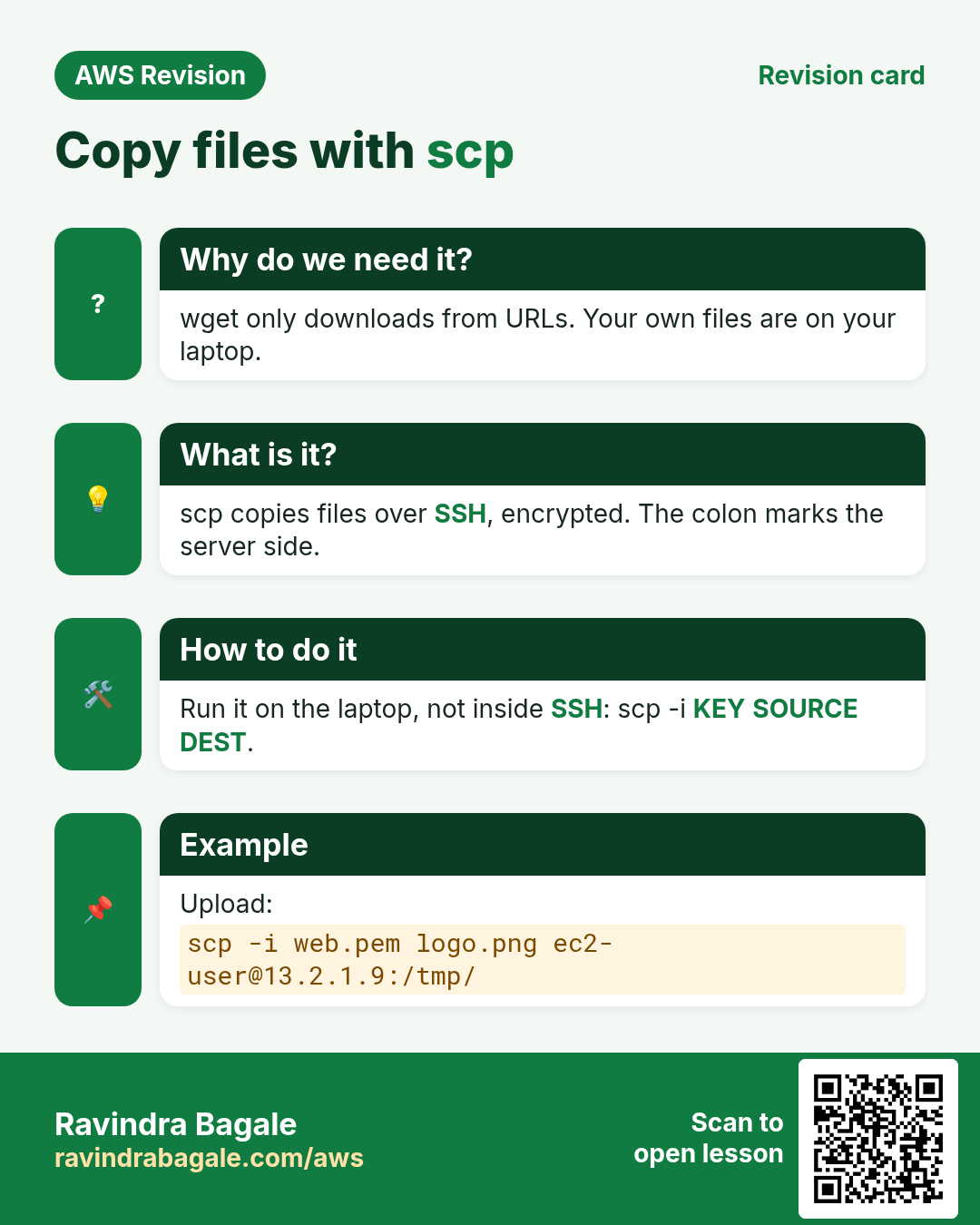
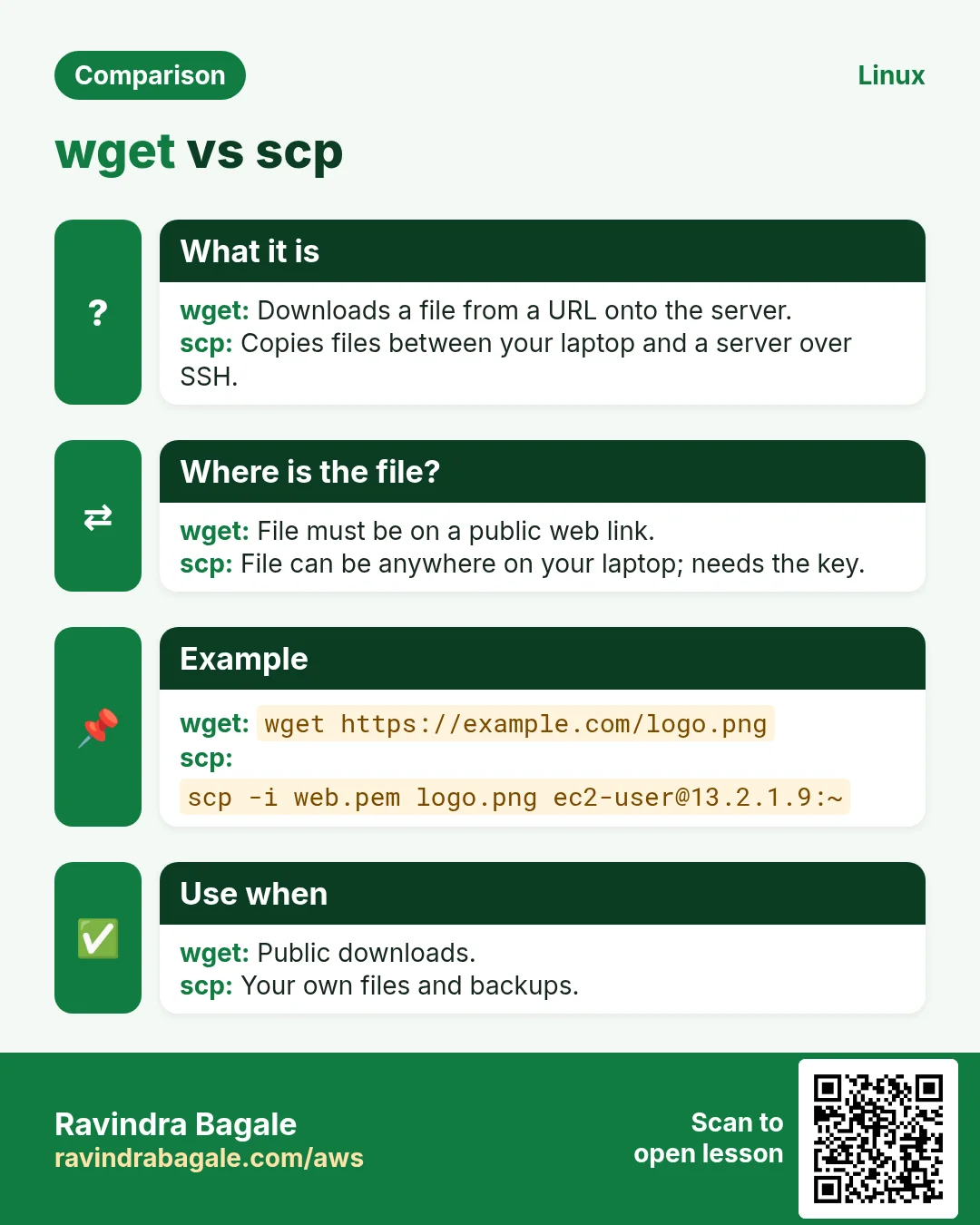
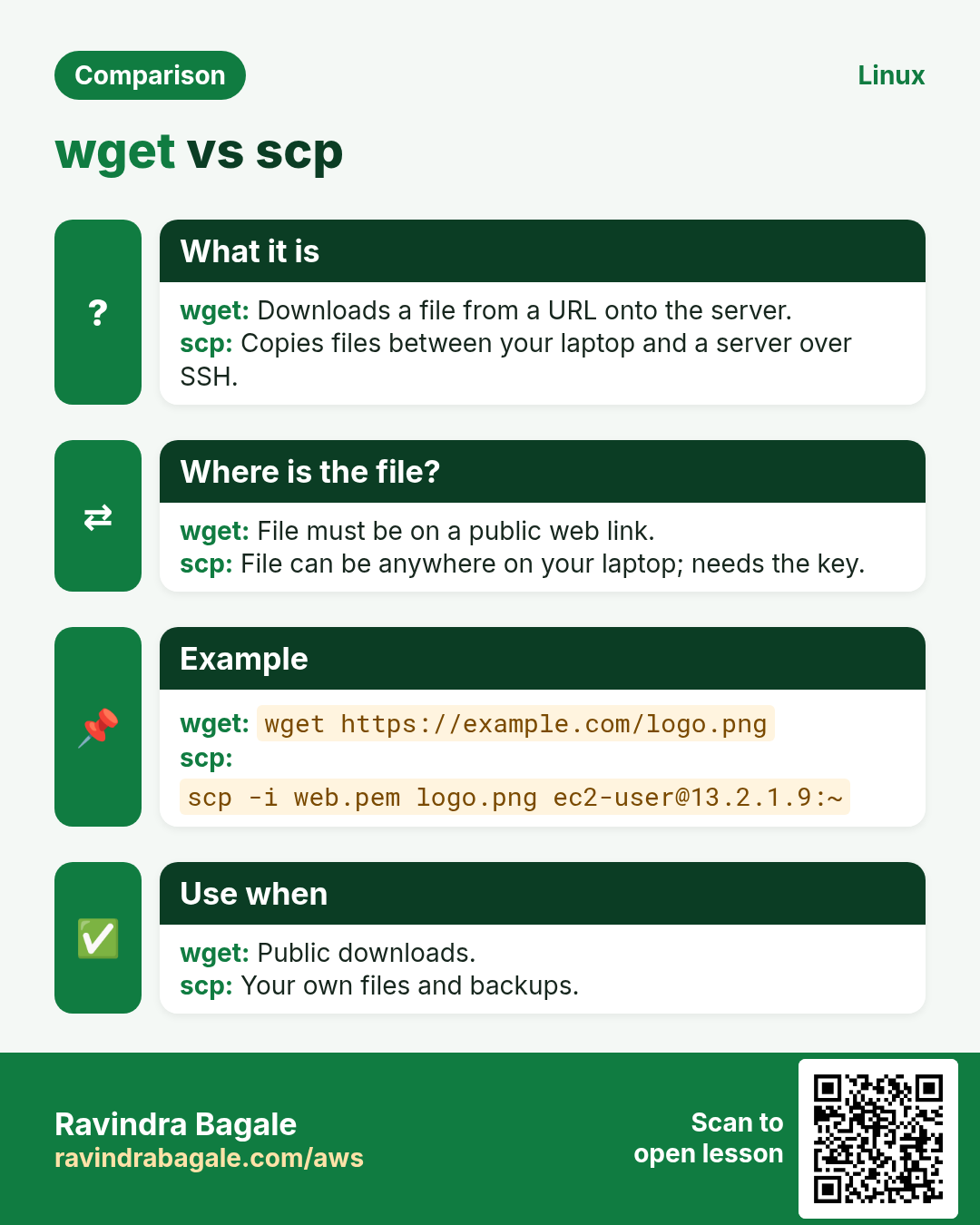
1. Why scp: wget only downloads from websites
wget runs on the server and downloads a file from a web address. It can't do two jobs you need every day:
- Upload: copy a file from your laptop to the server. Your laptop is not a website, so the server can't
wgetfrom it. - Download: copy a file from the server to your laptop, for example a backup.
scp (secure copy) does both. It copies files between two machines over SSH, with the same key pair you use to log in. Any kind of file works: an image, a video, a PDF, a zip, a text file.
Classroom line
To download from the server or upload to the server: the scp command.
Class मधलं वाक्य
"Server varna download karaychay, server la upload karaychay, SCP command."
Server वरून download करायचंय, server ला upload करायचंय: SCP command.
Classroom line
To download from the server or upload to the server: the scp command.
Why "secure". Your file travels over the public internet between your laptop and AWS. scp encrypts it on the way, so anyone who captures it in between sees only scrambled data, not your photo or your code.
Classroom line
They may see the data, but only as encrypted text; they won't understand what's inside.
Class मधलं वाक्य
"Data disu shakte mhanje encrypted text disel tyala, pan tyacha aat content kay ahe te samajhnaar nahi."
Data दिसू शकतो, म्हणजे त्याला encrypted text दिसेल, पण त्याच्या आत content काय आहे ते समजणार नाही.
Classroom line
They may see the data, but only as encrypted text; they won't understand what's inside.
Figure 1. wget runs on the server and pulls a file from a website. scp runs on your laptop and copies files both ways over SSH, encrypted.
2. The scp command
Mark the local side and the server side before copying
Run scp from your laptop terminal for this lab. An argument such as image.png names a file relative to the current laptop folder. An argument such as ec2-user@SERVER:uploads/ names the remote endpoint; the path after the colon is relative to the remote login’s home here. Fill in your own lab host and check that the destination folder already exists.
For a download, put the remote argument first and a local destination second. If that local destination is a dot, the copy goes into the laptop’s current directory. Run pwd immediately before and after if you are unsure where the file landed. The SSH key path passed with -i remains a path on the laptop.
You already type ssh to log in. scp reuses the same key, user and IP, so there is nothing new to set up: you only add what to copy and where.
You already know the SSH command:
ssh -i mykey.pem ec2-user@PUBLIC_IP
scp looks almost the same, with a source and a destination added:
scp -i mykey.pem SOURCE DESTINATION
scp: the program.-i mykey.pem: your key, the same one you use for SSH.SOURCE: the file you copy.DESTINATION: where the copy goes.
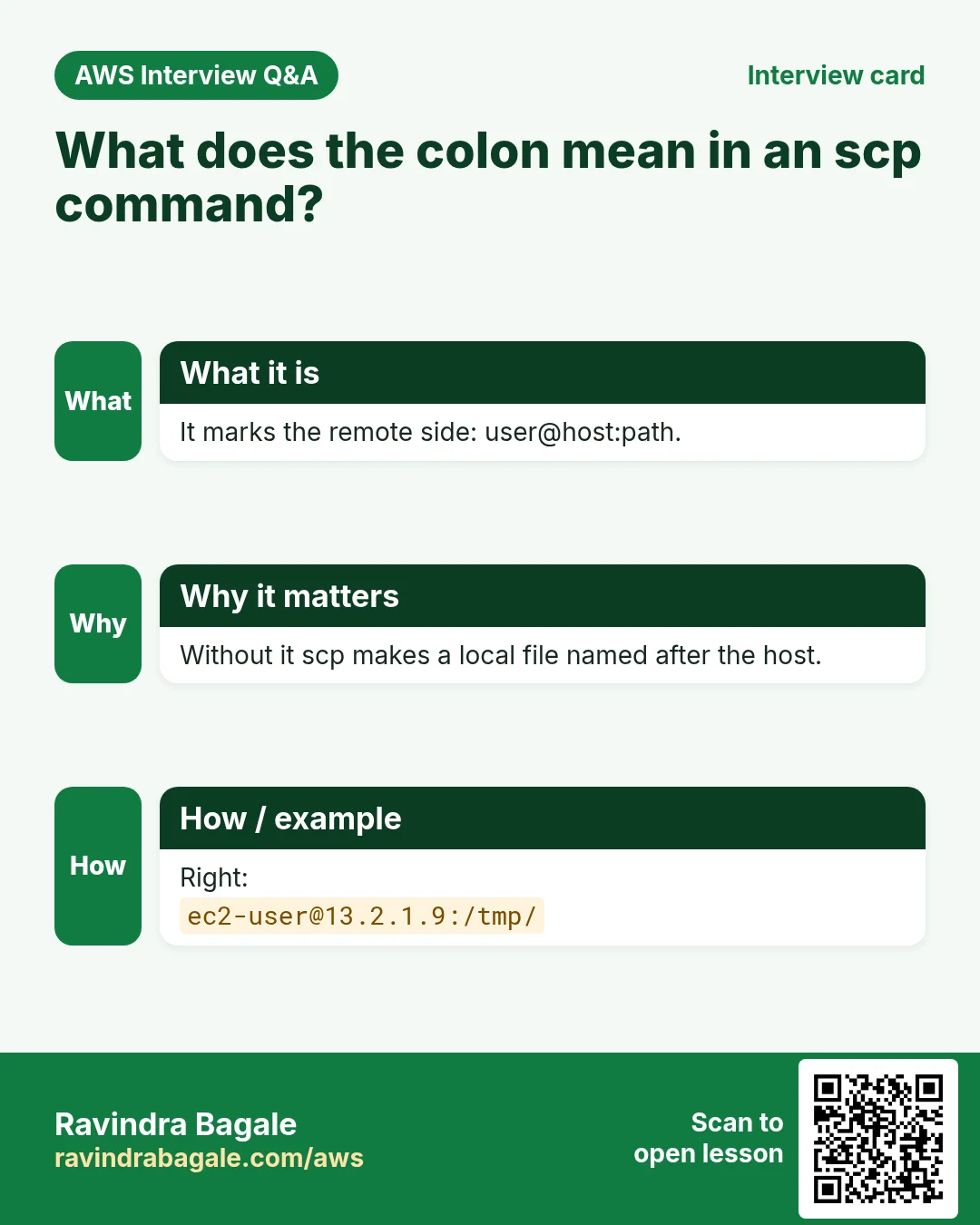
When one side is the server, write it as user@server:path. The colon is what tells scp "this is on another machine":
ec2-user@PUBLIC_IP:.puts the file in the home folder,/home/ec2-user. The dot means "the home folder".ec2-user@PUBLIC_IP:with nothing after the colon also means the home folder.ec2-user@PUBLIC_IP:raviputs it in the folderraviinside the home folder.
Figure 2. The four parts of an scp command, and what the colon and the path after it mean.
Example 1: the colon matters. If you forget the colon, scp doesn't connect to anything. It just makes a copy on your laptop, with a file name like ec2-user@PUBLIC_IP., and nothing goes to the server. Always end the server side with : and a path.
3. Upload an image and use it on a page
This is the everyday job: a photo on your laptop has to appear on the website.
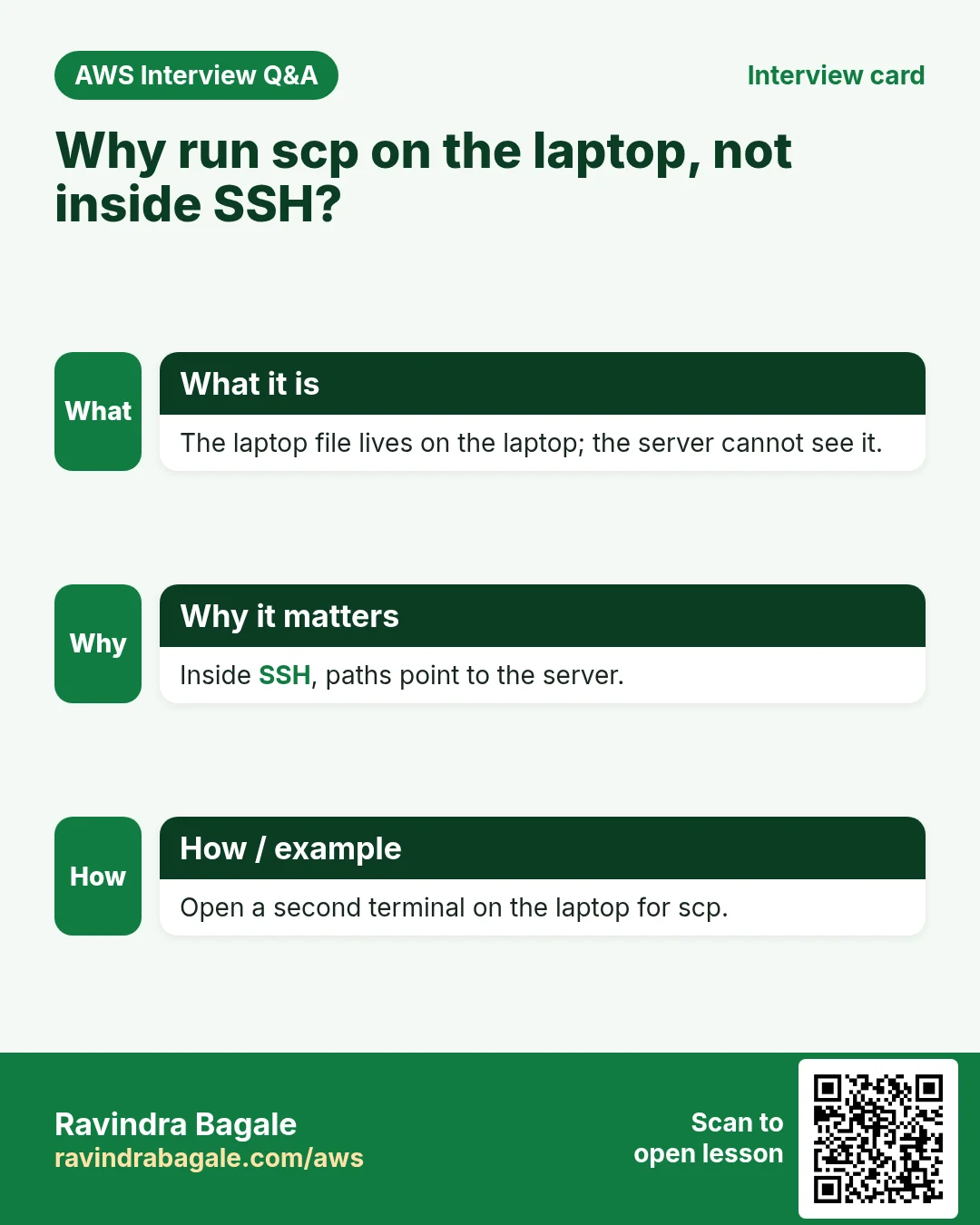
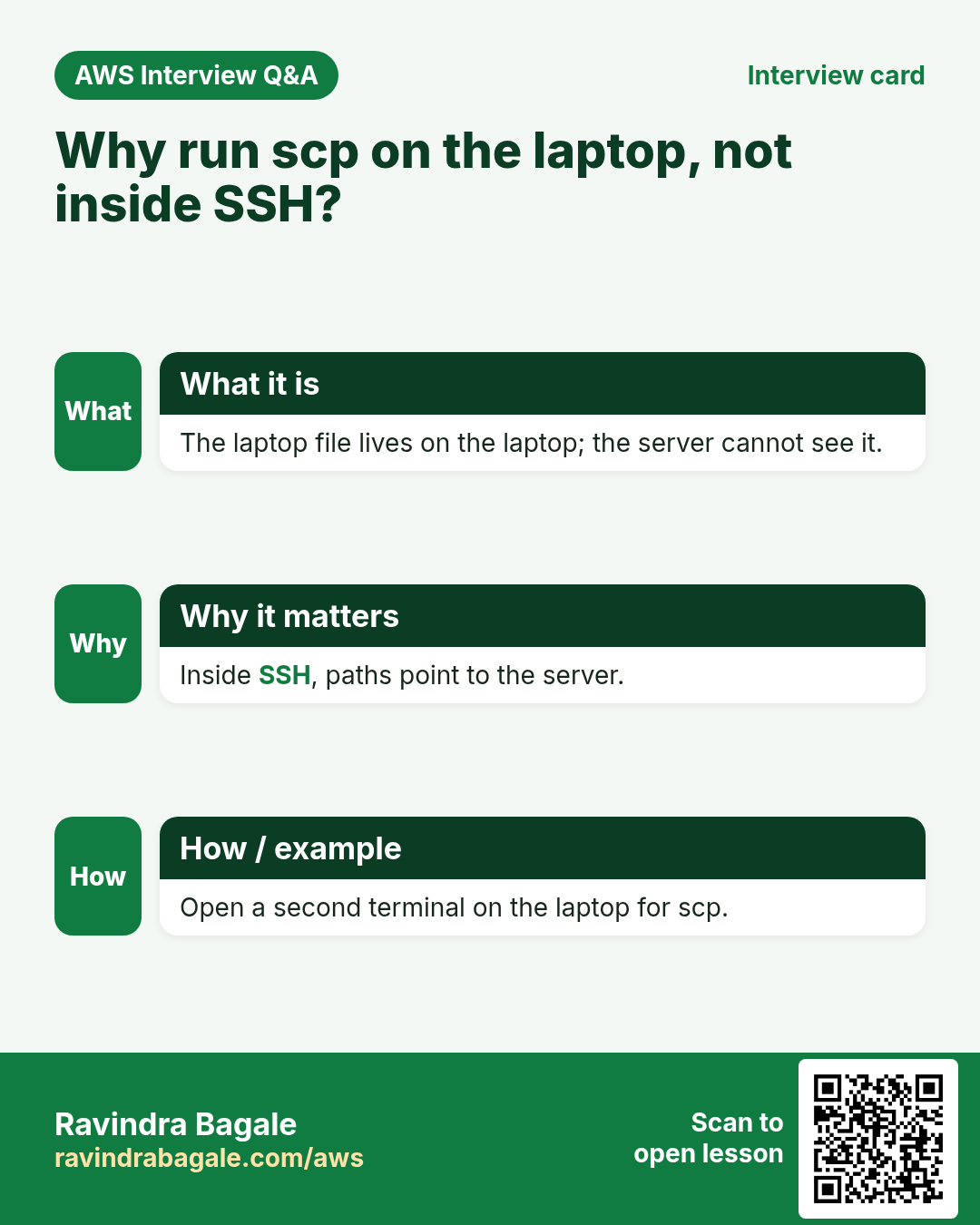
Where to run scp. On your laptop, in a second terminal window or tab (PowerShell on Windows, Terminal on Mac or Linux). Not inside the SSH session: the server can't see your laptop's files, so the copy has to start from the laptop.
Classroom line
Where do you run this command? Outside the server.
Class मधलं वाक्य
"He command kuthe fire karnar? Server chya baher."
ही command कुठे fire करणार? Server च्या बाहेर.
Classroom line
Where do you run this command? Outside the server.
Suppose your key mykey.pem is in Downloads and the photo beach.jpg is on the Desktop.
Step 1. Open PowerShell (or Terminal). It starts in your user folder, so Downloads and Desktop are right there.
Step 2. Type the command. Use Tab to fill in the paths: type two or three letters and press Tab.
scp -i .\Downloads\mykey.pem .\Desktop\beach.jpg ec2-user@PUBLIC_IP:.
On Windows the folders in a path are separated by a backslash, \. On Mac or Linux they are separated by /: scp -i Downloads/mykey.pem Desktop/beach.jpg ec2-user@PUBLIC_IP:.
Step 3. The first time you connect to a server from this laptop, you're asked to trust it. Type yes:
The authenticity of host 'PUBLIC_IP (PUBLIC_IP)' can't be established.
ED25519 key fingerprint is SHA256:...
Are you sure you want to continue connecting (yes/no/[fingerprint])? yes
Step 4. Wait for 100%:
beach.jpg 100% ...KB ...KB/s 00:00
Classroom line
After doing this, what should happen? It should show 100%.
Class मधलं वाक्य
"Evdha kelyanantar kay zala pahije? 100% dakhvayla pahije."
एवढं केल्यानंतर काय झालं पाहिजे? 100% दाखवायला पाहिजे.
Classroom line
After doing this, what should happen? It should show 100%.
Step 5. In your SSH session, check that it arrived and move it into the web root:
[ec2-user@ip-172-31-xx-xx ~]$ ls
beach.jpg
[ec2-user@ip-172-31-xx-xx ~]$ sudo mv beach.jpg /var/www/html/
The file lands in the home folder because that's where ec2-user may write. /var/www/html belongs to root, so the move needs sudo.
Step 6. Use it on a page:
cd /var/www/html
sudo nano beach.html
Type:
<img src="beach.jpg" width="600">
Step 7. Open http://PUBLIC_IP/beach.html.
Classroom line
Don't type the whole path by hand. Type one or two characters and press Tab.
Class मधलं वाक्य
"Path lihitana swatahun hatana lihu naka. Ek don character liha ani tab press kara."
Path लिहिताना स्वतःहून हाताने लिहू नका. एक-दोन characters लिहा आणि Tab press करा.
Classroom line
Don't type the whole path by hand. Type one or two characters and press Tab.
If the site doesn't open after you restarted the instance.
- Apache is stopped after a stop and start. Run
sudo service httpd start(orsudo systemctl enable httpdonce, so it starts at every boot). - Type
http://in front of the IP yourself. If the browser trieshttps://(port 443), and the Security Group allows only port 80, the page waits and then times out.
Classroom line
When we stop the server, the web server stops too.
Class मधलं वाक्य
"Apan jya veli server band karto tya veli web server band hoto."
आपण ज्या वेळी server बंद करतो त्या वेळी web server बंद होतो.
Classroom line
When we stop the server, the web server stops too.
4. Case-sensitive names and the ../ path
A file that uploaded fine can still show as a broken image. The two usual reasons are a capital letter in the name and a wrong relative path, and both are quick to check.
Example 2: a capital letter breaks the image. The uploaded file is called Beach.jpg, but the page says <img src="beach.jpg">. The page shows a broken image. Linux file names are case-sensitive: Beach.jpg and beach.jpg are two different names. Write the name exactly as ls shows it, or rename the file.
Example 3: an image one folder up. Make a sub-folder with its own page:
cd /var/www/html
sudo mkdir gallery
cd gallery
sudo nano photos.html
The image is in /var/www/html, one level above gallery. So the page goes one level up with ../:
<img src="../beach.jpg">
Open http://PUBLIC_IP/gallery/photos.html. With only src="beach.jpg", the browser would look for /gallery/beach.jpg and show a broken image.
Figure 3. photos.html is inside gallery and the image is one level up, so the src is ../beach.jpg. Linux names are case-sensitive.
5. A PDF, and spaces in names
Real sites serve more than images: brochures, forms, price lists. And files from laptops often have spaces in their names, which the shell splits unless you quote them.
Any file type works the same way. Upload a PDF (if you have none, download a sample PDF from the internet):
Step 1. On the laptop:
scp -i .\Downloads\mykey.pem .\Downloads\notes.pdf ec2-user@PUBLIC_IP:.
Step 2. On the server:
sudo mv notes.pdf /var/www/html/
Step 3. Open http://PUBLIC_IP/notes.pdf. The browser opens the PDF.
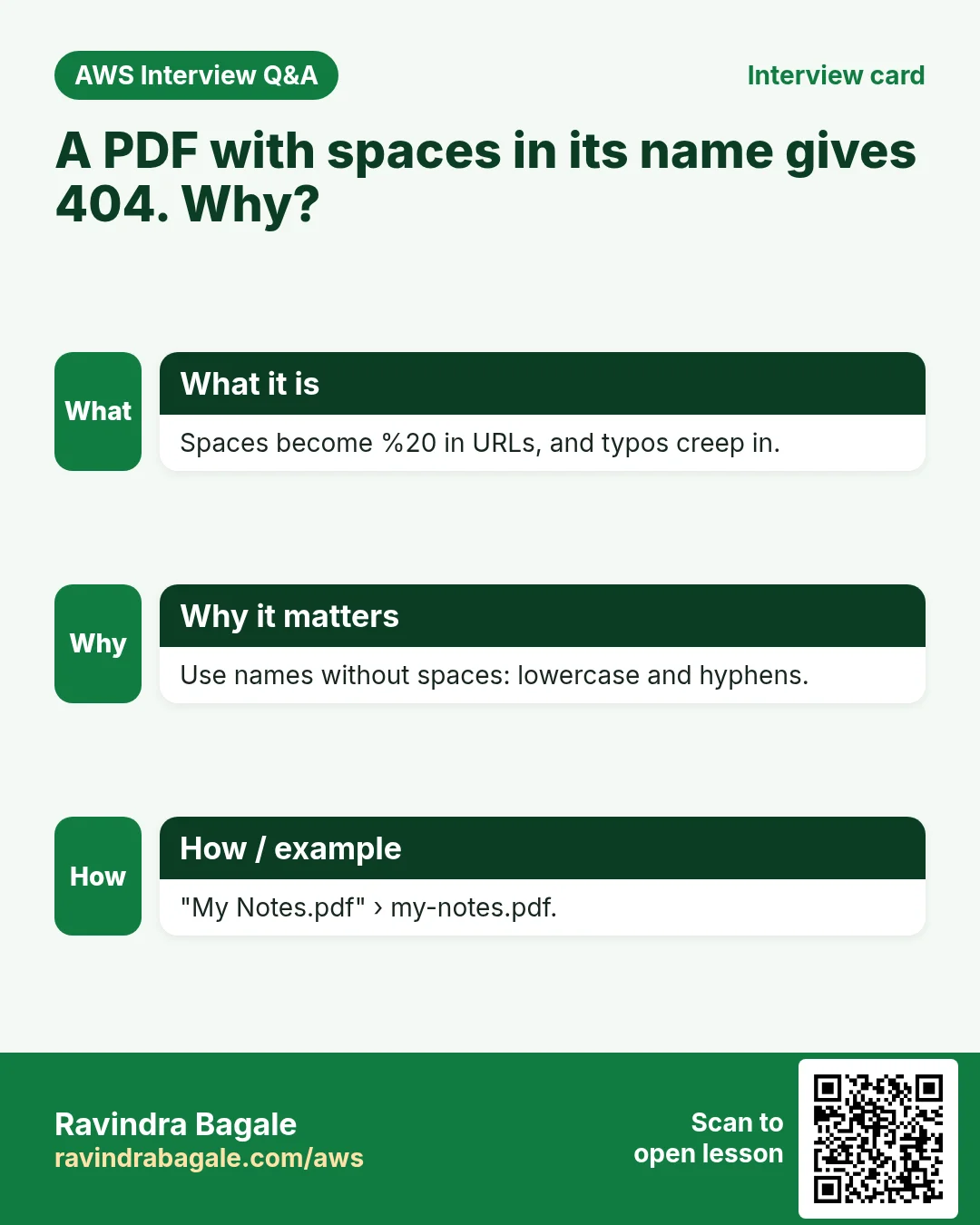
Example 4: a space in the name. A file called my notes.pdf causes two problems:
- On the command line you must put the name in quotes:
".\Downloads\my notes.pdf", otherwise scp sees two names,myandnotes.pdf. - In a URL a space is written as
%20:http://PUBLIC_IP/my%20notes.pdf.
Classroom line
If your PDF's name has a space, you get problems when writing the URL.
Class मधलं वाक्य
"Tumchya PDF file chya navamadhe jar space asel, URL likhtana problem yetoy."
तुमच्या PDF file च्या नावामध्ये जर space असेल, तर URL लिहिताना problem येतोय.
Classroom line
If your PDF's name has a space, you get problems when writing the URL.
6. Download from the server to your laptop
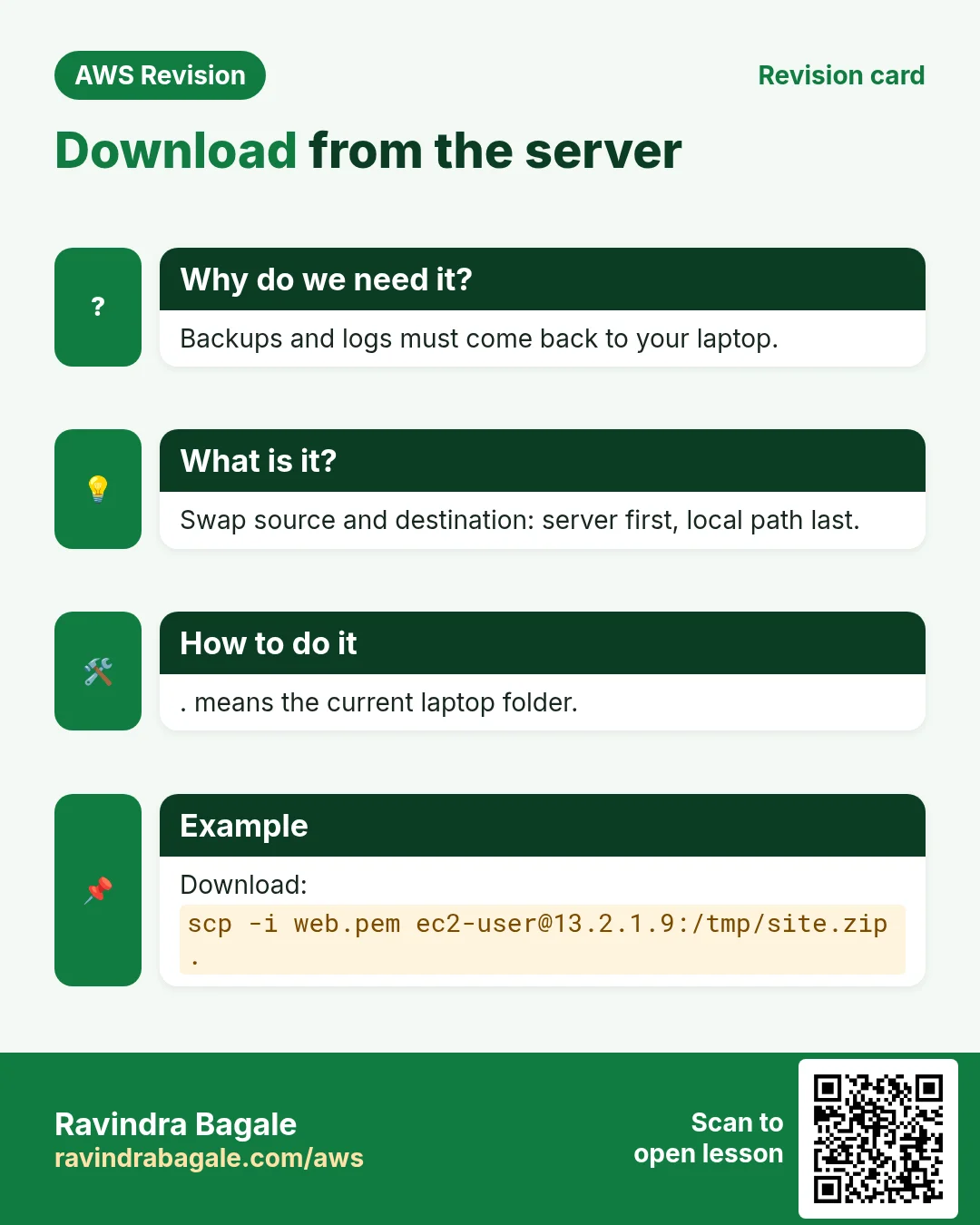
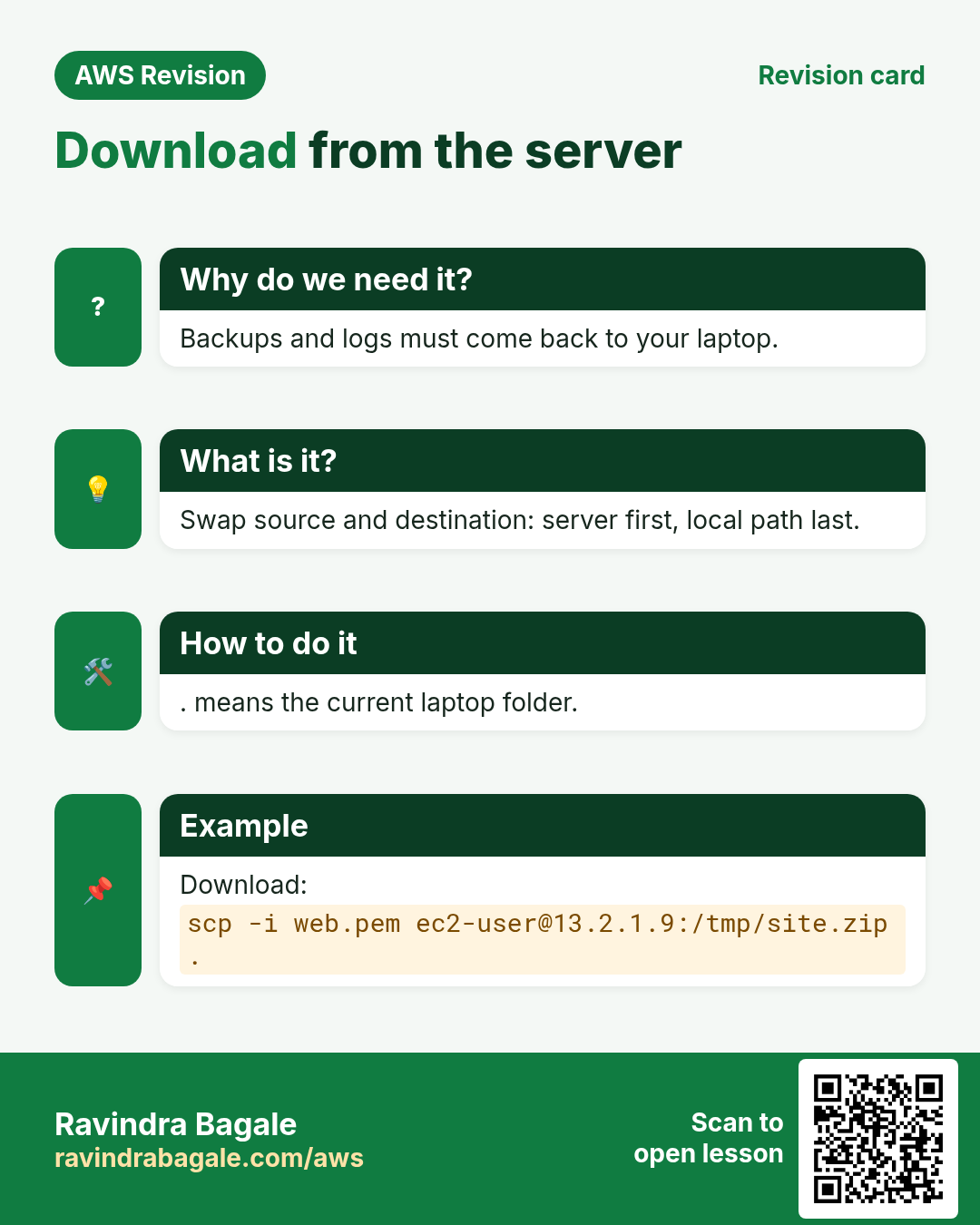
Sometimes you need a file from the server: a log to send to a developer, or a page someone edited on the server. Downloading is the same command with the two sides swapped.
Swap the two sides: the source is now the server (with its colon), and the destination is a folder on your laptop. You still run it on the laptop.
Figure 4. Animation: upload and download both run in the laptop terminal; only the source and the destination swap places.
Step 1. On the server, make a small file and log out:
nano notes.txt
exit
Step 2. On the laptop:
scp -i .\Downloads\mykey.pem ec2-user@PUBLIC_IP:notes.txt .\Downloads\
notes.txt without a folder after the colon means "in the home folder". To copy into the folder you're in on the laptop, use . as the destination.
Step 3. Open Downloads\notes.txt in Notepad.
Classroom line
scp is always run outside the server.
Class मधलं वाक्य
SCP नेहमी server च्या बाहेरच execute होतो.
Classroom line – हिंदी
"SCP humesha server ke bahar hi execute hota hai."
This is true for copies between your laptop and a server. The one case where you run scp inside a server is a copy from one server to another server.
7. Naming rules that save you trouble
Every rule here prevents a real error you would otherwise debug later: a broken image, a split command, a Tab that won't complete.
- Use small letters only. Linux is case-sensitive, and Tab completion only works if you type the first letters in the right case.
- No spaces. They need quotes on the command line and become
%20in URLs. - Join words with an underscore or nothing:
my_folderormyfolder,beach_photo.jpg.
Classroom line
Don't use capital letters at all. Always use small letters.
Class मधलं वाक्य
"Ajibat capital letters waparaychach nahi. Nehmi small letters waparayche."
अजिबात capital letters वापरायचेच नाहीत. नेहमी small letters वापरायचे.
Classroom line
Don't use capital letters at all. Always use small letters.
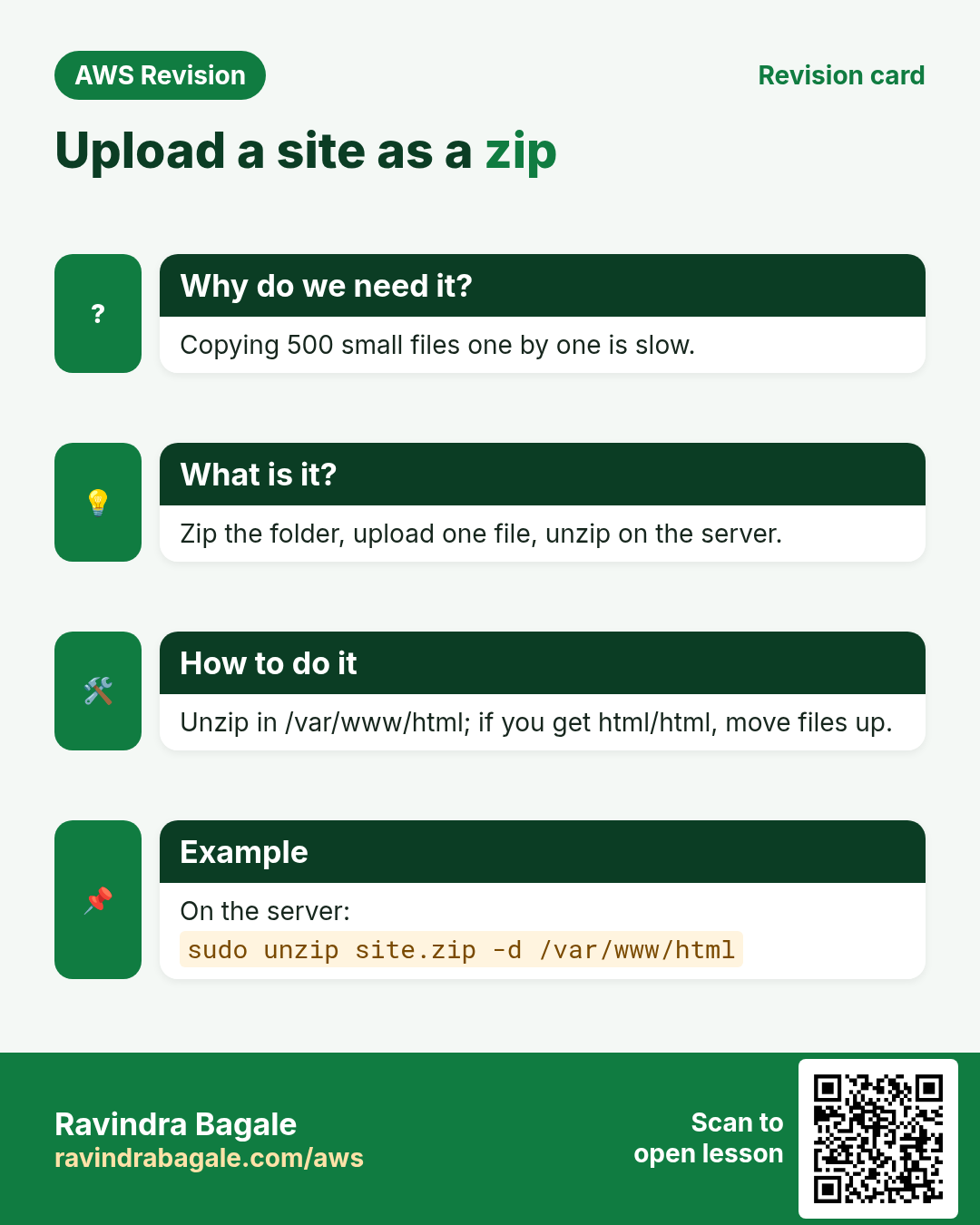
8. A whole website as one zip file
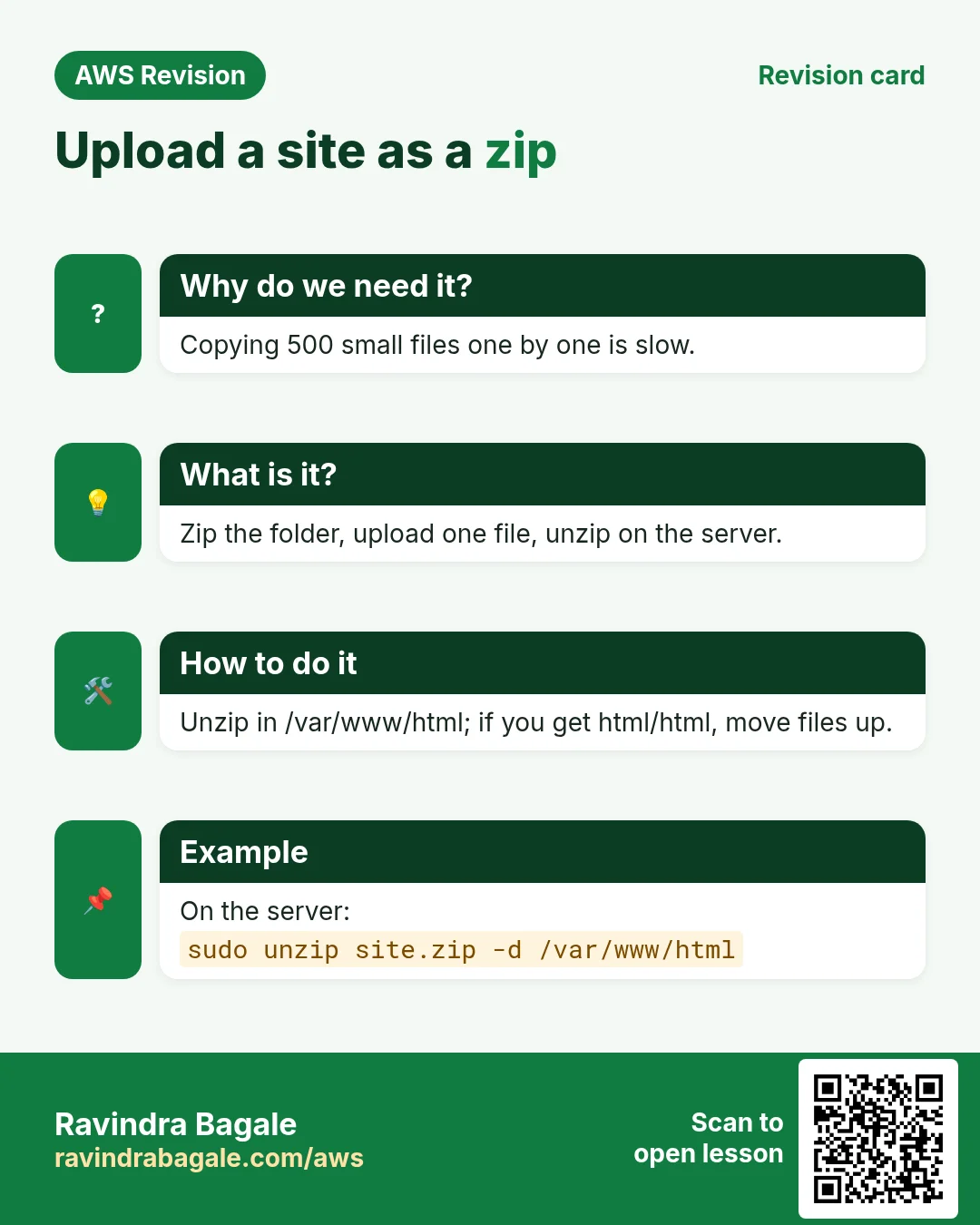
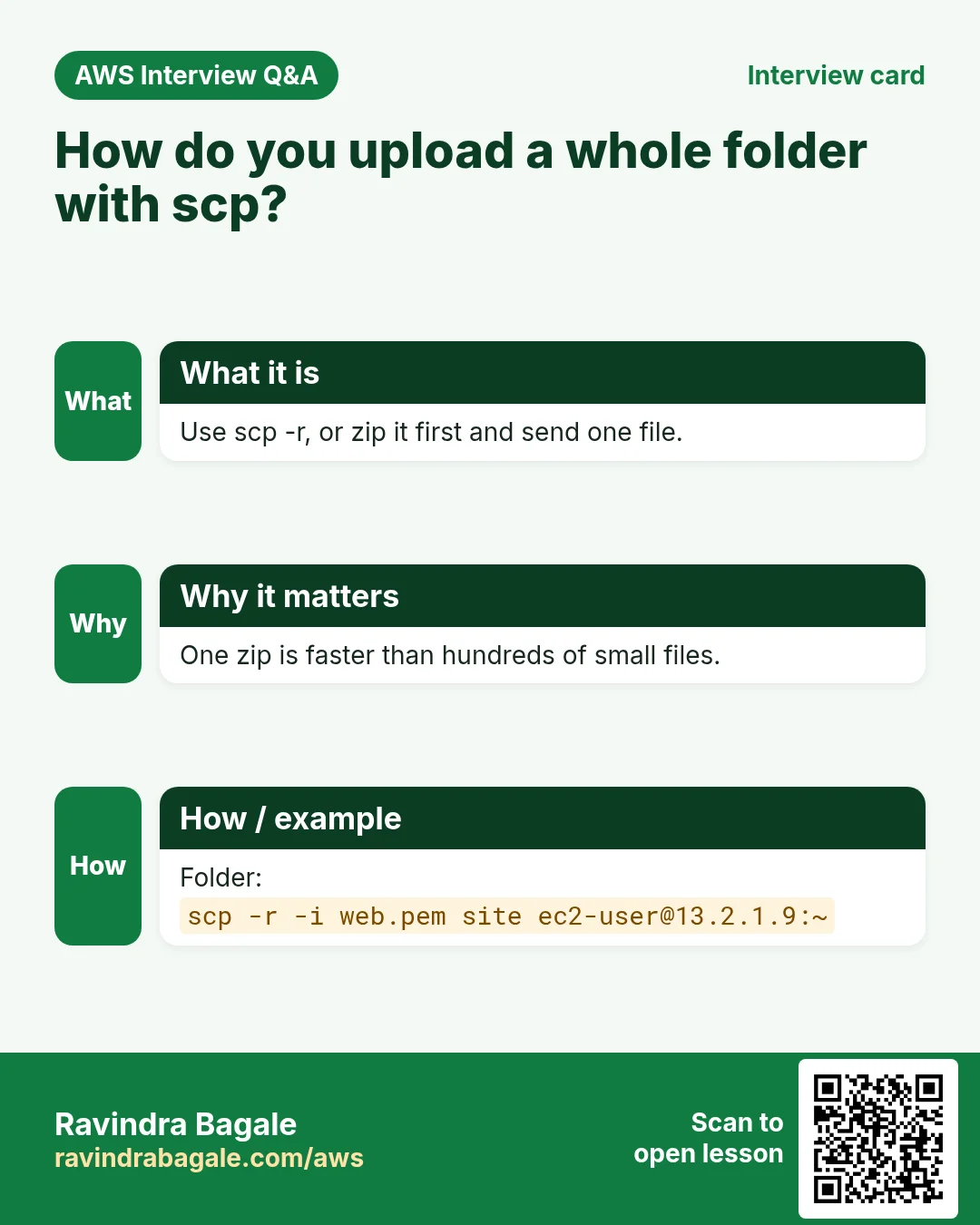
A developer gives you a website folder with many files: pages, images, CSS, JavaScript. You can copy a folder directly with scp -r (recursive):
scp -i .\Downloads\mykey.pem -r .\Desktop\html ec2-user@PUBLIC_IP:.
For many files a zip is usually better:
- It's one file, so one copy, and easy to check.
- It's smaller. Compression stores repeated data once: ten
As in a row can be stored as "A, ten times". - It's faster to transfer, and nothing gets left out halfway.
Figure 5. Animation: zip on the laptop, scp the one file, sudo mv into /var/www/html, sudo unzip, then move the files up out of the extra html folder.
Step 1. On Windows, right-click the website folder, here called html, and choose Send to › Compressed (zipped) folder. You get html.zip. Open it once to check that every file is inside.
Step 2. Upload it. The colon alone means the home folder:
scp -i .\Downloads\mykey.pem .\Desktop\html.zip ec2-user@PUBLIC_IP:
Step 3. On the server, move it into the web root:
sudo mv html.zip /var/www/html/
If you open http://PUBLIC_IP/html.zip now, the browser just downloads it. A browser can't show a zip file, and files it can't show are downloaded.
Classroom line
The browser doesn't understand a zip file... a file it doesn't understand gets downloaded.
Class मधलं वाक्य
Browser ला zip file समजत नाही... जी file समजत नाही ती download होते.
Classroom line – हिंदी
"Browser ko zip file samajh mein nahi aata hai... jo file samajh nahi aata wo download ho jata hai."
Step 4. Unzip it. Without sudo it fails, because the folder belongs to root:
[ec2-user@ip-172-31-xx-xx html]$ unzip html.zip
Archive:  html.zip
checkdir error:  cannot create html
                 Permission denied
...
With sudo it works:
sudo unzip html.zip
unzip comes installed on Amazon Linux.
Step 5. Windows put the folder itself into the zip, so the files are now in /var/www/html/html/. Move them up one level:
cd html
sudo mv * ..
cd ..
ls
.. is the folder one level up. * means every file here, except hidden files whose names start with a dot.
Classroom line
But html inside html doesn't look right, so let's move these files into html.
Class मधलं वाक्य
पण html च्या आत html बरं दिसत नाही, म्हणून या files html मध्ये move करूया.
Classroom line – हिंदी
"Lekin HTML ke andar HTML accha nahi lag raha hai, toh inn dono ko HTML mein move karte hain."
Step 6. Open http://PUBLIC_IP/ and a page or image from the zip by its name.
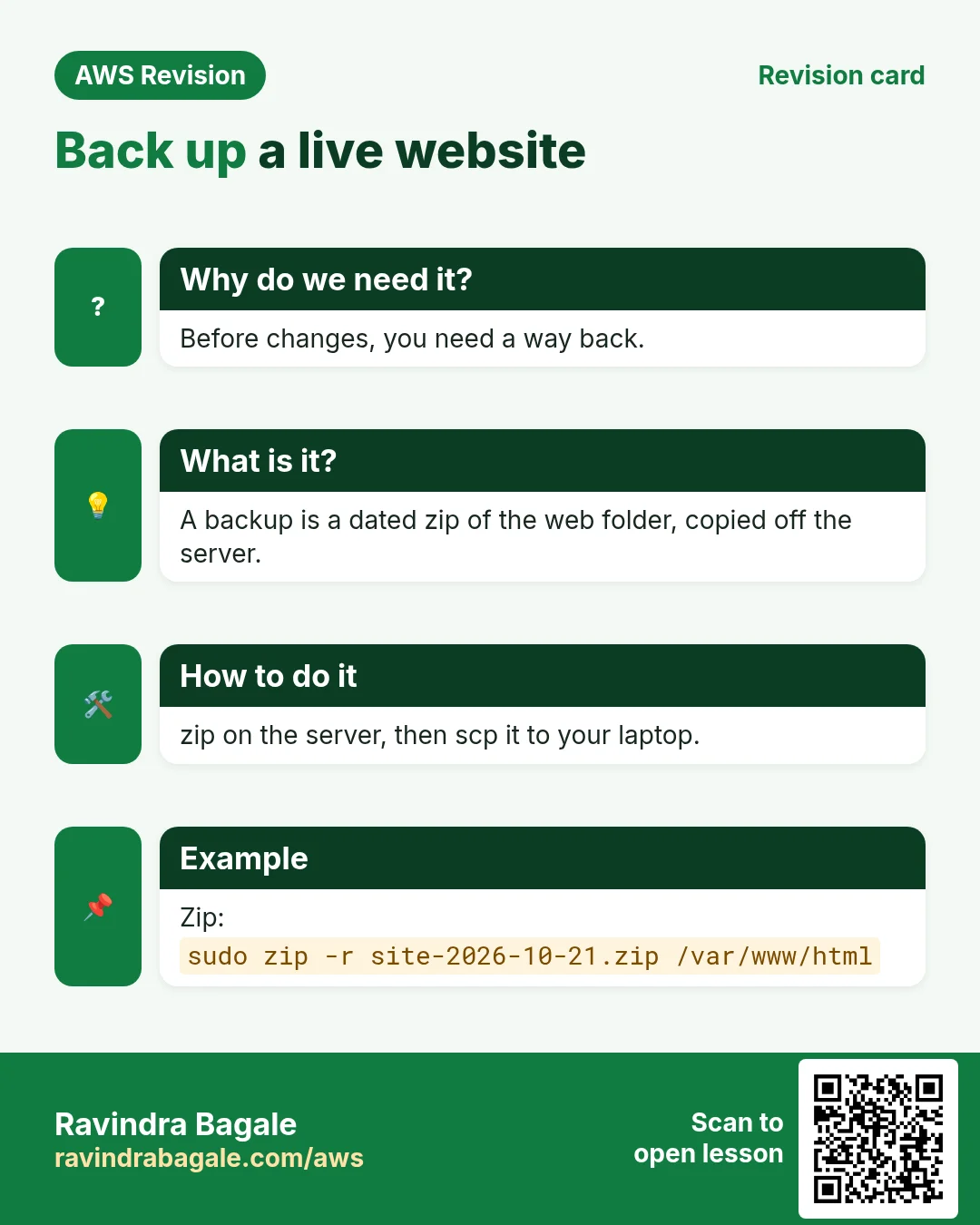
9. Back up a live website to your laptop
Prove that the archive contains the files you need
A successful download tells you the archive transferred. It does not show that the zip included every file needed to restore the website. In your lab, list the archive with unzip -l site-backup.zip. Look for the main page, styles, images and any deployment settings meant to be included. Unpack it into a separate practice folder and open one page and one linked asset from that copy.
A database-backed site also needs a database backup and the relevant settings, kept somewhere private. Keep the archive outside the public document root. Label it with the source folder and date so a later student can tell exactly what this backup covers.
Before you change a live site, keep a copy of what works. If something breaks, you can put it back.
Figure 6. Go up to /var/www, sudo zip -r the html folder, move the zip to the home folder, download it with scp, and open it to check.
Step 1. Go one level up from the folder you want to zip. Don't zip a folder while you're standing inside it.
cd /var/www
Classroom line
Don't cut the branch you're sitting on.
Class मधलं वाक्य
"Jya fandi var bastoy tya fandila todaycha nahi."
ज्या फांदीवर बसतोय त्या फांदीला तोडायचं नाही.
Classroom line
Don't cut the branch you're sitting on.
Step 2. Zip the whole folder. /var/www belongs to root, so sudo; -r takes every subfolder and hidden file:
[ec2-user@ip-172-31-xx-xx www]$ sudo zip -r backup.zip html
  adding: html/ (stored 0%)
  adding: html/index.html (deflated ...%)
  ...
html/* without -r would leave out what's inside the subfolders.
Step 3. Move the zip to the home folder, so the scp path stays short and simple:
sudo mv /var/www/backup.zip /home/ec2-user/
scp only needs permission to read the file; a short path just makes the command easy to type.
Step 4. On the laptop, download it:
scp -i .\Downloads\mykey.pem ec2-user@PUBLIC_IP:backup.zip .\Downloads\
Step 5. Extract it on the laptop and open a few files, a page, an image, a video, to be sure the backup really works.
10. Apache, Nginx and Tomcat
You will see all three names in job posts and on servers. Knowing which does what tells you which one to install for a given project.
Three names you will meet:
- Apache HTTP Server (
httpd): the web server we used so far. - Nginx: another free web server. It handles many visitors at the same time with little memory, so many busy sites use it, often in front of other servers. It serves the same HTML, images and videos.
- Apache Tomcat: a server that runs Java web applications. Apache httpd and Nginx serve files; they don't run Java code. They can sit in front of Tomcat and pass requests to it.
Which web server a project uses is usually decided by the architect or team lead. As a cloud engineer you should be able to set up both.
11. Switch the same server from Apache to Nginx
Apache and Nginx both listen on port 80, and only one program can use a port at a time. So you stop Apache first. If you start Nginx while Apache is running, Nginx fails to start:
Job for nginx.service failed because the control process exited with error code.
See "systemctl status nginx.service" and "journalctl -xeu nginx.service" for details.
The two use different web folders:
- Apache:
/var/www/html - Nginx:
/usr/share/nginx/html
Figure 7. One port 80: stop Apache, install and start Nginx, then copy your site from /var/www/html into /usr/share/nginx/html.
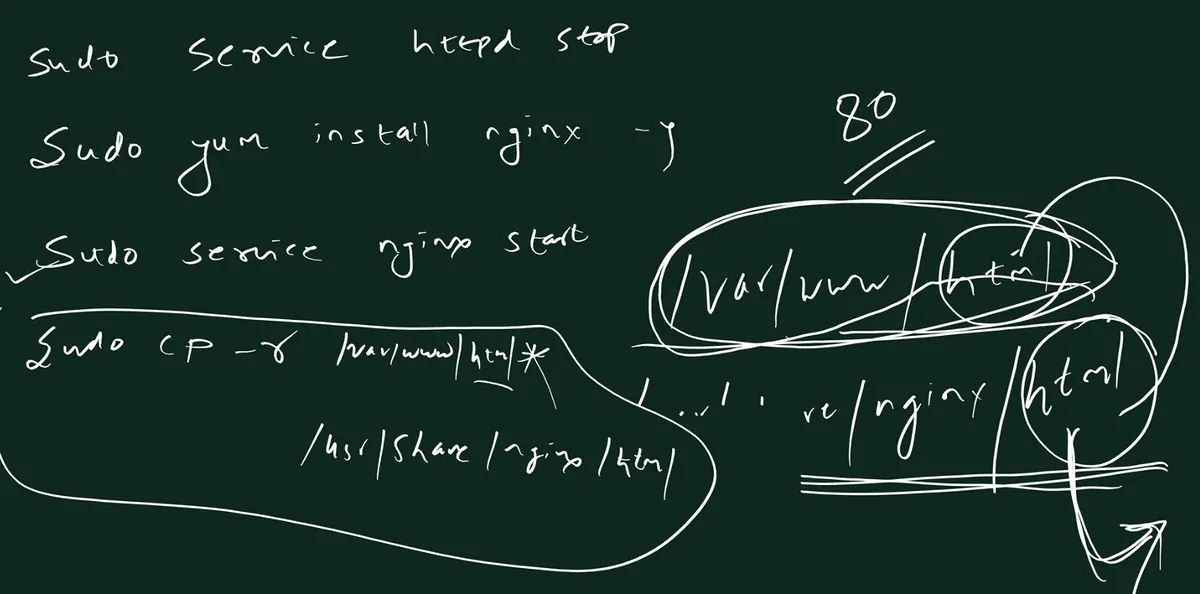
Whiteboard: switching to Nginx: stop httpd, install and start nginx, then copy /var/www/html/* into /usr/share/nginx/html. Only one of them can use port 80.
Step 1. Stop Apache:
sudo service httpd stop
Step 2. Install Nginx:
sudo yum install nginx -y
Step 3. Start it and check it:
[ec2-user@ip-172-31-xx-xx ~]$ sudo service nginx start
Redirecting to /bin/systemctl start nginx.service
[ec2-user@ip-172-31-xx-xx ~]$ sudo service nginx status
Look for Active: active (running). A service runs all the time in the background and waits for requests.
Step 4. Look at Nginx's web folder:
[ec2-user@ip-172-31-xx-xx ~]$ cd /usr/share/nginx/html
[ec2-user@ip-172-31-xx-xx html]$ ls
404.html  50x.html  index.html  nginx-logo.png  poweredby.png
Step 5. Open http://PUBLIC_IP/. You may still see your old Apache page: the browser showed a saved copy from its cache. Refresh, and you see Welcome to nginx!
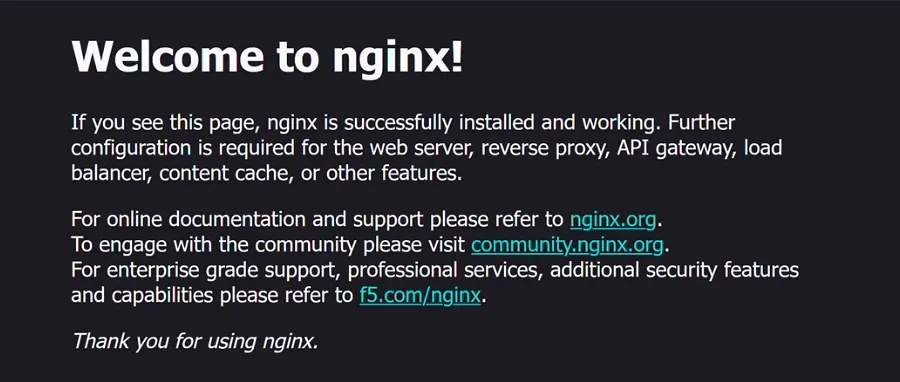
Whiteboard: the Nginx welcome page: Nginx is installed and serving its own index.html from /usr/share/nginx/html.
Classroom line
That's called cache; that page was cached.
Class मधलं वाक्य
त्याला cache म्हणतात, ते page cache झालं होतं.
Classroom line – हिंदी
"Cache bolte usko, wo page cache hua tha."
Step 6. Open a page that doesn't exist, like http://PUBLIC_IP/ravi.html. Now Nginx answers with its own 404 page, which comes from /usr/share/nginx/html/404.html.
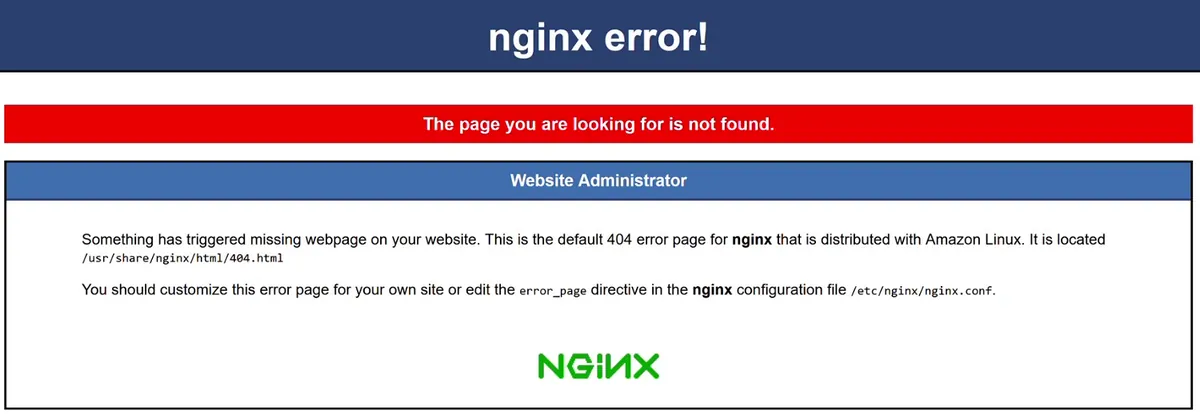
Whiteboard: the Nginx 404 page on Amazon Linux: the page you are looking for is not found, served from /usr/share/nginx/html/404.html.
Step 7. Copy your site from Apache's folder into Nginx's folder. Copy, don't move, so Apache still has the files if you switch back:
cd /usr/share/nginx/html
sudo cp -r /var/www/html/* .
Step 8. Run ls, then refresh the browser. Your own index.html has replaced the Nginx welcome page, and every page and image opens at the same URL as before, now served by Nginx.
Classroom line
We stopped Apache, installed Nginx, started Nginx...
Class मधलं वाक्य
"Apache band kela, Nginx install kela, Nginx la start kela..."
Apache बंद केला, Nginx install केला, Nginx ला start केला...
Classroom line
We stopped Apache, installed Nginx, started Nginx...
/var/www/html/* skips hidden files (names starting with a dot). To copy those too, copy the folder's contents with a dot instead:
sudo cp -r /var/www/html/. /usr/share/nginx/html/
Step 9. Run history to see every command you ran, in order. Keep it as your notes.
12. The whole flow on one page
- Upload:
scp -i mykey.pem file ec2-user@PUBLIC_IP:., run on the laptop. - Download:
scp -i mykey.pem ec2-user@PUBLIC_IP:file ., also on the laptop. - On the server:
sudo mv file /var/www/html/. - Pages: names exactly as
lsshows them;../for one folder up;%20for a space in a URL (better: no spaces). - A website: zip it (or
scp -rthe folder), upload,sudo mv,sudo unzip, fixhtml/htmlwithsudo mv * ... - Backup:
cd /var/www,sudo zip -r backup.zip html, move it home, download, open it. - Nginx:
sudo service httpd stop,sudo yum install nginx -y,sudo service nginx start,sudo cp -r /var/www/html/* /usr/share/nginx/html/.
13. Hands-on lab: upload, publish and back up with scp
Getting files onto a server and copies back off it is a daily job. This lab uploads an image, publishes it, downloads a page, and takes a zip backup of the whole site. Run the scp commands in your laptop terminal, not inside SSH.
- Upload an image from your laptop
- Command:
scp -i mykey.pem beach.jpg ec2-user@PUBLIC_IP:. - You should see: A progress line ending in
100%. - Check: In your SSH window,
ls ~showsbeach.jpg. - Why: Source first, destination second. The colon marks the server side;
.after it means ec2-user's home, the one place you can write withoutsudo.
- Command:
- Publish it
- Command:
sudo mv ~/beach.jpg /var/www/html/ - You should see: Nothing.
- Check:
http://PUBLIC_IP/beach.jpgshows the picture. - Why:
/var/www/htmlbelongs to root, soscpas ec2-user can't write there directly. Upload to home, then move withsudo.
- Command:
- Upload a file with a space in its name
- Command:
scp -i mykey.pem "price list.pdf" ec2-user@PUBLIC_IP:. - You should see: A progress line ending in
100%. - Check:
ls ~shows'price list.pdf'. - Why: Without quotes, the shell sees two files,
priceandlist.pdf. Better still, rename it toprice-list.pdfbefore uploading.
- Command:
- Download a page to your laptop
- Command:
scp -i mykey.pem ec2-user@PUBLIC_IP:/var/www/html/index.html . - You should see: A progress line ending in
100%. - Check:
index.htmlis now in your laptop's current folder. - Why: Swap the sides: the server (with its colon) is the source;
.is the laptop folder you are in. Reading needs nosudo, because the file is readable by everyone.
- Command:
- Zip the whole site on the server
- Command:
cd /var/www && sudo zip -r ~/backup.zip html - You should see: One
adding:line per file. - Check:
ls -l ~/backup.zipshows a size above 0. - Why: One zip is one file to copy, instead of hundreds.
-rgoes into every subfolder; going one level up keeps thehtmlfolder itself inside the zip.
- Command:
- Download the backup
- Command:
scp -i mykey.pem ec2-user@PUBLIC_IP:backup.zip . - You should see: A progress line ending in
100%. - Check: Open the zip on your laptop: you see
html/withindex.htmlandbeach.jpginside. - Why: A backup only counts when it is off the server and you have opened it once. If the server is lost, this copy is what you restore from.
- Command:
- Clean up and stop
- Command:
rm -f ~/backup.zip ~/"price list.pdf" - You should see: Nothing.
- Check:
ls ~is clean. Then stop the instance. - Why: Old zips on the server fill the 8 GB disk over time. Stopping saves free-tier hours.
- Command:
- Windows PowerShell upload form
- Command:
scp -i .\Downloads\mykey.pem .\Desktop\photo.jpg ec2-user@PUBLIC_IP: - You should see: A line like
photo.jpg 100% 245KB 1.2MB/s 00:00. - Check: SSH window:
ls ~listsphoto.jpg. - Why: Windows uses backslashes for laptop paths. Nothing after the colon means ec2-user's home.
- Command:
- Windows PowerShell download form
- Command:
scp -i .\Downloads\mykey.pem ec2-user@PUBLIC_IP:/var/www/html/index.html .\Desktop\ - You should see: One
index.html 100%line. - Check:
index.htmlappears on your Desktop. - Why: Source is the server (has the colon), destination is the laptop folder.
- Command:
- Upload a whole folder with -r
- Command:
scp -i mykey.pem -r mysite ec2-user@PUBLIC_IP: - You should see: One
100%line per file insidemysite. - Check: Server:
ls ~/mysiteshows all the files. - Why: Without
-ryou getnot a regular file; folders need recursive copy, likecp -r.
- Command:
- Zip the folder vs zip its contents
- Command:
cd /var/www && sudo zip -r ~/full.zip html && cd html && sudo zip -r ~/inside.zip * - You should see:
adding: html/index.htmlfor the first;adding: index.htmlfor the second. - Check:
unzip -l ~/full.zipshows thehtml/prefix;unzip -l ~/inside.zipdoes not. - Why: Zip the folder to restore it as a folder; zip the contents to unzip straight into a web root.
- Command:
- Unzip a site into the web root
- Command:
sudo unzip -o ~/inside.zip -d /var/www/html/ - You should see:
inflating: /var/www/html/index.htmllines. - Check: Refresh
http://PUBLIC_IP/in the browser; page loads. - Why:
-dsets where to extract;-ooverwrites without asking each file.
- Command:
14. Try at home
Try at home
Task 1: upload
- Upload a photo with scp and show it on
photo.html. - Upload it again with a capital letter in the name and see what happens to the page.
- Put a page in
/var/www/html/gallery/that shows the photo with../.
Task 2: download
- Create
notes.txton the server and download it intoDownloads.
Task 3: a website as a zip
- Zip a folder with two pages and an image, upload it, unzip it into
/var/www/htmland open both pages. - Copy the same folder once with
scp -rinstead.
Task 4: backup
- Take a backup of
/var/www/htmlwithsudo zip -r, download it and open it on the laptop.
Task 5: Nginx
- Switch to Nginx, see the welcome page and the 404 page, then copy your site and check it.
When you're done, stop the instance.
Common errors and fixes
| Error / symptom | Fix |
|---|---|
Permission denied (publickey) | Wrong key file or wrong user. Amazon Linux user is ec2-user; Ubuntu is ubuntu. |
scp: /var/www/html/x.jpg: Permission denied | Upload to home first, then sudo mv into /var/www/html. |
not a regular file | Add -r for folders. |
| Image broken on page | Linux names are case sensitive: Photo.jpg ≠ photo.jpg. Match the src exactly. |
| Ran scp inside the SSH window | scp runs on the laptop. Type exit first, then run it. |
No such file or directory on laptop side | cd to the folder that has the file, or give the full path; quote names with spaces. |
FAQ
Q. Is scp safe over the internet?
Yes. It runs over SSH, so the data is encrypted end to end.
Q. Why not wget?
wget only downloads from a web URL. scp moves your own files both ways with your key.
Q. Where does the file land if I write nothing after the colon?
In the user's home folder, /home/ec2-user.
Q. Is a zip on the server a backup?
Only once a copy is off the server on your laptop or S3 and you have opened it once.
Recap
In short
wgetonly downloads from websites;scpcopies files between your laptop and the server over SSH, encrypted.scp -i key SOURCE DESTINATION; the server side isec2-user@PUBLIC_IP:path.:.or:alone = home folder,:ravi= a folder in it. No colon = only a local copy.- Run scp in the laptop terminal, not inside SSH. Server-to-server copies are the exception.
- Files land in the home folder;
sudo mvthem into/var/www/html. - Names are case-sensitive;
../goes one folder up; spaces become%20. Use small letters, no spaces. - Upload a website as one zip (or
scp -rthe folder), thensudo unzip, andsudo mv * ..if it unpacked intohtml/html. - Backup:
sudo zip -rfrom/var/www, move it home, download with scp, open it to check. - Nginx and Apache both use port 80: stop one before starting the other. Nginx's web root is
/usr/share/nginx/html. Tomcat runs Java web apps.
Ravindra Bagale, trainer: linkedin.com/in/ravindra-bagale. The file names (beach.jpg, notes.pdf, notes.txt, html.zip, backup.zip, mykey.pem) and the folders ravi and gallery are examples for learning; PUBLIC_IP stands for your instance's public IPv4 address. Progress numbers and fingerprints are shortened with "..."; the hostname in the prompt is illustrative.
Worked example: prove a site backup can be restored
A ZIP name that ends in backup.zip is not proof that it contains the right files. Treat the restore as a small lab of its own.
- Take the archive of the disposable class site. Keep it outside the public document root. Check its file list to confirm it includes the landing page, image directory and any required configuration, while excluding secrets and unrelated files.
- After copying to your laptop, compare the SHA-256 checksum from the server with the one from your local copy. In Linux use
sha256sum backup.zip. On macOS useshasum -a 256 backup.zip. Compare the hexadecimal digest, not the local filenames. - Extract into a new local folder. Check file layout and verify one known page and an image from the archive. The first restore test should never overwrite the only working copy.
Interview question: if both SHA-256 values match, is a backup ready?
They establish that the compared archive bytes match. You still need to check that the archive has what you intended and practise putting it back.
Practise this chapter
Interview questions and answers
What determines where scp puts a download when the destination is a dot?
The shell where scp is running supplies the current directory. In this lab that is the laptop terminal. Check pwd there before starting and list the received file after completion.
How would you verify a website backup without making changes to the live website?
List the archive and extract it into a separate folder or lab host. Check a page and linked assets. If the website depends on a database or external configuration, verify the matching backups and required access too.
Check your understanding
Choose an answer, then compare your reasoning with the explanation.
Practice Tasks
Practice checks run in your browser. They check the answer for this exercise; they do not create resources or connect to your AWS account.
About this scenarioLatur Coaching Classes is a coaching business in Latur. Pooja Jadhav looks after its IT and cloud work. They count money in INR and run their AWS resources in the ap-south-1 Region. In the tasks below you do real jobs for them using what this lesson teaches. All names, account IDs, IP addresses and numbers are made up for practice.
0 / 12
Easy Restart a service after a change
Config changes only apply after the service restarts or reloads.
Restart the nginx service.
- Find the Linux command that does this job.
- Add the options (like -r or -h) the task needs.
- Add the file names, folders or users in the right order.
- Use sudo if the job changes system files or users. Click Check answer.
Easy Check if a service is running
When a site is down, first check whether the web server process is running.
Show the status of the httpd service.
- Find the Linux command that does this job.
- Add the options (like -r or -h) the task needs.
- Add the file names, folders or users in the right order.
- Use sudo if the job changes system files or users. Click Check answer.
Easy Install a package on Ubuntu
Ubuntu uses apt. Package names differ: on Ubuntu Apache is apache2.
Install the apache2 package on Ubuntu without being asked to confirm.
- Find the Linux command that does this job.
- Add the options (like -r or -h) the task needs.
- Add the file names, folders or users in the right order.
- Use sudo if the job changes system files or users. Click Check answer.
Easy Install a package on Amazon Linux
dnf is the package manager on Amazon Linux 2023. -y answers yes for you.
Install the httpd package on Amazon Linux 2023 without being asked to confirm.
- Find the Linux command that does this job.
- Add the options (like -r or -h) the task needs.
- Add the file names, folders or users in the right order.
- Use sudo if the job changes system files or users. Click Check answer.
Easy Test a website from the server
curl shows whether the web server answers, even before DNS is ready.
Request http://localhost and show only the response headers.
- Find the Linux command that does this job.
- Add the options (like -r or -h) the task needs.
- Add the file names, folders or users in the right order.
- Use sudo if the job changes system files or users. Click Check answer.
Easy Download code from GitHub
git clone copies the whole repository to the server, ready to deploy.
Clone https://github.com/laturcoaching/website.git into the current folder.
- Find the Linux command that does this job.
- Add the options (like -r or -h) the task needs.
- Add the file names, folders or users in the right order.
- Use sudo if the job changes system files or users. Click Check answer.
Easy Port for SSH
Security group rules need the right port.
Which TCP port must the security group open for SSH?
- Write down the numbers the task gives you.
- Work it out step by step on paper.
- Type only the final answer in the box.
- Click Check answer.
Medium Test the nginx config
A test catches typos before a restart takes your site down.
Check the nginx configuration files for errors.
- Find the Linux command that does this job.
- Add the options (like -r or -h) the task needs.
- Add the file names, folders or users in the right order.
- Use sudo if the job changes system files or users. Click Check answer.
Medium Start a service now and at boot
enable makes it start after reboot; --now also starts it right away.
Enable the nginx service and start it immediately, in one command.
- Find the Linux command that does this job.
- Add the options (like -r or -h) the task needs.
- Add the file names, folders or users in the right order.
- Use sudo if the job changes system files or users. Click Check answer.
Medium Open port 80 to the world
Visitors can reach your website only if the security group allows HTTP.
Allow inbound TCP port 80 from 0.0.0.0/0 on security group sg-023666135aa54c3b2.
- Read the task and decide which AWS service it is about.
- Write aws, then the service name, then the operation (the action word).
- Add each needed flag (--name) followed by its value from the task.
- Flags can be in any order. Click Check answer.
Medium CloudFormation: web security group
Opening only 443 keeps the server safer.
Template with an AWS::EC2::SecurityGroup that allows TCP 443 from 0.0.0.0/0. Add a GroupDescription.
- Start from the top-level keys the task names.
- Indent child keys with 2 spaces (no tabs).
- Fill in each property with the value from the task.
- Click Check answer. Key order does not matter.
Hard Enable an nginx site on Ubuntu
On Ubuntu, a site is enabled by a symbolic link from sites-available to sites-enabled.
Create a symbolic link to /etc/nginx/sites-available/laturcoaching inside /etc/nginx/sites-enabled/.
- Find the Linux command that does this job.
- Add the options (like -r or -h) the task needs.
- Add the file names, folders or users in the right order.
- Use sudo if the job changes system files or users. Click Check answer.
Revision, comparison and interview cards
Revise this lesson in a few minutes. Save the cards on your phone or download them as PNG files. The QR code on each card opens this lesson.
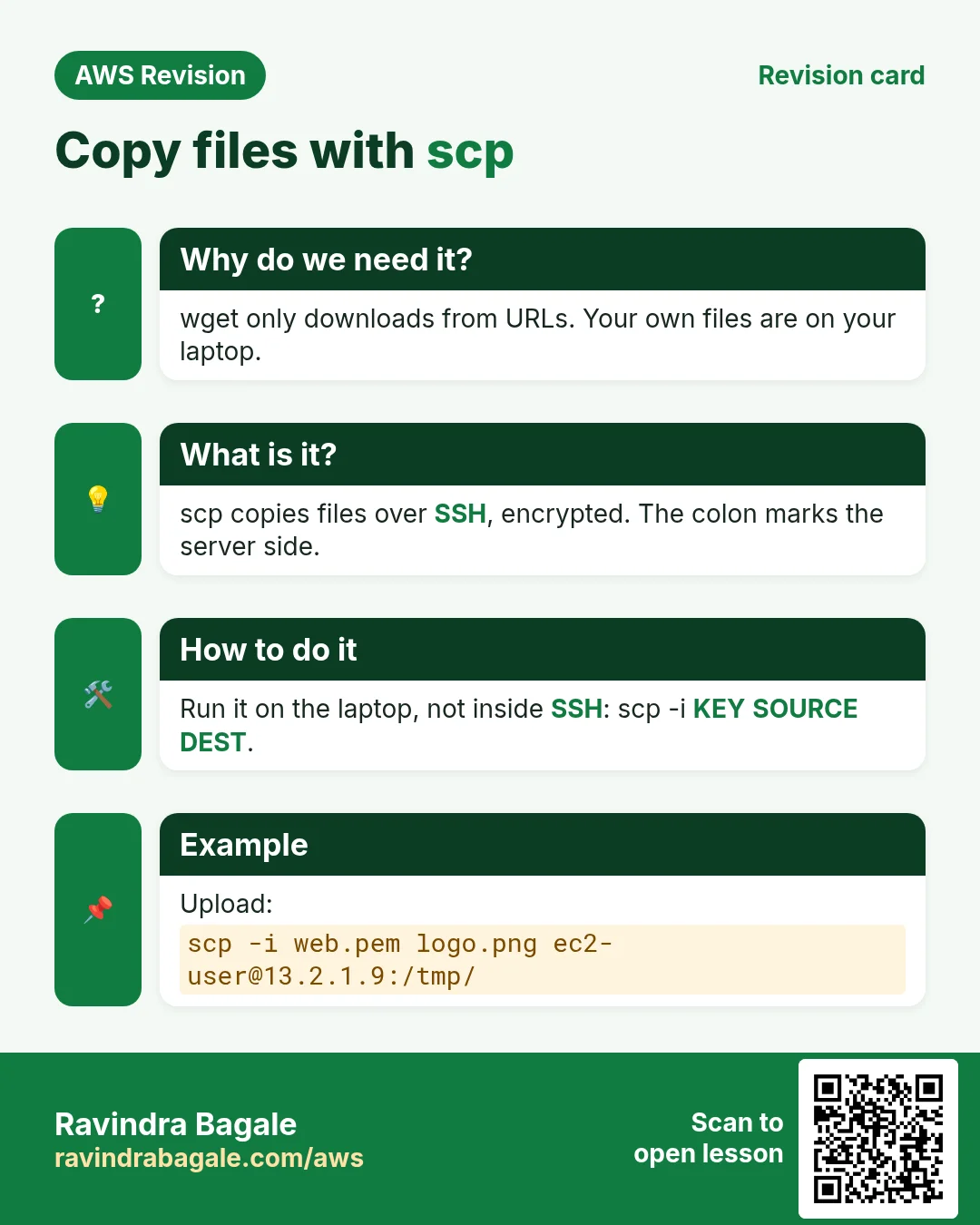
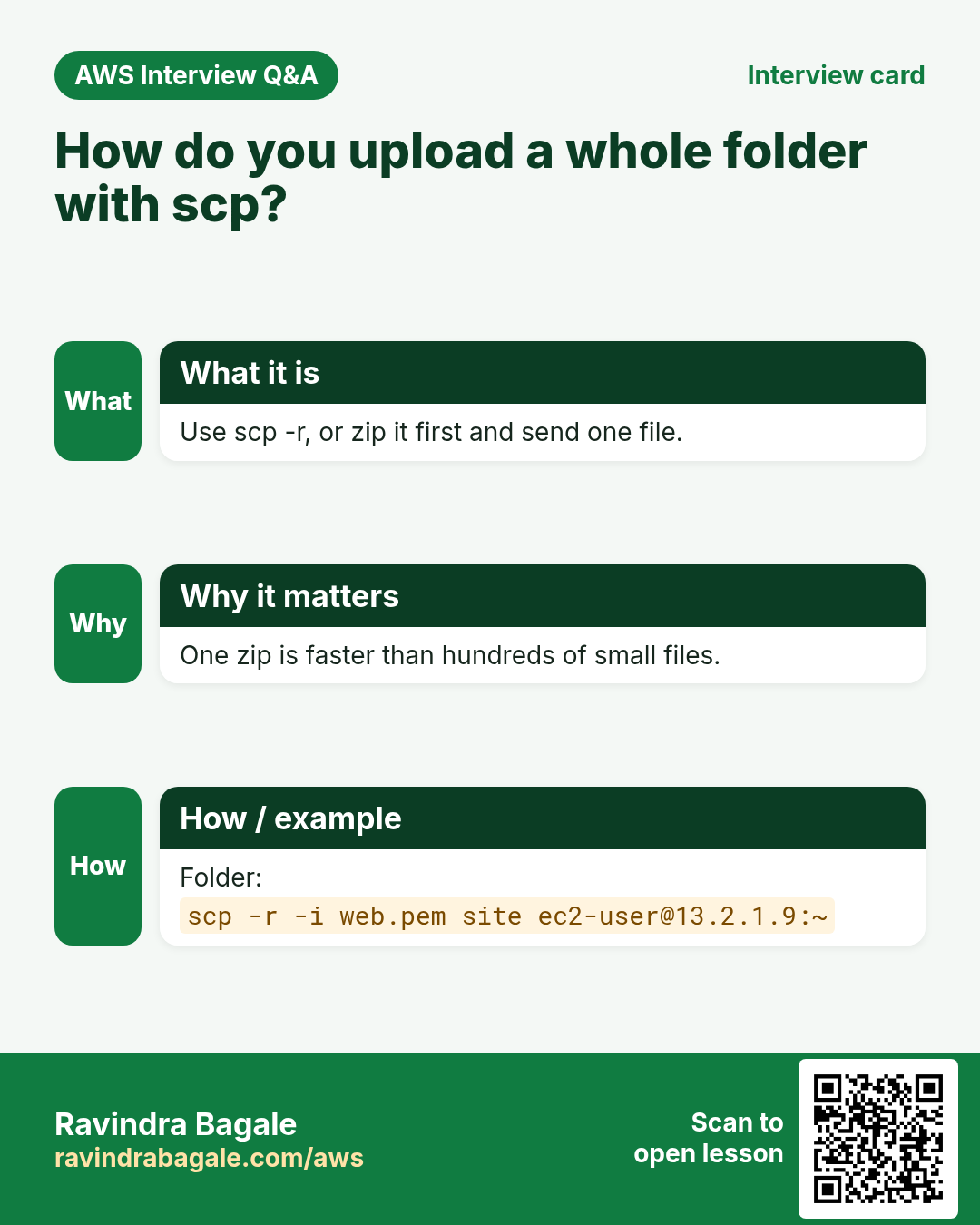
More cards: Ravi Sir's Cards.