Vim Tutorial for Beginners to Advanced (plus nano): Modes, Commands, Search and Replace
On many servers there is no VS Code and no mouse. There is always vi or vim. Vim feels strange for one hour and then becomes the fastest editor you know. We start with nano for a quick win, then go from vim's three modes to macros, search-replace and splits.
In this chapter
- Edit and save with nano in one minute
- Vim modes: Normal, Insert, Visual, Command-line
- Move fast: words, lines, file, search
- Edit: delete, copy, paste, undo, redo, change
- Search and replace with :s and :%s
- Advanced: visual block, macros, registers, splits, .vimrc
1. An everyday example: a typewriter with a remote
Imagine a typewriter with two buttons. One button puts it in 'typing' mode, so keys print letters. The other puts it in 'remote' mode, so keys move the paper, cut lines and copy pages. Once you know which mode you are in, you never type garbage.
Typing mode = Insert mode (press i). Remote mode = Normal mode (press Esc). The control panel where you type :wq = Command-line mode. Selecting with a highlighter = Visual mode (v).
2. nano: the quick and friendly editor
Sometimes you need to change one line now and do not want to learn modes.
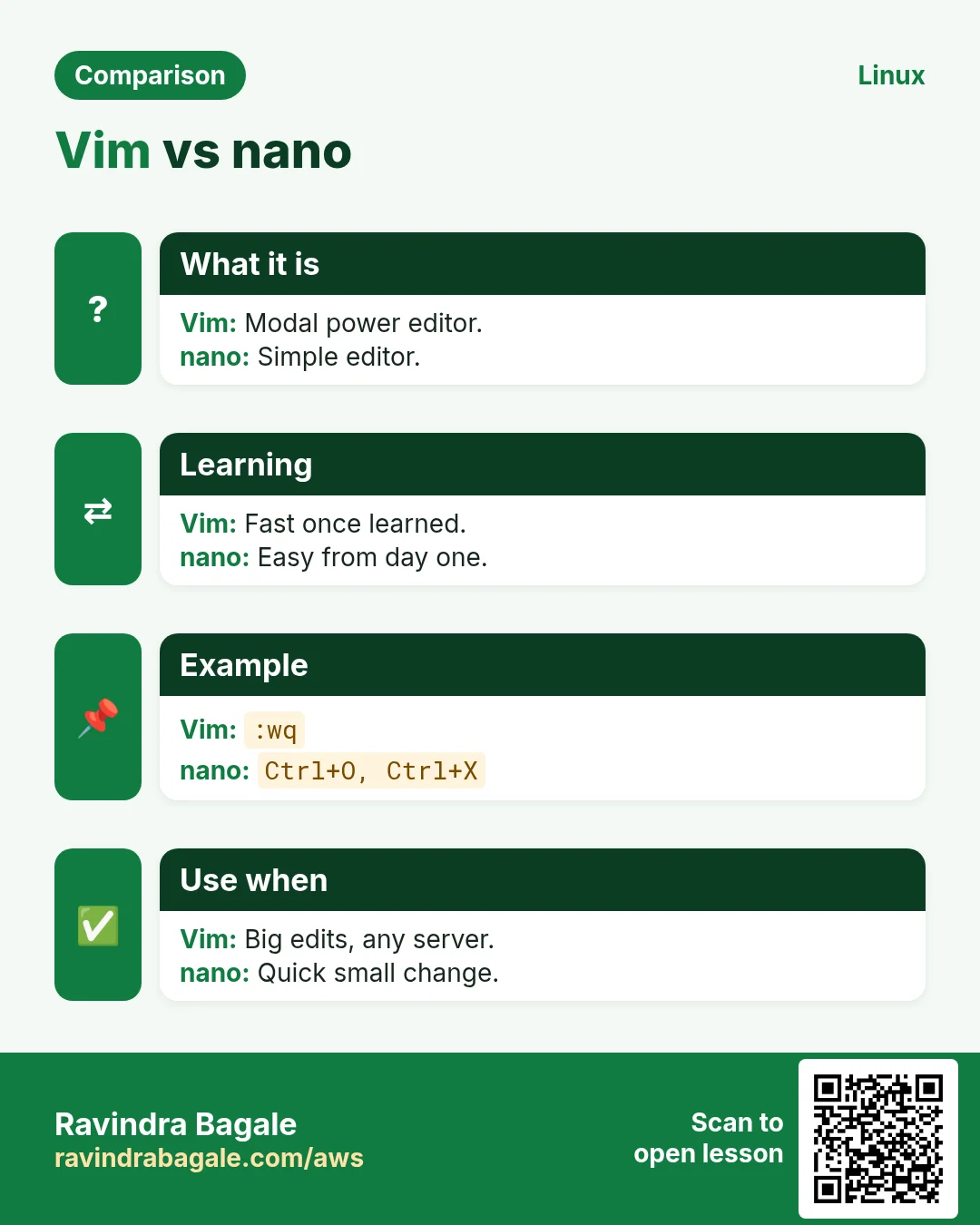
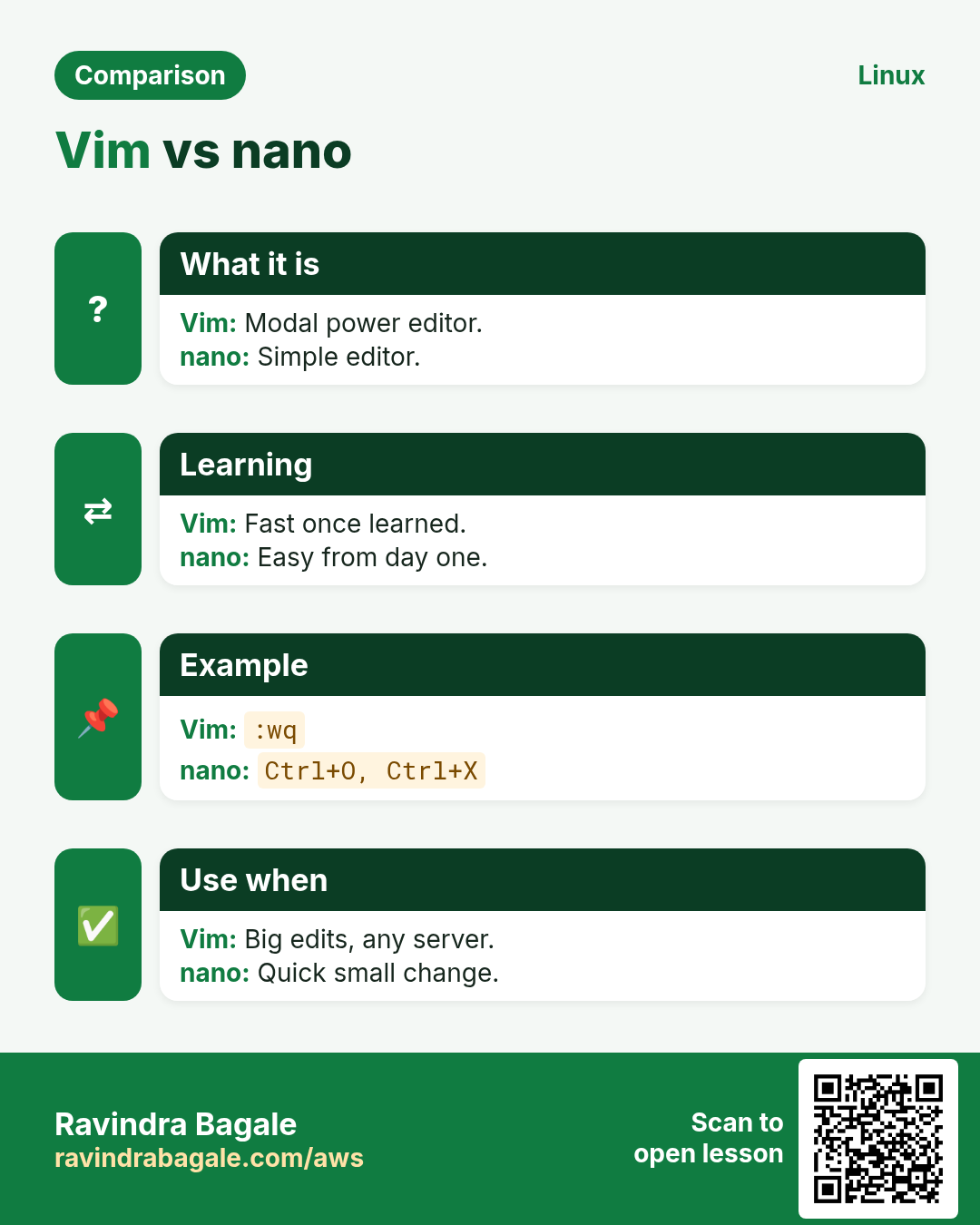
nano shows its shortcuts at the bottom. ^ means Ctrl. Type directly. Ctrl+O saves (Write Out). Ctrl+X exits. Ctrl+W searches. Ctrl+K cuts a line, Ctrl+U pastes. Alt+U undoes. Ctrl+_ goes to a line number.
| Keys | Does |
|---|---|
| Ctrl+O, Enter | Save |
| Ctrl+X | Exit |
| Ctrl+W | Search |
| Ctrl+\ | Search and replace |
| Ctrl+K / Ctrl+U | Cut line / paste |
| Alt+U / Alt+E | Undo / redo |
| Ctrl+_ | Go to line |
- Open a file at line 20.
nano +20 /etc/hostsThe cursor starts on line 20.
- Edit a root-owned file.
sudo nano /etc/ssh/sshd_configWithout sudo, Ctrl+O fails with Permission denied.
- Show line numbers.
nano -l app.conf-l prints numbers on the left.
3. Vim modes and survival kit
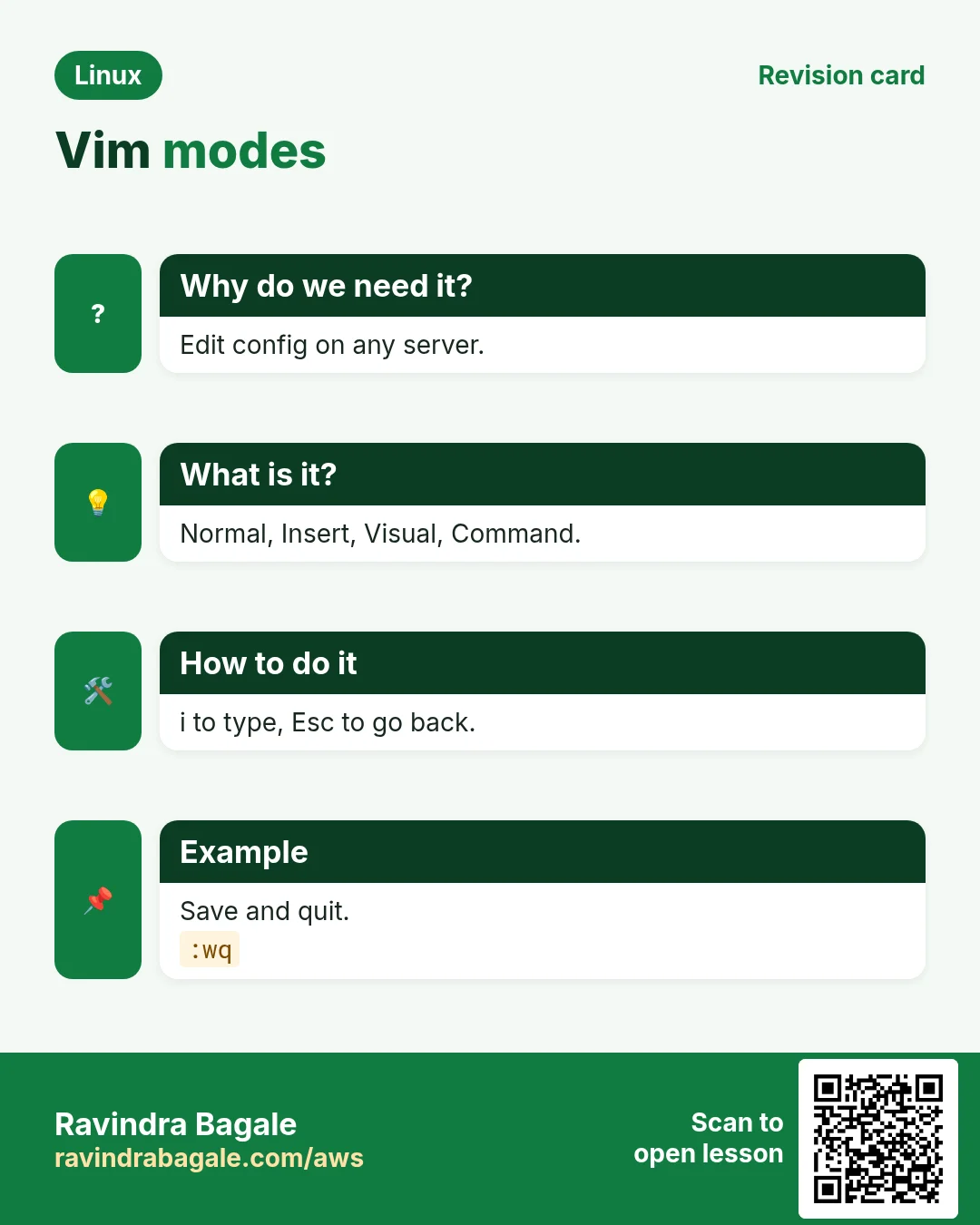
Vim separates editing commands from typing text. The same key can do different things depending on the mode. Start with a disposable file. Open it in Normal mode, press i to enter Insert mode, and add one line. Press Esc to return to Normal mode, then type :w and Enter to write the file. Exit using :q and open the file again to confirm the saved line.
Try the difference on a second disposable edit. Add a line, leave Insert mode and exit with :q!. When you reopen the file, that new unsaved line is absent. Use this experiment to understand which commands change the buffer and which write changes to disk. When a command looks as though it typed into your file, first check the current mode.
People get 'stuck in vim' because they do not know the modes. Learn these five things and you will never be stuck.
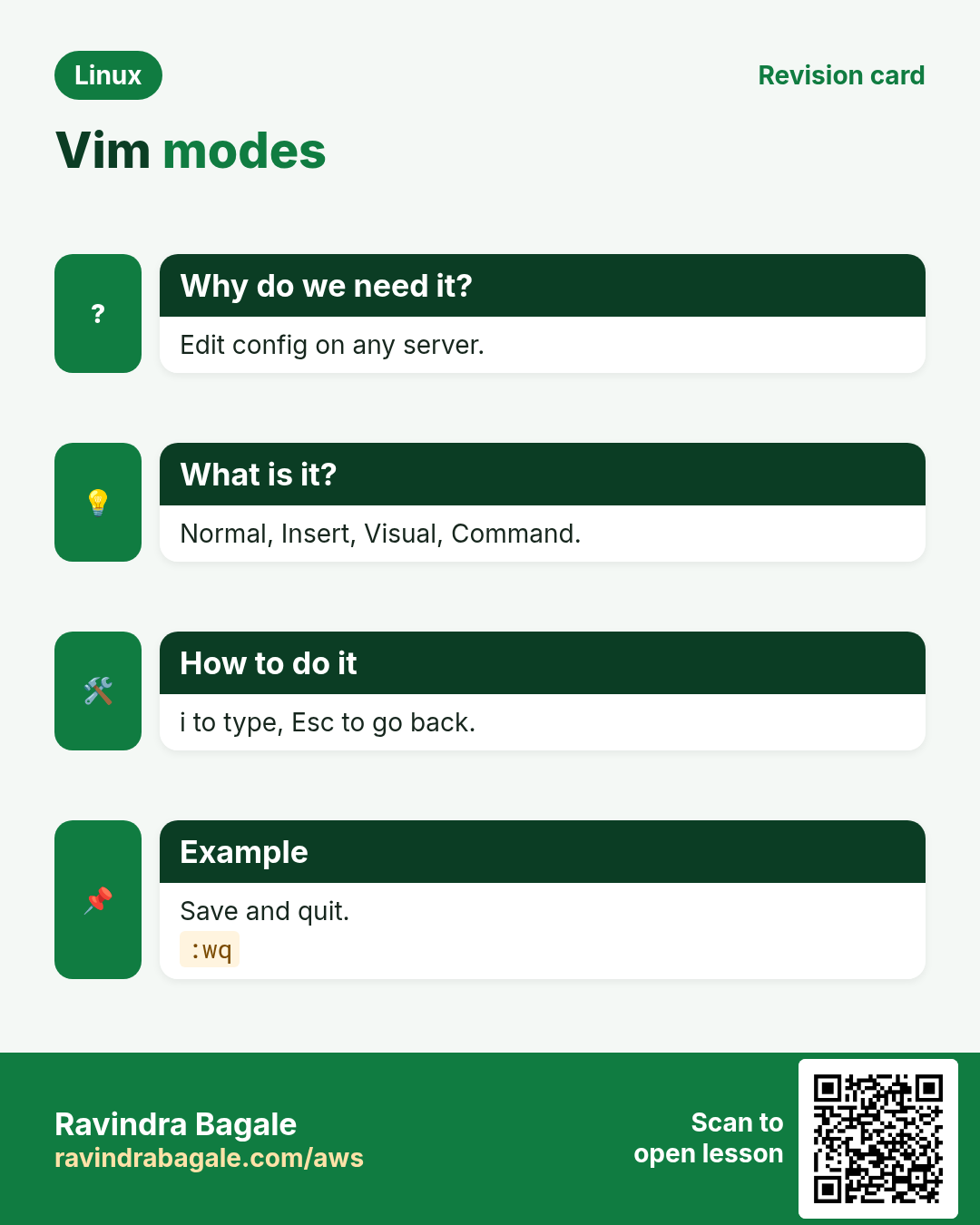
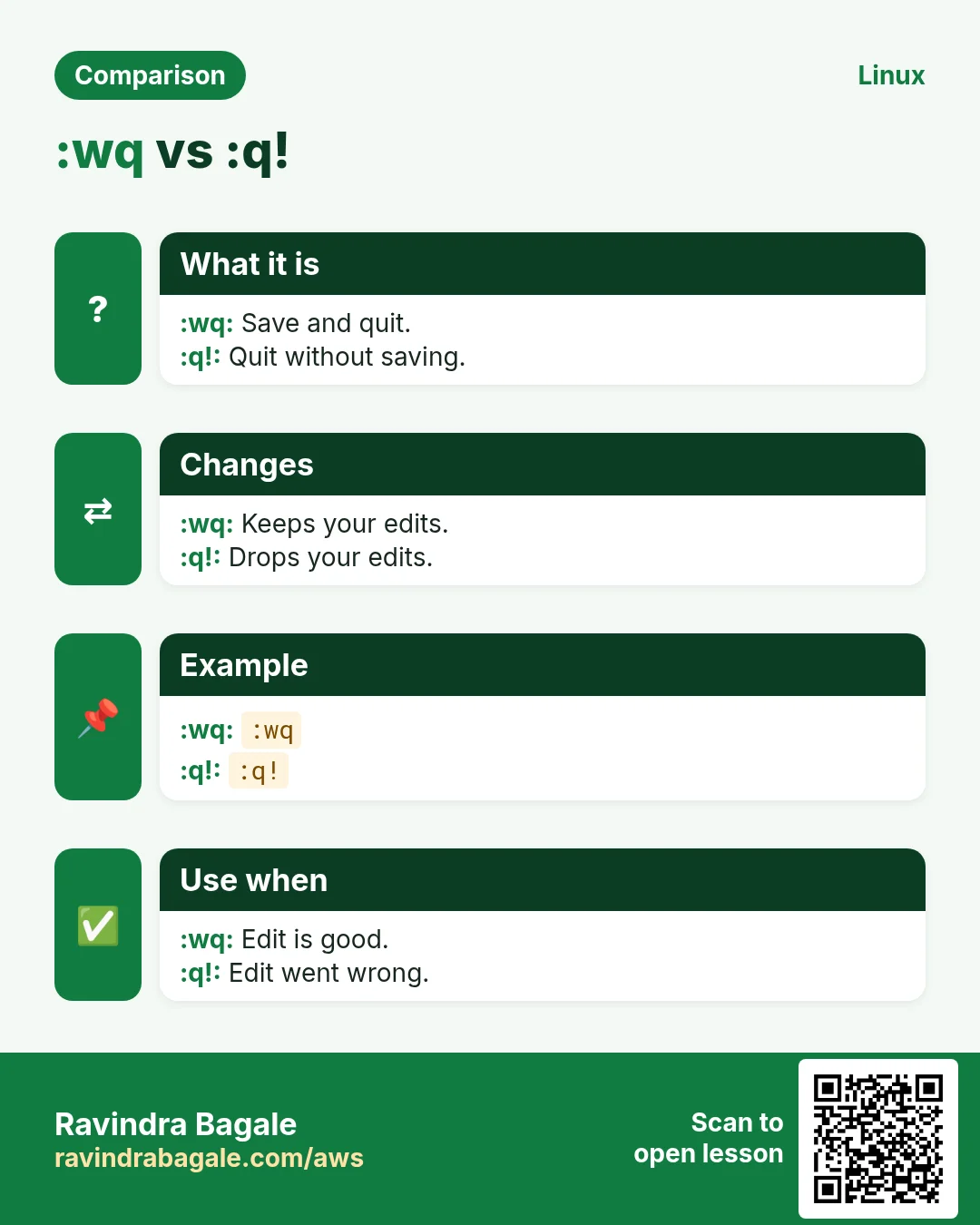
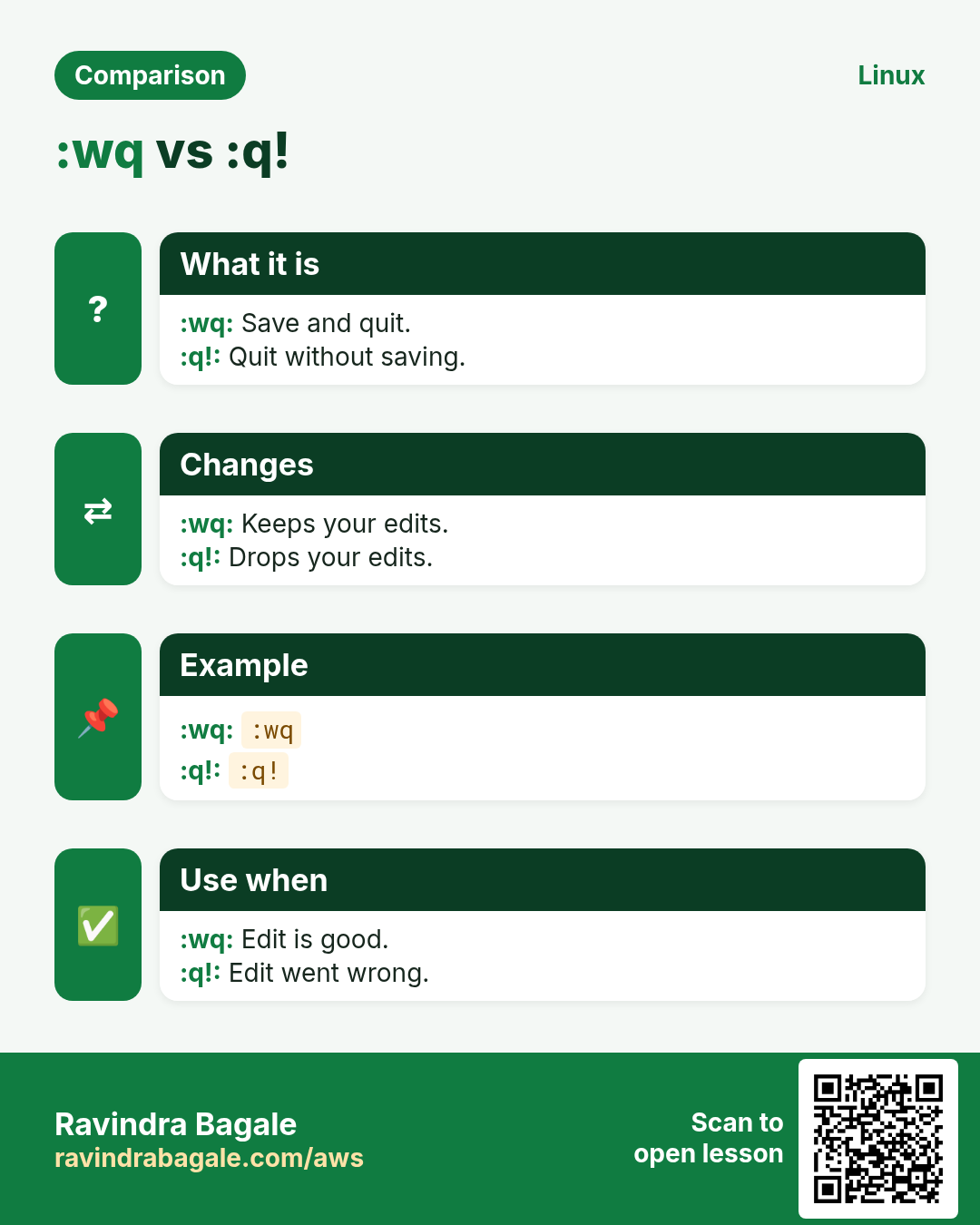
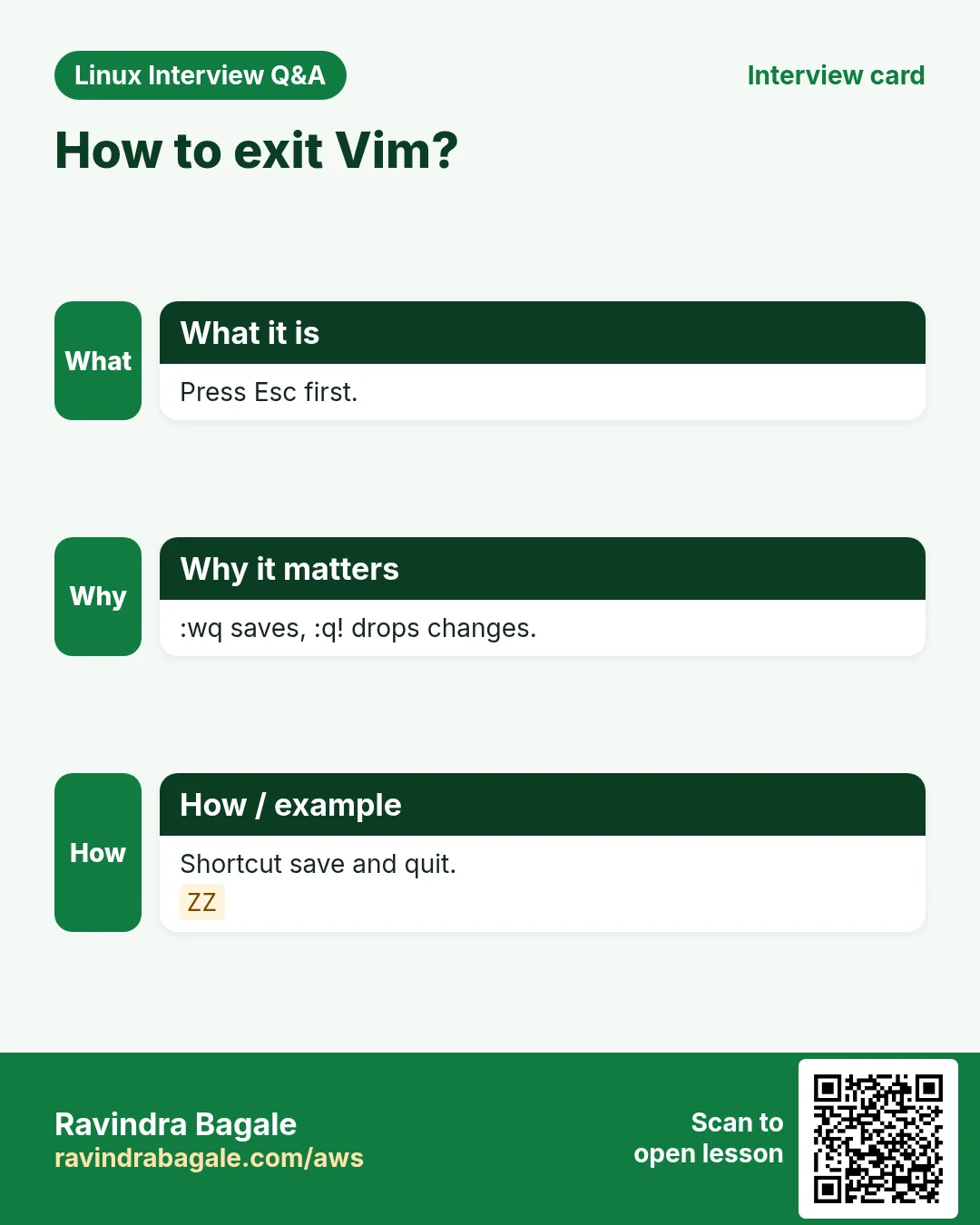
Vim opens in Normal mode, where keys are commands. i enters Insert mode to type. Esc returns to Normal. : opens Command-line mode for :w (save), :q (quit), :wq or :x (save and quit), :q! (quit without saving). vimtutor is a 30-minute built-in lesson.
| Command | Does |
|---|---|
| :w | Save |
| :q | Quit (if no changes) |
| :wq or :x or ZZ | Save and quit |
| :q! | Quit and throw away changes |
| :w newname | Save as |
| :e file | Open another file |
- Open a file.
vim notes.txtOutput:
~
~
"notes.txt" [New]
Normal mode. ~ means empty lines.
- Type text.
i Hello Pune EscOutput:
Hello Punei entered Insert mode; Esc left it.
- Save and quit.
:wqOutput:
"notes.txt" [New] 1L, 11B written1 line, 11 bytes saved.
- Quit without saving after a mistake.
:q!All changes since the last save are gone.
- Learn more with the tutor.
vimtutorOutput:
= W e l c o m e t o t h e V I M T u t o rA safe practice copy opens.
4. Moving fast in Normal mode
Arrow keys are slow. Vim motions let you jump by words, lines and patterns, and they combine with every edit command.
h j k l = left down up right. w = next word, b = back a word, e = end of word. 0 = start of line, ^ = first non-space, $ = end of line. gg = first line, G = last line, 42G or :42 = line 42. Ctrl+d / Ctrl+u = half page down/up. % = matching bracket. A number before a motion repeats it: 5j = 5 lines down.
- Jump to the end of the file.
GOutput:
(cursor on the last line)Great for reading the latest log lines.
- Jump to line 120 (from an error message).
:120Output:
(cursor on line 120)Or open directly: vim +120 app.py.
- Move 3 words right.
3wCount + motion.
- Show line numbers.
:set numberOutput:
  1 server {
  2   listen 80;
Turn off with :set nonumber.
5. Editing: delete, copy, paste, undo, change
Most editing is deleting, copying and changing small pieces. Vim does each in two or three keys.
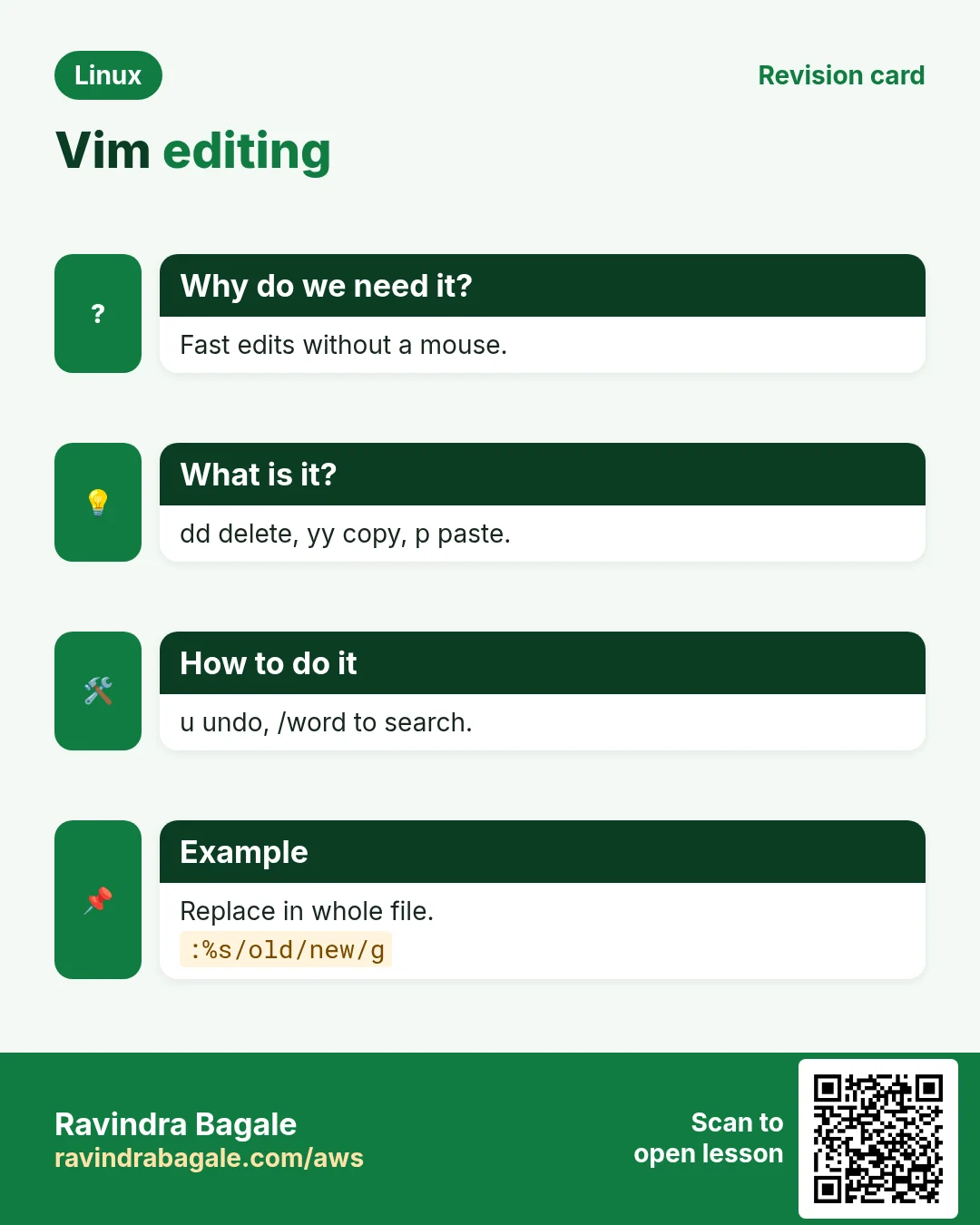
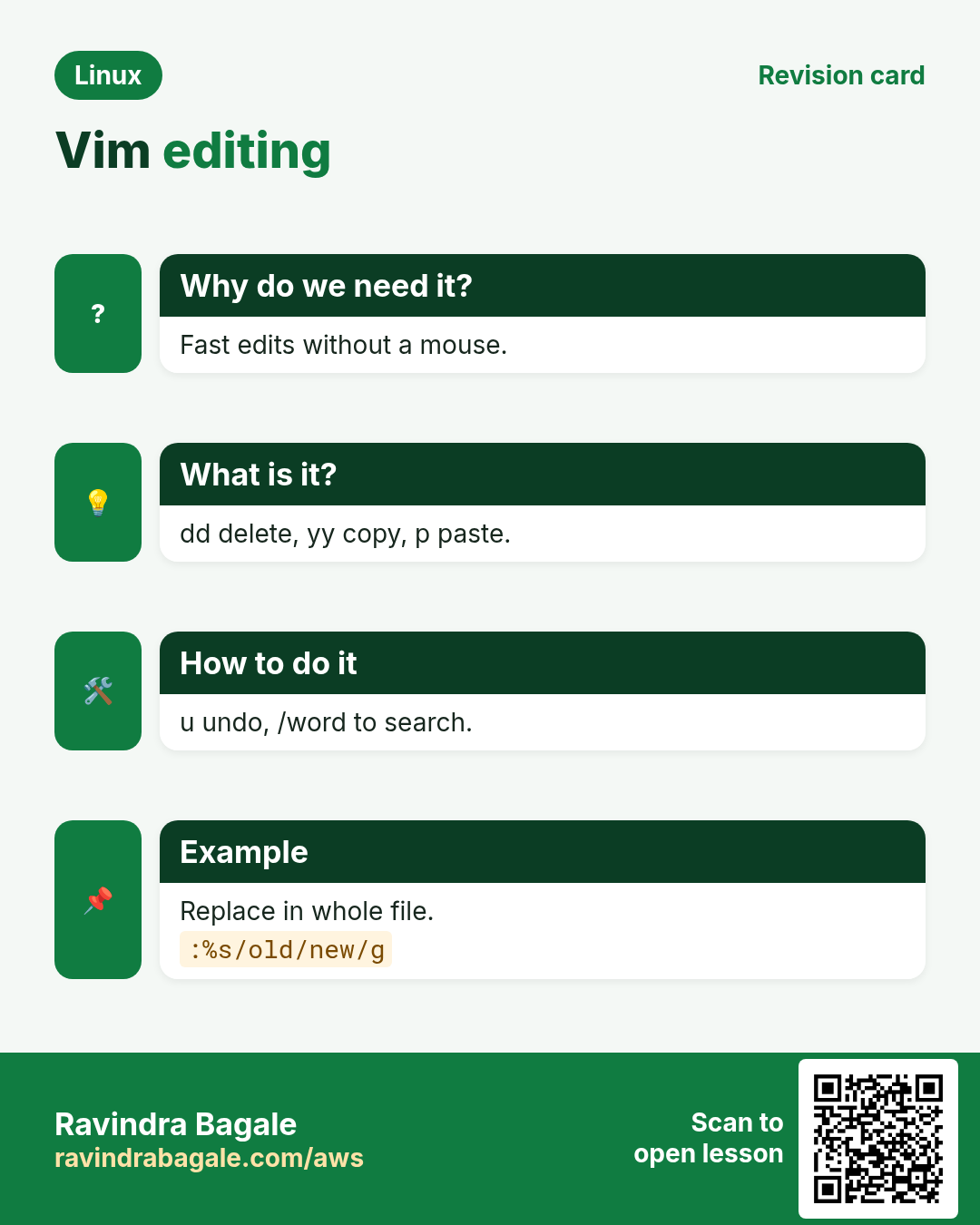
Operator + motion. d = delete, y = yank (copy), c = change (delete then Insert). dd = delete line, yy = copy line, p = paste after, P = paste before. dw = delete word, d$ or D = delete to end of line, ciw = change inner word. x = delete one character. u = undo, Ctrl+r = redo, . = repeat the last change. o / O = new line below/above. A = append at end of line.
| Keys | Does |
|---|---|
| dd / 3dd | Delete 1 / 3 lines |
| yy / p | Copy line / paste |
| dw / cw | Delete / change word |
| ciw | Change the whole word under cursor |
| ci" | Change text inside quotes |
| x | Delete a character |
| u / Ctrl+r | Undo / redo |
| . | Repeat last change |
| >> / << | Indent / unindent line |
- Delete 3 lines.
3ddOutput:
3 fewer linesThey go into the register, so p can paste them.
- Move a line down (cut and paste).
ddpDelete the line, paste after the next one.
- Change a word.
ciw production EscOutput:
env = productionReplaced the word under the cursor.
- Change a value in quotes.
ci" 10.0.1.20 EscOutput:
host = "10.0.1.20"Works anywhere on the line inside the quotes.
- Repeat the same change on the next match.
n.n goes to the next search hit, . repeats.
- Undo twice, redo once.
u u Ctrl+rOutput:
1 change; before #4Undo is unlimited in a session.
6. Search and replace
Changing a host name in 40 places by hand is slow and error-prone.
/text searches forward, ?text searches back, n = next, N = previous, * = search the word under the cursor. :s/old/new/ replaces the first match on the line. :%s/old/new/g replaces all in the file. Add c to confirm each: :%s/old/new/gc. :10,20s/// limits to lines 10–20. :noh clears highlight.
- Find errors in a log.
/ERROROutput:
search hit BOTTOM, continuing at TOPPress n for the next one.
- Replace all in the file.
:%s/db-old.internal/db-new.internal/gOutput:
12 substitutions on 12 lines% = whole file, g = every match on each line.
- Replace with confirm.
:%s/8080/9090/gcOutput:
replace with 9090 (y/n/a/q/l/^E/^Y)?y = yes, n = skip, a = all, q = quit.
- Only in lines 5 to 15.
:5,15s/^/# /Output:
11 substitutions on 11 linesComments out lines 5–15 (^ = line start).
- Delete all blank lines.
:g/^$/dOutput:
8 fewer lines:g runs a command on every matching line.
7. Advanced: visual mode, macros, registers, splits
For big edits (YAML blocks, CSV columns, the same change on 200 lines) you need power tools.
v = select characters, V = select lines, Ctrl+v = select a block (columns). After selecting: d, y, >, < or : work on it. Macros: qa starts recording into register a, q stops, @a plays, 10@a plays 10 times. Registers: "ayy copies into a, "ap pastes from a, "+y copies to system clipboard. Splits: :split and :vsplit, Ctrl+w w to move. :!cmd runs a shell command. :r !cmd inserts its output.
- Indent a YAML block.
V 4j >Output:
5 lines >ed 1 timeSelected 5 lines and shifted them right.
- Add # to the start of 10 lines (block insert).
Ctrl+v 9j I # EscOutput:
# line1
# line2 ...
I in block mode types on every selected line.
- Record a macro that quotes a word and moves down.
qa I" Esc A", Esc j qOutput:
"apple",Recorded into register a.
- Play it on 50 more lines.
50@aOutput:
"banana",
"cherry", ...
Same edit, 50 times, in a second.
- Open two files side by side.
:vsplit nginx.confCtrl+w w jumps between windows.
- Insert today's date from the shell.
:r !dateOutput:
Sun Oct 25 11:02:10 IST 2026Shell output inside your file.
- Save a root file you opened without sudo.
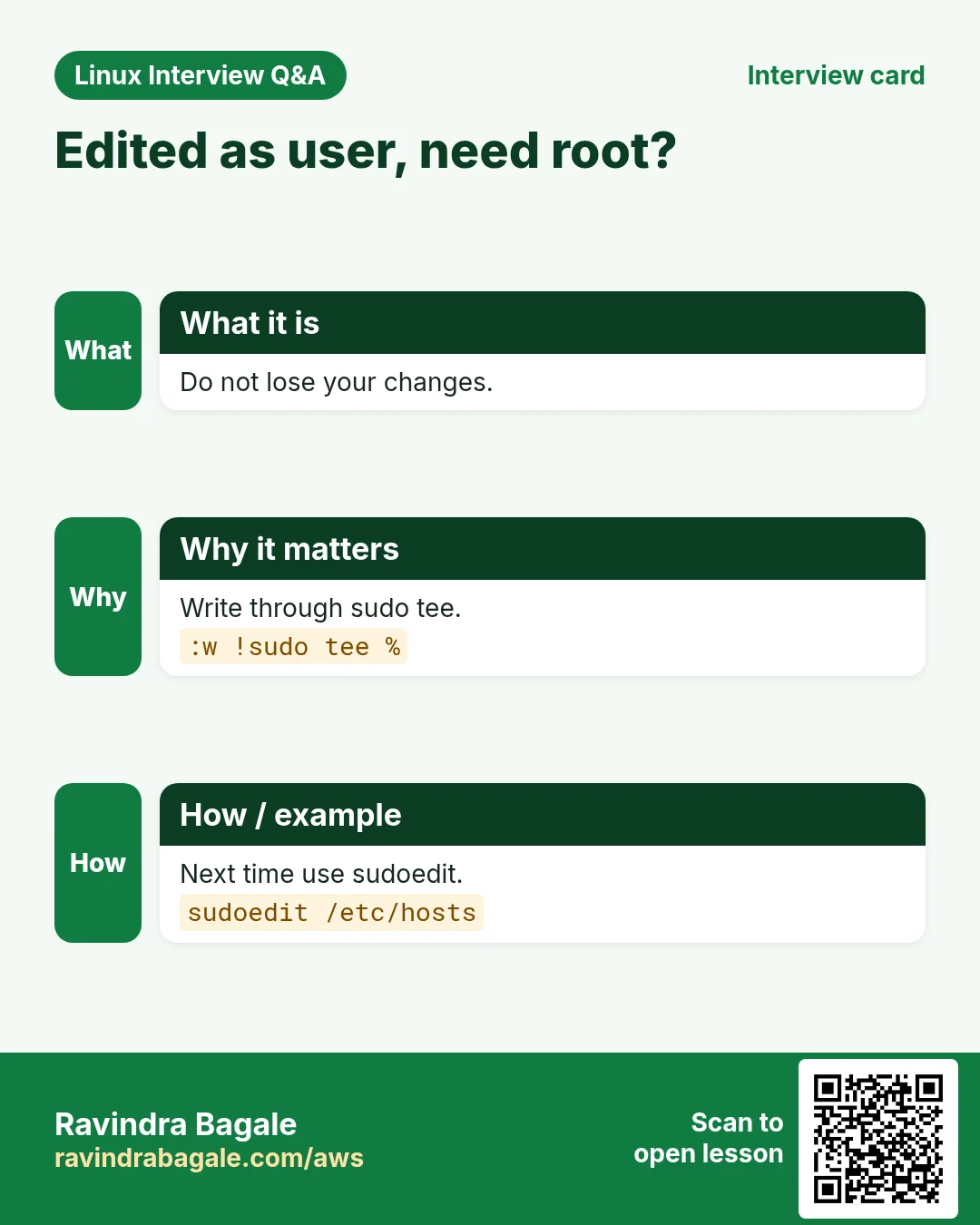
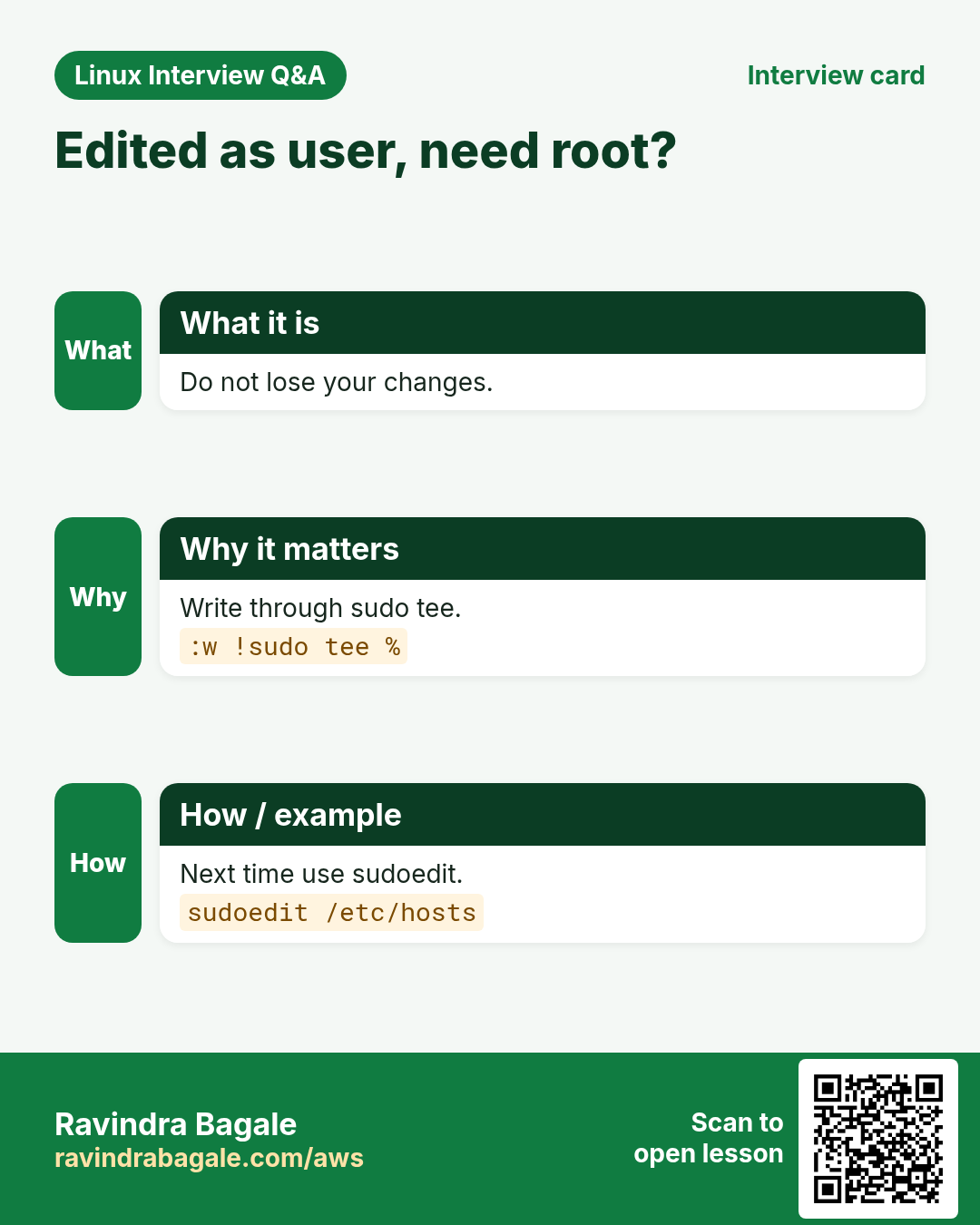
:w !sudo tee % > /dev/null% is the current file name. Reload with :e! after.
8. Your .vimrc: make vim yours
Typing :set number every time is boring. Settings in ~/.vimrc load on every start.
~/.vimrc is a text file of settings. Good starters: number, relativenumber, tabs as spaces for YAML, search options and syntax on.
- Write a starter .vimrc.
cat > ~/.vimrc <<'V'
syntax on
set number relativenumber
set expandtab tabstop=2 shiftwidth=2
set ignorecase smartcase incsearch hlsearch
set paste?
V
Every new vim session now has these.
- Check a setting.
:set tabstop?Output:
tabstop=2? shows the current value.
- Set vim as the default editor (git, crontab, visudo).
echo 'export EDITOR=vim VISUAL=vim' >> ~/.bashrc && source ~/.bashrccrontab -e and git commit now open vim.
9. Real examples from many industries
The same Linux skill shows up in every kind of company. Seeing it in many places helps you remember it.
Each row is a made-up team. It shows who uses this and how.
| Team and city | How they use it | Command |
|---|---|---|
| Vikram, SRE, Noida | Fixes nginx config on a live server with vim | sudo vim /etc/nginx/nginx.conf |
| Chloe, Kubernetes, Sydney | Edits YAML with expandtab and visual indent | kubectl edit deploy web |
| Javier, data, Bogotá | Turns a CSV column into SQL with a macro | qa ... q 200@a |
| Sneha, support, Kochi | Uses nano for quick hosts file edits | sudo nano /etc/hosts |
| Yusuf, security, Istanbul | Edits sudoers safely | sudo visudo |
| Aarav, student, Delhi | Writes git commit messages in vim | git commit |
| Nora, embedded, Munich | Uses vi on BusyBox devices with no vim | vi /etc/config/network |
10. Common errors and how to fix them
Everyone hits these errors. Knowing the cause saves hours.
Read the exact message first. Then match it to a row below.
| Error you see | Why it happens | How to fix |
|---|---|---|
E37: No write since last change (add ! to override) | You tried :q with unsaved changes | Use :wq to save, or :q! to discard.:wq |
E45: 'readonly' option is set (add ! to override) | File opened read-only (view, or -R) | Use :w! if you own it, or reopen properly.:w! |
E212: Can't open file for writing | No permission (root file) or folder missing | Save with sudo tee, or reopen with sudo.:w !sudo tee % > /dev/null |
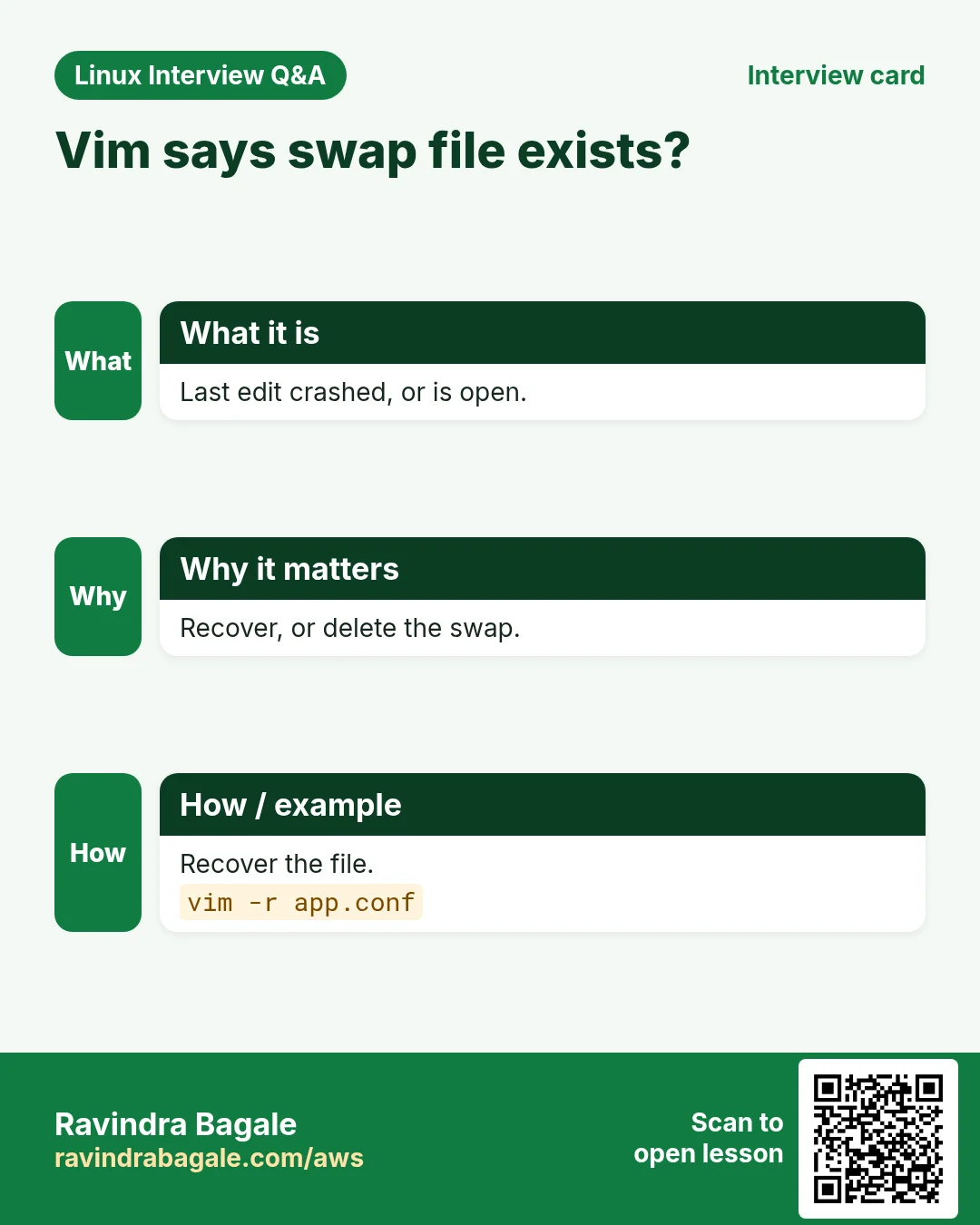
E325: ATTENTION Found a swap file by the name ".app.conf.swp" | Vim crashed earlier or the file is open elsewhere | Press R to recover, or D to delete the swap if it is old.ls -la .*.swp |
Typed text appears as commands (letters vanish, lines deleted) | You were in Normal mode, not Insert mode | Press Esc, then u to undo, then i to insert.u |
E486: Pattern not found: Error | Search is case sensitive | Use /\cerror or :set ignorecase.:set ignorecase |
Pasted code gets extra indent (staircase) | Auto-indent runs on paste | Use :set paste before pasting, then :set nopaste.:set paste |
Stuck in 'Recording @q' | You pressed q followed by a letter | Press q again to stop.q |
Error 'mapping' or tab errors in YAML after editing | Tabs were inserted instead of spaces | Set expandtab and run :retab.:set expandtab | retab |
nano: Error writing /etc/hosts: Permission denied | nano opened without sudo | Exit and reopen with sudo nano.sudo nano /etc/hosts |
11. Troubleshooting step by step
When vim behaves oddly, it is almost always the mode, the file permission or a setting.
Go top to bottom. Stop at the first step that shows the problem.
- Press Esc twice. Now you are in Normal mode.
- Undo what happened.
u- Check the mode line at the bottom (INSERT, VISUAL, recording).
- Check whether you can write the file.
:!ls -l %- Check settings that change typing.
:set paste? expandtab? autoindent?- Start clean without your vimrc.
vim -u NONE file12. Lab 1: Fix a broken config with vim only
Grace is on call for a bakery chain in Cape Town. The app config points to an old database and has a wrong port. Fix it in vim.
A full hands-on lab. Run every step on a test Linux machine (an EC2 instance, a VM, or WSL).
- Create the file.
printf 'db_host = "db-old.internal"\ndb_port = 5433\nreplica = "db-old.internal"\ndebug = true\n' > app.conf- Open it with numbers.
vim +'set number' app.confOutput:
  1 db_host = "db-old.internal"
  2 db_port = 5433
  3 replica = "db-old.internal"
4 debug = true- Replace the host everywhere.
:%s/db-old/db-new/gOutput:
2 substitutions on 2 lines- Go to line 2 and change the port.
:2 then $ ciw 5432 EscOutput:
db_port = 5432- Delete the debug line.
G ddOutput:
3 lines- Save and quit, then check.
:wq then cat app.confOutput:
db_host = "db-new.internal"
db_port = 5432
replica = "db-new.internal"
13. Lab 2: Turn a list into JSON with a macro
Convert 100 city names into a JSON array in under a minute.
A full hands-on lab. Run every step on a test Linux machine (an EC2 instance, a VM, or WSL).
- Make the list.
printf '%s\n' Pune Mumbai Delhi Paris Lagos Lima > cities.txt && vim cities.txt- Record: quote the line, add a comma, go down.
qq I" Esc A", Esc j qOutput:
"Pune",- Play on the rest.
100@qOutput:
"Mumbai",
...
"Lima",- Remove the last comma.
G $ x- Add brackets.
gg O [ Esc G o ] Esc :wqOutput:
[
"Pune",
...
"Lima"
]- Validate.
python3 -m json.tool cities.txt | head -3Output:
[
    "Pune",
"Mumbai",Ravindra Bagale's Tip
Lost in vim? Press Esc twice, then type :q! and Enter. You are out with no damage. Then spend 30 minutes with vimtutor, it is the best free vim course.
Ravindra Bagale's Tip – मराठी
Vim मधे हरवलात? दोनदा Esc, मग :q! आणि Enter. काहीही नुकसान न होता बाहेर. मग vimtutor ला 30 मिनिटं द्या, तो सगळ्यात चांगला free vim course आहे.
Ravindra Bagale's Tip – हिंदी
Vim में खो गए? दो बार Esc, फिर :q! और Enter। बिना नुकसान बाहर। फिर vimtutor को 30 मिनट दीजिए, यह सबसे अच्छा free vim course है।
14. Frequently asked questions
Q. vi vs vim?
vi is the old editor in every Unix. vim is 'vi improved' with undo levels, syntax colours and plugins. On many systems vi starts vim.
Q. Should I learn nano or vim?
Both. nano for a quick edit, vim because it is everywhere and much faster for real work.
Q. How do I copy to my laptop clipboard?
In a GUI or with clipboard support use "+y. Over SSH, select with the mouse in the terminal.
Q. What is Neovim?
A modern fork of vim with Lua config and built-in LSP. Same keys.
Q. How do I edit sudoers safely?
Always with visudo. It checks syntax before saving, so you cannot lock yourself out.
15. Interview questions and answers
Beginner level
Q. How do you save and quit vim?
:wq or :x or ZZ.
Q. How do you quit without saving?
:q!
Q. How do you enter Insert mode?
i (or a, o, A, I).
Q. How do you save in nano?
Ctrl+O then Enter.
Mid level level
Q. How do you replace all occurrences in a file?
:%s/old/new/g, add c to confirm.
Q. What does . do?
Repeats the last change.
Q. Difference between v, V and Ctrl+v?
Character, line and block selection.
Q. How do you go to line 50?
:50 or 50G.
Senior level
Q. You opened /etc/nginx/nginx.conf without sudo and made 30 edits. How do you save?
:w !sudo tee % > /dev/null, then :e! to reload. Or save to /tmp and sudo cp.
Q. Explain a macro and when you would use it.
A recorded sequence of keys in a register (qa ... q, @a). Use it for repetitive structured edits like reformatting lines.
Q. What is a swap file and how do you handle E325?
Vim's crash-recovery file. Recover (R) if vim crashed, delete if old, or open read-only if someone else is editing.
Q. How do you keep YAML safe in vim?
set expandtab tabstop=2 shiftwidth=2, :set list to see tabs, and :retab to convert.
Try at home
- Run vimtutor for 30 minutes.
- Create ~/.vimrc with the starter settings.
- Use :%s to change a word in a test file.
Practise changes with a copy of a text file
Use vimtutor or a throwaway text file. Enter Insert mode with i, press Escape to return to Normal mode, and use :w to save. To inspect a whole-file replacement without saving, use a copy and choose which changes to keep.
Interview check Why can typing ordinary letters have unexpected effects?
Normal mode interprets keys as commands, while Insert mode enters text. Check the mode and use u to undo a change before saving.
Practise this chapter
Interview questions and answers
How would you help someone who typed a Vim command and saw it appear as text?
I would have them check the mode indicator. They were likely in Insert mode, where keys add text. Pressing Esc returns to Normal mode; from there they can undo the unintended edit and use the intended command. I would verify the saved file separately from the buffer.
Check your understanding
Choose an answer, then compare your reasoning with the explanation.
Practice Tasks
Practice checks run in your browser. They check the answer for this exercise; they do not create resources or connect to your AWS account.
About this scenarioAhmednagar Sugar Co-op is a sugar co-operative business in Ahilyanagar. Balasaheb Pawar looks after its IT and cloud work. They count money in INR and run their AWS resources in the ap-south-1 Region. In the tasks below you do real jobs for them using what this lesson teaches. All names, account IDs, IP addresses and numbers are made up for practice.
0 / 16
Easy Open a file at a line
Jump to the error line.
Open app.py in vim with the cursor on line 120.
- Find the Linux command that does this job.
- Add the options (like -r or -h) the task needs.
- Add the file names, folders or users in the right order.
- Use sudo if the job changes system files or users. Click Check answer.
Easy nano with line numbers
Quick edits with context.
Open site.ini in nano with line numbers shown.
- Find the Linux command that does this job.
- Add the options (like -r or -h) the task needs.
- Add the file names, folders or users in the right order.
- Use sudo if the job changes system files or users. Click Check answer.
Easy Edit a root file in nano
System files need root.
Open /etc/motd in nano so you can save changes.
- Find the Linux command that does this job.
- Add the options (like -r or -h) the task needs.
- Add the file names, folders or users in the right order.
- Use sudo if the job changes system files or users. Click Check answer.
Easy Start the vim tutor
Best free 30-minute lesson.
Start the built-in vim tutorial in French (language code fr).
- Find the Linux command that does this job.
- Add the options (like -r or -h) the task needs.
- Add the file names, folders or users in the right order.
- Use sudo if the job changes system files or users. Click Check answer.
Easy Save and quit
The most used vim command.
In vim Normal mode, type the command-line command that saves and quits.
- Write down the numbers the task gives you.
- Work it out step by step on paper.
- Type only the final answer in the box.
- Click Check answer.
Easy Enter Insert mode
You cannot type text in Normal mode.
Which single key enters Insert mode before the cursor?
- Write down the numbers the task gives you.
- Work it out step by step on paper.
- Type only the final answer in the box.
- Click Check answer.
Easy Delete a line
Fast line removal.
Which Normal-mode keys delete the whole current line?
- Write down the numbers the task gives you.
- Work it out step by step on paper.
- Type only the final answer in the box.
- Click Check answer.
Easy Copy a line
Copy is called yank.
Which Normal-mode keys copy (yank) the current line?
- Write down the numbers the task gives you.
- Work it out step by step on paper.
- Type only the final answer in the box.
- Click Check answer.
Easy Undo
Every mistake is reversible.
Which single Normal-mode key undoes the last change?
- Write down the numbers the task gives you.
- Work it out step by step on paper.
- Type only the final answer in the box.
- Click Check answer.
Easy Show line numbers
Match line numbers in error messages.
Type the vim command that shows line numbers.
- Write down the numbers the task gives you.
- Work it out step by step on paper.
- Type only the final answer in the box.
- Click Check answer.
Easy Go to line 50
Jump from an error message.
Type the vim command-line command that jumps to line 50.
- Write down the numbers the task gives you.
- Work it out step by step on paper.
- Type only the final answer in the box.
- Click Check answer.
Easy Save in nano
nano writes out files.
Which key combination saves the file in nano? Write it like ctrl+x.
- Write down the numbers the task gives you.
- Work it out step by step on paper.
- Type only the final answer in the box.
- Click Check answer.
Medium Edit sudoers safely
A typo can lock out all admins.
Open the drop-in file /etc/sudoers.d/40-ops with the safe editor that checks syntax.
- Find the Linux command that does this job.
- Add the options (like -r or -h) the task needs.
- Add the file names, folders or users in the right order.
- Use sudo if the job changes system files or users. Click Check answer.
Medium Replace in the whole file
Change a host in 40 places.
Type the vim command that replaces every db-old with db-new in the whole file.
- Write down the numbers the task gives you.
- Work it out step by step on paper.
- Type only the final answer in the box.
- Click Check answer.
Medium Play a macro
Repeat a recorded edit.
You recorded a macro into register a. Type the keys that play it once.
- Write down the numbers the task gives you.
- Work it out step by step on paper.
- Type only the final answer in the box.
- Click Check answer.
Hard Delete blank lines
Clean up config files.
Type the vim command that deletes all empty lines in the file.
- Write down the numbers the task gives you.
- Work it out step by step on paper.
- Type only the final answer in the box.
- Click Check answer.
16. Related chapters
- Linux Ops Refresh for DevOps
- Bash Scripting for Automation
- Linux grep and find Commands with Examples
- How to Set Up Passwordless SSH Between Linux Servers
In short
- nano: Ctrl+O save, Ctrl+X exit.
- vim: Esc for Normal, i for Insert, :wq to save and quit, :q! to escape.
- Operator + motion: dd, yy, p, ciw, u, .
- :%s/old/new/g, visual block, macros @a.
Revision, comparison and interview cards
Revise this lesson in a few minutes. Save the cards on your phone or download them as PNG files. The QR code on each card opens this lesson.
More cards: Ravi Sir's Cards.