Linux File Commands: touch, cat, nano and vi Tutorial
Let's start. In the previous chapter we learned to walk around the server: pwd, ls, mkdir, cd, and absolute, relative and ~ paths. Folders are only boxes, though. The real work on a server happens inside files: settings, web pages, scripts, logs. Now we make files four different ways, write in them, read them, add to them and edit them. We also learn a shortcut that builds a whole family tree of folders in one line. Keep your server running and type every command with me.
In this class
- A one-minute recap of directories and paths
- Building a folder tree (the Ramayan example), step by step and in one line
- The brace shortcut
{a,b,c}, and why-pmatters - Four ways to make a file: touch, cat, nano, vi
- touch: empty files, and its real job (the timestamp)
- Dots and extensions: why
photo.jpgis just a name - Why anyone would want an empty file
- One name, one item; capital letters count
- cat: write with
>, read, append with>>, and finish with Ctrl+D - nano: the easiest editor, and how to save and exit
- File names with spaces, and opening several files
- Practice task: the calendar, in the fewest commands
- ls -R and tree
- Every command is a small program
- vi: modes, i a o, Esc, :wq and :q!
- Try-at-home tasks
1. One-minute recap: directories and paths
Everything here builds on the previous chapter. If any line below feels new, read Linux Directory Commands: pwd, ls, cd, mkdir for Beginners first.
What you should already know:
| Command | What it does |
|---|---|
ls |
list what is here |
ls -r |
the same list in reverse order (small r) |
mkdir ravi raja rani |
three folders at once |
mkdir 'ravicha folder' |
one folder whose name has a space |
mkdir -p one/two/three |
nested folders, parents made for you |
cd one/two/three |
go down several levels |
cd .., cd ../.., cd ../../.. |
up one, two, three levels |
cd - |
back to the previous folder |
cd |
home (/home/ec2-user) |
cd /home/ec2-user/ravi |
jump anywhere with an absolute path |
Keep ls -r (small r, reverse) apart from ls -R (capital R, recursive). We meet ls -R in section 14.
2. Assignment: build the Ramayan tree
Real projects are trees: a website folder with css, images and js inside; an app with logs and config. You must be able to turn a drawing into folders.
The task. In your home folder, make this tree: Ramayan, inside it Dasarath, and inside Dasarath four folders: Ram, Laxman, Bharat, Shatrughna.
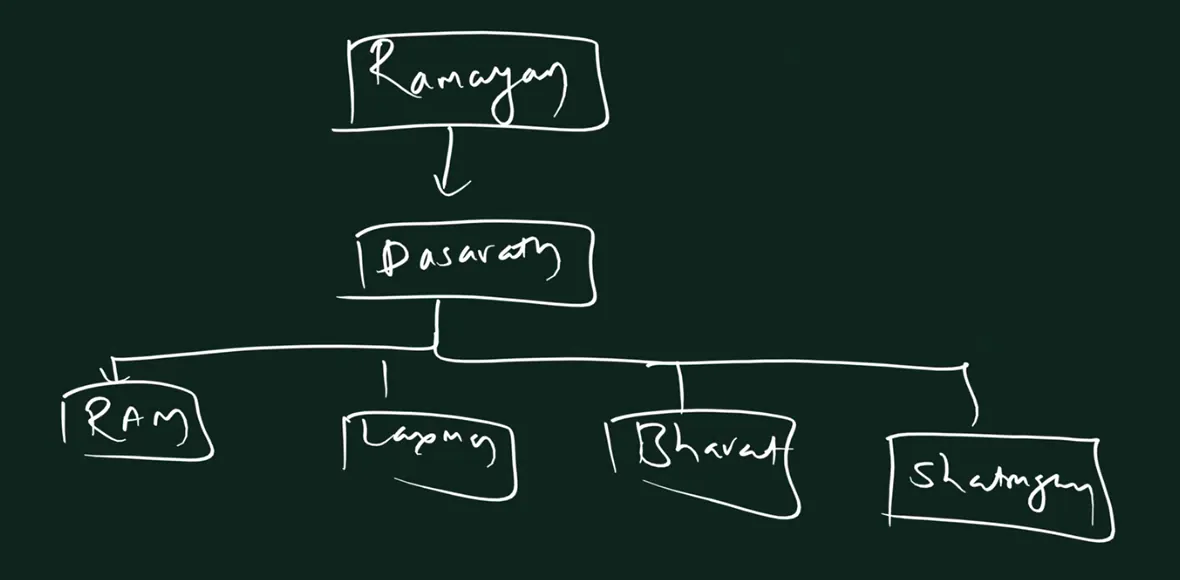
Whiteboard: The assignment: Ramayan at the top, Dasarath inside it, and four folders inside Dasarath: Ram, Laxman, Bharat and Shatrughna.
How, step by step (from ~):
cd(make sure you are home).mkdir Ramayanmkdir Ramayan/Dasarathmkdir Ramayan/Dasarath/Rammkdir Ramayan/Dasarath/Laxmanmkdir Ramayan/Dasarath/Bharatmkdir Ramayan/Dasarath/Shatrughna- Check:
ls Ramayan/Dasarath→Bharat Laxman Ram Shatrughna
Each step only works because the step before it made the parent. That is the whole idea of a path: you can't put a folder inside a folder that doesn't exist yet.
The same thing in one line (long version):
mkdir -p Ramayan/Dasarath/Ram Ramayan/Dasarath/Laxman Ramayan/Dasarath/Bharat Ramayan/Dasarath/Shatrughna
- Four paths, separated by spaces, so four folders.
-pmakesRamayanandRamayan/Dasarathon the way, if they are missing.
The one-line version needs -p on a fresh start. Without it, if Ramayan/Dasarath doesn't exist yet, plain mkdir stops with mkdir: cannot create directory ‘Ramayan/Dasarath/Ram’: No such file or directory. With -p it works from nothing.
3. The brace shortcut: {a,b,c}
The long line above repeats Ramayan/Dasarath/ four times. More typing means more typos.
Write the common part once, and put the different names in curly braces, separated by commas:
mkdir -p Ramayan/Dasarath/{Ram,Laxman,Bharat,Shatrughna}
Ramayan/Dasarath/is the common path.{Ram,Laxman,Bharat,Shatrughna}is the list of names.- Commas between names, and no spaces anywhere inside the braces.
- Before
mkdireven starts, the shell (bash) expands the line into the four full paths.mkdirreceives the long version.
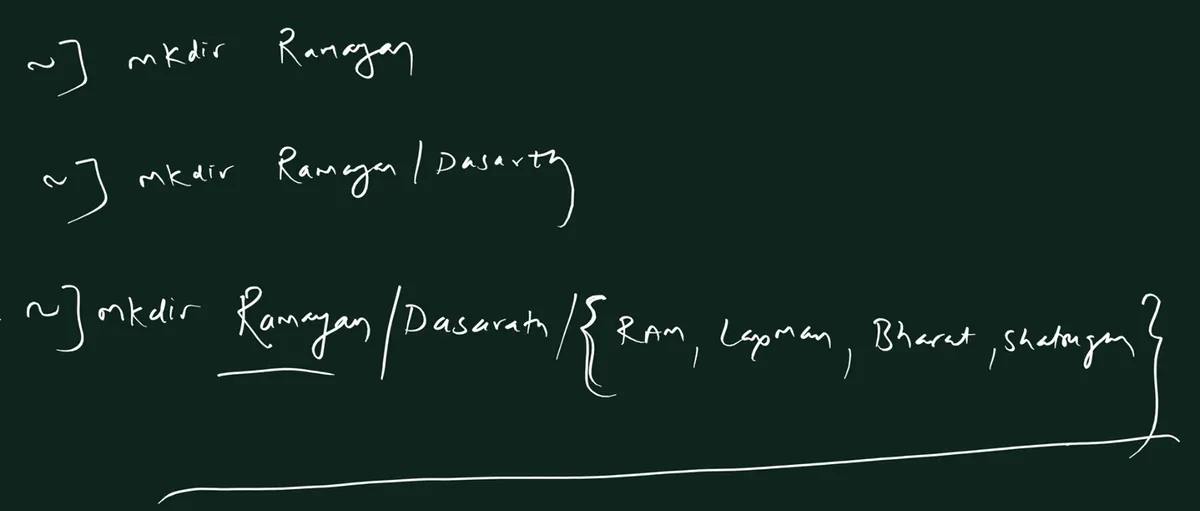
Whiteboard: mkdir Ramayan, then mkdir Ramayan/Dasarath, then the four children in one line with braces. Because the first two lines already made the parents, the third line works without -p.
Figure 1. Animation: bash expands Ramayan/Dasarath/{Ram,Laxman,Bharat,Shatrughna} into four paths before mkdir runs, and the four folders appear. A space after a comma breaks the expansion.
See the expansion yourself. echo prints what the shell will hand to the command, without creating anything:
echo Ramayan/Dasarath/{Ram,Laxman}→Ramayan/Dasarath/Ram Ramayan/Dasarath/Laxmanecho file{1,2,3}.txt→file1.txt file2.txt file3.txt
Worked example: a website skeleton.
mkdir -p mysite/{css,images,js}ls mysite→css images js
Two details. First, -p: without it the brace line fails if Ramayan/Dasarath doesn't exist yet. Second, spaces: {Ram, Laxman} with a space is not expanded. The shell sees two separate words, Ramayan/Dasarath/{Ram, and Laxman}, and you end up with strangely named folders. Keep braces tight: {Ram,Laxman}.
4. Files: four ways to make one
Up to now we only made folders. A folder is an empty box until you put files in it.
There are four common ways to create a file:
touch: makes an empty file.cat: makes a file and lets you type lines into it.nano: a simple editor, like Notepad inside the terminal.vi: a powerful editor found on every Linux server.
They differ in what else they can do after creating:
Figure 2. touch can only create an empty file. cat can create, write, read and append, but not change a line in the middle. nano and vi can do everything.
| Tool | Create | Write | Read | Modify | Append |
|---|---|---|---|---|---|
touch |
yes (empty) | no | no | no | no |
cat |
yes (cat > f) |
yes (cat > f) |
yes (cat f) |
no | yes (cat >> f) |
nano |
yes | yes | yes | yes | yes |
vi |
yes | yes | yes | yes | yes |
"Modify" means changing something in the middle, for example turning hi on line 2 into bye. Only an editor can do that.
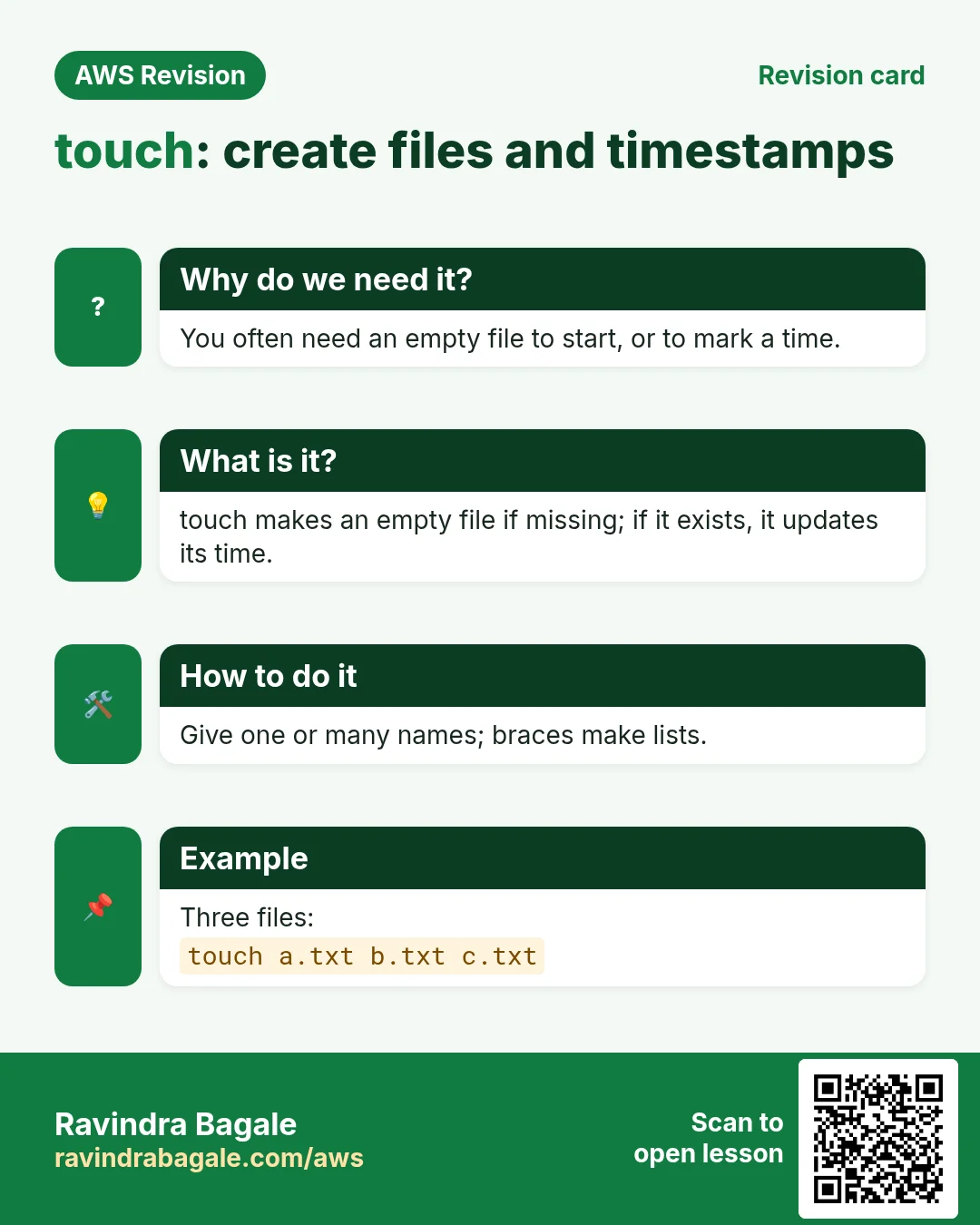
5. touch: empty files
touch is the fastest way to get files to practise on, and the standard way to create an empty file that a program will fill later.
Check whether the command changed the contents
Try this only in your practice directory. Run printf 'first line
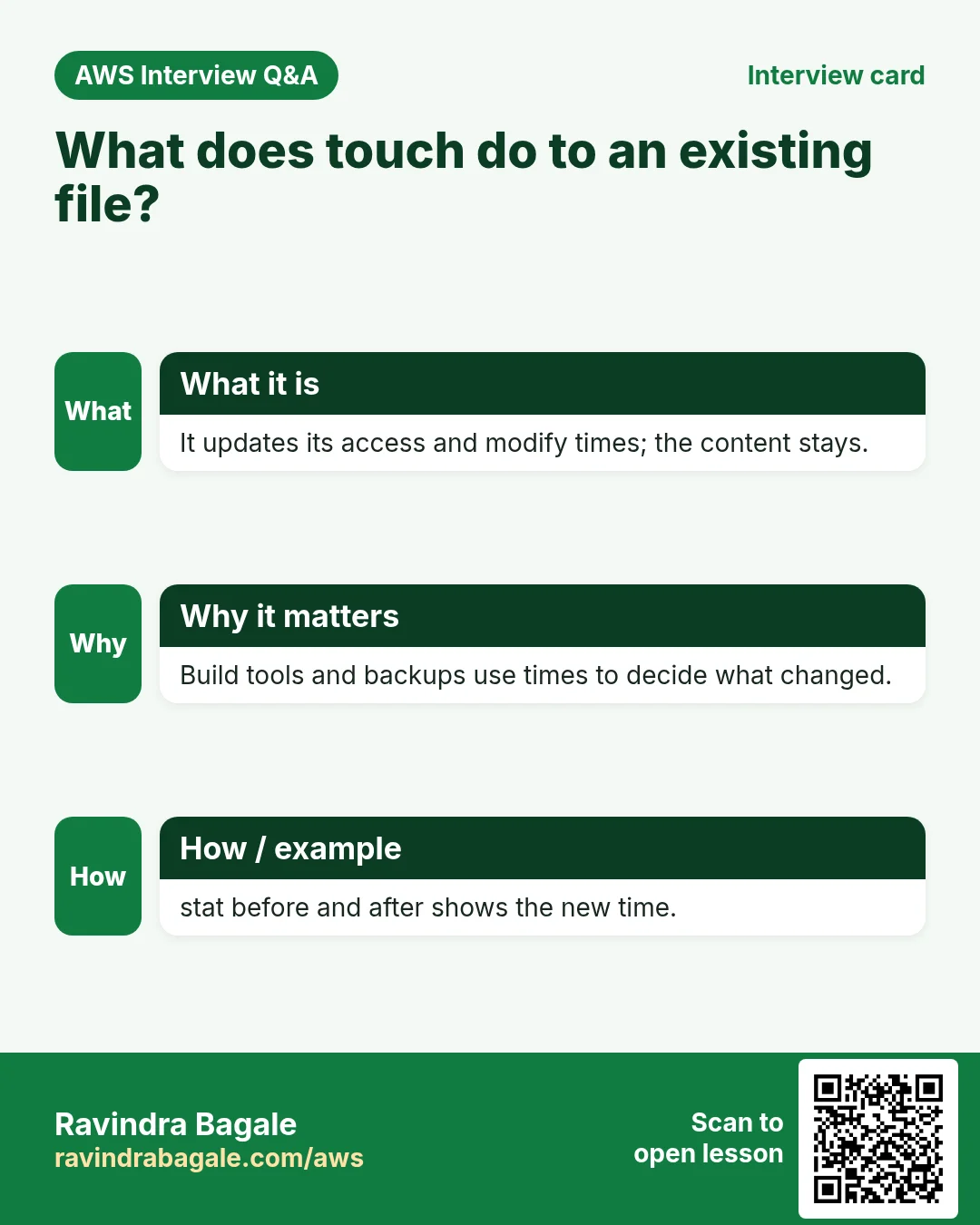
' > touch-lab.txt and read it with cat touch-lab.txt. Now run touch touch-lab.txt and read it again. The text stays. touch updates timestamps on an existing file. If the name is missing, it creates an empty file by default.
Run touch empty-lab.txt in the same practice folder and compare ls -l touch-lab.txt empty-lab.txt. The size column shows the written file has bytes and the new empty one has zero. The two commands let you check two different things: ls -l can show the file exists, and cat can show whether it contains text.
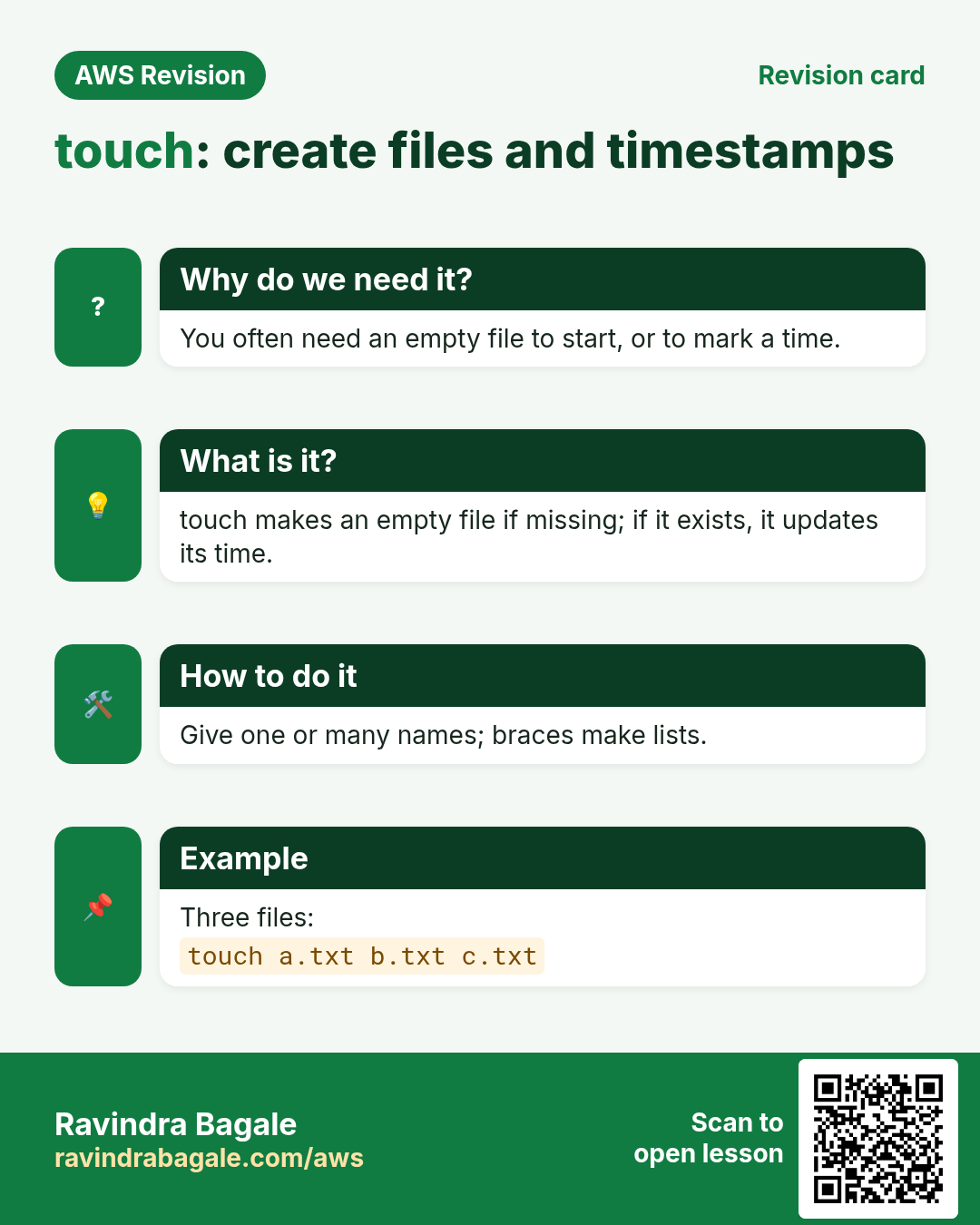
touch followed by one or more names makes empty files.
cd(go home), thenmkdir -p practiceandcd practice.touch my.txttouch 1.txt 2.txt 3.txt(three files in one command)ls→1.txt 2.txt 3.txt my.txtls -l my.txt→-rw-r--r--. 1 ec2-user ec2-user 0 Jan 5 10:15 my.txt
The 0 before the date is the size in bytes: the file is empty. You can't write in it, read anything from it or edit it with touch. It only creates.
Its real job: the timestamp.
- Run
ls -l my.txtand note the time, for example10:15. - Wait a minute, then
touch my.txtagain. ls -l my.txt→ the time is now the current time, for example10:20.- The content (still empty here) is unchanged.
Figure 3. If the file does not exist, touch creates an empty one. If it exists, touch leaves the content alone and only updates the modified time that ls -l shows.
The main job of touch is to update a file's timestamp, as if you had just touched it. Creating the file when it's missing is a side effect, and it's the one everyone uses. Scripts and tools such as make use the timestamp to decide what is new.
6. Dots and extensions: just part of the name
On Windows, .jpg means picture and .mp4 means video. In Linux, things work differently, and knowing how prevents confusion later.
- A dot is just a character in a name.
touch report.ppt photo.jpg song.mp4makes three empty files. - None of them is a real presentation, picture or song. They are empty, whatever the name says.
- Linux doesn't need an extension to know what's inside a file. The
filecommand looks at the content:file photo.jpg→photo.jpg: emptyecho hello > notes.jpg, thenfile notes.jpg→notes.jpg: ASCII text
- A name without any dot is fine too:
touch ravimakes a file namedravi.
So why use extensions at all? They help people and programs:
- You see
backup.shand know it's a script. - Nginx loads the settings files in its
conf.dfolder only if they end in.conf. - A browser treats
index.htmlas a web page.
Linux doesn't need extensions, because it looks at the content. Extensions are still used everywhere as a convention, and some programs rely on them (like Nginx and .conf). Renaming a file to .jpg never turns it into a picture.
7. Why would anyone want an empty file?
Why ask. An empty file sounds useless. In real server work, it isn't.
Real uses:
- A log file a script will fill. You
touch backup.log, then a scheduled script writes a line into it every night: "backup done at 12:00". - A placeholder. You plan a website:
touch index.html about.html contact.html. The structure is ready; you write the content later. - A marker (flag) file. A script creates
maintenance.onwhile it works; other scripts check whether that file exists and wait. - Quick test files. Before you learn copying and deleting, you need something harmless to practise on:
touch file1 file2 file3.
The main idea holds: servers are full of automation (start at 9 AM, stop in the evening, back up at noon, upload every 4 hours). Automation needs files to write into, and those often start empty.
The empty file is a starting point that a script or a person fills in later, or a marker that other scripts check for. touch itself doesn't automate anything.
8. One name, one item; capital letters count
You will hit File exists errors and "file not found" surprises if you don't know these two rules. On Windows, Ravi and ravi are the same; on Linux they are different items.
- Inside one folder, a name can be used once: by a file or by a folder, not both.
- Linux names are case-sensitive:
ravi,Ravi,rAviandRAVIare four different names.
How it behaves (try it):
mkdir ravi(a folder)touch ravi→ no error, and no file appears.touchjust updates the folder's time.raviis still a folder.touch raju(a file), thenmkdir raju→mkdir: cannot create directory ‘raju’: File existstouch Ravi RAVI→ two new files.lsshows the folderraviand the filesRaviandRAVIside by side.
Figure 4. touch on an existing folder only updates its time; mkdir with the name of an existing file fails with File exists; ravi, Ravi and RAVI are three different names.
Classroom line
Inside one folder, a name can be used only once.
Class मधलं वाक्य
"Eka folder madhe ek naav ekdach vaprla jaanar."
एका folder मध्ये एक नाव एकदाच वापरलं जाणार.
Classroom line
Inside one folder, a name can be used only once.
touch ravi when a folder ravi exists doesn't fail: it quietly updates the folder's timestamp and creates nothing. The opposite direction errors: mkdir ravi when a file ravi exists gives File exists. Either way the rule is the same: one name, one item.
Ravindra Bagale's Tip
Stick to small letters for file and folder names at work. Then you never have to remember whether it was Report, report or REPORT.
9. cat: writing a file with cat >
touch can't put text in a file. cat can, without opening any editor.
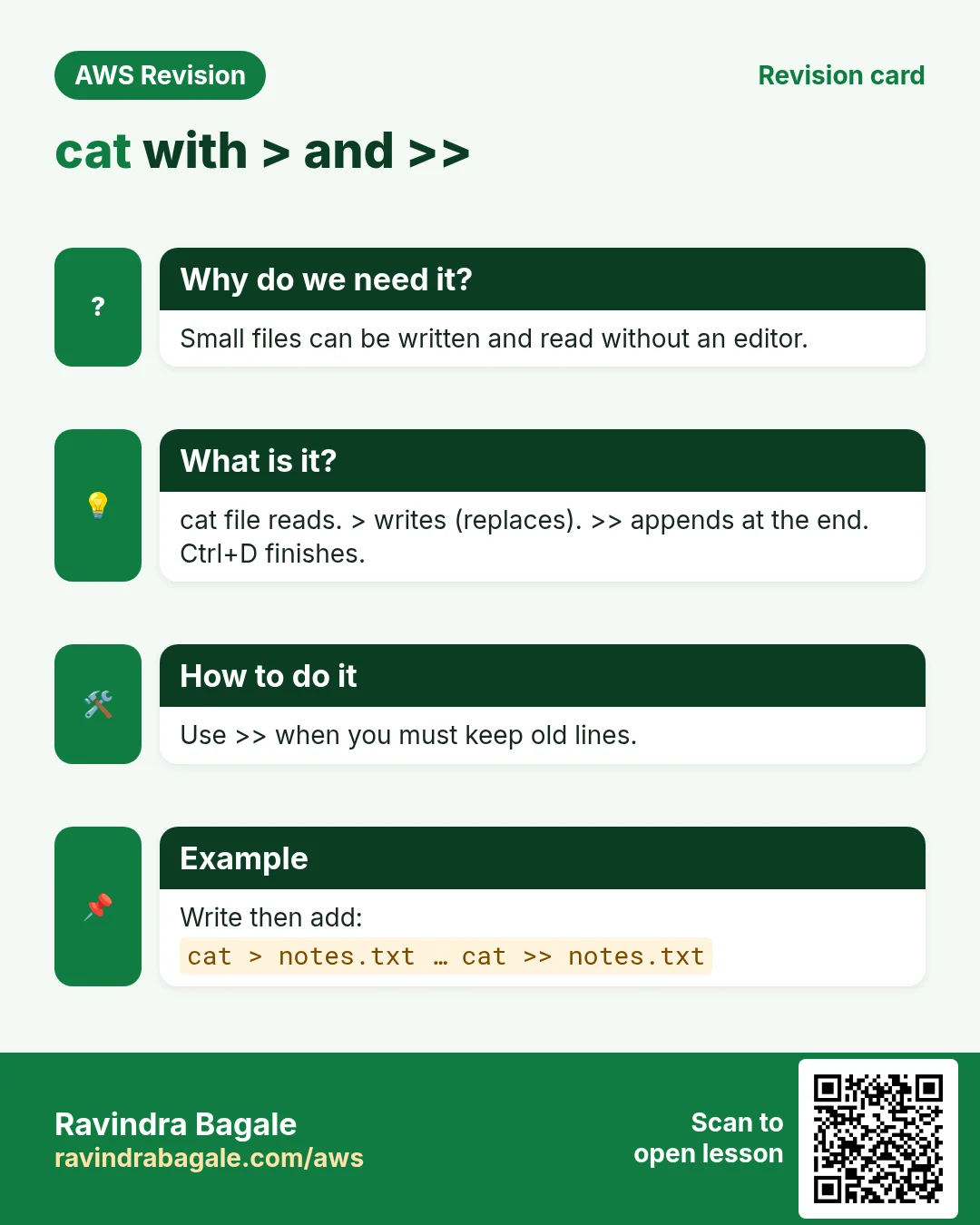
cat > my.txt means "take what I type and write it into my.txt". The > sends the output into the file instead of the screen.
cat > my.txt- The cursor waits on an empty line. There is no prompt: cat is listening.
- Type
first lineand press Enter. - Type
second lineand press Enter. - On the new empty line, press Ctrl+D. You are back at the prompt.
- Check:
cat my.txt.
Ctrl+D means "end of input". Press it at the start of an empty line. In the middle of a line it only sends that line, so you would have to press Ctrl+D a second time.
Finish cat > with Enter on the last line, then Ctrl+D. Ctrl+C interrupts (kills) the command: lines you already ended with Enter usually survive, but anything typed on the last line, before Enter, is lost.
10. cat: reading, appending, and the > trap
Writing is only half the job; you also need to read a file and add to it. One wrong > instead of >> wipes the whole file without asking, so learn the difference before it costs you a file.
Watch the shell open the output file
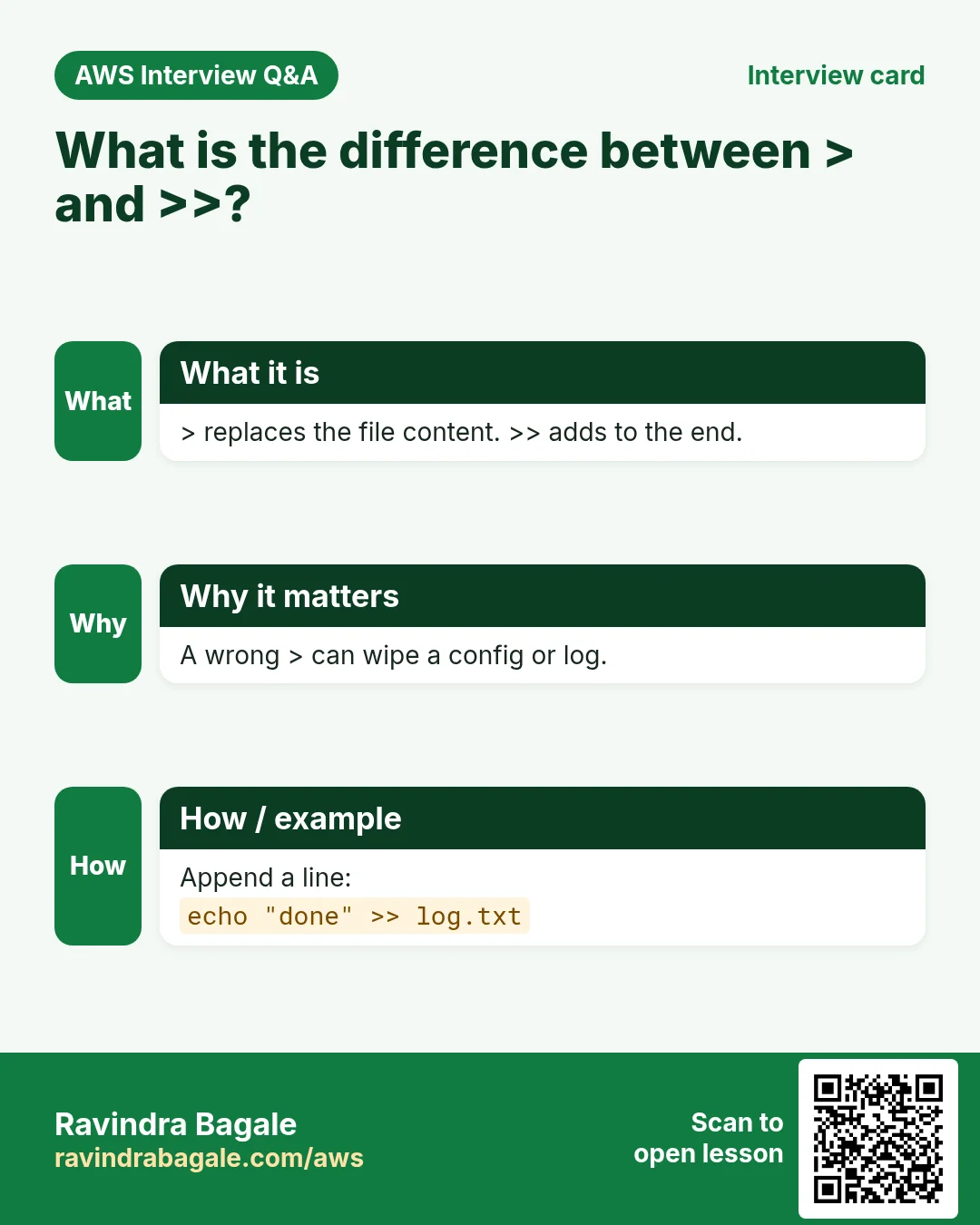
In cat > notes.txt, the shell opens notes.txt for new output before cat reads what you type. If the file exists, > can empty it at that point. Pressing Ctrl+D right away ends the input but cannot bring back the old lines. >> opens the file for appending instead, so the new lines follow the old ones.
Make two throwaway notes. Put original in both. Append a line to one with printf 'extra
' >> notes-append.txt. Replace the other with printf 'replacement
' > notes-replace.txt. Read both files. The append file should have two lines and the replacement file one. In a real edit where you need the old text, make a separate copy before touching output redirection.
Read. cat my.txt prints the whole file:
first line
second line
Append (add at the end).
cat >> my.txt(two>)- Type
third line, press Enter, then Ctrl+D. cat my.txt→ three lines. The old text stayed; the new line went below it.
The trap: a single > replaces everything.
cat > my.txt- Type
new, Enter, Ctrl+D. cat my.txt→ onlynew. The three old lines are gone.
Figure 5. Animation: cat > writes two lines, cat reads them, cat >> adds a third, and cat > again empties the file and leaves only the new line.
What cat can't do. In a five-line file, cat can't change line 2 from hi to bye. It can only replace the whole file (>) or add lines at the bottom (>>). To change a line in the middle, use an editor (sections 11 and 16).
cat > on an existing file doesn't delete it: the same file is emptied (truncated) and then written again. Its permissions and owner stay the same. The effect you see: the old content is gone.
Ravindra Bagale's Tip
Before you press Enter on a cat > command, look at the arrows once more. > replaces, >> adds. On a real server, one missing > can wipe a settings file. For reading big files without cat flooding your screen, see 3.4 Viewing files.
11. nano: the easiest editor
cat can't edit a line in the middle. You need an editor, and nano is the friendliest one: it feels like Notepad.
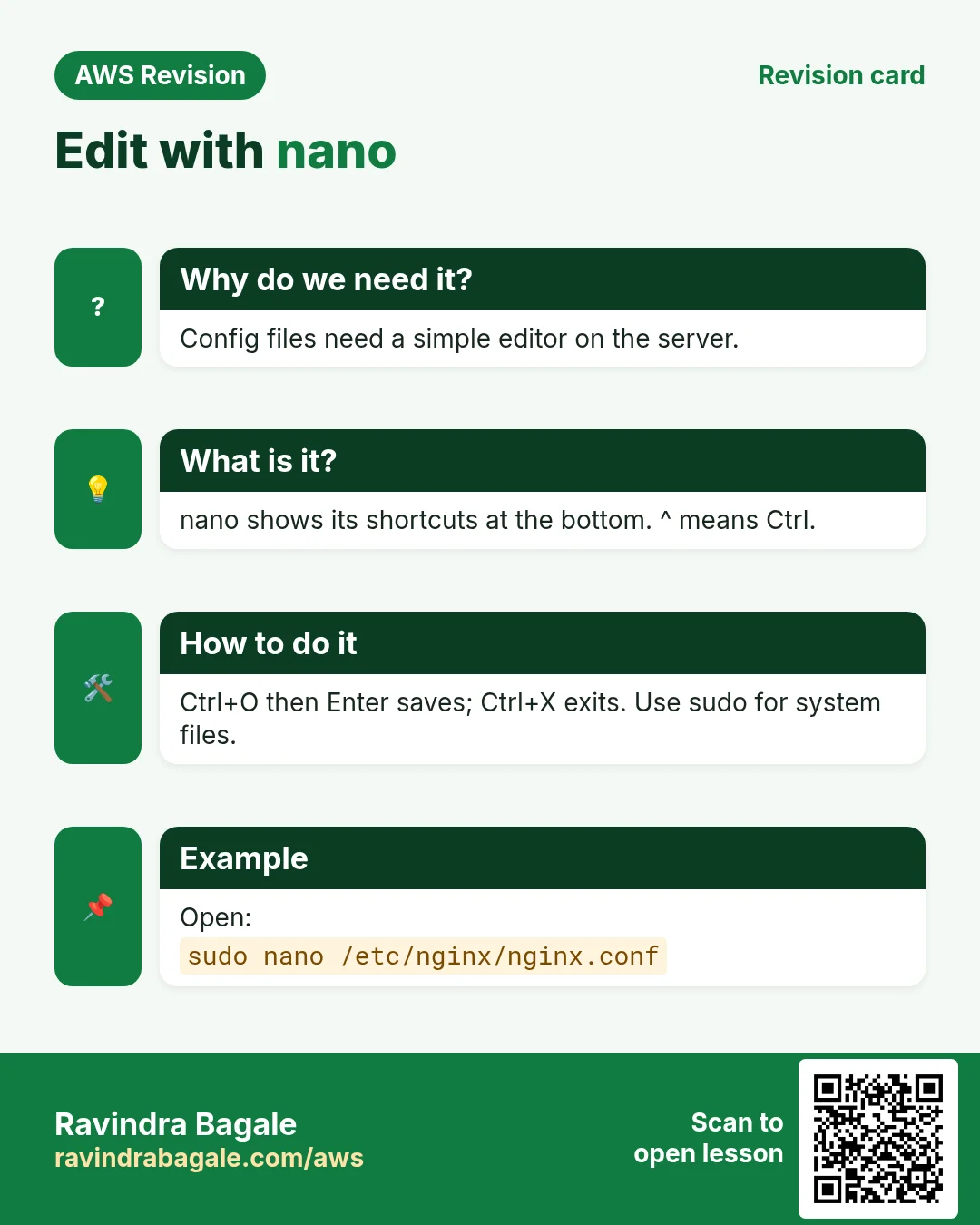
nano my.txt opens the file in the editor. If it doesn't exist, nano starts a new, empty file and shows [ New File ] at the bottom.
How to edit.
nano my.txt- Move with the arrow keys. The mouse doesn't move the cursor by default.
- Type, delete with Backspace, change anything, anywhere.
- The bottom two lines list the shortcuts.
^means Ctrl, so^Xis Ctrl+X.
Classroom line
nano is the easiest one.
Class मधलं वाक्य
nano सगळ्यात सोपा आहे.
Classroom line – हिंदी
"Sabse aasan command hai nano."
How to save and exit.
- Press Ctrl+X.
- nano asks
Save modified buffer? - Press Y to save (N discards your changes, Ctrl+C cancels and takes you back to editing).
- nano shows
File Name to Write: my.txt. Press Enter to keep the name. - You are back at the prompt. Check with
cat my.txt.
If you changed nothing, Ctrl+X exits straight away and asks nothing.
Figure 6. Ctrl+X: if nothing changed, nano exits. If something changed, it asks Save modified buffer?: Y then Enter saves, N exits without saving, Ctrl+C goes back to editing.
Classroom line
If you didn't change anything, it exits directly; it asks only when you changed something.
Class मधलं वाक्य
"Tu changes nahi kele ki te baher padta directly; jya veli apan change karto tyach veli te vicharta."
तुम्ही changes नाही केले की ते directly बाहेर पडतं; ज्या वेळी आपण change करतो, त्याच वेळी ते विचारतं.
Classroom line
If you didn't change anything, it exits directly; it asks only when you changed something.
Classroom line
From here on, our life is inside nano.
Class मधलं वाक्य
इथून पुढे आपलं आयुष्य nano च्या आतच आहे.
Classroom line – हिंदी
"Yahan se apni zindagi nano ke andar hai."
Ravindra Bagale's Tip
Ctrl+O then Enter saves without leaving nano. Use it while working on a long file, so a dropped SSH connection doesn't cost you your work. More nano and vim shortcuts are in 3.10 Text editors: nano and vim.
12. File names with spaces, and several files at once
Spaces cause the same surprise for files as for folders. And opening or creating several files in one command saves time once you know the rule.
A space separates arguments, for files exactly as for folders.
nano my fileopens two files,myandfile, one after the other.nano 'my file'opens one file namedmy file."my file"andmy\ filework too.- Turned into a feature:
nano file1 file2 file3opens three files. Ctrl+X closes the current one and moves to the next. Newer nano versions show which one you are on, for example[1/3].
Classroom line
When you use a space in a name, use single quotes... but better, simply use one single word.
Class मधलं वाक्य
"Naavamadhe space vaparto tevha single quote... tari simply ek single word vapra."
नावामध्ये space वापरतो तेव्हा single quote... तरी simply एक single word वापरा.
Classroom line
When you use a space in a name, use single quotes... but better, simply use one single word.
Ravindra Bagale's Tip
Name files like my-file.txt or my_file.txt. No quotes, no backslashes, no surprises.
13. Practice task: the calendar, in the fewest commands
The task.
- In
~, create a foldercalendar. - Inside it, three folders:
months,weeks,days. - In
months: filesjan,feb,mar. - Write
Januaryinsidejan. - In
weeks: filesweek1,week2,week3. - In
days: files1,2,3.
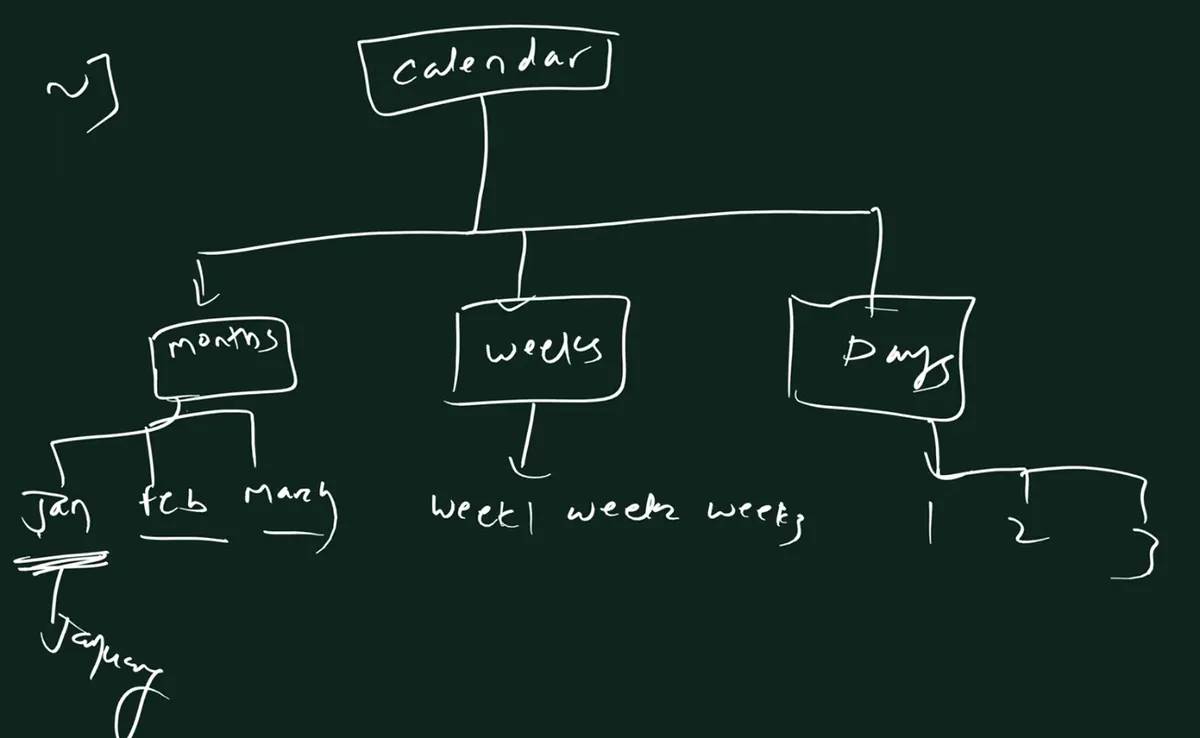
Whiteboard: The calendar task: calendar contains months, weeks and days; months holds jan, feb and march, weeks holds week1 to week3, days holds 1 to 3, and jan contains the text January.
Try it yourself before reading on.
Solution (five commands):
mkdir -p calendar/{months,weeks,days}touch calendar/months/{jan,feb,mar}touch calendar/weeks/{week1,week2,week3}touch calendar/days/{1,2,3}nano calendar/months/jan→ typeJanuary→ Ctrl+X, Y, Enter.
Check:
cat calendar/months/jan→Januaryls calendar/weeks→week1 week2 week3
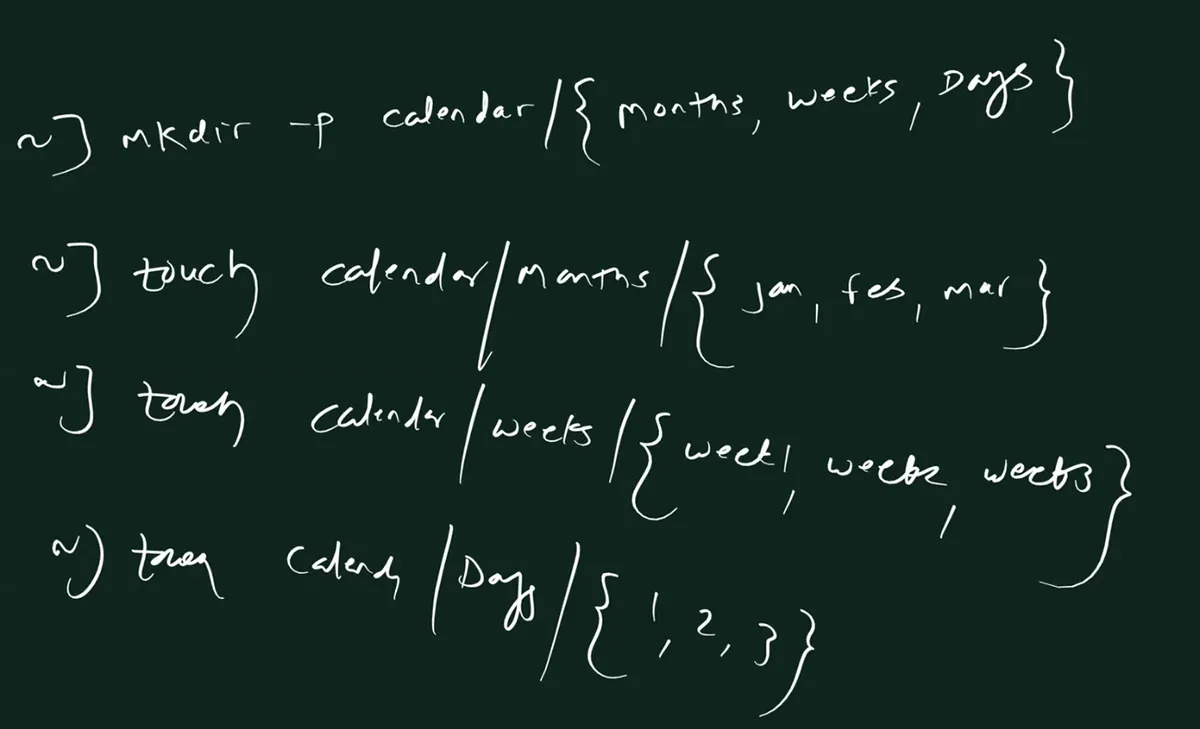
Whiteboard: The solution: mkdir -p calendar/{months,weeks,Days}, then one touch line each for months, weeks and Days, all with braces. The whiteboard writes Days with a capital D; with the lower-case days used on this page, keep the same spelling in every command.
Common mistakes:
- Slashes inside the braces:
{months/weeks/days}is one name with slashes, not three folders. Use commas. - Spaces after the commas:
{jan, feb, mar}isn't expanded (see section 3). - Mixed case: the folder
Daysand a command withdaysare two different names.
Shorter still
touch accepts several brace groups in one command: touch calendar/months/{jan,feb,mar} calendar/weeks/{week1,week2,week3} calendar/days/{1,2,3}. And echo January > calendar/months/jan writes the word without opening nano. That makes it three commands in total.
14. ls -R: list everything inside
ls shows one folder. To see a whole project at once, folder after folder, you need a recursive listing.
ls -R (capital R, recursive) lists a folder, then every folder inside it, then every folder inside those, and so on.
cd(home)ls -R calendar
Output:
calendar:
days  months  weeks

calendar/days:
1  2  3

calendar/months:
feb  jan  mar

calendar/weeks:
week1  week2  week3
Each block starts with a folder's path and a colon, followed by what's inside. It works for small trees; for big ones the output scrolls off the screen.
Don't confuse it with ls -r (small r), which only reverses the order of one listing.
15. tree: the picture view, and installing software
ls -R gets hard to read on big trees. tree draws the structure, and installing it is your first taste of how every extra tool gets onto a server.
tree draws the same information as a picture. It isn't installed on Amazon Linux by default.
How to install it:
sudo yum install tree -y
sudo: run this one command as the administrator (root). Installing software changes the system, so it needs admin rights.yum: the package manager. It downloads software from Amazon's repositories and installs it.install: the action.tree: the package name.-y: answer "yes" automatically to the "Is this ok?" question.
Then:
tree calendar- The output ends with
4 directories, 9 files.
Figure 7. ls -R lists each folder in its own block; tree draws the same calendar as a tree and ends with 4 directories, 9 files.
Every command is a small program.
ls,mkdir,touchandcatare programs stored in/usr/bin. They come with Linux.treeis one more program; we installed it ourselves.- Before installing,
command -v treeprints nothing. After installing, it prints/usr/bin/tree.
Every command you type runs a small program. Some, like ls and mkdir, come pre-installed; others, like tree, we install with the package manager. On Amazon Linux 2023 the package manager is called dnf; yum still works as another name for it, so sudo yum install tree -y and sudo dnf install tree -y do the same thing. Package managers in detail: 3.7 Package managers.
16. vi: the editor on every server
nano is friendly, but it isn't always installed. vi is on practically every Linux server, so you must at least know how to type, save and get out.
Predict which editor mode you are in
Open a throwaway file with vi vi-lab.txt. Your first keystrokes are interpreted as commands. Press i, type your name, then press Esc to return to command mode. Type :wq and press Enter. w writes the file and q quits. Confirm the saved text with cat vi-lab.txt.
Open the same file again and make a deliberately unwanted second line in insert mode. Press Esc, then type :q! and Enter. Check the file from the terminal. It still has the first saved version. Use this small drill to recognize the difference between the editor buffer, where changes are pending, and the file on disk.
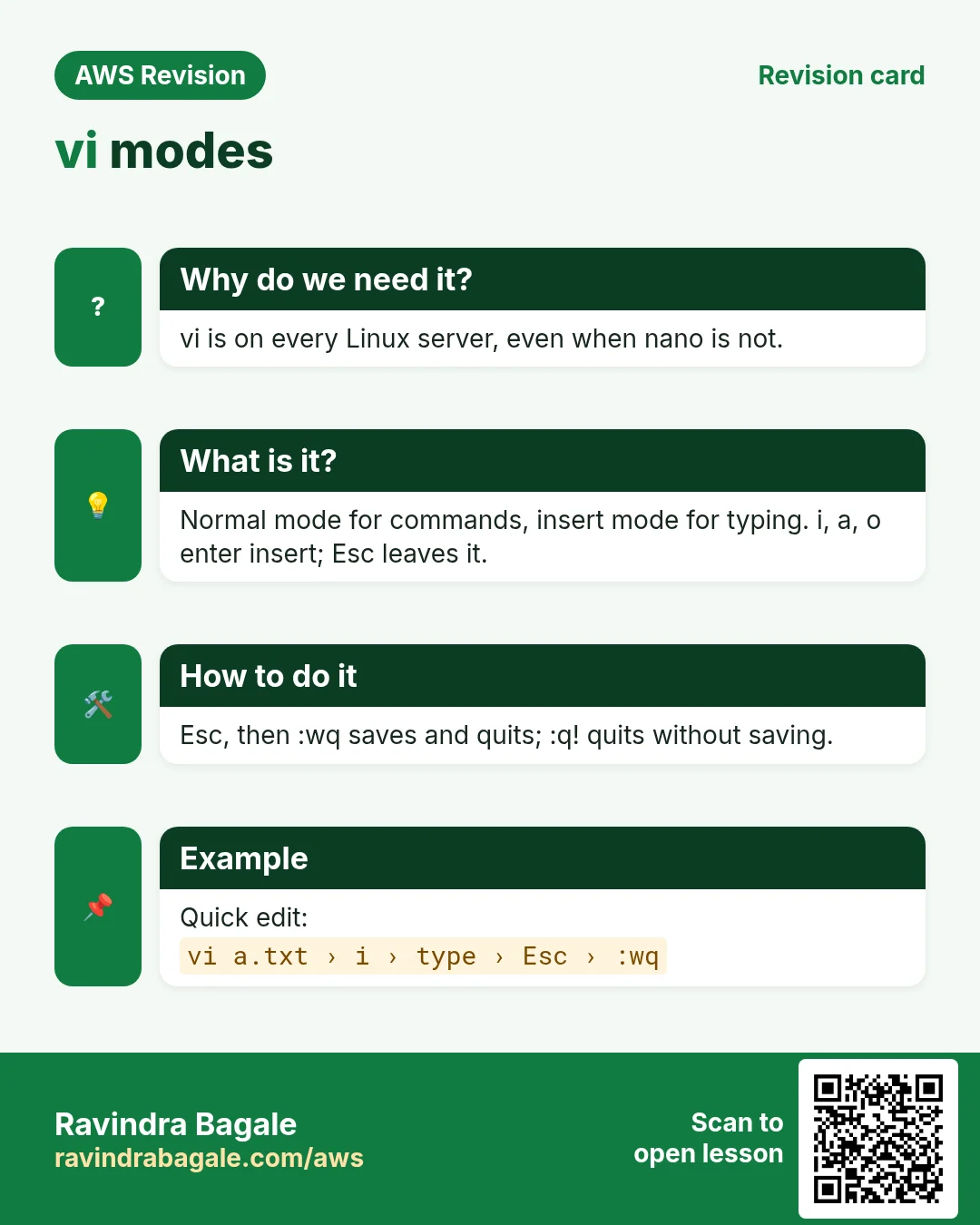
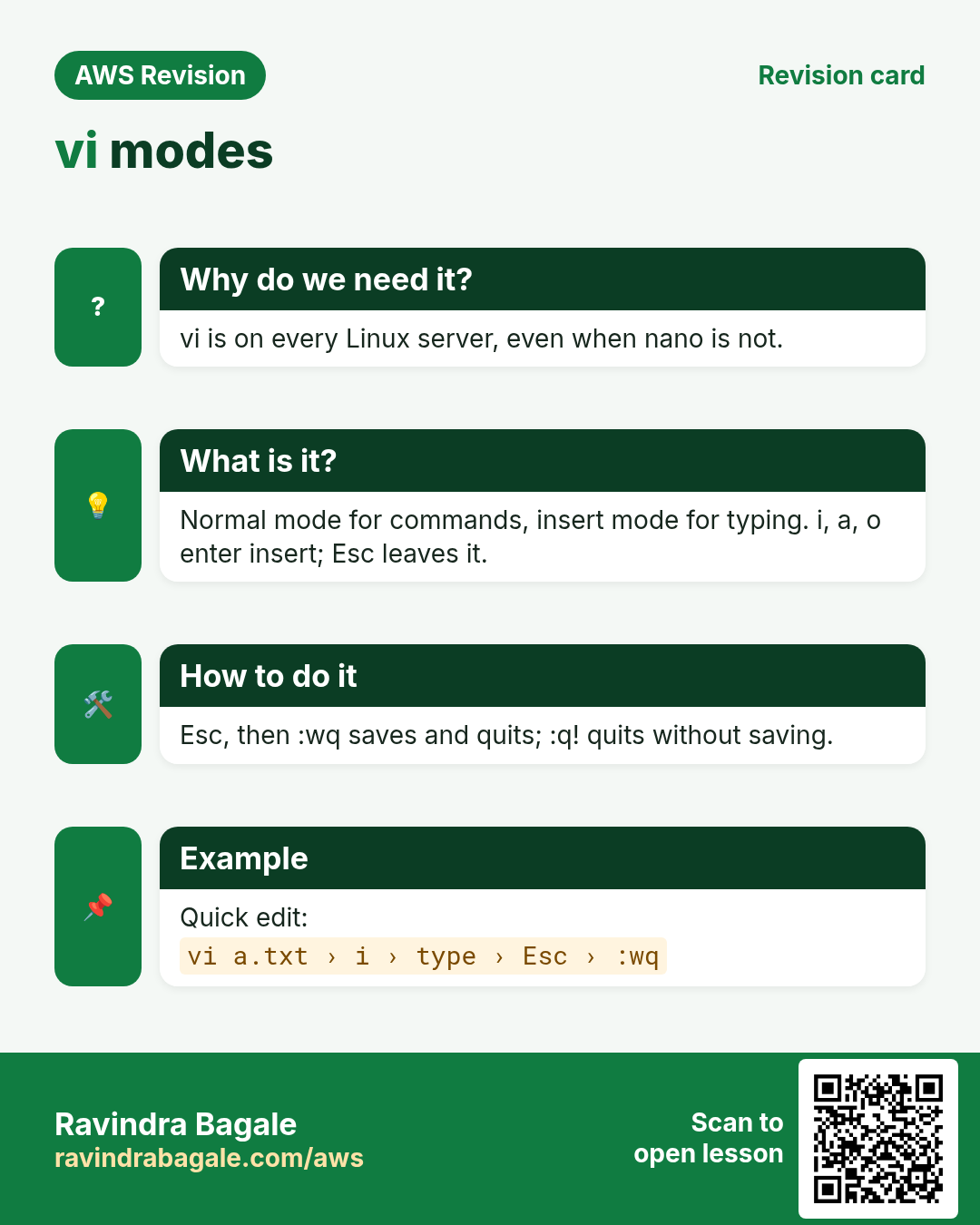
vi has modes:
- Command mode. vi opens here. Keys are commands, so stray key presses don't type into your file.
- Insert mode. Now keys type text. The bottom line shows
-- INSERT --.
vi notes.txt- Press i. The bottom shows
-- INSERT --. - Type your text. Use the arrow keys to move.
- Press Esc. You are back in command mode.
- Type
:wqand press Enter: write (save) and quit. - Check:
cat notes.txt.
Three ways into insert mode:
| Key | Starts typing |
|---|---|
i |
before the cursor (insert) |
a |
after the cursor (append) |
o |
on a new line below |
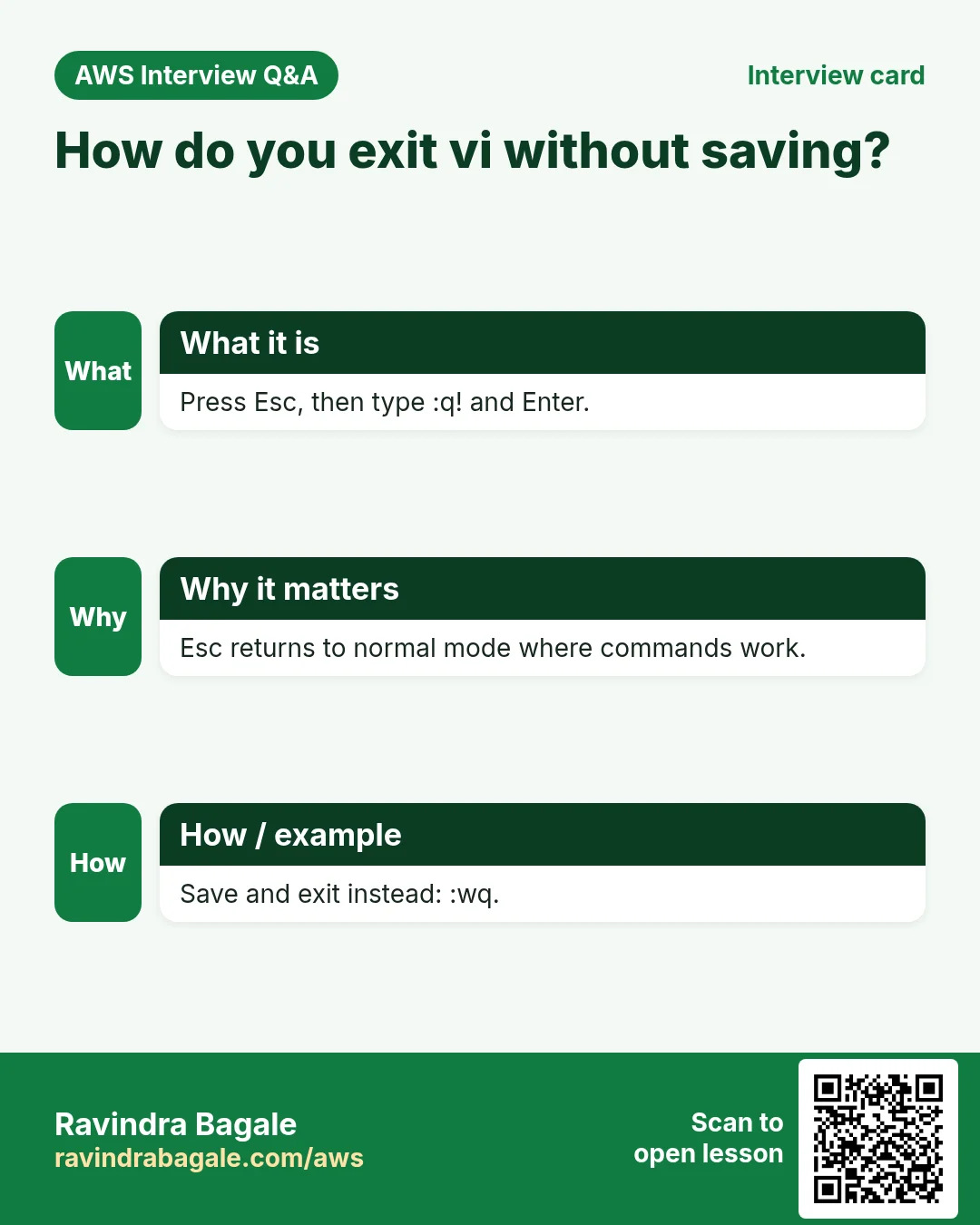
To leave without saving: Esc, then :q! and Enter.
Figure 8. Animation: vi opens in command mode; i, a or o switch to insert mode; Esc goes back; :wq saves and quits, :q! quits without saving.
To start typing without changing anything, use i, a or o. s is different: it first deletes the character under the cursor and then lets you type in its place.
Ravindra Bagale's Tip
Stuck in vi and nothing works? Press Esc twice, type :q!, press Enter. You are out, and nothing was saved. Then try again calmly.
17. VirtualBox on your laptop vs a server in the cloud
A common question when you start Linux: why rent an EC2 server when you could install Linux in VirtualBox on your own laptop?
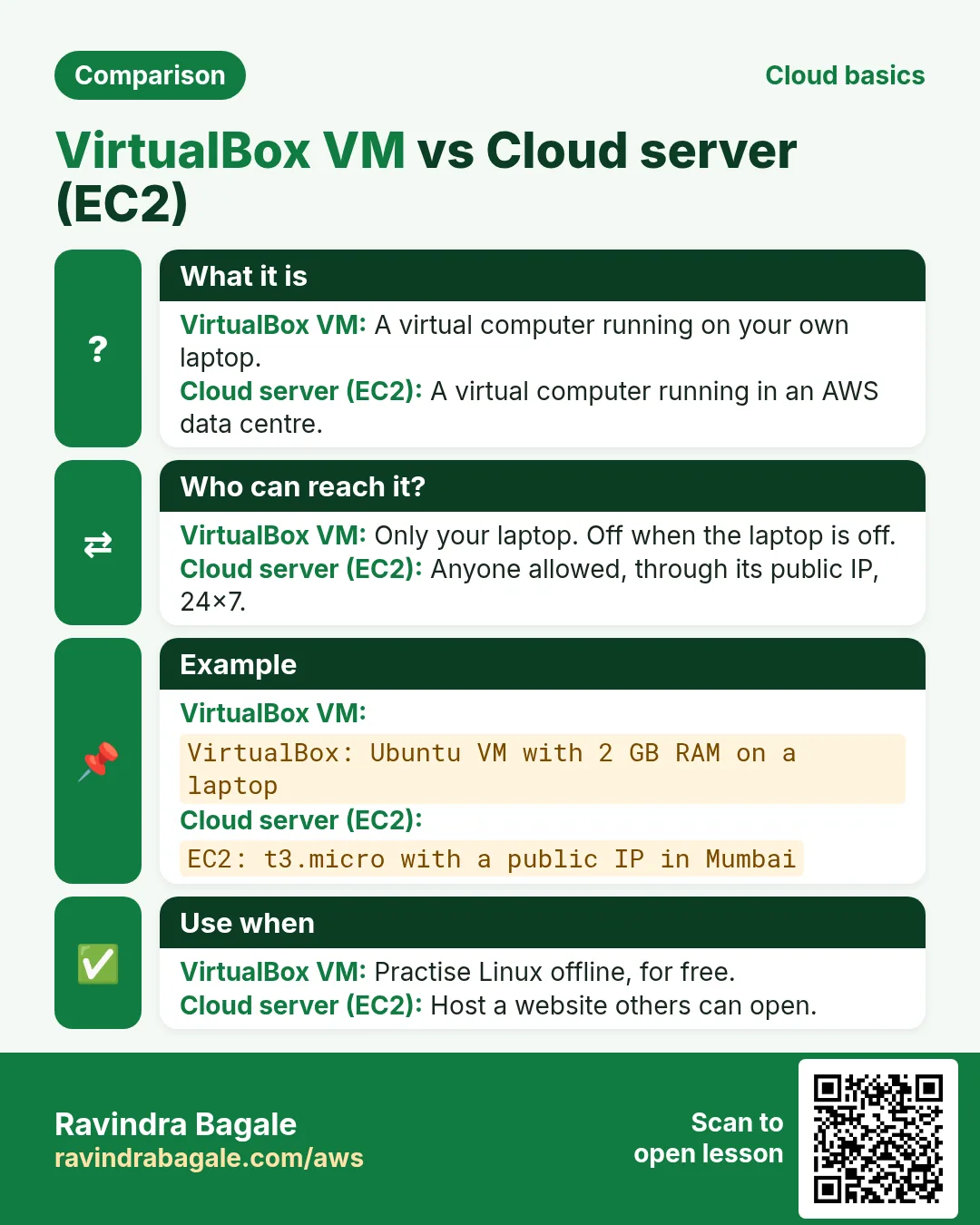
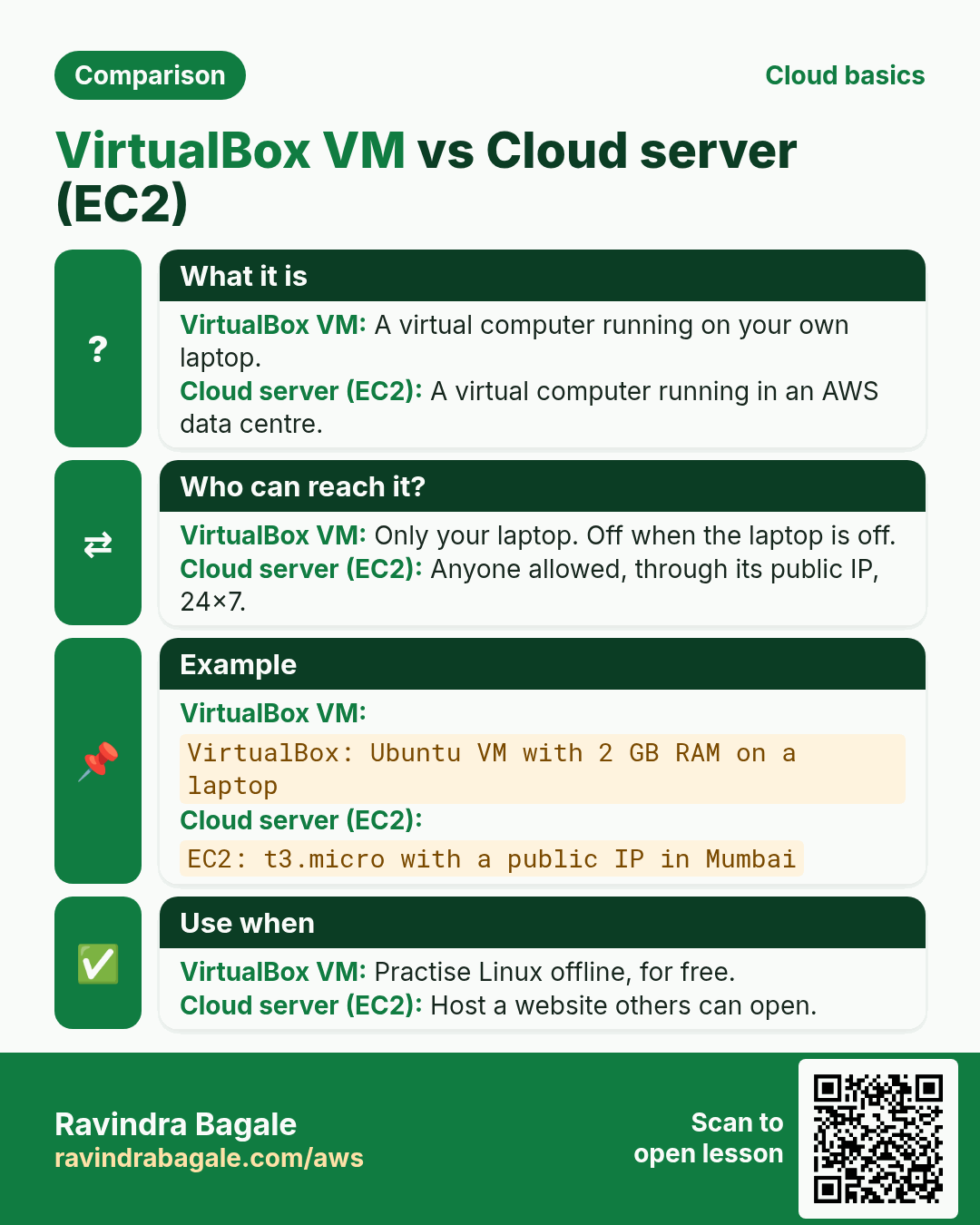
Background. 1. VirtualBox is free software that runs a virtual machine (VM) on your laptop. The VM uses your laptop's CPU, RAM and disk. For example, give it 2 GB of RAM and your laptop has 2 GB less while it runs. 2. It is fine for practising commands, and it works offline. 3. It stops when your laptop sleeps or shuts down, and people on the internet can't easily reach it, so you can't host a real website on it. 4. An EC2 instance runs in an AWS data center, stays on when your laptop is off, gets a public IP so anyone can reach it, and is billed per use (with a free tier for new accounts). 5. Companies run their websites and apps on servers like EC2, not on laptops, which is why this course practises on EC2.
Connection to this chapter. Every command in this chapter (touch, cat, nano, vi, tree) works the same in a VirtualBox VM and on EC2, because both run Linux. The difference is only where the machine lives and who can reach it.
18. Hands-on lab: create, write, read and edit files
On a server you constantly create config files, write notes, read logs and fix one line in a file. This lab runs every file command from this chapter in that order.
- Make a practice folder and go in
- Command:
cd && mkdir -p practice && cd practice - You should see: The prompt ends with
practice]$. - Check:
pwd→/home/ec2-user/practice - Why: A separate folder keeps test files away from everything else, and you can delete it in one go at the end.
- Command:
- Create empty files with touch
- Command:
touch my.txt 1.txt 2.txt - You should see: Nothing.
- Check:
ls -lshows the three files with size0. - Why: Size 0 proves
touchcreates empty files. Several names in one command make several files.
- Command:
- touch an existing file
- Command:
touch my.txt - You should see: Nothing.
- Check:
ls -l my.txtshows a newer time, size still0. - Why: On an existing file,
touchchanges nothing but the time. It never wipes content, so it is safe to run twice.
- Command:
- Write a file with cat >
- Command:
cat > notes.txt - You should see: The cursor waits on a new line. Type
first line, Enter,second line, Enter, then press Ctrl+D. - Check:
cat notes.txtprints the two lines. - Why: Ctrl+D tells
catthe input has ended and saves the file. Ctrl+C also exits, but a line you haven't finished with Enter is lost.
- Command:
- Append with cat >>
- Command:
cat >> notes.txt - You should see: Type
third line, Enter, then Ctrl+D. - Check:
cat notes.txtprints three lines. - Why: Two
>add at the end and keep what was there. One>would have replaced the whole file with just this line.
- Command:
- Edit one line with nano
- Command:
nano notes.txt - You should see: The file opens with a menu at the bottom (
^X Exit,^O Write Out). - Check: Change
secondto2nd, press Ctrl+O, Enter, then Ctrl+X.cat notes.txtshows2nd line. - Why:
catcan't change a line in the middle; an editor can. Ctrl+O saves (writes out), Ctrl+X exits;^on the menu means Ctrl.
- Command:
- Edit with vi
- Command:
vi notes.txt - You should see: The file opens. Typing letters does nothing yet: you are in command mode.
- Check: Press
o, typefourth line, press Esc, type:wq, Enter.cat notes.txtends withfourth line. - Why:
viis on almost every server, even where nano isn't.oopens a new line in insert mode, Esc returns to command mode,:wqwrites and quits. If you get lost: Esc,:q!, Enter.
- Command:
- Build a tree with braces
- Command:
mkdir -p calendar/{months,weeks,days} && touch calendar/months/{jan,feb,mar} - You should see: Nothing.
- Check:
ls calendar/months→feb jan mar - Why: Braces expand into one name per item before the command runs, so two commands build three folders and three files. No spaces after the commas, or the expansion breaks.
- Command:
- List everything with ls -R
- Command:
ls -R calendar - You should see:
calendar:thendays months weeks, then a block for each folder, withcalendar/months:showingfeb jan mar. - Check: Four blocks in total.
- Why: Capital
-Rgoes into every folder. Small-ronly reverses the order, which is a common mix-up.
- Command:
- Install tree
- Command:
sudo yum install tree -y - You should see: Download lines, then
Complete!. - Check:
command -v tree→/usr/bin/tree - Why:
sudobecause installing changes the system;-yanswers the "Is this ok?" question. Before the install,command -v treeprinted nothing.
- Command:
- Draw the tree
- Command:
tree calendar - You should see: A drawing of
calendarwith its folders and files, ending in3 directories, 3 files. - Check: The counts match what you built: 3 folders, 3 files.
- Why:
treegives you the whole structure at a glance, which is the quickest way to check a task before you call it done.
- Command:
- Clean up and stop
- Command:
cd && rm -r practice - You should see: Nothing.
- Check:
lsno longer showspractice. Then stop the instance from the EC2 console. - Why: Practice files you don't need are clutter. Stopping the instance saves free-tier hours; your disk stays.
- Command:
- Brace expansion tree (Ramayan family folders)
- Command:
mkdir -p Ramayan/Dasarath/{Ram,Laxman,Bharat,Shatrughan}thenls -R Ramayan - You should see: Four folders under
Dasarathin one command. - Check: Braces expand before
mkdirruns — same idea as typing four paths. - Why: Class used this story to show braces create many sibling folders fast.
- Command:
- Extensions are only part of the name
- Command:
touch r.ppt srk.jpg karina.mp4thenls - You should see: Three empty files. Linux does not care that they are not real PowerPoint/JPEG/MP4 content.
- Check:
cat r.pptis empty — extension ≠ file type magic by itself here. - Why: Automation often creates empty placeholder files (logs, flags) before real content arrives.
- Command:
- Overwrite with
>then append with>>- Do:
cat > demo.txt→ typeline1→ Ctrl+D. Thencat > demo.txt→ typeNEW→ Ctrl+D. Thencat >> demo.txt→ typeadded→ Ctrl+D.cat demo.txt - You should see: After overwrite, only
NEW. After append,NEWplusadded. - Check: One
>replaces; two>>keep old lines. - Why: Accidental single
>on a config file wipes it — take acpbackup first (next chapter).
- Do:
- vi keystroke path (minimal)
- Do:
vi my.txt→ pressi→ type text → Esc → type:wq→ Enter. Thencat my.txt. - You should see: File contains what you typed.
- Check: If stuck in vi, Esc then
:q!Enter leaves without saving. - Why: Many servers have vi/vim even when nano is missing. Know the exit.
- Do:
- nano save and exit
- Do:
nano note.txt→ type → Ctrl+O Enter (save) → Ctrl+X (exit).cat note.txt - You should see: File kept on disk.
- Check: Ctrl+X then
Ndiscards;Ysaves. - Why: nano shows the key help at the bottom — read it when stuck.
- Do:
19. Try at home
Try at home
Task 1: braces
- Make this tree in one command:
school→class1,class2,class3, and inside each classdivAanddivB. (Hint:mkdir -p school/{class1,class2,class3}/{divA,divB}; preview it withechofirst.) - Check it with
ls -R school.
Task 2: touch
touch a.txt, thenls -l a.txt. Note the time.- Wait a minute,
touch a.txtagain,ls -l a.txt. What changed? - Make a folder
testand trytouch test. What happens? - Make a file
demoand trymkdir demo. Read the error.
Task 3: cat
- Write three lines into
fruits.txtwithcat >. Finish with Ctrl+D. - Add two more with
cat >>. - Read it with
cat. - Run
cat > fruits.txtonce more, type one line, Ctrl+D. Read it again and explain what happened.
Task 4: editors
- Open
fruits.txtin nano, change line 1, save with Ctrl+X, Y, Enter. - Open it in vi, add a line at the bottom with
o, save with:wq. - Open it in vi again, change something, and leave with
:q!. Check that the change was not saved.
Task 5: tree
sudo yum install tree -ytree calendarandtree school.- When you finish, stop the instance from the console.
Common errors and fixes
| Error / symptom | Fix |
|---|---|
Wiped a file with cat > file | Restore from backup/cp copy. Habit: copy before overwrite. |
| Stuck inside vi | Esc, then :q! Enter (quit without save) or :wq to save. |
| nano asks Save modified buffer? | Y save, N discard, Ctrl+C cancel the exit. |
touch on existing file “did nothing” | It updated the timestamp; content unchanged. Check with ls -l. |
| Brace command created unexpected nest | Remember a/{b,c} = siblings under a, not a/b/c chain (use mkdir -p a/b/c for chain). |
FAQ
Q. Why create empty files?
Scripts and timers often need a path to exist first (log file, lock file, upload target).
Q. Is .jpg really an image after touch?
No. The name only. Content decides what the file truly is.
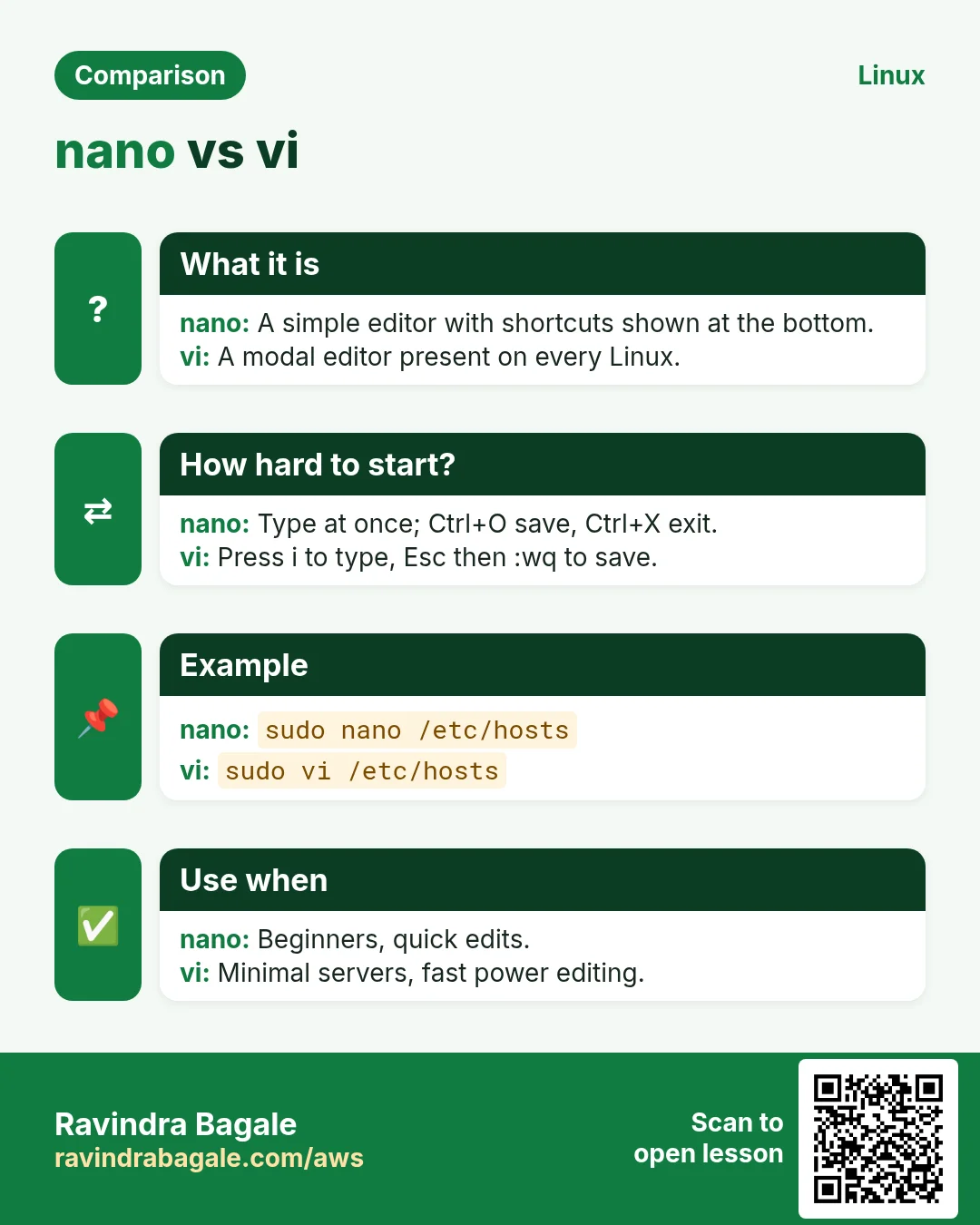
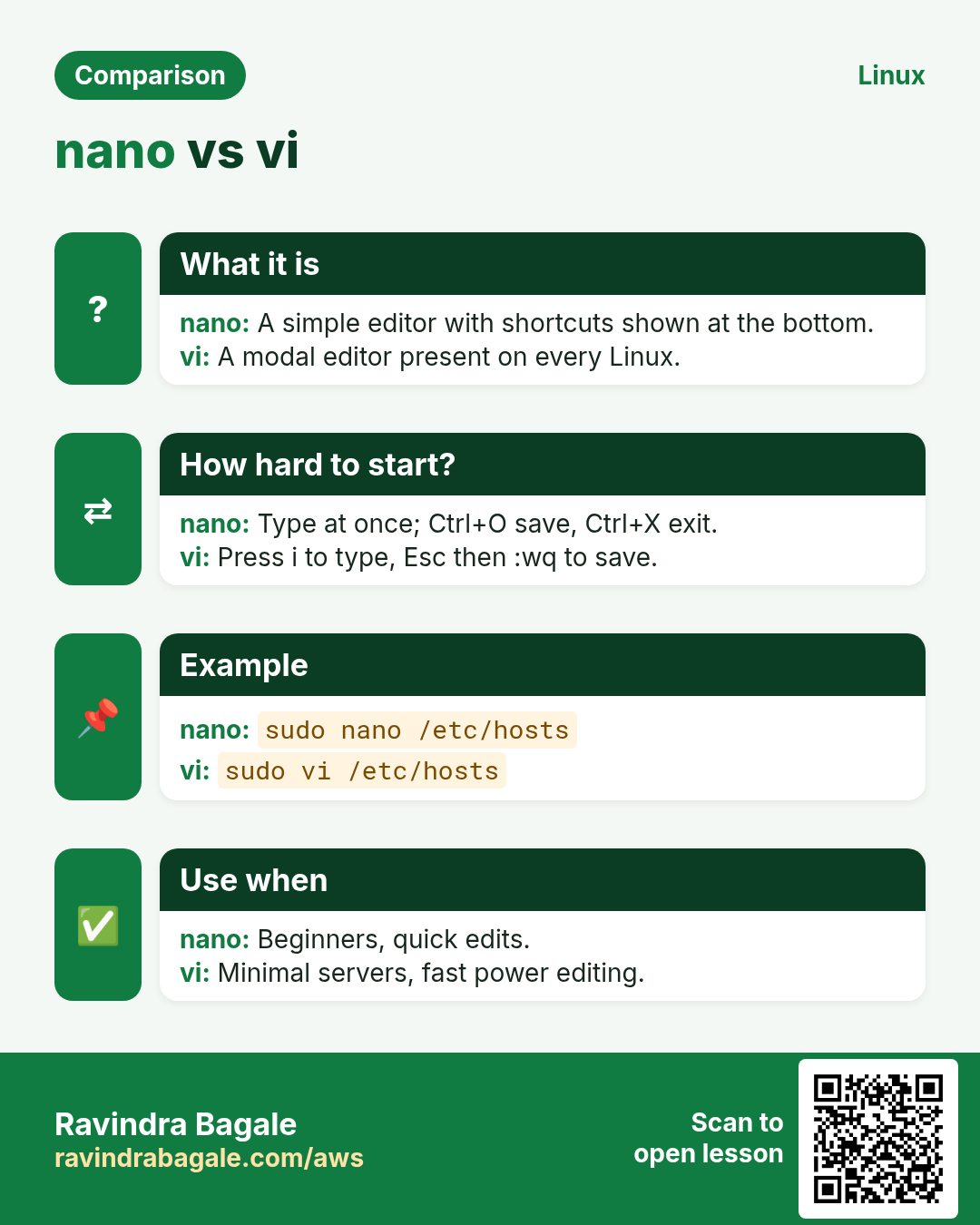
Q. nano or vi?
nano is easier to start. vi/vim appears on almost every server — learn exit + basic insert.
Q. Ctrl+D means what with cat?
End of input (EOF). Finishes the here-typed content for cat > file.
Recap
In short
- Turn a drawing into folders step by step, or in one line with full paths and
-p. - Braces:
mkdir -p Ramayan/Dasarath/{Ram,Laxman,Bharat,Shatrughna}. Commas, no spaces. The shell expands it; preview withecho. - Four ways to make a file:
touch,cat,nano,vi. touchmakes empty files (size 0); on an existing file or folder it only updates the time.- Extensions are just part of the name. Linux checks the content (
file), but people and programs still use extensions. - Empty files are useful: logs to be filled, placeholders, markers, practice files.
- One name = one item per folder.
mkdiron an existing file's name →File exists. Capital letters count. cat > fwrites (empties first),cat freads,cat >> fappends. Finish typing with Enter, then Ctrl+D.- cat can't change a line in the middle; editors can.
- nano: arrows to move; Ctrl+X, Y, Enter to save and exit; Ctrl+O to save and stay.
- Spaces split names:
nano my fileopens two files. Quote names, or better, avoid spaces. ls -Rlists recursively;ls -ronly reverses.sudo yum install tree -yinstalls tree;tree folderdraws it.- Every command is a small program; some come with Linux, others you install.
- vi: opens in command mode;
i/a/oto type; Esc to stop;:wqsave and quit;:q!quit without saving.
Samjla ka? Ghari tree install kara, vi madhe ek file lihun bagha. Pudhchya chapter madhe copy karayla shikuya.
Ravindra Bagale, trainer: linkedin.com/in/ravindra-bagale. The folder and file names (Ramayan, calendar, ravi, my.txt, photo.jpg, fruits.txt and the rest) are examples for learning. Command outputs were checked with GNU bash, coreutils, nano and tree, the same tools Amazon Linux 2023 uses; the time in ls -l examples is illustrative.
Worked example: replace a file or add the next line?
Imagine a notebook that already has the first class entry. Do you want a fresh page, or do you want the next entry under the first one? The shell chooses based on > and >>.
mkdir -p "$HOME/file-practice"
cd "$HOME/file-practice"
printf '%s
' 'Day 1: paths' > notes.txt
printf '%s
' 'Day 2: files' >> notes.txt
cat notes.txt
touch notes.txt
cat notes.txt
What to see. Both cat calls show both lines. touch updates the timestamps of the existing file. It does not clear the content. Try replacing the practice file with a third line using a single >, then confirm that only the third line remains. Work in this practice directory so you can safely remove the example file afterwards.
Interview question: who opens the file for redirecting a command?
The shell opens it before starting the command. That is why sudo echo ... > /protected/file can fail. The echo process runs under sudo, while your ordinary shell still opens the target file. Check permissions and use a deliberately scoped write when needed.
Practise this chapter
Interview questions and answers
Can touch create an empty file? What happens if that filename already has important text?
It creates a missing file by default. For an existing regular file, touch changes timestamps and leaves the text in place. Check the path before running it because a typo might create a different file.
Why does an empty session with cat > notes.txt still cause data loss?
The shell opens notes.txt for output and truncates it before cat reads from the terminal. If you then immediately press Ctrl+D, there are no bytes to write, so the old text remains gone. Use append for new lines or create and verify a separate copy first.
Check your understanding
Choose an answer, then compare your reasoning with the explanation.
Practice Tasks
Practice checks run in your browser. They check the answer for this exercise; they do not create resources or connect to your AWS account.
About this scenarioShivneri Schools is a education business in Junnar. Kavita Shinde looks after its IT and cloud work. They count money in INR and run their AWS resources in the ap-south-1 Region. In the tasks below you do real jobs for them using what this lesson teaches. All names, account IDs, IP addresses and numbers are made up for practice.
0 / 12
Easy List all files with details
Hidden files (like .env) and file sizes or owners only show with the right options.
Show a long listing of every file, including hidden ones, in /var/www/shivnerischool.
- Find the Linux command that does this job.
- Add the options (like -r or -h) the task needs.
- Add the file names, folders or users in the right order.
- Use sudo if the job changes system files or users. Click Check answer.
Easy Read a config file
Reading a file on the screen is the quickest way to check its settings.
Print the whole file /etc/shivnerischool/app.conf on the screen.
- Find the Linux command that does this job.
- Add the options (like -r or -h) the task needs.
- Add the file names, folders or users in the right order.
- Use sudo if the job changes system files or users. Click Check answer.
Easy Create an empty file
Some apps need a file to exist before they can write to it.
Create an empty file named orders-inr.csv in the current folder.
- Find the Linux command that does this job.
- Add the options (like -r or -h) the task needs.
- Add the file names, folders or users in the right order.
- Use sudo if the job changes system files or users. Click Check answer.
Easy Create nested folders in one go
Projects need a clean folder tree. Making all levels in one command saves time and avoids errors.
Create the folder /srv/shivnerischool/reports/2026 for Shivneri Schools. The parent folders do not exist yet, so create them too.
- Find the Linux command that does this job.
- Add the options (like -r or -h) the task needs.
- Add the file names, folders or users in the right order.
- Use sudo if the job changes system files or users. Click Check answer.
Easy Show where you are
Before you copy or delete anything, you must know which folder you are in.
Kavita Shinde logged in to the Shivneri Schools server and is not sure which folder the terminal is in. Print the current folder path.
- Find the Linux command that does this job.
- Add the options (like -r or -h) the task needs.
- Add the file names, folders or users in the right order.
- Use sudo if the job changes system files or users. Click Check answer.
Easy Copy a folder with everything inside
A plain copy skips folders. You need the recursive option to copy a whole tree.
Copy the folder site to a new folder named site-backup (both in the current folder).
- Find the Linux command that does this job.
- Add the options (like -r or -h) the task needs.
- Add the file names, folders or users in the right order.
- Use sudo if the job changes system files or users. Click Check answer.
Easy Rename a file
In Linux, renaming is the same as moving a file to a new name.
Rename the file report.txt to report-junnar.txt.
- Find the Linux command that does this job.
- Add the options (like -r or -h) the task needs.
- Add the file names, folders or users in the right order.
- Use sudo if the job changes system files or users. Click Check answer.
Easy List Availability Zones
Spreading servers across AZs keeps you up if one data centre fails.
List the Availability Zones in ap-south-1.
- Read the task and decide which AWS service it is about.
- Write aws, then the service name, then the operation (the action word).
- Add each needed flag (--name) followed by its value from the task.
- Flags can be in any order. Click Check answer.
Easy List your EC2 instances
Before changing anything, see what is running and in which state.
Show details of all EC2 instances of Shivneri Schools in ap-south-1.
- Read the task and decide which AWS service it is about.
- Write aws, then the service name, then the operation (the action word).
- Add each needed flag (--name) followed by its value from the task.
- Flags can be in any order. Click Check answer.
Medium Permission number
Key files must be private.
What chmod number gives the owner read+write and nobody else anything?
- Write down the numbers the task gives you.
- Work it out step by step on paper.
- Type only the final answer in the box.
- Click Check answer.
Medium Delete an old folder
Old build folders waste disk. rm needs the recursive option for folders, and force skips the questions.
Delete the folder old-build and everything inside it without being asked to confirm each file.
- Find the Linux command that does this job.
- Add the options (like -r or -h) the task needs.
- Add the file names, folders or users in the right order.
- Use sudo if the job changes system files or users. Click Check answer.
Hard Enable an nginx site on Ubuntu
On Ubuntu, a site is enabled by a symbolic link from sites-available to sites-enabled.
Create a symbolic link to /etc/nginx/sites-available/shivnerischool inside /etc/nginx/sites-enabled/.
- Find the Linux command that does this job.
- Add the options (like -r or -h) the task needs.
- Add the file names, folders or users in the right order.
- Use sudo if the job changes system files or users. Click Check answer.
Quick revision cards
Revise this lesson in two minutes. Save the cards on your phone or download them as PNG files. The QR code on each card opens its lesson.
More cards: Ravi Sir's Cards.