Linux Signals and kill Command: kill, pkill, killall, SIGTERM vs SIGKILL and trap
A signal is a short message the kernel delivers to a process: please stop, stop now, reload your config, pause, continue. kill, pkill and killall send signals; Ctrl+C and Ctrl+Z send them from the keyboard; timeout sends one after a time limit; and trap lets your own scripts react to them. You also learn why zombies and D-state processes do not die.
In this chapter
- List signals and know the common ones
- Use kill with a PID and a signal
- Choose SIGTERM before SIGKILL
- Use SIGHUP to reload, SIGSTOP/SIGCONT to pause
- Use pkill, killall and timeout
- Write trap handlers in bash; handle zombies and D-state
1. An everyday example: the PMT bus conductor
On a Pune PMT bus, the conductor has a few fixed signals. One bell: next stop, please get ready (polite). Two quick bells: stop right now. A long whistle: driver, wait here (pause). Another whistle: go again (continue). If the route changes, the depot radios: 'take the new route sheet' without stopping the bus. If a passenger is asleep and does not respond, the conductor cannot throw him out while the bus crosses a bridge; he waits.
One bell = SIGTERM (15, polite stop, can clean up). Two quick bells = SIGKILL (9, cannot be refused). Long whistle = SIGSTOP. Go again = SIGCONT. New route sheet = SIGHUP (reload config). Passenger on the bridge = D-state: even SIGKILL waits until the IO finishes.
2. kill -l: the list of signals
You must know signal names and numbers to pick the right one and to read exit codes like 137.
kill -l lists all signals. kill -l 9 prints the name for a number. You can use names (TERM, SIGTERM) or numbers (15). Common ones are below; numbers can differ on non-x86 systems, so names are safer.
| Signal | No. | Default | Typical use |
|---|---|---|---|
| SIGHUP | 1 | Terminate | Reload config / terminal closed |
| SIGINT | 2 | Terminate | Ctrl+C |
| SIGQUIT | 3 | Core dump | Ctrl+\ |
| SIGKILL | 9 | Terminate, cannot catch | Last resort |
| SIGTERM | 15 | Terminate | Polite stop (default of kill) |
| SIGSTOP | 19 | Stop, cannot catch | Pause |
| SIGTSTP | 20 | Stop | Ctrl+Z |
| SIGCONT | 18 | Continue | Resume |
| SIGUSR1/2 | 10/12 | Terminate | App-defined (log reopen, dump stats) |
- List them.
kill -l | head -2Output:
 1) SIGHUP	 2) SIGINT	 3) SIGQUIT	 4) SIGILL	 5) SIGTRAP
 6) SIGABRT	 7) SIGBUS	 8) SIGFPE	 9) SIGKILL	10) SIGUSR1
64 signals in total on Linux.
- Number to name.
kill -l 15; kill -l 137Output:
TERM
KILL
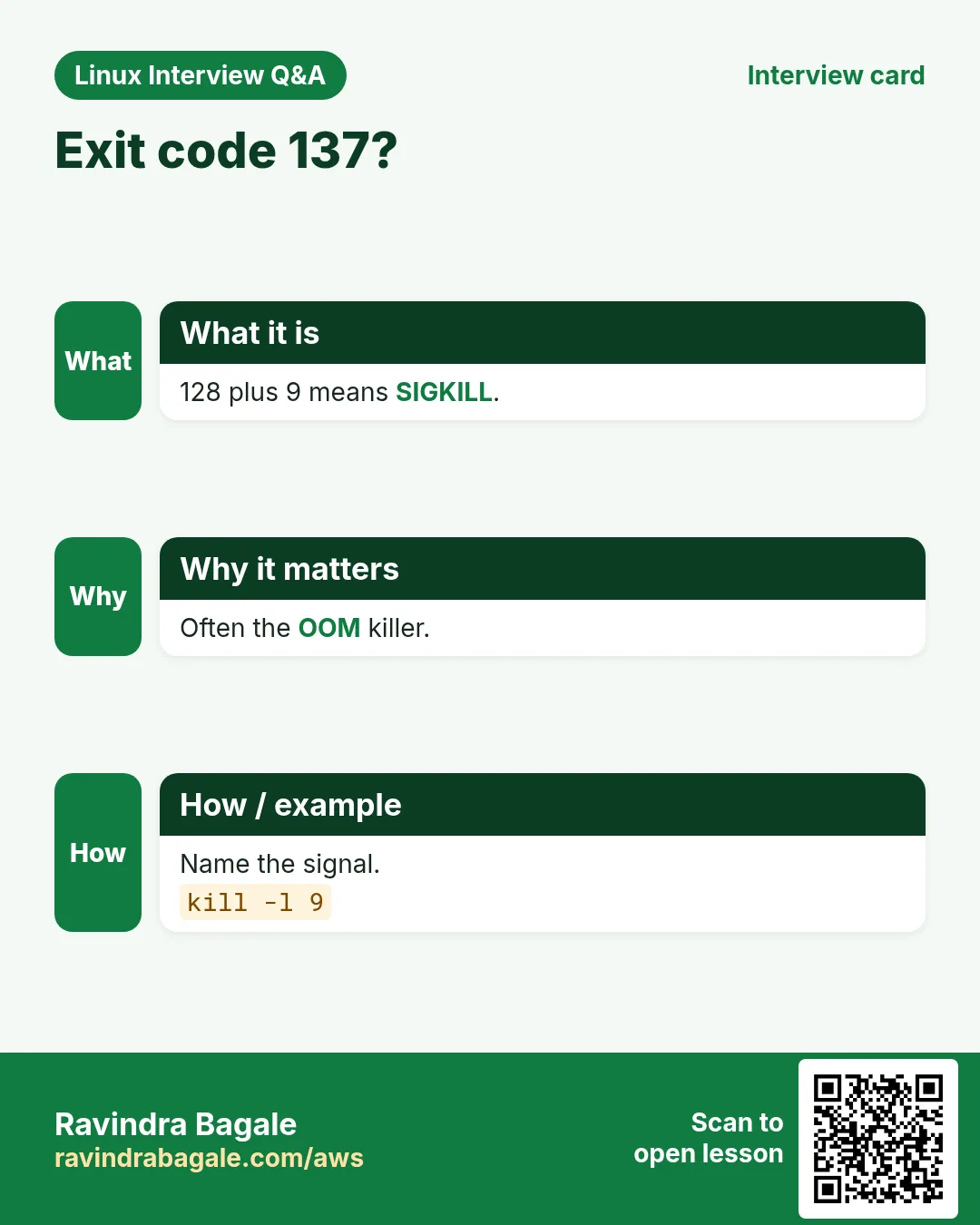
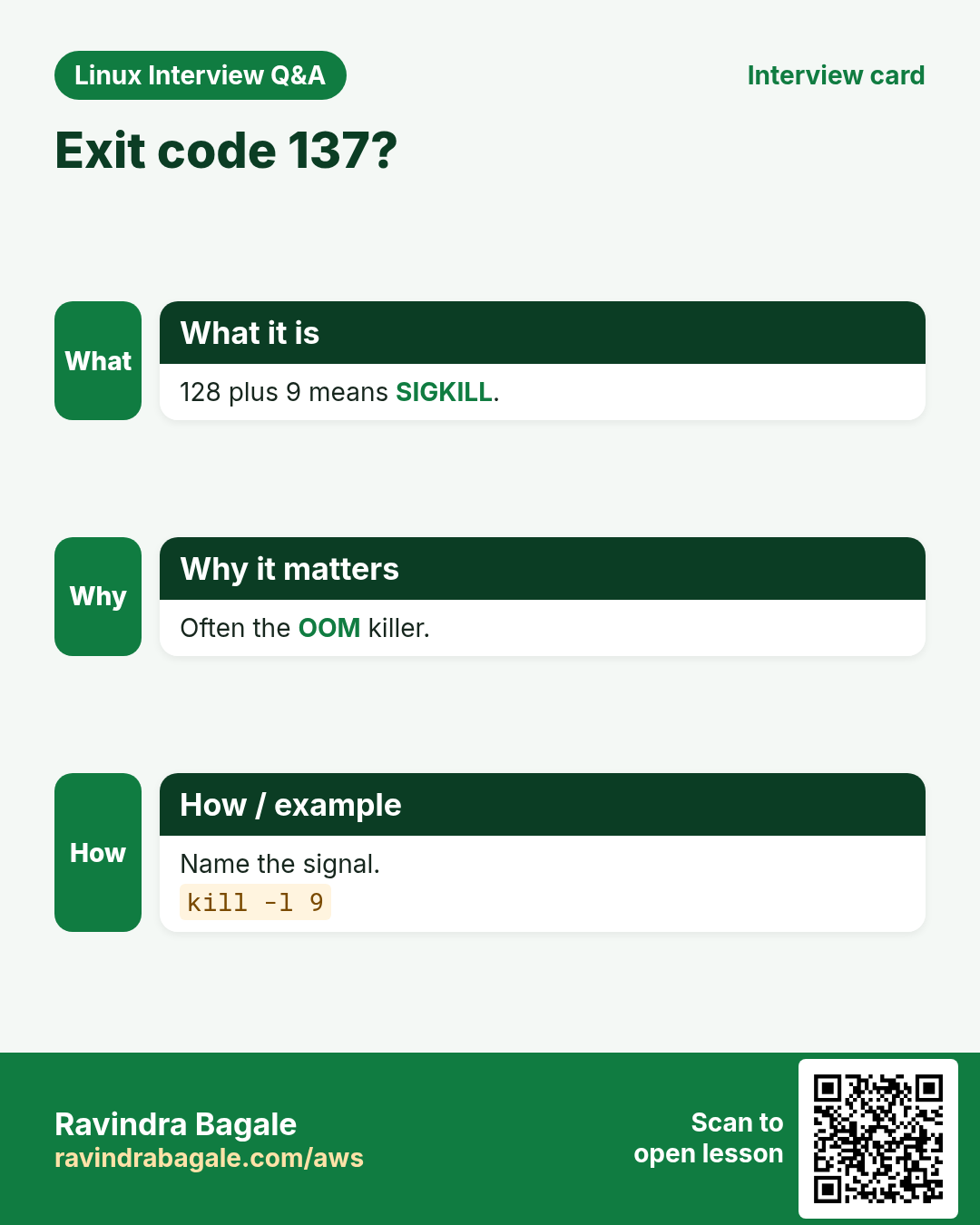
kill -l understands exit codes too (137-128=9).
3. kill PID: send a signal
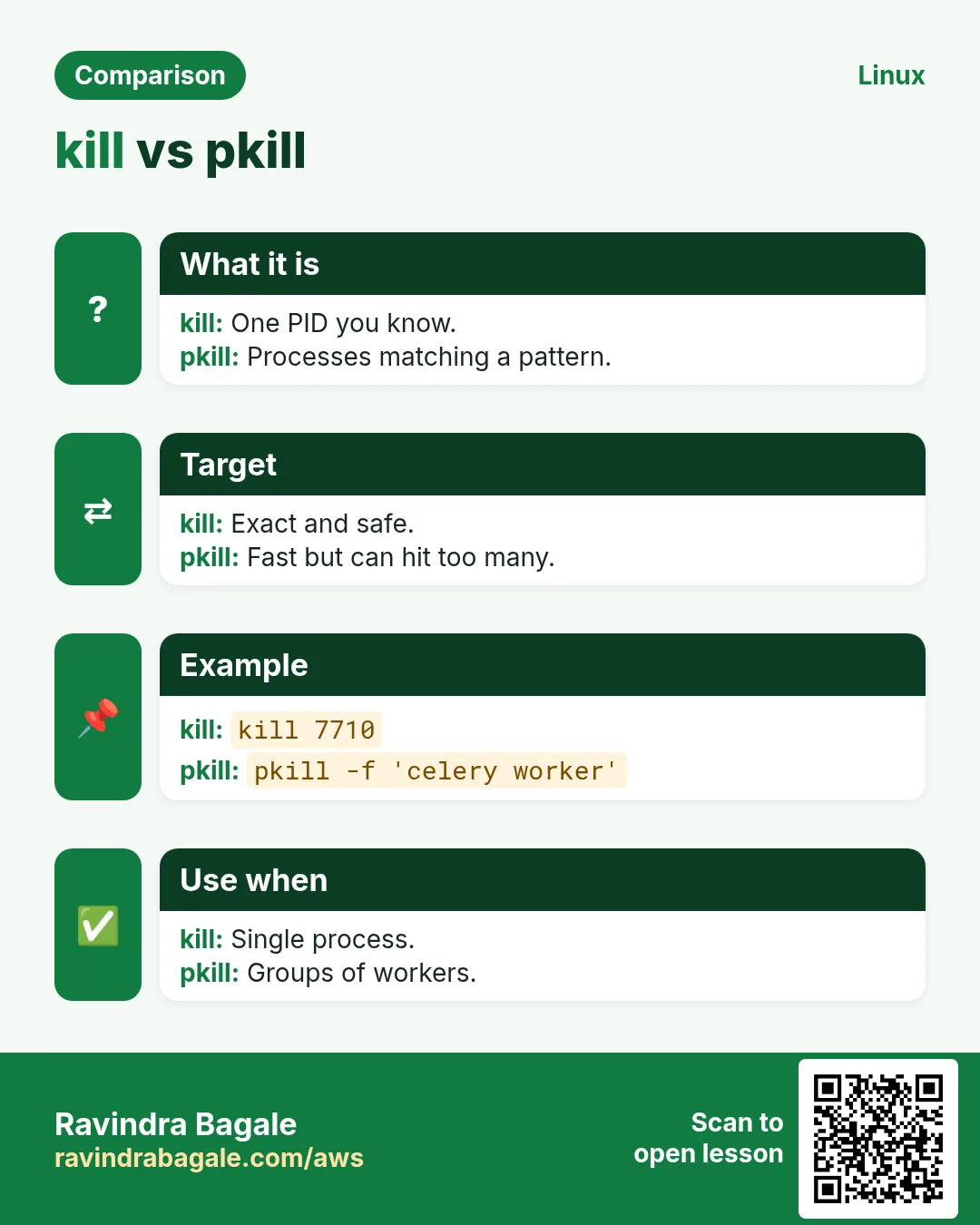
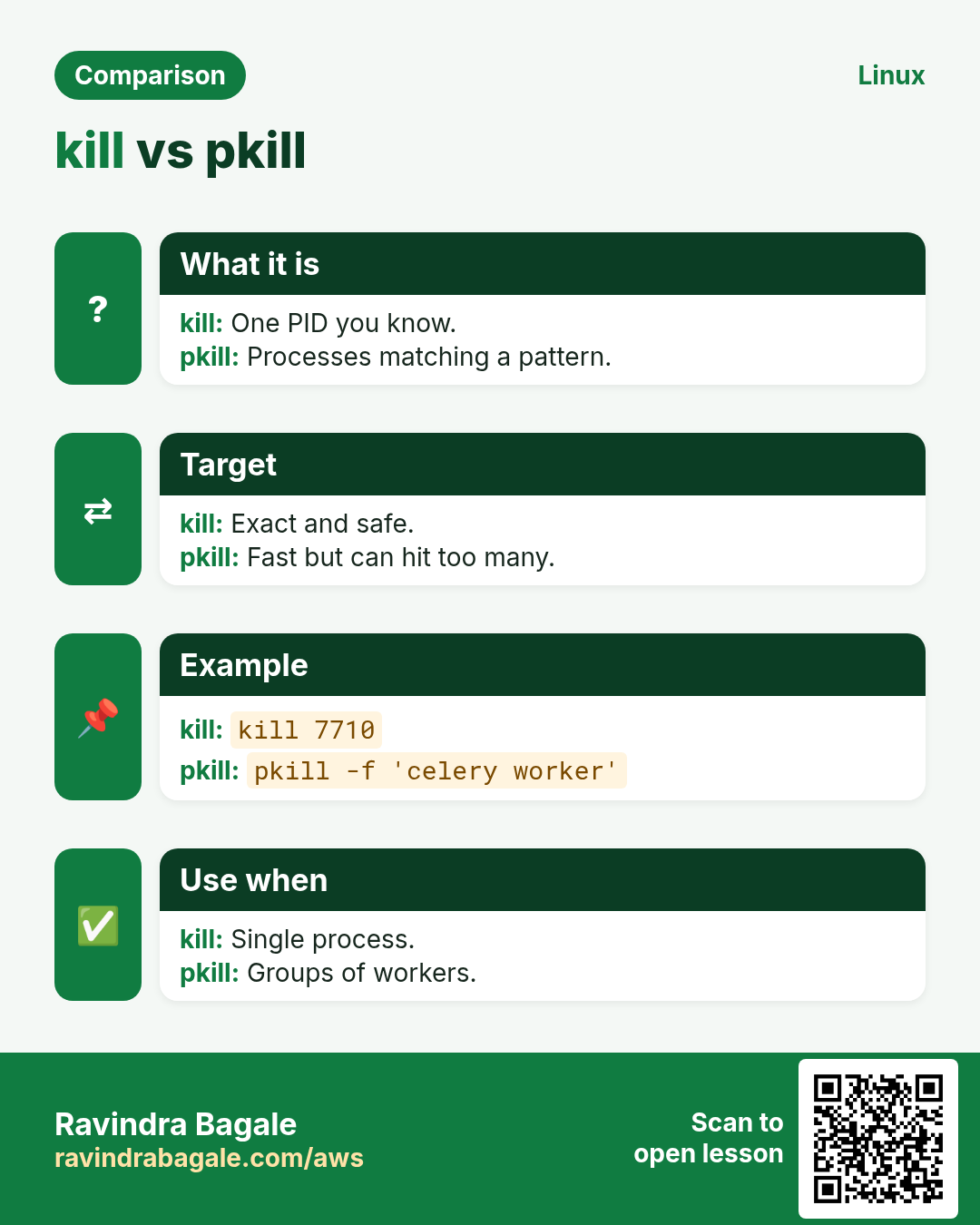
Read kill as “send a signal.” A signal is a short notification from the operating system or another process. Its name describes the request. A program can handle TERM and use time to finish work before exiting. Use a harmless background sleep from your own shell to see the mechanism. Read its PID from $! just after starting it, send TERM to that PID, and use wait or jobs to check that it ended. The send command returning successfully confirms delivery to a valid target. Check the process separately to see whether it exited.
To stop or control one exact process by its PID.
kill PID sends SIGTERM. kill -SIGNAL PID or kill -s SIGNAL PID sends another. Several PIDs at once are allowed. kill %1 targets a shell job. kill -0 PID sends nothing but checks if the PID exists and you may signal it. You can only signal your own processes unless you are root.
- Polite stop.
kill 9601; sleep 1; ps -p 9601 || echo goneOutput:
  PID TTY  TIME CMD
gone
Default SIGTERM worked.
- By name of signal.
kill -s TERM 9702 9703Output:
(no output)Two processes at once.
- Is it alive?
kill -0 2201 && echo aliveOutput:
aliveCommon in scripts and pid-file checks.
- Someone else's process.
kill 1420Output:
bash: kill: (1420) - Operation not permittedmysql owns it; use sudo.
4. SIGTERM vs SIGKILL
In a real service, a graceful stop might finish a file write and release a lock before exiting. A forced stop can leave the next run with partial output. For the lab, write the two expected results down first. After TERM, the script should do its cleanup and leave its “stopped” evidence. After KILL, the kernel ends the process without giving that cleanup code time to run. Inspect the lab files after both runs so you can explain why the two commands can produce the same disappearance in ps but different results on disk.
kill -9 first is a common habit and it causes corrupt files, lost data and leftover locks.
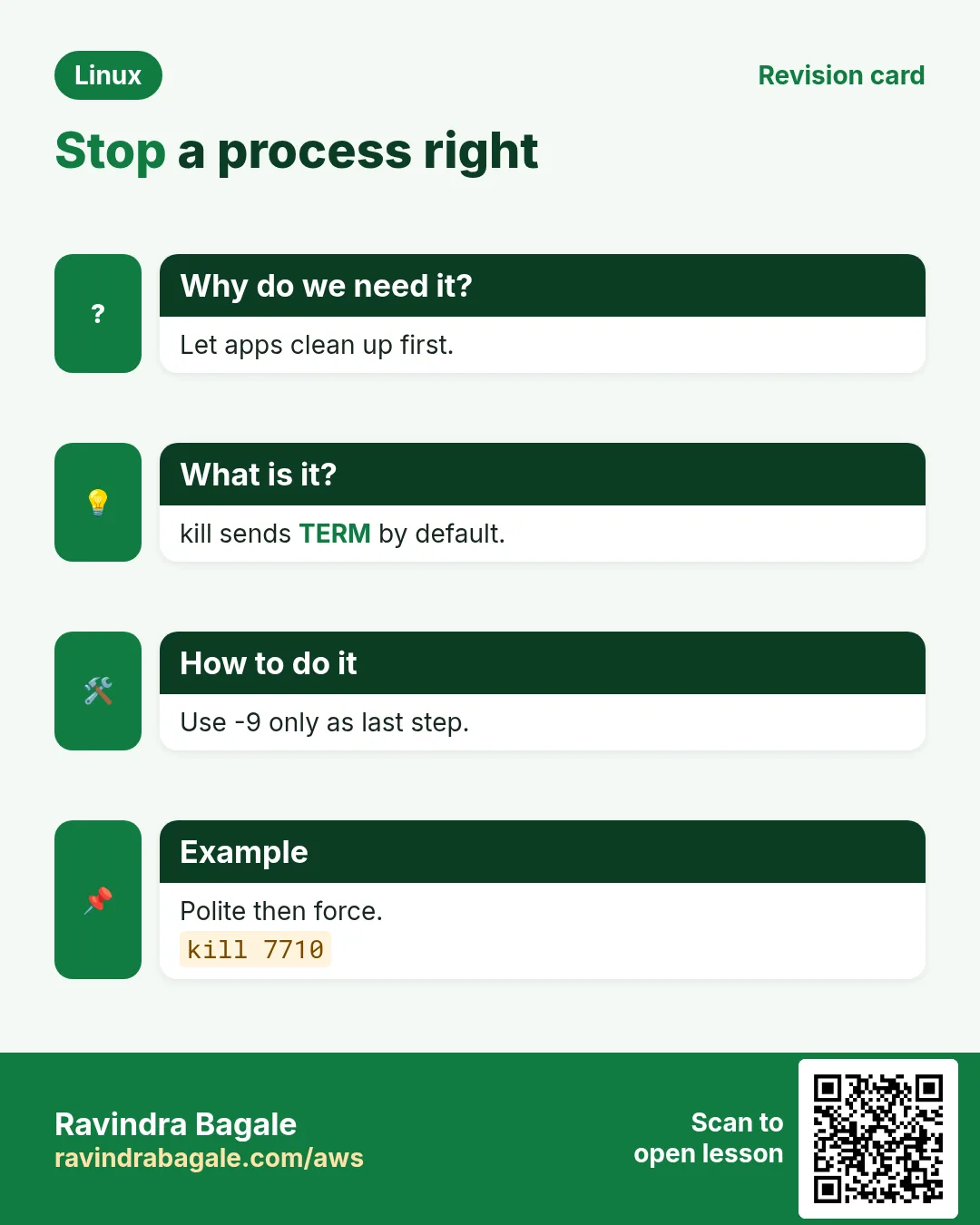
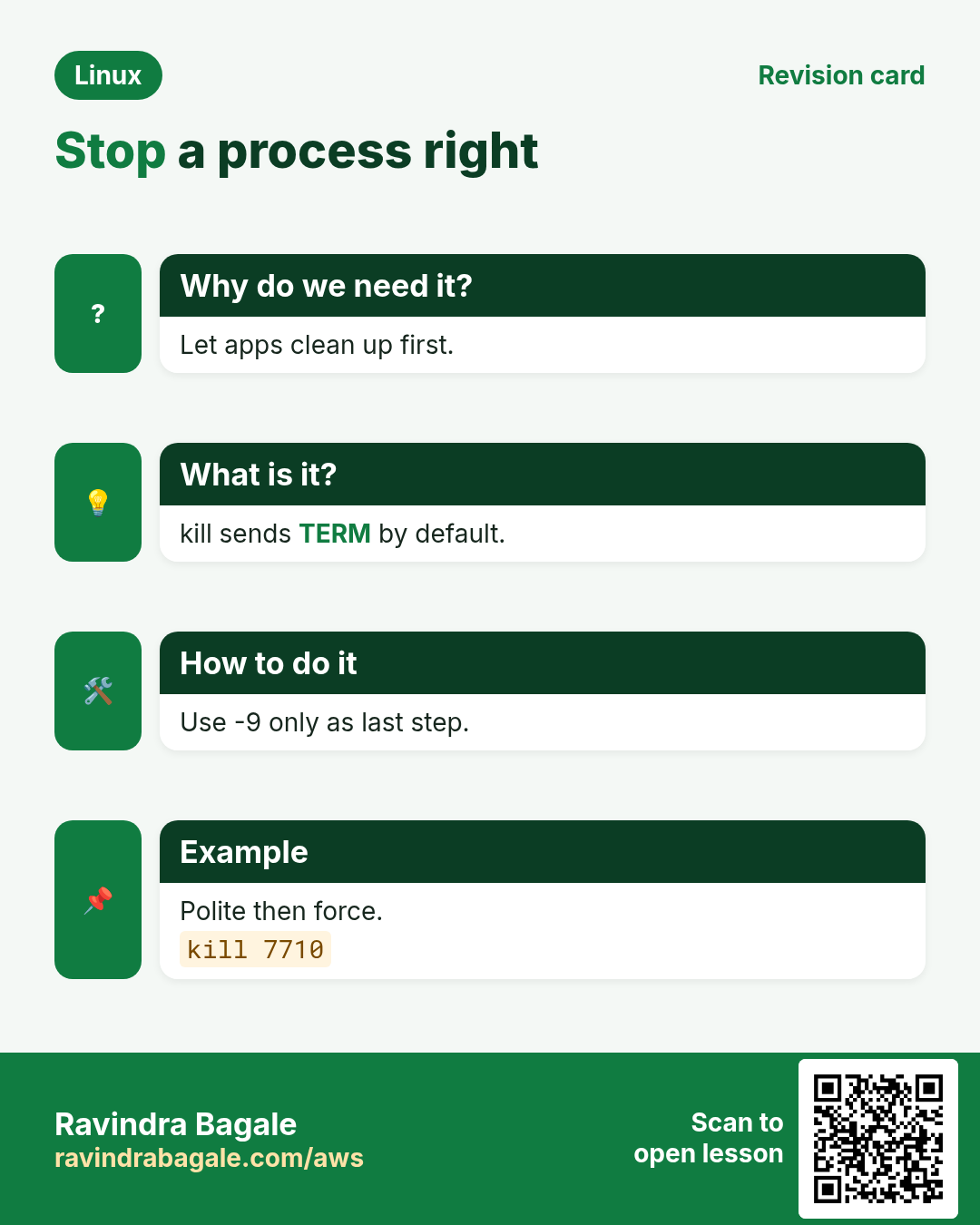
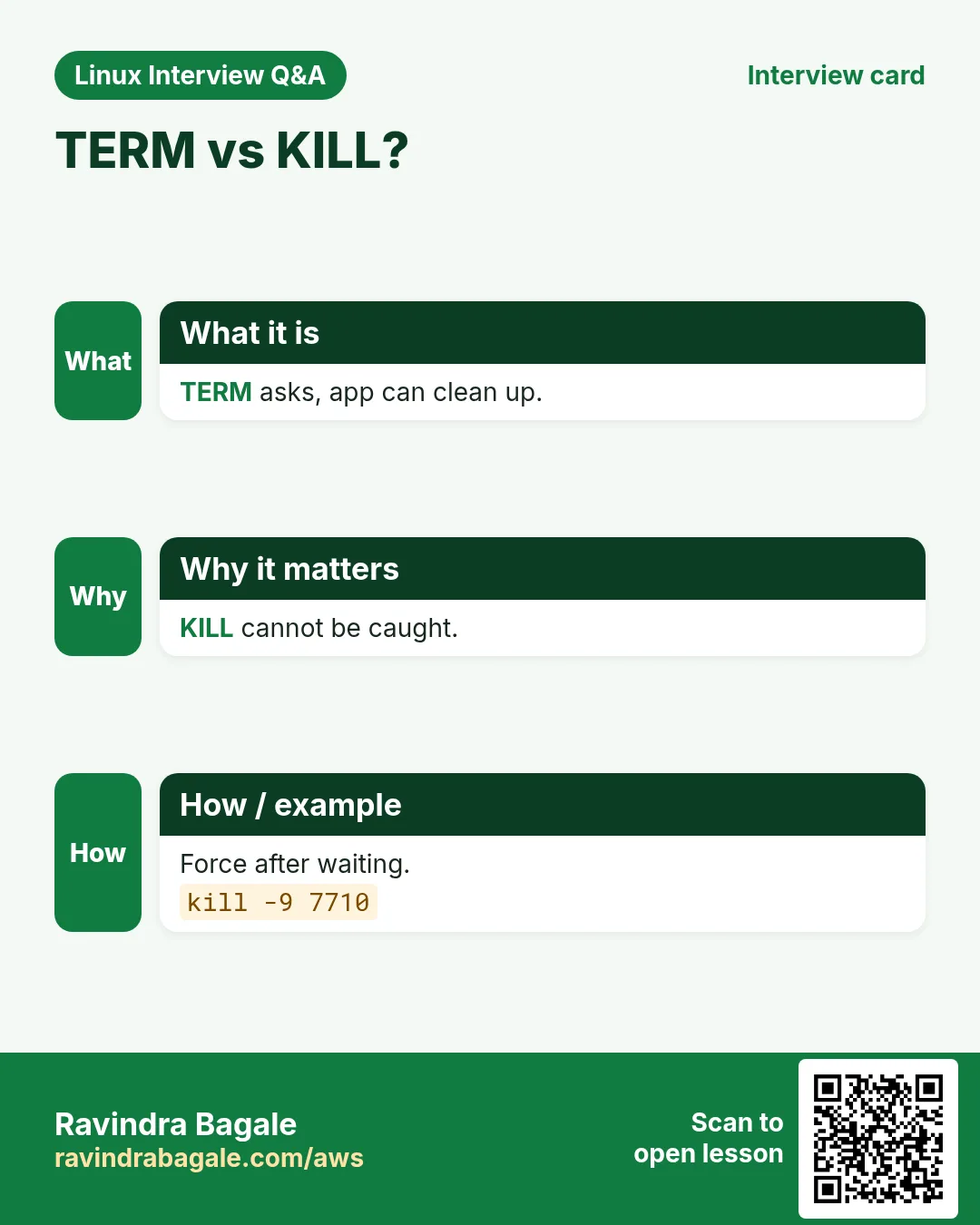
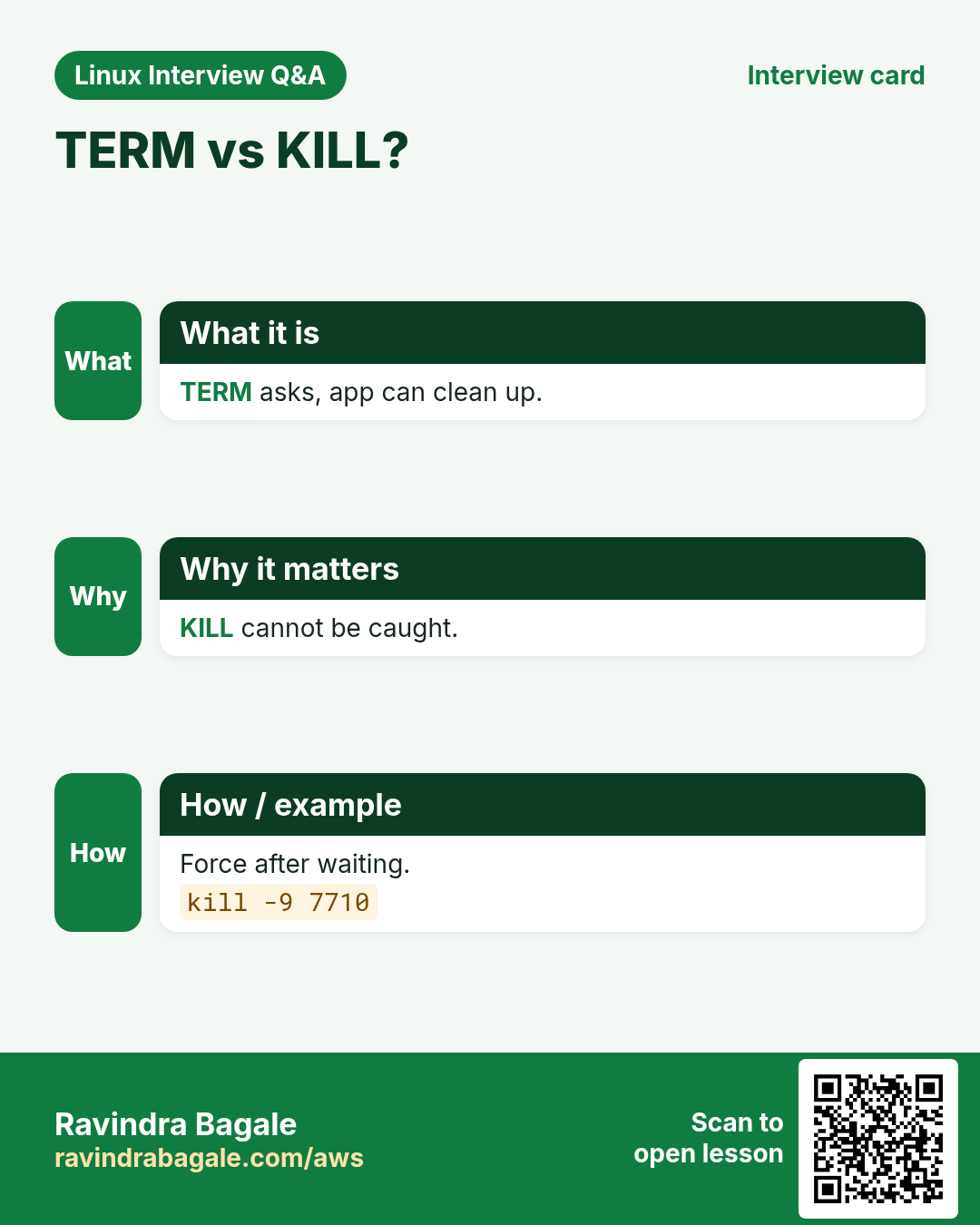
SIGTERM (15) asks the program to finish: save data, close connections, remove pid files. SIGKILL (9) is handled by the kernel: the process is removed at once, with no cleanup. Order: TERM, wait 10-30 s, then KILL only if needed. systemd does the same on stop (TimeoutStopSec).
| SIGTERM 15 | SIGKILL 9 | |
|---|---|---|
| Can be caught | Yes | No |
| Cleanup | Yes | No |
| Use | First, always | Only if TERM fails |
- Ask first, wait, then force.
kill 7710; for i in $(seq 10); do kill -0 7710 2>/dev/null || break; sleep 1; done; kill -0 7710 2>/dev/null && kill -9 7710Output:
(no output)Graceful stop with a 10 second limit.
- What KILL looks like to the parent.
sleep 100 & kill -9 $!; wait $!; echo $?Output:
[1]+  Killed    sleep 100
137
137 = 128 + 9.
- OOM killer uses SIGKILL too.
sudo journalctl -k | grep -i 'killed process' | tail -1Output:
Out of memory: Killed process 8812 (python) total-vm:9.1GExit code 137 in Docker/K8s often means OOM.
5. SIGHUP: reload without restart
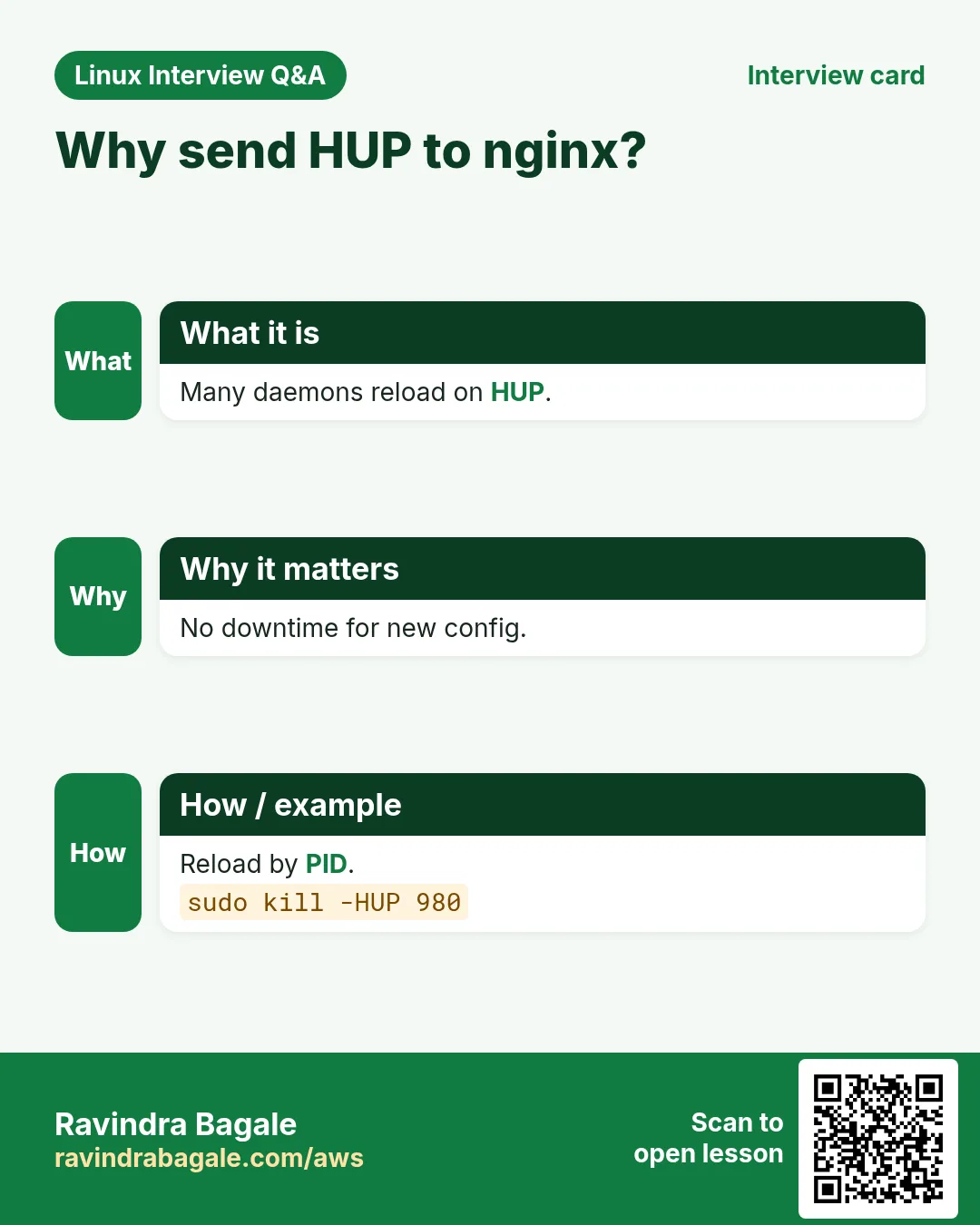
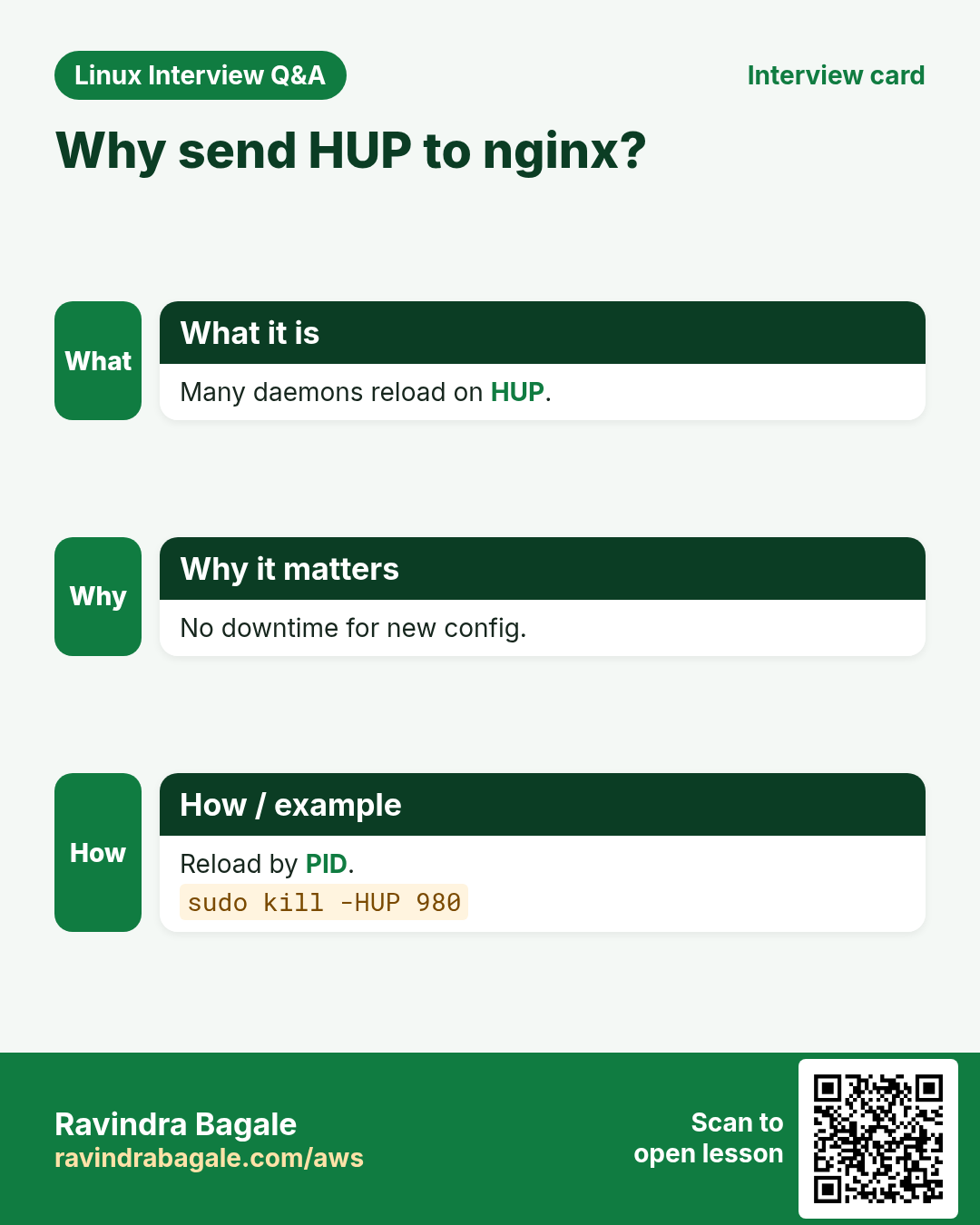
Many daemons re-read their config on SIGHUP, so you can apply changes with no downtime.
For daemons (nginx, sshd, rsyslog, haproxy), SIGHUP means reload. For a normal terminal program it means 'your terminal closed' and it exits (that is why nohup exists). systemctl reload usually sends SIGHUP or runs ExecReload. Always test config first (nginx -t, sshd -t).
- Test and reload nginx.
sudo nginx -t && sudo kill -HUP $(cat /run/nginx.pid)Output:
nginx: configuration file /etc/nginx/nginx.conf test is successfulWorkers restart gracefully; connections keep working.
- The systemd way.
sudo systemctl reload sshd && systemctl status sshd --no-pager | grep -i reloadOutput:
Oct 25 12:01:10 web1 systemd[1]: Reloaded OpenSSH server daemon.Same effect, logged by systemd.
- Tell rsyslog to reopen logs.
sudo pkill -HUP rsyslogdOutput:
(no output)Used after manual log rotation.
6. SIGINT, SIGSTOP, SIGCONT and keyboard signals
Pause a heavy job for a few minutes during peak, then let it continue; or interrupt a script cleanly.
Ctrl+C sends SIGINT, Ctrl+Z SIGTSTP, Ctrl+\ SIGQUIT to the foreground job. SIGSTOP pauses any process and cannot be caught. SIGCONT resumes it (bg/fg also send CONT). A stopped process shows T in ps.
- Pause a backup.
sudo kill -STOP 9500 && ps -o pid,stat,cmd -p 9500Output:
  PID STAT CMD
 9500 T    tar czf /backup/www.tgz /srv/www
T = stopped, using no CPU.
- Resume it.
sudo kill -CONT 9500 && ps -o stat= -p 9500Output:
RContinues exactly where it was.
- Interrupt from a script.
kill -INT 9810Output:
(the program prints ^C-like cleanup)Same as pressing Ctrl+C in its terminal.
7. pkill: signal by name or pattern
When there are many workers or you do not know PIDs, sending by name is faster.
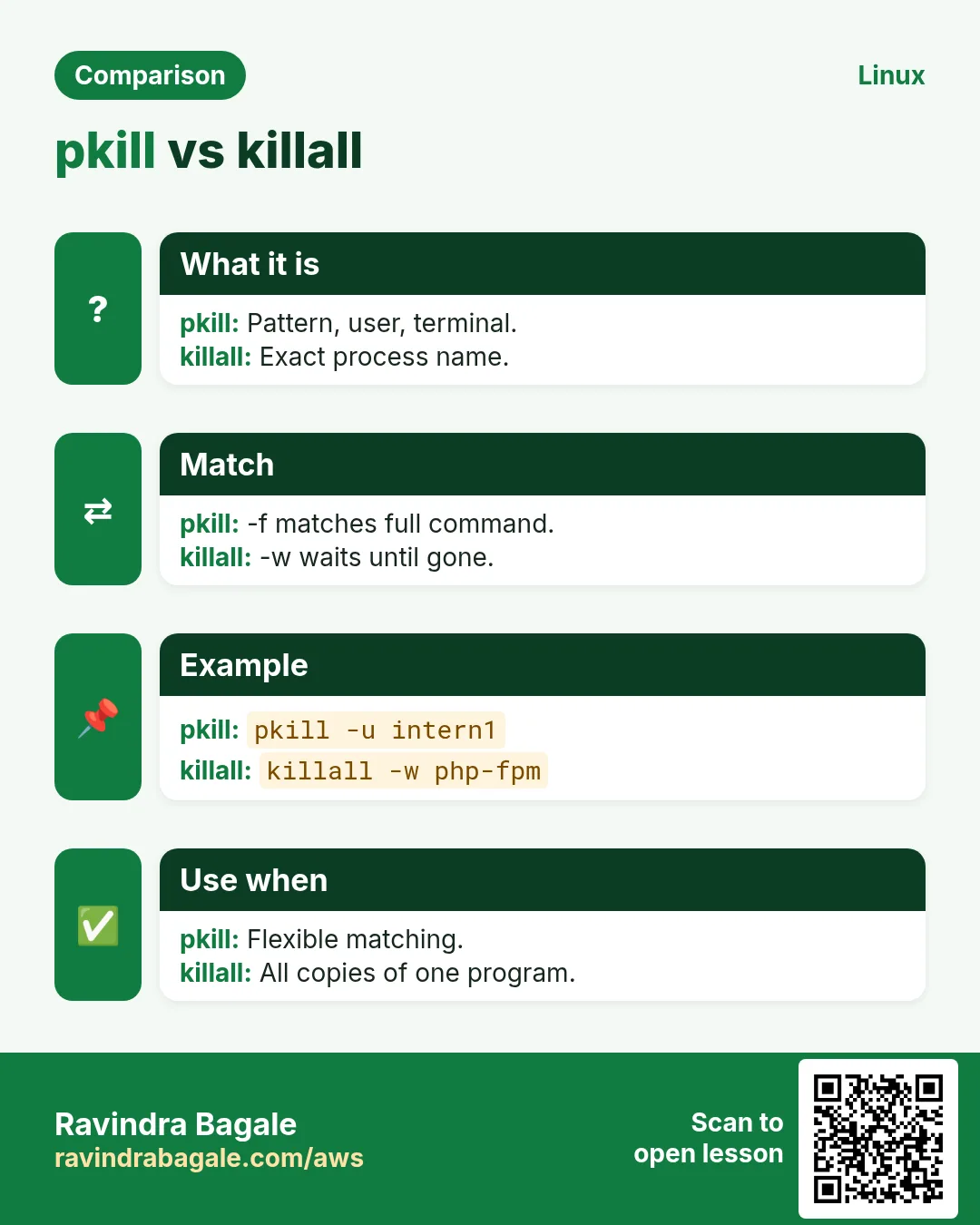
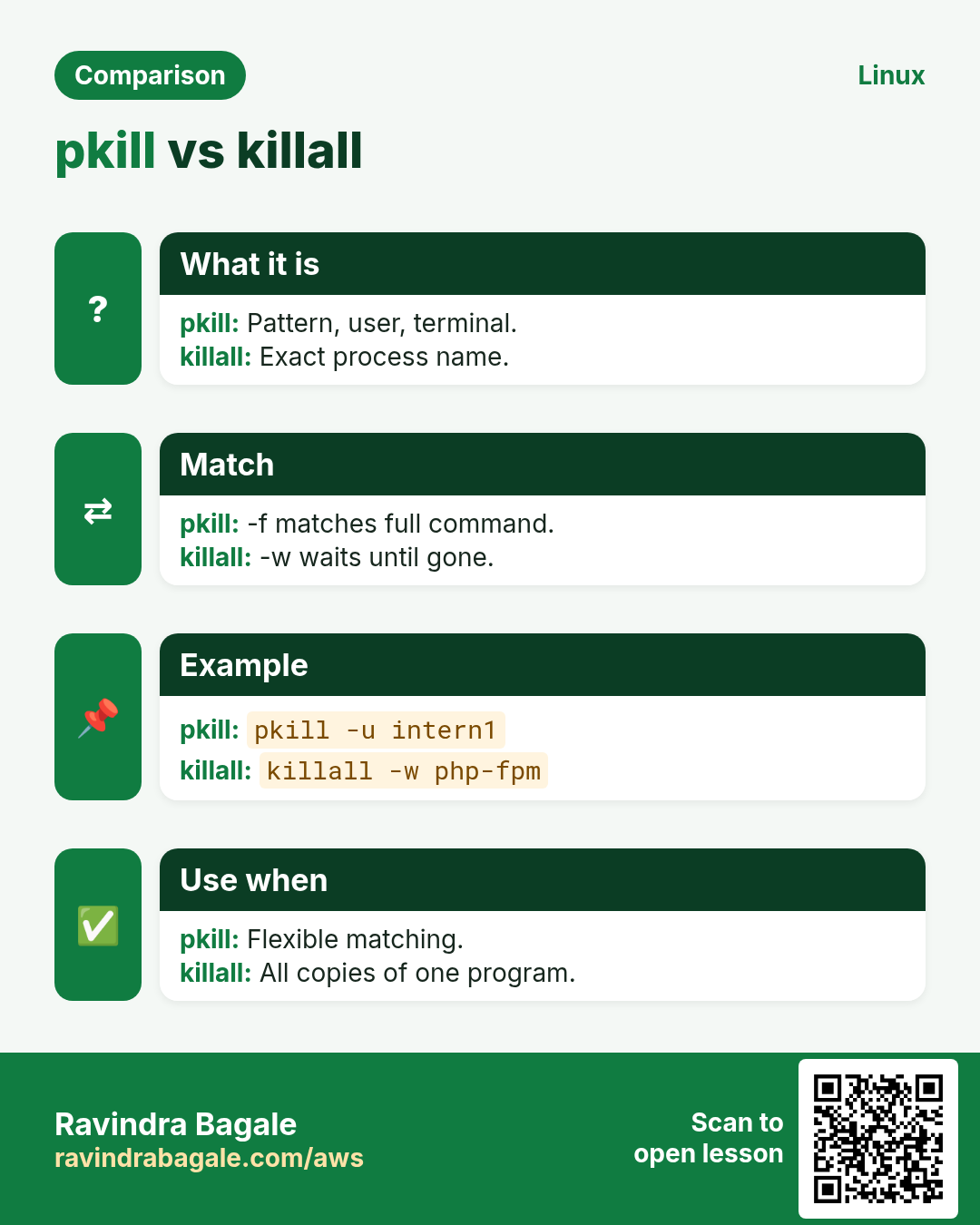
pkill uses the same matching as pgrep: NAME pattern, -f full command line, -u USER, -x exact, -t TTY, -n newest, -o oldest. Default signal TERM; -HUP, -9 etc. Always run pgrep -a with the same options first to see what would match.
- Preview, then stop.
pgrep -af 'celery worker'; pkill -f 'celery worker'Output:
5101 celery worker -A shop
5102 celery worker -A shop
Both workers get TERM.
- All processes of a user.
sudo pkill -u intern1Output:
(no output)Ends a leaving user's sessions.
- Kick a terminal session.
who; sudo pkill -KILL -t pts/3Output:
guest pts/3 2026-10-25 11:40 (203.0.113.9)Logs that user out.
- Danger of loose patterns.
pgrep -l sshOutput:
800 sshd
8700 sshd
9050 ssh-agent
pkill ssh would hit sshd too. Use -x.
8. killall: signal by exact program name
Stop every copy of one program with a clear exact-name match.
killall NAME matches the exact process name (not a pattern). -s SIGNAL, -i asks for each, -u USER, -w waits until they die, -o/-y older/younger than a time. Installed by psmisc. On Solaris killall kills everything, so be careful on other Unix systems.
- Stop all copies and wait.
killall -w php-fpmOutput:
(returns when all are gone)-w is good in scripts before a restart.
- Ask before each.
killall -i python3Output:
Kill python3(8812) ? (y/N) y
Kill python3(8820) ? (y/N) n
Safe interactive use.
- Old processes only.
killall -o 2h -u ravi sleepOutput:
(no output)Kills ravi's sleeps older than 2 hours.
9. timeout: limit how long a command runs
A hanging curl, backup or test should not block a cron job or CI pipeline forever.
timeout 30s CMD sends TERM after 30 seconds. -s KILL picks another signal. -k 5s sends KILL 5 s after the first signal if still alive. Exit code 124 means it timed out. Units: s, m, h, d.
- Limit a health check.
timeout 5s curl -s https://api.example.com/health; echo $?Output:
124124 = timed out; the API is slow.
- TERM, then KILL.
timeout -k 10s 1h ./nightly-report.shOutput:
(no output)Up to 1 hour, then TERM, then KILL after 10 s.
- In cron.
*/5 * * * * timeout 4m /usr/local/bin/sync.shOutput:
(crontab line)Next run never overlaps the last.
10. trap: handle signals in bash scripts
When a script is stopped (Ctrl+C, TERM from systemd), it should remove temp files and locks instead of leaving a mess.
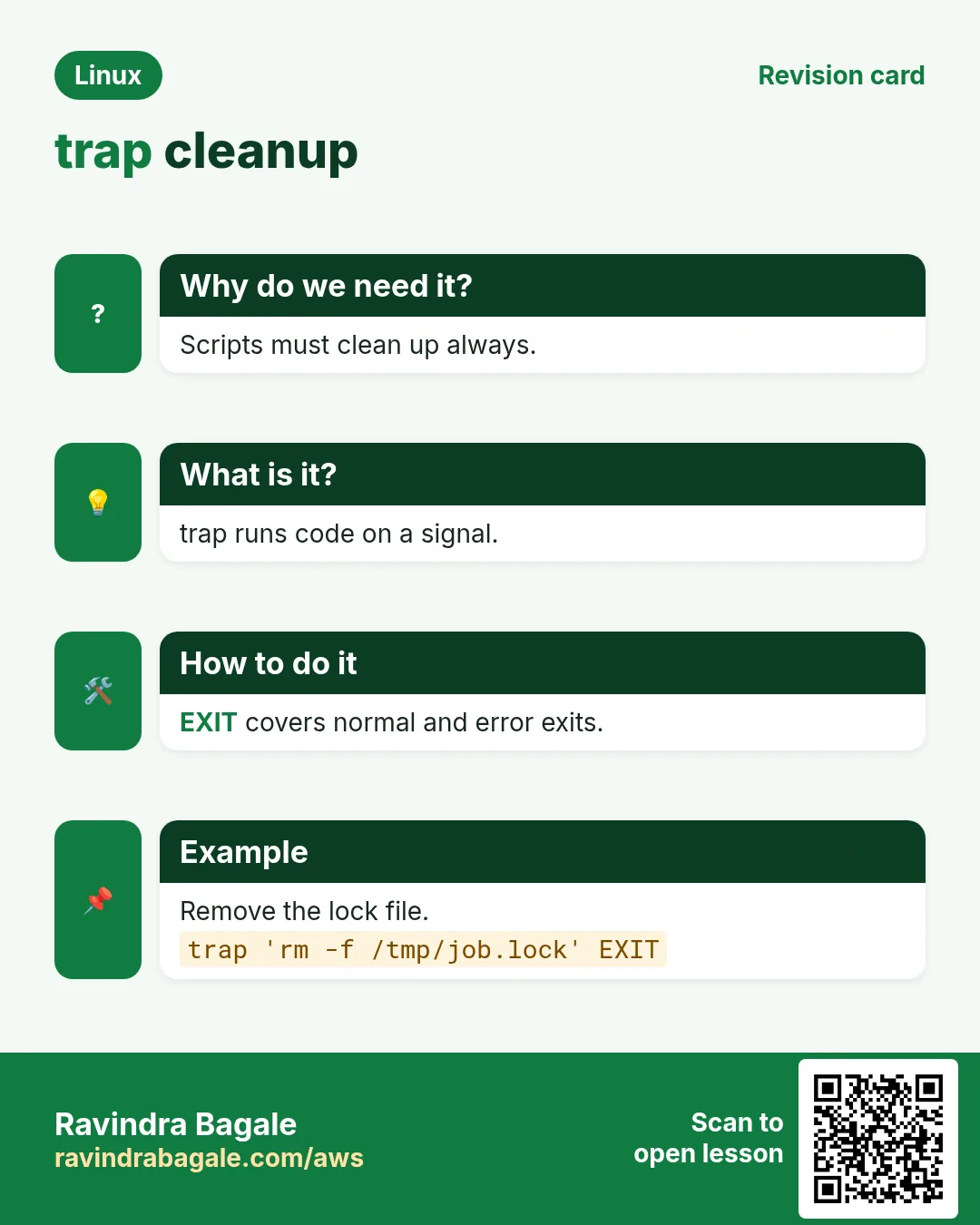
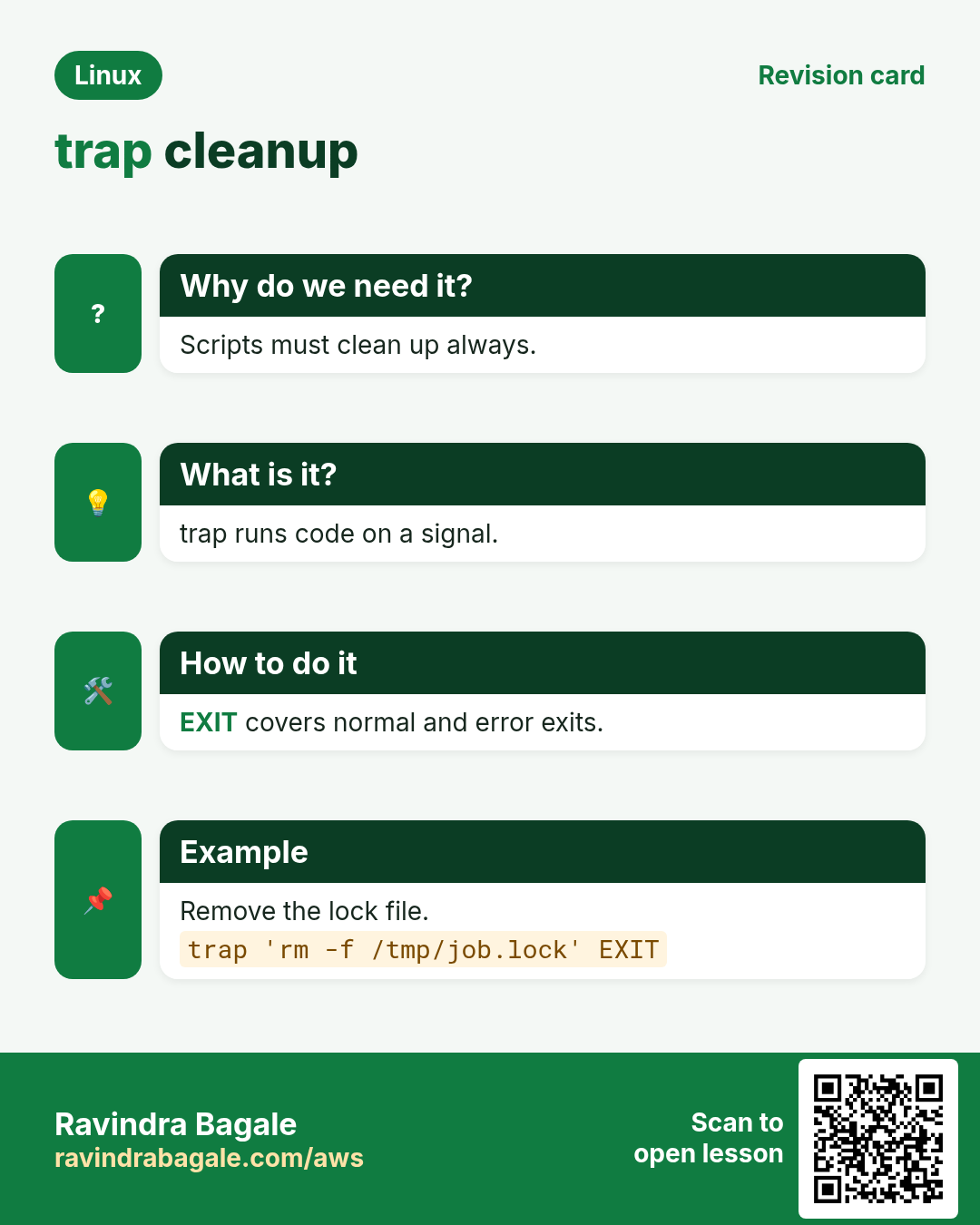
trap 'COMMANDS' SIGNALS runs COMMANDS when a signal arrives. EXIT runs on any exit, ERR on a failing command. trap '' INT ignores Ctrl+C. trap - INT restores default. trap -p shows current traps. KILL and STOP cannot be trapped.
- Clean up temp files on exit.
cat clean.sh
#!/bin/bash
tmp=$(mktemp)
trap 'rm -f "$tmp"; echo cleaned' EXIT
echo working > "$tmp"; sleep 30
Output:
(press Ctrl+C)
^Ccleaned
Runs on normal end and on Ctrl+C.
- Graceful stop on TERM.
trap 'echo stopping; kill $child; wait $child; exit 0' TERM; ./worker & child=$!; waitOutput:
(after kill -TERM of the script) stoppingPasses the stop to the child and waits.
- Reload on HUP.
trap 'source /etc/myapp.conf; echo reloaded' HUPOutput:
(after kill -HUP) reloadedYour script acts like a daemon.
- Show active traps.
trap -pOutput:
trap -- 'rm -f "$tmp"; echo cleaned' EXITUseful while debugging.
11. Zombies and D-state: processes that will not die
Check the STAT column before repeating a stop command. A row starting with Z represents a process that already exited. Its parent still needs to collect the exit status. A row starting with D usually means the process is in an uninterruptible wait, often for a disk or remote filesystem. Ask a different first question in each case. For Z, find the parent with ps -o pid,ppid,stat,comm. For D, check the storage or network dependency and related logs to understand the wait.
kill -9 does not remove them, and people waste hours. You must know the real fix.
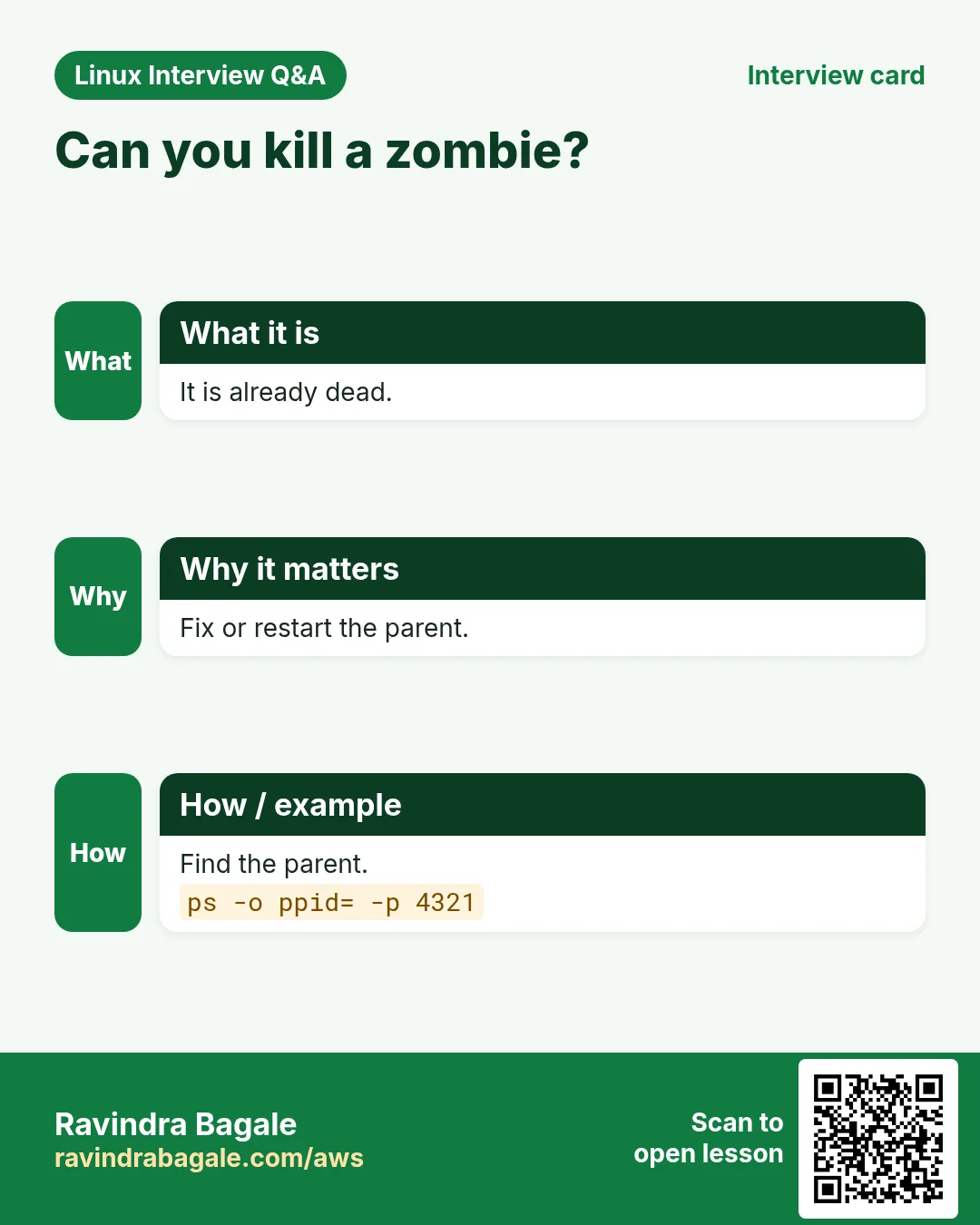
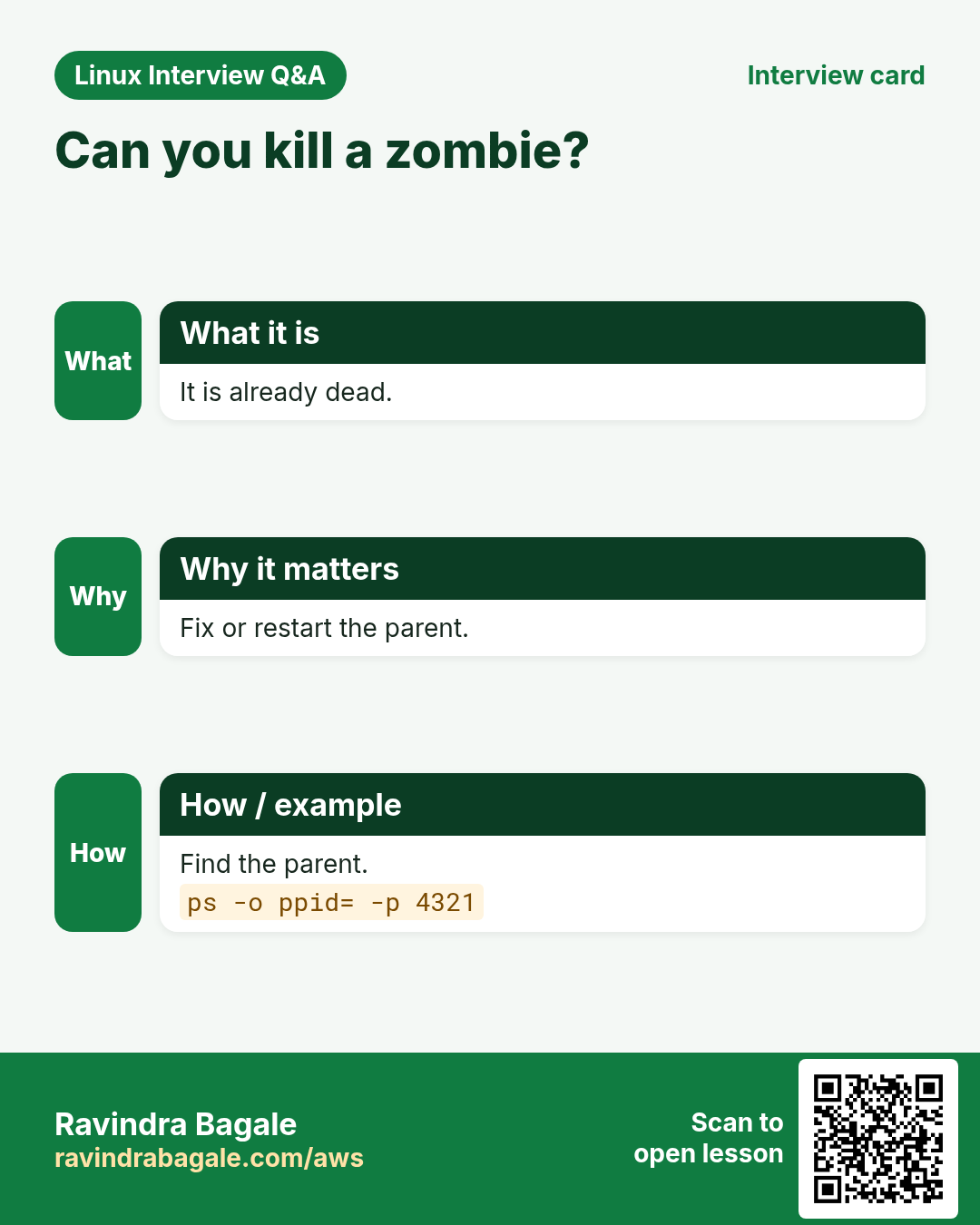
A zombie (Z) has already exited; only its exit record waits for the parent. Fix the parent: send it SIGCHLD or restart it; if the parent dies, systemd adopts and reaps it. A D-state process is inside the kernel waiting for IO (dead NFS, failing disk); signals wait until IO returns. Fix the storage, use umount -f/-l for NFS, or reboot.
- Find zombies and their parents.
ps -eo pid,ppid,stat,cmd | awk '$3 ~ /Z/'Output:
9901 9900 Z [worker] <defunct>PPID 9900 must reap it.
- kill -9 on a zombie does nothing.
kill -9 9901; ps -o stat= -p 9901Output:
ZIt is already dead.
- Nudge or restart the parent.
kill -CHLD 9900; sleep 1; ps -o stat= -p 9901 || echo reapedOutput:
reapedIf not, restart the parent service.
- D-state from a dead NFS.
ps -eo pid,stat,wchan:20,cmd | awk '$2 ~ /D/'Output:
7001 D nfs_wait_bit_killable ls /mnt/nfsWaiting on NFS; fix the mount.
12. Real examples from many industries
The same Linux skill shows up in every kind of company. Seeing it in many places helps you remember it.
Each row is a made-up team. It shows who uses this and how.
| Team and city | How they use it | Command |
|---|---|---|
| Rahul, payments, Pune | Graceful TERM then KILL in deploy scripts | kill $PID; sleep 15; kill -9 $PID |
| Elena, CDN, Madrid | Reloads nginx with HUP after cert renewal | nginx -t && kill -HUP $(cat /run/nginx.pid) |
| Joseph, ISP NOC, Nairobi | Limits monitoring probes with timeout | timeout 10s ping -c3 10.0.0.1 |
| Hiro, robotics, Nagoya | trap cleans lock files in control scripts | trap 'rm -f /run/arm.lock' EXIT |
| Ananya, data team, Bengaluru | Pauses ETL during business hours | pkill -STOP -f etl.py |
| Lucas, hosting, Sao Paulo | Logs out idle SSH users | pkill -KILL -t pts/5 |
13. Common errors and how to fix them
Everyone hits these errors. Knowing the cause saves hours.
Read the exact message first. Then match it to a row below.
| Error you see | Why it happens | How to fix |
|---|---|---|
bash: kill: (1420) - Operation not permitted | Not your process | Use sudo.sudo kill 1420 |
bash: kill: (99999) - No such process | PID already gone or typo | Re-check with pgrep.pgrep -a myapp |
Process ignores kill (SIGTERM) | App handles TERM slowly or is stuck | Wait, then use KILL.kill -9 PID |
kill -9 does not remove <defunct> | It is a zombie | Fix or restart the parent.ps -o ppid= -p PID |
kill -9 has no effect, STAT D | Stuck in kernel IO | Fix storage/NFS or reboot.ps -eo pid,stat,wchan:20,cmd |
Container exited with code 137 | SIGKILL, often the OOM killer | Check memory limits and kernel log.journalctl -k | grep -i oom |
Script exits with 143 under systemd | SIGTERM on stop; maybe no trap | Add trap or SuccessExitStatus=143.systemctl show -p ExecMainStatus app |
pkill killed the wrong processes | Loose pattern matched more | Preview with pgrep -a and use -x or -f carefully.pgrep -ax nginx |
killall: command not found | psmisc not installed | Install psmisc or use pkill.sudo dnf install -y psmisc |
timeout: exit 124 every run | The command is slower than the limit | Find why or raise the limit.time ./job.sh |
14. Troubleshooting step by step
If a process will not stop: identify it, try TERM, check its state, then KILL, and if it still stays, look at zombies or D-state.
Go top to bottom. Stop at the first step that shows the problem.
- Confirm the exact process.
pgrep -a myapp- Ask it to stop.
kill PID- Wait and check the state.
sleep 10; ps -o pid,stat,cmd -p PID- Force only if needed.
kill -9 PID- Zombie? Look at the parent.
ps -o ppid= -p PID- D-state? Check storage.
dmesg -T | tail -2015. Lab 1: Graceful vs forced stop
Write a small script that cleans up on TERM, then compare TERM and KILL.
A full hands-on lab. Run every step on a test Linux machine (an EC2 instance, a VM, or WSL).
- Create the script.
cat > ~/svc.sh <<'X'
#!/bin/bash
touch /tmp/svc.lock
trap 'rm -f /tmp/svc.lock; echo clean exit; exit 0' TERM INT
while true; do sleep 1; done
X
chmod +x ~/svc.sh
Output:
(no output)- Run and stop with TERM.
~/svc.sh & sleep 1; kill $!; wait $!; echo code=$?; ls /tmp/svc.lockOutput:
clean exit
code=0
ls: cannot access '/tmp/svc.lock': No such file or directory- Run and stop with KILL.
~/svc.sh & sleep 1; kill -9 $!; wait $!; echo code=$?; ls /tmp/svc.lockOutput:
code=137
/tmp/svc.lock- See the difference.
echo 'KILL left the lock file behind'Output:
KILL left the lock file behind- Clean up.
rm -f /tmp/svc.lock ~/svc.shOutput:
(no output)16. Lab 2: Pause, resume, reload and time-limit
Use STOP/CONT, pkill with preview, and timeout.
A full hands-on lab. Run every step on a test Linux machine (an EC2 instance, a VM, or WSL).
- Start two workers.
(sleep 500 &) ; (sleep 501 &) ; pgrep -a sleepOutput:
9950 sleep 500
9951 sleep 501- Pause and resume one.
kill -STOP 9950; ps -o pid,stat -p 9950; kill -CONT 9950; ps -o stat= -p 9950Output:
  PID STAT
 9950 T
S- Preview then pkill.
pgrep -af 'sleep 50'; pkill -f 'sleep 50'; pgrep -c sleepOutput:
9950 sleep 500
9951 sleep 501
0- Time-limit a command.
timeout 2s sleep 10; echo $?Output:
124- Reload a daemon safely.
sudo sshd -t && sudo systemctl reload sshd && echo reloadedOutput:
reloadedRavindra Bagale's Tip
Make 'kill, wait, then kill -9' a habit, never the other way round. And before any pkill, run the same pattern with pgrep -a to see exactly what you are about to stop.
Ravindra Bagale's Tip – मराठी
'kill, थांबा, मग kill -9' ही सवय करा, उलट कधीच नाही. आणि कोणत्याही pkill आधी तोच pattern pgrep -a ने चालवून नेमकं काय थांबवणार ते बघा.
Ravindra Bagale's Tip – हिंदी
'kill, रुकें, फिर kill -9' की आदत डालें, उल्टा कभी नहीं. और किसी भी pkill से पहले वही pattern pgrep -a से चलाकर देखें कि आप ठीक-ठीक क्या रोकने वाले हैं.
17. Frequently asked questions
Q. Which signal does kill send by default?
SIGTERM (15).
Q. Why avoid kill -9 first?
The program cannot save data or clean up, so you may get corrupt files and stale locks.
Q. pkill or killall?
pkill matches patterns and options like pgrep; killall matches exact names. Both are fine; preview first.
Q. What does exit code 130 mean?
Stopped by Ctrl+C (128 + 2).
Q. Can I trap SIGKILL?
No. KILL and STOP cannot be caught or ignored.
Q. Does SIGHUP always reload?
Only for programs written to do so (most daemons). For others it ends them.
Q. How do I kill a whole process group?
kill -TERM -PGID (negative number), or systemctl stop for services.
Q. Why does my container not stop quickly?
PID 1 in a container ignores TERM unless it handles it; use exec in entrypoints, tini, or a trap.
18. Interview questions and answers
Beginner level
Q. What is a signal?
A short message from the kernel to a process, like stop, pause or reload.
Q. SIGTERM vs SIGKILL?
TERM asks politely and can be handled; KILL ends at once and cannot be caught.
Q. What does Ctrl+C send?
SIGINT.
Q. How do you list signals?
kill -l.
Mid level level
Q. How do you reload nginx config without downtime?
nginx -t, then systemctl reload nginx or kill -HUP master PID.
Q. What does exit code 137 mean?
Killed by SIGKILL (128+9), often OOM.
Q. How do you limit a command to 30 seconds?
timeout 30s CMD; exit 124 if it timed out.
Q. How do you clean up temp files when a script is interrupted?
trap 'rm -f "$tmp"' EXIT INT TERM.
Senior level
Q. A process is in D state and ignores kill -9. Explain.
It is blocked inside a kernel IO call; signals are delivered only when it returns. Fix the device or NFS (umount -f/-l), or reboot.
Q. Zombies are piling up. Root cause and fix?
The parent does not call wait(). Fix the code (handle SIGCHLD), restart the parent, or use an init like tini in containers.
Q. How does systemd stop a service?
Sends KillSignal (TERM) to the cgroup, waits TimeoutStopSec, then SIGKILL; KillMode controls which processes.
Q. Why use exec in a Docker entrypoint script?
So the app becomes PID 1 and receives SIGTERM directly instead of the shell swallowing it.
Try at home
- Write a script that prints 'tick' every second, prints 'bye' on Ctrl+C or TERM, and prints 'reloaded' on HUP. Test all three with kill.
- Run 'sleep 100' and find out the exit code when it is stopped by TERM, KILL and Ctrl+C. Explain each number.
Practise this chapter
Interview questions and answers
What may differ after TERM and KILL even though both make a process disappear?
A process can handle TERM and flush output, finish a transaction or remove its temporary file. KILL gives its code no opportunity to handle that signal. Verify that the target really exited, then compare log and data state before restarting it.
Check your understanding
Choose an answer, then compare your reasoning with the explanation.
Practice Tasks
Practice checks run in your browser. They check the answer for this exercise; they do not create resources or connect to your AWS account.
About this scenarioAhmednagar Sugar Co-op is a sugar co-operative business in Ahilyanagar. Balasaheb Pawar looks after its IT and cloud work. They count money in INR and run their AWS resources in the ap-south-1 Region. In the tasks below you do real jobs for them using what this lesson teaches. All names, account IDs, IP addresses and numbers are made up for practice.
0 / 17
Easy Number of a signal
Know the names.
Print the number of the TERM signal by its name.
- Find the Linux command that does this job.
- Add the options (like -r or -h) the task needs.
- Add the file names, folders or users in the right order.
- Use sudo if the job changes system files or users. Click Check answer.
Easy Polite stop
Let the app clean up.
Send the default terminate signal to PID 5520.
- Find the Linux command that does this job.
- Add the options (like -r or -h) the task needs.
- Add the file names, folders or users in the right order.
- Use sudo if the job changes system files or users. Click Check answer.
Easy All copies by name
Restart gunicorn cleanly.
Stop every process named exactly gunicorn and wait until they are gone.
- Find the Linux command that does this job.
- Add the options (like -r or -h) the task needs.
- Add the file names, folders or users in the right order.
- Use sudo if the job changes system files or users. Click Check answer.
Easy Limit a command
Health check hangs.
Run curl -s https://example.com with a 5 second limit.
- Find the Linux command that does this job.
- Add the options (like -r or -h) the task needs.
- Add the file names, folders or users in the right order.
- Use sudo if the job changes system files or users. Click Check answer.
Medium Name for a number
Exit code 137 seen.
Print the signal name for number 2.
- Find the Linux command that does this job.
- Add the options (like -r or -h) the task needs.
- Add the file names, folders or users in the right order.
- Use sudo if the job changes system files or users. Click Check answer.
Medium Force kill
TERM did not work after 30 s.
Send SIGKILL to PID 5520.
- Find the Linux command that does this job.
- Add the options (like -r or -h) the task needs.
- Add the file names, folders or users in the right order.
- Use sudo if the job changes system files or users. Click Check answer.
Medium Is it alive?
pid file check.
Check whether PID 3307 exists without sending a real signal.
- Find the Linux command that does this job.
- Add the options (like -r or -h) the task needs.
- Add the file names, folders or users in the right order.
- Use sudo if the job changes system files or users. Click Check answer.
Medium Reload nginx by PID
New certificate at BIZ.
Send SIGHUP to PID 980 (the nginx master).
- Find the Linux command that does this job.
- Add the options (like -r or -h) the task needs.
- Add the file names, folders or users in the right order.
- Use sudo if the job changes system files or users. Click Check answer.
Medium Pause a process
Peak hour; pause the ETL.
Pause PID 9611 with a signal that cannot be caught.
- Find the Linux command that does this job.
- Add the options (like -r or -h) the task needs.
- Add the file names, folders or users in the right order.
- Use sudo if the job changes system files or users. Click Check answer.
Medium Resume a process
Peak is over.
Resume the paused PID 9611.
- Find the Linux command that does this job.
- Add the options (like -r or -h) the task needs.
- Add the file names, folders or users in the right order.
- Use sudo if the job changes system files or users. Click Check answer.
Medium Stop by full command
Celery workers have no fixed PIDs.
Send TERM to every process whose full command line matches 'rq worker'.
- Find the Linux command that does this job.
- Add the options (like -r or -h) the task needs.
- Add the file names, folders or users in the right order.
- Use sudo if the job changes system files or users. Click Check answer.
Medium End a user's processes
Intern leaving BIZ.
Send TERM to all processes of user trainee7.
- Find the Linux command that does this job.
- Add the options (like -r or -h) the task needs.
- Add the file names, folders or users in the right order.
- Use sudo if the job changes system files or users. Click Check answer.
Medium Clean up on exit
Leftover temp files.
In a bash script, set a trap that runs rm -f /tmp/job.lock on EXIT.
- Find the Linux command that does this job.
- Add the options (like -r or -h) the task needs.
- Add the file names, folders or users in the right order.
- Use sudo if the job changes system files or users. Click Check answer.
Hard Kick a terminal
Unknown user on pts/5.
Send KILL to everything on terminal pts/5.
- Find the Linux command that does this job.
- Add the options (like -r or -h) the task needs.
- Add the file names, folders or users in the right order.
- Use sudo if the job changes system files or users. Click Check answer.
Hard TERM then KILL
Nightly job must never hang.
Run ./report.sh with a 1h limit, and send KILL 10s after the first signal if still alive.
- Find the Linux command that does this job.
- Add the options (like -r or -h) the task needs.
- Add the file names, folders or users in the right order.
- Use sudo if the job changes system files or users. Click Check answer.
Hard Ignore TERM
A critical step must not be interrupted.
Make the script ignore SIGTERM.
- Find the Linux command that does this job.
- Add the options (like -r or -h) the task needs.
- Add the file names, folders or users in the right order.
- Use sudo if the job changes system files or users. Click Check answer.
Hard Find zombies
Defunct entries are piling up.
List stat, pid, ppid and cmd of all processes, then filter rows whose stat contains Z with awk on field 1.
- Find the Linux command that does this job.
- Add the options (like -r or -h) the task needs.
- Add the file names, folders or users in the right order.
- Use sudo if the job changes system files or users. Click Check answer.
19. Related chapters
- Linux Ops Refresh for DevOps
- Bash Scripting for Automation
- Linux grep and find Commands with Examples
- How to Set Up Passwordless SSH Between Linux Servers
In short
- kill -l lists; names are safer than numbers.
- kill sends TERM; -9 only as the last step.
- HUP reloads daemons; STOP/CONT pause and resume.
- pkill/killall by name; preview with pgrep -a.
- timeout limits time (exit 124); trap cleans up.
- Zombies: fix the parent. D-state: fix the IO.
Revision, comparison and interview cards
Revise this lesson in a few minutes. Save the cards on your phone or download them as PNG files. The QR code on each card opens this lesson.
More cards: Ravi Sir's Cards.