Shell Scripting Complete 2: Bash Variables, Quoting, Command Substitution and Parameter Expansion
Variables let a script remember things: a file name, a date, a count. Quoting decides whether bash treats spaces and stars as text or as special characters, and it is the number one cause of script bugs. Command substitution puts the output of one command into a variable. This chapter teaches all three step by step, plus default values, string tricks, arithmetic, environment variables and the special variables like $0 and $$.
In this chapter
- Create and use variables correctly
- Know single quotes, double quotes and no quotes
- Capture command output with $( )
- Use defaults and string operations
- Do integer maths with $(( ))
- Export environment variables
1. An everyday example: labelled jars in the kitchen
In a kitchen every jar has a label: sugar, salt, tea. When the recipe says 'add sugar' you pick the jar by its label and use what is inside. If someone puts salt in the sugar jar, the tea tastes bad. Variables are labelled jars, and quoting is the lid that keeps the contents as they are.
Jar label = variable name. What is inside = value. Taking from the jar = $name. Lid closed = "$name" (contents stay whole). Filling a jar from a machine = name=$(command). Sharing the jar with neighbours = export.
2. Create a variable: name=value
A script that repeats the same path ten times is hard to change. Put it in one variable and change it in one place.
Write name=value with no spaces around =. Names use letters, digits and _ and cannot start with a digit. Read it with $name or ${name}. Use lower case for your own variables; UPPER case is used by the system (PATH, HOME). unset name deletes it. readonly name makes it constant.
- Set and print.
city=Pune; echo "I live in $city"Output:
I live in Pune$city was replaced by its value.
- Spaces break it.
city = PuneOutput:
bash: city: command not foundbash thought city was a command.
- Braces join text.
f=report; echo "${f}_2026.csv"Output:
report_2026.csvWithout braces bash looks for a variable called f_2026.
- Constant.
readonly TAX=18; TAX=20Output:
bash: TAX: readonly variableIt cannot be changed.
3. Double quotes: keep spaces, still expand
Bash turns a command line into separate arguments. A filename such as April report.txt is one name even though it has a space. Store it in file and compare printing $file with printing "$file" using a format like printf '[%s]\n'. In the unquoted call, the space can split the value into two arguments. Double quotes keep the expanded value together. This is why a command that worked with report.txt may fail when a real user supplies a filename containing spaces.
File names and user input often have spaces. Without quotes one name becomes two arguments and the command breaks.
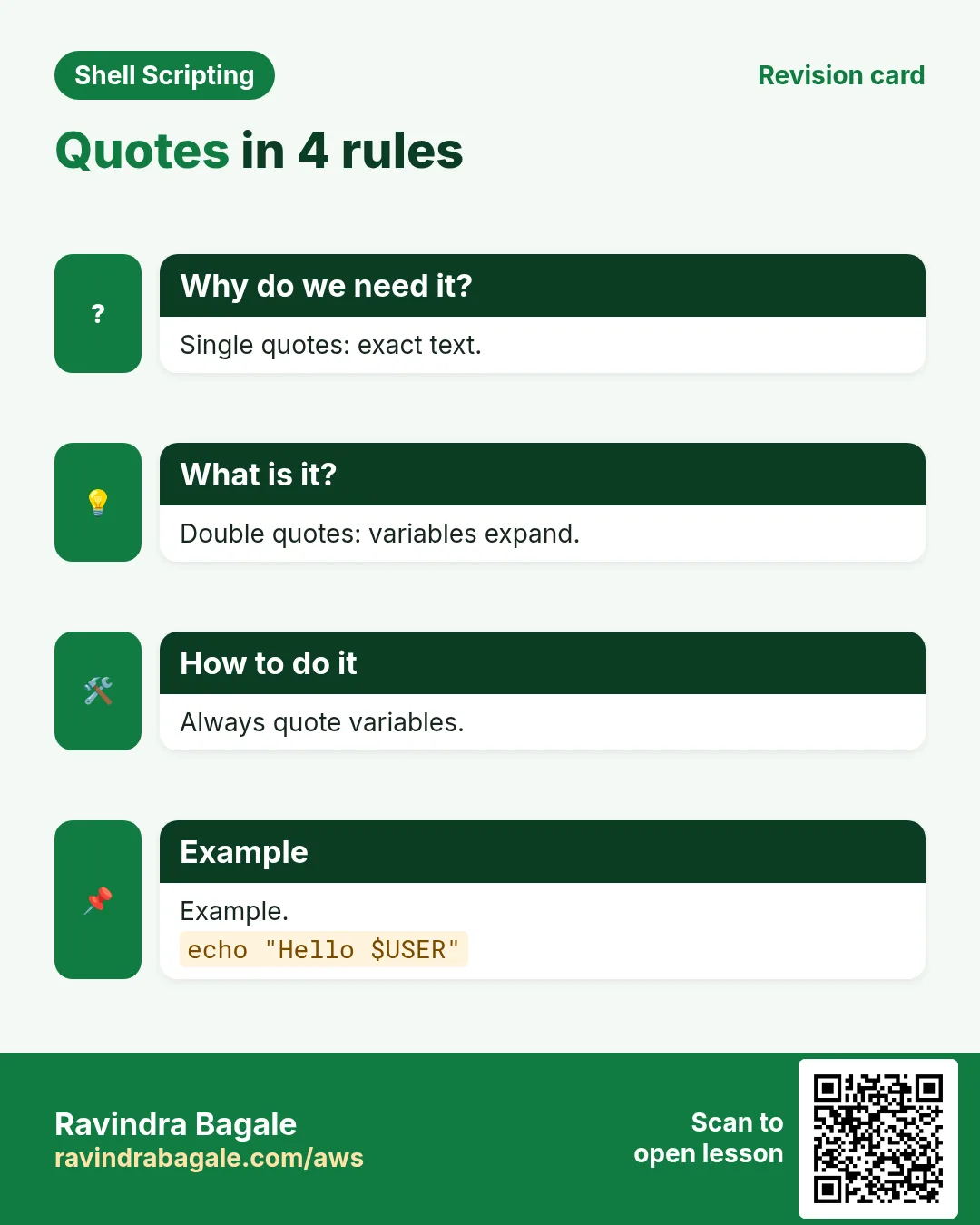
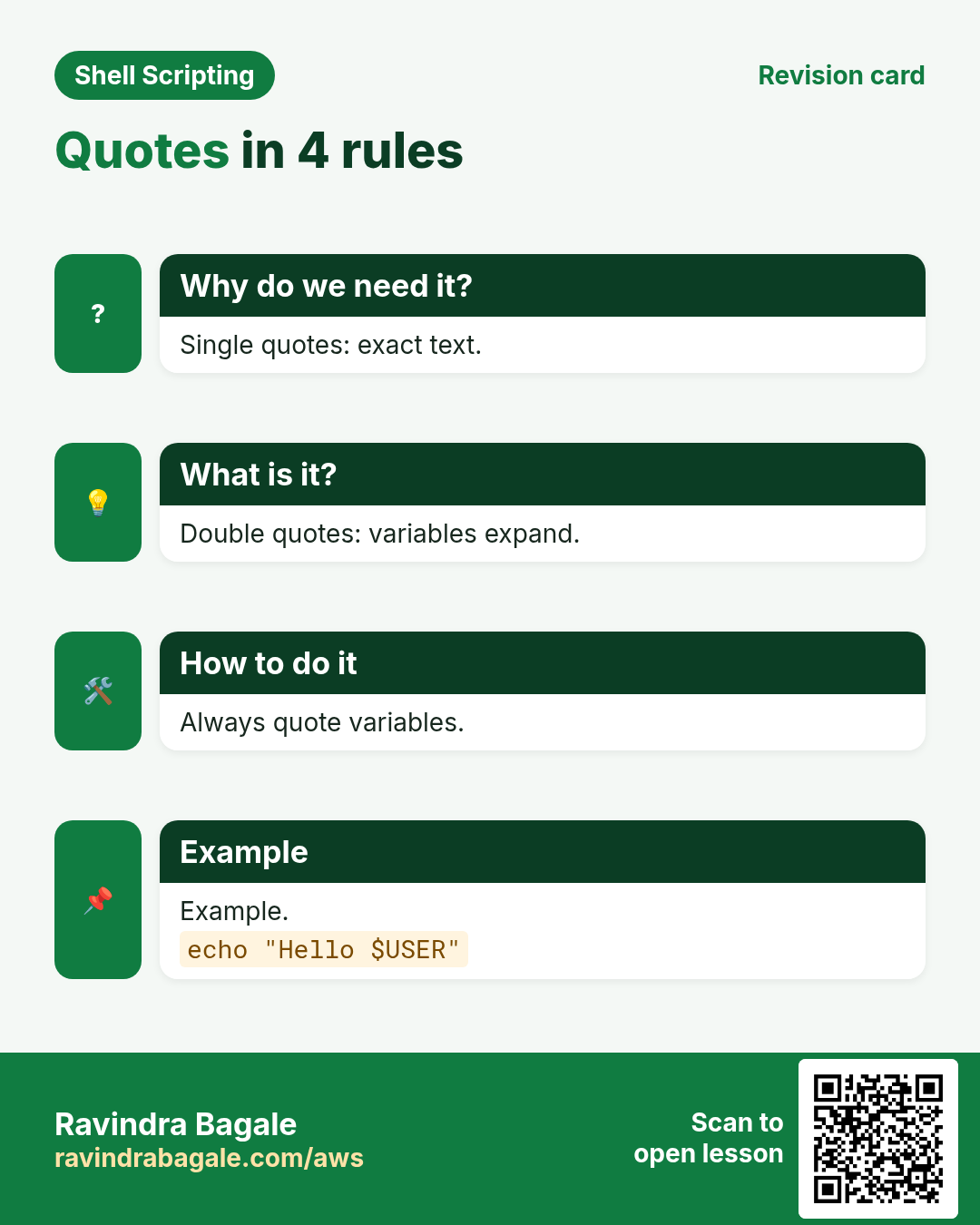
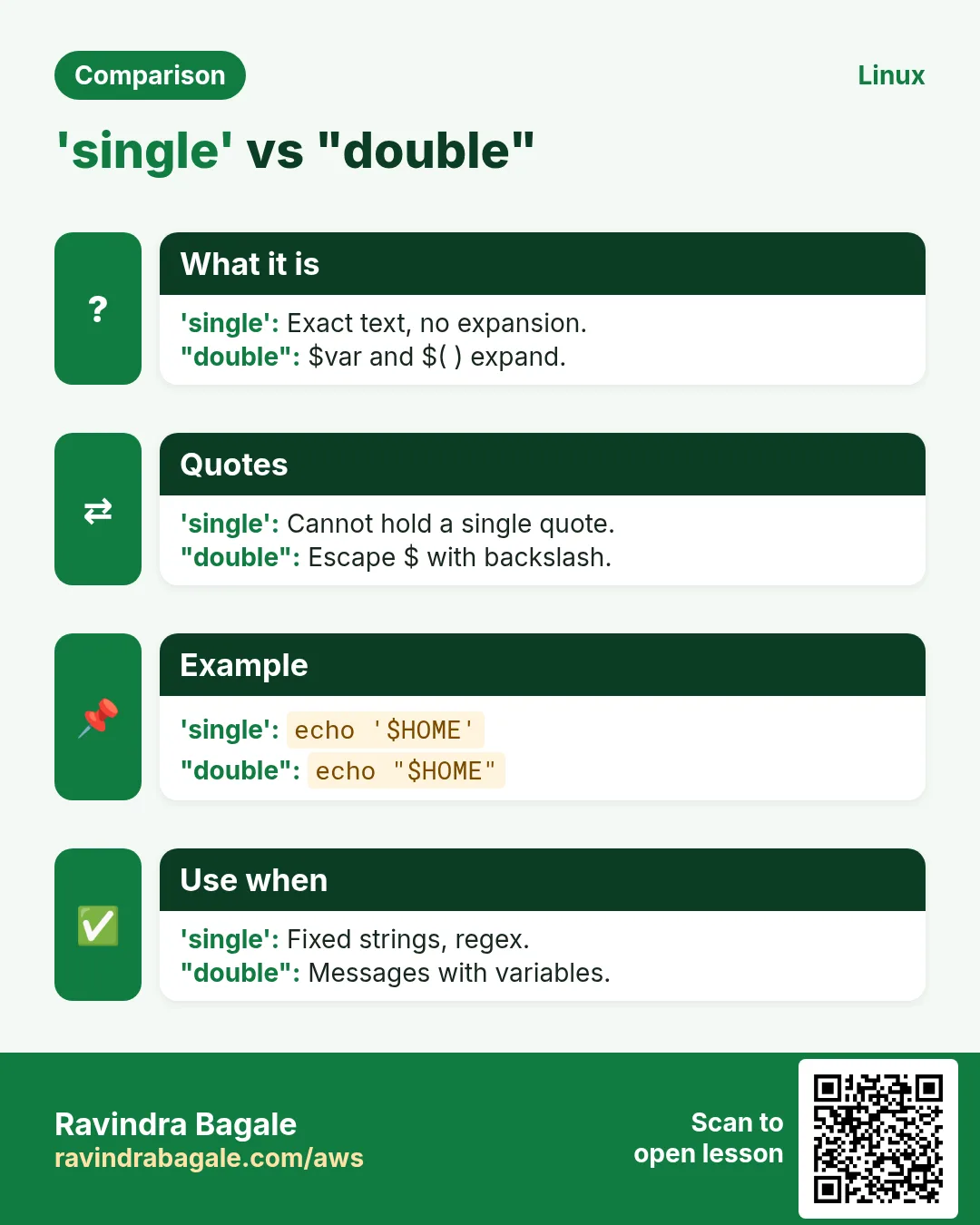
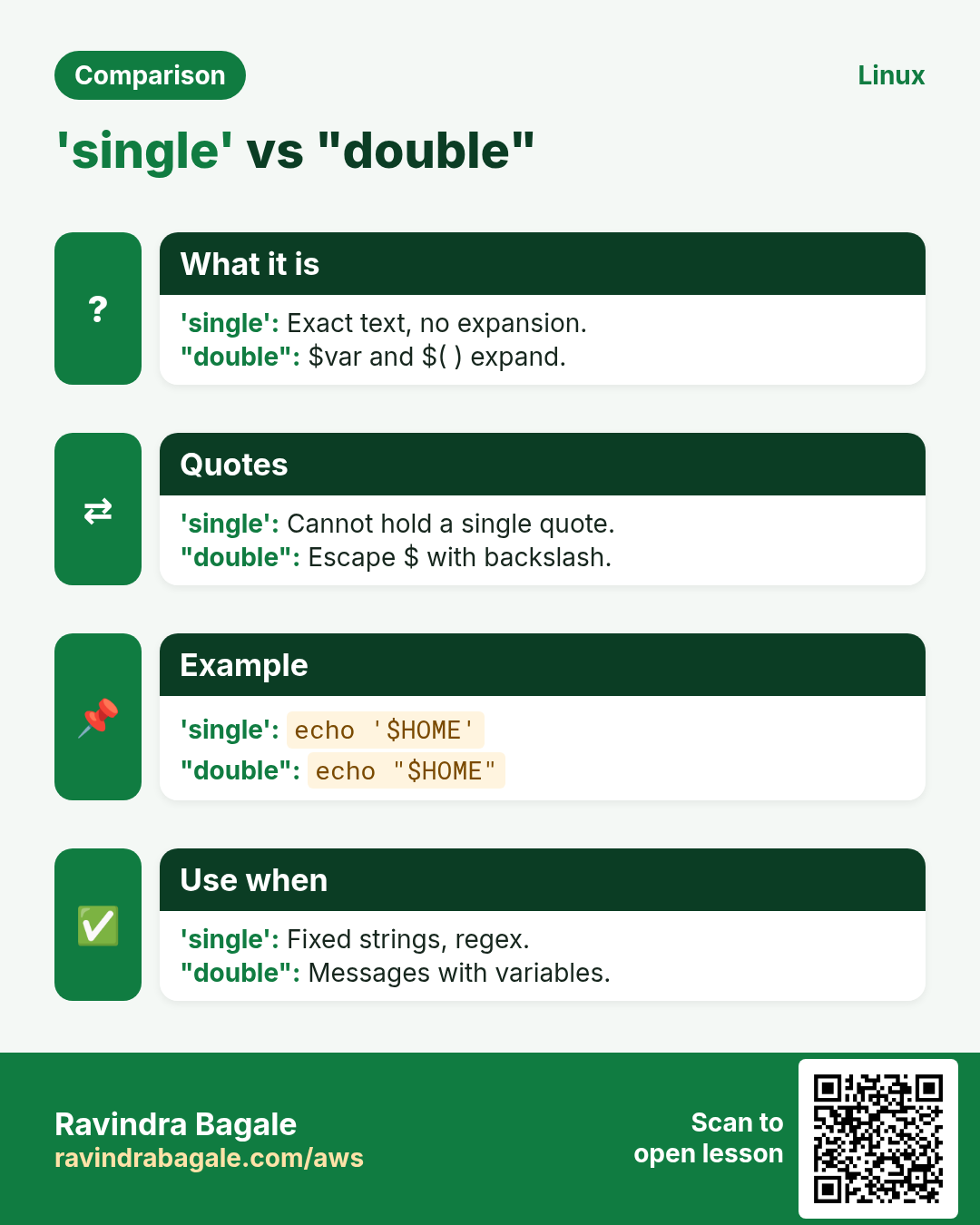
Inside "double quotes" bash still replaces $var, $(cmd) and $((math)), but it does not split on spaces and does not expand * or ?. Rule: always write "$var" unless you have a reason not to. Use \" for a quote inside and \$ for a literal dollar.
- A name with a space.
f='Sales Q3.xlsx'; ls -l $fOutput:
ls: cannot access 'Sales': No such file or directory
ls: cannot access 'Q3.xlsx': No such file or directory
Unquoted: split into two words.
- Quoted.
ls -l "$f"Output:
-rw-r--r-- 1 asha asha 20480 Oct 25 11:00 Sales Q3.xlsxOne argument, it works.
- Star stays a star.
p='*.log'; echo "$p"Output:
*.logInside quotes * is not expanded.
- Escape inside.
echo "Price: \$5 for \"chai\""Output:
Price: $5 for "chai"Backslash keeps $ and " as text.
4. Single quotes: everything is plain text
Sometimes you want $ and * printed exactly, for example in awk programs, regex or a message about $HOME.
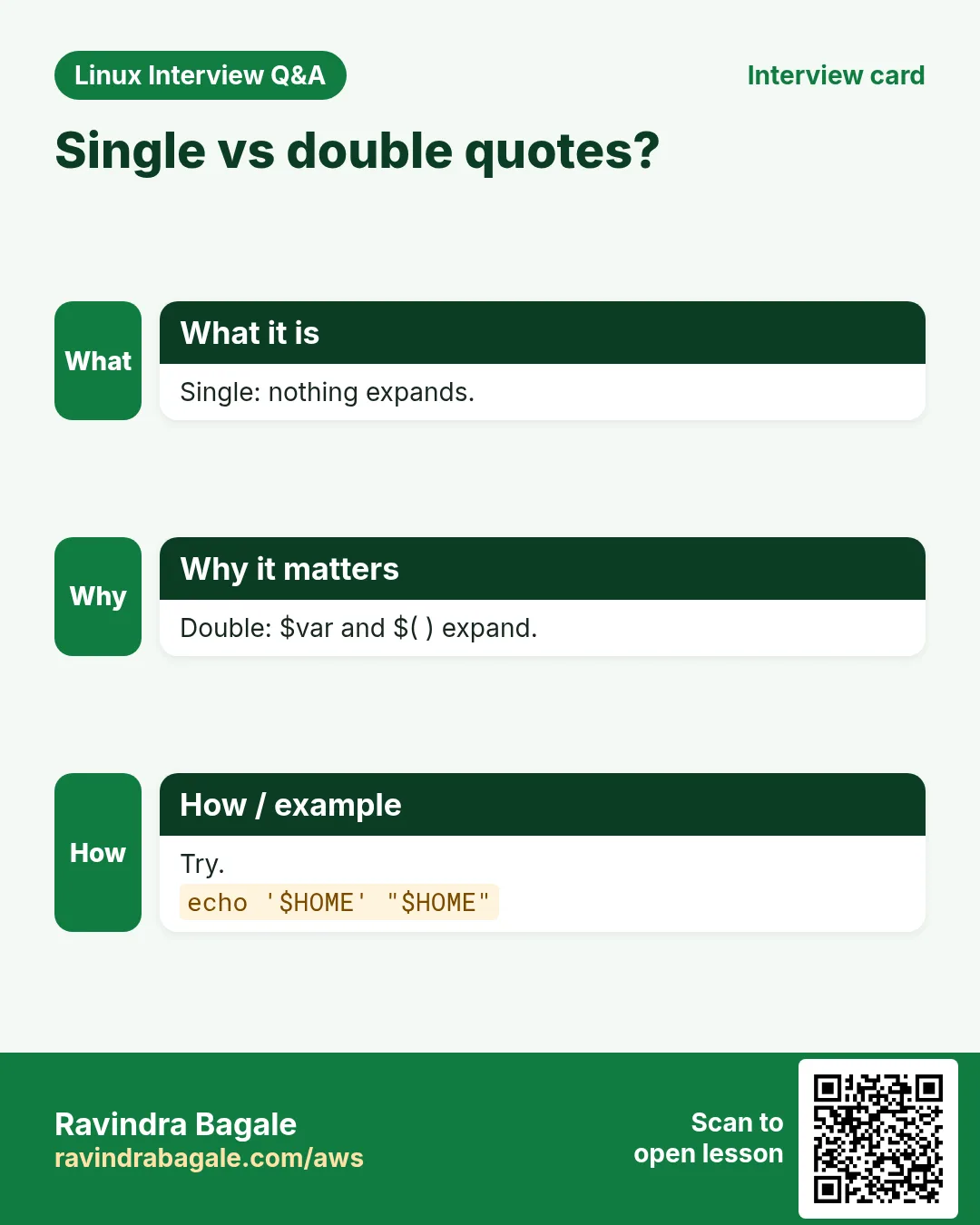
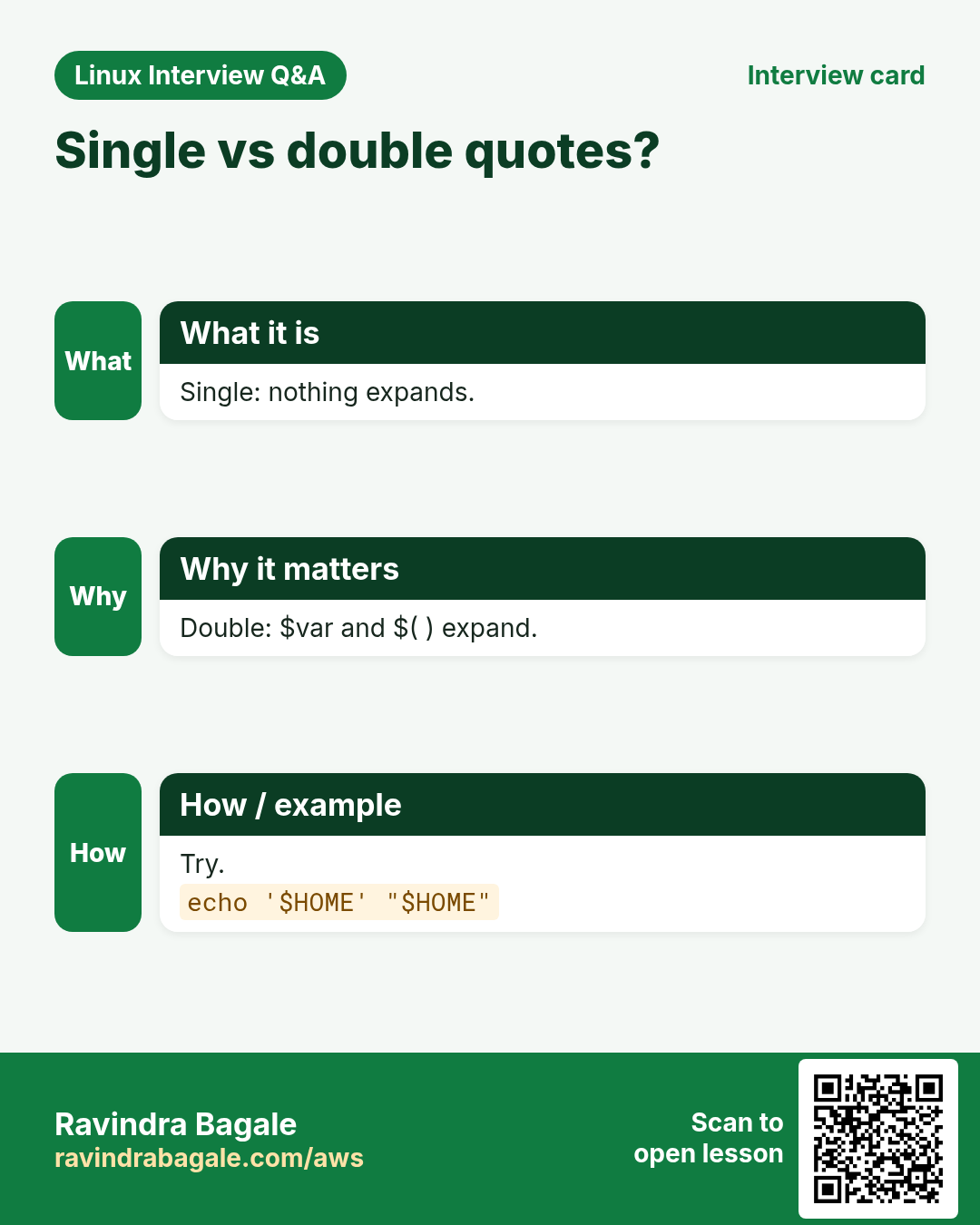
Inside 'single quotes' nothing is special: no $var, no $( ), no \. You cannot put a single quote inside single quotes; close and reopen: 'it'\''s'. Use single quotes for fixed text and double quotes when you need a variable. $'...' is a third form that understands \n and \t.
| Form | $var expands? | Spaces kept? |
|---|---|---|
| no quotes | Yes | No, split |
| "double" | Yes | Yes |
| 'single' | No | Yes |
| $'ansi' | No, but \n works | Yes |
- Compare.
echo "Home is $HOME"; echo 'Home is $HOME'Output:
Home is /home/asha
Home is $HOME
Single quotes print it literally.
- awk needs single quotes.
awk -F: '{print $1}' /etc/passwd | head -2Output:
root
bin
$1 belongs to awk, not to bash.
- A quote inside.
echo 'Ravi'\''s laptop'Output:
Ravi's laptopClose, escaped quote, reopen.
- ANSI form.
echo $'line1\nline2'Output:
line1
line2
\n became a new line.
5. Command substitution: $(command)
Command substitution runs a command and places its standard output where the expression appeared. For example, stamp=$(date +%F) takes the date printed by date and stores it in a variable you can use in a backup filename. Bash removes trailing newlines from the captured value. Try writing the stamp inside square brackets with printf to see exactly what you received. If the command fails, check its status before using the value to build a path.
Scripts often need today's date, the server name or a count of files inside a message or a file name.
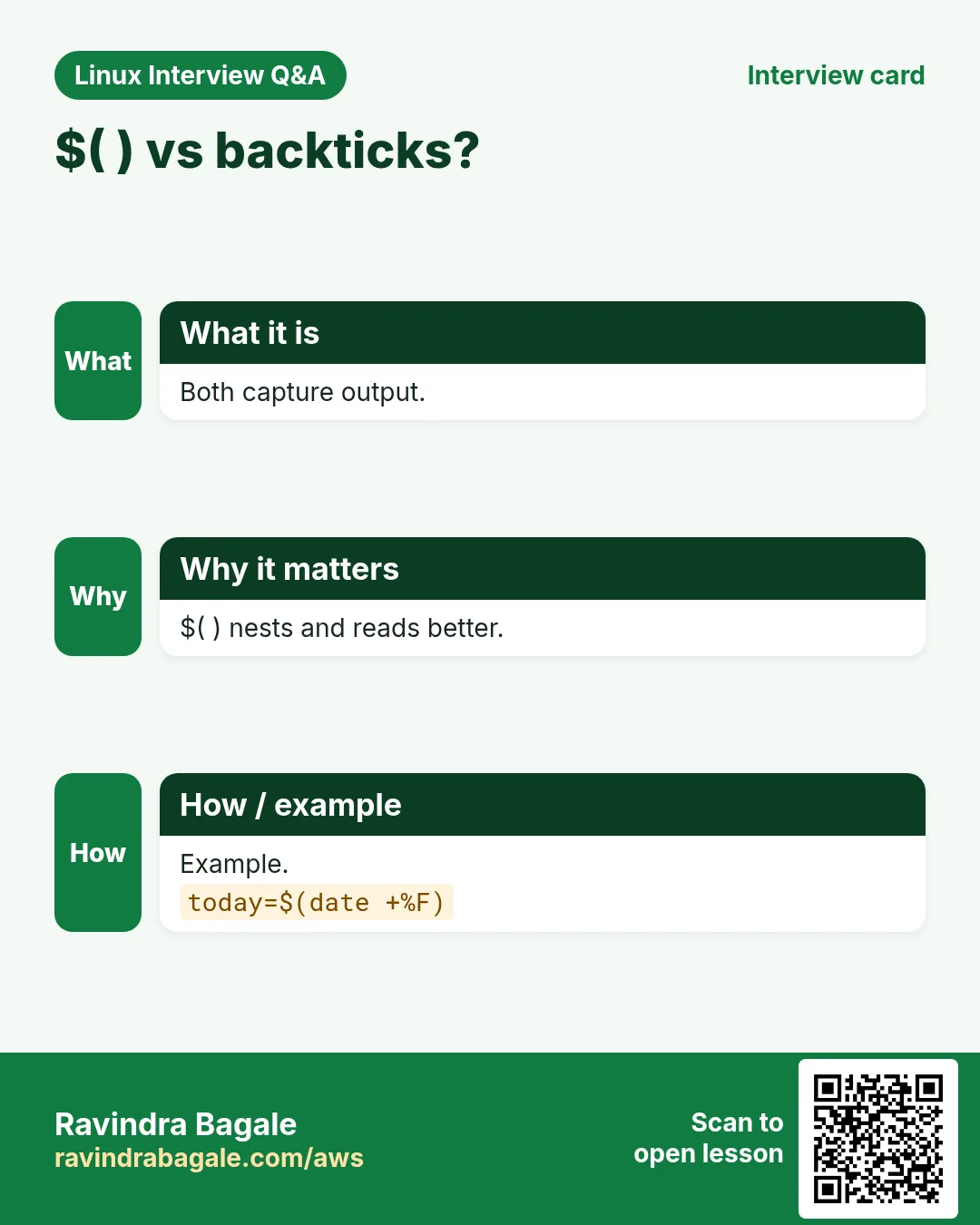
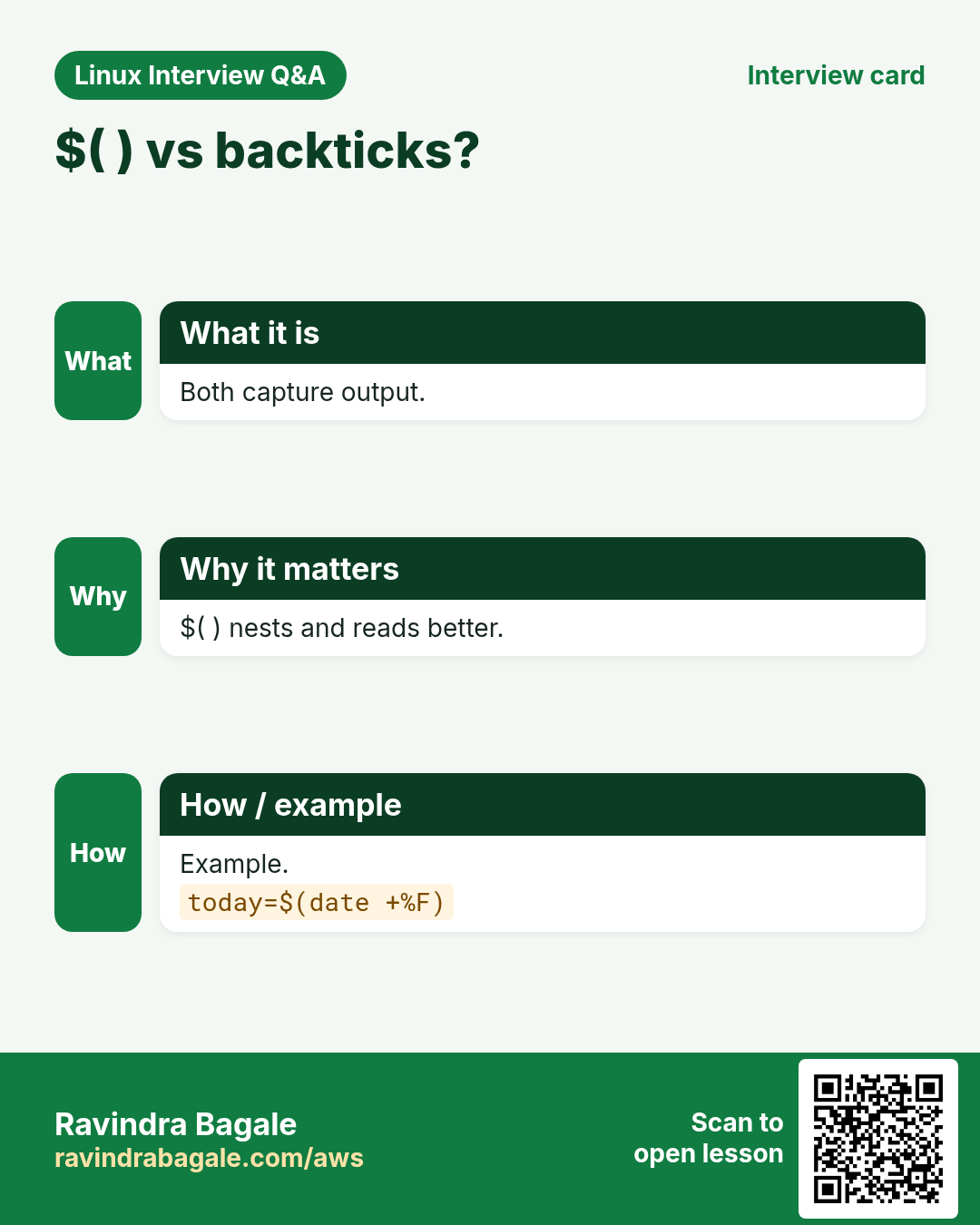
$(command) runs the command and puts its output in its place, with the final new line removed. Old style is `command` with backticks; prefer $( ) because it nests and is easy to read. Quote it: "$(command)" keeps spaces and new lines.
- Date in a file name.
today=$(date +%F); echo "backup-$today.tgz"Output:
backup-2026-10-25.tgzThe date command ran first.
- Count lines.
users=$(wc -l < /etc/passwd); echo "$users accounts"Output:
38 accounts< gives wc the file without printing its name.
- Nesting.
echo "Kernel dir: $(basename $(dirname /lib/modules/$(uname -r)/kernel))"Output:
Kernel dir: 6.1.0-18-amd64$( ) inside $( ) is easy to read.
- Keep new lines.
top3=$(ls /etc | head -3); echo "$top3"Output:
adduser.conf
alternatives
apt
Quoted output keeps each name on its own line.
6. Default values and checks: ${var:-x} and friends
Test two states: a variable that has never been set and a variable assigned an empty string. ${dir:-lab} gives the fallback in either case, while ${dir-lab} only does so if the variable is unset. Print the value surrounded by brackets in both experiments. Seeing [] confirms you got an empty value. Use a fallback where the default makes sense. For a required input such as an export folder, stop and explain which value the student must provide.
Scripts must behave well when a value is missing, for example when the user forgets an argument.
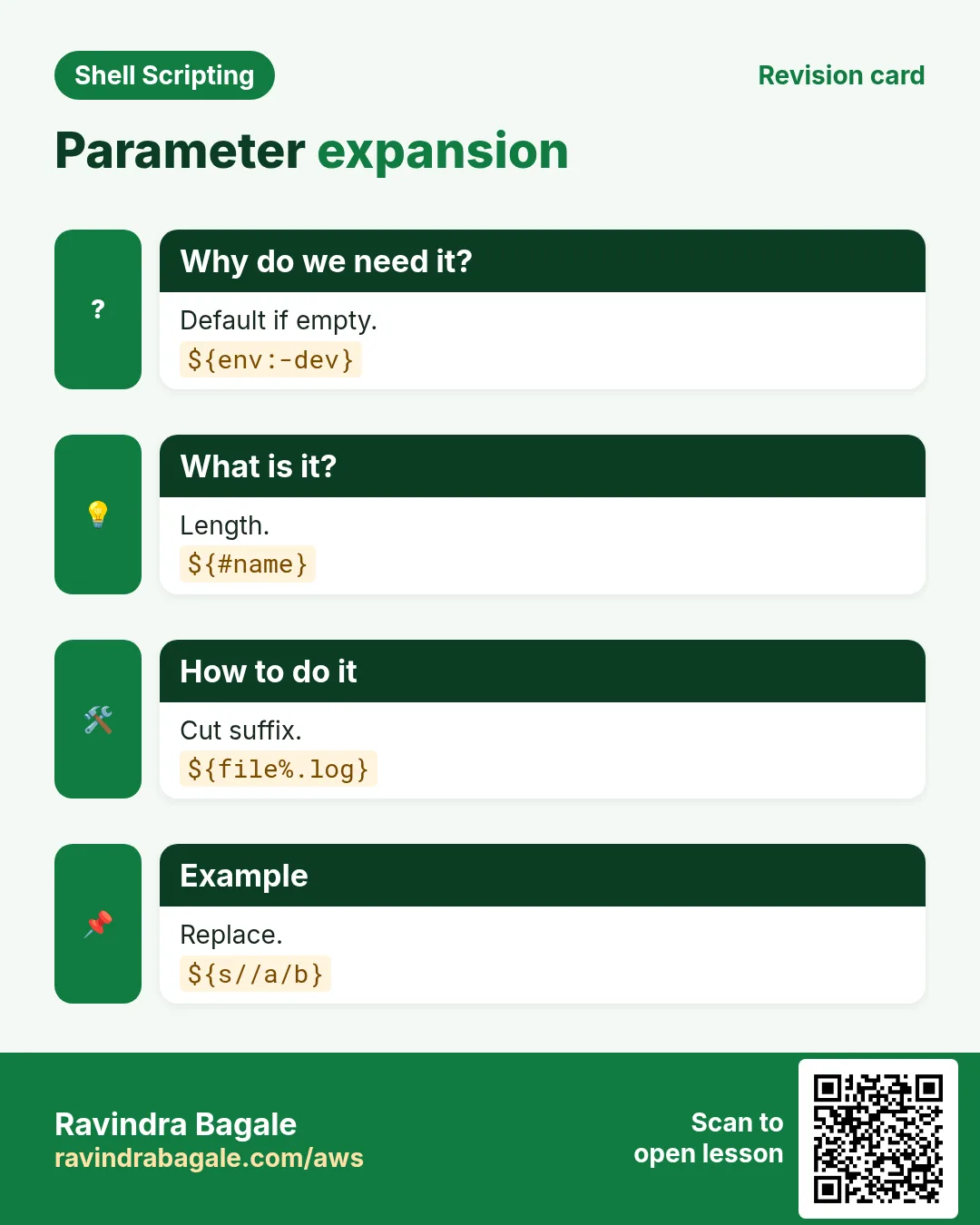
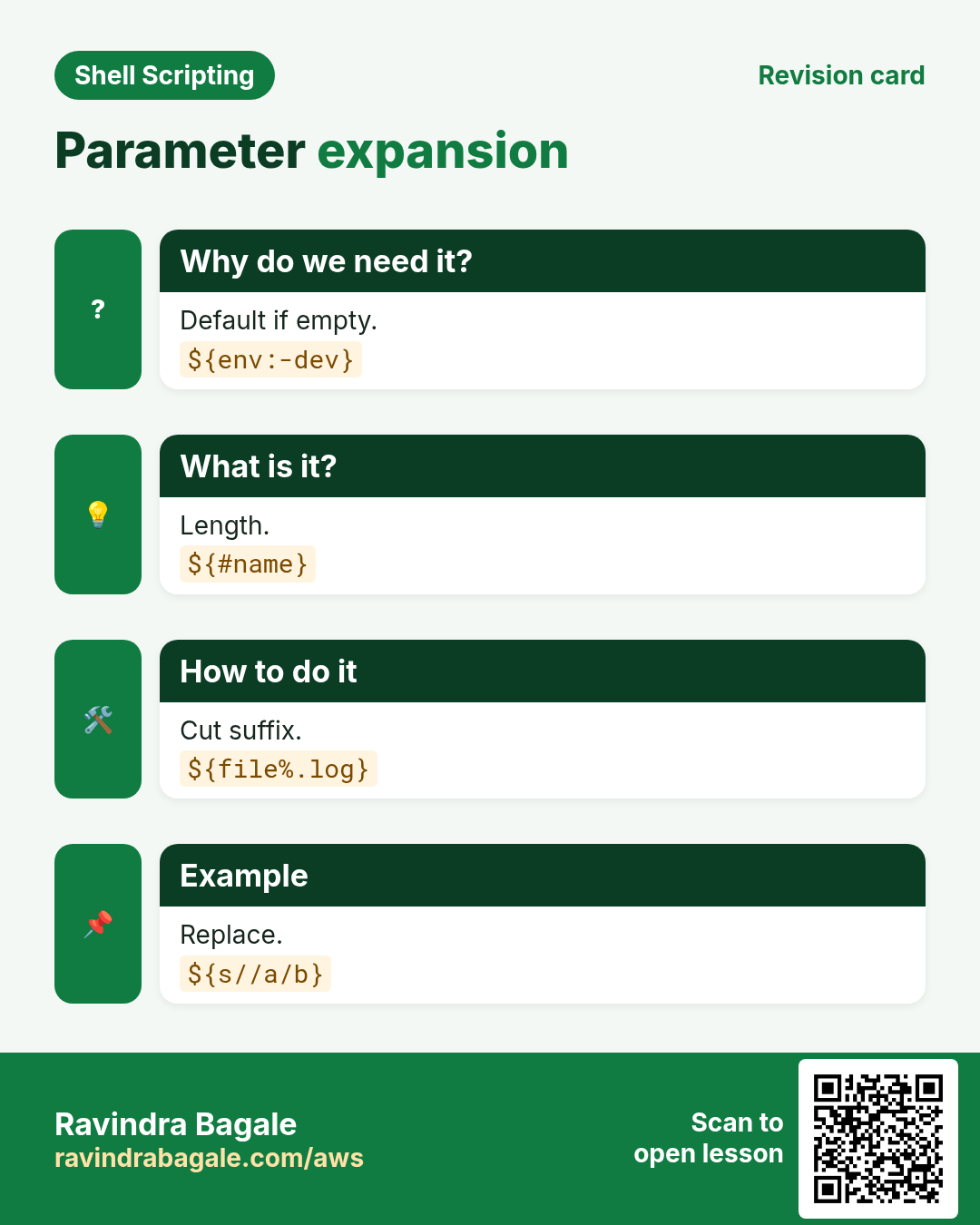
${var:-default} gives default if var is empty or unset (var is not changed). ${var:=default} also stores it. ${var:?message} stops the script with the message if it is empty. ${var:+other} gives other only when var has a value. These work well with set -u.
| Form | If var is empty | If var is set |
|---|---|---|
| ${var:-d} | gives d | gives var |
| ${var:=d} | sets var=d | gives var |
| ${var:?msg} | error and stop | gives var |
| ${var:+x} | gives empty | gives x |
- Default port.
echo "port ${PORT:-8080}"Output:
port 8080PORT was not set, so 8080 was used.
- Set and keep.
: "${ENVNAME:=dev}"; echo $ENVNAMEOutput:
devThe : command does nothing, but the expansion stores dev.
- Required.
bash -c 'echo "${DB_HOST:?set DB_HOST first}"'Output:
bash: line 1: DB_HOST: set DB_HOST firstThe script stops with a clear message.
7. String tricks: length, cut, replace, case
Renaming files, removing extensions and cleaning input are daily jobs. Bash can do them without calling sed or awk.
${#v} length. ${v#pat} removes the shortest match from the start, ${v##pat} the longest. ${v%pat} removes from the end, ${v%%pat} the longest. ${v/old/new} replaces the first, ${v//old/new} all. ${v:start:len} takes a part. ${v^^} upper case, ${v,,} lower case.
| Form | Example (f=/data/img/photo.big.jpg) | Result |
|---|---|---|
| ${f##*/} | file name only | photo.big.jpg |
| ${f%/*} | folder only | /data/img |
| ${f%.*} | drop last extension | /data/img/photo.big |
| ${f##*.} | extension only | jpg |
- Length.
pin=411038; echo ${#pin}Output:
6Six characters.
- Change extension.
f=invoice.docx; echo "${f%.docx}.pdf"Output:
invoice.pdf%.docx removed the end.
- Replace all.
s='a b c'; echo "${s// /_}"Output:
a_b_cEvery space became _.
- Upper case and substring.
code=mh12ab; echo "${code^^} ${code:0:4}"Output:
MH12AB mh12^^ upper, :0:4 first four.
8. Arithmetic: $(( )), (( )) and let
Counters, totals, percentages and retries all need numbers.
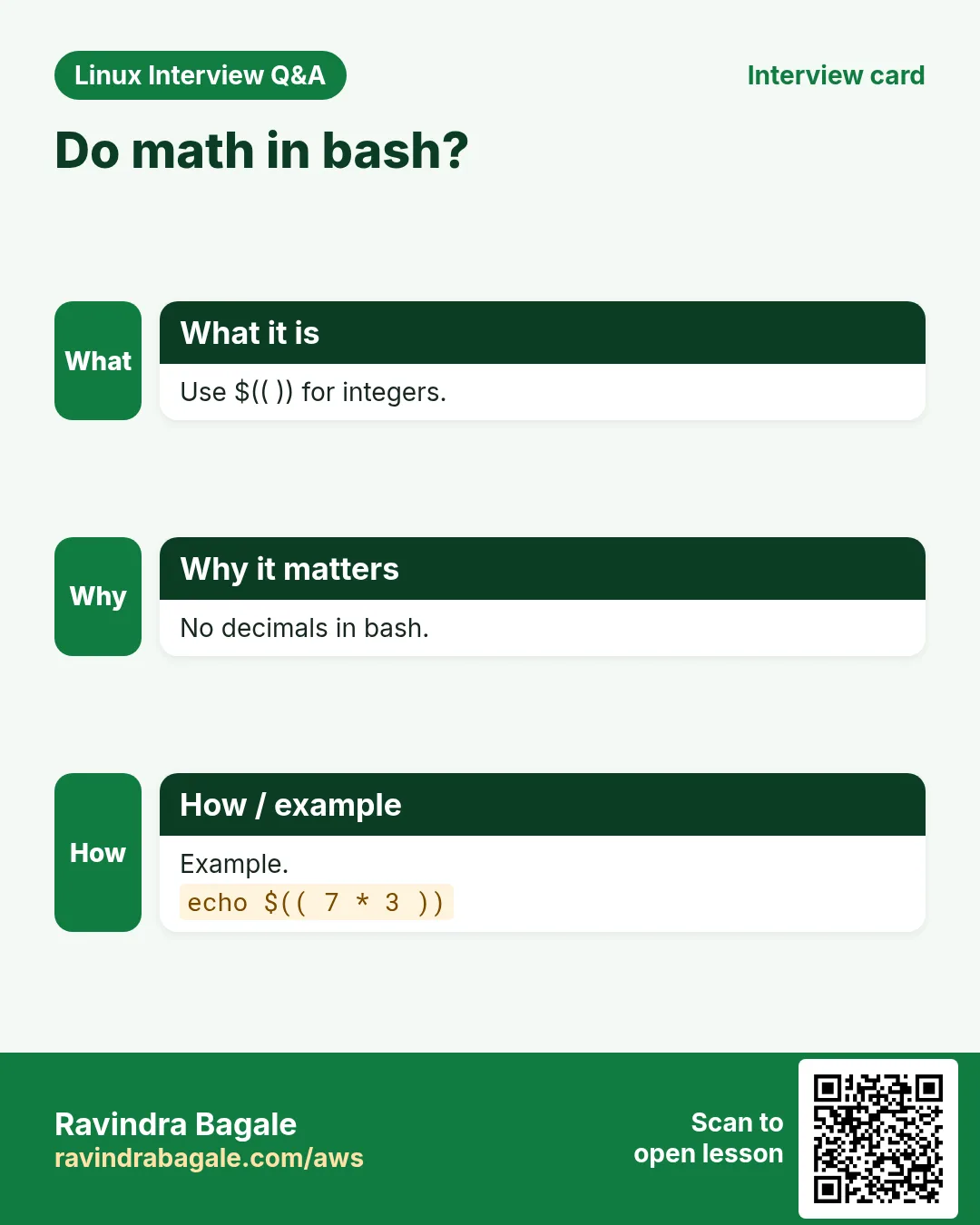
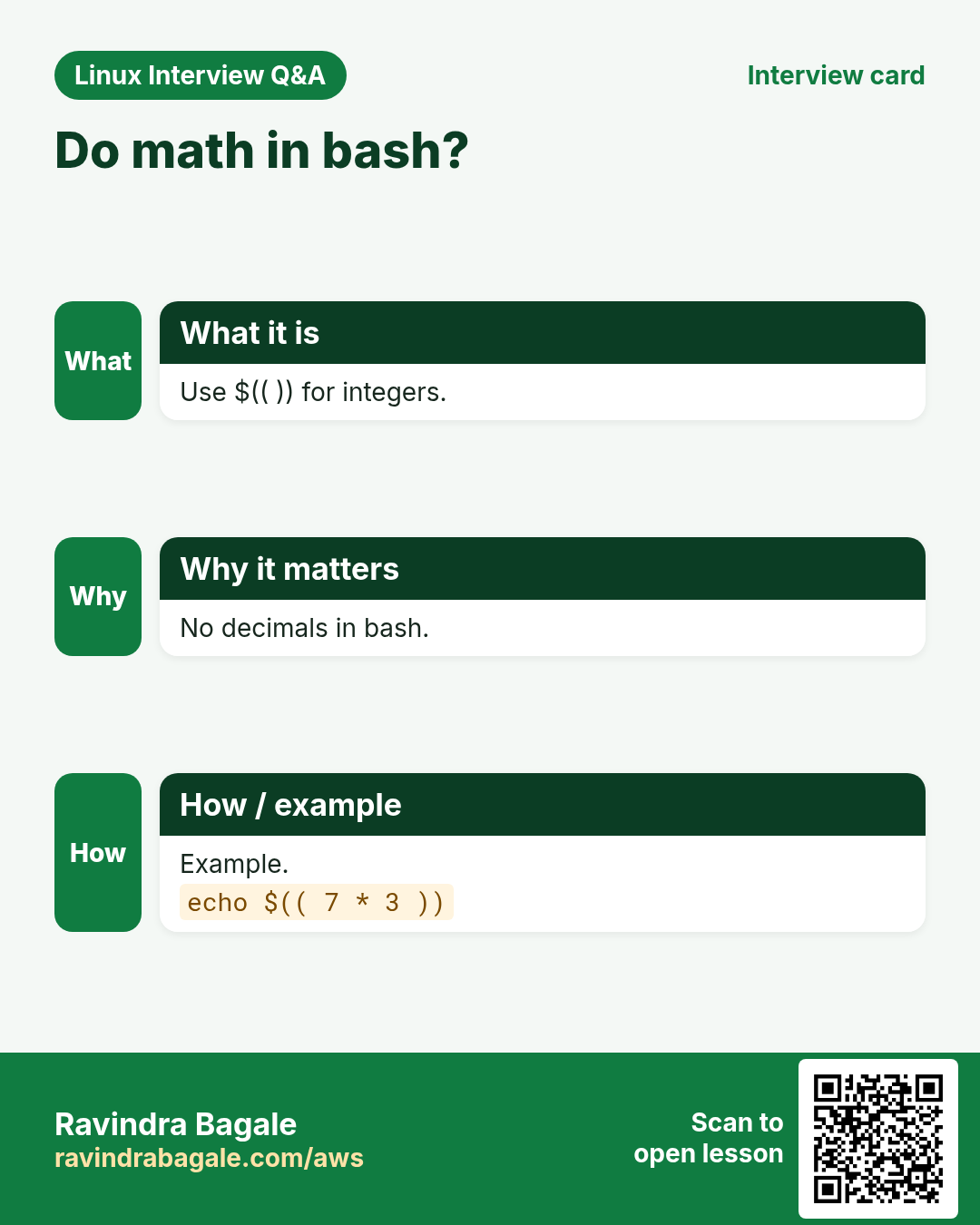
$(( expr )) calculates integers: + - * / % and ** (power). Inside you can write names without $. (( count++ )) changes a variable. Division drops decimals: 7/2 is 3. For decimals use bc or awk. Numbers starting with 0 are read as octal (08 fails), so strip zeros or use 10#08.
- Add.
a=40; b=2; echo $((a + b))Output:
42No $ needed inside.
- Counter.
n=0; ((n++)); ((n+=5)); echo $nOutput:
6(( )) changes the variable.
- Percentage.
used=37; total=50; echo "$(( used * 100 / total ))%"Output:
74%Multiply first, then divide.
- Decimals with bc.
echo 'scale=2; 7/3' | bcOutput:
2.33Bash itself only does integers.
9. Environment variables and export
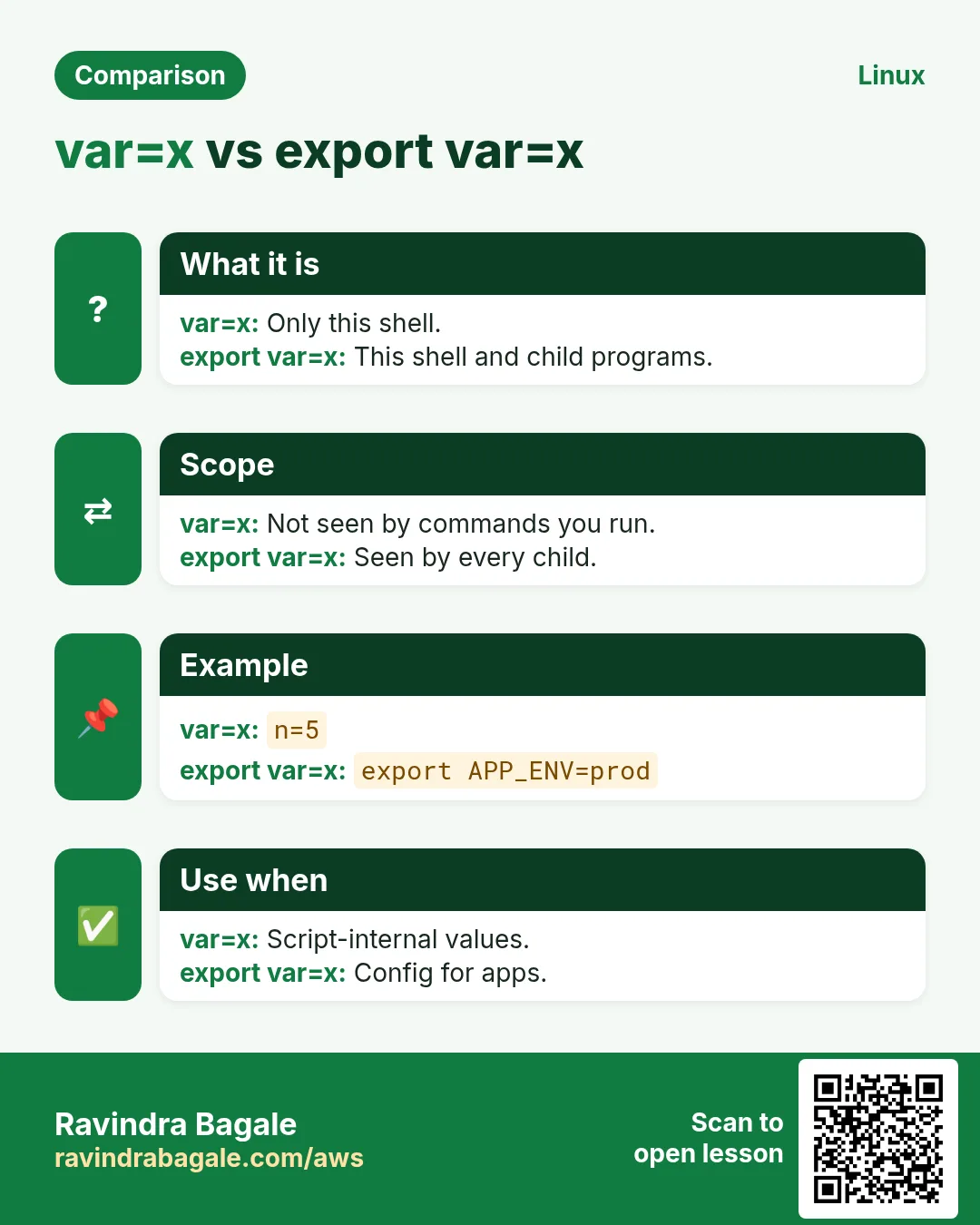
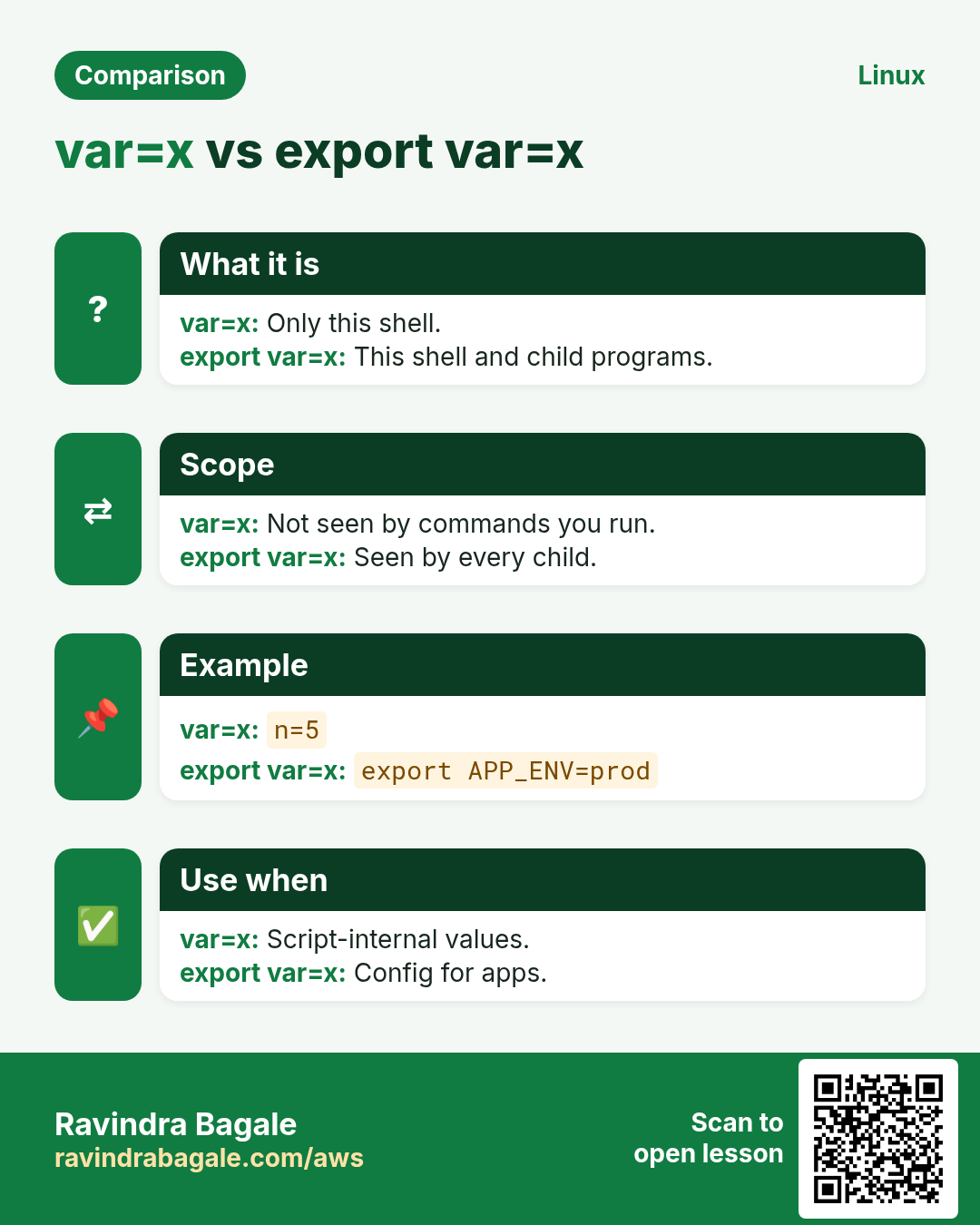
Child programs (python, java, another script) only see variables that you export.
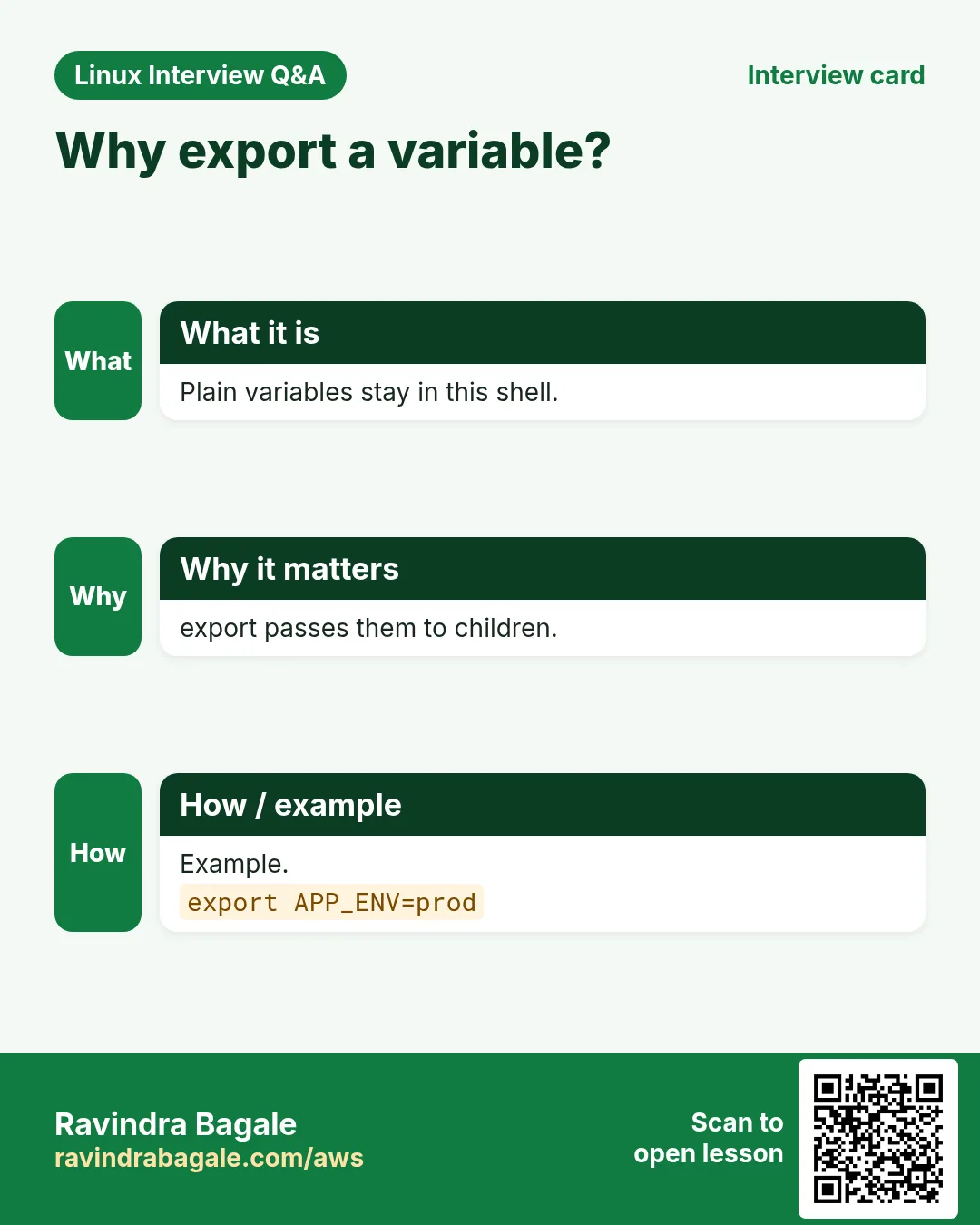
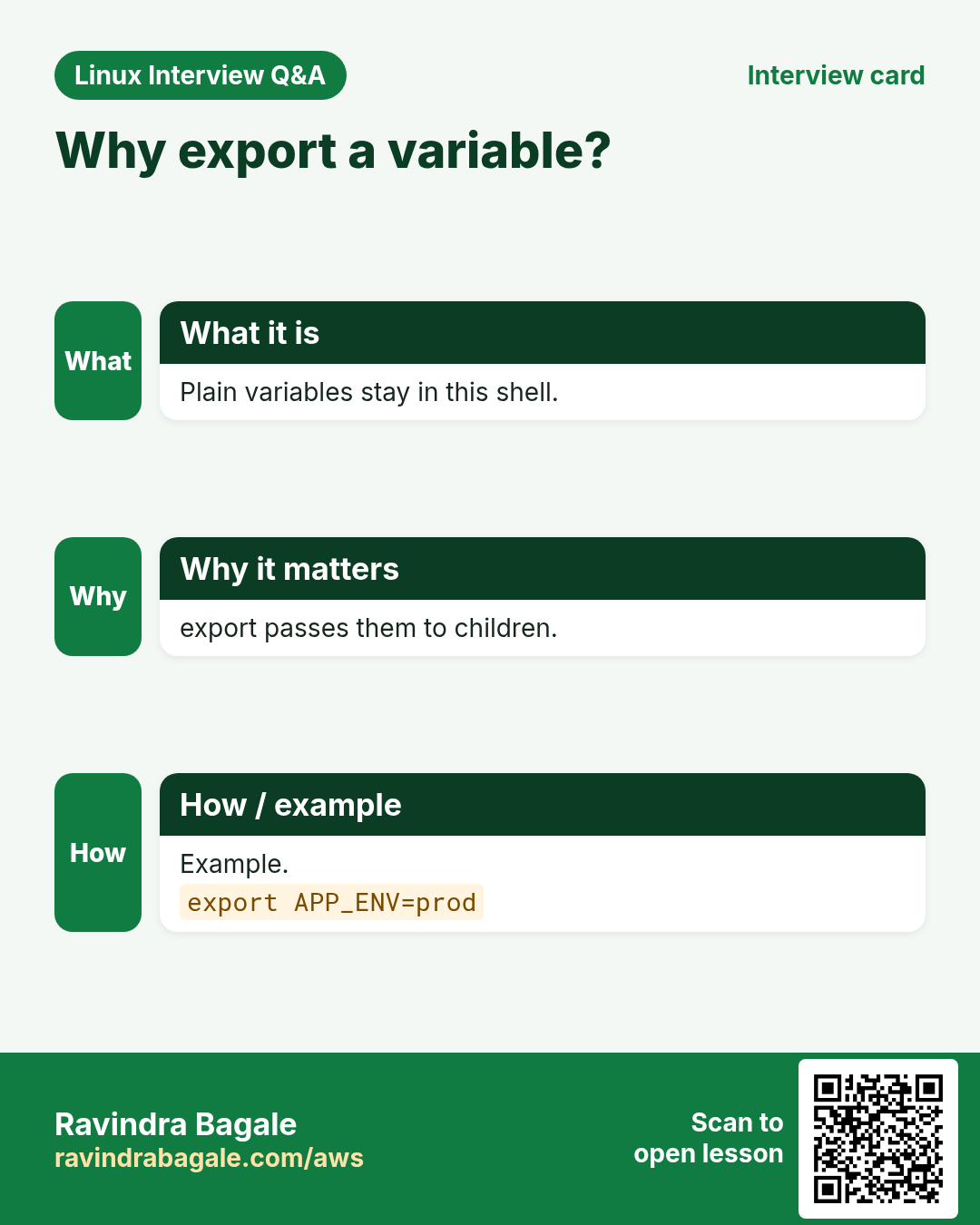
A normal variable lives only in the current shell. export name makes it an environment variable that every child process gets. env or printenv lists them. VAR=value command sets it only for that one command. To keep it for every login, add export lines to ~/.bashrc (the environment chapter has details).
- Not exported.
color=blue; bash -c 'echo "child sees: $color"'Output:
child sees:The child shell got nothing.
- Exported.
export color; bash -c 'echo "child sees: $color"'Output:
child sees: blueNow it is in the environment.
- Only for one command.
TZ=Asia/Tokyo date +%H:%M; date +%H:%MOutput:
14:35
11:05
TZ changed only for the first date.
- Find one.
printenv | grep ^LANGOutput:
LANG=en_IN.UTF-8printenv shows exported variables.
10. Special variables: $0, $$, $!, $?, $RANDOM, $LINENO
Bash fills some variables for you. They are useful for logs, temp files and error messages.
$0 script name. $$ PID of the current shell (good for unique temp names). $! PID of the last background job. $? last exit code. $RANDOM a number 0-32767. $LINENO current line number. $SECONDS seconds since the script started. $1, $#, $@ are arguments; chapter 3 covers them.
| Variable | Holds |
|---|---|
| $0 | script name |
| $$ | this shell PID |
| $! | last background PID |
| $? | last exit code |
| $RANDOM | random 0-32767 |
| $SECONDS | seconds running |
- Unique temp file.
echo "/tmp/report.$$"Output:
/tmp/report.48213Different every run.
- Background PID.
sleep 30 & echo "started $!"Output:
[1] 48250
started 48250
Save $! to wait for or kill it later.
- Timer.
bash -c 'sleep 2; echo "took $SECONDS s"'Output:
took 2 sEasy timing for scripts.
- Safer temp file.
t=$(mktemp); echo "$t"Output:
/tmp/tmp.Xk29aQmktemp makes a random, private file.
11. Real examples from many industries
The same Linux skill shows up in every kind of company. Seeing it in many places helps you remember it.
Each row is a made-up team. It shows who uses this and how.
| Team and city | How they use it | Command |
|---|---|---|
| Pooja, travel agency, Pune | Dates in backup names | backup-$(date +%F).tgz |
| Oliver, insurance, Manchester | Quotes for file names with spaces | cp "$src" "$dst" |
| Mei, e-commerce, Singapore | Default ports with ${PORT:-8080} | ${PORT:-8080} |
| Ahmed, telecom, Riyadh | Rename extensions in bulk | ${f%.txt}.csv |
| Ana, pharma, Lisbon | Percent disk used | $(( used*100/total )) |
| Rahul, fintech, Mumbai | Required secrets with :? | ${API_KEY:?missing} |
12. Common errors and how to fix them
Everyone hits these errors. Knowing the cause saves hours.
Read the exact message first. Then match it to a row below.
| Error you see | Why it happens | How to fix |
|---|---|---|
command not found (after name = value) | Spaces around = | Remove the spaces.name=value |
No such file or directory for a name with spaces | Variable not quoted | Use double quotes.ls "$f" |
$HOME printed literally | Single quotes used | Use double quotes for expansion.echo "$HOME" |
readonly variable | Changing a constant | Use another name.readonly -p |
value too great for base (error token is "08") | Leading zero = octal | Force base 10.echo $((10#08)) |
syntax error: invalid arithmetic operator (error token is ".5") | Decimals in $(( )) | Use bc or awk.echo '2.5*2' | bc |
child script does not see my variable | Not exported | export it.export name |
parameter null or not set | ${var:?} and var is empty | Set the variable first.export DB_HOST=db1 |
unexpected EOF while looking for matching quote | A quote is not closed | Close every quote.bash -n s.sh |
13. Troubleshooting step by step
Print the variable with markers so you can see spaces and empty values.
Go top to bottom. Stop at the first step that shows the problem.
- See the exact value.
echo "[$name]"- Show type and attributes.
declare -p name- Is it exported?
printenv name- Trace expansion.
bash -x s.sh- Find unquoted use.
shellcheck s.sh- Check hidden characters.
printf '%q\n' "$name"14. Lab 1: A backup name builder
Write a script that builds a safe backup file name from the host, date and a folder, using variables, $( ) and string tricks.
A full hands-on lab. Run every step on a test Linux machine (an EC2 instance, a VM, or WSL).
- Folder.
mkdir -p ~/lab38 && cd ~/lab38- Variables.
src="/var/www/my site"; host=$(hostname -s); day=$(date +%F)- Build the name.
base=${src##*/}; name="${host}-${base// /_}-${day}.tgz"; echo "$name"Output:
web01-my_site-2026-10-25.tgz- Length check.
echo ${#name}Output:
28- Upper case tag.
echo "${host^^}"Output:
WEB01- Default target folder.
echo "${DEST:-/backup}/$name"Output:
/backup/web01-my_site-2026-10-25.tgz15. Lab 2: Quoting experiments and export
See with your own eyes how quotes change the result, and how export passes values to child scripts.
A full hands-on lab. Run every step on a test Linux machine (an EC2 instance, a VM, or WSL).
- Make tricky files.
touch 'a b.txt' c.txt && lsOutput:
a b.txt c.txt- Unquoted loop.
for f in $(ls); do echo "[$f]"; doneOutput:
[a]
[b.txt]
[c.txt]- Glob instead.
for f in *.txt; do echo "[$f]"; doneOutput:
[a b.txt]
[c.txt]- Child script.
printf '#!/bin/bash\necho "mode=$MODE"\n' | tee child.sh && chmod +x child.sh- Without export.
MODE=prod; ./child.shOutput:
mode=- With export.
export MODE; ./child.shOutput:
mode=prod- Maths.
files=$(ls | wc -l); echo "$(( files * 2 )) after copy"Output:
6 after copyRavindra Bagale's Tip
Quote every variable: "$var" and "$(cmd)". If you remember only one rule from this chapter, remember this one. It stops spaces and stars in names from breaking your script or deleting the wrong files.
Ravindra Bagale's Tip – मराठी
प्रत्येक variable quote करा: "$var" आणि "$(cmd)". या chapter मधला एकच नियम लक्षात ठेवायचा असेल तर हाच. नावांमधले spaces आणि stars script बिघडवू देत नाही किंवा चुकीच्या files delete होऊ देत नाही.
Ravindra Bagale's Tip – हिंदी
हर variable को quote कीजिए: "$var" और "$(cmd)". इस chapter का एक ही नियम याद रखना हो तो यही. नामों में spaces और stars script नहीं बिगाड़ते और गलत files delete नहीं होतीं.
16. Frequently asked questions
Q. $var or ${var}?
Same; braces are needed when text follows.
Q. Why no spaces around =?
Bash would read the name as a command.
Q. Backticks or $( )?
$( ): nests and reads better.
Q. Can bash do decimals?
No; use bc or awk.
Q. How to see all my variables?
declare -p or set.
Q. Lower or upper case names?
Lower for yours, upper for environment.
Q. What does export -n do?
Removes the export mark.
Q. Is $RANDOM safe for passwords?
No; use openssl rand.
17. Interview questions and answers
Beginner level
Q. How to create a variable?
name=value with no spaces.
Q. Single vs double quotes?
Single: literal. Double: expands variables.
Q. Store a command's output?
x=$(command).
Q. Length of a string?
${#var}.
Mid level level
Q. ${v:-d} vs ${v:=d}?
First only gives d; second also stores it.
Q. Why quote "$var"?
Stop word splitting and globbing.
Q. Remove extension?
${f%.*}.
Q. What does export do?
Passes the variable to child processes.
Senior level
Q. Explain bash expansion order.
Brace, tilde, parameter/command/arithmetic, word split, glob, quote removal.
Q. Why is for f in $(ls) bad?
Splits names on spaces and breaks on special chars; use globs.
Q. Handle 08 in arithmetic?
10#08 or strip leading zeros.
Q. Make a secret required?
${SECRET:?message} with set -u.
Try at home
- Write a script that prints your user, the number of files in /etc and the percent of disk used on /.
- Take a file name with spaces in a variable and print it once with and once without quotes. Write what changed.
Practise this chapter
Interview questions and answers
A script works on report.txt but fails on April report.txt. What do you check?
Inspect how the filename reaches the command. Unquoted expansion can split a value with spaces into several arguments. Try printing bracketed arguments to verify. Quote the expansion and test the same filename again.
Check your understanding
Choose an answer, then compare your reasoning with the explanation.
Practice Tasks
Practice checks run in your browser. They check the answer for this exercise; they do not create resources or connect to your AWS account.
About this scenarioVidarbha Cotton Mills is a textiles business in Nagpur. Ganesh Wankhede looks after its IT and cloud work. They count money in INR and run their AWS resources in the ap-south-1 Region. In the tasks below you do real jobs for them using what this lesson teaches. All names, account IDs, IP addresses and numbers are made up for practice.
0 / 21
Easy Set a variable
Wrong quoting breaks BIZ scripts on file names with spaces.
Store the word Kothrud in a variable named area.
- Find the Linux command that does this job.
- Add the options (like -r or -h) the task needs.
- Add the file names, folders or users in the right order.
- Use sudo if the job changes system files or users. Click Check answer.
Easy Print with quotes
Wrong quoting breaks BIZ scripts on file names with spaces.
Print the variable branch inside double quotes.
- Find the Linux command that does this job.
- Add the options (like -r or -h) the task needs.
- Add the file names, folders or users in the right order.
- Use sudo if the job changes system files or users. Click Check answer.
Easy Capture whoami
Wrong quoting breaks BIZ scripts on file names with spaces.
Store the output of whoami in a variable named me.
- Find the Linux command that does this job.
- Add the options (like -r or -h) the task needs.
- Add the file names, folders or users in the right order.
- Use sudo if the job changes system files or users. Click Check answer.
Easy Length
Wrong quoting breaks BIZ scripts on file names with spaces.
Print the length of the variable mobile.
- Find the Linux command that does this job.
- Add the options (like -r or -h) the task needs.
- Add the file names, folders or users in the right order.
- Use sudo if the job changes system files or users. Click Check answer.
Easy Upper case
Wrong quoting breaks BIZ scripts on file names with spaces.
Print the variable state in upper case.
- Find the Linux command that does this job.
- Add the options (like -r or -h) the task needs.
- Add the file names, folders or users in the right order.
- Use sudo if the job changes system files or users. Click Check answer.
Easy Lower case
Wrong quoting breaks BIZ scripts on file names with spaces.
Print the variable CODE in lower case.
- Find the Linux command that does this job.
- Add the options (like -r or -h) the task needs.
- Add the file names, folders or users in the right order.
- Use sudo if the job changes system files or users. Click Check answer.
Easy Multiply
Wrong quoting breaks BIZ scripts on file names with spaces.
Print 12 times 8 with bash arithmetic.
- Find the Linux command that does this job.
- Add the options (like -r or -h) the task needs.
- Add the file names, folders or users in the right order.
- Use sudo if the job changes system files or users. Click Check answer.
Easy Export
Wrong quoting breaks BIZ scripts on file names with spaces.
Export the variable APP_ENV with the value qa in one command.
- Find the Linux command that does this job.
- Add the options (like -r or -h) the task needs.
- Add the file names, folders or users in the right order.
- Use sudo if the job changes system files or users. Click Check answer.
Medium Month in name
Wrong quoting breaks BIZ scripts on file names with spaces.
Store the current year-month like 2026-10 in a variable named ym using date.
- Find the Linux command that does this job.
- Add the options (like -r or -h) the task needs.
- Add the file names, folders or users in the right order.
- Use sudo if the job changes system files or users. Click Check answer.
Medium Default value
Wrong quoting breaks BIZ scripts on file names with spaces.
Print the variable REGION, or ap-south-1 if it is empty.
- Find the Linux command that does this job.
- Add the options (like -r or -h) the task needs.
- Add the file names, folders or users in the right order.
- Use sudo if the job changes system files or users. Click Check answer.
Medium Drop extension
Wrong quoting breaks BIZ scripts on file names with spaces.
Print the variable doc without its .odt ending.
- Find the Linux command that does this job.
- Add the options (like -r or -h) the task needs.
- Add the file names, folders or users in the right order.
- Use sudo if the job changes system files or users. Click Check answer.
Medium File name only
Wrong quoting breaks BIZ scripts on file names with spaces.
Print only the file name part of the path variable p (after the last slash), using parameter expansion.
- Find the Linux command that does this job.
- Add the options (like -r or -h) the task needs.
- Add the file names, folders or users in the right order.
- Use sudo if the job changes system files or users. Click Check answer.
Medium Replace all
Wrong quoting breaks BIZ scripts on file names with spaces.
Print the variable title with every space turned into a dash.
- Find the Linux command that does this job.
- Add the options (like -r or -h) the task needs.
- Add the file names, folders or users in the right order.
- Use sudo if the job changes system files or users. Click Check answer.
Medium First three
Wrong quoting breaks BIZ scripts on file names with spaces.
Print the first 3 characters of the variable ifsc.
- Find the Linux command that does this job.
- Add the options (like -r or -h) the task needs.
- Add the file names, folders or users in the right order.
- Use sudo if the job changes system files or users. Click Check answer.
Medium Remainder
Wrong quoting breaks BIZ scripts on file names with spaces.
Print the remainder of 47 divided by 6.
- Find the Linux command that does this job.
- Add the options (like -r or -h) the task needs.
- Add the file names, folders or users in the right order.
- Use sudo if the job changes system files or users. Click Check answer.
Medium Decimals
Wrong quoting breaks BIZ scripts on file names with spaces.
Use bc to print 22 divided by 7 with 3 decimals.
- Find the Linux command that does this job.
- Add the options (like -r or -h) the task needs.
- Add the file names, folders or users in the right order.
- Use sudo if the job changes system files or users. Click Check answer.
Medium For one command
Wrong quoting breaks BIZ scripts on file names with spaces.
Run date with TZ set to Europe/London only for that command.
- Find the Linux command that does this job.
- Add the options (like -r or -h) the task needs.
- Add the file names, folders or users in the right order.
- Use sudo if the job changes system files or users. Click Check answer.
Medium Constant
Wrong quoting breaks BIZ scripts on file names with spaces.
Make a read-only variable GST with value 0.18.
- Find the Linux command that does this job.
- Add the options (like -r or -h) the task needs.
- Add the file names, folders or users in the right order.
- Use sudo if the job changes system files or users. Click Check answer.
Hard Required
Wrong quoting breaks BIZ scripts on file names with spaces.
Print TOKEN, but stop with the message "TOKEN missing" if empty.
- Find the Linux command that does this job.
- Add the options (like -r or -h) the task needs.
- Add the file names, folders or users in the right order.
- Use sudo if the job changes system files or users. Click Check answer.
Hard Leading zero
Wrong quoting breaks BIZ scripts on file names with spaces.
Print 09 plus 1 forcing base ten.
- Find the Linux command that does this job.
- Add the options (like -r or -h) the task needs.
- Add the file names, folders or users in the right order.
- Use sudo if the job changes system files or users. Click Check answer.
Hard Temp folder
Wrong quoting breaks BIZ scripts on file names with spaces.
Create a private temporary directory and store its path in tmpd.
- Find the Linux command that does this job.
- Add the options (like -r or -h) the task needs.
- Add the file names, folders or users in the right order.
- Use sudo if the job changes system files or users. Click Check answer.
18. Related chapters
- Linux Ops Refresh for DevOps
- Bash Scripting for Automation
- Linux grep and find Commands with Examples
- How to Set Up Passwordless SSH Between Linux Servers
In short
- name=value, no spaces; read with $name.
- Double quotes expand but keep spaces.
- Single quotes keep everything literal.
- $(cmd) captures output.
- ${v:-d}, ${#v}, ${v%.*} and $(( )) do defaults, length, cuts and maths.
- export passes variables to child processes.
Revision, comparison and interview cards
Revise this lesson in a few minutes. Save the cards on your phone or download them as PNG files. The QR code on each card opens this lesson.
More cards: Ravi Sir's Cards.