AWS Elastic IP, AMI and EBS Snapshots Explained
Until now, every time our server was stopped and started it came back with a new public IP, and our site, our DNS record and any app that used the old IP broke. In this chapter we fix that with an Elastic IP, a public IP that stays yours. Then we learn to grow a server with very little downtime, and to protect it with an AMI: a full backup of a set-up server, stored as EBS snapshots, that can bring the whole website back after a disaster.
In this class
- Why a changing public IP breaks apps, bookmarks and DNS records
- What an Elastic IP is, and why it's regional
- Allocate, associate, disassociate and release an Elastic IP, and prove it survives a stop and start
- How AWS charges for public IPv4 addresses, and why you release what you don't use
- Scaling up vs scaling out, and why changing the instance type needs a stop and start
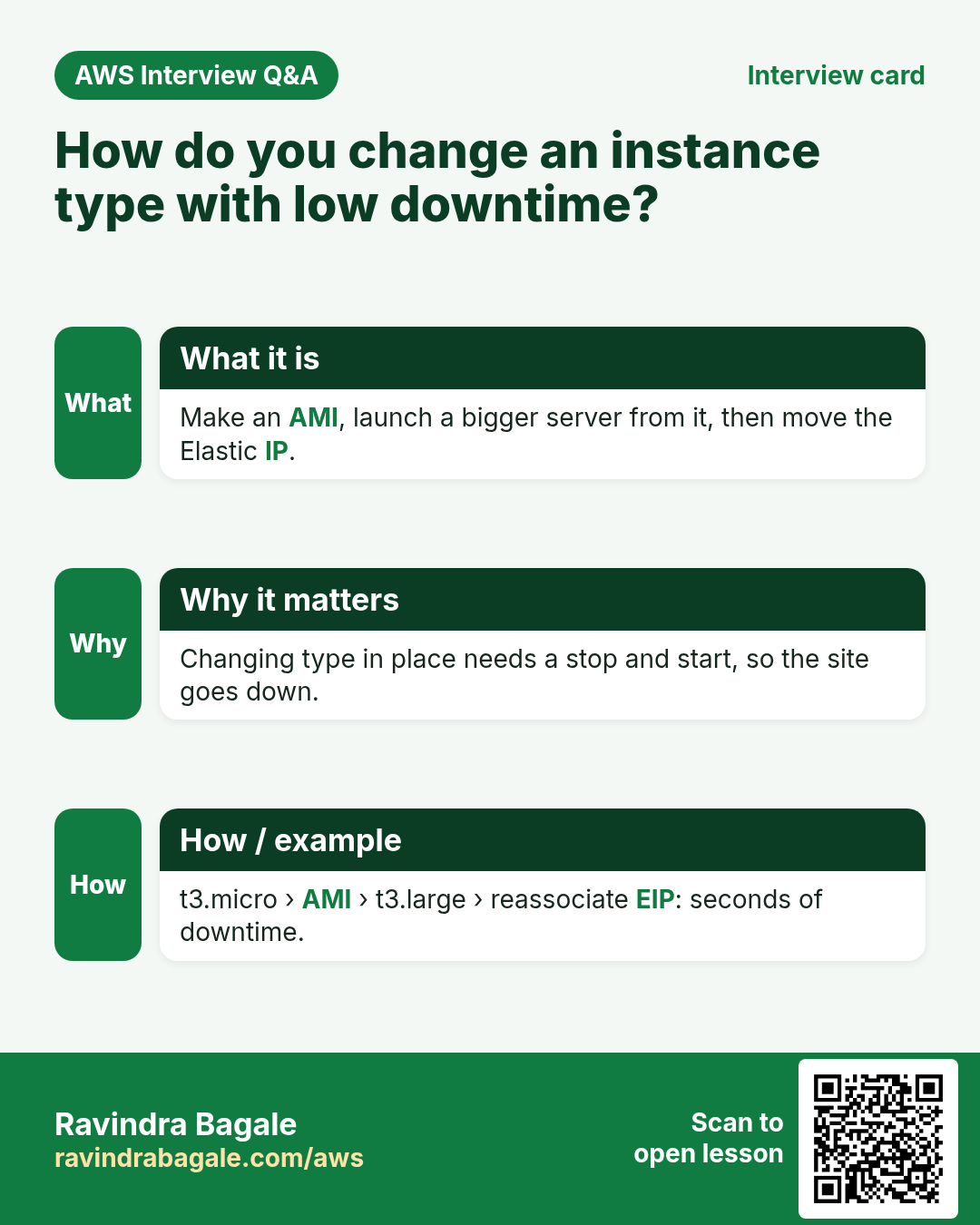
- A low-downtime trick: AMI, bigger instance, move the Elastic IP
- What an AMI is, why we make one, and how it differs from an EBS snapshot
sudo systemctl enable nginxvssudo service nginx start- Create an image, wait for available, terminate the server and bring the site back from My AMIs
- Why snapshots are incremental, and how to clean up AMIs and snapshots
1. Why: a public IP that changes breaks things
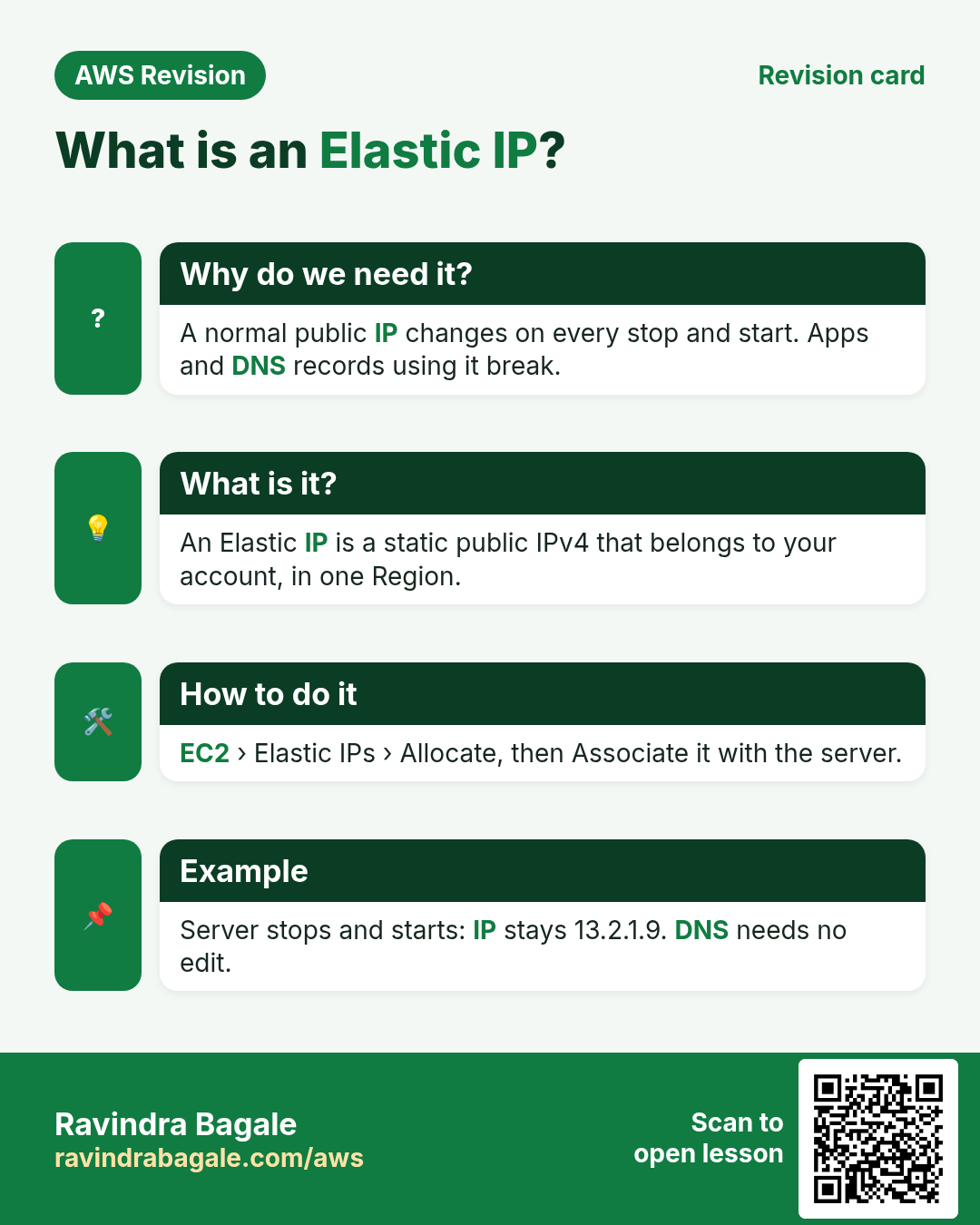
A normal EC2 public IP is dynamic: AWS gives it when the instance starts and takes it back when the instance stops. A server can stop for many reasons: a hardware fault, a crash, or someone in the team stopping the wrong server.
Classroom line
Suppose a junior in your company was told to stop another server, and stopped this one by mistake.
Class मधलं वाक्य
समजा तुमच्या company मध्ये एका junior ला दुसरा server stop करायला सांगितला होता, आणि त्याने चुकून हा server stop केला.
Classroom line – हिंदी
"Aapke company mein koi junior tha, junior ko bola gaya tha ki dusra server stop kar, isne galti se ye server stop kar diya."
Example 1, step by step:
- Your website runs on a server with public IP
OLD_IP. - The server is stopped, then started again.
- EC2 now shows a different public IP,
NEW_IP. - Everything that still uses
OLD_IPstops working.
Who breaks?
- Apps with a hard-coded IP. Suppose we are a big payments app, and our Android and iPhone apps call
http://OLD_IP/api. After the IP changes, every installed app fails. Fixing it needs a new app version, the store has to review it, and many users never update. Hard-coding an IP is bad practice; but even with a name, the IP behind it should not keep changing. - Your DNS A record. If
example.compoints toOLD_IP, you must edit the record. Even after that, resolvers keep the old answer until the record's TTL runs out (for example, a TTL of 600 seconds is 10 minutes), so some visitors still reach the dead IP for a while.
Figure 1. A stop and start gives a new dynamic public IP. Apps with the old IP fail, and the DNS record is wrong until you edit it and the TTL runs out.
The cloud reality. Servers fail and systems get attacked. Our job is not to promise "it will never go down"; it's to reduce the risk and the downtime. A fixed IP is one of the first tools for that.
Classroom line
We can never build a system that can never be hacked.
Class मधलं वाक्य
कधीच hack होणार नाही अशी system आपण कधीच बनवू शकत नाही.
Classroom line – हिंदी
"Hum kabhi aisa system nahi bana sakte jo kabhi hack nahi hoga."
Classroom line
What's our job? To stop those attacks as much as we can.
Class मधलं वाक्य
आपलं काम काय? ते attacks जितके थांबवता येतील तितके थांबवायचे.
Classroom line – हिंदी
"Apna kaam kya hai? Us hacking ko jitna rok sakte ho, rokna hai."
2. What: an Elastic IP is a static public IP
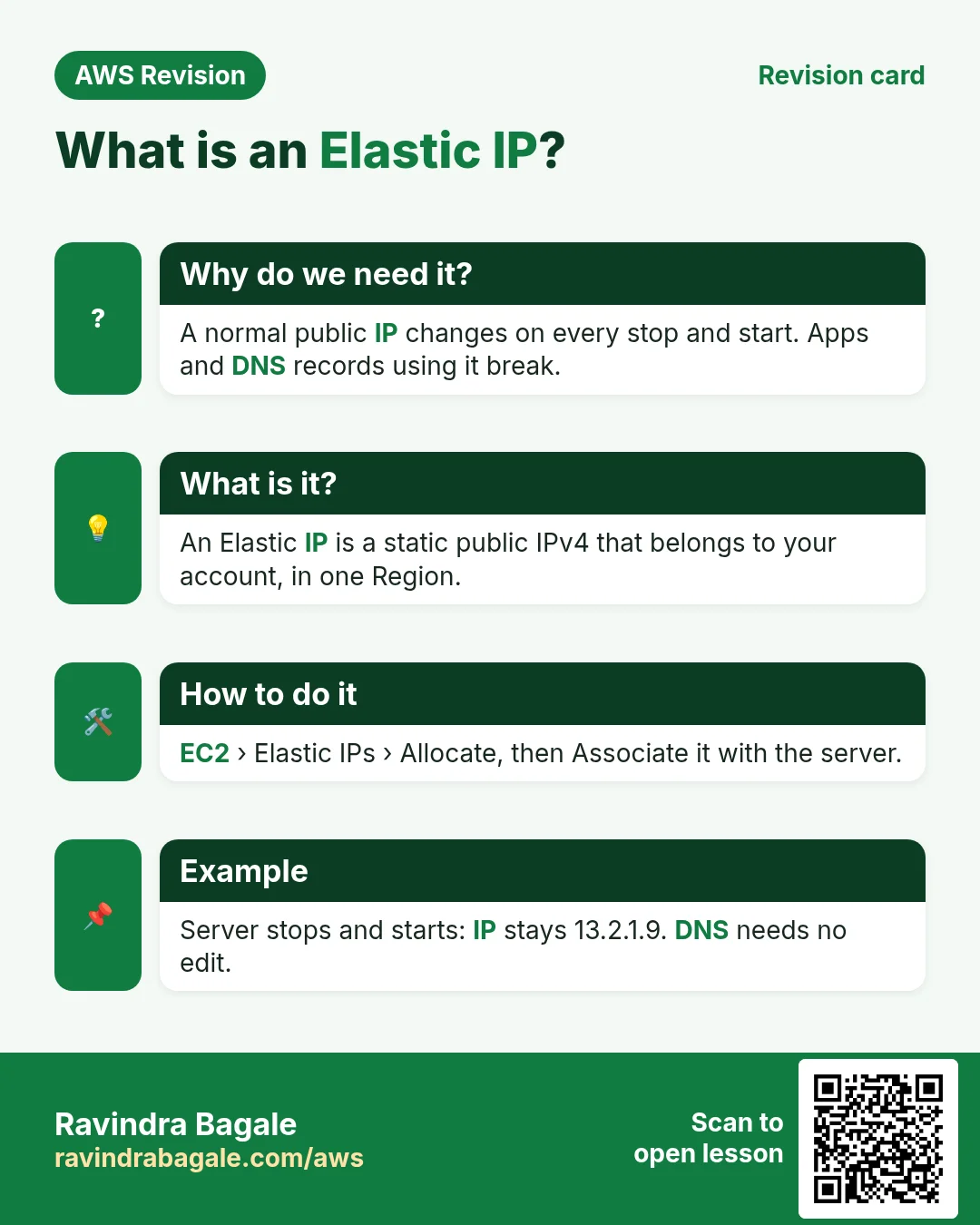
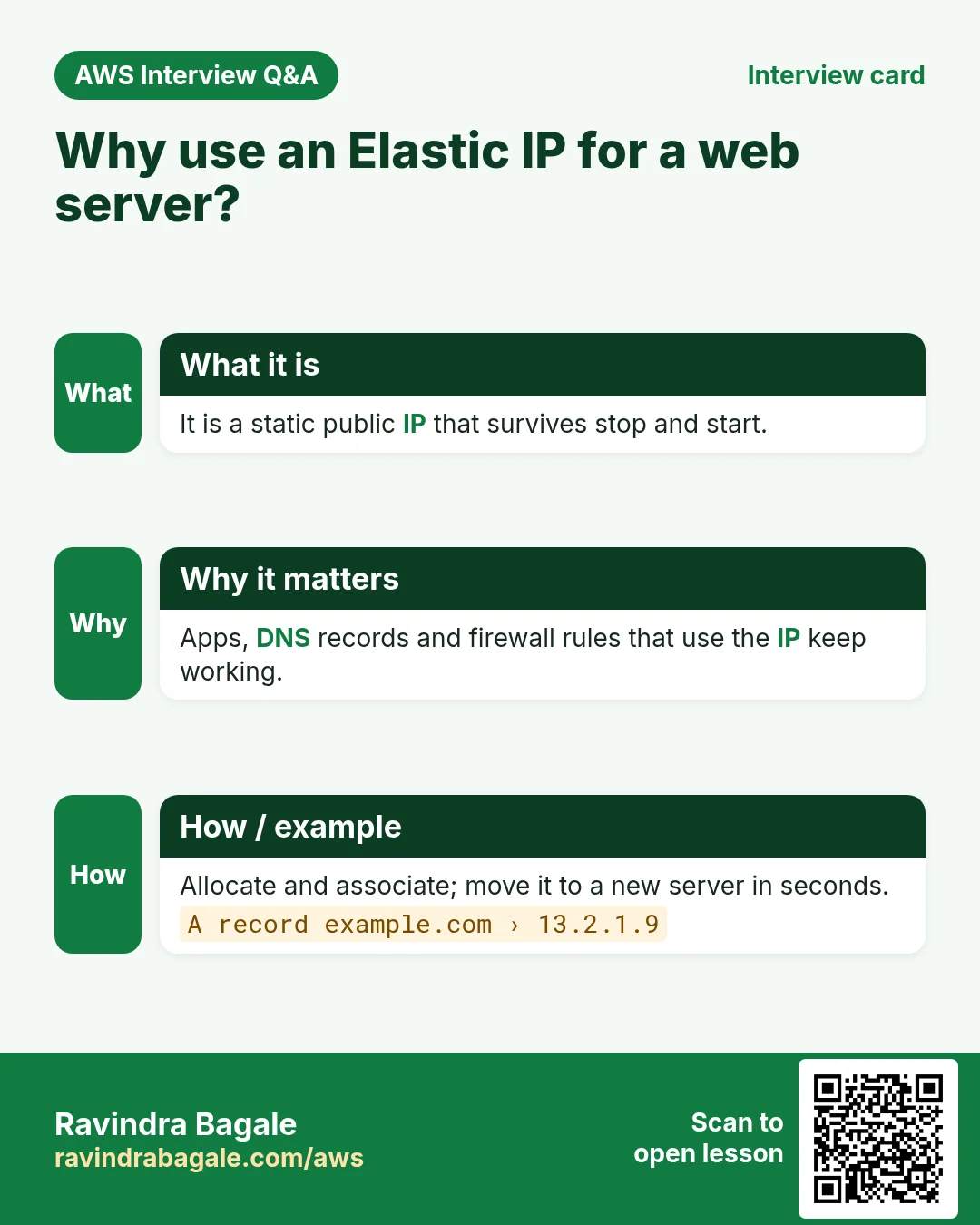
An Elastic IP (EIP) is AWS's name for a static public IPv4 address. Azure and Google Cloud simply call it a static IP. You take one from Amazon's pool into your account, and it stays yours until you release it. Attach it to a server, and that server keeps the same public IP across every stop and start.
Three facts to remember:
- It belongs to your account, not to one server. You can move it from one server to another in seconds.
- It's regional. An Elastic IP from
us-east-1can only be attached to a server inus-east-1. Allocate it in the same region as your server. - It replaces the dynamic IP. When you associate it, the server's old dynamic public IP goes back to AWS, and the Elastic IP takes its place.
Figure 2. The Elastic IP lifecycle: allocate, associate, (stop and start keep it), disassociate, release. AWS charges for it from allocate to release.
3. How: allocate and associate an Elastic IP
Step 1. Launch (or pick) an Amazon Linux server with Nginx running and HTTP (port 80) allowed in its security group. Note its current Public IPv4 address, for example OLD_IP, and open http://OLD_IP/.
Step 2. In the EC2 console, left menu: Network & Security > Elastic IPs. Click Allocate Elastic IP address.
Step 3. Keep Amazon's pool of IPv4 addresses. The Network border group is your region, for example us-east-1. Click Allocate.
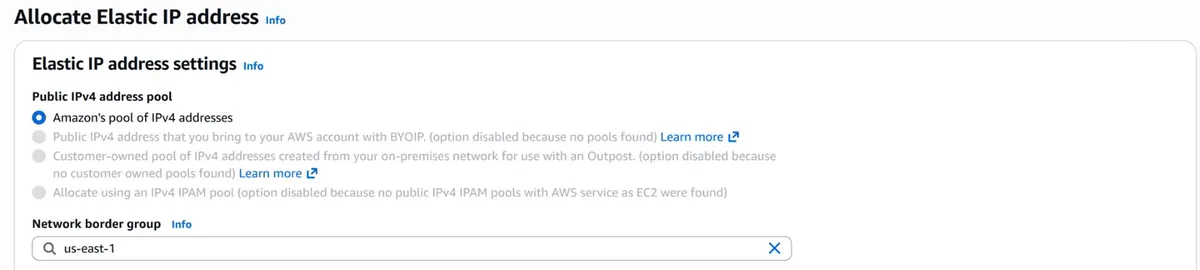
Console: Allocate Elastic IP address: keep Amazon's pool of IPv4 addresses; the network border group is your region.
Step 4. The new address appears in the list, for example ELASTIC_IP. Select it, then Actions > Associate Elastic IP address.
Step 5. Resource type: Instance. Choose your instance (and its private IP if asked). Click Associate.
Step 6. Open Instances and check the server: its Public IPv4 address is now ELASTIC_IP. Open http://ELASTIC_IP/: the same site.
Step 7. If you have a domain, point its A record to ELASTIC_IP once. You never have to edit it again just because the server restarted.
4. Prove it: stop and start keeps the Elastic IP
Example 2, step by step:
- Select the server, Instance state > Stop. Wait for Stopped. The Elastic IP stays attached (a dynamic IP would be gone now).
- Instance state > Start. Wait for Running.
- The public IPv4 address is still
ELASTIC_IP. -
Open
http://ELASTIC_IP/. If the page doesn't open, connect with SSH and run:sudo service nginx start -
Refresh: the site is back, on the same IP.
Why did step 4 need Nginx to be started again? Because it was only started, not enabled, so it didn't come up by itself after the stop and start. We fix that properly in section 11.
Classroom line
Let's check it once by stopping the server.
Class मधलं वाक्य
"Ek da baghuya na, server stop karun."
एकदा बघूया ना, server stop करून.
Classroom line
Let's check it once by stopping the server.
5. Remove it: disassociate, then release
Removing an Elastic IP is two steps, in this order.
Step 1: Disassociate. Elastic IPs, select the address, Actions > Disassociate Elastic IP address, confirm. The server gets a new dynamic public IP from AWS.
Classroom line
See? A new IP came.
Class मधलं वाक्य
"Disla na, navin IP ala."
दिसलं ना, नवीन IP आला.
Classroom line
See? A new IP came.
Step 2: Release. Select the address again, Actions > Release Elastic IP addresses, confirm. Now it's back in Amazon's pool and gone from your account. You can't release an address that is still associated, which is why disassociate comes first.
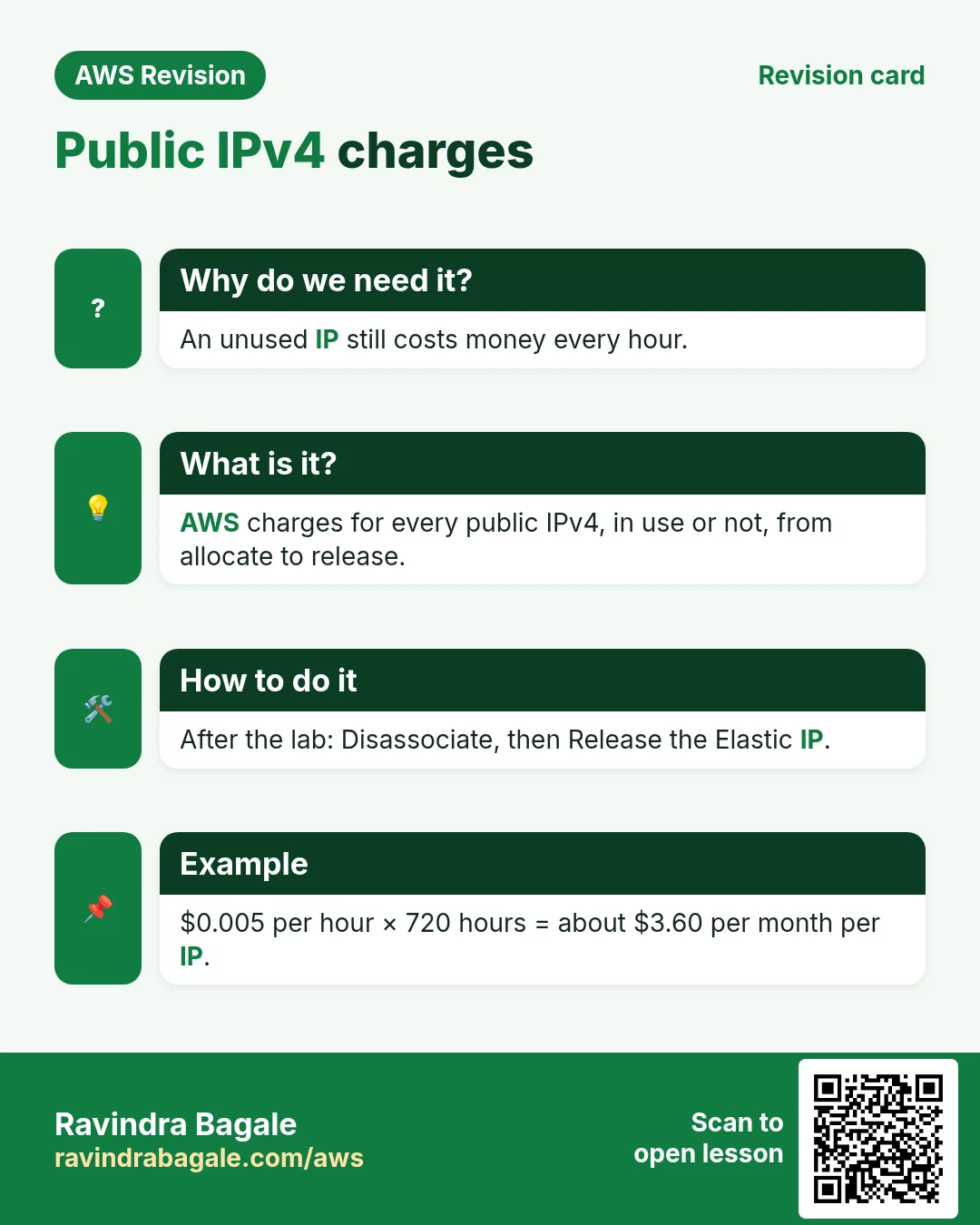
The cost. AWS charges a small hourly fee for every public IPv4 address, whether it's a dynamic IP on a running server or an Elastic IP, attached or idle. For an Elastic IP the charge runs from the moment you allocate it until you release it, used or not. So:
- Allocate an Elastic IP only for a server that needs a fixed IP.
- Release Elastic IPs you no longer need. An idle one costs money and does nothing.
- For the current rate, see the public IPv4 section of the Amazon VPC pricing page.
Classroom line
Use it or not: once an Elastic IP is in your account, the charges are running.
Class मधलं वाक्य
तुम्ही तो वापरा किंवा नका वापरू, तुमच्या account मध्ये Elastic IP आला की charges चालू.
Classroom line – हिंदी
"Aap usko use karo, na karo, aapke account mein elastic IP aa gaya, charges chalu hai."
6. Why: sometimes the server must grow (scaling up vs scaling out)
Suppose we are a video streaming app on a big release day, or a small shop whose post just went viral. Traffic jumps, and one small server can't keep up. There are two ways to grow:
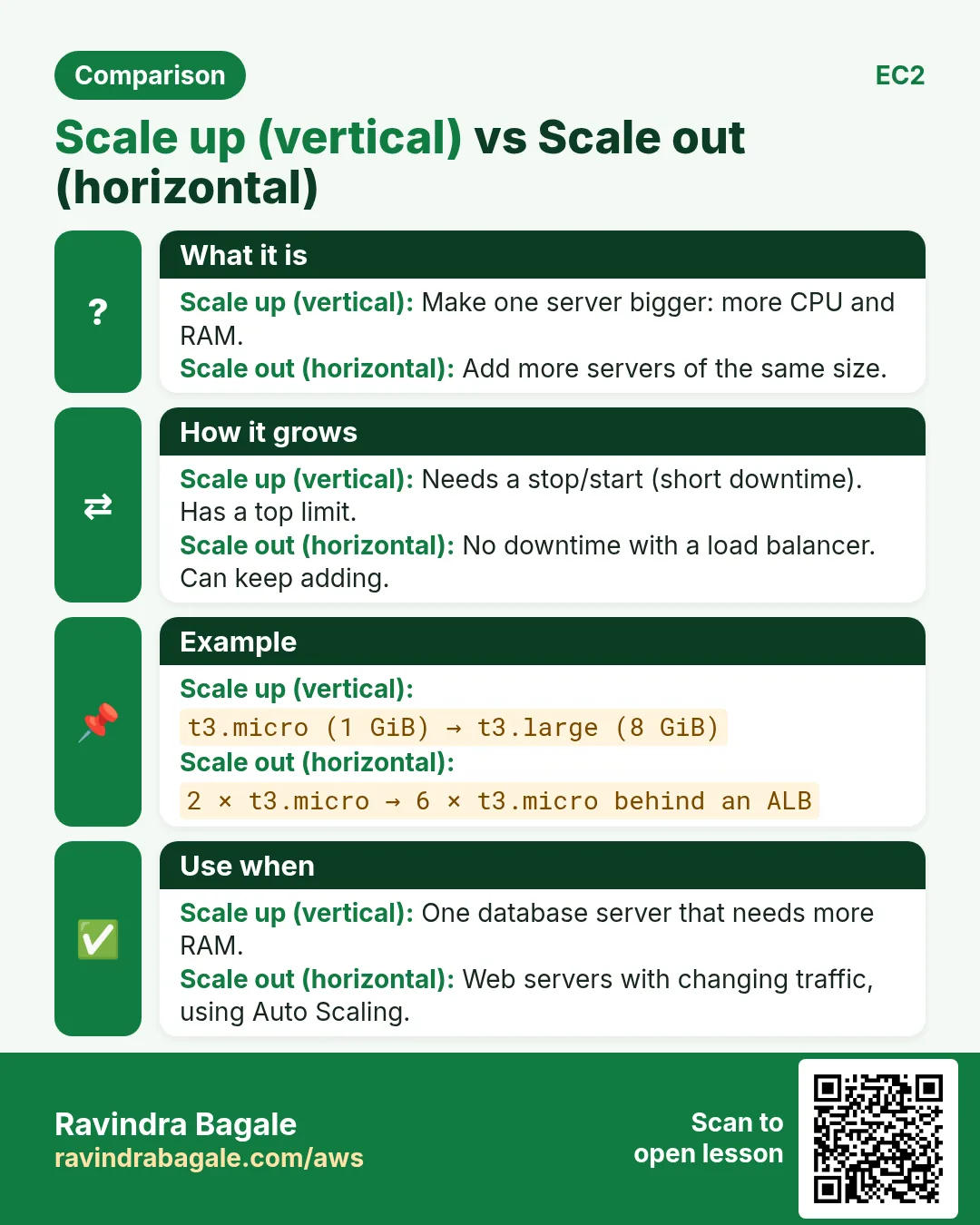
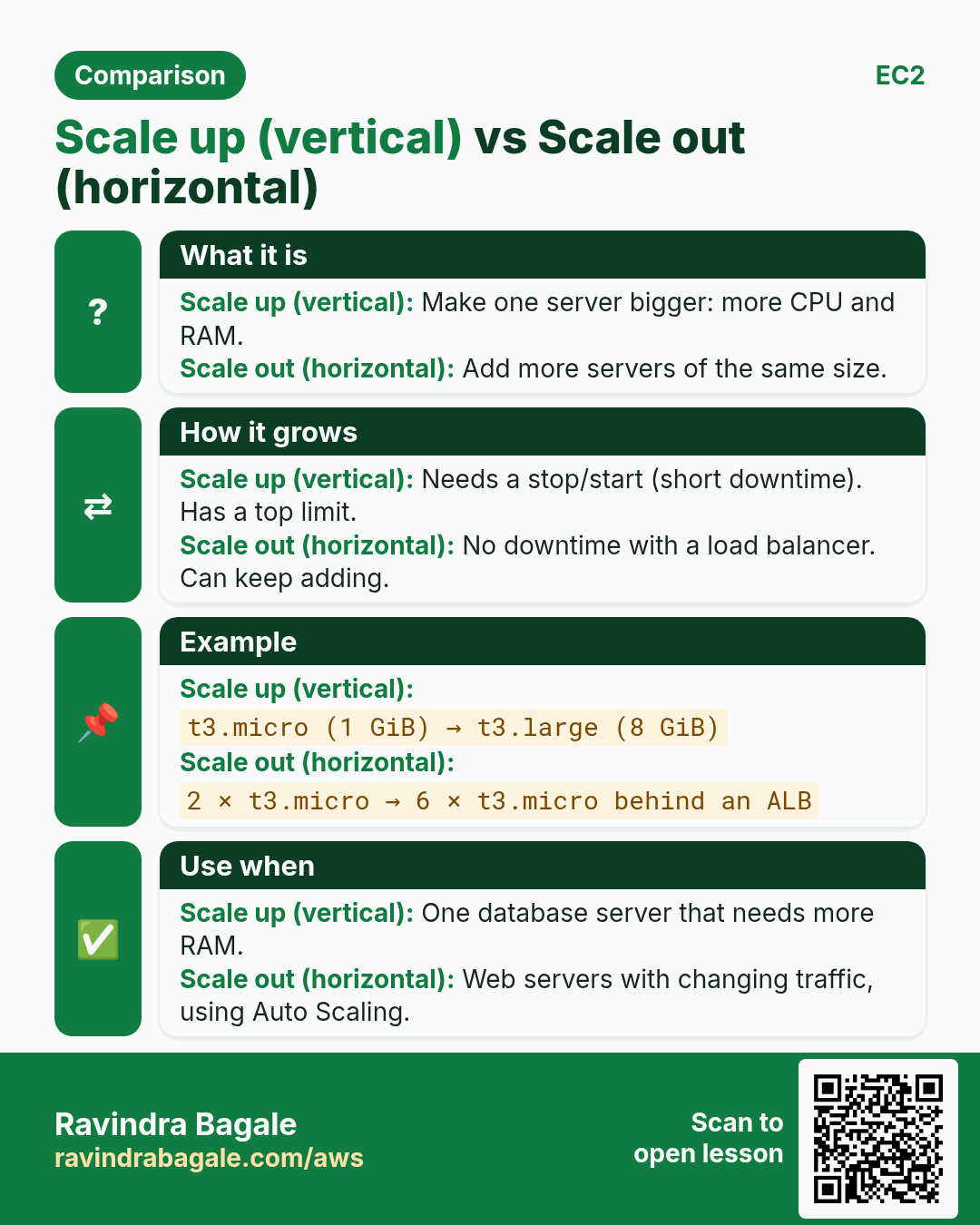
- Scaling up (vertical scaling): make the server bigger: more CPU, more memory. Example:
t3.micro(2 vCPU, 1 GiB) tot3.small(2 vCPU, 2 GiB) tot3.medium(2 vCPU, 4 GiB). - Scaling out (horizontal scaling): add more servers of the same size and share the traffic between them (later chapters, with a load balancer).
Classroom line
One is vertical scaling, and the other is horizontal scaling.
Class मधलं वाक्य
एक असतं vertical scaling आणि दुसरं असतं horizontal scaling.
Classroom line – हिंदी
"Ek hota hai vertical scaling aur dusra hota hai horizontal scaling."
Figure 3. Scaling up makes one server bigger. Scaling out adds more servers of the same size.
7. How: change the instance type (and why it means downtime)
You can't change the size of a running instance. The steps:
- Instance state > Stop, wait for Stopped.
- Actions > Instance settings > Change instance type.
- Pick the bigger type, for example
t3.small, and Apply. - Instance state > Start.
The catch. Between steps 1 and 4 the website is down for a few minutes. And without an Elastic IP, the server comes back with a new public IP too.
8. The low-downtime trick: AMI, bigger server, move the Elastic IP
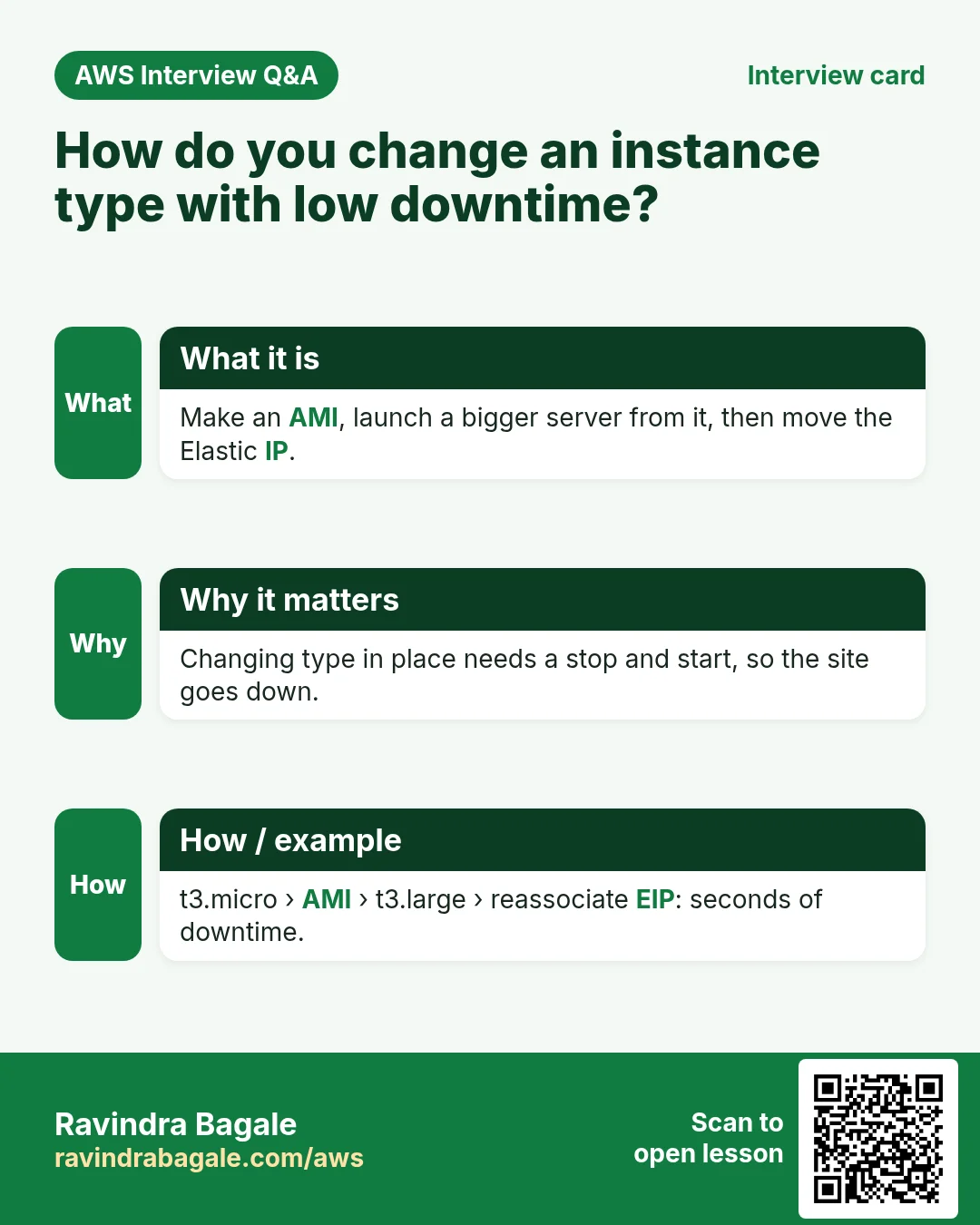
Instead of stopping the live server, build the bigger one next to it, then switch the IP.
Example 3, step by step:
- The live site runs on a small server with
ELASTIC_IPattached. - Create an AMI (an image) of that server (section 12).
- Launch a new, bigger instance from that AMI. It has the same software, settings and files.
- Test the new server on its own temporary public IP.
- Elastic IPs > Associate
ELASTIC_IPwith the new instance. (If the console asks, allow it to reassociate the address that is already attached.) The switch takes seconds. - Visitors and DNS keep using
ELASTIC_IP; they now reach the bigger server. - When you're happy, stop or terminate the old server.
Figure 4. Animation: copy the small server into an AMI, launch a bigger server from it, then move the Elastic IP. Users keep the same IP the whole time.
9. Why: what an AMI is and why we make one
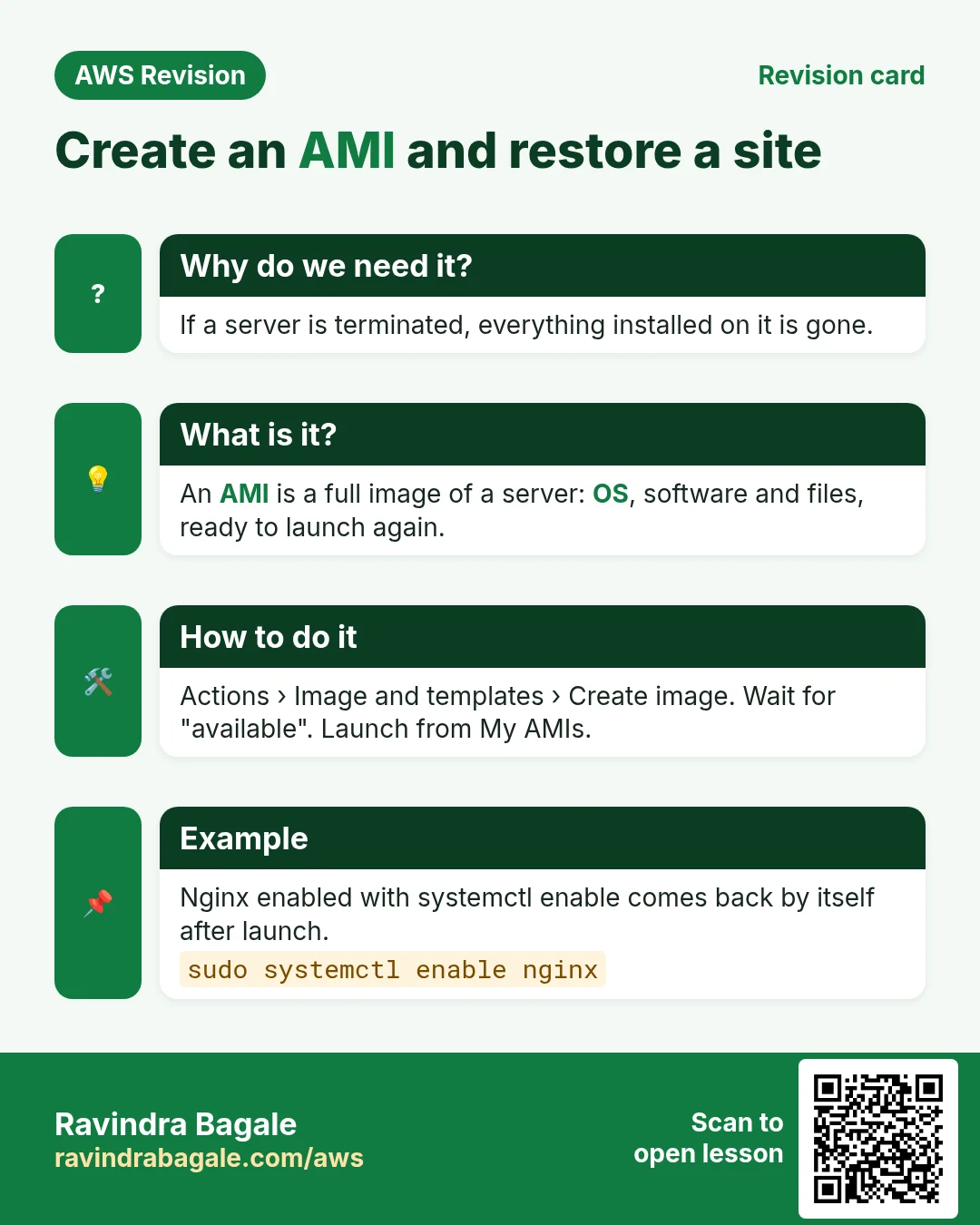
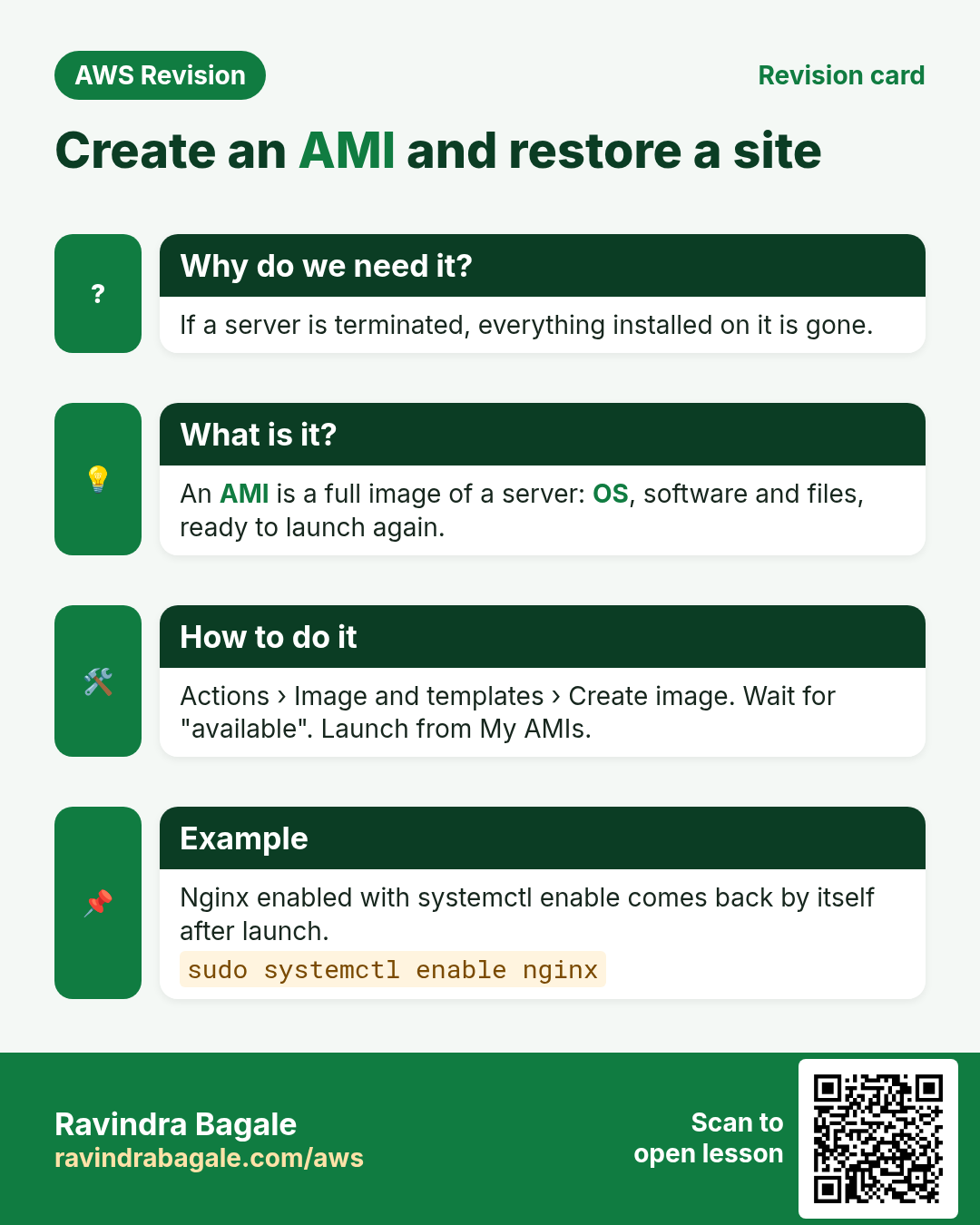
An AMI (Amazon Machine Image) is a template for launching a server. You already used AWS's AMIs (Amazon Linux, Ubuntu) to launch fresh servers. You can also make your own AMI from a server you have set up: it captures the operating system, the installed software (Nginx, Apache, MySQL), the configuration and your website files.
Why make one?
- Backup and disaster recovery. A disk can fail, a data centre can have a fire, or a server can be deleted by mistake. With an AMI you launch an identical server in minutes.
- Cloning a finished set-up. Suppose we are an online store, and setting up one web server with all its software took weeks. For a second site or a new client, launch from the AMI instead of doing the work again.
- Growing with less downtime (section 8).
Figure 5. Why make an AMI: restore after a disaster, clone a finished set-up, and grow to a bigger server with little downtime.
Classroom line
A server can go down at any time.
Class मधलं वाक्य
"Server kadhi hi band padu shakto."
Server कधीही बंद पडू शकतो.
Classroom line
A server can go down at any time.
10. AMI vs EBS snapshot
Draw the public address, the launch image and the disk backup separately
On a diagram, put an Elastic IP in front of the EC2 instance. That address is how a direct public client can find the instance. Inside the instance box draw the attached EBS disk that contains Linux and the lab files. A snapshot backs up the contents of a volume at a point in time. An EBS-backed AMI also has the launch configuration and snapshot references needed to start a new instance from an image.
Now name two failures. A wrong address in DNS does not require rebuilding a disk. A damaged boot disk needs a restore path even when the public address has stayed the same. Give the old image and test server different names and identify their instance and volume IDs in your notes. A similar name in the console is not enough evidence that you have selected the resource you meant to change.
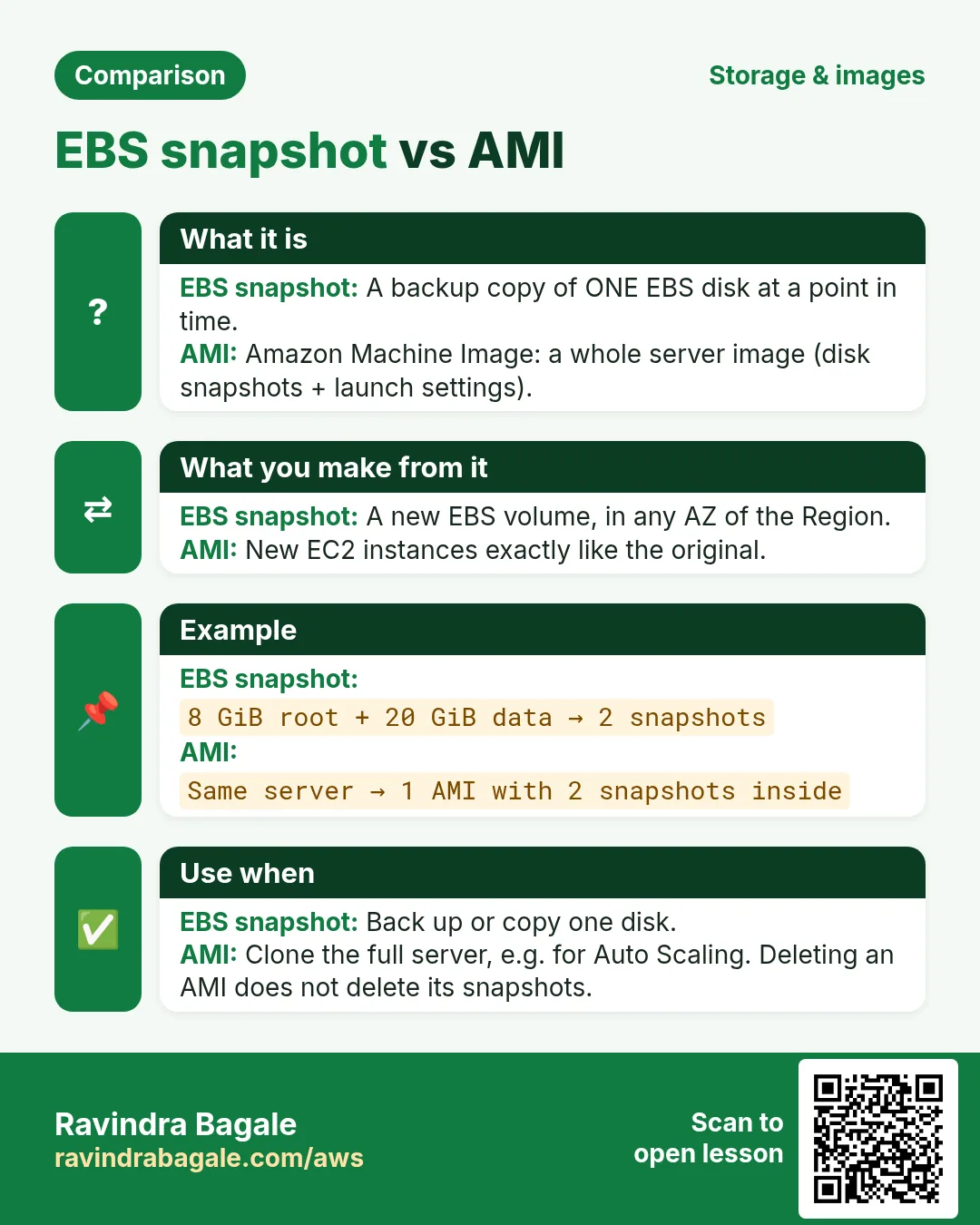
The server's data lives on EBS volumes (its disks). A backup of one EBS volume is an EBS snapshot. An AMI is the launch template that lists those snapshots plus settings such as the architecture and the device names.
- A server with 1 volume gives 1 snapshot + 1 AMI.
- A server with 3 volumes gives 3 snapshots + 1 AMI.
- The real data is in the snapshots. The AMI points to them.
- AWS stores snapshots for you (on Amazon S3 behind the scenes). You manage them in the EC2 console under Elastic Block Store > Snapshots; they don't appear in your own S3 buckets. Turn on EBS encryption as best practice.
Figure 6. One AMI points to one snapshot per EBS volume. The data is in the snapshots.
Classroom line
An AMI and a snapshot are two different things. The real backup is in the snapshot.
Class मधलं वाक्य
"AMI ani snapshot donhi vegvegle ahet. Original backup snapshot madhe asta."
AMI आणि snapshot दोन्ही वेगवेगळे आहेत. Original backup snapshot मध्ये असतं.
Classroom line
An AMI and a snapshot are two different things. The real backup is in the snapshot.
11. Before the backup: enable your services
A server launched from your AMI boots fresh. If Nginx only starts when someone types a command, the new server comes up with the website down.
What's the difference?
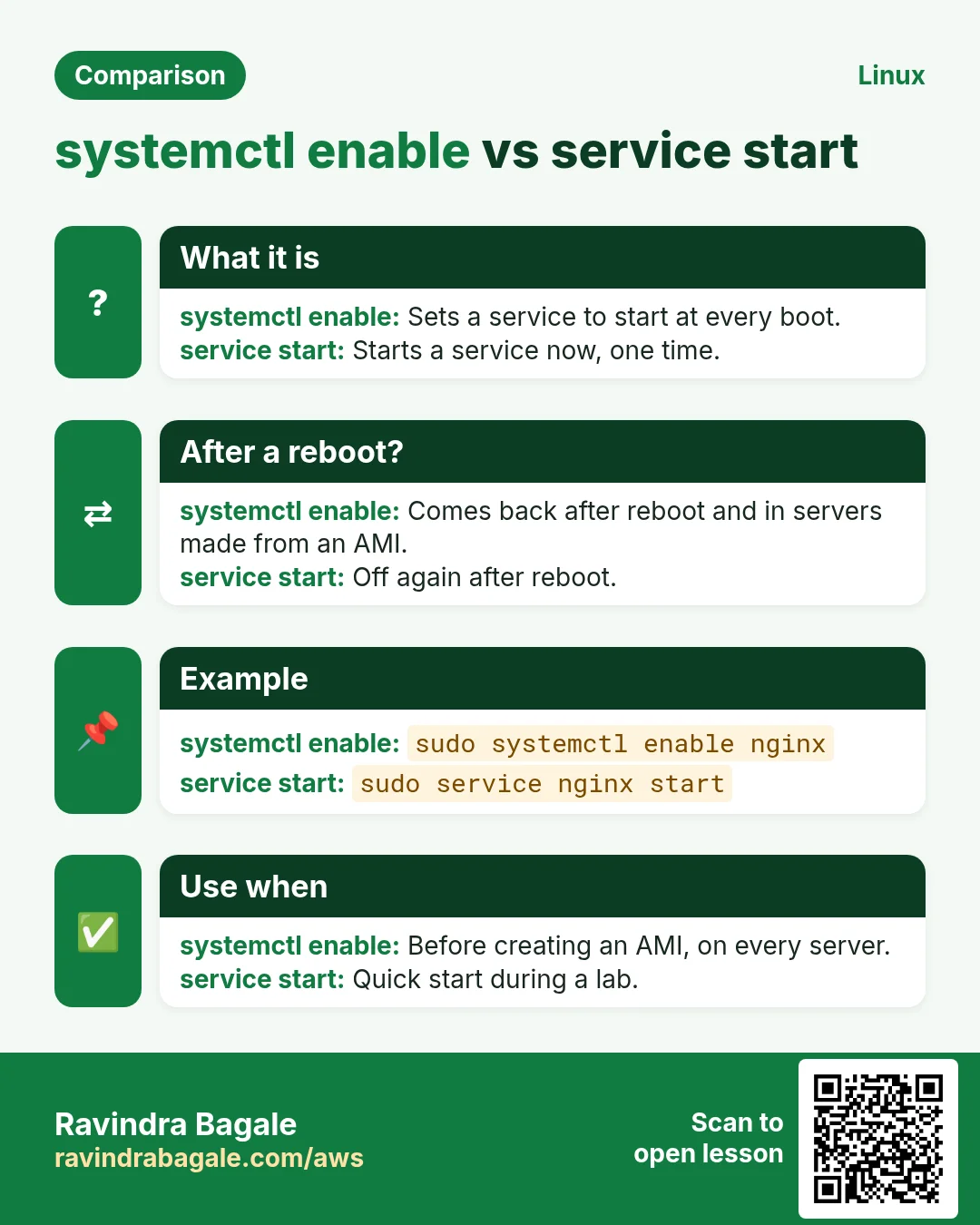
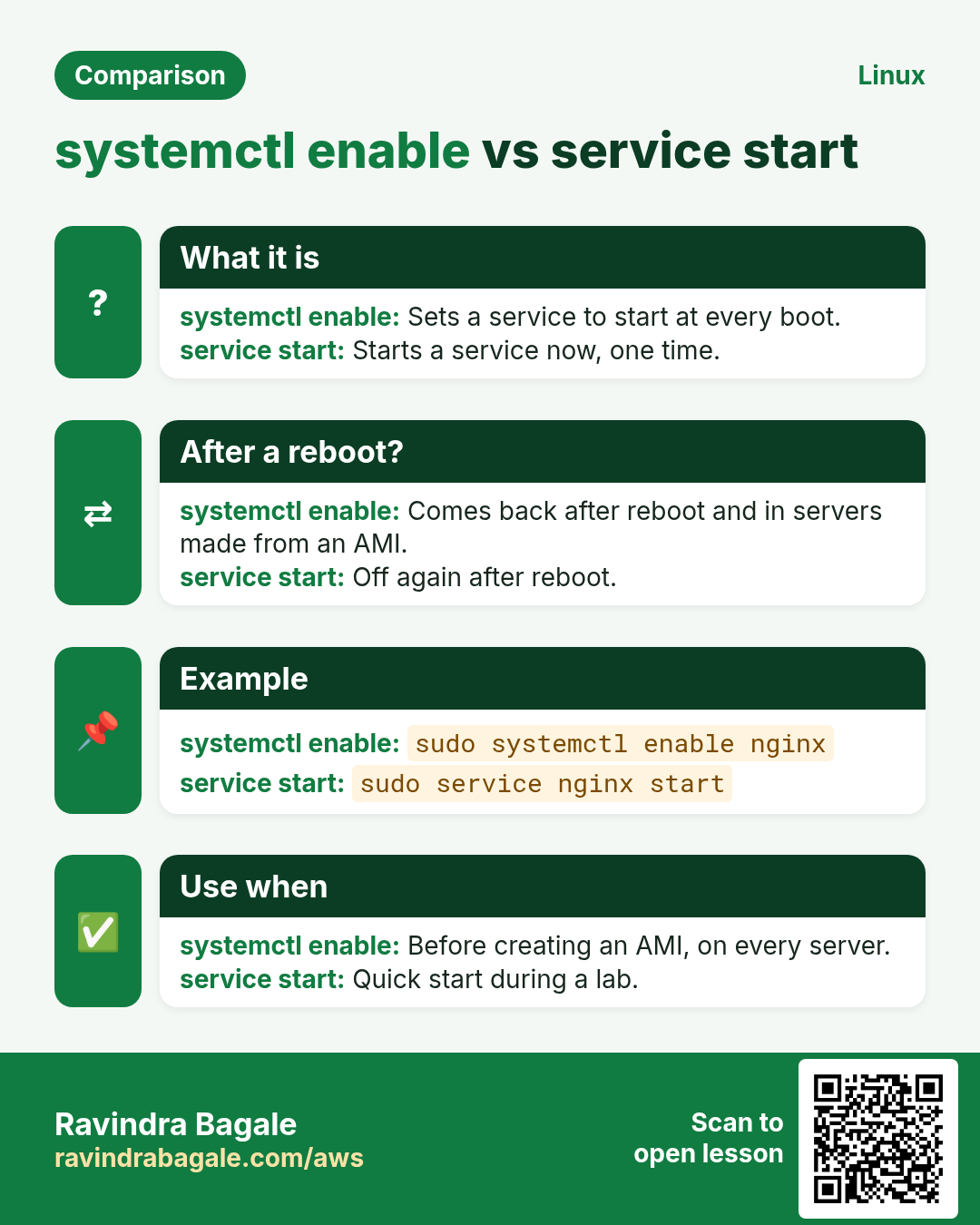
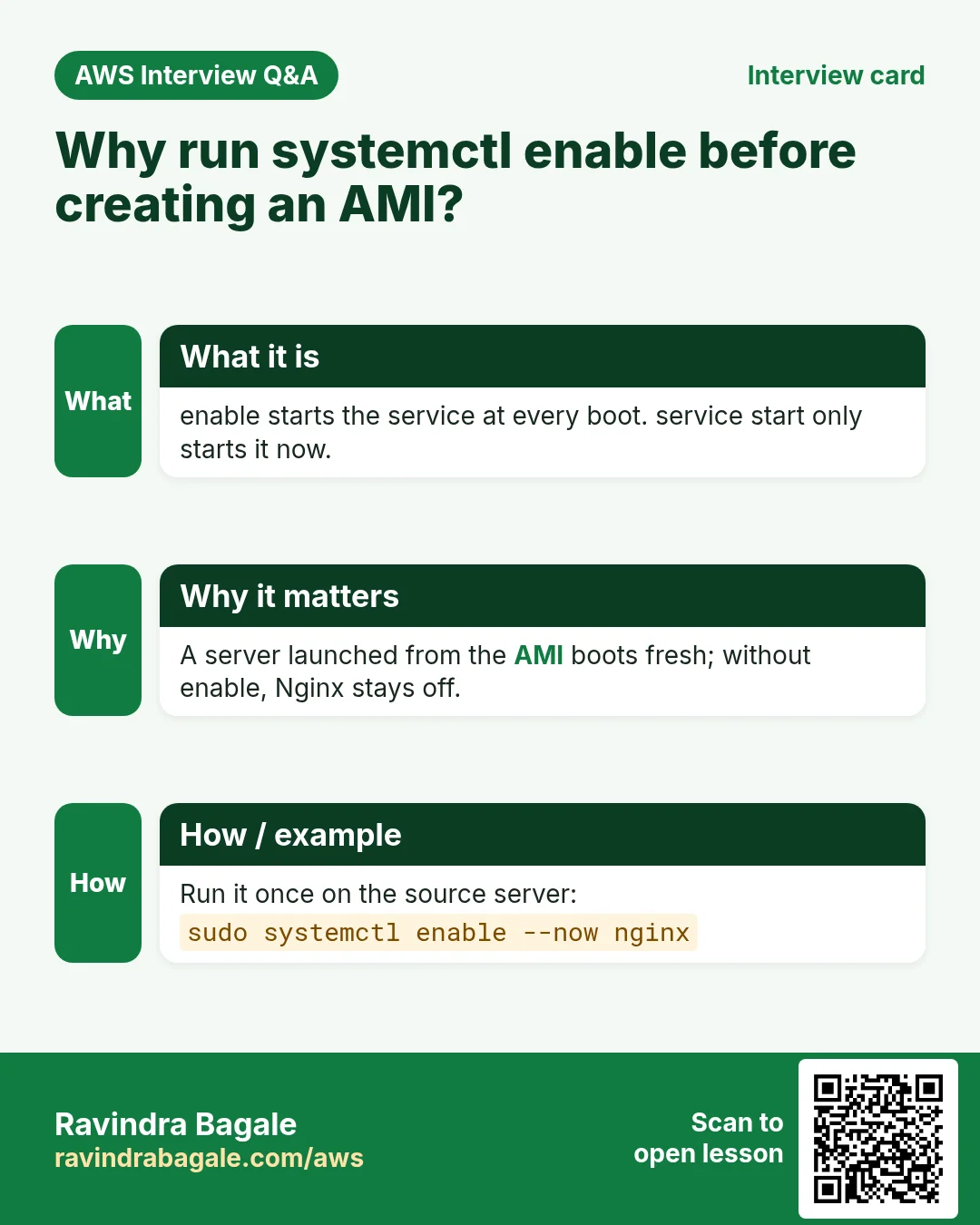
sudo service nginx startstarts Nginx now. After a reboot, or on a server launched from the AMI, it stays off.sudo systemctl enable nginxmakes Nginx start at every boot. It does not start it now.sudo systemctl enable --now nginxdoes both.
sudo systemctl enable nginx
sudo systemctl is-enabled nginx
The second command prints enabled. Do the same for every service the site needs, for example httpd (Apache) or mysqld.
Figure 7. start runs the service now; enable makes it start at every boot, including on servers launched from your AMI.
Classroom line
Enable your services before you create an AMI. Never skip it; make it a habit.
Class मधलं वाक्य
"AMI tayar karnyacha agodar enable kara, enable kelyashivay karu naka, saway lavun ghya."
AMI तयार करण्याच्या आधी enable करा, enable केल्याशिवाय करू नका, सवय लावून घ्या.
Classroom line
Enable your services before you create an AMI. Never skip it; make it a habit.
12. How: create an image (AMI) of your server
Classroom line
First watch carefully, then do it yourselves.
Class मधलं वाक्य
"Pahilanda laksha dya tumhi, nantar tumhi kara."
पहिल्यांदा लक्ष द्या तुम्ही, नंतर तुम्ही करा.
Classroom line
First watch carefully, then do it yourselves.
Step 1. Check the site works at http://ELASTIC_IP/ and that Nginx is enabled (section 11).
Step 2. Instances, select the server, Actions > Image and templates > Create image.
Step 3. Image name: include the date and time, so you can tell backups apart later, for example mywebsite-YYYY-MM-DD-HHMM. The name can't be changed after creation.
Step 4. Image description: what is inside, for example nginx with 10 pages.
Step 5. Keep Reboot instance ticked. EC2 reboots the server so that data still in memory is written to disk before the snapshots are taken. That gives a consistent backup. (The site is down for the short reboot; plan it for a quiet time.)
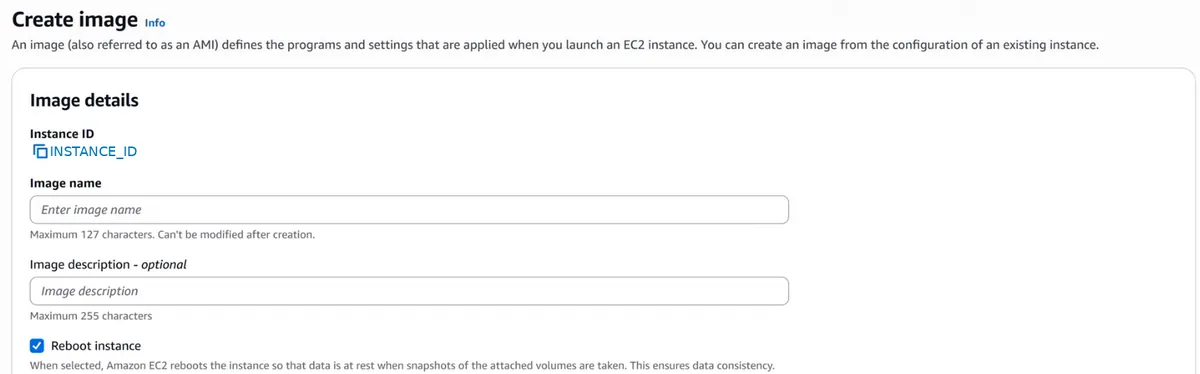
Console: Create image: the instance ID is filled in; type an image name and a description, and keep Reboot instance ticked.
Step 6. Leave the volumes as they are and click Create image.
13. Wait for "available", and look at the snapshot
Step 1. Left menu: Images > AMIs. Your AMI shows Pending. Refresh until it shows Available. This can take several minutes.
Step 2. Left menu: Elastic Block Store > Snapshots. A new snapshot is there, with the description "Created by CreateImage".
Step 3. Compare two columns: Volume size 8 GiB, Full snapshot size about 1.97 GiB. A snapshot stores only the used blocks of the disk, not the empty space, and you pay for the snapshot data stored, not for the full volume size.

Console: The snapshot list: the full snapshot size is about 1.97 GiB for an 8 GiB volume, because only used data is stored.
Classroom line
Until the status becomes "available", don't terminate the server.
Class मधलं वाक्य
"Jo paryant status available yet nahi na to paryant tumhi server terminate nahi karu shakat."
जोपर्यंत status available येत नाही ना, तोपर्यंत तुम्ही server terminate नाही करू शकत.
Classroom line
Until the status becomes "available", don't terminate the server.
14. Disaster drill: terminate the server, bring the site back
Run a restore test before trusting the backup
Use a disposable lab server. Put a dated line in a practice page, create the image and wait until it is available. Launch one test instance from it while you still have the source. Check the test instance’s instance ID, boot disk and service status. Request the lab page and confirm it contains the dated line. If the restore is older than expected, compare the image creation time with when you wrote the line.
For a data volume outside the image, verify its separate snapshot and restore steps. An image does not stand in for a copy of content you excluded or keep elsewhere. At the end, keep only the backups you decided to retain and remove the disposable instance after the check.
Now we prove the backup works.
Example 4, step by step:
- Make sure the AMI shows Available.
- Disassociate the Elastic IP from the server (section 5, step 1), so it stays in your account.
- Terminate the original server: Instance state > Terminate (delete) instance. This is our "disaster".
- Launch instances. Under Application and OS Images, choose My AMIs and select your image.
- Pick the instance type, your key pair, and a security group that allows HTTP (and SSH from your IP).
- Launch instance and wait for Running.
- Associate the Elastic IP with the new instance.
- Open
http://ELASTIC_IP/. The same pages are back, and Nginx is running because it was enabled before the image was made.
Figure 8. The drill: enable services, create the image, wait for available, terminate, launch from My AMIs, move the Elastic IP, and the site is back.
Classroom line
Let the backup finish completely; only then terminate the server.
Class मधलं वाक्य
"Purna pane backup tayar hou dya, tyachya nantarach server terminate kara."
पूर्णपणे backup तयार होऊ द्या, त्याच्या नंतरच server terminate करा.
Classroom line
Let the backup finish completely; only then terminate the server.
15. Snapshots are incremental
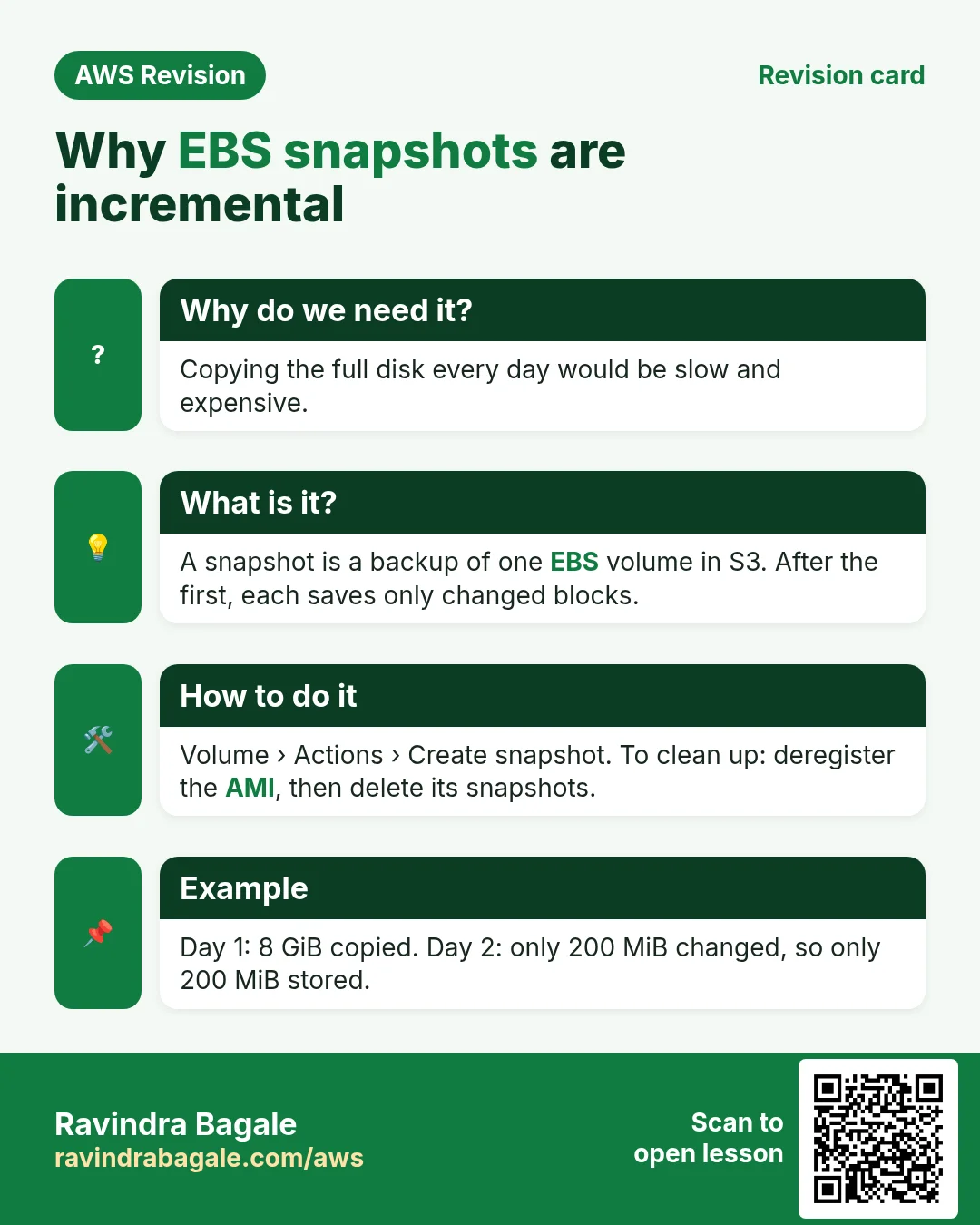
The first snapshot of a volume stores all its used data. Every next snapshot of the same volume stores only the blocks that changed since the previous one. This is called an incremental backup. (The AMI isn't incremental; the EBS snapshots it points to are.)
Example 5, step by step:
- An 8 GB volume holds 1.9 GB of data. Backup 1 stores 1.9 GB.
- You install more software. The data grows to 2.5 GB. Backup 2 stores only the new 600 MB.
- You add a few pages. The data grows to 2.6 GB. Backup 3 stores only the new 100 MB.
- Total stored: 1.9 GB + 600 MB + 100 MB = 2.6 GB, not 1.9 + 2.5 + 2.6 = 7 GB.
- Each backup still restores as a complete disk for its point in time.
- If you delete backup 2, AWS keeps any of its data that backup 3 still needs. Backup 3 still restores completely.
Figure 9. Animation: the first snapshot stores 1.9 GB, the second only the 600 MB that changed, the third only 100 MB. Each one still restores the full disk.
Classroom line
Interviews ask: are AWS backups incremental, or what? The answer: incremental.
Class मधलं वाक्य
Interview मध्ये विचारतात, AWS चं backup incremental आहे की कसं? उत्तर काय? Incremental backup.
Classroom line – हिंदी
"Interview mein puche jate hain, AWS ka backup incremental hai ya kaisa hai? Answer kya hai? Incremental backup."
16. Clean up: deregister the AMI and delete its snapshots
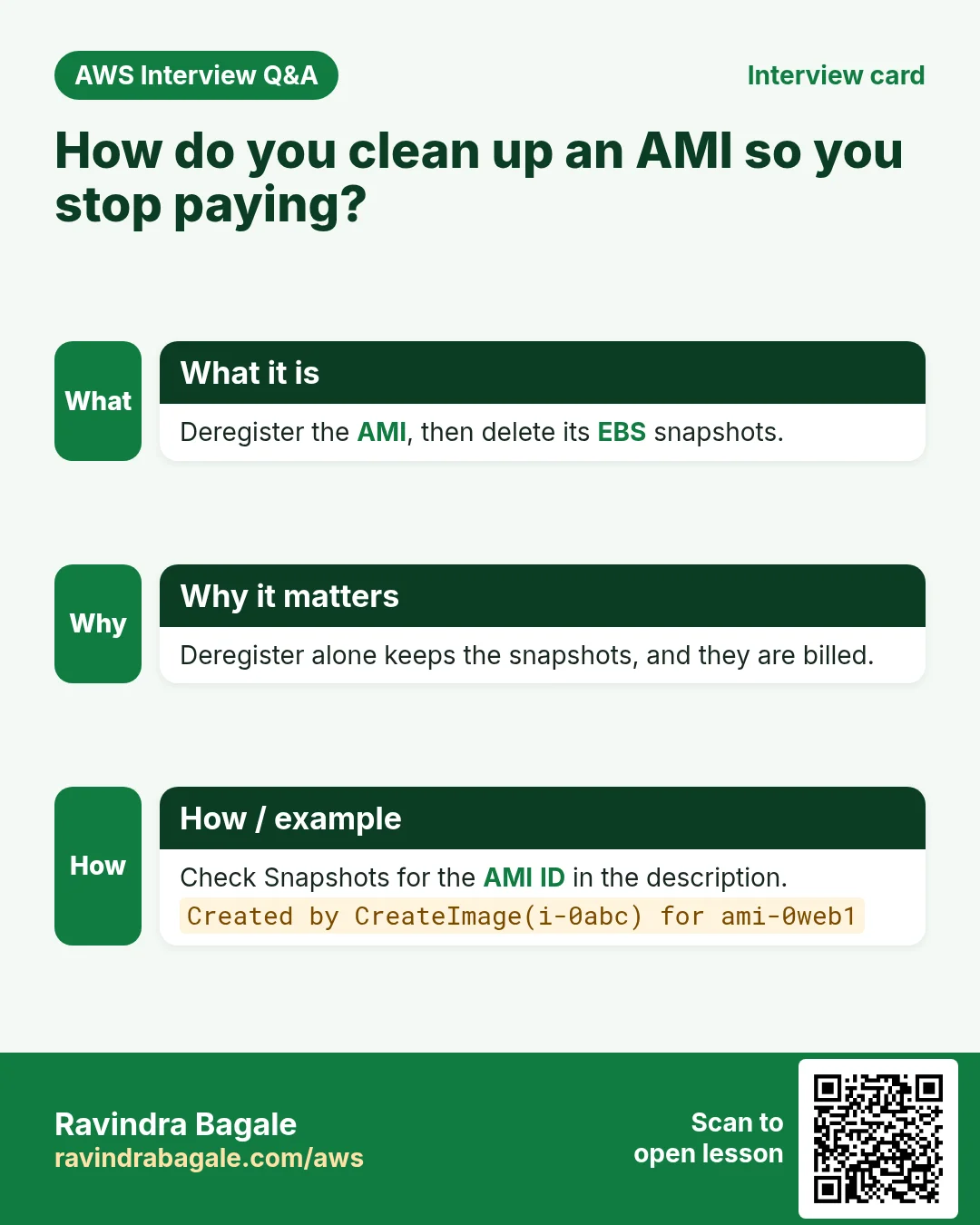
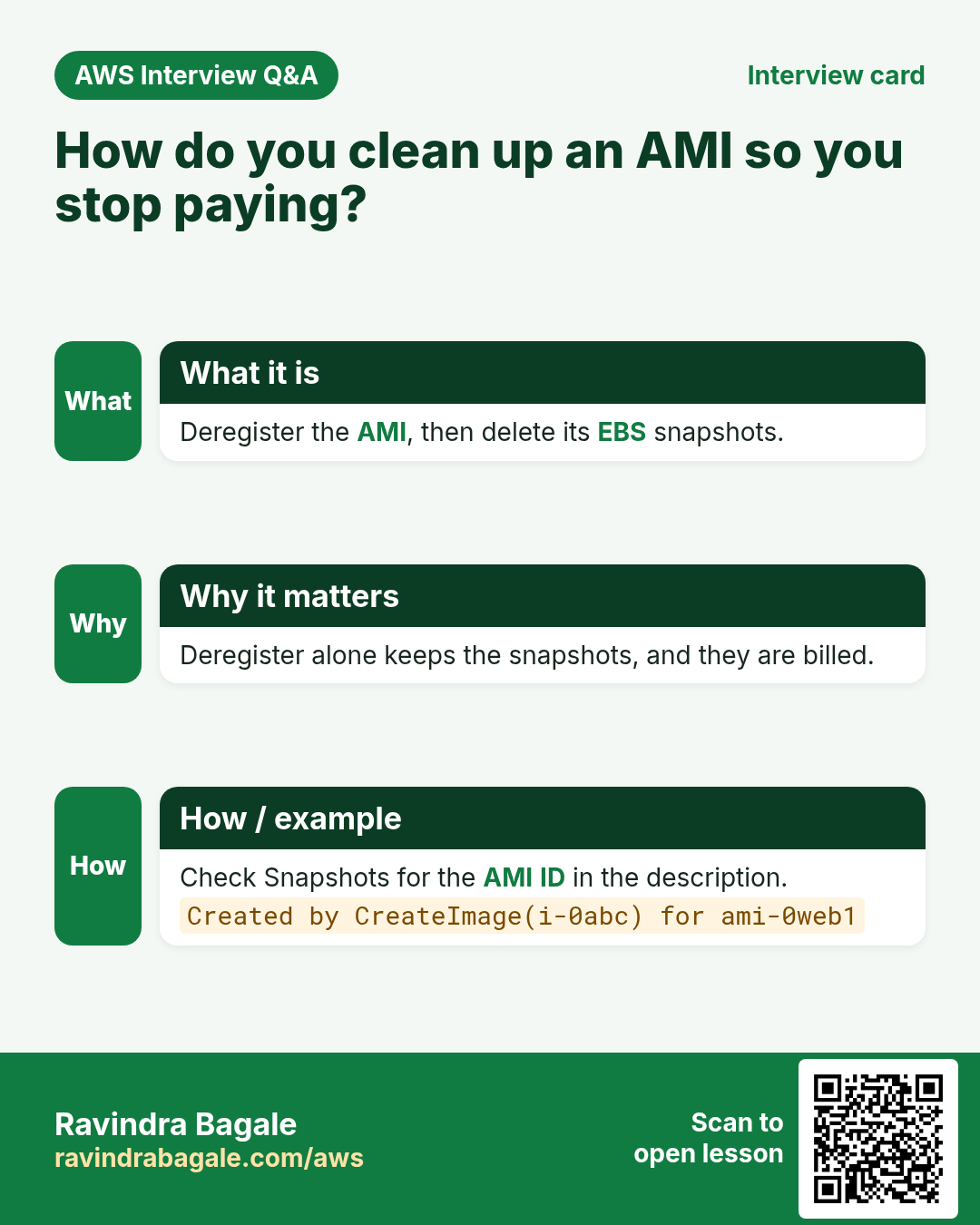
An AMI is deregistered, not deleted. Deregistering does not remove its snapshots by itself, and snapshots keep costing money.
Step 1. Images > AMIs, select the AMI, Actions > Deregister AMI.
Step 2. Tick Delete associated snapshots, then click Deregister AMI.
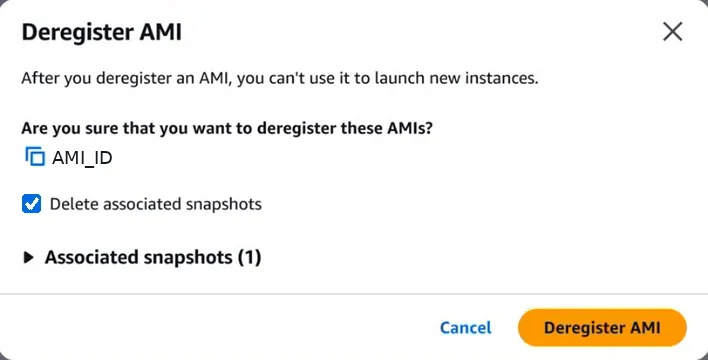
Console: Deregister AMI: tick Delete associated snapshots so the snapshots don't stay behind and keep costing money.
Step 3. Open Elastic Block Store > Snapshots and check nothing from this AMI is left. If one is, select it and Actions > Delete snapshot.
Step 4. Disassociate and release the Elastic IP if you don't need it (section 5), and terminate test servers.
17. The whole flow on one page
- A stop and start changes a dynamic public IP; apps and DNS records with the old IP break.
- Elastic IPs > Allocate, then Associate with your server (same region). The IP survives stop and start.
- Remove: Disassociate, then Release. Every public IPv4 is charged hourly; release what you don't use.
- Changing the instance type needs a stop and start. For less downtime: AMI, bigger server, move the Elastic IP.
sudo systemctl enable nginxbefore every image.- Create image with a dated name and a description; keep Reboot instance ticked.
- Wait for Available; the snapshot holds only used data.
- Terminate, launch from My AMIs, associate the Elastic IP: the site is back.
- Snapshots are incremental. Deregister AMIs with Delete associated snapshots ticked.
Hands-on lab: Elastic IP, AMI and snapshots
A dynamic public IP breaks apps and DNS after stop/start. This lab pins a static Elastic IP, proves it survives stop/start, then backs up the server as an AMI and brings the site back from My AMIs.
- Allocate an Elastic IP
- Do: EC2 → left menu Network & Security → Elastic IPs → Allocate Elastic IP address → keep Amazon's pool of IPv4 addresses → Network border group = your Region → Allocate.
- You should see: Success banner and a new row with an Allocated IP (e.g.
3.x.x.x), Association ID empty. - Check: The EIP is in the same Region as your instance.
- Why: An EIP is regional. Allocate first; associating comes next. AWS charges for every public IPv4 from allocate until release.
- Associate it with your instance
- Do: Select the new EIP → Actions → Associate Elastic IP address → Resource type Instance → pick your running instance → Associate.
- You should see: Association ID fills in; the instance's Public IPv4 becomes the EIP.
- Check: Open
http://EIP/(with Nginx/Apache running). Same site, new address. - Why: The old dynamic IP is released. From now on the public address is this EIP.
- Prove stop/start keeps the EIP
- Do: Select the instance → Instance state → Stop → wait for Stopped → Instance state → Start → wait for Running and 2/2 checks.
- You should see: Public IPv4 column still shows the same EIP.
- Check: SSH in and start the web server if needed (
sudo systemctl start nginxorhttpd);http://EIP/still loads. - Why: Stop/start would normally give a new dynamic IP. With an EIP associated, the address stays.
- Disassociate, then Release (this order)
- Do: Elastic IPs → select the EIP → Actions → Disassociate Elastic IP address → confirm. Note the instance now has a new random public IP. Then select the EIP again → Actions → Release Elastic IP addresses → Release.
- You should see: After Disassociate: Association ID empty, instance has a new Public IPv4. After Release: the EIP row is gone.
- Check: You cannot Release while it is still associated.
- Why: Disassociate first (server gets a new dynamic IP), then Release (stops the charge). Releasing an attached EIP is blocked.
- Change the instance type (scale up)
- Do: Instance state → Stop → wait Stopped → Actions → Instance settings → Change instance type → pick e.g.
t3.small→ Apply → Instance state → Start. - You should see: Instance type column shows the new type; State Running.
- Check: If no EIP was attached, the Public IPv4 changed again.
- Why: Scale-up needs a stop. A few minutes of downtime. For near-zero downtime, use the AMI + move-EIP path instead.
- Do: Instance state → Stop → wait Stopped → Actions → Instance settings → Change instance type → pick e.g.
- Enable services, then Create image
- Do: SSH:
sudo systemctl enable --now nginx(or httpd). Console: select instance → Actions → Image and templates → Create image → Image namemywebsite-YYYY-MM-DD-HHMM, leave No reboot unticked (reboot keeps the backup consistent) → Create image. - You should see: Banner with an AMI id
ami-…. - Check: Images → AMIs: status goes Pending → Available (several minutes). EBS → Snapshots shows a new snapshot "Created by CreateImage".
- Why: Enable before backup or a new server from the AMI boots with the site down. Snapshots store used blocks only.
- Do: SSH:
- Launch a new server from My AMIs
- Do: Launch instance → Application and OS Images → My AMIs → pick your AMI → same key and allow HTTP → Launch. Associate the EIP with the new instance if you still have one.
- You should see: New instance Running;
http://IP/shows the same site without reinstalling Nginx. - Check: Do not terminate the original until the AMI is Available.
- Why: The AMI is the template; the real disk backup lives in the snapshot(s).
- Clean up AMI cost
- Do: Images → AMIs → select → Actions → Deregister AMI → tick Delete associated snapshots → Deregister. Release any unused Elastic IP.
- You should see: AMI disappears; Snapshots list no longer shows that snapshot.
- Check: Idle EIPs and leftover snapshots keep costing money.
- Why: Deregister alone does not delete snapshots unless you tick the box.
18. Try at home
Try at home
Task 1: Elastic IP
- Launch an Amazon Linux server with Nginx and open its page.
- Allocate an Elastic IP in the same region and associate it with the server.
- Stop and start the server. Check the IP stayed the same, and start Nginx if needed.
- Disassociate the Elastic IP and note the new dynamic IP the server gets. Then release the Elastic IP.
Task 2: AMI backup and restore
- Run
sudo systemctl enable nginxand check it withsudo systemctl is-enabled nginx. - Change the default page, then create an image named with today's date and time, with Reboot instance ticked.
- Wait for Available, and compare the volume size and the snapshot size.
- Terminate the server, launch a new one from My AMIs, and open your changed page.
- Clean up: deregister the AMI with Delete associated snapshots, check the snapshot list, release any Elastic IP and terminate the server.
Common errors and fixes
| Error / symptom | Fix |
|---|---|
| Cannot Release Elastic IP | Disassociate it first, then Release. |
| Site dead after launch from AMI | You forgot systemctl enable before Create image. SSH in and start/enable the service. |
| AMI stuck in Pending | Wait. Do not terminate the source instance until Status is Available. |
| New instance has a different IP | Associate the EIP with the new instance, or update the DNS A record. |
| Snapshot still listed after Deregister | You did not tick Delete associated snapshots. Delete the snapshot by hand. |
| Change instance type greyed out | Instance must be Stopped first. |
FAQ
Q. Is an Elastic IP free?
No. Since 2024 AWS charges for every public IPv4 from allocate until release, attached or idle. Release ones you do not need.
Q. EIP or domain name?
Use both. The domain's A record points at the EIP so users never type an IP.
Q. AMI vs snapshot?
Snapshot = disk backup. AMI = template that points at one or more snapshots and knows how to boot.
Q. Why reboot on Create image?
It flushes RAM to disk so the backup matches what was running.
Q. Scale up or scale out?
Scale up = bigger one server (this lab). Scale out = more servers behind a load balancer.
Recap
In short
- A normal public IP is dynamic: a stop and start changes it, and apps, bookmarks and DNS records with the old IP break (DNS also waits for the TTL).
- An Elastic IP is a static public IPv4 address that belongs to your account; it's regional and survives stop and start.
- Allocate, associate; to remove, disassociate, then release. AWS charges hourly for every public IPv4, so release unused Elastic IPs.
- Scaling up makes a server bigger (needs a stop and start); scaling out adds servers.
- Low downtime: create an AMI, launch a bigger server from it, move the Elastic IP.
- An AMI is a launch template that points to EBS snapshots; the data is in the snapshots.
systemctl enablestarts a service at every boot;service ... startonly starts it now. Enable before imaging.- Create image with a dated name, keep Reboot ticked, wait for Available before terminating anything.
- Snapshots store only used data and are incremental. Deregister AMIs with "Delete associated snapshots".
Practise this chapter
Interview questions and answers
How would you reduce downtime when replacing a standalone server that uses an Elastic IP?
Prepare and test the replacement separately, including the current data and service configuration. Move the address only when the replacement is ready, and keep a rollback path. Plan for active connections and any writes made since the image was captured.
When is an available AMI insufficient evidence for recovery?
It does not prove the restored server boots, starts its services, receives expected traffic or includes every volume and external data dependency. Test those items before relying on the image or removing the source.
Check your understanding
Choose an answer, then compare your reasoning with the explanation.
Practice Tasks
Practice checks run in your browser. They check the answer for this exercise; they do not create resources or connect to your AWS account.
About this scenarioBengaluru HealthTech is a health technology business in Bengaluru. Arjun Rao looks after its IT and cloud work. They count money in INR and run their AWS resources in the ap-south-1 Region. In the tasks below you do real jobs for them using what this lesson teaches. All names, account IDs, IP addresses and numbers are made up for practice.
0 / 12
Easy Snapshot an EBS volume
A snapshot is a point-in-time backup of one disk, kept in S3 by AWS.
Create a snapshot of volume vol-05324d33feecfdeed with description "nightly blrhealthtech".
- Read the task and decide which AWS service it is about.
- Write aws, then the service name, then the operation (the action word).
- Add each needed flag (--name) followed by its value from the task.
- Flags can be in any order. Click Check answer.
Easy Detach a volume
To move a disk to a rescue server, detach it first.
Detach volume vol-05324d33feecfdeed.
- Read the task and decide which AWS service it is about.
- Write aws, then the service name, then the operation (the action word).
- Add each needed flag (--name) followed by its value from the task.
- Flags can be in any order. Click Check answer.
Medium Delete an old AMI
Old AMIs and their snapshots cost money every month.
Deregister the image ami-01adbac1bbeffabcd.
- Read the task and decide which AWS service it is about.
- Write aws, then the service name, then the operation (the action word).
- Add each needed flag (--name) followed by its value from the task.
- Flags can be in any order. Click Check answer.
Medium List your own AMIs
Only images you own matter when you clean up old AMIs.
List only the AMIs owned by your own account.
- Read the task and decide which AWS service it is about.
- Write aws, then the service name, then the operation (the action word).
- Add each needed flag (--name) followed by its value from the task.
- Flags can be in any order. Click Check answer.
Medium Allocate an Elastic IP
An Elastic IP stays the same after stop/start, so DNS keeps working.
Allocate a new Elastic IP address for use in a VPC.
- Read the task and decide which AWS service it is about.
- Write aws, then the service name, then the operation (the action word).
- Add each needed flag (--name) followed by its value from the task.
- Flags can be in any order. Click Check answer.
Medium Attach the Elastic IP to the server
Associating gives the server the fixed public IP that your domain points to.
Associate allocation eipalloc-05324c33abbdd44 with instance i-0bba33c4235211a2b.
- Read the task and decide which AWS service it is about.
- Write aws, then the service name, then the operation (the action word).
- Add each needed flag (--name) followed by its value from the task.
- Flags can be in any order. Click Check answer.
Medium Create an AMI from a server
An AMI is a full server image. Launch identical copies from it any time.
Create an AMI named blrhealthtech-web-v1 from instance i-0bba33c4235211a2b.
- Read the task and decide which AWS service it is about.
- Write aws, then the service name, then the operation (the action word).
- Add each needed flag (--name) followed by its value from the task.
- Flags can be in any order. Click Check answer.
Medium Attach a volume to an instance
A volume must be attached (same AZ) before the server can see it.
Attach volume vol-05324d33feecfdeed to instance i-0bba33c4235211a2b as device /dev/sdf.
- Read the task and decide which AWS service it is about.
- Write aws, then the service name, then the operation (the action word).
- Add each needed flag (--name) followed by its value from the task.
- Flags can be in any order. Click Check answer.
Medium Make a compressed backup
A .tar.gz file packs a whole folder into one small file you can copy anywhere.
Create a gzip-compressed archive named blrhealthtech-site.tar.gz from the folder /var/www/blrhealthtech.
- Find the Linux command that does this job.
- Add the options (like -r or -h) the task needs.
- Add the file names, folders or users in the right order.
- Use sudo if the job changes system files or users. Click Check answer.
Medium Extract a backup
To restore, you unpack the archive into a folder.
Extract blrhealthtech-site.tar.gz into the folder /tmp/restore.
- Find the Linux command that does this job.
- Add the options (like -r or -h) the task needs.
- Add the file names, folders or users in the right order.
- Use sudo if the job changes system files or users. Click Check answer.
Medium Zip a folder
Zip files open easily on Windows, so they are good for sharing with office staff.
Create invoices.zip containing the folder invoices and everything in it.
- Find the Linux command that does this job.
- Add the options (like -r or -h) the task needs.
- Add the file names, folders or users in the right order.
- Use sudo if the job changes system files or users. Click Check answer.
Hard Copy a snapshot to another Region
A copy in another Region protects you if a whole Region has a problem.
Copy snapshot snap-024e33beebeef5 from ap-south-1 into us-west-2 (run the command in us-west-2).
- Read the task and decide which AWS service it is about.
- Write aws, then the service name, then the operation (the action word).
- Add each needed flag (--name) followed by its value from the task.
- Flags can be in any order. Click Check answer.
Quick revision cards
Revise this lesson in two minutes. Save the cards on your phone or download them as PNG files. The QR code on each card opens its lesson.
More cards: Ravi Sir's Cards.