Linux grep and find Commands with Examples
A server has thousands of files and log files with millions of lines. You can't open them one by one. In this chapter we learn the two commands every Linux admin and DevOps engineer uses daily: grep finds text inside files, and find finds the files themselves. We practise on the files that list the users of a Linux server, /etc/passwd and /etc/shadow, so first we see how Linux numbers its users.
In this class
- Linux user types: root (UID 0), system users and normal users, and what a sudo user is
/etc/passwdand/etc/shadow: what each line means and who can read themgrep: find text in a file without opening it; search inside vi with/,nandN- The pipe
|: send one command's output into the next command - grep options
-i,-rand-n, and the "Is a directory" message find: by name, with wildcards, by type and by permission;sudoand Permission deniedfind | grepandwc -l, and when-nameis the better choice- Why admins grep logs: who logged in to the server
1. Quick revision: networking
grep and find are mostly used on servers to answer networking and access questions from logs: which IP connected, which port failed. You need the basics fresh to read those lines.
Classroom line
As long as you're in DevOps or cloud, never forget networking and IP.
Class मधलं वाक्य
जोपर्यंत तुम्ही DevOps किंवा cloud field मध्ये आहात, networking आणि IP कधीच विसरू नका.
Classroom line – हिंदी
"Jab tak DevOps ya cloud ki field me ho, networking aur IP kabhi mat bhulna."
Quick revision
- A security group is a firewall around one EC2 instance. If only port 80 is open, visitors reach your app only through the web server on port 80.
- A private IP works only inside its private network (an office, or your VPC). To be reached from the internet, a server needs a public IP.
- A private network inside one company is an intranet; the internet connects networks worldwide.
- Private ranges:
10.0.0.0/8,172.16.0.0/12and192.168.0.0/16. Every IP has a network part and a host part; the subnet mask shows where one ends. 0.0.0.0means "any address".127.0.0.1is localhost, the machine itself (the whole127.0.0.0/8range is loopback).
Need more? Read Networking Basics for Cloud: IP Address, Client and Server Explained and Public vs Private IP Address Explained.
2. Linux user types and UIDs
Linux decides what you may do by who you are. Every user has a number, the UID (user ID), and Linux checks that number, not the name.
There are three kinds of users.
- root, UID 0. The superuser. It can read, change and delete everything.
- System users, UID 1 to 999. Linux and installed software create them to run services, for example
sshdornginx. Most can't log in. - Normal users, UID 1000 and up. These are people. The first user on an EC2 instance (
ec2-useron Amazon Linux,ubuntuon Ubuntu) is 1000; the next user you create gets 1001.
A sudo user is not a fourth type. It is a normal user who is allowed to run commands as root, through the wheel group on Amazon Linux or the sudo group on Ubuntu.
Classroom line
(Root to a sudo user) Do your work yourself, don't come to me.
Class मधलं वाक्य
(Root sudo user ला) तुझं काम तू कर, माझ्याकडे येऊ नकोस.
Classroom line – हिंदी
"Karle bhai tera kaam, mere paas mat aa."
check your own user.
- Run
id. - Read
uid=1000(ec2-user): your UID and name. - Read
groups=...:wheel(orsudoon Ubuntu) means you can use sudo. - Run
sudo id. Now it showsuid=0(root), because sudo runs the command as root.
Figure 1. Linux user types by UID: root is 0, system users 1 to 999, normal users from 1000. A sudo user is a normal user allowed to act as root.
3. /etc/passwd and /etc/shadow
When you need to know which users exist on a server, their UID, home folder or shell, it's all in one file.
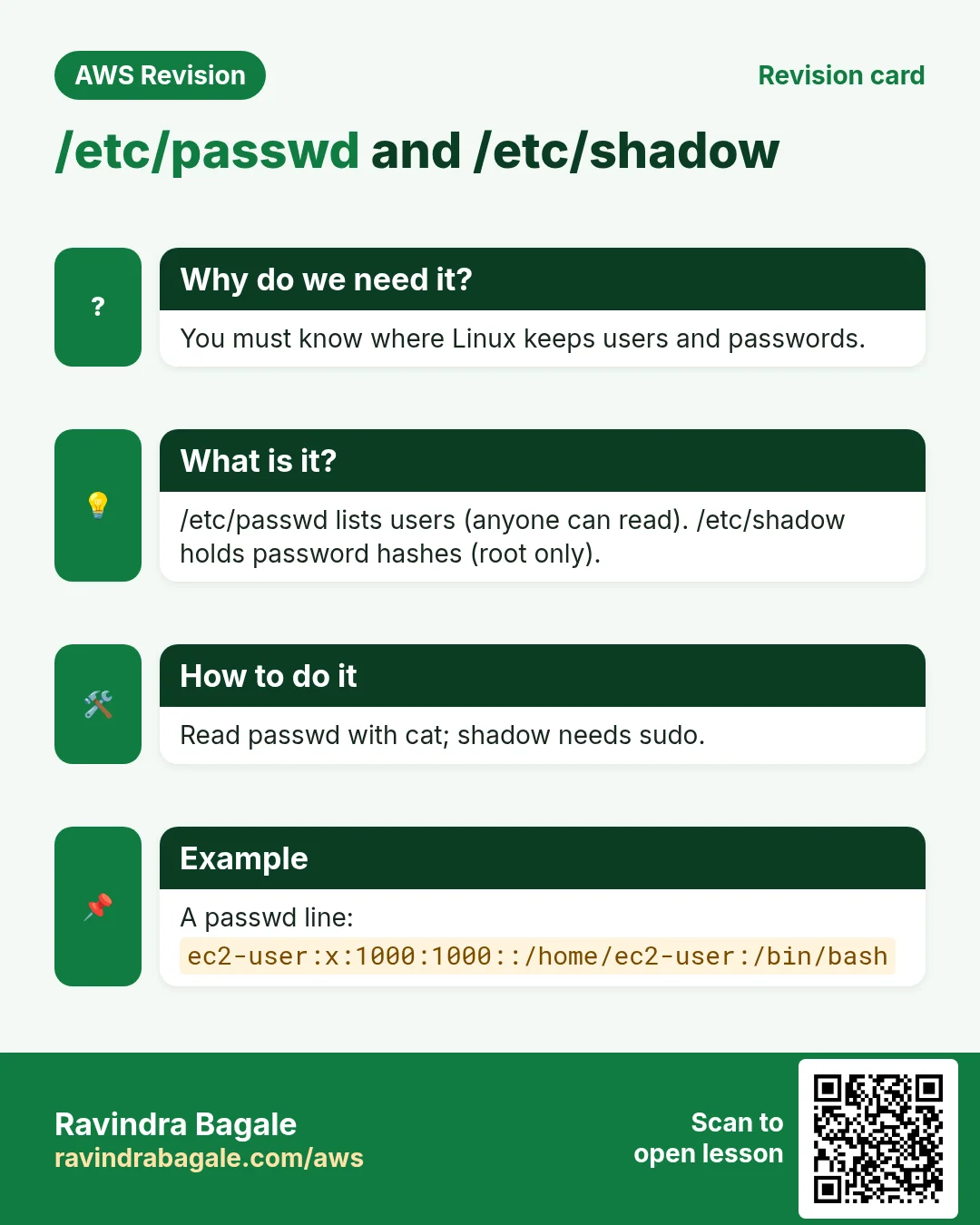
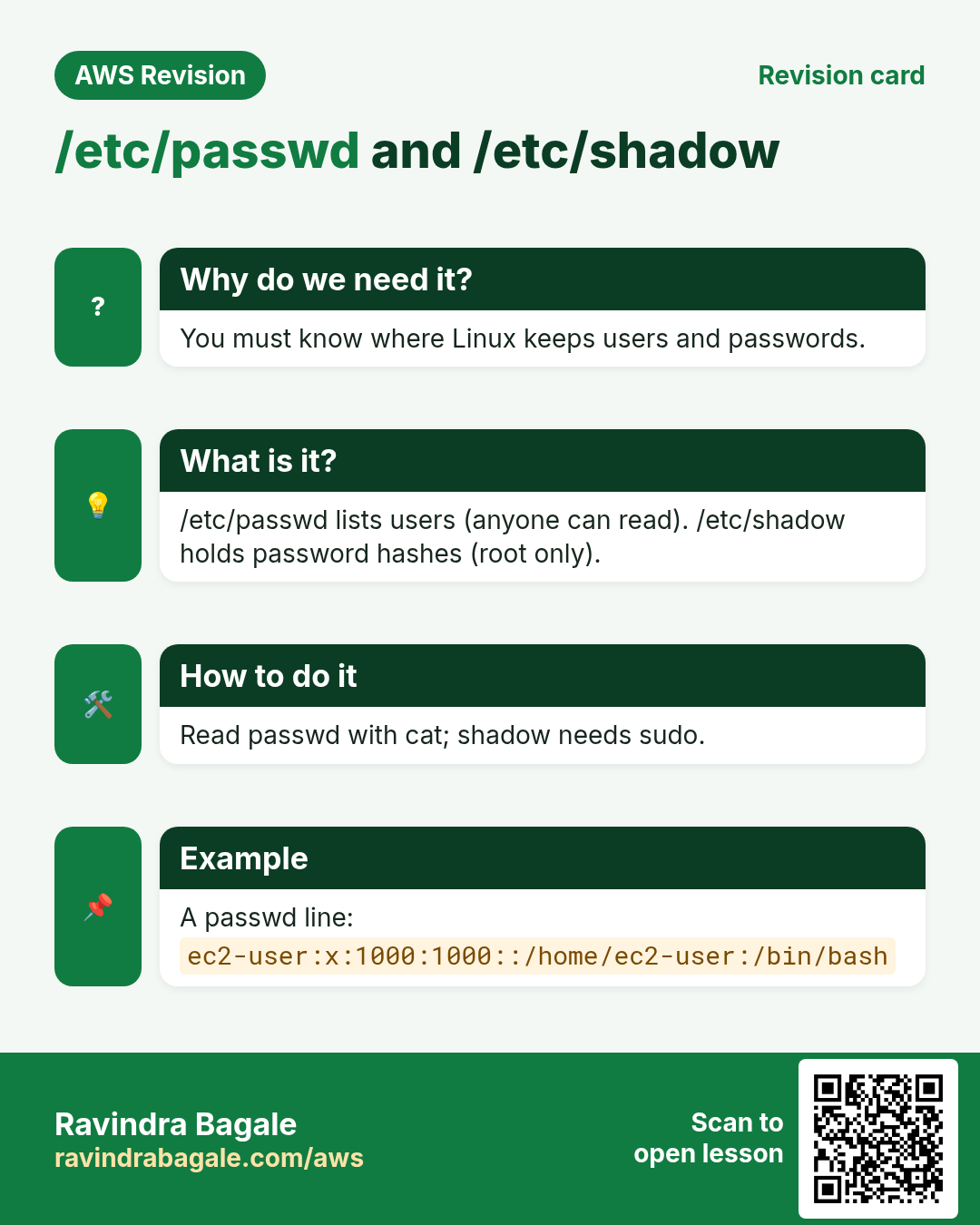
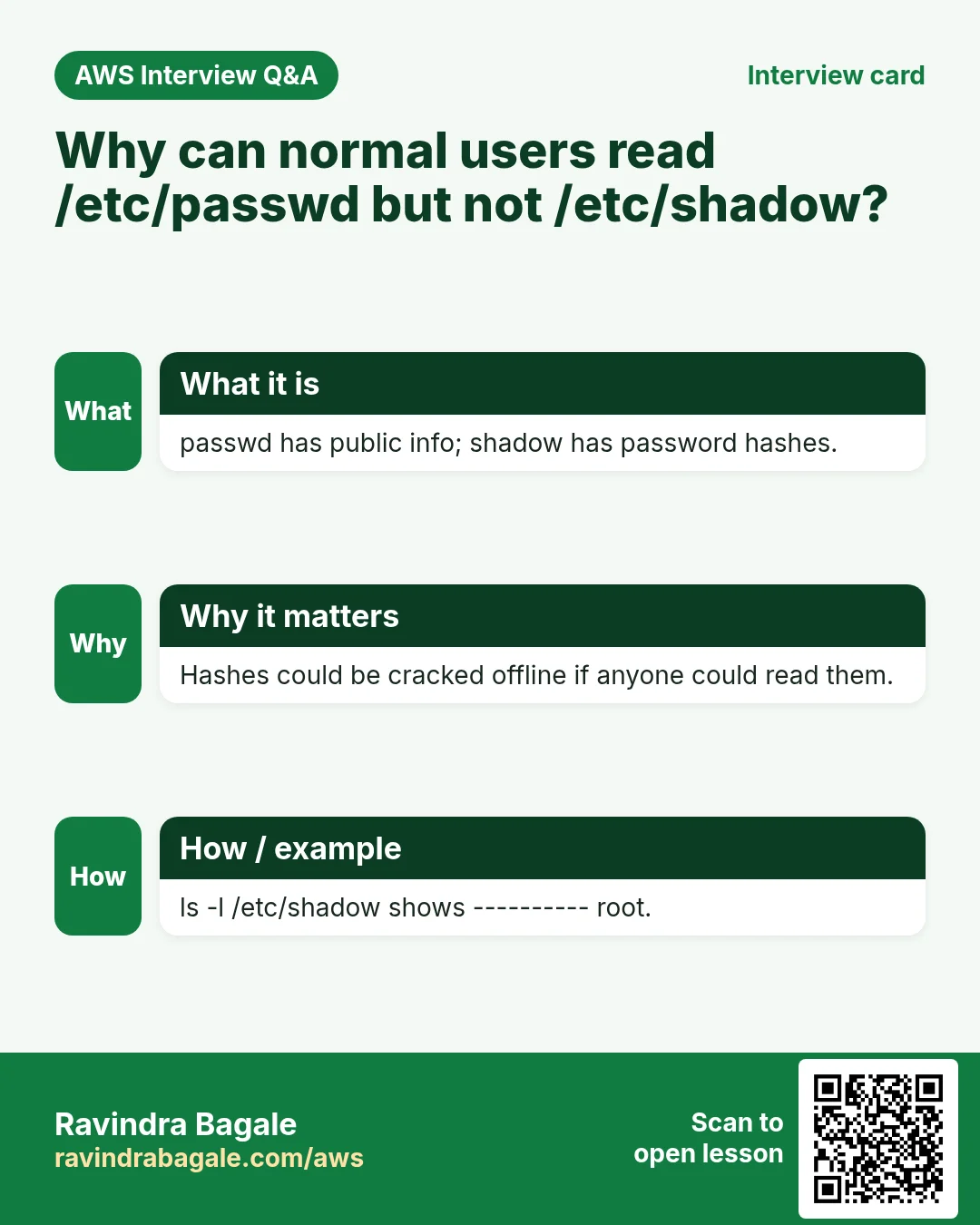
/etc/passwdis the list of users. One line = one user. Everyone can read it./etc/shadowholds the password hashes. Only root can read it.- A hash can't be turned back into the password. A forgotten password is never "read back"; it is reset with
sudo passwd USERNAME.
A line of /etc/passwd has seven fields separated by :
ec2-user:x:1000:1000:EC2 Default User:/home/ec2-user:/bin/bash
ec2-user: the user name.x: the password is kept in/etc/shadow.1000: the UID.1000: the group ID.EC2 Default User: a comment./home/ec2-user: the home folder./bin/bash: the login shell./sbin/nologinhere means the account can't log in, which is normal for system users.
- Run
cat /etc/passwd. Every user is listed. - Run
cat /etc/shadow. You getPermission denied: a normal user can't read it. - Run
sudo cat /etc/shadow. As root it works.
Figure 2. One line of /etc/passwd: user name, x, UID, group ID, comment, home folder and shell. /etc/shadow holds the password hashes and only root can read it.
4. grep: find text without opening the file
Find a line in a file and then find the file itself
Create a disposable folder with a file named web.log. Put HTTP 200 on one line and HTTP 404 on the next. From that folder, grep -nF 'HTTP 404' web.log shows the matching text and its line number. -F asks for literal text, useful when you do not want punctuation to act as a pattern.
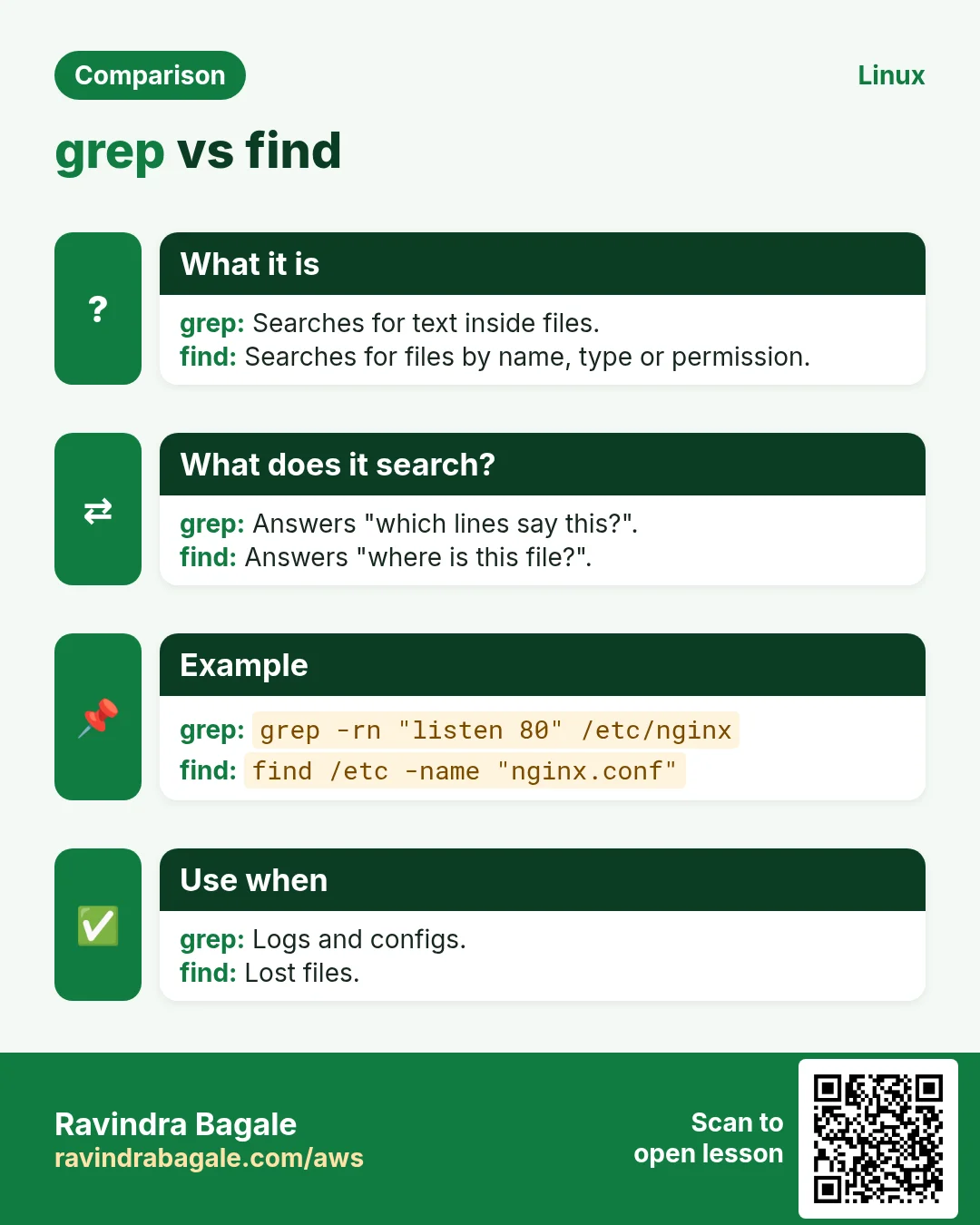
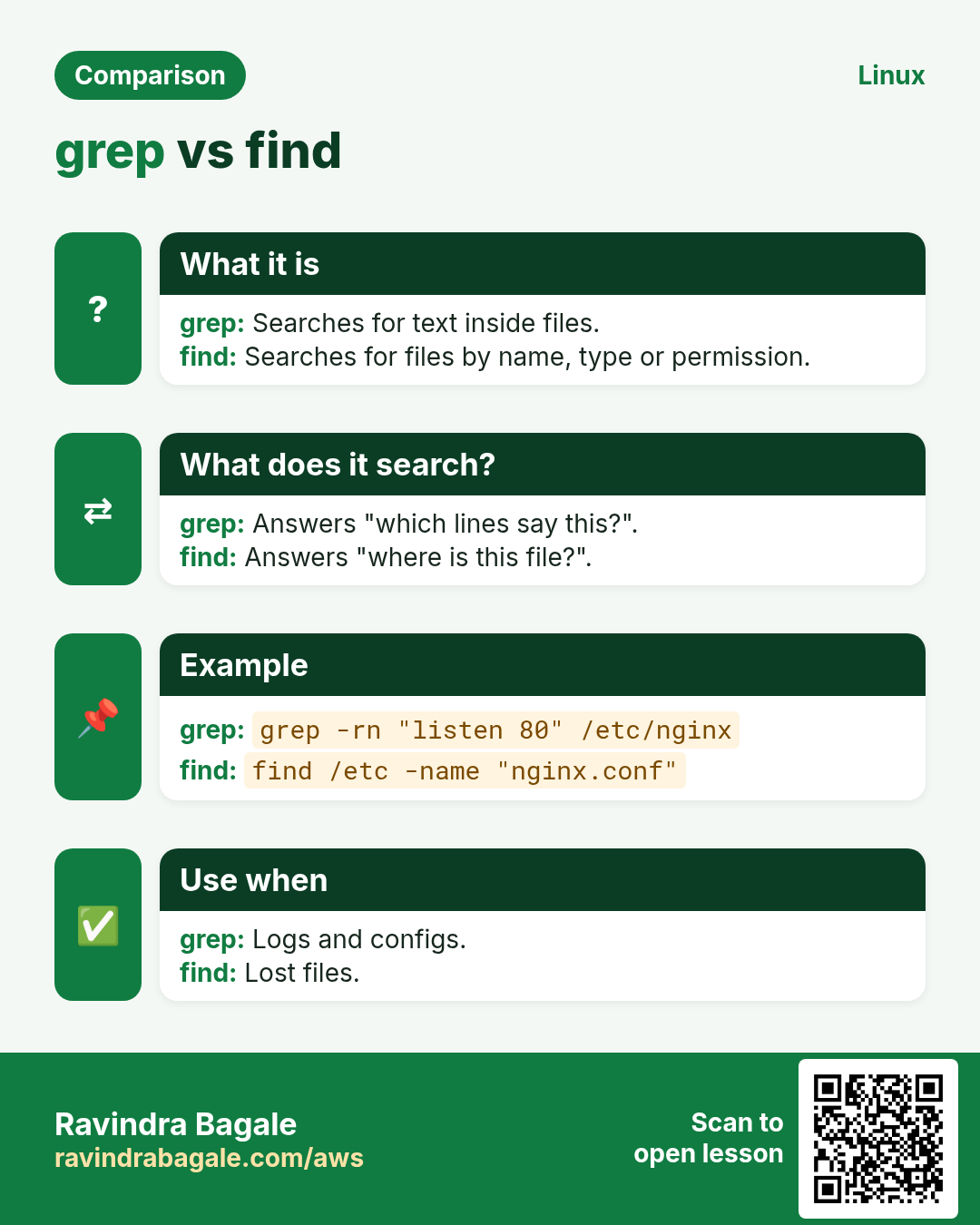
Try find . -type f -name '*.log'. Now you get a file path, not a line of file contents. Quotes keep your shell from expanding the star before find sees it. Use the first command to answer what is written here? and the second to answer where is the file?
A log file can have millions of lines. Opening it in an editor is slow and can even freeze the terminal, and scrolling up looking for one error wastes your time.
Classroom line
(Scrolling up a giant log looking for the error) Go up, where is it, go up... That's why we use grep.
Class मधलं वाक्य
(मोठ्या log मध्ये error शोधत वर scroll करताना) चला वर, कुठे आहे, चला वर... म्हणूनच आपण grep वापरतो.
Classroom line – हिंदी
"Chalo upar, kidhar hai, chalo upar..."
grep searches a file for a word (a pattern) and prints only the lines that contain it. The file is never opened in an editor.
Classroom line
It's grep, not grapes!
Class मधलं वाक्य
Grep, द्राक्षं नाही!
Classroom line – हिंदी
"Grep, angoor nahi!"
Classroom line
This is also an interview question: how do you find a pattern without opening the file?
Class मधलं वाक्य
हा पण interview चा प्रश्न आहे: file न उघडता pattern कसा शोधायचा?
Classroom line – हिंदी
"Ye bhi ek interview ka sawal hai. Bina file open kiye pattern kaise find karunga?"
make a practice file, search it in vi, then with grep.
- Connect to your EC2 instance with SSH.
- Run
vi demo(vim demoworks the same). - Press
iand paste a few lines of text about Linux. - Press
Esc, type:wqand press Enter. - Open it again with
vi demo. - Type
/Linuxand press Enter. The cursor jumps to the first match. - Press
nfor the next match andNfor the previous one. - Type
:qto leave the editor. - Now run
grep "Linux" demo. Only the lines with Linux are printed, and the word is highlighted.

Whiteboard: grep "Linux" demo prints only the lines that contain Linux, with the word highlighted.
More examples:
grep ec2-user /etc/passwdprints your own user line.grep nologin /etc/passwdlists the accounts that can't log in.sudo grep -i "error" /var/log/httpd/error_logshows the errors in the Apache log (on Amazon Linux).
Classroom line
As a DevOps engineer, reading logs is your job.
Class मधलं वाक्य
DevOps engineer म्हणून logs वाचणं हे तुमचं काम आहे.
Classroom line – हिंदी
"As a DevOps engineer aapka kaam hota hai logs padhna."
5. The pipe: one command's output into the next
Some commands print a lot. Instead of reading all of it, you can pass it straight to grep and keep only what you need.
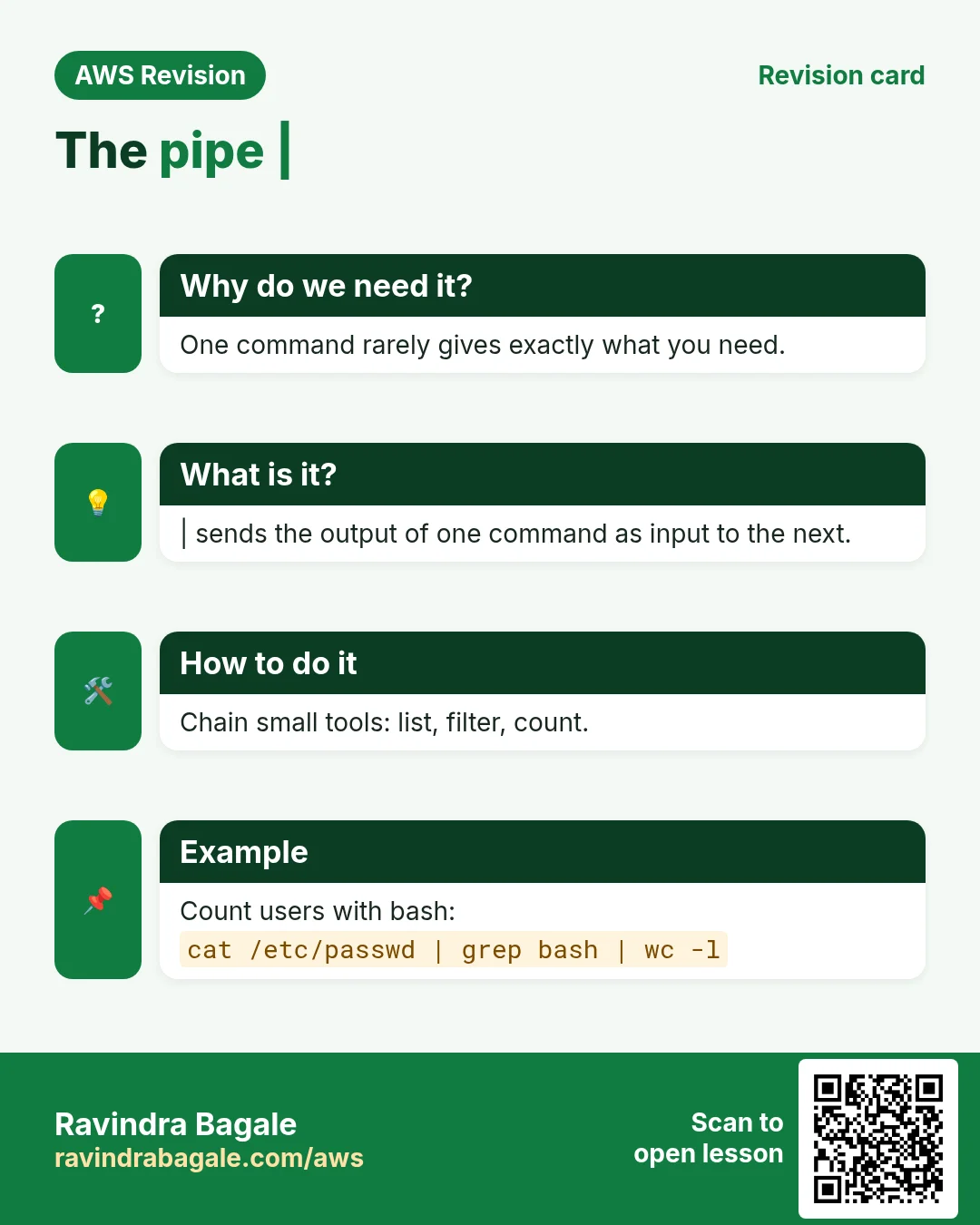
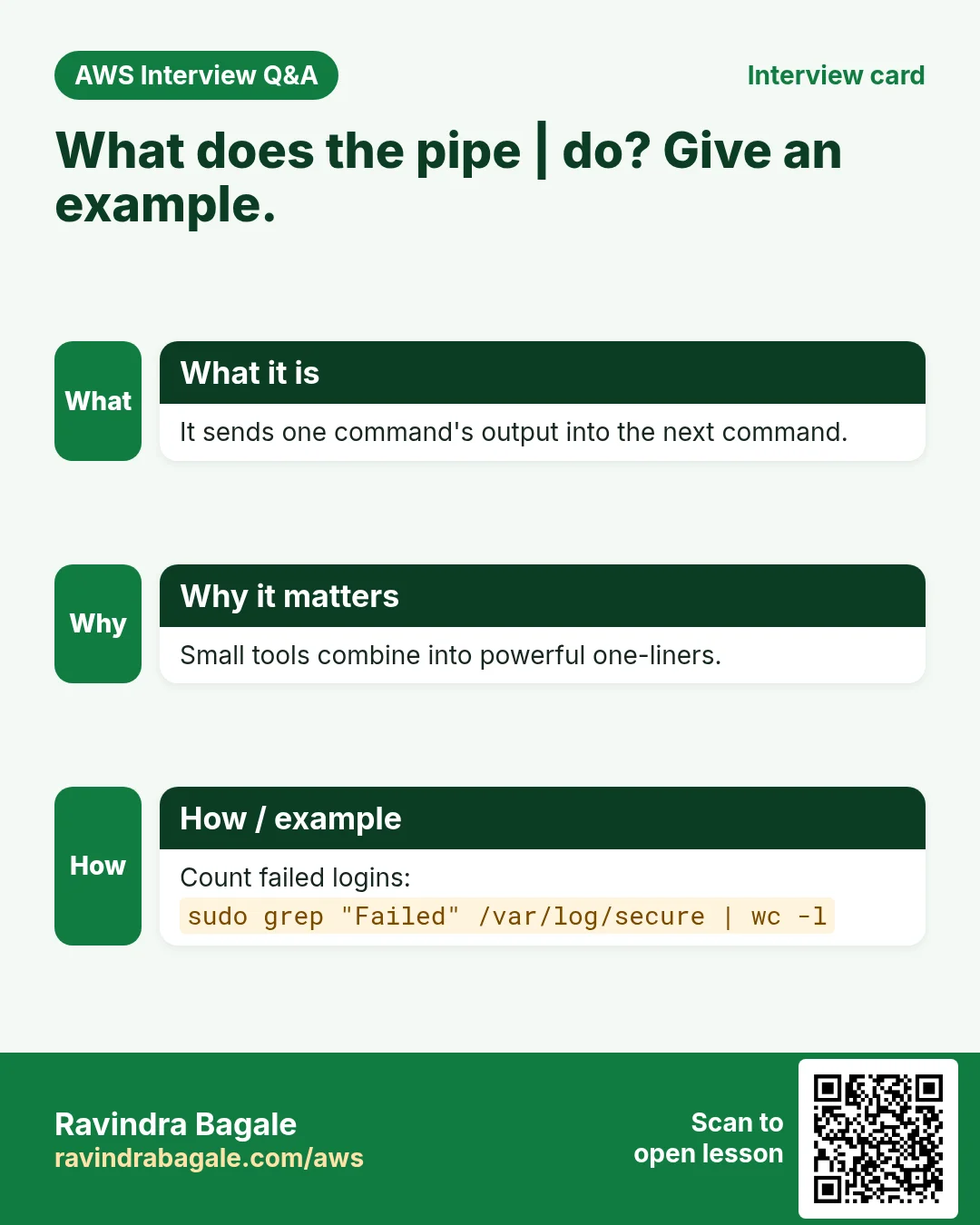
The pipe sign | takes everything the left command prints and gives it to the right command as its input.
- Run
cat /etc/passwd. Every user line scrolls past. - Run
cat /etc/passwd | grep ec2-user. Only your line is left. - Run
grep ec2-user /etc/passwd. Same result: grep can also read the file itself. - Run
ls /etc | grep conf. Only the names in/etcthat containconf.
Classroom line
I'll put this into a pipe, and put grep after it.
Class मधलं वाक्य
हे मी pipe मध्ये टाकेन, आणि त्याच्या पुढे grep टाकेन.
Classroom line – हिंदी
"Isko main pipe mein daal dunga, uske andar grep daal dunga."
Figure 3. Animation: cat /etc/passwd prints every line, the pipe hands the lines to grep, and grep keeps only the line with ec2-user.
6. grep options: -i, -r and -n
You don't always know the exact spelling, or which file has the word.
Classroom line
I don't know which file has the word, but I want to find it. How?
Class मधलं वाक्य
"Kuthlya file madhe to word ahe mala mahiti nahi, pan mala baghaycha ahe, mag mi kasa baghnar?"
कुठल्या file मध्ये तो word आहे मला माहिती नाही, पण मला बघायचा आहे, मग मी कसा बघणार?
Classroom line
I don't know which file has the word, but I want to find it. How?
- Case matters.
Linuxandlinuxare different words for grep. -iignores case:Linux,linuxandLINUXall match.-r(recursive) searches every file in a folder and in the folders inside it.-nadds the line number in front of every match.- Options can be joined:
-irn= ignore case + recursive + line numbers.
Classroom line
In Linux, everything is case-sensitive.
Class मधलं वाक्य
Linux मध्ये प्रत्येक गोष्ट case-sensitive असते.
Classroom line – हिंदी
"Linux me har ek cheez case sensitive hai."
grep -r "Linux" ~/searches every file in your home folder. Each line starts with the file name.grep -r "linux" ~/finds other lines: case matters.grep -i "linux" ~/stops withIs a directory: grep reads files, and a folder is not a file.grep -ir "linux" ~/works:-rlets grep go into the folder.grep -irn "linux" ~/also shows the line numbers, asfile:line:text.man grepopens the full manual (pressqto quit).grep --helpprints a short list of options.
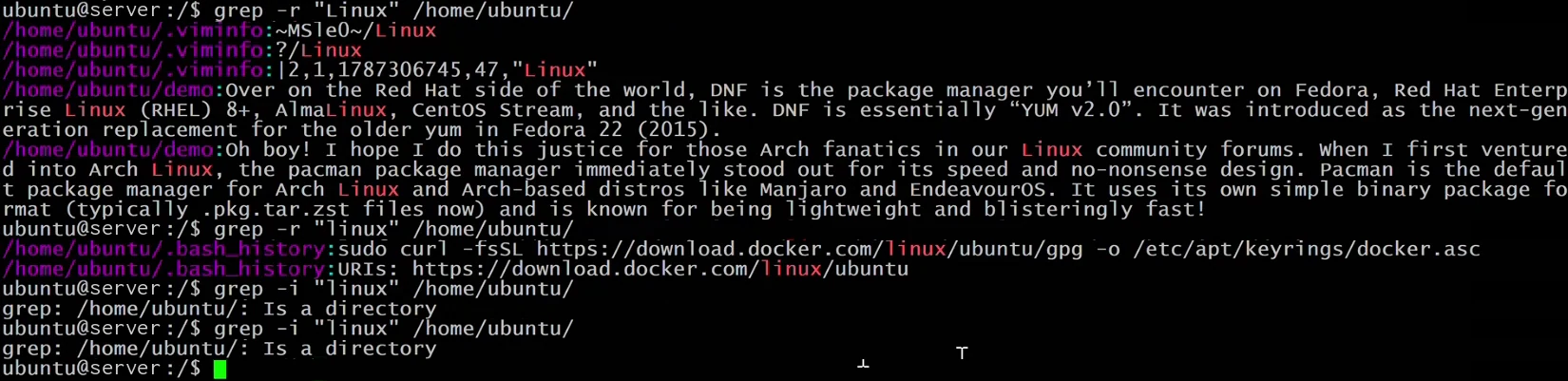
Whiteboard: grep -r searches every file in the folder; "Linux" and "linux" find different lines; without -r, grep on a folder says Is a directory.

Whiteboard: grep -irn: ignore case, every file in the folder, and the line number after each file name.
Classroom line
The best way: make a mistake, read the error, understand it, and try again.
Class मधलं वाक्य
सगळ्यात चांगला मार्ग: चूक करा, error येईल, तो समजून घ्या, आणि परत try करा.
Classroom line – हिंदी
"Sabse best way hai, galti karo, error aayega, usko samjho, fir se try karo."
Figure 4. grep options: exact case by default, -i to ignore case, -r for a whole folder, -n for line numbers. grep on a folder without -r says Is a directory.
One more listing trick: ls -R lists a folder and every folder inside it, like a tree. Try ls -R ~/.
7. find: find the file itself
grep needs to know where to look. When you don't know where a file is, you need find.
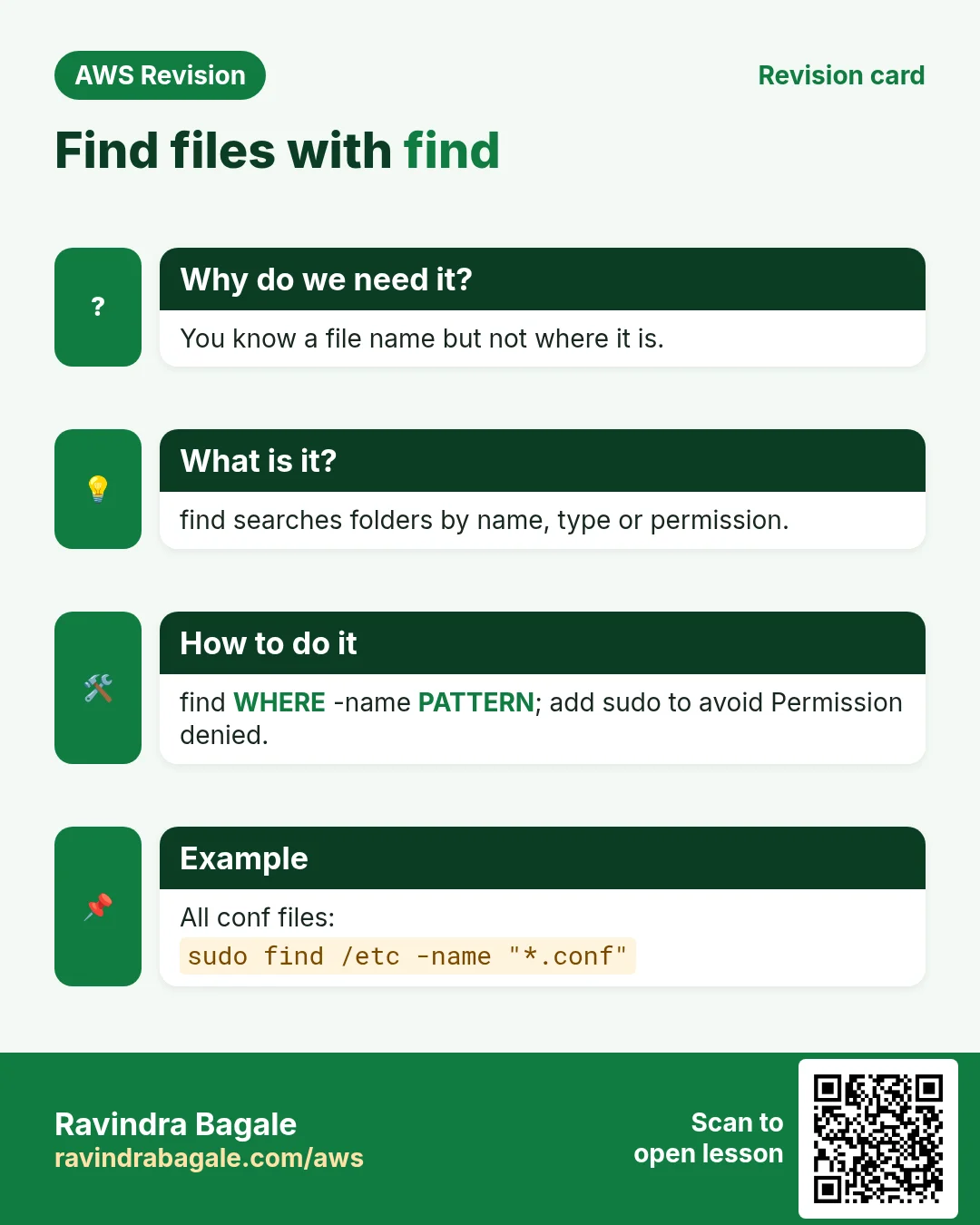
find walks through a folder and every folder below it and prints the path of each match.
find WHERE -type f|d|l -name "NAME"
- WHERE: the folder to start from:
.(here),~/,/homeor/(the whole server). find always needs a starting folder; it doesn't read a list from a pipe. -type f= files,-type d= folders (directories),-type l= links.-name "NAME": the exact name.*is a wildcard:"*.log"= every name ending in.log.-perm 644: files with exactly that permission.
Classroom line
It goes into every file and searches.
Class मधलं वाक्य
तो प्रत्येक file मध्ये जाऊन शोधतो आहे.
Classroom line – हिंदी
"Har ek file ke andar jake search kar raha hai."
find . -name "demo"findsdemoin the current folder and below.find /home -name "demo"starts from/home.find . -name "*.log"lists all.logfiles here and below.find / -name "passwd"from the whole server, as a normal user, prints a flood ofPermission deniedlines for folders you may not read.sudo find / -name "passwd"reads every folder and lists every match.find / -name "passwd" 2>/dev/nullis another way: it hides the error lines and keeps the results.sudo find / -type f -name "passwd"lists files only; a folder calledpasswdis skipped.sudo find / -type d -name "nginx"lists folders only.sudo find /var/www -perm 644lists files with permission 644.
If you forget -name before the name, find stops with paths must precede expression. Add -name and run it again.
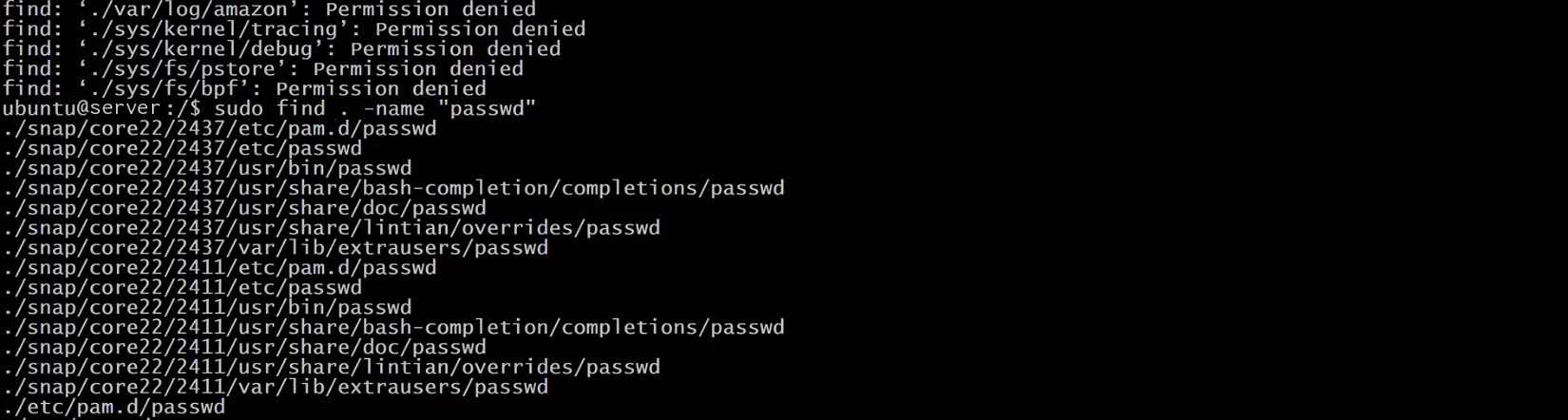
Whiteboard: Without sudo, find prints Permission denied for folders it can't read. With sudo it lists every passwd file with its full path.
Figure 5. Reading sudo find / -type f -name "passwd" from left to right, with more examples for wildcards, folders and permissions.
Figure 6. Animation: find opens every folder from the starting point. Without sudo some folders print Permission denied; with sudo every match is listed.
8. find | grep, and counting with wc -l
Search a selected group of files without breaking names that contain spaces
For an exercise in your practice folder, put one matching line in web files.log. Now run find . -type f -name '*.log' -exec grep -nH -F 'HTTP 404' {} +. Read it in two pieces. find chooses the log files by name. -exec passes those paths as separate arguments to grep, which searches their contents. A space inside a filename stays part of that filename.
Expect a line containing the filename, a line number and the matching text. If nothing appears, first run just the plain find command to prove that filenames matched. Then check the search text in one known file. This tells you which stage of the combined command found nothing.
Sometimes you want every path that has a word anywhere in it, or you just want to know how many there are.
findprints full paths.grepthen keeps the lines (paths) that contain the word.- grep matches the word anywhere in the path, folder names included.
wc -lcounts lines.
sudo find / -type f | grep "passwd"lists every file whose path contains passwd.- Look closer: a file such as
/usr/share/doc/passwd/copyrightis listed only because a folder in its path is called passwd. - For files whose own name contains passwd, use find alone:
sudo find / -type f -name "*passwd*". - Add
| wc -lto count:sudo find / -type f -name "*passwd*" | wc -l.
Figure 7. find | grep matches the word anywhere in the path; find -name matches only the file name. Add | wc -l to count.
9. Why admins grep logs
Logs are the server's diary. When a site goes down or someone tries to break in, grep turns millions of lines into the five that matter.
On your own servers (on-premises, in a company data centre) or on EC2, someone has to answer questions like "who logged in last night?" and "did anyone try to break in?". The answers are in log files, and grep finds them in seconds.
- On Amazon Linux:
sudo journalctl -u sshd | grep "Accepted"shows successful SSH logins. sudo journalctl -u sshd | grep -E "Failed|Invalid"shows failed attempts.- On Ubuntu the same lines are also in
/var/log/auth.log:sudo grep "Accepted" /var/log/auth.log.
Figure 8. Who logged in? grep the SSH log for Accepted (successful logins) and Failed or Invalid user (failed attempts).
Linux is a multi-user system: many people can be logged in over SSH at the same time, each doing their own work. Run who to see who is logged in right now.
10. The whole flow on one page
idshows your UID: root 0, system users 1 to 999, normal users 1000+.cat /etc/passwdlists users;sudo cat /etc/shadowshows hashes (root only); reset passwords withsudo passwd USERNAME.grep "word" fileprints matching lines; in vi,/word,n,N.command | grep wordfilters another command's output.-iignore case,-rwhole folder,-nline numbers;Is a directorymeans add-r.find WHERE -type f -name "NAME";sudofor the whole server, or2>/dev/null.find ... | grep wordmatches anywhere in the path;-namematches the name only;| wc -lcounts.journalctl -u sshd | grep "Accepted"(Amazon Linux) orgrep "Accepted" /var/log/auth.log(Ubuntu) shows who logged in.
11. Hands-on lab: find users, text and files from the terminal
On a server you can't scroll through every file. This lab answers real questions (who am I, which users exist, where is a file, which file mentions a word) with grep, find and the pipe.
- Check your UID
- Command:
id - You should see: A line starting with
uid=1000(ec2-user) gid=1000(ec2-user), withwheelamong the groups. - Check:
id root→uid=0(root) gid=0(root) groups=0(root) - Why: Linux decides what you may do by your number: 0 is root, 1 to 999 are system users, 1000 and up are people.
wheelis whysudoworks for you.
- Command:
- Find your line in /etc/passwd
- Command:
grep ec2-user /etc/passwd - You should see:
ec2-user:x:1000:1000:EC2 Default User:/home/ec2-user:/bin/bash - Check: Seven fields separated by
:; the last is the shell. - Why: grep prints only matching lines, so you get one line instead of the whole file.
- Command:
- Try to read /etc/shadow
- Command:
cat /etc/shadow - You should see:
cat: /etc/shadow: Permission denied - Check:
sudo grep ec2-user /etc/shadowprints one line starting withec2-user:. - Why: Password hashes live in
/etc/shadow, readable only by root. Everyone can read/etc/passwdbecause it holds no passwords.
- Command:
- Ignore case and number the lines
- Command:
grep -in ROOT /etc/passwd - You should see: Lines such as
1:root:x:0:0:root:/root:/bin/bash, each with its line number. - Check: Without
-i,grep ROOT /etc/passwdprints nothing. - Why:
-ihelps when you don't know the exact spelling;-ntells you which line to open in an editor.
- Command:
- Search a whole folder
- Command:
mkdir -p ~/lab/logs && echo "error disk full" > ~/lab/logs/a.log && echo "all good" > ~/lab/logs/b.log && grep -r error ~/lab - You should see:
/home/ec2-user/lab/logs/a.log:error disk full - Check: Only
a.logis listed. - Why:
-rlooks inside every file in every subfolder, and prints the file name in front of each match.
- Command:
- Count with a pipe
- Command:
grep -c bash /etc/passwd - You should see: A small number, such as
2(root and ec2-user). - Check:
grep bash /etc/passwd | wc -lprints the same number. - Why: The pipe
|sends one command's output into the next. Here both ways count the users who can log in with bash.
- Command:
- Find a file by name
- Command:
sudo find / -type f -name passwd - You should see: Paths such as
/etc/passwd,/etc/pam.d/passwdand/usr/bin/passwd. - Check: Each line is a full path ending in exactly
passwd. - Why:
findsearches for the file itself, starting at/.sudoavoids hundreds ofPermission deniedlines;-type fskips folders.
- Command:
- Find by pattern, then filter
- Command:
find ~/lab -name "*.log" - You should see:
/home/ec2-user/lab/logs/a.logand/home/ec2-user/lab/logs/b.log. - Check:
find ~/lab -name "*.log" | grep a.logkeeps only the first. - Why: Quotes stop the shell from expanding
*.logbeforefindsees it. Piping into grep filters the paths by any word.
- Command:
- Clean up
- Command:
rm -r ~/lab - You should see: Nothing.
- Check:
ls ~no longer showslab. Stop the instance. - Why: Practice files left on a server confuse the next search you run.
- Command:
- Set up practice files
- Command:
mkdir -p ~/logs/app ~/logs/sys && echo 'error disk full' > ~/logs/app/a.log && echo 'ERROR login failed' > ~/logs/app/b.log && echo 'info ok' > ~/logs/sys/c.log && echo 'demo' > ~/logs/demo.txt && ls -R ~/logs - You should see: Tree with
app/a.log,app/b.log,sys/c.log,demo.txt. - Check: Each file has the text above (
cat ~/logs/app/a.log). - Why: A small tree beats grepping system files while you learn the switches.
- Command:
- Verify case-insensitive search
- Command:
grep -i error ~/logs/app/*.log - You should see: Both
error disk fullandERROR login failed. - Check: Without
-i, only the lowercase line matches. - Why: Logs mix ERROR/error;
-icatches both.
- Command:
- Verify recursive grep with line numbers
- Command:
grep -rn error ~/logs - You should see: Paths + line numbers for every match under
~/logs. - Check:
sys/c.logis absent (no "error" there). - Why:
-rwalks folders;-nshows where in the file.
- Command:
- find from / and read Permission denied
- Command:
find /home -name 'demo.txt' 2>/dev/null; find / -name 'passwd' 2>/tmp/find-err.txt | head; wc -l /tmp/find-err.txt - You should see: First command prints
/home/ec2-user/logs/demo.txt. Second finds/etc/passwdamong others; the err file has manyPermission deniedlines. - Check:
sudo find / -name 'passwd' 2>/dev/nullis quieter and still finds it. - Why: Normal users cannot read every folder. Redirect stderr or use sudo when you mean to search the whole disk.
- Command:
- Confirm cleanup
- Command:
rm -rf ~/logs /tmp/find-err.txt && ls ~/logs - You should see:
No such file or directoryfor~/logs. - Check: Practice files are gone.
- Why: Leave the server tidy after a lab.
- Command:
12. Try at home
Try at home
Task 1: users
- Run
idandsudo idand compare the UIDs. - Run
grep ec2-user /etc/passwdand name all seven fields. - Run
grep nologin /etc/passwd | wc -lto count the accounts that can't log in. - Try
cat /etc/shadow, thensudo cat /etc/shadow.
Task 2: grep
- Create
demowith a few lines that contain Linux and linux. - Run
grep "Linux" demo, thengrep -i "linux" demo, and compare. - Run
grep -i "linux" ~/, read the message, then fix it with-r. - Add
-nand find the line numbers.
Task 3: find
find ~/ -name "demo".find / -name "passwd", then the same withsudo.sudo find / -type f -name "*passwd*" | wc -l.sudo find / -type f | grep "passwd" | wc -l, and explain why the count is different.
Common errors and fixes
| Error / symptom | Fix |
|---|---|
grep: … Is a directory | Add -r, or name files (*.log), not the folder alone. |
Flood of Permission denied | Append 2>/dev/null, or run sudo find when you really need the whole disk. |
| No matches but you know the word is there | Try -i; check you are in the right folder (pwd). |
find missed the file | Wrong start path, or typo in -name. Quote patterns with *. |
| Pipe printed nothing | Left command failed or printed to stderr only; test each side alone. |
FAQ
Q. grep or find?
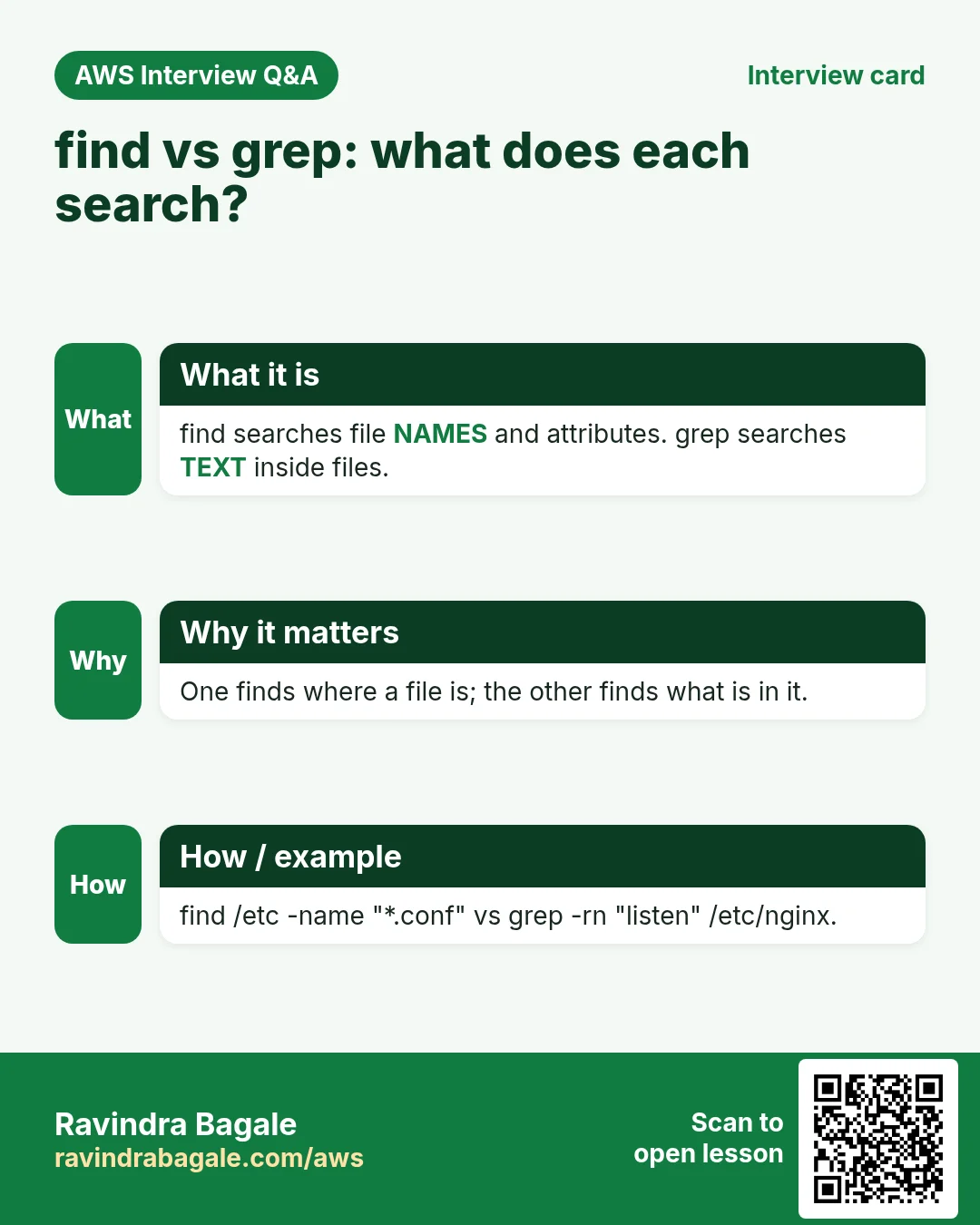
grep = text inside files. find = file names/paths (and times, sizes).
Q. Why the pipe?
Each tool does one job well. find … | grep … filters the path list.
Q. Will grep change the file?
No. It only prints matching lines.
Q. What is 2>?
File descriptor 2 is stderr. Redirect it so Permission denied noise does not hide real hits.
Recap
In short
- root is UID 0, system users 1 to 999, normal users 1000 and up; a sudo user is a normal user allowed to act as root.
/etc/passwdlists users (seven fields);/etc/shadowholds password hashes, root only; forgotten passwords are reset, never read.grepprints only matching lines without opening the file; in vi,/word,nandN.- The pipe
|sends one command's output into the next. - grep is case-sensitive;
-i,-rand-nfix that, search folders and add line numbers. A folder without-rgivesIs a directory. find WHERE -type f -name "NAME"finds files by name, type or permission; usesudo(or2>/dev/null) for the whole server.find | grepmatches anywhere in the path,-namematches the name only, andwc -lcounts.- Admins grep the logs to see who logged in.
Practise this chapter
Interview questions and answers
How would you find which file holds a 404 error when you have several folders of logs?
First use find with a quoted filename pattern to locate the relevant log files. Then search them with grep, keeping filename and line number in the output. Checking the filename stage separately helps explain an empty result.
Why quote '*.log' for find -name but sometimes leave a star unquoted in a shell command?
find must receive the pattern itself to match it while walking directories. An unquoted star can expand in the current shell before find runs. Leaving it unquoted is appropriate only when you intend the shell to select names at that point.
Check your understanding
Choose an answer, then compare your reasoning with the explanation.
Practice Tasks
Practice checks run in your browser. They check the answer for this exercise; they do not create resources or connect to your AWS account.
About this scenarioTokyo Ramen House is a restaurant business in Tokyo. Yuki Tanaka looks after its IT and cloud work. They count money in JPY and run their AWS resources in the ap-northeast-1 Region. In the tasks below you do real jobs for them using what this lesson teaches. All names, account IDs, IP addresses and numbers are made up for practice.
0 / 10
Easy Check memory
If RAM is full the server slows down or kills apps.
Show used and free memory in human-readable units.
- Find the Linux command that does this job.
- Add the options (like -r or -h) the task needs.
- Add the file names, folders or users in the right order.
- Use sudo if the job changes system files or users. Click Check answer.
Easy Find errors in a log
grep shows only the lines that contain a word, so you find problems fast.
Show every line containing ERROR in /var/log/tokyoramen/app.log.
- Find the Linux command that does this job.
- Add the options (like -r or -h) the task needs.
- Add the file names, folders or users in the right order.
- Use sudo if the job changes system files or users. Click Check answer.
Medium Count matching lines
A count tells you quickly how often something happened today.
Count how many lines in /var/log/nginx/access.log contain " 404 ".
- Find the Linux command that does this job.
- Add the options (like -r or -h) the task needs.
- Add the file names, folders or users in the right order.
- Use sudo if the job changes system files or users. Click Check answer.
Medium Case-insensitive search with line numbers
Logs mix "Timeout" and "TIMEOUT". Line numbers help you open the exact spot.
Search for timeout in /var/log/tokyoramen/api.log, ignoring upper/lower case, and show line numbers.
- Find the Linux command that does this job.
- Add the options (like -r or -h) the task needs.
- Add the file names, folders or users in the right order.
- Use sudo if the job changes system files or users. Click Check answer.
Medium Find files by name
find searches folder trees for files that match a pattern.
Find all files ending in .log under /var/log/tokyoramen.
- Find the Linux command that does this job.
- Add the options (like -r or -h) the task needs.
- Add the file names, folders or users in the right order.
- Use sudo if the job changes system files or users. Click Check answer.
Medium Permission number
Key files must be private.
What chmod number gives the owner read+write and nobody else anything?
- Write down the numbers the task gives you.
- Work it out step by step on paper.
- Type only the final answer in the box.
- Click Check answer.
Hard Find big files
When the disk is full, find large files first.
Find files bigger than 100 MB anywhere under /var.
- Find the Linux command that does this job.
- Add the options (like -r or -h) the task needs.
- Add the file names, folders or users in the right order.
- Use sudo if the job changes system files or users. Click Check answer.
Hard Search a whole folder
Settings can hide in any file. A recursive search checks them all.
Find every line that mentions DB_HOST in all files under /etc/tokyoramen, with line numbers.
- Find the Linux command that does this job.
- Add the options (like -r or -h) the task needs.
- Add the file names, folders or users in the right order.
- Use sudo if the job changes system files or users. Click Check answer.
Hard Find old files
Old files fill the disk. -mtime +N finds files changed more than N days ago.
Find regular files under /backup/tokyoramen that were changed more than 42 days ago.
- Find the Linux command that does this job.
- Add the options (like -r or -h) the task needs.
- Add the file names, folders or users in the right order.
- Use sudo if the job changes system files or users. Click Check answer.
Hard Find a running process
A pipe sends the full process list into grep so you see only what matters.
List all processes and show only the lines that contain node.
- Find the Linux command that does this job.
- Add the options (like -r or -h) the task needs.
- Add the file names, folders or users in the right order.
- Use sudo if the job changes system files or users. Click Check answer.
Revision, comparison and interview cards
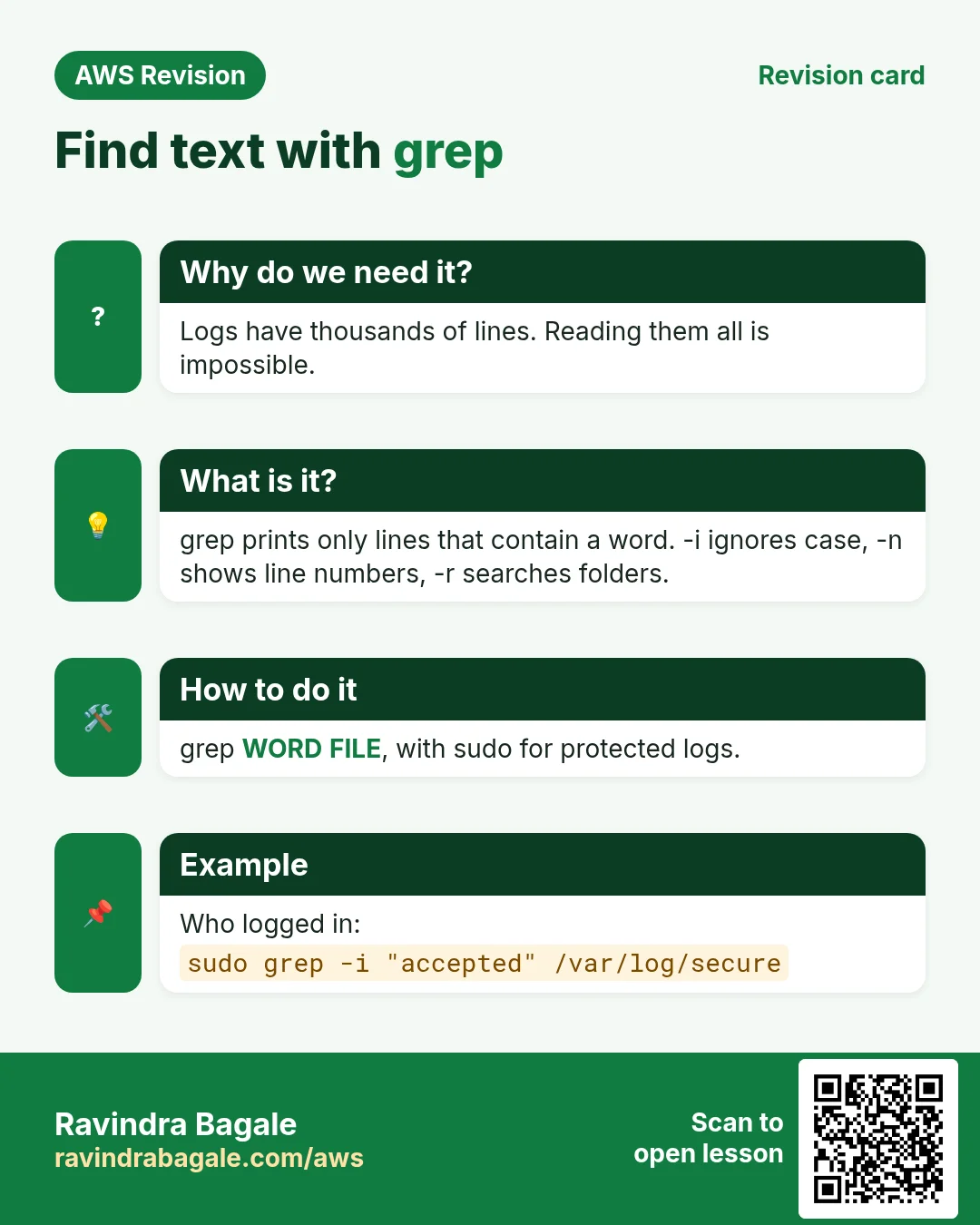
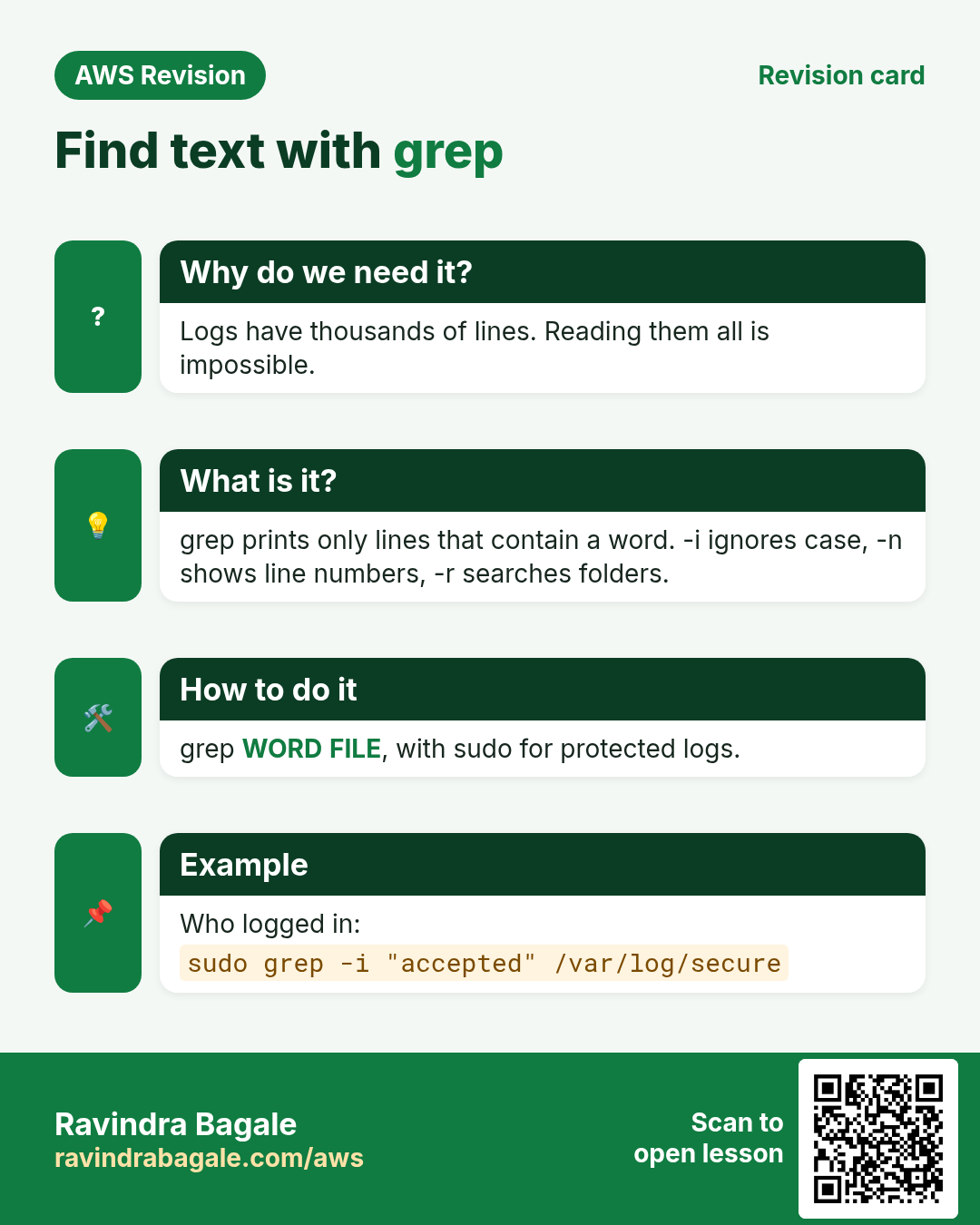
Revise this lesson in a few minutes. Save the cards on your phone or download them as PNG files. The QR code on each card opens this lesson.
More cards: Ravi Sir's Cards.