Linux File System Hierarchy (FHS) Explained: /etc, /var, /usr, /proc and More
On Windows you have C:\ and D:\. On Linux there is only one tree. It starts at / (root). Every file, disk, USB drive and even running process sits somewhere under /. Once you know which folder holds what, you will never feel lost on a server.
In this chapter
- Why Linux has a single tree starting at /
- What lives in /etc, /var, /home, /usr, /opt, /tmp, /boot, /dev
- The virtual folders /proc and /sys
- Where logs, configs and binaries go
- Absolute vs relative paths
- How disks are mounted into the tree
1. An everyday example: a big housing society
In a housing society in Kothrud there is one main gate. Inside, the office keeps rules and records. The parking holds vehicles. Each flat belongs to one family. The store room holds shared tools. Nobody keeps cars in the office.
Main gate = /. Office with rules = /etc. Records that keep growing = /var. Flats = /home/
2. The root / and the FHS standard
If every distro put files in random places, no script or person could work across servers. A shared map is needed.
The Filesystem Hierarchy Standard (FHS) says which top folder holds what. Everything starts at /. Note: / is the root of the tree. /root is the home folder of the root user. They are different.
| Folder | Holds | Example |
|---|---|---|
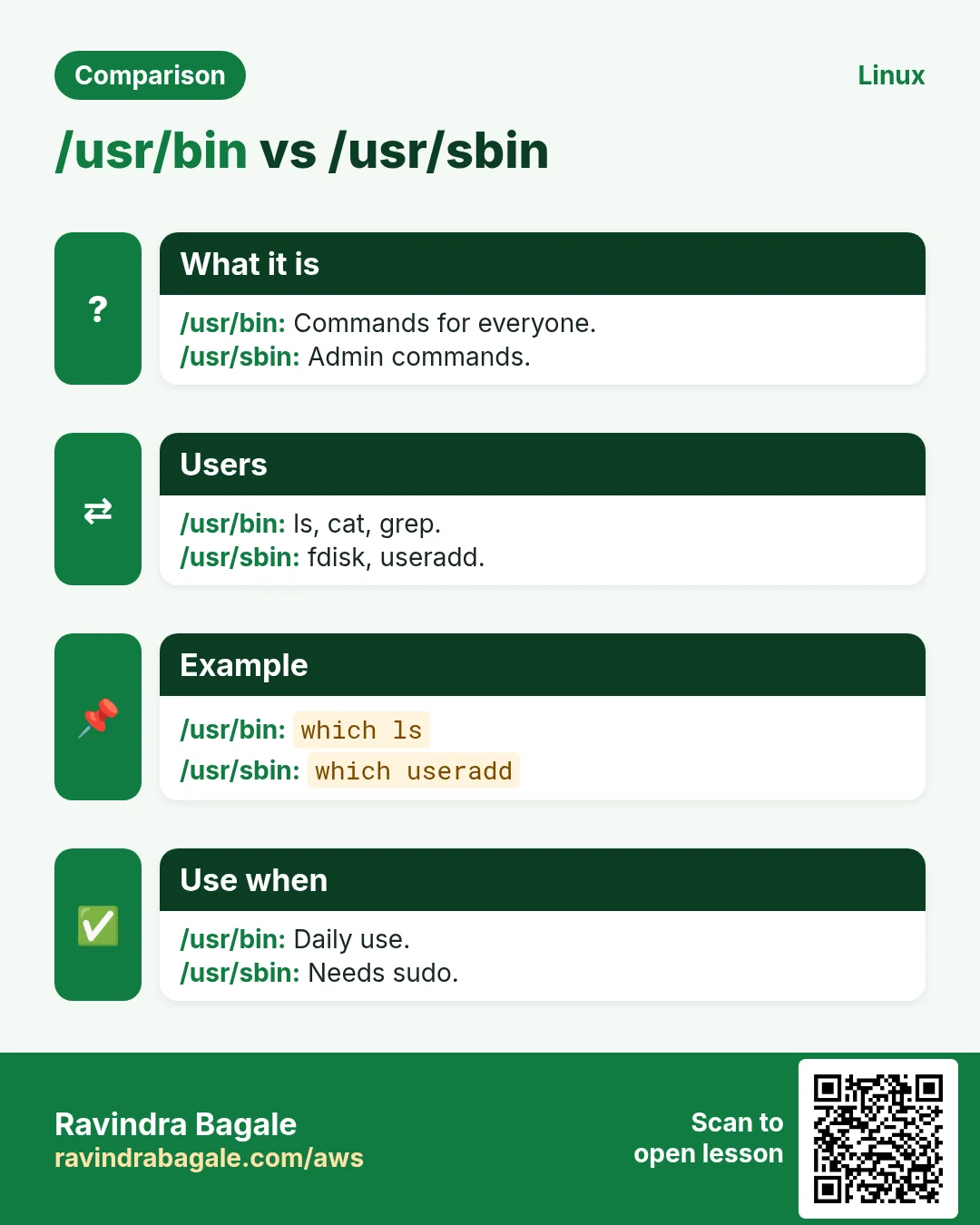
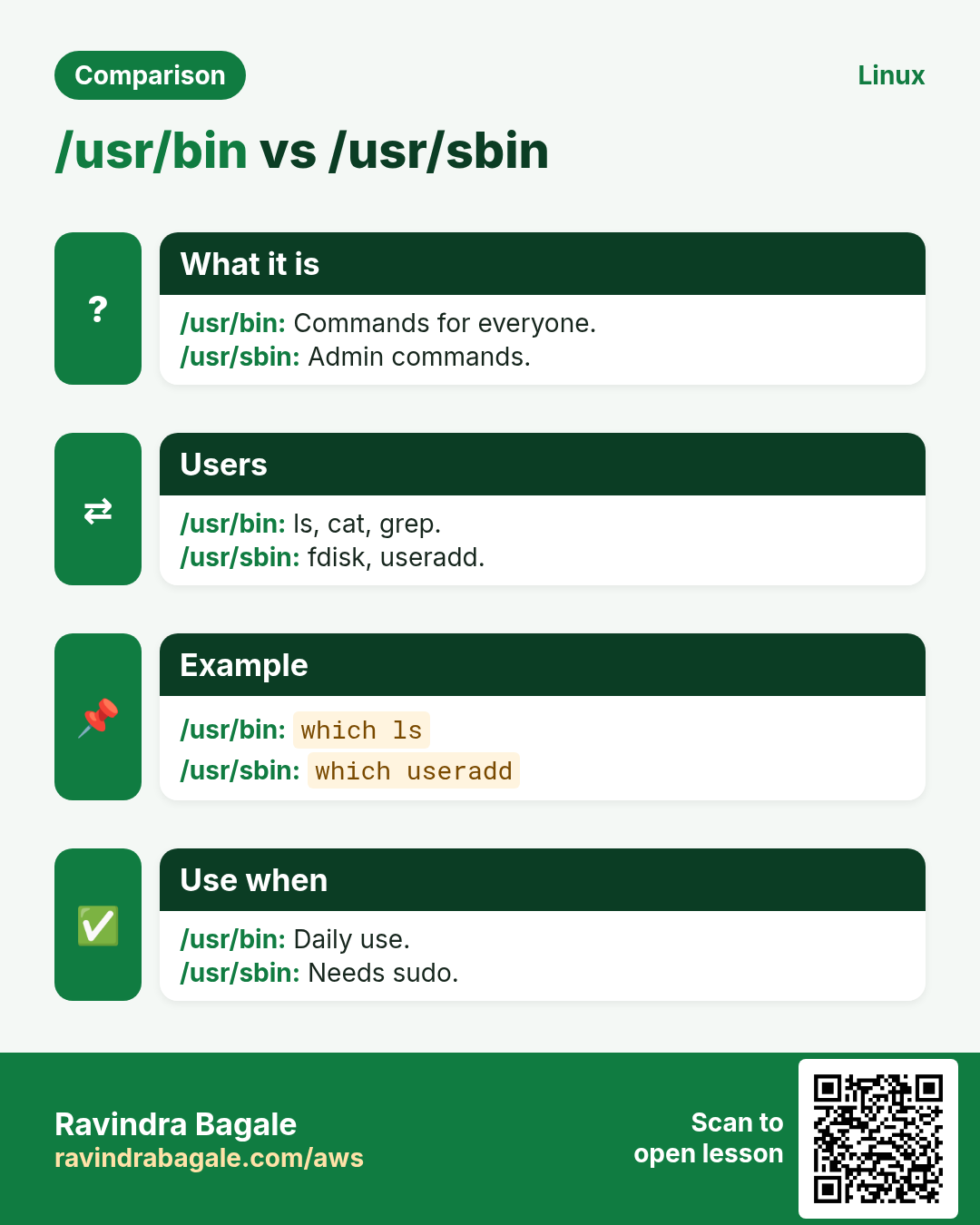
| /bin, /sbin | Basic commands (now links to /usr) | ls, ip |
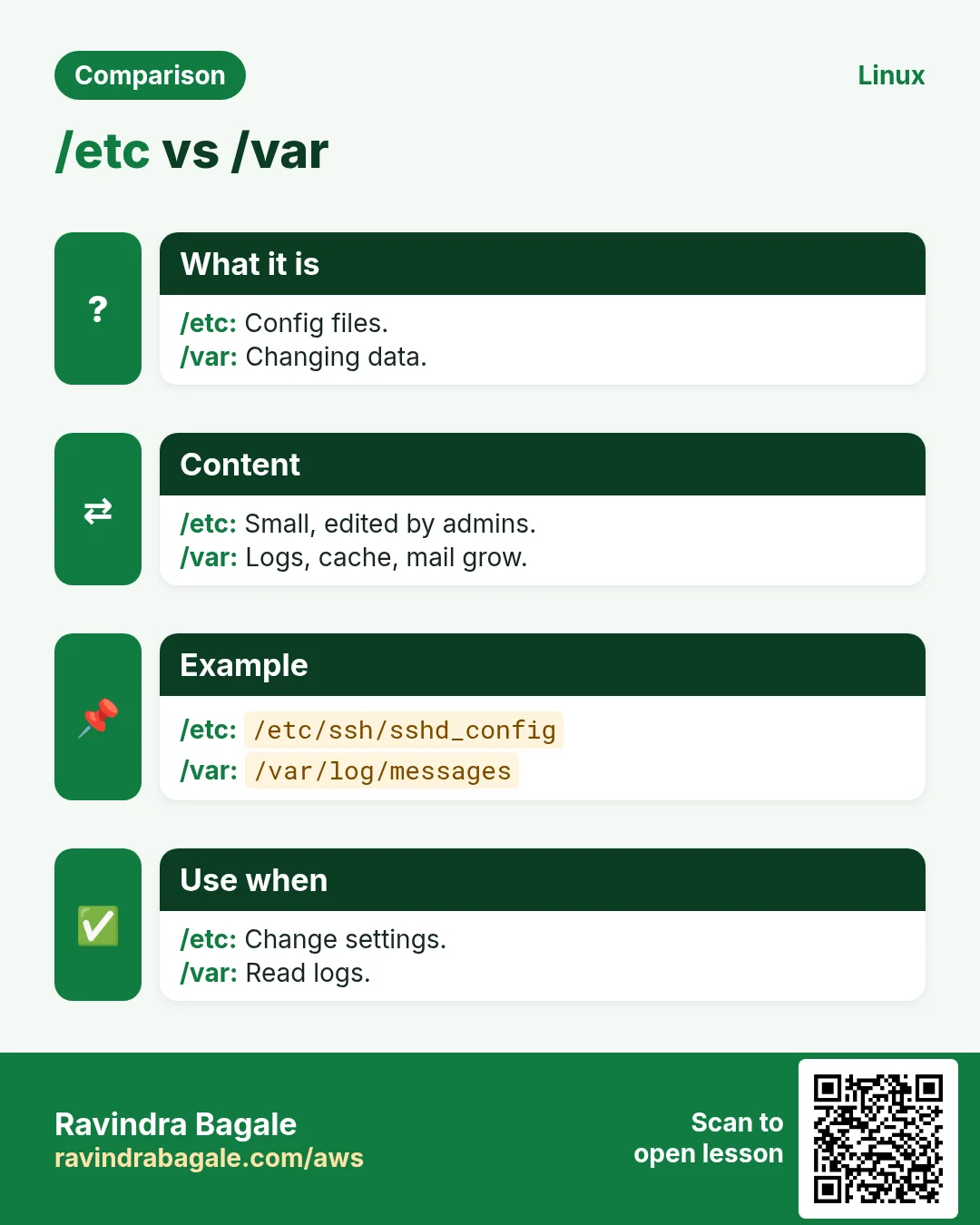
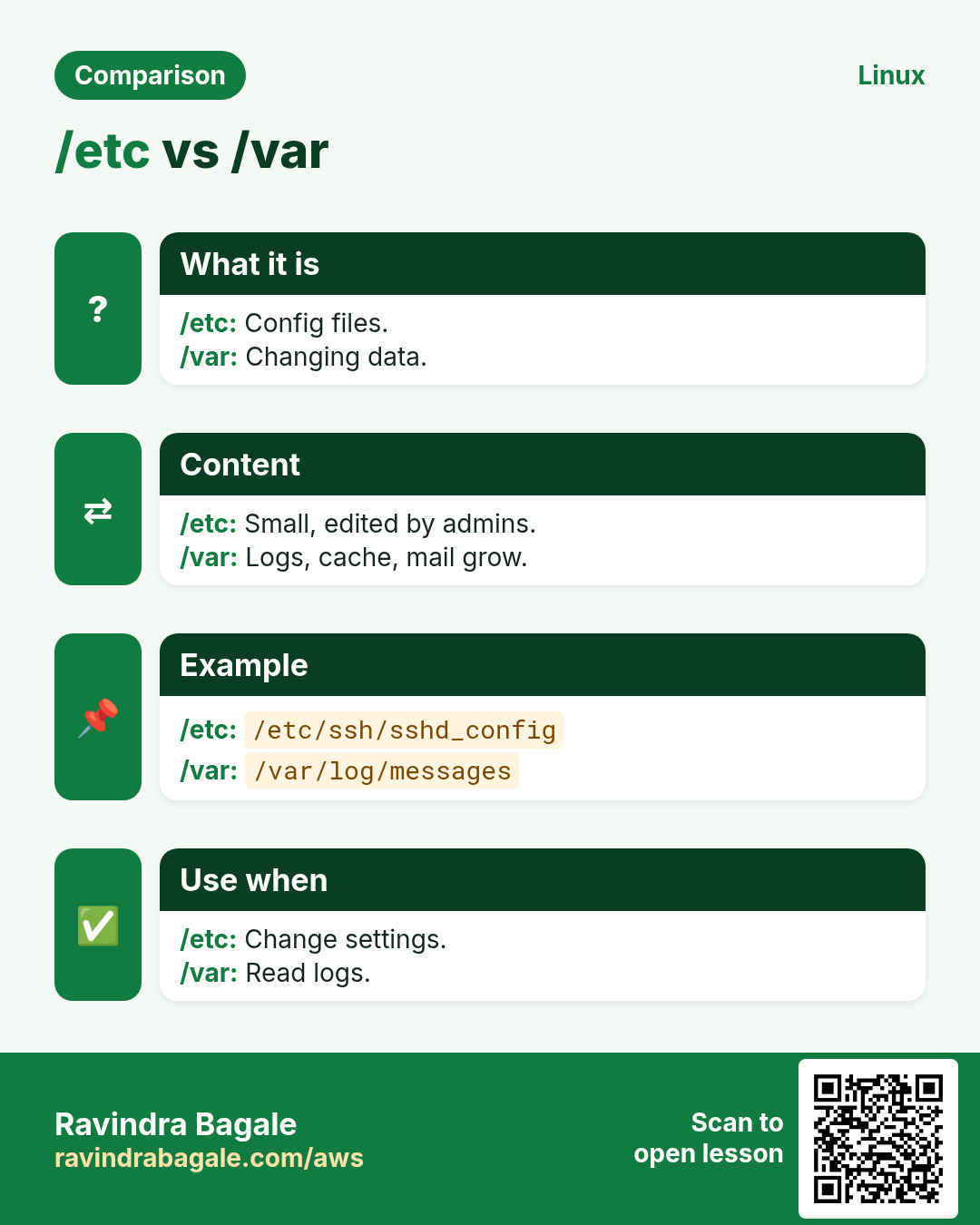
| /etc | System config files | /etc/ssh/sshd_config |
| /home | Users' personal folders | /home/meera |
| /root | root user's home | /root/.bashrc |
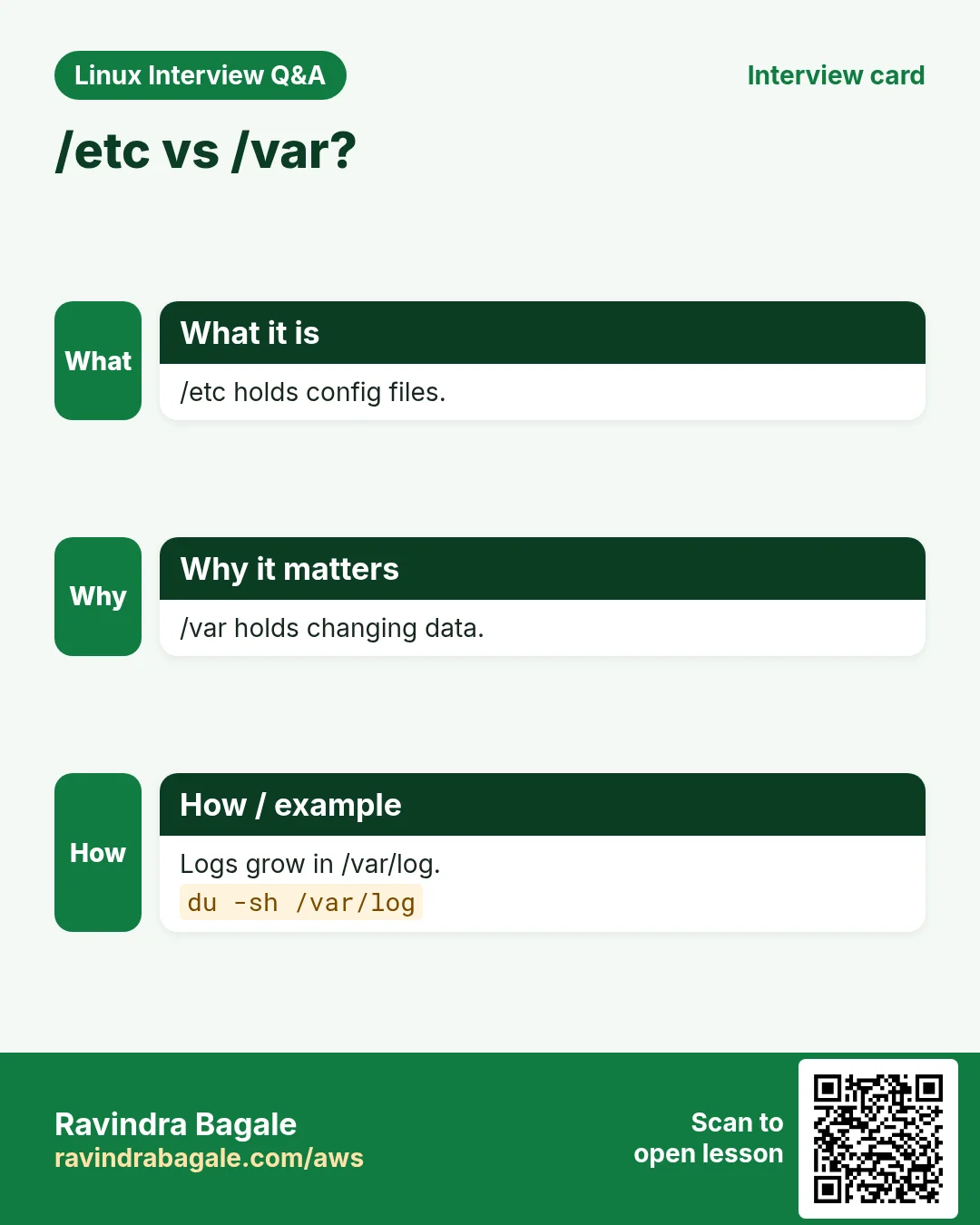
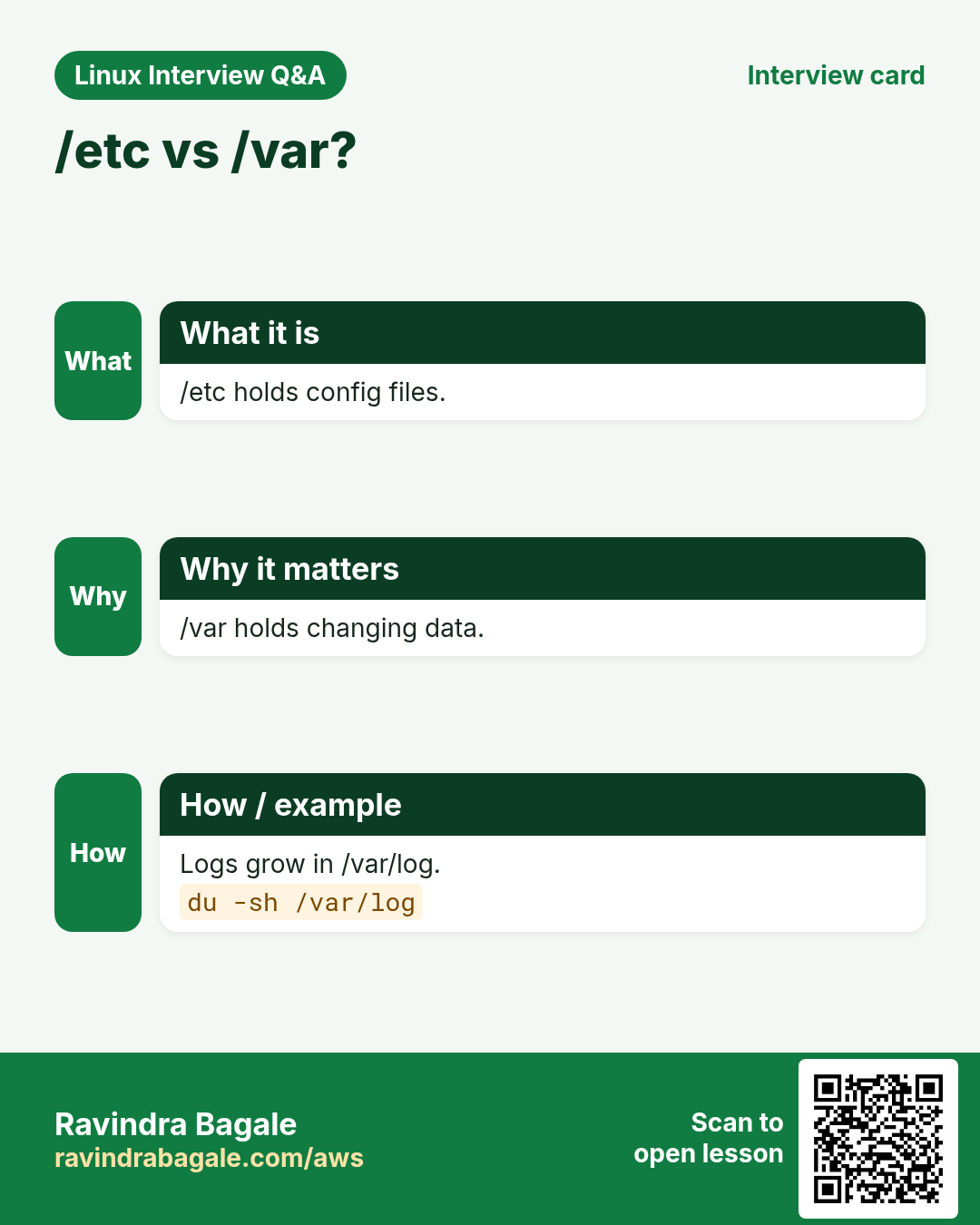
| /var | Changing data: logs, caches, mail, databases | /var/log/syslog |
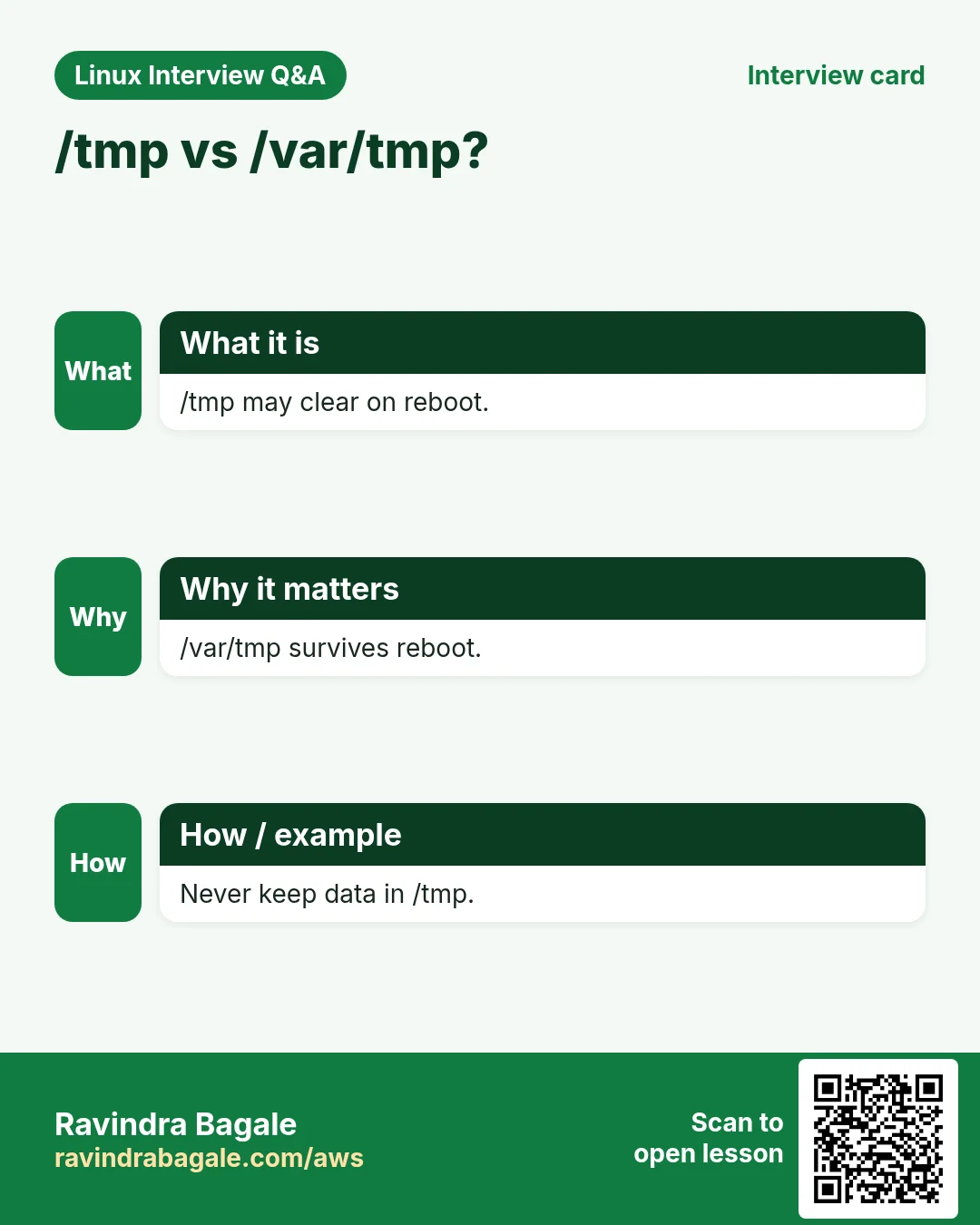
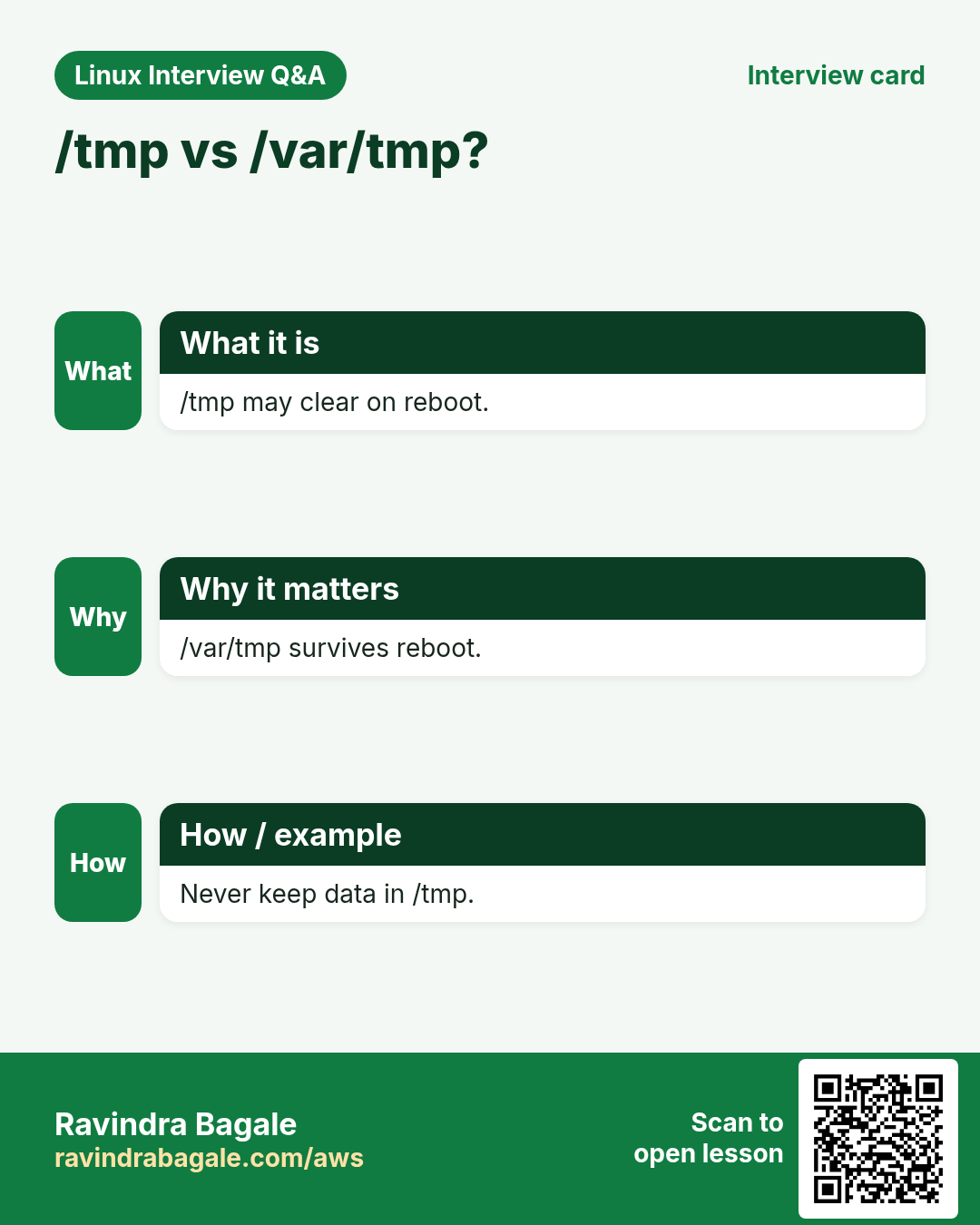
| /tmp | Temporary files, cleaned often | /tmp/upload123 |
| /usr | Installed programs and libraries | /usr/bin/python3 |
| /opt | Add-on vendor software | /opt/splunk |
| /boot | Kernel, initramfs, GRUB | /boot/vmlinuz-* |
| /dev | Device files | /dev/sda, /dev/null |
| /proc, /sys | Live kernel info (virtual) | /proc/cpuinfo |
| /mnt, /media | Mount points for disks and USB | /mnt/backup |
| /srv | Data served by this host | /srv/www |
| /run | Runtime data since boot (PID files, sockets) | /run/sshd.pid |
- List the top of the tree.
ls /Output:
bin boot dev etc home lib media mnt opt proc root run sbin srv sys tmp usr varThese are the standard FHS folders.
- See it as a tree one level deep.
tree -L 1 /Output:
/
├── bin -> usr/bin
├── boot
├── etc
...
bin is a link to usr/bin on new distros.
- Read the built-in manual on the layout.
man hierOutput:
HIER(7)  Linux Programmer's Manual
NAME  hier - description of the filesystem hierarchy
man hier explains each folder.
3. /etc: the configuration office
You change how a service behaves by editing its config. You must know where configs live.
/etc holds text config files for the system and services: users (/etc/passwd), groups, hosts, DNS (/etc/resolv.conf), mounts (/etc/fstab), SSH, cron, nginx and more. No binaries go here.
- See the user list file.
head -3 /etc/passwdOutput:
root:x:0:0:root:/root:/bin/bash
daemon:x:1:1:daemon:/usr/sbin:/usr/sbin/nologin
bin:x:2:2:bin:/bin:/usr/sbin/nologin
Each line: user, UID, GID, home, shell.
- See the local name lookup file.
cat /etc/hostsOutput:
127.0.0.1 localhost
10.0.1.20 db01.internal db01
db01 resolves to 10.0.1.20 without DNS.
- See DNS servers.
cat /etc/resolv.confOutput:
nameserver 127.0.0.53
search ap-south-1.compute.internal
DNS goes to the local resolver first.
- Back up a config before editing.
sudo cp -a /etc/ssh/sshd_config /etc/ssh/sshd_config.bak.$(date +%F)A dated copy lets you roll back.
4. /var: data that keeps changing
Logs and caches grow every minute. If they fill the disk, services crash. You must know where to look.
/var (variable) holds /var/log (logs), /var/cache (package caches), /var/lib (state of apps and databases, like /var/lib/mysql and /var/lib/docker), /var/spool (print and mail queues) and /var/www (web files on many distros).
- See the log folder.
ls /var/logOutput:
auth.log cloud-init.log dpkg.log journal nginx syslogauth.log = logins. syslog = general. nginx = web logs.
- Find which /var folder is biggest.
sudo du -sh /var/* 2>/dev/null | sort -h | tail -3Output:
120M /var/cache
1.1G /var/log
6.4G /var/lib
/var/lib is biggest (Docker or a database).
- Follow a log live.
sudo tail -f /var/log/nginx/access.logOutput:
10.0.0.5 - - [25/Oct/2026:10:40:01 +0530] "GET / HTTP/1.1" 200 612Each new request appears. Ctrl+C to stop.
5. /home, /root, /usr, /opt, /tmp
You need to know where your own files go, where programs are installed and where it is safe to put scratch files.
/home/
- Go home and print where you are.
cd ~ && pwdOutput:
/home/meera~ means /home/meera for user meera.
- Find where a program is installed.
command -v nginxOutput:
/usr/sbin/nginxPackage-installed admin tools go to /usr/sbin.
- Check /tmp permissions (sticky bit).
ls -ld /tmpOutput:
drwxrwxrwt 18 root root 4096 Oct 25 10:00 /tmpt at the end = sticky bit. Everyone can write, but only owners can delete their own files.
- Make a safe temp file.
mktempOutput:
/tmp/tmp.k3J9aQ2xZbA unique name avoids clashes with other users.
6. /dev: devices as files
Linux treats almost everything as a file. Disks, terminals and even 'nothing' have a file name. Tools can read and write them like normal files.
/dev holds device files: /dev/sda or /dev/nvme0n1 (disks), /dev/sda1 (partition), /dev/tty (terminal), /dev/null (a black hole), /dev/zero (endless zeros), /dev/random and /dev/urandom (random bytes).
- List block devices.
lsblkOutput:
NAME        MAJ:MIN RM  SIZE RO TYPE MOUNTPOINTS
nvme0n1     259:0    0   20G  0 disk
└─nvme0n1p1 259:1    0   20G  0 part /
nvme1n1     259:2    0  100G  0 disk /data
Two disks. The second is mounted at /data.
- Throw away output with /dev/null.
ls /nope 2>/dev/null; echo doneOutput:
doneThe error went into the black hole.
- Create a 100 MB test file from /dev/zero.
dd if=/dev/zero of=/tmp/test.img bs=1M count=100Output:
100+0 records in
100+0 records out
104857600 bytes (105 MB) copied, 0.1 s
Useful for disk speed tests.
7. /proc and /sys: live windows into the kernel
You want CPU info, memory, process details and kernel settings without special tools.
/proc and /sys are virtual. Nothing is on disk; the kernel makes the content when you read it. /proc has one folder per process (/proc/
- CPU model.
grep -m1 'model name' /proc/cpuinfoOutput:
model name : Intel(R) Xeon(R) Platinum 8259CL CPU @ 2.50GHzRead straight from the kernel.
- Free memory.
grep -E 'MemTotal|MemAvailable' /proc/meminfoOutput:
MemTotal:        3969436 kB
MemAvailable:    3101220 kB
About 3 GB of 4 GB is available.
- Look inside a process folder.
cat /proc/1/comm; ls -l /proc/self/cwdOutput:
systemd
lrwxrwxrwx 1 meera meera 0 Oct 25 10:45 /proc/self/cwd -> /home/meera
Process 1 is systemd. self = the current process.
- Read and change a kernel setting.
cat /proc/sys/net/ipv4/ip_forward; sudo sysctl -w net.ipv4.ip_forward=1Output:
0
net.ipv4.ip_forward = 1
IP forwarding is now on (until reboot; save it in /etc/sysctl.d/ to keep it).
- Check a disk's scheduler in /sys.
cat /sys/block/nvme0n1/queue/schedulerOutput:
[none] mq-deadlineThe active value is in brackets.
8. Paths and mounts: how disks join the tree
A path describes where to find something in the directory tree. A mount makes a file system appear at a directory in that tree. For example, /data may be a directory on the root file system until a separate disk is mounted there. The old directory contents are hidden by the mount, while a program writing under the path now reaches the attached file system.
Compare findmnt -T /var and df -h /var on your lab machine. The first command identifies the file-system mount that contains the path. The second reports its space usage. If both / and /var show the same source, they are using the same file system. If /var is on a different mount, its free space can differ from root even though the path starts with /.
A new 100 GB disk is useless until it appears somewhere in the tree.
An absolute path starts with / (like /var/log/syslog). A relative path starts from where you are (like logs/app.log). . is here, .. is one up. Mounting attaches a disk's file system to a folder (a mount point). /etc/fstab makes mounts permanent.
- Relative path walk.
cd /var/log && cd ../lib && pwdOutput:
/var/libFrom /var/log, .. goes to /var, then into lib.
- See what is mounted where.
findmnt -t ext4,xfsOutput:
TARGET SOURCE         FSTYPE OPTIONS
/      /dev/nvme0n1p1 xfs    rw,noatime
/data  /dev/nvme1n1   ext4   rw,relatime
Root is xfs. /data is a separate ext4 disk.
- Mount a new disk.
sudo mkfs.ext4 /dev/nvme2n1 && sudo mkdir -p /backup && sudo mount /dev/nvme2n1 /backup && df -h /backupOutput:
Filesystem      Size  Used Avail Use% Mounted on
/dev/nvme2n1     50G   24K   47G   1% /backup
The disk now lives at /backup.
- Make it permanent with UUID.
echo "UUID=$(sudo blkid -s UUID -o value /dev/nvme2n1) /backup ext4 defaults,nofail 0 2" | sudo tee -a /etc/fstab && sudo mount -aOutput:
UUID=9b2e... /backup ext4 defaults,nofail 0 2UUIDs do not change when disk names change.
9. Real examples from many industries
The same Linux skill shows up in every kind of company. Seeing it in many places helps you remember it.
Each row is a made-up team. It shows who uses this and how.
| Team and city | How they use it | Command |
|---|---|---|
| Rohan, DevOps, Pune | Cleans /var/log when disk hits 90% | du -sh /var/log/* |
| Sophie, web agency, Paris | Keeps sites in /var/www and configs in /etc/nginx | ls /etc/nginx/sites-enabled |
| Imran, database team, Karachi | Mounts a fast disk on /var/lib/postgresql | findmnt /var/lib/postgresql |
| Hana, SRE, Seoul | Tunes TCP through /proc/sys | sysctl net.core.somaxconn |
| Diego, analytics, Mexico City | Installs a vendor tool in /opt | ls /opt |
| Neha, security, Gurugram | Watches /var/log/auth.log for failed logins | grep 'Failed password' /var/log/auth.log |
| Oliver, ML, London | Reads GPU info from /sys and /proc | ls /sys/class/drm |
10. Common errors and how to fix them
Everyone hits these errors. Knowing the cause saves hours.
Read the exact message first. Then match it to a row below.
| Error you see | Why it happens | How to fix |
|---|---|---|
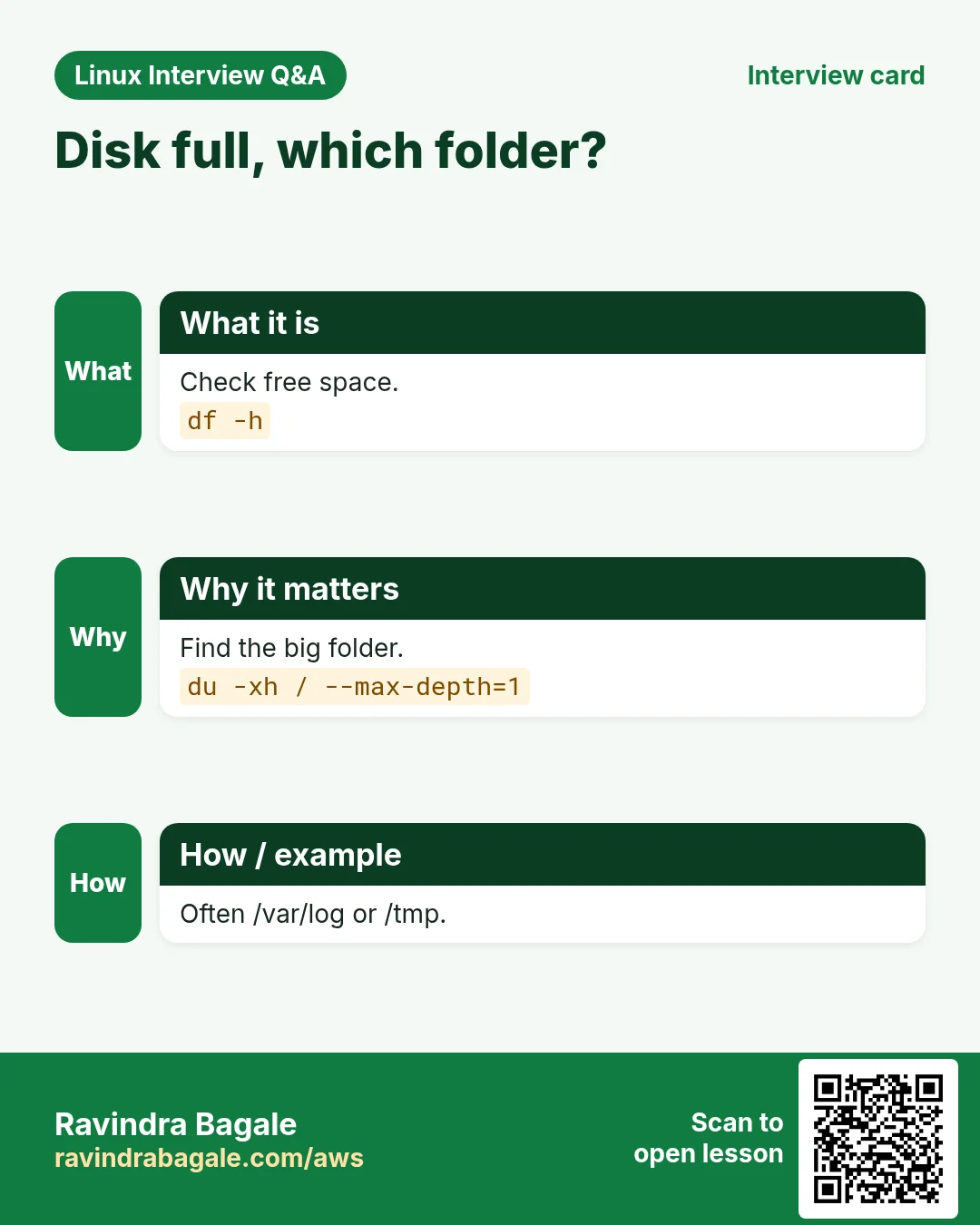
No space left on device | A partition (often / or /var) is full | Find big folders and clean logs or caches.sudo du -xh / --max-depth=2 | sort -h | tail |
No space left on device (but df shows free space) | Inodes are used up by millions of tiny files | Check inodes and delete the small files.df -i |
cd: /Var/log: No such file or directory | Linux paths are case sensitive | Use the exact case.cd /var/log |
mount: /backup: mount point does not exist. | The folder is not created | Create it first.sudo mkdir -p /backup |
mount: /data: wrong fs type, bad option, bad superblock | Disk has no file system yet or wrong type | Check with lsblk -f, format only if new.lsblk -f |
umount: /data: target is busy. | A process is using files on it, or you are inside it | cd out and find the process.sudo lsof +f -- /data |
Permission denied (writing in /etc) | Only root can change system configs | Use sudo, or sudo tee for redirects.echo x | sudo tee -a /etc/hosts |
sysctl: permission denied on key 'net.ipv4.ip_forward' | sysctl -w needs root | Add sudo.sudo sysctl -w net.ipv4.ip_forward=1 |
rm: cannot remove '/proc/1/status': Operation not permitted | /proc is virtual and read-only | Do not try to delete in /proc or /sys. |
11. Troubleshooting step by step
Most file-system issues are 'disk full', 'file not found' or 'mount failed'. Check them in this order.
Go top to bottom. Stop at the first step that shows the problem.
- Check free space per mount.
df -h- Check free inodes.
df -i- Find the biggest folders on that mount only.
sudo du -xh /var --max-depth=1 | sort -h- Find deleted files still held open.
sudo lsof +L1- Check the mount table.
findmnt- Compare fstab with real UUIDs.
blkid; cat /etc/fstab12. Lab 1: Disk-full fire drill
At Leela Travels in Goa, the website stops. df shows / at 100%. Find and fix it.
A full hands-on lab. Run every step on a test Linux machine (an EC2 instance, a VM, or WSL).
- Confirm.
df -h /Output:
/dev/nvme0n1p1 20G 20G 0 100% /- Find the big folder.
sudo du -xh / --max-depth=1 2>/dev/null | sort -h | tail -3Output:
1.9G /usr
2.4G /home
14G /var- Go deeper.
sudo du -xh /var --max-depth=2 | sort -h | tail -2Output:
13G /var/log
13G /var/log/app- See the files.
ls -lhS /var/log/app | head -3Output:
-rw-r--r-- 1 app app 12G Oct 25 10:50 debug.log- Empty it safely (the app keeps the file open).
sudo truncate -s 0 /var/log/app/debug.log- Verify.
df -h /Output:
/dev/nvme0n1p1 20G 7.1G 13G 36% /- Prevent it: add logrotate.
printf '/var/log/app/*.log {\n daily\n rotate 7\n compress\n missingok\n copytruncate\n}\n' | sudo tee /etc/logrotate.d/app13. Lab 2: Tour the tree like an auditor
Answer five audit questions using only FHS knowledge.
A full hands-on lab. Run every step on a test Linux machine (an EC2 instance, a VM, or WSL).
- Which users can log in with a shell?
grep -v nologin /etc/passwd | cut -d: -f1Output:
root
meera
ec2-user- Which DNS server is used?
grep nameserver /etc/resolv.confOutput:
nameserver 10.0.0.2- Which vendor apps are installed?
ls /optOutput:
aws splunkforwarder- How many CPUs?
grep -c ^processor /proc/cpuinfoOutput:
2- Who logged in recently?
sudo grep 'Accepted' /var/log/auth.log | tail -2Output:
Accepted publickey for meera from 49.36.10.4 port 51022 ssh2Ravindra Bagale's Tip
Remember three folders: config in /etc, logs in /var/log, your work in /home. That covers 80% of what you will touch on a server.
Ravindra Bagale's Tip – मराठी
तीन folders लक्षात ठेवा: config /etc मधे, logs /var/log मधे, तुमचं काम /home मधे. Server वर लागणारं 80% यात येतं.
Ravindra Bagale's Tip – हिंदी
तीन folders याद रखिए: config /etc में, logs /var/log में, आपका काम /home में। Server पर 80% काम इन्हीं में होता है।
14. Frequently asked questions
Q. What is the difference between / and /root?
/ is the top of the tree. /root is the home folder of the root user.
Q. Why is /bin a link to /usr/bin?
The 'usrmerge' change. Modern distros keep all programs in /usr and keep /bin as a link for old scripts.
Q. Is it safe to delete files in /tmp?
Old files, yes. Files in use by running programs, no. Let systemd-tmpfiles clean it.
Q. Does /proc use disk space?
No. It is created by the kernel in memory.
Q. Where should I install my own app?
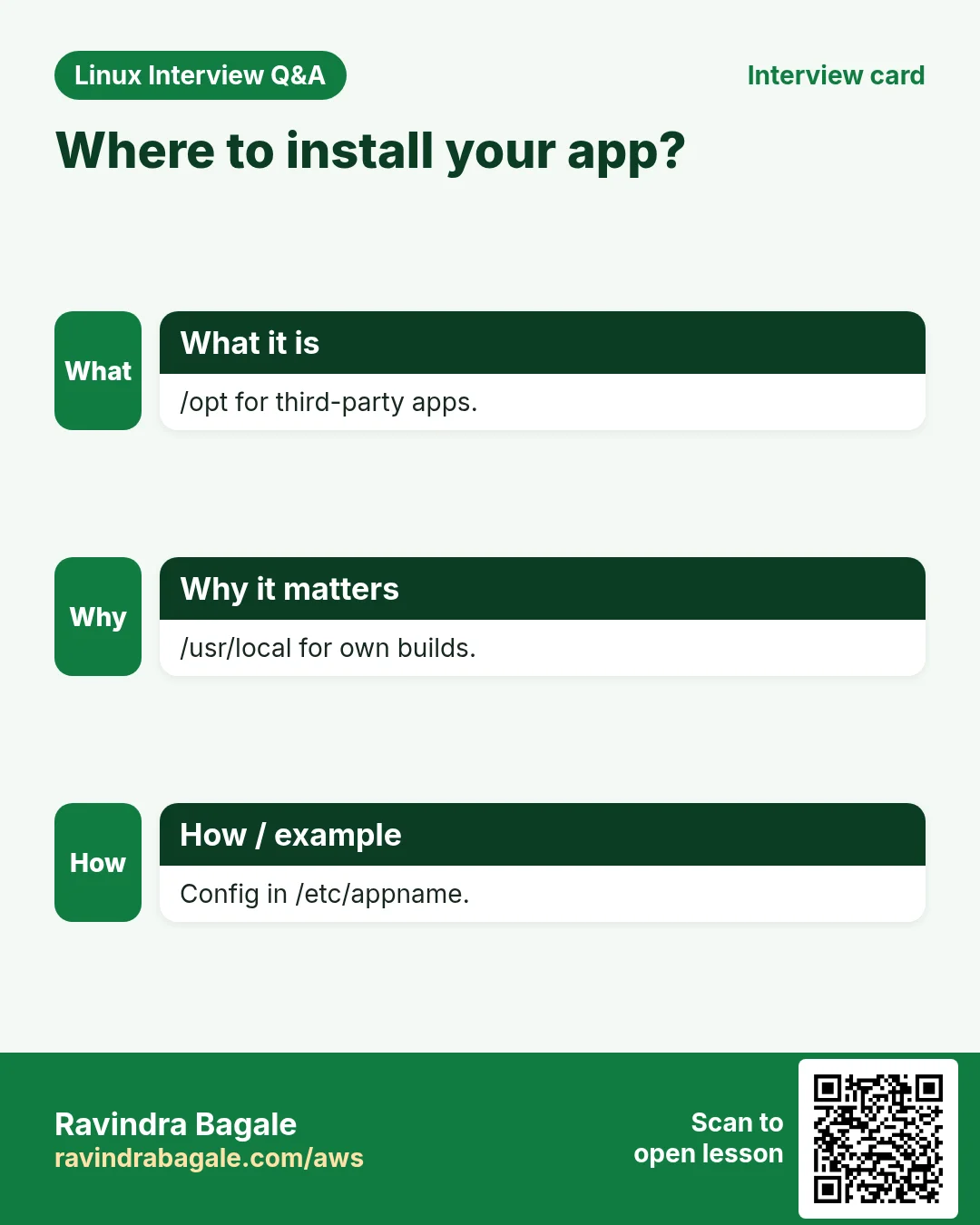
Packaged: /usr. Self-built: /usr/local. Big vendor bundle: /opt. Data: /srv or /var/lib/
15. Interview questions and answers
Beginner level
Q. What is stored in /etc?
Configuration files.
Q. Where are logs?
/var/log.
Q. What is ~?
Your home folder, like /home/meera.
Q. Absolute vs relative path?
Absolute starts with /. Relative starts from the current folder.
Mid level level
Q. What is /proc?
A virtual file system made by the kernel showing processes and kernel data.
Q. /usr/local vs /opt?
/usr/local for locally built software split into bin/lib. /opt for self-contained vendor packages.
Q. df shows full but du shows less. Why?
A deleted file is still open by a process. Find it with lsof +L1 and restart the process.
Q. What is the sticky bit on /tmp?
Everyone can write, but only the owner can delete their files.
Senior level
Q. Why put /var on a separate partition?
Logs or a database can fill it without filling / and crashing the OS.
Q. How do you make a sysctl change permanent and safe?
Put it in /etc/sysctl.d/99-name.conf, apply with sysctl --system, test on canary, manage it with config management.
Q. Inodes are full. What do you do long-term?
Find the app that writes many small files, add cleanup, or recreate the file system with more inodes (mkfs.ext4 -N) or use xfs.
Q. Why are fstab UUIDs better than /dev/sdb?
Device names can change between boots or instance types. UUIDs stay with the file system.
Try at home
- Run ls / and write one line about each folder.
- Find your CPU model from /proc/cpuinfo.
- Run df -h and df -i and compare.
Ask what owns the file or mount
Use stat and findmnt to distinguish an ordinary /etc config file from generated data under /proc. Inspect /var/log and package-owned files without editing them. Check whether /bin is a symlink on the distribution before assuming a separate tree.
Interview check Why does /proc look like a directory but behave differently?
It is a virtual filesystem exposing kernel and process information, so many entries do not behave like stored ordinary files.
Practise this chapter
Interview questions and answers
Why can a server say the log directory is full when the root file system still has space?
The log directory can be on a separate mount with its own available space. I would use findmnt with the log path to see the backing file system and df with that same path. Then I would investigate growth or cleanup on the actual full volume.
Check your understanding
Choose an answer, then compare your reasoning with the explanation.
Practice Tasks
Practice checks run in your browser. They check the answer for this exercise; they do not create resources or connect to your AWS account.
About this scenarioLondon Legal LLP is a law business in London. Oliver Hughes looks after its IT and cloud work. They count money in GBP and run their AWS resources in the eu-west-2 Region. In the tasks below you do real jobs for them using what this lesson teaches. All names, account IDs, IP addresses and numbers are made up for practice.
0 / 16
Easy List the top of the tree
Know the top folders.
List the very top of the file system with type markers (a slash after each folder).
- Find the Linux command that does this job.
- Add the options (like -r or -h) the task needs.
- Add the file names, folders or users in the right order.
- Use sudo if the job changes system files or users. Click Check answer.
Easy Read the hosts file
Local name overrides live here.
Show only the line for host db01 in the local hostname-to-IP file on the London Legal LLP server.
- Find the Linux command that does this job.
- Add the options (like -r or -h) the task needs.
- Add the file names, folders or users in the right order.
- Use sudo if the job changes system files or users. Click Check answer.
Easy Check DNS servers
Package installs fail without DNS.
Count how many nameserver lines the London Legal LLP server's resolver config has.
- Find the Linux command that does this job.
- Add the options (like -r or -h) the task needs.
- Add the file names, folders or users in the right order.
- Use sudo if the job changes system files or users. Click Check answer.
Easy Free space per mount
First step in any disk-full alert.
Show disk usage of the file system that holds /var, in human-readable sizes.
- Find the Linux command that does this job.
- Add the options (like -r or -h) the task needs.
- Add the file names, folders or users in the right order.
- Use sudo if the job changes system files or users. Click Check answer.
Easy Read CPU info
/proc is the kernel window.
Print the full CPU information file from the kernel.
- Find the Linux command that does this job.
- Add the options (like -r or -h) the task needs.
- Add the file names, folders or users in the right order.
- Use sudo if the job changes system files or users. Click Check answer.
Easy Read memory info
See RAM without extra tools.
Print the kernel memory information file.
- Find the Linux command that does this job.
- Add the options (like -r or -h) the task needs.
- Add the file names, folders or users in the right order.
- Use sudo if the job changes system files or users. Click Check answer.
Easy List block devices
See disks and partitions.
List only the disk /dev/xvdf and its partitions.
- Find the Linux command that does this job.
- Add the options (like -r or -h) the task needs.
- Add the file names, folders or users in the right order.
- Use sudo if the job changes system files or users. Click Check answer.
Easy See the mount table
Shows what is mounted where.
Show only the mount entry for /data.
- Find the Linux command that does this job.
- Add the options (like -r or -h) the task needs.
- Add the file names, folders or users in the right order.
- Use sudo if the job changes system files or users. Click Check answer.
Easy Follow a log
Watch requests live.
Follow /var/log/nginx/error.log live as new lines arrive.
- Find the Linux command that does this job.
- Add the options (like -r or -h) the task needs.
- Add the file names, folders or users in the right order.
- Use sudo if the job changes system files or users. Click Check answer.
Easy Where are configs?
Know where to look.
In which top-level folder does Oliver Hughes find SSH and nginx config files? Type the path.
- Write down the numbers the task gives you.
- Work it out step by step on paper.
- Type only the final answer in the box.
- Click Check answer.
Easy Where are logs?
First stop in troubleshooting.
Type the standard folder path where system and app logs are kept.
- Write down the numbers the task gives you.
- Work it out step by step on paper.
- Type only the final answer in the box.
- Click Check answer.
Medium Check inode usage
Disk can be full of tiny files.
London Legal LLP's server says no space left but df -h shows free GB. Show inode usage of /var/lib/docker.
- Find the Linux command that does this job.
- Add the options (like -r or -h) the task needs.
- Add the file names, folders or users in the right order.
- Use sudo if the job changes system files or users. Click Check answer.
Medium Size of /var/log
Logs are the usual suspect.
Show the total size of /var/log in human-readable form.
- Find the Linux command that does this job.
- Add the options (like -r or -h) the task needs.
- Add the file names, folders or users in the right order.
- Use sudo if the job changes system files or users. Click Check answer.
Medium Create a mount point
A disk needs an empty folder to mount on.
Create the folder /mnt/londonlegal-backup to mount a new disk. Use admin rights.
- Find the Linux command that does this job.
- Add the options (like -r or -h) the task needs.
- Add the file names, folders or users in the right order.
- Use sudo if the job changes system files or users. Click Check answer.
Medium Mount a disk
Attach storage to the tree.
Mount /dev/nvme1n1 on /data for London Legal LLP.
- Find the Linux command that does this job.
- Add the options (like -r or -h) the task needs.
- Add the file names, folders or users in the right order.
- Use sudo if the job changes system files or users. Click Check answer.
Hard Turn on IP forwarding
NAT and VPN servers need it.
Enable IPv6 forwarding on London Legal LLP's NAT server right now.
- Find the Linux command that does this job.
- Add the options (like -r or -h) the task needs.
- Add the file names, folders or users in the right order.
- Use sudo if the job changes system files or users. Click Check answer.
16. Related chapters
- Linux Ops Refresh for DevOps
- Bash Scripting for Automation
- Linux grep and find Commands with Examples
- How to Set Up Passwordless SSH Between Linux Servers
In short
- One tree from /.
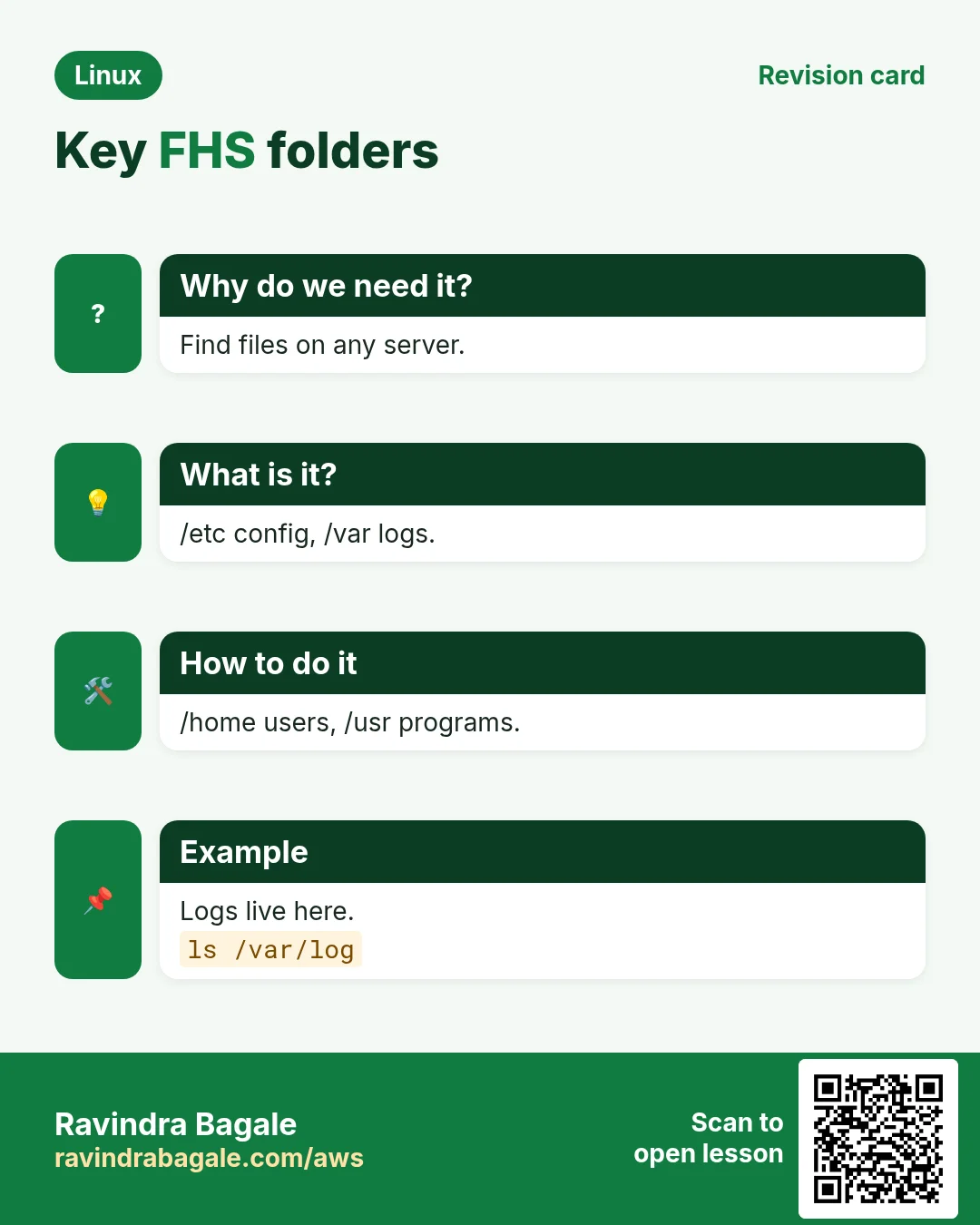
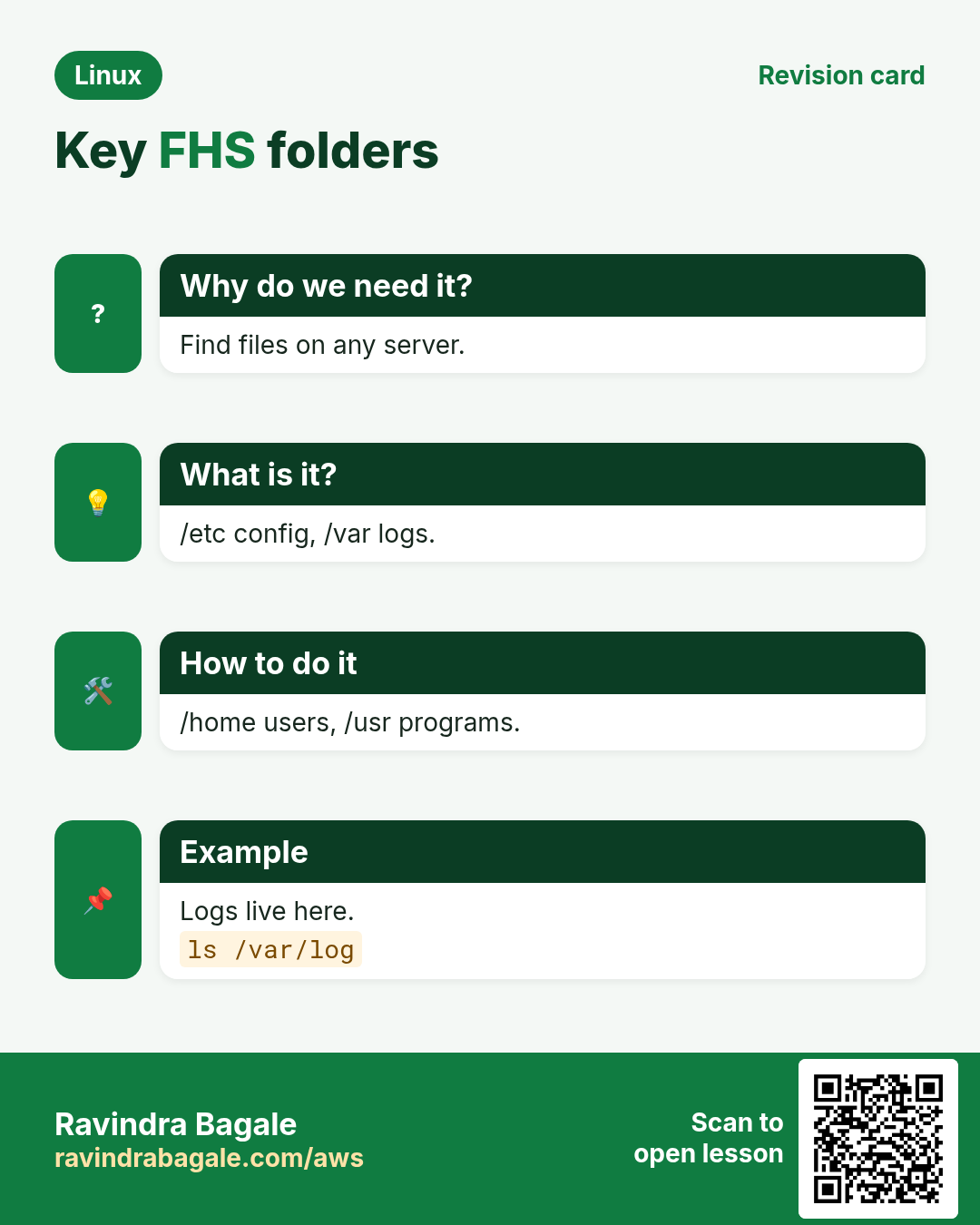
- /etc config, /var/log logs, /home users, /usr programs, /opt vendors, /tmp scratch.
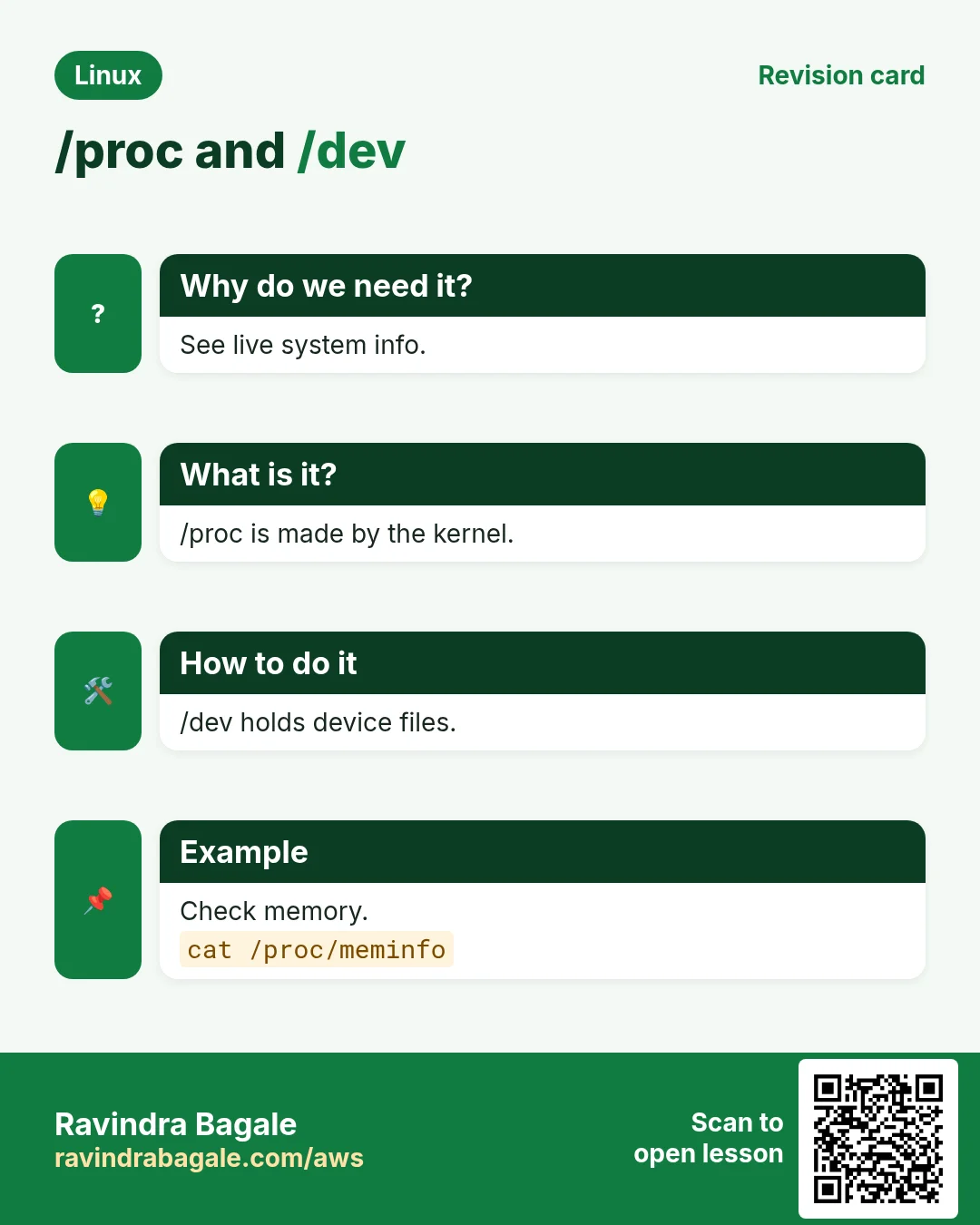
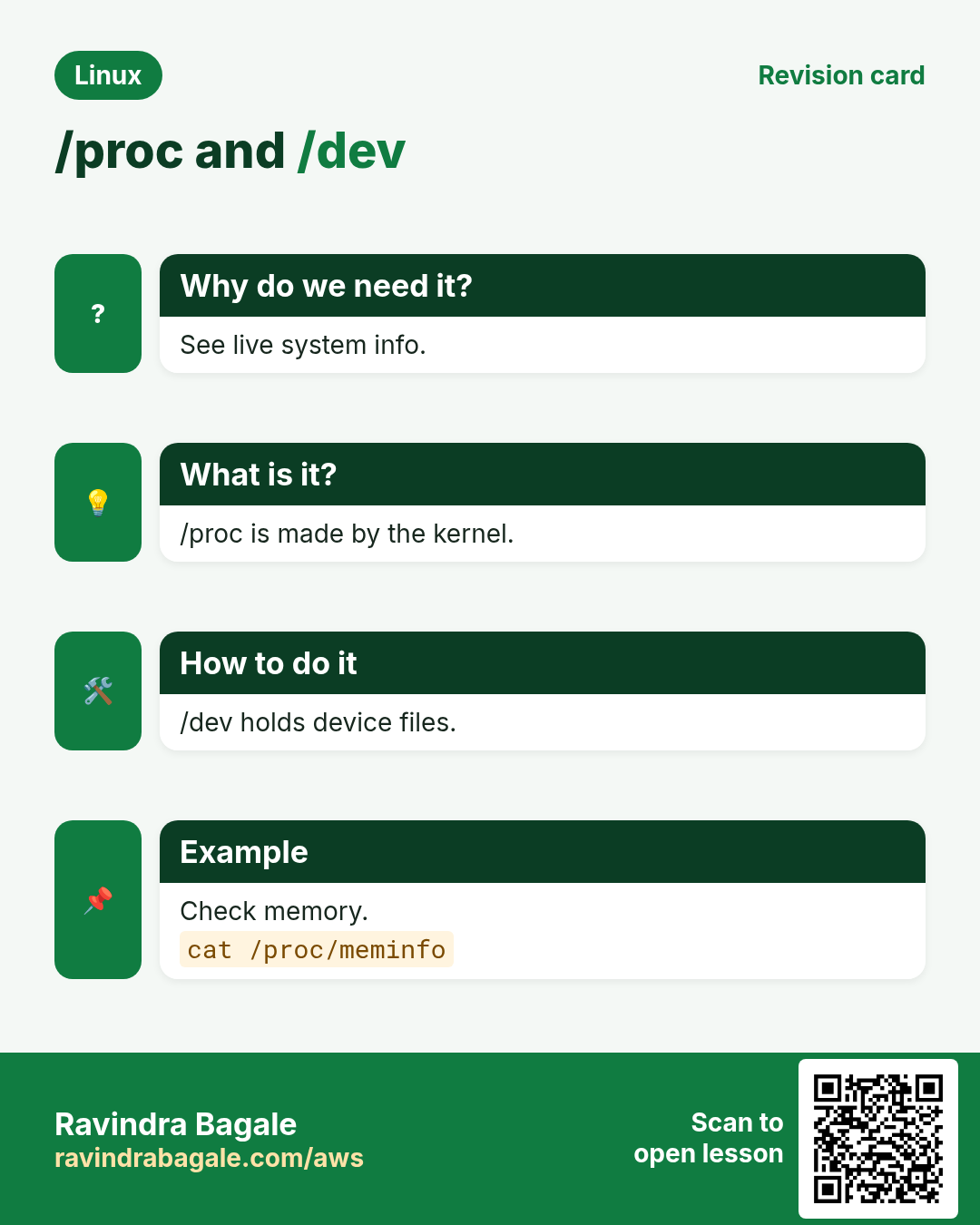
- /proc and /sys are live kernel views.
- Mount disks with UUID and nofail in /etc/fstab.
Revision, comparison and interview cards
Revise this lesson in a few minutes. Save the cards on your phone or download them as PNG files. The QR code on each card opens this lesson.

More cards: Ravi Sir's Cards.