Deploy a Website to AWS EC2 Using an AI Coding Agent
Until now we wrote every page by hand: open nano on the server, type or paste, save, repeat. Now an AI coding agent does that work. We launch the EC2 server ourselves, describe the website in plain words, and the agent writes the whole project on our computer, previews it, and deploys it to the server: it logs in with our key, installs Nginx and copies the files. We also look at where these AI tools come from, what "parameters" and "tokens" mean, and the safety rules to follow when an agent touches a server.
In this class
- Why an agent beats copy-paste from a chat for real projects
- Two ways to work with an agent: a code editor with an AI extension, or the AI company's desktop app
- A quick map of popular AI assistants
- Open-weight models on your computer vs cloud models; parameters and tokens in plain words
- Launching an EC2 server ready for a website (SSH, HTTP, HTTPS)
- Installing the right extension and avoiding look-alikes
- Writing a prompt for a website and previewing it locally
- Asking the agent to deploy to EC2, and what it does on the server
- Asking for changes and getting them redeployed
- Safety rules: key path not key contents, read before you approve, no secrets in prompts, terminate test servers
1. Why: from copy-paste to an agent
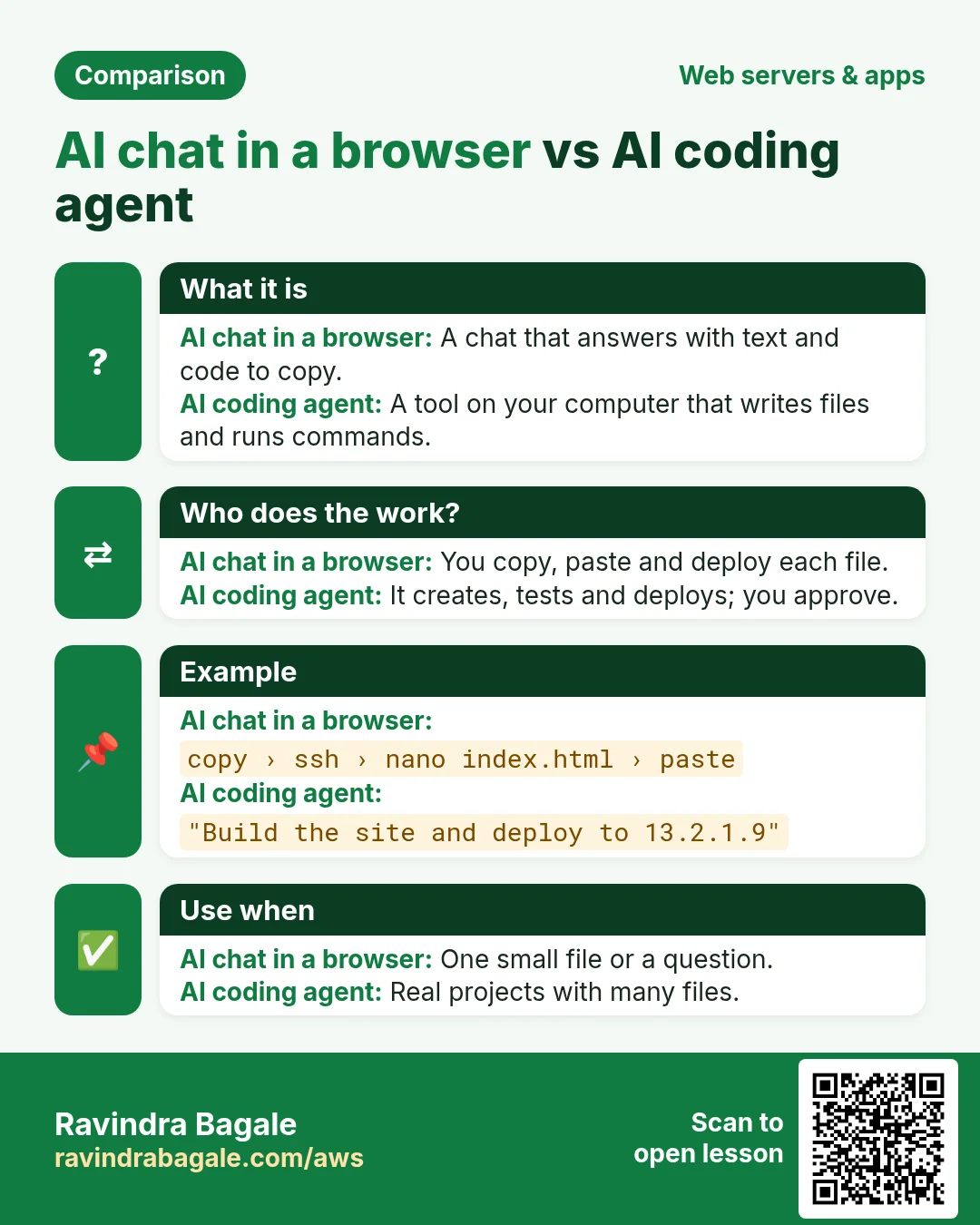
The old way. You ask a chat in the browser for code, copy the answer, ssh to the server, open sudo nano index.html, paste and save.
Classroom line
Right now we use ChatGPT (in the browser).
Class मधलं वाक्य
आत्ता आपण ChatGPT वापरतो (browser मध्ये).
Classroom line – हिंदी
"Abhi hum log chat gpt use karte hain."
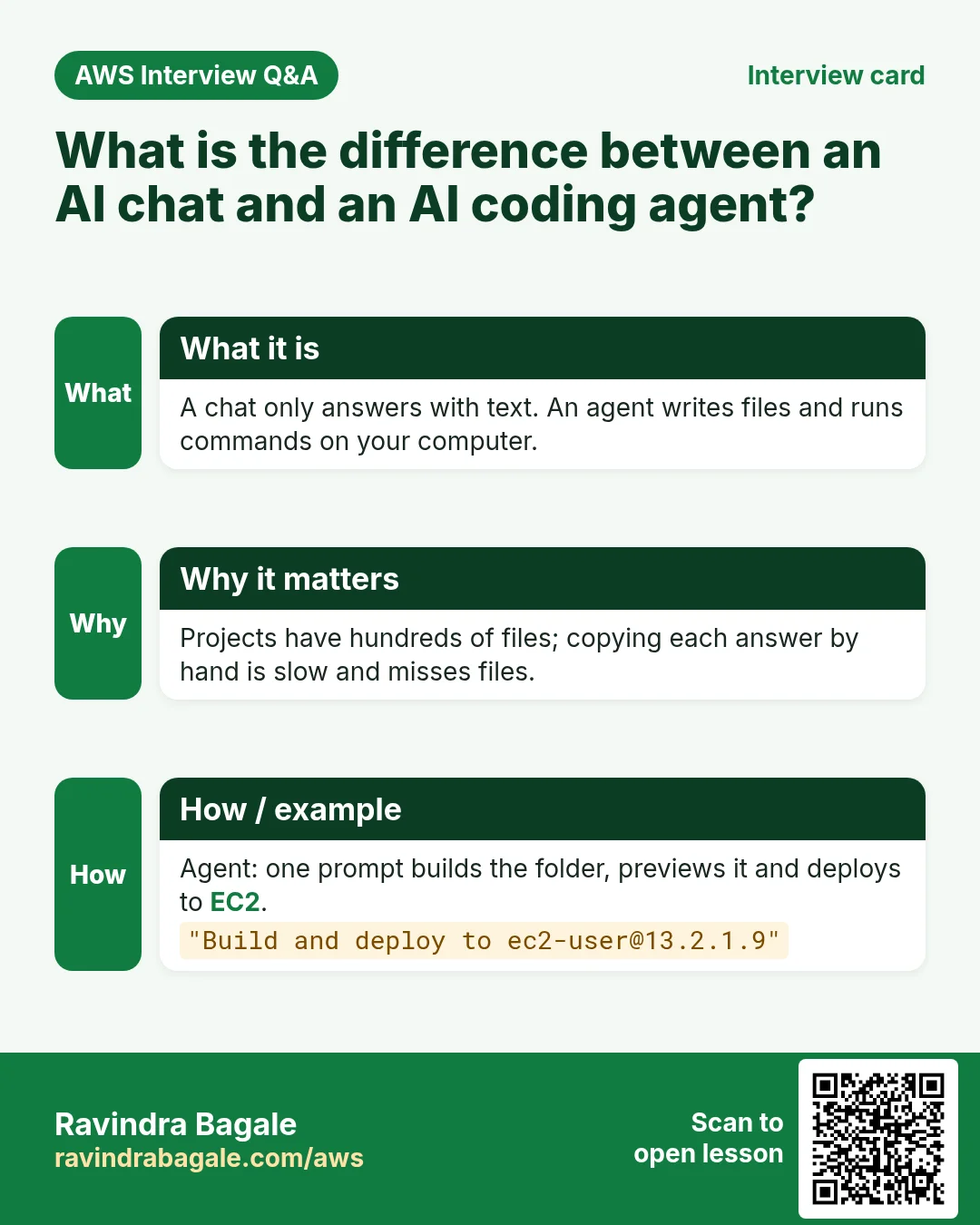
That works for one page. A real project has hundreds or thousands of files, several languages, maybe a database. Copying each file by hand is slow, and one missed file breaks the site.
The new way. An AI coding agent works on your computer. It creates the folders and files itself, runs commands, and, once you give it the server details, uploads the project to the server.
Classroom line
Just launch the server; give everything else as a prompt.
Class मधलं वाक्य
"Fakta server launch karaycha baki sagla prompt dyaycha."
फक्त server launch करायचा, बाकी सगळं prompt द्यायचं.
Classroom line
Just launch the server; give everything else as a prompt.
Figure 1. Old way: chat, copy, ssh, nano, paste, for every file. Agent way: describe the site, the agent writes all the files and deploys them.
Example 1. Suppose we are building the landing page for a quick-commerce app that delivers groceries in 10 minutes. By hand that's an HTML file, a CSS file, a JavaScript file and several images, each copied separately. With an agent it's one prompt, and the agent gives you complete, ready-to-run code instead of short sample snippets.
2. What: the tools
A code editor with an AI extension, or a desktop app
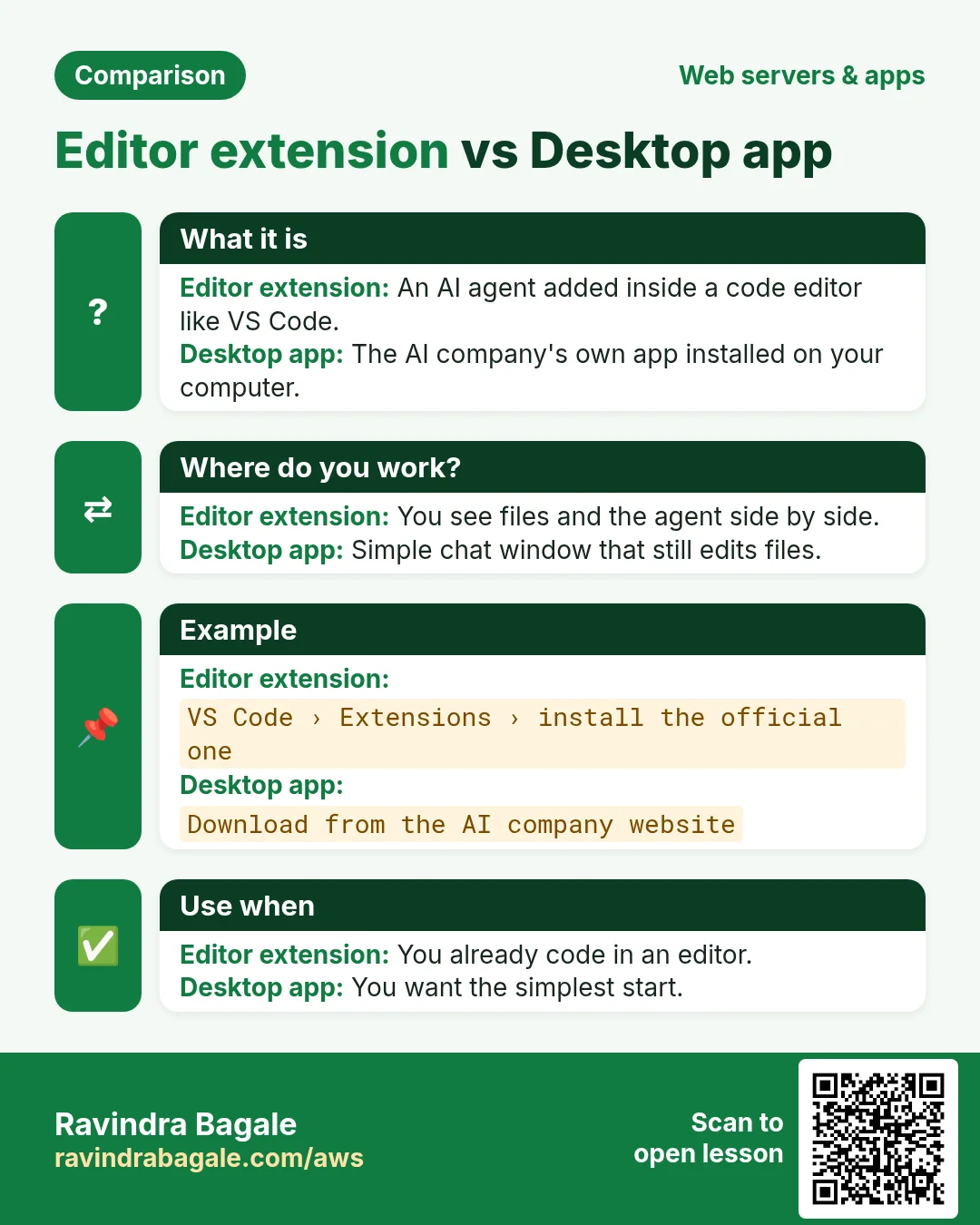
A code editor is a program for writing code: VS Code is the most common; Visual Studio, Eclipse and Jupyter are others. An extension (also called a plugin or add-on) adds a feature to the editor. An AI extension adds a chat panel inside the editor, and the agent in that panel can work on the folder you opened.
The other way is the AI company's own desktop app, for example the Codex app from OpenAI. It does the same job in its own window.
Figure 2. A: VS Code with an AI extension. B: the AI company's desktop app. Either way the agent creates files, runs commands and uploads the project.
A quick map of AI assistants
Many companies make AI assistants, and most of them can write code:
- OpenAI: ChatGPT and Codex.
- Anthropic: Claude, very popular for coding.
- xAI: Grok.
- Google: Gemini.
- Perplexity.
- GitHub (Microsoft): GitHub Copilot.
- AWS: Amazon Q, which helps with AWS questions and troubleshooting.
Cursor is different: it's an AI code editor built from VS Code, so the AI is part of the editor itself.
Figure 3. Popular AI assistants by company, and Cursor as an AI code editor built from VS Code.
Where the model runs: your computer or the cloud
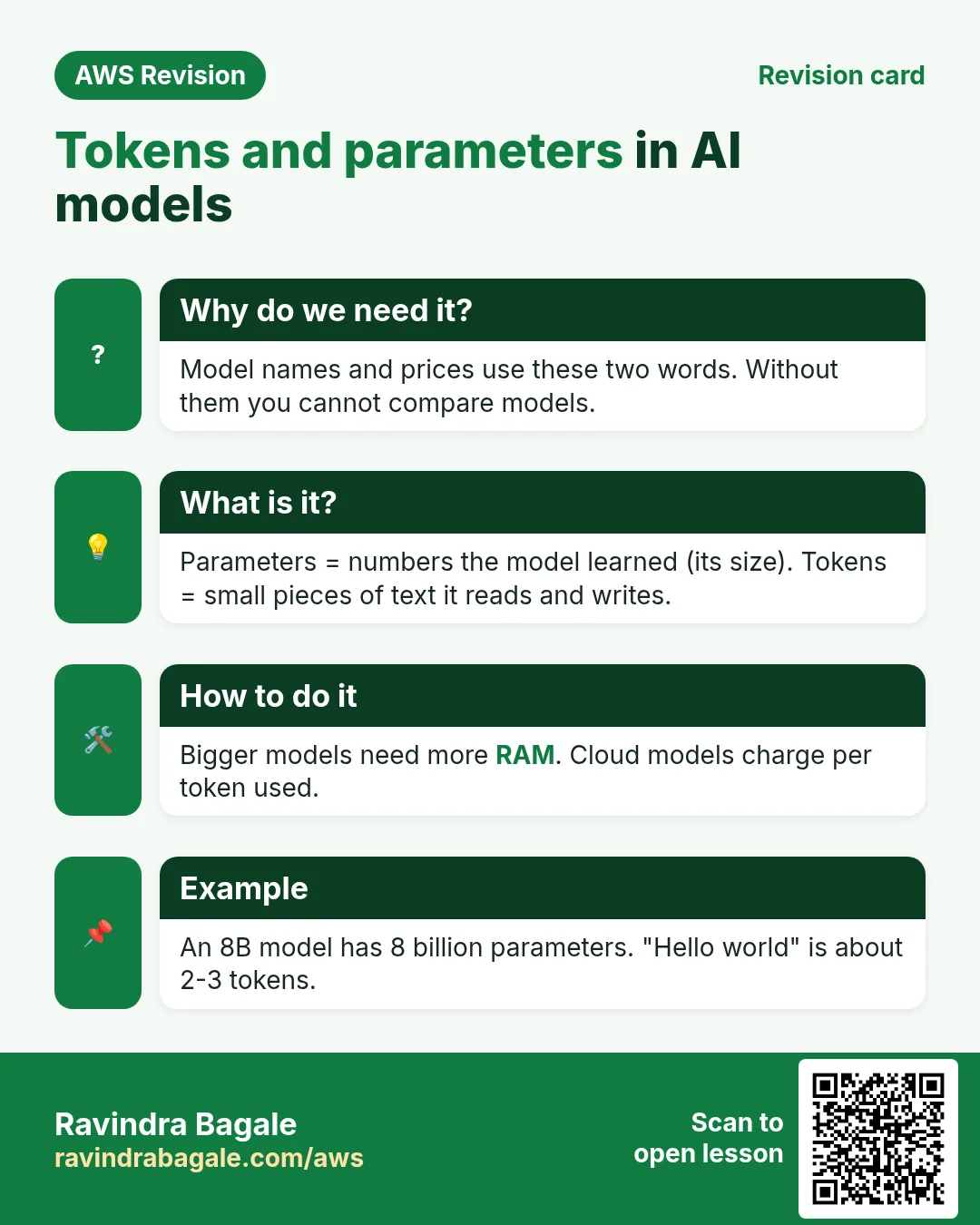
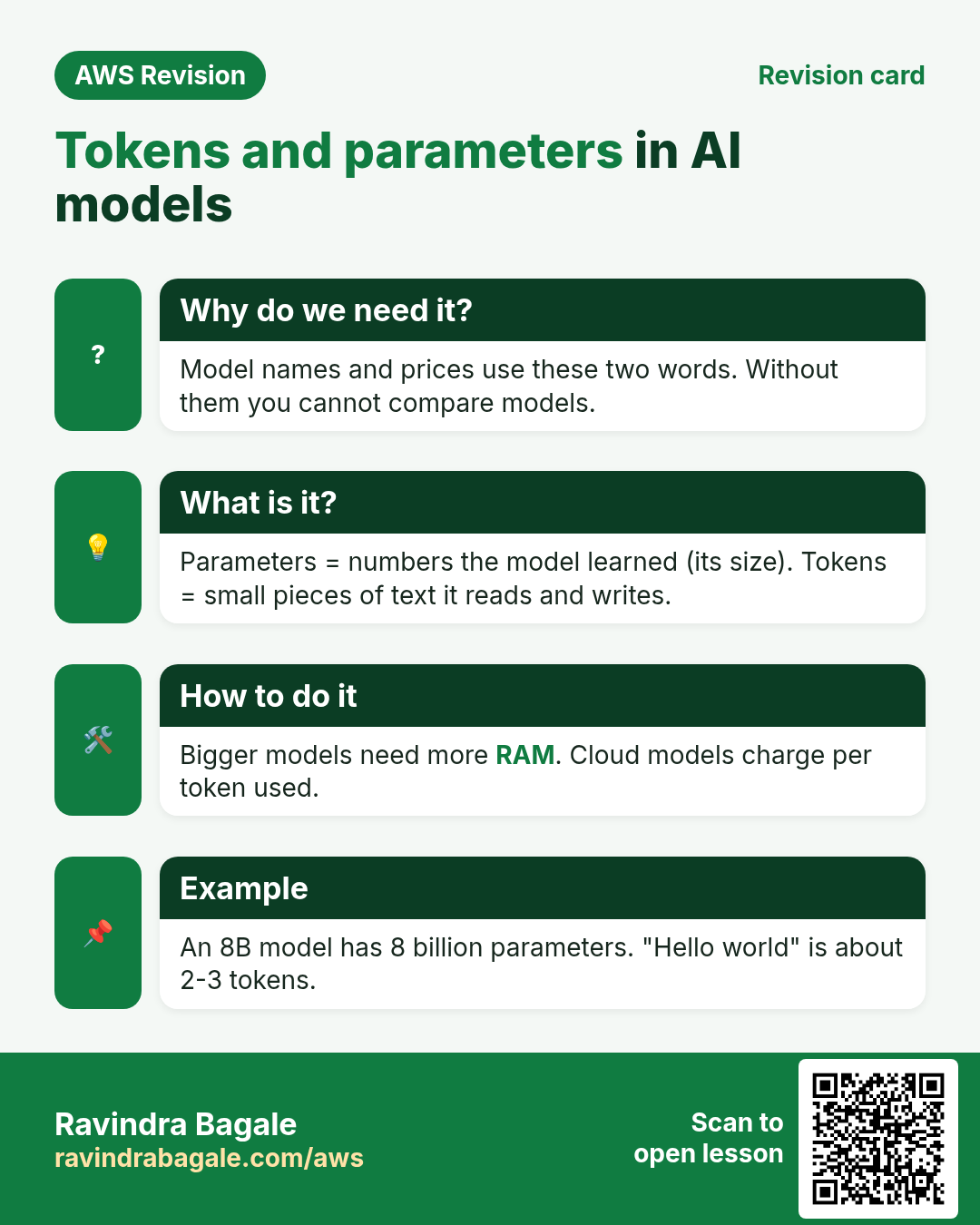
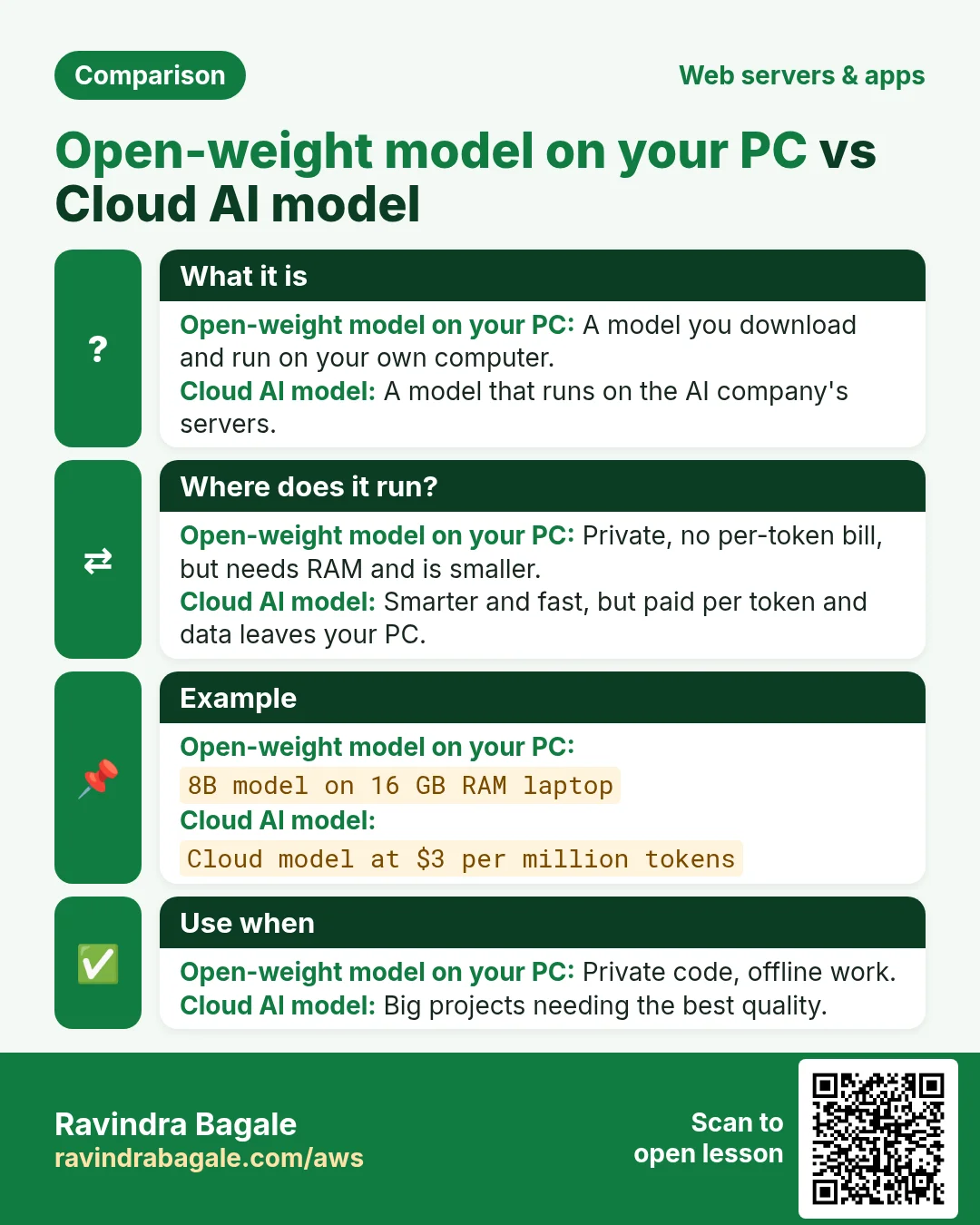
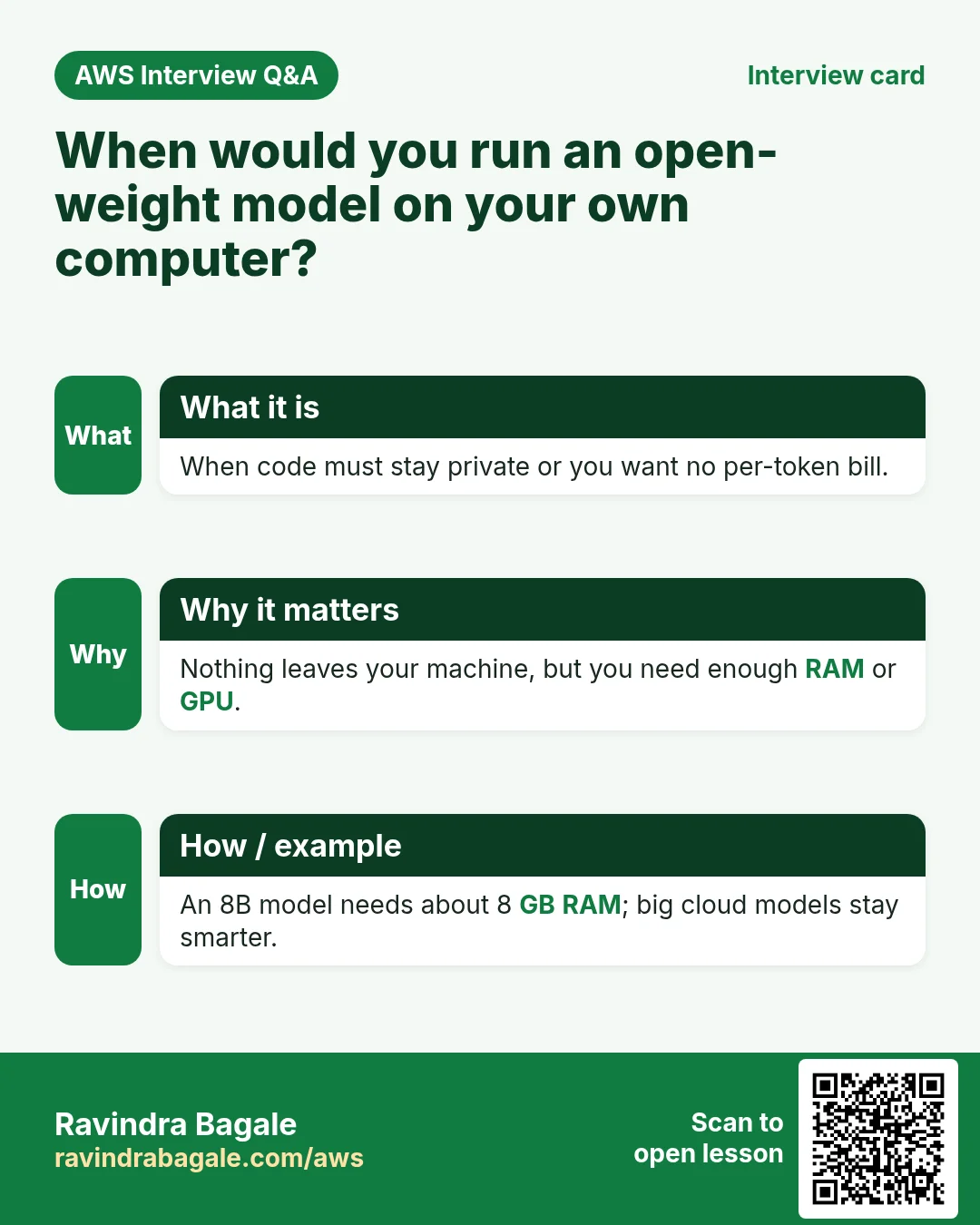
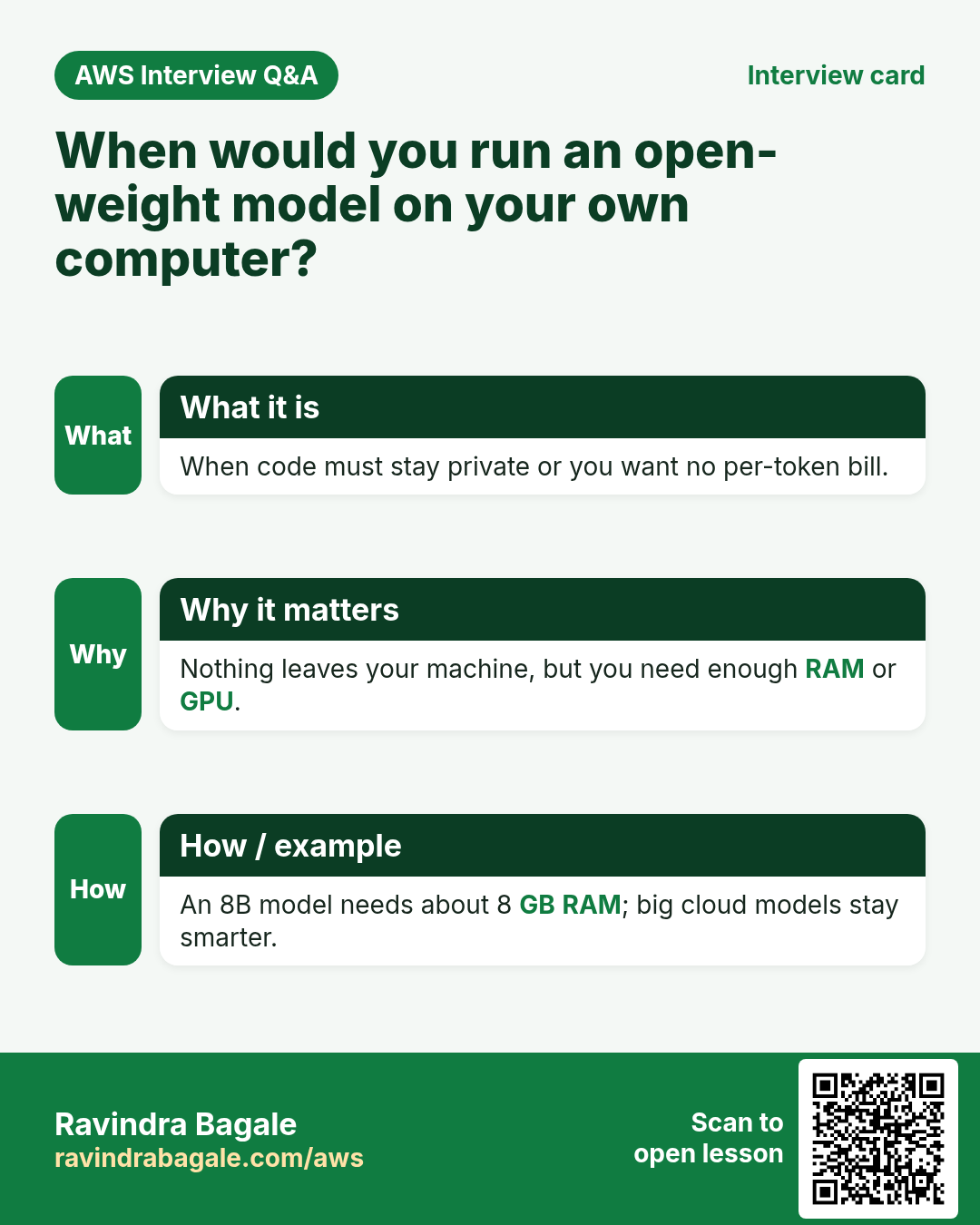
Open-weight models, for example DeepSeek or Llama, can be downloaded and run on your own computer. Their size is counted in parameters: the numbers the model learned during training, counted in billions. Small models run in a few GB of memory. Bigger ones need much more memory and a strong graphics card (GPU); NVIDIA GPUs are the most common choice. Macs with a lot of memory also run them well.
Cloud models run on the AI company's huge server farms, and you use them over the internet. They're far more capable than anything that fits on a laptop. Usage is counted in tokens: the small pieces of words the model reads and writes. Free tiers are limited; paid plans give more.
Figure 4. Open-weight models on your computer vs cloud models; parameters and tokens in plain words.
3. How: launch the server
Step 1. In the EC2 console, click Launch instance. Pick a region, for example N. Virginia.
Step 2. Name it, for example my Web Server. Choose Amazon Linux 2023 and a small instance type such as t2.micro.
Step 3. Pick your existing key pair, for example mykey.pem. Remember where the file is on your computer: for example the Downloads folder.
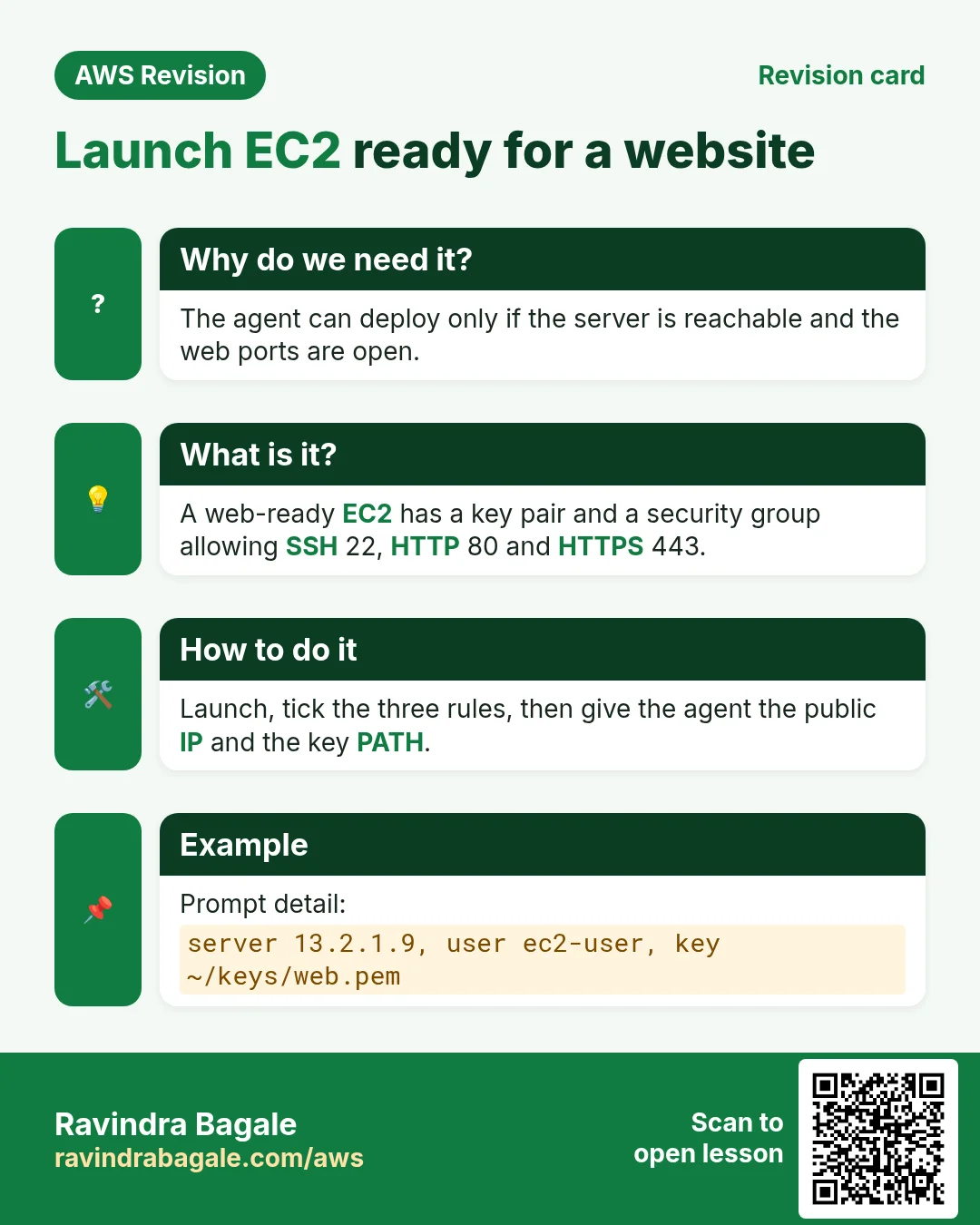
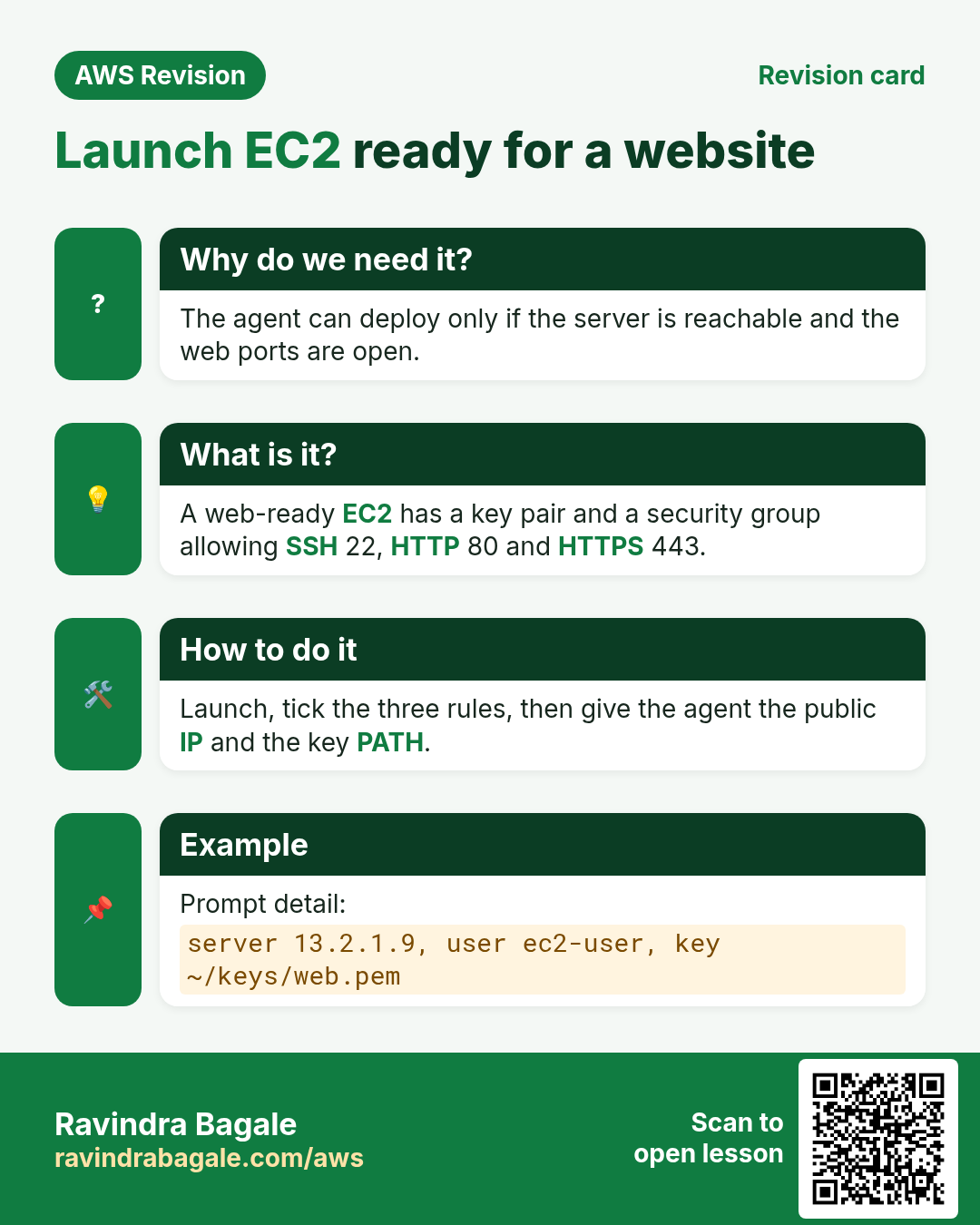
Step 4. Under Network settings, keep Auto-assign public IP enabled and create a new Security Group that allows SSH (22), HTTP (80) and HTTPS (443).
Step 5. Click Launch instance. When it's running, copy its Public IPv4 address; in this chapter it's written PUBLIC_IP.
You don't install anything on the server yourself. The agent will do it.
4. How: set up the agent
Step 1. Make an empty folder for the project, for example quickshop on your Desktop.
Classroom line
Let's get to work and make a folder here. Make a folder for our project.
Class मधलं वाक्य
"Kaam karuya, ithe ek folder banvuya. Aaplya project sathi ek folder banvun theva."
काम करूया, इथे एक folder बनवूया. आपल्या project साठी एक folder बनवून ठेवा.
Classroom line
Let's get to work and make a folder here. Make a folder for our project.
Step 2. Open VS Code and choose File > Open Folder, then pick quickshop.
Step 3. Click the Extensions icon in the left bar: the one that looks like four small boxes.
Classroom line
Now go to extensions... the menu with the boxes that you see here is what we call Extensions.
Class मधलं वाक्य
"Aata extension la jawa... ith je box box wala menu distay tyala aapan extension mhanato."
आता extension ला जा... इथे जो box box वाला menu दिसतोय त्याला आपण extension म्हणतो.
Classroom line
Now go to extensions... the menu with the boxes that you see here is what we call Extensions.
Step 4. Search for codex. Install Codex – OpenAI's coding agent, the one whose publisher is OpenAI with the blue verified tick.
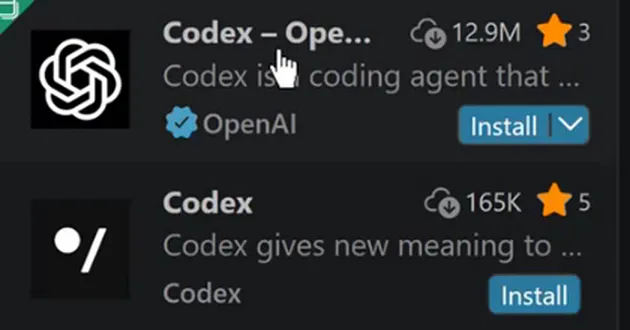
Whiteboard: The right extension: Codex by OpenAI with the blue verified tick. Just below it is another extension with the same name from a different publisher.
Why the tick matters. Many extensions use the same name. A fake one can read your files and steal your data. Check the publisher name and the verified tick before you click Install.
Classroom line
You see this blue tick and OpenAI; install this one only, okay.
Class मधलं वाक्य
"He blue tick mark distay, open ai distay, hach install kara bar ka."
हे blue tick mark दिसतंय, OpenAI दिसतंय, हाच install करा बरं का.
Classroom line
You see this blue tick and OpenAI; install this one only, okay.
Classroom line
Lots of them show up with the name Codex. The others could be people who steal data.
Class मधलं वाक्य
"Codex navane bharpur distayt. He bakiche loka data chornare asu shaktil."
Codex नावाने भरपूर दिसतायत. हे बाकीचे लोक data चोरणारे असू शकतील.
Classroom line
Lots of them show up with the name Codex. The others could be people who steal data.
Step 5. Open the new panel and sign in when it asks.
The desktop app instead. Download the app from the AI company's official website, install it like any other program, sign in, and choose the quickshop folder as the project. The rest of the steps are the same.
5. How: ask for the website
Give the agent a change you can check yourself
Start with a one-page site for a college event. Ask for a headline, the schedule and a contact link. Write the expected result before you give the agent access to any server. For example, the home page must show the correct date, the schedule link must reach the schedule, and the layout must still be readable on a phone. Give it sample contact details so you can test without sharing real credentials or private information.
Build and open the page locally. Read the changed files, then compare them with your three checks. If the heading is wrong, ask for that correction while you still have a local copy. This separates building the website from putting it on a running server. Both jobs need their own checks.
Step 1. Pick the model setting. Agents usually let you choose between faster and smarter. Faster answers quickly and suits small tasks; smarter thinks longer and suits big projects.
Step 2. Type the prompt. Say what the site is for, what you want first, and how it should look.
Example 2: the prompt.
I want to create a website for my quick commerce app, in which I deliver
products within 10 minutes. First I want only a static website.
Create this static website for me. It must look glamorous.
Step 3. Wait while it works. The agent plans the page, then writes the files into your project folder: index.html, a stylesheet, a script and images.
Step 4. Preview it on your computer: double-click index.html to open it in the browser. In VS Code you can also use a preview extension such as Live Server, which opens it at http://127.0.0.1:5500.
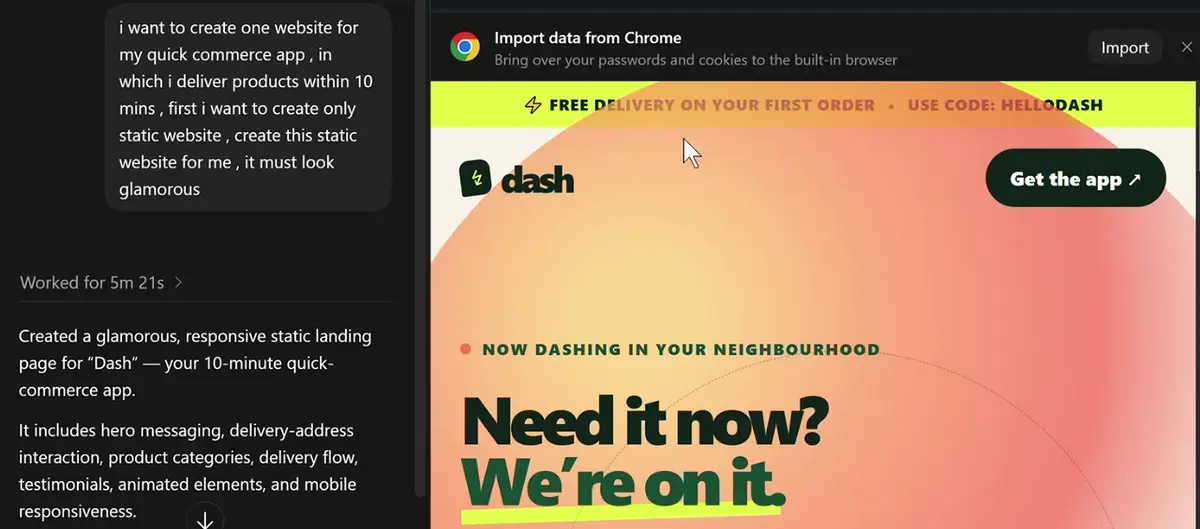
Whiteboard: Left: the quick-commerce prompt and the agent's summary of what it built. Right: the landing page it made, previewed on the computer before deploying.
What it built in one go: a hero section, a delivery-address box, product categories, the delivery steps, testimonials, animations, and a layout that works on phones.
6. How: ask it to deploy to EC2
Follow the test release from the local folder to EC2
Use a disposable EC2 instance or a dedicated lab path. Write the host, username, destination directory and expected URL next to one another. Ask the agent to show the planned copy and any config change before running them. Compare the destination with your notes. Keep the old lab release available so you can switch back if the new page fails.
After the copy, ask the agent to show its verification result. Open the actual lab URL yourself and run the same tests you ran locally. A working local file can still give a missing-font or image error on Linux if a filename’s capitalization changed. If the wrong site opens, inspect the requested hostname, the active document root and the uploaded directory before trying another deploy.
Step 1. Just asking "deploy to EC2" isn't enough: the agent doesn't know which server. Give it three things:
- The server's public IP.
- The path of the key file (not its contents).
- The username:
ec2-userfor Amazon Linux,ubuntufor Ubuntu.
Example 3: the deploy prompt.
PUBLIC_IP is my EC2 IP. The key pair file is in my Downloads folder,
named mykey.pem. The username is ec2-user. Deploy this website to EC2.
Step 2. Watch what it runs. First it tests the connection:
ssh -o BatchMode=yes -o ConnectTimeout=10 -i "C:\Users\you\Downloads\mykey.pem" ec2-user@PUBLIC_IP
BatchMode=yes means "never stop to ask a question", and ConnectTimeout=10 means "give up after 10 seconds if the server doesn't answer".
Step 3. It finds no web server, so it installs and starts Nginx, the same way you did by hand:
sudo yum install nginx -y
sudo service nginx start
Step 4. It copies the project files into Nginx's web root, /usr/share/nginx/html.
Step 5. Open http://PUBLIC_IP/ in your browser. The landing page is live.
Figure 5. Animation: connect with the key file path and username, install and start Nginx, copy the files to the web root, open http://PUBLIC_IP/.
If the connection fails with time errors. Check your computer's clock. Secure connections and AWS requests check the time, so a clock that is far off makes them fail. Turn on automatic date and time, then ask the agent to try again.
Classroom line
Got how to do it? Add the plugin in VS Code and tell it to deploy to EC2: give the IP, give the key pair file and tell the username, and it gets uploaded.
Class मधलं वाक्य
"Kallay ki tumhala kasa karaycha? VS code madhe plugin add karaycha aani sangaych EC2 varti deploy karyla, IP dyaycha, key pair file dyaychi aani username sangaych, upload houn jail."
कळलंय की तुम्हाला कसं करायचं? VS Code मध्ये plugin add करायचा आणि सांगायचं EC2 वरती deploy करायला, IP द्यायचा, key pair file द्यायची आणि username सांगायचं, upload होऊन जाईल.
Classroom line
Got how to do it? Add the plugin in VS Code and tell it to deploy to EC2: give the IP, give the key pair file and tell the username, and it gets uploaded.
7. How: ask for a change
Example 4. You want different colours. In the same chat:
Change the colour scheme. Use pink and its shades.
The agent edits the stylesheet, copies the changed files to the server again, and you refresh http://PUBLIC_IP/ to see the pink version. You never opened nano.
Figure 6. Animation: ask in plain words, the agent edits only what needs to change, redeploys, and a refresh shows the new colours.
8. Safety when an agent touches your server
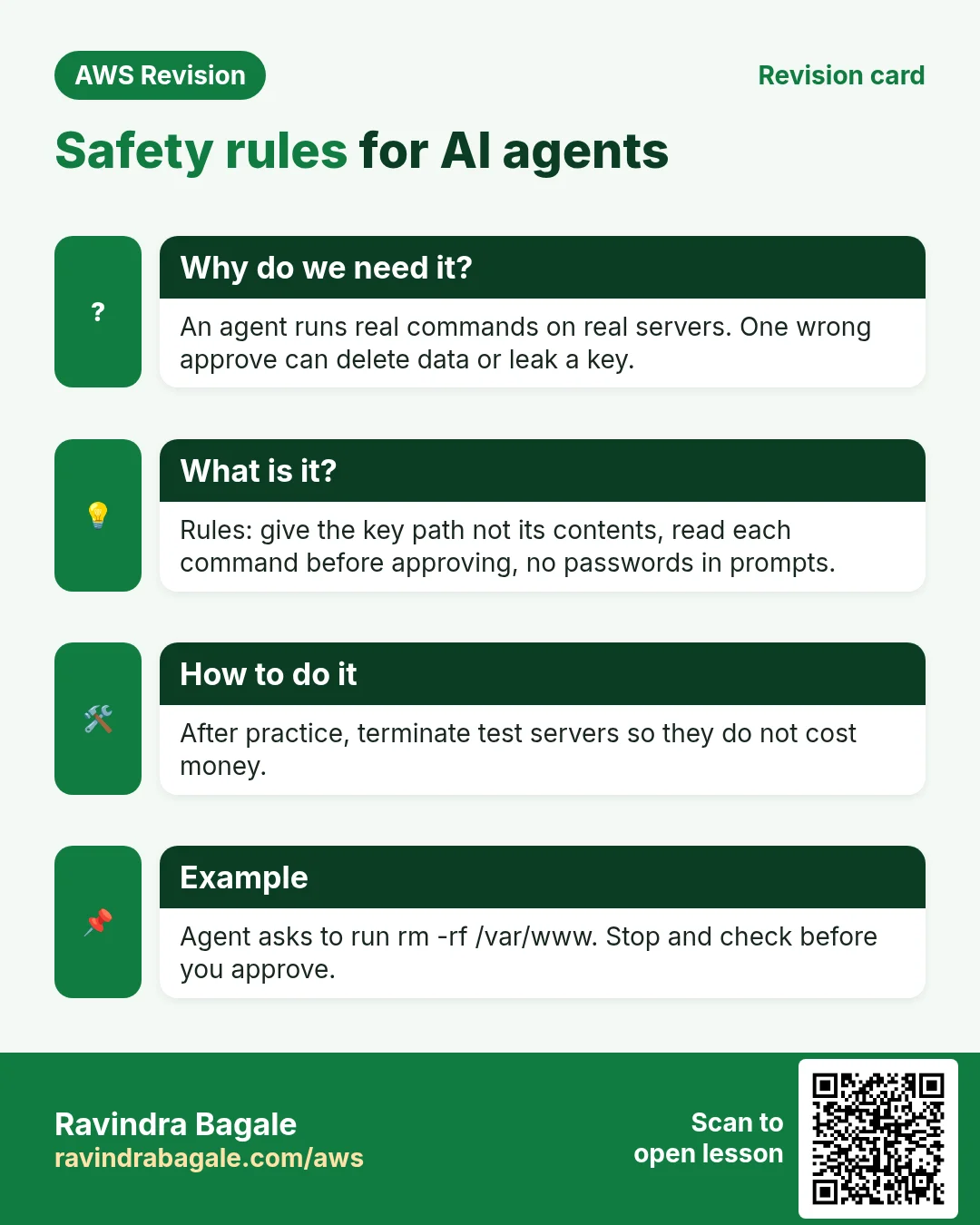
An agent runs real commands with your key. Four rules:
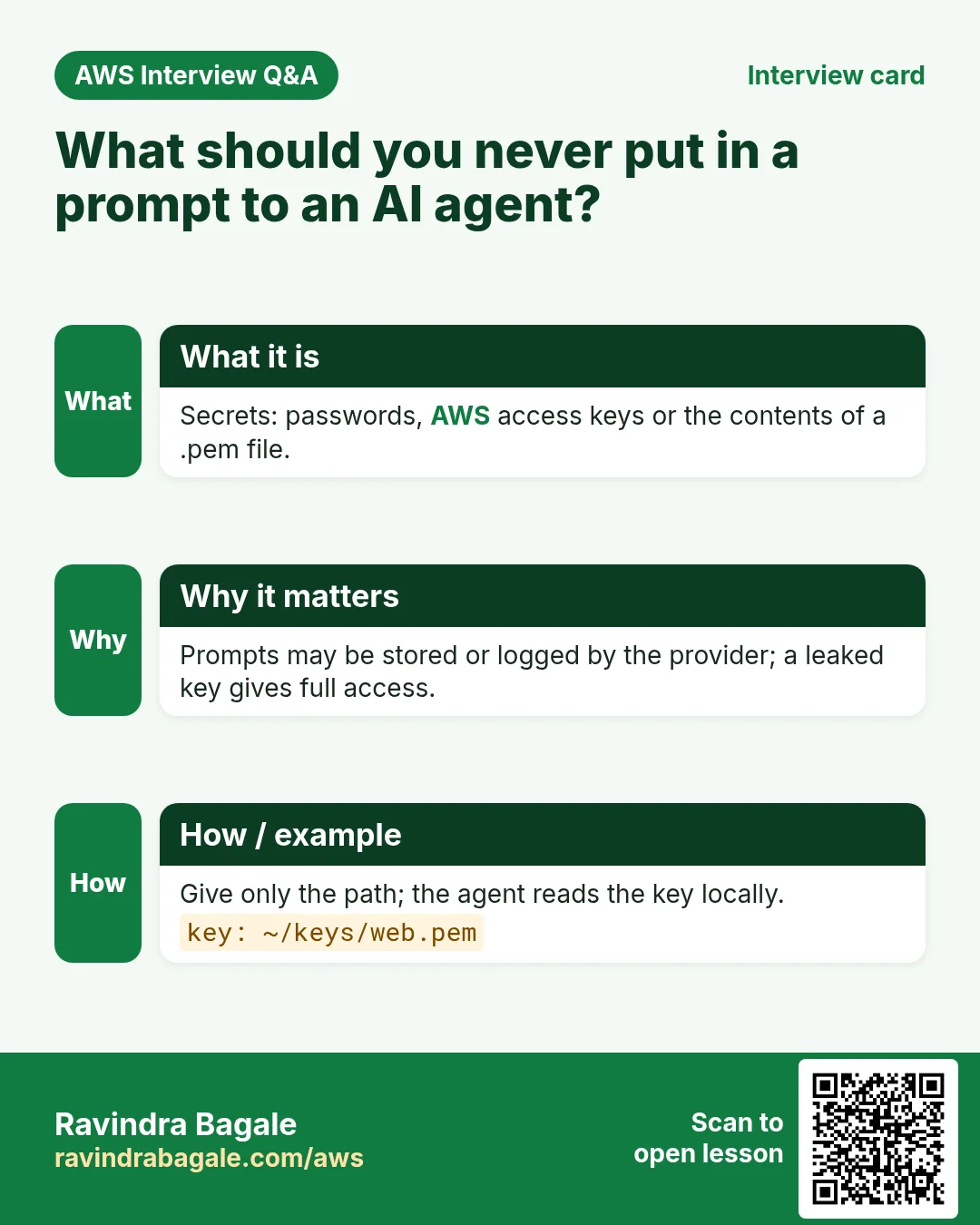
- Give the key file's path, never its contents. Say "mykey.pem is in my Downloads folder". Never paste what's inside a
.pemfile into any chat. - Read what it plans to run. Most agents ask before running a command. Approve only what you understand.
- No passwords or secrets in prompts. Prompts leave your computer. Keep passwords, keys and tokens out.
- Terminate test servers. When practice is over, terminate the instance so it stops costing money.
Figure 7. Key path not contents, read before you approve, no secrets in prompts, terminate test servers.
9. What's next
Real projects live on GitHub, where developers keep their code. Next, we host a project straight from GitHub on our server.
10. The whole flow on one page
- Launch Amazon Linux EC2 with SSH, HTTP and HTTPS allowed; note
PUBLIC_IP. - Make an empty project folder and open it in VS Code (or the desktop app).
- Install the verified extension: publisher OpenAI, blue tick.
- Pick faster or smarter, and describe the website in a prompt.
- Preview
index.htmlon your computer. - Ask it to deploy: IP, key file path, username.
- The agent connects with
ssh -i, installs Nginx and copies the files to/usr/share/nginx/html. - Open
http://PUBLIC_IP/. Ask for changes; it redeploys. - Follow the safety rules and terminate the server when done.
Hands-on lab: build and deploy a site with an AI agent
An agent types fast, but you still own the server. This lab gives the agent exact facts, watches every command it runs, and checks the result yourself.
- Launch and note the server
- Do: EC2 → Launch instance → Amazon Linux 2023 →
t2.micro/t3.micro→ key pairmykey(.pem) → Allow SSH + Allow HTTP → Launch. Copy the Public IPv4 address. - You should see: Instance Running, 2/2 checks passed.
- Check: You have the IP and know the .pem path (e.g.
Downloads\mykey.pem). - Why: The agent can't guess these; they are the only two facts it needs.
- Do: EC2 → Launch instance → Amazon Linux 2023 →
- Install the editor and the AI extension
- Do: Install VS Code → Extensions view (Ctrl+Shift+X) → search your AI assistant (e.g. Codex, Claude, Copilot) → Install → Sign in when the panel asks.
- You should see: A chat panel on the side bar shows your account name.
- Check: Type
hello; it replies. - Why: Signing in links the agent to your plan; without it, nothing runs.
- Open an empty project folder
- Do: File → Open Folder → create
mysiteon Desktop → Select Folder → Yes, I trust the authors. - You should see: Explorer shows
MYSITEwith no files. - Check: The agent's work will land only in this folder.
- Why: Keeps the agent's files away from the rest of your laptop.
- Do: File → Open Folder → create
- Ask for the website
- Do: Prompt:
Create a one-page portfolio website in this folder: index.html with inline CSS, my name Ravi, sections About, Skills, Contact. No frameworks. - You should see: The agent proposes and creates
index.html. - Check: Right-click index.html → Reveal in File Explorer → open in browser; the page looks right.
- Why: Clear limits (one page, no frameworks) give a static site Apache/Nginx can serve directly.
- Do: Prompt:
- Ask it to deploy
- Do: Prompt:
Deploy this to my EC2. IP PUBLIC_IP, user ec2-user, key file Downloads\mykey.pem. Install nginx, put index.html in /usr/share/nginx/html. - You should see: It asks to run commands like
ssh -i … ec2-user@PUBLIC_IP "sudo yum install nginx -y",scp -i … index.html ec2-user@PUBLIC_IP:,sudo mv ~/index.html /usr/share/nginx/html/,sudo systemctl enable --now nginx. - Check: Approve each command only after reading it.
- Why: You give the path, never the key's contents. Reading each command is your safety check.
- Do: Prompt:
- Verify yourself
- Command:
curl -I http://PUBLIC_IP/ - You should see:
HTTP/1.1 200 OKandServer: nginx/…. - Check: Browser at
http://PUBLIC_IP/shows the portfolio; phone on mobile data too. - Why: Never trust "Done!" from the agent alone; check with your own command.
- Command:
- Ask for a change and redeploy
- Do: Prompt:
Make the header dark blue and add a Projects section, then redeploy. - You should see: It edits index.html and runs the same scp + mv again.
- Check: Refresh the browser; changes show.
- Why: Same steps each time, so ask the agent to save them as
deploy.shfor later.
- Do: Prompt:
- Clean up
- Do: EC2 → Instance state → Stop (or Terminate if done).
- You should see: State Stopped.
- Check: No running instance left in the list.
- Why: Agents can leave servers running; billing is still yours.
11. Try at home
Try at home
Task 1: build it
- Make a folder and open it in VS Code. Install the verified Codex extension (publisher OpenAI, blue tick).
- Suppose we are making the website for a food delivery app. Write a prompt for a static landing page and preview
index.html.
Task 2: deploy it
- Launch an Amazon Linux server with SSH, HTTP and HTTPS allowed.
- Give the agent the IP, the key file path and
ec2-user, and ask it to deploy. - Read each command before you approve it, then open
http://PUBLIC_IP/.
Task 3: change it
- Ask for a different colour scheme and check that the live site changes.
When you're done, terminate the instance.
Common errors and fixes
| Error / symptom | Fix |
|---|---|
Agent says Permission denied (publickey) | Wrong user or key path. Tell it ec2-user and the exact .pem path. |
UNPROTECTED PRIVATE KEY FILE | Ask it to restrict the key: chmod 400 (Mac/Linux) or icacls on Windows. |
| Connection timed out | Security Group lacks SSH 22 from your IP or HTTP 80. |
| SSL/clock errors in the agent | Your PC clock is far off; turn on automatic time in Settings. |
| Site shows Welcome to nginx! | index.html went to home, not the web root; sudo mv it. |
FAQ
Q. Is it safe to give the key?
Give only the path. Never paste the key text into a chat.
Q. Which AI tool is best?
Any coding agent works; the steps and checks are the same.
Q. Do I still need Linux?
Yes. You must read and approve every command it runs.
Q. Can it break my server?
Yes, if you approve blindly. Use a practice instance and back up configs first.
Recap
In short
- Copy-paste from a chat works for one page; an agent writes and deploys a whole project.
- Use a code editor with an AI extension, or the AI company's desktop app.
- Install only the verified extension from the real publisher; look-alikes can steal data.
- Open-weight models run on your computer (size in parameters); cloud models are far more capable and are counted in tokens.
- Launch the server yourself; let the agent write the site; preview locally.
- To deploy, give the IP, the key file path and the username. The agent connects with ssh, installs Nginx and copies the files.
- Ask for changes in plain words; it redeploys.
- Key path not contents, read before approving, no secrets in prompts, terminate test servers.
Ravindra Bagale, trainer: linkedin.com/in/ravindra-bagale. The folder quickshop, the key name mykey.pem, the path C:\Users\you\Downloads and the prompts are examples for learning; PUBLIC_IP stands for your instance's public IPv4 address. The agent chooses its own commands, so yours may differ from the ones shown.
Worked example: review a one-page deployment before publishing
A helper can carry a box quickly. You still tell them which shelf it belongs on. Give an agent the same clear boundary on a disposable lab site.
- Tell it the one website directory it may change. Ask for a staged copy and a list of paths first. Use a dedicated test account without administrator access, and keep the SSH private key on your device.
- Compare the original and proposed
index.html. Ask for a local HTTP check of the candidate and the exact backup path before moving a file into place. If it proposes editing shared DNS, Nginx configuration or another site's directory, review whether that is part of the exercise. - Publish the one reviewed file to the practice site and reload the public URL. Test it from a second browser window. Then practise restoring the backup and checking that the original page returns.
Interview question: what do you record for a deployment?
The intended change, the files touched, the validation before and after, and the exact rollback. The way you wrote the HTML matters less if you cannot tell which version is live.
Practise this chapter
Interview questions and answers
How do you verify an agent’s deploy without relying on the agent saying it succeeded?
Inspect the changed files and intended host/path before the change. After the deploy, open the actual public or test URL and compare the page and assets with your acceptance checklist and previous release.
How would you prevent an agent from overwriting neighboring websites on the same server?
Use a dedicated lab directory and scoped account where practical. Provide the hostname, document root and allowed config file. Review the proposed file operations, take a focused backup and test the intended host after changes.
Check your understanding
Choose an answer, then compare your reasoning with the explanation.
Practice Tasks
Practice checks run in your browser. They check the answer for this exercise; they do not create resources or connect to your AWS account.
About this scenarioSydney Surf School is a sports training business in Sydney. Liam O'Brien looks after its IT and cloud work. They count money in AUD and run their AWS resources in the ap-southeast-2 Region. In the tasks below you do real jobs for them using what this lesson teaches. All names, account IDs, IP addresses and numbers are made up for practice.
0 / 12
Easy Download code from GitHub
git clone copies the whole repository to the server, ready to deploy.
Clone https://github.com/sydneysurf/website.git into the current folder.
- Find the Linux command that does this job.
- Add the options (like -r or -h) the task needs.
- Add the file names, folders or users in the right order.
- Use sudo if the job changes system files or users. Click Check answer.
Easy Install a package on Ubuntu
Ubuntu uses apt. Package names differ: on Ubuntu Apache is apache2.
Install the apache2 package on Ubuntu without being asked to confirm.
- Find the Linux command that does this job.
- Add the options (like -r or -h) the task needs.
- Add the file names, folders or users in the right order.
- Use sudo if the job changes system files or users. Click Check answer.
Easy Test a website from the server
curl shows whether the web server answers, even before DNS is ready.
Request http://localhost and show only the response headers.
- Find the Linux command that does this job.
- Add the options (like -r or -h) the task needs.
- Add the file names, folders or users in the right order.
- Use sudo if the job changes system files or users. Click Check answer.
Easy Install a package on Amazon Linux
dnf is the package manager on Amazon Linux 2023. -y answers yes for you.
Install the httpd package on Amazon Linux 2023 without being asked to confirm.
- Find the Linux command that does this job.
- Add the options (like -r or -h) the task needs.
- Add the file names, folders or users in the right order.
- Use sudo if the job changes system files or users. Click Check answer.
Easy Restart a service after a change
Config changes only apply after the service restarts or reloads.
Restart the nginx service.
- Find the Linux command that does this job.
- Add the options (like -r or -h) the task needs.
- Add the file names, folders or users in the right order.
- Use sudo if the job changes system files or users. Click Check answer.
Easy Check if a service is running
When a site is down, first check whether the web server process is running.
Show the status of the httpd service.
- Find the Linux command that does this job.
- Add the options (like -r or -h) the task needs.
- Add the file names, folders or users in the right order.
- Use sudo if the job changes system files or users. Click Check answer.
Easy Port for SSH
Security group rules need the right port.
Which TCP port must the security group open for SSH?
- Write down the numbers the task gives you.
- Work it out step by step on paper.
- Type only the final answer in the box.
- Click Check answer.
Medium Test the nginx config
A test catches typos before a restart takes your site down.
Check the nginx configuration files for errors.
- Find the Linux command that does this job.
- Add the options (like -r or -h) the task needs.
- Add the file names, folders or users in the right order.
- Use sudo if the job changes system files or users. Click Check answer.
Medium Upload a file to the server
scp copies files over SSH, so it uses the same key and user.
Upload index.html from your laptop to /home/ec2-user/ on 13.143.20.5 using sydneysurf-key.pem.
- Find the Linux command that does this job.
- Add the options (like -r or -h) the task needs.
- Add the file names, folders or users in the right order.
- Use sudo if the job changes system files or users. Click Check answer.
Medium Open port 80 to the world
Visitors can reach your website only if the security group allows HTTP.
Allow inbound TCP port 80 from 0.0.0.0/0 on security group sg-00ac0b505a064c3b2.
- Read the task and decide which AWS service it is about.
- Write aws, then the service name, then the operation (the action word).
- Add each needed flag (--name) followed by its value from the task.
- Flags can be in any order. Click Check answer.
Medium Start a service now and at boot
enable makes it start after reboot; --now also starts it right away.
Enable the nginx service and start it immediately, in one command.
- Find the Linux command that does this job.
- Add the options (like -r or -h) the task needs.
- Add the file names, folders or users in the right order.
- Use sudo if the job changes system files or users. Click Check answer.
Hard Block other Regions (SCP style)
Data rules (like keeping data in one country) are enforced with aws:RequestedRegion.
Deny ec2:* on * when aws:RequestedRegion is not ap-southeast-2.
- Start with { "Version": "2012-10-17", "Statement": [ ... ] }.
- In each statement write Effect, Action and Resource.
- Give only what the task needs (least privilege).
- Use double quotes and commas correctly. Click Check answer.
Revision, comparison and interview cards
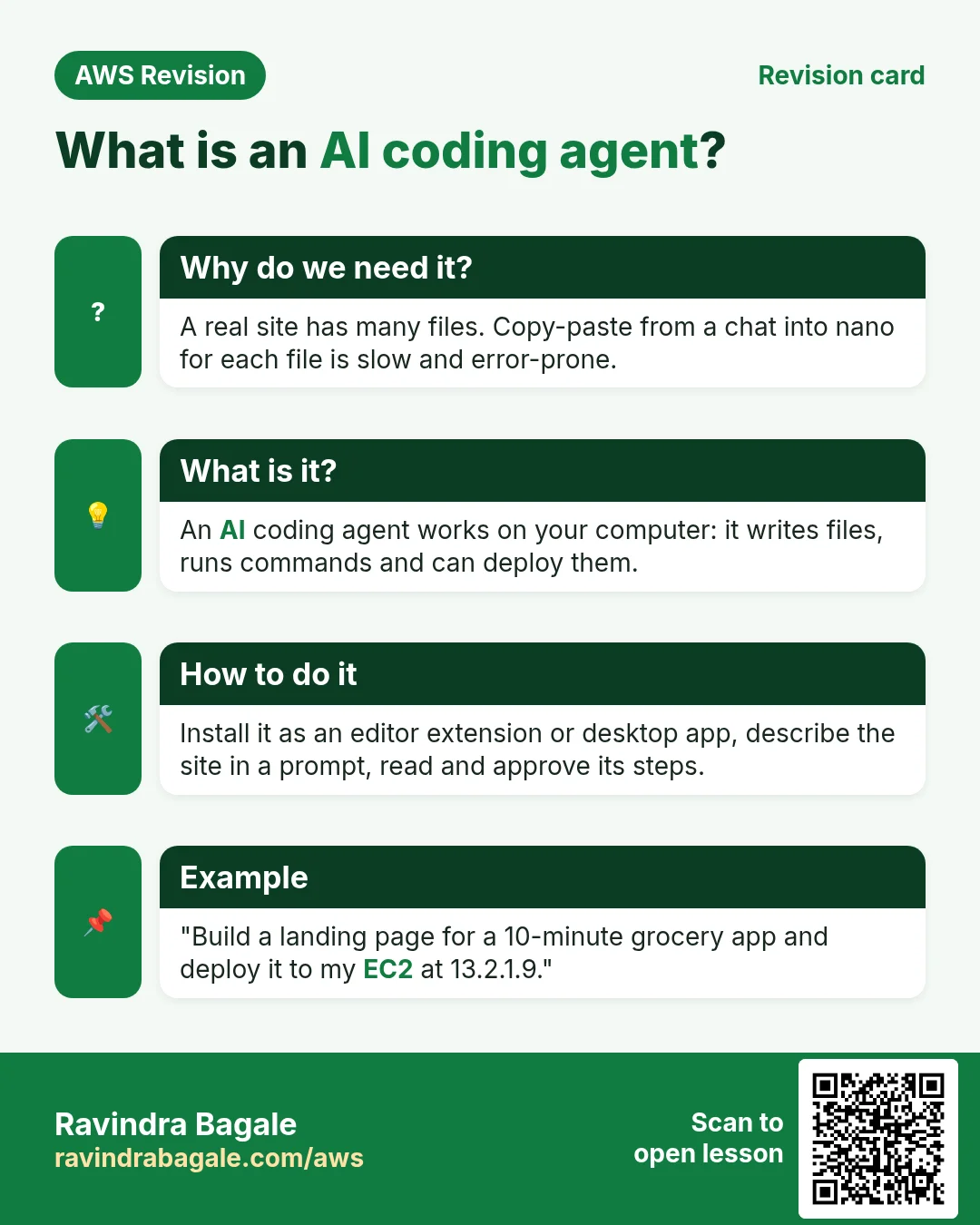
Revise this lesson in a few minutes. Save the cards on your phone or download them as PNG files. The QR code on each card opens this lesson.
More cards: Ravi Sir's Cards.