Linux Networking Commands: ip, ss, netstat, ping, traceroute and mtr Explained Simply
When an app cannot reach a database, or users say the site is slow, the first job is to look at the network from the server itself. This chapter covers the everyday tools: ip to see addresses, links, routes and neighbours; ss and netstat to see which ports are open and who is connected; ping, traceroute, tracepath and mtr to test the path to another machine. Try each command and read the result before deciding what to check next.
In this chapter
- Read IP addresses and interfaces with ip addr and ip link
- Read and change routes with ip route
- See open ports and connections with ss and netstat
- Test reachability with ping
- Find where packets stop with traceroute, tracepath and mtr
- Follow a simple order when the network is broken
1. An everyday example: sending a parcel by courier
You send a parcel from Pune to a cousin in Delhi. It needs your address, the cousin's address, and the courier knows which hub to send it to next. If it does not arrive, you check: is the address right, did it leave Pune, which hub did it reach last, and is the cousin's door open to receive it?
Your address = ip addr. The road out of the house = ip link (cable up?). The courier's hub list = ip route. Did it reach at all = ping. Hub by hub tracking = traceroute and mtr. Is the door open = ss -tulpn on the other server.
2. ip addr: see your IP addresses
Before anything else you must know which IP the server has and on which interface. Many problems are just 'wrong IP' or 'no IP'.
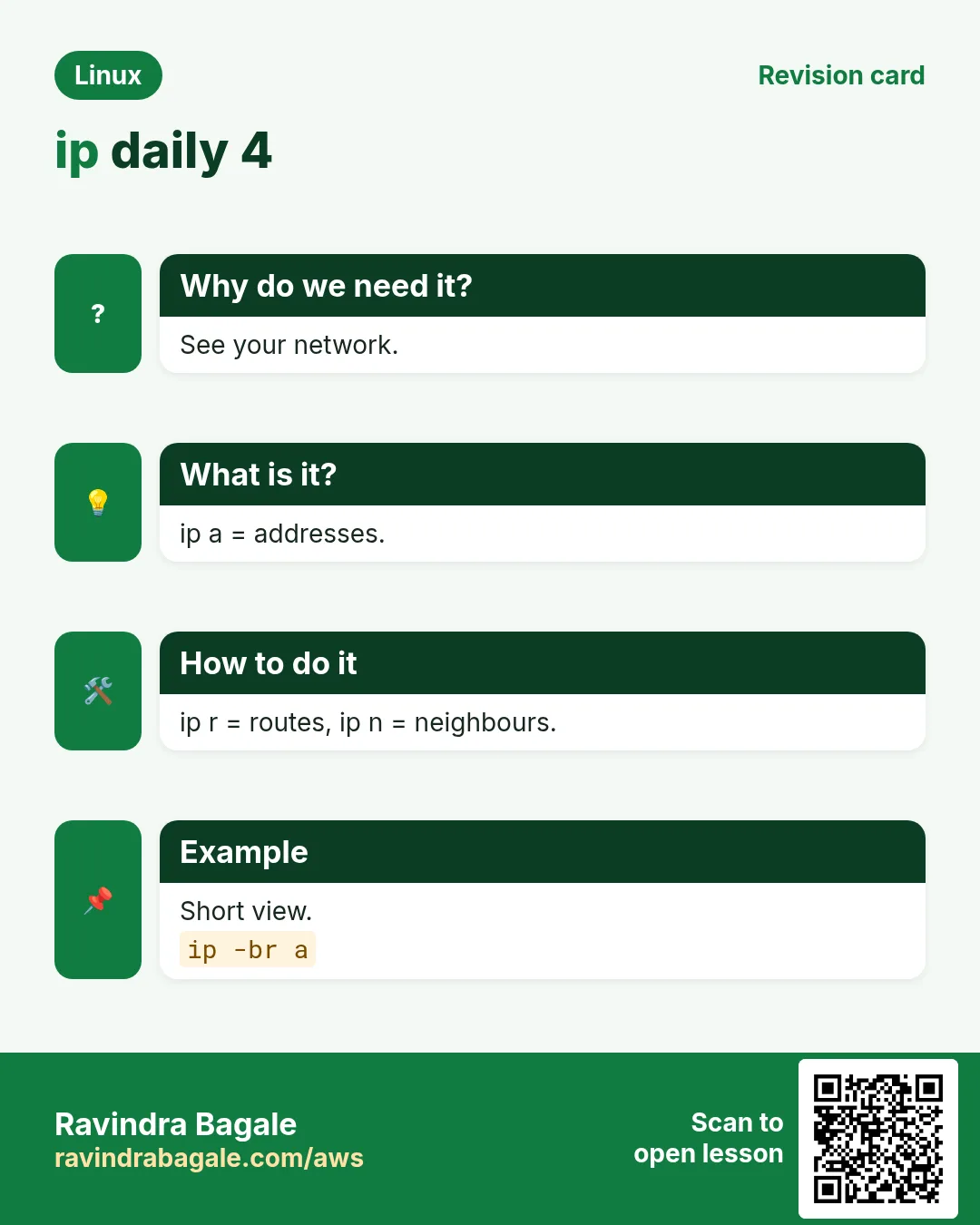
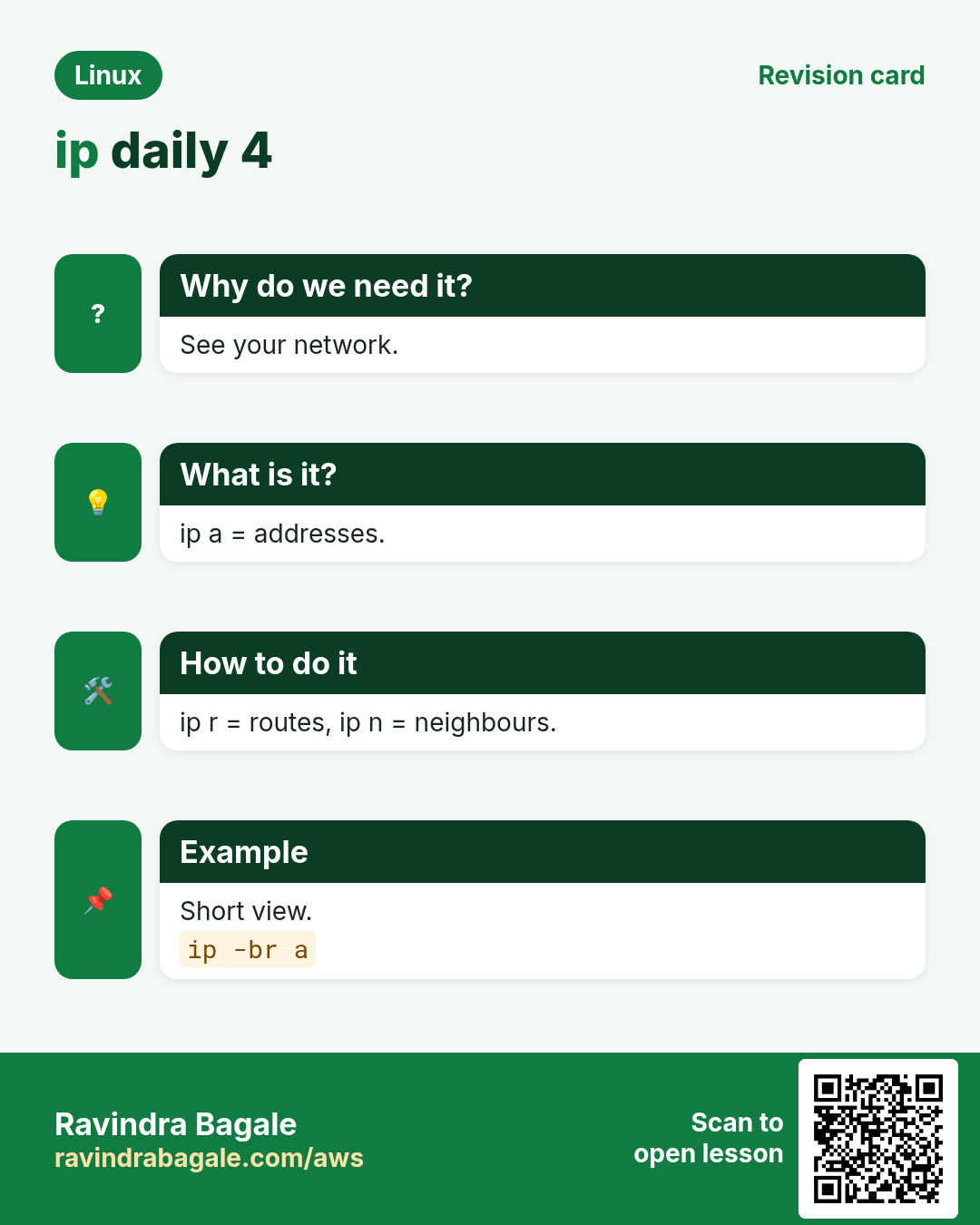
ip addr (short: ip a) lists every interface with its IPv4 (inet) and IPv6 (inet6) addresses. ip -br a gives one short line per interface. ip a show eth0 shows one. The old command was ifconfig (package net-tools).
- Brief view.
ip -br aOutput:
lo      UNKNOWN  127.0.0.1/8 ::1/128
eth0    UP       10.0.1.25/24 fe80::8ff:fe12:3456/64
eth0 has 10.0.1.25 in a /24 network.
- Full detail for one interface.
ip a show eth0Output:
2: eth0: <BROADCAST,MULTICAST,UP,LOWER_UP> mtu 9001
    inet 10.0.1.25/24 brd 10.0.1.255 scope global dynamic eth0
UP means the interface is enabled. LOWER_UP means the driver reports a working lower layer, not end-to-end connectivity. An address marked dynamic may have a limited lifetime.
- Only IPv4.
ip -4 aOutput:
inet 127.0.0.1/8 scope host lo
inet 10.0.1.25/24 scope global eth0
Less noise.
3. ip addr add and del: a temporary extra IP
During a migration or a test you may need a second IP on the same card for a few minutes.
sudo ip addr add IP/PREFIX dev IFACE adds it. sudo ip addr del IP/PREFIX dev IFACE removes it. These changes are lost on reboot; permanent settings go in NetworkManager (nmcli) or netplan.
- Add a test IP.
sudo ip addr add 10.0.1.99/24 dev eth0 && ip -br a show eth0Output:
eth0 UP 10.0.1.25/24 10.0.1.99/24Two IPs now.
- Remove it.
sudo ip addr del 10.0.1.99/24 dev eth0Output:
(no output)Back to one.
- Make it permanent with nmcli.
sudo nmcli con mod 'System eth0' +ipv4.addresses 10.0.1.99/24 && sudo nmcli con up 'System eth0'Output:
Connection successfully activatedSurvives reboot.
4. ip link: is the cable up?
If the interface is DOWN, nothing above it can work. It is the first physical check.
ip link (ip l) shows interfaces, state (UP/DOWN), MAC address and MTU. sudo ip link set eth1 up / down turns it on or off. ip -s link shows packet and error counters.
- Short state.
ip -br linkOutput:
lo    UNKNOWN 00:00:00:00:00:00
eth0  UP      0a:12:34:56:78:9a
eth1  DOWN    0a:aa:bb:cc:dd:ee
eth1 is down.
- Bring it up.
sudo ip link set eth1 up && ip -br link show eth1Output:
eth1 UP 0a:aa:bb:cc:dd:eeNow up.
- Errors and drops.
ip -s link show eth0Output:
RX: bytes packets errors dropped
 9.8G 7.1M 0 12
TX: bytes packets errors dropped
 2.1G 3.3M 0 0
A few drops; growing errors mean a bad link.
5. ip route: where traffic goes
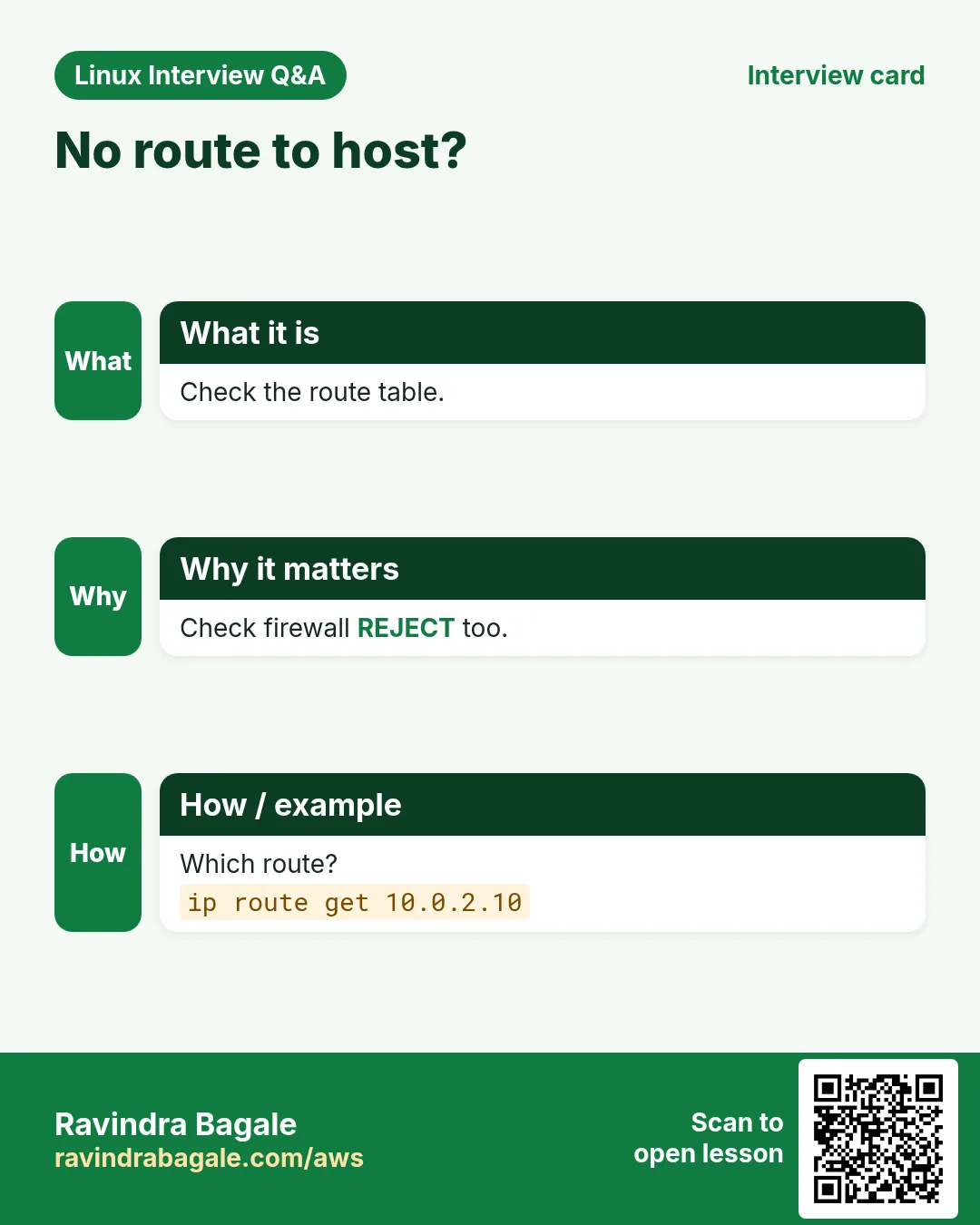
Start with a destination, for example the private address of your test database. Your server checks its route table to choose the next hop and interface. Read ip route get as one answer to that question. dev gives the interface, src gives the address it would use, and via gives the gateway if the route uses one. Compare a local destination with a destination beyond the subnet. The command shows the route choice before any connection to the database has succeeded.
A server with a correct IP but a wrong default route can talk to neighbours but not the internet.
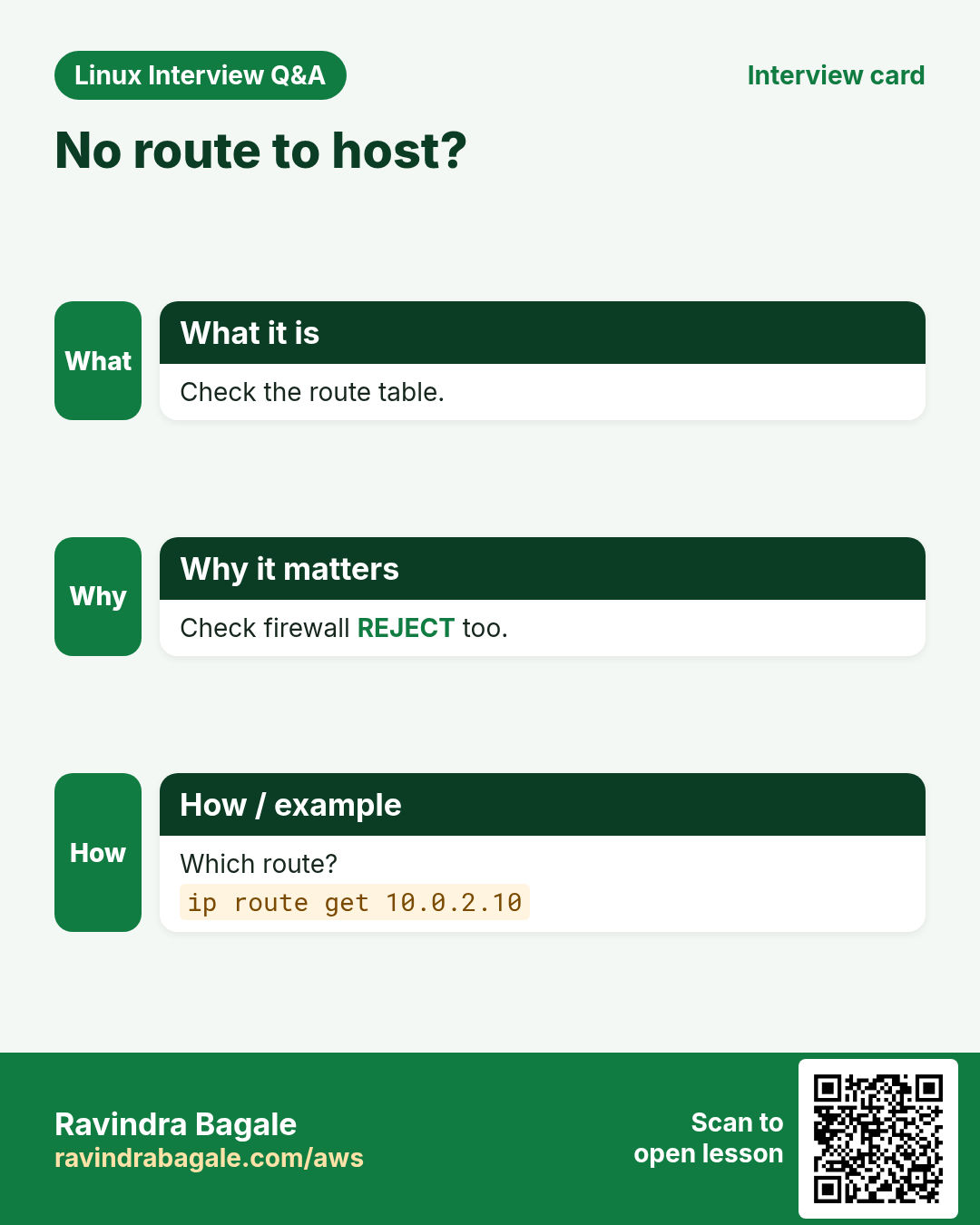
ip route (ip r) prints the route table. 'default via X' is the gateway for everything else. ip route get IP shows exactly which route and interface the kernel will use. sudo ip route add NET via GW adds a route; del removes it.
- The table.
ip rOutput:
default via 10.0.1.1 dev eth0 proto dhcp
10.0.1.0/24 dev eth0 proto kernel scope link src 10.0.1.25
Local subnet direct, the rest via 10.0.1.1.
- Which way to a host?
ip route get 8.8.8.8Output:
8.8.8.8 via 10.0.1.1 dev eth0 src 10.0.1.25Uses the default gateway.
- Route an office network through a VPN box.
sudo ip route add 192.168.50.0/24 via 10.0.1.5Output:
(no output)Temporary until reboot.
- No default route.
ping -c1 8.8.8.8Output:
ping: connect: Network is unreachableAdd the gateway back.
6. ip neigh: the neighbour (ARP) table
If the gateway's MAC cannot be found, packets never leave the local network. Duplicate IPs also show here.
ip neigh (ip n) lists IP to MAC mappings with a state: REACHABLE, STALE, FAILED, INCOMPLETE. FAILED for the gateway means layer 2 trouble. sudo ip neigh flush dev eth0 clears it.
- Healthy.
ip nOutput:
10.0.1.1 dev eth0 lladdr 0a:00:00:00:00:01 REACHABLEGateway known.
- Broken.
ip n show 10.0.1.1Output:
10.0.1.1 dev eth0 FAILEDCheck VLAN, cable or security group/NACL in cloud.
7. ss -tulpn: which ports are listening
Picture a browser asking to connect to a web server on TCP port 8080. The server needs a process waiting for connections on the right IP and port. Compare 127.0.0.1:8080 and 0.0.0.0:8080 in a listening row. The first receives local IPv4 traffic only. The second listens on all local IPv4 addresses, subject to the surrounding network controls. Read the process name on the same row so you can check whether the listener belongs to the program you expected.
'Connection refused' usually means nothing listens on that port. ss shows what is listening and which program owns it.
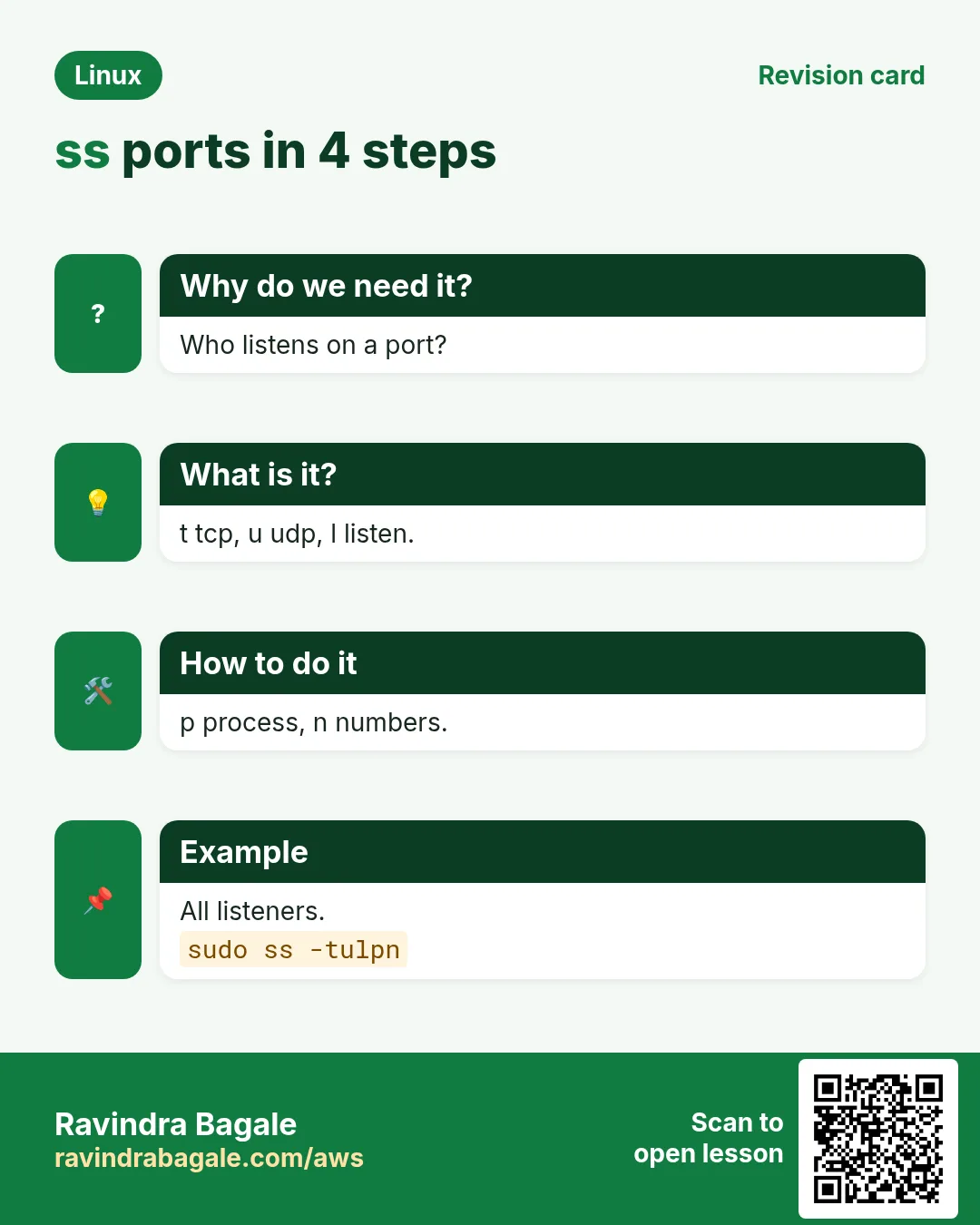
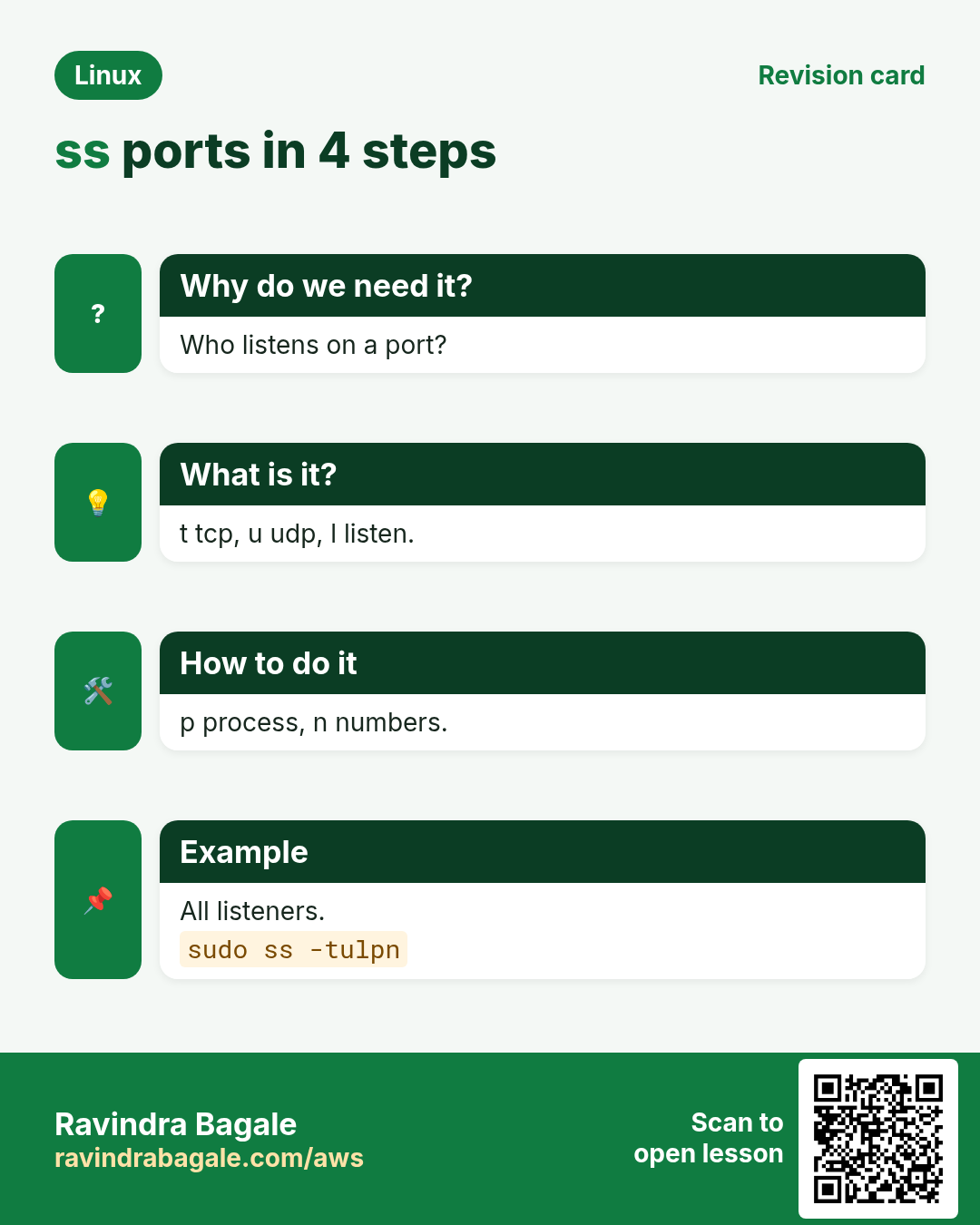
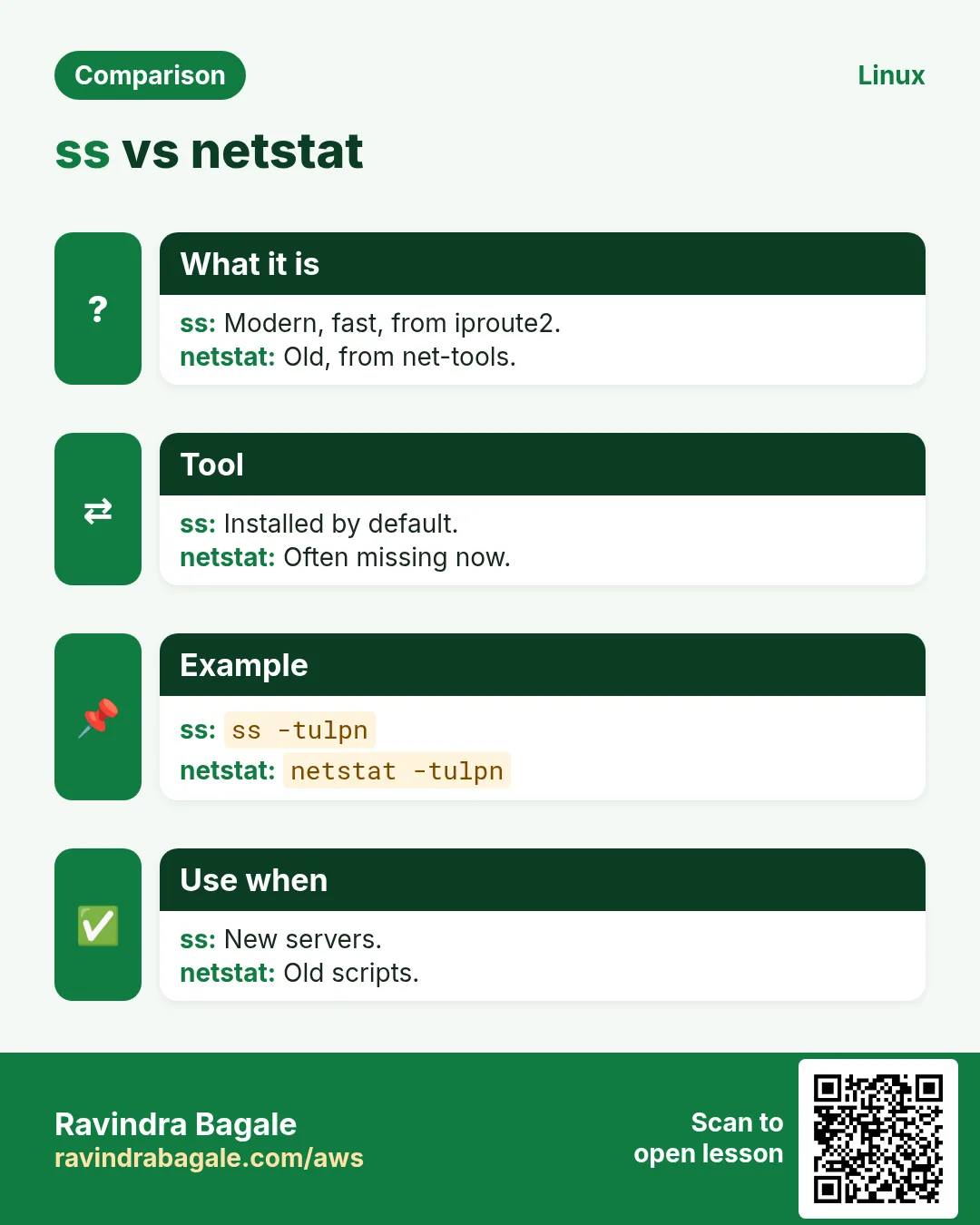
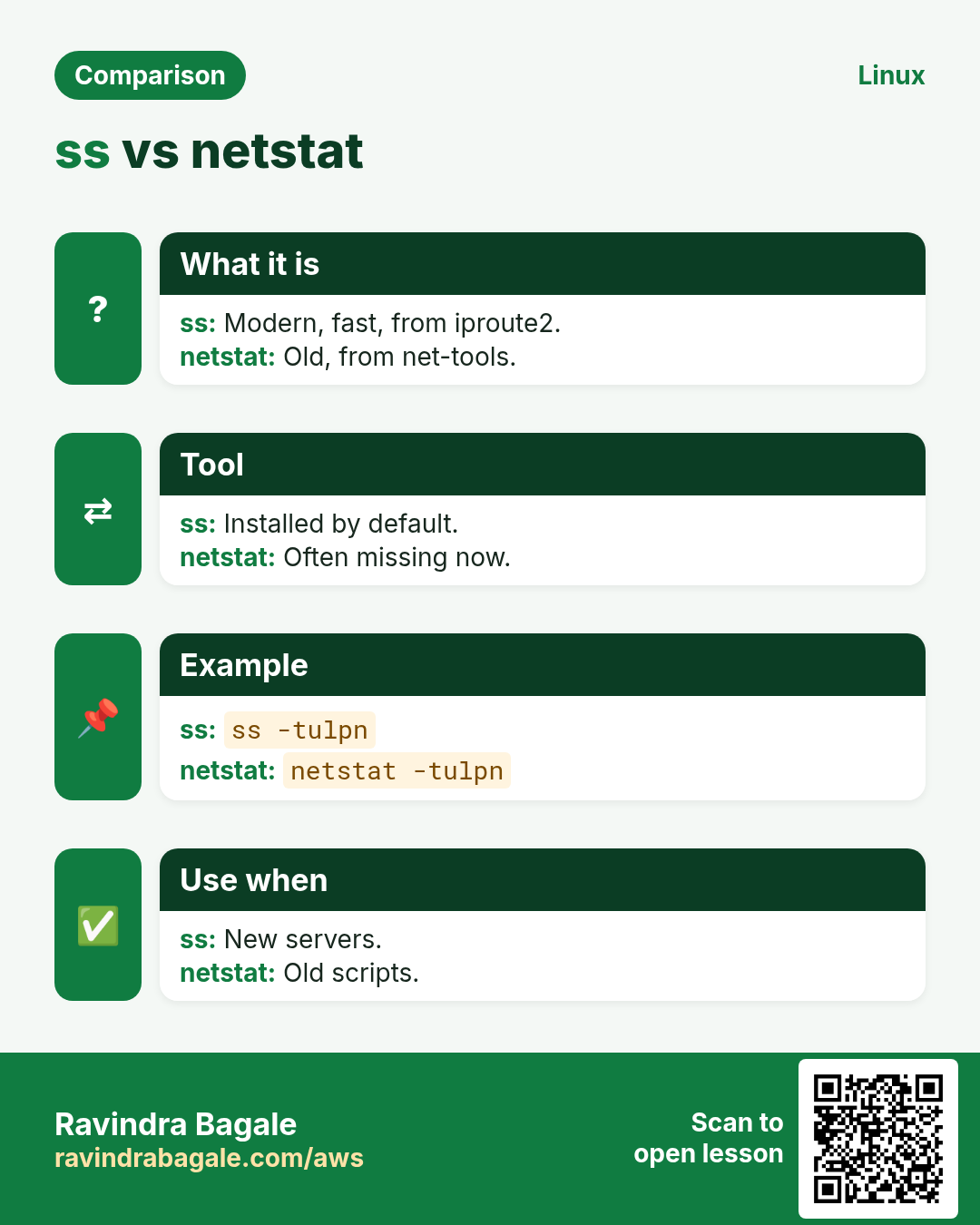
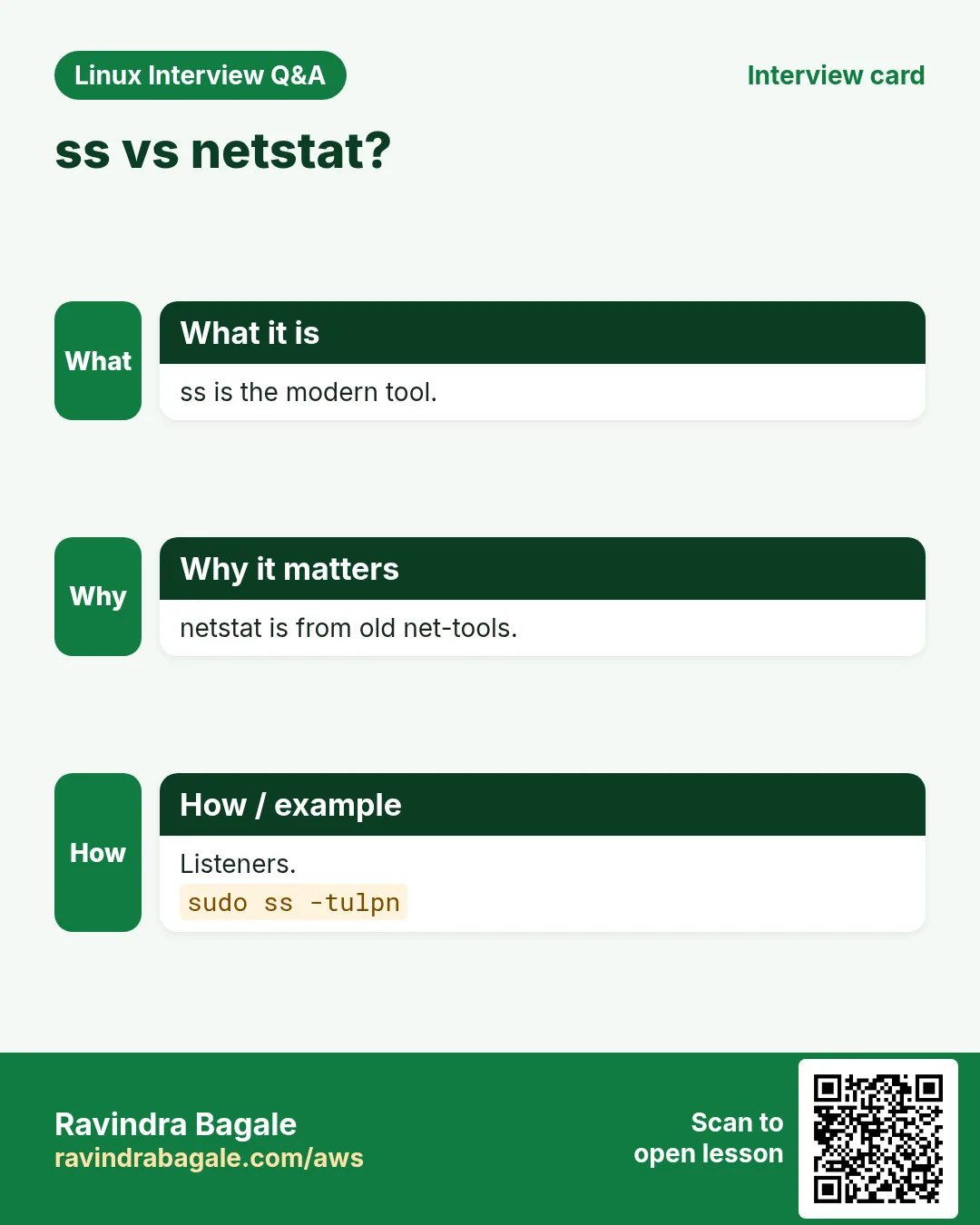
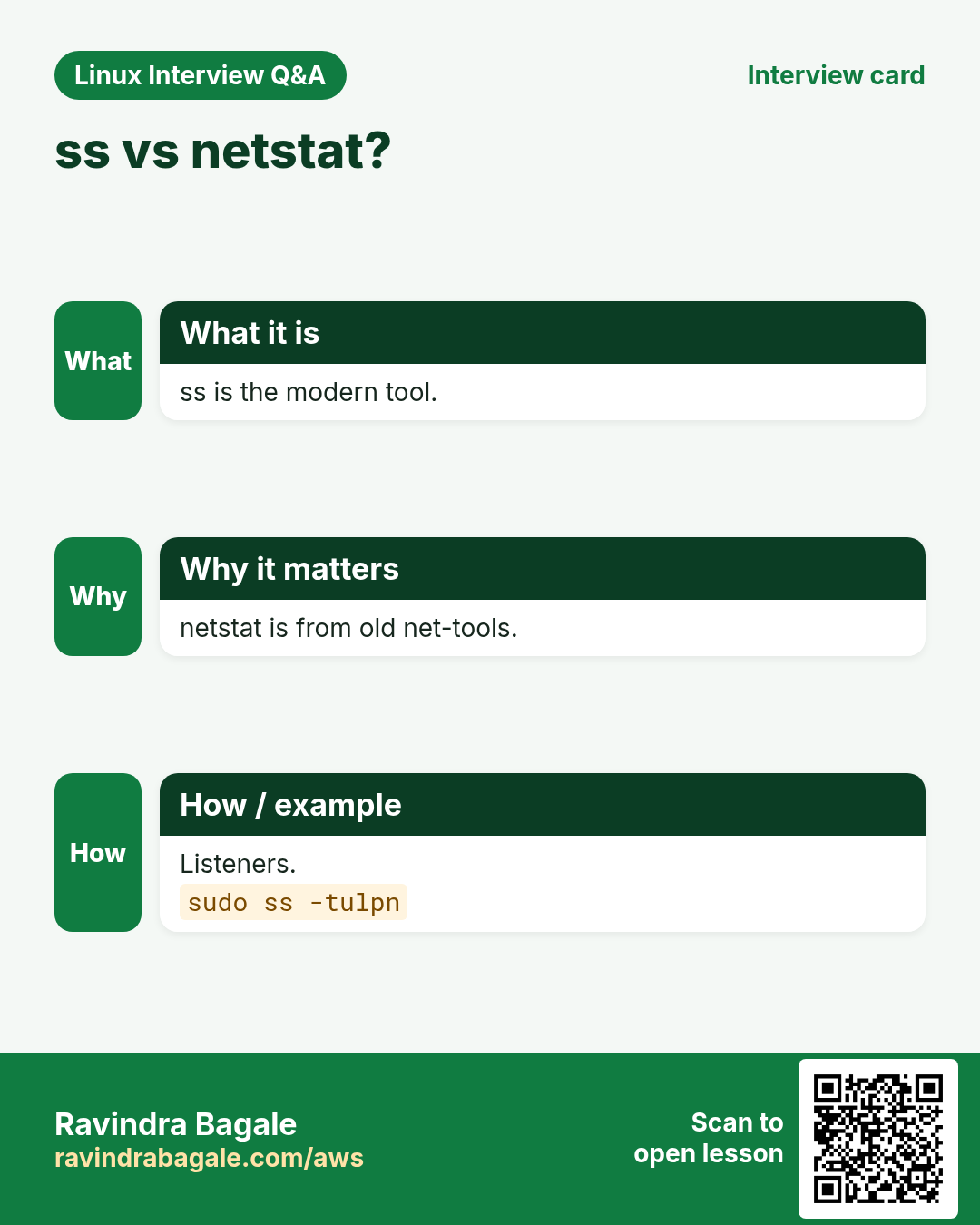
ss replaces netstat. Flags: -t TCP, -u UDP, -l listening only, -p process (needs sudo for others' processes), -n numbers (no name lookups). So ss -tulpn is the classic. 0.0.0.0 or * means all interfaces; 127.0.0.1 means only local.
| Flag | Meaning |
|---|---|
| -t | TCP |
| -u | UDP |
| -l | Listening only |
| -p | Show process |
| -n | Numeric, no DNS |
| -a | All states |
- All listeners.
sudo ss -tulpnOutput:
Netid State  Local Address:Port Process
tcp   LISTEN 0.0.0.0:22          users:(("sshd",pid=812))
tcp   LISTEN 127.0.0.1:5432      users:(("postgres",pid=990))
tcp   LISTEN *:80                users:(("nginx",pid=1020))
postgres listens only on localhost.
- Who uses port 8080?
sudo ss -ltnp 'sport = :8080'Output:
LISTEN 0 511 0.0.0.0:8080 users:(("java",pid=2201))A java app.
- Port free?
sudo ss -ltn | grep -c ':3000 'Output:
0Nobody listens on 3000.
8. ss for connections: -t, state, -s
When a database hits 'too many connections', you want to count who is connected and in which state.
ss -tn shows established TCP connections. ss -tn state established, state time-wait filter by state. dst and dport filter by remote side. ss -s prints a summary of counts.
- Summary.
ss -sOutput:
TCP: 412 (estab 298, closed 80, orphaned 0, timewait 78)298 open connections.
- Count clients of postgres.
ss -tn state established '( sport = :5432 )' | tail -n +2 | wc -lOutput:
143143 sessions.
- Top remote IPs.
ss -tn state established | awk 'NR>1{split($4,a,":");print a[1]}' | sort | uniq -c | sort -rn | head -3Output:
  88 10.0.3.14
  41 10.0.3.15
  12 10.0.3.30
One app server holds most.
9. netstat: the older tool
Old servers, old runbooks and many interviews still use netstat. You should be able to read it.
Package net-tools. netstat -tulpn is the same idea as ss -tulpn. netstat -rn shows routes (like ip r). netstat -i shows interface counters. Prefer ss and ip on new systems; they are faster and installed by default.
| Old (net-tools) | New (iproute2) |
|---|---|
| ifconfig | ip a |
| route -n | ip r |
| arp -n | ip n |
| netstat -tulpn | ss -tulpn |
| netstat -i | ip -s link |
- Install on RHEL/Amazon Linux.
sudo dnf install -y net-tools && netstat --version | head -1Output:
net-tools 2.10Now available.
- Listening ports.
sudo netstat -tulpn | grep LISTENOutput:
tcp 0 0 0.0.0.0:22 0.0.0.0:* LISTEN 812/sshdSame answer as ss.
- Routes.
netstat -rnOutput:
0.0.0.0 10.0.1.1 0.0.0.0 UG eth0UG = up, gateway.
10. ping: can I reach it?
The fastest test that a host is alive and how long a round trip takes.
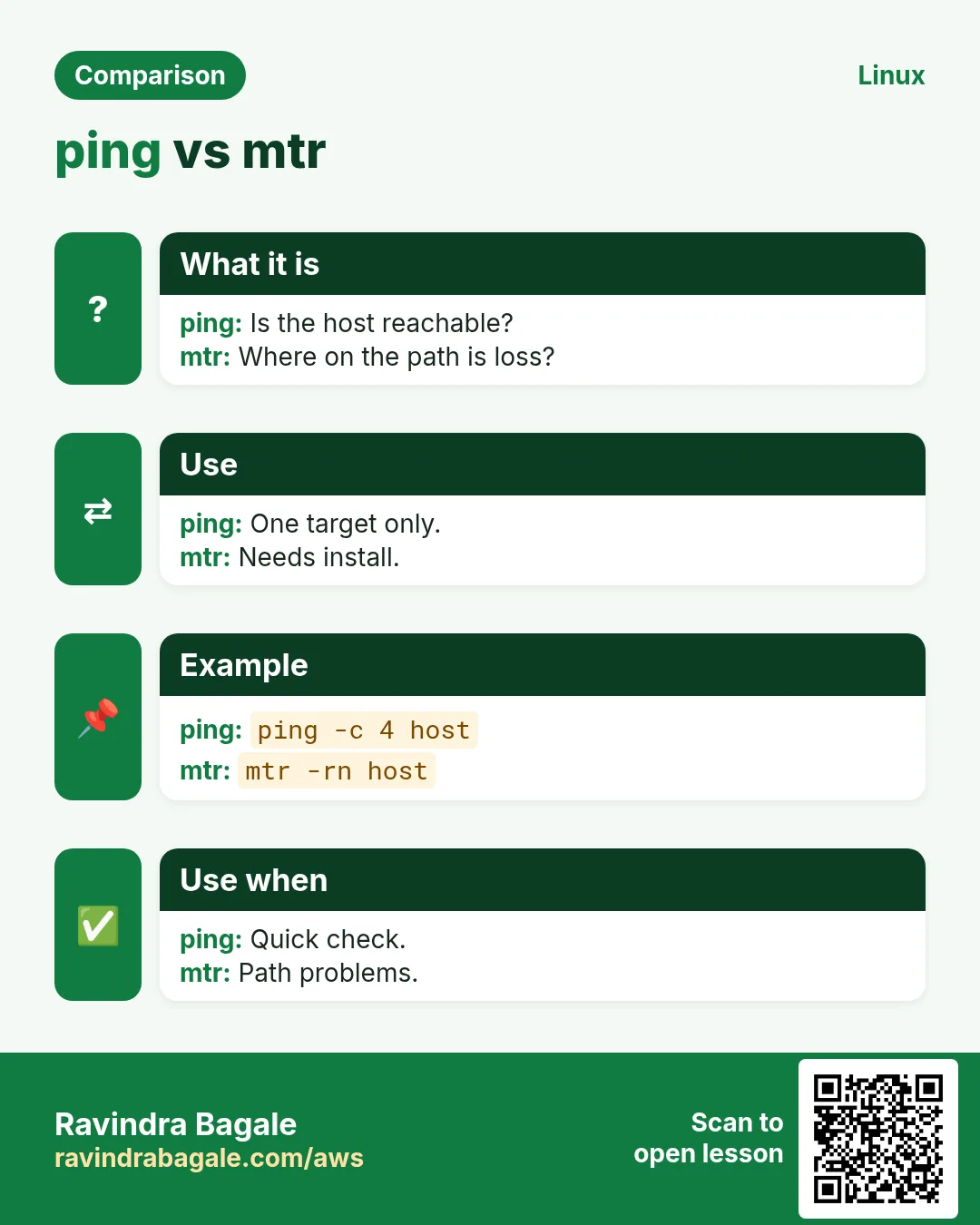
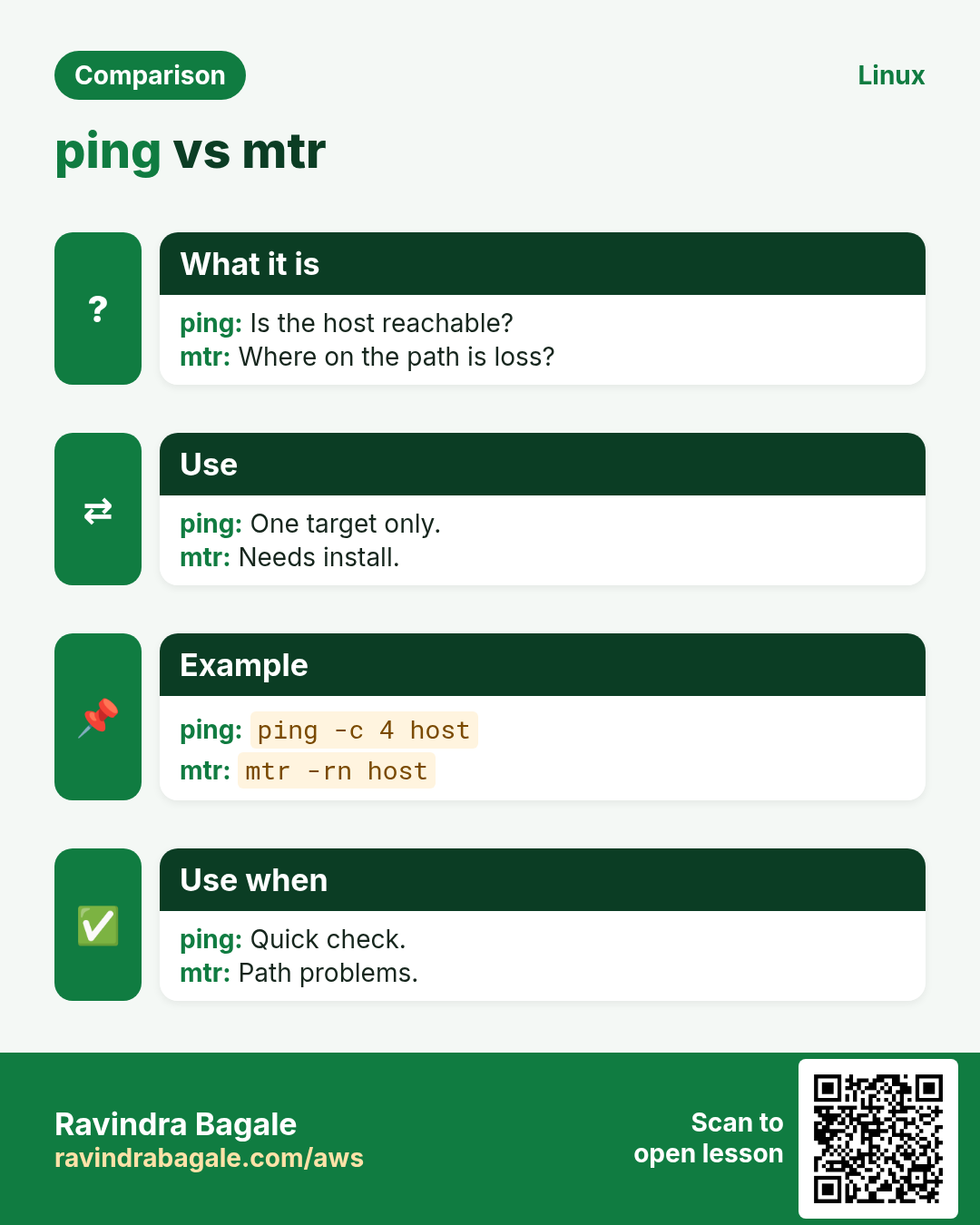
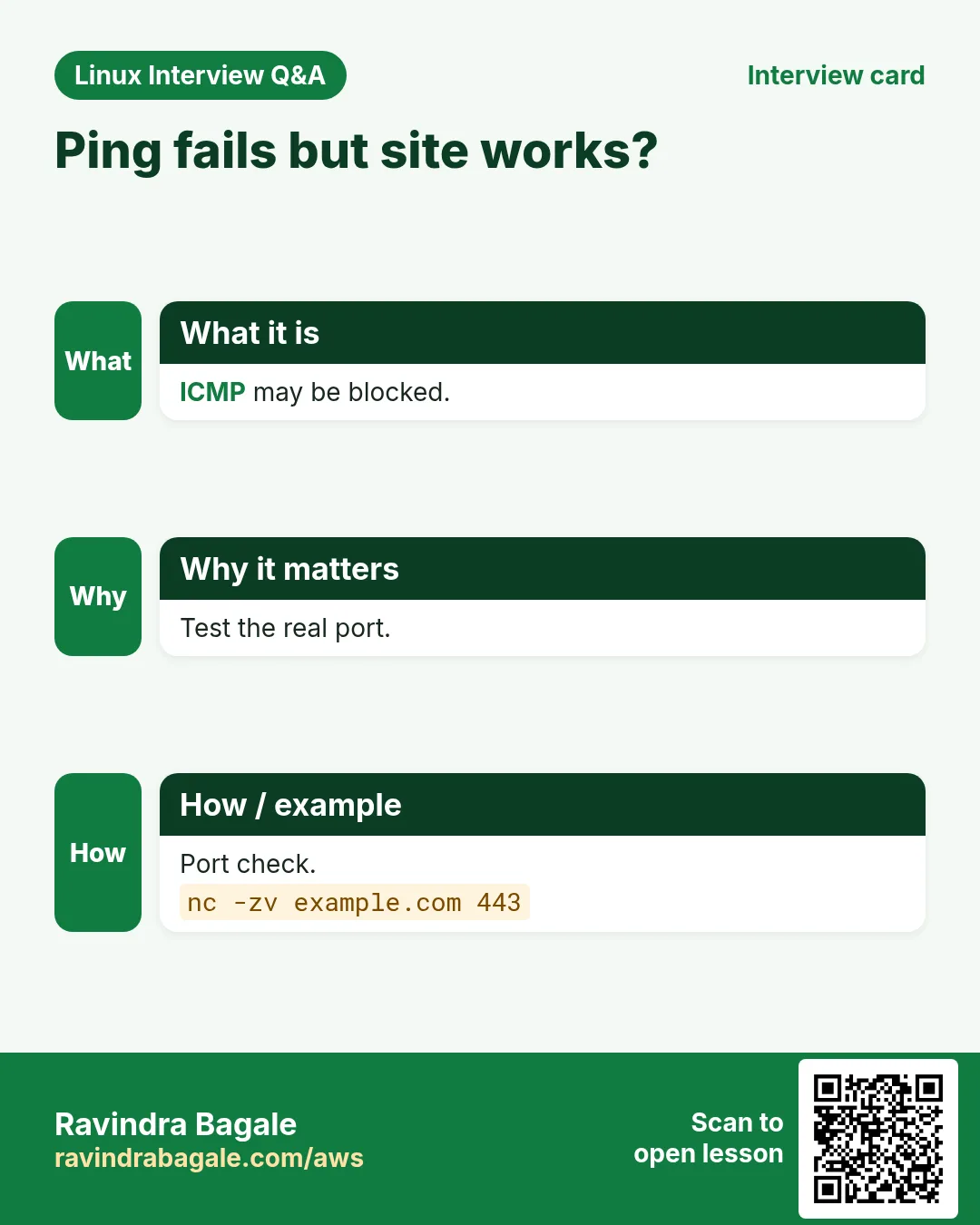
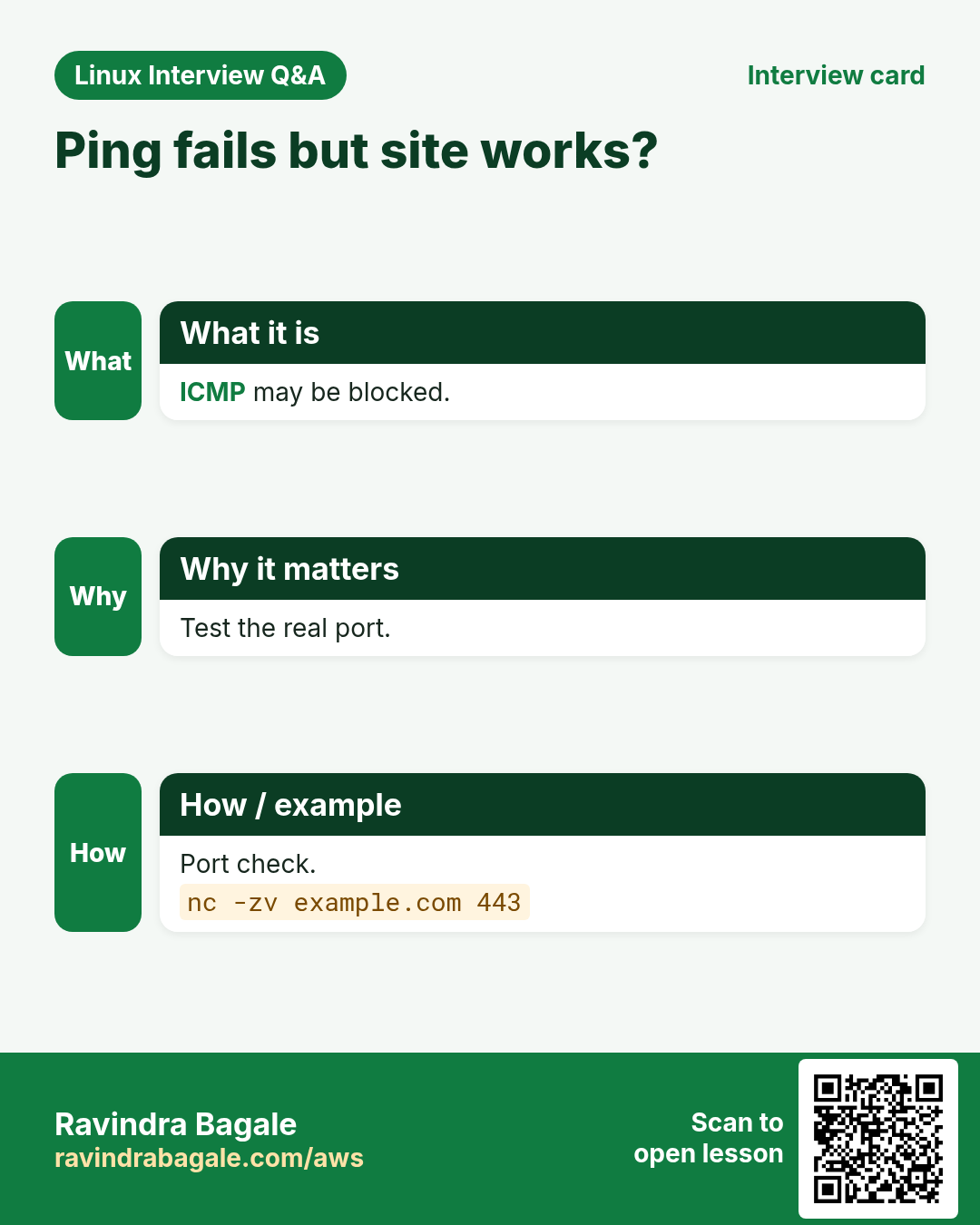
ping sends ICMP echo. On Linux it never stops until Ctrl+C, so use -c COUNT. -i interval, -W timeout, -s size, -4/-6. Note: many clouds and firewalls block ICMP, so no reply does not always mean down.
- Four pings.
ping -c 4 10.0.2.15Output:
64 bytes from 10.0.2.15: icmp_seq=1 ttl=64 time=0.41 ms
--- 10.0.2.15 ping statistics ---
4 packets transmitted, 4 received, 0% packet loss
Alive and close.
- Packet loss.
ping -c 20 -i 0.2 api.partner.comOutput:
20 packets transmitted, 16 received, 20% packet lossBad path or busy link.
- Name problem, not network.
ping -c1 db.internalOutput:
ping: db.internal: Name or service not knownDNS issue: see chapter 27.
11. traceroute and tracepath: hop by hop
ping says 'not reachable'. traceroute shows at which router the path stops.
traceroute HOST lists each hop with three timings. * * * means that hop did not answer (often just filtered). -n skips DNS (faster). -T uses TCP (with -p 443) to get past ICMP filters. tracepath needs no root and also finds the path MTU.
- Basic.
traceroute -n 8.8.8.8Output:
1  10.0.1.1   0.3 ms
2  100.65.8.1  1.2 ms
3  * * *
4  8.8.8.8    2.1 ms
Hop 3 is silent but traffic still passes.
- TCP to a web port.
sudo traceroute -T -p 443 -n shop.example.comOutput:
... 9 93.184.216.34 41.2 msWorks where ICMP is blocked.
- Path MTU.
tracepath -n 10.8.0.20Output:
1?: [LOCALHOST] pmtu 1500
 2:  10.8.0.20  3.1ms reached
     Resume: pmtu 1400
VPN lowers MTU to 1400.
12. mtr: traceroute plus ping, live
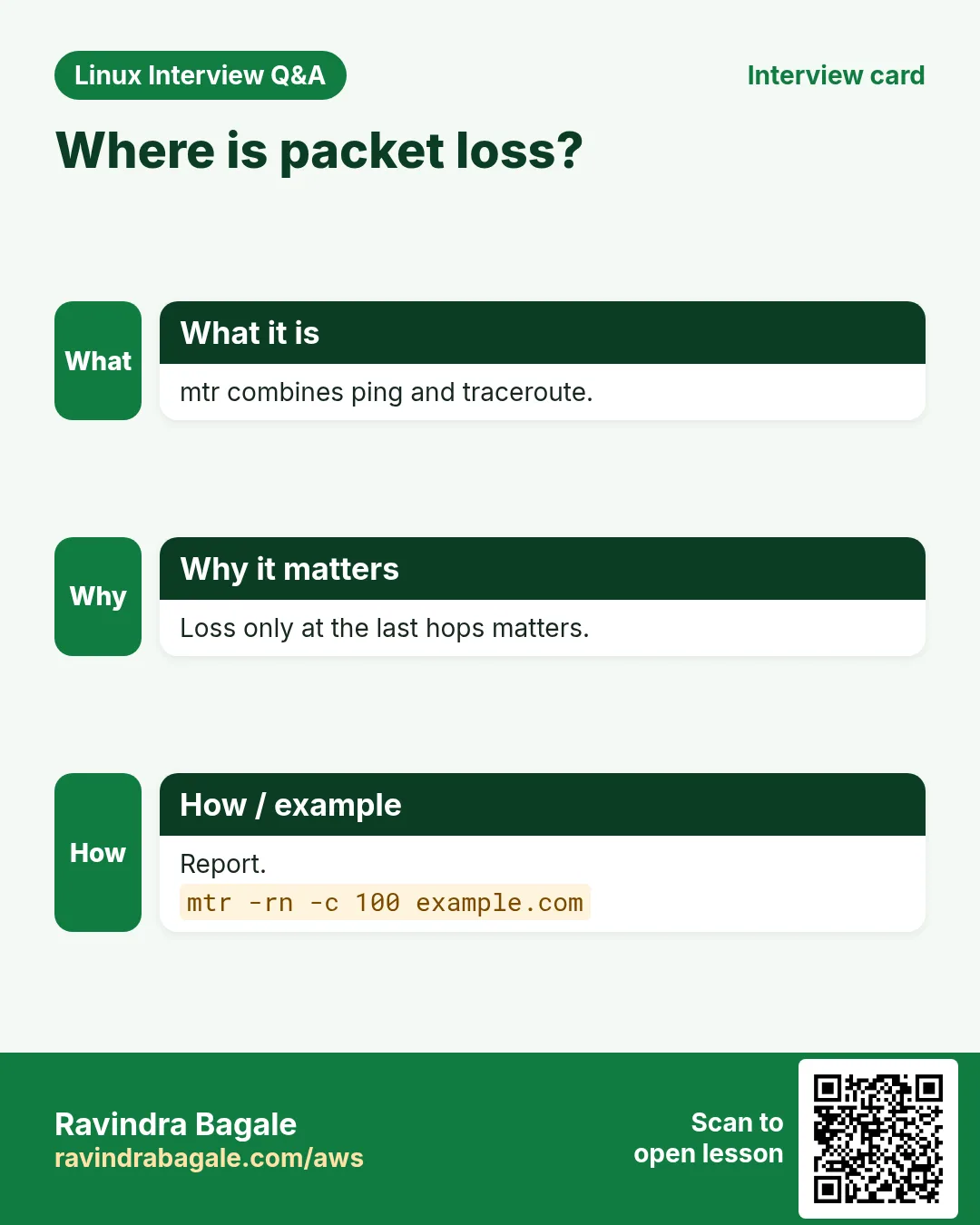
Read a trace all the way to the destination row. Suppose one router shows lost replies but the following routers and the destination reply normally. That router may answer probes less often while continuing to pass the real traffic. Look for a pattern that continues through the destination before treating a hop as proof of packet loss. Then test the actual app port. A server can answer a ping while its web process is stopped, and a service can work on a network that drops ping probes.
A one-time traceroute can miss short packet loss. mtr keeps testing every hop and shows loss and delay per hop.
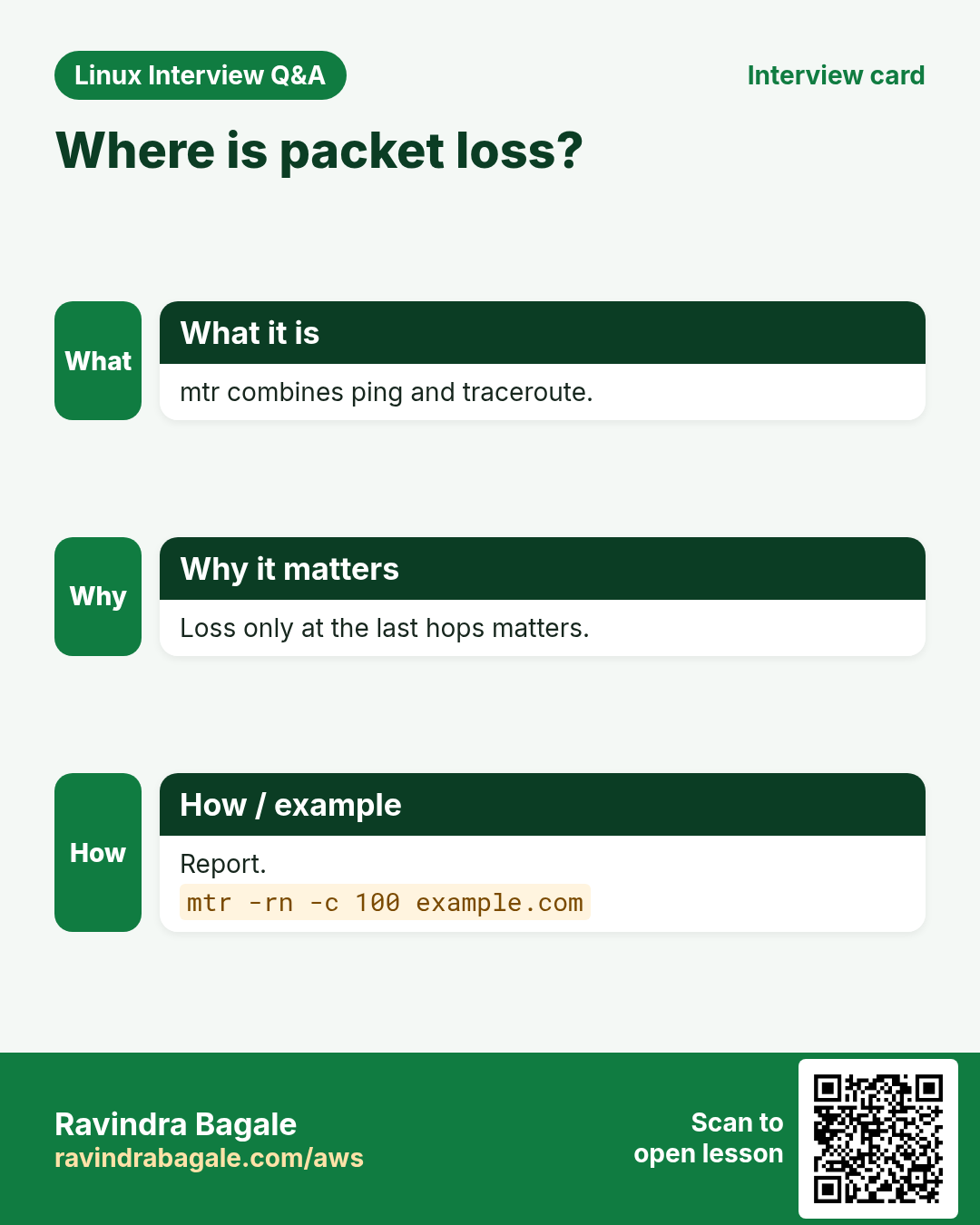
mtr HOST opens a live screen. mtr -r -c 100 -n HOST runs 100 rounds and prints a report (good for tickets). Loss only at a middle hop but not at the end is usually harmless rate limiting; loss that continues to the end is real.
- Report for a ticket.
mtr -r -c 100 -n api.partner.comOutput:
HOST            Loss%  Avg
1. 10.0.1.1      0.0%   0.4
2. 100.65.8.1    0.0%   1.1
5. 62.115.1.9    18.0%  44.0
6. 203.0.113.10  17.0%  46.2
Loss starts at hop 5 and stays: provider issue.
- TCP mode.
sudo mtr -T -P 443 -r -c 50 shop.example.comOutput:
(report)Same trick as traceroute -T.
13. A simple order to debug 'cannot connect'
Random checks waste time. A fixed order finds the broken layer quickly.
1 ip -br a (do I have an IP?) 2 ip -br link (is it UP?) 3 ip r (default route?) 4 ping gateway 5 ping/mtr target 6 name works? (dig, ch27) 7 port open? (nc -zv, ch27) 8 on the target: ss -tulpn and firewall.
- Steps 1-4 in one line.
ip -br a; ip -br link; ip r | head -1; ping -c2 -W1 $(ip r | awk '/default/{print $3}')Output:
eth0 UP 10.0.1.25/24
eth0 UP
default via 10.0.1.1 dev eth0
2 packets transmitted, 2 received
Local side is fine.
- Step 8 on the database server.
sudo ss -ltnp | grep 5432Output:
LISTEN 127.0.0.1:5432 users:(("postgres"))Listens only on localhost: set listen_addresses.
14. Real examples from many industries
The same Linux skill shows up in every kind of company. Seeing it in many places helps you remember it.
Each row is a made-up team. It shows who uses this and how.
| Team and city | How they use it | Command |
|---|---|---|
| Rohit, e-commerce, Pune | Finds a port conflict with ss | sudo ss -ltnp 'sport = :8080' |
| Emily, bank, London | mtr reports for the network team | mtr -r -c 100 -n api.partner.com |
| Kenji, gaming, Osaka | Watches interface errors on game servers | ip -s link show eth0 |
| Amina, hospital, Nairobi | Adds a route to the lab network | sudo ip route add 192.168.50.0/24 via 10.0.1.5 |
| Lucas, logistics, São Paulo | Counts DB connections per app server | ss -tn state established |
| Priya, college IT, Nashik | Teaches ip instead of ifconfig | ip -br a |
15. Common errors and how to fix them
Everyone hits these errors. Knowing the cause saves hours.
Read the exact message first. Then match it to a row below.
| Error you see | Why it happens | How to fix |
|---|---|---|
connect: Network is unreachable | No route, often no default gateway | Check ip r and add the gateway.sudo ip route add default via 10.0.1.1 |
Connection refused | Nothing listening on that port | Start the service or fix its listen address.sudo ss -ltnp |
Connection timed out | Firewall or security group drops packets | Check firewall rules on both sides.sudo firewall-cmd --list-all |
ping: unknown host / Name or service not known | DNS cannot resolve the name | Test DNS.dig +short db.internal |
bind: Address already in use | Another process already uses the port | Find and stop it, or change the port.sudo ss -ltnp 'sport = :8080' |
ifconfig: command not found | net-tools not installed | Use ip, or install net-tools.ip -br a |
eth1 state DOWN | Interface not brought up | Bring it up.sudo ip link set eth1 up |
Neighbour 10.0.1.1 FAILED | Layer 2 path to gateway broken | Check cable/VLAN/cloud network config.ip n show 10.0.1.1 |
* * * at every hop after one point | Firewall blocking ICMP/UDP probes or real outage | Try TCP mode.sudo traceroute -T -p 443 -n HOST |
ss shows no process name | Need root to see other users' processes | Run with sudo.sudo ss -tulpn |
16. Troubleshooting step by step
Use the 8-step order every time someone says 'cannot connect'.
Go top to bottom. Stop at the first step that shows the problem.
- Do I have an IP?
ip -br a- Is the link up?
ip -br link- Default route?
ip r- Gateway reachable?
ping -c2 10.0.1.1- Path to target?
mtr -r -c 20 -n TARGET- On the target: listening?
sudo ss -tulpn17. Lab 1: Map your server's network
Write down IP, link state, gateway and listening ports of your machine.
A full hands-on lab. Run every step on a test Linux machine (an EC2 instance, a VM, or WSL).
- Addresses.
ip -br aOutput:
eth0 UP 10.0.1.25/24- Links and MAC.
ip -br linkOutput:
eth0 UP 0a:12:34:56:78:9a- Routes.
ip rOutput:
default via 10.0.1.1 dev eth0- Gateway MAC.
ip nOutput:
10.0.1.1 ... REACHABLE- Listening ports.
sudo ss -tulpnOutput:
tcp LISTEN 0.0.0.0:22 sshd18. Lab 2: Find where the path breaks
Use ping, traceroute and mtr to a public host and a blocked host, and compare.
A full hands-on lab. Run every step on a test Linux machine (an EC2 instance, a VM, or WSL).
- Ping a public DNS.
ping -c 4 1.1.1.1Output:
0% packet loss- Trace it.
traceroute -n 1.1.1.1Output:
... 1.1.1.1 3.2 ms- mtr report.
mtr -r -c 30 -n 1.1.1.1Output:
Loss% 0.0 at last hop- Try an unused private IP.
ping -c 2 -W 1 10.255.255.1Output:
100% packet loss- Explain.
ip route get 10.255.255.1Output:
10.255.255.1 via 10.0.1.1 dev eth0Ravindra Bagale's Tip
When ping fails, do not stop there. Many cloud firewalls block ICMP. Test the real port with nc -zv HOST PORT or curl, and on the server run sudo ss -tulpn. The answer to 'is it the network or the app?' is usually in ss.
Ravindra Bagale's Tip – मराठी
ping fail झाला तर तिथेच थांबू नका. अनेक cloud firewalls ICMP block करतात. nc -zv HOST PORT किंवा curl ने खरा port test करा, आणि server वर sudo ss -tulpn चालवा. 'network की app?' याचं उत्तर बहुतेक ss मधे असतं.
Ravindra Bagale's Tip – हिंदी
ping fail हो तो वहीं मत रुकिए. कई cloud firewalls ICMP block करते हैं. nc -zv HOST PORT या curl से असली port test करें, और server पर sudo ss -tulpn चलाएं. 'network या app?' का जवाब अक्सर ss में होता है.
19. Frequently asked questions
Q. ip or ifconfig?
ip. ifconfig is old and often not installed.
Q. What does 0.0.0.0:80 mean in ss?
Listening on all interfaces.
Q. Why no output from ping in AWS?
Security group may block ICMP; test the port instead.
Q. Is * * * in traceroute bad?
Not always; routers may just not reply.
Q. Do ip changes survive reboot?
No. Use nmcli, netplan or cloud-init.
Q. ss vs netstat speed?
ss reads kernel data directly, so it is faster.
Q. What is /24?
Network prefix: 24 bits fixed, 256 addresses.
Q. mtr shows loss only in the middle?
Usually rate limiting; trust the last hop.
20. Interview questions and answers
Beginner level
Q. Show IP addresses?
ip a or ip -br a.
Q. Show listening ports?
sudo ss -tulpn.
Q. Ping 3 times?
ping -c 3 HOST.
Q. Show the default gateway?
ip r.
Mid level level
Q. refused vs timed out?
Refused: host said no listener. Timeout: packets dropped, often firewall.
Q. Which route will be used for an IP?
ip route get IP.
Q. traceroute vs mtr?
mtr repeats and shows loss per hop.
Q. Find which process uses port 443?
sudo ss -ltnp 'sport = :443'.
Senior level
Q. App can reach some servers but not others in the same VPC. Approach?
Compare ip route get, security groups/NACLs, ss on target, and tcpdump.
Q. Many TIME_WAIT sockets: problem?
Usually normal for clients; use keepalive/pooling if ports run out.
Q. Large packets fail but small work?
MTU mismatch; check tracepath and lower MTU or fix MSS.
Q. Why prefer -n in network tools during incidents?
Avoids slow or broken DNS lookups.
Try at home
- Run ip -br a, ip r and sudo ss -tulpn on your machine and explain each line in your own words.
- Run mtr -r -c 50 to two websites and compare loss and average time.
Practise this chapter
Interview questions and answers
What would you check if a web process works locally but its remote client gets no connection?
Use ss to see the actual listen address and port, then check route and security controls for the remote path. A listener on 127.0.0.1 receives local traffic only. Test the intended remote endpoint after confirming the process and address.
Check your understanding
Choose an answer, then compare your reasoning with the explanation.
Practice Tasks
Practice checks run in your browser. They check the answer for this exercise; they do not create resources or connect to your AWS account.
About this scenarioMaple Leaf Books is a bookselling business in Toronto. Emily Tremblay looks after its IT and cloud work. They count money in CAD and run their AWS resources in the ca-central-1 Region. In the tasks below you do real jobs for them using what this lesson teaches. All names, account IDs, IP addresses and numbers are made up for practice.
0 / 17
Easy Only IPv6
The network is the road every app uses at BIZ.
Emily Tremblay at Maple Leaf Books wants to see only IPv6 addresses.
- Find the Linux command that does this job.
- Add the options (like -r or -h) the task needs.
- Add the file names, folders or users in the right order.
- Use sudo if the job changes system files or users. Click Check answer.
Easy One interface
The network is the road every app uses at BIZ.
Show addresses of interface ens5 only.
- Find the Linux command that does this job.
- Add the options (like -r or -h) the task needs.
- Add the file names, folders or users in the right order.
- Use sudo if the job changes system files or users. Click Check answer.
Easy Neighbour table
The network is the road every app uses at BIZ.
Show the ARP/neighbour table for ens5 only.
- Find the Linux command that does this job.
- Add the options (like -r or -h) the task needs.
- Add the file names, folders or users in the right order.
- Use sudo if the job changes system files or users. Click Check answer.
Easy Listening TCP only
The network is the road every app uses at BIZ.
Show who listens on TCP 5432, numeric, with process (use a sport filter).
- Find the Linux command that does this job.
- Add the options (like -r or -h) the task needs.
- Add the file names, folders or users in the right order.
- Use sudo if the job changes system files or users. Click Check answer.
Easy Socket summary
The network is the road every app uses at BIZ.
Print a summary of socket counts.
- Find the Linux command that does this job.
- Add the options (like -r or -h) the task needs.
- Add the file names, folders or users in the right order.
- Use sudo if the job changes system files or users. Click Check answer.
Easy Three pings
The network is the road every app uses at BIZ.
Send exactly 3 pings to 10.0.2.40.
- Find the Linux command that does this job.
- Add the options (like -r or -h) the task needs.
- Add the file names, folders or users in the right order.
- Use sudo if the job changes system files or users. Click Check answer.
Medium Add a temporary IP
The network is the road every app uses at BIZ.
Add 172.16.4.50/24 to ens5.
- Find the Linux command that does this job.
- Add the options (like -r or -h) the task needs.
- Add the file names, folders or users in the right order.
- Use sudo if the job changes system files or users. Click Check answer.
Medium Take a link down
The network is the road every app uses at BIZ.
Bring interface ens6 down for maintenance.
- Find the Linux command that does this job.
- Add the options (like -r or -h) the task needs.
- Add the file names, folders or users in the right order.
- Use sudo if the job changes system files or users. Click Check answer.
Medium Error counters
The network is the road every app uses at BIZ.
Show packet and error counters for ens5.
- Find the Linux command that does this job.
- Add the options (like -r or -h) the task needs.
- Add the file names, folders or users in the right order.
- Use sudo if the job changes system files or users. Click Check answer.
Medium Which route?
The network is the road every app uses at BIZ.
Find which route the kernel uses to reach 1.1.1.1.
- Find the Linux command that does this job.
- Add the options (like -r or -h) the task needs.
- Add the file names, folders or users in the right order.
- Use sudo if the job changes system files or users. Click Check answer.
Medium UDP listeners
The network is the road every app uses at BIZ.
Show listening UDP sockets with numbers only.
- Find the Linux command that does this job.
- Add the options (like -r or -h) the task needs.
- Add the file names, folders or users in the right order.
- Use sudo if the job changes system files or users. Click Check answer.
Medium Routes the old way
The network is the road every app uses at BIZ.
Show the route table with netstat, numeric.
- Find the Linux command that does this job.
- Add the options (like -r or -h) the task needs.
- Add the file names, folders or users in the right order.
- Use sudo if the job changes system files or users. Click Check answer.
Medium Fast traceroute
The network is the road every app uses at BIZ.
Trace the path to 9.9.9.9 without DNS lookups.
- Find the Linux command that does this job.
- Add the options (like -r or -h) the task needs.
- Add the file names, folders or users in the right order.
- Use sudo if the job changes system files or users. Click Check answer.
Hard Add a route
The network is the road every app uses at BIZ.
Send traffic for 10.20.0.0/16 through gateway 10.0.1.7.
- Find the Linux command that does this job.
- Add the options (like -r or -h) the task needs.
- Add the file names, folders or users in the right order.
- Use sudo if the job changes system files or users. Click Check answer.
Hard Remove a route
The network is the road every app uses at BIZ.
Remove the route for 192.168.60.0/24.
- Find the Linux command that does this job.
- Add the options (like -r or -h) the task needs.
- Add the file names, folders or users in the right order.
- Use sudo if the job changes system files or users. Click Check answer.
Hard Count TIME_WAIT
The network is the road every app uses at BIZ.
List TCP sockets in time-wait state, numeric.
- Find the Linux command that does this job.
- Add the options (like -r or -h) the task needs.
- Add the file names, folders or users in the right order.
- Use sudo if the job changes system files or users. Click Check answer.
Hard mtr report
The network is the road every app uses at BIZ.
Make an mtr report of 50 rounds to 9.9.9.9, numeric.
- Find the Linux command that does this job.
- Add the options (like -r or -h) the task needs.
- Add the file names, folders or users in the right order.
- Use sudo if the job changes system files or users. Click Check answer.
21. Related chapters
- Linux Ops Refresh for DevOps
- Bash Scripting for Automation
- Linux grep and find Commands with Examples
- How to Set Up Passwordless SSH Between Linux Servers
In short
- ip a, ip link, ip r, ip n show address, link, route, neighbour.
- ss -tulpn shows listeners; ss -tn shows connections.
- netstat is the older equivalent.
- ping -c tests reachability, ICMP may be blocked.
- traceroute, tracepath and mtr show the path.
- Debug in order: IP, link, route, gateway, path, DNS, port.
Revision, comparison and interview cards
Revise this lesson in a few minutes. Save the cards on your phone or download them as PNG files. The QR code on each card opens this lesson.
More cards: Ravi Sir's Cards.