AWS CLI Auto Scaling Commands: Launch Templates and Groups
We make servers grow and shrink by themselves: a launch template, an Auto Scaling group behind a load balancer, a target tracking policy and an instance refresh.
In this chapter
- Create a launch template and versions
- Create an Auto Scaling group
- Add a target tracking policy
- Roll out a new version with instance refresh
- Scale to zero and delete
1. The big picture: staff that matches the crowd
A restaurant calls extra waiters at lunch time and sends them home at night. A recipe card tells every new waiter the same rules.
The recipe is a launch template (aws ec2 create-launch-template). The manager is the Auto Scaling group (aws autoscaling create-auto-scaling-group).
2. Create a launch template
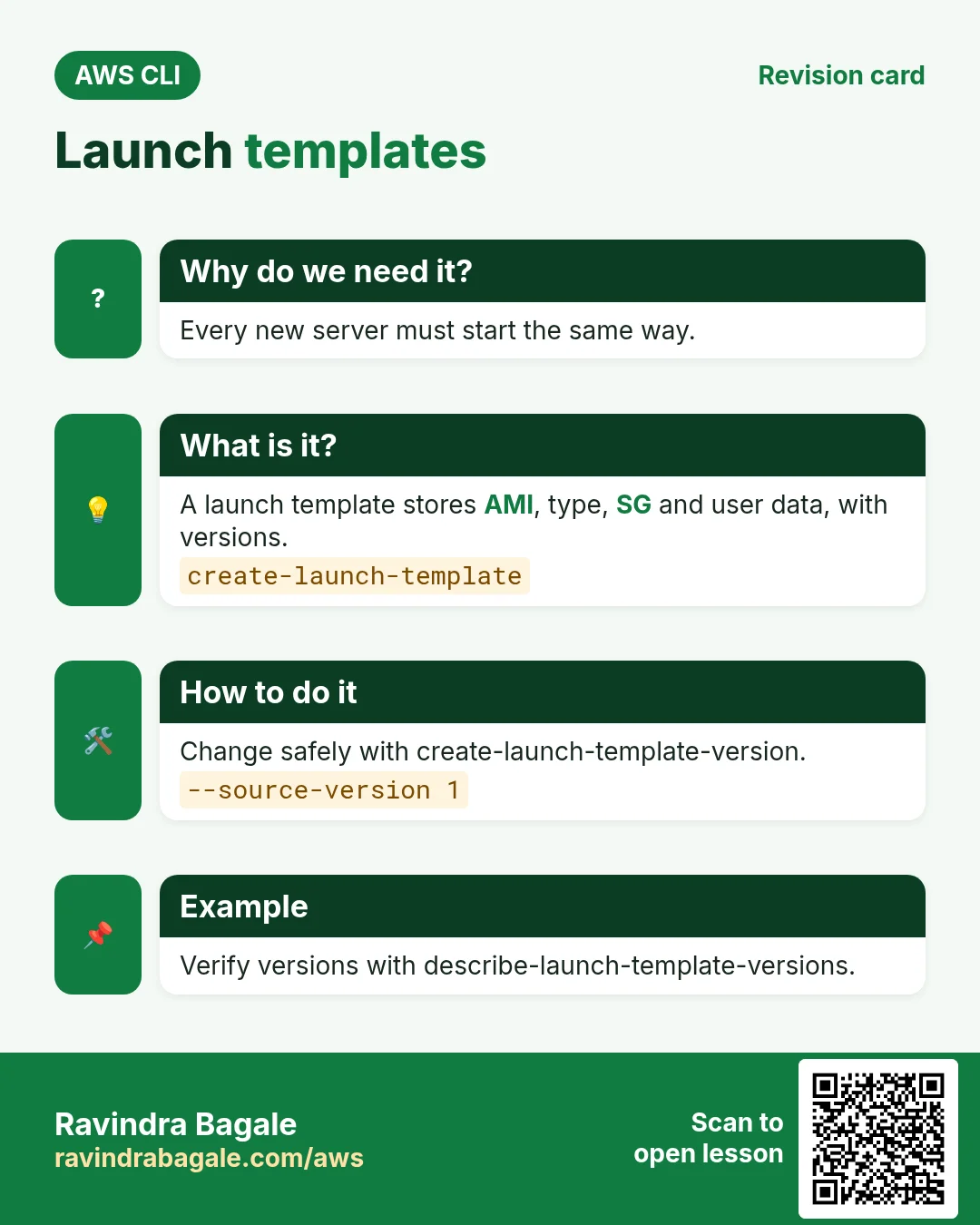
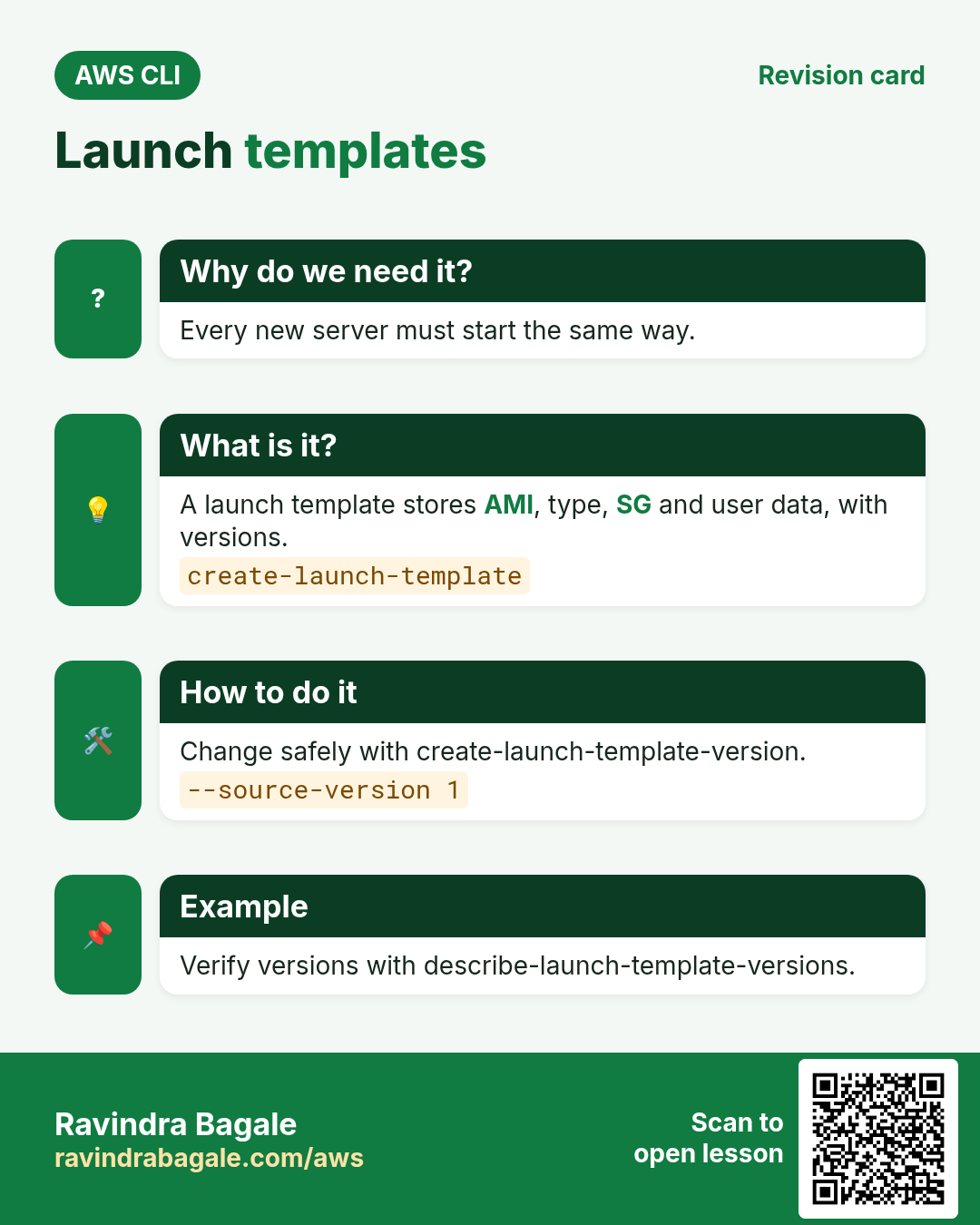
Every new server must start with the same AMI, type, security group and startup script.
A launch template stores launch settings. It has numbered versions so you can change it safely.
- Create version 1.
UD=$(base64 -w0 userdata.sh)
aws ec2 create-launch-template --launch-template-name cli-web-lt --launch-template-data "{\"ImageId\":\"$AMI\",\"InstanceType\":\"t3.micro\",\"SecurityGroupIds\":[\"$WSG\"],\"UserData\":\"$UD\"}" --query "LaunchTemplate.LatestVersionNumber"
Expected output:
1- Create version 2 with a bigger type.
aws ec2 create-launch-template-version --launch-template-name cli-web-lt --source-version 1 --launch-template-data "{\"InstanceType\":\"t3.small\"}" --query "LaunchTemplateVersion.VersionNumber"Expected output:
2- Verify.
aws ec2 describe-launch-template-versions --launch-template-name cli-web-lt --query "LaunchTemplateVersions[].[VersionNumber,LaunchTemplateData.InstanceType]" --output textExpected output:
2  t3.small
1  t3.micro
3. Create the Auto Scaling group
A launch template describes how to create an instance. An Auto Scaling group decides how many instances to maintain and where it can place them. Suppose the group has a minimum of one, desired capacity two and maximum four. At first it aims for two. If one becomes unhealthy, a replacement brings the group back toward two. A scaling policy can change the desired capacity within the bounds, which is a different decision from replacing an unhealthy member.
After the create command, inspect desired capacity, each instance’s lifecycle state and the group’s activity history. An instance still starting does not yet mean the group is ready. When a load balancer is involved, also check that the target is healthy. Compare instance IDs before and after an approved instance refresh to see whether the template revision actually reached the fleet.
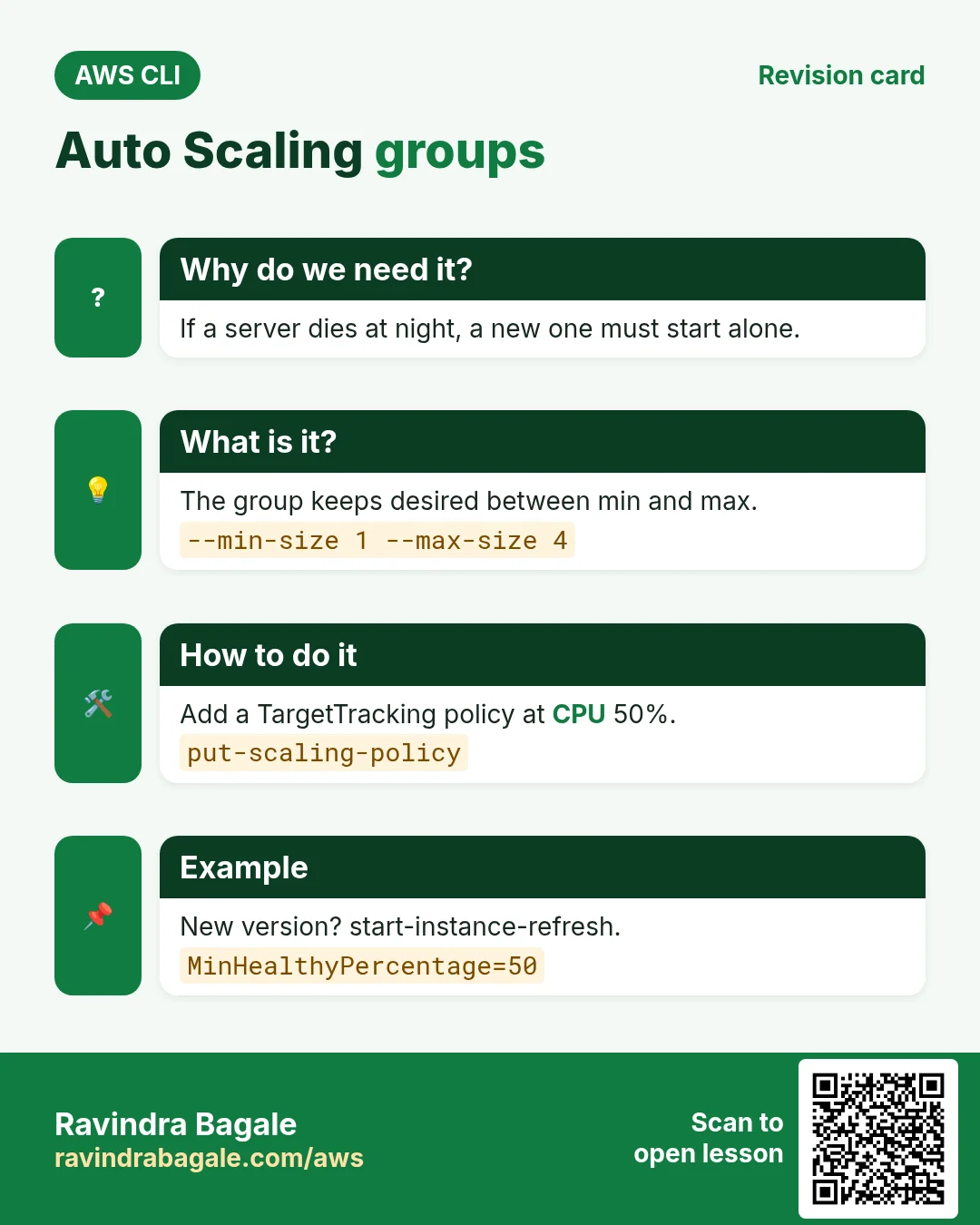
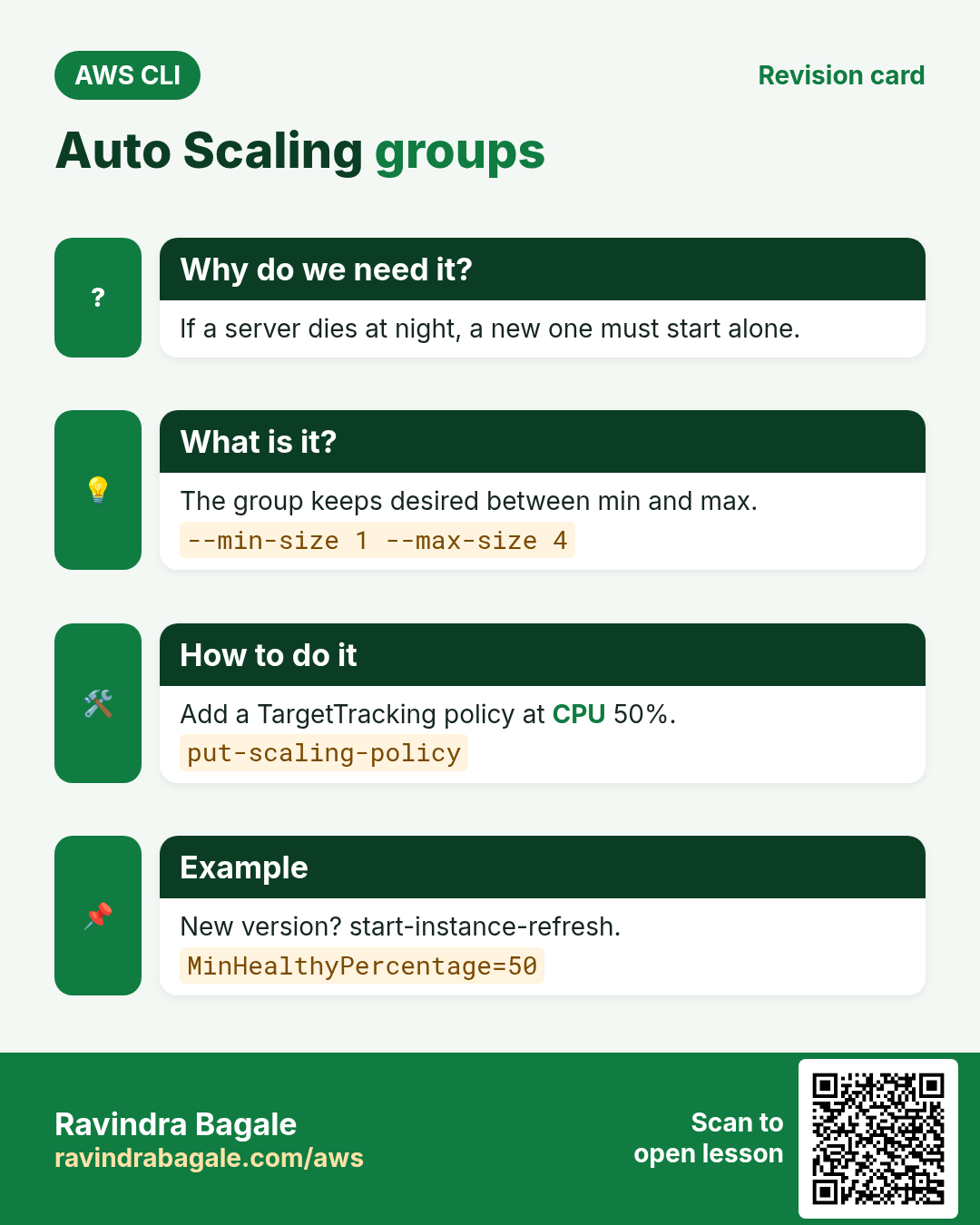
If a server dies at night, a new one must start without you.
The group uses the template, spreads servers across subnets, registers them in the target group and replaces unhealthy ones.
- Create the group.
aws autoscaling create-auto-scaling-group --auto-scaling-group-name cli-asg --launch-template LaunchTemplateName=cli-web-lt,Version='$Latest' --min-size 1 --max-size 4 --desired-capacity 2 --vpc-zone-identifier "$PRI1,$PRI2" --target-group-arns $TG --health-check-type ELB --health-check-grace-period 120Expected output:
(no output means success)- Check instances.
aws autoscaling describe-auto-scaling-groups --auto-scaling-group-names cli-asg --query "AutoScalingGroups[0].Instances[].[InstanceId,AvailabilityZone,LifecycleState,HealthStatus]" --output textExpected output:
i-0aaa  ap-south-1a  InService  Healthy
i-0bbb ap-south-1b InService Healthy- Change desired capacity by hand.
aws autoscaling set-desired-capacity --auto-scaling-group-name cli-asg --desired-capacity 3Expected output:
(no output means success)4. Target tracking scaling policy
You do not want to watch CPU graphs all day.
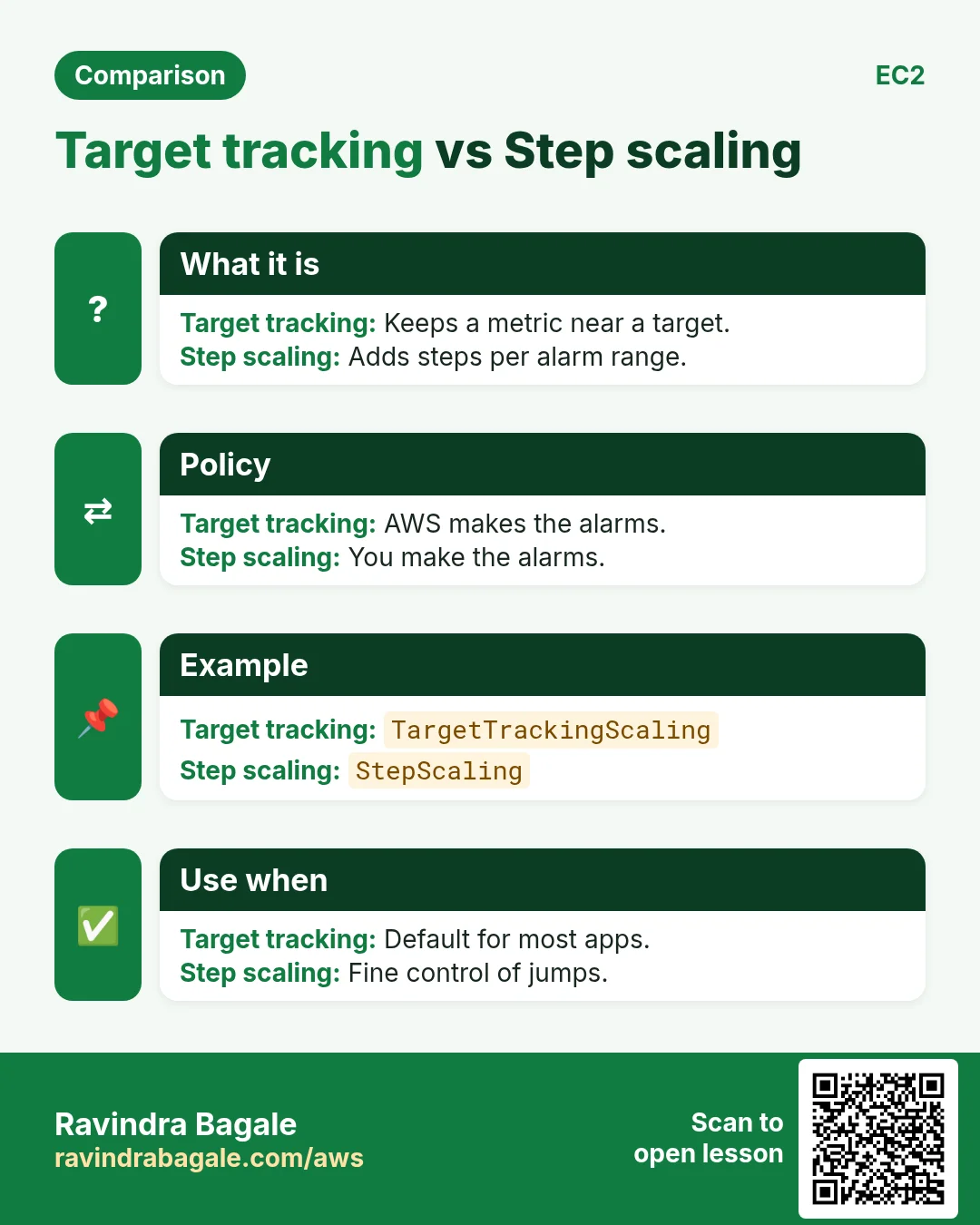
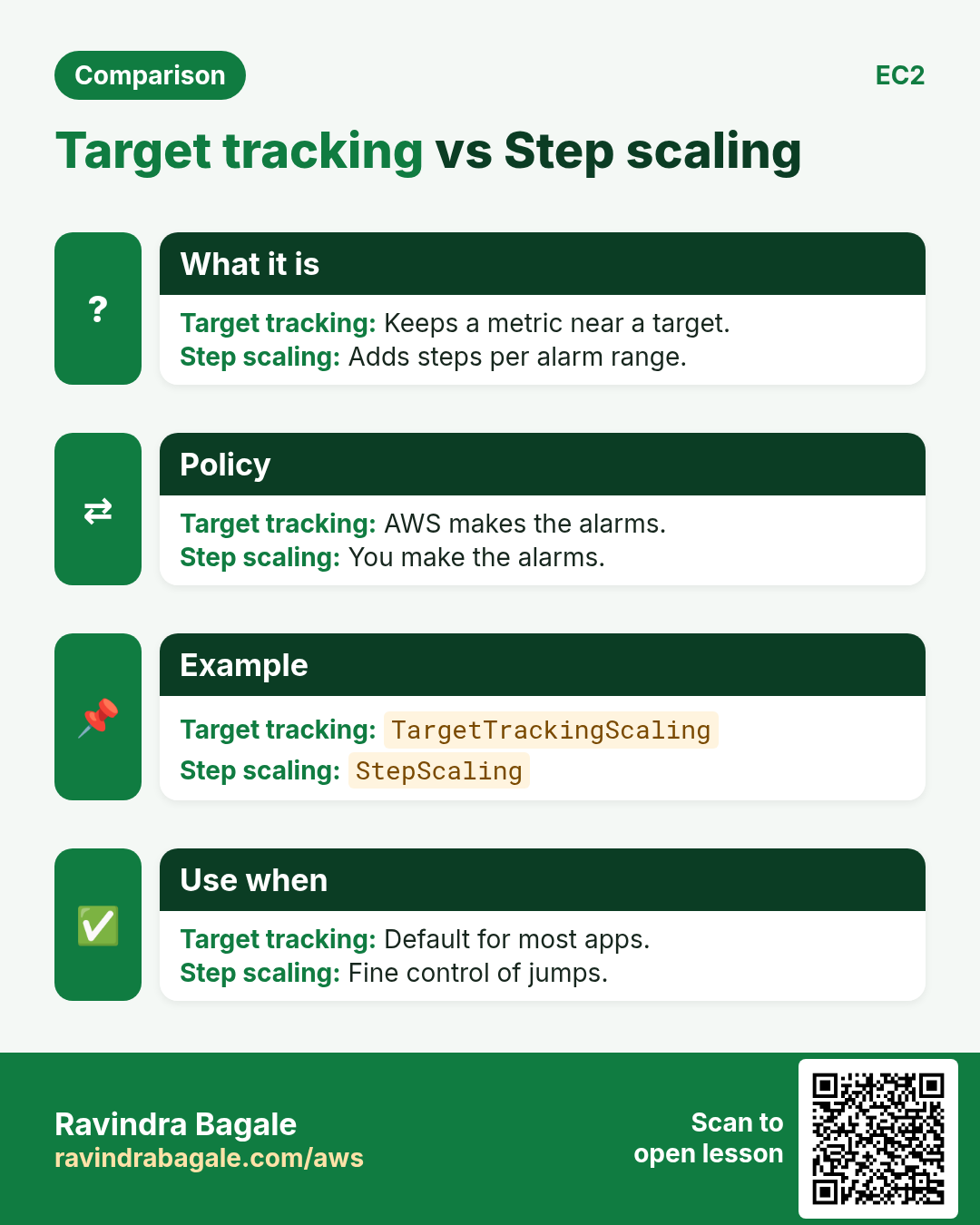
Target tracking keeps a metric near a target, like average CPU 50%. AWS creates the alarms for you.
- Add the policy.
aws autoscaling put-scaling-policy --auto-scaling-group-name cli-asg --policy-name cpu50 --policy-type TargetTrackingScaling --target-tracking-configuration "{\"PredefinedMetricSpecification\":{\"PredefinedMetricType\":\"ASGAverageCPUUtilization\"},\"TargetValue\":50}" --query "Alarms[].AlarmName" --output textExpected output:
TargetTracking-cli-asg-AlarmHigh-... TargetTracking-cli-asg-AlarmLow-...- See scaling history.
aws autoscaling describe-scaling-activities --auto-scaling-group-name cli-asg --max-items 3 --query "Activities[].[StatusCode,Description]" --output textExpected output:
Successful Launching a new EC2 instance: i-0ccc...5. Instance refresh for a new version
In the launch template commands, the initial version specifies a type such as t3.micro and the example new version changes it to t3.small. Making a template version creates a description. Existing instances keep running as they were launched. To roll the new settings through the fleet, review which version the group should use and then start the instance refresh under approved availability settings.
Make a before-and-after record for the practice group. List two current instance IDs, their launch-template versions and health. After starting the refresh, read the refresh status and compare new members as they become healthy. When the refresh completes, verify the intended number of healthy members and the version on each replacement. A launch or health failure can stop progress. Inspect the group’s activity and state before starting another refresh.
You changed the template. Old servers still run the old version.
Instance refresh replaces instances in batches while keeping a minimum healthy percentage.
- Start it.
aws autoscaling start-instance-refresh --auto-scaling-group-name cli-asg --preferences MinHealthyPercentage=50,InstanceWarmup=60Expected output:
{ "InstanceRefreshId": "08b9..." }- Track progress.
aws autoscaling describe-instance-refreshes --auto-scaling-group-name cli-asg --query "InstanceRefreshes[0].[Status,PercentageComplete]" --output textExpected output:
InProgress 506. Same action in Python, Node.js, Java, Go, .NET and PHP
Scripts start in the CLI. Apps call the same API through an SDK. Knowing both helps you move a tested command into real code.
Low-level CLI commands expose service operations. A high-level command or an automatically paginated list can make multiple requests. For example, aws autoscaling create-auto-scaling-group --auto-scaling-group-name web maps to the CreateAutoScalingGroup API.
Same action (CreateAutoScalingGroup) from code. Set the intended profile and Region for the SDK. Provider support and precedence can differ by SDK, and an explicit client setting can override defaults.
| Stack | Code |
|---|---|
| Python (boto3) | boto3.client("autoscaling").create_auto_scaling_group(AutoScalingGroupName="web",MinSize=1,MaxSize=4,LaunchTemplate={"LaunchTemplateName":"lt"},VPCZoneIdentifier="s1,s2") |
| Node.js (v3) | await asg.send(new CreateAutoScalingGroupCommand({AutoScalingGroupName:"web",MinSize:1,MaxSize:4,LaunchTemplate:{LaunchTemplateName:"lt"},VPCZoneIdentifier:"s1,s2"})); |
| Java (v2) | asg.createAutoScalingGroup(r -> r.autoScalingGroupName("web").minSize(1).maxSize(4).launchTemplate(t -> t.launchTemplateName("lt")).vpcZoneIdentifier("s1,s2")); |
| Go (v2) | c.CreateAutoScalingGroup(ctx, &autoscaling.CreateAutoScalingGroupInput{AutoScalingGroupName: aws.String("web"), MinSize: aws.Int32(1), MaxSize: aws.Int32(4)}) |
| .NET | await asg.CreateAutoScalingGroupAsync(new CreateAutoScalingGroupRequest{AutoScalingGroupName="web",MinSize=1,MaxSize=4}); |
| PHP | $asg->createAutoScalingGroup(["AutoScalingGroupName"=>"web","MinSize"=>1,"MaxSize"=>4]); |
7. Clean up so nothing keeps costing
Lab resources left running cost money and can be a security risk.
Delete in reverse order: children first, then parents.
- Scale to zero.
aws autoscaling update-auto-scaling-group --auto-scaling-group-name cli-asg --min-size 0 --desired-capacity 0Expected output:
(no output means success)- Delete the group and its instances.
aws autoscaling delete-auto-scaling-group --auto-scaling-group-name cli-asg --force-deleteExpected output:
(no output means success)- Delete the launch template.
aws ec2 delete-launch-template --launch-template-name cli-web-lt --query "LaunchTemplate.LaunchTemplateName" --output textExpected output:
cli-web-lt- Verify.
aws autoscaling describe-auto-scaling-groups --auto-scaling-group-names cli-asg --query "length(AutoScalingGroups)"Expected output:
0Ravindra Bagale's Tip
If you terminate an instance by hand, the group starts a new one. To really reduce servers, change desired capacity instead.
Common errors: cause and safe next check
Desired capacity is set above the maximum or below the minimum
Desired capacity must stay between the group minimum and maximum. Inspect those three numbers together before you update the group. Changing only desired capacity cannot exceed the maximum you already set.
A new launch template version exists, but the group still launches the old one
The group uses the launch template and version you configured on the group. Creating a new version does not switch the group by itself. Inspect the group’s launch template version before you expect new instances to pick up the change.
Instances are replaced faster than the application can become healthy
A health check can mark an instance unhealthy before the application has finished starting. Inspect the health-check type and the grace period before you shorten timers or raise desired capacity again.
Practical questions and full answers
What do minimum, maximum, and desired capacity each mean?
Minimum is the fewest instances the group should keep. Maximum is the most it may run. Desired capacity is the count the group should have now, and it stays between those limits. Inspect all three before you scale.
Why use a launch template with an Auto Scaling group?
The launch template is the recipe for each new instance, including the image and instance settings the group should use. The group then adds or removes instances from that recipe. Inspect the template version the group actually references.
Does raising desired capacity fix an unhealthy target?
Not by itself. New instances use the same recipe and health checks. If the application or health-check path is wrong, extra instances can fail the same way. Inspect a failed instance’s health reason before you add more capacity.
8. Interview questions and answers
Q. Launch template vs launch configuration?
Templates have versions and newer features. Launch configurations are legacy.
Q. What do min, max and desired mean?
Desired is the current target. It always stays between min and max.
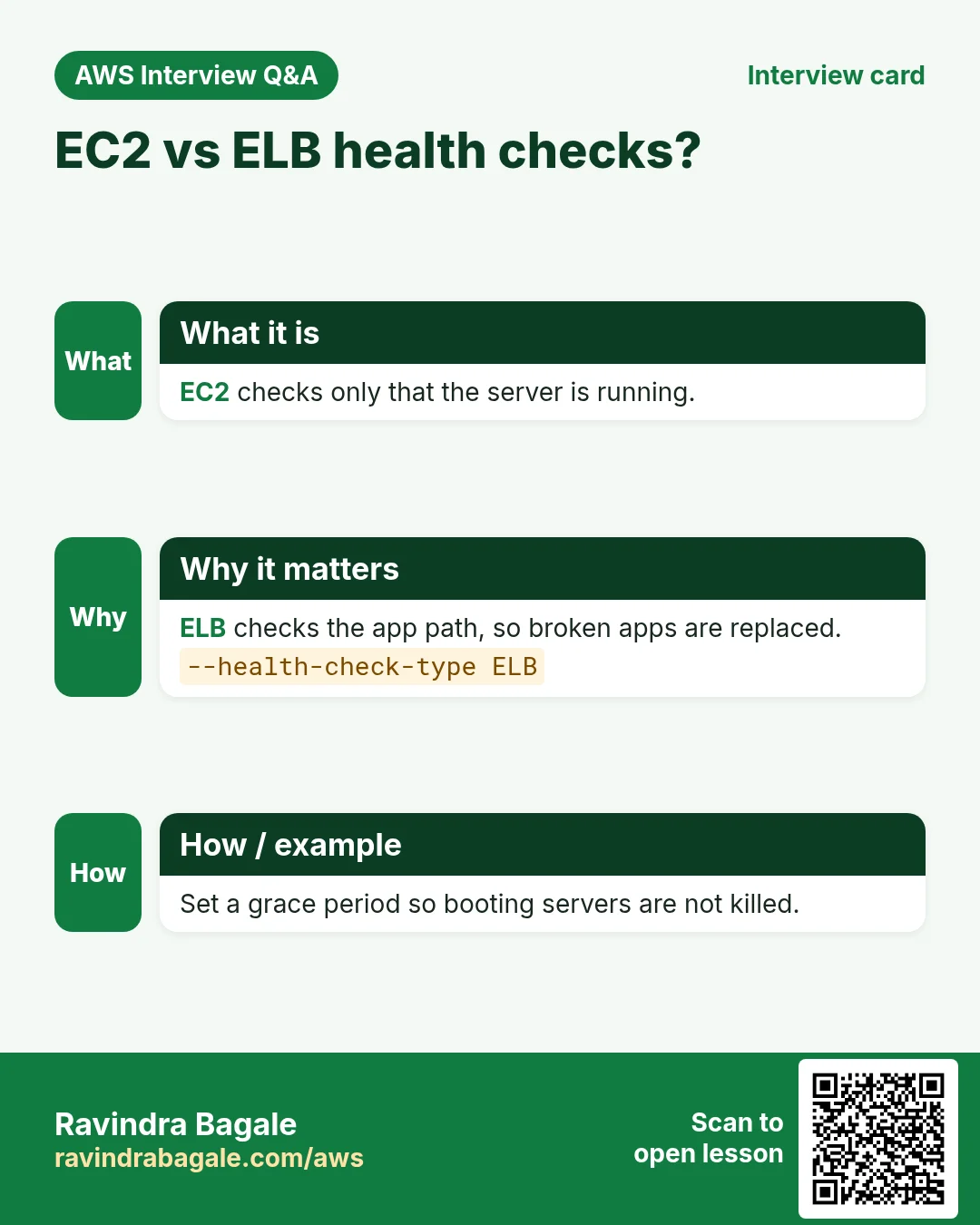
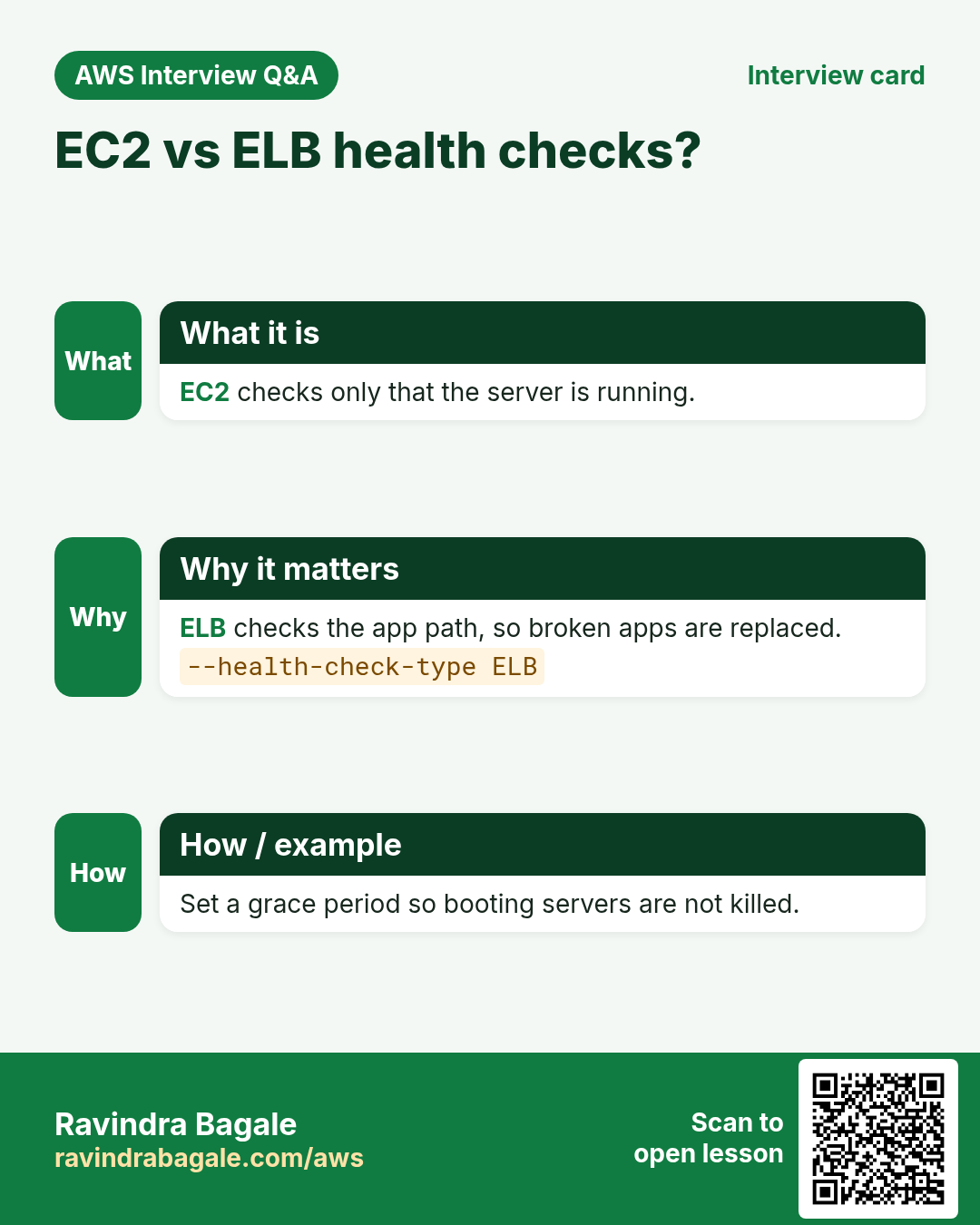
Q. EC2 vs ELB health check type?
ELB uses the load balancer health check, so a broken app is replaced, not just a dead server.
Q. How do you deploy a new AMI to the group?
New template version, then start-instance-refresh.
Q. What is target tracking?
A policy that keeps a metric near a target value, like a thermostat.
Try at home
- Create the group with desired 2, terminate one instance and watch a new one start.
- Run stress on one server and watch the policy add a server.
In short
- Launch template = recipe.
- ASG keeps desired between min and max.
- ELB health check replaces broken apps.
- Target tracking like a thermostat.
- Instance refresh rolls out versions.
Follow the launch template version and current instances
Record the launch template ID/version, then inspect scaling activities after a test update. Updating the reference does not retroactively change the current instances. Use a controlled instance refresh if required, and watch the application's health.
Interview check What is the difference between desired and minimum capacity?
Desired is the number the group tries to maintain. Minimum is the lower bound. Cleanup must account for replacement launches while the group is still active.
Practise this chapter
Interview questions and answers
What is the difference between scaling and replacing an unhealthy instance?
Scaling changes the group’s desired capacity in response to policy or control input. Replacement tries to reach the existing desired capacity after a member becomes unhealthy. I would inspect the group’s activities and health status to decide which event occurred.
Check your understanding
Choose an answer, then compare your reasoning with the explanation.
Practice Tasks
Practice checks run in your browser. They check the answer for this exercise; they do not create resources or connect to your AWS account.
About this scenarioCape Town Safaris is a tourism business in Cape Town. Thabo Nkosi looks after its IT and cloud work. They count money in ZAR and run their AWS resources in the af-south-1 Region. In the tasks below you do real jobs for them using what this lesson teaches. All names, account IDs, IP addresses and numbers are made up for practice.
0 / 10
Easy Describe an Auto Scaling group
See current instances and sizes of the group.
Describe the Auto Scaling group capetownsafari-asg.
- Read the task and decide which AWS service it is about.
- Write aws, then the service name, then the operation (the action word).
- Add each needed flag (--name) followed by its value from the task.
- Flags can be in any order. Click Check answer.
Medium Change desired capacity
Before a big sale, raise desired capacity so servers are ready in time.
Set the desired capacity of capetownsafari-asg to 4.
- Read the task and decide which AWS service it is about.
- Write aws, then the service name, then the operation (the action word).
- Add each needed flag (--name) followed by its value from the task.
- Flags can be in any order. Click Check answer.
Medium Change min and max size
Max protects your bill; min keeps the site up.
Update capetownsafari-asg to min 1 and max 10.
- Read the task and decide which AWS service it is about.
- Write aws, then the service name, then the operation (the action word).
- Add each needed flag (--name) followed by its value from the task.
- Flags can be in any order. Click Check answer.
Medium Check target health
If targets are unhealthy the site shows 502/503 errors.
Show the health of the targets in arn:aws:elasticloadbalancing:af-south-1:122836786824:targetgroup/capetownsafari-tg/6d0ecf831eec9f09.
- Read the task and decide which AWS service it is about.
- Write aws, then the service name, then the operation (the action word).
- Add each needed flag (--name) followed by its value from the task.
- Flags can be in any order. Click Check answer.
Medium Kubernetes LoadBalancer Service
A Service of type LoadBalancer gets an AWS load balancer.
Write a Service of type LoadBalancer selecting app: web, port 80 to targetPort 8080.
- Start from the top-level keys the task names.
- Indent child keys with 2 spaces (no tabs).
- Fill in each property with the value from the task.
- Click Check answer. Key order does not matter.
Hard Create an Auto Scaling group
Min, max and desired decide how many servers run; the group replaces unhealthy ones.
Create ASG capetownsafari-asg from launch template capetownsafari-lt with min 2, max 6, desired 2, in subnets subnet-022c3abcac24bb1,subnet-02c3abcac24bb2.
- Read the task and decide which AWS service it is about.
- Write aws, then the service name, then the operation (the action word).
- Add each needed flag (--name) followed by its value from the task.
- Flags can be in any order. Click Check answer.
Hard Create a launch template
The launch template is the recipe Auto Scaling uses to build each new server.
Create launch template capetownsafari-lt using the settings in lt.json.
- Read the task and decide which AWS service it is about.
- Write aws, then the service name, then the operation (the action word).
- Add each needed flag (--name) followed by its value from the task.
- Flags can be in any order. Click Check answer.
Hard Roll out a new AMI with instance refresh
Instance refresh replaces servers a few at a time, so the site stays up.
Start an instance refresh on capetownsafari-asg.
- Read the task and decide which AWS service it is about.
- Write aws, then the service name, then the operation (the action word).
- Add each needed flag (--name) followed by its value from the task.
- Flags can be in any order. Click Check answer.
Hard Create an Application Load Balancer
An ALB needs at least two subnets in different AZs for high availability.
Create an ALB named capetownsafari-alb in subnets subnet-022c3abcac24bb1 and subnet-02c3abcac24bb2 with security group sg-022b36ab6b244c3b2.
- Read the task and decide which AWS service it is about.
- Write aws, then the service name, then the operation (the action word).
- Add each needed flag (--name) followed by its value from the task.
- Flags can be in any order. Click Check answer.
Hard Add an HTTP listener
The listener is what accepts traffic on a port and forwards it to a target group.
On load balancer arn:aws:elasticloadbalancing:af-south-1:122836786824:loadbalancer/app/capetownsafari-alb/50dc6c495c0c9188, create an HTTP listener on port 80 that forwards to arn:aws:elasticloadbalancing:af-south-1:122836786824:targetgroup/capetownsafari-tg/6d0ecf831eec9f09.
- Read the task and decide which AWS service it is about.
- Write aws, then the service name, then the operation (the action word).
- Add each needed flag (--name) followed by its value from the task.
- Flags can be in any order. Click Check answer.
Revision, comparison and interview cards
Revise this lesson in a few minutes. Save the cards on your phone or download them as PNG files. The QR code on each card opens this lesson.
More cards: Ravi Sir's Cards.