How to Install LAMP Stack on Amazon Linux (EC2)
So far our servers have only sent static files: HTML, CSS and images that look the same for everyone. Most real websites are dynamic: code runs on the server and builds a page for each visitor from a database. In this chapter we install the classic stack for that, LAMP (Linux, Apache, MariaDB, PHP), on an Amazon Linux EC2 server. We see why the browser can't run PHP and how Apache hands it to php-fpm, test the stack with a phpinfo page, turn every command into one automation script, and fix the errors you will meet on the way.
In this class
- Static vs dynamic websites, with a real example
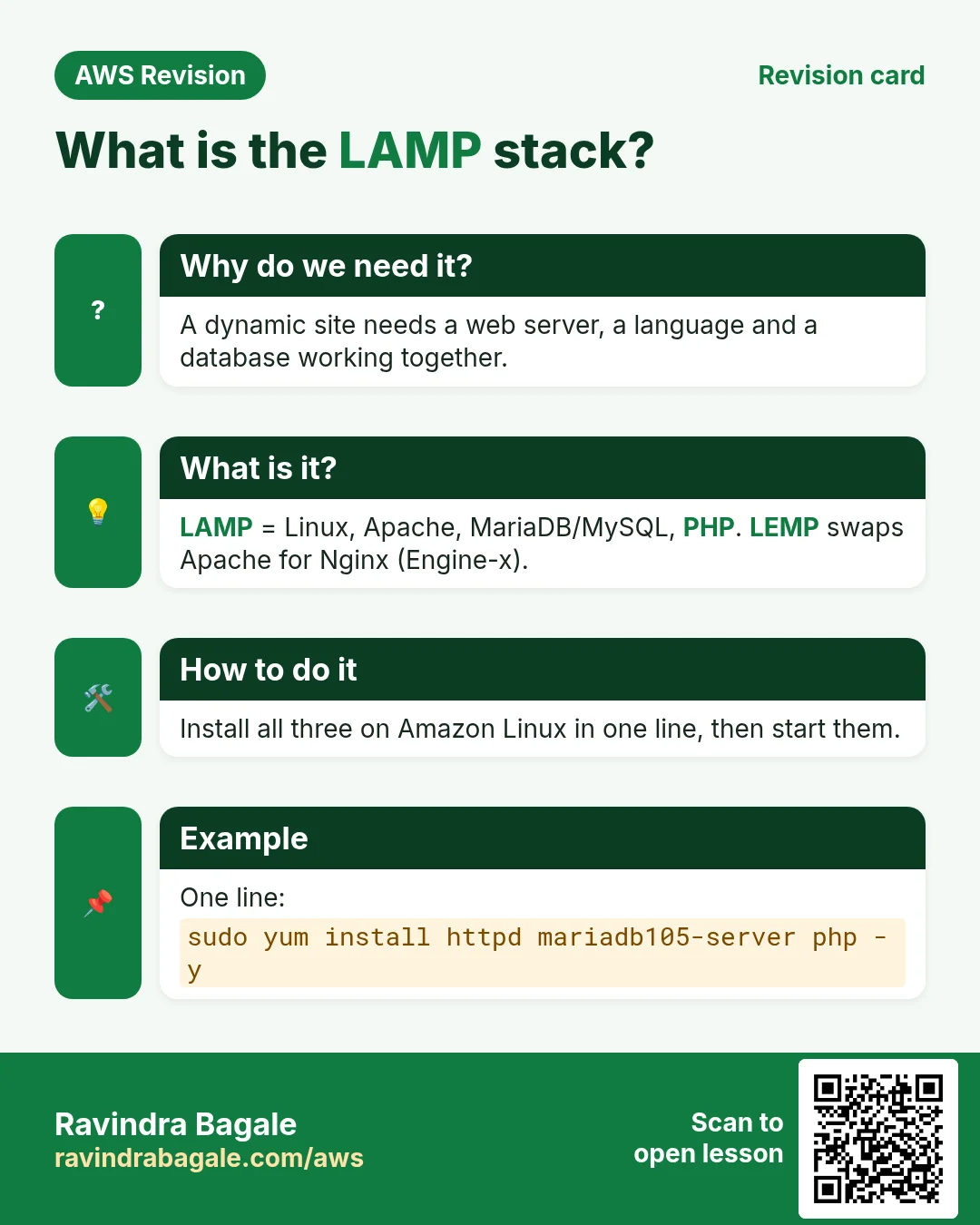
- What LAMP and LEMP stand for, and why MariaDB stands in for MySQL
- Why the browser can't run PHP, and how Apache, php-fpm and MariaDB work together
- Install
httpd,mariadb105-serverandphpon Amazon Linux, and find package names yourself - Start the services, and why you restart them after installing everything
- Test pages in
/var/www/html, withphpinfo()as the baseline - Install everything in one line, then automate it with a
lamp.shscript (sudo tee,-y,chmod +x) - Test from the server itself with
curl localhostandservice ... status - Fix three common problems: port 80 taken, a blank PHP page, PHP shown as text
1. Why: static sites vs dynamic sites
So far every site sent the same files to everyone. Apps like Instagram build a different page for each visitor, and that needs more software on the server.
Classroom line
Let's see how we came here step by step.
Class मधलं वाक्य
"Aapan step by step kasa aalo."
आपण step by step कसे आलो ते बघूया.
Classroom line
Let's see how we came here step by step.
Until now we hosted static websites on Apache and Nginx, connected a domain, kept the IP fixed with an Elastic IP and backed the server up with an AMI. The next step is a dynamic website.
What is static? A static site is made only of files the browser understands: HTML, CSS, JavaScript and images. The server just sends the files, and every visitor gets the same page. A web server such as Apache or Nginx is all you need.
What is dynamic? A dynamic site runs server-side code (PHP, Python, Java, Node.js) and reads a database, so it can build a different page for each visitor.
Example 1, step by step. Suppose we are Instagram.
- You log in. The server checks your user name and password against the database.
- The server-side code looks up who you follow and what you like.
- It builds your feed: cricket and food posts for you, travel and music posts for your friend.
- Both of you open the same address, but each gets a page that was made just now, just for you.
None of that is possible with fixed HTML files. You need a language that runs on the server, plus a database.
Figure 1. A static site sends the same files to everyone. A dynamic site runs server-side code and a database to build each visitor's page, like an Instagram feed.
2. What: LAMP and LEMP
Job posts and tutorials say LAMP and LEMP without explaining them. Knowing the four letters tells you exactly what to install.
A stack is a set of software that works together to run a website. Two classic stacks for PHP websites:
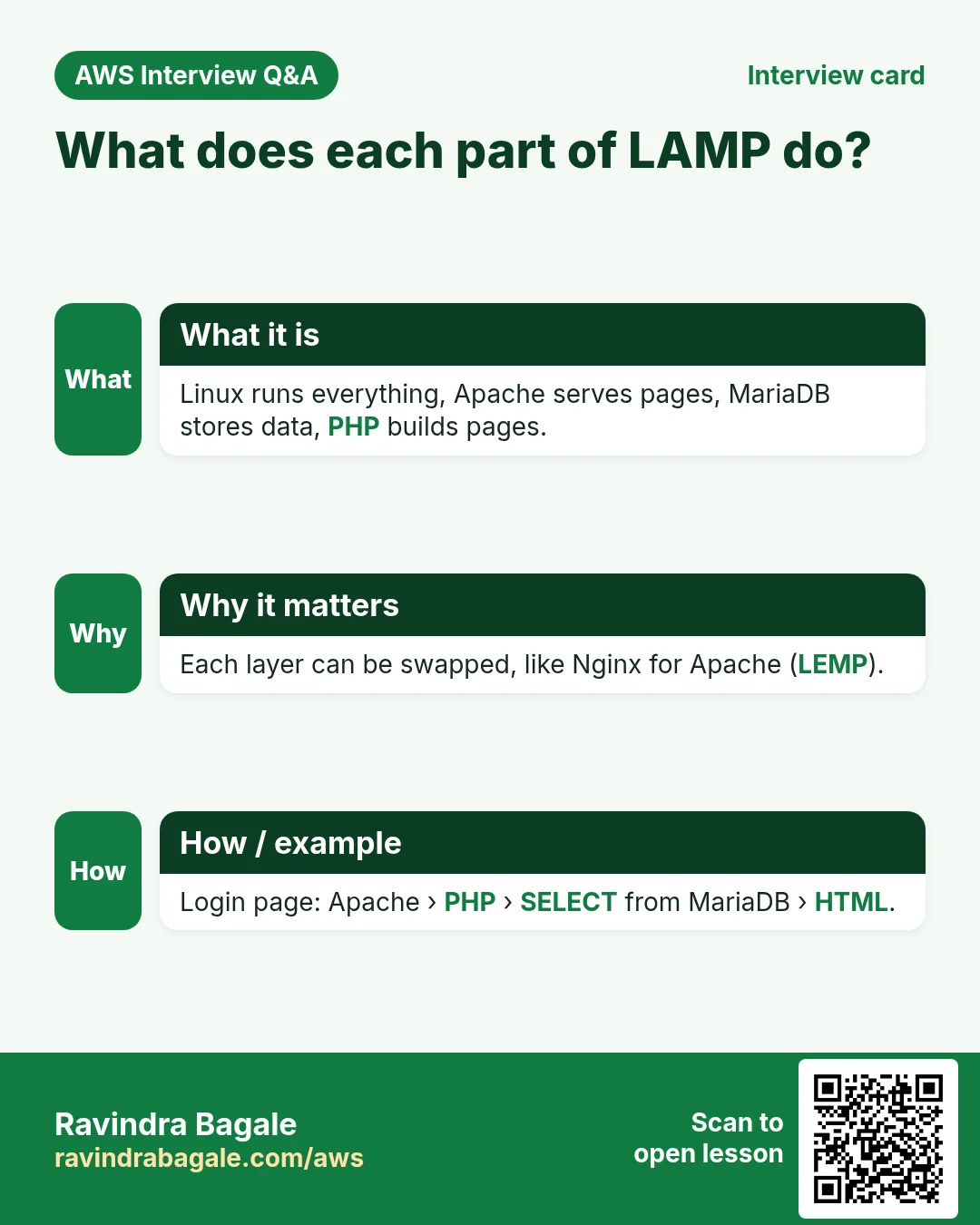
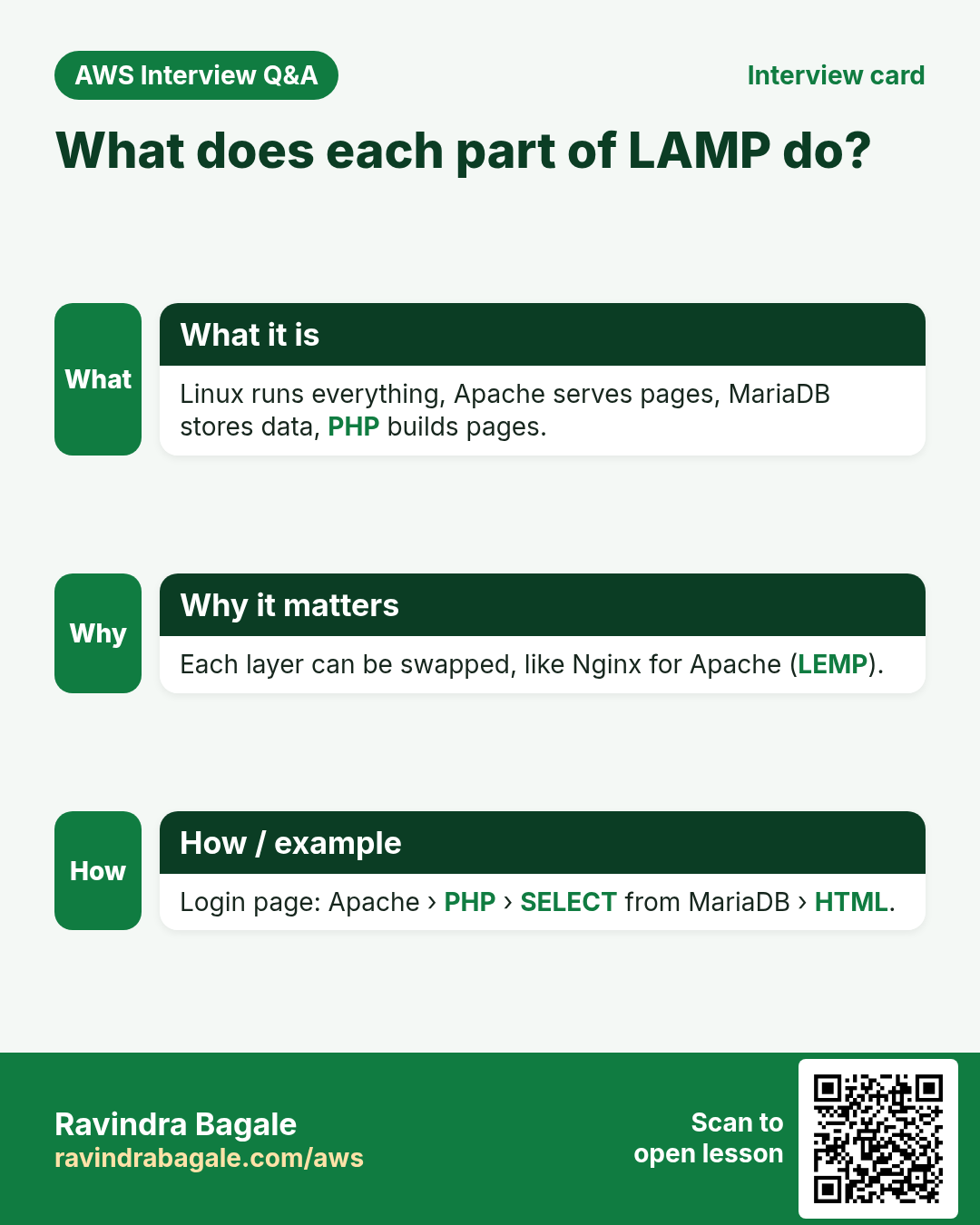
- LAMP = Linux + Apache + MySQL or MariaDB + PHP.
- LEMP = Linux + Nginx (said "Engine-x", hence the E) + MySQL or MariaDB + PHP.
The only difference is the web server. In this chapter we build LAMP on Amazon Linux; Ubuntu and LEMP come next.
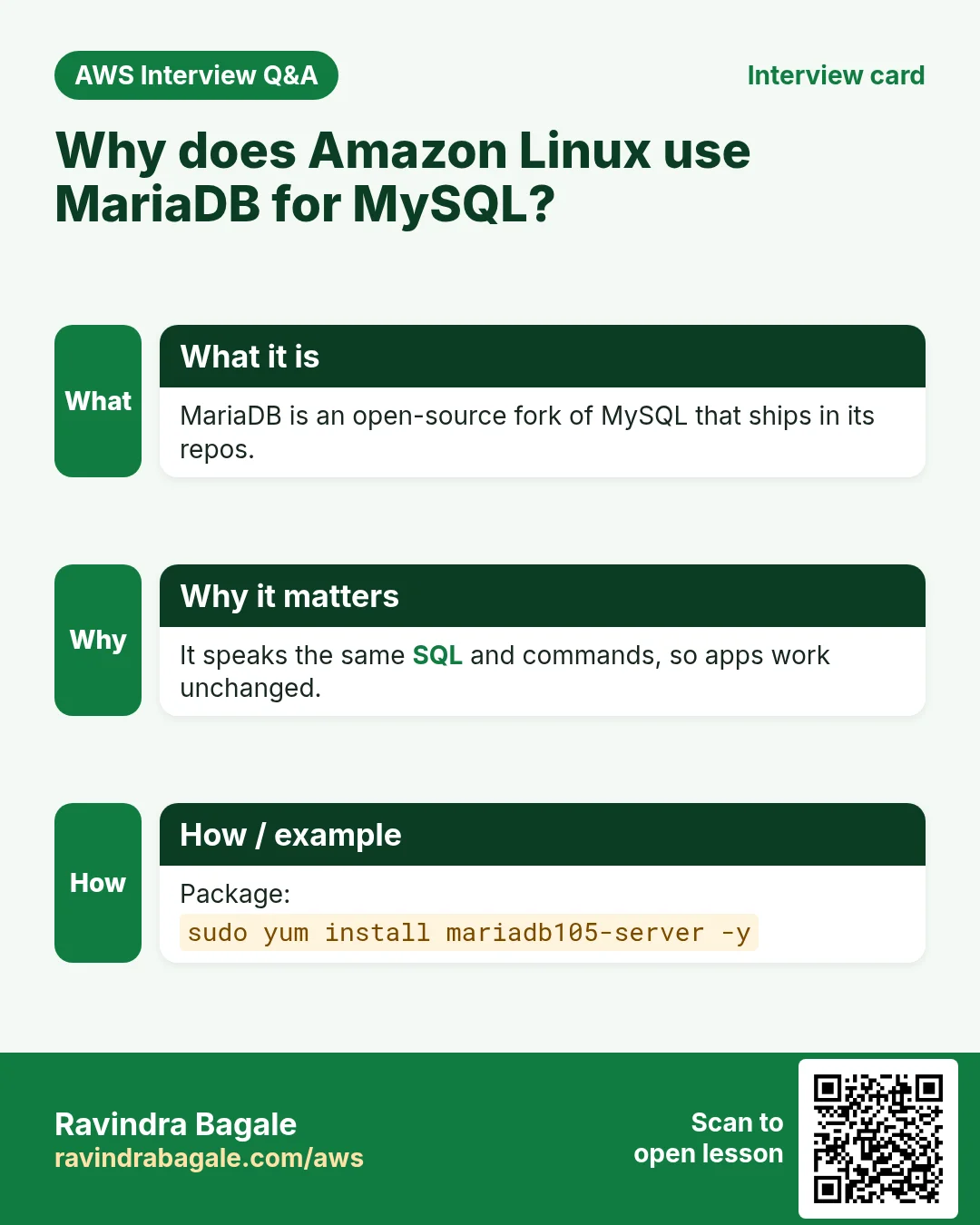
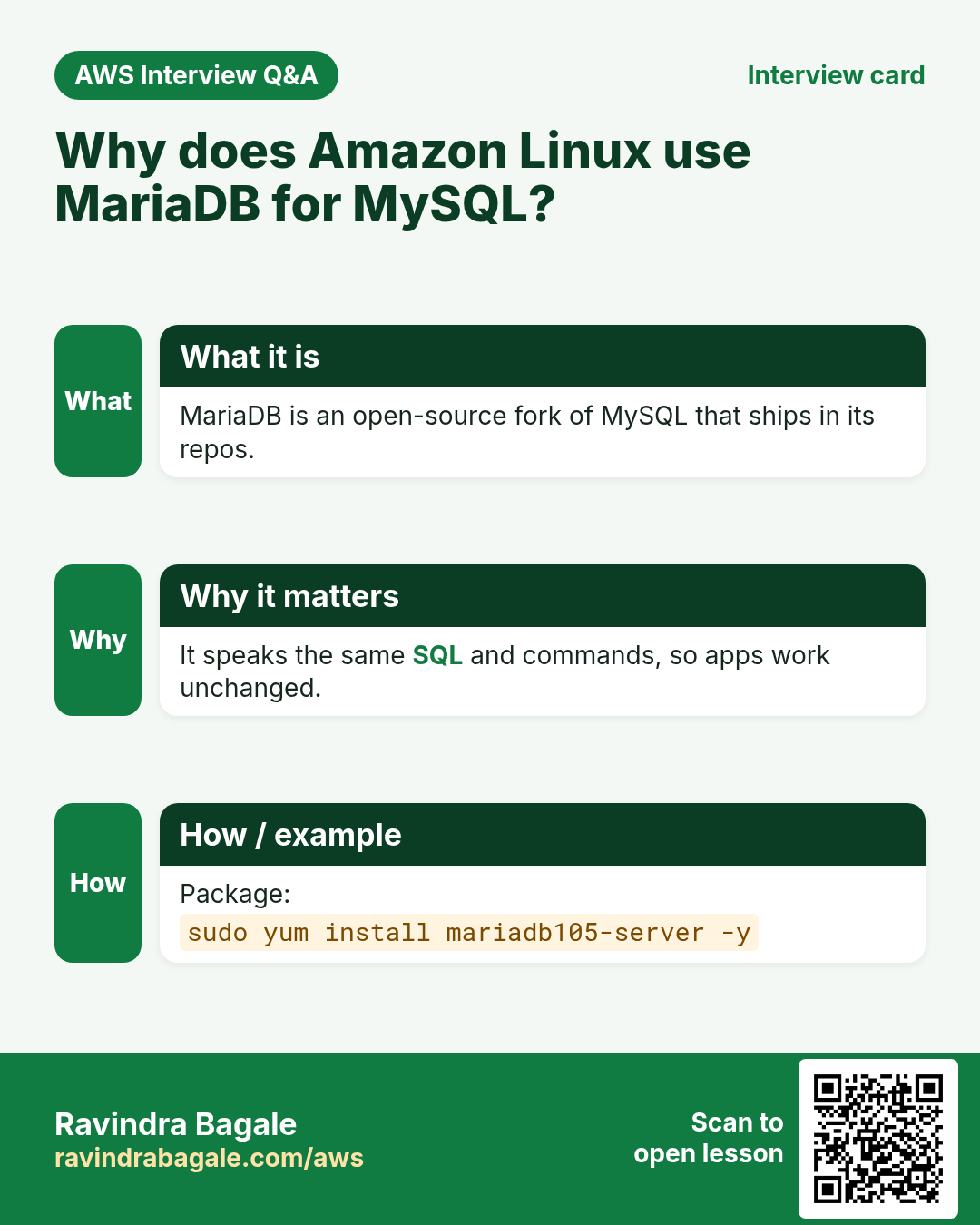
Why MariaDB? MariaDB is a community fork of MySQL, started by MySQL's original developers. It works as a drop-in replacement: the same commands and the same SQL, so a PHP app written for MySQL runs on it. Amazon Linux offers MariaDB in its own repositories, so that's what we install.
Why PHP? It's open source and runs a large share of the web, including WordPress sites. The same idea works with Python, Java or Node.js; only the "P" changes.
Classroom line
Always work on open-source languages and databases.
Class मधलं वाक्य
"Je kutla language kiva database open source ahe, tyachavarti kaam karaycha nehmi."
जी कुठली language किंवा database open source आहे, त्याच्यावरती काम करायचं नेहमी.
Classroom line
Always work on open-source languages and databases.
Figure 2. LAMP and LEMP differ only in the web server: Apache or Nginx. MariaDB is a drop-in replacement for MySQL.
3. Why the browser can't run PHP
Trace one menu request through the whole stack
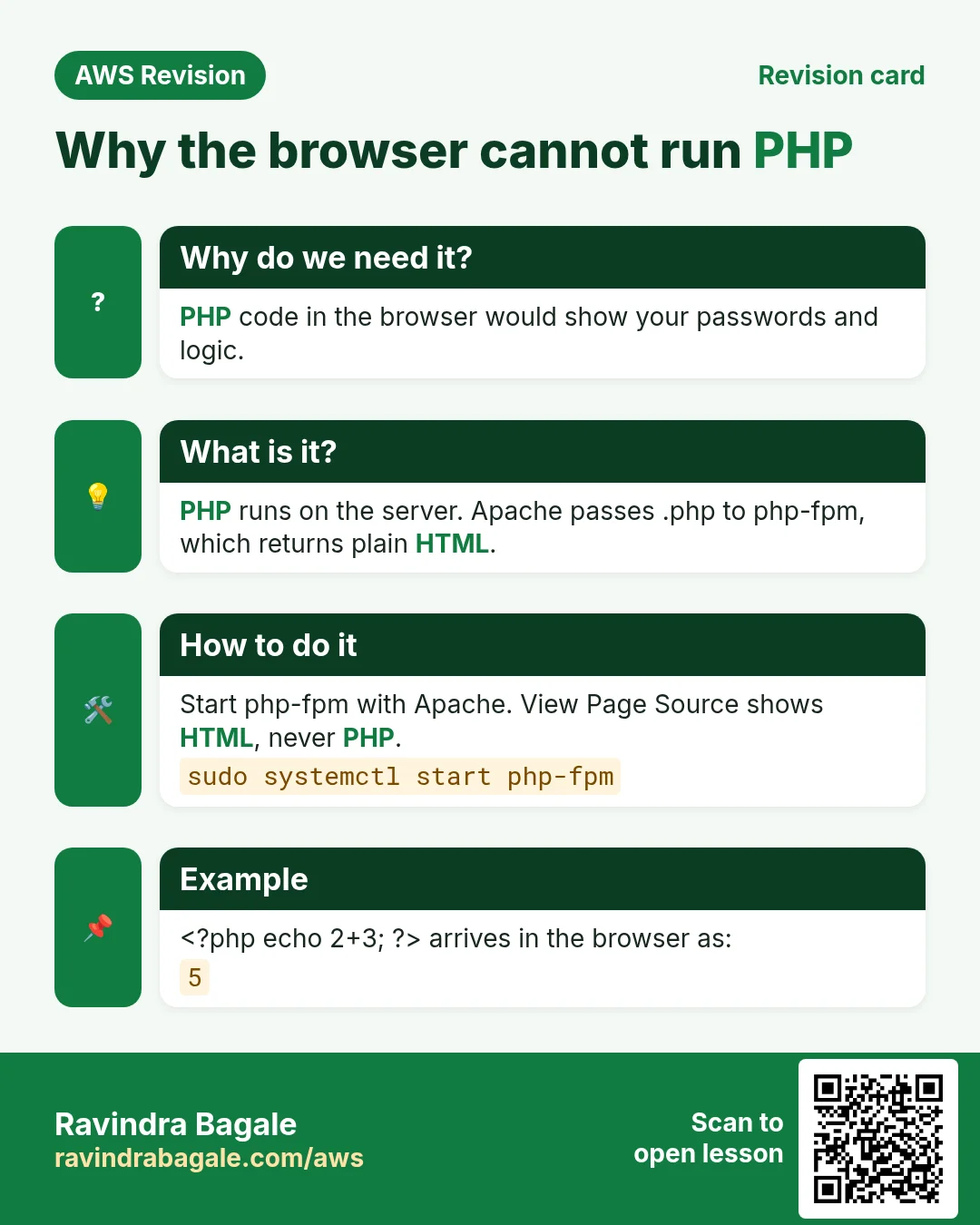
Suppose a canteen page shows today’s menu. The browser asks Apache for /menu.php. Apache passes the request to PHP-FPM, the service that runs PHP programs. The program asks MariaDB for the menu rows. PHP formats the returned rows as HTML, and Apache sends that HTML to the browser. The browser displays the result without running the PHP code.
Change one menu row in a disposable database and refresh the page. The HTML can change on the next request without editing the page file. An ordinary index.html page keeps sending the same file until somebody changes it. Draw the database arrow only on the dynamic version of your diagram.
A browser understands only HTML, CSS and JavaScript. If a web server sends a .php file as it is, the browser doesn't know what to do with it: it shows the code as text or simply downloads the file. Your PHP never runs.
Classroom line
The page will just download here; it won't run.
Class मधलं वाक्य
इथे ते page फक्त download होईल, execute नाही होणार.
Classroom line – हिंदी
"Yahan pe wo page download ho jayega, execute nahi hoga."
What fixes it: php-fpm. php-fpm (PHP FastCGI Process Manager) is a service that runs PHP code for the web server. Apache doesn't run PHP itself; it passes .php requests to php-fpm and sends back what php-fpm returns.
Example 2, step by step: opening http://PUBLIC_IP/index.php
- The browser sends a request to the server on port 80.
- Apache receives it and sees the file ends in
.php. - Apache hands the request to php-fpm.
- php-fpm runs the PHP code. If the code needs data (a login, a feed), it asks MariaDB.
- The output of the code is plain HTML. php-fpm gives it back to Apache.
- Apache sends that HTML to the browser. The browser never sees a line of PHP.
For index.html the path is shorter: Apache sends the file itself, and php-fpm isn't involved.
Figure 3. Animation: the browser asks for index.php, Apache hands it to php-fpm, php-fpm runs the code (with MariaDB if needed) and returns HTML, and Apache sends the HTML to the browser.
Classroom line
Why php-fpm? We use it to run PHP and give back HTML.
Class मधलं वाक्य
"php-fpm ka waparaycha? PHP cha output HTML madhe denyasathi aapan php-fpm waprato."
php-fpm का वापरायचं? PHP चा output HTML मध्ये देण्यासाठी आपण php-fpm वापरतो.
Classroom line
Why php-fpm? We use it to run PHP and give back HTML.
4. How: install Apache, MariaDB and PHP
A dynamic site needs all three pieces: a web server, a database and a language runtime. Missing one gives a blank page or a downloaded .php file.
Launch an Amazon Linux EC2 server with a security group that allows SSH (22) from your IP and HTTP (80). Connect with SSH, then install the three packages one by one.
Step 1. Apache. On Amazon Linux the Apache package is called httpd.
sudo yum install httpd -y
Step 2. MariaDB.
sudo yum install mariadb105-server -y
Why -server? The package mariadb105 alone gives you only the client, the mysql command that connects to a database somewhere else. The -server package installs the database server itself, the service that stores the data. A website needs the server. (105 is the MariaDB version, 10.5.)
Step 3. PHP.
sudo yum install php -y
This installs the PHP version Amazon Linux currently offers, together with php-fpm.
How do I find a package name? You don't have to remember them.
- Guess first. The package usually has the same name as the software, for example
php. - Tab completion. Type
sudo yum install mariadband press Tab twice. The shell lists the matching packages, such asmariadb105andmariadb105-server. - Search. Run
sudo yum search php(orsudo yum search mariadb) to list every package with that word.
Classroom line
Just guess; usually the package has the same name as the software.
Class मधलं वाक्य
"Guess karaycha simply. Software cha je nav asel tya navanach package asel."
Guess करायचं simply. Software चं जे नाव असेल त्या नावानेच package असेल.
Classroom line
Just guess; usually the package has the same name as the software.
5. Start the services, then restart once everything is installed
Installed software does nothing until it runs. The restart at the end makes Apache pick up PHP, which was installed after Apache started.
Step 1. Start each service.
sudo service httpd start
sudo service mariadb start
sudo service php-fpm start
On Amazon Linux, service passes the job to systemctl; you'll see a line like Redirecting to /bin/systemctl start httpd.service.
Step 2. Restart after everything is installed.
sudo service php-fpm restart
sudo service mariadb restart
sudo service httpd restart
Why restart? If you installed and started Apache before PHP, Apache read its configuration at a time when PHP's settings file (/etc/httpd/conf.d/php.conf, the rule that sends .php to php-fpm) didn't exist yet. Apache reads that folder only when it starts. A restart makes it load the PHP rule. Restart php-fpm first, then Apache last.
Figure 4. Install the three packages, start the three services, then restart them once everything is installed so Apache loads PHP's config.
Ravindra Bagale's Tip
service ... start starts a service only now. To have the stack come back after a reboot (or on a server launched from your AMI), also run sudo systemctl enable httpd mariadb php-fpm.
6. Test pages: index.html and a phpinfo() page
Two tiny pages separate the problems: if index.html works and index.php doesn't, Apache is fine and PHP is the issue.
Apache's web root on Amazon Linux is /var/www/html. Create one HTML page and one PHP page there.
Step 1. Go to the web root:
cd /var/www/html
Step 2. Create an HTML test page (the folder belongs to root, so use sudo):
sudo nano index.html
Type html page, save with Ctrl+O, Enter, and exit with Ctrl+X.
Step 3. Create a PHP test page:
sudo nano index.php
Type exactly this line, with a space after <?php:
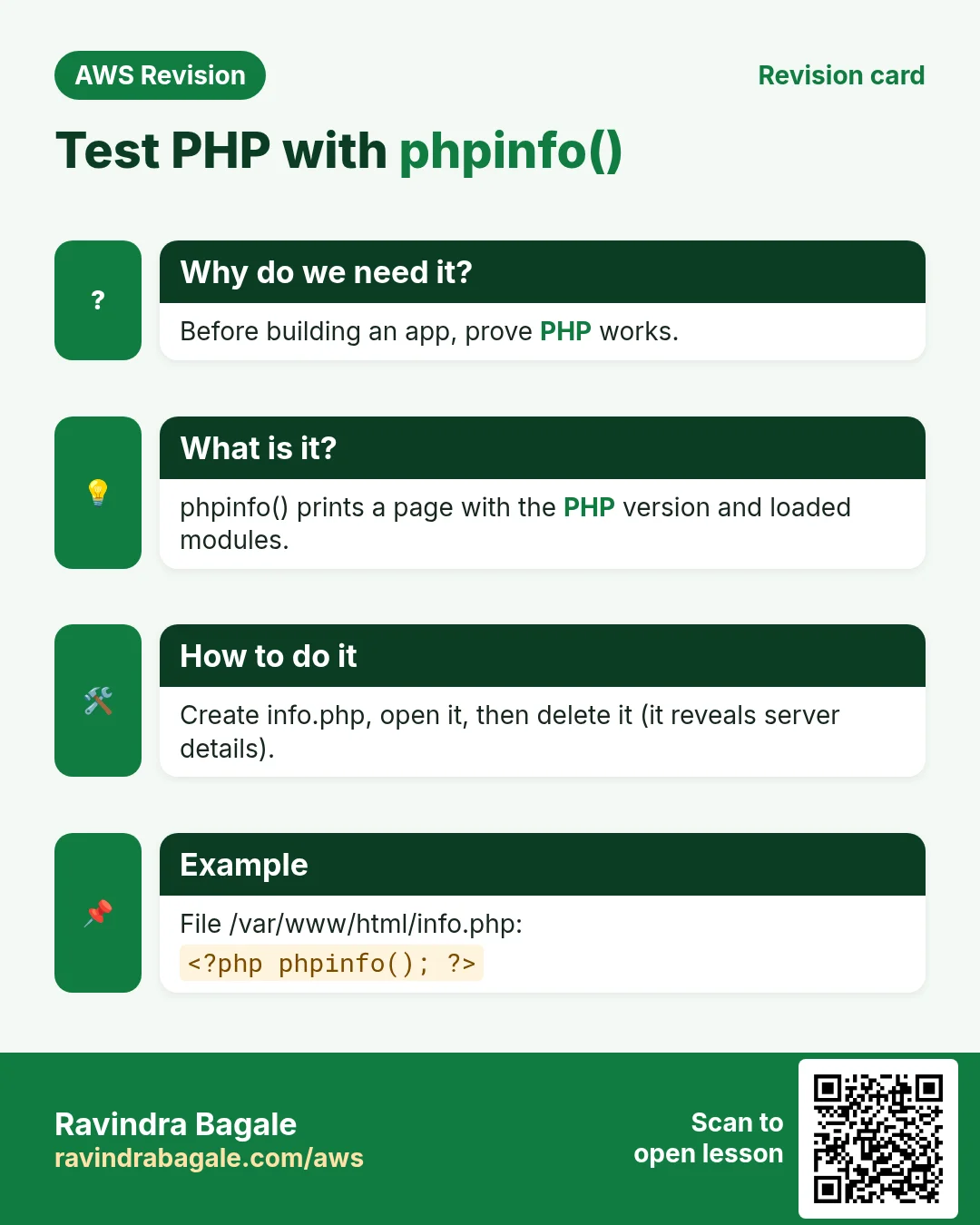
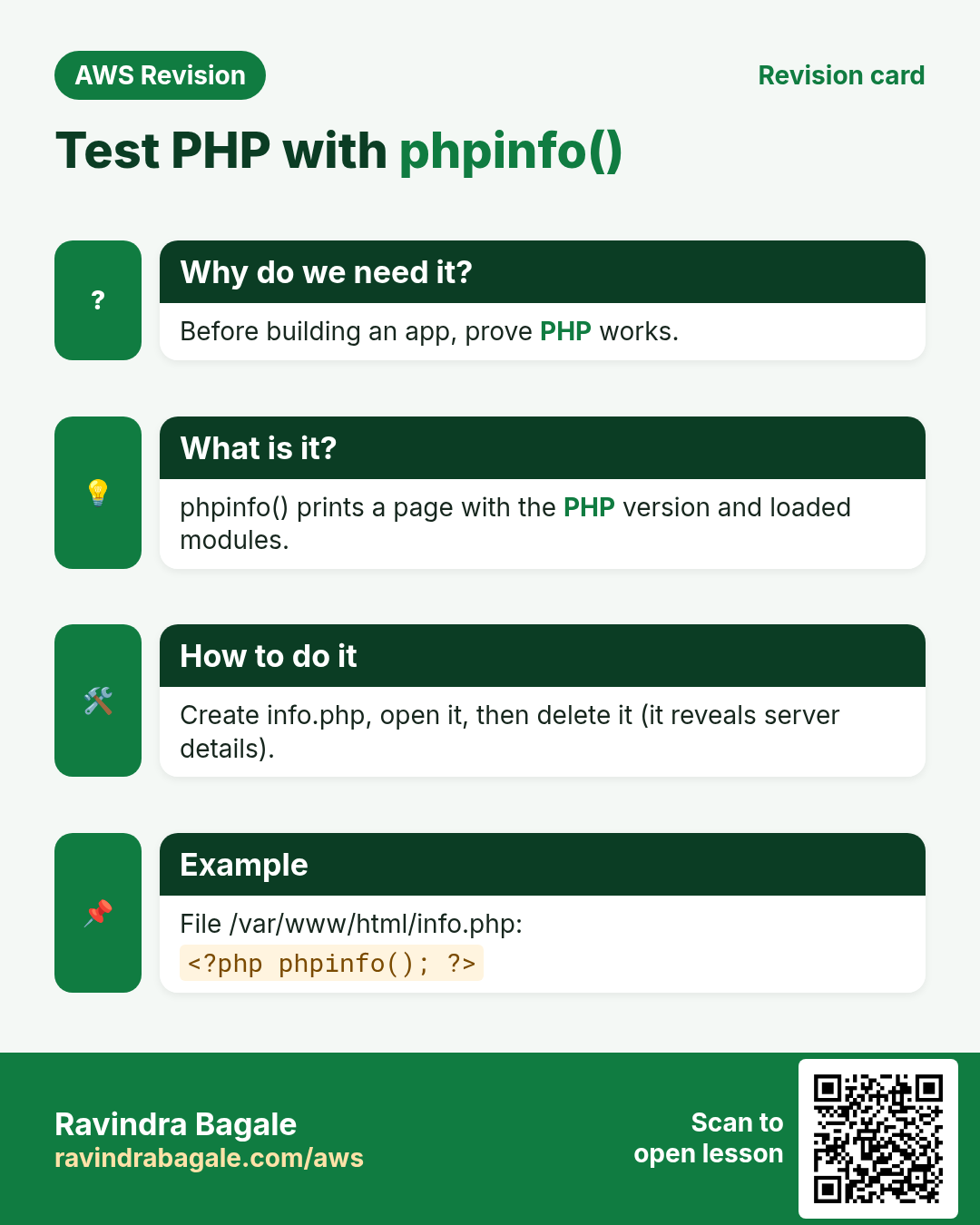
<?php phpinfo(); ?>
Step 4. In the browser, open http://PUBLIC_IP/index.html. You see html page. Apache works.
Step 5. Open http://PUBLIC_IP/index.php. You see the PHP information page: the PHP version, and Server API: FPM/FastCGI, which proves Apache is handing PHP to php-fpm.
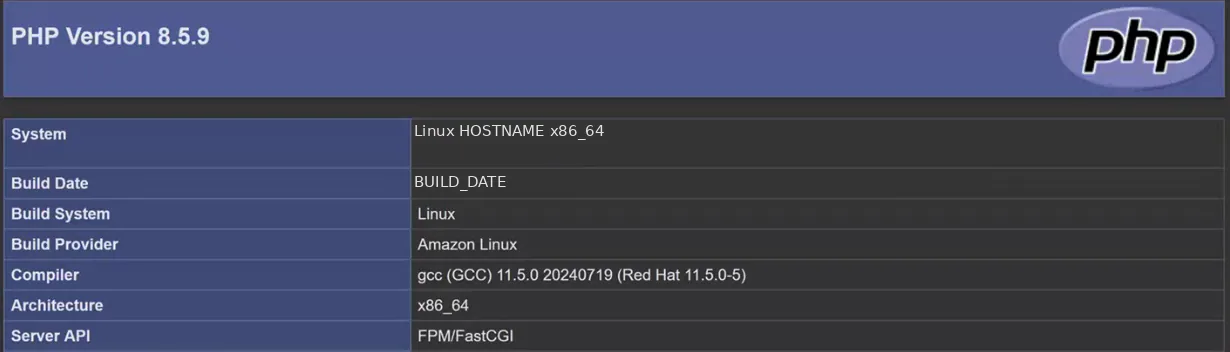
Whiteboard: The phpinfo() page: the PHP version at the top, and Server API FPM/FastCGI, so Apache is handing PHP to php-fpm.
Why phpinfo first? It's the baseline test. If phpinfo() works, Linux, Apache, php-fpm and PHP are all fine. When a real application fails after that, the problem is in the application (for example, it was written for an older PHP version), not in the server. Without this test, everyone blames the server.
Classroom line
"My project worked on my laptop... your server has a problem." (That's what you'll hear, so test with phpinfo first.)
Class मधलं वाक्य
"माझ्या laptop वर तर माझा project दिसत होता... तुझ्या server मध्ये problem आहे." (असं ऐकायला मिळेल, म्हणून आधी phpinfo ने test करा.)
Classroom line – हिंदी
"Mere laptop me to dikh raha tha mera project... tere server me problem hai."
7. Install everything in one line
Fewer commands means fewer chances to forget one, and it is the first step towards the script in the next section.
yum install takes several package names at once, so steps 1 to 3 of section 4 become one command:
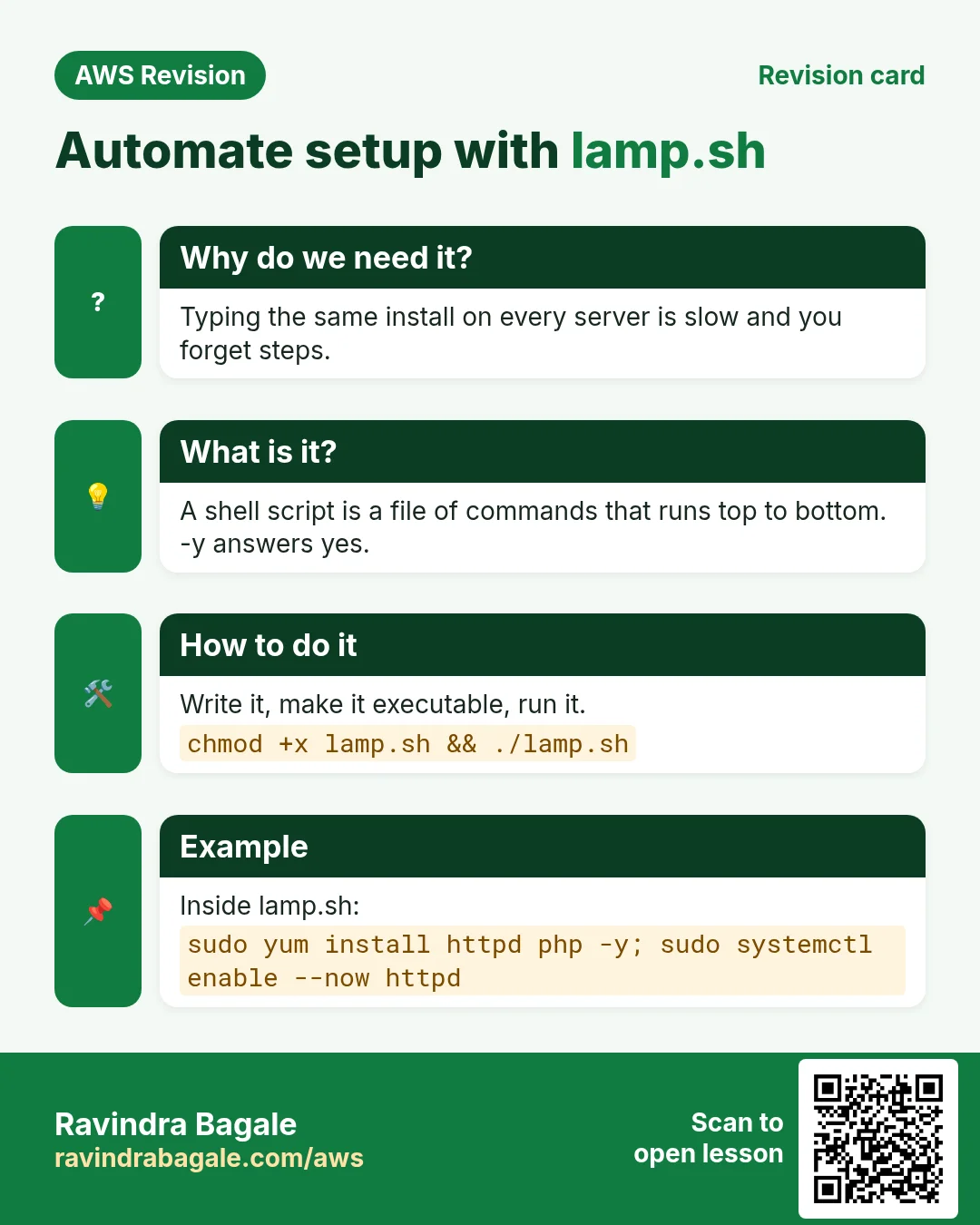
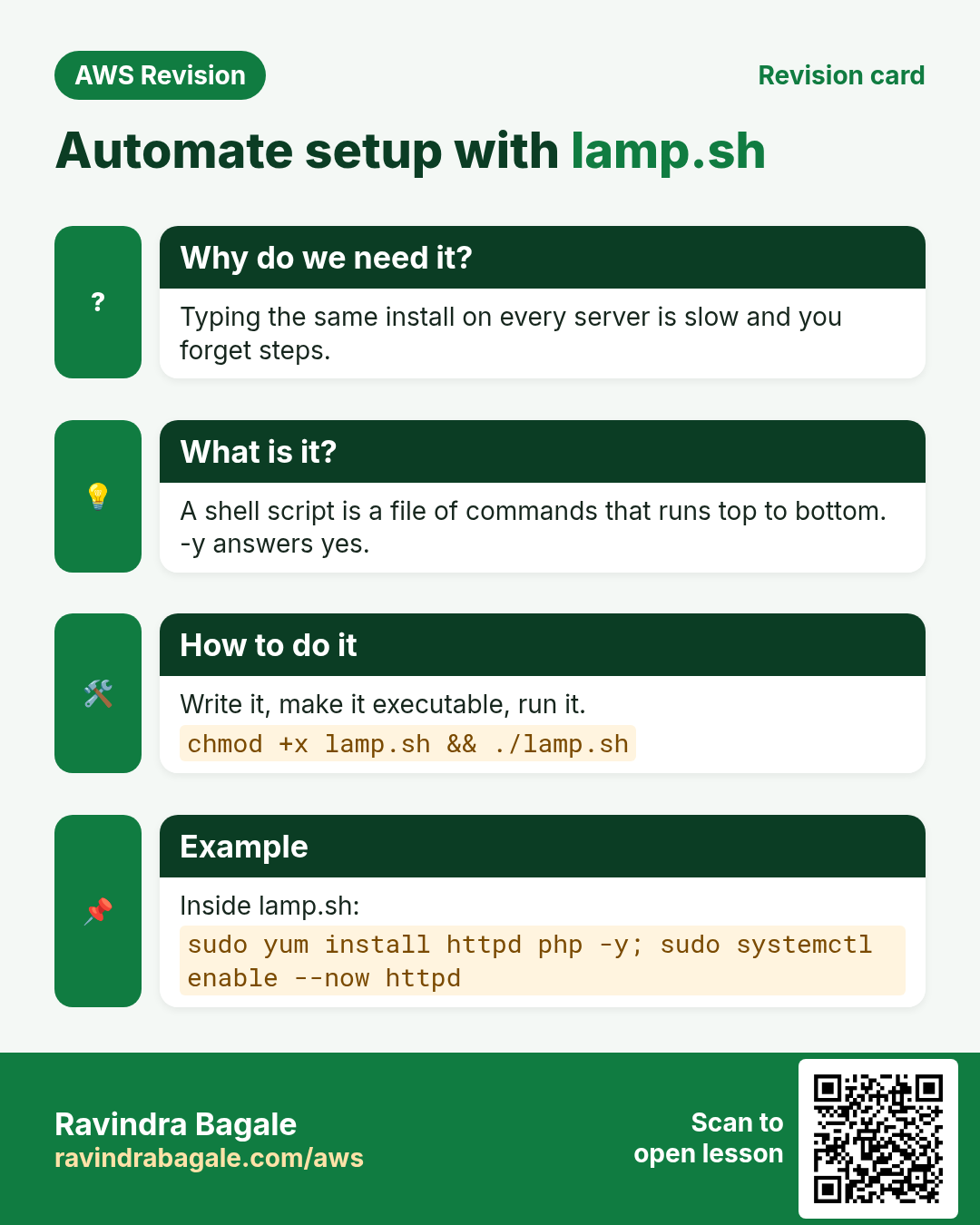
sudo yum install httpd mariadb105-server php -y
The start commands can share a line too, separated by ;:
sudo service mariadb start; sudo service php-fpm start; sudo service httpd start
8. Automate it: the lamp.sh script
You will build this stack again and again: for practice, for every new project, for every new server. Typing ten commands each time is slow and easy to get wrong. Put them in a shell script and run one file.
8.1 A script can't use nano: write files with sudo tee
In section 6 we typed the test pages in nano. A script can't type into nano; it needs commands that write files by themselves. The first idea is a redirect:
sudo echo "html page" > index.html
This fails with Permission denied. Why? sudo runs only echo as root. The > redirect is done by your own shell, as ec2-user, before sudo even starts, and ec2-user can't write in /var/www/html.
The fix is tee. tee reads text from a pipe and writes it to a file, and it can run as root:
echo "html page" | sudo tee index.html
echoprints the text.- The pipe
|hands it totee. sudo tee index.htmlruns as root and writes the file. (It also prints the text on screen; add> /dev/nullat the end if you want it quiet.)
tee overwrites the file. To add a line at the end instead, use tee -a:
echo "second line" | sudo tee -a index.html
Classroom line
Add -a and it appends to the file.
Class मधलं वाक्य
"Dash-a kela ki append hota."
Dash-a केलं की append होतं.
Classroom line
Add -a and it appends to the file.
Figure 5. sudo echo with > fails because your own shell does the redirect; echo piped to sudo tee works because tee runs as root. tee -a appends.
8.2 Write the script
Step 1. Go to your home folder and open a new file:
cd ~
nano lamp.sh
Step 2. Type the script:
#!/bin/bash
sudo yum update -y
sudo yum install httpd mariadb105-server php -y
sudo service mariadb start
sudo service php-fpm start
sudo service httpd restart
cd /var/www/html
sudo touch index.html index.php
echo "html page" | sudo tee index.html
echo "<?php phpinfo(); ?>" | sudo tee index.php
Save and exit (Ctrl+O, Enter, Ctrl+X).
What each part does:
#!/bin/bashsays which program runs the script.sudo yum update -yupdates all installed packages first. Start every automation script this way, so you build on current software. (On Ubuntu the pair issudo apt-get update, which refreshes the package list, thensudo apt-get upgrade -y.)- The one-line install from section 7.
- MariaDB and php-fpm start first, and Apache is restarted last, so it always loads PHP's config.
restartalso starts a service that isn't running, so the script is safe to run again. cd /var/www/htmlmoves into the web root.sudo touchcreates two empty files (teewould create them anyway).- The two
teelines write the test pages as root, with the correct<?php phpinfo(); ?>.
Why -y everywhere? Without -y, yum stops and asks Is this ok [y/N]:. Nobody is there to answer, so the script waits forever.
Classroom line
At the start of any automation, update the packages first.
Class मधलं वाक्य
"Aata automation chya saglyat starting la package manager update karun takaycha."
आता automation च्या सगळ्यात starting ला package manager update करून टाकायचा.
Classroom line
At the start of any automation, update the packages first.
Classroom line
If you don't add -y, the script gets stuck in the middle.
Class मधलं वाक्य
"Tumhi jar last la dash y nahi lihila tar te madhye adkun rahata, stuck hota."
तुम्ही जर last ला dash y नाही लिहिलं तर ते मध्येच अडकून राहतं, stuck होतं.
Classroom line
If you don't add -y, the script gets stuck in the middle.
Why the home folder, not /var/www/html? Everything in the web root can be opened from a browser. If lamp.sh sat there, anyone could type http://PUBLIC_IP/lamp.sh and read your script. Keep scripts in ~ (here /home/ec2-user).
Classroom line
Don't keep lamp.sh in the html folder; anyone typing its URL could see it.
Class मधलं वाक्य
"Lamp.sh html madhe thevaycha nahi, karan koni URL madhe takla tar file disel."
Lamp.sh html मध्ये ठेवायचं नाही, कारण कोणी URL मध्ये टाकलं तर file दिसेल.
Classroom line
Don't keep lamp.sh in the html folder; anyone typing its URL could see it.
Figure 6. Inside lamp.sh: update first, install in one line with -y, start the database and php-fpm, restart Apache last, then write the test pages with sudo tee. Keep it in your home folder.
8.3 Make it executable and run it
Step 1. Give the file execute permission:
chmod +x lamp.sh
Step 2. Run it from the home folder:
./lamp.sh
(bash lamp.sh also works, even without chmod +x.)
Step 3. Watch the output. The packages install, the services start, and the two tee lines echo your page contents. If it stops with an error, the usual causes are a missing sudo, a typo in a package name, or running it from the wrong folder.
Example 3: the whole thing on a fresh server.
- Launch a new Amazon Linux server (HTTP and SSH allowed) and connect.
nano lamp.sh, paste the script, save.chmod +x lamp.sh, then./lamp.sh.- Open
http://PUBLIC_IP/index.php. The phpinfo page appears. A full LAMP server in a few minutes, with no typing mistakes.
9. Test from the server itself: curl and status
Test one stage at a time while the server is still private
From the lab server, request a small static HTML page with curl -i http://127.0.0.1/. This checks Apache and the document root first. Then request a small test PHP page that prints a fixed safe string. Seeing the string checks the Apache-to-PHP hand-off. If the downloaded response instead contains PHP source or a runtime error, keep the lab private and correct the hand-off first.
Finally, test the database from the same server using the intended account and query. A successful PHP test cannot prove that credentials or database permissions work. A single-server LAMP lab can use a local database connection. You do not need to expose the database port to the public internet for this workflow. Remove temporary diagnostic PHP pages before making the site available.
You can't always open a browser, for example inside a script or when the security group isn't ready. curl and status check the stack from inside.
You don't always need a browser. From the SSH session:
Step 1. Ask Apache for the HTML page:
curl http://localhost/index.html
It prints html page.
Step 2. Ask for the PHP page:
curl http://localhost/index.php
It prints a long HTML page that contains PHP Version. If you see the raw <?php phpinfo(); ?> line instead, PHP isn't running (section 10.3).
Step 3. Check each service:
sudo service httpd status
sudo service mariadb status
sudo service php-fpm status
Look for active (running) in green. Press q to leave the status screen.
localhost tests the server from the inside. If curl localhost works but the browser doesn't, check the security group allows HTTP (80) and that you used http://, not https://.
10. Troubleshooting: three problems you will meet
Figure 7. Three common problems: port 80 taken, a blank PHP page from a typo, and PHP shown as text because Apache isn't handing it to php-fpm.
10.1 Apache won't start: port 80 is already taken
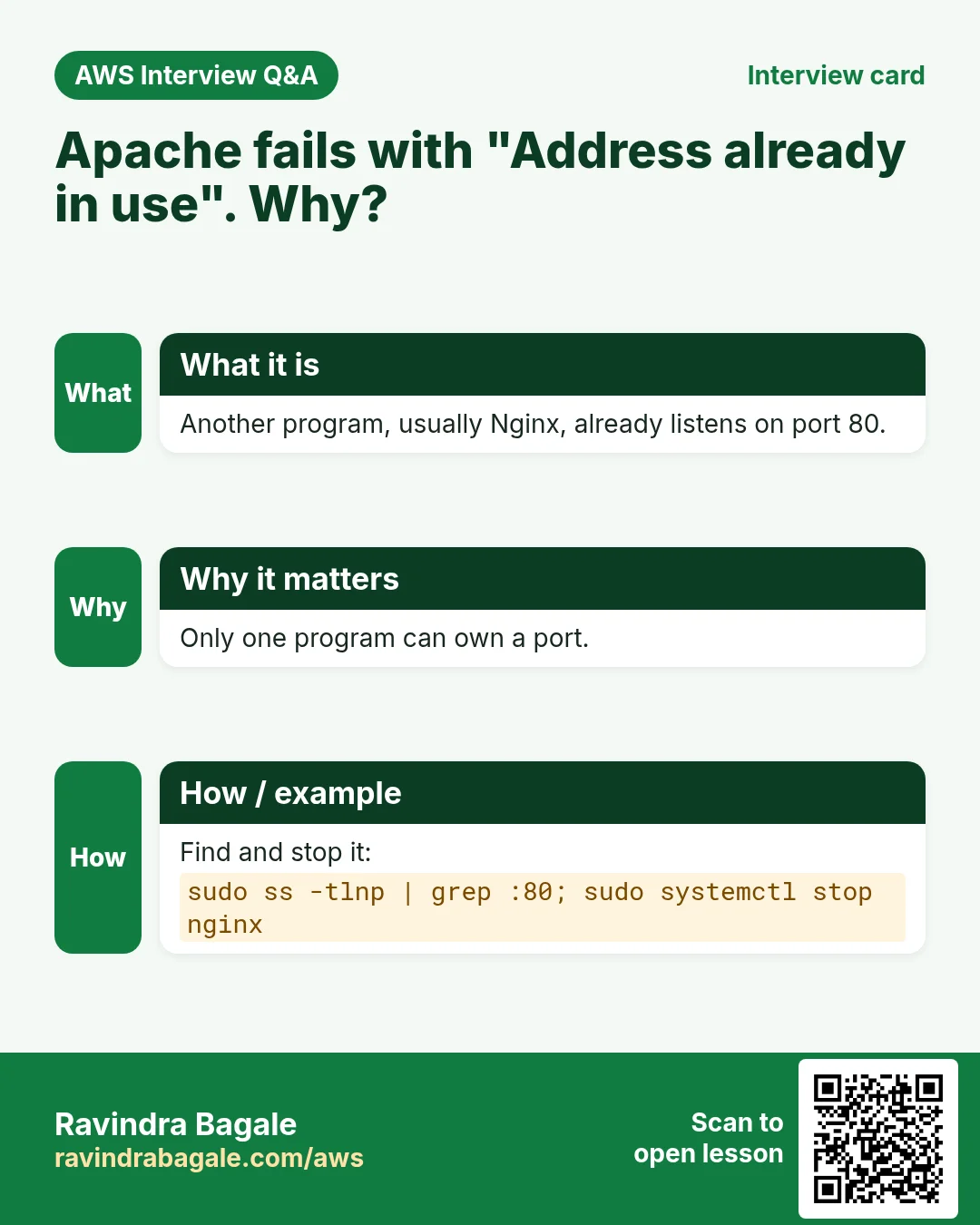
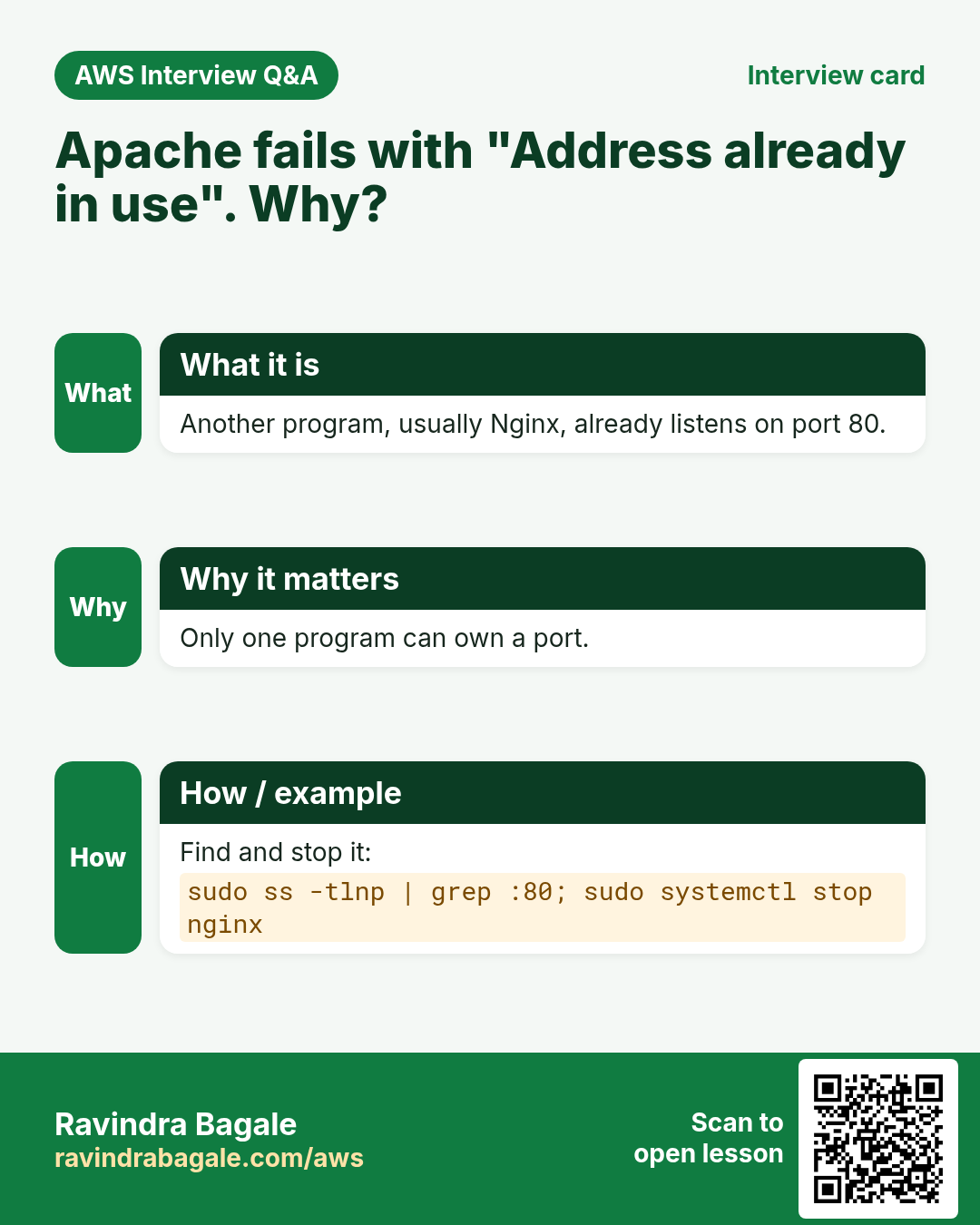
Symptom. sudo service httpd start prints in red: Job for httpd.service failed because the control process exited with error code.
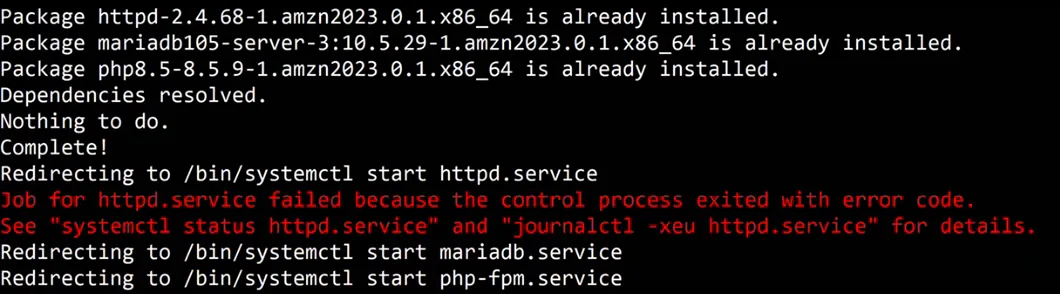
Whiteboard: Apache fails to start because another web server already holds port 80; MariaDB and php-fpm start fine.
Cause. Only one program can listen on port 80. On this server, Nginx from an earlier lab was still running and held the port.
Fix, step by step:
- Read the details:
sudo systemctl status httpd. Look forAddress already in use. - See who holds port 80:
sudo ss -tlnp | grep :80. It showsnginx. - Stop the other web server:
sudo service nginx stop. - Start Apache again:
sudo service httpd start. - To keep Nginx from taking the port at the next boot:
sudo systemctl disable nginx.
10.2 index.php shows a blank page
Symptom. index.html works, but index.php shows an empty white page.
Fix, step by step:
- Right-click the page, View Page Source.
- The source shows the PHP line itself, for example
<?phpphpinfo(); ?>. PHP code reached the browser, so it was never run. - Spot the typo: there is no space after
<?php. PHP only recognises its opening tag<?phpwhen a space or a new line follows it, so it treated the whole line as plain text, and the browser hid it as an unknown tag. - Fix the file:
echo "<?php phpinfo(); ?>" | sudo tee /var/www/html/index.php - Refresh. The phpinfo page appears.
Lesson: when a page is blank, View Source first. It shows what the server really sent.
10.3 The PHP code is shown as text (or downloads)
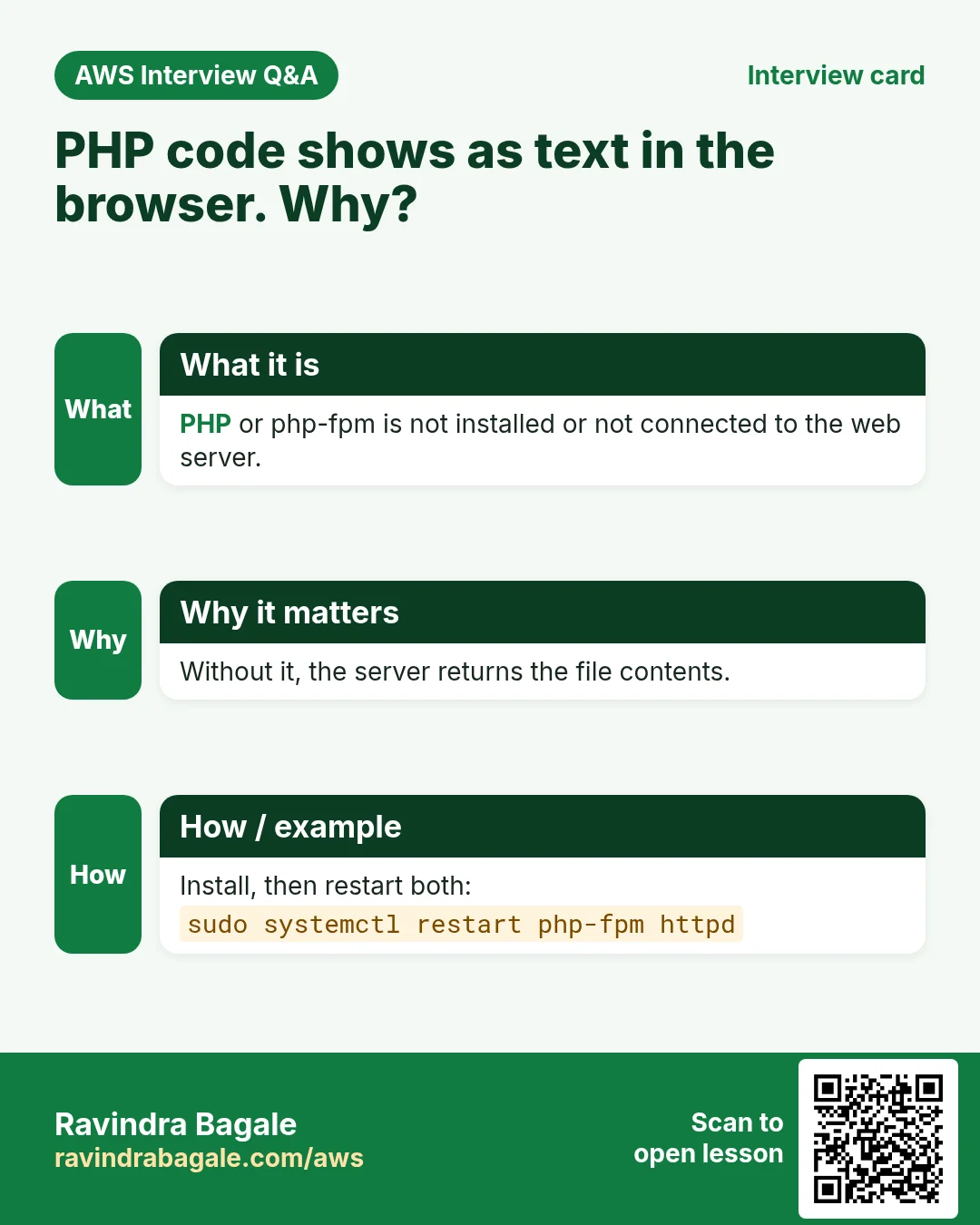
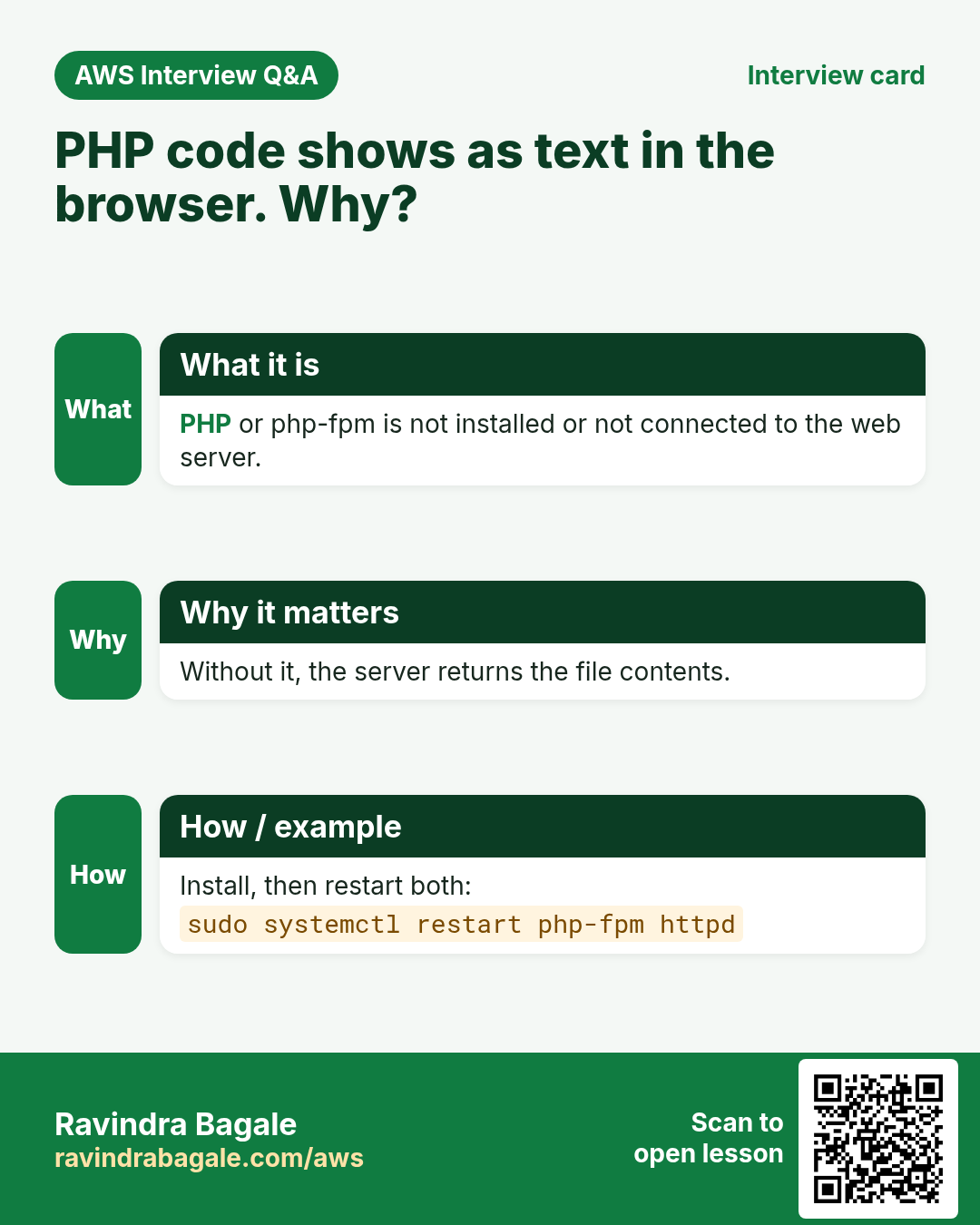
Symptom. http://PUBLIC_IP/index.php shows <?php phpinfo(); ?> on the screen, or the browser downloads the file. curl localhost/index.php prints the same raw line.
Cause. Apache is sending the .php file as it is, instead of handing it to php-fpm. Usually php-fpm isn't running, or Apache was started before PHP was installed and never loaded PHP's config.
Fix on Amazon Linux:
- Check php-fpm:
sudo service php-fpm status. If it isn't installed,sudo yum install php -y. -
Restart php-fpm, then Apache, in that order:
sudo service php-fpm restart sudo service httpd restart -
Refresh with Ctrl+F5 (the browser may have cached the old answer).
On Ubuntu (a different OS)
On Ubuntu, Apache is the apache2 package, and the PHP hand-off must be switched on with Ubuntu's own tools. These commands are Ubuntu only; they don't exist on Amazon Linux.
sudo a2enmod proxy_fcgi setenvif
sudo a2enconf php8.x-fpm
sudo service apache2 restart
Replace php8.x-fpm with your installed version (for example php8.3-fpm; ls /etc/apache2/conf-available shows it). We set up Ubuntu LAMP and LEMP in the next chapter.
Tip: if you are stuck, describe the exact symptom ("index.html works, index.php shows the code") and paste your script into a search engine or an AI assistant. A precise symptom gets a precise answer.
11. Clean up: stop what you don't use
A LAMP server runs a database and three services all day. Stopping it when you finish saves free-tier hours.
A running instance costs money every hour, even if nobody visits it.
- In the EC2 console, check the region selector at the top. A server you launched in another region doesn't show in this list; switch regions to find it.
- Select every test server you no longer need, Instance state > Stop instance.
- Terminate servers you'll never use again (after making an AMI if you want to keep the set-up).
12. The whole flow on one page
- Static = same files for everyone; dynamic = server-side code + database, a page per visitor.
- LAMP = Linux, Apache, MySQL/MariaDB, PHP. LEMP swaps Apache for Nginx.
- The browser can't run PHP: Apache hands
.phpto php-fpm, which returns HTML. sudo yum install httpd mariadb105-server php -y(-server= the database server itself).- Start httpd, mariadb, php-fpm; restart after installing everything (php-fpm first, Apache last).
- Test with
index.htmland<?php phpinfo(); ?>in/var/www/html. - Automate in
~/lamp.sh: update first,-yeverywhere, write files withecho ... | sudo tee. chmod +x lamp.sh,./lamp.sh, thencurl localhostandservice ... status.- Port 80 taken: stop Nginx. Blank page: View Source, fix the typo. PHP as text: restart php-fpm, then httpd.
- Stop servers you don't use.
13. Hands-on lab: build and test a LAMP server
A dynamic site breaks in more places than a static one. This lab installs the stack, starts each service, and tests HTML and PHP separately, so you know which piece to blame when something fails.
- Install all three in one line
- Command:
sudo yum install httpd mariadb105-server php -y - You should see: Download lines, then
Complete!. - Check:
httpd -v,mysql --versionandphp -veach print a version. - Why:
yumtakes several packages at once.mariadb105-serveris the MariaDB server package on Amazon Linux 2023;phpbrings php-fpm with it.
- Command:
- Start the services
- Command:
sudo service mariadb start; sudo service php-fpm start; sudo service httpd restart - You should see: Three
Redirecting to /bin/systemctl ...lines. - Check:
sudo service httpd statusshowsactive (running); the same formariadbandphp-fpm. - Why: Database and PHP first, Apache last, so Apache connects to a PHP that is already running.
- Command:
- Make them start at boot
- Command:
sudo systemctl enable httpd mariadb php-fpm - You should see: Three
Created symlink ...lines. - Check:
systemctl is-enabled httpd mariadb php-fpmprintsenabledthree times. - Why:
startlasts until the next reboot. Withoutenable, the site is down after every stop and start.
- Command:
- Write an HTML test page
- Command:
echo "<h1>HTML works</h1>" | sudo tee /var/www/html/index.html - You should see:
<h1>HTML works</h1> - Check:
curl http://localhost→<h1>HTML works</h1> - Why:
sudo echo ... > filefails, because the redirect runs as ec2-user. Piping intosudo teewrites as root.
- Command:
- Write a PHP test page
- Command:
echo "<?php phpinfo(); ?>" | sudo tee /var/www/html/index.php - You should see:
<?php phpinfo(); ?> - Check:
curl -s http://localhost/index.php | grep -m1 "PHP Version"prints a line with the PHP version. - Why: If you get the raw
<?phptext back instead, PHP isn't running: start php-fpm and restart Apache.
- Command:
- Open both pages in the browser
- Do: Allow HTTP (80) in the security group, then open
http://PUBLIC_IP/andhttp://PUBLIC_IP/index.php. - You should see: HTML works, then the purple-and-grey PHP information page.
- Check: The PHP page lists
Server API: FPM/FastCGI. - Why: The browser test proves the outside path works too. FPM/FastCGI shows Apache hands PHP to php-fpm, as in the diagram above.
- Do: Allow HTTP (80) in the security group, then open
- Remove phpinfo and stop
- Command:
sudo rm /var/www/html/index.php - You should see: Nothing.
- Check:
http://PUBLIC_IP/index.phpnow gives404. Stop the instance. - Why:
phpinfo()shows your server's versions and paths to anyone, which helps attackers. Delete it once the test passes.
- Command:
- See why sudo echo fails
- Command:
cd /var/www/html && sudo echo "html page" > /tmp/tee-demo.txt && sudo echo "html page" > index-tee-fail.html - You should see: First redirect to
/tmpworks; the one into/var/www/htmlprintsPermission denied. - Check:
ls index-tee-fail.htmlfinds nothing. - Why:
sudoelevates onlyecho. Your shell (as ec2-user) does the>redirect and cannot write the web root.
- Command:
- Write the file with sudo tee
- Command:
echo "html page" | sudo tee /var/www/html/index-tee.html - You should see: The text
html pageis printed (tee also writes to the screen). - Check:
ls -l /var/www/html/index-tee.htmlshows ownerroot; browserhttp://PUBLIC_IP/index-tee.htmlshows the text. - Why: Scripts cannot type into nano.
teeruns as root and writes the file from the pipe.
- Command:
- Confirm PHP and MariaDB versions
- Command:
php -v && mysql --version && sudo service mariadb status --no-pager | head -5 - You should see: PHP line like
PHP 8.x.x …, MariaDB/MySQL version line, andActive: active (running). - Check: All three print without
command not found. - Why: Proves the packages landed and the database service is up before you blame the browser.
- Command:
- Load phpinfo and read it
- Command:
curl -s http://localhost/info.php | head -c 200 - You should see: HTML that contains
phpinfo()output, often starting with<!DOCTYPE html>and the wordPHP Version. - Check: Browser
http://PUBLIC_IP/info.phpshows the purple PHP info table. - Why: Apache handed the .php file to php-fpm. If the browser downloads the file instead, PHP is not wired up.
- Command:
- Verification checklist before you leave
- Do: Confirm: (1)
systemctl is-active httpd mariadb php-fpmprintsactivethree times, (2)http://PUBLIC_IP/serves HTML, (3)http://PUBLIC_IP/info.phpserves PHP, (4) thensudo rm -f /var/www/html/info.phpso the info page is not left public. - You should see: All three URLs/status checks pass; info.php is gone.
- Check: Re-open
/info.php→ 404. - Why: phpinfo leaks versions and paths. Always delete it after the test. Stop the instance when practice ends.
- Do: Confirm: (1)
14. Try at home
Try at home
Task 1: LAMP by hand
- Launch an Amazon Linux server with SSH and HTTP allowed.
- Install
httpd,mariadb105-serverandphpone by one, and start the three services. - Restart them (php-fpm first, httpd last).
- Create
index.htmlandindex.phpwith<?php phpinfo(); ?>, and open both in the browser. Find Server API on the phpinfo page.
Task 2: LAMP with one script
- Launch a fresh server. In your home folder, write
lamp.shfrom section 8.2. chmod +x lamp.sh, run./lamp.sh, and test withcurl http://localhost/index.php.- Add a line to
index.htmlwithtee -a, and check it withcurl. - Break it on purpose: remove the space in
<?php phpinfo(); ?>, see the blank page, use View Source, and fix it. - Bonus: install and start Nginx, then try
sudo service httpd restart. Read the error, and fix it. - Stop or terminate both servers when you're done.
Common errors and fixes
| Error / symptom | Fix |
|---|---|
Permission denied writing in /var/www/html with sudo echo … > file | Use echo … | sudo tee file. The redirect is not covered by sudo. |
Browser downloads info.php instead of showing it | php-fpm not running or not linked: sudo systemctl start php-fpm, restart httpd. |
Active: inactive (dead) for mariadb | sudo service mariadb start. A stopped DB breaks later login apps. |
Could not connect to server / socket error | MariaDB is stopped, or you are not on the DB host. |
Unit php-fpm.service not found | Install php (brings php-fpm on AL2023) and use Tab completion for the unit name. |
FAQ
Q. LAMP vs LEMP?
Same stack; Apache vs Nginx as the web server. N in LEMP is pronounced engine-x.
Q. Why MariaDB not MySQL?
MariaDB is the open-source drop-in fork on Amazon Linux 2023; SQL is the same.
Q. Why delete phpinfo?
It shows versions, paths and modules — useful for you, useful for an attacker.
Q. Can I put the DB on another server?
Yes, and production usually does. This lab keeps it on one box for learning.
Recap
In short
- A static site sends the same files to everyone; a dynamic site runs server-side code and a database to build each visitor's page.
- LAMP = Linux, Apache, MySQL or MariaDB, PHP; LEMP uses Nginx ("engine-x") instead of Apache. MariaDB is a drop-in fork of MySQL.
- Browsers can't run PHP. Apache hands
.phpto php-fpm, which runs it and returns HTML. - On Amazon Linux:
sudo yum install httpd mariadb105-server php -y;-serverinstalls the database server, not only the client. Find names by guessing, Tab, oryum search. - Start the services with
sudo service ... start, and restart once everything is installed so Apache loads PHP's config. phpinfo()in/var/www/htmlis the baseline test; Server API FPM/FastCGI means PHP works.- Automate in
~/lamp.sh:yum update -yfirst,-yeverywhere,echo ... | sudo tee(a>redirect after sudo runs as you),tee -ato append;chmod +x, then./lamp.sh. - Port 80 taken: stop the other server. Blank page: View Source for typos. PHP shown as text: restart php-fpm, then httpd. On Ubuntu:
a2enmod proxy_fcgi setenvifanda2enconf php8.x-fpm.
Practise this chapter
Interview questions and answers
How do you narrow down a failure where a dynamic page no longer loads?
Test a static page first, then a PHP page that needs no database, then the intended SQL connection. Each result confirms a different layer. Use the earliest failed test and read the corresponding service log.
Why should you remove phpinfo test pages before serving real visitors?
The page exposes details of runtime configuration and installed components. Use a minimal test response in the private lab and remove diagnostics after checking the hand-off.
Check your understanding
Choose an answer, then compare your reasoning with the explanation.
Practice Tasks
Practice checks run in your browser. They check the answer for this exercise; they do not create resources or connect to your AWS account.
About this scenarioZurich Insurance Partners is a insurance business in Zurich. Anna Müller looks after its IT and cloud work. They count money in CHF and run their AWS resources in the eu-central-2 Region. In the tasks below you do real jobs for them using what this lesson teaches. All names, account IDs, IP addresses and numbers are made up for practice.
0 / 12
Easy Install a package on Ubuntu
Ubuntu uses apt. Package names differ: on Ubuntu Apache is apache2.
Install the apache2 package on Ubuntu without being asked to confirm.
- Find the Linux command that does this job.
- Add the options (like -r or -h) the task needs.
- Add the file names, folders or users in the right order.
- Use sudo if the job changes system files or users. Click Check answer.
Easy Install a package on Amazon Linux
dnf is the package manager on Amazon Linux 2023. -y answers yes for you.
Install the httpd package on Amazon Linux 2023 without being asked to confirm.
- Find the Linux command that does this job.
- Add the options (like -r or -h) the task needs.
- Add the file names, folders or users in the right order.
- Use sudo if the job changes system files or users. Click Check answer.
Easy Restart a service after a change
Config changes only apply after the service restarts or reloads.
Restart the nginx service.
- Find the Linux command that does this job.
- Add the options (like -r or -h) the task needs.
- Add the file names, folders or users in the right order.
- Use sudo if the job changes system files or users. Click Check answer.
Easy Check if a service is running
When a site is down, first check whether the web server process is running.
Show the status of the httpd service.
- Find the Linux command that does this job.
- Add the options (like -r or -h) the task needs.
- Add the file names, folders or users in the right order.
- Use sudo if the job changes system files or users. Click Check answer.
Easy Log in to MariaDB
The mysql client lets you run SQL on the database server.
Open the MariaDB client as user root and ask for the password.
- Find the Linux command that does this job.
- Add the options (like -r or -h) the task needs.
- Add the file names, folders or users in the right order.
- Use sudo if the job changes system files or users. Click Check answer.
Easy Biggest orders first
Querying the database is daily work after you set up RDS.
Show order id and amount, biggest amount first.
Tables: customers(id, name, city) and orders(id, customer_id, amount, odate).
- Find the table the task is about (see the table list above the box).
- Write the SQL statement step by step: what, from where, which rows.
- End the statement with ;
- Click Check answer. Your query runs on a practice copy of the table.
Easy Filter customers by city
Querying the database is daily work after you set up RDS.
List the names of customers in Pune.
Tables: customers(id, name, city) and orders(id, customer_id, amount, odate).
- Find the table the task is about (see the table list above the box).
- Write the SQL statement step by step: what, from where, which rows.
- End the statement with ;
- Click Check answer. Your query runs on a practice copy of the table.
Medium Start a service now and at boot
enable makes it start after reboot; --now also starts it right away.
Enable the nginx service and start it immediately, in one command.
- Find the Linux command that does this job.
- Add the options (like -r or -h) the task needs.
- Add the file names, folders or users in the right order.
- Use sudo if the job changes system files or users. Click Check answer.
Medium Remove small orders
Querying the database is daily work after you set up RDS.
Delete orders with amount below 200.
Tables: customers(id, name, city) and orders(id, customer_id, amount, odate).
- Find the table the task is about (see the table list above the box).
- Write the SQL statement step by step: what, from where, which rows.
- End the statement with ;
- Click Check answer. Your query runs on a practice copy of the table.
Medium Orders with customer names
Querying the database is daily work after you set up RDS.
Show each customer name with each order amount.
Tables: customers(id, name, city) and orders(id, customer_id, amount, odate).
- Find the table the task is about (see the table list above the box).
- Write the SQL statement step by step: what, from where, which rows.
- End the statement with ;
- Click Check answer. Your query runs on a practice copy of the table.
Hard Sales per customer
Querying the database is daily work after you set up RDS.
Show customer_id and total amount per customer, only where total is above 1000.
Tables: customers(id, name, city) and orders(id, customer_id, amount, odate).
- Find the table the task is about (see the table list above the box).
- Write the SQL statement step by step: what, from where, which rows.
- End the statement with ;
- Click Check answer. Your query runs on a practice copy of the table.
Hard Customers with no orders
Querying the database is daily work after you set up RDS.
List names of customers who have never ordered.
Tables: customers(id, name, city) and orders(id, customer_id, amount, odate).
- Find the table the task is about (see the table list above the box).
- Write the SQL statement step by step: what, from where, which rows.
- End the statement with ;
- Click Check answer. Your query runs on a practice copy of the table.
Quick revision cards
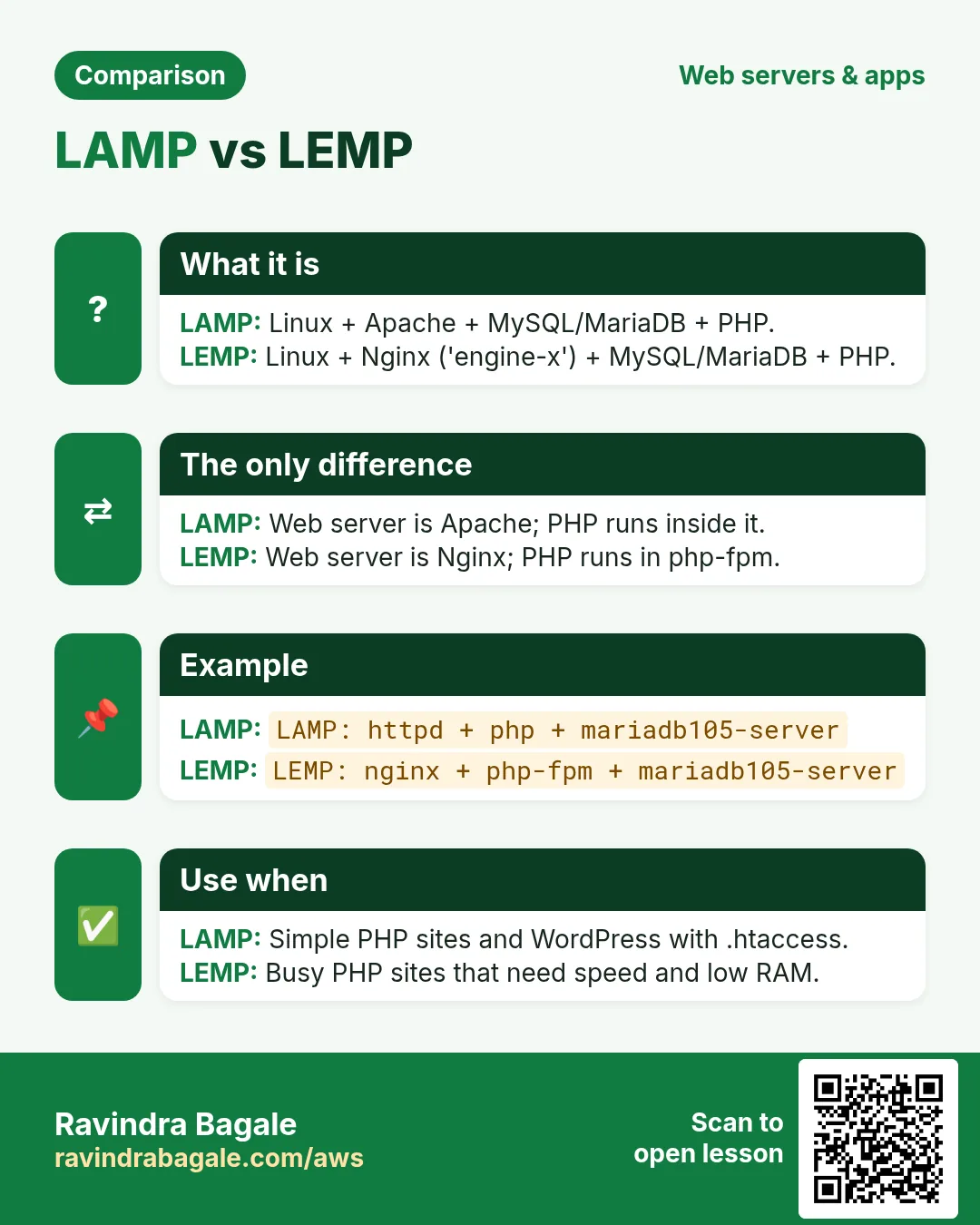
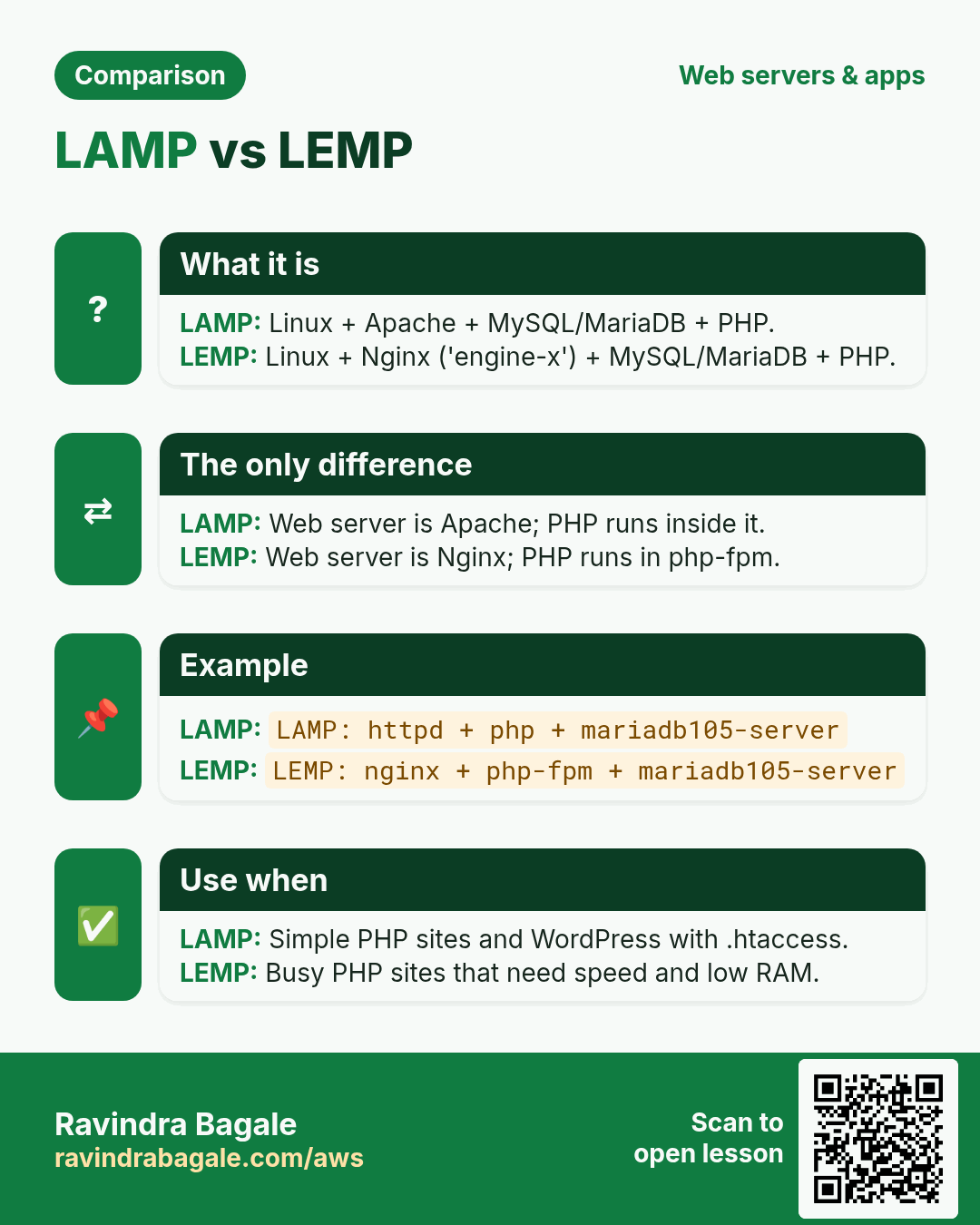
Revise this lesson in two minutes. Save the cards on your phone or download them as PNG files. The QR code on each card opens its lesson.
More cards: Ravi Sir's Cards.