Linux Disks: lsblk, blkid, fdisk, parted, mkfs, mount, /etc/fstab and swap Explained
A new disk was attached to your server. How do you find it, split it, format it, mount it, and make sure it comes back after reboot? This chapter walks through the whole story: lsblk and blkid to see disks and IDs, fdisk and parted to create partitions, mkfs to make a filesystem, mount and umount, /etc/fstab for permanent mounts, growing a partition and filesystem, and swap.
In this chapter
- Find disks and partitions with lsblk and blkid
- Create partitions with fdisk and parted
- Make filesystems with mkfs (ext4, xfs)
- Mount, unmount and use /etc/fstab safely
- Grow partitions and filesystems
- Add and manage swap
1. An everyday example: a new cupboard at home
You buy a new cupboard. First you find a place for it. Then you fit shelves (sections). You line each shelf so things can be kept. You put a label on the door so everyone knows what is inside, and you write in the house notebook which room it is in, so nobody forgets.
Cupboard = disk (lsblk). Shelves = partitions (fdisk/parted). Lining = filesystem (mkfs). Label = UUID/LABEL (blkid). Room = mount point (mount). House notebook = /etc/fstab.
2. lsblk: see all block devices
Read the lsblk tree before touching a disk. A disk is a block device. A partition is a selected range inside that device. A filesystem organises files within a device or a partition. A mount point is the folder through which you see those files. Indentation in lsblk connects the disk to its partitions. A slash in the mount point column tells you which filesystem holds the running operating system. Compare the lab volume’s size and serial with the attachment record, then identify the separate branch where you will work.
Before touching a disk you must be sure which one is new and empty. Formatting the wrong disk destroys data.
lsblk shows disks (TYPE disk), partitions (part), LVM (lvm) and their mount points as a tree. -f adds filesystem type, label and UUID. -o NAME,SIZE,TYPE,MOUNTPOINTS picks columns. Cloud NVMe disks look like nvme1n1; older ones xvdf or sdb.
- The tree.
lsblkOutput:
NAME        SIZE TYPE MOUNTPOINTS
nvme0n1      20G disk
└─nvme0n1p1  20G part /
nvme1n1     100G disk
nvme1n1 is the expected lab volume in this example. Confirm the device against your own lab attachment before writing to it.
- With filesystems.
lsblk -fOutput:
NAME       FSTYPE LABEL UUID                                 MOUNTPOINTS
nvme0n1p1  xfs    /     3f1c...a2  /
nvme1n1
No FSTYPE on nvme1n1.
- Choose columns.
lsblk -o NAME,SIZE,TYPE,FSTYPE,MOUNTPOINTSOutput:
(same tree, chosen columns)Good for scripts and tickets.
3. blkid: UUIDs and filesystem types
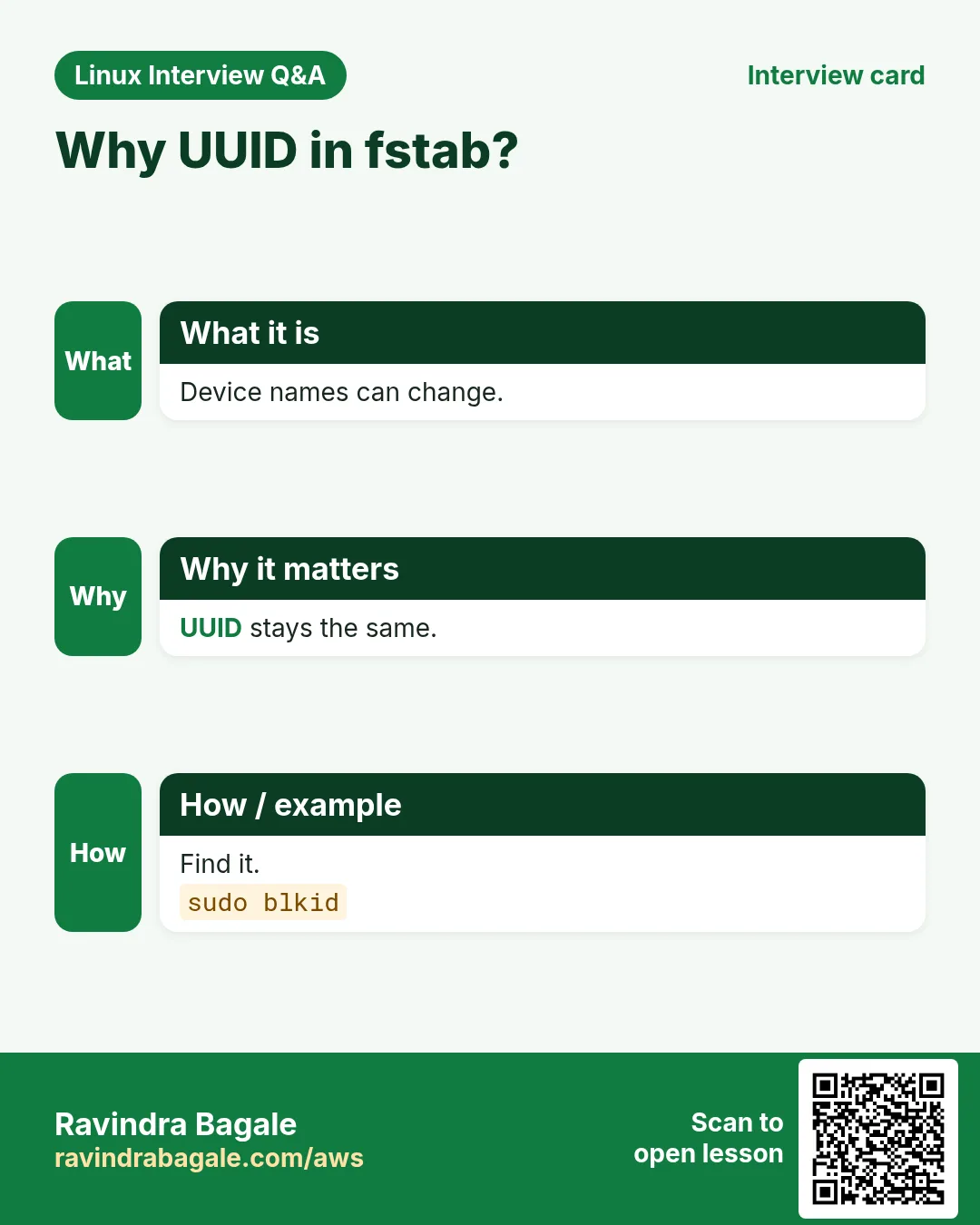
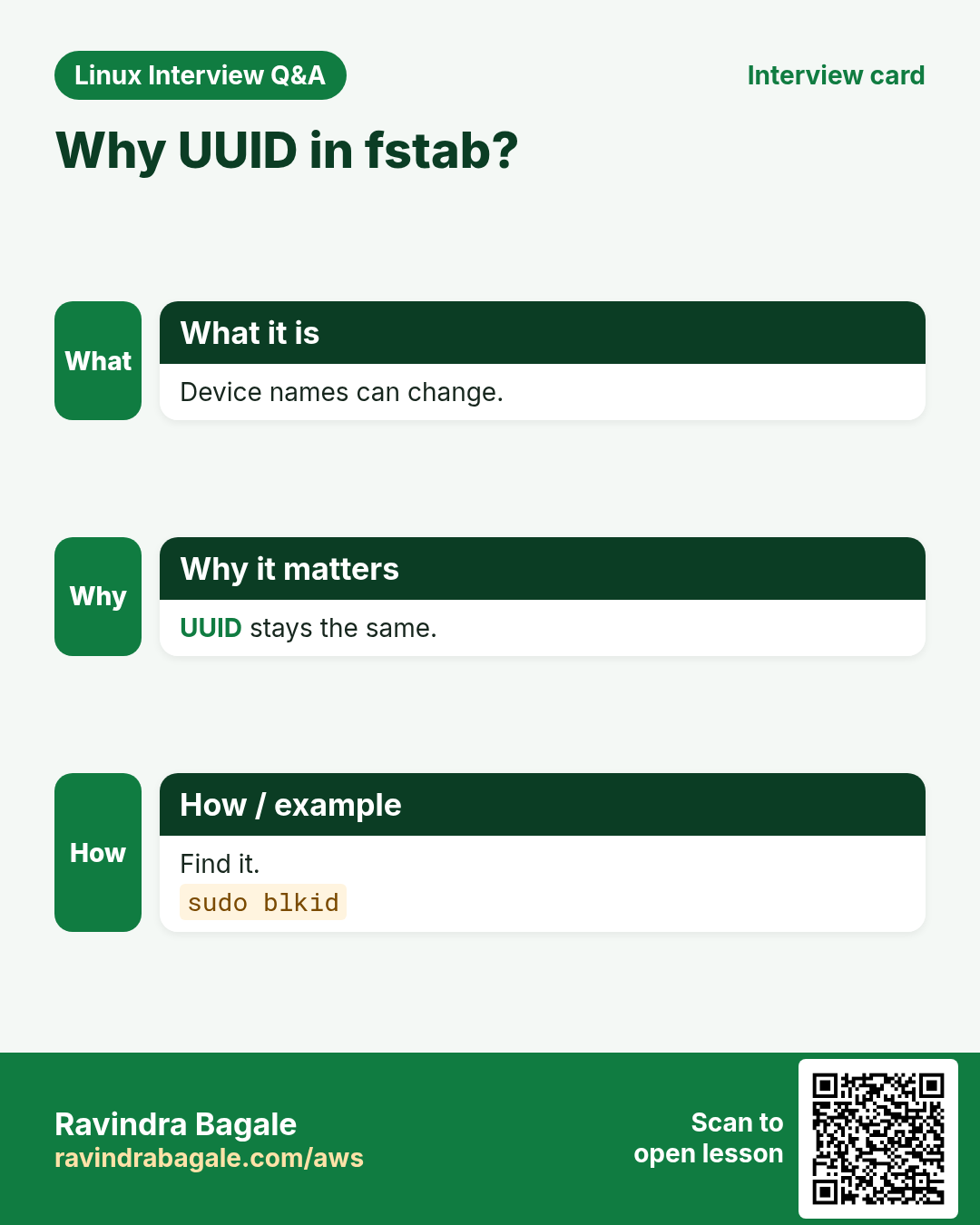
Device names like sdb can change between boots. In fstab use the filesystem UUID from blkid so the mount follows the filesystem if the device name changes. Check the UUID again after reformatting. A block-level clone can also carry the same UUID as the original, so verify both IDs before attaching both filesystems to the same host.
blkid prints UUID, TYPE and LABEL for each filesystem. blkid /dev/nvme1n1p1 for one. blkid -s UUID -o value DEV prints only the UUID. findfs UUID=... finds the device for a UUID.
- All.
sudo blkidOutput:
/dev/nvme0n1p1: LABEL="/" UUID="3f1c...a2" TYPE="xfs"
/dev/nvme1n1p1: UUID="7b9e...44" TYPE="xfs"
Two filesystems.
- Only the UUID.
sudo blkid -s UUID -o value /dev/nvme1n1p1Output:
7b9e1c2d-...-44Ready for fstab.
4. fdisk: create MBR or GPT partitions
You may want one disk split into parts, or a single partition so tools know the disk is in use.
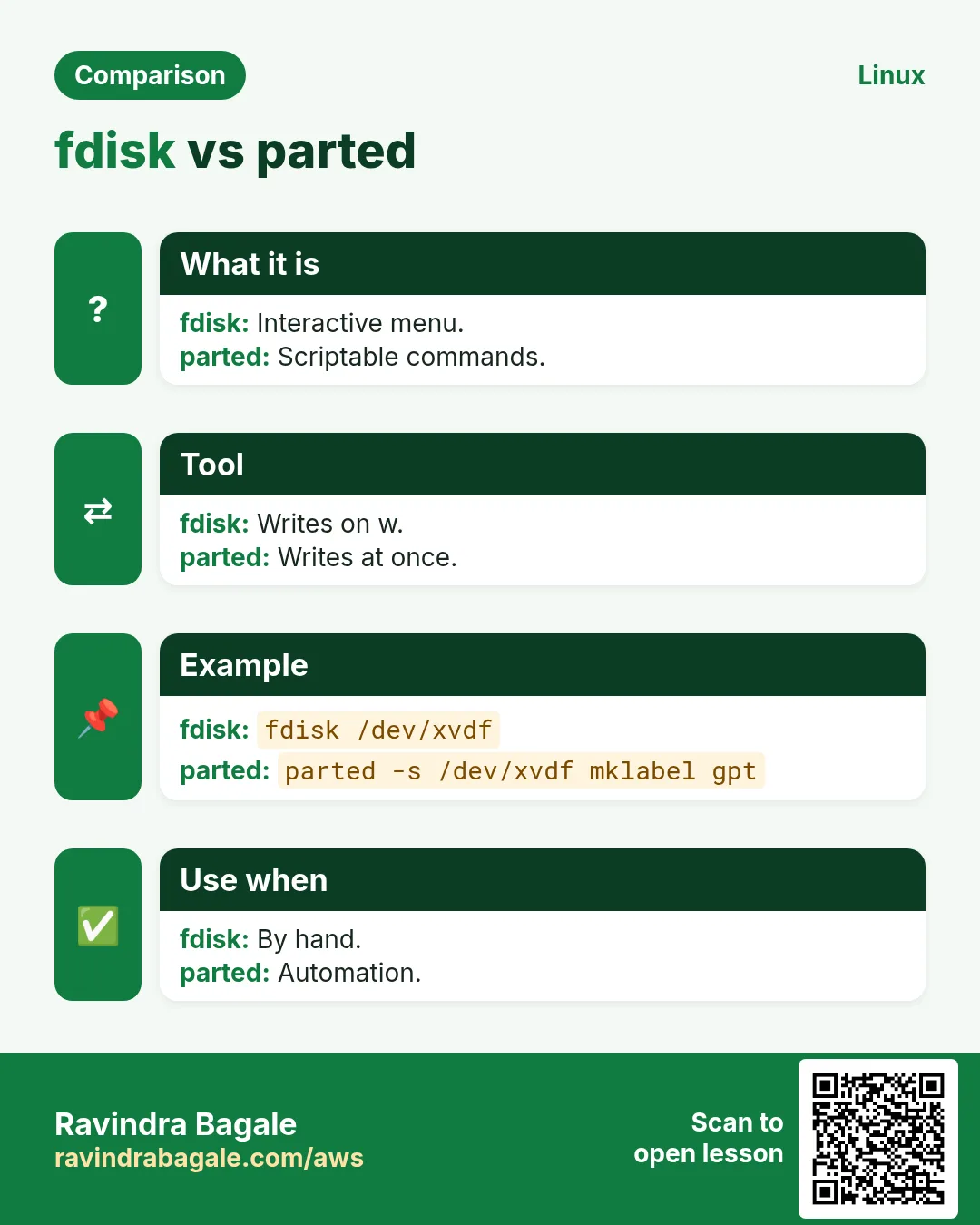
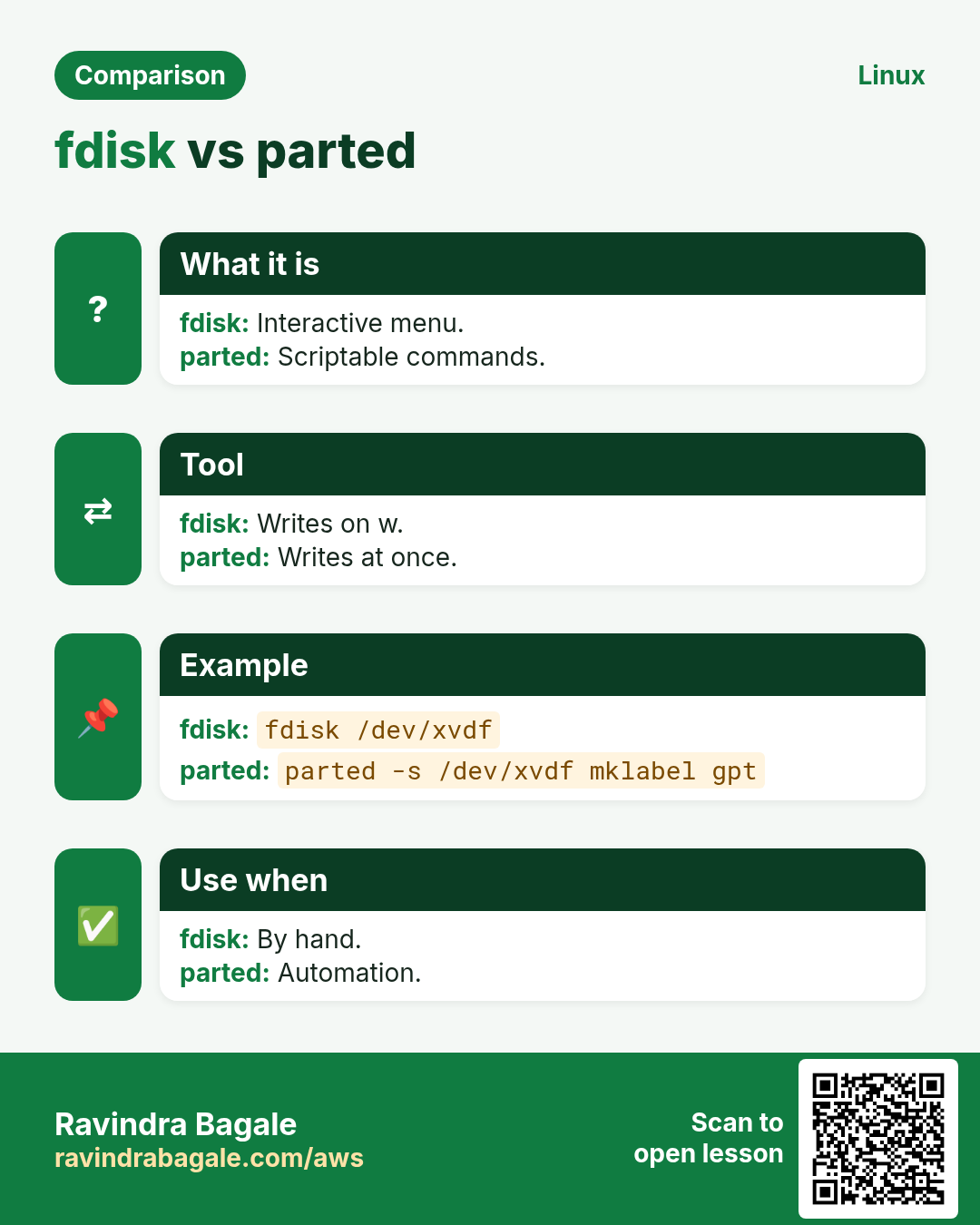
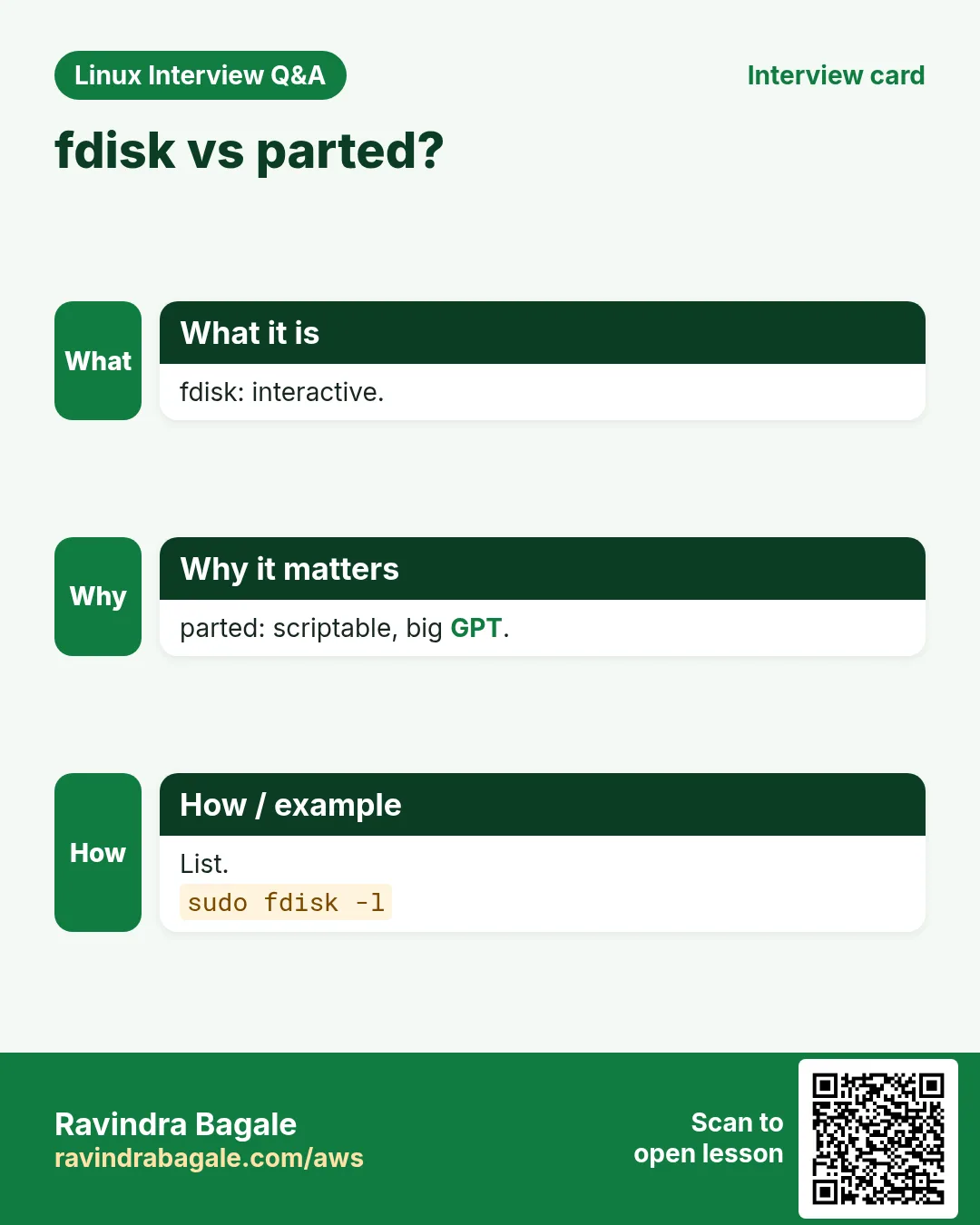
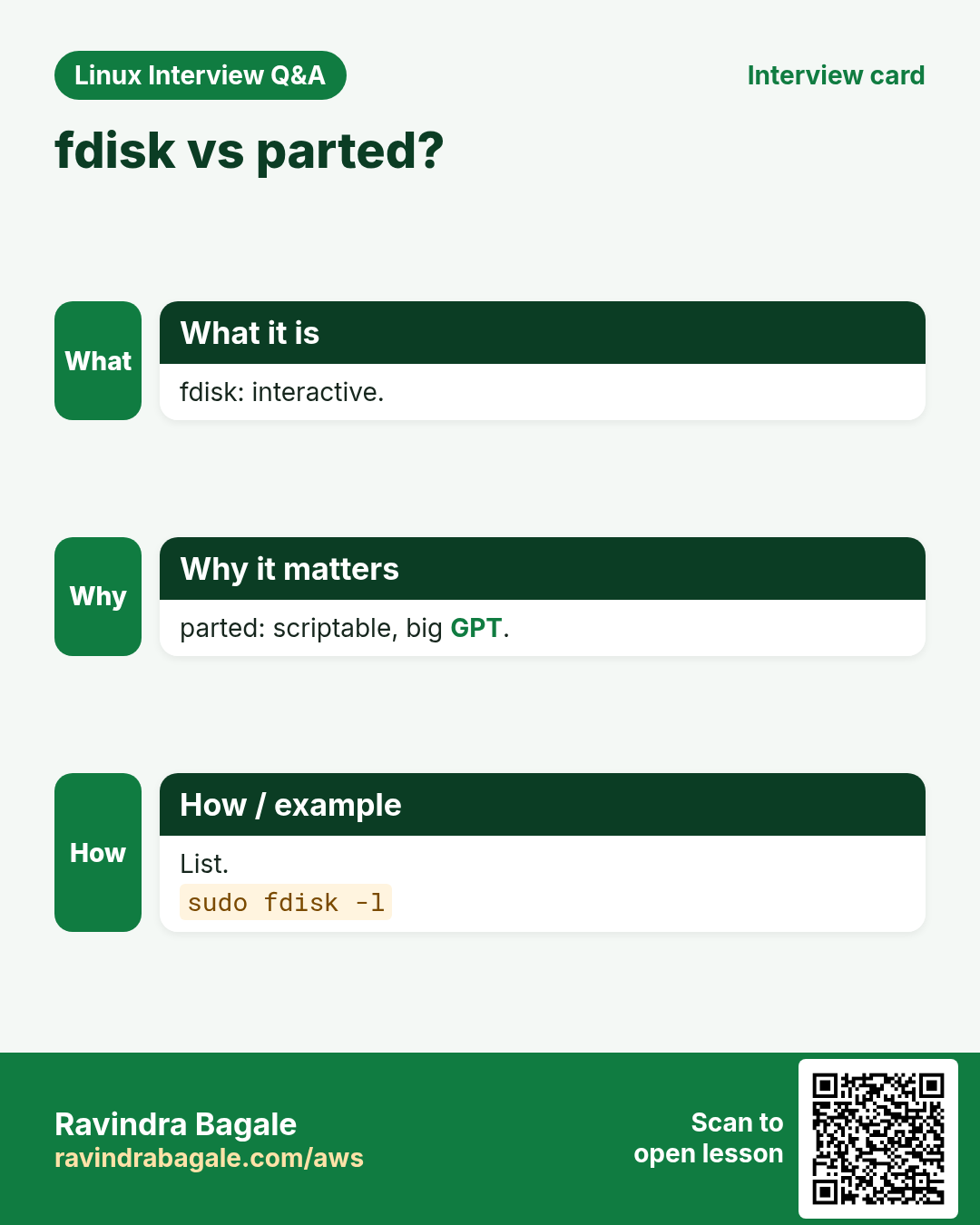
sudo fdisk /dev/DISK opens a menu: p print, g new GPT table, o new MBR (DOS) table, n new partition, t type, d delete, w write, q quit without saving. Nothing changes until w. fdisk -l lists partition tables. Use GPT for disks over 2 TB.
| Key | Action |
|---|---|
| p | Print table |
| g / o | New GPT / MBR |
| n | New partition |
| d | Delete |
| w | Write and exit |
| q | Quit, no changes |
- List.
sudo fdisk -l /dev/nvme1n1Output:
Disk /dev/nvme1n1: 100 GiB
Disklabel type: (none)
Empty.
- Interactive steps.
sudo fdisk /dev/nvme1n1
  g
  n  (Enter, Enter, Enter)
  w
Output:
Created a new GPT disklabel.
Created a new partition 1 of type 'Linux filesystem' and of size 100 GiB.
The partition table has been altered.
One partition: nvme1n1p1.
- Kernel did not see it.
sudo partprobe /dev/nvme1n1 && lsblk /dev/nvme1n1Output:
nvme1n1    100G disk
└─nvme1n1p1 100G part
Now visible.
5. parted: scriptable partitioning
In automation (cloud-init, Ansible) you cannot answer menus. parted runs in one command line.
sudo parted -s DISK mklabel gpt creates a GPT table. mkpart NAME FS START END makes a partition (use 0% 100% for alignment). print shows it. resizepart N 100% grows a partition. -s means script mode (no questions).
- One line.
sudo parted -s /dev/nvme2n1 mklabel gpt mkpart data xfs 0% 100%Output:
(no output)Done.
- Print.
sudo parted /dev/nvme2n1 printOutput:
Partition Table: gpt
Number Start  End    Size   File system Name
 1     1049kB 53.7GB 53.7GB             data
Aligned at 1 MiB.
- Two partitions.
sudo parted -s /dev/sdc mklabel gpt mkpart logs ext4 0% 30% mkpart data xfs 30% 100%Output:
(no output)30/70 split.
6. mkfs: make a filesystem
A partition is raw space. A filesystem is what lets you store files and folders on it.
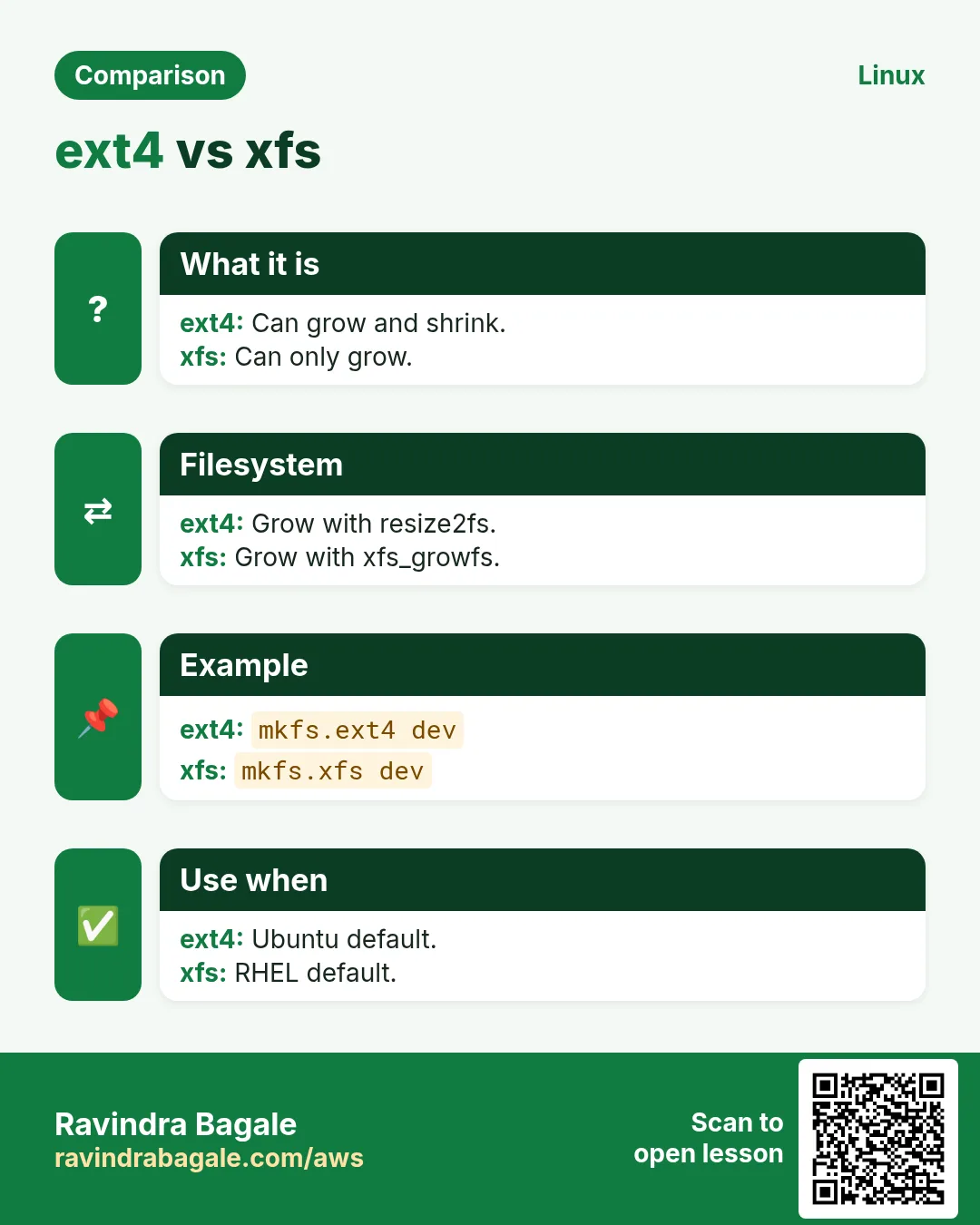
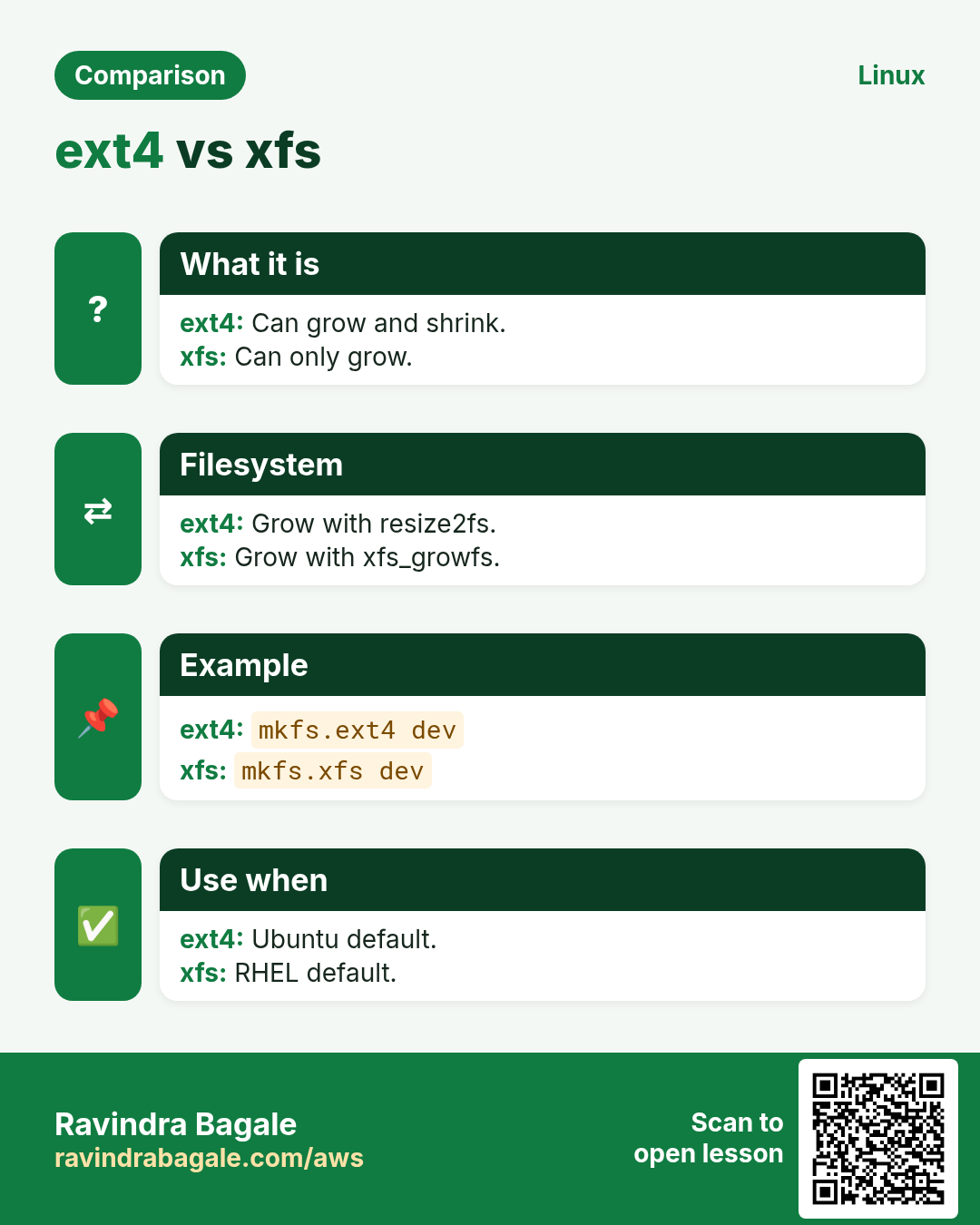
mkfs.xfs DEV (RHEL default, great for big files, can grow but not shrink). mkfs.ext4 DEV (Ubuntu default, can grow and shrink offline). -L LABEL sets a label. -f forces over an old filesystem (careful). mkfs erases everything on the device.
| xfs | ext4 | |
|---|---|---|
| Grow | Online | Online |
| Shrink | No | Offline |
| Default on | RHEL, Amazon Linux | Ubuntu, Debian |
| Grow tool | xfs_growfs | resize2fs |
- XFS.
sudo mkfs.xfs -L data /dev/nvme1n1p1Output:
meta-data=/dev/nvme1n1p1 isize=512 agcount=4, agsize=6553536 blksFilesystem ready.
- ext4.
sudo mkfs.ext4 -L logs /dev/sdc1Output:
Creating filesystem with 7864320 4k blocks
Writing superblocks and filesystem accounting information: done
Ready.
- Safety stop.
sudo mkfs.xfs /dev/nvme1n1p1Output:
mkfs.xfs: /dev/nvme1n1p1 appears to contain an existing filesystem (xfs).
mkfs.xfs: Use the -f option to force overwrite.
Stop and double check.
7. mount and umount
A filesystem is only usable after it is attached to a folder in the tree.
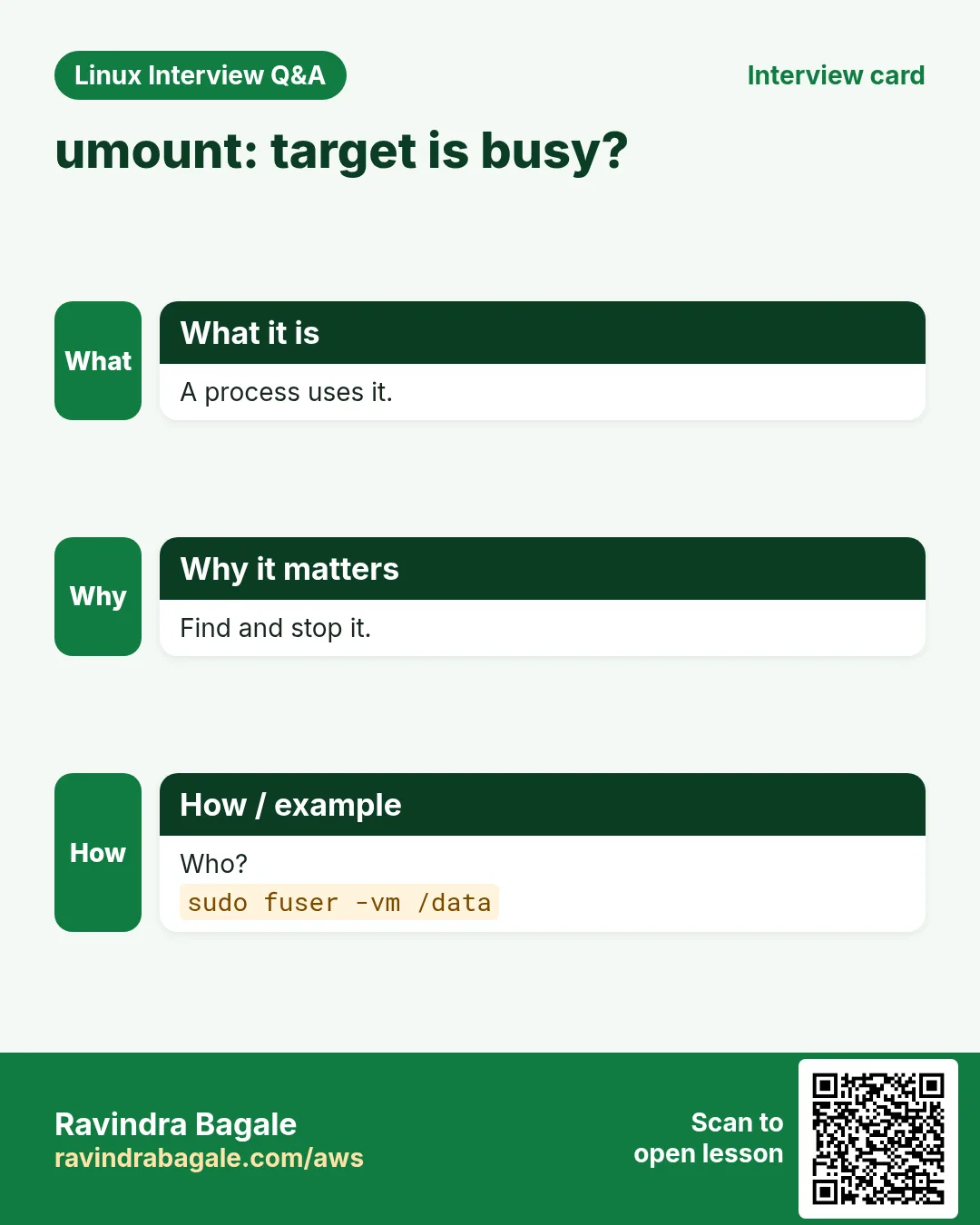
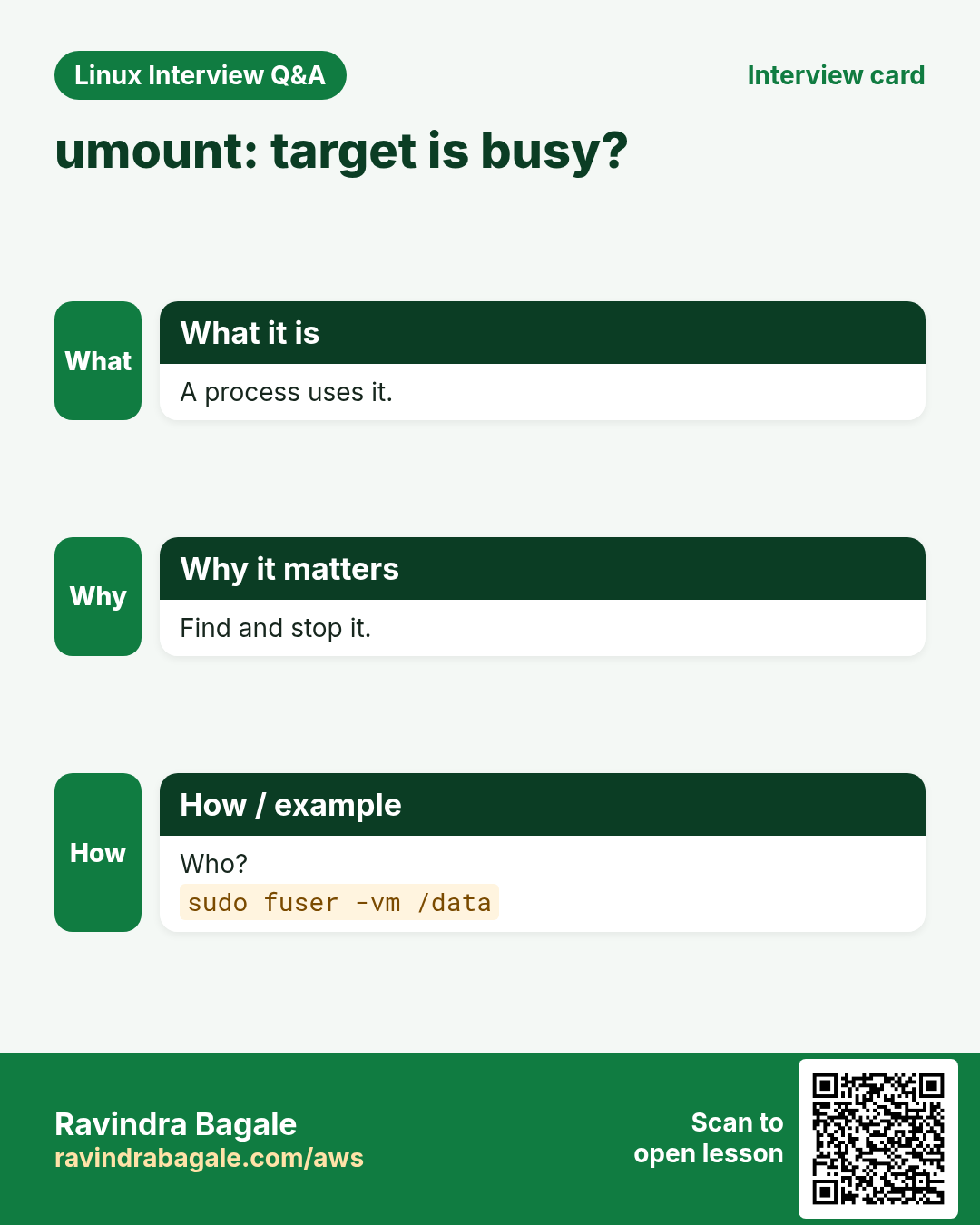
sudo mkdir -p /data && sudo mount DEV /data. mount -o ro, noexec, nosuid set options. findmnt /data or findmnt -T PATH shows what is mounted where. umount /data detaches; 'target is busy' means a process uses it (find with lsof +f -- /data or fuser -vm /data).
- Mount.
sudo mkdir -p /data && sudo mount /dev/nvme1n1p1 /data && df -h /dataOutput:
Filesystem      Size Used Avail Use% Mounted on
/dev/nvme1n1p1  100G 746M 100G   1% /data
Ready to use.
- Show mounts.
findmnt /dataOutput:
TARGET SOURCE         FSTYPE OPTIONS
/data  /dev/nvme1n1p1 xfs    rw,relatime
Options shown.
- Busy.
sudo umount /dataOutput:
umount: /data: target is busy.Someone is inside.
- Who?
sudo fuser -vm /dataOutput:
USER PID ACCESS COMMAND
/data: ravi 3301 ..c.. bash
Your own shell: cd out.
8. /etc/fstab: permanent mounts
Read one fstab row from left to right. A UUID identifies the filesystem, then a folder such as /data says where it belongs. The type tells Linux how to read the filesystem, and the options describe how to mount it. The last two numbers are for dump and boot-time filesystem checks. Before the next boot, verify the lab row, mount the intended filesystem and run findmnt /data. Read the SOURCE and TARGET together so you can tell the disk and folder actually match the rule you wrote.
mount is temporary. Without fstab the disk is not mounted after reboot and the app fails.
Six fields: device (UUID=...), mount point, type, options, dump (0), fsck order (0 for xfs, 2 for ext4 data). Add nofail for non-root disks in the cloud so boot does not hang if the disk is missing. Test with sudo mount -a and findmnt --verify.
| Field | Example |
|---|---|
| 1 device | UUID=7b9e... |
| 2 mount point | /data |
| 3 type | xfs |
| 4 options | defaults,nofail |
| 5 dump | 0 |
| 6 fsck | 0 (xfs) / 2 (ext4) |
- Add a line.
echo "UUID=$(sudo blkid -s UUID -o value /dev/nvme1n1p1) /data xfs defaults,nofail 0 0" | sudo tee -a /etc/fstabOutput:
UUID=7b9e...44 /data xfs defaults,nofail 0 0Permanent.
- Test it.
sudo umount /data && sudo mount -a && findmnt /dataOutput:
/data /dev/nvme1n1p1 xfs rw,relatimefstab works.
- Verify syntax.
sudo findmnt --verifyOutput:
Success, no errors or warnings detectedSafe to reboot.
- Reload systemd.
sudo systemctl daemon-reloadOutput:
(no output)systemd builds mount units from fstab.
9. Growing a partition and filesystem
Imagine requesting a disk increase from 20 GiB to 30 GiB. First see whether lsblk reports the larger disk. If the filesystem sits inside a partition, read its size too: the outer disk can already show 30 GiB while the partition still shows 20 GiB. Next compare df -hT, which reports the mounted filesystem’s usable size and type. Follow the layers in that order to see where the resize stopped. After growing the appropriate layers, repeat the same measurements and confirm you can still read a lab file.
In the cloud you can make a volume bigger, but Linux does not use the new space until you grow the partition and the filesystem.
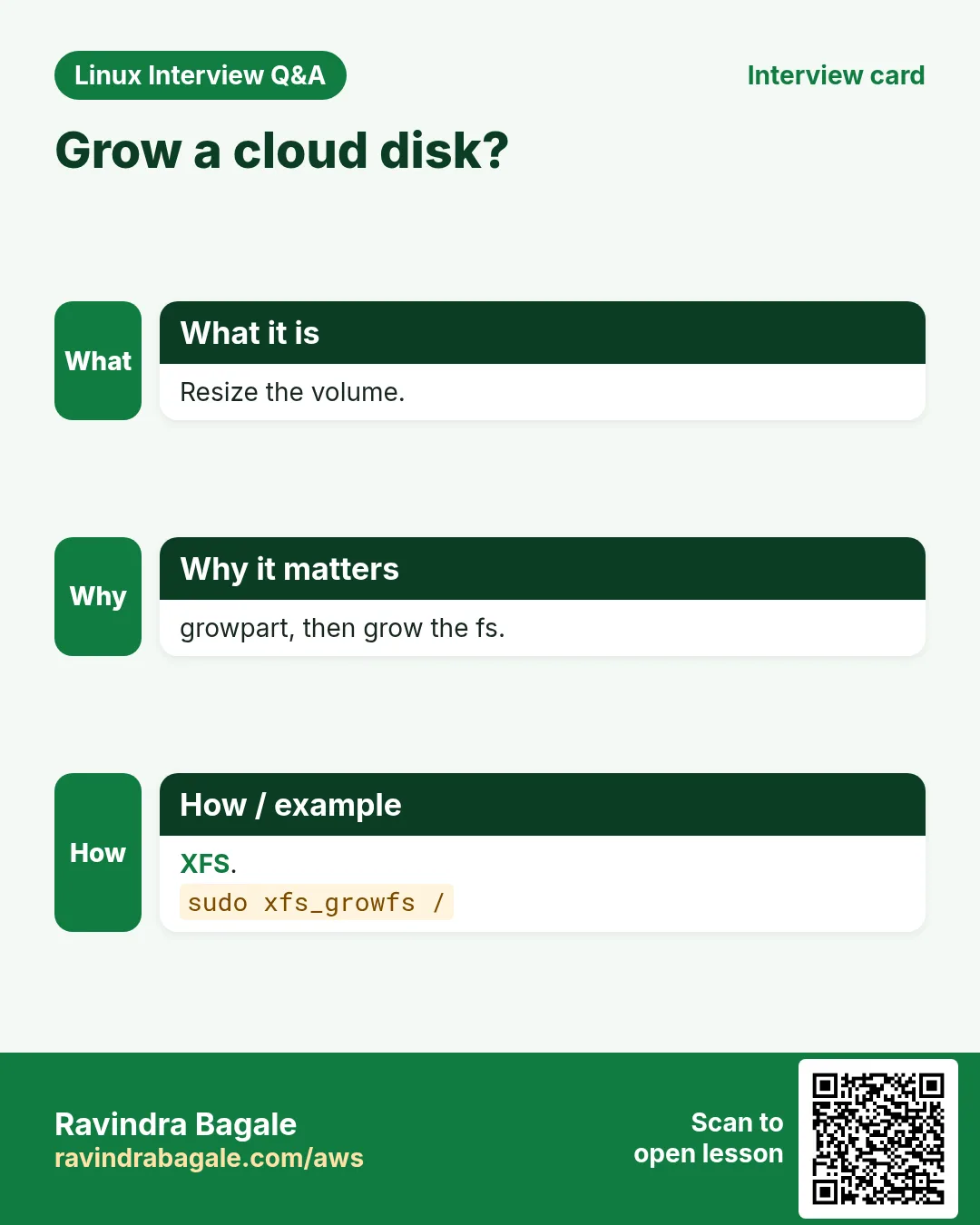
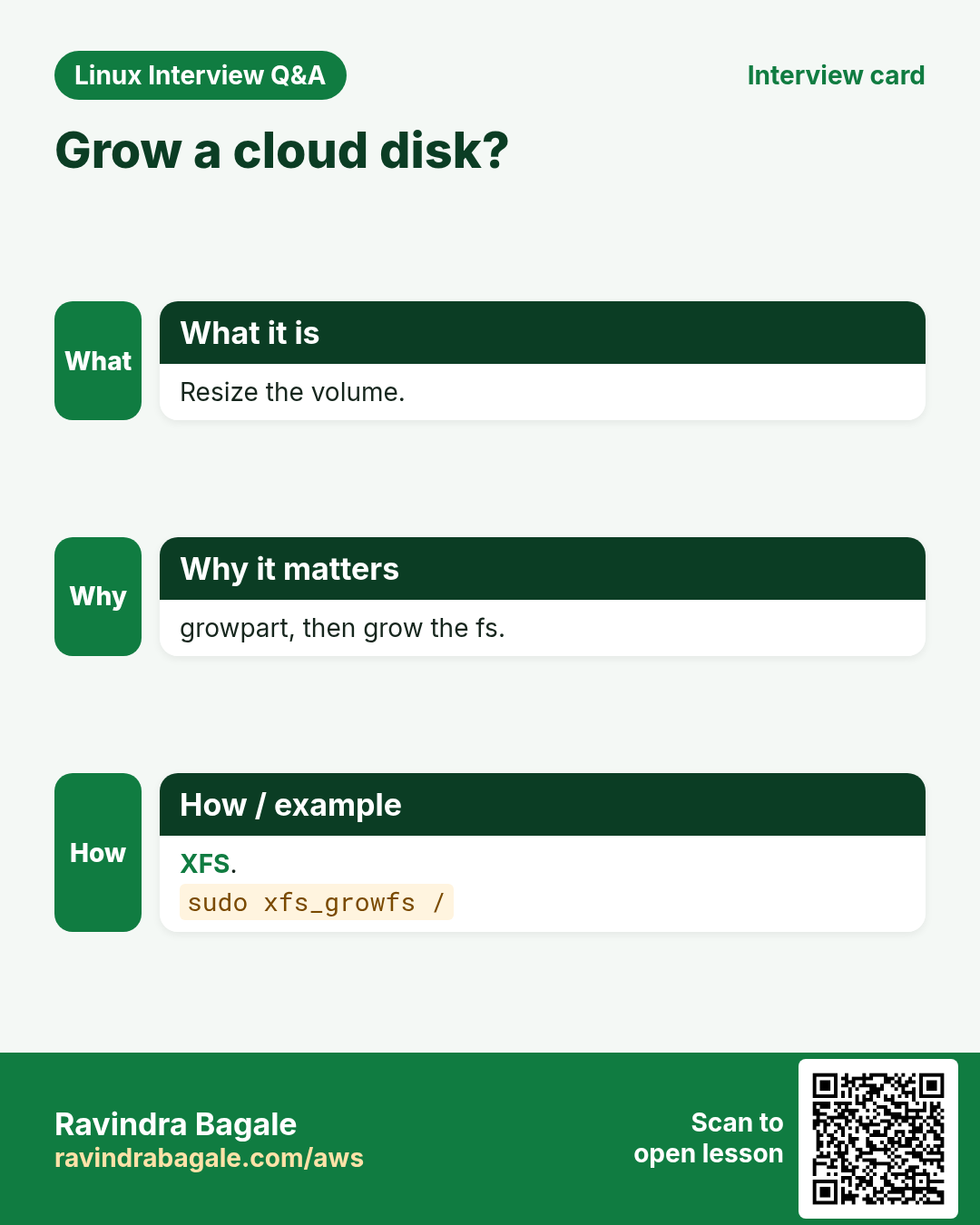
1 resize the volume in the cloud. 2 lsblk shows the disk bigger. 3 sudo growpart DISK N grows partition N (from cloud-utils-growpart). 4 grow the filesystem: xfs_growfs MOUNTPOINT for xfs, resize2fs DEV for ext4. All online.
- Disk is bigger.
lsblk /dev/nvme0n1Output:
nvme0n1     40G disk
└─nvme0n1p1 20G part /
Partition still 20G.
- Grow partition.
sudo growpart /dev/nvme0n1 1Output:
CHANGED: partition=1 start=4096 old: size=41938911 end=41943007 new: size=83881951Partition 40G.
- Grow xfs.
sudo xfs_growfs / && df -h /Output:
data blocks changed from 5242363 to 10485243
/dev/nvme0n1p1 40G 11G 29G 28% /
Done online.
- Grow ext4.
sudo resize2fs /dev/sdc1Output:
The filesystem on /dev/sdc1 is now 13107200 (4k) blocks long.ext4 way.
10. Swap: mkswap, swapon, swap file
Small servers can crash with out-of-memory. Swap gives a little slow extra memory so the kernel does not kill the app immediately.
Swap file: fallocate -l 2G /swapfile (or dd), chmod 600, mkswap, swapon. swapon --show and free -h show it. fstab line: /swapfile none swap sw 0 0. vm.swappiness (0-100) controls how eager the kernel is to swap.
- Create 2G swap.
sudo fallocate -l 2G /swapfile && sudo chmod 600 /swapfile && sudo mkswap /swapfile && sudo swapon /swapfileOutput:
Setting up swapspace version 1, size = 2 GiBActive.
- Check.
swapon --show; free -h | grep -i swapOutput:
NAME      TYPE SIZE USED PRIO
/swapfile file   2G   0B   -2
Swap: 2.0Gi 0B 2.0Gi
In use.
- Permanent.
echo '/swapfile none swap sw 0 0' | sudo tee -a /etc/fstabOutput:
/swapfile none swap sw 0 0After reboot too.
- Less eager.
sudo sysctl vm.swappiness=10Output:
vm.swappiness = 10Prefers RAM.
11. Checking and repairing filesystems: fsck, xfs_repair
After a crash or power loss, a filesystem may be marked dirty or refuse to mount.
Never repair a mounted filesystem. ext4: umount, then fsck -f DEV (or e2fsck). xfs: umount, then xfs_repair DEV (xfs_repair -n only checks). For the root filesystem use rescue mode or attach the disk to another server.
- Check ext4.
sudo umount /logs && sudo fsck -f /dev/sdc1Output:
Pass 1: Checking inodes, blocks, and sizes
/dev/sdc1: 11/1966080 files, 167971/7864320 blocks
Clean.
- Check xfs without changes.
sudo umount /data && sudo xfs_repair -n /dev/nvme1n1p1Output:
Phase 1 - find and verify superblock...
No modify flag set, skipping filesystem flush and exiting.
Read-only check.
12. Real examples from many industries
The same Linux skill shows up in every kind of company. Seeing it in many places helps you remember it.
Each row is a made-up team. It shows who uses this and how.
| Team and city | How they use it | Command |
|---|---|---|
| Pooja, analytics, Pune | Adds data disks with UUID fstab lines | blkid -s UUID -o value DEV |
| Liam, media, Sydney | Grows root volumes online | growpart /dev/nvme0n1 1 && xfs_growfs / |
| Hana, robotics, Seoul | Scripts partitions with parted | parted -s DISK mklabel gpt mkpart data xfs 0% 100% |
| Diego, retail, Lima | Adds swap on small instances | fallocate -l 2G /swapfile |
| Grace, hospital, Accra | Uses nofail for extra disks | defaults,nofail 0 0 |
| Sagar, school ERP, Solapur | Tests fstab before reboot | mount -a && findmnt --verify |
13. Common errors and how to fix them
Everyone hits these errors. Knowing the cause saves hours.
Read the exact message first. Then match it to a row below.
| Error you see | Why it happens | How to fix |
|---|---|---|
mount: wrong fs type, bad option, bad superblock | No filesystem yet, or wrong type | Check with lsblk -f; mkfs if new.lsblk -f |
umount: target is busy | A process uses the mount | Find and stop it.sudo fuser -vm /data |
Boot stops in emergency mode | Bad /etc/fstab line | Fix fstab from the emergency shell; use nofail.findmnt --verify |
mkfs: appears to contain an existing filesystem | Disk already has data | Confirm it is the right disk before -f.lsblk -f |
Re-reading the partition table failed: Device or resource busy | Kernel did not reload table | Run partprobe.sudo partprobe /dev/nvme1n1 |
NOCHANGE: partition 1 is size ... it cannot be grown | Volume not resized yet | Resize in the cloud first.lsblk |
df still shows old size | Filesystem not grown | Run xfs_growfs or resize2fs.sudo xfs_growfs / |
swapon: /swapfile: insecure permissions 0644 | Swap file readable by others | chmod 600.sudo chmod 600 /swapfile |
mount point /data does not exist | Directory missing | Create it.sudo mkdir -p /data |
xfs_growfs: is not a mounted XFS filesystem | Passed device or wrong path | Pass the mount point.sudo xfs_growfs /data |
14. Troubleshooting step by step
When a disk is missing or full of surprises, check from bottom to top.
Go top to bottom. Stop at the first step that shows the problem.
- Is the disk seen?
lsblk- Partition and filesystem?
lsblk -f- UUID?
sudo blkid- Mounted where?
findmnt -T /data- fstab valid?
sudo findmnt --verify- Kernel messages?
dmesg -T | tail -2015. Lab 1: Add a disk end to end with a loop device
Practise the full flow safely using a file as a disk.
A full hands-on lab. Run every step on a test Linux machine (an EC2 instance, a VM, or WSL).
- Make a 1G file disk.
truncate -s 1G /tmp/disk.img && sudo losetup -fP --show /tmp/disk.imgOutput:
/dev/loop0- Partition.
sudo parted -s /dev/loop0 mklabel gpt mkpart lab ext4 0% 100%Output:
(no output)- Filesystem.
sudo mkfs.ext4 -L lab /dev/loop0p1Output:
done- Mount.
sudo mkdir -p /mnt/lab && sudo mount /dev/loop0p1 /mnt/lab && df -h /mnt/labOutput:
/dev/loop0p1 974M ... /mnt/lab- Clean up.
sudo umount /mnt/lab && sudo losetup -d /dev/loop0Output:
(no output)16. Lab 2: Swap file and fstab test
Add a 512M swap file and prove fstab entries with mount -a.
A full hands-on lab. Run every step on a test Linux machine (an EC2 instance, a VM, or WSL).
- Create.
sudo fallocate -l 512M /swaplab && sudo chmod 600 /swaplab && sudo mkswap /swaplabOutput:
Setting up swapspace- Enable.
sudo swapon /swaplab && swapon --showOutput:
/swaplab file 512M- Verify fstab.
sudo findmnt --verifyOutput:
Success- Disable.
sudo swapoff /swaplabOutput:
(no output)- Remove.
sudo rm /swaplabOutput:
(no output)Ravindra Bagale's Tip
In /etc/fstab always use UUID= and, for any disk except root, add nofail. Then run sudo mount -a and sudo findmnt --verify before you reboot. These three habits prevent the classic 'server will not boot after adding a disk' outage.
Ravindra Bagale's Tip – मराठी
/etc/fstab मधे नेहमी UUID= वापरा आणि root सोडून प्रत्येक disk ला nofail जोडा. मग reboot आधी sudo mount -a आणि sudo findmnt --verify चालवा. या तीन सवयी classic 'disk जोडल्यावर server boot होत नाही' outage टाळतात.
Ravindra Bagale's Tip – हिंदी
/etc/fstab में हमेशा UUID= इस्तेमाल करें और root छोड़कर हर disk पर nofail जोड़ें. फिर reboot से पहले sudo mount -a और sudo findmnt --verify चलाएं. ये तीन आदतें classic 'disk जोड़ने के बाद server boot नहीं होता' outage रोकती हैं.
17. Frequently asked questions
Q. fdisk or parted?
fdisk for interactive work; parted -s for scripts and large disks.
Q. xfs or ext4?
Use the distro default; xfs cannot shrink, ext4 can offline.
Q. Do I need a partition at all?
Not strictly, but a partition makes it clear the disk is used.
Q. Why UUID in fstab?
Device names can change; UUIDs do not.
Q. What is nofail?
Boot continues even if that disk is missing.
Q. How much swap?
Small servers: 1-2G; large memory servers often little or none.
Q. Can I grow root without reboot?
Yes: growpart then xfs_growfs or resize2fs.
Q. What is a loop device?
A file used as a disk, good for practice.
18. Interview questions and answers
Beginner level
Q. List disks?
lsblk.
Q. Show UUIDs?
blkid.
Q. Make xfs filesystem?
mkfs.xfs DEV.
Q. Make mounts permanent?
Add to /etc/fstab.
Mid level level
Q. Test fstab without reboot?
mount -a and findmnt --verify.
Q. umount says busy?
fuser -vm or lsof to find the process.
Q. Grow root after EBS resize?
growpart DISK 1 then xfs_growfs /.
Q. Add swap file?
fallocate, chmod 600, mkswap, swapon, fstab.
Senior level
Q. Server stuck in emergency mode after disk change?
Boot rescue, fix fstab (UUID, nofail), findmnt --verify, reboot.
Q. Need to shrink an xfs volume?
Not possible; create smaller, copy data, switch.
Q. Automate data disk setup?
cloud-init or Ansible with parted -s, mkfs, fstab with UUID and nofail.
Q. NVMe names change order on Nitro, how to handle?
Use UUIDs or /dev/disk/by-id symlinks.
Try at home
- Do Lab 1 again with xfs instead of ext4 and add the fstab line with nofail, then test with mount -a.
- Draw your server's disk tree from lsblk -f on paper and label every part.
Practise this chapter
Interview questions and answers
The cloud console shows a larger disk, but df is unchanged. Explain the next checks.
Use lsblk to check the local device and partition sizes. If there is LVM, check the logical volume too. Then check the type and size of the mounted filesystem. Grow the required layers in order and repeat the same checks. Verify a test read at the application path.
Check your understanding
Choose an answer, then compare your reasoning with the explanation.
Practice Tasks
Practice checks run in your browser. They check the answer for this exercise; they do not create resources or connect to your AWS account.
About this scenarioMilan Furniture is a furniture business in Milan. Giulia Rossi looks after its IT and cloud work. They count money in EUR and run their AWS resources in the eu-south-1 Region. In the tasks below you do real jobs for them using what this lesson teaches. All names, account IDs, IP addresses and numbers are made up for practice.
0 / 18
Easy Filesystems in tree
Disks hold everything BIZ stores.
Show /dev/xvdg with filesystem type and UUID.
- Find the Linux command that does this job.
- Add the options (like -r or -h) the task needs.
- Add the file names, folders or users in the right order.
- Use sudo if the job changes system files or users. Click Check answer.
Easy One disk
Disks hold everything BIZ stores.
Show only /dev/xvdg in the tree.
- Find the Linux command that does this job.
- Add the options (like -r or -h) the task needs.
- Add the file names, folders or users in the right order.
- Use sudo if the job changes system files or users. Click Check answer.
Easy UUID of one
Disks hold everything BIZ stores.
Show blkid info for /dev/xvdg1.
- Find the Linux command that does this job.
- Add the options (like -r or -h) the task needs.
- Add the file names, folders or users in the right order.
- Use sudo if the job changes system files or users. Click Check answer.
Easy List partitions
Disks hold everything BIZ stores.
List the partition table of /dev/xvdg with fdisk.
- Find the Linux command that does this job.
- Add the options (like -r or -h) the task needs.
- Add the file names, folders or users in the right order.
- Use sudo if the job changes system files or users. Click Check answer.
Easy Make xfs
Disks hold everything BIZ stores.
Make an xfs filesystem on /dev/xvdh1 with label media.
- Find the Linux command that does this job.
- Add the options (like -r or -h) the task needs.
- Add the file names, folders or users in the right order.
- Use sudo if the job changes system files or users. Click Check answer.
Easy Make ext4
Disks hold everything BIZ stores.
Make an ext4 filesystem on /dev/xvdg1.
- Find the Linux command that does this job.
- Add the options (like -r or -h) the task needs.
- Add the file names, folders or users in the right order.
- Use sudo if the job changes system files or users. Click Check answer.
Easy Mount it
Disks hold everything BIZ stores.
Mount /dev/xvdh1 on /media.
- Find the Linux command that does this job.
- Add the options (like -r or -h) the task needs.
- Add the file names, folders or users in the right order.
- Use sudo if the job changes system files or users. Click Check answer.
Easy What is mounted
Disks hold everything BIZ stores.
Show what is mounted on /media.
- Find the Linux command that does this job.
- Add the options (like -r or -h) the task needs.
- Add the file names, folders or users in the right order.
- Use sudo if the job changes system files or users. Click Check answer.
Easy Test fstab
Disks hold everything BIZ stores.
Mount everything in fstab and print each result.
- Find the Linux command that does this job.
- Add the options (like -r or -h) the task needs.
- Add the file names, folders or users in the right order.
- Use sudo if the job changes system files or users. Click Check answer.
Medium Script a GPT label
Disks hold everything BIZ stores.
Create a GPT label on /dev/xvdh with parted in script mode.
- Find the Linux command that does this job.
- Add the options (like -r or -h) the task needs.
- Add the file names, folders or users in the right order.
- Use sudo if the job changes system files or users. Click Check answer.
Medium Reload table
Disks hold everything BIZ stores.
Tell the kernel to re-read partitions of /dev/xvdh.
- Find the Linux command that does this job.
- Add the options (like -r or -h) the task needs.
- Add the file names, folders or users in the right order.
- Use sudo if the job changes system files or users. Click Check answer.
Medium Read-only mount
Disks hold everything BIZ stores.
Mount /dev/xvdg1 read-only on /mnt/old.
- Find the Linux command that does this job.
- Add the options (like -r or -h) the task needs.
- Add the file names, folders or users in the right order.
- Use sudo if the job changes system files or users. Click Check answer.
Medium Who is busy
Disks hold everything BIZ stores.
Show which processes use the /media mount.
- Find the Linux command that does this job.
- Add the options (like -r or -h) the task needs.
- Add the file names, folders or users in the right order.
- Use sudo if the job changes system files or users. Click Check answer.
Medium Verify fstab
Disks hold everything BIZ stores.
Check /etc/fstab for errors without mounting, with full details.
- Find the Linux command that does this job.
- Add the options (like -r or -h) the task needs.
- Add the file names, folders or users in the right order.
- Use sudo if the job changes system files or users. Click Check answer.
Medium Show swap
Disks hold everything BIZ stores.
Show active swap areas with sizes in bytes.
- Find the Linux command that does this job.
- Add the options (like -r or -h) the task needs.
- Add the file names, folders or users in the right order.
- Use sudo if the job changes system files or users. Click Check answer.
Medium Disable a swap file
Disks hold everything BIZ stores.
Turn off swap file /swap2.
- Find the Linux command that does this job.
- Add the options (like -r or -h) the task needs.
- Add the file names, folders or users in the right order.
- Use sudo if the job changes system files or users. Click Check answer.
Hard Grow partition 2
Disks hold everything BIZ stores.
Grow partition 2 of /dev/xvda to fill the disk.
- Find the Linux command that does this job.
- Add the options (like -r or -h) the task needs.
- Add the file names, folders or users in the right order.
- Use sudo if the job changes system files or users. Click Check answer.
Hard Grow ext4
Disks hold everything BIZ stores.
Grow the ext4 filesystem on /dev/xvdg1.
- Find the Linux command that does this job.
- Add the options (like -r or -h) the task needs.
- Add the file names, folders or users in the right order.
- Use sudo if the job changes system files or users. Click Check answer.
19. Related chapters
- Linux Ops Refresh for DevOps
- Bash Scripting for Automation
- Linux grep and find Commands with Examples
- How to Set Up Passwordless SSH Between Linux Servers
In short
- lsblk and blkid find disks and UUIDs.
- fdisk (menu) and parted -s (script) make partitions.
- mkfs.xfs and mkfs.ext4 create filesystems.
- mount, findmnt, umount, fuser.
- fstab with UUID, nofail; test with mount -a.
- growpart + xfs_growfs/resize2fs; swap with mkswap/swapon.
Revision, comparison and interview cards
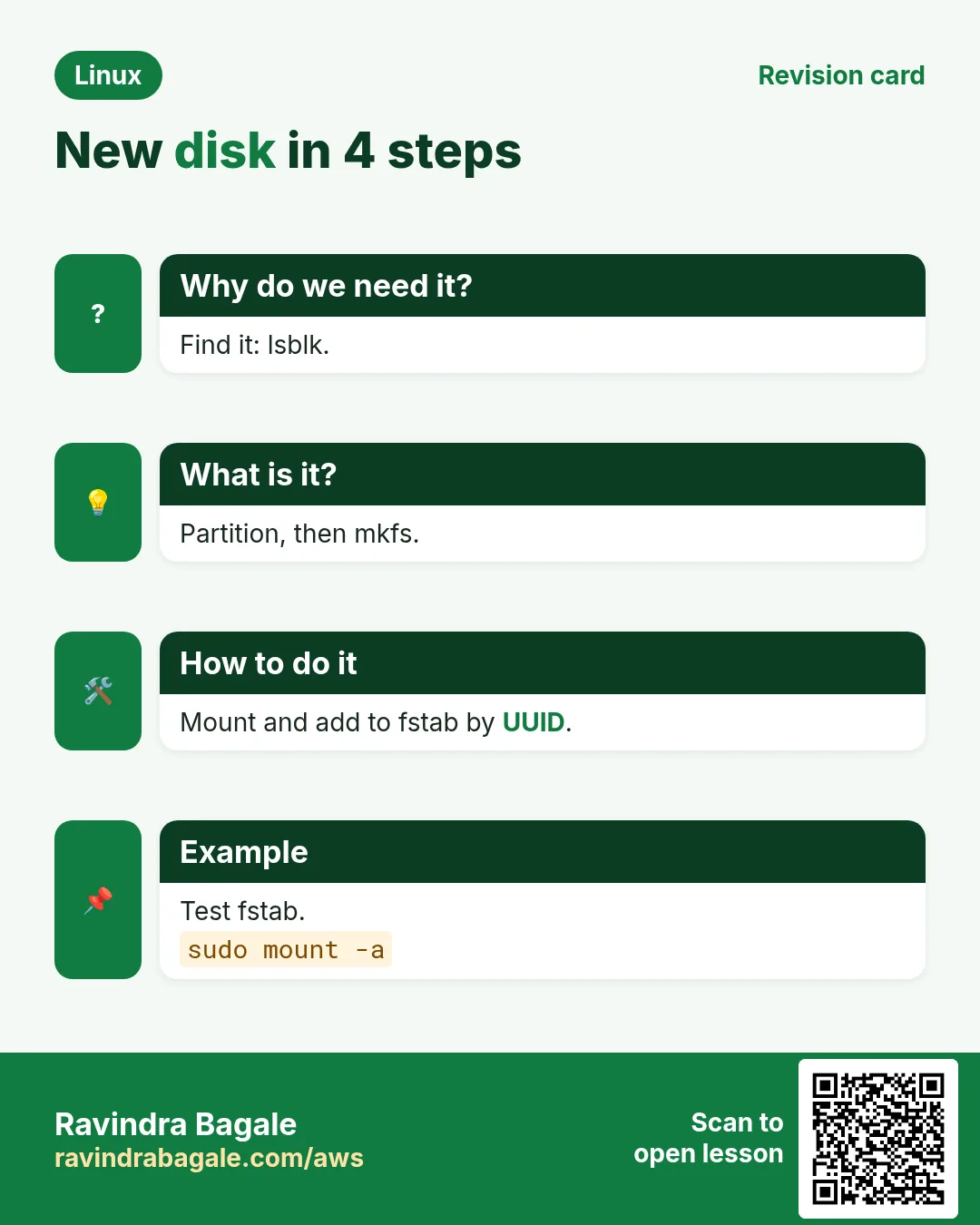
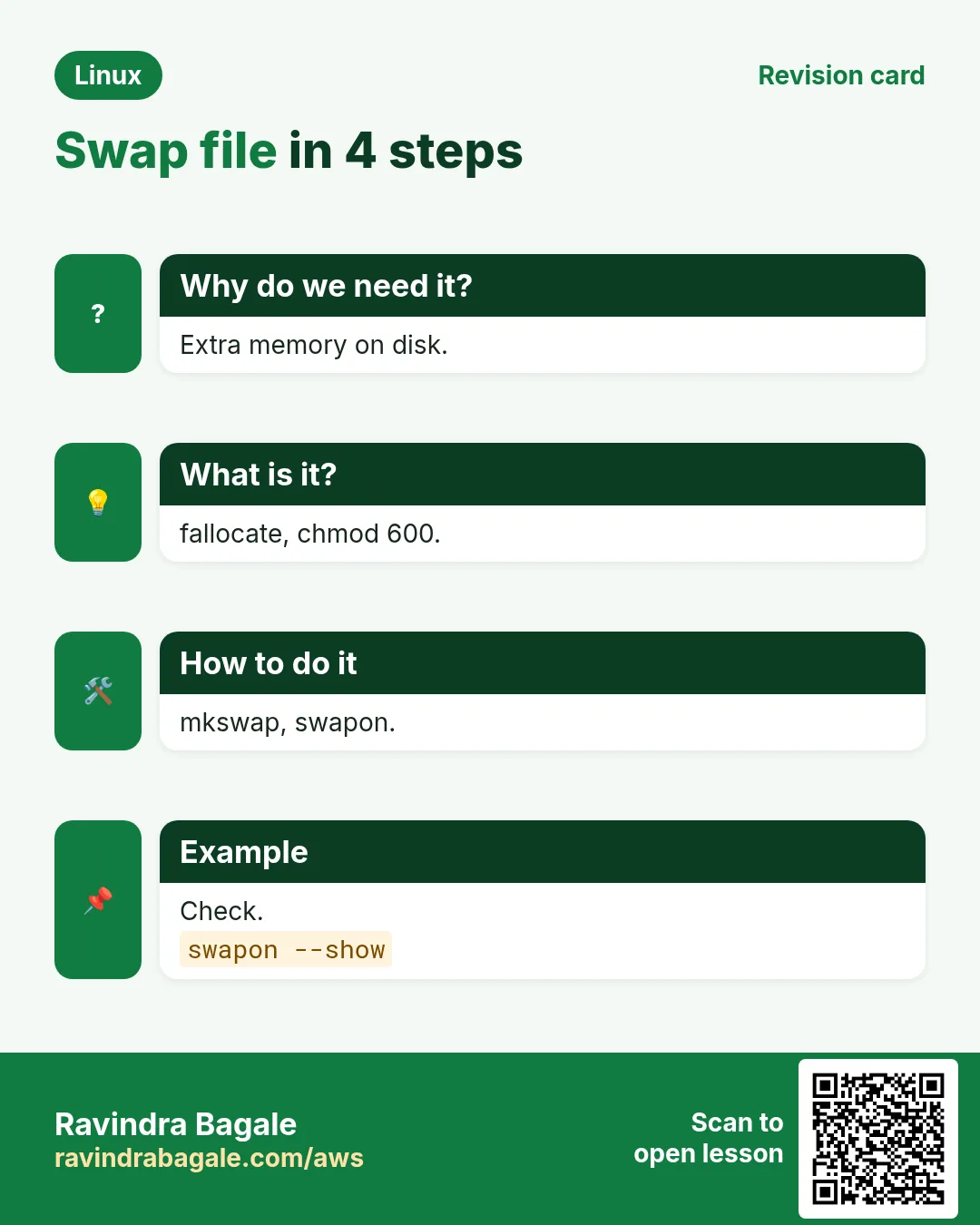
Revise this lesson in a few minutes. Save the cards on your phone or download them as PNG files. The QR code on each card opens this lesson.
More cards: Ravi Sir's Cards.