AWS CLI EC2 Commands with Examples
Now we drive EC2 from the terminal: key pairs, security groups, launch, tag, stop, start, resize and terminate. Every command shows the expected output and how to verify it.
In this chapter
- Find the latest Amazon Linux AMI
- Create key pair and security group
- Launch, tag and describe instances
- Stop, start, reboot, resize
- Terminate and verify
1. The big picture: EC2 from the CLI
Booking a cab on an app is like the Console. Sending one SMS "BOOK PUNE-STN 6PM" is like the CLI. Same cab, fewer taps, and you can repeat it.
EC2 commands live under aws ec2. The main ones are run-instances, describe-instances, start/stop/reboot/terminate-instances, create-tags and modify-instance-attribute.
2. Find the latest AMI
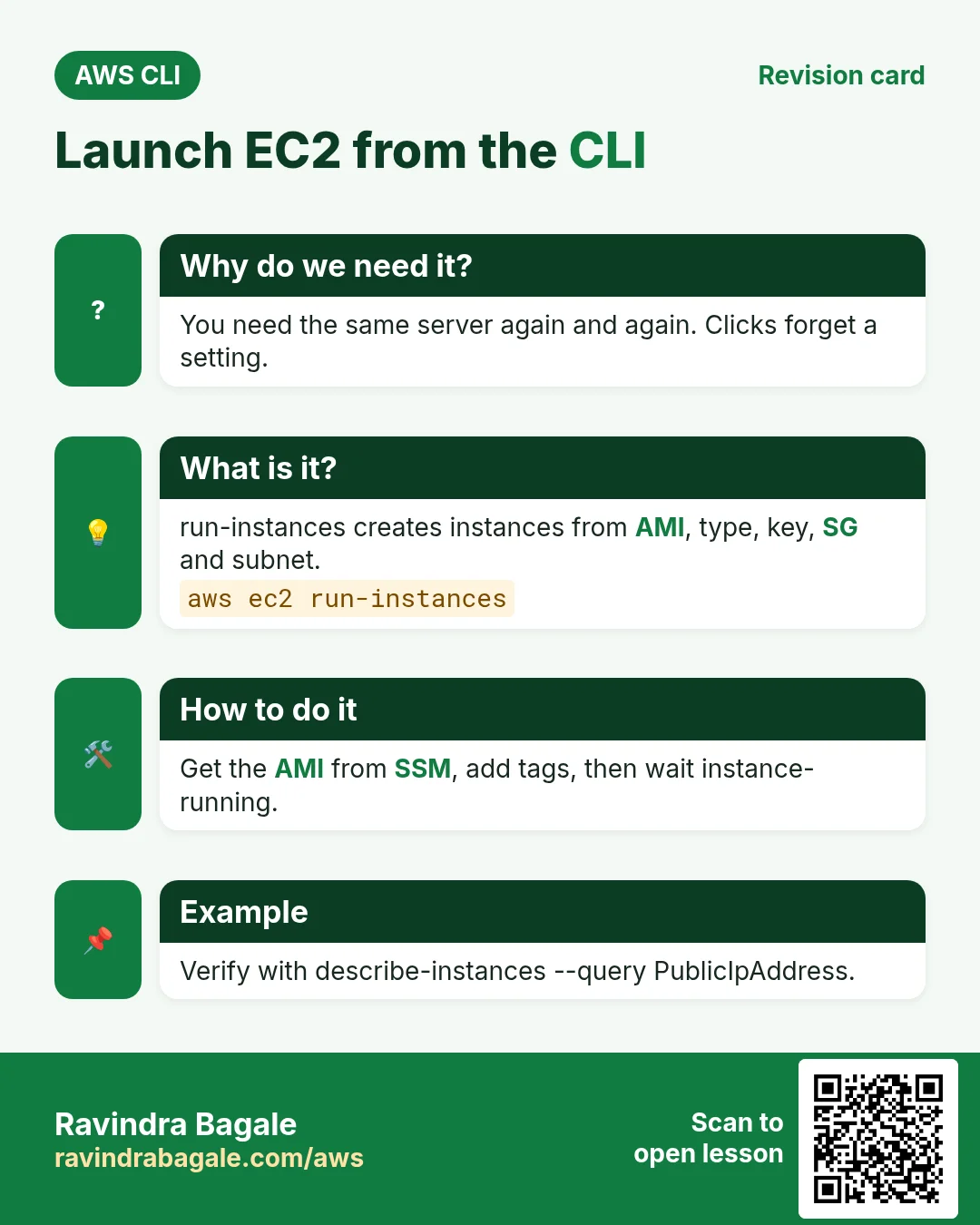
An AMI ID is specific to a Region. The first example queries an AWS-managed Systems Manager parameter for Amazon Linux 2023. --query Parameter.Value extracts the AMI ID from the JSON response. --output text makes it a single shell value suitable for the later AMI variable. The sample parameter path selects the x86_64 architecture. Match the instance type to that architecture before launching.
Use the next describe-images call to verify the result. Its query reads the image’s name and state; the chosen image should be available and have the expected operating system name. If the parameter value or describe result is missing, verify the selected Region, parameter name and caller. The same Region must be used consistently for the image lookup, network and launch. Keep a record of the AMI ID used when a future run needs the same image.
AMI IDs change every month and differ by region. Hard-coding one breaks scripts.
AWS publishes the latest Amazon Linux AMI ID in a public SSM parameter.
- Read the parameter into a variable.
AMI=$(aws ssm get-parameter --name /aws/service/ami-amazon-linux-latest/al2023-ami-kernel-default-x86_64 --query Parameter.Value --output text)
echo $AMI
Expected output:
ami-0abcdef1234567890- Verify the AMI.
aws ec2 describe-images --image-ids $AMI --query "Images[0].[Name,State]" --output textExpected output:
al2023-ami-2023.x.2026...-x86_64 available3. Key pair and security group
You need a key to SSH and a firewall rule to let only you in.
create-key-pair returns the private key once. create-security-group makes a firewall. authorize-security-group-ingress opens a port.
- Create and save the key.
aws ec2 create-key-pair --key-name cli-lab --query KeyMaterial --output text > cli-lab.pem
chmod 400 cli-lab.pem
Expected output:
(file cli-lab.pem created)- Create a security group in the default VPC.
SG=$(aws ec2 create-security-group --group-name cli-lab-sg --description "CLI lab" --query GroupId --output text)
echo $SG
Expected output:
sg-0123456789abcdef0- Allow SSH only from your IP.
MYIP=$(curl -s https://checkip.amazonaws.com)
aws ec2 authorize-security-group-ingress --group-id $SG --protocol tcp --port 22 --cidr $MYIP/32
Expected output:
{ "Return": true, "SecurityGroupRules": [ { "FromPort": 22, "CidrIpv4": "49.x.x.x/32" } ] }- Verify the rule.
aws ec2 describe-security-groups --group-ids $SG --query "SecurityGroups[0].IpPermissions[].[FromPort,IpRanges[0].CidrIp]" --output textExpected output:
22 49.x.x.x/324. Launch and tag an instance
Read the command as a set of choices. The AMI supplies the operating system image. The instance type supplies computing capacity. The subnet places the instance in a network and Availability Zone. A security group controls allowed traffic, and the key pair can be used for SSH when the image supports it. The Name tag is a label for humans. Save the unique instance ID for later commands.
After run-instances returns an ID, wait for the intended state and check the instance status. Then test the network path and sign-in separately. A running state means EC2 started the instance. If SSH times out, inspect the route and permitted source. If SSH reaches the server but the key is rejected, check the AMI user and the key associated with this instance. Keep later stop and termination commands tied to the saved lab ID.
This is the main action: a server in one command, with a name tag so you can find it later.
run-instances takes AMI, type, key, SG and optional user data and tags.
- Launch one t3.micro.
ID=$(aws ec2 run-instances --image-id $AMI --instance-type t3.micro --key-name cli-lab --security-group-ids $SG --count 1 --tag-specifications "ResourceType=instance,Tags=[{Key=Name,Value=cli-web}]" --query "Instances[0].InstanceId" --output text)
echo $ID
Expected output:
i-0abc1234def567890- Wait for running.
aws ec2 wait instance-running --instance-ids $ID && echo runningExpected output:
running- Get the public IP.
aws ec2 describe-instances --instance-ids $ID --query "Reservations[0].Instances[0].PublicIpAddress" --output textExpected output:
13.233.10.20- Add another tag.
aws ec2 create-tags --resources $ID --tags Key=Env,Value=devExpected output:
(no output means success)- Verify status checks.
aws ec2 describe-instance-status --instance-ids $ID --query "InstanceStatuses[0].[InstanceState.Name,InstanceStatus.Status]" --output textExpected output:
running ok- SSH in.
ssh -i cli-lab.pem ec2-user@13.233.10.20Expected output:
[ec2-user@ip-172-31-5-10 ~]$5. Stop, start, reboot and resize
Stopping saves compute cost at night. Resizing gives more CPU without a new server.
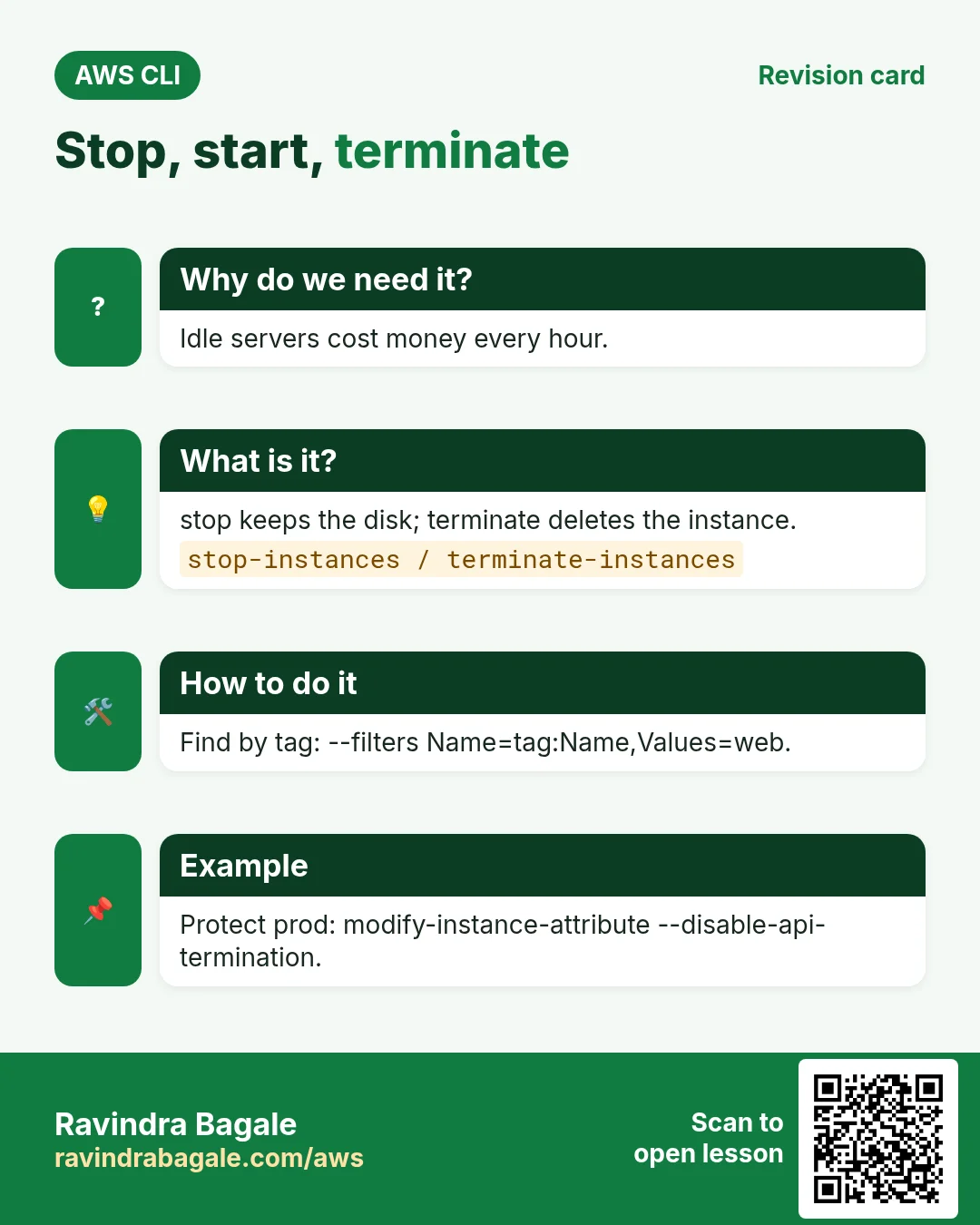
Instance type can change only while stopped. Public IP changes after stop/start unless you use an Elastic IP.
- Stop.
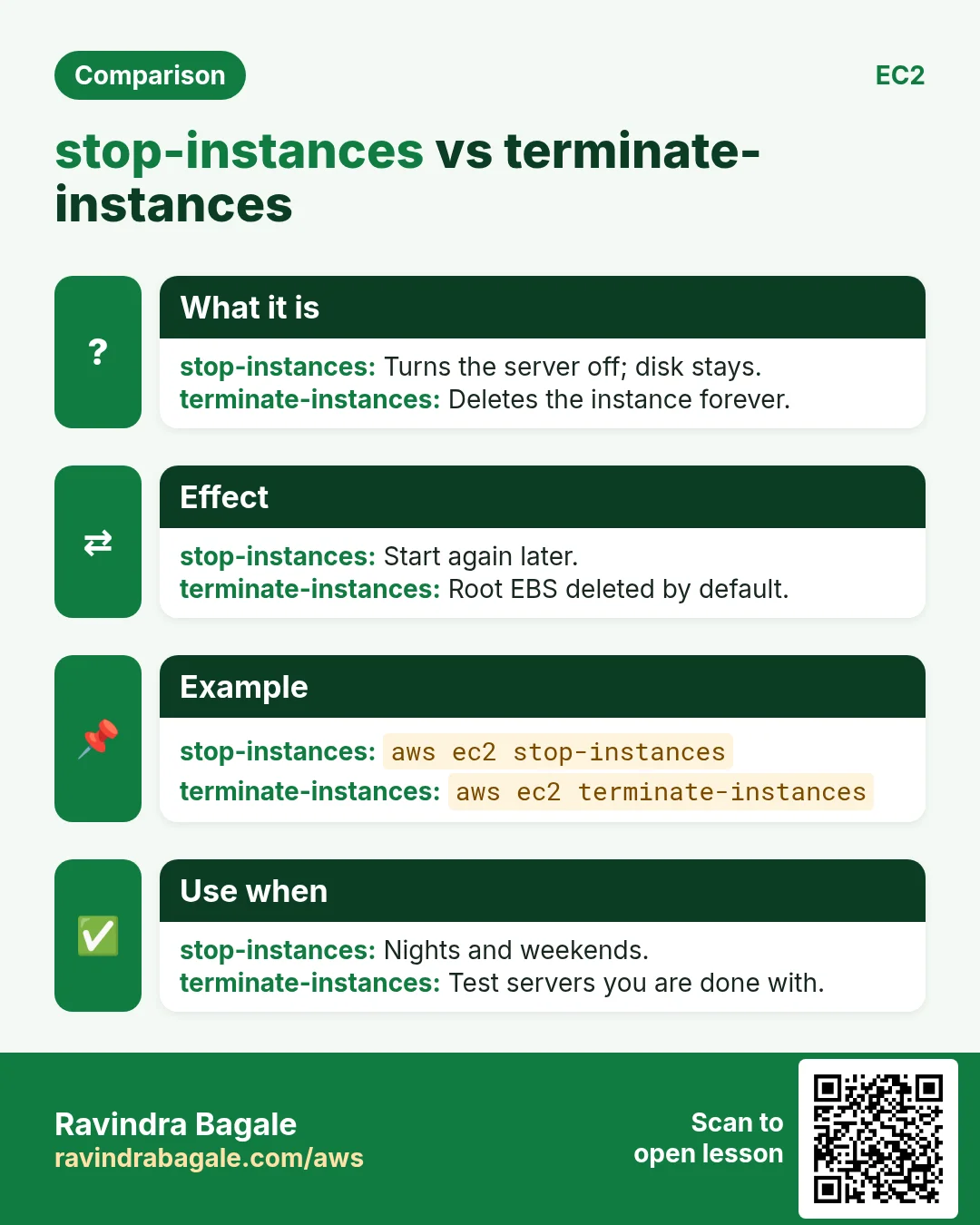
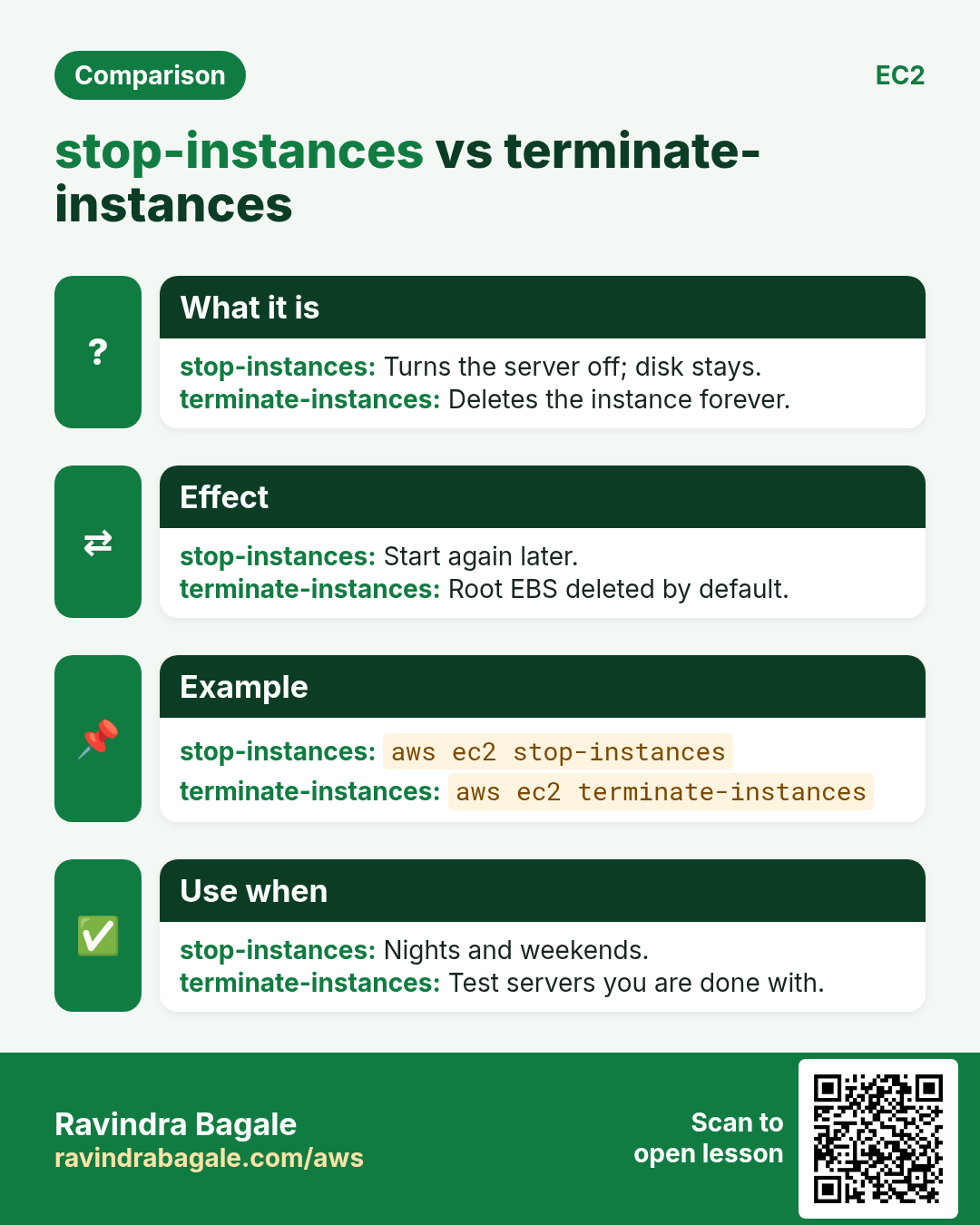
aws ec2 stop-instances --instance-ids $ID --query "StoppingInstances[0].CurrentState.Name" --output text
aws ec2 wait instance-stopped --instance-ids $ID
Expected output:
stopping- Change type to t3.small.
aws ec2 modify-instance-attribute --instance-id $ID --instance-type Value=t3.smallExpected output:
(no output means success)- Start again.
aws ec2 start-instances --instance-ids $ID --query "StartingInstances[0].CurrentState.Name" --output textExpected output:
pending- Verify new type.
aws ec2 describe-instances --instance-ids $ID --query "Reservations[0].Instances[0].InstanceType" --output textExpected output:
t3.small- Reboot (keeps same IP).
aws ec2 reboot-instances --instance-ids $IDExpected output:
(no output means success)- Read the console log if SSH fails.
aws ec2 get-console-output --instance-id $ID --latest --output text | tail -3Expected output:
... Cloud-init finished ...6. Elastic IP and termination protection
A fixed IP for DNS, and a lock so nobody deletes production by mistake.
allocate-address + associate-address give a fixed IP. --disable-api-termination blocks terminate.
- Allocate and attach an EIP.
ALLOC=$(aws ec2 allocate-address --query AllocationId --output text)
aws ec2 associate-address --instance-id $ID --allocation-id $ALLOC
Expected output:
{ "AssociationId": "eipassoc-0abc..." }- Turn on protection.
aws ec2 modify-instance-attribute --instance-id $ID --disable-api-terminationExpected output:
(no output means success)- Verify it is on.
aws ec2 describe-instance-attribute --instance-id $ID --attribute disableApiTermination --query DisableApiTermination.ValueExpected output:
true- Turn it off before cleanup.
aws ec2 modify-instance-attribute --instance-id $ID --no-disable-api-terminationExpected output:
(no output means success)7. Same action in Python, Node.js, Java, Go, .NET and PHP
Scripts start in the CLI. Apps call the same API through an SDK. Knowing both helps you move a tested command into real code.
Low-level CLI commands expose service operations. A high-level command or an automatically paginated list can make multiple requests. For example, aws ec2 run-instances maps to the RunInstances API.
Same action (RunInstances) from code. Set the intended profile and Region for the SDK. Provider support and precedence can differ by SDK, and an explicit client setting can override defaults.
| Stack | Code |
|---|---|
| Python (boto3) | boto3.client("ec2").run_instances(ImageId=ami, InstanceType="t3.micro", MinCount=1, MaxCount=1) |
| Node.js (v3) | await ec2.send(new RunInstancesCommand({ImageId: ami, InstanceType:"t3.micro", MinCount:1, MaxCount:1})); |
| Java (v2) | ec2.runInstances(r -> r.imageId(ami).instanceType(InstanceType.T3_MICRO).minCount(1).maxCount(1)); |
| Go (v2) | c.RunInstances(ctx, &ec2.RunInstancesInput{ImageId: &ami, InstanceType: types.InstanceTypeT3Micro, MinCount: aws.Int32(1), MaxCount: aws.Int32(1)}) |
| .NET | await ec2.RunInstancesAsync(new RunInstancesRequest{ImageId=ami, InstanceType=InstanceType.T3Micro, MinCount=1, MaxCount=1}); |
| PHP | $ec2->runInstances(["ImageId"=>$ami,"InstanceType"=>"t3.micro","MinCount"=>1,"MaxCount"=>1]); |
8. Clean up so nothing keeps costing
Lab resources left running cost money and can be a security risk.
Delete in reverse order: children first, then parents.
- Release the EIP.
aws ec2 disassociate-address --association-id eipassoc-0abc...
aws ec2 release-address --allocation-id $ALLOC
Expected output:
(no output means success)- Terminate and wait.
aws ec2 terminate-instances --instance-ids $ID --query "TerminatingInstances[0].CurrentState.Name" --output text
aws ec2 wait instance-terminated --instance-ids $ID
Expected output:
shutting-down- Delete SG and key.
aws ec2 delete-security-group --group-id $SG
aws ec2 delete-key-pair --key-name cli-lab
rm -f cli-lab.pem
Expected output:
(no output means success)- Verify nothing is left.
aws ec2 describe-instances --filters Name=tag:Name,Values=cli-web Name=instance-state-name,Values=running,stopped --query "length(Reservations)"Expected output:
0Ravindra Bagale's Tip
Always store IDs in variables (ID, SG, ALLOC). Then every next command is copy-paste safe and cleanup is easy.
Common errors: cause and safe next check
The instance is running but the app is not ready
The running state and health checks answer different questions. Read the existing status-check result and the application’s own readiness evidence. Reaching running does not prove that startup scripts completed or that an HTTP service is answering.
A command reports an instance ID as not found
Check the selected AWS account and Region against the intended instance before assuming it was deleted. EC2 resources are regional. Do not launch a replacement just because a read from the wrong scope returned nothing.
A script sees pending or stopping and treats it as failure
Start and stop operations pass through transitional states. Compare the returned state with the specific state the next step needs. A waiter for that state is more meaningful than assuming that a successful API response means the transition already finished.
Practical questions and full answers
Does instance-running also mean system and instance status checks passed?
No. The waiter’s named condition is the running state. EC2 status checks and application readiness need their own interpretation. The existing describe-instance-status step provides additional health evidence; it is not the same output as the state transition.
Can a copied example instance ID identify my own server?
No. IDs in the lesson are illustrative. Use the ID returned for your own approved lab in the correct account and Region, and verify its identity before any state-changing action. Never treat a similar-looking ID as proof.
Why should I read the state returned by each lifecycle step?
The response describes what the requested operation has reached or started. For example, pending or stopping means work is in progress, not that the final state has been reached. Understanding this avoids running dependent steps too early.
9. Interview questions and answers
Q. How do you get the latest Amazon Linux AMI in a script?
Read the public SSM parameter /aws/service/ami-amazon-linux-latest/...
Q. Can you change instance type while running?
No. Stop, modify-instance-attribute, then start.
Q. Why does the public IP change after stop/start?
Auto-assigned public IPs are released on stop. Use an Elastic IP for a fixed one.
Q. How do you protect an instance from deletion?
modify-instance-attribute --disable-api-termination.
Q. How to debug a server that does not boot?
get-console-output --latest shows the boot log.
Try at home
- Launch an instance with user data that installs nginx, then curl its public IP.
- Write a one-liner that stops every instance tagged Env=dev.
In short
- AMI from SSM parameter.
- Key + SG before launch.
- run-instances then wait.
- Resize only when stopped.
- Terminate, release EIP, delete SG.
Record EC2 identity before making changes
Explicitly record the profile, Region and instance ID. After launching a disposable instance, wait for running and inspect status checks separately. At cleanup verify the intended instance terminated and look for orphaned volumes or public addresses depending on lab settings.
Interview check Why can an instance be running while an application is unavailable?
Instance lifecycle and application health are separate. Check system/instance status, security groups, OS boot and listening process.
Practise this chapter
Interview questions and answers
What is your checklist when an EC2 launch succeeded but the machine is not usable?
I would first verify the instance state and system checks, then find the network address and confirm reachability from my source. Only after SSH reaches the service would I inspect the image’s expected login user and key pair. Each check narrows the failure.
Check your understanding
Choose an answer, then compare your reasoning with the explanation.
Practice Tasks
Practice checks run in your browser. They check the answer for this exercise; they do not create resources or connect to your AWS account.
About this scenarioSolapur Chaddar House is a home textiles business in Solapur. Vikas Kamble looks after its IT and cloud work. They count money in INR and run their AWS resources in the ap-south-1 Region. In the tasks below you do real jobs for them using what this lesson teaches. All names, account IDs, IP addresses and numbers are made up for practice.
0 / 12
Easy List your EC2 instances
Before changing anything, see what is running and in which state.
Show details of all EC2 instances of Solapur Chaddar House in ap-south-1.
- Read the task and decide which AWS service it is about.
- Write aws, then the service name, then the operation (the action word).
- Add each needed flag (--name) followed by its value from the task.
- Flags can be in any order. Click Check answer.
Easy Reboot an instance
A reboot keeps the same disks and IPs, unlike stop/start which may change the public IP.
Reboot the instance i-05a2a4a2b35111a2b.
- Read the task and decide which AWS service it is about.
- Write aws, then the service name, then the operation (the action word).
- Add each needed flag (--name) followed by its value from the task.
- Flags can be in any order. Click Check answer.
Easy Connect to an EC2 server
SSH with a key file is the standard way to log in to a Linux EC2 instance.
Log in to the server 13.76.20.5 as ec2-user using the key solapurchaddar-key.pem.
- Find the Linux command that does this job.
- Add the options (like -r or -h) the task needs.
- Add the file names, folders or users in the right order.
- Use sudo if the job changes system files or users. Click Check answer.
Easy Stop an instance
A stopped instance does not charge for compute, only for its disks.
Stop the instance i-05a2a4a2b35111a2b.
- Read the task and decide which AWS service it is about.
- Write aws, then the service name, then the operation (the action word).
- Add each needed flag (--name) followed by its value from the task.
- Flags can be in any order. Click Check answer.
Easy Start an instance
Start it again in the morning when the team needs it.
Start the instance i-05a2a4a2b35111a2b.
- Read the task and decide which AWS service it is about.
- Write aws, then the service name, then the operation (the action word).
- Add each needed flag (--name) followed by its value from the task.
- Flags can be in any order. Click Check answer.
Medium Create an AMI from a server
An AMI is a full server image. Launch identical copies from it any time.
Create an AMI named solapurchaddar-web-v1 from instance i-05a2a4a2b35111a2b.
- Read the task and decide which AWS service it is about.
- Write aws, then the service name, then the operation (the action word).
- Add each needed flag (--name) followed by its value from the task.
- Flags can be in any order. Click Check answer.
Medium Allocate an Elastic IP
An Elastic IP stays the same after stop/start, so DNS keeps working.
Allocate a new Elastic IP address for use in a VPC.
- Read the task and decide which AWS service it is about.
- Write aws, then the service name, then the operation (the action word).
- Add each needed flag (--name) followed by its value from the task.
- Flags can be in any order. Click Check answer.
Medium Attach the Elastic IP to the server
Associating gives the server the fixed public IP that your domain points to.
Associate allocation eipalloc-053b2a4a2a5dd44 with instance i-05a2a4a2b35111a2b.
- Read the task and decide which AWS service it is about.
- Write aws, then the service name, then the operation (the action word).
- Add each needed flag (--name) followed by its value from the task.
- Flags can be in any order. Click Check answer.
Medium Create a key pair
You need a key pair to SSH into new Linux instances.
Create a key pair named solapurchaddar-key.
- Read the task and decide which AWS service it is about.
- Write aws, then the service name, then the operation (the action word).
- Add each needed flag (--name) followed by its value from the task.
- Flags can be in any order. Click Check answer.
Medium Launch one EC2 instance
Launching from the CLI is repeatable and fast, and the same command works in scripts.
Launch 1 instance from AMI ami-011dbfaeceaedabcd, type t3.micro, key pair solapurchaddar-key, security group sg-0153a26462654c3b2.
- Read the task and decide which AWS service it is about.
- Write aws, then the service name, then the operation (the action word).
- Add each needed flag (--name) followed by its value from the task.
- Flags can be in any order. Click Check answer.
Hard Show only running instances
Filters ask AWS to send only what you need, which is faster than sorting by eye.
Describe only instances whose state is running.
- Read the task and decide which AWS service it is about.
- Write aws, then the service name, then the operation (the action word).
- Add each needed flag (--name) followed by its value from the task.
- Flags can be in any order. Click Check answer.
Hard Launch an instance with a Name tag
Tags at launch make billing and search easy from day one.
Launch 1 t3.small instance from ami-011dbfaeceaedabcd into subnet subnet-0153b2a4a2a5bb1, and tag the instance with Name=solapurchaddar-web.
- Read the task and decide which AWS service it is about.
- Write aws, then the service name, then the operation (the action word).
- Add each needed flag (--name) followed by its value from the task.
- Flags can be in any order. Click Check answer.
Revision, comparison and interview cards
Revise this lesson in a few minutes. Save the cards on your phone or download them as PNG files. The QR code on each card opens this lesson.
More cards: Ravi Sir's Cards.