Linux Job Scheduling: cron, crontab, at and systemd Timers Explained
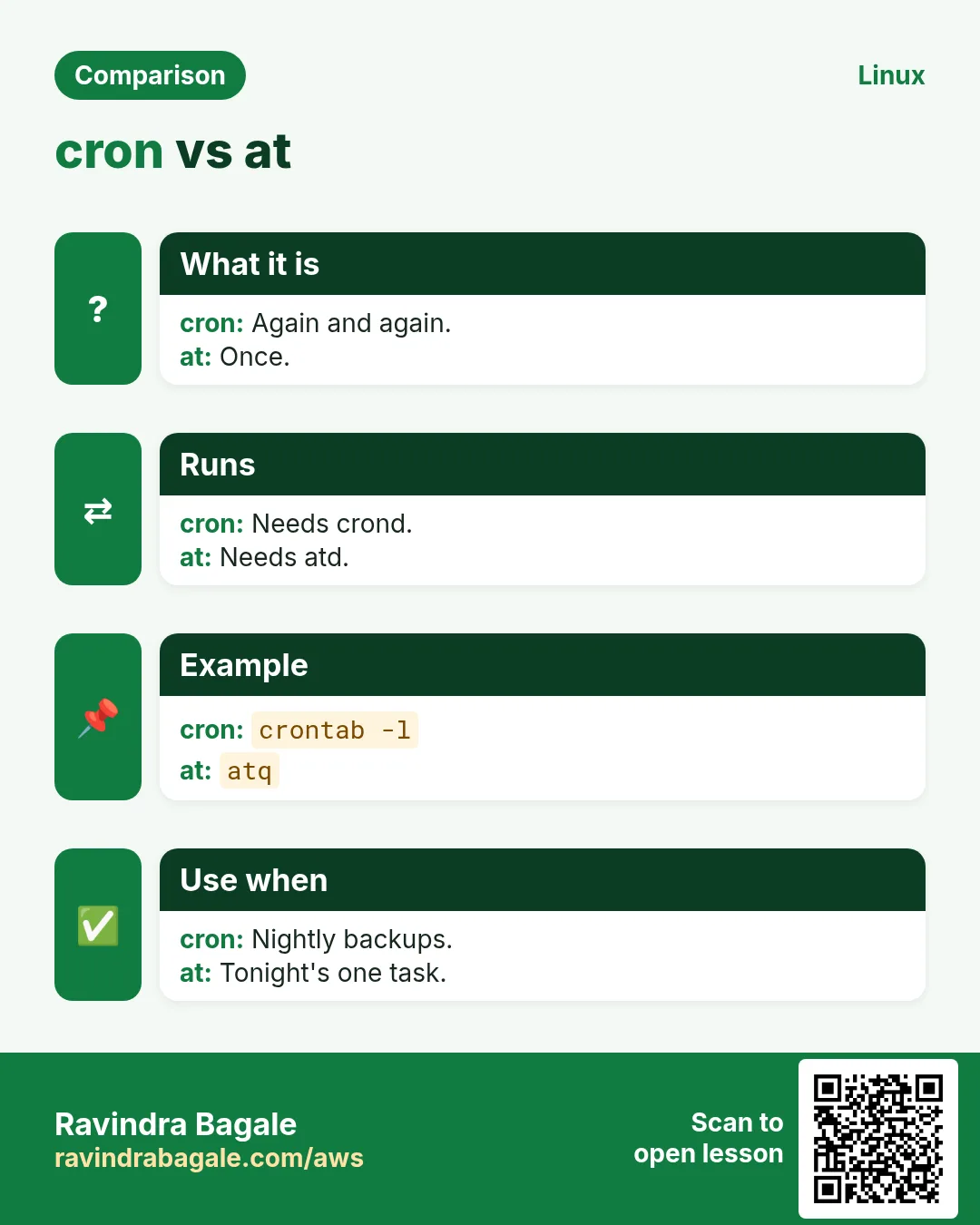
Some work must happen on its own: a backup every night, a report every Monday, a cleanup every hour. Linux gives you three tools for this. cron runs jobs on a repeating schedule. at runs a job once at a later time. systemd timers are the modern option with logs and catch-up built in. We learn each command and every time field, one by one.
In this chapter
- Read and write the five cron time fields
- Use crontab -e, -l, -r and -u
- Use special strings and /etc/cron.d
- Fix cron PATH, output and overlap problems
- Run one-time jobs with at, atq and atrm
- Write systemd timers with OnCalendar and Persistent
1. An everyday example: the milkman and the alarm
The milkman comes every day at 6 a.m. without being asked. That is a repeating schedule. Your phone alarm for the 4:30 p.m. dentist visit rings only once. And a good alarm app shows a 'missed alarm' if the phone was off, so you still know.
Milkman = cron. One-time alarm = at. Alarm app with missed-alarm = systemd timer with Persistent=true.
2. The five time fields
Start with a proposed time and check one line by hand. 15 9 * * 1-5 means at minute 15 of hour 9, for any day of the month and any month, when the weekday is Monday through Friday. Write down Tuesday at 09:15 and Saturday at 09:15. Only Tuesday matches. A star means every allowed value for that field. Check the server time zone with date before comparing the chosen time with the clock on your laptop.
Every cron mistake starts with a wrong field. Learn them once and you can read any schedule.
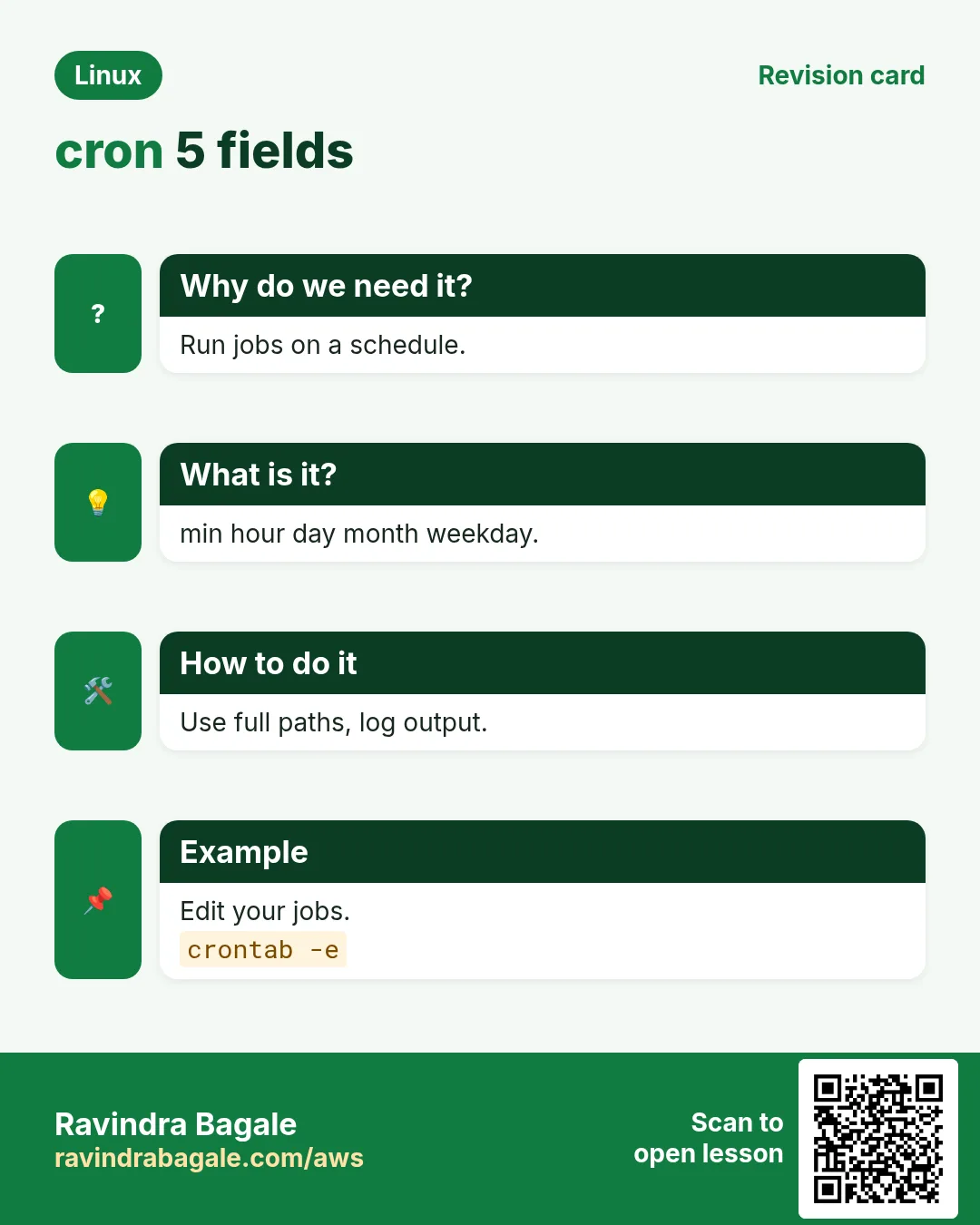
minute (0-59), hour (0-23), day of month (1-31), month (1-12), day of week (0-7, 0 and 7 are Sunday). * = every. , = list (1,15). - = range (1-5). / = step (*/10). Then the command.
| Schedule | Meaning |
|---|---|
| */5 * * * * | Every 5 minutes |
| 0 2 * * * | Every day at 02:00 |
| 30 9 * * 1-5 | 09:30 Monday to Friday |
| 0 0 1 * * | Midnight on the 1st of each month |
| 0 */6 * * * | Every 6 hours |
| 15 10 * * 0 | Sunday 10:15 |
- A nightly backup at 2 a.m.
0 2 * * * /usr/local/bin/backup.shOutput:
(a crontab line)Minute 0, hour 2, every day.
- Office hours report.
30 9 * * 1-5 /usr/local/bin/report.shOutput:
(a crontab line)Weekdays only.
- Check a schedule before you trust it.
systemd-analyze calendar 'Mon..Fri 09:30'Output:
  Original form: Mon..Fri 09:30
Normalized form: Mon..Fri *-*-* 09:30:00
    Next elapse: Mon 2026-10-26 09:30:00 IST
Shows the next run time.
3. crontab -e and -l: edit and list your jobs
Each user has a personal crontab. Editing it through crontab checks syntax and tells crond.
crontab -e opens your crontab in $EDITOR. Save to install. crontab -l prints it. Never edit /var/spool/cron files by hand. Lines starting with # are comments.
- Open the editor.
EDITOR=nano crontab -eOutput:
crontab: installing new crontabPrinted after you save.
- List your jobs.
crontab -lOutput:
# nightly backup
0 2 * * * /usr/local/bin/backup.sh
What cron will run for you.
- No crontab yet.
crontab -lOutput:
no crontab for ec2-userNormal for a new user.
4. crontab FILE, -r and -u
Automation tools install crontabs from files. Admins sometimes manage another user's jobs.
crontab FILE replaces your whole crontab with the file. crontab -r deletes all your jobs with no question (-i asks first). sudo crontab -u USER -l or -e works on another user. Back up first: crontab -l > ~/cron.bak.
- Back up your jobs.
crontab -l > ~/cron.bak && wc -l ~/cron.bakOutput:
2 /home/ec2-user/cron.bakDo this before any change.
- Install from a file.
crontab ~/cron.bakOutput:
(no output)Replaces everything.
- See the app user's jobs.
sudo crontab -u shop -lOutput:
*/10 * * * * /opt/shop/bin/syncRead-only look.
- Delete with a question.
crontab -riOutput:
crontab: really delete ec2-user's crontab? (y/n)-r alone does not ask. Careful.
5. Special strings: @reboot, @daily and more
Some schedules are easier to read as words. @reboot is the only way in cron to run once at boot.
@reboot (at crond start), @hourly (0 * * * *), @daily or @midnight (0 0 * * *), @weekly (0 0 * * 0), @monthly (0 0 1 * *), @yearly (0 0 1 1 *).
- Warm a cache after boot.
@reboot sleep 30 && /opt/shop/bin/warm-cacheOutput:
(a crontab line)sleep gives the network time.
- Weekly cleanup.
@weekly find /tmp/shop -mtime +7 -deleteOutput:
(a crontab line)Sunday midnight.
6. /etc/crontab, /etc/cron.d and cron.daily
System and package jobs live in files, not in a user's crontab, so they can be shipped and reviewed in Git.
Files in /etc/cron.d and /etc/crontab have a sixth field: the user. Scripts in /etc/cron.hourly, daily, weekly, monthly run by run-parts (or anacron); they must be executable and have no dot in the name on Debian.
- A system job with a user field.
echo '*/15 * * * * shop /opt/shop/bin/sync >> /var/log/shop/sync.log 2>&1' | sudo tee /etc/cron.d/shop-syncOutput:
*/15 * * * * shop /opt/shop/bin/sync >> /var/log/shop/sync.log 2>&1Runs as user shop.
- A daily script.
sudo install -m 755 cleanup.sh /etc/cron.daily/cleanupOutput:
(no output)No .sh extension, mode 755.
- Which daily scripts will run?
run-parts --test /etc/cron.dailyOutput:
/etc/cron.daily/cleanup
/etc/cron.daily/logrotate
Lists what would run.
7. The cron environment: PATH, SHELL and MAILTO
When you run a report manually, your shell may be in the report’s folder and may already know where your private tools live. Cron launches the job in a separate environment. Write the script’s full path. Make its input and output paths explicit, or have the script change into its working directory and stop with a clear error if that fails. In a test job, write pwd, date and the value of PATH into a lab log. Compare the result with your terminal until you can account for every difference.
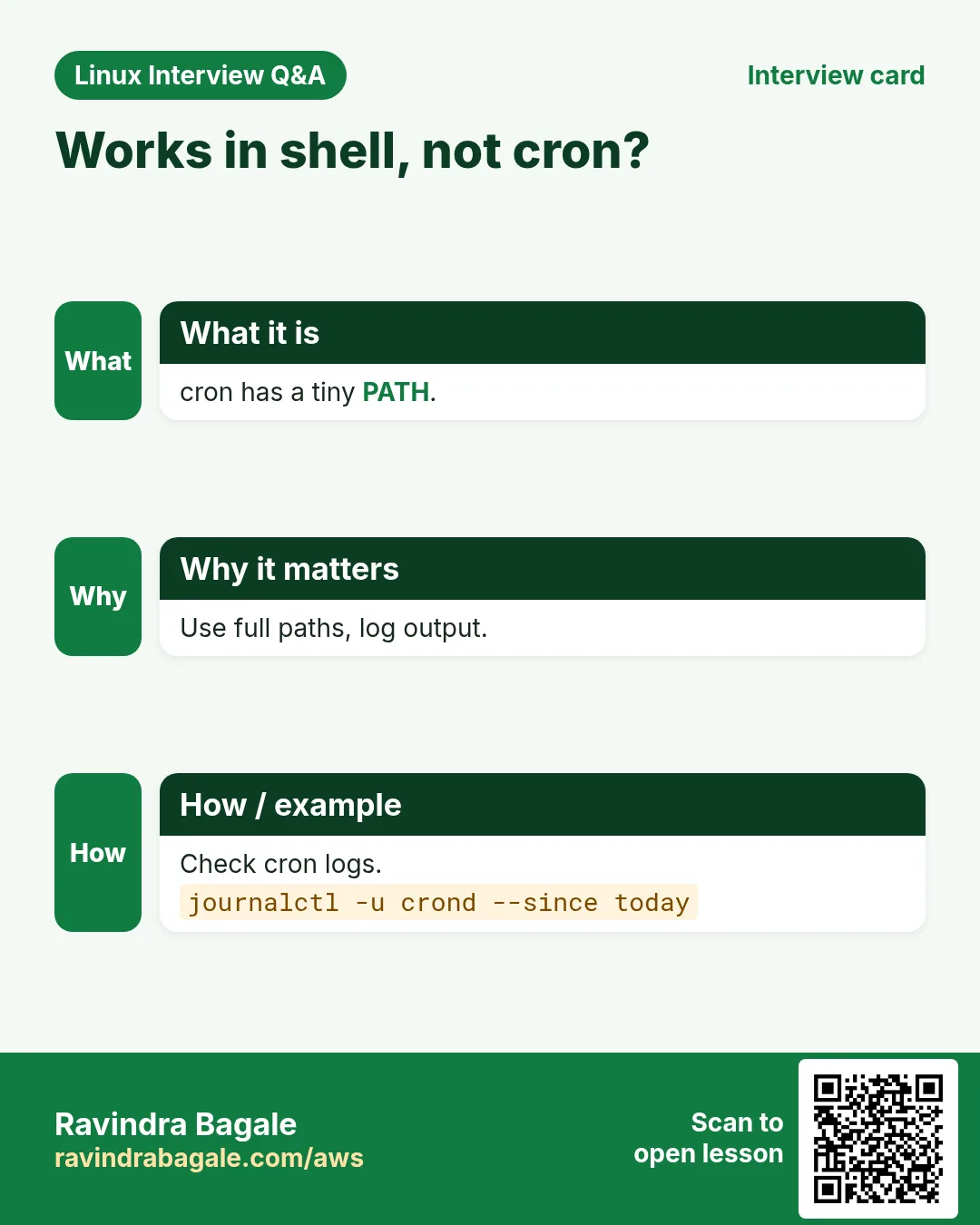
'It works in my terminal but not in cron' is the most common cron problem. cron gives you a tiny environment.
cron uses /bin/sh, PATH=/usr/bin:/bin, HOME of the user, no .bashrc. Fix: use full paths, or set PATH= and SHELL= at the top of the crontab. MAILTO=you@x sends output by mail; MAILTO="" turns mail off. % is special in cron: escape as \%.
- See cron's environment.
* * * * * env > /tmp/cron-env.txtOutput:
(after one minute) PATH=/usr/bin:/bin
SHELL=/bin/sh
HOME=/home/ec2-user
Very small PATH.
- Set it at the top.
SHELL=/bin/bash
PATH=/usr/local/bin:/usr/bin:/bin
MAILTO=""
Output:
(crontab header lines)Now jobs find aws, node and others.
- Escape % in a date.
0 1 * * * tar czf /backup/site-$(date +\%F).tgz /var/wwwOutput:
(a crontab line)Without \ the line is cut at %.
8. Logging cron output and checking runs
A silent failing job is worse than no job. You need proof it ran and what it printed.
Redirect: >> /var/log/job.log 2>&1 keeps output and errors. cron runs are logged in /var/log/cron (RHEL) or the journal (journalctl -u cron or -u crond). Or pipe to logger -t job.
- Keep output.
0 2 * * * /usr/local/bin/backup.sh >> /var/log/backup.log 2>&1Output:
(a crontab line)2>&1 also catches errors.
- Did it run?
journalctl -u crond --since today --no-pager | grep backupOutput:
Oct 25 02:00:01 web1 CROND[3301]: (root) CMD (/usr/local/bin/backup.sh >> /var/log/backup.log 2>&1)It started at 02:00:01.
- Send output to the journal.
*/5 * * * * /opt/shop/bin/sync 2>&1 | logger -t shop-syncOutput:
(a crontab line)Read with journalctl -t shop-sync.
9. flock: stop jobs from overlapping
If a 5-minute job sometimes takes 7 minutes, two copies run together and can corrupt data.
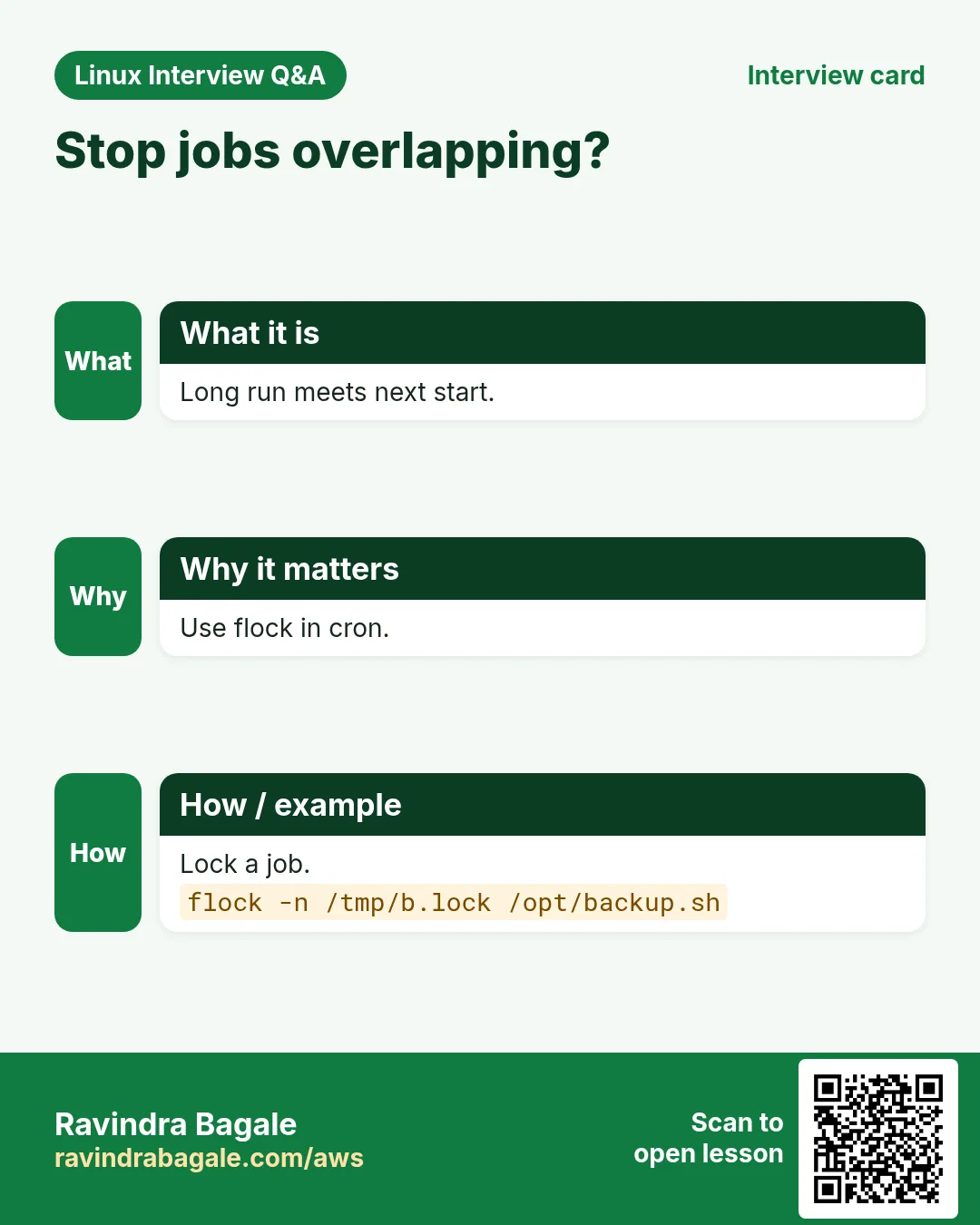
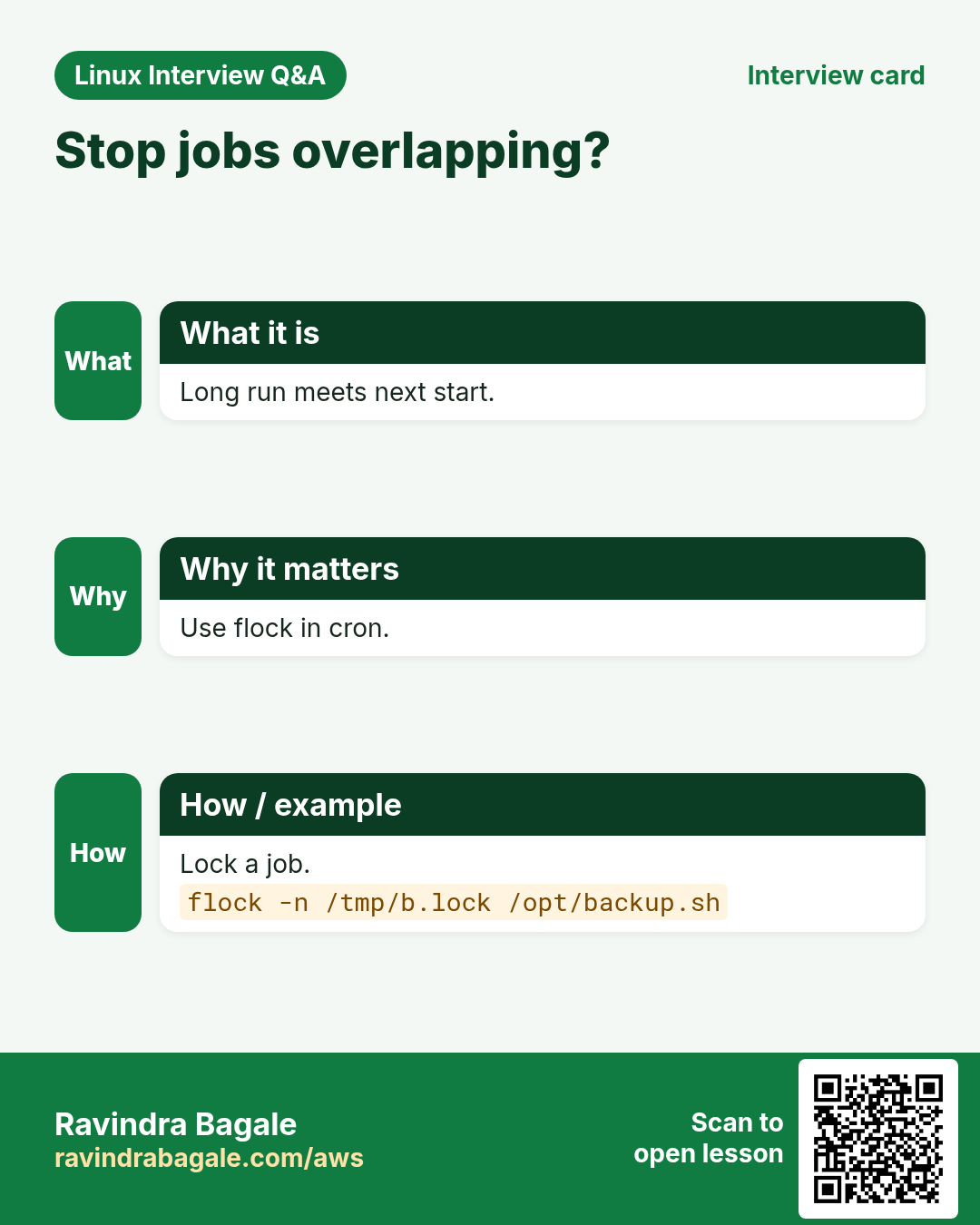
flock -n /tmp/NAME.lock COMMAND runs only if it gets the lock; -n means give up at once if busy. The lock is freed when the command ends.
- Safe 5-minute sync.
*/5 * * * * flock -n /tmp/sync.lock /opt/shop/bin/syncOutput:
(a crontab line)A second copy just exits.
- Test by hand.
flock -n /tmp/demo.lock sleep 60 & sleep 1; flock -n /tmp/demo.lock echo second; echo exit=$?Output:
exit=1Second run was refused.
10. at: run a job once later
Some tasks happen once: restart at 11 p.m. tonight, remove a temporary firewall rule in 2 hours.
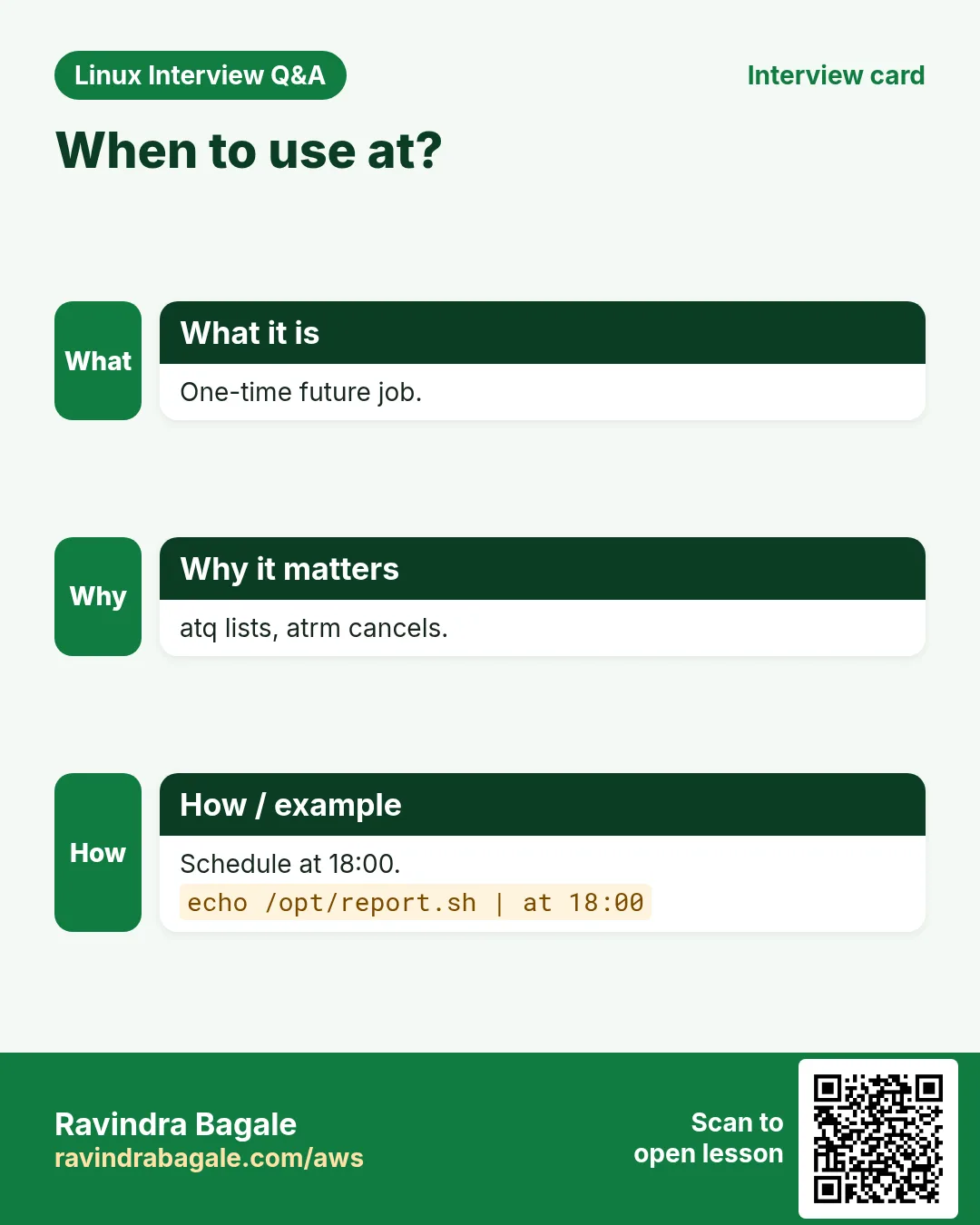
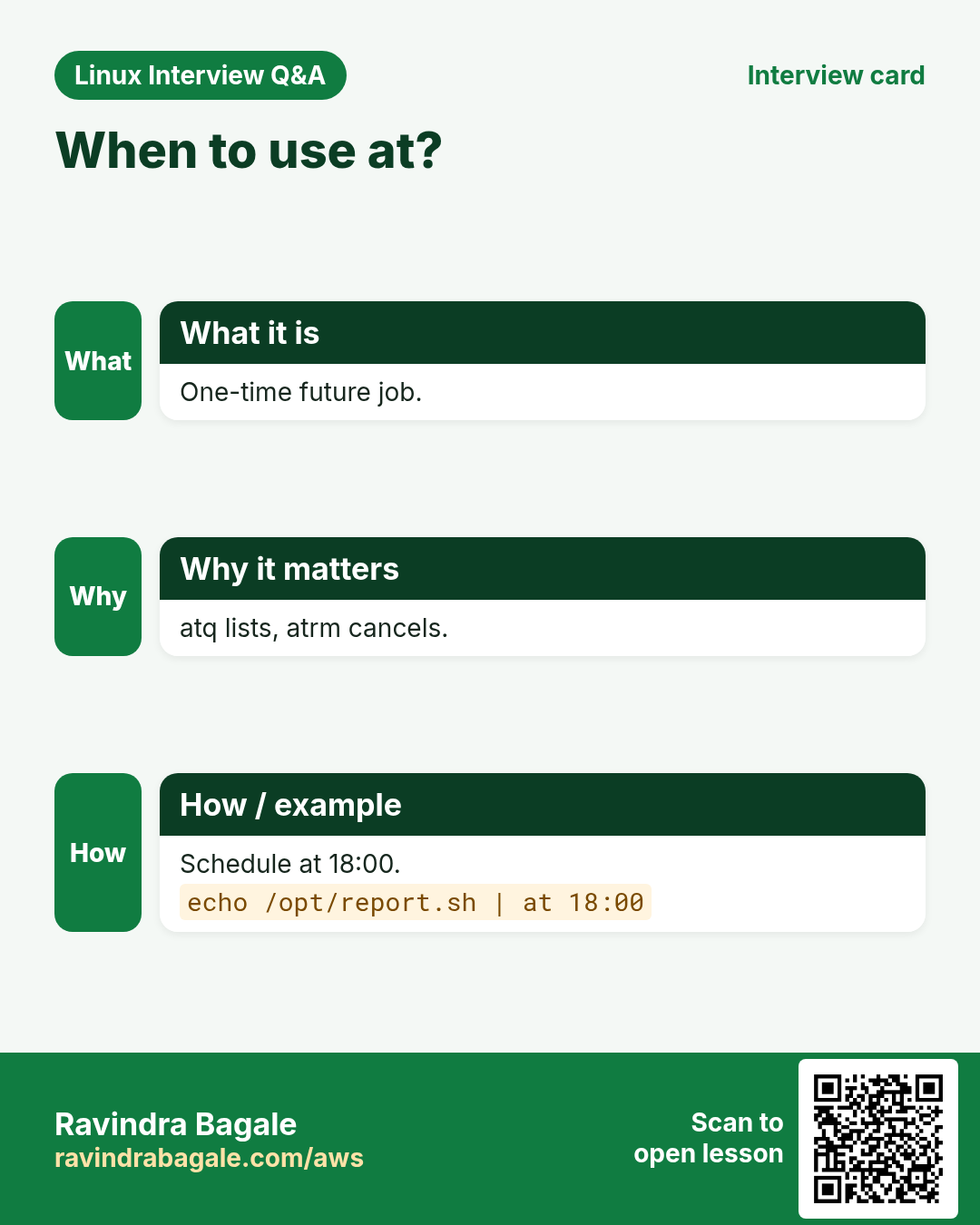
Install the at package and start atd. at TIME reads commands from stdin; finish with Ctrl+D. TIME like 23:00, now + 2 hours, 'tomorrow 09:00', noon. -f FILE reads from a file. batch runs when load is low.
- Start atd.
sudo systemctl enable --now atdOutput:
(no output)Without atd nothing runs.
- Restart tonight at 11.
echo 'systemctl restart shop-api' | sudo at 23:00Output:
job 4 at Sun Oct 25 23:00:00 2026Job number 4.
- Undo a rule in 2 hours.
echo 'firewall-cmd --remove-port=8080/tcp' | sudo at now + 2 hoursOutput:
job 5 at Sun Oct 25 14:45:00 2026A safety net.
11. atq, at -c and atrm
You must be able to see and cancel pending one-time jobs.
atq lists pending jobs (sudo atq for all). at -c N prints what job N will run. atrm N deletes it.
- List.
sudo atqOutput:
4	Sun Oct 25 23:00:00 2026 a root
5	Sun Oct 25 14:45:00 2026 a root
Number, time, queue, user.
- Look inside.
sudo at -c 4 | tail -n 2Output:
systemctl restart shop-apiThe last lines are your commands.
- Cancel.
sudo atrm 4 && sudo atqOutput:
5 Sun Oct 25 14:45:00 2026 a rootJob 4 gone.
12. systemd timers: OnCalendar and Persistent
Keep two files apart in your mind. The timer says when to start, and the matching service says which command to run. Test the service once directly to prove the command works. Then read the timer’s next run and check the journal afterward for the service outcome. For a calendar timer with Persistent=true, systemd can start the service once when the timer returns after one or more missed times. If the job must process a separate record for every missing day, make the service track and catch up on those dates itself.
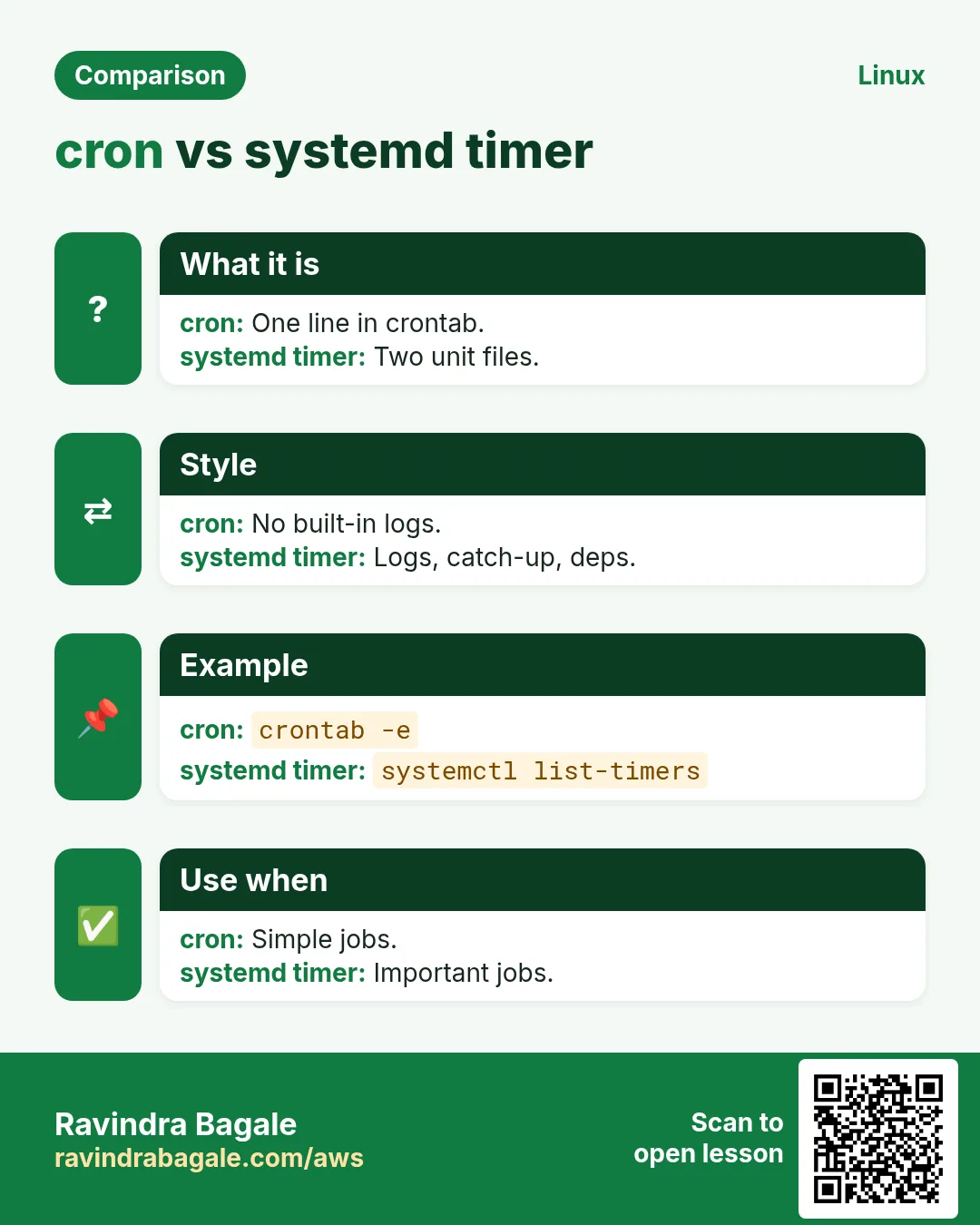
Timers give you journal logs, resource limits, no overlap and catch-up after downtime, for free.
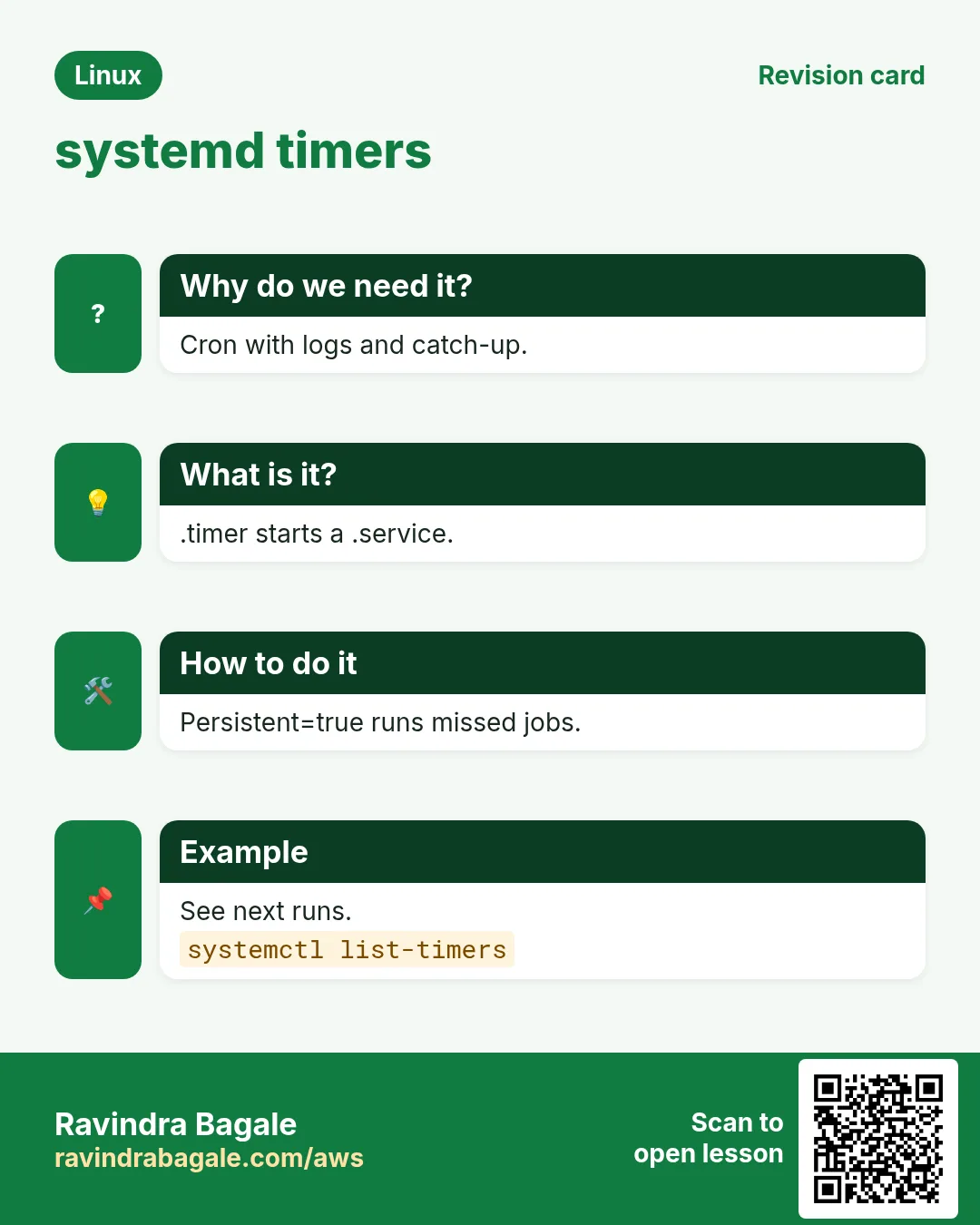
You need two files: NAME.service (what to run, Type=oneshot) and NAME.timer (when). OnCalendar=*-*-* 02:00:00 or daily, Mon..Fri 09:30. OnBootSec=5min and OnUnitActiveSec=1h for intervals. Persistent=true runs a missed job at boot. RandomizedDelaySec spreads load. Enable the timer, not the service.
- The service.
sudo tee /etc/systemd/system/backup.service <<'X'
[Unit]
Description=Nightly backup
[Service]
Type=oneshot
ExecStart=/usr/local/bin/backup.sh
X
Output:
(file text)No [Install] needed.
- The timer.
sudo tee /etc/systemd/system/backup.timer <<'X'
[Unit]
Description=Run backup daily at 2
[Timer]
OnCalendar=*-*-* 02:00:00
Persistent=true
RandomizedDelaySec=10min
[Install]
WantedBy=timers.target
X
Output:
(file text)Same base name as the service.
- Enable the timer.
sudo systemctl daemon-reload && sudo systemctl enable --now backup.timerOutput:
Created symlink /etc/systemd/system/timers.target.wants/backup.timer → /etc/systemd/system/backup.timer.Now it is scheduled.
- Run it now once to test.
sudo systemctl start backup.service && journalctl -u backup -n 3 --no-pagerOutput:
Oct 25 12:50:01 web1 systemd[1]: Finished Nightly backup.Logs come free.
13. systemctl list-timers
You need one view of every timer: when it last ran and when it runs next.
systemctl list-timers shows active timers with NEXT, LEFT, LAST, PASSED, UNIT, ACTIVATES. --all includes inactive ones.
- All timers.
systemctl list-timers --no-pager | head -3Output:
NEXT                        LEFT     LAST                        PASSED  UNIT              ACTIVATES
Mon 2026-10-26 02:04:11 IST 13h left Sun 2026-10-25 12:50:01 IST 3s ago backup.timer      backup.service
Mon 2026-10-26 00:00:00 IST 11h left Sun 2026-10-25 00:00:00 IST 12h ago logrotate.timer   logrotate.service
The random delay shows as 02:04.
- Test an expression.
systemd-analyze calendar --iterations=3 'Mon *-*-* 08:00'Output:
Next elapse: Mon 2026-10-26 08:00:00 IST
       Iter. #2: Mon 2026-11-02 08:00:00 IST
       Iter. #3: Mon 2026-11-09 08:00:00 IST
Three next runs.
14. Real examples from many industries
The same Linux skill shows up in every kind of company. Seeing it in many places helps you remember it.
Each row is a made-up team. It shows who uses this and how.
| Team and city | How they use it | Command |
|---|---|---|
| Neha, CA firm, Pune | Emails a GST report every 1st | 0 8 1 * * /opt/ca/gst-report.sh |
| Oliver, news site, Sydney | Clears page cache every 10 minutes | */10 * * * * flock -n /tmp/c.lock /opt/news/purge |
| Zainab, airline, Doha | Uses timers with Persistent for crew rosters | systemctl list-timers |
| Lucas, bank, Frankfurt | Schedules a one-time change window job | at 23:30 -f change.sh |
| Priya, school ERP, Kolhapur | Backs up the DB at 2 a.m. with logs | 0 2 * * * /opt/erp/backup.sh >> /var/log/erp-backup.log 2>&1 |
| Ken, logistics, Toronto | Runs a sync after each boot | @reboot /opt/fleet/sync |
15. Common errors and how to fix them
Everyone hits these errors. Knowing the cause saves hours.
Read the exact message first. Then match it to a row below.
| Error you see | Why it happens | How to fix |
|---|---|---|
/bin/sh: aws: command not found (in cron mail/log) | cron PATH is tiny | Use full paths or set PATH in crontab.which aws |
no crontab for ec2-user | You have no jobs yet | Create one with crontab -e.crontab -e |
"/tmp/crontab.X":1: bad minute
errors in crontab file, can't install. | Wrong field count or value | Five fields then the command.crontab -e |
Job runs at the wrong hour | Server time zone is UTC | Check timedatectl; adjust the hour or the zone.timedatectl |
Command cut off at % sign | % means newline in cron | Escape it as \%.date +\%F |
Job in /etc/cron.daily never runs | Not executable or has a dot in the name | chmod 755 and remove .sh.run-parts --test /etc/cron.daily |
Can't open display / permission denied in cron | Different user, no GUI, wrong permissions | Run as the right user; avoid GUI tools.sudo crontab -u shop -l |
Can't open /var/run/atd.pid to signal atd. No atd running? | atd service is not running | Start atd.sudo systemctl enable --now atd |
Two copies of the job run together | Job slower than its interval | Wrap with flock -n.flock -n /tmp/job.lock /opt/job |
Timer is enabled but never fires | Enabled the .service, not the .timer, or no daemon-reload | Enable the timer and check list-timers.sudo systemctl enable --now backup.timer |
16. Troubleshooting step by step
If a scheduled job did not do its work, prove each link: schedule, start, environment, output.
Go top to bottom. Stop at the first step that shows the problem.
- Is the job installed?
crontab -l; ls /etc/cron.d- Is cron running?
systemctl is-active crond- Did cron start it?
journalctl -u crond --since today --no-pager | tail- Run it with cron's environment.
env -i SHELL=/bin/sh PATH=/usr/bin:/bin HOME=$HOME /bin/sh -c '/usr/local/bin/backup.sh'- Read its own output log.
tail -n 30 /var/log/backup.log- For timers, check next run and logs.
systemctl list-timers --all; journalctl -u backup -n 2017. Lab 1: A safe cron job with logs and a lock
Write a job that runs every minute, logs output, cannot overlap, then remove it.
A full hands-on lab. Run every step on a test Linux machine (an EC2 instance, a VM, or WSL).
- Back up crontab.
crontab -l > ~/cron.bak 2>/dev/null; echo savedOutput:
saved- Add the job.
(crontab -l 2>/dev/null; echo '* * * * * flock -n /tmp/tick.lock /bin/date >> /tmp/tick.log 2>&1') | crontab -Output:
(no output)- Confirm.
crontab -l | tail -n1Output:
* * * * * flock -n /tmp/tick.lock /bin/date >> /tmp/tick.log 2>&1- Wait 2 minutes and read.
sleep 125; cat /tmp/tick.logOutput:
Sun Oct 25 13:01:01 IST 2026
Sun Oct 25 13:02:01 IST 2026- Restore.
crontab ~/cron.bak 2>/dev/null || crontab -r; crontab -lOutput:
(your old jobs)18. Lab 2: Replace a cron job with a systemd timer, plus at
Build a timer that runs every 2 minutes, view it, then schedule a one-time at job and cancel it.
A full hands-on lab. Run every step on a test Linux machine (an EC2 instance, a VM, or WSL).
- Service.
printf '[Service]\nType=oneshot\nExecStart=/usr/bin/logger -t tick hello\n' | sudo tee /etc/systemd/system/tick.serviceOutput:
[Service]- Timer.
printf '[Timer]\nOnBootSec=1min\nOnUnitActiveSec=2min\n[Install]\nWantedBy=timers.target\n' | sudo tee /etc/systemd/system/tick.timer && sudo systemctl daemon-reload && sudo systemctl enable --now tick.timerOutput:
Created symlink ... tick.timer- See it.
systemctl list-timers tick.timer --no-pagerOutput:
NEXT ... tick.timer tick.service- at job then cancel.
echo 'logger -t atlab hi' | at now + 30 minutes; atq; atrm $(atq | awk '{print $1}' | tail -n1); atqOutput:
job 7 at Sun Oct 25 13:35:00 2026- Clean up.
sudo systemctl disable --now tick.timer && sudo rm /etc/systemd/system/tick.* && sudo systemctl daemon-reloadOutput:
Removed ... tick.timerRavindra Bagale's Tip
Before you trust a schedule, test it: systemd-analyze calendar for timers, and for cron write the line, then check the journal after the first run. And always redirect output; a cron job with no log is a job you cannot debug.
Ravindra Bagale's Tip – मराठी
Schedule वर विश्वास ठेवण्याआधी test करा: timers साठी systemd-analyze calendar, आणि cron साठी line लिहा, मग पहिल्या run नंतर journal तपासा. आणि output नेहमी redirect करा; log नसलेला cron job debug करता येत नाही.
Ravindra Bagale's Tip – हिंदी
Schedule पर भरोसा करने से पहले test करें: timers के लिए systemd-analyze calendar, और cron के लिए line लिखें, फिर पहले run के बाद journal देखें. और output हमेशा redirect करें; बिना log का cron job debug नहीं हो सकता.
19. Frequently asked questions
Q. cron or systemd timer?
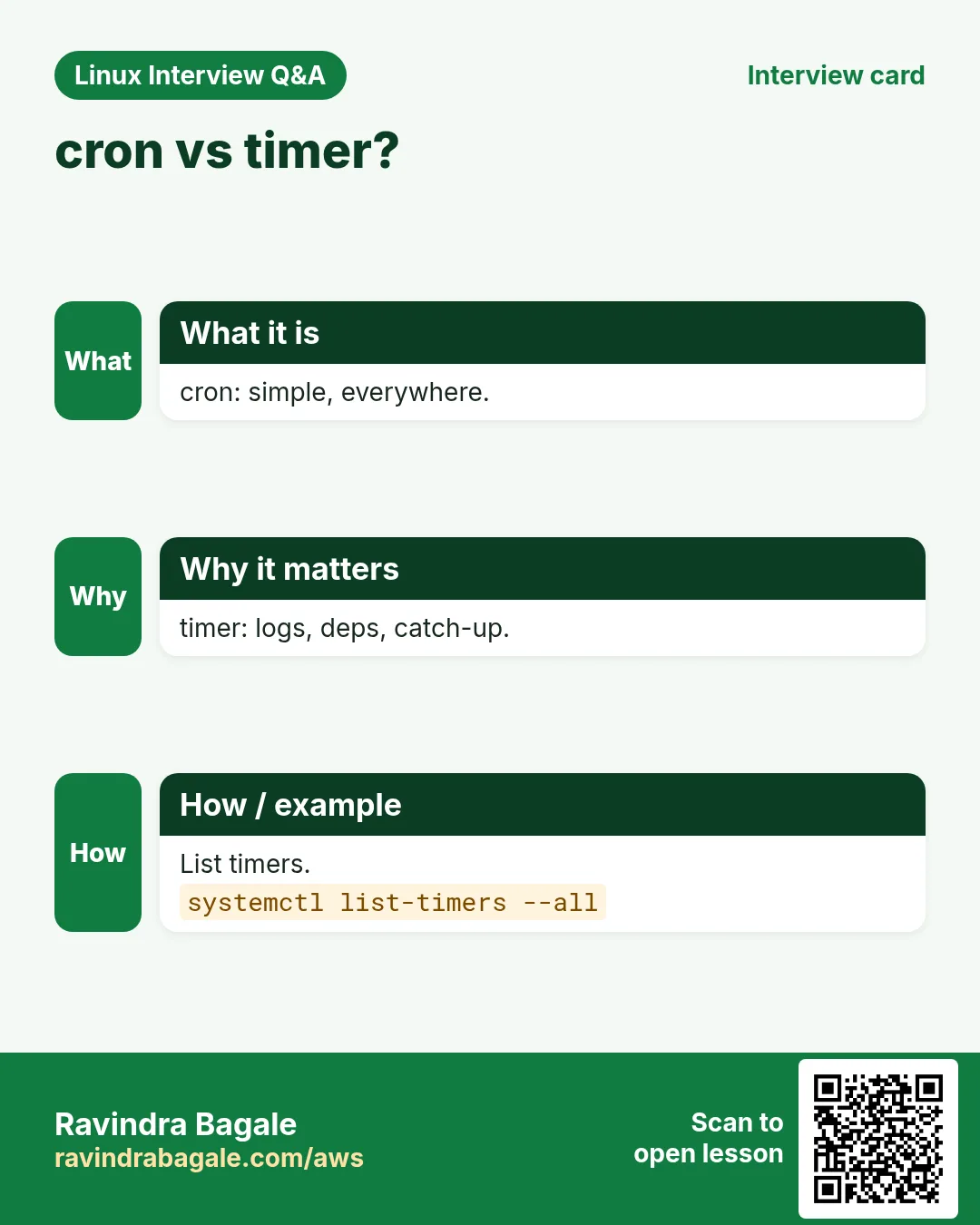
Timers for new server jobs (logs, catch-up, limits). cron is simple and everywhere.
Q. Can cron run every 30 seconds?
Not directly; minimum is 1 minute. Use a timer with OnUnitActiveSec=30s.
Q. What if the server was off at 2 a.m.?
cron skips it; anacron or Persistent=true timers catch up.
Q. Which time zone does cron use?
The system zone (timedatectl). CRON_TZ= works on some systems.
Q. Who may use crontab?
Controlled by /etc/cron.allow and /etc/cron.deny.
Q. Is crontab -r dangerous?
Yes, deletes all your jobs at once. Back up first.
Q. Day of month and day of week both set?
Cron runs when either matches.
Q. How to run a timer job right now?
systemctl start NAME.service.
20. Interview questions and answers
Beginner level
Q. What are the five cron fields?
minute hour day-of-month month day-of-week.
Q. How do you list your cron jobs?
crontab -l.
Q. Every 5 minutes in cron?
*/5 * * * *.
Q. How do you run a job once at 10 p.m.?
echo cmd | at 22:00.
Mid level level
Q. Why does a script fail only in cron?
Minimal PATH and environment; use full paths.
Q. How do you stop overlapping runs?
flock -n lockfile cmd, or a timer.
Q. What is different in /etc/cron.d files?
They have a user field.
Q. Which two files make a systemd timer?
NAME.service and NAME.timer.
Senior level
Q. Missed jobs after downtime: how to handle?
Persistent=true timers or anacron; make jobs idempotent.
Q. Cron at scale across 100 servers?
Avoid thundering herd with RandomizedDelaySec or jitter, central logging, single-runner locks.
Q. How would you monitor that a nightly job ran?
Job pings a heartbeat or writes a metric; alert on missing run.
Q. DST and cron?
Jobs in skipped or repeated hours may run 0 or 2 times; use UTC on servers.
Try at home
- Write a cron line that runs df -h every hour and appends to ~/disk.log. Check the file after two hours.
- Convert the same job into a systemd timer with OnCalendar=hourly and Persistent=true.
Practise this chapter
Interview questions and answers
A script runs in your terminal but fails as a scheduled job. Where do you start?
Compare the account, working directory, environment and paths in the scheduled run with the manual run. Log an explicit time and exit status. Use the same test input with full paths in both runs to isolate whether the command or the scheduler is responsible.
Check your understanding
Choose an answer, then compare your reasoning with the explanation.
Practice Tasks
Practice checks run in your browser. They check the answer for this exercise; they do not create resources or connect to your AWS account.
About this scenarioLondon Legal LLP is a law business in London. Oliver Hughes looks after its IT and cloud work. They count money in GBP and run their AWS resources in the eu-west-2 Region. In the tasks below you do real jobs for them using what this lesson teaches. All names, account IDs, IP addresses and numbers are made up for practice.
0 / 16
Easy List my cron jobs
Automation saves time.
Show your crontab.
- Find the Linux command that does this job.
- Add the options (like -r or -h) the task needs.
- Add the file names, folders or users in the right order.
- Use sudo if the job changes system files or users. Click Check answer.
Easy Edit crontab
Automation saves time.
Open your crontab for editing.
- Find the Linux command that does this job.
- Add the options (like -r or -h) the task needs.
- Add the file names, folders or users in the right order.
- Use sudo if the job changes system files or users. Click Check answer.
Easy Pending at jobs
Automation saves time.
List pending at jobs.
- Find the Linux command that does this job.
- Add the options (like -r or -h) the task needs.
- Add the file names, folders or users in the right order.
- Use sudo if the job changes system files or users. Click Check answer.
Easy List timers
Automation saves time.
List all systemd timers including inactive.
- Find the Linux command that does this job.
- Add the options (like -r or -h) the task needs.
- Add the file names, folders or users in the right order.
- Use sudo if the job changes system files or users. Click Check answer.
Medium Another user
Automation saves time.
As root, list the crontab of user deploy.
- Find the Linux command that does this job.
- Add the options (like -r or -h) the task needs.
- Add the file names, folders or users in the right order.
- Use sudo if the job changes system files or users. Click Check answer.
Medium Is cron running?
Automation saves time.
Check the status of the crond service.
- Find the Linux command that does this job.
- Add the options (like -r or -h) the task needs.
- Add the file names, folders or users in the right order.
- Use sudo if the job changes system files or users. Click Check answer.
Medium Did cron run?
Automation saves time.
Search the journal of crond for today.
- Find the Linux command that does this job.
- Add the options (like -r or -h) the task needs.
- Add the file names, folders or users in the right order.
- Use sudo if the job changes system files or users. Click Check answer.
Medium One-time job
Automation saves time.
Schedule /opt/report.sh to run at 18:00 with at.
- Find the Linux command that does this job.
- Add the options (like -r or -h) the task needs.
- Add the file names, folders or users in the right order.
- Use sudo if the job changes system files or users. Click Check answer.
Medium Cancel at job
Automation saves time.
Cancel at job number 7.
- Find the Linux command that does this job.
- Add the options (like -r or -h) the task needs.
- Add the file names, folders or users in the right order.
- Use sudo if the job changes system files or users. Click Check answer.
Medium Start atd
Automation saves time.
Enable and start atd.
- Find the Linux command that does this job.
- Add the options (like -r or -h) the task needs.
- Add the file names, folders or users in the right order.
- Use sudo if the job changes system files or users. Click Check answer.
Medium Start a timer
Automation saves time.
Enable and start backup.timer.
- Find the Linux command that does this job.
- Add the options (like -r or -h) the task needs.
- Add the file names, folders or users in the right order.
- Use sudo if the job changes system files or users. Click Check answer.
Hard Remove all jobs
Automation saves time.
Remove your whole crontab after asking.
- Find the Linux command that does this job.
- Add the options (like -r or -h) the task needs.
- Add the file names, folders or users in the right order.
- Use sudo if the job changes system files or users. Click Check answer.
Hard Check a schedule
Automation saves time.
Check when "Mon..Fri 09:00" would next fire.
- Find the Linux command that does this job.
- Add the options (like -r or -h) the task needs.
- Add the file names, folders or users in the right order.
- Use sudo if the job changes system files or users. Click Check answer.
Hard Run the job now
Automation saves time.
Run backup.service immediately to test it.
- Find the Linux command that does this job.
- Add the options (like -r or -h) the task needs.
- Add the file names, folders or users in the right order.
- Use sudo if the job changes system files or users. Click Check answer.
Hard Timer job logs
Automation saves time.
Show the last 20 lines of backup.service logs.
- Find the Linux command that does this job.
- Add the options (like -r or -h) the task needs.
- Add the file names, folders or users in the right order.
- Use sudo if the job changes system files or users. Click Check answer.
Hard Transient timer
Automation saves time.
Run /opt/cleanup.sh once in 30 minutes with systemd-run.
- Find the Linux command that does this job.
- Add the options (like -r or -h) the task needs.
- Add the file names, folders or users in the right order.
- Use sudo if the job changes system files or users. Click Check answer.
21. Related chapters
- Linux Ops Refresh for DevOps
- Bash Scripting for Automation
- Linux grep and find Commands with Examples
- How to Set Up Passwordless SSH Between Linux Servers
In short
- Five fields: minute hour dom month dow.
- crontab -e/-l/-r/-u manage user jobs.
- /etc/cron.d adds a user field; @reboot runs at boot.
- Full paths, redirects and flock make cron safe.
- at, atq, atrm for one-time jobs.
- Timers = .service + .timer, OnCalendar, Persistent, list-timers.
Revision, comparison and interview cards
Revise this lesson in a few minutes. Save the cards on your phone or download them as PNG files. The QR code on each card opens this lesson.
More cards: Ravi Sir's Cards.