Linux mv and rm Commands: Move, Rename and Delete Files
Let's start. We can make files and folders, and we can copy them. On a laptop the other everyday jobs are cut-paste, rename and delete. On a server, two commands do all three: mv moves and renames, rm deletes. We also learn to tell a file from a folder without guessing, how to hide a file with a dot, and what the mysterious . and .. are. Keep your server running and type every command with me.
In this class
- The practice folders, and the real prompt after
cd - An interview question: copy only what is inside a folder
mv= cut-paste: four ways to move a file into a folder- Renaming with
mv, in the same folder and inside a subfolder - Moving folders, and why
mvneeds no-r(same disk vs across disks) - Wildcards with
mv, and the silent overwrite (mv -i) - Deleting:
rm,rm -r,rmdirandrm -i - Practice task: mv, cp and rm on one tree
- Working smart: relative paths, braces and Tab
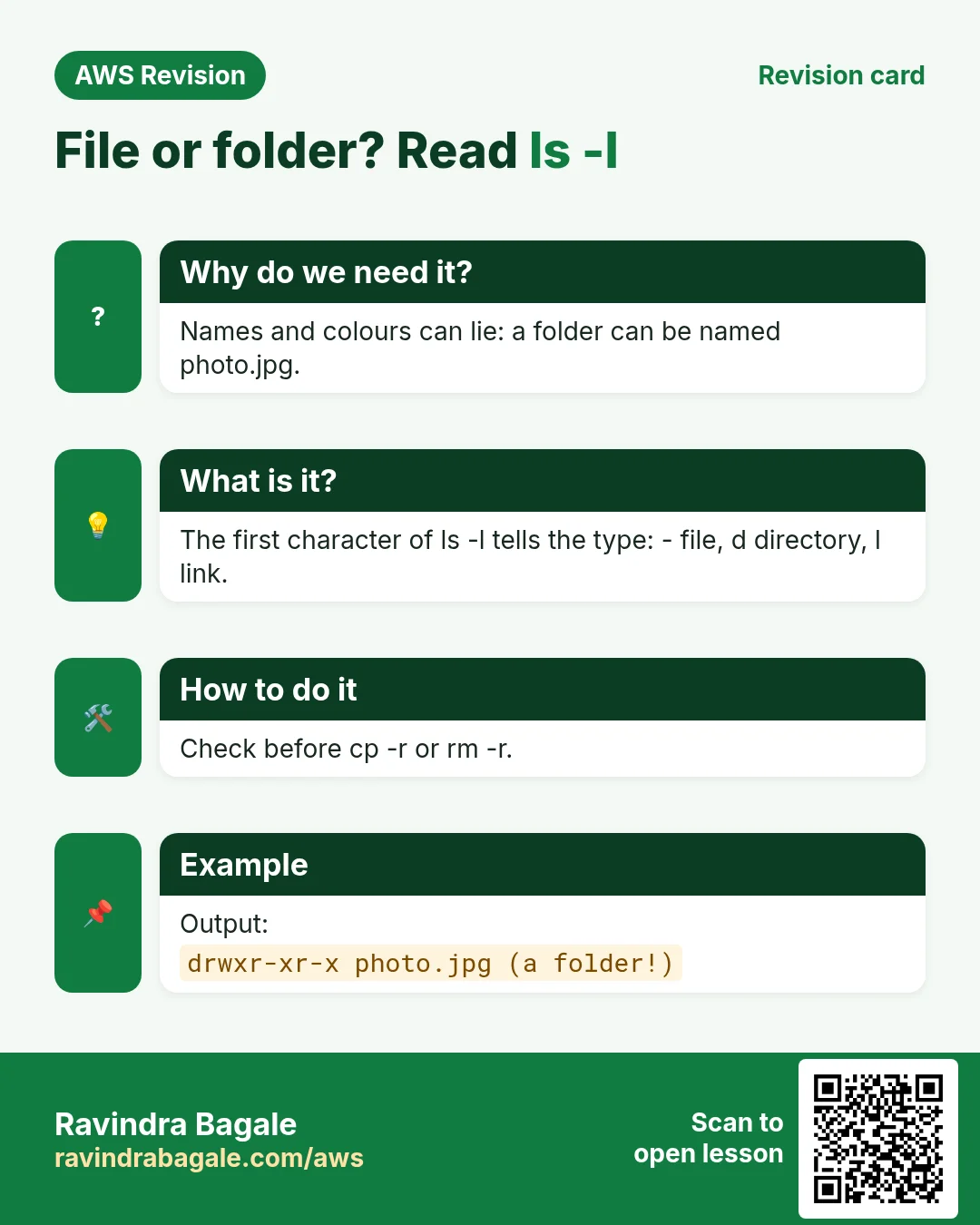
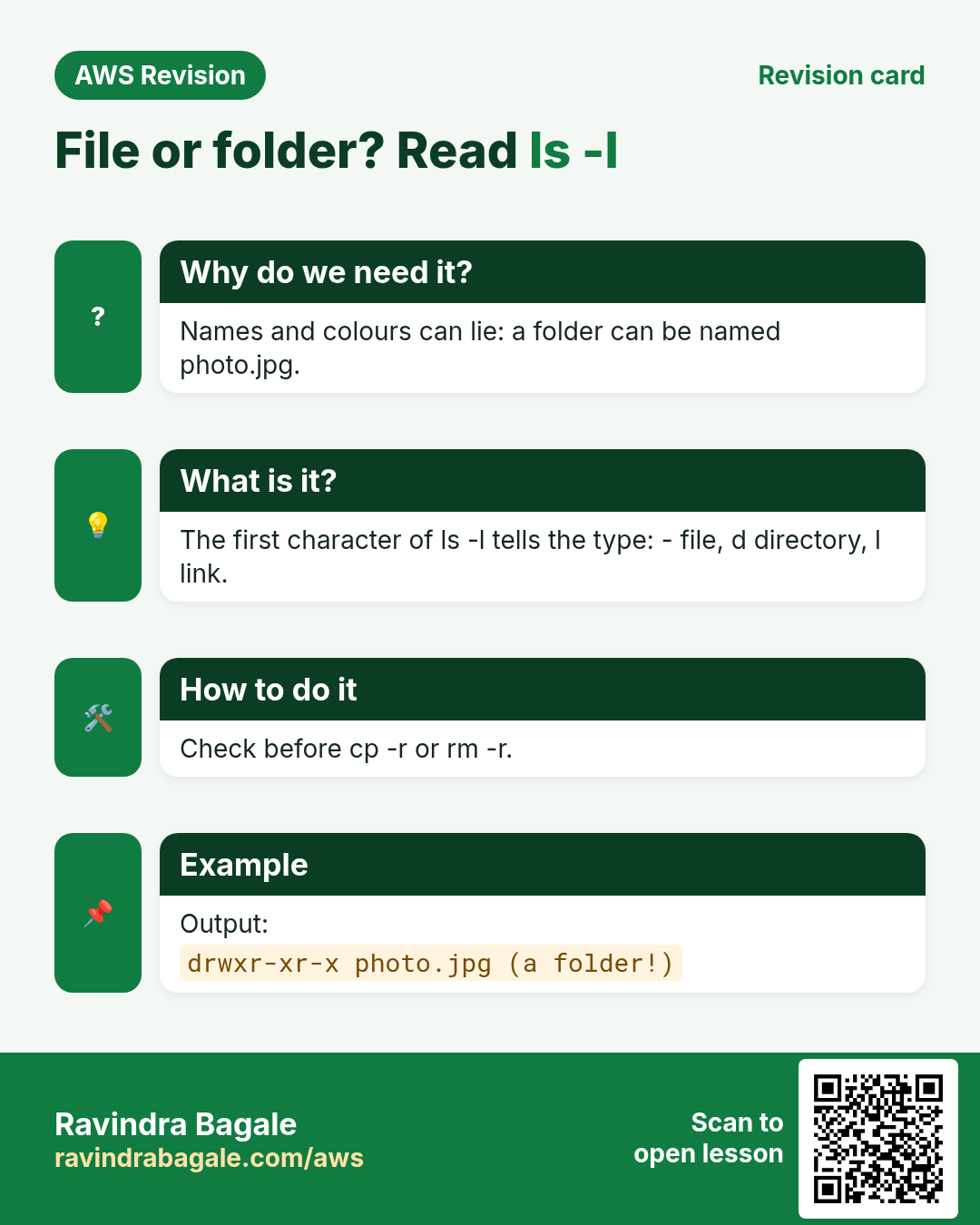
- File or folder? Why names and colours don't decide
ls -l: the first character- The command summary
- Hidden files,
ls -a, and the entries.and.. - Before you leave: terminate or stop
- Try-at-home tasks
1. The practice folders
Moving and deleting need something to move and delete. Build these first. Copying is in Linux cp Command with Examples (Copy Files and Folders); paths are in Linux Directory Commands: pwd, ls, cd, mkdir for Beginners.
How (start in your home folder). Run these lines one by one:
cd
mkdir ravi raj
cd ravi
touch 1.txt 2.logs 3.mp3
mkdir one two three
cd
Classroom line
Say we're in ec2-user's home, and I've made two folders there: one called ravi, one called raj.
Class मधलं वाक्य
"Samja aapla ec2-user madhe ahe, tithe mi don folder banavle ahe. Suppose ek ravi mhanun folder ahe, ek raj mhanun folder ahe."
समजा आपण ec2-user मध्ये आहोत, तिथे मी दोन folders बनवले आहेत. समजा एक ravi नावाचा folder आहे, एक raj नावाचा folder आहे.
Classroom line
Say we're in ec2-user's home, and I've made two folders there: one called ravi, one called raj.
Watch the prompt. It always tells you where you are. On Amazon Linux 2023 it looks like this (the ip-... part is your server's private hostname):
[ec2-user@ip-172-31-xx-xx ~]$ cd ravi
[ec2-user@ip-172-31-xx-xx ravi]$ cd
[ec2-user@ip-172-31-xx-xx ~]$
~means you are in your home,/home/ec2-user.- After
cd ravithe prompt showsravi, the name of the current folder. - After
cdalone, you are home again and~comes back.
The prompt changes with you: after cd ravi it shows the name of the folder you are in, here ravi, instead of ~. Check it after every cd, or run pwd.
2. Interview question: copy only what is inside a folder
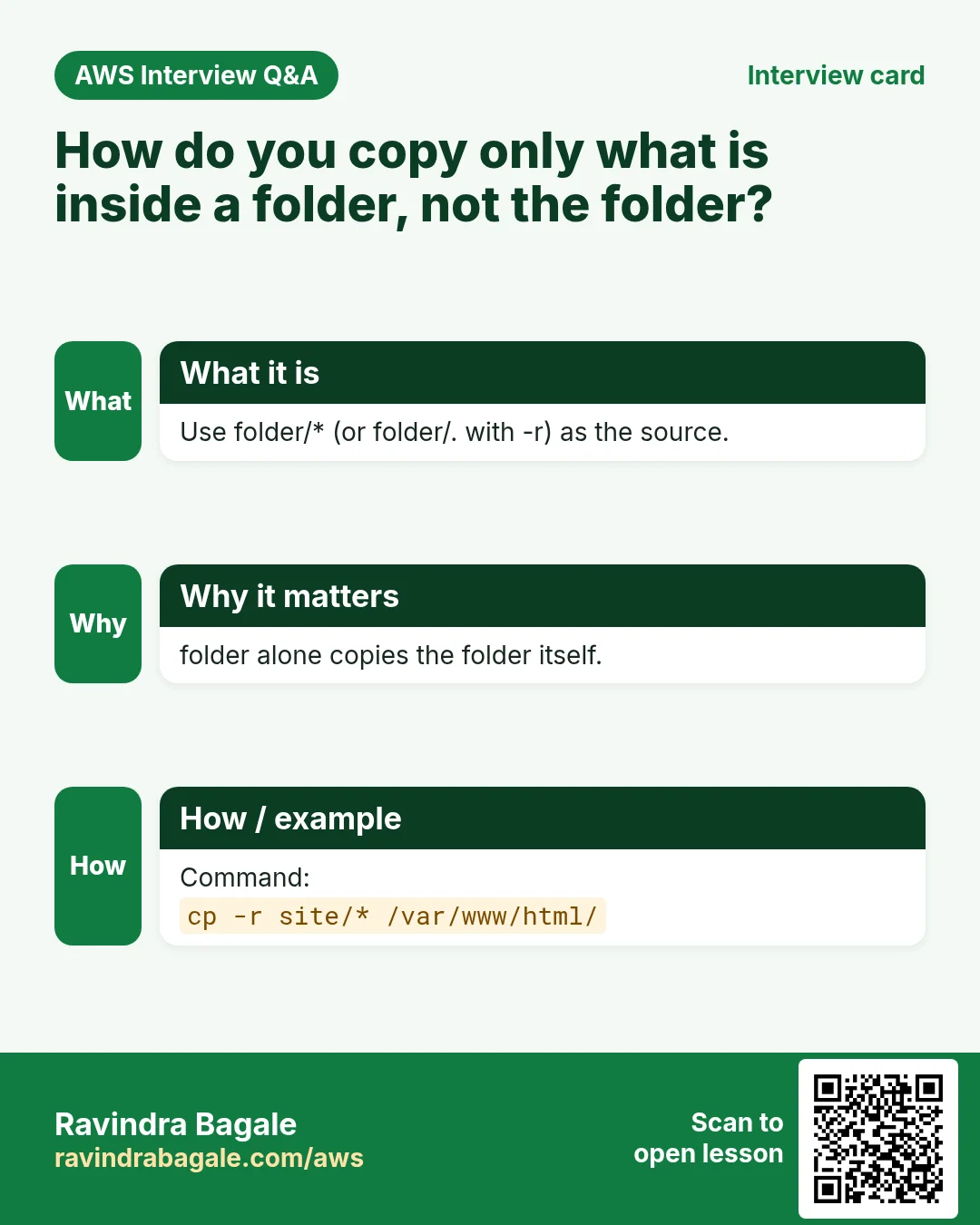
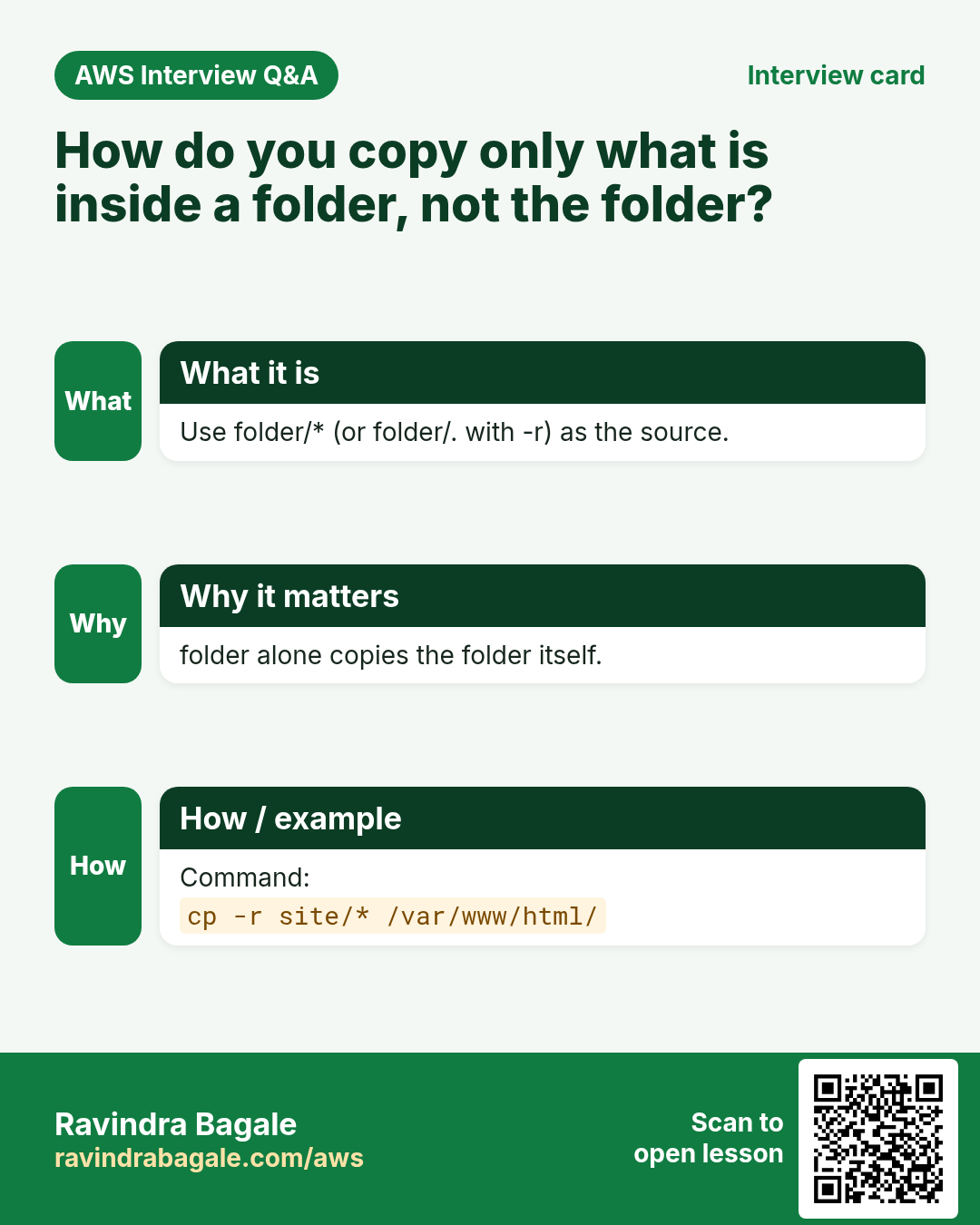
"Copy the contents of ravi into raj, not the folder itself" is a favourite interview question. It tests whether you really understand cp -r.
Classroom line
And they ask this question in interviews.
Class मधलं वाक्य
"ani he question interview madhe vichartat"
आणि हा question interview मध्ये विचारतात.
Classroom line
And they ask this question in interviews.
Three tries (from your home folder):
cp ravi raj→cp: -r not specified; omitting directory 'ravi'. A folder needs-r.cp -r ravi raj→ works, but you getraj/ravi/...: the folder itself went insideraj.cp -r ravi/* raj→raj/1.txt,raj/2.logs,raj/3.mp3,raj/one... Only the contents. This is the answer they expect.
ravi/* means "every name inside ravi". The shell expands it before cp runs, so cp sees ravi/1.txt ravi/2.logs ravi/3.mp3 ravi/one ravi/three ravi/two raj.
The catch: hidden files. * doesn't match names that start with a dot (section 18). Make one and try again:
touch ravi/.notes
rm -r raj/*
cp -r ravi/* raj
ls -A raj
.notes is missing. To copy everything, hidden files included, copy the folder's own .:
cp -r ravi/. raj
Figure 1. cp -r ravi raj puts the folder itself inside raj. cp -r ravi/* raj copies only the contents but skips the hidden file .notes. cp -r ravi/. raj copies all the contents, hidden files too.
cp -r ravi/* raj works for normal files, but ravi/* skips hidden files (names that start with a dot). cp -r ravi/. raj copies everything inside ravi, hidden files included.
3. mv: cut-paste for Linux
On Windows you cut a file and paste it somewhere else; the original is gone from the old place. Linux does the same with one command.
Classroom line
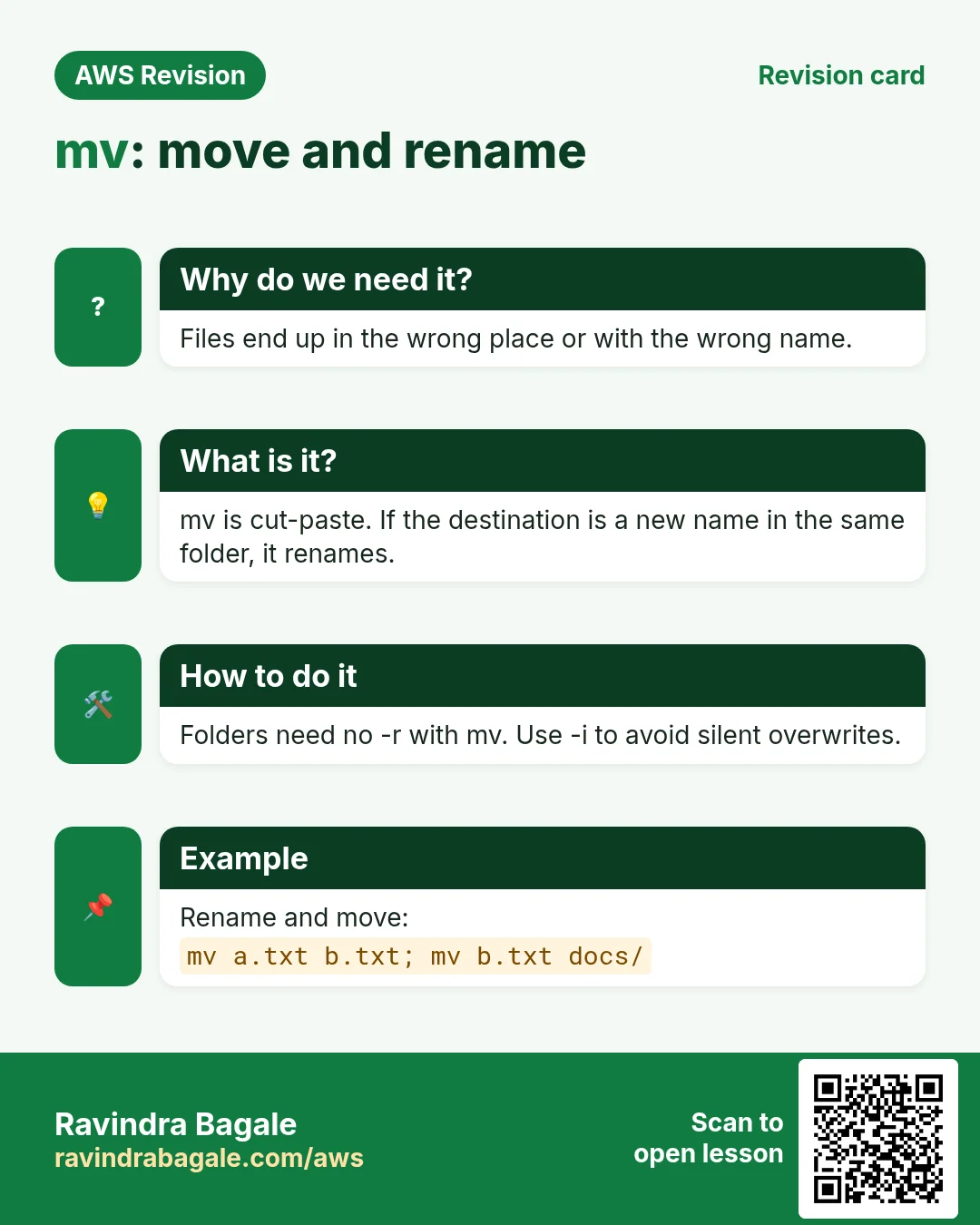
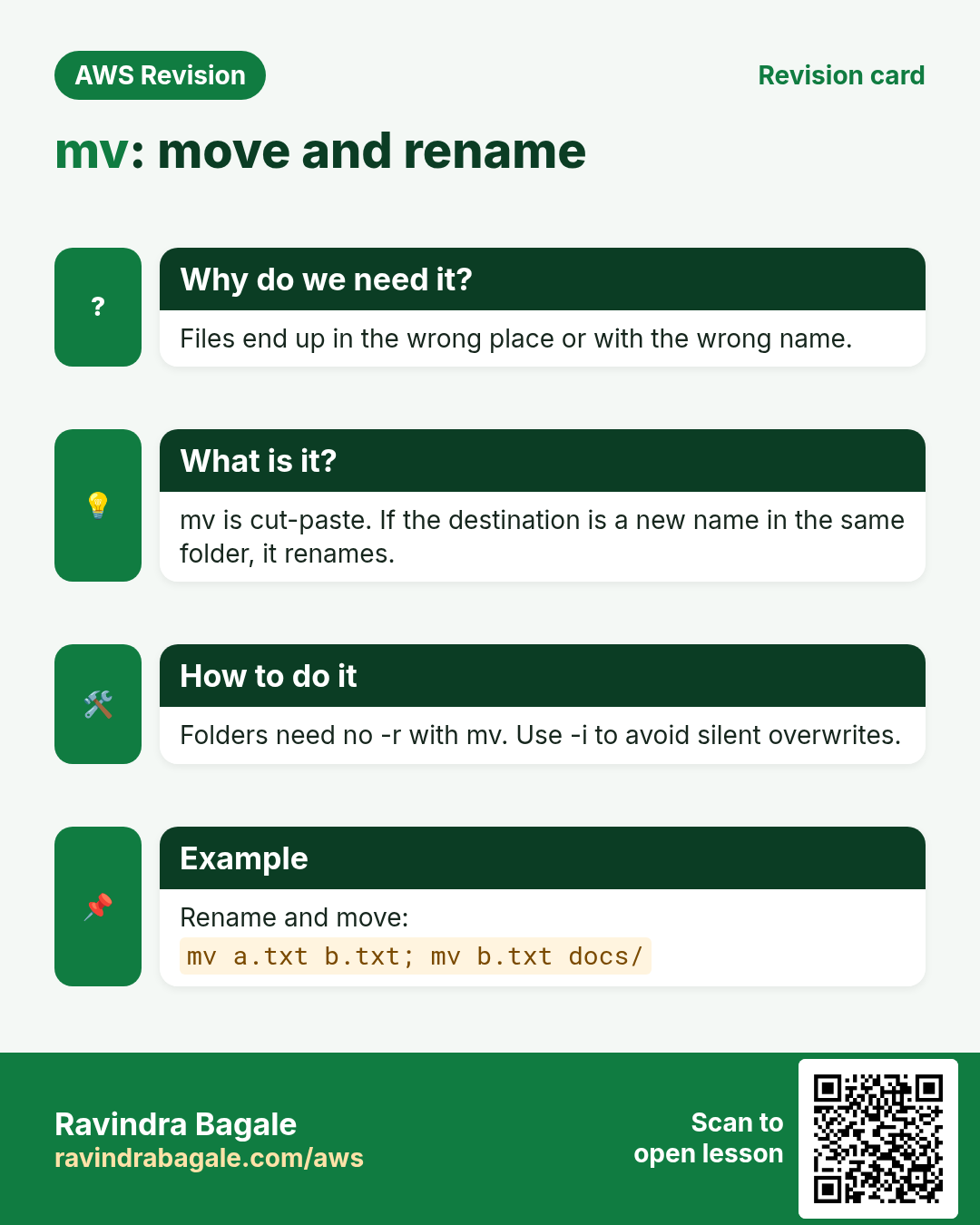
mv means cut-paste. The cut-paste we use in Windows is what we now do in Linux.
Class मधलं वाक्य
"mv mhanje cut paste. Windows madhe apan je cut paste functionality kartoy, ti functionality ata aplyala Linux madhe karaychi ahe."
mv म्हणजे cut paste. Windows मध्ये आपण जी cut paste functionality वापरतो, ती functionality आता आपल्याला Linux मध्ये करायची आहे.
Classroom line
mv means cut-paste. The cut-paste we use in Windows is what we now do in Linux.
mv SOURCE DESTINATION, the same shape as cp. The difference: after mv, the source is gone from where it was.
Four ways to move my.txt into ravi. Make the file first with touch my.txt in your home. Each line moves it away, so run touch my.txt again before trying the next one:
mv my.txt ravi→ravi/my.txtmv my.txt ravi/→ the same; Tab adds the slash for you.mv my.txt ravi/my.txt→ the same, with the name written out.mv my.txt ravi/you.txt→ moved and renamed:ravi/you.txt.
Check each time: ls (my.txt is gone from home) and ls ravi (it's there).
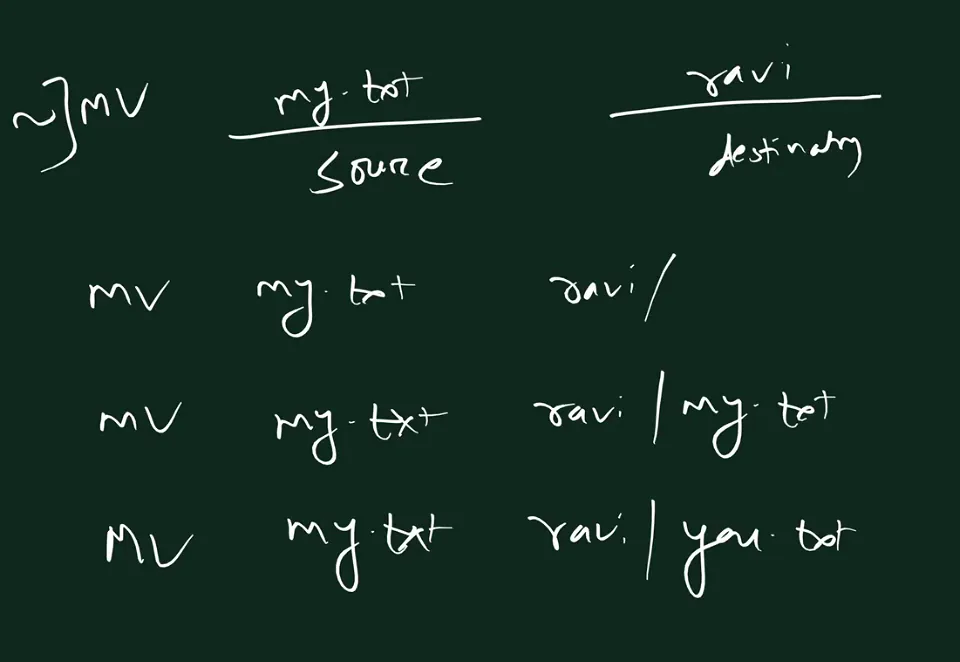
Whiteboard: mv my.txt ravi: my.txt is the source, ravi the destination. Then the three other ways: mv my.txt ravi/, mv my.txt ravi/my.txt, and mv my.txt ravi/you.txt, which also renames the file.
4. Renaming with mv
Linux has no separate rename command for everyday use. Renaming is just moving a file to a new name in the same place.
Classroom line
mv is also the command for renaming.
Class मधलं वाक्य
"rename karnya sathi sudha mv command ahe."
rename करण्यासाठी सुद्धा mv command आहे.
Classroom line
mv is also the command for renaming.
touch my.txtmv my.txt our.txtls→our.txt(and nomy.txt)
How mv decides:
- Destination is an existing folder → the item moves inside it.
- Destination doesn't exist → the item gets that name (rename).
- Destination is the same as the source → nothing to do.
Try it:
mv my.txt my.txt
mv: 'my.txt' and 'my.txt' are the same file
Figure 2. Animation: mv my.txt ravi moves the file into ravi; mv my.txt our.txt renames it; mv my.txt ravi/you.txt moves and renames; mv ravi one moves a whole folder, without -r.
5. Renaming inside a subfolder, without going there
You don't have to cd into a folder to rename something in it. Give both names as paths.
How (you stay in /home/ec2-user):
mv ravi/1.txt ravi/2.txtls ravi→2.txtis there,1.txtis gone.
Both paths point into the same folder, so it's a rename. If the second path pointed into another folder, it would be a move and rename.
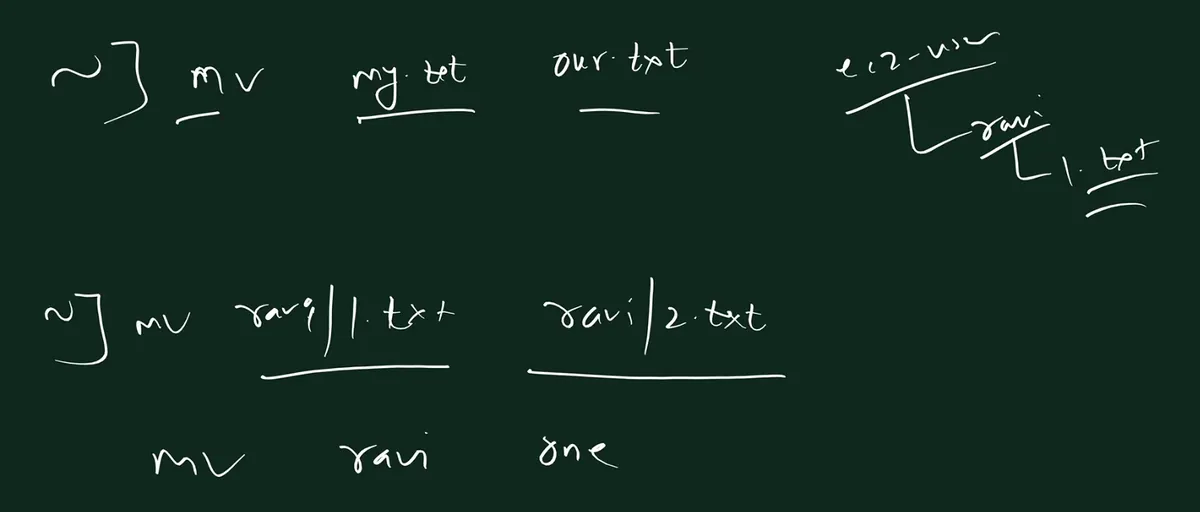
Whiteboard: mv my.txt our.txt renames in the same folder. With the tree ec2-user, ravi, 1.txt on the right: mv ravi/1.txt ravi/2.txt renames a file inside ravi without leaving home, and mv ravi one moves the folder ravi into one.
6. Moving folders: no -r
With cp, a folder needs -r. With mv, it doesn't. Good to know before an interviewer asks "why?".
mkdir one(in your home;ravialready exists)mv ravi onels one→ravi, with everything that was inside it.
To bring it back: mv one/ravi . (. = here).
The option is dash r: a hyphen, -r. A slash is the path separator, as in ravi/1.txt.
7. Why mv needs no -r
Understanding this explains why mv of a huge folder takes no time at all, while cp of the same folder can take minutes.
Tell a rename from copying to a different disk
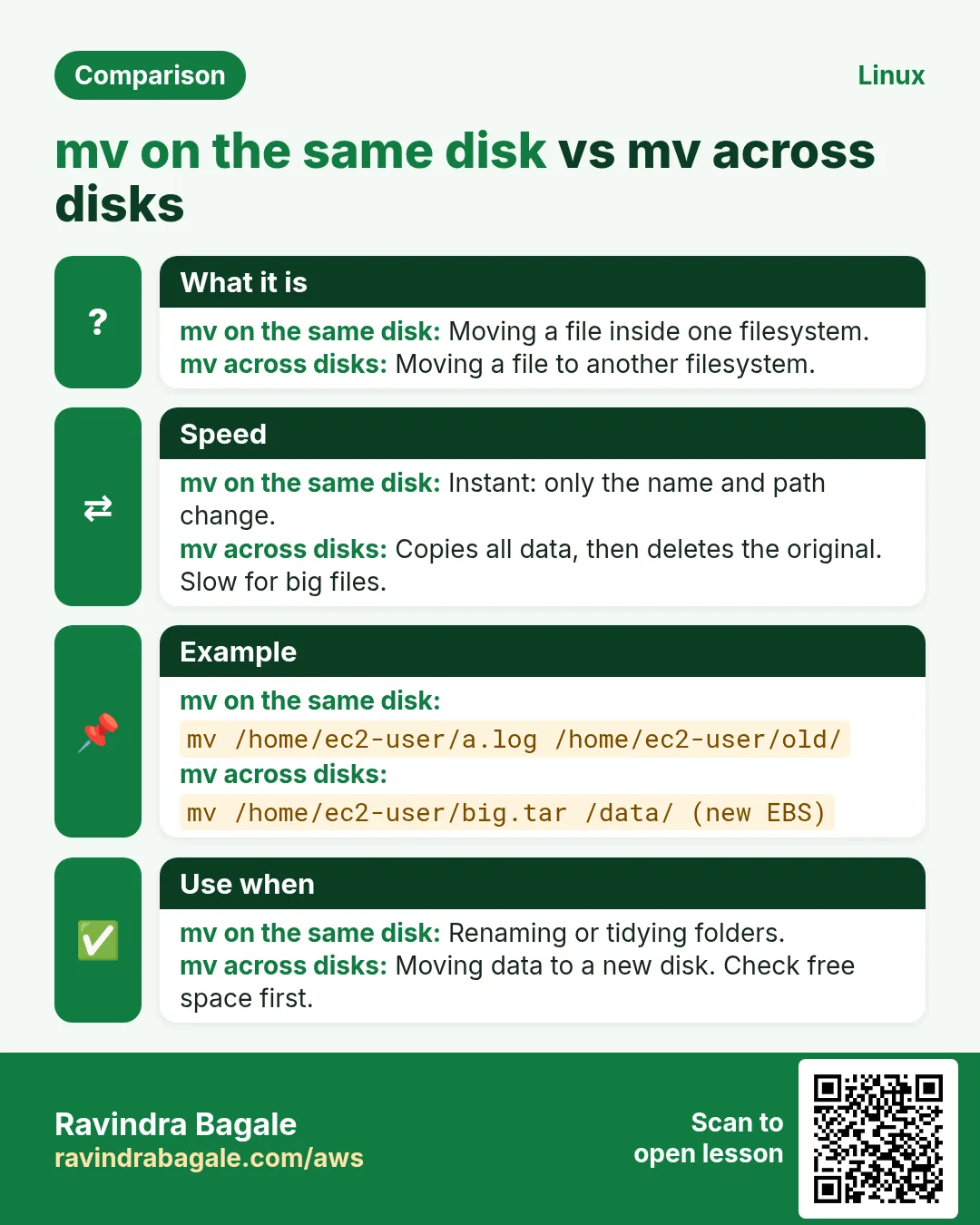
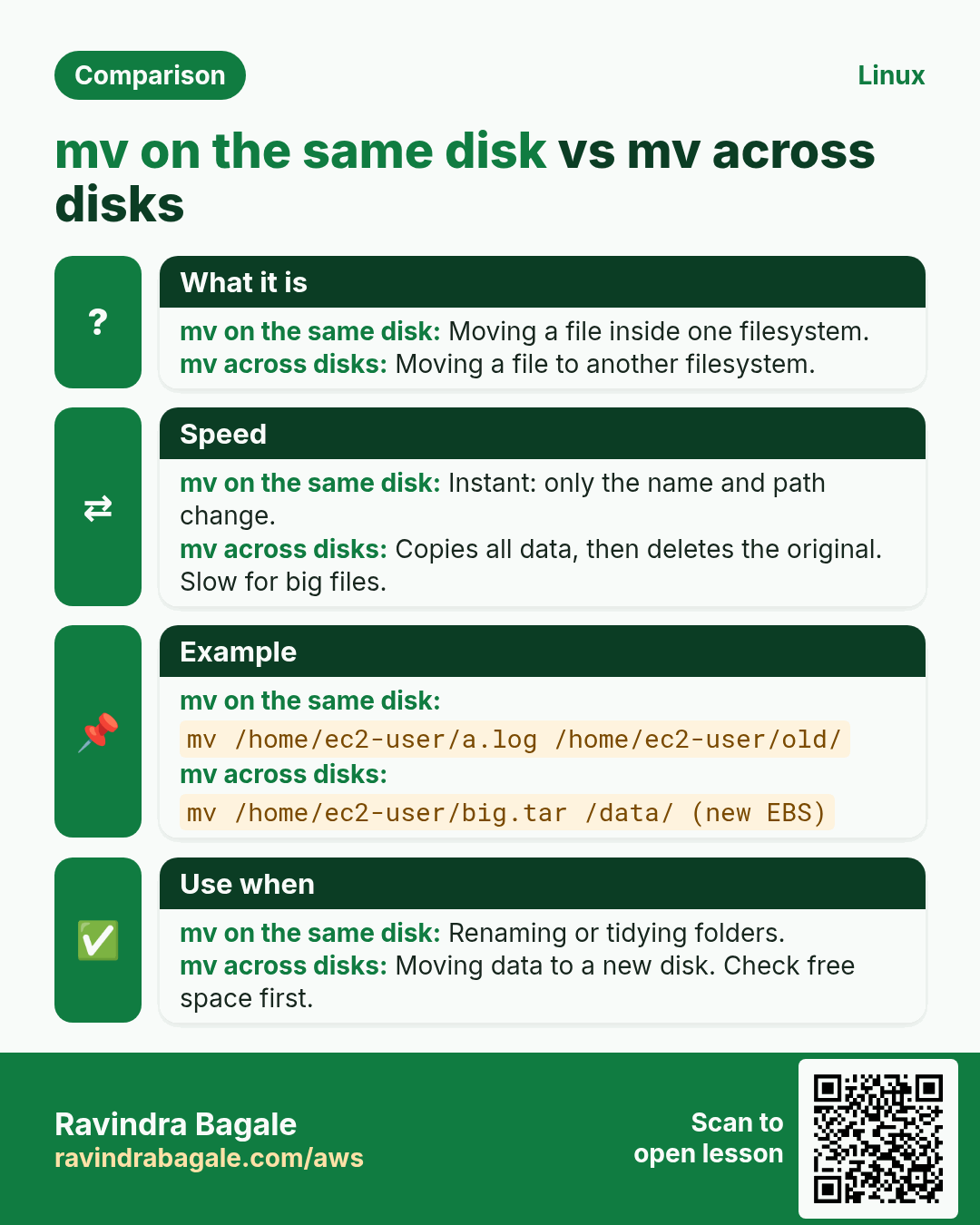
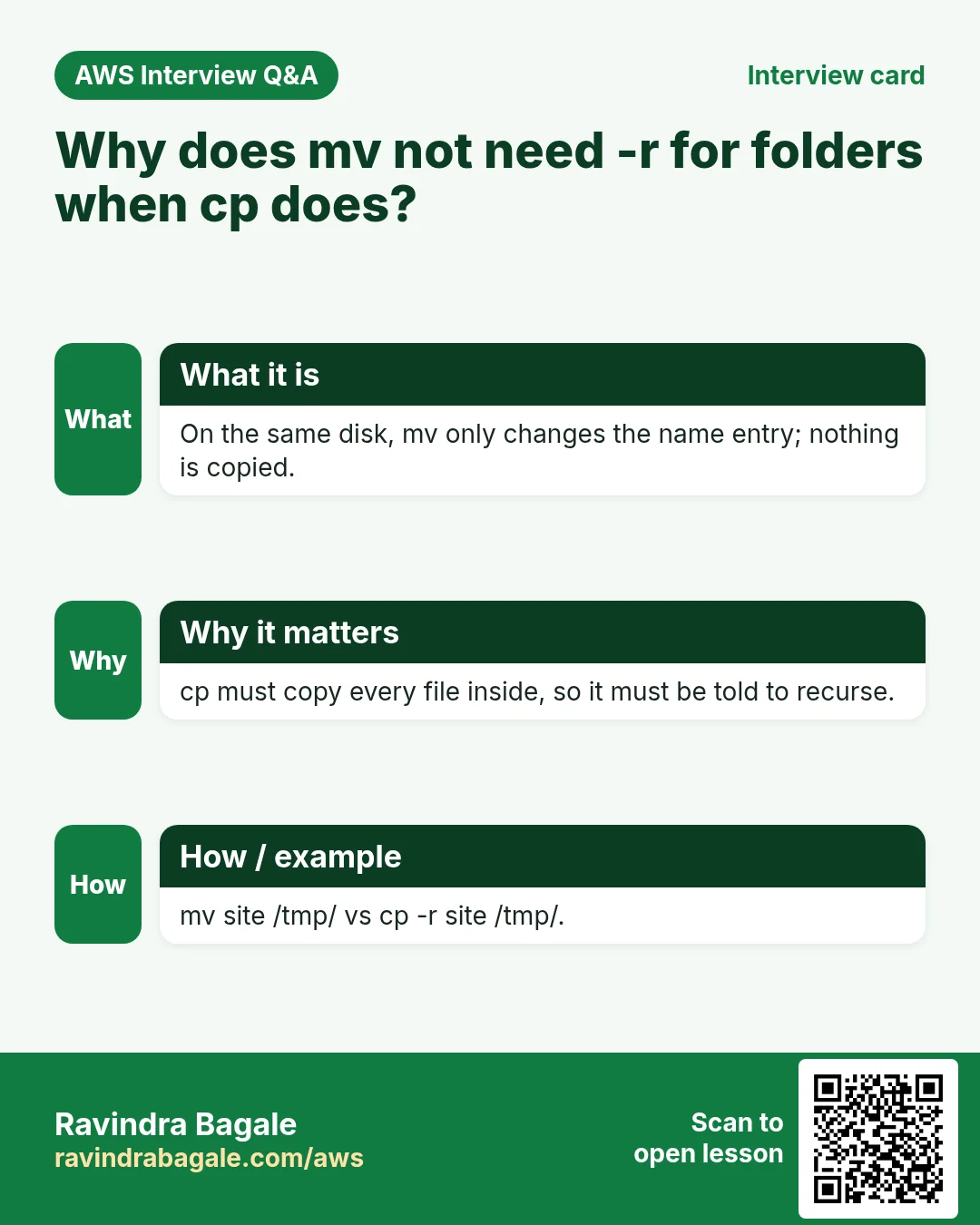
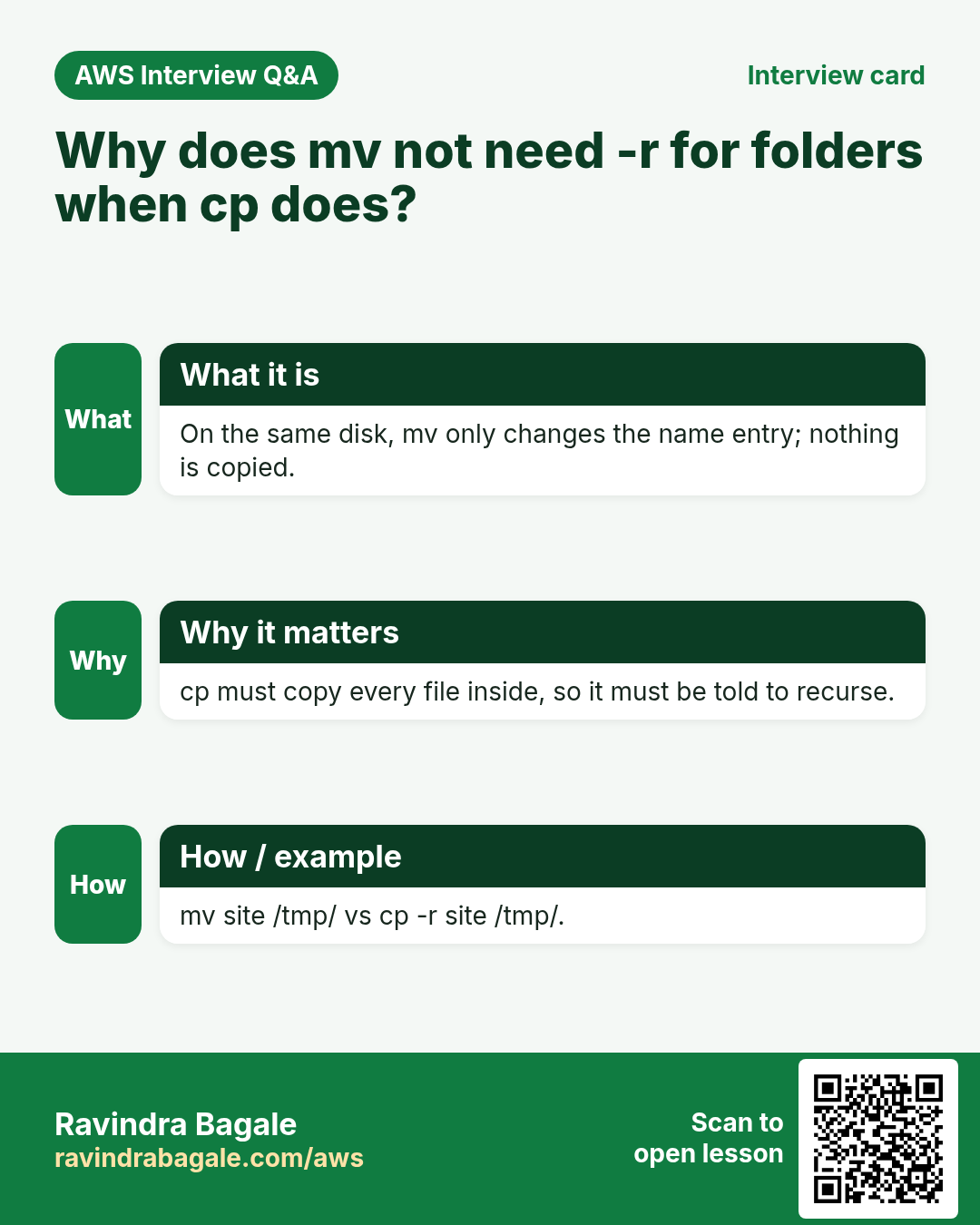
On one filesystem, the directory holds a name pointing to a file’s data. A rename updates those directory entries. This is why moving a large lab folder sideways within the same filesystem can feel instant. Moving it to a second mounted filesystem gives mv a different job. It has to copy the data to the destination, then remove the source after copying succeeds.
Before moving a large directory to an attached EBS data disk, compare df -h /path/to/source /path/to/destination using existing paths. If the paths are on different filesystems, check destination free space. For important files, use a verified copy and check the destination before separately removing the original. Inspect both sides if a move reports an error.
Classroom line
When we move, what really happens? Only the path changes. But when we copy, the file is actually stored again.
Class मधलं वाक्य
"apan move karto mhanje kay karto, fakta path change hotay. pan jyaveli apan copy karto na, tya vela te file kharokhar parat memory madhe store kelya jatyat."
आपण move करतो म्हणजे काय करतो, फक्त path change होतो. पण ज्या वेळी आपण copy करतो ना, त्या वेळी file खरोखर परत memory मध्ये store केल्या जातात.
Classroom line
When we move, what really happens? Only the path changes. But when we copy, the file is actually stored again.
What happens on the same disk:
- A file's data sits in blocks on the disk.
- The folder only keeps an entry: the name, and where the data is.
cpwrites the data again into new blocks, file by file. For a folder it has to go inside every folder: that's what-rasks for.mvleaves the data alone and only changes the entry: the old name goes, the new path appears. A folder moves as a whole, in one step, so there is nothing to recurse into.
Across disks (for example from the root volume to a second EBS volume), an entry can't point to another disk. So mv copies the data to the other disk, then deletes the original. It takes as long as a copy, and it still needs no -r.
Figure 3. Animation: cp my.txt ravi writes the data again into new blocks and adds a second entry. mv my.txt ravi on the same disk leaves the blocks alone and only changes the entry to ravi/my.txt. Across disks, mv copies, then deletes.
One move mv refuses, for the same reason as cp in the last chapter. Make one/two with mkdir -p one/two, then try:
mv one one/two
mv: cannot move 'one' to a subdirectory of itself, 'one/two/one'
On the same disk (filesystem), mv only renames the directory entry, so no data is copied. Across disks it copies and then deletes. Either way, no -r is needed.
8. Wildcards with mv
Same as with cp: describe a pattern instead of typing every name.
Classroom line
We can use wildcards while moving files or folders too.
Class मधलं वाक्य
File किंवा folder move करताना आपण wildcard पण वापरू शकतो.
Classroom line – हिंदी
"file ya folder move karte waqt hum log wildcard bhi use kar sakte hai"
mv *.txt ravi→ every name ending in.txtgoes intoravi.mv 2.* ravi→2.logsand anything else starting with2..- Preview first:
echo *.txtshows what the pattern picks, without moving anything.
The * and ? rules are in the copy chapter.
9. mv overwrites without asking: mv -i
If the destination file already exists, mv replaces it. No question, no message, and the old file is gone.
See it happen:
echo old > b.txt
echo new > a.txt
mv a.txt b.txt
cat b.txt
Output: new. The old b.txt is lost, and a.txt no longer exists.
The safe way: mv -i asks first:
mv -i a.txt b.txt
mv: overwrite 'b.txt'?
Type y to replace, n to keep b.txt.
Ravindra Bagale's Tip
When you move files into a folder that already has files, use mv -i. One n can save a file you can't get back.
10. rm: deleting files
Old logs, test files, mistakes. Servers fill up, and a full disk stops everything.
Decide which names will disappear
In your disposable lab folder, run pwd and then printf '%s
' *.logs before acting on a pattern. That list shows the names the shell would pass to rm. If a name appears that you meant to keep, stop and narrow the pattern or choose one explicit file. A pattern can select more than one kind of file if the names happen to match.
For your first test, use rm -i -- ./old-test.logs after creating that throwaway file. -i asks before removing it. The -- separates options from filenames, useful if a file starts with a dash. Run ls -la after the prompt and confirm that only the intended name is gone.
rm my.txt→ one file.rm 1.txt my.mp3 3.logs→ several files at once.rm *.txt→ every.txtfile here.rm file*→ every name that starts withfile.
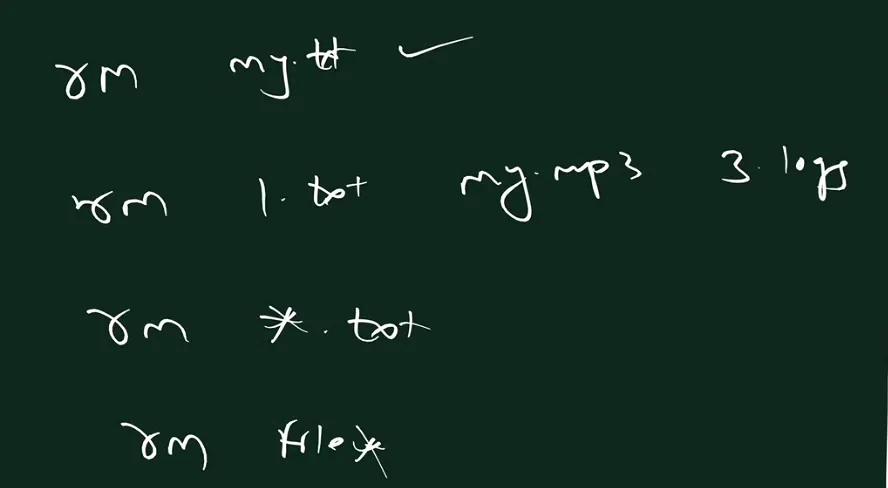
Whiteboard: rm my.txt deletes one file, rm 1.txt my.mp3 3.logs deletes three, rm *.txt every name ending in .txt, and rm file* every name starting with file.
Things to know:
- There is no recycle bin. Deleted means gone.
- For
ec2-user,rmdoesn't ask before deleting. - A name that doesn't exist:
rm: cannot remove 'nothere': No such file or directory. - A folder isn't deleted by plain
rm.
Try it on a folder:
rm ravi
rm: cannot remove 'ravi': Is a directory
11. rm -r: deleting a folder and everything in it
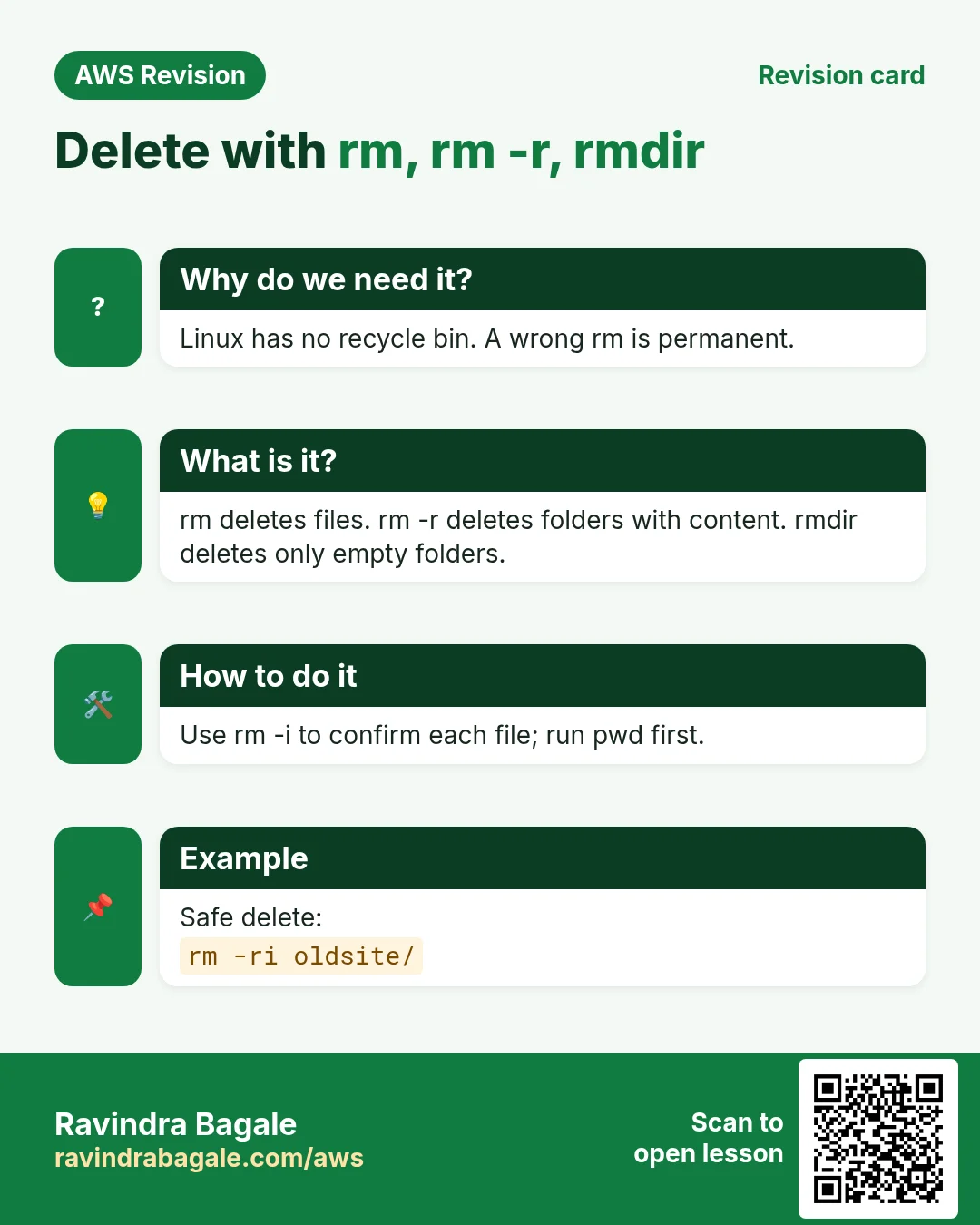
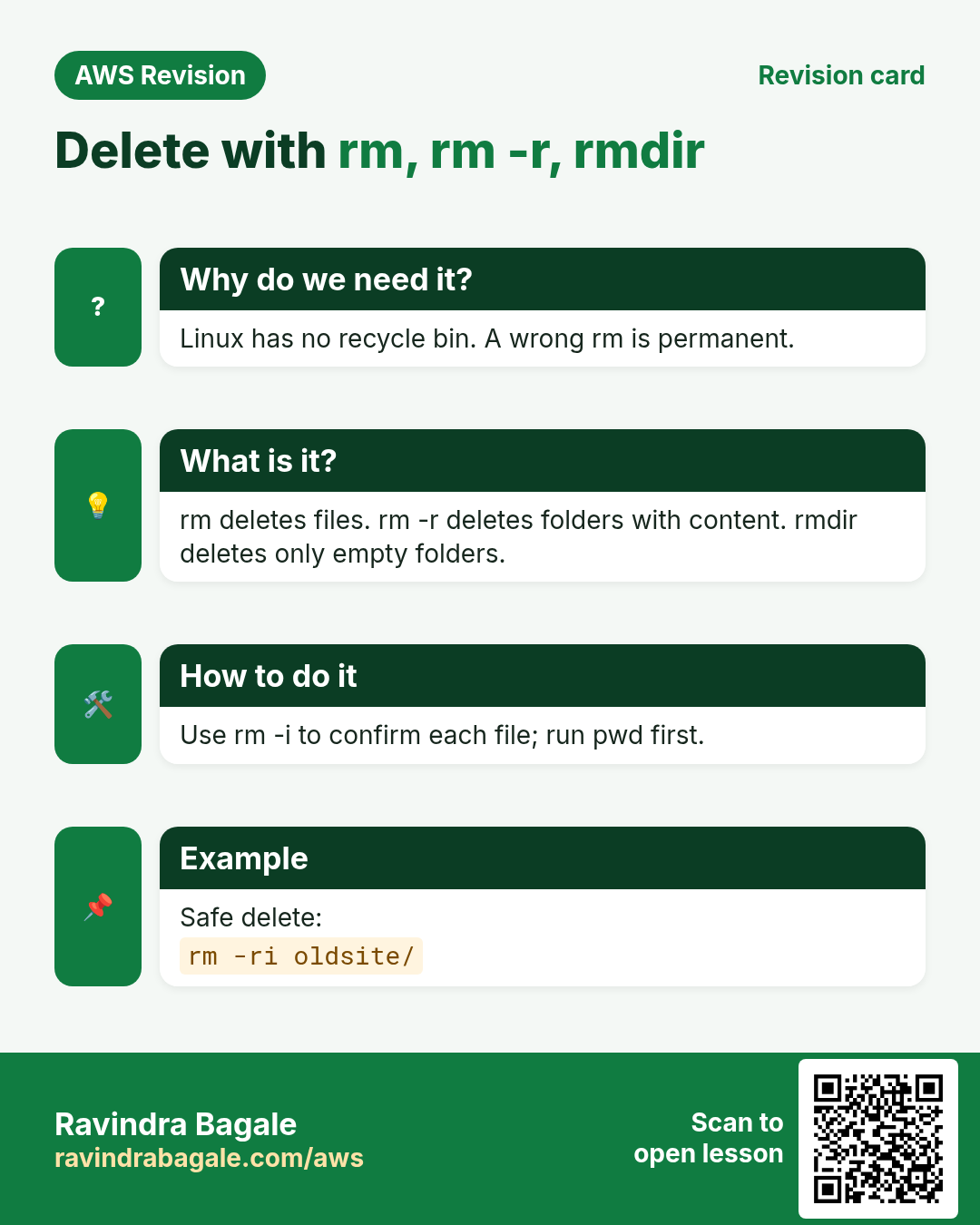
rm alone refuses folders. When a whole folder of old builds or logs must go, you need rm -r, and you need to respect it: there is no Recycle Bin on a Linux server.
rm -r ravi deletes the folder ravi, every file in it, every folder in it, all the way down. -r = recursive, the same idea as cp -r.
rm -r ravils→raviis gone.
Ask before each delete:
rm -i my.txt
rm: remove regular empty file 'my.txt'?
For a folder, combine it with -r:
rm -ri ravi
rm: descend into directory 'ravi'?
rm -ri asks for every file and folder inside, one by one. Answer n at any point to keep that item.
rm -r on a single file costs nothing extra. The reason not to type -r out of habit is safety: with -r, one wrong name deletes a whole folder instead of failing with Is a directory. Use plain rm for files, rm -r only when you mean a folder, and rm -i when in doubt.
Ravindra Bagale's Tip
Before rm with a wildcard, run ls with the same pattern: ls *.txt, then rm *.txt. You see exactly what will go. And read any rm -r line twice before pressing Enter. More on this in 3.3 Working with files and directories.
12. rmdir: deleting only empty folders
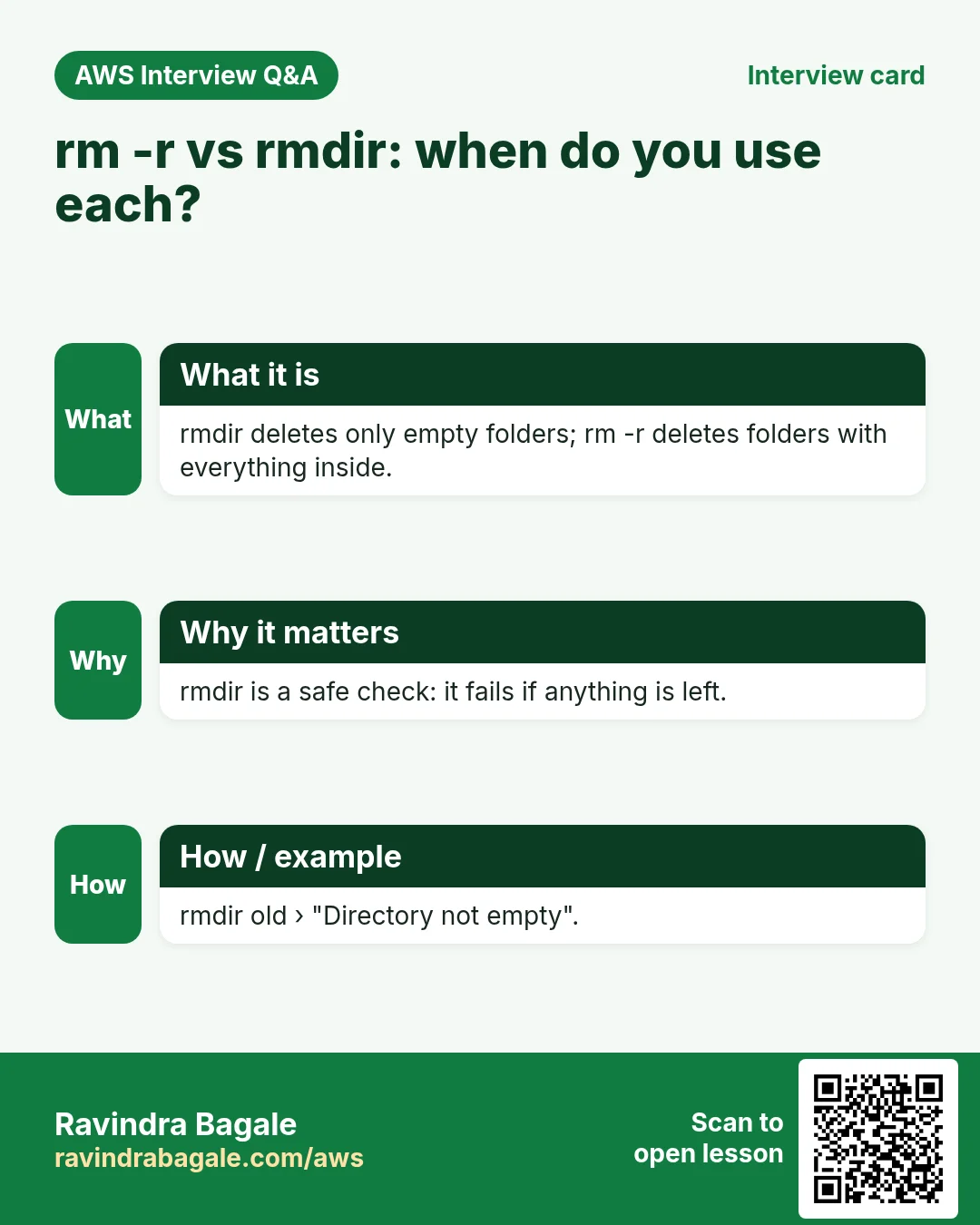
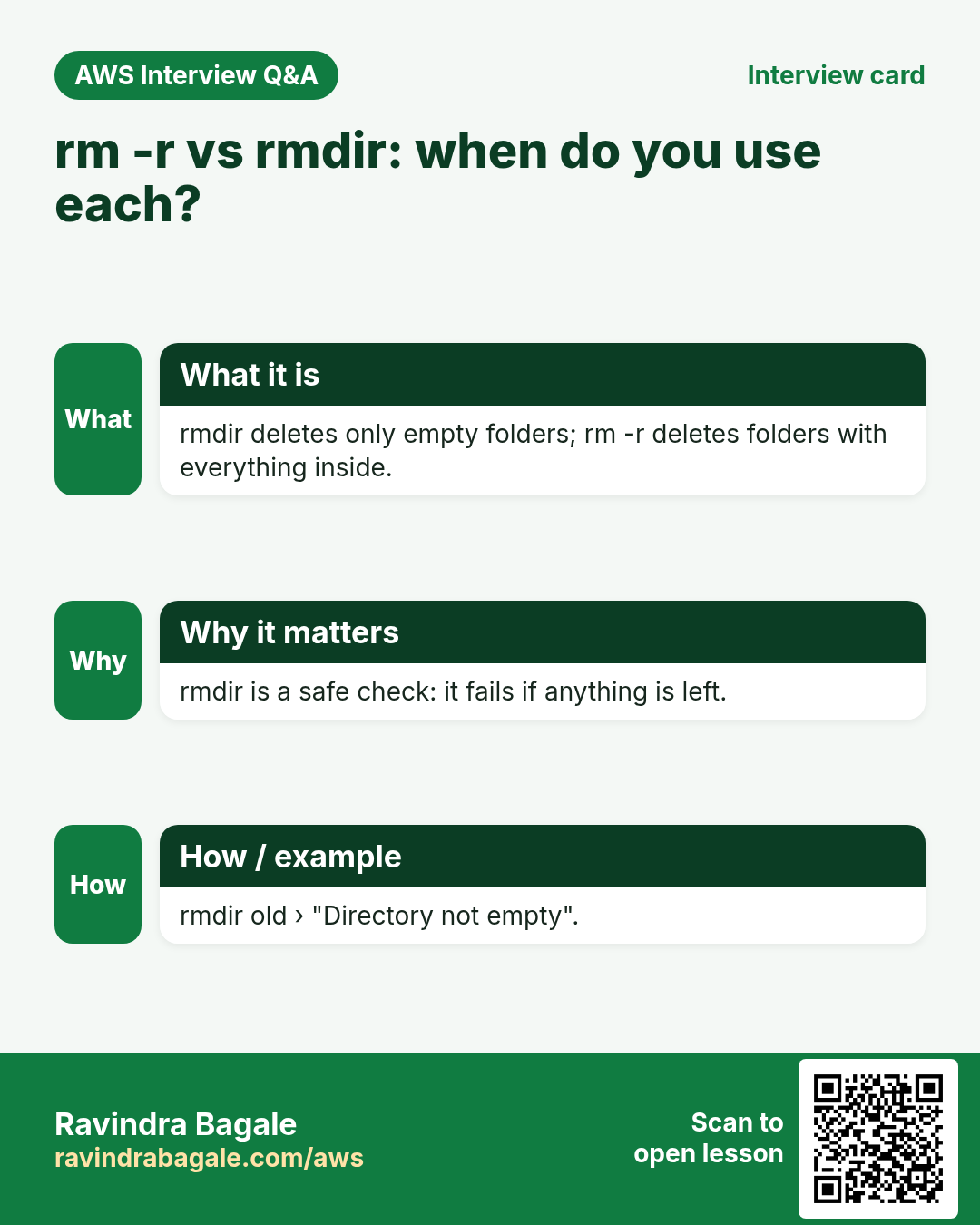
rmdir is a safety net. It refuses to delete a folder that still has something inside.
Look for the hidden item before trying again
Make an empty hide-lab directory in your practice area and run touch hide-lab/.keep. A normal ls hide-lab looks blank. Now rmdir hide-lab reports that the directory is not empty. Check with ls -A hide-lab. That form lists .keep without the special entries . and ...
Read the error as information about the folder. In the test, you know exactly why the hidden file is there, so remove that one throwaway file with rm -i -- hide-lab/.keep and try rmdir again. On a real server, check the purpose of any hidden file before removing it.
mkdir emptyrmdir empty→ gone, no message.rmdir my.txt→rmdir: failed to remove 'my.txt': Not a directory
Now a folder with files inside:
rmdir ravi
rmdir: failed to remove 'ravi': Directory not empty
Figure 4. rm deletes files but says Is a directory for folders. rmdir deletes only empty folders and says Not a directory or Directory not empty otherwise. rm -r deletes anything, including a folder with everything inside.
Which one to use:
- A file →
rm - An empty folder →
rmdir - A folder with things inside →
rm -r(and think twice)
13. Practice task: mv, cp and rm on one tree
The task. Do everything from /home/ec2-user; don't cd anywhere.
- Make a folder
projects, inside itweb, and insidewebfour folders:frontend,backend,database,testing. - Make two files,
notes.txtandreport.txt, insideweb, next to the four folders. - Move
notes.txtintobackend. - Move
report.txtintodatabase. - Copy
report.txtfromdatabaseintotesting. - Delete
report.txtfromdatabase. - End state:
notes.txtonly inbackend,report.txtonly intesting.
Classroom line
Do all the work while staying in ec2-user's home.
Class मधलं वाक्य
"Sagle kaam ec2-user madhye thambunach karaycha ahe."
सगळं काम ec2-user मध्येच थांबून करायचं आहे.
Classroom line
Do all the work while staying in ec2-user's home.
Classroom line
We have to use all the commands: cp, mv, rm.
Class मधलं वाक्य
"Sagle commands vaprache ahet aplayla. cp, mv, rm."
सगळे commands वापरायचे आहेत आपल्याला. cp, mv, rm.
Classroom line
We have to use all the commands: cp, mv, rm.
Try it yourself before reading on.
Solution:
cd
mkdir -p projects/web/{frontend,backend,database,testing}
touch projects/web/{notes.txt,report.txt}
mv projects/web/notes.txt projects/web/backend
mv projects/web/report.txt projects/web/database
cp projects/web/database/report.txt projects/web/testing
rm projects/web/database/report.txt
Check with tree projects:
projects
└── web
    ├── backend
    │   └── notes.txt
    ├── database
    ├── frontend
    └── testing
        └── report.txt

6 directories, 2 files
Figure 5. Animation: notes.txt is moved into backend, report.txt into database, report.txt is copied to testing, and the copy in database is removed. End state: notes.txt in backend, report.txt in testing.
Why stay in your home? ec2-user may only write inside its own home (and a few places like /tmp). Outside it you get:
mkdir /projects
mkdir: cannot create directory ‘/projects’: Permission denied
14. Working smart: relative paths, braces and Tab
In an interview task, the person who finishes first, correctly, wins. Typing less also means fewer typos.
- Relative paths. You're already in
/home/ec2-user. Writeprojects/web/backend, not/home/ec2-user/projects/web/backend. - Braces. One line makes many names:
mkdir -p projects/web/{frontend,backend,database,testing}. - Tab. Type
projects/wand press Tab; the shell completesweb/. Fewer keys, no spelling mistakes.
Classroom line
You're already in ec2-user, so why are you typing the path from the very start?
Class मधलं वाक्य
"Tumhi already ec2-user madhe ahe na, mag ka bara pehlya pasun path det basla?"
तुम्ही already ec2-user मध्ये आहात ना, मग का बरं पहिल्यापासून path देत बसला?
Classroom line
You're already in ec2-user, so why are you typing the path from the very start?
Classroom line
When you need many files in one place: curly braces.
Class मधलं वाक्य
"Ekach thikani apla multiple files tayar karayche ahet, curly brace."
एकाच ठिकाणी आपल्याला multiple files तयार करायच्या आहेत, curly brace.
Classroom line
When you need many files in one place: curly braces.
15. File or folder? Names and colours don't decide
Before you rm or rmdir, you must know which one you have. Guessing from the name doesn't work.
Names don't decide:
touch report→ a file calledreport, no extension needed.mkdir photos.txt→ a folder, even though its name ends in.txt.
Colours don't decide either. In ls, folders often show in blue and files in white, but that's only a display setting. The colours come from the LS_COLORS variable, which a startup script fills in (with the dircolors command) when you log in. Change the setting, use another terminal, or pipe the output, and the colours change or disappear.
What does decide: ask Linux.
ls -F→ folders get a/at the end:photos.txt/ reportls -l→ the first character (next section).
The colour rules come from LS_COLORS (set up by dircolors), usually loaded through startup files such as ~/.bashrc or ~/.bash_profile. Colour is a display choice, not the file type.
16. ls -l: the first character
ls -l (long listing) is the reliable way to see what something is, who owns it and when it changed.
In a folder with one empty file my.txt and one empty folder ravi:
[ec2-user@ip-172-31-xx-xx ~]$ ls -l
total 0
-rw-r--r--. 1 ec2-user ec2-user 0 Jan  5 10:15 my.txt
drwxr-xr-x. 2 ec2-user ec2-user 6 Jan  5 10:15 ravi
Read it column by column:
- First character:
-= a regular file,d= a directory. rw-r--r--: permissions (read, write, execute). That's the next topic..: an SELinux label is attached (Amazon Linux uses SELinux).1/2: the number of links. A folder has at least 2: its name, and its own..ec2-user ec2-user: the owner and the group.0/6: the size in bytes. A folder's size is the size of its own list of names, not of what's inside. On Amazon Linux (XFS) a small folder shows a small number like6; on other systems you'll often see4096.Jan 5 10:15: last modified.- The name.
Classroom line
The very first character tells us whether it's a file or a directory.
Class मधलं वाक्य
सगळ्यात पहिला जो character असतो ना, त्यावरून आपल्याला कळतं की ती file आहे की directory.
Classroom line – हिंदी
"Jo sabse first bit hota hai na, isse hume pata chalta hai wo file hai ya directory hai."
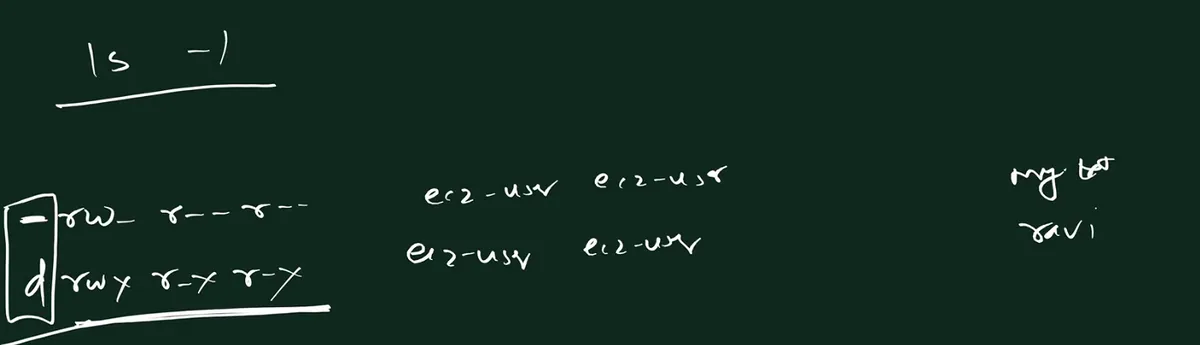
Whiteboard: A simplified ls -l: the first character, boxed, is a dash for the file my.txt and d for the folder ravi, followed by the permissions and the owner and group ec2-user. The real output also shows links, size and time.
Figure 6. ls -l for a file and a folder, every column labelled: type, permissions, SELinux dot, links, owner, group, size, modified time and name. A dash means a file, d means a directory.
To see a folder's own line instead of its contents: ls -ld ravi.
The ls -l output above shows the type, permissions, link count, owner, group, size, date and name. The dates are examples.
17. The command summary
| Job | A file | A folder |
|---|---|---|
| Copy | cp |
cp -r |
| Move or rename | mv |
mv (no -r) |
| Delete | rm |
rmdir (empty only), rm -r (with everything inside) |
Add -i to cp, mv or rm to be asked before anything is overwritten or deleted.
18. Hidden files: a dot at the start of the name
Your home already has files you can't see with ls. Linux keeps its settings in them.
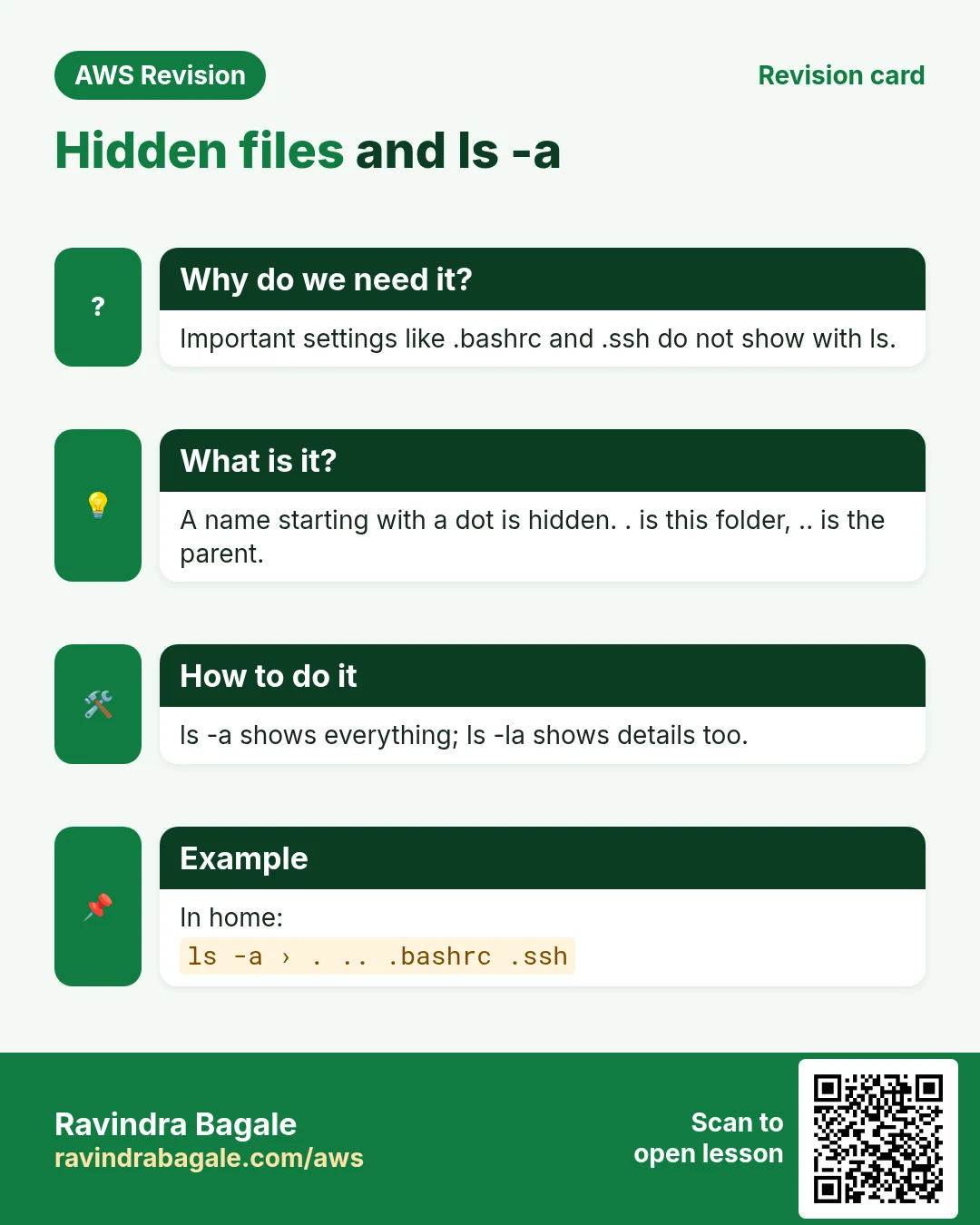
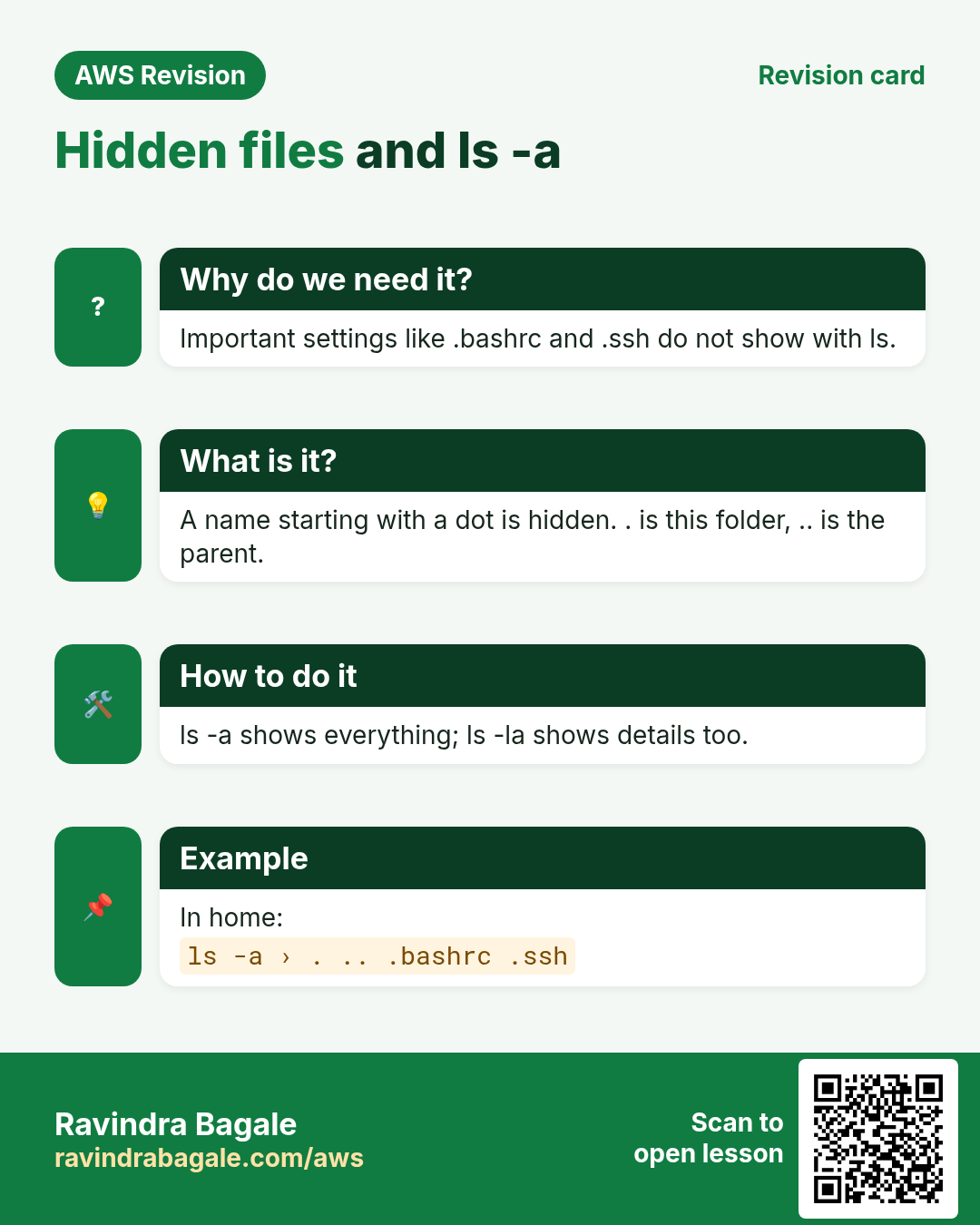
A name that starts with a dot is hidden from a normal ls. That's the whole rule.
How (from your home folder):
touch notes.txt- Hide it:
mv notes.txt .notes.txt ls→ it's not listed.ls -a→ there it is, next to files that were hidden all along.
Your list will look something like this:
ls -a
.  ..  .bash_logout  .bash_profile  .bashrc  .notes.txt  .ssh  projects  raj  ravi
To unhide it, rename it back: mv .notes.txt notes.txt. Folders work the same way: mv ravi .ravi hides, mv .ravi ravi unhides.
ls -A is the same without . and ...
Real examples of hidden files:
.bashrc,.bash_profile: your shell's settings..ssh/: holdsauthorized_keys, the list of public keys allowed to log in as you.- Remember section 2:
ravi/*skips these.ravi/.doesn't.
A dot only hides a name from a plain ls; anyone who types ls -a sees it. It is not security. To protect a file, use permissions (next topic).
19. The entries . and ..
They explain why cd .. and cp file . work at all, and why ls -a always shows two names you never created.
ls -a shows two names in every folder, even a brand-new empty one:
.= this folder itself...= the parent folder, one level up.
They are real entries in the folder's list, pointing to the folder and to its parent. That's why they work everywhere:
cd ..→ up one level.cd .→ stay where you are.cp one/a.txt .→ copy here.mv ravi/2.txt ..→ move one level up.
Figure 8. You are in ravi: . points to ravi itself, .. points to its parent ec2-user. ls -a shows . and .. in every folder, even an empty one.
Think of a chain: every folder knows where it is (.) and where its parent is (..), so you can always walk back up to /.
20. Before you leave: terminate or stop
A running instance keeps using free-tier hours, and a terminated one can't be brought back. Choosing the wrong one costs either money or your work.
Before you leave, decide: stop or terminate.
- Stop = switch off. The disk (EBS) stays; you can start it again later.
- Terminate = delete the server. By default the root EBS volume is deleted too. It can't be undone.
- You don't need to stop before terminating. Terminate shuts it down by itself.
Stop vs terminate, and what each costs, is in What Is Amazon EC2 and How Does It Work.
You don't need to stop an instance before terminating it: terminate shuts the instance down by itself and deletes the root volume by default. Terminate only a server you no longer need; for practice servers you'll use again, stop is enough.
21. Hands-on lab: move, rename and delete safely
mv and rm change things for good: nothing is copied and nothing goes to a Recycle Bin. Practise them on throwaway files first, with the safe options, so you never learn them on real data.
- Set up throwaway files
- Command:
cd && mkdir -p lab/ravi && cd lab && touch a.txt b.txt 1.log 2.log - You should see: Nothing.
- Check:
ls→1.log 2.log a.txt b.txt ravi - Why: A separate
labfolder keeps intended targets away from real files. Confirm the current path and selected names before removing anything.
- Command:
- Move a file into a folder
- Command:
mv a.txt ravi - You should see: Nothing.
- Check:
lsno longer showsa.txt;ls ravi→a.txt. - Why:
mvis cut-paste: unlikecp, the original is gone from the old place.
- Command:
- Rename a file
- Command:
mv b.txt notes.txt - You should see: Nothing.
- Check:
lsshowsnotes.txt, notb.txt. - Why:
notes.txtisn't an existing folder, somvtreats it as the new name. Renaming is just moving within the same folder.
- Command:
- Rename inside a subfolder without going there
- Command:
mv ravi/a.txt ravi/first.txt - You should see: Nothing.
- Check:
ls ravi→first.txt - Why: Both names are paths, so you stay where you are. Fewer
cdcommands, fewer chances to run something in the wrong folder.
- Command:
- Move many files with a wildcard
- Command:
mv *.log ravi - You should see: Nothing.
- Check:
ls ravi→1.log 2.log first.txt - Why: With several sources, the last name must be a folder.
*.logdescribes the pattern instead of listing every log.
- Command:
- Get warned before an overwrite
- Command:
touch old.txt && mv -i notes.txt old.txt - You should see:
mv: overwrite 'old.txt'? - Check: Type
n, Enter.lsstill shows bothnotes.txtandold.txt. - Why: Plain
mvwould have replacedold.txtsilently.-imakes it ask.
- Command:
- Move a whole folder, no -r
- Command:
mkdir box && mv ravi box - You should see: Nothing.
- Check:
ls box/ravi→1.log 2.log first.txt - Why: Moving only changes the path; the data doesn't move on the disk. That is why
mvneeds no-rand is instant even for huge folders.
- Command:
- Delete a file, with a question first
- Command:
rm -i old.txt - You should see:
rm: remove regular empty file 'old.txt'? - Check: Type
y, Enter.lsno longer showsold.txt. - Why:
rmhas no undo.-igives you one last look at the name before it is gone.
- Command:
- Try rmdir on a full folder
- Command:
rmdir box - You should see:
rmdir: failed to remove 'box': Directory not empty - Check:
lsstill showsbox. - Why:
rmdirdeletes only empty folders. That refusal is the safety net: it can never take files with it.
- Command:
- Delete the folder and everything in it
- Command:
rm -ri box - You should see:
rm: descend into directory 'box'?and one question per item. - Check: Answer
yto each.lsno longer showsbox. - Why:
-rgoes all the way down. Adding-iwhile you learn shows exactly whatrm -ris about to delete.
- Command:
- Tell file from folder with ls -l
- Command:
touch report && mkdir photos.txt && ls -l - You should see:
photos.txtline starts withd;reportline starts with-. - Check: So
photos.txtis a folder andreportis a file, whatever the names suggest. - Why: Before
rmorrmdir, know what you have. The first character ofls -ldecides; names and extensions don't.
- Command:
- Hide and show a file
- Command:
mv notes.txt .notes.txt && ls && ls -a - You should see:
ls→photos.txt report.ls -a→. .. .notes.txt photos.txt report. - Check:
.notes.txtappears only with-a, along with.and... - Why: A leading dot hides a name from plain
ls; that's how Linux keeps settings files out of the way. It isn't security: anyone withls -asees it.
- Command:
- Clean up and stop
- Command:
cd && rm -r lab - You should see: Nothing.
- Check:
lsno longer showslab. In the EC2 console, choose Stop instance (not Terminate). - Why: Stop keeps the disk for the next chapter; Terminate deletes the server and, by default, its root volume.
- Command:
- Copy several sources into one folder
- Command:
cd && mkdir -p lab2 && cd lab2 && touch my.txt bot.txt && mkdir ravi && cp my.txt bot.txt ravi && ls ravi - You should see:
bot.txt my.txtinsideravi. Both originals stay inlab2. - Check:
cpaccepts many sources and one destination folder as the last argument. - Why: Class showed multi-source copy so you can gather files in one place without repeating
cp.
- Command:
- A folder name can contain a dot
- Command:
mkdir notes.txt && touch real.txt && ls -l - You should see: a line starting with
dfornotes.txt(directory) and-forreal.txt(file). - Check: Extension does not decide type —
mkdirmakes a folder even if the name ends in.txt. - Why: Students trust colours and extensions;
ls -lfirst character is the truth.
- Command:
- Hide, prove with ls -a, then unhide
- Command:
touch secret.txt && mv secret.txt .secret.txt && ls && ls -a && mv .secret.txt secret.txt && ls - You should see: plain
lshides.secret.txt;ls -ashows.secret.txtplus.and..; after the secondmv, plainlsshowssecret.txtagain. - Check: Leading dot only hides from default
ls— it is not security. - Why: Real configs (
.bashrc,.ssh) use this pattern; permissions protect secrets.
- Command:
22. Try at home
Try at home
Task 1: contents only
- Make
srcwitha.txt,b.txtand a hidden.env. Make an emptydst. - Copy only the contents of
srcintodstwithsrc/*. Check withls -A dst. Is.envthere? - Empty
dst(rm -r dst/*) and do it again withsrc/..
Task 2: mv
touch my.txt, then rename it toour.txt.- Move
our.txtintosrcand rename it tofinal.txtin one command. - Rename
src/final.txttosrc/done.txtwithout leaving home. mkdir boxand move the wholesrcfolder intobox. Did you need-r?
Task 3: delete
- Try
rmdir box. Read the error. - Try
rm box. Read the error. - Delete it with
rm -ri box; answeryto everything.
Task 4: look closely
touch reportandmkdir photos.txt. Runls -landls -F. Which is the folder?- Hide
reportwith a dot, find it withls -a, then unhide it. - Redo the practice task (section 13) with your own folder names, from home, in as few commands as you can.
When you finish, stop the instance from the console, or terminate it if you won't use it again.
Common errors and fixes
| Error / symptom | Fix |
|---|---|
rmdir: Directory not empty | Empty it first, or use rm -r if you really want everything gone. |
mv: … are the same file | Source and destination paths resolve to the same name — pick a new name. |
Silent overwrite with mv | Use mv -i so it asks first. |
| Deleted the wrong folder | Linux has no Recycle Bin by default — restore from backup. Next time rm -i and double-check pwd. |
Thought .secret was private | Hide ≠ secure. Use permissions (chmod) and never put secrets in world-readable files. |
FAQ
Q. Why no -r on mv for folders?
On the same disk, mv mostly changes the directory entry (the path). It does not rewrite every file like cp -r.
Q. mv vs cp?
cp keeps the original. mv does not (after a successful move).
Q. Is rm -r on one file dangerous?
On a single file it usually works, but habitually typing -r is risky — one wrong name deletes a whole tree.
Q. Stop vs Terminate after practice?
Stop keeps the disk (you pay for EBS). Terminate usually deletes the root volume — use only when you are done forever.
Recap
In short
- The prompt shows your current folder:
[ec2-user@ip-... ravi]$.~means home. - Contents only:
cp -r ravi/* raj. With hidden files:cp -r ravi/. raj. mv SOURCE DESTINATION= cut-paste. Existing folder → moves inside; new name → rename.mv my.txt ravi/you.txtmoves and renames in one step;mv ravi/1.txt ravi/2.txtrenames without leaving home.mvneeds no-r: on the same disk it only changes the name entry; across disks it copies, then deletes.mvoverwrites silently;mv -iasks. Wildcards work:mv *.txt ravi.rmfiles,rmdirempty folders,rm -rfolders with everything. No recycle bin.rm -ron a file is a safety risk, not a speed problem. Userm -i/rm -riwhen unsure.- Work from home with relative paths, braces and Tab.
- Names and colours don't tell file from folder;
ls -l(first character-ord) andls -Fdo. - Hidden = name starts with a dot.
ls -ashows them. Hidden is not secret. - Every folder has
.(itself) and..(its parent). - Terminate needs no stop first, and it deletes the root volume by default.
Samjla ka? Ghari practice task parat kara, ani rm vaparnyaadhi don vela vichar kara.
Ravindra Bagale, trainer: linkedin.com/in/ravindra-bagale. The folder and file names (ravi, raj, projects, notes.txt, report.txt and the rest) are examples for learning. Command outputs and error messages were checked with GNU bash and coreutils, the same tools Amazon Linux 2023 uses; the hostname in the prompt and the dates in ls -l are illustrative.
Worked example: rename a file before you remove it
In a shop, a box goes to the returns shelf before anyone throws it away. Use the same two-stage method for a file you are unsure about. Try this only on the two disposable files below.
mkdir -p "$HOME/move-practice/hold"
cd "$HOME/move-practice"
printf '%s
' draft > report-draft.txt
printf '%s
' final > report-final.txt
mv -i -- report-draft.txt hold/
ls -la hold
cat report-final.txt
The live file is still readable and the draft is recoverable with mv -i -- hold/report-draft.txt .. Once you know the draft is unwanted, use rm -i -- hold/report-draft.txt and confirm the exact file. The -- tells the tool that later arguments are names, helpful if a name starts with a dash.
Interview question: is mv always an instantaneous rename?
Within the same file system it normally renames the directory entry. Across file systems, it can copy the data and then remove the source. For a large move, know where both paths live and verify the destination before assuming the source is safely gone.
Practise this chapter
Interview questions and answers
You want to remove an empty temporary folder. Why start with rmdir?
rmdir refuses to remove a nonempty directory. If it reports that the folder is not empty, list hidden names with ls -A and understand what is inside. Use rm -i on a known throwaway file before repeating rmdir.
Why does a move between two filesystems need different checks than a rename?
The destination filesystem needs space for a copy before the original can be removed. For important data, copy it separately and verify the destination before deleting the source so you can investigate a failure without losing both names.
Check your understanding
Choose an answer, then compare your reasoning with the explanation.
Practice Tasks
Practice checks run in your browser. They check the answer for this exercise; they do not create resources or connect to your AWS account.
About this scenarioThane Housing Society is a real estate business in Thane. Mahesh Patwardhan looks after its IT and cloud work. They count money in INR and run their AWS resources in the ap-south-1 Region. In the tasks below you do real jobs for them using what this lesson teaches. All names, account IDs, IP addresses and numbers are made up for practice.
0 / 12
Easy Rename a file
In Linux, renaming is the same as moving a file to a new name.
Rename the file report.txt to report-thane.txt.
- Find the Linux command that does this job.
- Add the options (like -r or -h) the task needs.
- Add the file names, folders or users in the right order.
- Use sudo if the job changes system files or users. Click Check answer.
Easy Read a config file
Reading a file on the screen is the quickest way to check its settings.
Print the whole file /etc/thanehousing/app.conf on the screen.
- Find the Linux command that does this job.
- Add the options (like -r or -h) the task needs.
- Add the file names, folders or users in the right order.
- Use sudo if the job changes system files or users. Click Check answer.
Easy List all files with details
Hidden files (like .env) and file sizes or owners only show with the right options.
Show a long listing of every file, including hidden ones, in /var/www/thanehousing.
- Find the Linux command that does this job.
- Add the options (like -r or -h) the task needs.
- Add the file names, folders or users in the right order.
- Use sudo if the job changes system files or users. Click Check answer.
Easy Create an empty file
Some apps need a file to exist before they can write to it.
Create an empty file named orders-inr.csv in the current folder.
- Find the Linux command that does this job.
- Add the options (like -r or -h) the task needs.
- Add the file names, folders or users in the right order.
- Use sudo if the job changes system files or users. Click Check answer.
Easy Move a file into a folder
Keeping files in the right folder keeps the server tidy.
Move backup.sql into the folder /backup/thanehousing/.
- Find the Linux command that does this job.
- Add the options (like -r or -h) the task needs.
- Add the file names, folders or users in the right order.
- Use sudo if the job changes system files or users. Click Check answer.
Easy Remove an empty folder
rmdir is the safe way: it only removes a folder when it is empty.
Remove the empty folder tmp-thanehousing.
- Find the Linux command that does this job.
- Add the options (like -r or -h) the task needs.
- Add the file names, folders or users in the right order.
- Use sudo if the job changes system files or users. Click Check answer.
Easy Copy a folder with everything inside
A plain copy skips folders. You need the recursive option to copy a whole tree.
Copy the folder site to a new folder named site-backup (both in the current folder).
- Find the Linux command that does this job.
- Add the options (like -r or -h) the task needs.
- Add the file names, folders or users in the right order.
- Use sudo if the job changes system files or users. Click Check answer.
Easy List Availability Zones
Spreading servers across AZs keeps you up if one data centre fails.
List the Availability Zones in ap-south-1.
- Read the task and decide which AWS service it is about.
- Write aws, then the service name, then the operation (the action word).
- Add each needed flag (--name) followed by its value from the task.
- Flags can be in any order. Click Check answer.
Easy List your EC2 instances
Before changing anything, see what is running and in which state.
Show details of all EC2 instances of Thane Housing Society in ap-south-1.
- Read the task and decide which AWS service it is about.
- Write aws, then the service name, then the operation (the action word).
- Add each needed flag (--name) followed by its value from the task.
- Flags can be in any order. Click Check answer.
Medium Delete an old folder
Old build folders waste disk. rm needs the recursive option for folders, and force skips the questions.
Delete the folder old-build and everything inside it without being asked to confirm each file.
- Find the Linux command that does this job.
- Add the options (like -r or -h) the task needs.
- Add the file names, folders or users in the right order.
- Use sudo if the job changes system files or users. Click Check answer.
Medium Permission number
Key files must be private.
What chmod number gives the owner read+write and nobody else anything?
- Write down the numbers the task gives you.
- Work it out step by step on paper.
- Type only the final answer in the box.
- Click Check answer.
Hard Enable an nginx site on Ubuntu
On Ubuntu, a site is enabled by a symbolic link from sites-available to sites-enabled.
Create a symbolic link to /etc/nginx/sites-available/thanehousing inside /etc/nginx/sites-enabled/.
- Find the Linux command that does this job.
- Add the options (like -r or -h) the task needs.
- Add the file names, folders or users in the right order.
- Use sudo if the job changes system files or users. Click Check answer.
Quick revision cards
Revise this lesson in two minutes. Save the cards on your phone or download them as PNG files. The QR code on each card opens its lesson.
More cards: Ravi Sir's Cards.