Linux Commands A-Z Part 7: strace, sudo, systemctl, tail, tar, tmux, top, uname and More with Examples
This is Part 7 of the Linux Commands A-Z reference: strace to uname. These are the commands you use to trace a failing program, switch users and run admin commands safely, add swap, tune the kernel, manage services, read live logs, make backups, save output while you watch it, write conditions in scripts, measure time, set the clock, keep sessions alive, watch CPU and memory, clean text, trace network paths, see folder trees, empty huge logs, find what a command name really is, raise limits, set default permissions, unmount disks and identify the kernel. Every command has why, what, an options table and step-by-step examples with real output and its meaning.
In this chapter
- Debug failing programs with strace and see live load with top
- Use su and sudo safely and know who you are
- Add swap with swapon and tune the kernel with sysctl and ulimit
- Manage services with systemctl and read logs with tail
- Make backups with tar and keep logs with tee
- Write safer scripts with test, time, tr and type
- Keep long jobs alive with tmux and trace networks with traceroute
- Handle files and disks with tree, truncate, umask, umount, uname and timedatectl
1. An everyday example: a Pune wedding caterer
The head caterer watches each cook to see where the delay is, hands the store-room key to a helper for one task only, brings extra tables when the hall is full, adjusts the gas flame, starts and stops each counter, reads the latest orders from the bottom of the list, packs leftovers in boxes, keeps a copy of every order slip, checks that each dish is ready before serving, times the biryani, sets the hall clock right, and keeps the menu board in place even if he steps out.
Watching cooks is strace and top. The store key is sudo. Extra tables are swap. The gas flame is sysctl. Counters are systemctl. Latest orders are tail. Boxes are tar. The slip copy is tee. Checking dishes is test. Timing is time. The clock is timedatectl. The menu board that stays is tmux.
2. A five-minute service health check using Part 7 commands
Before the deep dives, see how these commands work together when a service misbehaves.
Load, then service state, then logs, then system calls.
| Question | Command |
|---|---|
| Is the box busy? | top -b -n 1 | head -5 |
| Is the service up? | systemctl status app |
| What do the logs say? | tail -n 50 /var/log/app.log |
| What file is it stuck on? | strace -p PID |
| Enough open files? | ulimit -n |
- Run the check.
systemctl is-active billing; tail -n 1 /var/log/billing/app.logOutput:
failed
FATAL cannot open /etc/billing/app.yml: Permission denied
The service died on a config permission.
- Confirm and fix.
sudo -u billing test -r /etc/billing/app.yml || sudo chmod 640 /etc/billing/app.yml; sudo systemctl restart billing; systemctl is-active billingOutput:
activeReadable now, service back.
3. strace: Trace system calls
A system call is a request a program makes to the operating system, such as asking to open a file. Trace a harmless command that reads one missing lab file, then try again after creating it. Find the line with the name and compare the result. ENOENT means the path or part of it was absent. A successful open returns a descriptor the program can use to read. Try the small example before tracing an unfamiliar service.
strace in depth: see what a program asks the kernel
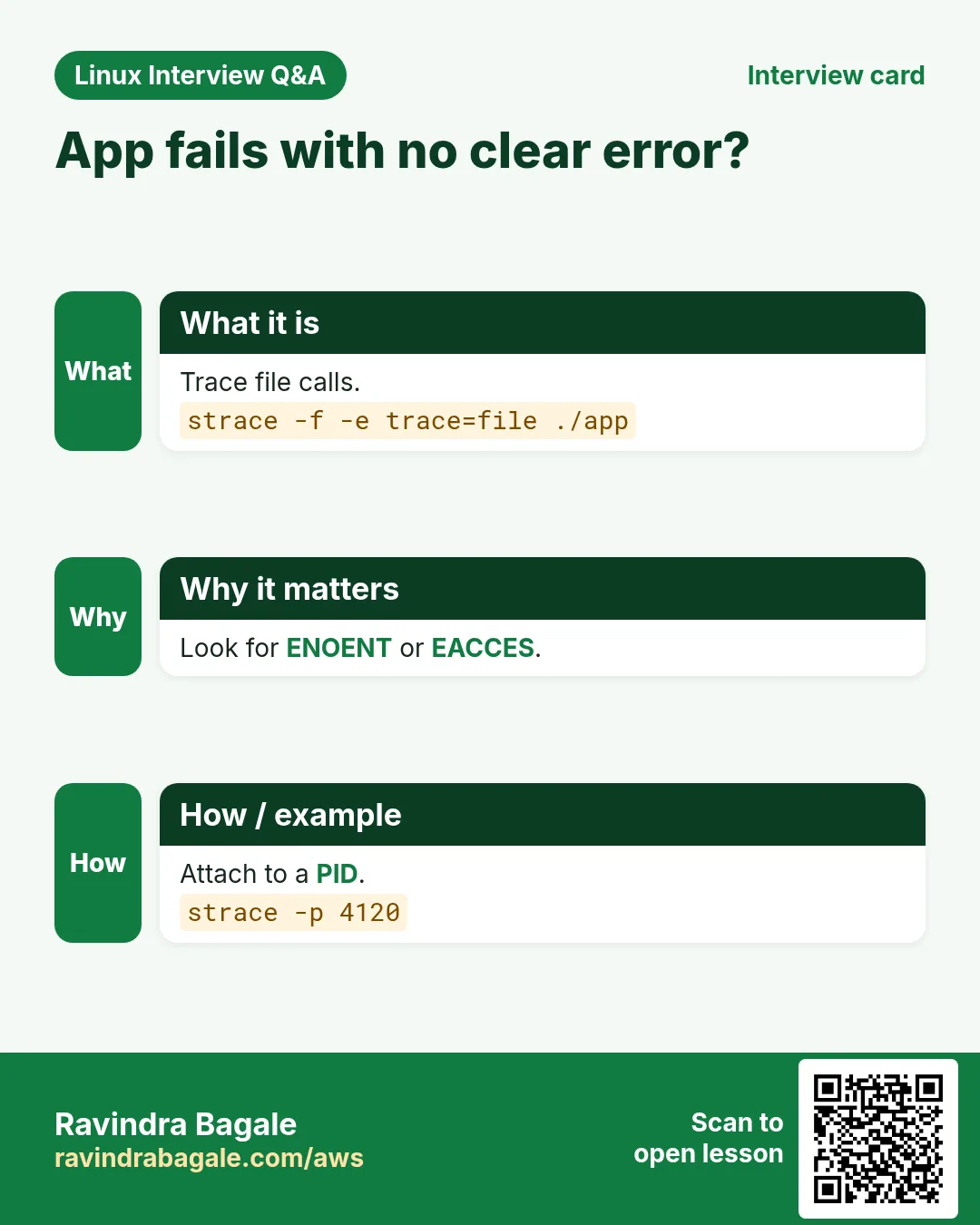
An app fails with no useful log line. It cannot find a file, a permission is wrong, or it hangs on the network. strace shows every system call, so you see the exact file or socket that failed.
strace runs a command (or attaches to a PID with -p) and prints each system call with its arguments and result. -f follows child processes, -e trace= filters calls, -o writes to a file, -c gives a summary table, -T shows time spent in each call.
Common options
| Option | What it does |
|---|---|
strace cmd | Trace a new command. |
-p PID | Attach to a running process. |
-f | Follow forks. |
-e trace=openat | Only file opens. |
-c | Summary of calls. |
-o file | Save output. |
- Why does the app not start?
strace -e trace=openat ./billing 2>&1 | grep ENOENTOutput:
openat(AT_FDCWD, "/etc/billing/app.yml", O_RDONLY) = -1 ENOENT (No such file or directory)The config file is missing at that path.
- Attach to a stuck process.
sudo strace -p 4120Output:
connect(5, {sa_family=AF_INET, sin_port=htons(5432), sin_addr=inet_addr("10.0.2.9")}, 16It waits on a database connection to 10.0.2.9:5432.
- Where is time spent?
strace -c -f ./report.shOutput:
% time     seconds  usecs/call     calls    errors syscall
 71.20    0.412000        103      4000           read
 18.10    0.105000         52      2010           write
Mostly reading: many small reads.
- Save for later.
strace -f -o /tmp/app.trace ./app; grep -c EACCES /tmp/app.traceOutput:
3Three permission denials to check.
Practise this in the tasks below: Practice tasks
Real use: A Hinjewadi payments team found a missing CA bundle path with strace -e trace=openat in two minutes.
4. su: Switch user
su in depth: switch user
You need to run something as the app user or as root, for example to test file access the way the service sees it.
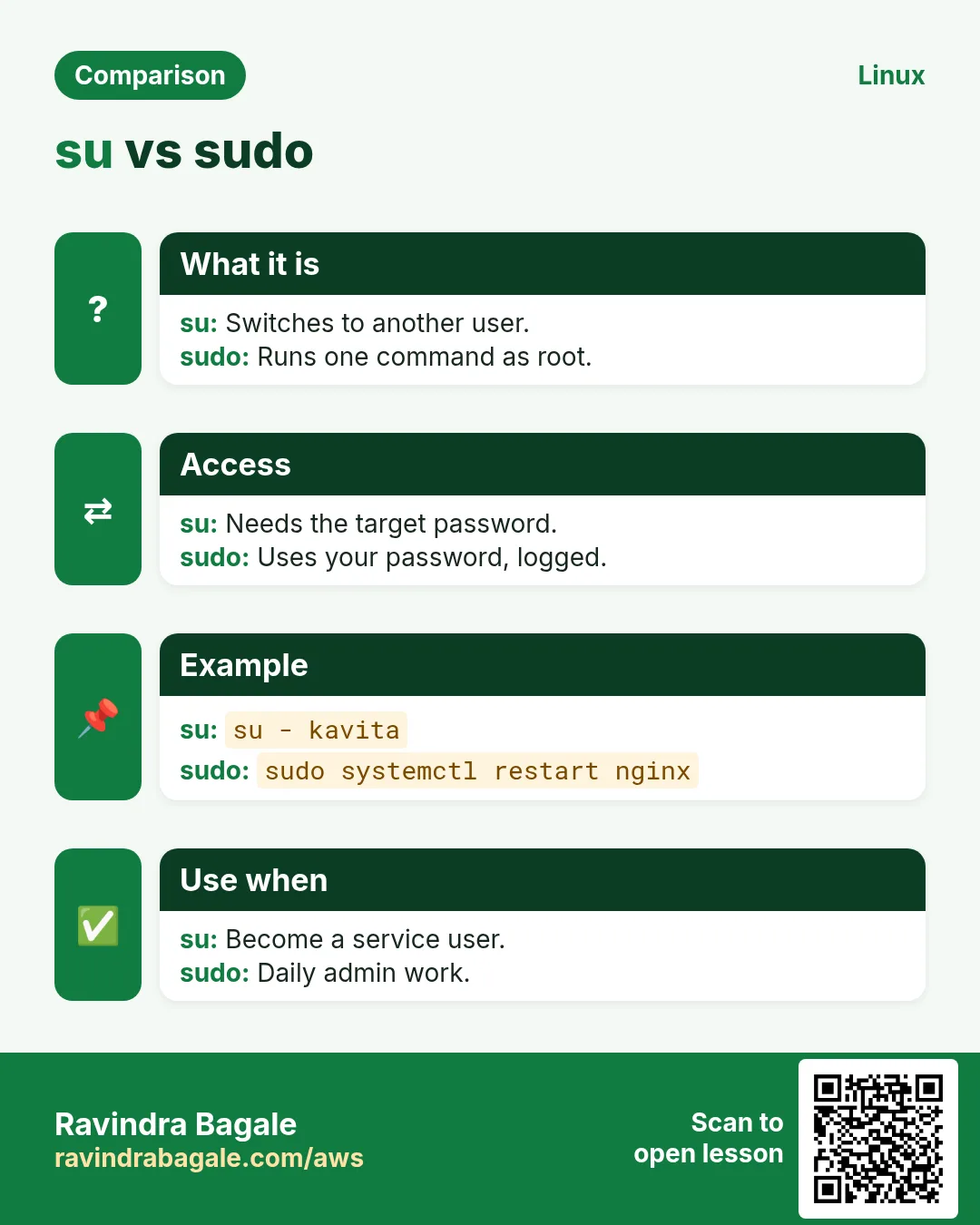
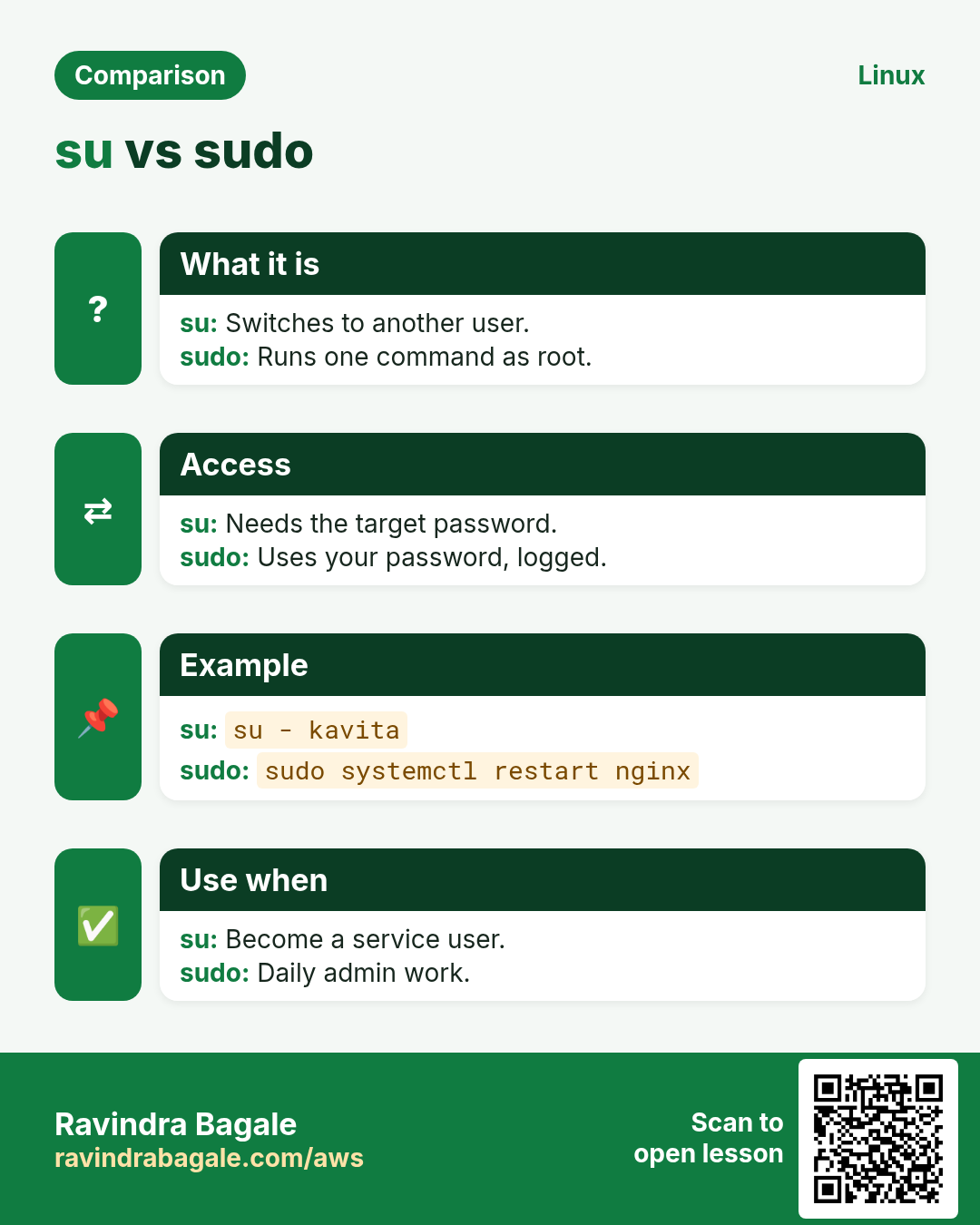
su starts a shell as another user. su - gives a full login environment (home, PATH). su -c runs one command. -s picks a shell, useful for system users with nologin. It asks for the target user password; sudo asks for yours.
Common options
| Option | What it does |
|---|---|
su - user | Login as user. |
su - | Become root. |
su -c "cmd" user | One command. |
-s /bin/bash | Choose shell. |
exit | Return. |
- Become the app user.
sudo su - appsvc -s /bin/bashOutput:
[appsvc@web01 ~]$A full login shell as appsvc.
- Test access as that user.
sudo su -s /bin/bash -c "cat /srv/app/.env" appsvcOutput:
cat: /srv/app/.env: Permission deniedThe service cannot read its own env file.
- Check who you are.
whoamiOutput:
appsvcYou are the app user now.
- Go back.
exitOutput:
logoutBack to your own shell.
Practise this in the tasks below: Practice tasks
Real use: A Kothrud school IT admin uses su - teacher to reproduce what a teacher sees on the lab Linux PCs.
5. sudo: Run a command as another user
sudo in depth: run as root safely
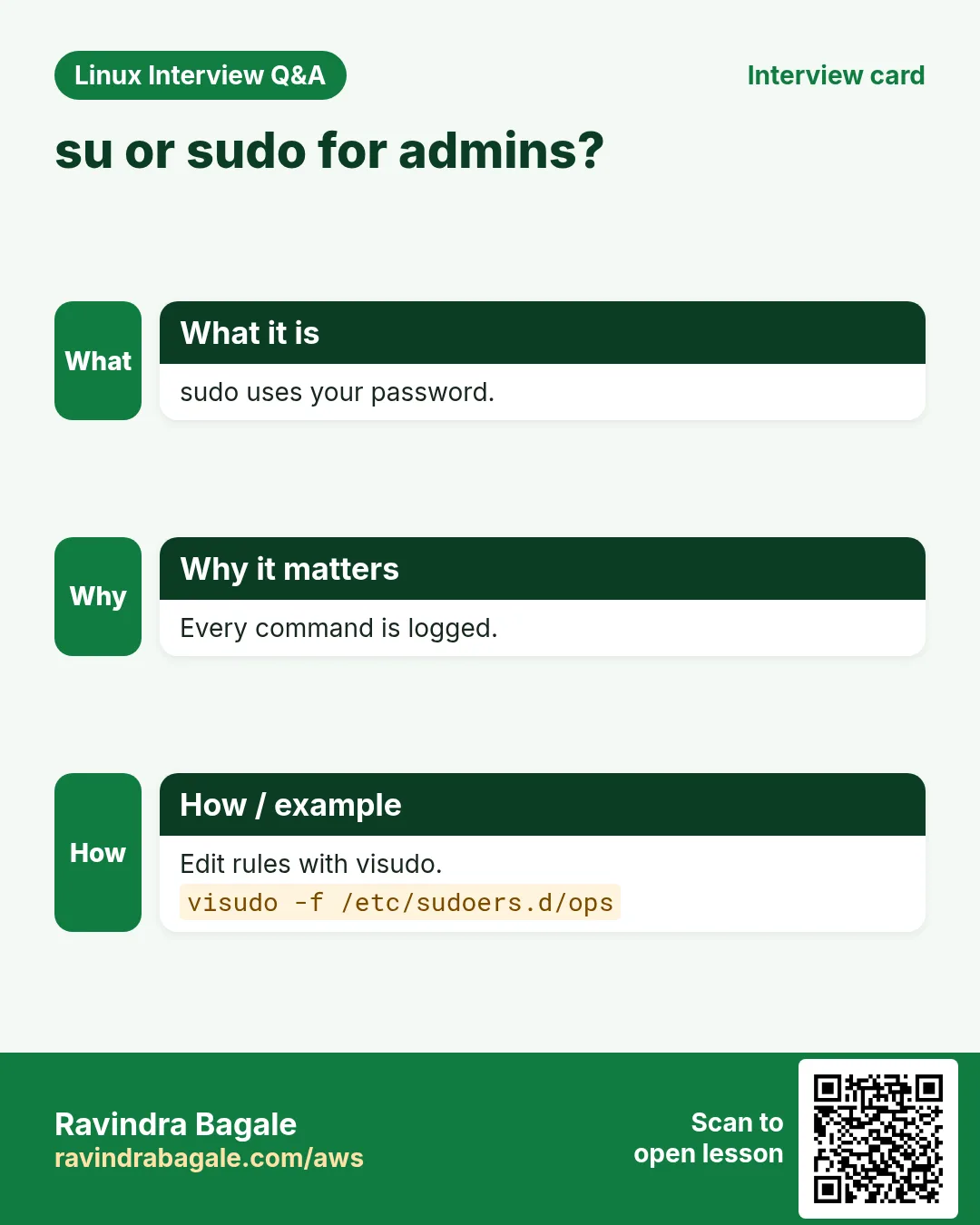
Nobody should log in as root every day. sudo gives just enough power for one command and logs who did what.
sudo runs a command as root (or -u user) after asking for your own password. Rules live in /etc/sudoers and /etc/sudoers.d, edited only with visudo. sudo -l lists what you may run, -i opens a root login shell, -k forgets the cached password.
Common options
| Option | What it does |
|---|---|
sudo cmd | As root. |
-u user cmd | As another user. |
-l | What can I run? |
-i | Root login shell. |
-k | Forget cached password. |
visudo -f | Edit a rules file safely. |
- Run one admin command.
sudo systemctl restart nginxRestarted, and logged in the secure log.
- What am I allowed?
sudo -lOutput:
User ravi may run the following commands on web01:
    (root) /usr/bin/systemctl restart nginx
Only one command is allowed.
- Run as the app user.
sudo -u appsvc touch /srv/app/tmp/testCreates the file with the right owner.
- Give a team limited rights.
sudo visudo -f /etc/sudoers.d/opsOutput:
%ops ALL=(root) /usr/bin/systemctl restart appOps group may restart only the app.
Practise this in the tasks below: Practice tasks
Real use: A Baner bank audit checks /var/log/secure for every sudo command run on production.
6. swapon: Enable and show swap
swapon in depth: add and check swap
A small cloud server with 1 GB RAM gets killed by the OOM killer during a build. A swap file gives breathing room.
swapon enables a swap file or partition; swapoff disables it. --show lists active swap. A swap file is made with fallocate or dd, chmod 600, then mkswap. Add it to /etc/fstab to keep it after reboot. vm.swappiness (sysctl) controls how eagerly Linux swaps.
Common options
| Option | What it does |
|---|---|
--show | List swap. |
swapon /swapfile | Enable. |
swapoff /swapfile | Disable. |
-a | Enable all in fstab. |
mkswap file | Prepare a swap file. |
- Check current swap.
swapon --showEmpty: no swap at all.
- Make a 2 GB swap file.
sudo fallocate -l 2G /swapfile && sudo chmod 600 /swapfile && sudo mkswap /swapfileOutput:
Setting up swapspace version 1, size = 2 GiBReady to enable.
- Enable and check.
sudo swapon /swapfile; swapon --showOutput:
NAME      TYPE SIZE USED PRIO
/swapfile file   2G   0B   -2
2 GB swap active.
- Keep after reboot.
echo "/swapfile none swap sw 0 0" | sudo tee -a /etc/fstabOutput:
/swapfile none swap sw 0 0Survives reboot.
Practise this in the tasks below: Practice tasks
Real use: A Wakad startup added a 2 GB swap file to its t3.micro CI runner and the nightly build stopped crashing.
7. sysctl: Read and set kernel settings
sysctl in depth: tune the kernel
A busy web server runs out of connection slots, or you must enable IP forwarding for a NAT box. These are kernel settings, changed with sysctl.
sysctl reads and writes kernel parameters under /proc/sys. sysctl name reads, -w name=value changes until reboot, a file in /etc/sysctl.d makes it permanent, and sysctl --system reloads all files. -a lists everything.
Common options
| Option | What it does |
|---|---|
sysctl name | Read. |
-w name=value | Set now. |
-a | List all. |
--system | Reload all files. |
-p file | Load one file. |
- Read a value.
sysctl net.ipv4.ip_forwardOutput:
net.ipv4.ip_forward = 0Forwarding is off.
- Turn it on now.
sudo sysctl -w net.ipv4.ip_forward=1Output:
net.ipv4.ip_forward = 1Works until reboot.
- Make it permanent.
echo "net.ipv4.ip_forward = 1" | sudo tee /etc/sysctl.d/90-nat.conf; sudo sysctl --system | tail -1Output:
net.ipv4.ip_forward = 1Loaded from the file.
- Lower swappiness.
sudo sysctl -w vm.swappiness=10Output:
vm.swappiness = 10The database server keeps more in RAM.
Practise this in the tasks below: Practice tasks
Real use: A Magarpatta gaming company raises net.core.somaxconn on its match servers before every tournament.
8. systemctl: Manage services
Follow the service change at each step. Edit the test unit, reload the manager after changing a unit file, then restart the service when its process must use the new configuration. Check the main PID and the application’s expected result. A saved file and a running process can represent different versions. Read both to explain which step is still needed.
systemctl in depth: manage services
Nginx, the database, your own app: on modern Linux every service is a systemd unit. Start, stop, enable at boot and see why it failed, all with systemctl.
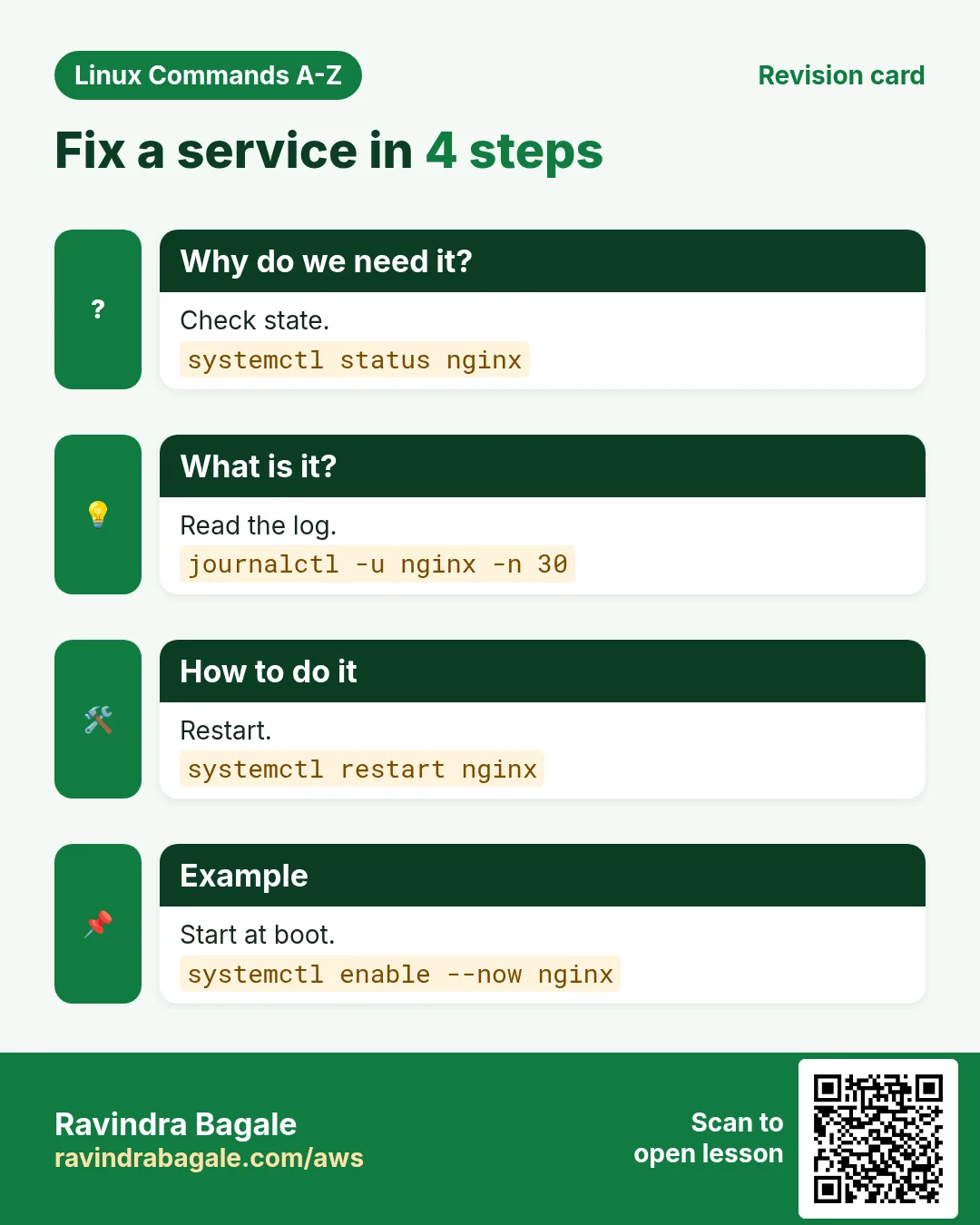
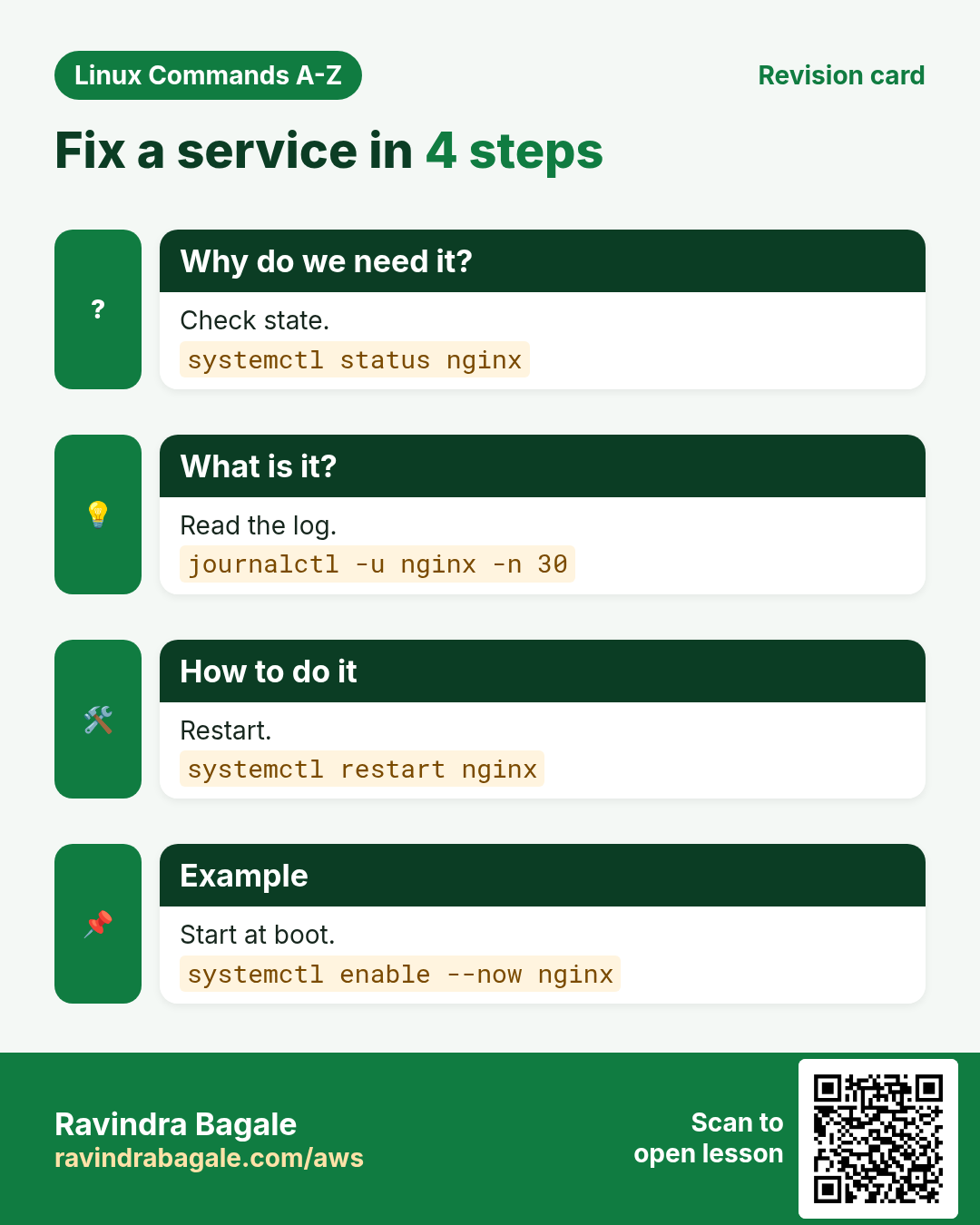
systemctl start, stop, restart and reload control a unit now; enable and disable control boot; status shows state plus the last log lines; is-active and is-enabled suit scripts; daemon-reload reads changed unit files; list-units --failed shows broken ones; edit creates an override.
Common options
| Option | What it does |
|---|---|
status unit | State and logs. |
start/stop/restart | Control now. |
enable --now | Boot and start. |
is-active | For scripts. |
daemon-reload | Reload unit files. |
--failed | Broken units. |
- Check a service.
systemctl status nginxOutput:
● nginx.service - The nginx HTTP and reverse proxy server
     Active: active (running) since Tue 2026-10-27 09:12:03 IST
Running since this morning.
- Find failures.
systemctl --failedOutput:
  UNIT          LOAD   ACTIVE SUB    DESCRIPTION
● billing.service loaded failed failed Billing API
The billing API is down.
- Fix and start at boot.
sudo systemctl daemon-reload; sudo systemctl enable --now billingOutput:
Created symlink /etc/systemd/system/multi-user.target.wants/billing.serviceRunning now and after reboot.
- Script check.
systemctl is-active billingOutput:
activeOne word, exit code 0.
Practise this in the tasks below: Practice tasks
Real use: A Hadapsar e-commerce warehouse runs its label printer service as a systemd unit with Restart=always.
9. tail: Show the last lines or follow a log
tail in depth: end of files and live logs
When a deploy goes wrong you want the newest log lines, and you want to watch them arrive while you test.
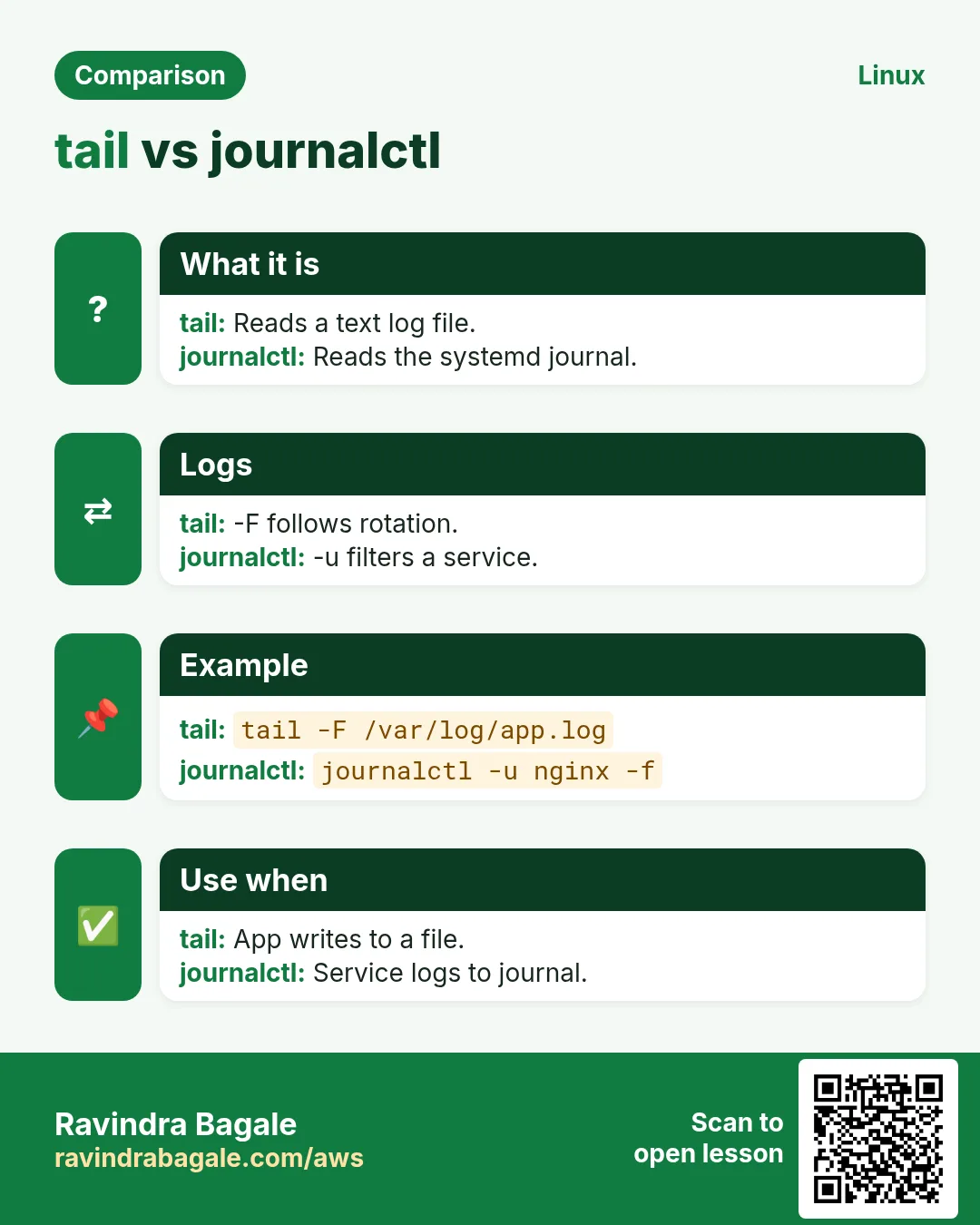
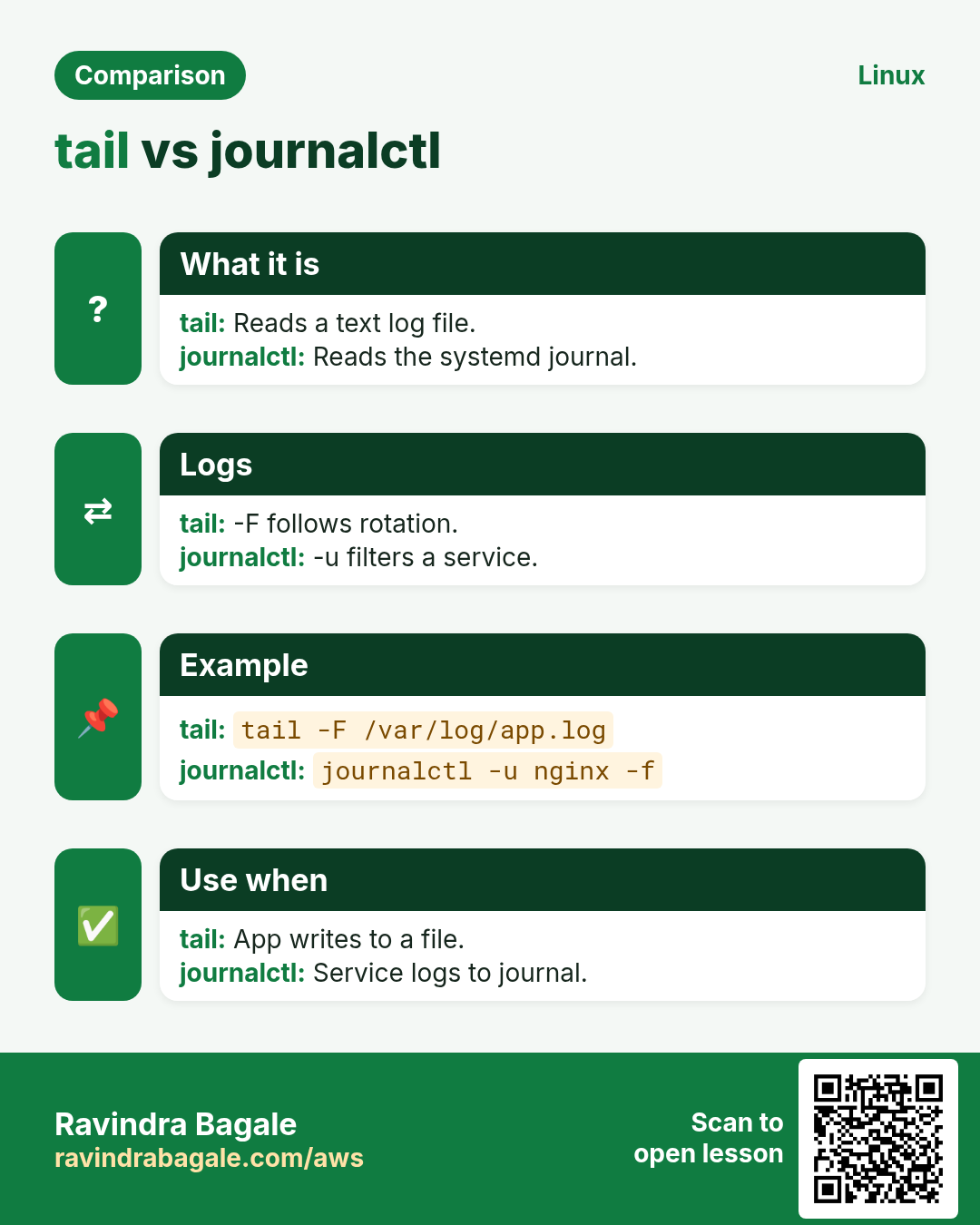
tail prints the last 10 lines. -n N sets the count, -n +N starts from line N, -f follows new lines, -F follows even after log rotation, -c counts bytes. Pipe into grep to filter a live stream.
Common options
| Option | What it does |
|---|---|
-n 50 | Last 50 lines. |
-n +2 | From line 2 (skip header). |
-f | Follow. |
-F | Follow across rotation. |
-c 200 | Last 200 bytes. |
- Newest lines.
tail -n 3 /var/log/nginx/error.logOutput:
2026/10/27 10:02:11 [error] connect() failed (111: Connection refused) while connecting to upstreamUpstream app is down.
- Watch live.
tail -F /var/log/app/app.log | grep --line-buffered ERROROutput:
ERROR order 5512 payment timeoutOnly errors, as they happen.
- Skip a CSV header.
tail -n +2 sales.csv | head -2Output:
2026-10-01,Pune,4200
2026-10-01,Nashik,3100
Data rows only.
- Two files at once.
tail -n 1 app1.log app2.logOutput:
==> app1.log <==
started
==> app2.log <==
started
Headers show each file.
Practise this in the tasks below: Practice tasks
Real use: A Shivajinagar hospital help desk keeps tail -F on the PACS log during every scanner upgrade.
10. tar: Pack files into an archive
tar in depth: archives and backups
Back up a website folder, ship a release, move configs between servers: tar packs many files into one, keeping permissions.
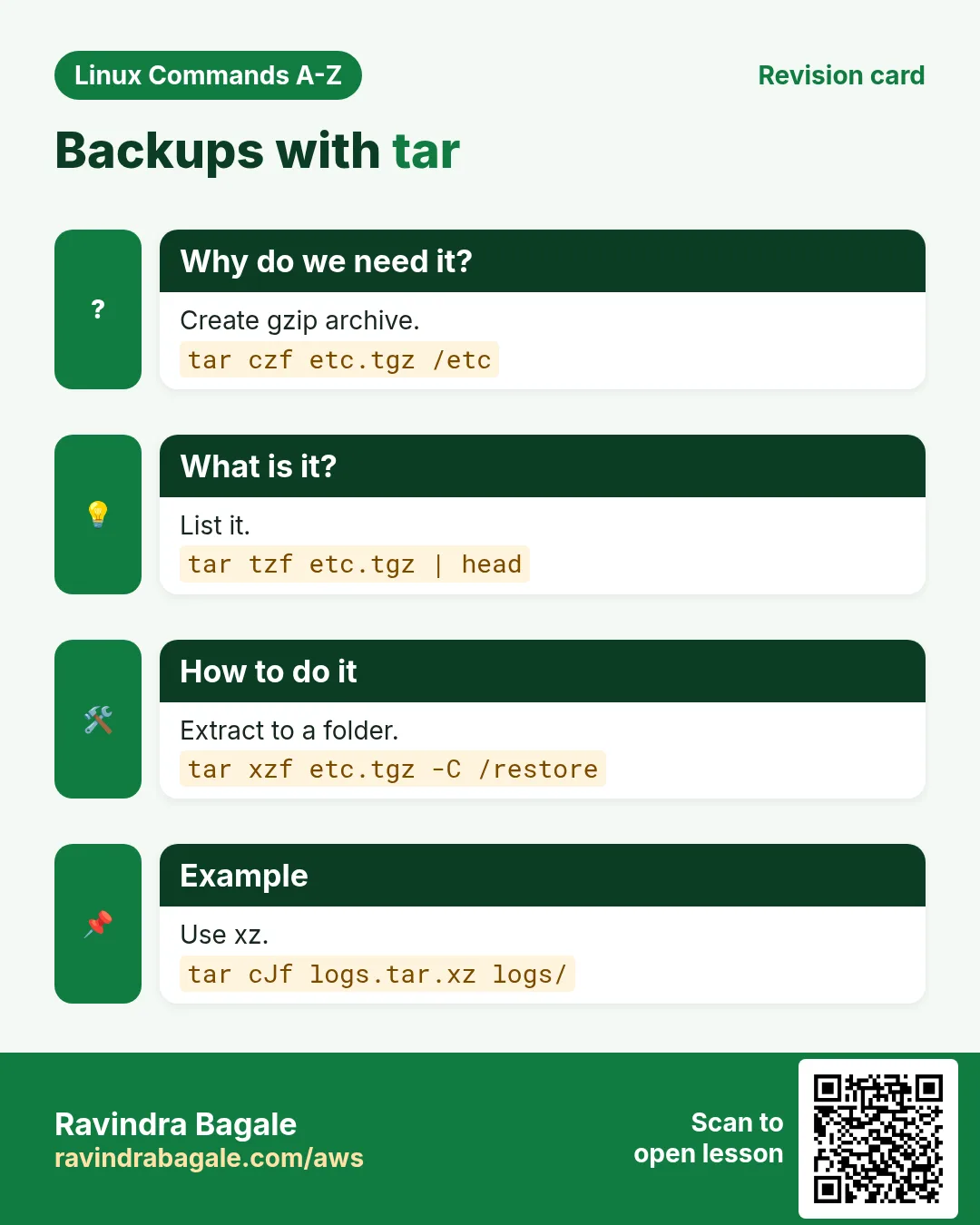
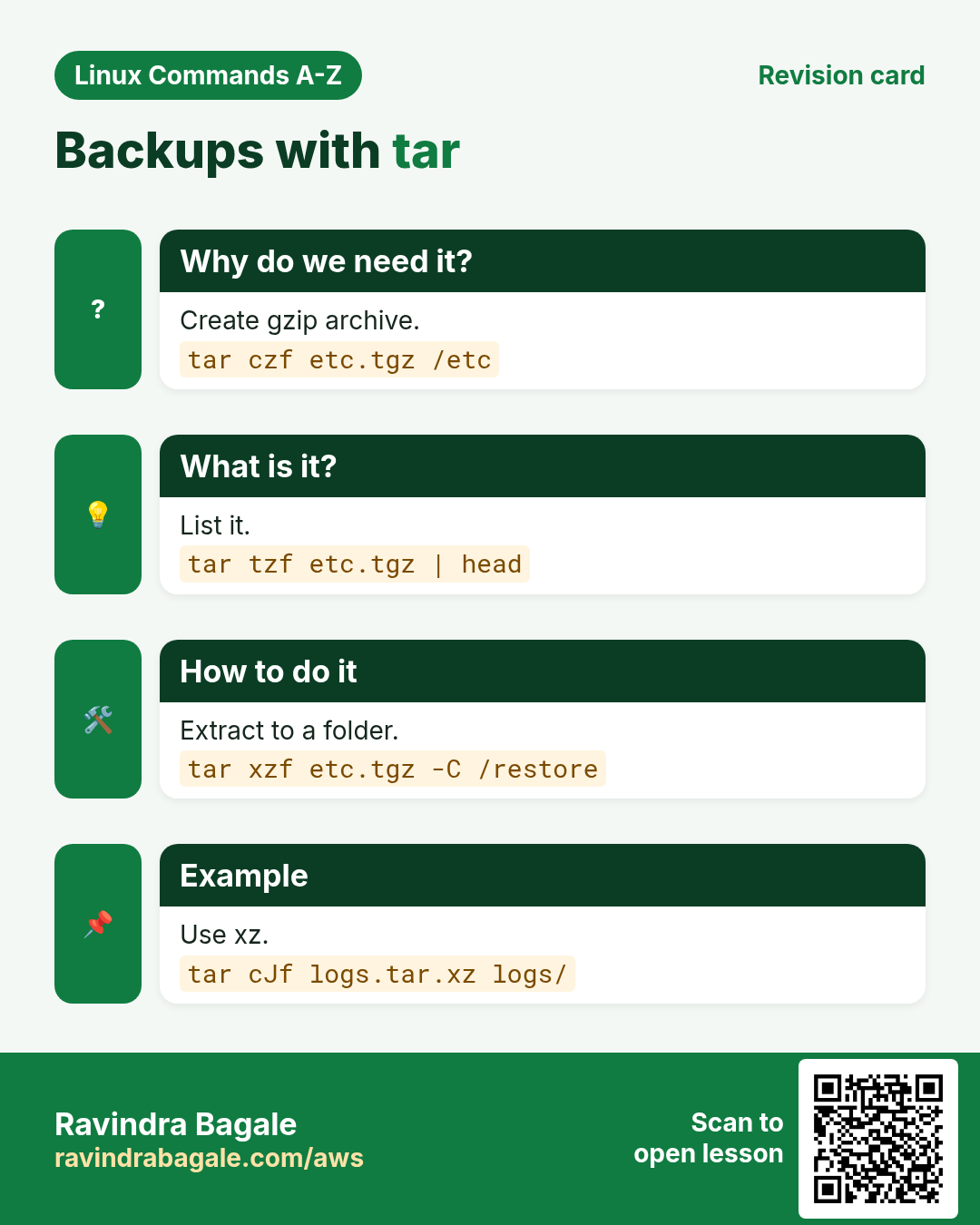
tar c creates, x extracts, t lists; f names the archive; z gzip, j bzip2, J xz compress; v verbose; -C changes folder; --exclude skips paths; -p keeps permissions on extract. Full compression comparison is in the compression chapter.
Common options
| Option | What it does |
|---|---|
czf a.tgz dir | Create gzip archive. |
tzf a.tgz | List. |
xzf a.tgz -C dir | Extract into dir. |
cJf a.txz | xz archive. |
--exclude=PAT | Skip. |
-p | Keep permissions. |
- Back up a site.
tar czf site-2026-10-27.tgz --exclude="*.log" /var/www/shopOutput:
tar: Removing leading `/' from member namesNormal: paths are stored relative.
- Look inside.
tar tzf site-2026-10-27.tgz | head -3Output:
var/www/shop/
var/www/shop/index.html
var/www/shop/css/
Contents listed without extracting.
- Restore elsewhere.
mkdir /tmp/restore && tar xzf site-2026-10-27.tgz -C /tmp/restoreRestored under /tmp/restore/var/www/shop.
- One file only.
tar xzf site-2026-10-27.tgz var/www/shop/index.htmlPulls just that file.
Practise this in the tasks below: Practice tasks
Real use: A Deccan chartered-accountant office tars its client folders every Friday and copies the archive to S3.
11. tee: Write output to screen and file
tee in depth: see output and save it
You run an upgrade and want to watch the output and keep a log at the same time. Or you need sudo to write a file that redirection cannot.
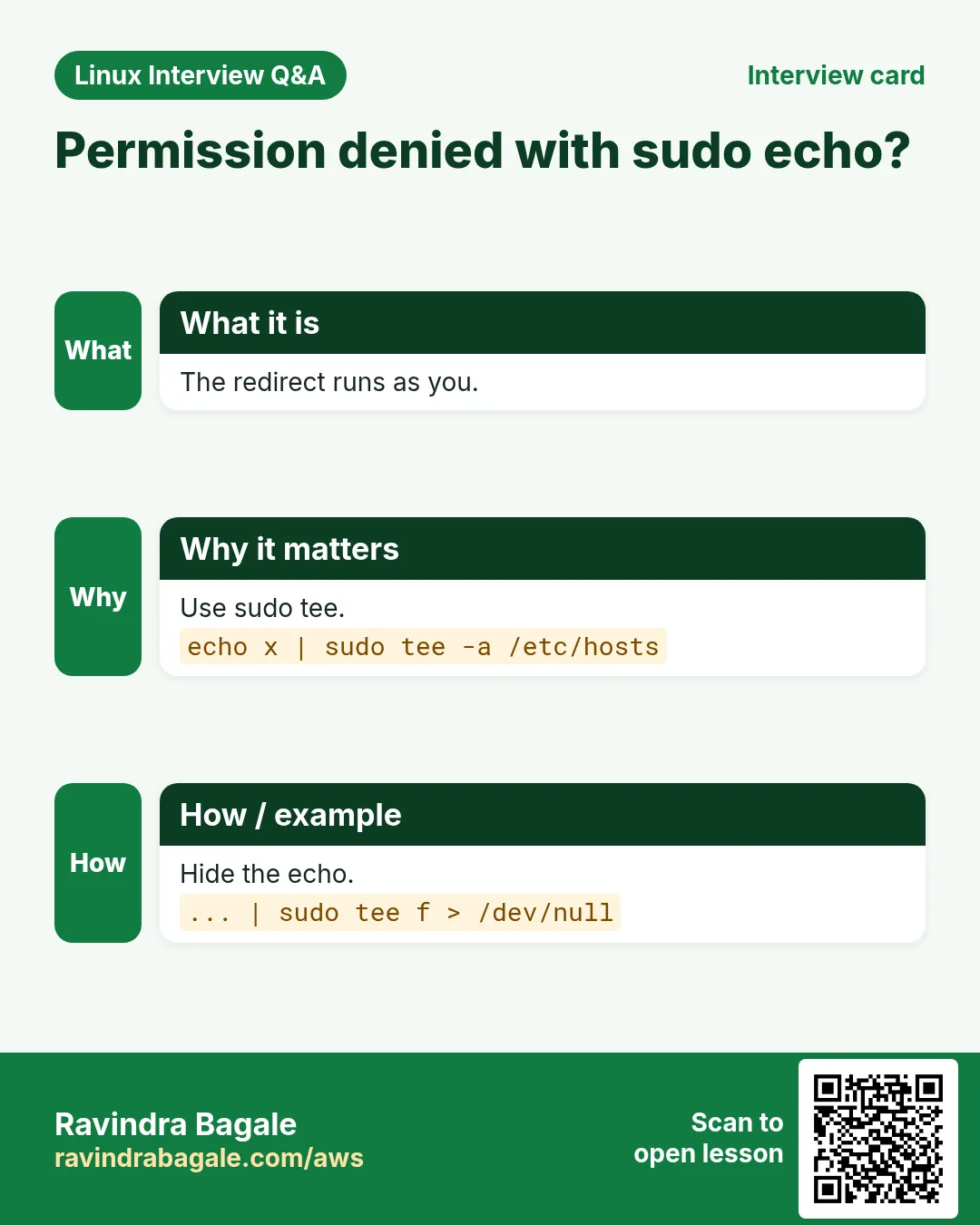
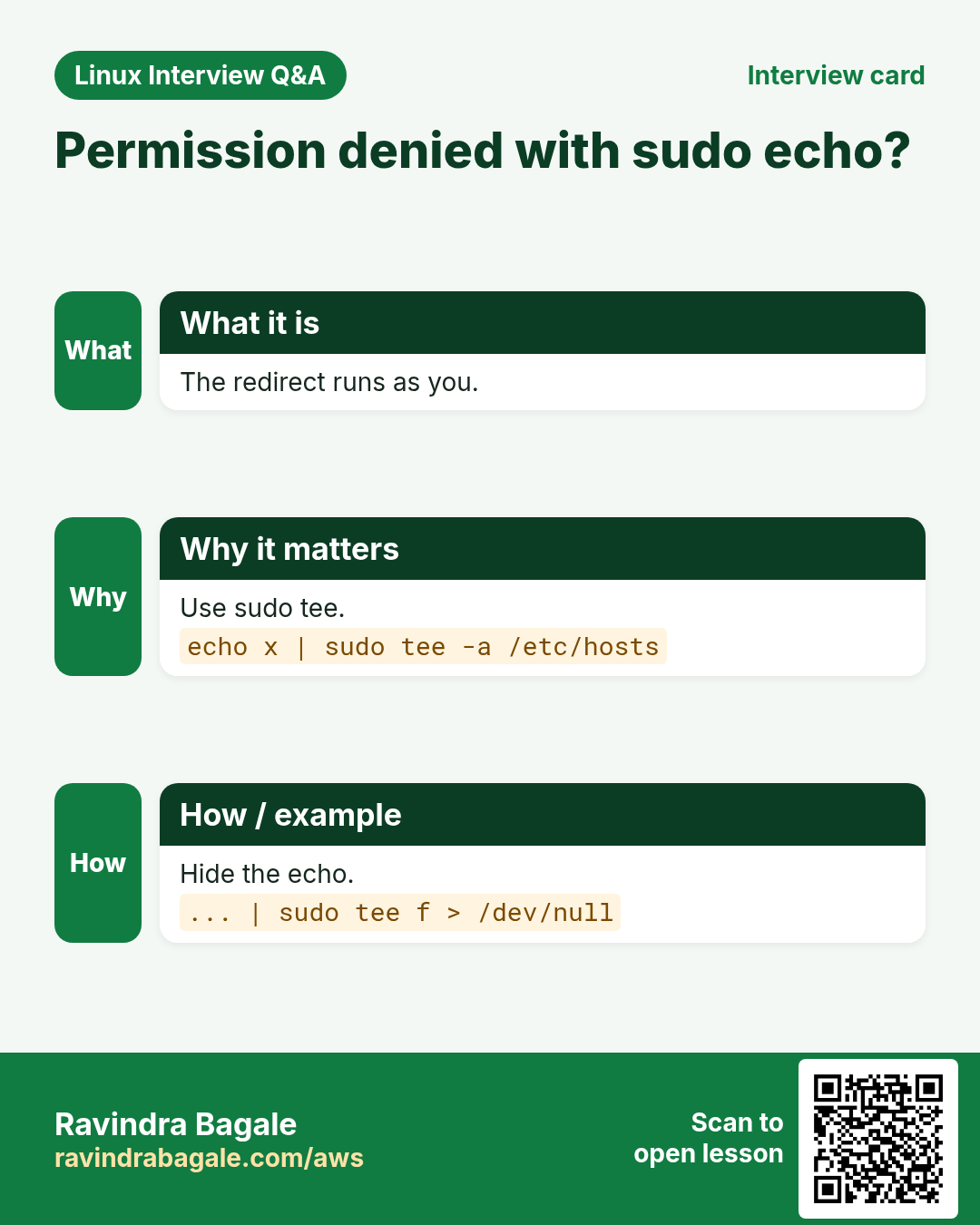
tee copies standard input to the screen and to one or more files. -a appends instead of overwriting. sudo tee writes root-owned files because tee itself runs as root, unlike > which runs in your shell.
Common options
| Option | What it does |
|---|---|
cmd | tee file | Screen and file. |
-a | Append. |
tee f1 f2 | Two files. |
| sudo tee file | Write as root. |
> /dev/null | Hide screen copy. |
- Log an upgrade.
sudo dnf -y update 2>&1 | tee update-2026-10-27.log | tail -1Output:
Complete!You saw it and saved it.
- Append daily.
date | tee -a checks.logOutput:
Tue Oct 27 10:30:00 IST 2026Adds a line, keeps old ones.
- Write a root file.
echo "10.0.1.5 db01" | sudo tee -a /etc/hostsOutput:
10.0.1.5 db01sudo echo > /etc/hosts would fail.
- Quiet write.
echo "vm.swappiness = 10" | sudo tee /etc/sysctl.d/80-swap.conf > /dev/nullWritten without echoing.
Practise this in the tasks below: Practice tasks
Real use: A Chakan auto plant logs every PLC firmware push with tee so the shift engineer can watch and QA can audit.
12. test: Check files and values
test in depth: conditions in scripts
Before a script deletes, copies or deploys, it must check: does the file exist, is the folder writable, is the number bigger than the limit?
test (or [ ]) checks a condition and returns exit code 0 (true) or 1 (false). Files: -f file, -d dir, -e exists, -s not empty, -r/-w/-x. Strings: = != -z -n. Numbers: -eq -ne -gt -lt -ge -le. Bash also has [[ ]] with pattern matching.
Common options
| Option | What it does |
|---|---|
-f path | Regular file. |
-d path | Directory. |
-z "$v" | Empty string. |
a -gt b | Greater (numbers). |
! expr | Not. |
[[ $x == *.log ]] | Pattern (bash). |
- Does a file exist?
test -f /etc/app.conf && echo yes || echo noOutput:
noCreate the config before starting.
- Disk guard.
use=$(df --output=pcent / | tail -1 | tr -dc 0-9); [ "$use" -gt 90 ] && echo "disk full"Output:
disk fullStop the backup before it fills the disk.
- Empty variable.
[ -z "$DB_HOST" ] && echo "DB_HOST missing"Output:
DB_HOST missingFail early with a clear message.
- Exit code.
[ -d /srv/app ]; echo $?Output:
00 means true.
Practise this in the tasks below: Practice tasks
Real use: A Kalyani Nagar travel portal deploy script checks [ -s build/index.html ] before switching traffic.
13. time: Measure how long a command takes
time in depth: measure how long a command takes
Is the new query faster? Did compression slow the backup? Measure instead of guessing.
time runs a command and prints real (wall clock), user (CPU in your code) and sys (CPU in the kernel). If real is much bigger than user+sys, the command waited on disk or network. /usr/bin/time -v gives memory use too.
Common options
| Option | What it does |
|---|---|
time cmd | Real, user, sys. |
/usr/bin/time -v | Max memory too. |
TIMEFORMAT=%R | Only seconds (bash). |
time ( a; b ) | Time a group. |
- Time a backup.
time tar czf db.tgz /var/lib/pgsql/dumpOutput:
real    1m42.311s
user    1m30.020s
sys     0m6.144s
CPU bound: compression is the cost.
- Network wait.
time curl -s https://api.example.in/report > /dev/nullOutput:
real    0m4.902s
user    0m0.020s
sys     0m0.011s
Almost all waiting: the API is slow.
- Peak memory.
/usr/bin/time -v python3 etl.py 2>&1 | grep MaximumOutput:
Maximum resident set size (kbytes): 812344About 800 MB at peak.
- Compare two.
time gzip -k big.log; time xz -k big.logOutput:
real 0m3.1s
real 0m21.7s
xz is 7x slower here.
Practise this in the tasks below: Practice tasks
Real use: A Pimpri analytics team times its nightly ETL so it always ends before the 6 AM dashboard refresh.
14. timedatectl: Manage time and time zone
timedatectl in depth: time zone and clock sync
Logs in UTC, users in IST, a token rejected because the clock is 3 minutes off: time settings matter.
timedatectl shows local time, UTC, time zone and whether NTP sync is on. set-timezone changes the zone, list-timezones lists them, set-ntp true turns on sync (chronyd or timesyncd). set-time sets the clock by hand when NTP is off.
Common options
| Option | What it does |
|---|---|
timedatectl | Status. |
set-timezone Asia/Kolkata | Set zone. |
list-timezones | List zones. |
set-ntp true | Enable sync. |
set-time "2026-10-27 10:00" | Manual time. |
- Check.
timedatectlOutput:
               Local time: Tue 2026-10-27 04:40:10 UTC
                Time zone: UTC (UTC, +0000)
System clock synchronized: yes
Synced, but in UTC.
- Find the zone.
timedatectl list-timezones | grep KolkataOutput:
Asia/KolkataExact name to use.
- Set IST.
sudo timedatectl set-timezone Asia/Kolkata; dateOutput:
Tue Oct 27 10:10:10 IST 2026Now in IST.
- Turn on sync.
sudo timedatectl set-ntp trueClock stays correct.
Practise this in the tasks below: Practice tasks
Real use: A Viman Nagar airline-catering firm keeps all kitchen servers on Asia/Kolkata with NTP so meal labels show correct times.
15. tmux: Split and keep terminal sessions
tmux in depth: sessions that survive disconnects
Your Wi-Fi drops in the middle of a database migration. With tmux the job keeps running and you reattach exactly where you were.
tmux runs terminals inside a server process. new -s names a session, detach with Ctrl-b d, ls lists sessions, attach -t returns, Ctrl-b % and Ctrl-b " split panes, kill-session ends one. It is the modern choice over screen.
Common options
| Option | What it does |
|---|---|
new -s name | New session. |
Ctrl-b d | Detach. |
ls | List sessions. |
attach -t name | Reattach. |
Ctrl-b % | Split side by side. |
kill-session -t name | End session. |
- Start a named session.
tmux new -s migrateOutput:
[migrate] 0:bash*You are inside tmux.
- Detach and list.
tmux lsOutput:
migrate: 1 windows (created Tue Oct 27 11:00:02 2026)Still running after you left.
- Come back.
tmux attach -t migrateOutput:
(migration output continues)Same screen as before.
- Clean up.
tmux kill-session -t migrateSession gone.
Practise this in the tasks below: Practice tasks
Real use: A Kharadi SaaS on-call engineer runs every production migration inside tmux after losing one to a VPN drop.
16. top: Live view of processes
top in depth: live CPU and memory view
The server feels slow. In five seconds top tells you whether CPU, memory or I/O wait is the problem and which process causes it.
top refreshes a table of processes. The header shows load average, CPU split (us, sy, wa, st) and memory. Keys: P sort by CPU, M by memory, k kill, 1 per-CPU view, q quit. -b -n 1 prints once for scripts; -p watches PIDs; -u a user.
Common options
| Option | What it does |
|---|---|
P / M | Sort CPU / memory. |
1 | Each CPU. |
-b -n 1 | One batch print. |
-p PID | Watch PIDs. |
-u user | One user. |
wa / st | IO wait / stolen. |
- Read the header.
top -b -n 1 | head -3Output:
top - 11:20:01 up 12 days,  load average: 7.81, 6.20, 3.10
Tasks: 212 total,   3 running
%Cpu(s): 12.0 us,  3.1 sy,  0.0 ni,  4.2 id, 80.5 wa,  0.0 st
80% IO wait: the disk is the bottleneck.
- Top memory users.
top -b -n 1 -o %MEM | sed -n 8,9pOutput:
2210 mysql 20 0 6.1g 4.8g S 2.0 61.3 javaMySQL holds 61% of RAM.
- Watch one process.
top -p 2210Output:
(live view of PID 2210)Focused view.
- Cloud steal.
top -b -n 1 | grep CpuOutput:
%Cpu(s): 40.0 us, 2.0 sy, 0.0 wa, 35.0 st35% stolen: the burst instance ran out of credits.
Practise this in the tasks below: Practice tasks
Real use: A Swargate bus-ticketing team saw 35% steal in top and moved from t3 to m6i instances before Diwali.
17. tr: Translate or delete characters
tr in depth: translate and delete characters
Uppercase a code, turn commas into new lines, strip Windows line endings or remove digits: small text fixes in a pipe.
tr reads stdin and maps characters from set1 to set2. -d deletes characters, -s squeezes repeats, -c uses the complement. Classes like [:lower:] [:upper:] [:digit:] [:space:] help. tr works on characters, not words; use sed for words.
Common options
| Option | What it does |
|---|---|
tr a-z A-Z | Uppercase. |
tr "," "\n" | Comma to newline. |
-d "\r" | Delete CR. |
-s " " | Squeeze spaces. |
-dc "0-9" | Keep only digits. |
- Uppercase.
echo "pune-411001" | tr a-z A-ZOutput:
PUNE-411001Codes in one case.
- Split a list.
echo "web1,web2,web3" | tr "," "\n"Output:
web1
web2
web3
One host per line for a loop.
- Fix Windows files.
tr -d "\r" < export.csv > clean.csv; file clean.csvOutput:
clean.csv: ASCII textNo more CRLF.
- Only digits.
echo "Disk used: 91%" | tr -dc 0-9Output:
91Ready for a number test.
Practise this in the tasks below: Practice tasks
Real use: A Market Yard trader cleans supplier CSVs from Excel with tr -d "\r" before loading them into the stock system.
18. traceroute: Show the network path to a host
traceroute in depth: where packets stop
Ping fails or is slow. Is it your office, the ISP, or the cloud? traceroute shows each hop and the delay to it.
traceroute sends packets with rising TTL so each router replies in turn. Each line is a hop with three timings; * means no reply. -n skips DNS, -T uses TCP (good through firewalls), -p sets the port, -m max hops. tracepath and mtr are alternatives.
Common options
| Option | What it does |
|---|---|
-n | No DNS. |
-T -p 443 | TCP to port. |
-m 15 | Max hops. |
-w 2 | Wait seconds. |
mtr | Live version. |
- Trace a site.
traceroute -n api.example.inOutput:
1  192.168.1.1  1.1 ms
 2  10.40.0.1  6.0 ms
 3  * * *
 4  52.95.66.1  31.2 ms
Hop 3 hides ICMP but traffic passes.
- Through a firewall.
sudo traceroute -T -p 443 -n api.example.in | tail -1Output:
9 13.234.10.20 33.0 msTCP reaches the server.
- Find the slow hop.
traceroute -n 8.8.8.8 | sed -n 3,4pOutput:
3  103.1.2.1  8.0 ms
 4  103.1.9.9  210.4 ms
The ISP link at hop 4 adds 200 ms.
- Install if missing.
sudo dnf -y install tracerouteOutput:
Complete!Ready.
Practise this in the tasks below: Practice tasks
Real use: A Bhosari factory showed its ISP a traceroute with 200 ms at their router and got the link fixed.
19. tree: Show folders as a tree
tree in depth: see folder structure
Explaining a project layout or checking that a deploy copied the right folders is easier as a tree than with many ls calls.
tree prints a folder and its children as an indented tree. -L limits depth, -d shows only folders, -a hidden files, -h sizes, -I excludes a pattern, --du folder sizes. It may need installing.
Common options
| Option | What it does |
|---|---|
-L 2 | Two levels. |
-d | Folders only. |
-a | Hidden too. |
-h | Sizes. |
-I "node_modules" | Exclude. |
- Project layout.
tree -L 2 shopOutput:
shop
├── app
│   ├── main.py
│   └── models.py
├── deploy
└── README.md

3 directories, 3 files
Clear picture for a new team member.
- Folders only.
tree -d -L 1 /etc/nginxOutput:
/etc/nginx
├── conf.d
└── default.d
Where configs live.
- Skip big folders.
tree -L 2 -I "node_modules|.git" webOutput:
web
├── src
└── package.json
Readable output.
- With sizes.
tree -h -L 1 /var/log | tail -2Output:
└── [ 12M]  messages

4 directories, 18 files
Biggest log at a glance.
Practise this in the tasks below: Practice tasks
Real use: A Model Colony training institute pastes tree -L 2 output into every lab handout so students know where files go.
20. truncate: Shrink or grow a file to a size
truncate in depth: shrink or size files
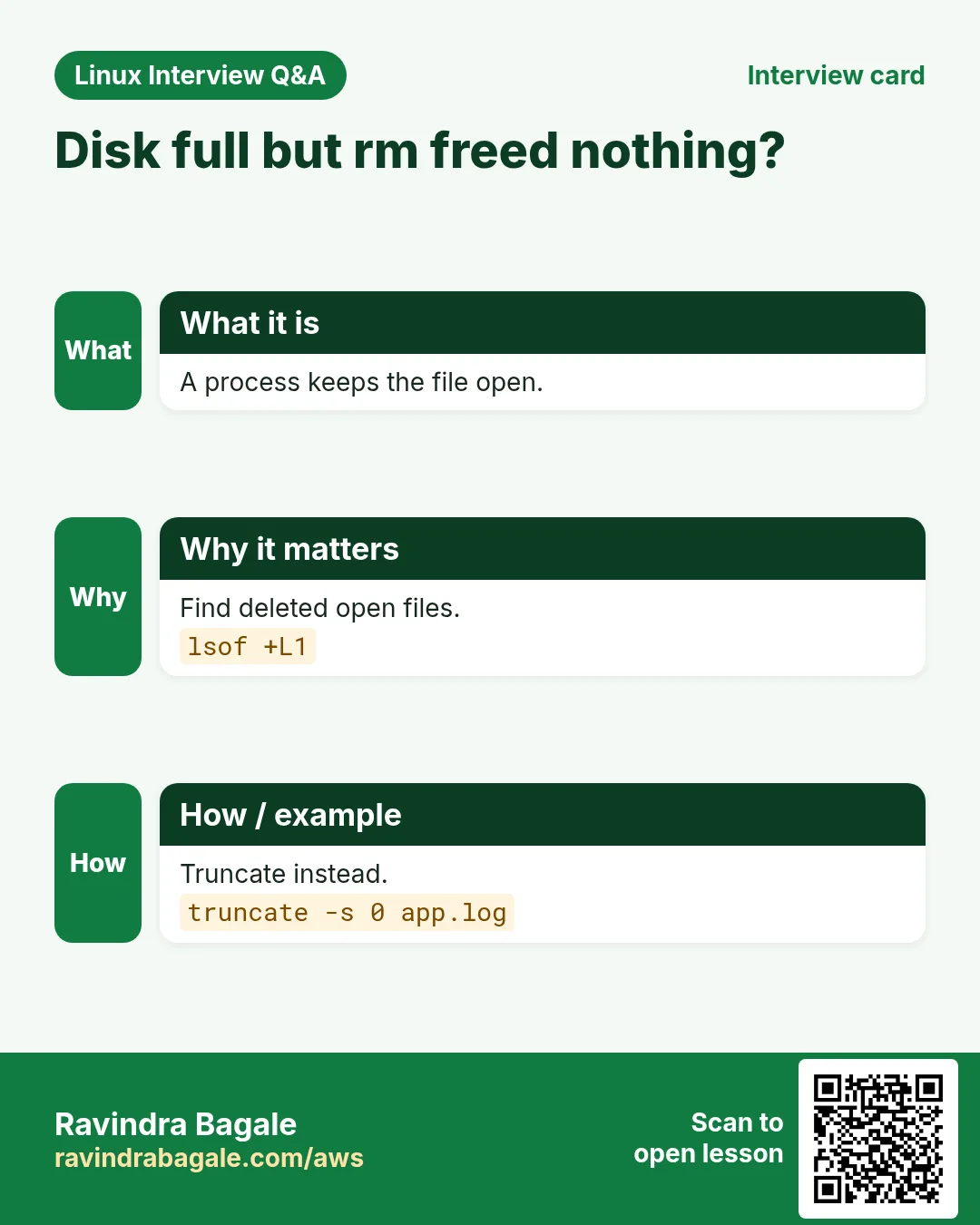
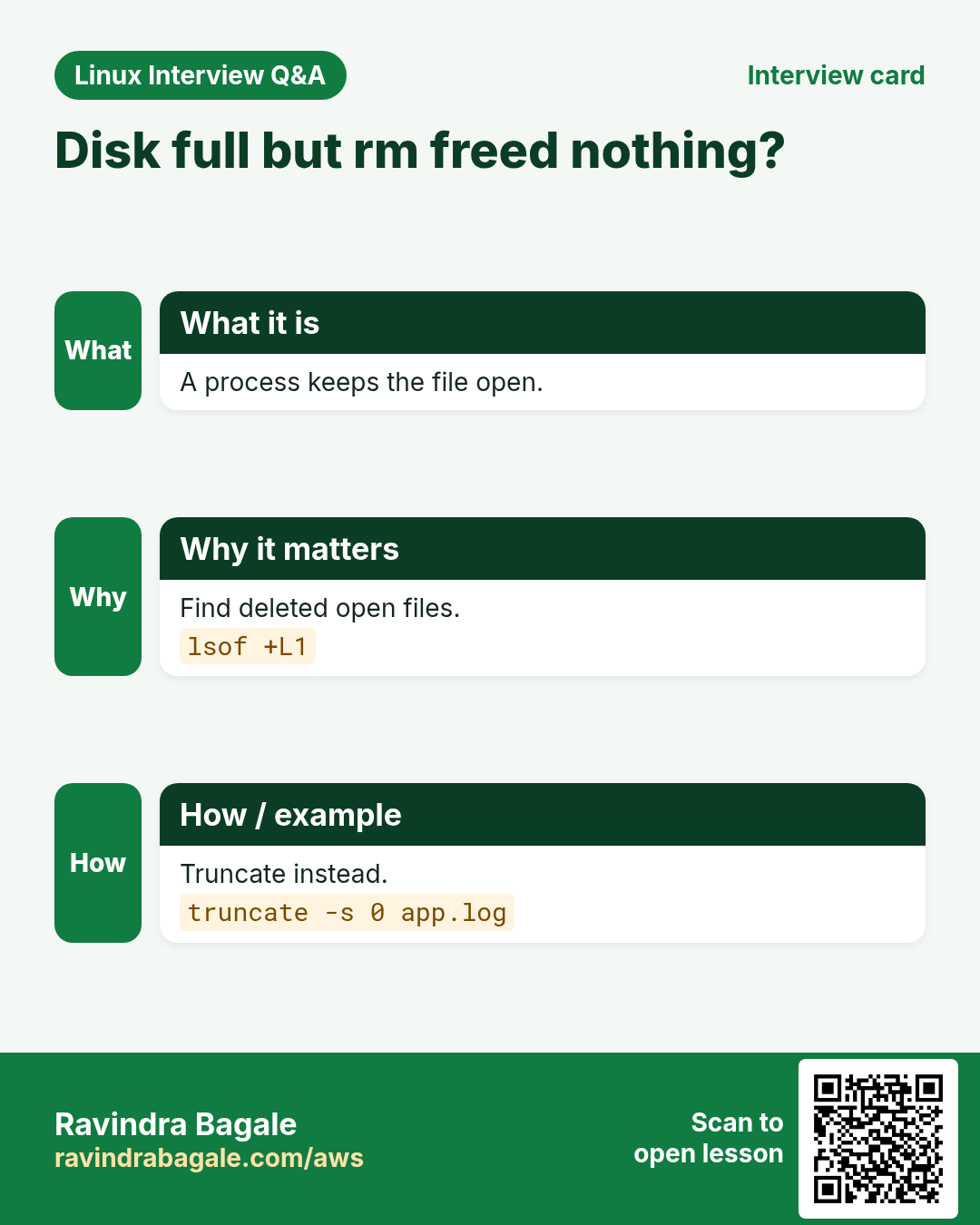
A log has filled the disk but the app still holds it open. Deleting it does not free space; truncating it to zero does, instantly.
truncate -s sets a file size: 0 empties it, 100M makes a sparse file, +10M grows, -10M shrinks. The inode stays the same, so open handles keep working. Use it for logs and for practice disk images.
Common options
| Option | What it does |
|---|---|
-s 0 file | Empty. |
-s 1G file | Set size. |
-s +100M | Grow. |
-s -1M | Shrink. |
-c | Do not create. |
- Disk full from a log.
df -h /var | tail -1Output:
/dev/xvda1 20G 20G 0 100% /No space left.
- Empty it safely.
sudo truncate -s 0 /var/log/app/debug.log; df -h /var | tail -1Output:
/dev/xvda1 20G 12G 8.0G 60% /8 GB back, app still logging.
- Make a test disk file.
truncate -s 1G disk.img; ls -lh disk.img; du -h disk.imgOutput:
-rw-r--r-- 1 ravi ravi 1.0G disk.img
0       disk.img
Sparse: 1 GB size, no space used yet.
- Only if it exists.
truncate -c -s 0 old.logNo new file is created.
Practise this in the tasks below: Practice tasks
Real use: A Hinjewadi call-analytics team truncates a runaway debug log at 2 AM instead of restarting the dialer.
21. type: Show how a command name is resolved
type in depth: what will actually run
You type ls or python and get something odd. Is it an alias, a function, a builtin or a file on PATH? type tells you.
type is a shell builtin that explains how a name is resolved. -a shows every match in order, -t prints one word (alias, keyword, function, builtin, file), -P forces a PATH search. It is more accurate than which because it knows aliases and functions.
Common options
| Option | What it does |
|---|---|
type name | Explain. |
-a | All matches. |
-t | One word. |
-P | PATH file only. |
command -v | Script friendly. |
- An alias?
type llOutput:
ll is aliased to `ls -l --color=auto'll is an alias.
- Builtin.
type cdOutput:
cd is a shell builtinNo file on disk.
- Which python?
type -a python3Output:
python3 is /usr/local/bin/python3
python3 is /usr/bin/python3
The /usr/local one runs first.
- One word.
type -t deployOutput:
functionA shell function from your profile.
Practise this in the tasks below: Practice tasks
Real use: A Bavdhan data-science team found that type -a python3 showed a stale /usr/local build breaking their notebooks.
22. ulimit: Show and set user limits
ulimit in depth: per-process limits
Nginx logs "Too many open files" under load, or a crash leaves no core dump. Both are ulimit settings.
ulimit shows and sets shell limits inherited by child processes: -n open files, -u processes, -c core size, -a all. -S soft and -H hard; a user can raise soft up to hard. Make limits permanent in /etc/security/limits.conf or with LimitNOFILE= in a systemd unit.
Common options
| Option | What it does |
|---|---|
-a | All limits. |
-n | Open files. |
-n 65535 | Raise for this shell. |
-c unlimited | Allow core dumps. |
-Hn | Hard limit. |
- Check open files.
ulimit -nOutput:
1024Too low for a busy proxy.
- Check a running process.
grep "open files" /proc/$(pgrep -o nginx)/limitsOutput:
Max open files 1024 4096 filesSoft 1024, hard 4096.
- Fix for a service.
sudo systemctl edit nginxOutput:
[Service]
LimitNOFILE=65535
Set in the unit, then restart.
- Allow core dumps.
ulimit -c unlimited; ./appOutput:
Segmentation fault (core dumped)Core file for the developer.
Practise this in the tasks below: Practice tasks
Real use: A Yerawada OTT streaming team raised LimitNOFILE to 65535 on edge servers before a cricket final.
23. umask: Default permission mask
umask in depth: default permissions
New files on a shared folder come out readable by everyone, or a team cannot edit each other's files. The default mode is set by umask.
umask removes permission bits from new files (base 666) and folders (base 777). 022 gives 644 and 755; 002 gives 664 and 775 for group work; 077 gives 600 and 700 for privacy. -S shows it as letters. Set it in ~/.bashrc or UMask= in systemd. Full permission detail is in the permissions chapter.
Common options
| Option | What it does |
|---|---|
umask | Show. |
-S | Symbolic. |
umask 002 | Group writable. |
umask 077 | Private. |
UMask=0027 | systemd unit. |
- Current value.
umaskOutput:
0022Files 644, folders 755.
- Private session.
umask 077; touch secret.txt; ls -l secret.txtOutput:
-rw------- 1 ravi ravi 0 secret.txtOnly you can read.
- Team folder.
umask 002; mkdir shared; ls -ld sharedOutput:
drwxrwxr-x 2 ravi devs 6 sharedGroup can write.
- Letters.
umask -SOutput:
u=rwx,g=rwx,o=rxSame as 002.
Practise this in the tasks below: Practice tasks
Real use: A Kondhwa law firm sets umask 077 for its document server so new case files are private by default.
24. umount: Detach a filesystem
When a mount is busy, its use may come from a process with an open file or a shell in that directory. In the lab, move your shell out of the mount and list remaining users of it. Let the owning process close the file. Unmount normally and use findmnt to confirm the path no longer points to that device before detaching it.
umount in depth: detach filesystems
Before you detach an EBS volume, remove a USB disk or resize a partition, the filesystem must be unmounted cleanly.
umount takes a mount point or device. "target is busy" means a process uses it: find it with lsof or fuser -m. -l lazy detaches now and cleans up later; -f forces NFS. Never pull a disk that is still mounted.
Common options
| Option | What it does |
|---|---|
umount /data | By mount point. |
umount /dev/xvdf1 | By device. |
-l | Lazy. |
-f | Force (NFS). |
fuser -vm /data | Who is using it. |
- Try to unmount.
sudo umount /dataOutput:
umount: /data: target is busy.Something is still inside.
- Find who.
sudo fuser -vm /dataOutput:
                     USER        PID ACCESS COMMAND
/data:               ravi       3301 ..c.. bash
Your own shell sits in /data.
- Leave and retry.
cd ~ && sudo umount /data && echo doneOutput:
doneUnmounted cleanly.
- Stale NFS.
sudo umount -f -l /mnt/nfsDetached even though the NFS server is gone.
Practise this in the tasks below: Practice tasks
Real use: A Hadapsar media house unmounts its edit-suite disks with umount before the courier takes them to the client.
25. uname: Show kernel and system info
uname in depth: kernel and machine info
Is this server ARM or x86? Which kernel is running after the patch? Which binary should you download? uname answers.
uname prints system info: -s kernel name, -r kernel release, -m machine hardware (x86_64, aarch64), -n hostname, -a everything. /etc/os-release tells the distribution, which uname does not.
Common options
| Option | What it does |
|---|---|
-a | All. |
-r | Kernel release. |
-m | Architecture. |
-n | Hostname. |
-s | Kernel name. |
- Everything.
uname -aOutput:
Linux web01 6.1.112-122.189.amzn2023.x86_64 #1 SMP x86_64 GNU/LinuxAmazon Linux 2023 kernel on x86_64.
- After patching.
uname -rOutput:
6.1.115-126.197.amzn2023.x86_64New kernel is running.
- Right download.
uname -mOutput:
aarch64Graviton: get the arm64 build.
- Distribution.
grep PRETTY /etc/os-releaseOutput:
PRETTY_NAME="Amazon Linux 2023.6.20241010"uname does not show this.
Practise this in the tasks below: Practice tasks
Real use: A Baner IoT company checks uname -m in its installer so the same script works on Raspberry Pi and x86 gateways.
26. Commands in this range already covered in depth
These commands already have a full why, what and how section in an earlier chapter. Repeating them here would only make the page longer.
Each link opens the exact section with options, examples and output.
touch: Create empty files and change timestamps: -a, -m, -d and -r
27. Real examples from many industries
The same Linux skill shows up in every kind of company. Seeing it in many places helps you remember it.
Each row is a made-up team. It shows who uses this and how.
| Team and city | How they use it | Command |
|---|---|---|
| Kiran, payments, Hinjewadi | Traces missing files | strace -e trace=openat ./app |
| Swati, hospital IT, Shivajinagar | Watches PACS logs | tail -F pacs.log |
| Amit, e-commerce, Hadapsar | Restarts services | systemctl restart api |
| Priya, SaaS, Kharadi | Runs migrations in tmux | tmux new -s migrate |
| Rohan, CA office, Deccan | Weekly backups | tar czf clients.tgz /srv/clients |
| Anjali, OTT, Yerawada | Raises file limits | LimitNOFILE=65535 |
28. Common errors and how to fix them
Everyone hits these errors. Knowing the cause saves hours.
Read the exact message first. Then match it to a row below.
| Error you see | Why it happens | How to fix |
|---|---|---|
strace: attach: ptrace(PTRACE_SEIZE, 4120): Operation not permitted | Not root or ptrace blocked | Run with sudo.sudo strace -p 4120 |
su: Authentication failure | Wrong target password or root has none | Use sudo su - or sudo -i.sudo -i |
ravi is not in the sudoers file. This incident will be reported. | No sudo rights | Ask an admin to add you to wheel.sudo usermod -aG wheel ravi |
swapon: /swapfile: insecure permissions 0644, 0600 suggested. | Swap file readable by others | chmod 600 it.sudo chmod 600 /swapfile |
sysctl: cannot stat /proc/sys/net/ipv4/ip_fwd: No such file or directory | Wrong parameter name | Search the real name.sysctl -a | grep forward |
Job for nginx.service failed because the control process exited with error code. | Service failed to start | Read the journal.journalctl -u nginx -n 30 |
tail: inotify cannot be used, reverting to polling | Too many inotify watches | Raise max_user_watches.sudo sysctl -w fs.inotify.max_user_watches=524288 |
tar: Exiting with failure status due to previous errors | Some files unreadable | Read the earlier lines; run with sudo.sudo tar czf b.tgz /etc |
tee: /etc/hosts: Permission denied | tee ran as you | Put sudo before tee.echo x | sudo tee -a /etc/hosts |
[: too many arguments | Unquoted variable with spaces | Quote the variable.[ -z "$name" ] |
umount: /data: target is busy. | Process using the mount | Find and stop it.fuser -vm /data |
sessions should be nested with care, unset $TMUX to force | Already inside tmux | Detach or use a new window.tmux detach |
29. Troubleshooting step by step
When a Part 7 command does not do what you expect, go through these steps.
Go top to bottom. Stop at the first step that shows the problem.
- Are you the right user?
whoami; sudo -l- Is the service running?
systemctl status app- What did it log?
journalctl -u app -n 30- What does it touch?
sudo strace -f -e trace=file -p PID- Limits and kernel?
ulimit -a; sysctl -a | grep somaxconn- Disk or mount busy?
df -h; fuser -vm /data30. Lab 1: Make a service, break it and fix it
Create a small systemd service, find why it fails with tail and strace, fix it and verify.
A full hands-on lab. Run every step on a test Linux machine (an EC2 instance, a VM, or WSL).
- Write a script.
printf "#!/bin/bash\nwhile true; do cat /etc/lab.conf; sleep 5; done\n" | sudo tee /usr/local/bin/lab.sh > /dev/null; sudo chmod +x /usr/local/bin/lab.sh- Create the unit.
printf "[Service]\nExecStart=/usr/local/bin/lab.sh\n" | sudo tee /etc/systemd/system/lab.service > /dev/null; sudo systemctl daemon-reload; sudo systemctl start lab- See the error.
journalctl -u lab -n 2 --no-pagerOutput:
cat: /etc/lab.conf: No such file or directory- Fix and watch.
echo "mode=ok" | sudo tee /etc/lab.conf; journalctl -u lab -n 1 --no-pagerOutput:
mode=ok- Clean up.
sudo systemctl stop lab; sudo rm /etc/systemd/system/lab.service /usr/local/bin/lab.sh /etc/lab.conf; sudo systemctl daemon-reload31. Lab 2: Back up, time and guard a folder
Write a backup that checks conditions, times itself, logs with tee and runs in tmux.
A full hands-on lab. Run every step on a test Linux machine (an EC2 instance, a VM, or WSL).
- Start tmux.
tmux new -s backup- Guard.
[ -d /etc ] && [ "$(df --output=pcent /tmp | tail -1 | tr -dc 0-9)" -lt 90 ] && echo okOutput:
ok- Back up and time it.
time sudo tar czf /tmp/etc.tgz /etc 2>&1 | tee /tmp/backup.logOutput:
real 0m1.204s- Verify.
tar tzf /tmp/etc.tgz | wc -lOutput:
1430- Detach and clean.
tmux detach; rm /tmp/etc.tgz /tmp/backup.logRavindra Bagale's Tip
When something fails, read before you change: systemctl status, then tail the log, then strace. Change one thing at a time and note it with tee, so you can undo it.
Ravindra Bagale's Tip – मराठी
काहीतरी fail झालं की बदलण्याआधी वाचा: systemctl status, मग log tail, मग strace. एकावेळी एकच बदल करा आणि tee ने नोंद ठेवा, म्हणजे undo करता येईल.
Ravindra Bagale's Tip – हिंदी
कुछ fail हो तो बदलने से पहले पढ़ें: systemctl status, फिर log tail, फिर strace. एक बार में एक ही बदलाव करें और tee से नोट रखें, ताकि undo कर सकें.
32. Frequently asked questions
Q. su or sudo?
sudo: your own password, logged, limited. su needs the other password.
Q. tmux or screen?
tmux is newer with better panes; screen is everywhere on old systems.
Q. tail -f or -F?
-F keeps following after the log is rotated.
Q. Delete or truncate a full log?
Truncate if a process still writes it; delete does not free space until it closes.
Q. Is strace safe on production?
It slows the process a lot; use it briefly and with -e filters.
Q. which or type?
type knows aliases and functions; which only searches PATH.
33. Interview questions and answers
Beginner level
Q. How do you run one command as root?
sudo command.
Q. How do you see the last lines of a log?
tail -n 50 file.
Q. How do you check a service?
systemctl status name.
Q. How do you see the kernel version?
uname -r.
Mid level level
Q. Write a root-owned file from a pipe.
echo x | sudo tee file.
Q. Enable IP forwarding permanently.
File in /etc/sysctl.d then sysctl --system.
Q. Too many open files in nginx.
LimitNOFILE in a systemd override, restart.
Q. Disk full but rm freed nothing.
A process holds it open: truncate or restart, check lsof +L1.
Senior level
Q. A service fails with no log. Your approach?
status, journalctl -u, run ExecStart by hand as the service user, strace -f -e trace=file.
Q. Load is 12 on 4 CPUs. Next steps?
top for us vs wa, vmstat trend, then the top process or disk.
Q. Design sudo for a support team.
Group in /etc/sudoers.d with only needed commands, edited with visudo, logs reviewed.
Q. Backups must not fill the disk. How?
test the free space first, tar with exclude, time it, tee a log, cron it.
Try at home
- Make a 1 GB swap file on a test VM and remove it afterwards.
- Write a systemd unit for a tiny script and make it start at boot.
- Use strace -c on ls -R / and note the top three system calls.
- Back up your home folder with tar, excluding .cache, and list it.
Practise this chapter
Interview questions and answers
An unmount says the device is busy. What evidence should you gather?
Check whether your own shell remains inside the mount and identify processes with open references there. Move the shell out, finish the disposable job safely and retry ordinary unmount. Confirm its absence from findmnt before detaching the device.
Check your understanding
Choose an answer, then compare your reasoning with the explanation.
Practice Tasks
Practice checks run in your browser. They check the answer for this exercise; they do not create resources or connect to your AWS account.
About this scenarioMaple Leaf Books is a bookselling business in Toronto. Emily Tremblay looks after its IT and cloud work. They count money in CAD and run their AWS resources in the ca-central-1 Region. In the tasks below you do real jobs for them using what this lesson teaches. All names, account IDs, IP addresses and numbers are made up for practice.
0 / 24
Easy Become a user
BIZ runs Linux servers and uses commands from strace to uname daily.
Switch to the user kavita with a full login shell.
- Find the Linux command that does this job.
- Add the options (like -r or -h) the task needs.
- Add the file names, folders or users in the right order.
- Use sudo if the job changes system files or users. Click Check answer.
Easy Run as another user
BIZ runs Linux servers and uses commands from strace to uname daily.
Run whoami as the user tomcat using sudo.
- Find the Linux command that does this job.
- Add the options (like -r or -h) the task needs.
- Add the file names, folders or users in the right order.
- Use sudo if the job changes system files or users. Click Check answer.
Easy Restart a service
BIZ runs Linux servers and uses commands from strace to uname daily.
Restart the service named redis.
- Find the Linux command that does this job.
- Add the options (like -r or -h) the task needs.
- Add the file names, folders or users in the right order.
- Use sudo if the job changes system files or users. Click Check answer.
Easy Last lines
BIZ runs Linux servers and uses commands from strace to uname daily.
Show the last 25 lines of payroll.log.
- Find the Linux command that does this job.
- Add the options (like -r or -h) the task needs.
- Add the file names, folders or users in the right order.
- Use sudo if the job changes system files or users. Click Check answer.
Easy Attach session
BIZ runs Linux servers and uses commands from strace to uname daily.
Attach to the tmux session named nightly.
- Find the Linux command that does this job.
- Add the options (like -r or -h) the task needs.
- Add the file names, folders or users in the right order.
- Use sudo if the job changes system files or users. Click Check answer.
Easy Uppercase
BIZ runs Linux servers and uses commands from strace to uname daily.
Convert the text from names.txt to uppercase.
- Find the Linux command that does this job.
- Add the options (like -r or -h) the task needs.
- Add the file names, folders or users in the right order.
- Use sudo if the job changes system files or users. Click Check answer.
Easy Tree depth
BIZ runs Linux servers and uses commands from strace to uname daily.
Show the tree of /srv/portal only two levels deep.
- Find the Linux command that does this job.
- Add the options (like -r or -h) the task needs.
- Add the file names, folders or users in the right order.
- Use sudo if the job changes system files or users. Click Check answer.
Easy Unmount
BIZ runs Linux servers and uses commands from strace to uname daily.
Unmount /media/usb7.
- Find the Linux command that does this job.
- Add the options (like -r or -h) the task needs.
- Add the file names, folders or users in the right order.
- Use sudo if the job changes system files or users. Click Check answer.
Easy Kernel release
BIZ runs Linux servers and uses commands from strace to uname daily.
Print only the kernel name.
- Find the Linux command that does this job.
- Add the options (like -r or -h) the task needs.
- Add the file names, folders or users in the right order.
- Use sudo if the job changes system files or users. Click Check answer.
Medium Trace a running process
BIZ runs Linux servers and uses commands from strace to uname daily.
Attach strace to process 7734 and follow its children.
- Find the Linux command that does this job.
- Add the options (like -r or -h) the task needs.
- Add the file names, folders or users in the right order.
- Use sudo if the job changes system files or users. Click Check answer.
Medium List sudo rights of a user
BIZ runs Linux servers and uses commands from strace to uname daily.
List the sudo rights of the user deploybot.
- Find the Linux command that does this job.
- Add the options (like -r or -h) the task needs.
- Add the file names, folders or users in the right order.
- Use sudo if the job changes system files or users. Click Check answer.
Medium Turn on swap
BIZ runs Linux servers and uses commands from strace to uname daily.
Enable swap on the file /swapspace2.
- Find the Linux command that does this job.
- Add the options (like -r or -h) the task needs.
- Add the file names, folders or users in the right order.
- Use sudo if the job changes system files or users. Click Check answer.
Medium Read a kernel value
BIZ runs Linux servers and uses commands from strace to uname daily.
Print the value of vm.swappiness.
- Find the Linux command that does this job.
- Add the options (like -r or -h) the task needs.
- Add the file names, folders or users in the right order.
- Use sudo if the job changes system files or users. Click Check answer.
Medium Disable at boot
BIZ runs Linux servers and uses commands from strace to uname daily.
Stop cups from starting at boot and stop it now.
- Find the Linux command that does this job.
- Add the options (like -r or -h) the task needs.
- Add the file names, folders or users in the right order.
- Use sudo if the job changes system files or users. Click Check answer.
Medium Create xz archive
BIZ runs Linux servers and uses commands from strace to uname daily.
Create the archive shop.tar.xz from the folder shopdata using xz.
- Find the Linux command that does this job.
- Add the options (like -r or -h) the task needs.
- Add the file names, folders or users in the right order.
- Use sudo if the job changes system files or users. Click Check answer.
Medium Extract to folder
BIZ runs Linux servers and uses commands from strace to uname daily.
Extract ledger.tgz into the folder /restore2.
- Find the Linux command that does this job.
- Add the options (like -r or -h) the task needs.
- Add the file names, folders or users in the right order.
- Use sudo if the job changes system files or users. Click Check answer.
Medium Append with tee
BIZ runs Linux servers and uses commands from strace to uname daily.
Append the line ok to deploy-history.txt using tee, while also printing it.
- Find the Linux command that does this job.
- Add the options (like -r or -h) the task needs.
- Add the file names, folders or users in the right order.
- Use sudo if the job changes system files or users. Click Check answer.
Medium Test for a file
BIZ runs Linux servers and uses commands from strace to uname daily.
Test whether /etc/fstab.bak exists as a regular file.
- Find the Linux command that does this job.
- Add the options (like -r or -h) the task needs.
- Add the file names, folders or users in the right order.
- Use sudo if the job changes system files or users. Click Check answer.
Medium Set timezone
BIZ runs Linux servers and uses commands from strace to uname daily.
Set the system timezone to Europe/London.
- Find the Linux command that does this job.
- Add the options (like -r or -h) the task needs.
- Add the file names, folders or users in the right order.
- Use sudo if the job changes system files or users. Click Check answer.
Medium Batch top
BIZ runs Linux servers and uses commands from strace to uname daily.
Run top in batch mode for 3 refreshes.
- Find the Linux command that does this job.
- Add the options (like -r or -h) the task needs.
- Add the file names, folders or users in the right order.
- Use sudo if the job changes system files or users. Click Check answer.
Medium Trace without DNS
BIZ runs Linux servers and uses commands from strace to uname daily.
Trace the route to 10.20.0.5 without resolving names.
- Find the Linux command that does this job.
- Add the options (like -r or -h) the task needs.
- Add the file names, folders or users in the right order.
- Use sudo if the job changes system files or users. Click Check answer.
Medium Empty a log
BIZ runs Linux servers and uses commands from strace to uname daily.
Empty gateway.log to zero bytes without deleting it.
- Find the Linux command that does this job.
- Add the options (like -r or -h) the task needs.
- Add the file names, folders or users in the right order.
- Use sudo if the job changes system files or users. Click Check answer.
Hard Count system calls
BIZ runs Linux servers and uses commands from strace to uname daily.
Show a summary count of system calls made by ./importer.
- Find the Linux command that does this job.
- Add the options (like -r or -h) the task needs.
- Add the file names, folders or users in the right order.
- Use sudo if the job changes system files or users. Click Check answer.
Hard Set a kernel value now
BIZ runs Linux servers and uses commands from strace to uname daily.
Set net.core.somaxconn to 8192 for the running kernel.
- Find the Linux command that does this job.
- Add the options (like -r or -h) the task needs.
- Add the file names, folders or users in the right order.
- Use sudo if the job changes system files or users. Click Check answer.
34. Related chapters
- Linux Commands A-Z Index
- Linux Ops Refresh for DevOps
- Bash Scripting for Automation
- Linux grep and find Commands with Examples
- How to Set Up Passwordless SSH Between Linux Servers
In short
- strace, top: see what a process does.
- su, sudo: switch user safely.
- swapon, sysctl, ulimit, umask: system settings.
- systemctl, tail, timedatectl: services, logs and time.
- tar, tee, truncate, tree, umount: files and disks.
- test, time, tr, type, tmux, traceroute, uname: scripts and tools.
Revision, comparison and interview cards
Revise this lesson in a few minutes. Save the cards on your phone or download them as PNG files. The QR code on each card opens this lesson.
More cards: Ravi Sir's Cards.