Linux Directory Commands: pwd, ls, cd, mkdir for Beginners
Let's start. In the previous chapter we logged in to our EC2 server with SSH and saw that an operating system is mostly files and folders. Now we actually walk around inside the server. Where am I? What is in here? How do I make a folder, go into it, come back out, and jump to any folder in one line? By the end of this chapter you will read a path like /home/ec2-user/calendar/weeks and know exactly where it points. Keep your server running and type every command with me.
In this class
- A short SSH recap and the four errors you will meet most
- Linux users: root and ec2-user, and why you log in as ec2-user
- When an idle SSH session drops, and how to get back fast
- The Linux tree: everything starts at / (root)
- Your home directory, and pwd
- Reading a path
- Files vs folders (directories)
- mkdir: one folder or many
- ls and ls -r
- cd into a folder, and what the prompt tells you
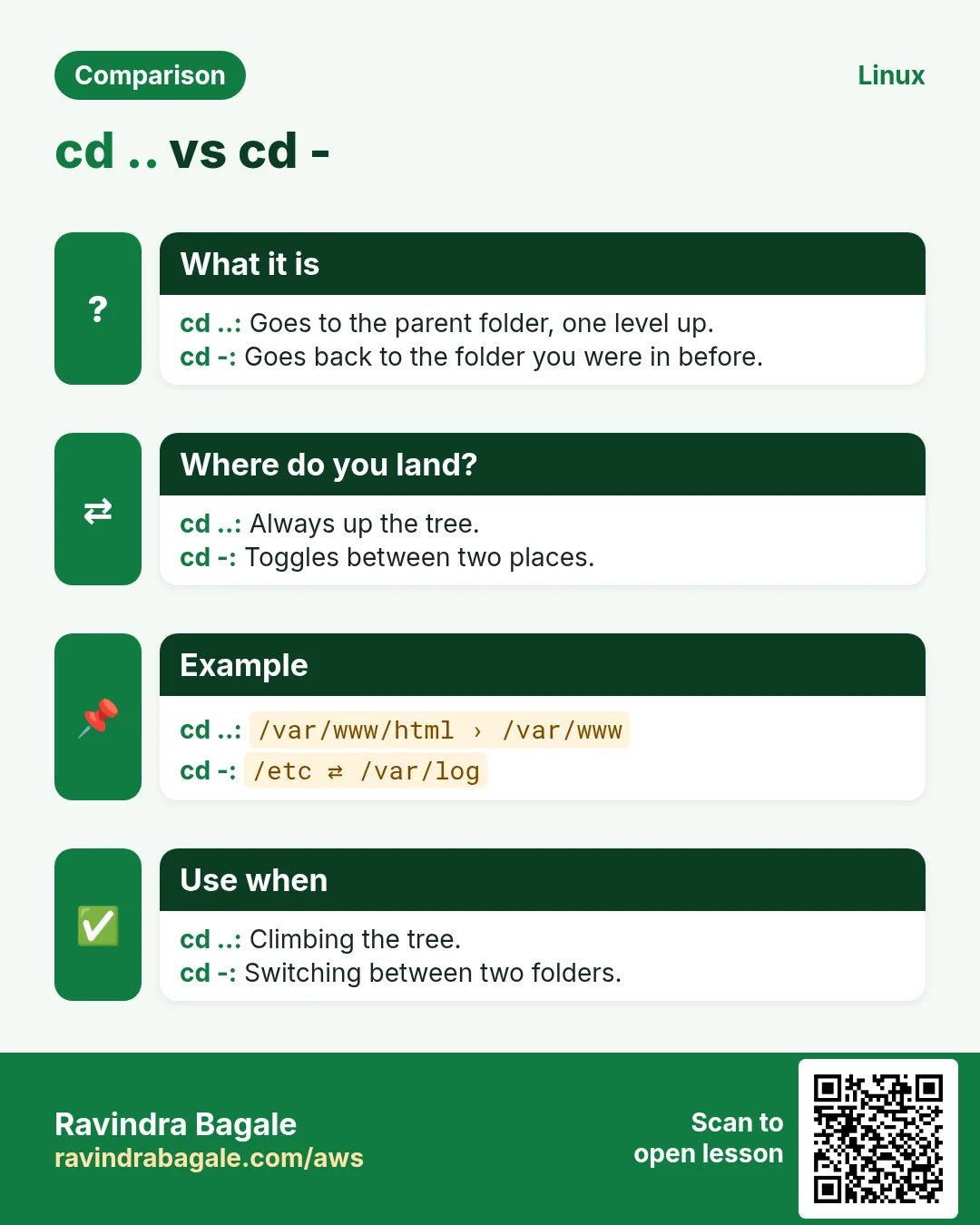
- Going up: cd .., cd ../.., cd ../../..
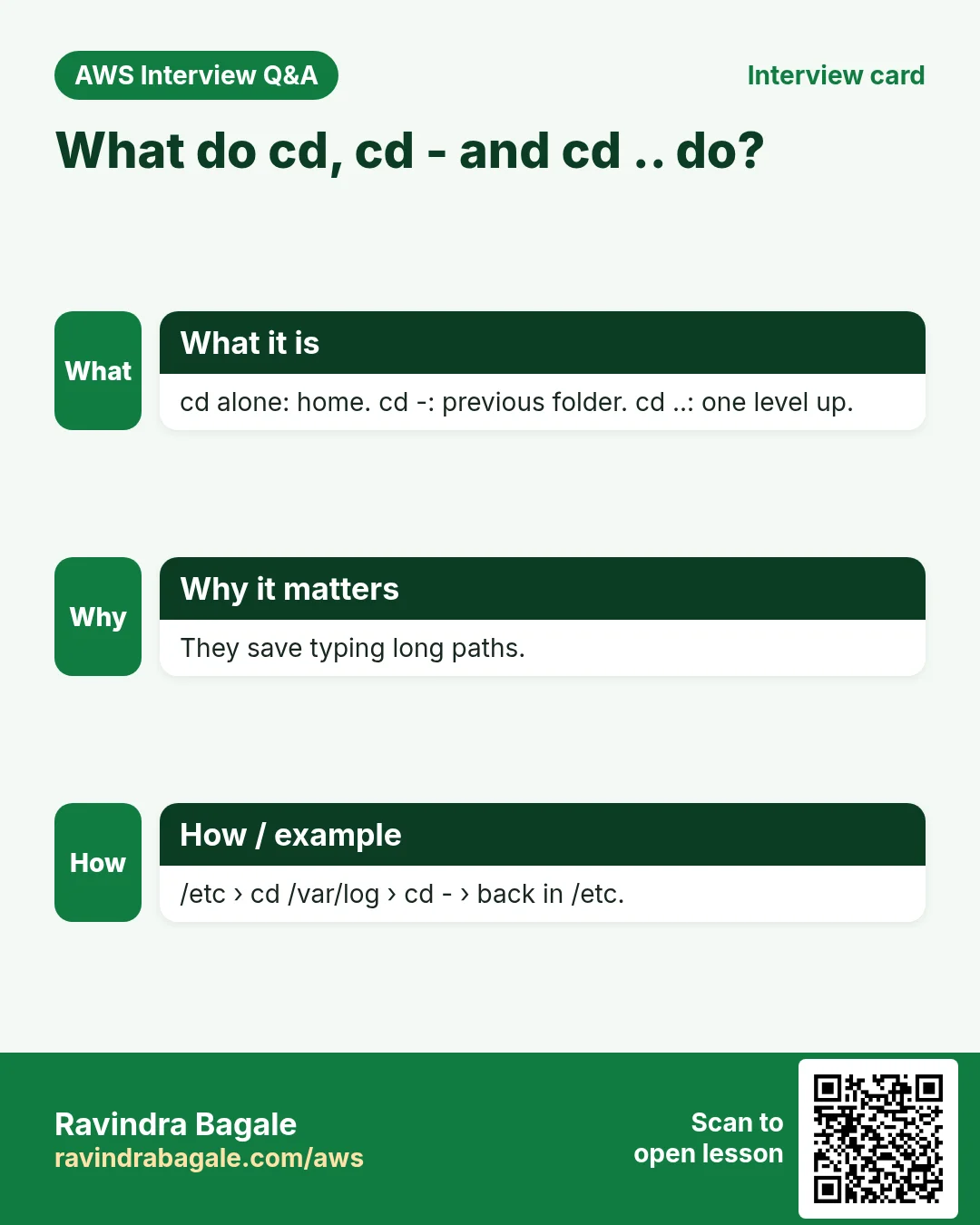
- cd alone, cd -, and moving sideways
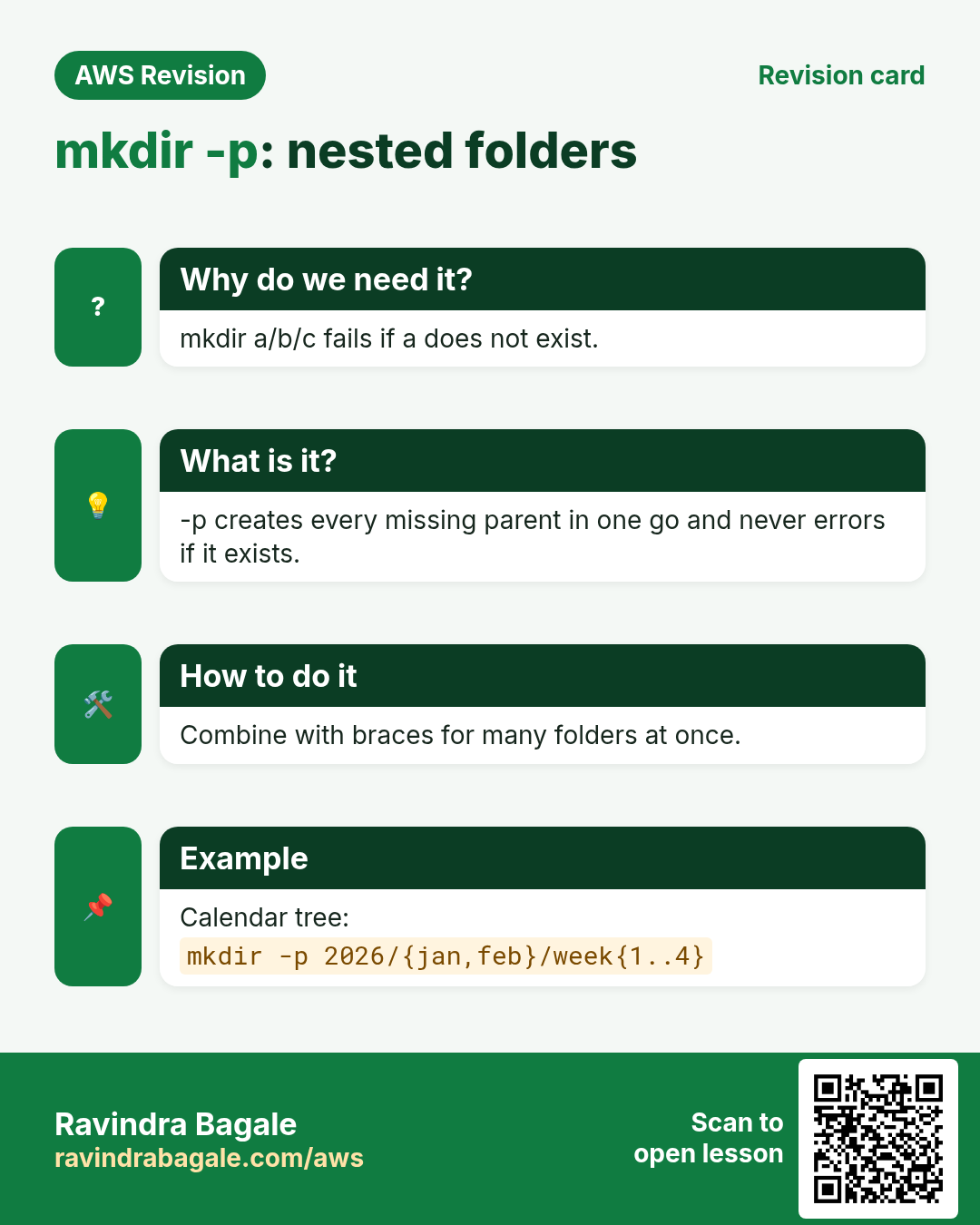
- mkdir -p: folders inside folders in one line
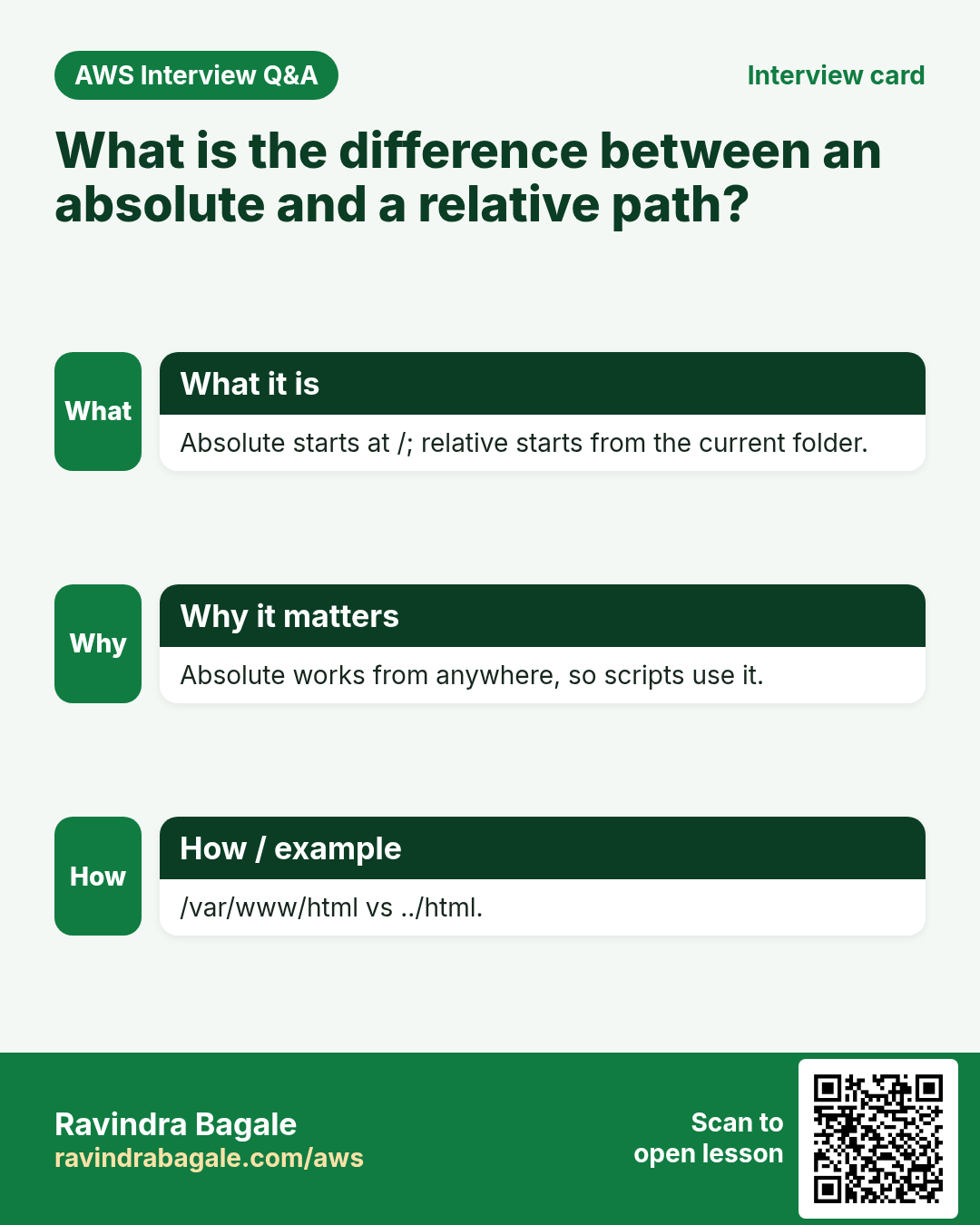
- Absolute paths, relative paths and ~
- Worked scenario 1: the calendar (four ways to make week1)
- Worked scenario 2: one to five (three ways to make 22)
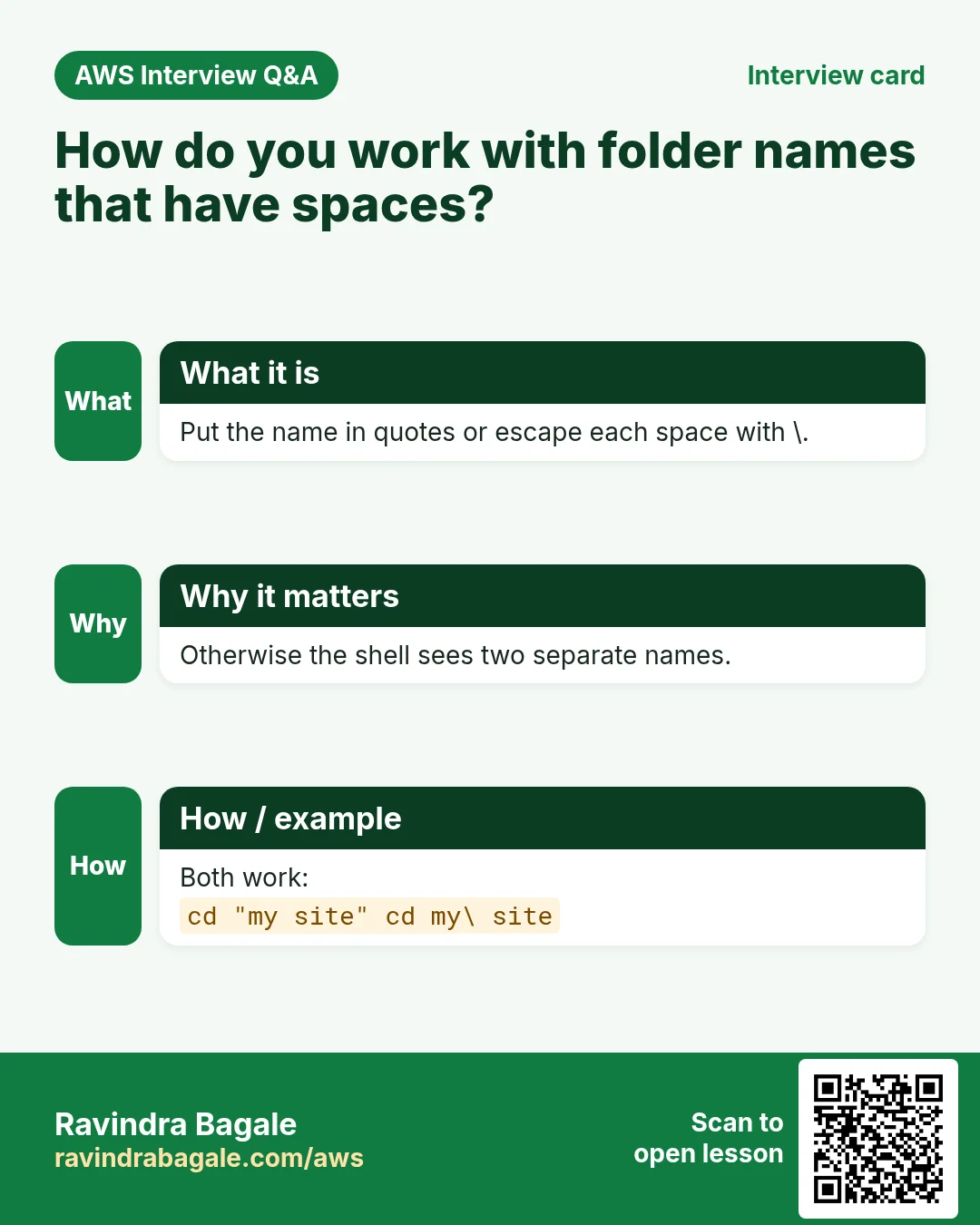
- Names with spaces
- Tab completion, and what to do when names start the same
- clear and history
- Practice task
1. Quick recap: logging in with SSH
All Linux work starts with logging in to the server. If SSH fails, nothing else works. The full step-by-step, with all the fixes, is in the previous chapter: What Is Amazon EC2 and How Does It Work.
The command has four parts:
ssh -i Downloads\firstserver.pem ec2-user@3.3.3.3
ssh: the program.-i: the identity file (your private key) comes next.Downloads\firstserver.pem: the path to the key. TypeDowand press Tab, thenfirand press Tab, so there are no typos.ec2-user@3.3.3.3: the user name,@, and your server's public IPv4.3.3.3.3is a placeholder; use your own.
Paste the IP with Ctrl+V or right-click. Both work in the PowerShell of Windows 10 and 11, and in Windows Terminal.
The four errors you will meet most:
| Error | Usual cause | Fix |
|---|---|---|
Permission denied (publickey) |
wrong key for this server, or wrong user name | use the key chosen at launch; ec2-user on Amazon Linux |
No such file or directory |
typo in the key path | use Tab completion |
Permission denied again |
user name typed wrong: ec2user, or a space inside ec2-user@... |
it is ec2-user, with a hyphen, and no spaces |
Connection timed out |
the public IP changed after a stop and start | copy the new public IP from the console |
If SSH still won't work:
- Check the OpenSSH client with
ssh -V. If PowerShell sayssshis not recognized, add the OpenSSH Client optional feature, or install the latest PowerShell from Microsoft. Then open a new window. - Use EC2 Instance Connect: select the instance → Connect → EC2 Instance Connect → Connect. A terminal opens in the browser.
- PuTTY is an older third-party tool. You rarely need it now, because Windows has
sshbuilt in.
Classroom line
Miss one sentence and you won't follow the next.
Class मधलं वाक्य
"Ek vakya nahi aaiklat, pudhcha vakya nahi kalnar mag."
एक वाक्य नाही ऐकलंत, तर पुढचं वाक्य मग कळणार नाही.
Classroom line
Miss one sentence and you won't follow the next.
Red text only means the command failed. One common cause is a missing OpenSSH client; check with ssh -V. Ctrl+V pastes in current PowerShell and Windows Terminal; right-click works too.
2. Linux users: root and ec2-user
The prompt says ec2-user. Who is that, and why not log in as the administrator?
Tell the top directory, the home folder and the administrator apart
Linux uses the word root in two different places. A path that begins with / starts at the top directory, called the filesystem root. The user called root is the administrator. The administrator’s home directory is often /root. These names describe three different things.
From a normal lab login, run whoami, pwd, then cd / and pwd again. Your folder can change to / while whoami still prints ec2-user. Return with cd. A changing path tells you where the shell is standing. The username controls what that shell is allowed to read or change.
- root is the administrator of a Linux system. It can do anything, including delete the whole system.
- ec2-user is the normal default login user on Amazon Linux. On Ubuntu the default user is
ubuntu. - Linux has many more accounts for system programs, but these two matter for logging in.
- We log in as
ec2-user. When a task needs admin rights, we putsudoin front of that one command, for examplesudo yum install tree -y.
How AWS sets this up.
- You choose a key pair at launch. The key pair is not tied to any user.
- At first boot, AWS puts the public half of that key into the default user's file
~/.ssh/authorized_keys:ec2-useron Amazon Linux,ubuntuon Ubuntu. - That is why your key works for
ec2-user. - Direct SSH login as
rootis blocked, for safety. Usesudoinstead.
The key pair isn't tied to a user: AWS installs it for the default user (ec2-user) at first boot, and root SSH login is disabled on purpose. Linux has many system accounts; root and ec2-user are the two that matter for login.
3. When an idle SSH session drops
You leave the terminal for a while, come back, and you are suddenly at your Windows prompt (PS C:\Users\ravi>). Your server is fine. Only the connection dropped.
AWS does not close idle SSH sessions by default. The drop usually comes from your home router or Wi-Fi, which forgets quiet connections after some idle minutes, or from your laptop going to sleep.
How to get back fast.
- Press the Up Arrow key in PowerShell. Your last command, the
ssh -i ...line, comes back. - Press Enter. You are logged in again.
- To stop the drops, add a keep-alive:
ssh -o ServerAliveInterval=60 -i Downloads\firstserver.pem ec2-user@3.3.3.3. SSH then sends a small message every 60 seconds, so the router keeps the connection.
How long an idle session lasts before it drops is not a fixed AWS rule. It depends on your router, Wi-Fi or laptop sleep settings.
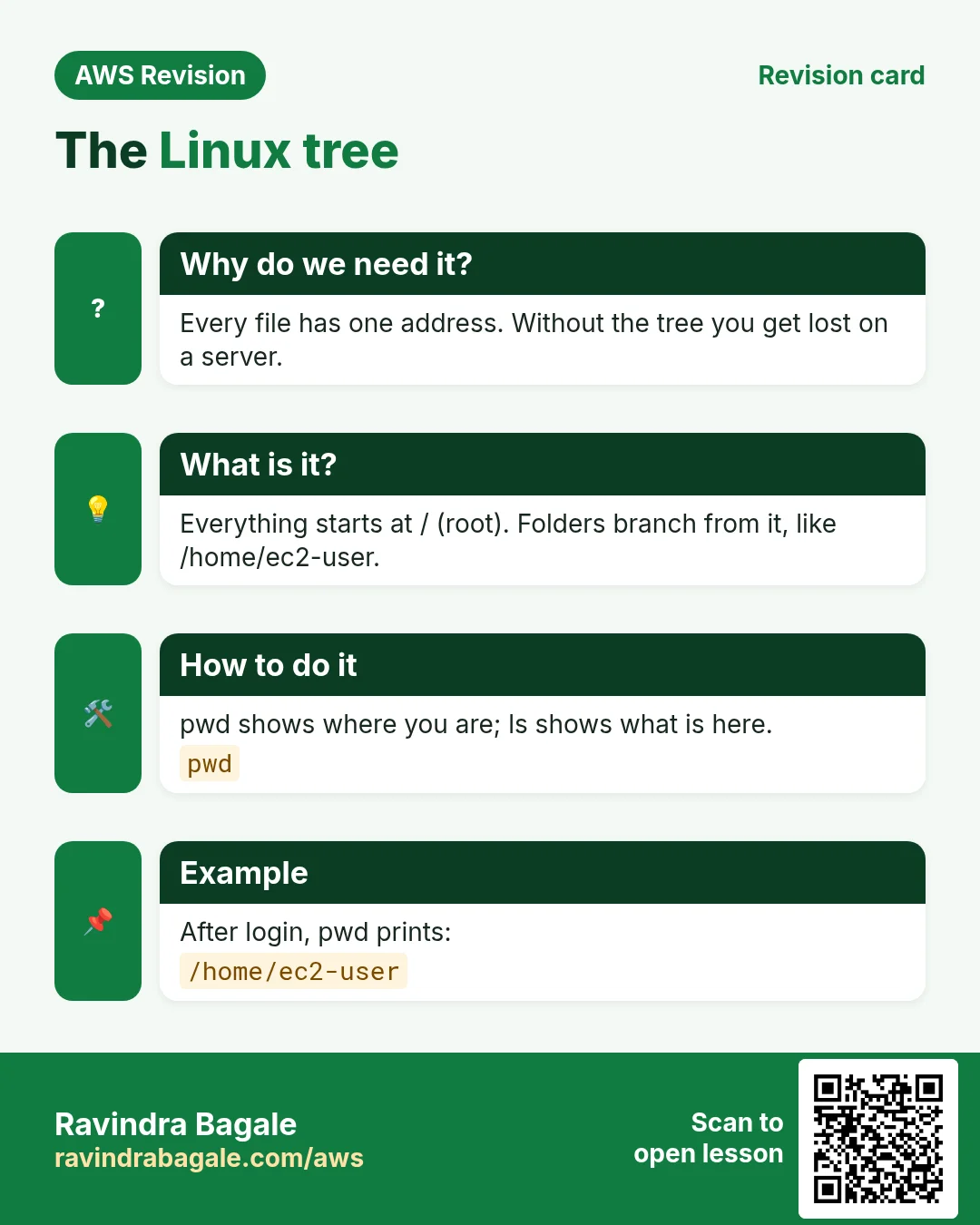
4. The Linux tree: everything starts at /
On Windows you think in drives: C:\, D:\. Linux has no drive letters. Everything hangs from one top point.
- The top of everything is
/, called root (the root directory). - Under
/are the system directories:bin,sbin,etc,home,root,dev,opt,usr,varand more. /homeholds one folder per user:/home/ec2-user,/home/ubuntu,/home/ravi.- Your own work goes inside your home folder,
/home/ec2-user. - Careful with the word "root".
/is the root directory./root(with a name after the slash) is the home folder of the root user. They are different places.
Figure 1. The Linux tree starts at / (root). Under it are bin, sbin, etc, home, root, dev, opt, usr and var. /home holds a folder for each user; your files go under /home/ec2-user.
What the main directories hold (for now, just recognise the names):
| Directory | Holds |
|---|---|
/bin, /usr/bin |
commands like ls and mkdir |
/sbin |
system admin commands |
/etc |
settings (configuration files) |
/home |
one home folder per user |
/root |
home of the root user |
/var |
logs and changing data, e.g. /var/log |
/dev |
devices, like disks |
/opt |
extra software you install |
Think of / like C:\ on Windows to start with, but / is not a folder like the others: it is the single top of the whole tree, and even other disks appear somewhere under it.
5. Your home directory, and pwd
"Where am I?" is the first question every time. Before you create or delete anything, know where you are standing.
pwd means print working directory. It prints the full path of the directory you are in now.
- Log in.
- Type
pwdand press Enter. - You see
/home/ec2-user. - After login you always land in your home directory.
6. Reading a path
Paths are how Linux says "go here". Read one slowly once, and you can read all of them.
Take /home/ec2-user/ravi/one:
- The first
/is root, the top. - Every other
/only separates names. Read it as "go inside". - So: start at root → into
home→ intoec2-user→ intoravi→ intoone.
Figure 2. The path /home/ec2-user/ravi/one: the first / is root; every other / separates names. Read it as root, then into home, ec2-user, ravi and one.
Worked example: count the levels.
/home/ec2-userhas two directories below root:homeandec2-user.- Counting root itself, that is three levels:
/,home,ec2-user. /home/ec2-user/ravi/onehas four directories below root.
/home/ec2-user has two directories, home and ec2-user, or three levels counting the root /, which is the top and not a folder inside the path.
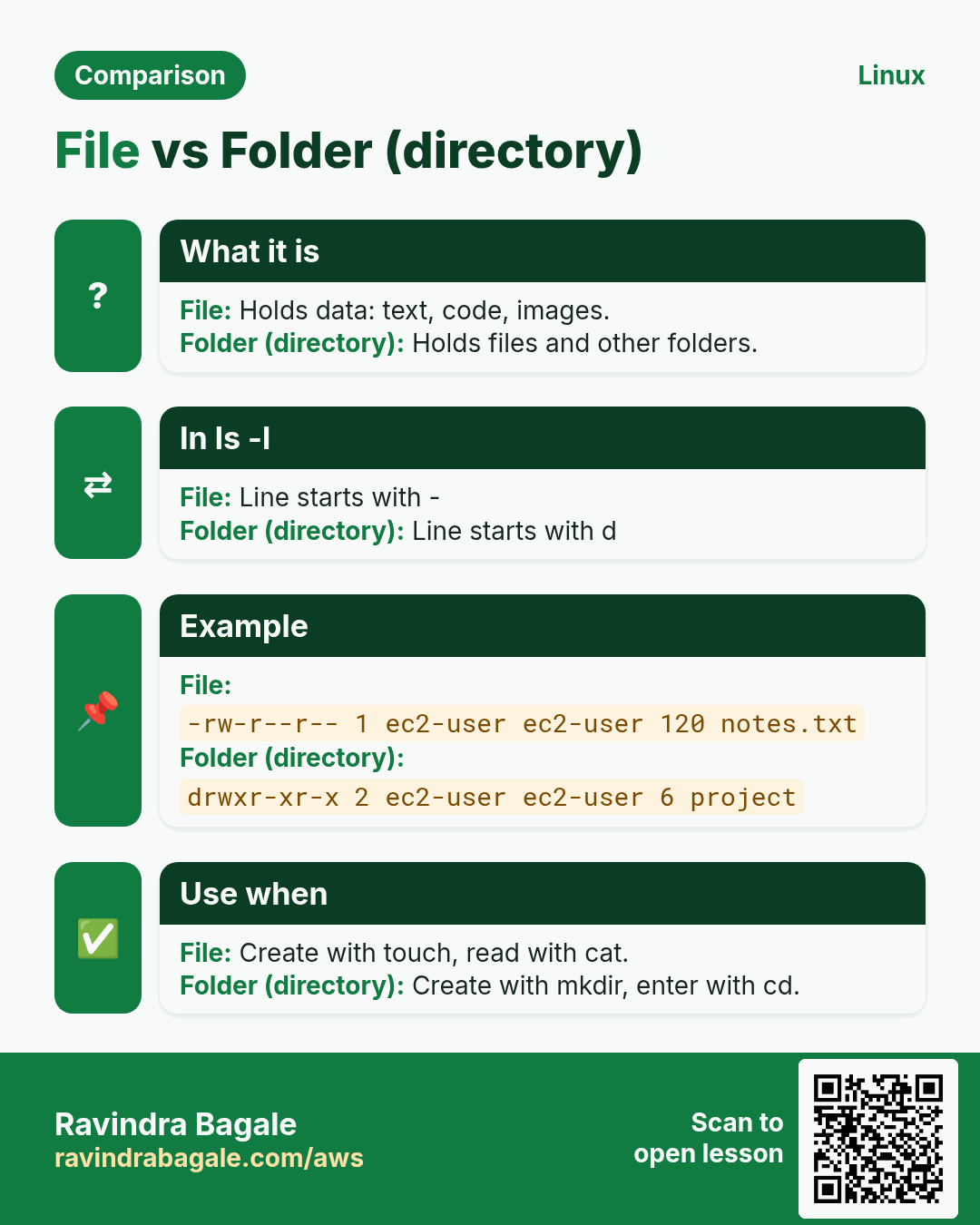
7. Files vs folders
Everything you create will be one of these two. They behave differently.
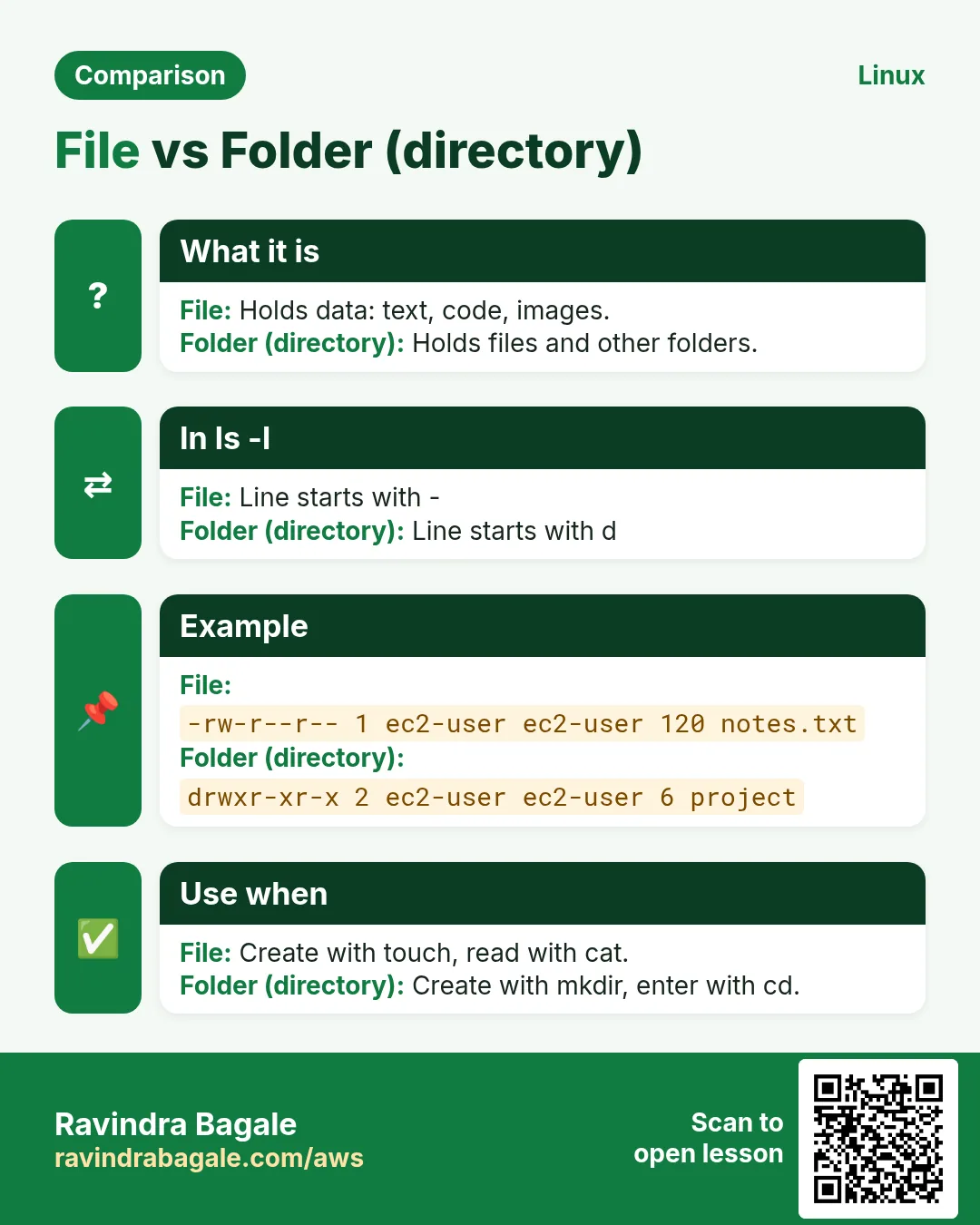
- A file holds content. You open it to read it or write in it: notes, a web page, a script.
- A folder is a container. It holds files and other folders. Think of a tiffin box: the box itself is not food; it holds the food, and even smaller boxes.
- Windows says folder. Linux says directory. Same thing. This course uses both words.
Classroom line
A folder is like a tiffin box.
Class मधलं वाक्य
Folder म्हणजे एक tiffin box सारखा.
Classroom line – हिंदी
"Folder ek tiffin box ki tarah hai."
Figure 3. A file holds content you read and write. A folder (a directory, in Linux) is a container like a tiffin box: it holds files and other folders.
8. mkdir: make one folder, or many
Before you can organise anything, you need folders.
mkdir means make directory.
mkdir ravimakes one folder namedravi.- Linux prints nothing. No output means success. Linux stays quiet when all is well.
lsshowsravi.- Several at once:
mkdir raja rani aws. Each name is a separate folder. - Try the same name again:
mkdir ravi. - Error:
mkdir: cannot create directory 'ravi': File exists. Two items in the same folder can't share a name.
Ravindra Bagale's Tip
mkdir -p ravi gives no error if ravi already exists. Useful in scripts. Section 13 shows the real job of -p.
9. ls and ls -r
After every change, look. ls is how you look.
ls means list. It lists the files and directories in the directory you are in.
ls→aws raja rani ravi. Alphabetical order.ls -r→ravi rani raja aws. The-roption reverses the order (Z to A).- A brand-new server shows nothing for
lsin your home folder. That is normal.
The -r is an option: a letter after a dash that changes how a command behaves. You will meet many: ls -l, ls -a, ls -R.
10. cd into a folder, and what the prompt tells you
Making folders is half the job. You also need to go into them.
cd means change directory.
- Start at home. The prompt is
[ec2-user@ip-172-31-5-10 ~]$. cd ravi- The prompt now ends in
ravi ]$instead of~ ]$. pwd→/home/ec2-user/ravi.mkdir onemakesoneinsideravi.cd onepwd→/home/ec2-user/ravi/one.
Reading the prompt [ec2-user@ip-172-31-5-10 ~]$:
ec2-user: who you are.ip-172-31-5-10: the server's name, built from its private IP (the IP here is an example).~: where you are. The prompt shows only the last part of the path, and shows~when you are at home.$: a normal user. A root shell shows#.
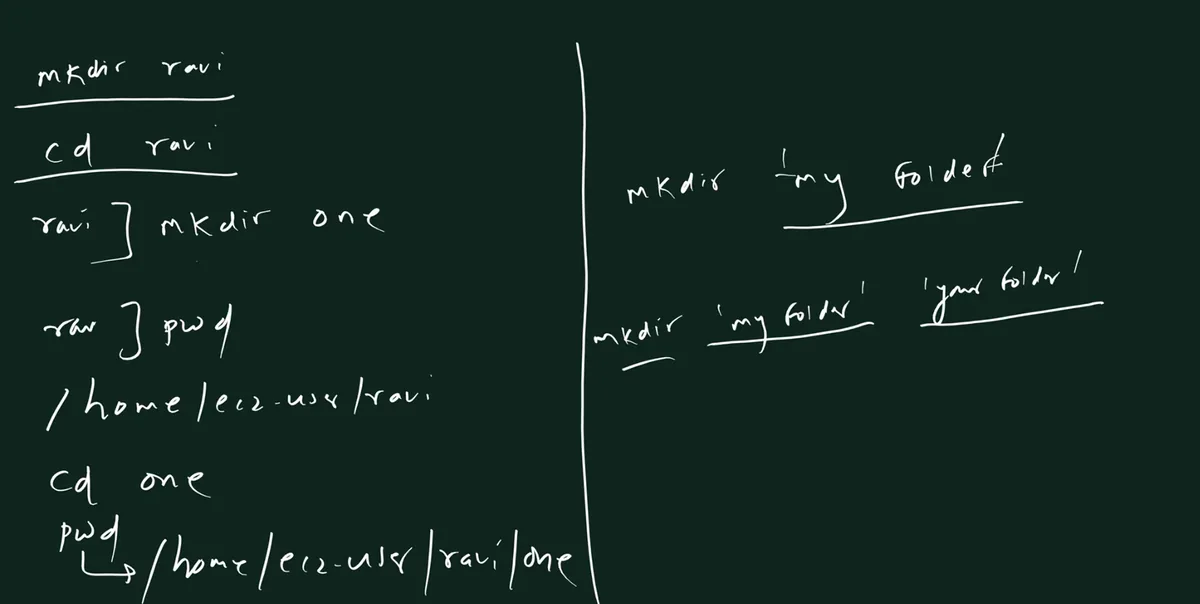
Whiteboard: Left: mkdir ravi, cd ravi, mkdir one; pwd shows /home/ec2-user/ravi; cd one; pwd shows /home/ec2-user/ravi/one. Right: a folder name with a space goes in quotes, one or several at once.
Classroom line
Pay attention, and do your own work yourself.
Class मधलं वाक्य
"Laksha dya, tumcha kaam tumhich karat ja."
लक्ष द्या, तुमचं काम तुम्हीच करत जा.
Classroom line
Pay attention, and do your own work yourself.
~ in the prompt is the short form of your home path. The shell shows ~ instead of /home/ec2-user to keep the prompt short.
11. Going up: cd .., cd ../.., cd ../../..
You went into a folder. How do you come out?
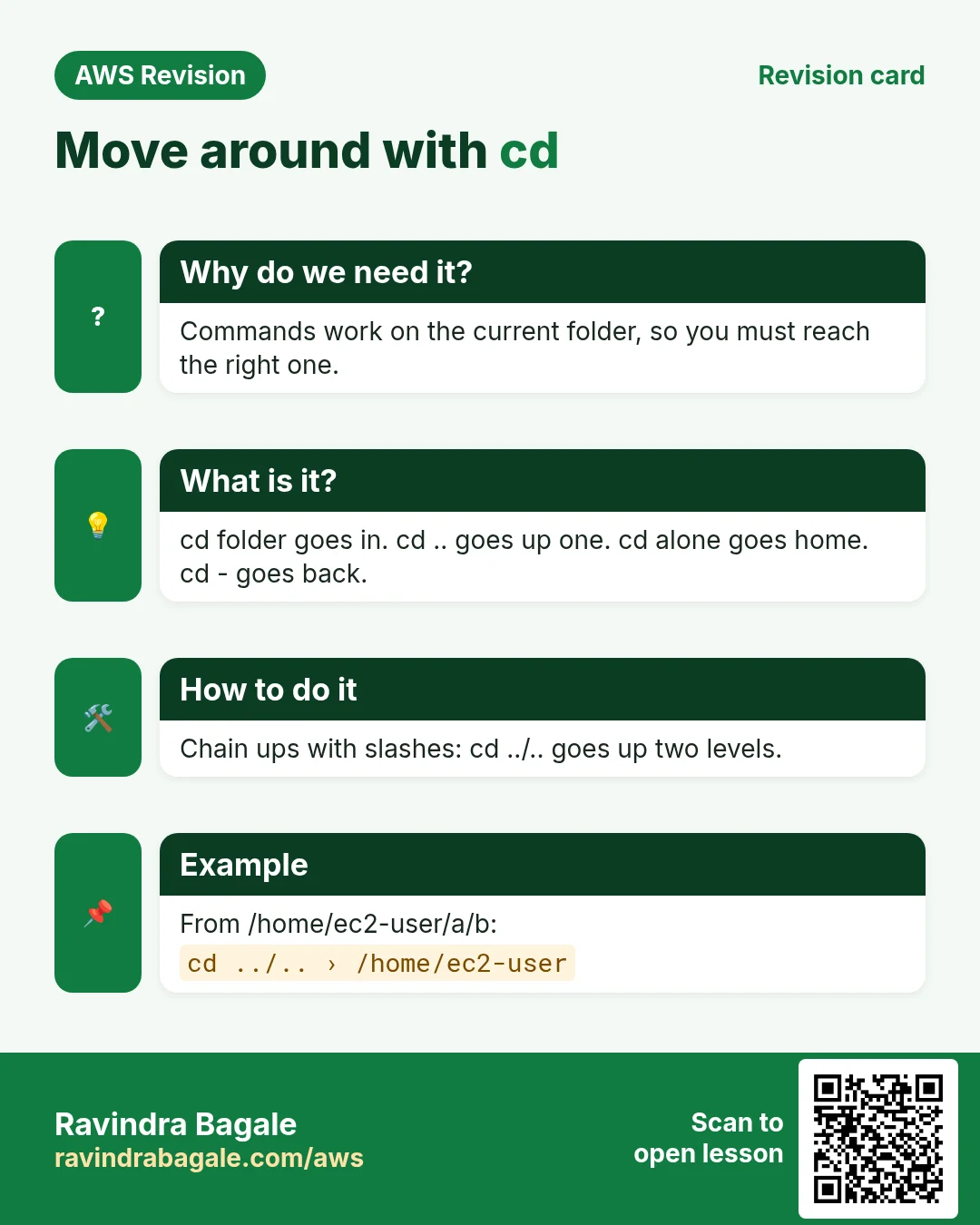
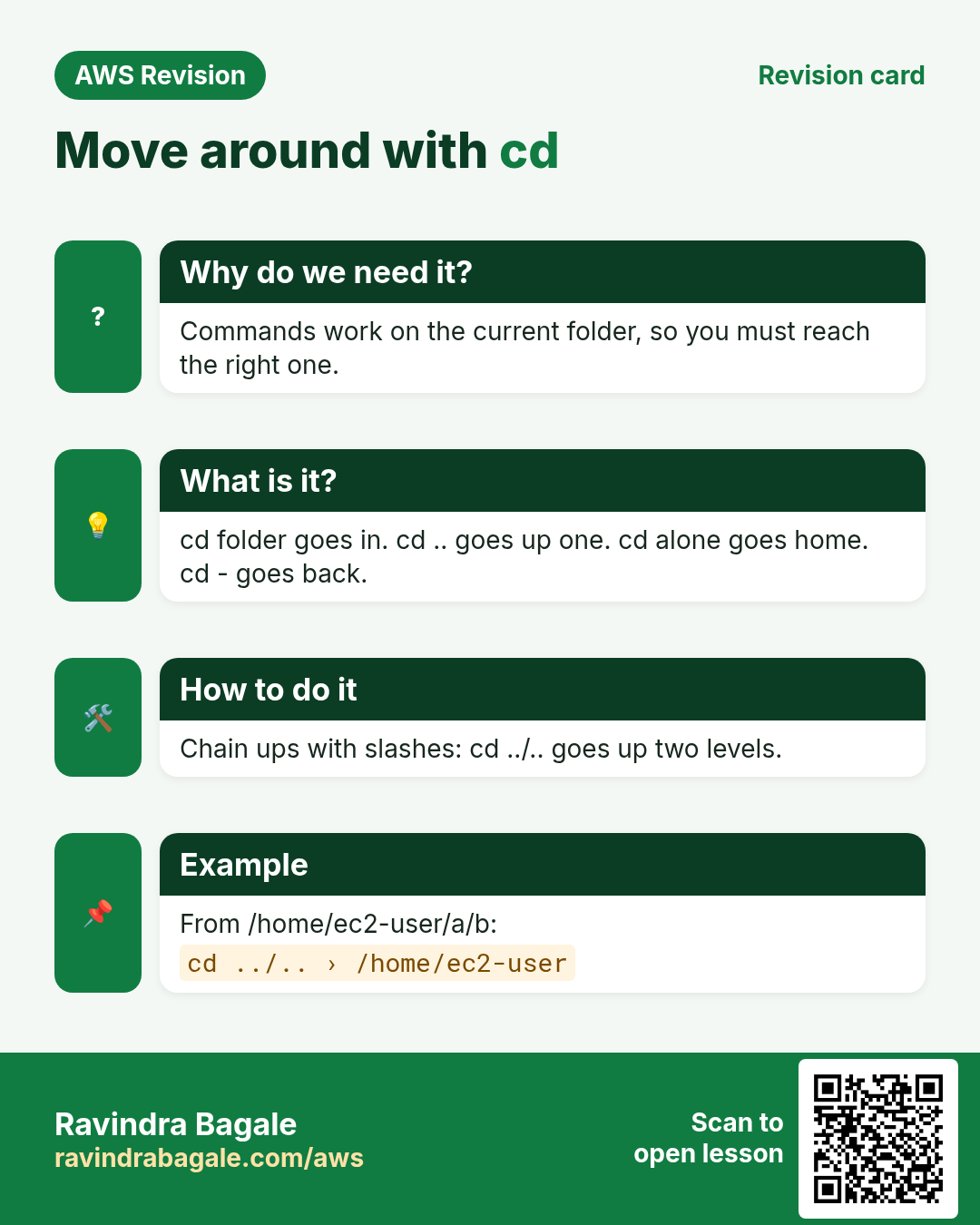
.. (two dots) means the parent directory: one level up. Each ../ climbs one more level.
- Suppose you are in
/home/ec2-user/ravi/one. cd ..→/home/ec2-user/ravi(one level up).- Go back:
cd one. cd ../..→/home/ec2-user(two levels up).- Go back:
cd ravi/one. cd ../../..→/home(three levels up).- Check with
pwdafter every step.
Worked example: a common mistake.
- You are in
/home(aftercd ../../..). - You type
cd myfolder. - Error:
-bash: cd: myfolder: No such file or directory. - Why?
myfolderis insideec2-user, not inside/home. - Fix:
cd ec2-user/myfolder.
Three levels up is cd ../../..: count one .. per level, and check with pwd before and after.
12. cd alone, cd -, and moving sideways
Typing many ../ is slow. Two shortcuts save you every day.
cdalone takes you home (/home/ec2-user) from anywhere.cd -takes you back to the previous directory, and prints where it went. Press it again to switch back. It works like a back and forward switch.- Sideways: to reach a folder next to yours, go up, then down in the same line.
Classroom line
There's a shortcut here too: to go back where you came from.
Class मधलं वाक्य
इथे shortcut पण आहे... जिथून आलात तिथेच परत जायचं.
Classroom line – हिंदी
"Shortcut bhi hai yaha pe... jahan se aaye ho wahi pe jana hai."
Worked example: a full walk. Suppose your home has one/two and myfolder side by side.
cd ~/one/twothenpwd→/home/ec2-user/one/two.cd ..→/home/ec2-user/one.cd ../myfolder→/home/ec2-user/myfolder(up to home, then into myfolder).cd ../..→/home.cd→/home/ec2-user.cd -→ prints/homeand goes there.
Sideways from deeper. From /home/ec2-user/one/two, cd ../../myfolder reaches myfolder in one step. Back again: cd ../one/two.
Figure 4. Animation: pwd, cd .., cd ../myfolder, cd ../.., cd and cd -. The orange box shows where you are after each command.
Classroom line
What is our job? To solve the problem in the least time.
Class मधलं वाक्य
आपलं काम काय असतं? कमीत कमी वेळात problem solve करायचा.
Classroom line – हिंदी
"Hum logo ka kaam kya rehta hai, kam se kam time ke andar problem solve karna hai."
13. mkdir -p: folders inside folders, in one line
Real projects need nested folders: project/src/css. Making them one by one with cd in between is slow.
Build the parent chain from a known starting place
Run cd and then pwd so the shell is in your home directory. If you ask mkdir path-lab/year/month in a fresh home, Linux needs to find path-lab/year before it can create month. When those parents do not exist, that command fails. Now run mkdir -p path-lab/year/month. It creates the missing parents and the last directory in one step.
Run the same mkdir -p again. It should leave the existing directories in place. Confirm with ls -ld path-lab/year/month and read the last part of the output as the path you asked to create. If any part of the chain is already a file instead of a directory, check that path before trying again.
Spaces and slashes mean different things to mkdir:
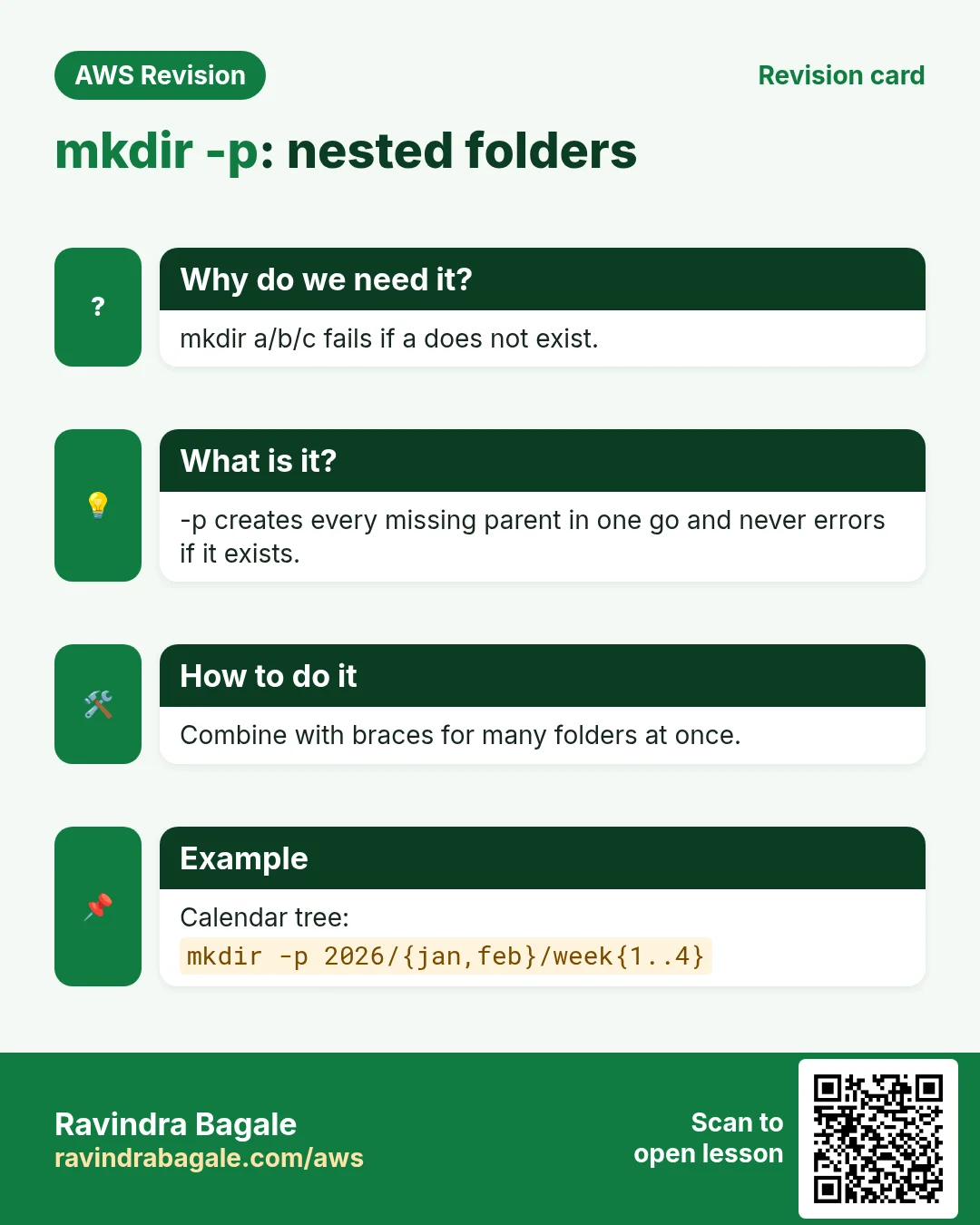
mkdir india maharashtra pune→ spaces = three separate folders, side by side.mkdir -p india/maharashtra/pune→ slashes = one inside the other:puneinsidemaharashtrainsideindia.-pmeans parents (--parents): create any missing parent folders on the way, and give no error if they already exist.- Without
-p,mkdir india/maharashtra/punefails whenindiadoesn't exist yet:No such file or directory.
Figure 5. mkdir india maharashtra pune makes three folders side by side. mkdir -p india/maharashtra/pune makes them one inside another.
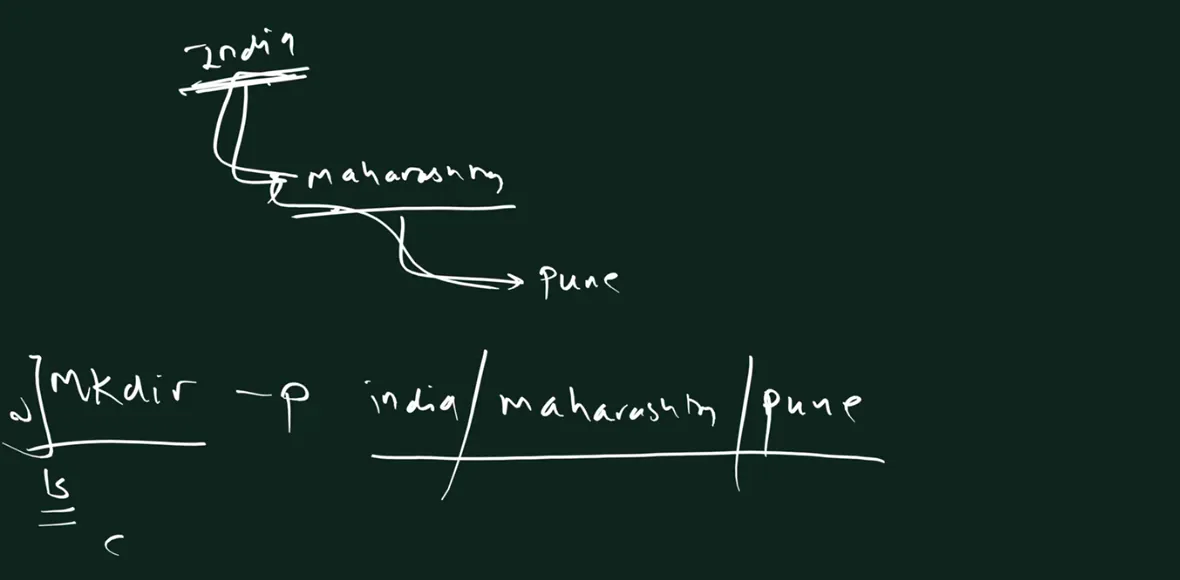
Whiteboard: india contains maharashtra, which contains pune. One command makes all three: mkdir -p india/maharashtra/pune.
Worked example: prove it.
cd(go home).mkdir -p india/maharashtra/punecd indiathenls→maharashtra.cd maharashtrathenls→pune.cd punethenpwd→/home/ec2-user/india/maharashtra/pune.
A common question: months with jan, feb and mar.
mkdir -p months/jan/feb/marmakes them nested:febinsidejan,marinsidefeb. Usually not what you want.- Side by side, the simple way:
mkdir months,cd months,mkdir jan feb mar. - Or, from home, give each full path separated by spaces:
mkdir -p months/jan months/feb months/mar. - Bonus shortcut (more in the next chapter):
mkdir -p months/{jan,feb,mar}. The shell expands the braces into the three paths of step 3.
Classroom line
What will just typing it get you? Short-term satisfaction... What is the main aim? To understand a new concept.
Class मधलं वाक्य
"Tumhi kelyan kay honar ahe? Short term satisfaction bhetnar... Main aim kay ahe? Kahitari navin concept kalayla pahije."
तुम्ही नुसतं केल्याने काय होणार आहे? Short term satisfaction मिळणार... Main aim काय आहे? काहीतरी नवीन concept कळायला पाहिजे.
Classroom line
What will just typing it get you? Short-term satisfaction... What is the main aim? To understand a new concept.
14. Absolute paths, relative paths and ~
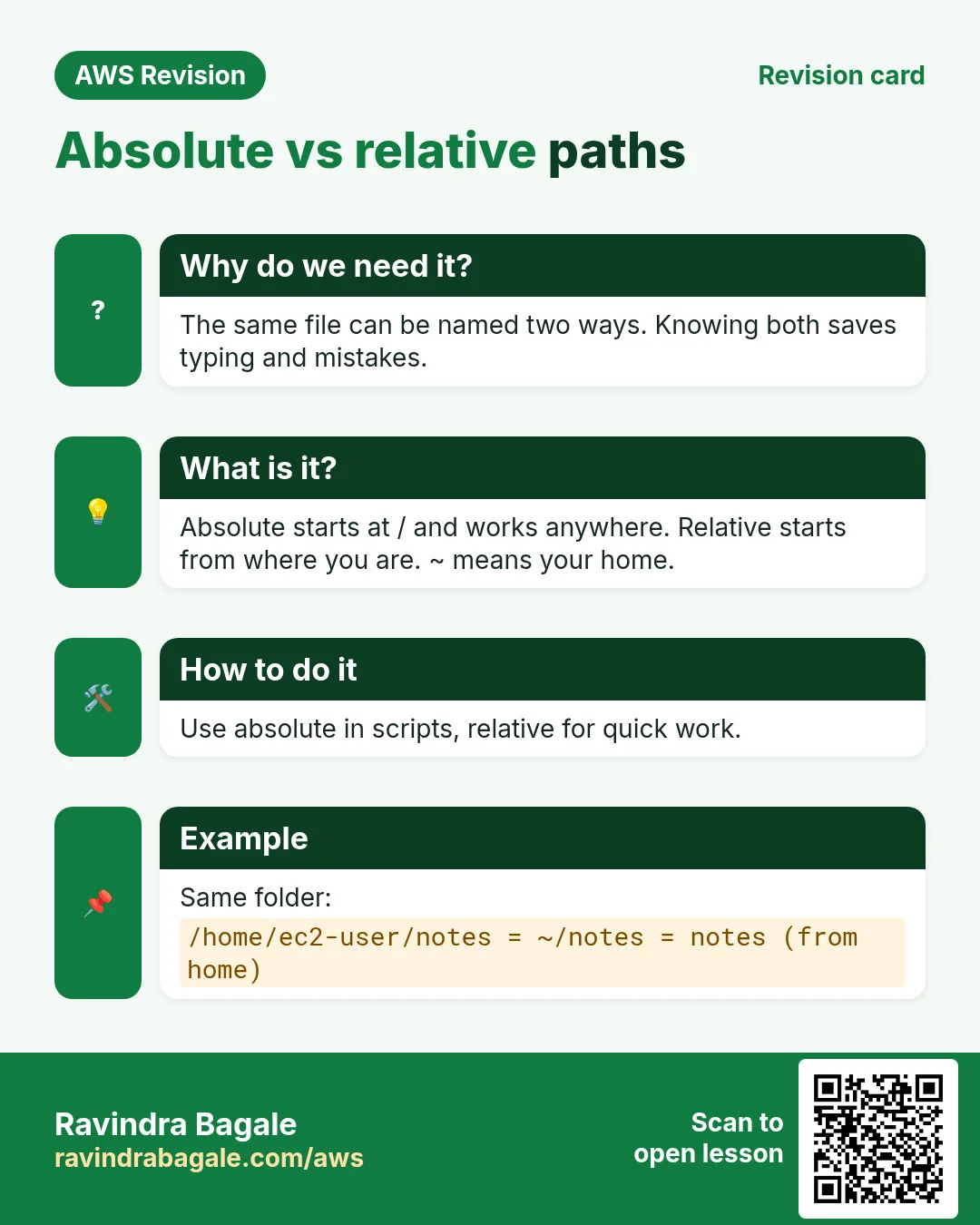
Every command that takes a path (cd, mkdir, ls, cp) accepts all three kinds. Knowing them lets you work on any folder without walking to it first.
Predict the target before you change directories
Put /home/ec2-user/calendar/weeks on the board as your current location. ../months means climb to calendar and go into months. /home/ec2-user/calendar/months starts at the top and names the same place without using your current location. ~/calendar/months starts with the current user’s home as expanded by the shell.
Try ls -d ../months while standing in weeks. Then move to a different folder and try the same relative path. Its meaning has changed with your position. An absolute path still points to the same place. This is why a command copied from a tutorial may work for the teacher and fail on your server until you check pwd.
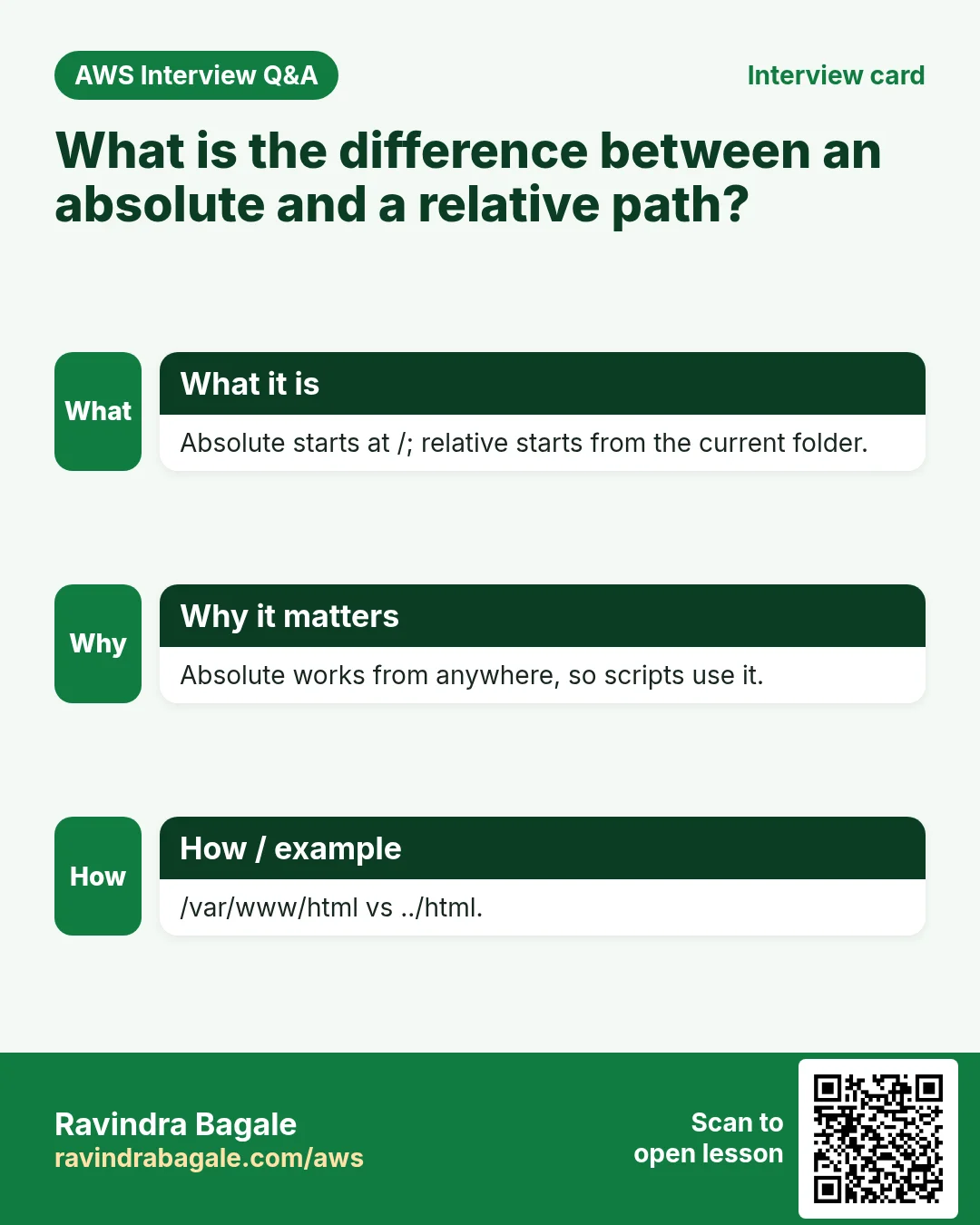
- Absolute path: starts with
/. It starts from root, so it means the same place no matter where you are. Example:/home/ec2-user/calendar/weeks. - Relative path: does not start with
/. It starts from where you are now...means the parent; a plain name means a folder inside the current one. Example:../weeks. - Tilde path: starts with
~.~means your home directory. Example:~/calendar/weeks.
~ depends on who is logged in:
- Logged in as
ec2-user:~=/home/ec2-user. - Logged in as
ubuntu:~=/home/ubuntu. - Logged in as
ravi:~=/home/ravi. /is always the top of the whole tree.~is your own folder inside it.
Figure 6. ~ means the home of whoever is logged in: /home/ec2-user, /home/ubuntu or /home/ravi. The shell turns ~ into that path.
It is the shell (bash) that turns ~ into your home path, before the command runs. One result: inside quotes, '~/x' is not expanded, so leave ~ outside quotes.
15. Worked scenario 1: the calendar
This scenario makes the three kinds of path click.
Set it up (from home):
mkdir calendarcd calendarmkdir months weeks dayscd monthsmkdir jan feb marpwd→/home/ec2-user/calendar/months. You are inmonths.
The task: make week1 inside weeks, while you are in months. Four ways:
- Walk there, then make it:
cd .., thencd weeks, thenmkdir week1. - Relative, stay where you are:
mkdir ../weeks/week1(up tocalendar, intoweeks, makeweek1). - Absolute, works from anywhere:
mkdir /home/ec2-user/calendar/weeks/week1. - Tilde:
mkdir ~/calendar/weeks/week1.
Figure 7. You are in months. Make week1 inside weeks by walking there, with a relative path, an absolute path or a tilde path. All four make /home/ec2-user/calendar/weeks/week1.
Check: ls ~/calendar/weeks → week1. If you try all four with the same name, the second one onwards says File exists, because week1 is already there. To practise all four, use a new name each time: week1, week2, week3, week4.
Classroom line
Real study happens when you build situations in your own mind.
Class मधलं वाक्य
"Jevha tumhi manatlya manat situation aanta na tevha study hoto."
जेव्हा तुम्ही मनातल्या मनात situation आणता ना, तेव्हा study होतो.
Classroom line
Real study happens when you build situations in your own mind.
16. Worked scenario 2: one to five
This is the situation you meet on real servers: you are deep inside a project and need a folder two levels up. Doing it three ways shows that absolute, relative and ~ paths all reach the same place, so you can pick the shortest one.
Set it up:
cdmkdir -p one/two/three/four/fivecd one/two/three/fourpwd→/home/ec2-user/one/two/three/four. You are infour.
The task: make 22 inside two. Three ways:
- Absolute:
mkdir /home/ec2-user/one/two/22. (mkdir -pworks too; it gives no error when the parents exist.) - Relative:
mkdir ../../22. The first..goes fromfourtothree; the second goes fromthreetotwo. - Tilde:
mkdir ~/one/two/22.
Figure 8. Animation: you are in four. Two .. steps climb to two, and 22 appears inside two. Absolute, relative and tilde paths give the same result.
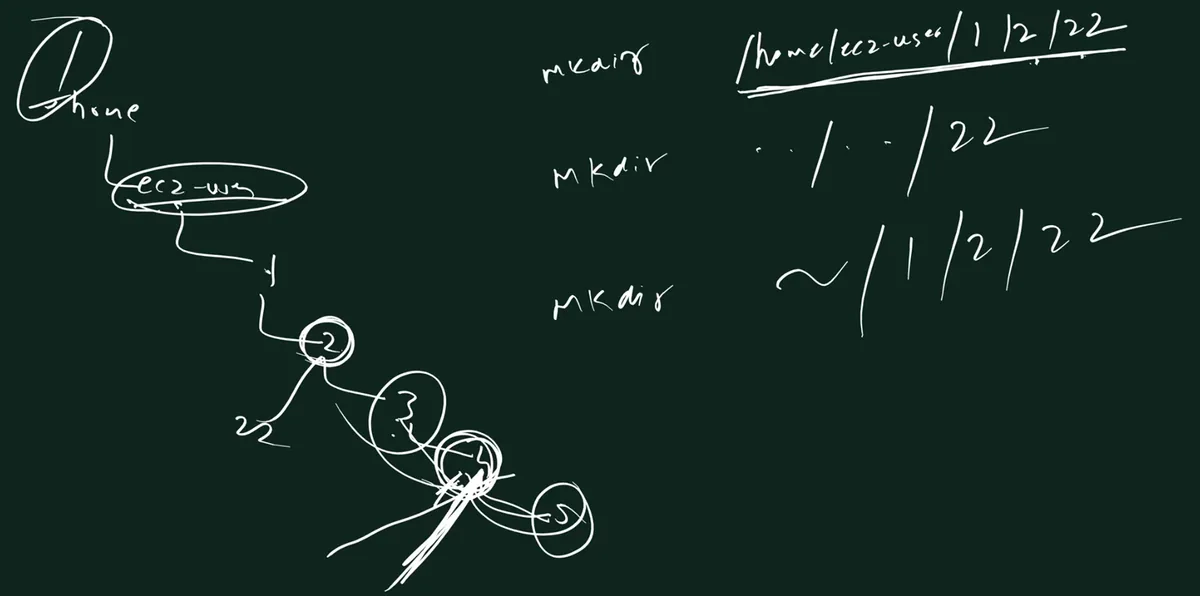
Whiteboard: Folders named 1 to 5 under ec2-user. From inside 4, three ways to make 22 inside 2: mkdir /home/ec2-user/1/2/22, mkdir ../../22 and mkdir ~/1/2/22.
Check: ls ~/one/two → 22 three.
Classroom line
Go back and forth like this yourself; make up your own situations.
Class मधलं वाक्य
"Tumhi swata asa maage pudhe kara, situation banva."
तुम्ही स्वतः असं मागे पुढे करा, situation बनवा.
Classroom line
Go back and forth like this yourself; make up your own situations.
17. Names with spaces
On Windows, "My Folder" is normal. In the shell, a space separates arguments, so it causes surprises.
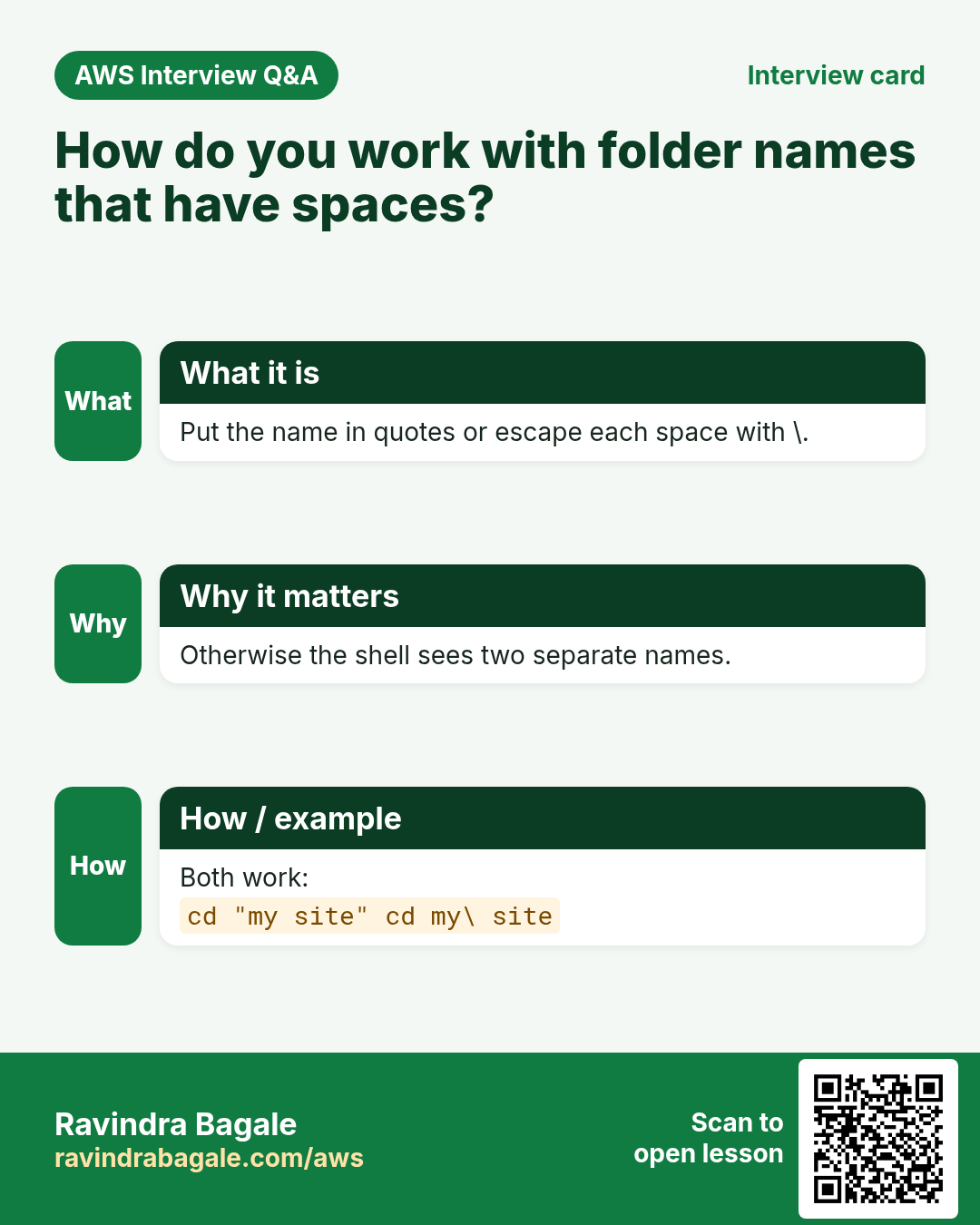
mkdir my foldermakes two folders:myandfolder.mkdir 'my folder'makes one folder namedmy folder. Double quotes work too:mkdir "my folder".- Several names with spaces:
mkdir 'my folder' 'your folder'. - To go in:
cd 'my folder', or typecd myand press Tab. Tab writescd my\ folder/. - The backslash
\is an escape character: it tells the shell "the next space is part of the name".
Figure 9. mkdir my folder makes two folders. mkdir 'my folder' makes one. cd my\ folder escapes the space; Tab writes it for you.
Worked example.
mkdir 'my folder'cd my+ Tab →cd my\ folder/→ Enter.mkdir 'inside folder'pwd→/home/ec2-user/my folder.ls→inside folder.
Classroom line
Go on. Create folders with spaces... Press Tab and see what happens.
Class मधलं वाक्य
"Kara. Space deun folder create karun bagha... Bagha tab press karun kay hotay."
करा. Space देऊन folder create करून बघा... Tab press करून काय होतंय ते बघा.
Classroom line
Go on. Create folders with spaces... Press Tab and see what happens.
Ravindra Bagale's Tip
At work, avoid spaces in file and folder names. Use my-folder or my_folder. Scripts, URLs and other people's commands will thank you.
18. Tab completion, and what to do when names start the same
On the job, nobody types long paths letter by letter. Tab is faster and makes no spelling mistakes.
- Type the first few letters of a name and press Tab. If only one name matches, the shell completes it.
- If several names match, one Tab completes only the letters they share, or does nothing.
- Press Tab twice to see the matching names.
- Type one or two more letters until only one name matches, then press Tab.
Worked example 1: tata, twelve, taja (and two).
- In a fresh folder:
mkdir tata twelve taja two. cd t+ Tab → nothing happens: four names start witht.- Tab Tab →
taja/ tata/ twelve/ two/. cd taj+ Tab →cd taja/.cd .., thencd tat+ Tab →cd tata/.
Worked example 2: amazon, amma, aman.
mkdir amazon amma amancd ama+ Tab → stops atama, becauseamazonandamanboth start withama.cd amaz+ Tab →cd amazon/.cd aman+ Tab →cd aman/.cd amm+ Tab →cd amma/.
Figure 10. Animation: cd t + Tab does nothing (four matches); Tab Tab lists them; cd taj + Tab completes taja. In the second example ama is not unique, so type amaz or aman.
Tab completes only when the start is unique. With both amazon and aman present, ama + Tab stops at ama. Type amaz, then Tab.
19. clear and history
A screen full of old output hides the one error you need to read, so clear it. And when something breaks, history shows what you actually typed, not what you think you typed.
clear.
clear(or Ctrl+L) wipes the screen.- Only the screen. Your files and folders are untouched.
history.
historyprints a numbered list of commands you ran.- Handy to see what you did, or to copy a long command again.
!45runs command number 45 again.- The Up Arrow walks back through the same list.
Classroom line
While I'm explaining, don't type along... when I'm showing, just watch.
Class मधलं वाक्य
"Jevha mi sangto na tevha karat jau naka... mi dakhavto bagha mhanje bagha."
जेव्हा मी सांगतो ना, तेव्हा करत जाऊ नका... मी दाखवतो, बघा म्हणजे बघा.
Classroom line
While I'm explaining, don't type along... when I'm showing, just watch.
history shows only the commands of this user's shell (saved in ~/.bash_history), and a user can edit or clear it. It is not an audit log. On AWS, account actions are recorded by CloudTrail; that comes later in the course.
20. Two more SSH fixes: the port 22 rule and chmod 400
When SSH fails, the four errors in section 1 cover most cases. Two more come up often: a connection that just hangs and then says Connection timed out even though the IP is right, and a key that is refused on a Mac or Linux laptop.
Background. 1. Port 22. SSH talks to the server on TCP port 22. The instance's security group is a firewall. If its inbound rules have no rule of type SSH (TCP, port 22) from your network, AWS drops your packets silently. Your laptop keeps waiting and finally prints Connection timed out.
2. Fix: EC2 → your instance → Security tab → click the security group → Edit inbound rules → Add rule → Type SSH, Source My IP → Save rules. Try ssh again.
3. chmod 400. On Mac and Linux, ssh refuses a private key that other users could read. You see WARNING: UNPROTECTED PRIVATE KEY FILE!, then Permissions 0644 for 'firstserver.pem' are too open., then Permission denied (publickey).
4. Fix: chmod 400 firstserver.pem. Now only you can read it. Run the same ssh -i firstserver.pem ec2-user@<public IP> again.
5. On Windows PowerShell this check rarely triggers for a key in your own Downloads folder, which is why Windows users usually never meet it.
Connection to this chapter. You cannot practise a single command from this chapter until you are logged in. These two fixes, plus the four errors in section 1, cover almost every failed login you will meet.
21. Hands-on lab: pwd, ls, cd and mkdir from start to finish
Each command above was shown on its own. Here you use them together, in order, the way you will on a real server. Run every step and compare your screen with the expected output before you move on.
- Log in and find where you are
- Command:
pwd - You should see:
/home/ec2-user - Check: The prompt ends with
~]$. - Why: Every login starts in your home folder. Knowing where you stand before you create anything stops files from landing in the wrong place.
- Command:
- Make three folders in one command
- Command:
mkdir ravi raja rani - You should see: Nothing. The next prompt appears.
- Check:
ls→raja rani ravi - Why: A space separates names, so one
mkdirmakes three folders. No output means success; Linux only talks when something is wrong.
- Command:
- Try to make one again
- Command:
mkdir ravi - You should see:
mkdir: cannot create directory 'ravi': File exists - Check:
lsstill shows oneravi. - Why: Two items in one folder can't share a name. Reading this error now means you won't panic when a script hits it later.
- Command:
- Build a deep tree in one line
- Command:
mkdir -p one/two/three/four/five - You should see: Nothing.
- Check:
ls one/two/three/four→five - Why:
-pcreates every missing parent on the way. Without it,mkdirstops withNo such file or directorybecauseonedoesn't exist yet.
- Command:
- Walk down into it
- Command:
cd one/two/three/four - You should see: The prompt ends with
four]$. - Check:
pwd→/home/ec2-user/one/two/three/four - Why: One
cdwith a relative path is faster than fourcdcommands. The prompt shows only the last folder name, so usepwdwhen you need the full path.
- Command:
- Make 22 inside two, three ways
- Command:
mkdir ../../22 - You should see: Nothing.
- Check:
ls ~/one/two→22 three. Thenrmdir ~/one/two/22and repeat withmkdir /home/ec2-user/one/two/22and withmkdir ~/one/two/22; each timels ~/one/twoshows22 three. - Why:
../..climbs two levels fromfourtotwo. Getting the same result with relative, absolute and~paths proves they are three spellings of one place.
- Command:
- Jump home, then back
- Command:
cd - You should see: The prompt ends with
~]$. - Check: Now
cd -prints/home/ec2-user/one/two/three/fourand takes you back. - Why:
cdalone always goes home, from anywhere.cd -returns to the previous folder, so you can hop between two places without typing paths.
- Command:
- Climb up with ..
- Command:
cd ../.. - You should see: The prompt ends with
two]$. - Check:
pwd→/home/ec2-user/one/two - Why: Each
..is one level up. Two of them take you fromfourtotwo.
- Command:
- Make a folder with a space in its name
- Command:
cd && mkdir 'my folder' - You should see: Nothing.
- Check:
lsshows'my folder'as one item next toone raja rani ravi. - Why: Quotes keep the two words together. Without them,
mkdir my foldermakes two folders,myandfolder.
- Command:
- Let Tab type for you
- Do: Type
cd myand press Tab. - You should see: The shell completes it to
cd my\ folder/. - Check: Press Enter. The prompt ends with
my folder]$. - Why: Tab never misspells and adds the backslash before the space for you. If nothing happens, two names start the same: press Tab twice to see them and type one more letter.
- Do: Type
- Check what you did, then clean the screen
- Command:
history - You should see: A numbered list of every command from this lab, oldest first.
- Check:
clearempties the screen;ls ~still shows all your folders. - Why:
historyis your record when something went wrong.clearonly wipes the screen, never your files.
- Command:
- Stop the server
- Do: EC2 console → select the instance → Instance state → Stop instance.
- Check: The state goes from Stopping to Stopped.
- Why: A running instance uses free-tier hours. Stopping keeps your disk and folders for next time.
- Climb three levels with
cd ../../..(not four)- Do: From a deep folder such as
~/one/two/three, runpwd, thencd ../../.., thenpwd. - You should see: You land in
/home/ec2-user(three levels up).cd ../../../..would go one level too far. - Check: Count the
..segments — each one is one folder up. - Why: Class mix-up: saying “three” but typing four
... Always confirm withpwd.
- Do: From a deep folder such as
- Make
22three ways underone/two- Command:
mkdir -p /home/ec2-user/one/two/22then also trymkdir ~/one/two/22and from inside a child oftwousemkdir ../../22after removing the first. - You should see: No output on success.
ls ~/one/twolists22. - Check: Absolute, tilde, and relative paths all create the same folder.
- Why: On the job you pick the path style that needs the fewest keystrokes from where you stand.
- Command:
- Sideways move:
../../myfolderthen back- Do: From
~/one/tworuncd ../../myfolder(ifmyfolderexists under home). Thencd ../one/twoto return. - You should see: Prompt changes to
myfolder, then back totwo. - Check: From
/home, barecd myfolderfails withNo such file or directorybecausemyfolderlives underec2-user— usecd ec2-user/myfolder. - Why: Relative paths are short but start from your current folder, not from home.
- Do: From
- Reverse listing with
ls -r- Command:
lsthenls -rin a folder with several names. - You should see:
lsA→Z;ls -rZ→A. - Check: Same names, opposite order.
- Why: Handy when the file you want is at the end of a long alphabetical list.
- Command:
22. Practice task
Classroom line
Don't look at someone else's screen... put in the effort yourself.
Class मधलं वाक्य
"Dusryachya screen kade baghu naka... swatah traas ghya."
दुसऱ्याच्या screen कडे बघू नका... स्वतः त्रास घ्या.
Classroom line
Don't look at someone else's screen... put in the effort yourself.
Try at home
Task 1: build and walk a tree
- Log in and run
pwd. Write down what it shows. mkdir -p school/class1/divA school/class2cd school/class1/divA, thenpwd.- Go to
class2in one command, without going home. (cd ../../class2) - Use
cd -twice and watch where you land. - Use
cdalone, thenpwd.
Task 2: three ways
- From inside
divA, makenotesinsideschoolwith a relative path. (mkdir ../../notes) - Make
examsinsideschoolwith an absolute path. - Make
resultsinsideschoolwith a~path. ls ~/schoolshould showclass1 class2 exams notes results.
Task 3: spaces and Tab
mkdir 'my notes' 'my marks'- Go into
my marksusing Tab. What does Tab type? - Make three folders that start the same:
mkdir data date dance. - Practise reaching each one with the fewest letters + Tab.
Task 4: your own situations
- Draw a folder tree on paper, at least four levels deep.
- Make it with one
mkdir -pline. - Pick any two folders in it. Move between them with an absolute path, a relative path and a
~path. - Run
historyand read back what you did. - When you finish, stop the instance from the console.
Classroom line
Don't forget to stop the server.
Class मधलं वाक्य
"Server bandh karayla visru naka."
Server बंद करायला विसरू नका.
Classroom line
Don't forget to stop the server.
A reboot keeps the same public IP. The auto-assigned public IP changes when you stop and then start the instance (an Elastic IP stays). Also, a stopped instance still pays for its EBS disk; see the previous chapter.
Ravindra Bagale's Tip
Before every mkdir, cp or rm, ask yourself "where am I?" and run pwd if you are not sure. Most beginner mistakes happen in the wrong folder, not with the wrong command. For a compact reference of these commands, see 3.2 Navigation and 3.3 Working with files and directories.
Common errors and fixes
| Error / symptom | Fix |
|---|---|
mkdir: cannot create directory … File exists | That name is already taken in this folder. Pick another name or cd into the existing one. |
No such file or directory on cd or mkdir (without -p) | Parent folder missing, or you are in the wrong place. pwd + ls, or use mkdir -p. |
cd myfolder fails from /home | myfolder is under ec2-user. Use cd ec2-user/myfolder or cd ~/myfolder. |
Tab does nothing on cd t | Several names share the prefix. Press Tab twice to list, then type more letters. |
mkdir my folder made two folders | Space splits names. Use quotes: mkdir 'my folder'. |
Ended up too high after many .. | Count .. levels; confirm with pwd every time. |
FAQ
Q. Is ~ always /home/ec2-user?
For the Amazon Linux default user yes. For Ubuntu it is often /home/ubuntu. ~ always means “home of the user you are now”.
Q. mkdir gave no output — did it fail?
No. Linux stays quiet on success. Check with ls.
Q. What does cd - do?
Jumps to the previous directory and prints that path. Great for flipping between two folders.
Q. Absolute or relative path?
Absolute (starts with / or ~) works from anywhere. Relative is shorter when you are already nearby.
Recap
In short
- SSH:
ssh -i <key> ec2-user@<public IP>. Use Tab for the key path. Paste with Ctrl+V or right-click. - Errors: publickey (wrong key or user), no such file (key path), timed out (IP changed after stop/start).
- Log in as
ec2-user; usesudofor admin work. The key pair isn't tied to a user; root SSH login is blocked. - An idle SSH drop comes from your router, Wi-Fi or sleep, not AWS. Up Arrow + Enter reconnects;
ServerAliveInterval=60keeps it alive. /is the top of the whole tree./rootis the root user's home, a different place.- You land in
/home/ec2-user.pwdprints where you are. - In a path, the first
/is root; the others separate names. - A file holds content; a folder (directory) holds files and folders.
mkdir a b cmakes three folders. No output = success. Same name again =File exists.lslists;ls -rlists in reverse.cd namegoes in. The prompt shows~at home.cd ..up one;cd ../..up two;cd ../../..up three.cdalone = home.cd -= back to the previous directory.mkdir -p a/b/cmakes nested folders; spaces make side-by-side folders.- Absolute starts with
/; relative starts from where you are;~is your home (the shell expands it). - Calendar: four ways to make
week1. One to five: three ways to make22. - Spaces: quote the name or escape with
\. Better: avoid spaces. - Tab completes; Tab Tab lists; type more letters when names start the same.
clearwipes the screen only.historylists this user's commands; it is not an audit log.- Stop the server after practice. Reboot keeps the public IP; stop and start changes it.
Samjla ka? Ghari swatahachya situation banva, absolute, relative ani ~ teenhi vaapra. Pudhchya chapter madhe files.
Ravindra Bagale, trainer: linkedin.com/in/ravindra-bagale. The folder names (ravi, calendar, india/maharashtra/pune, one to five, tata, amazon), the user name ravi and the addresses 3.3.3.3 and 172.31.5.10 are examples for learning. Command outputs were checked with GNU bash and coreutils, the same tools Amazon Linux 2023 uses; AWS behaviour is from AWS's own documentation as of October 2026.
Worked example: read the path before you type the command
You are in /home/ec2-user on an Amazon Linux server. A teammate says, “Put the notes in report.” Which report? Draw the path as a route before you move.
mkdir -p "$HOME/path-practice/report draft/notes"
cd "$HOME/path-practice/report draft"
pwd
cd notes
pwd
cd ..
pwd
What to see. The three paths end in report draft, report draft/notes and report draft. Double quotes keep the folder name with a space together. notes is relative to the current directory. $HOME/path-practice/report draft/notes resolves from your home directory regardless of where you start.
Try it. Run cd /, then try cd notes. Confirm with pwd that the failed command did not change location. Return to the practice folder using its full path. Use rmdir to remove the three practice directories once they are empty.
Interview question: why do scripts work in one directory and fail in another?
A relative path uses the process's working directory. A script started by a service can have a different working directory from your SSH shell. Set that directory explicitly or construct the intended full path.
Practise this chapter
Interview questions and answers
Why can cd / work for a normal user without giving the user administrative access?
The slash is the starting directory of the filesystem. The current user is a separate property that decides which paths the process can access. You can see that distinction with pwd and whoami before and after cd.
A teammate pastes mkdir notes into two different terminal windows and gets two new directories. Why?
A relative name starts from each window’s current working directory. The two shells were standing in different places. Run pwd in both windows and either move to the intended parent or use the complete absolute path.
Check your understanding
Choose an answer, then compare your reasoning with the explanation.
Practice Tasks
Practice checks run in your browser. They check the answer for this exercise; they do not create resources or connect to your AWS account.
About this scenarioNairobi Ride is a transport business in Nairobi. Wanjiru Kamau looks after its IT and cloud work. They count money in KES and run their AWS resources in the af-south-1 Region. In the tasks below you do real jobs for them using what this lesson teaches. All names, account IDs, IP addresses and numbers are made up for practice.
0 / 12
Easy List all files with details
Hidden files (like .env) and file sizes or owners only show with the right options.
Show a long listing of every file, including hidden ones, in /var/www/nairobiride.
- Find the Linux command that does this job.
- Add the options (like -r or -h) the task needs.
- Add the file names, folders or users in the right order.
- Use sudo if the job changes system files or users. Click Check answer.
Easy Create nested folders in one go
Projects need a clean folder tree. Making all levels in one command saves time and avoids errors.
Create the folder /srv/nairobiride/reports/2026 for Nairobi Ride. The parent folders do not exist yet, so create them too.
- Find the Linux command that does this job.
- Add the options (like -r or -h) the task needs.
- Add the file names, folders or users in the right order.
- Use sudo if the job changes system files or users. Click Check answer.
Easy Show where you are
Before you copy or delete anything, you must know which folder you are in.
Wanjiru Kamau logged in to the Nairobi Ride server and is not sure which folder the terminal is in. Print the current folder path.
- Find the Linux command that does this job.
- Add the options (like -r or -h) the task needs.
- Add the file names, folders or users in the right order.
- Use sudo if the job changes system files or users. Click Check answer.
Easy Read a config file
Reading a file on the screen is the quickest way to check its settings.
Print the whole file /etc/nairobiride/app.conf on the screen.
- Find the Linux command that does this job.
- Add the options (like -r or -h) the task needs.
- Add the file names, folders or users in the right order.
- Use sudo if the job changes system files or users. Click Check answer.
Easy Create an empty file
Some apps need a file to exist before they can write to it.
Create an empty file named orders-kes.csv in the current folder.
- Find the Linux command that does this job.
- Add the options (like -r or -h) the task needs.
- Add the file names, folders or users in the right order.
- Use sudo if the job changes system files or users. Click Check answer.
Easy Copy a folder with everything inside
A plain copy skips folders. You need the recursive option to copy a whole tree.
Copy the folder site to a new folder named site-backup (both in the current folder).
- Find the Linux command that does this job.
- Add the options (like -r or -h) the task needs.
- Add the file names, folders or users in the right order.
- Use sudo if the job changes system files or users. Click Check answer.
Easy Rename a file
In Linux, renaming is the same as moving a file to a new name.
Rename the file report.txt to report-nairobi.txt.
- Find the Linux command that does this job.
- Add the options (like -r or -h) the task needs.
- Add the file names, folders or users in the right order.
- Use sudo if the job changes system files or users. Click Check answer.
Easy Go into the logs folder
Moving into a folder makes the next commands shorter.
Move into the folder /var/log/nairobiride.
- Find the Linux command that does this job.
- Add the options (like -r or -h) the task needs.
- Add the file names, folders or users in the right order.
- Use sudo if the job changes system files or users. Click Check answer.
Easy List Availability Zones
Spreading servers across AZs keeps you up if one data centre fails.
List the Availability Zones in af-south-1.
- Read the task and decide which AWS service it is about.
- Write aws, then the service name, then the operation (the action word).
- Add each needed flag (--name) followed by its value from the task.
- Flags can be in any order. Click Check answer.
Easy List your EC2 instances
Before changing anything, see what is running and in which state.
Show details of all EC2 instances of Nairobi Ride in af-south-1.
- Read the task and decide which AWS service it is about.
- Write aws, then the service name, then the operation (the action word).
- Add each needed flag (--name) followed by its value from the task.
- Flags can be in any order. Click Check answer.
Easy List all Regions
Choose a Region close to your users for low delay and the right laws.
List the AWS Regions available to your account.
- Read the task and decide which AWS service it is about.
- Write aws, then the service name, then the operation (the action word).
- Add each needed flag (--name) followed by its value from the task.
- Flags can be in any order. Click Check answer.
Medium Delete an old folder
Old build folders waste disk. rm needs the recursive option for folders, and force skips the questions.
Delete the folder old-build and everything inside it without being asked to confirm each file.
- Find the Linux command that does this job.
- Add the options (like -r or -h) the task needs.
- Add the file names, folders or users in the right order.
- Use sudo if the job changes system files or users. Click Check answer.
Quick revision cards
Revise this lesson in two minutes. Save the cards on your phone or download them as PNG files. The QR code on each card opens its lesson.
More cards: Ravi Sir's Cards.