tmux and screen Tutorial: Keep Linux Sessions Alive, Split Panes and Windows
You start a 2-hour database migration over SSH, your Wi-Fi drops, and the job dies with the session. tmux and GNU screen stop that from happening. They keep your terminal running on the server, so you can detach, close your laptop, and attach again later. tmux also splits one screen into many windows and panes. We learn each command and each key one by one.
In this chapter
- Start, name, list and attach tmux sessions
- Detach and kill sessions safely
- Use windows and split panes
- Scroll and copy with copy mode
- Configure tmux with .tmux.conf and send-keys
- Use GNU screen basics
1. An everyday example: the pressure cooker on the gas
You put dal in the pressure cooker and go to answer the door. The cooker keeps cooking without you. You come back, check the whistles, and continue. If you had to hold the cooker with your hand the whole time, any interruption would ruin the dal.
Cooker on the gas = tmux session on the server. Walking away = detach (Ctrl+b d). Coming back = tmux attach. Holding it by hand = a plain SSH session that dies when the network drops.
2. Install tmux and the prefix key
Every tmux shortcut starts with a prefix, so it does not clash with your programs.
Install: sudo dnf install tmux or sudo apt install tmux. The prefix is Ctrl+b: press Ctrl and b together, let go, then press the next key. In this chapter 'Ctrl+b d' means prefix then d. Ctrl+b ? lists all keys.
- Install.
sudo dnf install -y tmux && tmux -VOutput:
tmux 3.2aVersion 3.x is common.
- See all key bindings.
tmux list-keys | head -3Output:
bind-key    -T copy-mode    C-Space    send-keys -X begin-selection
bind-key    -T prefix       d          detach-client
bind-key    -T prefix       c          new-window
prefix d = detach.
3. tmux new -s: start a named session
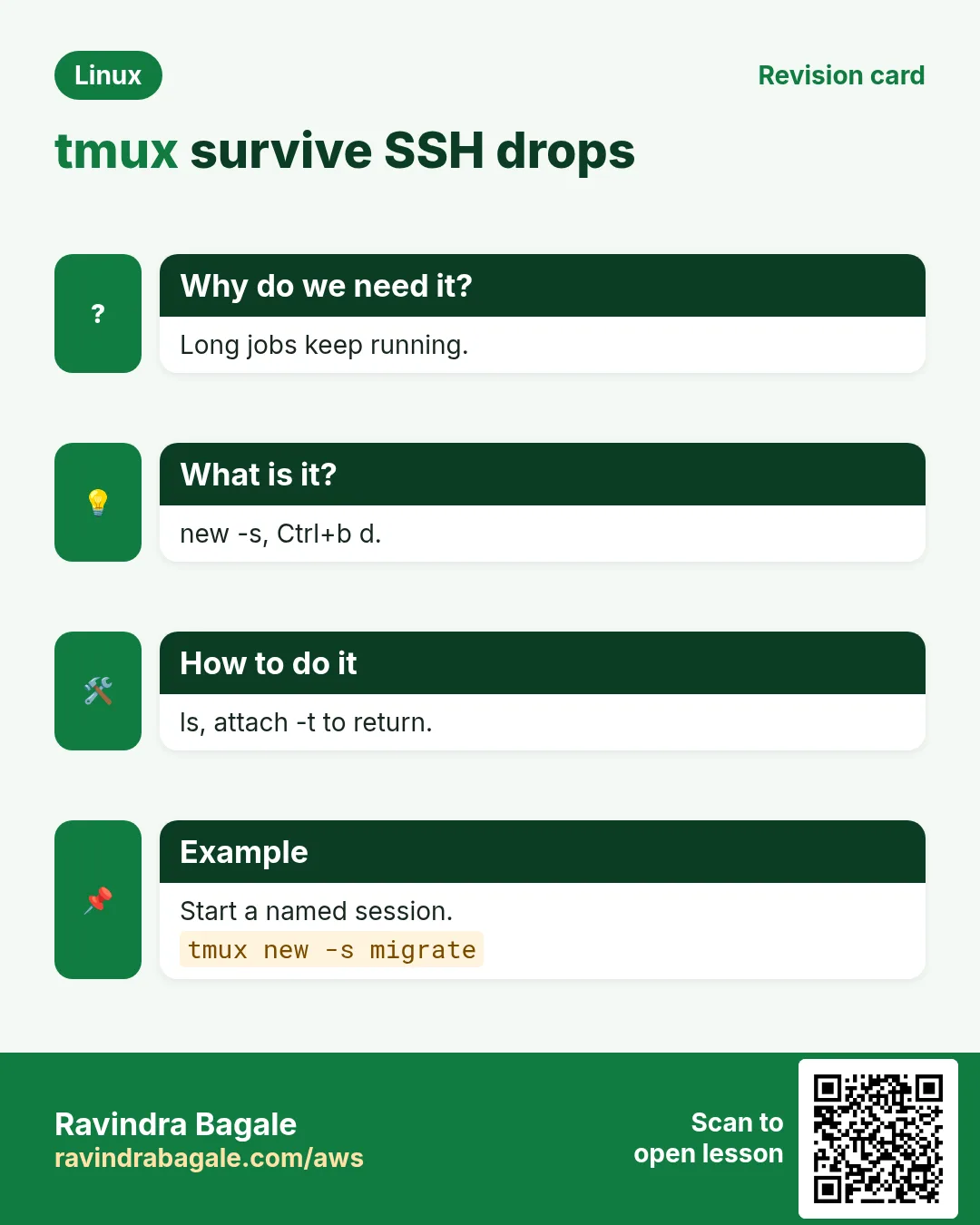
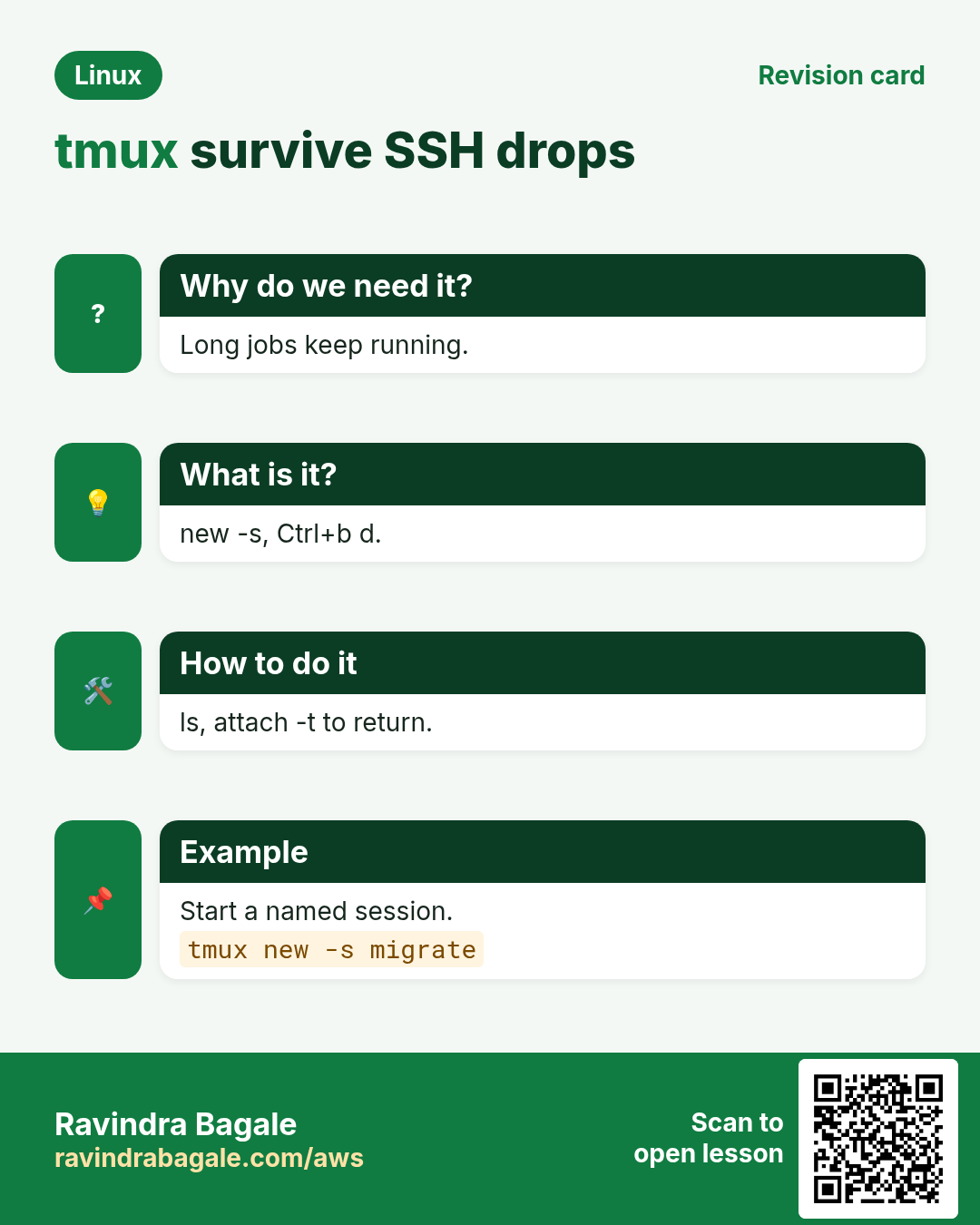
When you connect with SSH, your terminal is a view onto the remote machine. tmux starts a server process on that machine and keeps the terminal sessions there. Draw a session as a named workspace, a window as a full terminal view in that workspace, and a pane as one split inside a window. Run tmux new -s lesson, then use the prefix and d to detach. Your outer prompt returns. tmux ls should still show the named workspace, and attaching displays the same shell again.
Names like 'migrate' or 'deploy' tell you what each session is for when you come back later.
tmux new -s NAME (same as new-session -s). Plain tmux gives a number name (0, 1...). -d starts it detached. You can give a command to run: tmux new -d -s NAME 'command'. The green status bar at the bottom means you are inside tmux.
- Start a session for a migration.
tmux new -s migrateOutput:
[migrate] 0:bash* "web1" 14:30 25-Oct-26Status bar: session, window, host, time.
- Start one in the background.
tmux new -d -s backup 'sudo /usr/local/bin/backup.sh'Output:
(no output)Runs without you attached.
- Am I inside tmux?
echo "${TMUX:-not in tmux}"Output:
/tmp/tmux-1000/default,4120,0TMUX is set inside.
4. Detach: Ctrl+b d
Detaching leaves everything running while you log out, travel or switch machines.
Ctrl+b d detaches. tmux detach does the same from the command line. Closing the SSH window or a network drop has the same effect: the session keeps running.
- Inside tmux, start the job.
./migrate.sh --allOutput:
Migrating table 1/240 ...It will take a while.
- Press Ctrl+b then d.
Ctrl+b dOutput:
[detached (from session migrate)]You are back in the normal shell.
- Log out safely.
exitOutput:
logout
Connection to 15.0.0.10 closed.
migrate.sh keeps running.
5. tmux ls and attach -t
After you reconnect, you need to see what sessions exist and get back into the right one.
tmux ls (list-sessions) shows sessions, window count and whether attached. tmux attach -t NAME (or tmux a -t NAME) joins it. tmux attach alone joins the last one. -d detaches other clients that are attached.
- List.
tmux lsOutput:
backup: 1 windows (created Sun Oct 25 14:31:02 2026)
migrate: 1 windows (created Sun Oct 25 14:30:10 2026)
Both still alive.
- Attach.
tmux attach -t migrateOutput:
Migrating table 187/240 ...Right where it was.
- No server yet.
tmux lsOutput:
no server running on /tmp/tmux-1000/defaultNo sessions exist.
6. kill-session, kill-server and rename
Old sessions waste memory and confuse people. Clean them when work is done.
tmux kill-session -t NAME ends one (and the programs in it). tmux kill-server ends all. exit in the last pane also ends the session. tmux rename-session -t old new, or Ctrl+b $, renames.
- Rename.
tmux rename-session -t backup nightly && tmux ls | head -1Output:
migrate: 1 windows (created Sun Oct 25 14:30:10 2026)Sorted by name.
- Kill one.
tmux kill-session -t nightly && tmux lsOutput:
migrate: 1 windows (created Sun Oct 25 14:30:10 2026)Only migrate left.
- Kill all.
tmux kill-server; tmux lsOutput:
no server running on /tmp/tmux-1000/defaultEverything closed. Be sure first.
7. Windows: Ctrl+b c, n, p, number, ,
One session can hold many full-screen windows: logs in one, editor in another, a shell in a third.
Ctrl+b c creates a window. Ctrl+b n next, Ctrl+b p previous, Ctrl+b 0..9 jump. Ctrl+b , renames. Ctrl+b w shows a chooser. Ctrl+b & closes the window (asks). The status bar shows the * on the current one.
- Create and name windows.
Ctrl+b c then Ctrl+b , type: logsOutput:
[ops] 0:bash- 1:logs*Two windows now.
- Jump.
Ctrl+b 0Output:
[ops] 0:bash* 1:logs-Back to window 0.
- Same from the command line.
tmux new-window -t ops -n editorOutput:
[ops] 0:bash 1:logs 2:editor*Good for scripts.
8. Panes: Ctrl+b % and ", arrows, z, x
Give each pane one job. In a test session, put a date command or a file tail in the right pane and keep an idle shell on the other side. Change panes and check which prompt has the cursor before typing anything. Use zoom to give the selected pane the full window, then turn zoom off to get the split back. Closing a pane ends the shell inside it. Detaching leaves both panes running, so practise the two actions separately until you can predict what happens.
See logs and the shell side by side while you fix something.
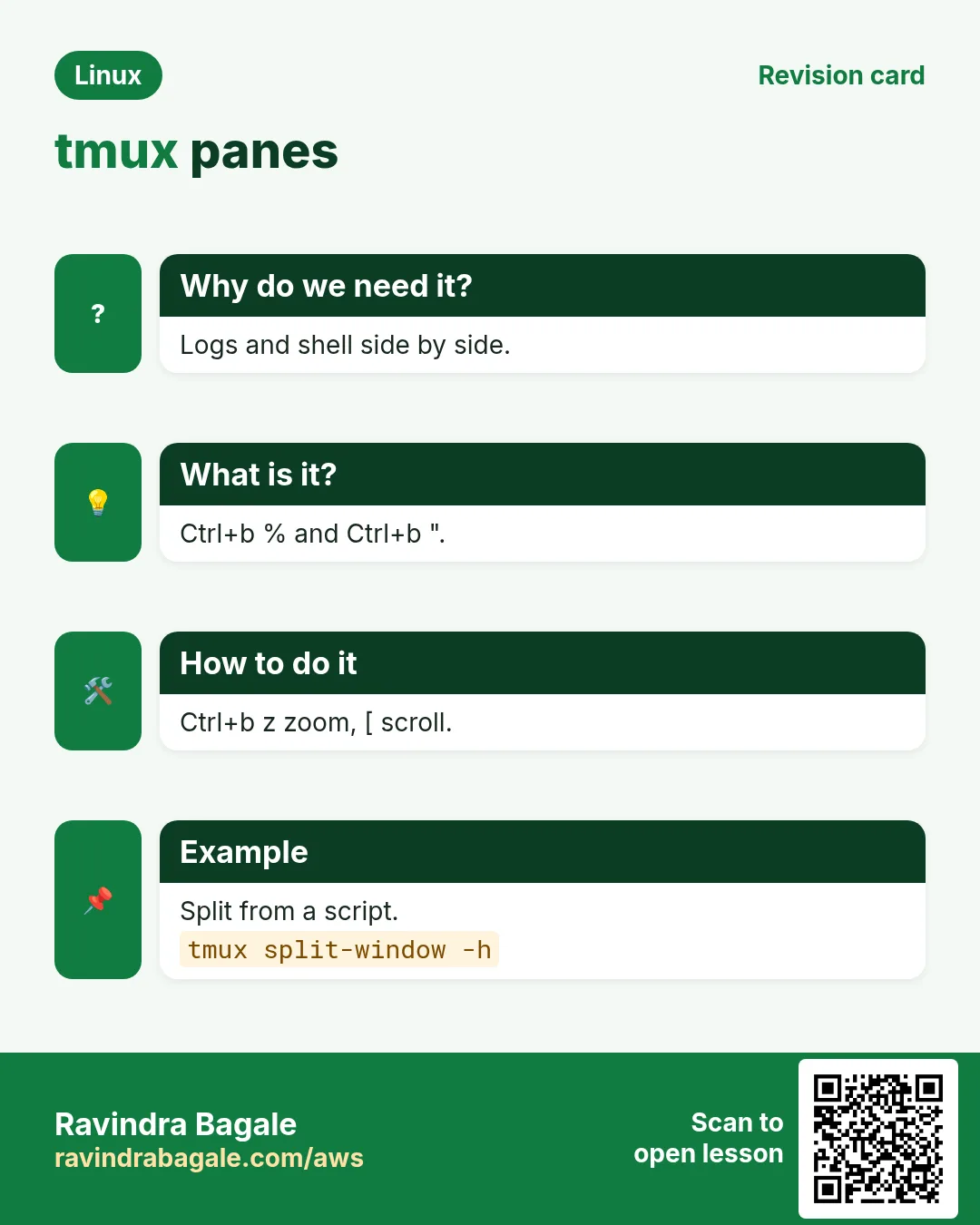
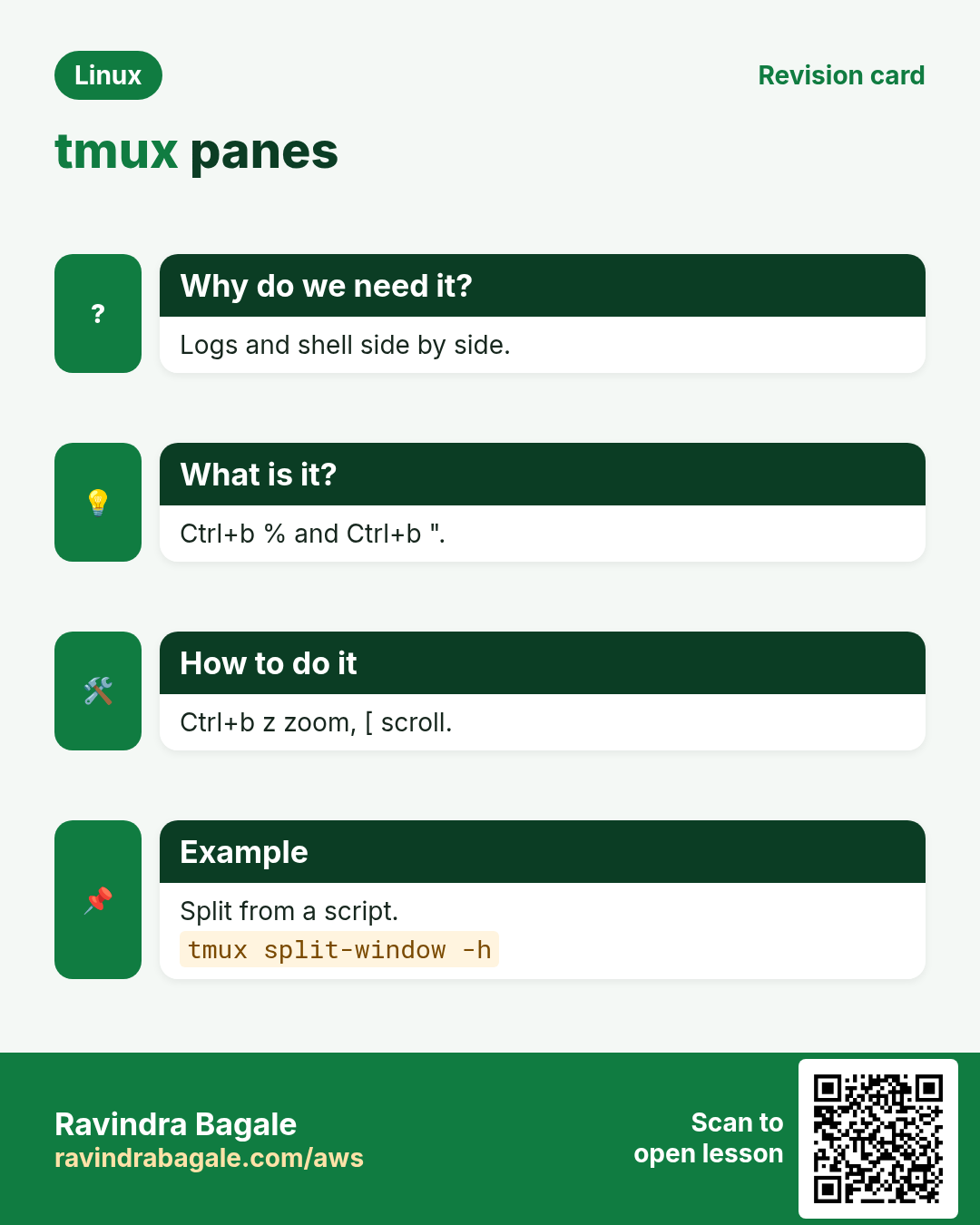
Ctrl+b % splits left/right. Ctrl+b " splits top/bottom. Ctrl+b arrow moves between panes. Ctrl+b z zooms one pane full screen and back. Ctrl+b x closes a pane. Ctrl+b Ctrl+arrow resizes. Ctrl+b space cycles layouts. Ctrl+b q shows numbers.
| Keys | Action |
|---|---|
| Ctrl+b % | Split left/right |
| Ctrl+b " | Split top/bottom |
| Ctrl+b arrow | Move to pane |
| Ctrl+b z | Zoom toggle |
| Ctrl+b x | Close pane |
| Ctrl+b space | Next layout |
- Split and follow logs.
Ctrl+b % then in the right pane: journalctl -fu shop-apiOutput:
(left: shell, right: live logs)Fix on the left, watch on the right.
- Zoom to read.
Ctrl+b zOutput:
(right pane fills the screen; Z in the status bar)Press again to unzoom.
- From a script.
tmux split-window -h -t ops 'htop'Output:
(new pane with htop)-h = side by side.
9. Copy mode: scroll and copy (Ctrl+b [)
The mouse wheel does not scroll tmux by default. You need to read old output and copy error lines.
Ctrl+b [ enters copy mode. Use arrows, PgUp/PgDn; / or ? to search. Space starts a selection, Enter copies it (emacs keys default) or v/y with vi mode. Ctrl+b ] pastes. q leaves. history-limit sets how many lines are kept.
- Scroll up.
Ctrl+b [ then PgUpOutput:
[0/1532] shown at top right1532 lines of history.
- Search for an error.
Ctrl+b [ then ? type ERROR EnterOutput:
(cursor jumps to the last ERROR)n for the next match.
- Copy and paste.
Space ... move ... Enter, then Ctrl+b ]Output:
(selected text pasted at the prompt)Copy without the mouse.
10. ~/.tmux.conf: make tmux yours
A few settings make tmux much easier: mouse, bigger history, easier splits, windows starting at 1.
Put lines in ~/.tmux.conf. set -g mouse on enables scrolling, clicking and resizing. set -g history-limit 50000. set -g base-index 1. bind | split-window -h. Reload: tmux source-file ~/.tmux.conf.
- Write a good starter config.
cat > ~/.tmux.conf <<'X'
set -g mouse on
set -g history-limit 50000
set -g base-index 1
setw -g pane-base-index 1
bind | split-window -h -c '#{pane_current_path}'
bind - split-window -v -c '#{pane_current_path}'
bind r source-file ~/.tmux.conf \; display 'reloaded'
X
Output:
(no output)Easy-to-remember splits.
- Reload.
tmux source-file ~/.tmux.confOutput:
(status shows nothing or 'reloaded' with Ctrl+b r)No need to restart.
- Check a value.
tmux show -g history-limitOutput:
history-limit 50000Applied.
11. send-keys and scripted layouts
Every morning you open the same 4 panes. A script can build them in one second.
tmux send-keys -t SESSION:WINDOW.PANE 'command' Enter types into a pane. Combine new -d, split-window, select-layout tiled and attach to build a workspace. has-session -t NAME tests if it exists.
- A one-shot ops workspace.
tmux has-session -t ops 2>/dev/null || {
 tmux new -d -s ops -n main
 tmux split-window -h -t ops
 tmux send-keys -t ops:main.1 'journalctl -fu nginx' Enter
 tmux split-window -v -t ops:main.1
 tmux send-keys -t ops:main.2 'htop' Enter
}
tmux attach -t ops
Output:
(three panes: shell, nginx logs, htop)Same layout every day.
- Send to a running session.
tmux send-keys -t migrate 'echo still here' EnterOutput:
(the text runs inside migrate)Without attaching.
12. Sharing a session for pair work
A senior can watch and help a junior live on the same terminal, without screen sharing software.
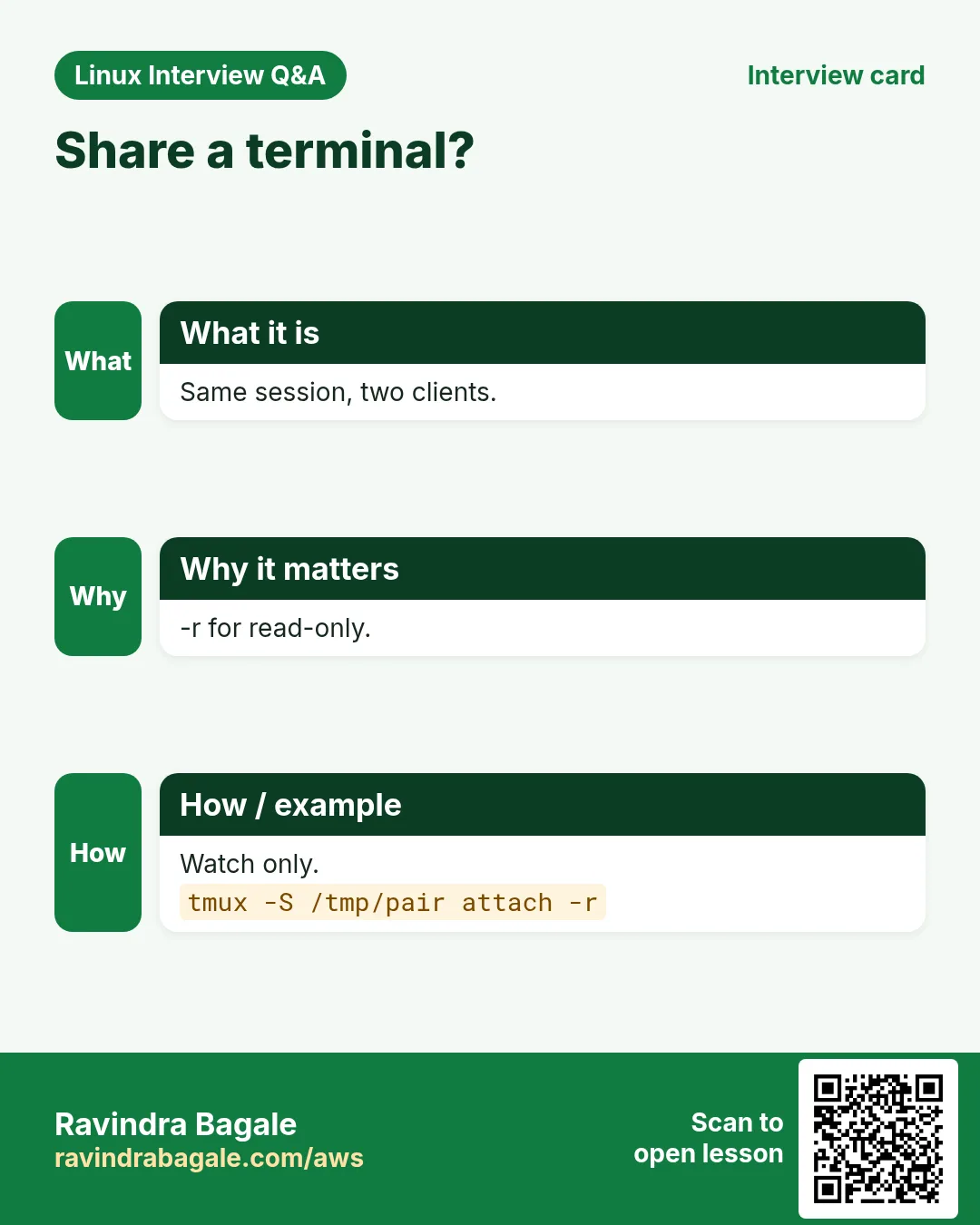
Two people logged in as the same user can both run tmux attach -t NAME and see the same thing. For different users, use a shared socket: tmux -S /tmp/pair new -s pair, chgrp a common group, chmod 770, and the other runs tmux -S /tmp/pair attach. attach -r is read-only.
- Start a shared socket.
tmux -S /tmp/pair new -d -s pair && chgrp devops /tmp/pair && chmod 770 /tmp/pairOutput:
(no output)Only the devops group can join.
- Teammate watches read-only.
tmux -S /tmp/pair attach -r -t pairOutput:
(same screen, cannot type)Safe for training.
13. GNU screen basics
Older servers and some appliances have screen but not tmux. The ideas are the same.
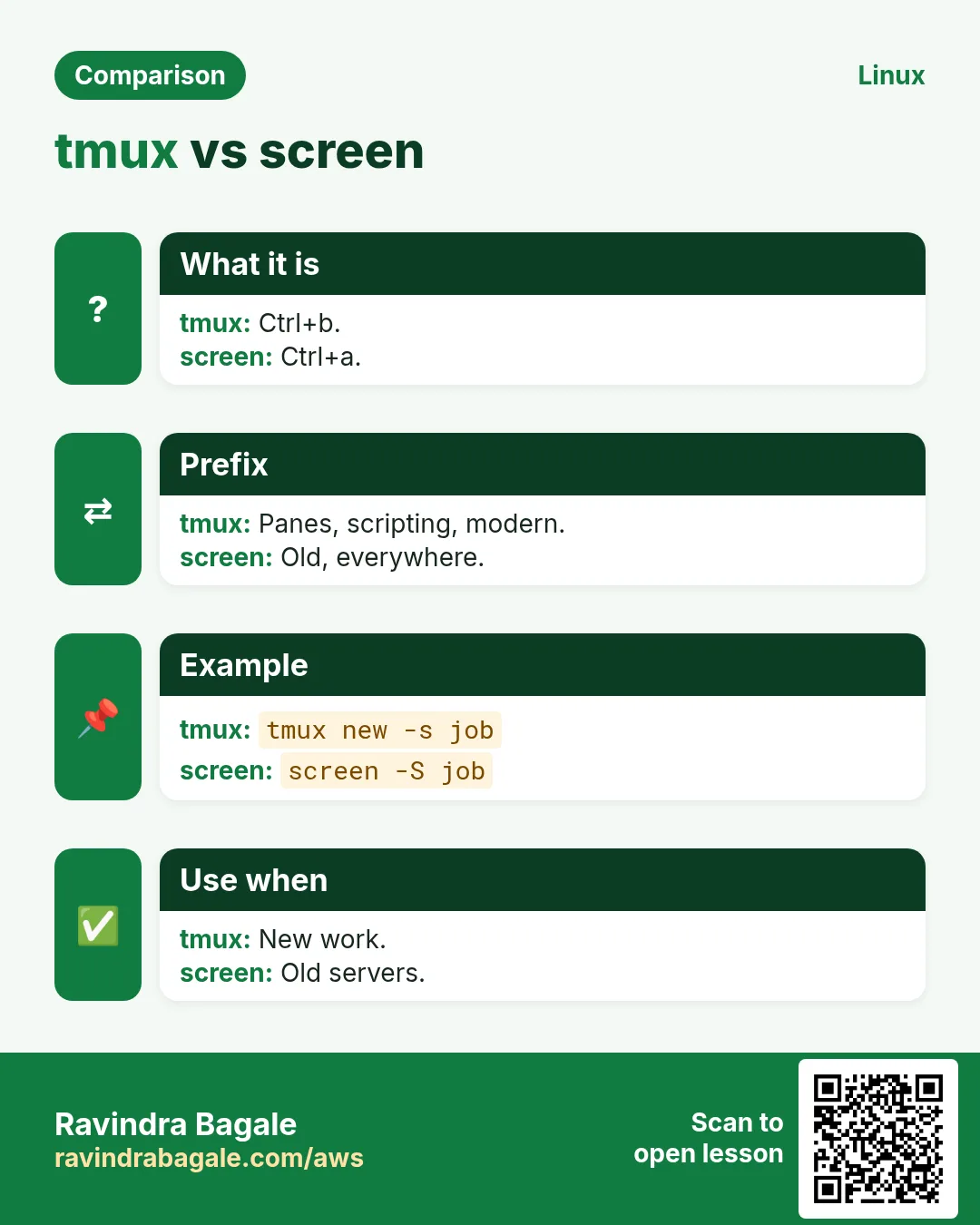
Prefix is Ctrl+a. screen -S NAME starts. Ctrl+a d detaches. screen -ls lists. screen -r NAME reattaches (-d -r to steal it). Ctrl+a c new window, Ctrl+a n/p next/prev, Ctrl+a " list, Ctrl+a S split, Ctrl+a Tab move, Ctrl+a [ copy mode, Ctrl+a k kill. screen -L logs output to screenlog.0.
| Task | tmux | screen |
|---|---|---|
| New named | tmux new -s x | screen -S x |
| Detach | Ctrl+b d | Ctrl+a d |
| List | tmux ls | screen -ls |
| Attach | tmux attach -t x | screen -r x |
| New window | Ctrl+b c | Ctrl+a c |
- Start and detach.
screen -S upload then Ctrl+a dOutput:
[detached from 5120.upload]Same idea as tmux.
- List.
screen -lsOutput:
There is a screen on:
	5120.upload	(Detached)
1 Socket in /run/screen/S-ravi.
Detached and alive.
- Reattach.
screen -r uploadOutput:
(back inside)Use -d -r if it says Attached.
- Log everything to a file.
screen -L -S job ./long.shOutput:
(output also in screenlog.0)Proof of what happened.
14. Real examples from many industries
The same Linux skill shows up in every kind of company. Seeing it in many places helps you remember it.
Each row is a made-up team. It shows who uses this and how.
| Team and city | How they use it | Command |
|---|---|---|
| Siddharth, bank DBA, Pune | Runs long migrations inside tmux | tmux new -s migrate |
| Grace, SRE, Seattle | Scripted 4-pane on-call workspace | tmux send-keys -t ops 'htop' Enter |
| Ahmed, telecom NOC, Cairo | Uses screen on old network boxes | screen -r console |
| Sofia, ML lab, Milan | Keeps GPU training alive overnight | tmux new -d -s train 'python train.py' |
| Hiro, game ops, Tokyo | Read-only shared session for trainees | tmux -S /tmp/pair attach -r |
| Meera, college, Satara | Splits panes to teach logs and shell together | Ctrl+b % |
15. Common errors and how to fix them
Everyone hits these errors. Knowing the cause saves hours.
Read the exact message first. Then match it to a row below.
| Error you see | Why it happens | How to fix |
|---|---|---|
no server running on /tmp/tmux-1000/default | No sessions exist (or a reboot killed them) | Start a new one.tmux new -s work |
can't find session: migrate | Wrong name, or it ended | List the names.tmux ls |
sessions should be nested with care, unset $TMUX to force | You ran tmux inside tmux | Switch with Ctrl+b s or detach first.tmux switch-client -t migrate |
duplicate session: migrate | A session with that name exists | Attach to it or pick another name.tmux attach -t migrate |
open terminal failed: missing or unsuitable terminal: xterm-kitty | Server does not know your TERM | Use a common TERM.TERM=xterm-256color tmux |
Mouse wheel scrolls the shell history, not the output | Mouse mode is off | Turn it on or use copy mode.tmux set -g mouse on |
There is a screen on: ... (Attached) / screen -r fails | Session still attached elsewhere | Detach the other and attach.screen -d -r upload |
Job died after closing the laptop | It was not inside tmux/screen | Always start long jobs inside tmux.tmux new -s job |
Colours look wrong in tmux | TERM inside tmux not 256-colour | Set default-terminal.set -g default-terminal 'tmux-256color' |
error connecting to /tmp/pair (Permission denied) | Shared socket permissions | chgrp and chmod 770 the socket.chmod 770 /tmp/pair |
16. Troubleshooting step by step
If you cannot get back to your work, find the tmux server, then the session, then the pane.
Go top to bottom. Stop at the first step that shows the problem.
- Is tmux still running?
pgrep -a tmux- List sessions.
tmux ls- Check a custom socket.
ls -l /tmp/tmux-$(id -u)/ /tmp/pair 2>/dev/null- Did the server reboot?
uptime -s- Attach, detaching others.
tmux attach -d -t migrate- For screen.
screen -ls; screen -d -r NAME17. Lab 1: Survive a disconnect
Pick a short harmless job and give it visible evidence, for example sleep 20; date in the named lab session. Detach, reconnect to the same machine and list the sessions. Attach to the lesson session and check whether the job is still waiting or whether the time has appeared. If no session is listed, check the computer and user account you connected to and whether the server rebooted. The terminal session belongs to that machine and account.
Start a long job in tmux, detach, log out, log back in and reattach to see it still running.
A full hands-on lab. Run every step on a test Linux machine (an EC2 instance, a VM, or WSL).
- Start a session.
tmux new -s labOutput:
[lab] 0:bash*- Run a long counter.
for i in $(seq 1 600); do echo tick $i; sleep 1; doneOutput:
tick 1
tick 2- Detach and exit SSH.
Ctrl+b d ; exitOutput:
[detached (from session lab)]- Reconnect and list.
ssh ec2-user@SERVER; tmux lsOutput:
lab: 1 windows (created Sun Oct 25 15:00:00 2026)- Reattach and clean.
tmux attach -t lab (watch ticks) then Ctrl+c; exitOutput:
tick 14318. Lab 2: Panes, copy mode, config and screen
Set up a config, split panes, copy an error from scrollback, then repeat the detach/attach with screen.
A full hands-on lab. Run every step on a test Linux machine (an EC2 instance, a VM, or WSL).
- Config.
printf 'set -g mouse on\nset -g history-limit 20000\nbind | split-window -h\n' > ~/.tmux.confOutput:
(no output)- New session and split.
tmux new -s p2 then Ctrl+b |Output:
(two panes side by side)- Make an error and find it.
ls /nope then Ctrl+b [ ?nope Enter Space ... Enter Ctrl+b ]Output:
ls: cannot access '/nope': No such file or directory- screen round trip.
screen -S s1 then Ctrl+a d ; screen -ls ; screen -r s1Output:
5120.s1 (Detached)- Clean up.
exit ; tmux kill-session -t p2Output:
(no output)Ravindra Bagale's Tip
Make it a habit: anything that takes more than five minutes on a server runs inside tmux. Name the session after the job (tmux new -s migrate), so when you come back after a network drop you just type tmux attach -t migrate.
Ravindra Bagale's Tip – मराठी
सवय लावा: server वर पाच minutes पेक्षा जास्त लागणारं काहीही tmux मधे. Session ला job चं नाव द्या (tmux new -s migrate), म्हणजे network गेल्यानंतर परत आल्यावर फक्त tmux attach -t migrate.
Ravindra Bagale's Tip – हिंदी
आदत बनाएं: server पर पाँच minutes से ज़्यादा लगने वाला कोई भी काम tmux में चलाएं. Session को job का नाम दें (tmux new -s migrate), ताकि network जाने के बाद लौटें तो बस tmux attach -t migrate type करें.
19. Frequently asked questions
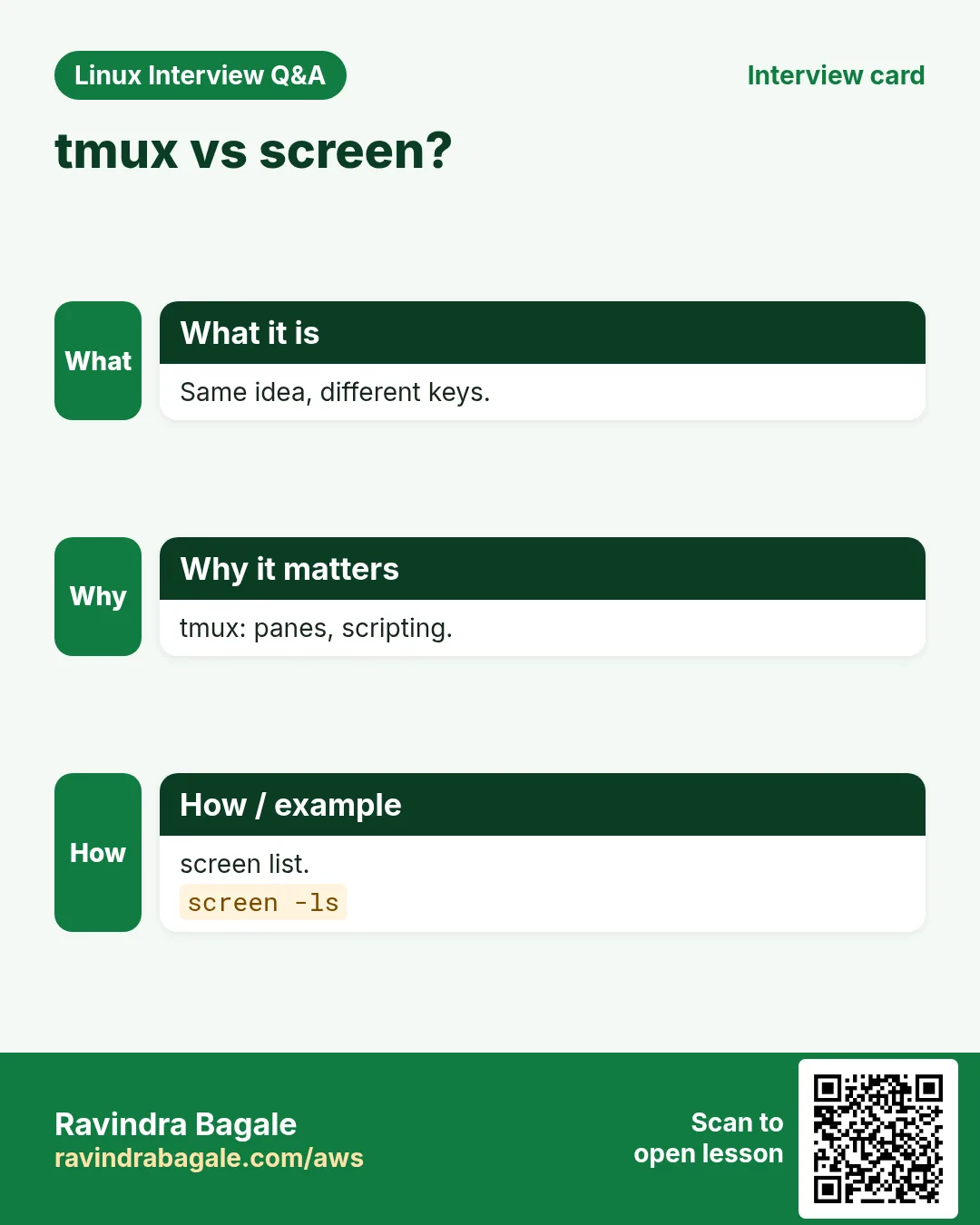
Q. tmux or screen?
tmux for new work (panes, scripting, active development). screen is fine where it is the only option.
Q. Does tmux survive a server reboot?
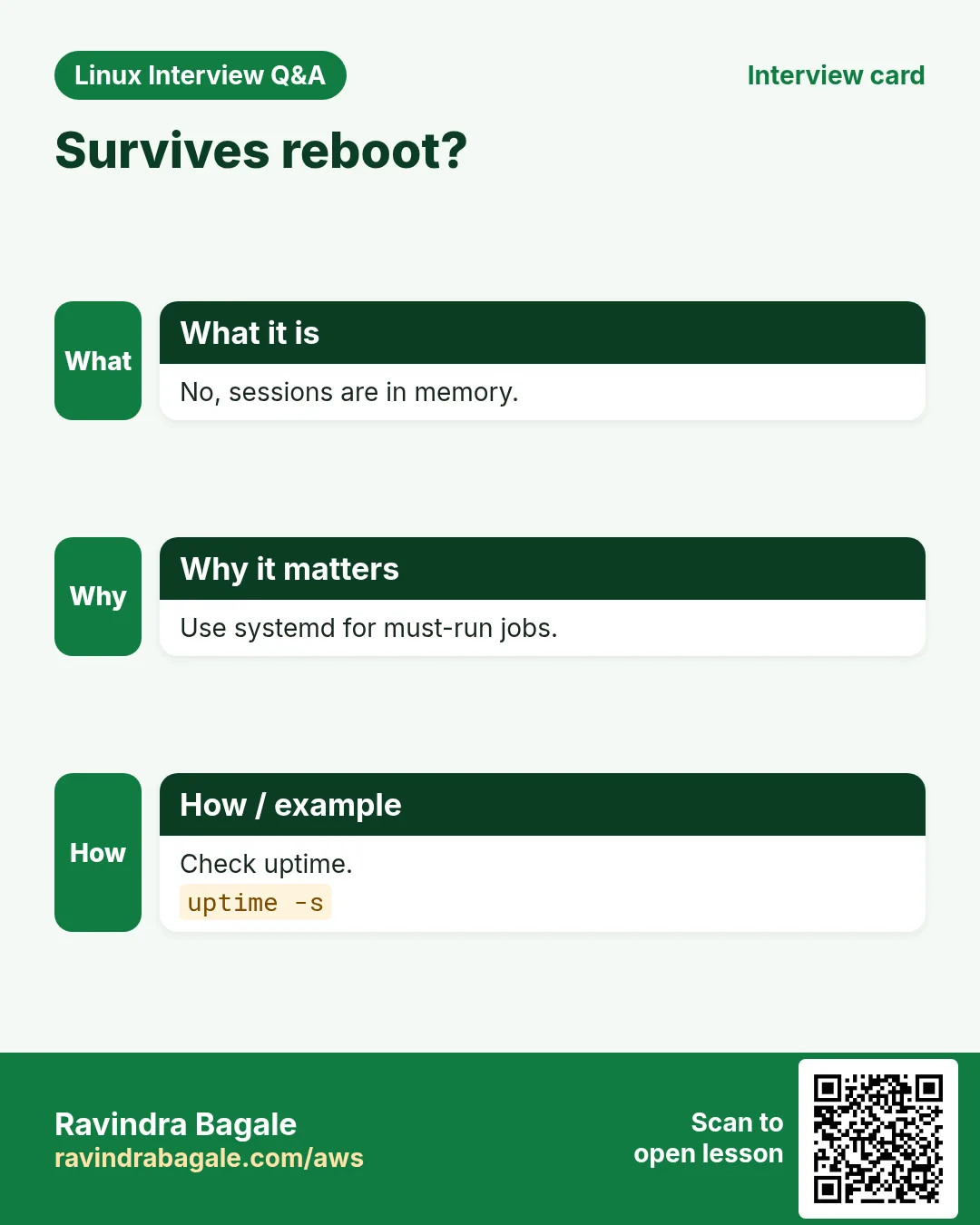
No. Sessions live in memory. Plugins like tmux-resurrect can restore layouts.
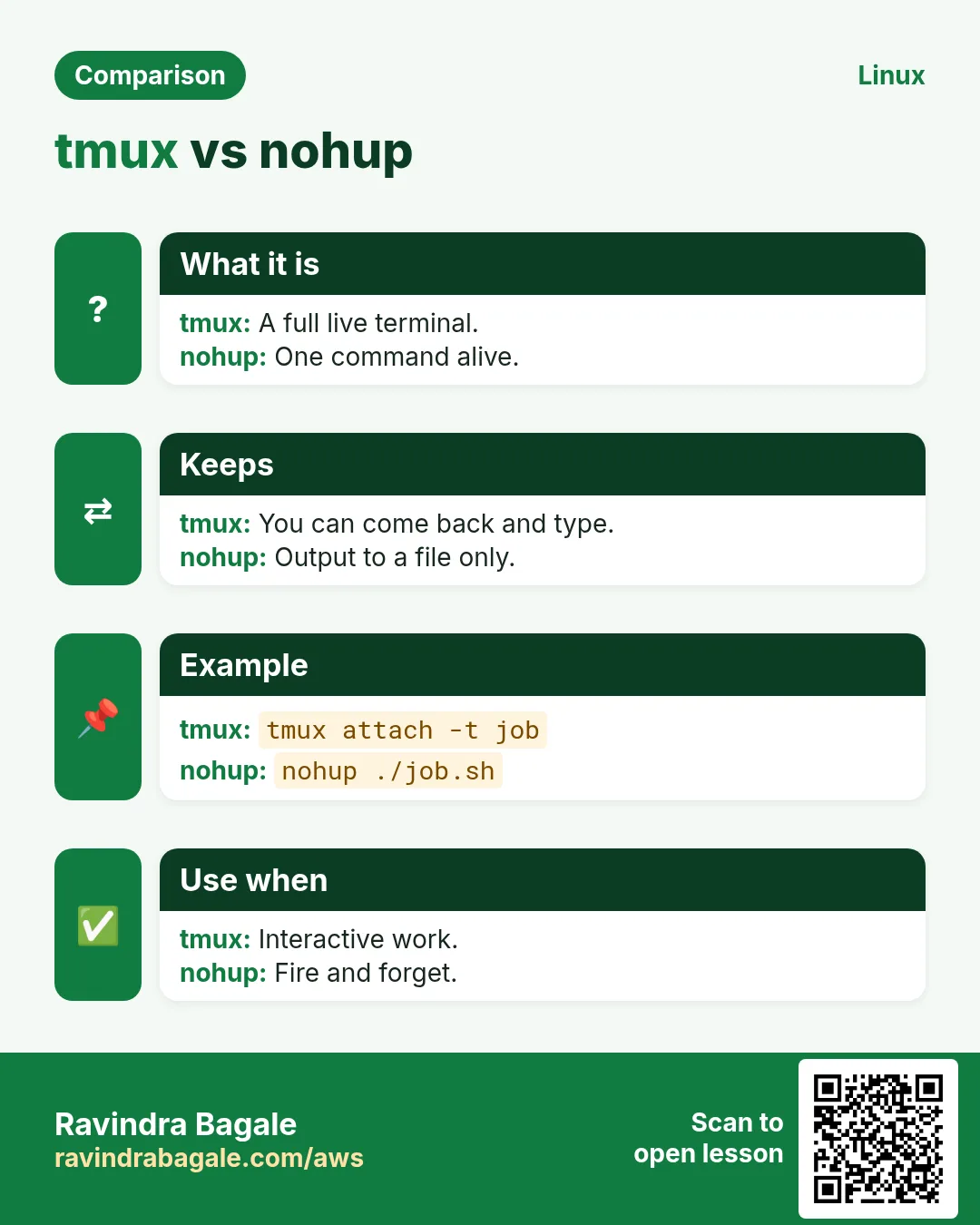
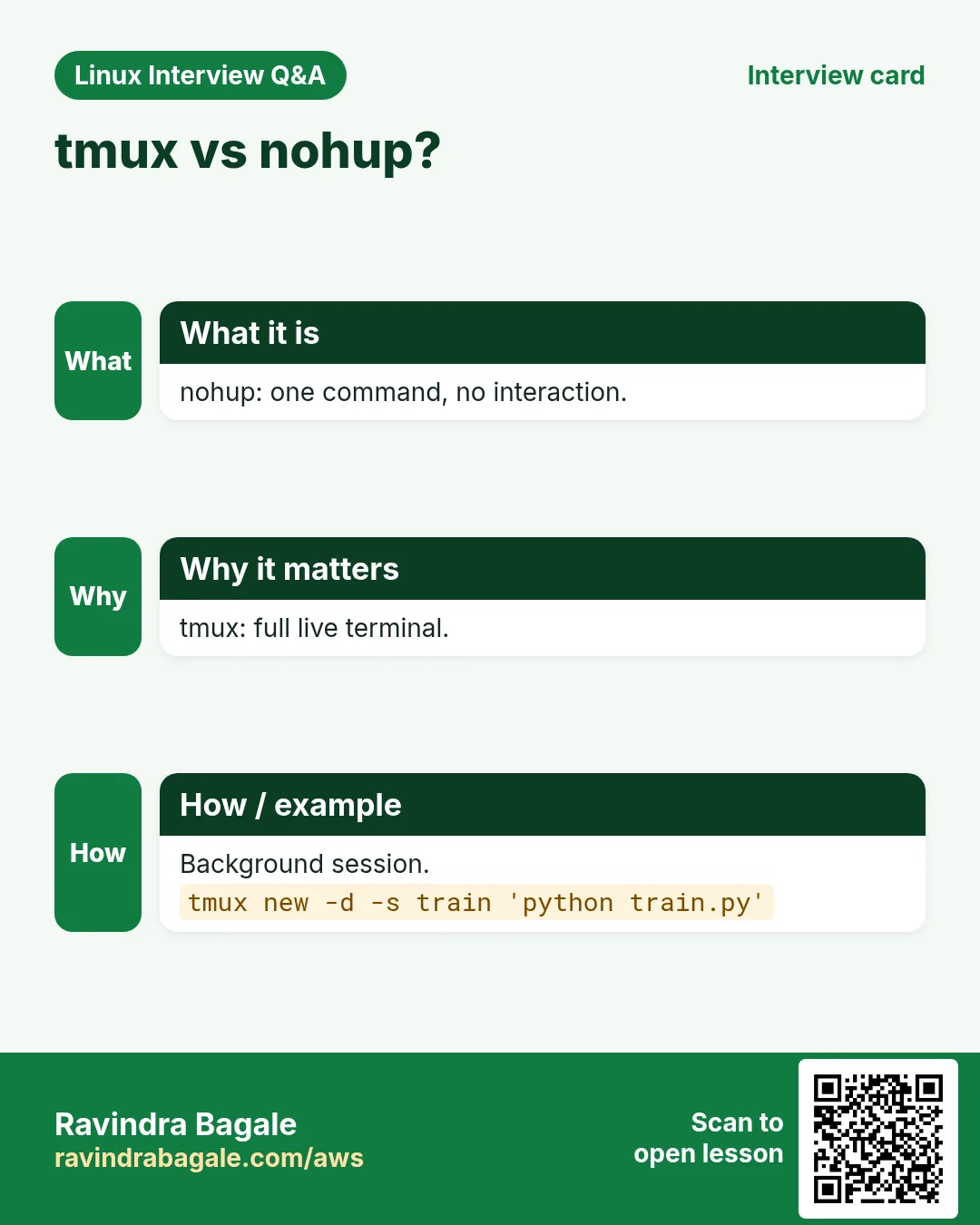
Q. tmux vs nohup?
nohup keeps one command alive but you cannot interact with it; tmux keeps a full interactive terminal.
Q. How do I scroll?
Ctrl+b [ then PgUp, or set -g mouse on.
Q. Can I change the prefix to Ctrl+a?
Yes: set -g prefix C-a; unbind C-b; bind C-a send-prefix.
Q. Should I run tmux on my laptop or on the server?
On the server, so work survives the SSH drop.
Q. How to close everything?
exit in each pane, or tmux kill-server.
Q. Can two people use one session?
Yes, attach to the same session; use -r for read-only.
20. Interview questions and answers
Beginner level
Q. Why use tmux?
Keep sessions alive after disconnects and split the terminal.
Q. Start a named session?
tmux new -s NAME.
Q. Detach?
Ctrl+b d.
Q. Reattach?
tmux attach -t NAME.
Mid level level
Q. Split panes?
Ctrl+b % left/right, Ctrl+b " top/bottom.
Q. Scroll back in tmux?
Copy mode Ctrl+b [ or mouse on.
Q. Run a job in a detached session?
tmux new -d -s NAME 'cmd'.
Q. screen equivalents?
screen -S, Ctrl+a d, screen -ls, screen -r.
Senior level
Q. tmux or a systemd service for a long job?
Interactive or one-off: tmux. Must restart, survive reboot or be monitored: systemd.
Q. How do you securely share a terminal with a contractor?
Separate socket with group perms, read-only attach, and audit; remove the socket after.
Q. Automate a dev workspace?
Script with has-session, new -d, split-window, send-keys, select-layout, or tools like tmuxinator.
Q. Why can nested tmux be a problem?
Prefix conflicts and confusion; use a different prefix on the inner one or switch-client.
Try at home
- Write a script that builds a tmux session 'dev' with three panes: a shell, top, and tail -f of a log. Run it twice and make sure it does not create a duplicate.
- Practice: start a session, detach, close the terminal, open a new one and reattach. Repeat with screen.
Practise this chapter
Interview questions and answers
Will a tmux process survive shutting off the remote machine?
A detach or SSH disconnect can leave the tmux server and its jobs running on the remote machine. Shutting down that machine stops the processes too. Attach after reconnecting to the same host and account, and use a service or a job built for restart if work must continue after reboot.
Check your understanding
Choose an answer, then compare your reasoning with the explanation.
Practice Tasks
Practice checks run in your browser. They check the answer for this exercise; they do not create resources or connect to your AWS account.
About this scenarioNairobi Ride is a transport business in Nairobi. Wanjiru Kamau looks after its IT and cloud work. They count money in KES and run their AWS resources in the af-south-1 Region. In the tasks below you do real jobs for them using what this lesson teaches. All names, account IDs, IP addresses and numbers are made up for practice.
0 / 17
Easy New named session
Long jobs must survive disconnects.
Start a tmux session named migrate.
- Find the Linux command that does this job.
- Add the options (like -r or -h) the task needs.
- Add the file names, folders or users in the right order.
- Use sudo if the job changes system files or users. Click Check answer.
Easy List sessions
Long jobs must survive disconnects.
List tmux sessions.
- Find the Linux command that does this job.
- Add the options (like -r or -h) the task needs.
- Add the file names, folders or users in the right order.
- Use sudo if the job changes system files or users. Click Check answer.
Easy Reattach
Long jobs must survive disconnects.
Attach to the session migrate.
- Find the Linux command that does this job.
- Add the options (like -r or -h) the task needs.
- Add the file names, folders or users in the right order.
- Use sudo if the job changes system files or users. Click Check answer.
Easy Detach from CLI
Long jobs must survive disconnects.
Detach the current client using the command line.
- Find the Linux command that does this job.
- Add the options (like -r or -h) the task needs.
- Add the file names, folders or users in the right order.
- Use sudo if the job changes system files or users. Click Check answer.
Easy screen session
Long jobs must survive disconnects.
Start a screen session named upload.
- Find the Linux command that does this job.
- Add the options (like -r or -h) the task needs.
- Add the file names, folders or users in the right order.
- Use sudo if the job changes system files or users. Click Check answer.
Easy List screens
Long jobs must survive disconnects.
List screen sessions.
- Find the Linux command that does this job.
- Add the options (like -r or -h) the task needs.
- Add the file names, folders or users in the right order.
- Use sudo if the job changes system files or users. Click Check answer.
Medium Background session
Long jobs must survive disconnects.
Start a detached session train running "python train.py".
- Find the Linux command that does this job.
- Add the options (like -r or -h) the task needs.
- Add the file names, folders or users in the right order.
- Use sudo if the job changes system files or users. Click Check answer.
Medium Kill one session
Long jobs must survive disconnects.
End the session backup.
- Find the Linux command that does this job.
- Add the options (like -r or -h) the task needs.
- Add the file names, folders or users in the right order.
- Use sudo if the job changes system files or users. Click Check answer.
Medium Rename session
Long jobs must survive disconnects.
Rename session 0 to work.
- Find the Linux command that does this job.
- Add the options (like -r or -h) the task needs.
- Add the file names, folders or users in the right order.
- Use sudo if the job changes system files or users. Click Check answer.
Medium New window
Long jobs must survive disconnects.
Create a new window named logs in session ops.
- Find the Linux command that does this job.
- Add the options (like -r or -h) the task needs.
- Add the file names, folders or users in the right order.
- Use sudo if the job changes system files or users. Click Check answer.
Medium Split side by side
Long jobs must survive disconnects.
Split the current pane side by side.
- Find the Linux command that does this job.
- Add the options (like -r or -h) the task needs.
- Add the file names, folders or users in the right order.
- Use sudo if the job changes system files or users. Click Check answer.
Medium Mouse on
Long jobs must survive disconnects.
Turn on mouse mode globally.
- Find the Linux command that does this job.
- Add the options (like -r or -h) the task needs.
- Add the file names, folders or users in the right order.
- Use sudo if the job changes system files or users. Click Check answer.
Medium Reload config
Long jobs must survive disconnects.
Reload ~/.tmux.conf.
- Find the Linux command that does this job.
- Add the options (like -r or -h) the task needs.
- Add the file names, folders or users in the right order.
- Use sudo if the job changes system files or users. Click Check answer.
Medium Reattach screen
Long jobs must survive disconnects.
Reattach screen upload, detaching it elsewhere first.
- Find the Linux command that does this job.
- Add the options (like -r or -h) the task needs.
- Add the file names, folders or users in the right order.
- Use sudo if the job changes system files or users. Click Check answer.
Hard Kill everything
Long jobs must survive disconnects.
End all tmux sessions.
- Find the Linux command that does this job.
- Add the options (like -r or -h) the task needs.
- Add the file names, folders or users in the right order.
- Use sudo if the job changes system files or users. Click Check answer.
Hard Type into a pane
Long jobs must survive disconnects.
Send "uptime" and Enter to session ops.
- Find the Linux command that does this job.
- Add the options (like -r or -h) the task needs.
- Add the file names, folders or users in the right order.
- Use sudo if the job changes system files or users. Click Check answer.
Hard Does it exist?
Long jobs must survive disconnects.
Test whether session ops exists.
- Find the Linux command that does this job.
- Add the options (like -r or -h) the task needs.
- Add the file names, folders or users in the right order.
- Use sudo if the job changes system files or users. Click Check answer.
21. Related chapters
- Linux Ops Refresh for DevOps
- Bash Scripting for Automation
- Linux grep and find Commands with Examples
- How to Set Up Passwordless SSH Between Linux Servers
In short
- tmux new -s, ls, attach -t, Ctrl+b d.
- kill-session and kill-server clean up.
- Windows: c, n, p, number. Panes: %, ", arrows, z, x.
- Copy mode Ctrl+b [ to scroll, search and copy.
- .tmux.conf and send-keys make it yours.
- screen: -S, Ctrl+a d, -ls, -r.
Revision, comparison and interview cards
Revise this lesson in a few minutes. Save the cards on your phone or download them as PNG files. The QR code on each card opens this lesson.
More cards: Ravi Sir's Cards.