Practice and Answer Key: An Office Script that Summarises Orders by Status
Salman wants an evening status report with a count and an amount for each group. Build the Office Script from the original ten orders. The answer should produce the three expected status groups, respond to a changed status, and preserve other work in the Summary sheet.
Write the business question and the expected result
Count records and add their amounts separately
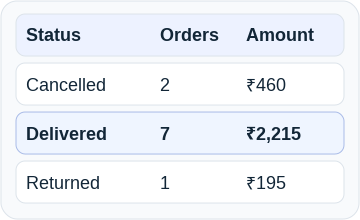
Picture a fictional Blinkit-style reporting team preparing an order handoff. All operational names and figures here are training examples. In the original ten orders, seven are Delivered and their recorded amounts total 2,215. Two are Cancelled with 460, and one is Returned with 195. The full recorded amount is 2,870. These are explicitly amounts in the dataset grouped by status. Whether an amount represents actual collected revenue is another business question.
- Record key: Each order needs a distinct text Order ID. Use the key to detect a duplicate even when the row's numeric fields look valid.
- Status: For this practice use approved labels Cancelled, Delivered, Pending and Returned. Normalize ordinary case and surrounding spaces. A label outside the allowed set requires review before the summary can be replaced.
- Amount: Read genuine finite numbers. A value of zero is numeric. A string displaying 270 need not be numeric. The exercise adds the recorded signed numeric amounts; if a business wants to exclude adjustments, state and enforce that rule separately.
- Output: Write one row for each status present, in alphabetic order, in a reserved summary block. Keep the worksheet itself, its controls and neighboring notes intact. Old rows below a smaller new result should become empty only within the reserved block.
Before opening the answer: Write the expected sorted groups and count of three. Decide what happens if one order has an unknown status, the output marker is absent, or a formerly present group has no records after rerun.
Prepare a named source and a guarded destination
Use the original table objects
Create StatusPractice.xlsx in authorized training storage. On Orders, use the original ten rows from the formulas chapter. Make the A1:I11 region an Excel Table with headings and call it tblOrders. Use the original Order ID, City, Amount and Status fields below. Copy the matching dates, platforms, category, quantity and elapsed time if following the original full practice. Give the Table the exact named Order ID, Amount and Status columns. Those are the fields the script reads.
| Order ID | City | Amount | Status |
|---|---|---|---|
| BLK-1001 | Pune | 64 | Delivered |
| BLK-1002 | Nashik | 270 | Delivered |
| AMN-1003 | Pune | 110 | Delivered |
| BLK-1004 | Nagpur | 240 | Cancelled |
| AMN-1005 | Kolhapur | 232 | Delivered |
| BLK-1006 | Pune | 150 | Delivered |
| BLK-1007 | Solapur | 1299 | Delivered |
| AMN-1008 | Sambhaji Nagar | 195 | Returned |
| BLK-1009 | Pune | 220 | Cancelled |
| BLK-1010 | Nashik | 90 | Delivered |
Add a fresh worksheet called Summary to the workbook you own. Put the exact marker Status summary practice in E1. Reserve A1:C5 entirely for this exercise. Put a separate note in G1. The marker says the practice output was reserved for this layout. It is a check against an accidental copy, not evidence that an unrelated workbook is authorized. Do not place an existing report, formula or note within the result block. The procedure replaces that block, including unused rows, but does not replace the worksheet itself.
Sketch a correct solution before writing code
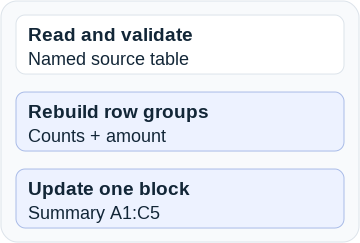
- Look up the named source Table and resolve the three required input fields. Confirm its owner sheet and the approved Summary destination. Reject missing objects before using their methods.
- Read the data in one two-dimensional array when the Table body has records. Loop over the source rows in memory. Validate each ID, status and amount before accepting it. An invalid row should keep the old summary untouched.
- Maintain one count and numeric total for each approved status you observe. On the first occurrence start that group with zero. For each accepted record increase its count once and add its amount once.
- Sort the present labels alphabetically and form one grid for the output. Write only the reserved Summary block and return the number of status groups, not the number of input rows. Then check first-run, repeated and rejected results.
Answer key. Stage the sorted summary and update one range
Match the policy in the code to the one in your exercise
Open your approved worksheet and prepare an Office Script in the Code Editor. Keep the source workbook itself separate from the script resource when sharing or changing versions. The answer below returns the number of present status labels after replacing the practice output block. Every invalid row stops before any workbook write. The source fields and Notes marker stay available for independent validation.
interface StatusTotal {
  orders: number;
  amount: number;
}

function main(workbook: ExcelScript.Workbook): number {
  const source = workbook.getTable("tblOrders");
  if (!source || source.getWorksheet().getName() !== "Orders") {
    throw new Error("Expected tblOrders on the Orders worksheet.");
  }

  const summary = workbook.getWorksheet("Summary");
  if (!summary || summary.getRange("E1").getValue() !== "Status summary practice") {
    throw new Error("Prepare the reserved Summary practice worksheet.");
  }

  const keyColumn = source.getColumnByName("Order ID");
  const amountColumn = source.getColumnByName("Amount");
  const statusColumn = source.getColumnByName("Status");
  if (!keyColumn || !amountColumn || !statusColumn) {
    throw new Error("Check the source ID, Amount and Status columns.");
  }

  const approved = new Map<string, string>([
    ["cancelled", "Cancelled"], ["delivered", "Delivered"],
    ["pending", "Pending"], ["returned", "Returned"]
  ]);
  const totals = new Map<string, StatusTotal>();
  const seen = new Set<string>();

  const size = source.getRowCount();
  if (size > 0) {
    const values = source.getRangeBetweenHeaderAndTotal().getValues();
    const keyIndex = keyColumn.getIndex();
    const amountIndex = amountColumn.getIndex();
    const statusIndex = statusColumn.getIndex();

    for (let index = 0; index < values.length; index++) {
      const row = values[index];
      const rawKey = row[keyIndex];
      const rawStatus = row[statusIndex];
      const amount = row[amountIndex];
      if (typeof rawKey !== "string" || typeof rawStatus !== "string") {
        throw new Error("Review the ID or status at table row " + (index + 1));
      }
      const key = rawKey.trim().toUpperCase();
      if (!key || seen.has(key)) {
        throw new Error("Review the order ID at table row " + (index + 1));
      }
      const status = approved.get(rawStatus.trim().toLowerCase());
      if (!status) {
        throw new Error("Review the status at table row " + (index + 1));
      }
      if (typeof amount !== "number" || !Number.isFinite(amount)) {
        throw new Error("Review the amount at table row " + (index + 1));
      }

      const current = totals.get(status) || { orders: 0, amount: 0 };
      const newAmount = current.amount + amount;
      if (!Number.isFinite(newAmount)) {
        throw new Error("The status amount is too large for this script.");
      }
      seen.add(key);
      totals.set(status, { orders: current.orders + 1, amount: newAmount });
    }
  }

  const output: (string | number)[][] = [["Status", "Orders", "Amount"]];
  const labels = Array.from(totals.keys()).sort();
  for (const label of labels) {
    const result = totals.get(label);
    if (result) {
      output.push([label, result.orders, result.amount]);
    }
  }
  while (output.length < 5) {
    output.push(["", "", ""]);
  }

  summary.getRange("A1:C5").setValues(output);
  console.log("Grouped " + seen.size + " orders into " + labels.length + " statuses.");
  return labels.length;
}
Review each method before trusting the output
- Validate the objects. The named Table must belong to Orders. Its named fields must exist. The Summary worksheet and explicit marker must already be present. The answer never deletes or replaces a worksheet just because a cell matches a header.
- Read once and use field positions. The body contains data rows without headers or an optional total row. Its array positions align with indices of named table columns. A table column movement inside the checked source can change an index while preserving the field meaning.
- Use Maps for controlled groups. An approved Map matches normalized source text to its displayed status. Another Map holds one status total and count. An earlier group with a zero amount still exists in the Map. Its count can stay positive independently of the sum.
- Stage only compatible values. Type checks verify real numbers before addition. If the input is textual, its apparent digits do not become arithmetic. The answer also checks the running amount can be represented as a finite number. Choose a deliberate unit and rounding policy before adapting the example to a real monetary report.
- Update the reserved rectangle. At most four approved groups can appear, so the output height including headers is at most five. Padding replaces unused rows inside A1:C5. It does not touch E1 or G1. The Worksheet object remains, along with references and workbook controls outside the approved region.
If there are truly no rows in the source Table, the script avoids a data body read and writes just the headers plus empty output rows. It returns zero statuses. A worksheet Table can retain an empty row as a data member; that case fails the ID check rather than being silently treated as a Table with no members. Test both descriptions with the actual shape you intend to support.
Lab one. Build the three original groups
Check the final output without using its own logic twice
| Status | Orders | Amount |
|---|---|---|
| Cancelled | 2 | 460 |
| Delivered | 7 | 2215 |
| Returned | 1 | 195 |
- Write down the totals before running. Cancelled amounts 240 and 220 add to 460. The returned record is 195. For Delivered add 64, 270, 110, 232, 150, 1299 and 90. They total 2215. The whole batch total is 2870.
- Run the script in your supported Excel environment. Read the three alphabetic rows and the blank spare row inside the reserved range. The return should be 3. The log should report ten orders in three statuses. Confirm the output worksheet is the one you created and G1 remains.
- Use the independent clean-data formulas below wherever the practice workbook has spare space. In the original dataset the delivered pair is seven and 2215. Compare those with the matching row in the summary and the original seven IDs. If the formulas use clean case and whitespace, they give a good cross-check for this exercise.
- Run again without changing the source. Expect the same rows and amounts, with no duplicate sheet or report row. Record an observation for the protected shape and neighboring note. A second execution writes the exact same authorized output rectangle, rather than appending more lines.
=COUNTIF(tblOrders[Status],"Delivered")
=SUMIF(tblOrders[Status],"Delivered",tblOrders[Amount])
=SUM(tblOrders[Amount])
Follow the amount 270 into its status group
Read one row
BLK-1002 is distinct. Its status is Delivered and amount is a genuine number, 270.
Choose the group
The approved status label is Delivered. Retrieve its earlier count and partial amount.
Update the two measures
After the first two delivered rows this group holds count two and amount 334.
Finish the full report
After all accepted rows the Delivered result is seven and 2215. Write the sorted Summary block together.
Lab two. Check a changed group without deleting the sheet
Test a status move that keeps the recorded amount unchanged
Start with the three original groups. In a scratch copy retain the Summary marker and put a unique note next to it. Change only the status of BLK-1009, the 220-rupee row, from Cancelled to Delivered. Leave its amount unchanged. Before running, predict that the cancelled count becomes one and its amount drops to 240. Delivered now contains eight rows and 2435. Returned remains one and 195. The recorded total stays 2870. This checks both the group label and separate count and amount transfer.
- Run the same script and read the updated rows. Confirm the labels remain in alphabetic order. The return remains three because the source still has three present statuses. Read the exact numbers before calling the test complete. Bright formatting alone cannot show that the amount moved with its record.
- Restore the original Cancelled status and rerun. The original expected table returns. Now change the sole Returned order, AMN-1008, to Cancelled while preserving its amount of 195. In this second test Cancelled has three and 655, and Delivered has seven and 2215. There is no Returned group. The number returned by the script becomes two and the old Returned output is replaced by blank cells inside the reserved block.
- Restore the Returned status. Use a separate scratch copy to add a genuine new Tabular member with ID BLK-1011, Pending and a numeric amount of 50. Verify it is inside tblOrders. The group list now includes Pending, with one and 50, and the full amount increases to 2920 across eleven orders. The script returns four present statuses. It still writes the exact approved A1:C5 block with all its group rows populated.
- In a different isolated copy use the original statuses and make the returned amount a signed numeric adjustment of minus 195. It remains one Returned row, with a negative recorded group amount. The total across all groups becomes 2480. Restore the positive original amount when finished. This test preserves the stated policy allowing signed numeric records in the exercise and checks the difference between a sign change and an additional record.
Try unsafe assumptions without allowing their writes
Keep one scratch workbook with the accepted summary and knowingly invalid input. Replace an amount with text that looks like 270. The script should reject it before touching Summary. Look for the row-specific diagnostic. The earlier A1:C5 continues to describe the previous accepted dataset. Compare that with a valid numeric zero, which contributes a real row and adds zero to its group's amount. The count rule and amount rule can disagree in a useful way.
Change an order's status to a word outside the approved map. The script should identify the relevant row and skip the write. In another case use an existing ID with different case or surrounding spaces to trigger normalized duplicate detection. The independent worksheet COUNTIF can still count that extra status value; the script expects distinct orders. Restore the source after each negative test so the tests do not confuse outcomes from two simultaneous failures.
Finally, give the worksheet the correct name but remove its marker in that copy. Even if A1 says Status, the script should stop before replacing anything. A conventional heading can belong to another workbook user's report. The practice marker serves only the agreed exercise and never grants permission to change another sheet. The controlled version preserves the output worksheet, named controls and all cells beyond the approved rectangle.
Use the outcome table for a handoff
| Input state | Groups | Rows | Amount |
|---|---|---|---|
| Original data | 3 | 10 | 2870 |
| 220 moves to Delivered | 3 | 10 | 2870 |
| Returned amount becomes −195 | 3 | 10 | 2480 |
| Only returned row becomes Cancelled | 2 | 10 | 2870 |
| One new Pending at 50 | 4 | 11 | 2920 |
These rows state verified data conditions, not a sequence to apply to one copy without resets. Start each relevant variant from the known baseline. Mark the exact changed key and whether the task prepared a fresh output or deliberately rejected a bad source. The expected total can stay the same across multiple tests, while per-status counts and values change. Verify the exact statement you intend to make about the report.
Explain why the evidence covers all original records
Use both counts and sums to understand the group
A numeric sum cannot tell you how many order lines it includes. One high amount can dominate its status group, as BLK-1007 does here. Verify each contributing order key separately when something looks wrong. This lesson's delivered total includes seven distinct keys. Its largest row has amount 1299, but the amount must not accidentally be added twice simply because the worksheet contains a duplicated order. The Map that groups amounts addresses one problem. The Set that checks key uniqueness addresses another.
Suppose there are two different Delivered records with an actual amount of zero. They contribute two to the count and zero to the amount. A group with no rows would be absent from the sorted result. A group with records and total zero should still appear. Using a numeric total as a stand-in for whether a group is present would lose data. The answer checks group objects in the Map rather than making a nonzero amount the condition for display.
Choose an amount unit before treating a report as financial
The original exercise uses whole rupee amounts, so the arithmetic can be checked by hand exactly. Excel and TypeScript both use numeric representations whose precision is limited. A report with decimal amounts may need a deliberately specified rounding point or a checked integer unit such as paise. Mark the unit in the input and output, keep the numeric sums in that unit and verify one group manually. Checking Number.isFinite protects against a result outside the supported numeric representation, but it does not supply a business rounding rule or authenticate a currency.
Never mix different currencies in one sum simply because the cells look numeric. The fictional fixture uses one consistent unit. If an operational export contains both rupees and dollars, choose an approved conversion and source rate or group by currency separately. Without a real rule, a total such as 2870 would have no clear unit. Preserve the agreed amounts as data and format their display in the sheet when needed.
Compare row order and output order
The source is ordered by records across multiple statuses. The script reads it in the order of the current table body, but its output shows whichever approved groups are present in alphabetic order. If the source is sorted again or the first delivered record appears later, the grouping totals and named status order should stay the same for these integer inputs. Summary row two is not a copy of Orders row two. It contains the first status alphabetically among the present groups. This is a change in the amount of detail the report contains.
Use two evidence checks after sorting the input. Confirm the same distinct source key set, then read each group record count and amount. They should agree with the earlier known results. Match by status name, because replacing the sole Returned row with a different category intentionally changes which labels are present. A reported group count can decline while the number of original records stays fixed at ten.
Connect the report to its input and time window
Write a report title that tells people what the numbers include
The Summary sheet answers a narrow question. It describes the accepted order records currently in tblOrders. It does not discover when those records were exported. Imagine an Amazon-style returns team waiting for the 08:00 batch before opening their queue. The team opens the right workbook, runs this script successfully, and sees 195 in Returned. If the workbook still contains the previous evening's data, the number may be correct for yesterday and useless for this morning's shift. Excel recorded a calculation, while the team needed evidence about which input was calculated.
Put the agreed batch label in a designated control or in the report handoff. It may be a human-readable date and shift name. Check it against an independently maintained run list, rather than comparing two cells populated from the same unverified export. Record the workbook location, source Table, batch label, expected row count, observed row count and a known order ID for review. Keep the fixed Summary exercise marker separate from the changing batch identity. The marker means the sheet participates in this exercise. It cannot identify today's records.
- Scope of the source. The Table body includes all its data members. Using the worksheet filter controls hides records from display. The grouping method still reads the full body. If a stakeholder requests a city- or date-specific report, specify that input condition explicitly and verify which records pass it before changing this script.
- Exact period used. A file called Morning Orders may contain multiple days. Check the order dates and expected shift before deriving a shift total. This exercise does not apply a date condition. It uses all ten original records as the documented example batch.
- Structure needed. Order ID, Amount and Status must exist. A renamed or missing column produces a diagnostic rather than shifting the read silently to whatever follows it. If a business approves a header rename, update the documented input and the script together and repeat the original fixture and its variations.
- What remains visible. A report with three groups offers a short view. A reviewer needs the source keys to investigate why one status changed. Preserve tblOrders and keep a short review trail showing which source and version supplied the result.
Distinguish an API return value from a report
After successful execution, the return value is 3 on the baseline. The output range holds three statuses and their measures. The console records how many orders and groups were processed. These three observations serve different purposes. A user reviews the sheet for the 2215 Delivered amount. A caller may check the returned number against an expected group count. A developer can use the log to see that ten keys occurred. A future automation that consumes the count should handle the valid range from zero to four and still check the data period. Three groups can recur in hundreds of batches with different values.
A review note can say that original AMN-1008 contributes 195 to Returned and that the three output amounts reconcile to 2870 across ten known inputs. That sentence is verifiable using two independent observations. A note saying "summary script OK" cannot tell another person why Pending is absent, whether the file was the intended copy or whether a changed category was deliberate.
Handle old output after an input check fails
The script intentionally preserves the most recent accepted report when validation rejects a newer source. Suppose the latest export contains a text amount, while last time the report showed Delivered at 2215. The preserved number is evidence about the earlier successful run. It may look current if it has no date next to it. Pair the run result with an explicit record of the latest accepted batch. While the newest input is blocked, mark the report as awaiting correction in your handoff. Do not ask readers to guess by looking for blanks.
Investigate the reported table row. It is a position starting at one within the data body. With this practice Table starting at worksheet A1, table row two is worksheet row three. A Table moved down the sheet changes the relationship. Sort operations can change which key is at body position two before a human starts looking. Use the reported position against the same working copy and capture its key before changing the export. Avoid sharing full customer rows in notes or logs.
The prewrite checks stop known invalid inputs before any replacement. The script is not a workbook transaction system. A connector failure, unavailable or protected workbook, service issue or concurrent authorized editor can interrupt success. Inspect the reserved output and source after an error in the writing operation. In these labs one person uses one disposable copy at a time and observes the complete write directly.
Choose names and formats that tell the reader what happened
Imagine a Swiggy-style shift report with status labels Delivered, pending and Pending with an accidental trailing space. The formatting and spaces are inconsistent, but the workbook owner's practice rule approves normalization of known status text. The two Pending spellings contribute to the same group. Reject an unapproved status such as Awaiting pickup unless it is deliberately added to the report vocabulary. Automatically throwing it into Pending could hide a genuine workflow distinction inherited from the source system.
An order key needs a separate policy. The original identifiers are strings with prefixes and hyphens. Keep them as strings through the source load. The exercise folds case and removes surrounding spaces because it treats two such variants as the same key. If a supplier explicitly distinguishes case in a reference number, that rule would collapse separate orders. Ask what is authoritative before adapting the code. Unique source keys in an accepted run are a design decision about the data, beyond anything a formatting rule can show.
Keep Amount numeric even when the review sheet displays a rupee symbol or comma. A person might prefer seeing ₹2,215 in the example. Use cell number formatting to make the display clear while preserving the amount for later arithmetic. The updated A1:C5 may retain your chosen alignment and styling. A remaining colored cell in an empty spare row can be old formatting, while an old status label left in that row would be a data defect. Inspect both separately in your workbook.
Use a scripted summary when the use case needs it
A straightforward workbook report sometimes needs only COUNTIF and SUMIF beside a short controlled status list. A person can change a visible field and watch those formulas update. A PivotTable can also let someone explore subtotals by more dimensions when they refresh and configure it appropriately. This script applies distinct-ID and allowed-status checks, produces a fixed output block, and returns a count for a controlled workflow. Each approach answers a different operational need and should have an independent reconciliation.
If a later report must show every approved status including zero-count groups, adjust the design intentionally. Iterate over the vocabulary rather than only present labels and show count zero with amount zero for absent statuses. In that design the number of output labels is usually four while the number of present statuses may be three. Preserve the required value by naming each measure explicitly. Review the downstream interpretation before changing what main returns.
Describe the amount as recorded order amount. The cancelled status group contains 460 on the original dataset because the exercise keeps both cancelled recorded amounts. If a team defines revenue as accepted delivered amounts only, a different report could state 2215 for the Delivered group on this fixture. A production revenue figure may also need discounts, partial refunds, units, taxes and accounting dates. The grouped summary cannot infer those rules from the numeric cells.
Review an output after the order source grows
Check two places where the same order may land
A team member pastes BLK-1011 below the existing orders and tells you the new Pending group should appear. The visible sheet may show the row even when the Table still ends with BLK-1010. Check the Table borders or use the Table Design range control in a supported environment. Confirm that the row is a true data member. Before that happens, the script can still report three groups, ten orders and 2870 while the worksheet appears to contain eleven filled rows.
- Verify the initial Table membership and compare the script log and original summary. Record whether the new worksheet row is outside the source.
- Expand the Table to include the new Pending member, then run again. Expect four groups, eleven orders and 2920. Check the extra group, the source and the reserved output independently.
- Return the training copy to the original ten rows and rerun. The fourth status disappears and its old output values are replaced. Keep the report note outside the edited block.
Quiz. Predict the evidence before running
Which output tells you whether a changed order moved between two existing groups?
Compare the affected named group rows and the original key, alongside the report total. When BLK-1009 moves to Delivered, Cancelled falls to one for 240 and Delivered rises to eight for 2435. Returned stays at 195, while the amount across groups remains 2870. The script still returns three. A count of groups alone could not confirm the transfer.
A source worksheet record is hidden by a filter. Does the script omit it?
The script reads the Table body and still processes that data member. A worksheet filter alters what a person sees on the screen. This task reports the complete body. If a report has an agreed subset, define and verify an explicit selection rule and test an included and excluded key.
What happens to a numeric zero for a new valid delivered order?
A distinct valid zero-amount row adds one to the Delivered count and adds zero to the running amount. The group already exists in the baseline. Its amount can remain 2215 while the group count goes from seven to eight. Verify row membership and amount separately so that a legitimate zero does not disappear.
The only returned order is now Cancelled. What happens to the old Returned output row?
The returned group no longer exists in the grouped data, so only Cancelled and Delivered are present. The ready range includes blank padding after those two rows. Writing the entire reserved A1:C5 block removes the old Returned values and preserves the note at G1. The number returned by main is two.
Can the approved amount cell contain the text string 270?
The practice script expects a finite number. A text string that reads like 270 receives a diagnostic before the output replacement. Inspect the input and convert it intentionally according to the source's amount rules. Check it again as a number. Doing an automatic conversion based on appearance would conceal a source type defect.
Does the script create Summary automatically if the sheet is missing?
It stops. The owner prepares Summary, a marker at E1 and a reusable A1:C5 block that can safely be updated. The practice task also allows a note in G1. The output range is intentionally narrow so a working summary never relies on deleting or recreating the rest of a worksheet.
Interview practice. Explain decisions with a concrete check
How would you group thousands of rows without a workbook read for each cell?
Check the Table and named fields, read the rectangular body once and process the values in local memory. Resolve indices using the columns, check types and IDs and update the corresponding group object. Build a full output matrix and write the approved range once. Then reconcile source and report measures. Reducing repetitive API calls simplifies the work while keeping the validation visible.
What makes a summary safe to rerun with the same input?
A second successful run reaches the same deterministic grouping and writes the same range instead of appending rows. A named input and explicit report ownership marker fix the location. Sorting present labels fixes row order. A test repeats the original input and checks the output cell values, target worksheet object, and external marker and note across both runs.
Why does the code read column indices rather than A, B and C?
The input Table has business fields identified by header. Its worksheet can also contain a date, platform or preparation time in other positions. Named columns give the positions of Order ID, Amount and Status within the data array. Reordering those Table fields then remains interpretable. If the Amount header is absent, the script reports the mismatch instead of reading a nearby unrelated cell.
How do you investigate a grouped amount that seems plausible but is wrong?
Start with the exact input and recognized status. List the original IDs for the suspicious group and compare their numeric amounts to the report. Look for duplicated keys, moved groups, unexpected text values and source membership. Use the original Delivered calculation of seven keys and 2215 as one reproducible reference. A correct grand total can hide a wrong group assignment.
When would you keep a record showing the previous report?
When a new input fails validation, its report was never accepted. The prior output still describes the last successful run, so keep its original batch label. Record failure with enough information for an authorized maintainer to correct the input. Once a successful retry updates the block, verify the label and values for the new input. This separates freshness from numerical correctness.
Recall cards
Source grain
One valid Table row represents one distinct order in this exercise. A worksheet decoration outside the Table is never a member.
Status vocabulary
Convert approved case and spacing variants to a canonical label, then reject unknown words before the output write.
Independent measures
Counts measure accepted records, amounts are arithmetic and the main return describes present group labels.
Reserved block
Write the checked A1:C5 output together and replace unused report rows with empty values. The marker and note remain in place.
Source-to-report check
Use a known key and a visible independent calculation. One useful baseline check is seven Delivered orders and amount 2215.
Report freshness
A previous accepted result can remain after a bad input. Check the batch identity and latest run state before describing its numbers as current.
Official references
Continue practising: explore the existing Excel Task Hub for additional exercises.