12.18 Recording an Office Script and Reading the Code
Zoya wants a repeatable order report without starting from a blank code editor. She records a bold orange header and turns the order grid into an Excel Table. Then she reads the generated script to see which sheet it uses and what a second run would do.
Write a checklist before recording actions
Use a normal range and one visible formatting effect
FreshGo Mart is a fictional practice seller using a Blinkit-style order layout. The labels and values in the workbook are invented. Zoya already knows which ten rows belong to the daily practice report. She wants a reusable way to apply the style and create table controls for those records. Entering a formula is a different task; this experiment works by recording workbook actions and reviewing the generated TypeScript.
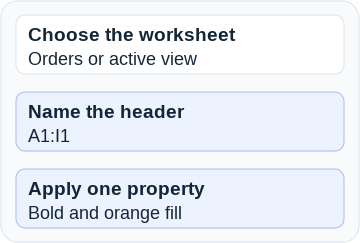
- Set the bounds: The Orders sheet uses the original nine headings across A1:I1 and ten records below them. Keep A1:I11 as an ordinary range for the first recording. A separate note in K1 will show whether the recording stayed within scope.
- Choose the display: Apply bold text and a light orange fill to the heading. The exact recorded color can depend on your palette and how you choose it. Use readable text with the selected fill, then verify the result on the actual workbook.
- Add a Table: The Table object gives a named structure to the dataset. An ordinary range and an Excel Table can look alike when both are styled. Verify the Table controls or table name after the action, not just the color.
- Use a disposable copy: Recording workbook actions applies them to the active exercise when you take those actions. Prepare a fresh identical copy for the first replay. Verify the destination range has no existing Table in that copy before replaying a script that adds one.
Separate recorder mode from object ownership
In the supported Action Recorder, absolute mode is the default described by Microsoft. It represents positions with fixed coordinates. Relative mode represents a position relative to the starting cell. Use the recorder's available mode control to switch to Relative mode if your activity should follow the user's starting place. The exact generated statements can differ. Neither mode automatically knows which workbook or sheet is approved.
Think about a two-cell formatting block. A fixed range A1:B1 always identifies those coordinates on the worksheet expression used by the code. If a relative recording starts at D5 and formats that start plus the next cell, its result would be D5:E5 for that positive replay. When you start at A1 instead, it would reach A1:B1 if the relative action was captured correctly. This distinction belongs to recording actions. Dollar signs inside worksheet formulas are separate rules about how formula references move.
Remember: Record at a well-defined starting point. Then identify any dependence on the active worksheet, fixed range and existing Table before you let anybody replay it.
Read a recording in three parts
Follow the receiver before reading the action
A method is a call on an object. In the recorded line, getRange selects which cell references the method chain will describe. getFormat retrieves their formatting interface, then getFont retrieves the font controls. setBold applies the specified Boolean value. Separate the actions that retrieve objects from the one that changes a property. Creating a Table also changes the workbook by adding a new structure, even if the stored data values were already present.
function main(workbook: ExcelScript.Workbook) {
  const selected = workbook.getActiveWorksheet();
  selected.getRange("A1:I1").getFormat().getFont().setBold(true);
  selected.getRange("A1:I1").getFormat().getFill().setColor("#FFC000");
  selected.addTable("A1:I11", true);
}
This short code illustrates the kind of action the recorder can express. It intentionally depends on the active worksheet and assumes a Table is absent. An actual recording may include extra calls or a different order, and it may use workbook.addTable with a Range object. Read the recorded code rather than expecting an exact textual match. A supplied workbook object is part of the main entry point. The first line of its body chooses a specific worksheet context for the rest of the method calls.
- Active context: When a person opens another tab and clicks Run, getActiveWorksheet can point to that tab. A fixed address then still lands on that other sheet. Test only within the intended training copies. When the script belongs to Orders, give it a named sheet lookup with an absent-sheet branch.
- Header effects: setBold with true sets a property. Repeating that same assignment leaves Bold on. The fill color is a selected value too. Recording a menu toggle can produce a particular saved state based on what you clicked. Inspect whether the generated calls set the desired final state.
- Table creation: The argument true signals that the selected range already has column headings. AddTable creates a new Table in that area. A second attempt over existing cells in a Table fails due to an overlap. Detect compatibility before attempting to add the object.
- Visual proof: A Table can apply its own style, which may change how an earlier color looks. Inspect the final header state after creating the Table. In the guarded script below the explicit header formatting is applied after the Table check and creation.
Lab one. Record, inspect and replay on a clean copy
Set up two identical ordinary ranges
Create two own training copies in your approved environment. In each use a worksheet named Orders with the ten rows from the formulas chapter. Keep the headers exactly Order ID, Date, City, Platform, Category, Qty, Amount, Mins and Status across A1:I1. The data begins in row two and ends at row eleven. Use real numeric amounts in column G. Make one copy the recorder source and one the clean replay target. Put “Keep this note” in K1 on both. Then you can distinguish the effects of recording from the effects of replaying.
- Open only the appropriate exercise in your eligible Excel client. Confirm the data is an ordinary range, not already an Excel Table. Select Automate and start a script using the Action Recorder. The pane can show the current reference mode and the supported recorded actions. For this first exercise use absolute recording.
- Select A1:I1, apply Bold and choose a readable orange fill from the worksheet controls. Then select A1:I11 and create an Excel Table using the visible table command. Mark that the first row already has headers. A browser may intercept a general keyboard shortcut, so use the Excel ribbon route if needed.
- Stop the recording once the intended actions are complete. Give the script an identifiable name such as Format Training Orders. Open the generated code in the editor. Find the statement that selects a worksheet context, the range for the style and the table creation. Your actions already took effect in the recording copy.
- Open the clean copy when your approved client makes the recorded script available there. Verify that Orders is the active sheet for the intentionally context-dependent recording and that A1:I11 does not have a Table. Run the reviewed recording. Inspect the actual header effect and verify a single table object covering the known range. A table theme can affect the final style, so do not infer the result without looking.
- Compare the first and last IDs and numeric amounts. BLK-1001 begins with 64 and BLK-1010 ends with 90. The original ten amounts sum to 2,870. Put an independent sum formula outside the reserved report block while testing. The note in K1 should remain. If a recording changes more than the exercise specifies, make a new minimal recording in a separate copy.
See which action is safe to repeat on a known range
A repeat of setBold true or setting the same fill can keep the same styling. A repeated Table creation can fail because the target now overlaps the existing Table. Do not assume the failure leaves every earlier line untouched. If the recording applied bold before attempting to create the Table, those formatting calls already ran when the overlap occurred. You can trace that order from the code without running additional writes. That is why the next lab puts schema and overlap checks first.
Try the original number-format practice as a separate recording
In your isolated Excel copy, record just two operations: set G2:G11 to show two decimal places, and widen column G enough to see the numbers. Stop and look for the number-format call and the column width property. An illustrative style-only version is shown below. Treat it as its own script. It finds Orders, uses existing values and does not create a Table. A change in number format or column width can affect how the data looks while leaving the gross total unchanged.
function main(workbook: ExcelScript.Workbook) {
  const sheet = workbook.getWorksheet("Orders");
  if (!sheet) {
    throw new Error("The Orders worksheet is missing.");
  }

  sheet.getRange("G2:G11").setNumberFormat("#,##0.00");
  sheet.getRange("G:G").getFormat().setColumnWidth(92);
}
Verify G2 contains 64 even if it displays it with two decimal places, and the sum is still 2,870. The width applies to all of G by design. K1 and a second worksheet provide controls for accidental mis-targeting. This script does not need VBA, broad worksheet changes or any manually applied keyboard shortcut. If an operator cannot run scripts, the code and displayed table controls are enough to trace the behavior.
Lab two. Reject conflicts before styling an existing report
Name the workbook area and table that you intend to manage
Start in a fresh copy of the same training data. Reserve the name OrdersPractice for the Table on Orders A1:I11. If an earlier recording already made a Table, use a fresh practice copy for the create case. You can then test the reuse case with a second run of the guarded code. The script checks the current header row, ten distinct sample keys and no next ID at A12 before working with the Table.
function main(workbook: ExcelScript.Workbook): string {
  const sheet = workbook.getWorksheet("Orders");
  if (!sheet) {
    throw new Error("Orders worksheet is missing.");
  }

  const block = sheet.getRange("A1:I11");
  const values = block.getValues();
  const headers = ["Order ID", "Date", "City", "Platform", "Category",
    "Qty", "Amount", "Mins", "Status"];
  for (let field = 0; field < headers.length; field++) {
    if (values[0][field] !== headers[field]) {
      throw new Error("Orders header does not match the practice layout.");
    }
  }
  if (sheet.getRange("A12").getValue() !== "") {
    throw new Error("The practice scope expects ten orders.");
  }

  const seen = new Set<string>();
  for (let index = 1; index < values.length; index++) {
    const rawKey = values[index][0];
    if (typeof rawKey !== "string") {
      throw new Error("Review the order ID on row " + (index + 1));
    }
    const key = rawKey.trim().toUpperCase();
    if (!key || seen.has(key)) {
      throw new Error("Review the order ID on row " + (index + 1));
    }
    seen.add(key);
  }

  const current = workbook.getTable("OrdersPractice");
  let outcome = "Reused OrdersPractice";
  if (current) {
    const area = current.getRange();
    if (current.getWorksheet().getName() !== "Orders" ||
        area.getRowIndex() !== 0 || area.getColumnIndex() !== 0 ||
        area.getRowCount() !== 11 || area.getColumnCount() !== 9) {
      throw new Error("OrdersPractice belongs to a different range or sheet.");
    }
  } else {
    if (block.getTables(false).length > 0) {
      throw new Error("The reserved order block already overlaps another table.");
    }
    const created = sheet.addTable(block, true);
    created.setName("OrdersPractice");
    outcome = "Created OrdersPractice";
  }

  const format = sheet.getRange("A1:I1").getFormat();
  format.getFont().setBold(true);
  format.getFill().setColor("#FFC000");
  console.log(outcome + ". Verified " + seen.size + " IDs.");
  return outcome;
}
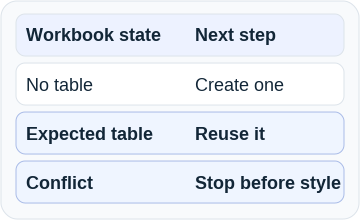
The name lookup concerns the whole supplied workbook. If a table with that name is on another sheet, the check recognizes the conflict before touching the Orders header. A table can also overlap the intended range under a different name. The range's table lookup asks for overlapping tables, including those partly within the reference. Test these two conflicts separately. An existing expected table on the exact Orders range instead provides the object to reuse.
The geometry checks use zero-based indices for rows and columns. A1 starts at row index zero and column index zero. The block then extends over eleven rows including the header, and nine columns. A Table that expanded to row twelve would not fit this exercise. The script's fixed scope intentionally rejects that change. A live workflow should define how it grows before treating additional rows as part of an existing summary.
Check creation, reuse and rejection separately
Use the exact same valid workbook before changing a case
| Opening condition | Table action | Final format step |
|---|---|---|
| Clean range | Create OrdersPractice | Bold and orange |
| Named Table at Orders A1:I11 | Reuse existing object | Bold and orange |
| Expected name on another sheet | Reject the conflict | Skipped |
| Another Table overlaps Orders | Reject the overlap | Skipped |
- Run the guarded version on the clean source. Verify one Table named OrdersPractice, nine headings and ten retained rows. The total of G2:G11 remains 2,870. Compare the adjacent marker, the first and last IDs and the new header style. The return and log describe the create case, while the workbook proves the Table exists.
- Run again without changing the data. It should find the named Table at the exact Orders range and avoid creating a second one. Its return should refer to reuse. Reset some header formatting manually in this copy if you want a visible test of the last step. The guard still reuses the same Table while applying the same intended style.
- Use a separate exercise copy with a different Table that overlaps Orders A1:I11. Leave the correct name unused in that copy. The overlap check should reject it before the style change. Another Table with the same name on a different sheet is a separate conflict case. Inspect both results by reading the diagnostic and the unchanged Orders header.
- In another copy add a new ID to A12 or change A1 to an unexpected header. The script should reject each before looking up or creating a Table. Try replacing an existing key with a second known key, including a difference in surrounding spaces or case. The duplicate check uses normalized IDs and should report the row.
- Finish by restoring the original distinct data and using the prepared known range. Do not remove unrelated tables or change user permissions to make a practice script pass. Select a clean independent file or restore your isolated lab setup with the original fixture.
Recognize the difference between validation and rollback
The rewrite moves known checks before the Table and header writes. An unexpected runtime failure after the Table was created could still leave that Table present. For example a later naming or formatting operation might fail because the layout has additional constraints. There is no automatic all-or-nothing guarantee. Inspect the workbook after failure and compare it against the expected known names, sizes and source data before choosing whether to rebuild a clean test copy. A saved result and a logged error can both exist.
Trace one safe repeat after the first creation
Read the known range
Orders exists and A1:I11 contains the correct headings and ten distinct IDs.
Look up the reserved name
The supplied workbook already contains OrdersPractice. Check its worksheet and exact range geometry.
Reuse the object
The range and sheet agree, so skip creation. Apply the explicit bold font and orange fill to the same header.
Verify a stable result
The log describes reuse. The data and note still match, and there is just one intended Table.
Trace moving and fixed recording modes on paper
Separate the starting point from Table creation
Make a tiny optional recording that applies only bold formatting to the selected cell and one cell beside it. Use a disposable plain sheet with two pairs of labels at A1:B1 and D5:E5. When recording a relative action from A1, review the generated code and check how it captures the relative position. Try the first replay from A1, then restore that pair to regular bold state, place the cursor at D5, and test the other location. If the recording is correctly relative to the start, its second destination is D5:E5. An absolute recording can still name A1:B1 on the selected worksheet. Keep the original label contents unchanged, and never use table creation merely to verify a movable style.
Think of the active worksheet as a context supplied during a supported interactive run. A flow may lack a selected cell and may resolve an active worksheet differently. A relative recording can be suitable when a known operator chooses the start deliberately, while a scheduled action requires an explicit file, named sheet and output scope. A visually correct first replay cannot show which assumptions have been made. Read the receiver expressions and test from different expected starting states when appropriate.
Check how the recording captured one operation
A recorder can create more than one statement for a visible action or add comments describing its assumptions. For example opening the Table dialog and pressing the control for existing headers creates a workbook structure with those headings, which can include automatic naming. Reading the output lets you identify the object returned by that call. Reusing that object for a naming or style step is different from making a second object over the same cells. Compare the language of the formula lab and the recorded script to see which actions read a value and which actions write data or formatting.
To edit responsibly, make a separate reviewed script revision and confirm it points to your reserved worksheet. Store the range once in a variable when several operations refer to it. This makes it easier to audit the intended header address and the effect on the right edge. It also separates the state of the workbook supplied by main from the worksheet the script chooses to access. Keep the original recorded code available for comparing where the change occurred.
Find the cause of an unexpected replay
Read the script before running it a third time
- The wrong sheet changed: Locate getActiveWorksheet, getSelectedRange or other context-dependent APIs in the first statements. Confirm which sheet was displayed at execution. Switch the plan to an explicit lookup with a missing-sheet check where appropriate. Repeat the test against a clean known workbook before entrusting a shared report.
- The numbers look different: Check the underlying amount alongside the displayed format. Decimal places and column width change presentation. A gross sum of 2,870 is a useful check when only style should change. Read the first and last values and a nearby control cell so the verification is not only visual.
- The second run fails: Read the workbook history and look for an existing Table in the intended area. A recorder-created AddTable call can fail even if earlier style assignments were applied. The guarded version recognizes compatible geometry or returns a conflict before known style changes. Inspect the actual object and decide whether the workbook matches the scope.
- The Table exists with a different name: The guarded code requires the stated name for reuse. It rejects overlap with a differently named object so it cannot silently assume ownership. If this is a real separate dataset, leave it intact and use the intended training copy.
- The recording differs from the examples: The host, selected UI actions and current workbook can lead to different generated code. Focus on the method chains and their effects. Verify supported APIs for the client and independent behavior on your known input. A line-by-line text match is unnecessary.
Capture the starting conditions in a useful support note
Record the workbook file, worksheet name, whether a Table was already present, the reserved range and the actual script name. State whether you recorded immediately before replaying or used a clean copy. Verify whether the table contained a header row before the call. Look at the row count and first and last IDs after execution. Record which observations establish style and which establish the workbook structure. This makes the issue reproducible without assuming a teammate can inspect the original recorder pane.
If the later task requires the script to work with a changing row count, decide where the records start and end and which validated Table is maintained. Do not repeatedly create larger tables over the same region. For a growing source you may already have a Table that changes size as records are added. Update a separate script to address its existing name and body. Use the replay fixture as the baseline proof for a fixed size, then build another acceptance case for eleven rows. This keeps a deliberate expansion separate from an accidental spill into another report area.
Use a small acceptance sheet beyond the Table
Before the run in the clean training copy, place a numeric sum check in K3 and write the expected answer in your notes. This lies outside A1:I11, and the formula should sum only G2:G11. After creating a Table, inspect its actual row count and compare that check. A wrong create range can still leave the ordinary sum unchanged because the excluded cells remain on the worksheet. Look at the Table's own extent as a separate observation. From the creation step, expect header A1:I1 and data rows 2 through 11 inside that object. A preserved number and a correct table body provide independent evidence.
In a scratch copy change the first header to a mismatching label while leaving all ten IDs and values intact. The guarded check rejects the apparent report even though its sum looks correct. This is an example of schema validation. It establishes that a future interpretation will read the right fields. It does not establish that a currency field has been imported as numbers in every possible report. A later script that calculates fees would need to validate that type before writing. Preserve in your notes what each acceptance check establishes.
Test the two repeats from the correct original data with each original note. On the first script variant, the format-only run should not create any Table. On the guarded variant the first run creates the named Table and the second reuses it. Keeping both copies makes it clear which action was necessary for preparing the report. Writing full dates, totals or labels again is outside the format-only result. Label each workbook with the learners' intended starting state before comparing screenshots or worksheet cells.
Teach a learner to audit the method chain
Ask them to follow the style line and read what each object contributes. The worksheet decides which grid. The range decides the address rectangle. The format object resolves its formatting controls. The font or fill object chooses the property family. Setting the desired state changes one property. Ask them to do the same with AddTable. The sheet, range and existing-header flag identify the new structure. The returned Table object can expose the name and range used for a separate verification. This same pattern appears throughout the rest of the Office Scripts chapter.
Choose the right test: Before replaying a format-only recording, verify the expected header cells and one neighboring cell. Before replaying table creation, also inspect the existing Table state and the expected name. Explain which test catches an overlapping object.
Transfer one recorded action to a new report shape
Decide which parts of the original process still apply
Imagine the analyst moves the report down two rows to leave space for a title. The new header is A3:I3 and the ten data rows extend through thirteen. The old A1:I11 range would include the title area and leave out the last two records. The first script's result could look neat while the table is incomplete. Write down the new sheet name, actual first and last row and expected headers, then deliberately revise any later script scope. The fixed practice script on this page should reject the shifted layout because the expected headers are not at A1:I1.
If the job only requires a moving style, the relative recorder exercise already shows how the starting selection can act as an input. For a structural change such as adding a Table, a known named range, checked heading row and range geometry are stronger evidence than a remembered click. Verify that a designated layout actually represents records. A relative action that works for a two-cell style can still be unsuitable for creating whole tables at arbitrary selections.
Try a paper test where the sheet includes a separate A1:B1 title and the data actually starts at A3. Compare a run with an absolute A1 header to a run with the intended lower starting cell. Identify exactly which labels could change. Then identify the schema check that keeps the guarded script from creating a Table on the wrong region. This is a practical way to reason about an edited template without making any writes in another workbook.
Read the workbook after one planned and one rejected attempt
Use the baseline successfully on the clean known report once. Note the table name, header color, counts and sum of amounts independently of the script's returned string. Then create another scratch copy in which the correct name belongs to a table on Notes. The guarded code can find it by name but rejects its location. The code doesn't move or delete that other table when it fails. Your evidence should include both the unchanged Notes table and the unchanged format at the intended Orders header. This catches misplaced recovery code that would change a table just to make the expected name available.
When testing a genuine move to a new business template, choose one target field with a distinct value. The first and last sample amounts are 64 and 90, so check which source dates and IDs travel with them. This addresses the possibility of keeping the total while selecting a region that does not contain the same records. An independent check of first and last keys can reveal a region shift faster than inspecting the header style. If you later choose a different mixed reference, show the exact range computed before allowing edits.
Explain the shape around the existing Table
ExcelScript provides different ways to ask about Table objects. Workbook getTable finds an existing named object. Range getTables can return tables that overlap a rectangle. Restricting that lookup to only fully contained objects would miss one that starts outside the target and touches part of it. The exercise asks about overlaps to catch that corner case. When a conflict appears, inspect the existing worksheet arrangement. The table may serve another report.
Make a test plan with two neighboring ranges on paper. One existing table is D10:L15 and therefore intersects the reserved order rectangle on its bottom rows. The overlap check should stop. A differently named table completely outside A1:I11, such as M2:O5, does not occupy the practice area. Under the approved test conditions it need not block the intended Table. Check the exact sheet coordinates as well as the Table name. This proves how the area check and the name check cover different risks. Neither relies on knowing which table the analyst most recently selected.
Quick checks
Predict scope and workbook effects on replay
Does a fixed range guarantee it is on the Orders sheet?
It fixes cell coordinates within whichever worksheet object receives the Range call. If the script selected the active worksheet, a different tab can receive the same address. Find Orders by name and check that it actually exists before applying a known report style.
What does the true argument in AddTable mean?
It tells Excel that the input range includes column headings in its first row. In the known fixture that is row one, with data beginning at row two. Use the actual source layout to choose the parameter. A table header is a structural part of the new object.
Where should a relative two-cell format land when starting at D5?
If the captured action means the starting cell and one to its right, it should reach D5:E5. An absolute version using A1:B1 would still choose those fixed coordinates. Read the actual recorded receiver and test an alternate start in the copy.
Why might a second raw replay fail after changing the style?
The raw recording applies style before trying Table creation. It can then encounter an overlapping Table from the first run. Its earlier actions may already have happened. Check for a compatible Table or a conflict before changing the header in a deliberately written replacement.
What should the guarded script do when the expected Table already matches?
It should reuse that object and reapply the known header format. It verifies the worksheet and exact range size. Storing current style again gives the same intended result, while a second AddTable call would break the required object state.
What should remain the same after a number-format recording?
The actual numeric input amounts and gross sum remain unchanged for this style-only script. A change to 64.00 in the display does not replace the number 64. The assigned column width is also a visual property. Check a preserved nearby marker independently of both style choices.
Interview and discussion
Give a precise explanation of each step before trusting it
When is recording a useful first step?
Use it to capture a known sequence of supported actions and learn the resulting method names. Review its active worksheet and range assumptions, then replay on a clean copy. Use deliberate editing when the task grows to require missing-input checks, conditional actions or safe repeat behavior.
How do you ensure an Office Script works on a different tab in the same workbook?
Decide which tab is allowed. Retrieve that worksheet by its name from the provided workbook and handle absence explicitly. Use its qualified ranges. Verify from a different displayed sheet that only the named approved range changed. If a relative interactive tool needs a chosen start, validate that selection instead.
How do you check that a script creates only one Table?
Run once in a clean copy, confirm the named object and read its worksheet and range. Run a second time and verify the script recognizes and reuses it. Separately test a conflicting name and an overlapping table. The only expected structural addition belongs to the clean first run.
Can a previous successful manual recording prove an unattended flow will run it?
The automatic context can lack a selection or choose a different active worksheet. Check the eligible account, supplied file and supported APIs. Use a named scope with no dependency on user focus for a flow. Verify an approved test output under the actual execution method.
Why preserve both source IDs and a sum when verifying formatting?
A total catches one kind of change to values. Checking distinct first and last keys and exact dimensions catches an unintended shift or removed record even when a sum happens to agree. Verify the structural effect and the preservation of data as separate requirements.
Six recall cards
- Recorder output
Read each generated method call and its receiver. Different UI actions or clients can generate slightly different code.
- Absolute or relative
Fixed addresses and a chosen starting position are different. Neither by itself proves the intended worksheet is being used.
- Named sheet guard
Find Orders and stop if it is undefined. Keep the validation before any format or table write.
- Table overlap
Table creation can fail on a repeat. Reuse the exact owned object or report a conflict before continuing.
- Format is display
Two decimal places and width affect presentation. Verify unchanged source values and totals.
- Verify the rerun
Use a fresh copy for raw replay. Use the guarded version to prove create, reuse and reject outcomes.
Microsoft references
Continue practising: explore the existing Excel Task Hub for additional exercises.