Practice and Answer Key: A Macro that Tags Late Orders
Raja wants one button to tag the late deliveries in his daily report. Use the original ten orders and preserve the source fields. Work the exercise first, then compare your macro against the answer. You should be able to prove the original three tags, a valid rerun and a rejected input.
Define the rule before writing the loop
Turn a request into an exact acceptance test
The QuickCart worksheet is a fictional delivery report with the original Blinkit and Amazon Now training labels. These figures and operations are made up. The operator wants to see which delivered orders took more than fifteen minutes, alongside its count. Start with the smallest known dataset, complete the exercise in your own approved Excel desktop copy and check what stayed unchanged outside the designated output.
- Input: Use the original ten order rows. Each row must have a real text Order ID. Status determines whether the elapsed time is relevant. In a Delivered row use an actual numeric elapsed value of zero or more.
- Decision: A Delivered row above fifteen minutes receives Late. Exactly fifteen does not. Cancelled, Returned and Pending are known exclusions. Invalid status or an unusable eligible time calls for a review and no new result.
- Output: Reserve the Late Tag column at J in the exercise layout. Replace its body with the tags from the current successful run. Other rows show an empty tag. With a failed validation, an earlier tag block can remain and belongs to a previous run.
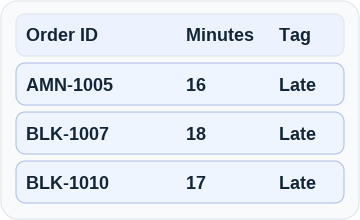
- Verification: Be able to name the three original IDs, their durations and their exact worksheet rows. Use a separate worksheet formula and nearby marker to compare the result before assigning a button.
Before you start: In this exercise a blank tag in a completed run means the row did not qualify. A failed run is reported separately so the old tags do not masquerade as a new decision.
Lay out the original ten orders and the output
Use the named Orders worksheet and Table
Save your own workbook as TagLatePractice.xlsm. On Orders enter the original ten-row course dataset with Order ID, Date, City, Platform, Category, Qty, Amount, Mins and Status from A through I. In J1 add Late Tag and reserve that column for the macro. Select the whole A1:J11 rectangle, make it an Excel Table with headings and give it the name tblOrders. The code will read named columns so field positions can change within the approved Table. Leave separate notes outside the Table and keep your original source copy.
| Row | Order ID | Mins | Status | Late Tag |
|---|---|---|---|---|
| 2 | BLK-1001 | 9 | Delivered | |
| 3 | BLK-1002 | 12 | Delivered | |
| 4 | AMN-1003 | 14 | Delivered | |
| 5 | BLK-1004 | 11 | Cancelled | |
| 6 | AMN-1005 | 16 | Delivered | Late |
| 7 | BLK-1006 | 8 | Delivered | |
| 8 | BLK-1007 | 18 | Delivered | Late |
| 9 | AMN-1008 | 10 | Returned | |
| 10 | BLK-1009 | 13 | Cancelled | |
| 11 | BLK-1010 | 17 | Delivered | Late |
Try the exercise before looking at the answer
- Create one public Sub called TagLateOrders in the exercise workbook's standard module. Make its workbook owner explicit. Choose how to locate the data body and how to handle a Table with no records. Do not read the header as an order.
- Design a loop over the accepted source rows. For each one identify the record key, status and elapsed field. Plan the branches for Delivered, other known statuses and an invalid input. Check the type before performing a numeric comparison.
- Give each row one result in memory. A Late row receives text and every other accepted row receives a blank tag. Count the late labels separately. Make sure the answer can replace an old Late result if an order is now on time.
- Assign only the reserved output body after validation. Show the number of Late rows. Verify the output with the original table and one deliberately changed row, then run from the dialog before assigning a button.
Predict two changes: When the nine-minute order becomes twenty and remains Delivered, it joins the three original late rows. If the same order is then Cancelled, it leaves the eligible group despite the numeric duration. Write down both expected counts before running.
Answer key. Stage the tags, then write them together
Compare your ordering with this complete procedure
The working answer reads the Table body into memory and uses its column positions. A validation failure calls out the source order row and returns before the tag write. The regular result path assigns one one-column block containing the current tags. Save this code in your own standard module if you want to test the answer separately from your first draft. Keep only one public procedure with the same name in that project.
Option Explicit

Public Sub TagLateOrders()
    Dim ws As Worksheet
    Dim orderTable As ListObject
    Dim target As Range
    Dim values As Variant, tags() As Variant
    Dim rowsCount As Long, item As Long, earlier As Long
    Dim keyIndex As Long, timeIndex As Long, statusIndex As Long
    Dim lateCount As Long, sheetRow As Long
    Dim rawId As Variant, rawStatus As Variant, rawMins As Variant
    Dim key As String, statusText As String, stage As String

    On Error GoTo Failed

    stage = "Find Orders and tblOrders"
    Set ws = ThisWorkbook.Worksheets("Orders")
    Set orderTable = ws.ListObjects("tblOrders")
    If ws.ProtectContents Then
        MsgBox "Use the approved writable practice copy."
        Exit Sub
    End If

    stage = "Check the table fields"
    keyIndex = orderTable.ListColumns("Order ID").Index
    timeIndex = orderTable.ListColumns("Mins").Index
    statusIndex = orderTable.ListColumns("Status").Index
    rowsCount = orderTable.ListRows.Count
    If rowsCount = 0 Then
        MsgBox "Late orders: 0. No table rows."
        Exit Sub
    End If
    Set target = orderTable.ListColumns("Late Tag").DataBodyRange

    stage = "Read the approved table body"
    values = orderTable.DataBodyRange.Value2
    ReDim tags(1 To rowsCount, 1 To 1)

    For item = 1 To rowsCount
        sheetRow = target.Row + item - 1
        stage = "Validate Orders row " & sheetRow
        rawId = values(item, keyIndex)
        rawStatus = values(item, statusIndex)
        rawMins = values(item, timeIndex)
        tags(item, 1) = vbNullString

        If VarType(rawId) <> vbString Then GoTo InvalidRecord
        key = UCase$(Trim$(CStr(rawId)))
        If Len(key) = 0 Then GoTo InvalidRecord
        For earlier = 1 To item - 1
            If UCase$(Trim$(CStr(values(earlier, keyIndex)))) = key Then
                GoTo InvalidRecord
            End If
        Next earlier

        If VarType(rawStatus) <> vbString Then GoTo InvalidRecord
        statusText = UCase$(Trim$(CStr(rawStatus)))
        Select Case statusText
            Case "DELIVERED"
                If VarType(rawMins) <> vbDouble Then GoTo InvalidRecord
                If rawMins < 0 Then GoTo InvalidRecord
                If rawMins > 15 Then
                    tags(item, 1) = "Late"
                    lateCount = lateCount + 1
                End If
            Case "CANCELLED", "RETURNED", "PENDING"
                ' Known status; keep the current result empty.
            Case Else
                GoTo InvalidRecord
        End Select
    Next item

    stage = "Write the current Late Tag column"
    target.Value2 = tags
    MsgBox "Late orders: " & lateCount
    Exit Sub

InvalidRecord:
    MsgBox "Review the ID, status and eligible time in Orders row " & sheetRow
    Exit Sub

Failed:
    MsgBox stage & " failed. " & Err.Number & ": " & Err.Description
End Sub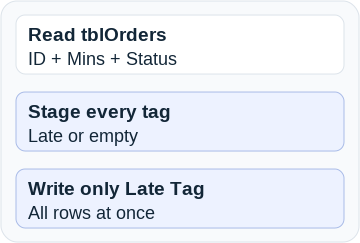
Explain the order of the main operations
- Find the approved body. The table belongs to Orders in the workbook holding the code. Read its named Order ID, Mins and Status column positions. The Late Tag body is the only write area. A normal range with the same formatting does not supply this table object.
- Use safe indices. The Table body read returns a two-dimensional array for this multi-column range. The first available data row is position one in that array. The actual worksheet row comes from the output body's first row and the current position. This still gives a useful message if the table is placed below a workbook title.
- Check for duplicates before trusting a row. In a ten-record lab comparing the current normalized key with earlier checked keys is simple to inspect. A repeated key could make a count look valid while marking the same order twice. For a large dataset choose a supported lookup and benchmark a carefully designed version.
- Use the eligibility rule before the number. Only Delivered needs the checked minutes comparison. A numeric 20 on a Cancelled route stays outside this measure. An unknown status rejects the run. A textual 18 on a Delivered row also rejects it before a tag is written.
- Assign a full column result. At every iteration the staged tag starts empty. A qualifying row sets Late. This prevents yesterday's tag from surviving if that order is successfully reclassified today. Only after all rows pass does the procedure apply the block to the current target body.
The failure label describes genuine runtime errors, such as not finding the expected Table. The separate InvalidRecord label is a deliberately checked outcome. It prevents a valid-looking total from being calculated over incomplete inputs. This example avoids changing general Excel settings and writes one prepared area. Check the actual result after any error in a worksheet operation instead of assuming all changes are automatically rolled back.
Lab one. Confirm the baseline, boundaries and rejection
Use an independent formula beside the data
Place the two checks below in unused cells outside the Table. The first checks the clean baseline source using both status and elapsed time. The second looks at the current output tag column. They should both produce three initially. The source formula assumes the original numeric timings and labels and does not enforce all the macro's strict validations. After rejected input, the tag count may still describe an earlier accepted run. Keep those two checks visible separately.
=COUNTIFS(I2:I11,"Delivered",H2:H11,">15")
=COUNTIF(J2:J11,"Late")- In approved desktop Excel run TagLateOrders from the Macros dialog. The original three visible tags should be beside the IDs listed above. Their original worksheet rows are six, eight and eleven. Confirm the tag count and preserved note. The message should report Late orders: 3.
- Change the first order's H2 to exactly fifteen and run again. It stays outside the tag. Change that one value to 15.01 and run. The expected result is four and BLK-1001 has an explicit Late tag. The first five source columns and the other record keys stay intact.
- Restore the original nine minutes, then run again. The first tag becomes empty and the original three remain. Now try a Cancelled record with a numeric twenty. The eligibility rule keeps it outside the timed measure. Compare with the independent COUNTIFS and restore the values.
- Enter another row's ID into one of the ten existing records in the disposable copy. The code rejects a repeated normalized key and the tag block should not be replaced. Compare the current result with the saved baseline before finishing the test. Restore the unique source ID.
- Repeat with text stored in a delivered duration cell. The guard rejects that input too. Note whether its identified row matches what you changed. Restore an actual numeric cell and rerun. Format the original figures if desired only after the expected values are restored.
Trace one successful repeat
Read the current source
BLK-1001 is Delivered and its elapsed time is now 20. Its previous tag has no say in the next result.
Make its staged decision
The checked input is above fifteen. Add one to the late count and put Late in this row's staged column value.
Check the remaining records
Three original late IDs still count. Keep the whole result in memory until all inputs pass.
Replace the known output
Write only the tag body and report four. Restoring 9 then rerunning replaces the first Late tag with an empty result.
Lab two. Give a reviewed button a clear result
Make the invocation easy to audit
Once the direct macro succeeds, place a visible Form Control button in an empty approved area near the table. Give it the label Mark late deliveries. In the assignment picker choose TagLateOrders from TagLatePractice.xlsm. You can use a labeled worksheet shape assigned to the reviewed command if your desktop provides that option. The button only starts the routine. It does not determine the threshold or define what is allowed to change. Keep a direct Macros dialog path for readers who prefer the keyboard or need to diagnose a mistaken assignment.
- Save and reopen the correct XLSM practice workbook. Confirm that the button appears and the associated procedure is still the correct one in this file. If you are viewing Excel for the web only, the worksheet can be readable while VBA execution is unavailable. Use the practice trace or an approved desktop route.
- Use the original dataset. Change one of the known baseline durations on the copy, such as BLK-1001 from nine to twenty. Use the button rather than the dialog. Check four Late tags, including that specific row. Then restore its value and use the button again. The old Late tag for that ID disappears and the expected count returns to three.
- Try the same command while a different worksheet is visible by using the dialog. The code belongs to the practice file and resolves Orders from it. It should update only the approved table column. Read one unchanged note on the visible worksheet and the first and last source IDs on Orders.
- If you added a button to a separate copy, repeat the assignment check after naming the copy. A label can remain even if the actual procedure name or file referred to has changed. Rerun a known positive and negative case before asking another student to use the button.
Tell a teammate what the button did and what it requires
Use a short note that names the workbook, method and expected output. For example, “Open the reviewed TagLatePractice in desktop Excel. Run Mark late deliveries. Compare the Late Tag column with the original inputs. Expect three on the sample, with the note untouched.” In a handoff about a changed report, include the actual rule and source date. A convenient button does not certify when the data was loaded. For a failed run, say whether the source was rejected or the target could not be written. Tell the next person to inspect the older output separately.
Try a controlled table growth case
The answer uses the number of rows in tblOrders. To test growth, make a new disposable copy and add a legitimate record inside the Table body. You can use the supported table-row insertion controls to extend it by one row. Use BLK-1011, twenty minutes and Delivered, with sensible values in the other known source fields. Confirm the new row is inside the actual named Table; a record typed below a range is not automatically part of every import layout. In a table-copy test use the Table's membership as evidence rather than relying on its visual border.
The accepted eleven-row result should now show four late deliveries. The new tag belongs to BLK-1011 and the original three remain. The code sizes the output array from the Table's actual row count, so it has one row for each present record. If you add another order below the Table without including it, the code does not process it. That new physical row does not belong to the chosen report scope. Restore the original test by reopening your saved known ten-row copy when finished. Keep the extended case if you want to repeat it without changing the original.
Update your independent checks when the fixture grows. An ordinary COUNTIFS ending at row eleven cannot count a valid record at worksheet row twelve. On the known growing Table you can check it with structured references as shown below. Verify the Table and field names before changing the formula. This check deliberately uses the same status and duration rule, and expects the basic numeric fixture to be clean.
=COUNTIFS(tblOrders[Status],"Delivered",tblOrders[Mins],">15")
=COUNTIF(tblOrders[Late Tag],"Late")
Use an empty case to check the body reference
Trace a Table with no data rows before requesting its body. In the answer the procedure reports zero and exits while the header remains. Excel can retain a physically blank row as part of a created Table. That is different from having no member rows, and the code expects a nonempty ID in every member row. In a paper test, predict the two outcomes, then check the approach in an authorized copy if available. No need to remove working order records to test this behavior.
If the Table is resized to omit former rows, their cells can remain on the worksheet even though they are outside its data body. This macro only manages the currently reserved Table column. It does not erase residual values elsewhere. Plan a separate authorized review if that workbook layout leaves old outputs outside the intended table. The named table and its active membership determine which records the current count actually covers.
Reconcile the row outcome with the count
Find the one decision that produced each tag
Examine the original row with 16 minutes. Its source in ID and Status makes it a completed delivery. The numeric value is above fifteen. The array position stores Late and the count advances by one. The next on-time delivery leaves the count unchanged and writes an empty tag. A returned delivery with ten minutes is also empty for a different reason. Because both outcomes display the same tag, a full report wanting a reason for every non-late row should use a separate label design. The exercise specifies only the qualified late rows.
If a newly rejected source row previously had a tag, the tag remains untouched because validation stops the write. That is an intentional no-new-output case, not an assertion that the old tag still describes the current source. A robust report can use a version or status indicator outside the stored tags so a reader can separate a previously accepted snapshot from a newer failed run. In this practice output the message and controlled tests provide that indication.
Test the count and the last row in different ways
The last data row in the original layout is eleven. A For loop that accidentally stops at ten loses BLK-1010 and reports two. That makes this fixture useful for spotting one kind of off-by-one error. If the final row happened to be on time, a wrong range could skip it while still producing three. Confirm the exact membership and the label for each input as well as the count. The original lesson on last rows explains how worksheet coordinates and Table membership answer related but distinct questions.
If you deliberately implement a key-column version of the exercise instead, identify the last populated Order ID and check the header before constructing a destination. Confirm both endpoints belong to Orders. A row with no ID can still have numeric values or a note in another column. It cannot be accepted as a valid order merely because the elapsed time is high. The Table version removes the fixed ending row while keeping a declared ownership contract for the output. Choose the source geometry your worksheet can maintain.
Trace a missing type in the editor before changing any code
Use a breakpoint on the delivered minutes check in your copy, if permitted. For an original delivered row observe the actual subtype and numeric value. Then change that cell to text on the isolated worksheet and repeat. The variable can hold the text even though it displays familiar digits. The code tests VarType before the numeric comparisons. A successful compilation of those statements does not prove anything about the currently stored worksheet values. Pair the code trace with an independent read of the input cell.
For the wrong-workbook test, inspect the named worksheet and table variables near the beginning. A missing Table name is a setup failure. A wrong status on a present record is a validation failure. An old tag remaining after either event is a separate state. Report the stage and exact data conditions instead of presenting a generic message saying the macro did nothing. The next reader can then prepare the correct source before repeating the action.
Diagnose a failed test before rewriting the macro
Start with the exact observed symptom
- The command is missing from the Macros dialog: Find the approved workbook's project and standard module. The macro should be public and take no arguments. Check the correct saved XLSM copy, client and policy. A missing or blocked command is not evidence the order data is invalid.
- An error reports that Orders or tblOrders could not be found: Check the exact visible sheet and table names in the intended workbook. Styled ranges can look like tables. Reserve the approved data body and validate the field names before trying to patch the lookup into a different report.
- Late appears next to a different order: Check the array row order and target geometry. Both data body reads and the target column belong to the same Table. Using a separate source sorted in a different order can misalign tags. Choose two source rows with distinct outcomes and verify the IDs next to the written labels.
- A previous tag remains after the source changed: Check whether the new run actually completed and whether that row belongs to the current Table. A rejected source leaves the previous body untouched. A successful run should replace every body tag, setting accepted non-late rows to an empty value. If an old value is outside the Table, it lies outside the managed range.
- A user expects the button to work in the browser: The saved VBA workbook can be displayed there, but its Sub cannot run through Excel for the web. Use the approved desktop client or a separate eligible Office Scripts implementation with the same business rule. Verify equivalent counts before changing the team process.
Test a changed Table layout by subtracting an assumption
Suppose the analyst moves the Mins column to a new position within the approved Table. The named column lookup still retrieves the current index, so the macro reads that field from the matching position. A hard-coded cell expression pointing to H might instead read another column. You can test this on a disposable copy by making the relocated numeric field visibly different from its neighbor and comparing the exact tagged IDs after rerun. Check the reserved Late Tag output independently, because changing that column too could shift its physical address.
Next consider sorting the input. The current source row position changes, but the named Table still associates each key, time and status as one record. The macro reads the current order and writes the tag body in that same order. The correct late IDs remain the original three. If a tester continues to check only physical row six, eight and eleven after sorting, they may inspect the wrong records. Use the table's row numbers for the original layout and its known IDs for reordered data.
Give the old and new output an explicit state
| Input | Current run | Expected evidence |
|---|---|---|
| Original ten | Accept | 3 tags |
| First delivered time becomes 20 | Accept | 4 tags |
| First row Cancelled at 20 | Accept | 3 tags |
| Duplicate ID | Reject | Previous output only |
When reporting a rejected run, preserve the prior result as evidence but do not use it to answer today's question. Write down the affected record and the source value that caused rejection. If the error involves the worksheet environment rather than data, include the workbook and stage. Then repeat only on the authorized training copy with the original range. The lesson focuses on a single bounded output to make that recovery observable.
Make a second exercise that checks the same skill
Compare a common format change with a true workload change
A teammate asks to make the late count visible in a worksheet instead of solely in a message. First choose where that added output is allowed to be written, such as a clearly labeled cell outside the practice Table. Decide whether it should retain a previous count after any rejected input. The final result should have the same semantics as the current staged tags. A second write can fail after the first succeeds, so describe the two effects in your test plan. Keep the published answer's bounded single-column behavior unchanged while devising this independent version.
Another teammate wants to raise the late threshold to seventeen. With the original source, the valid delivered values at or below seventeen leave only BLK-1007's eighteen minutes as late. AMN-1005 is sixteen and BLK-1010 is seventeen, so their tags should become empty on a successful rerun using that test rule. Use a separate copy if you experiment with the threshold. Compare both the exact keys and count. This scenario exercises the larger principle that changing a rule can affect several previous outputs at once, and a whole staged replacement is easier to verify than marking only additions.
Compare the final workbook-level conditions before rebuilding. The filename must preserve the code if it is meant to be reused. The data sheet and table must agree with the expected schema. The tag column has one output value for every accepted record. The operator should be able to check the original source independently and know whether a result is older than the current data. These facts make a clean handoff even when another reader never opens the VBE.
Before leaving the exercise, restore fifteen as the agreed cutoff, the ten original records and the original minute values in your own retained copy. If you practiced with a temporary button, keep it only when its assignment and workbook provenance are documented. Leave the actual workflow's other workbooks and security settings alone.
Explain the effect of different counts after a row edit
Use a control where the result should stay the same
Consider the original ten orders with a twenty-minute value entered only for BLK-1009, which is Cancelled. A simple worksheet COUNTIF over minutes alone would now find four values above fifteen. The macro is supposed to give three because its rule also requires Delivered. The worksheet COUNTIFS with both criteria should still give three for that clean changed fixture. This is a useful test against rebuilding the answer to match the wrong comparison. The edited test record could be investigated separately under a measure that includes attempted deliveries.
Now change BLK-1009 to Delivered in the practice copy while leaving the duration at twenty. It becomes a qualifying late row, so the accepted count rises to four. That is a status change for one existing ID, not an additional record. The first original late record still qualifies and the total row membership remains ten. Compare those facts while you confirm the new tag. Restore both original fields before you present the original answer key. Distinguish how the duration rule and the eligibility rule contributed to the result.
Confirm which rows are in the physical output block
If the approved Table begins at row one, its first tag cell in the original exercise is J2 and the last is J11. A CountIf reading J2:J10 would miss the last confirmed Late. Changing the test formula to the named table column prevents a manual count from quietly omitting newly included rows. Check the macro's actual target and independent formula separately. If you have filtered the Table on an unrelated column, the practice still operates on its body; the result is a complete dataset count rather than a count of currently visible lines.
Keep a record of your original worksheet indices and keys while comparing a moved or grown Table. This establishes that the script writes data-related decisions into the tag body rather than keeping old cell positions. Record which source fields and nearby markers were preserved. A helpful final check reads the first new tag, the last original late tag and one originally excluded record.
A learner who cannot run approved desktop VBA can still compare the arithmetic and simulate the update of the full tag array. They should identify it as a traced result without making claims about the live button behavior.
Quick checks
Read the exact tag, not just the count
What are the original three late IDs?
AMN-1005, BLK-1007 and BLK-1010. In the original layout they are rows six, eight and eleven. Each is Delivered and has an elapsed duration above fifteen minutes. The expected Late Tag count is three.
What should happen at exactly fifteen minutes?
The order is outside the strict late threshold even if it is Delivered. Its accepted tag is empty. Test 15.01 separately, since it is above the threshold. Read the source value with appropriate precision rather than relying on how the cell rounds its display.
Does a late result for a row survive a successful correction?
The tag column is replaced from the latest accepted inputs. A row corrected from twenty to nine should go from Late to an empty tag after rerun. The source remains unchanged by the macro itself. The count drops from four to the original three.
Why does a duplicate key block the output even if all durations are numeric?
The practice report expects each Order ID once. A duplicate can tag one record twice or conceal a replaced record while keeping a plausible count. The stage checks IDs before writing the new result block. Fix the source and verify the intended key set.
Can a button change the threshold without changing the code?
The button invokes the assigned procedure. This sample's threshold is specified in that procedure. Changing the button's text or position does not edit the business rule. If you deliberately want a different cutoff, document and test it in a separate approved version.
What happens when a new record is entered outside the named Table?
The new entry is outside this procedure's read and output scope. Confirm it actually joined the approved table before expecting it to change the result. If it is a true member, verify the actual ID, status, duration and updated count.
Interview and discussion
Explain your design without reading the whole procedure aloud
Why use a named Table for the data boundary?
Its current body defines which rows belong to the report, and named columns still identify fields when their positions change. The exercise can size the tag block from the actual body. Verify that valid source rows belong to the Table and that old cells outside it are kept separate.
Why stage all labels before writing?
A later row might reveal a duplicate ID or bad duration. Staging the labels lets a validation failure stop before publishing a partially updated tag column. The block write still has its own runtime failure possibilities. Inspect the actual destination and required state after an error.
Which proof would you use if a teammate sees a count of three but doubts the result?
Identify the exact three keys and source times, compare the status rule, then use the independent source formula and a count of the written labels. Check that the current run succeeded. A previous result of three can still appear after a rejected input, so keep the run's data and output evidence together.
How do you handle different roles for an empty tag?
In an accepted run it means the row did not qualify. That can include a timely Delivered row or a known excluded status. An unchanged old tag after failure is not a current result. When the business needs the reason for every row, use an additional status label and verify it separately.
What test ensures your code really respects the selected workbook?
Run the standard procedure in the intended workbook with another lab tab displayed and verify Orders receives the tag block. Keep a marker on the displayed tab and check that it stays. Confirm the bound workbook project before assigning any button, especially after copying a file.
Six recall cards
- Strict threshold
Only Delivered above fifteen qualifies. Exactly fifteen leaves an empty tag.
- Three original keys
AMN-1005, BLK-1007 and BLK-1010 should be tagged on the original dataset.
- Source identity
Check the exact workbook, table, named columns and unique order IDs.
- Write after validation
Read the current body, fit the tag array to its rows and replace the approved column once.
- Recheck the button
Choose the exact reviewed macro and verify its direct behavior before assigning a control.
- Confirm a rerun
Observe 3→4→3 when changing and restoring the first time. Test an invalid row too.
Microsoft references
Continue practising: explore the existing Excel Task Hub for additional exercises.