14. Protection, Sharing and Printing
Decide what the reader needs to do. An input workbook needs clearly editable cells, a review workbook needs deliberate access, and a print or PDF copy needs readable pages with the intended data. Test the deliverable in the form its recipient will use.
Six managers need a usable report
Your dashboard is ready. Six city managers receive the targets workbook. On the first day someone types over a formula while updating a target. Someone else prints the Pune report and gets one half of the columns on one page and the rest on another. Both issues can happen in a workbook whose numbers were correct at handoff. This chapter is about preserving those numbers and giving each person a useful way to work with them.
Imagine a fictional delivery operations team preparing a March report. The story is inspired by city-based delivery work that students might recognize from services such as Blinkit. Every target, actual amount and user action in this chapter is made up for Excel practice. The publisher wants managers to edit daily targets, keep formulas working, and read a PDF that can be discussed on a call.
Choose the output first
- Editable template: define which cells are inputs and how calculated outputs should behave when an input changes.
- Live workbook: keep a single approved cloud copy when several authorized people need to edit together. Decide who can edit and who can view.
- Printed summary or PDF: choose the sheets and ranges the reader needs. Preview pages, then check the exported file independently.
- Recovery: keep a known good baseline. If your team uses a cloud workbook, learn how to inspect versions before reversing a change.
One project can need all four. A manager may update the target workbook on Wednesday and receive a Monday report as a static PDF. The file format and access decisions should match each purpose. Write the reporting period and source state in both outputs when people need to compare them.
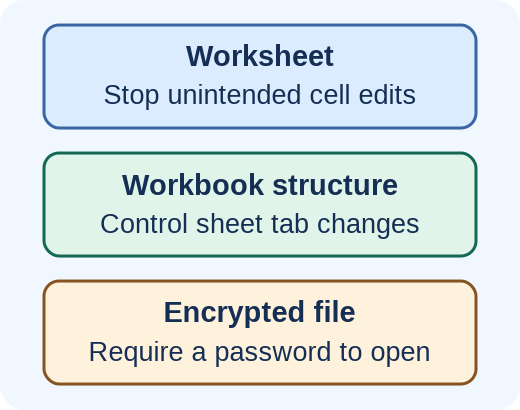
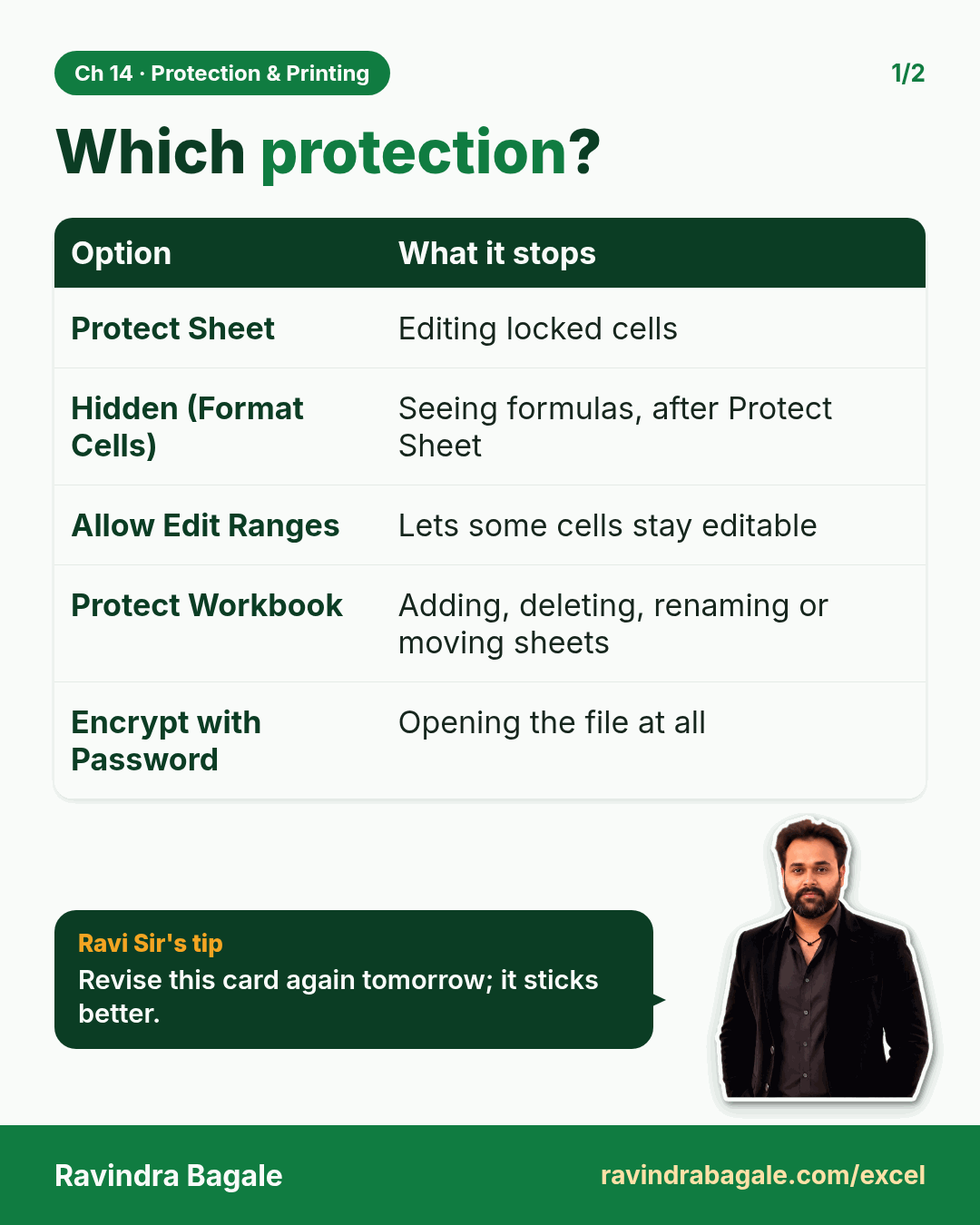
Choose a protection control for the action that concerns you
Protect cells after defining input cells
A new ordinary worksheet marks its cells as Locked by default. That setting is enforced when you turn on worksheet protection. To build a form, first select the intended input cells and turn off Locked in Format Cells. Then use Protect Sheet and test the permitted and blocked actions. Mark the input area with a label and a light fill so a reader can find it. A fill color alone has no effect on how Excel handles edits.
A typical Targets sheet needs editable target inputs and formula cells that a manager can read without replacing. Input cells can be unlocked while the calculated totals remain locked. Put the “Daily target” label above the cells and give the user one example, such as typing a number of rupees. Change one value and check that the corresponding monthly target and achievement update. Then try to edit a locked formula in a practice copy and verify it remains intact.
Worksheet protection also offers choices such as selecting cells and using an existing AutoFilter. Which controls are available depends on platform and sheet state. Test exact actions you expect people to use. In the documented desktop behavior an allowed sort still can't sort a protected range containing locked cells. Allowing use of AutoFilter lets a user work with an existing filter, so set it up before protection. If visitors need broader analysis or structural edits, design a suitable reporting sheet or owner workflow and check the specific case.
Use hidden formulas and allowed ranges for a defined template experience
Format Cells includes a Hidden option for a formula cell. Together with sheet protection, it can keep the formula out of the ordinary formula bar while leaving its result visible. This can simplify a data-entry template in which readers only need calculated results. Worksheet protection and formula hiding control the editing experience. Decide information access via the tools that actually restrict who opens or sees a file.
Some desktop builds expose Allow Edit Ranges for a protected sheet. A named exception may ask for a range password. The Windows identity-based permission path Microsoft describes requires a Windows computer on a domain. Confirm your app and environment before planning that workflow. A shared workbook's Can Edit permission covers the file; it has a different purpose from a protected-sheet range exception. If multiple regions should see separate confidential source data, distribute only the data each person should receive using the appropriate access control.
Protect tab structure and manage file access separately
Protect Workbook structure can block actions such as inserting, deleting, renaming, moving and hiding sheets. Choose it when a workbook's tabs have a stable reporting role and you want to prevent accidental layout changes. It leaves a recipient able to open the workbook. Cell protections remain a separate choice and still depend on each worksheet and its settings.
Encrypt with Password is a file-level control that can require a password to open an encrypted file. Microsoft says it cannot retrieve a forgotten password. Use a scratch copy for practice, keep the original workbook accessible, and follow your organization's intended storage and access process for real files. If the goal is authorized collaboration through a cloud service, verify which users have access and use a compatible file setup. Applying a password to a workbook or sheet as its protection prompt does not substitute for file-level access controls.
Follow the report from owner to reader
Mark the cells you expect people to edit
Let managers type daily targets in C4:C9. Keep the city names, submitted actuals and calculated outputs locked when the sheet is protected.
Check one edit and one block
Change the Pune daily target to 3,200. Its monthly target becomes 99,200. Confirm a direct edit to the result cell is blocked in the protected worksheet.
Define what the report pages include
Set the intended report area and choose paper, orientation and scale. Exclude working notes. For a long detail sheet, verify that later pages repeat column labels.
Verify the form the reader receives
Check the chosen sharing permissions or reopen the produced PDF. Record the period, included information and one known control total. Keep the editable baseline accessible to its owners.
Build pages that make sense away from the screen
Choose what prints, then how it fits
A worksheet can hold both the published report and the working cells behind it. The print area is the worksheet range you want printed. Use it to assign the presentation region deliberately. A title and an approved data table may belong in the report while drafts or check figures sit on a separate working sheet or outside the intended area. Final output still depends on actual print and export scope selections, so inspect those before sending a file.
A page break is a division between printed pages. Excel calculates automatic breaks using the selected paper, printable space and settings. Supported desktop versions also offer manual breaks. Page Break Preview helps you inspect where divisions fall. If you have deliberately inserted a manual break, choose the compatible scaling mode and preview again: Microsoft describes Fit To overriding manual breaks. Avoid predicting an exact page count from a cell address alone.
Orientation switches between the taller portrait page and the wider landscape page. A wide summary might read more comfortably in landscape. Width one page, height automatic can keep all included columns on one page across while allowing records to continue down multiple pages. Fitting the entire sheet to a single page across and down can make a long table unreadably small. Match paper size to the intended printer or PDF, adjust margins, and inspect preview at a useful zoom.
Repeat the labels readers need on later pages
Print titles repeat selected worksheet rows or columns in the printed output. If row 3 holds the report column names, a desktop Excel print title of $3:$3 can repeat it at the top of applicable output pages. Use a true heading row in the dataset. Keep the table's ordinary source rows free of manually pasted copies of that heading, which would otherwise become data when another student sorts or filters. You can also repeat identifying columns on the left of horizontally split pages where that layout is intentional.
Headers and footers occupy their own areas of a printed page. Use them for a short document label, a page number or page count when these help someone assemble pages. Put the reporting period and required business definitions in visible report content. The printed current date can describe when the file was produced. A separate “data through” label describes the records' period. Confirm first-page or odd/even options if they are configured, because those settings can change what repeats.
Preview, export, reopen
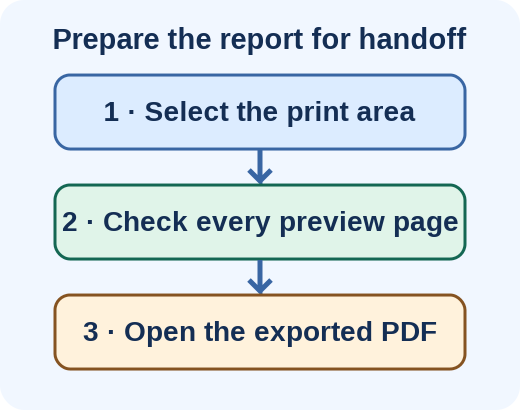
On the desktop app, use its print preview and compare first and last visible reports. Check left and right edges, headings, totals, margins and the readable size of text. Use the available PDF export or print-to-PDF route on your platform. Select the intended sheet, set of sheets, workbook or selection through the applicable options. If the page history or document location leaves any ambiguity, open the saved file and look for the known output that should be there and any working content that should be absent.
Share one workbook when people need to work together
Plan who opens it and who edits it
Co-authoring lets people work on the same supported Excel file together. The Microsoft-supported storage locations include OneDrive, OneDrive for Business and SharePoint Online. Use a compatible signed-in Microsoft 365 desktop build where required, or the supported web route. A normal .xlsx practice workbook is a simple starting point. Check platform and organization requirements before assuming every person can edit the same file. Copies downloaded or attached to messages can become independent files.
Start from the team-owned workbook. List people who enter values, people who review and people who only read the finished snapshot. Use specific people or your organization's appropriate access setting and grant the needed view or edit permission. If a workbook already has access granted through another route, inspect its actual permissions as well. Choose a clean scratch workbook and an authorized teammate for a lesson test, rather than trying permissions in a workbook others depend on.
When testing co-authoring, assign two independent cells, like the Pune and Nashik inputs. Ask both authorized testers to open the same file in supported Excel. Check that the intended edits appear in both views after sync and calculate the expected formulas. Decide what happens if both people need the same input. A named division of responsibilities makes it easier to review a change. If a contributor needs their own filtered view, use Sheet View on a supported workbook and version, and distinguish changing a view from editing the underlying cells.
Choose a comment for discussion and a note for a local annotation
A threaded comment can hold a question and replies. On a shared report, a question such as “Can you verify which date the Pune target changes?” belongs in a conversation about that cell. Use a mention only with the appropriate, authorized participant and understanding of the workbook access and notification setting. A note is a simpler annotation on a cell, useful for details like “Enter estimated daily amount in rupees before tax.” Choose the form according to whether the reader must reply or only understand the cell.
A comment can be resolved in supported versions after the issue is addressed. Correct the relevant worksheet cell if the decision changes a value. Resolving the conversation is a different action from updating the calculation. Save or record the intended change and confirm the linked output. Use the cell's value and documented decision to verify the final workbook.
Read version history before restoring anything
For an appropriately stored OneDrive or SharePoint file, Version History lets you inspect previous saved versions. Compare the relevant earlier state with the current workbook and check which other work occurred afterward. A whole-file restore makes the chosen historical contents current, so confirm the implications for later edits. If just one record was lost, compare the old value and apply a targeted repair to the current file when appropriate. Record and recheck formulas that depend on the repair.
Local Office recovery for unsaved work and a cloud workbook's version history are separate workflows. Available versions depend on the file and service setup. Practice with a removable cloud copy or with two separately named local drafts to learn the comparison process. Keep the latter as a model of two saved states rather than assuming it recreates cloud version history.
Lab 1 · Protect a target sheet and prove that inputs still work
Prerequisites. Create a new workbook called Daily Targets Practice with a sheet named Targets. Enter a title in A1 and “March 2026, 31 days” in A2. Begin the headings in row 3 and record the data for the six fictional managers below. Column C holds the only intended editor inputs in the exercise. Actual amounts in column B are submitted data that stay locked for this example.
| City (A) | Actual ₹ (B) | Daily target ₹ (C) | Monthly target ₹ (D) |
|---|---|---|---|
| Pune | 92,000 | 3,000 | 93,000 |
| Nashik | 55,000 | 2,000 | 62,000 |
| Kolhapur | 37,000 | 1,200 | 37,200 |
| Solapur | 58,000 | 1,800 | 55,800 |
| Sambhaji Nagar | 31,000 | 1,000 | 31,000 |
| Nagpur | 46,000 | 1,500 | 46,500 |
- In D4 type
=C4*31, then fill through D9. In E3 write Achievement and in E4 enter=B4/D4. Fill through E9 and format as a percentage. For this training fixture all targets are positive. Leave the original period in A2 so the factor 31 is traceable. - In row 10 put Total in A10, sums in B10 and D10, and
=B10/D10in E10. If you also display total daily target for all cities, use=SUM(C4:C9). Before protection, verify total actual ₹319,000, total monthly target ₹325,500 and overall approximately 98.00%. Achievement overall divides the two totals. - Select C4:C9. In Format Cells, find the protection setting and clear Locked for those cells. Give them a readable fill plus a clear input heading. Keep the formulas, field labels and totals locked.
- Use Protect Sheet in Review on a supported desktop build. Keep selection of unlocked cells available. This is a scratch exercise, so you can practice without a password. For a real template, choose the owner and approved recovery workflow before adding a protection password.
- Change C4 from 3,000 to 3,200. D4 should increase from ₹93,000 to ₹99,200 and E4 becomes about 92.74%. D10 increases to ₹331,700 and E10 becomes about 96.17%, with actual total unchanged. Try entering a different number in D4. A protected worksheet should block an edit to that locked formula. Verify your formula and output stayed intact.
- Restore C4 to 3,000, save and reopen the practice workbook. Retest C4's editability and D4's protection, then leave the original baseline values in place. If you want an authoring copy for the next lab, keep it separately with the relevant protection removed in the practice file.
Troubleshoot and finish. If C4 cannot be edited, check it was unlocked before protecting the sheet. If D4 can be edited, verify protection applies to the Targets sheet and D4 was left Locked. If E4 seems unexpectedly small, check that E4 is formatted as a percentage and its denominator is the monthly target. Keep a copy with the printed or shared state you actually intend.
Lab 2 · Deliver a readable PDF from the same report
Prerequisites. Use an owner practice copy of the baseline Targets workbook. Choose the print/export path for supported desktop Excel, and a folder for a scratch PDF. Verify A1:E10 includes the title, six city records, column headings and totals. In A12 type “Working draft outside report” for the exclusion test. Use fictional content only.
- Select A1:E10 and use Set Print Area where supported. Open Print Preview and verify the title, period, city names, Achievement column and totals are visible. Check that the working-draft marker is outside the previewed report.
- Choose the desired paper size and compare available orientation settings. If the Achievement column spills onto a separate horizontal page, try landscape or one page wide with height automatic. Check the label size after each change. Make sure the final setting fits the intended output medium.
- Add a footer with the page number using the header/footer element where supported. Leave the period in the content. If the report needs to span more pages, prepare a separate illustrative detail sheet and set the actual heading rows as print titles. In Targets row 3 is the column heading row, distinct from the title in A1.
- Check each preview page from beginning to end. Note the intended page range and verify the last visible summary contains totals ₹319,000 and ₹325,500. If the paper size or chosen output device changes, preview again before exporting.
- Export only the intended report using the supported PDF command or print-to-PDF route. Name the file Targets_March_2026_Practice.pdf. Open that actual saved file and check every page. Find the full last column, the expected totals and no working-draft marker. Exact page count can differ with device and layout settings. Content and readable scale decide success.
- Keep or discard the scratch PDF according to your practice needs. Save the workbook copy separately if you want to repeat these print settings. Changing a source input afterward requires a newly exported PDF to publish that changed result.
Troubleshoot and finish. If an extra sheet appears in the PDF, recheck the export scope including selected tabs. If a page is unreadable, adjust orientation, margins, paper or scaling and preview again. If a long report loses headers on later pages, use Print Titles rather than inserting heading records into your data. The correct export is the file you reopened and verified.
Practice a targeted recovery before trying it on a shared file
Compare three saved states
Keep the original workbook from Lab 1. For a local simulation, save three named copies with the states below. The logic of comparing versions works in a local exercise even if you don't have a cloud history. If you run the exercise with an authorized classmate and an approved cloud account, observe the actual saved versions in the practice file, and verify their cell values before selecting any action.
| State | Pune C4 | Nashik C5 | Monthly target total |
|---|---|---|---|
| Baseline | 3,000 | 2,000 | ₹325,500 |
| Reviewed earlier draft | 3,000 | 2,100 | ₹328,600 |
| Current copy with unintended edit | 3,200 | 2,000 | ₹331,700 |
The earlier draft includes the approved Nashik change. The current copy contains the approved Pune change, but Nashik accidentally reverted. Restoring the old workbook contents as a whole would also return Pune to 3,000. The intended result contains both approved values. Decide which single cell in the current copy should be repaired. Look at formulas and the total to prove that a targeted repair restores the desired result.
- Compare the three copies side by side. Keep their file names visible so you can tell which current worksheet you are editing.
- In a new practice copy of the current state, use the approved Nashik input of 2,100. Preserve the 3,200 that was already correct in Pune. Verify the monthly targets for both cities.
- Confirm Nashik's D5 becomes ₹65,100 and Pune's D4 stays ₹99,200. The overall target becomes ₹334,800. All other inputs and the ₹319,000 actual total remain as they were.
- Record the changed cell, the source of its approved value and the checks. If you have a valid cloud test copy, compare earlier versions in the version pane as evidence for the value. Recheck current sharing settings separately.
- Save the demonstration as a new working copy or discard it after practice. Keep the real exercise baseline separate so you can rerun the tests.
The recovery decision comes from the business rule, not the latest timestamp alone. A later copy can contain valuable edits alongside an accidental revert. A carefully scoped repair can preserve work while correcting the specific issue. Whole-workbook restore may be appropriate when the current file as a whole needs replacement, but compare intended and unintended effects before taking it.
Inspect the handoff from the reader's side
Use small acceptance tests that can fail
Before delivering a workbook, test one input that should change and one locked cell that should resist a change. Record the expected output first. In the Targets lab, a 200-unit increase in the Pune daily rupee amount implies a 6,200-unit increase in its monthly target for a fixed 31-day period. If another city changes too, inspect whether references point to the right row. If the stored value changed but columns remain wide or styles change, investigate formatting separately from calculations.
For a PDF, choose a value near the right edge and a value near the bottom, because those catch clipping on two different axes. E4 and D10 work in the exercise. Check that the exported worksheet title agrees with the visible date range. A working marker outside the expected area is a useful deliberate test in a synthetic workbook. Remove draft notices from real delivery copies where appropriate, instead of relying on a recipient never discovering them.
For a shared workbook, ask a permitted tester to open the exact shared document and confirm its rights. A view link selected in the Share dialog and an existing editable permission can interact, so inspect actual access. Test on the intended file scope; an authorized collaborator on a separate copy tells you little about access to the main one. Only perform an actual share in the classroom exercise when the participants and storage are approved.
Document what will continue to change
- Template: tell the editor which cells to fill and any valid input range. Document who can alter formulas later.
- Live workbook: name the authoritative location, reporting owner and permissions. Keep the version or change reference for a significant release.
- PDF: note the reporting period and repeat the export when the numbers need a new snapshot. Verify the file that was produced.
- Printed copy: provide page labels and enough context on later pages to read a loose sheet. Check paper and scaling on the intended path.
Use a compact cover line such as “March 2026 Targets, six-city practice summary, baseline actual ₹319,000.” This makes the file's purpose and date easy to identify if it gets moved. Add a separate review on which app and display the recipient uses. If worksheet readability is essential, give them a report with readable type and understandable labels, and check how the report looks after export at normal size.
Prepare for the next period without reusing March's assumptions
The exercise multiplies by 31 because it models March 2026. An April report has a different calendar length. A reusable template can use an explicitly labeled DaysInPeriod input or a derived day count with clear verification. Protect the intended formulas after testing the new period. Verify Print Area has not excluded a newly added city, and ensure the date shown in the PDF changes with the approved reporting input rather than the calendar on the export machine.
On a practice copy, try a 30-day period with all six original daily targets unchanged. The sum of daily targets is 10,500 and the monthly target now becomes ₹315,000. Pune's D4 would be ₹90,000. Use a separately accurate actual amount for the new period if you want to interpret the achievement percentage. Reusing March's actuals would make the comparison unfit for a real handoff.
Review workbook scope when different readers need different data
The six managers can work in one shared template if each is allowed to see the source data in it. A rule that only Pune's target cell is editable by its owner restricts an editing action in Excel's interface. It does not make the remaining city records confidential to that owner. When people are entitled to different data, prepare a separate authorized report scope and use the approved sharing and permissions workflow for each output. Test from an authorized viewer's perspective to see which sheets, rows and metadata remain visible.
Use an explicit delivery test for that narrower case. Make a standalone copy containing only the permitted Pune information and a label saying “Pune only.” If management also wants the all-city total, confirm they have approved that number in the same artifact. Read the file or PDF as someone who did not prepare it. Check that the file name and report title describe the same scope, that the approved values are present and that separate worksheets do not expose working data through the chosen file delivery.
In the input workbook, include a check for blank or zero targets if those can occur in a future period. A zero monthly target would leave the simple achievement ratio without a usable denominator. Use an agreed input rule or clearly labeled missing calculation in the next practice copy, and confirm the summary still describes which rows it includes. Sheet protection can help retain the formula but can't tell you whether a valid editor entered a meaningful target. Make invalid inputs visible for review.
When one workbook provides both a published summary and the working copy for editors, save a clear report worksheet or separate reviewed output. The number that appears in a formula can be correct even when a hidden column makes the report incomplete to a reader. Confirm both the calculation's scope and the particular surface the reader opens.
Inspect a blank formula bar after applying Hidden
Hidden together with worksheet protection can suppress the formula in the formula bar. The calculated result can remain visible. Use the right file or cloud permissions for access to confidential content.
Inspect a missing second sheet in a PDF
Open the exported file and count the intended sheets’ report sections. Check the scope choice and selected tabs before re-exporting. A single active worksheet is a common reason for a one-section output.
Inspect why paper and preview differ
Review the selected printer, paper settings and scale. If the device or print route changes, inspect a fresh preview under its current settings. Compare every required heading and rightmost field.
Inspect two teams editing separate copies
Find the intended authoritative cloud workbook. Verify both authorized people open that same file. Agree on cell ownership and verify the new values after synchronization.
Find the next exercise for the job you need
- 14.1 Locked Cells and Protect Sheet lets managers update inputs without overwriting calculations.
- 14.2 Hiding Formulas and Allow Edit Ranges gives a protected template intentional exceptions and a clean formula view.
- 14.3 Workbook Structure and File Encryption distinguishes sheet tab operations from opening the file.
- 14.4 Print Area and Page Breaks chooses the report range and places deliberate breaks where supported.
- 14.5 Orientation, Scaling and Margins fits the page while preserving readability.
- 14.6 Headers and Footers identifies the document and the order of its pages.
- 14.7 Print Titles repeats column headings on later printed pages.
- 14.8 Exporting to PDF verifies the static report copy that readers actually receive.
- 14.9 Sharing and Co-authoring keeps authorized editors working on the intended cloud copy.
- 14.10 Comments vs Notes chooses between a conversation and a cell annotation.
- 14.11 Version History compares earlier versions and tests a recovery decision.
Quick quiz with explanations
1. Why did a user edit a cell marked Locked?
A. Sheet protection might be off. B. Excel ignored the number format. C. The tab name was too short.
A. Locked is a cell property enforced by worksheet protection. Verify the intended sheet is protected and the formula cell is still Locked.
2. Which command addresses unauthorized opening of an encrypted file?
A. Protect Workbook structure. B. Freeze Panes. C. File-level Encrypt with Password.
C. The file-level control is distinct from sheet editing and tab structure protections. Keep approved access and recovery practices.
3. What allows all columns to fit across one page while rows continue down later pages?
A. One page wide with height automatic. B. One page wide and one page tall in every case. C. Print Titles without scaling.
A. This scaling approach targets width and allows vertical pages as needed. Preview at a useful size.
4. What repeats worksheet heading row 3 at the top of later printed pages?
A. Scroll lock. B. Print Titles with row 3 set to repeat. C. Typing the heading again into source rows.
B. It repeats the selected heading in output and leaves the source rows clean for analysis.
5. Which option preserves a desired current change while recovering one past value?
A. Restore the whole older version immediately. B. Delete all recent work. C. Compare versions and apply a verified targeted repair.
C. In the example, adding the approved Nashik value to the current approved Pune value produces both correct results.
6. What should you check after a PDF export apparently completes?
A. Only the document icon. B. The saved file's scope, pages, right edge and control total. C. The number of rows in another workbook.
B. The recipient reads that actual static file. Verify it contains the intended content and remains readable.
Interview questions and example answers
- How do you let the team update target figures while protecting totals?
- I unlock the intended input cells before protecting the worksheet. Formula and total cells stay locked. Then I enter a valid target and verify the calculation changes as expected. I also attempt a harmless edit to a calculated cell in the practice copy and confirm it is blocked.
- What is the difference between sheet, structure and file protection?
- Worksheet protection controls allowed sheet actions such as editing locked cells. Workbook structure protection controls tab operations while the workbook can still open. File-level encryption can require a password to open it. I decide which action the user needs to take before choosing the control.
- What do you test before distributing a narrow PDF report?
- I confirm the chosen range and sheet scope, inspect readable orientation and scale, and verify its actual exported pages. I search for an expected value near the bottom and right of the sheet, and ensure the recipient sees the intended period and totals.
- How do your ownership and access settings affect co-authoring?
- I host the practice file in a supported location and grant only the intended access. I test that authorized edits reach the same shared file and verify a person with viewer rights cannot edit through those rights. I also check existing access and which Excel environment the team uses.
- When would you write a comment instead of a note?
- I create a discussion comment when an issue needs replies, such as asking about a changed target. A note suits a short enduring annotation, like instructions for what units to enter. I use mentions only in the appropriate collaboration context.
- What precautions do you take before restoring an earlier workbook?
- I inspect the earlier state and check later valid edits. If one approved value is missing, a targeted correction may preserve the rest. I validate formulas and totals after making any change and record the repaired cell and prior value.
Revision cards
- Unlock, then protect Identify inputs, clear Locked and protect the sheet. Verify one allowed edit and one blocked change.
- Three protection scopes Cell editing, workbook tab structure and opening a file use different controls.
- Print scope first Choose the report area before solving paper, scaling and readability.
- Page context Print Titles repeat sheet labels. Headers and footers supply page-level information.
- Static or collaborative Reopen a PDF snapshot to verify it. Use an authorized shared workbook for ongoing edits.
- Recover deliberately Compare saved states. Preserve valid later edits when repairing a specific value.
Download the original chapter cards for which protection to choose and protecting and printing a sheet. See the Excel card collection for more revision topics.

Microsoft references
- Excel protection and security scopes
- Protect a worksheet and verify allowed actions
- Lock cells and set up specific editable ranges
- Scale a worksheet for printing
- Repeat rows or columns on printed pages
- Export Office work to PDF
- Co-author in supported Excel environments
- Threaded comments and notes
- Open and inspect saved Office versions