12. Macros and VBA
A delivery team copies its morning order list into Excel. Rani applies the same header style, enters the same line-total formula, checks the bottom row and sends the numbers to a supervisor. Yesterday her totals covered only half the list. The issue became visible when she compared the first and last order IDs. This chapter teaches you to turn such a routine into an action you can repeat and an outcome you can check.
Start with one job you can check
A two-product dispatch
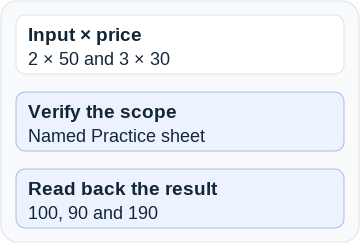
Suppose a small stationery seller prepares shipments from an Amazon-style storefront. Our example, values and workflow are fictional. On the practice sheet, Notebooks has quantity two and unit price fifty rupees. Pens has quantity three and unit price thirty. The line total for each product is units multiplied by price per unit. We expect one hundred for Notebooks, ninety for Pens and one hundred ninety for both. That gives us three concrete values to check after any automation.
| Product | Quantity | Unit price | Line total |
|---|---|---|---|
| Notebooks | 2 | 50 | |
| Pens | 3 | 30 |
- The input: Product text belongs in column A, the units in column B and the price in column C. Use ordinary numeric cells for quantity and price. An empty price represents missing information and needs review. A typed zero represents an explicit free item in the sense of this exercise.
- The action: Calculate two row amounts, then place their sum in D4. D2 through D4 belong to this task. The macro must leave everything else alone. Reserving a small output area makes it easy to notice an unintended write.
- The check: Read back D2, D3 and D4. Keep a small note outside the table and confirm it survives. Check a second run while the input is unchanged, then change one input and explain which result should move.
Decide which part belongs to Excel formulas
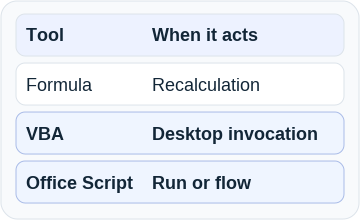
Try the ordinary worksheet formula in D2 first. When you type the entry below and fill it to D3, Excel adjusts the row references. A formula in D4 then adds the two results. If the person looking after the workbook needs values that update when quantities change, formulas already give the workbook that behavior. The next time someone asks for a macro, ask what sequence remains: stamping a consistent header, assembling a review sheet, or checking which records require review can justify an action beyond the multiplication.
D2: =B2*C2
D3: =B3*C3
D4: =SUM(D2:D3)- A calculation returns a value. With the formulas present, changing B3 from three to four changes D3 from ninety to one hundred twenty. D4 becomes two hundred twenty. The calculation belongs to a worksheet and can be inspected in the formula bar.
- A macro performs actions when called. A procedure could set up the headings, write those formulas and mark a small area for review. If it writes values instead of formulas, the result is a snapshot. Changing B3 after that write leaves the old amount until the procedure runs again.
- An instruction needs a destination. “Format the column” forces an experienced teammate to ask which sheet and which cells. A program needs the same specifics. We will say “use the named Practice sheet and touch D2 to D4” because this demo has exactly two source rows.
- A result needs evidence. A dialog saying “Done” proves that the program reached the line that displays it. An independent comparison checks whether the right records and numbers survived. A missed record can leave the worksheet looking polished and still change the morning decision.
Remember: Describe the exact input, permitted changes and expected result before you record a click or write a line of VBA. These make a useful first test independently of the tool.
Choose the tool that fits the job
Three ways to do the same tiny exercise
A recorded macro remembers spreadsheet actions and represents them as VBA, short for Visual Basic for Applications. A macro is an action or sequence you invoke again. VBA is the language and Excel API, the set of commands VBA uses to work with the application. When you record the header getting bold, the generated code describes which cells to adjust and which setting to change. Reading it connects a familiar button in Excel with an instruction you can inspect later.
Written VBA starts from names and rules. You can place the two amount formulas in specific cells without selecting them first. You can also check that quantities and prices exist before writing. This matters as soon as someone hands over a workbook with a different sheet in front. When you choose a desktop VBA solution, store the code in a file type that can retain it. Keep a backed-up practice workbook and understand which workbook holds the code.
An Office Script is another way to automate Excel. Its editor uses TypeScript with the ExcelScript API. It can also be created by the Action Recorder in a supported environment. A named worksheet and exact results matter here too. A script connected to a flow receives a workbook from that flow. The flow is a sequence of cloud actions, starting with a trigger such as a schedule. It may run without an analyst looking at a sheet. These two automation families use different object models, ways of targeting a workbook and permission requirements.
Match a tool to a concrete situation
- Live price changes: Keep formulas if someone frequently edits a quantity and expects the report to respond. Teach them how to see the two input cells and each dependent result. Save an ordinary macro-free file when there is no executable procedure to keep.
- Repeat a known layout: Record a formatting action in desktop Excel when a fixed small layout is stable. Start with an existing saved copy and test absolute versus relative references. Teach the person where to start, which sheet to use and which cells should change.
- Check and prepare a desktop report: Write qualified VBA when the routine needs all the same steps plus explicit decisions. An order range can contain an entirely empty row, a missing amount or an unexpected status. Check inputs before the first write and give a useful message when a value needs attention.
- Run from a managed workflow: Consider Office Scripts with Power Automate when the workbook and script are reachable by the correct account. The connector must support the operation and the schedule or file-arrival trigger. Start with a single selected test file and inspect both the returned result and the workbook.
- Import and clean repeated data: Choose Power Query if a repeatable sequence of source shaping steps is the main job. For example split one status column, trim extra spaces and standardize known spelling variants, then load the result. A macro is useful only for the part of the job that still requires actions around this process.
Work inside a known workbook and file type
Trace the object names
Excel gives VBA several kinds of objects that represent things you can work with. A workbook is one file open in current desktop Excel. A worksheet is one grid in that workbook. A range refers to one cell, a rectangle or several areas. A property is information about an object, such as a worksheet name or a cell's value. A method is an action, such as clearing the contents of a range. Dot notation lets you take one step through these objects at a time.
- Workbook: Code saved inside DispatchPractice normally starts from
ThisWorkbook. If the same code is copied into a personal workbook or installed as an add-in,ThisWorkbookchanges, because it refers to the file holding the code. Give a tool for other open workbooks an explicit target and validate it separately. - Worksheet: Code inside DispatchPractice can resolve
ThisWorkbook.Worksheets("Practice"). This remains the named destination while you are looking at a different tab. A missing or misspelled sheet causes the reference to fail. Find the actual tab name before trying again. - Range: Given that sheet,
ws.Range("B2:C3")reads the two input columns for both rows.ws.Range("D2:D4")identifies the write region. If another workbook also has a sheet called Practice, workbook qualification prevents the script from drifting there. - Selection: A recording may refer to the currently selected cells. That is useful in a procedure intentionally designed to work relative to a chosen start. In that design, teach someone how to recognize a valid selection and what the procedure will change before letting them use it repeatedly.
These names matter most when a test looks confusing. If you are viewing a Notes tab and nothing changes there, the action may have succeeded on Practice. If the result vanished after you reopened a workbook, inspect both the saved file type and its contents. If a macro is listed for All Open Workbooks, check which workbook holds it. Separate targeting, storage and policy to find the actual cause.
Separate file type from trust and execution
The Developer tab is a place to reach recording, the VBA editor and macro controls. Showing it does not grant permission to run a macro. An .xlsm file can retain a VBA project. An .xlsx copy stores spreadsheet data and formulas but cannot retain VBA. Opening a macro-capable file is a distinct event from letting its code execute. You can learn the same worksheet concepts from a copy you create yourself while leaving the installed policy in place.
- Desktop VBA: Use the approved Excel desktop application. Microsoft Excel for the web can open a workbook containing VBA, but it cannot create, run or edit those macros. A person can verify worksheet data in the browser and still need a desktop user to inspect the procedure.
- Storage prompt: If the file has new code and Excel warns about a macro-free copy, cancel the operation unless you are deliberately making a separately named data-only copy. Choose the workbook type in Save As. Changing the extension text in a file manager does not convert the workbook.
- Download or email: If a file is blocked or the author and contents are unknown, stop at that point. Microsoft 365 Apps on Windows may block macros in files marked as originating from the internet. An organization can set further policies. Make your own practice workbook or ask for the approved way to obtain the file.
- Supported scripting: Office Scripts availability depends on your app, account, license, connected experiences and administrator. Eligible business or education environments can use Excel web, supported Windows builds or Mac with the documented prerequisites. Personal and Family support is documented as preview with Insider requirements. The Power Automate route requires an appropriate business license.
Keep your settings: You can reason about a two-row exercise, inspect ordinary formulas or read the procedure in this lesson even when an organization disallows execution. Choose the appropriate lab branch for your environment.
Walk through the first execution
Record an action and check its boundaries
Read the input
Practice starts with Notebooks two by fifty and Pens three by thirty. There is a note on a separate sheet. Predict the outputs before you touch any controls.
Set the destination
Use the workbook holding this exercise and the worksheet named Practice. The write scope is D2 through D4. Keep input cells and the other sheet available for a before-and-after comparison.
Run on the copy
After checking the quantity and price values, produce row amounts 100 and 90. Write the total 190 once. Do the same run again to test for duplicates.
Challenge the result
Change the pen quantity to four and expect 220 overall. Drop a price from an isolated test copy and expect a clear rejection. A stale 190 belongs to the earlier input only.
Build judgment about a repeated action
Two hundred twenty is thirty more than one hundred ninety because you added one unit costing thirty. You can check the change without trusting the program or simply rereading its own result. For every new action, find a similarly independent comparison. A late-order tag should agree with the written definition of late and the original promised time. When a new order appears, check the original order ID after the report is built so a missing record cannot hide under a plausible total.
Now suppose another analyst clears the price of Pens while investigating an export. In this lesson it is missing, and the code should stop. A zero price means a deliberate free item. Both cases are easy to confuse with a test such as “does this behave like zero?” A beginner-friendly procedure makes the distinction visibly. Give the person enough information to check B3 or C3 and whether any result was written. If an earlier result is still on the sheet after a rejected run, treat it as stale even though the old cells remained untouched.
- First test a known good input. It shows the workflow can do the intended job at all. You need the exact expected outputs and the identity of the target sheet.
- Repeat without changing input. If the same work runs again, the output should converge to the same result. Creating a second duplicate summary or adding another charge exposes a common design mistake.
- Flag an invalid input. Try a missing price, then restore it. Observe the message and verify the old output area remained in its earlier state. Mark the stale result in your run note until a new valid run replaces it.
- Test the workbook assumption. Run a named-sheet procedure while your notes are in front. A worksheet-specific command should still find Practice. A relative recording has a different test: predict what will happen starting from both the original selection and another valid location.
Lab one. Compare a recording with a named-sheet procedure
Prepare a workbook you own
- Create a blank workbook in approved desktop Excel. Save it as DispatchPractice.xlsm using the macro-enabled workbook type. Enter the two product lines from the table starting at A1 on a tab called Practice. Put a note in cell A1 of a second tab called Notes. The note could say “Keep this note unchanged.”
- In the Practice tab select D1. Use the Developer ribbon to record a macro called BoldAmountHeader, stored in This Workbook. With Use Relative References off, include a deliberate selection of D1 in the actions. Set Bold to on by clicking it while it is off. Stop recording before touching another cell. This procedure should leave data values intact.
- Review the recording in the Visual Basic Editor. A recorded format command might be tied to the active selection or a D1 reference, depending on the sequence. Check the first address reference and whether the code identifies a worksheet. Before replaying, deliberately return to Practice and clear the bold formatting in D1. Keep Notes out of the recorder replay.
- Run the inspected command using the Macros dialog. Expected result: D1 becomes bold again, B2:C3 still show two, fifty, three and thirty, and your separate note remains. Take a moment to check its effect before trying a relative version in the recording lesson. Remember that ordinary Undo is not available for macro changes.
Write the two products with plain VBA
In the Visual Basic Editor, insert a standard module under this workbook's project. A module is a place to store reusable VBA code. Paste the small teaching program below into a new module with no other macros. It assumes the two known product rows are laid out as above. The steps in later lessons take a larger list and decide where to stop. Here the fixed row boundary is part of the contract and easy to check.
Option Explicit

Public Sub WritePracticeTotals()
    Dim ws As Worksheet
    Dim rowNo As Long
    Dim units As Variant, price As Variant
    Dim answer(1 To 3, 1 To 1) As Variant

    Set ws = ThisWorkbook.Worksheets("Practice")
    For rowNo = 2 To 3
        units = ws.Cells(rowNo, 2).Value2
        price = ws.Cells(rowNo, 3).Value2
        If VarType(units) <> vbDouble Or VarType(price) <> vbDouble Then
            MsgBox "Enter numeric quantity and price on row " & rowNo
            Exit Sub
        End If
        If units < 0 Or price < 0 Then
            MsgBox "Review negative input on row " & rowNo
            Exit Sub
        End If
        answer(rowNo - 1, 1) = units * price
    Next rowNo

    answer(3, 1) = answer(1, 1) + answer(2, 1)
    ws.Range("D2:D4").Value2 = answer
End Sub- Read the setup.
Option Explicitmakes VBA require declarations for variable names. A variable is a named place to store information while the procedure runs. The small array named answer holds three results in memory. These values will be written to a three-row, one-column range only after checks pass. - Read the loop. A loop repeats instructions. This one visits rows two and three with column numbers two and three for quantity and price. The VBA type check accepts the normal numeric cell result from Excel's
Value2. A plain blank, a formula error or a number entered as text fails that check before multiplication. Date-formatted numeric serials still have numeric underlying values. You must use the column meaning and inspection to catch a date accidentally entered as a price. - Read the exit. A validation failure stops before the destination write. If the code read and computed the first amount when a missing price in the second item was detected, the amount exists only in temporary memory. D2 to D4 keep what was there on entry. Large or nonsensical values need an added business limit before adapting this demo to operational data.
- Read the assignment.
ws.Range("D2:D4").Value2 = answerwrites three stored values onto the exact sheet. As a beginner exercise this keeps the patch small. For a report that should recalculate throughout the day, use the worksheet formula approach earlier or deliberately make the macro write formulas.
Check the effect and recover from common failures
- Select Notes, then run WritePracticeTotals from the Macros dialog while the right workbook is open. Return to Practice and verify one hundred, ninety and one hundred ninety in D2 through D4. Inspect the note separately. If the procedure is absent, check that it is in a standard module, Public, has no arguments and is saved in the expected file.
- Run again with no edits. The three output cells should each retain the same amount. Change B3 to four, rerun and verify D2 stays one hundred, D3 becomes one hundred twenty, and D4 becomes two hundred twenty. Change it back to three before moving to the second lab.
- In the practice file, clear C3 and run. A row-three validation message should appear. Old values remain, so if the last successful run was two hundred twenty they are now stale relative to the edited input. Restore C3 to thirty and rerun. The results return to one hundred, ninety and one hundred ninety.
- If the worksheet could not be resolved, check its exact name and the module's project. If your organization blocks macro execution, stop there and follow the static walkthrough. Once you have verified the disposable workbook, close it or retain it under your own practice folder according to policy.
Predict before running: Enter an actual zero for C3 and keep B3 at three. The accepted Pen amount is zero and the total is one hundred. Removing C3 is different. Explain the resulting message and why an earlier visible total can remain after the failed check.
Lab two. Trace the same rule through Office Scripts
Use the correct account and a separate test file
Prepare a disposable workbook in the environment approved for Office Scripts. Use the same Practice and Notes tabs, with the same two rows and note. This branch can use a normal workbook. An Office Script is a separately stored script, even when you associate it with a workbook. Use the Automate tab and code editor if available. If the tab is unavailable, read through the script as a trace and record the three expected values on paper. No account or security change is needed for that branch.
function main(workbook: ExcelScript.Workbook): number {
  const sheet = workbook.getWorksheet("Practice");
  if (!sheet) {
    throw new Error("Practice worksheet is missing.");
  }

  const entries = sheet.getRange("B2:C3").getValues();
  const amounts: number[] = [];
  for (let index = 0; index < entries.length; index++) {
    const [quantity, price] = entries[index];
    if (typeof quantity !== "number" || typeof price !== "number" ||
        quantity < 0 || price < 0) {
      throw new Error("Review quantity and price on row " + (index + 2));
    }
    amounts.push(quantity * price);
  }

  const total = amounts[0] + amounts[1];
  sheet.getRange("D2:D4").setValues([[amounts[0]], [amounts[1]], [total]]);
  console.log("Two order lines. Total = " + total);
  return total;
}- Workbook argument: The runtime supplies the workbook to
main. The script asks for its named sheet and stops if none exists. If there are two workbooks with identical Practice tabs, the chosen workbook or flow input decides the destination. Give your practice copy a distinct name and confirm you selected it. - Two dimensions:
getValuesreturns a list of rows, each of which contains cell values. For B2:C3 we expect two rows of two values. In TypeScript an index starts at zero, so row index zero corresponds to worksheet row two in this range. Adding two to the index in the message helps the reader find the row in Excel. - Type and geometry: The quantity and price must each be numbers of zero or greater. If a cell contains empty text, a Boolean or an error value, the type guard rejects it. The output list has three rows of one number, matching the three cells in D2:D4. The workbook method can report an error when the destination cannot be written.
- Completion message and return: The script returns the total and logs its completion for the editor. Read D2:D4 to prove the worksheet changed as intended. A future flow can inspect a returned value too, then check a run record and the selected workbook separately.
Compare the same five runs
- With quantity two and three and prices fifty and thirty, expect 100, 90 and 190 in the cells. Record the total returned by the script if your environment presents it. Check your separate Notes sheet.
- Repeat with no edits. No new sheet, row, table or external file is expected. The count of outputs stays at three cells. On a worksheet with earlier numbers, compare the exact before-and-after range to see that the same output was replaced.
- Change the Pen quantity to four. Before running, write your prediction: 100, 120, 220. Compare it with the worksheet after running. Run the same script once more and verify the total does not grow.
- Use zero as the pen price. Expect one hundred in the total. Then clear that price and observe the validation message. Do not send the previous result as today's answer. Restore quantity three and price thirty and run to return to the original results.
- In the copy only, rename Practice to PracticeHold, then run. Expect the missing worksheet message and no change to either tab. Restore its name. When finished, close the copy, optionally keeping its script and sample workbook in your own approved storage.
Use a small run ledger to explain a bad result
Record a row for each run in a notes area outside the workbook you are testing. Write down the filename, starting input, expected amount, observed amount and whether anything blocked the write. Sometimes two tab names look the same because another workbook opened from a downloads folder. The filename and a distinct note inside the workbook will help you identify the right one. When a price is missing, write “rejected, last verified output still visible” beside the actual cells you read. That distinguishes an unverified current report from a successful run whose total happened to be zero.
Take turns with another student. One person changes only the source quantity, without announcing the final amount. The other predicts the difference from the number of extra units and verifies the output area. Then switch roles and clear a price instead. If both people keep the same account of the run, your instructions are clear enough to share with a teammate.
Use the editor output carefully: Reading “Two order lines. Total = 190” helps you identify one successful branch. If a workflow later expects the file to be refreshed before this branch, the total alone does not establish the age of the data. Add a source-date check and verify that the particular refresh operation is supported in that context.
Follow the chapter in small steps
Go from click to code, then from local action to workflow
- Save, record and run. Start with Developer and file types, look at absolute and relative recordings, and choose a deliberate way to run a macro. A named command that you call from a dialog is easy to inspect before adding a button or shortcut.
- Read the pieces of VBA. Open the editor, learn where a Sub procedure starts and ends, then practise declaring variables and targeting cells. Put a scratch cell on a different sheet to test whether the code's destination is as explicit as you think.
- Turn rules into steps. Give people useful choices through messages and inputs. Use branches to handle different kinds of records, loops to process multiple rows, and row boundaries to stop where the intended data stops.
- Apply and inspect. Try the order macros and a worksheet delivery fee function. Connect a specific error to its cause with error handling and debugging before considering a personal reusable macro.
- Repeat the reasoning in Office Scripts. Check availability, read a recording, write the late-order script, and study how a flow picks its workbook. Use the tool comparison to justify your choice.
Check your understanding through two practice projects. The VBA tagging exercise adds a useful label to existing rows. The Office Scripts status summary groups them so you can recognize a missed or duplicate record. For each, write the expected input and output boundaries before starting. Use the same practice principle from today's small example as you add more rows or rules.
Check your understanding
Six situations from your first automation
What becomes 220 if Pens increases from three units to four at 30 each?
The grand total becomes 220 because the originally calculated total increases by one more unit at 30. Notebooks stays at 100 and Pens becomes 120. A worksheet formula can reflect that change through recalculation. A stored number written by a previous macro run stays as it was until another action replaces it.
The file still contains your formulas, but the recording disappeared after a format change. What happened?
Check whether you saved as a macro-free workbook. An XLSX copy can store the formulas and cells without the VBA project. The original XLSM copy, if saved separately before the conversion, can retain the procedure. Recover from that copy or recreate the recording in a new macro-enabled workbook.
How can a macro change Practice while you are looking at Notes?
It can refer to the workbook holding the code, retrieve the named Practice worksheet, and write its D2:D4 range directly. A screen selection is just what you are looking at. It matters only for commands that depend on selection or the active sheet. Recheck Notes independently after such a run.
Why is a cleared price different from a zero price?
Zero is valid in this exercise and gives a line amount of zero. With the other line still worth one hundred, the total becomes one hundred. A missing price fails validation before any results are written. Old numbers may remain visible, so the current run had no verified total.
Your organization disabled Automate. Can the web editor run the same VBA code?
Excel for the web can open a VBA-containing workbook but cannot run, create or edit its VBA. Use the authorized desktop environment for VBA. If you cannot run either tool, trace the sample using the two product rows and record the expected results each time the input changes.
Is “file processed” enough evidence when a flow is scheduled to run in the cloud?
Check the target file, the result and a separate sign that the intended rows were processed. If the job depends on source data being updated, verify the source date or another freshness measure as well. A connector can report success without performing certain refresh operations that work in an interactive Excel session.
Interview questions with reasoning
Explain your choices from a concrete workbook
How would you distinguish a recorded macro, a written macro and an Office Script?
Both macro examples use VBA. A recording generates VBA instructions from the actions it observes. A written procedure lets you choose explicit destinations, set validation rules and handle conditions before writing. The Office Script is a different automation family with an Action Recorder, a TypeScript editor and a workbook supplied by the runtime. Decide whose account and which workbook must be available to run it.
When would you use formulas rather than a macro to produce a line total?
If the operator needs the amount to reflect each quantity or price edit, a formula makes the dependency visible in the formula bar and recalculates along with the workbook. A macro earns its place when a person needs to press a control to lay out, validate or publish a specific set of results. It can still install formulas instead of replacing them with snapshots.
What does repeatable output look like?
The same valid inputs for the two products give 100, 90 and 190 in the same three cells on each run. A second execution creates neither an additional total row nor a duplicate charge. A separate test changes just the price or quantity of Pens and checks that the expected amount changes once.
What changes if you move your code into a personal macro workbook?
ThisWorkbook points to the personal workbook, because it contains the VBA code. That can be excellent for code that deliberately stores an internal setting there. When the job is to change another workbook, identify and validate that workbook before touching its ranges. Verify with two similar-looking workbooks open.
Where would you put the first validation in a new macro?
Check the target worksheet and input region before any write. In the dispatch example check both quantity and price for both lines, and compute the candidate answers in memory. The caller gets a precise row if something is missing. A later production routine also needs to handle write failures, such as a protected destination, and report which run produced the currently visible values.
Six recall cards
- Formula or action?
Formulas calculate within workbook dependencies. Automation performs a procedure when invoked. A macro can write a formula or a fixed number.
- Code container
ThisWorkbook names the file containing the VBA. The active sheet is the tab you are viewing. Decide which one identifies the intended destination.
- Capable file
XLSM can store VBA. XLSX keeps the cells and formulas without VBA. A separate shortcut or tab does not change the workbook type.
- Trust boundary
Use your own disposable workbook and approved policies. If execution is blocked, use the trace exercise and leave the settings in place.
- Three checks
Run a known good input, repeat it unchanged, then try one deliberate failure. Keep notes about the earlier result and the scope of each write.
- Script host
Office Scripts use the ExcelScript workbook with its own account and platform requirements. The workbook comes from the active run or the flow configuration.