12.20 Running a Script from Power Automate: On a Schedule or When a File Arrives
Shahrukh wants a report checking late orders at eight in the morning even while his laptop is closed. On another day he wants the check to start when a training export arrives. Power Automate can supply a workbook to an Office Script in either case. You will check exactly which file and input batch the flow uses before reading its count.
Identify the trigger, action and result
Distinguish the event from the work it starts
FreshGo is a fictional training team using an order workflow resembling a Blinkit-style report. Names, batches and figures are examples. The team wants to count delivered orders above a chosen limit. Under the original four-row practice input, three qualify at fifteen minutes. The same script can run when an analyst chooses Run or when an eligible flow invokes it. Define the file and input batch in both cases. A plan saying “check today's orders” has not identified enough information to execute safely.
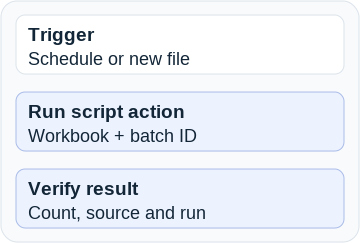
- Trigger: The event that starts a cloud flow. A scheduled flow can use a recurrence. An event-triggered flow may start when an approved file arrives in a training folder.
- Action: One step the flow performs. The Excel Online (Business) connector offers a Run script action. Choose the eligible location, documented file identifier and intended script. If the script resource itself is stored in a team SharePoint library, inspect the connector's distinct Run script from SharePoint library action.
- Connection: The configured identity and access used by the connector. It must be able to access the script and workbook under organizational policy. The identity behind a cloud action can differ from the person who clicked Run in desktop Excel.
- Result: The script can return a number, string or supported object. Power Automate exposes the script's return as a result in later steps when configured. In this lab the script reports accepted batch, row count and number of late deliveries. Compare the corresponding workbook fields too.
Choose a repeatable input contract
For the daily scenario you can target a stable practice workbook, then verify which batch of rows is loaded. For a file-created event, the workbook comes from that particular trigger. Every incoming exercise file must contain the expected fields. Changing the trigger alone does not make an arbitrary file a compatible workbook. If it lacks the named sheet or expected layout, reject it and inspect that file rather than automatically styling or editing another one.
Remember: Read the trigger event, file selection, expected input batch and downstream result independently. A flow can start successfully even when the report still needs review.
Check the current environment for both actions
Separate Office Scripts eligibility from connector eligibility
Office Scripts needs the supported client, account, approved storage and settings described in the preceding lesson. Running a script from Power Automate additionally requires an appropriate business Microsoft 365 license and configured connections. Microsoft identifies restrictions on direct Excel integrations for some licenses even where script workflows are possible in Power Automate. The existence of a script in one Excel user's gallery does not establish that another connection can use it. Follow the organization's policy instead of attempting to add access just for this exercise.
The practice does not require contacting anyone or starting a recurring production job. Use a manually triggered test for the known workbook if your approved environment provides access. You can plan the schedule and file-event version on paper using the same fixture. Open the Microsoft primary documentation for current action and trigger names before configuring a real flow. Exact interface labels can vary with the current designer.
- Workbook storage: Use an Excel workbook in the approved OneDrive for Business or SharePoint location offered by the connector. Verify the specific file by its ID or the connector's picker. Two files can share a visible title in different folders.
- Script storage: Choose the script resource your exercise owns. Its name and permissions are separate from the workbook. A SharePoint library action can ask for the script's location separately. Keep a current version and verify its parameters in the flow designer.
- Training boundary: Create a dedicated copy with known practice inputs and a clearly named output area. For the event design use a separate test folder. Do not authorize a run on team production exports as a way to prove a sample.
- End the test: Keep a scheduled or event-triggered exercise inactive when your practice ends, if one was created under an approved sandbox. Follow the organization's cleanup process for test flows and copies. A paper configuration has no cloud effect.
Lab one. Verify a scheduled-flow input with one controlled run
Prepare the workbook before using the designer
Create FlowPractice.xlsx in your approved training library. Add a sheet called Orders. Enter Order ID, Mins and Status in A1 through C1. Use the four course order examples below. Make a second sheet called Control. Put Input batch in A1 and TRAIN-001 in B1. In A3 through A5 put Last batch, Records checked and Late count. Keep B3 through B5 reserved for the script's three results. Leave a control marker in D1.
| Order ID | Mins | Status |
|---|---|---|
| BLK-1001 | 9 | Delivered |
| AMN-1005 | 16 | Delivered |
| BLK-1007 | 18 | Delivered |
| BLK-1010 | 17 | Delivered |
The previous chapter writes the late report to K1 on its Orders worksheet. This flow example uses a new layout and writes a run result plus count together in Control so the operator can identify which batch was processed. Save this script separately with a recognizable training name. Its expectedBatch argument is supplied by the approved flow configuration, a trusted upstream manifest or the one-off test input. Reading it from the same workbook and passing it back would not independently verify the batch.
interface CheckedDispatchRun {
  batchId: string;
  records: number;
  late: number;
}

function main(
  workbook: ExcelScript.Workbook,
  expectedBatch: string,
  cutoff: number = 15
): CheckedDispatchRun {
  const orders = workbook.getWorksheet("Orders");
  const control = workbook.getWorksheet("Control");
  if (!orders || !control) {
    throw new Error("Use an approved Orders and Control workbook.");
  }
  if (!expectedBatch.trim() || !Number.isFinite(cutoff) || cutoff < 0) {
    throw new Error("Provide a valid expected batch and cutoff.");
  }
  if (control.getRange("A1").getValue() !== "Input batch") {
    throw new Error("The Control sheet does not match the training contract.");
  }
  const actualBatch = control.getRange("B1").getValue();
  if (actualBatch !== expectedBatch.trim()) {
    throw new Error("The workbook batch does not match the expected source.");
  }

  const outputLabels = control.getRange("A3:A5").getValues();
  if (outputLabels[0][0] !== "Last batch" ||
      outputLabels[1][0] !== "Records checked" ||
      outputLabels[2][0] !== "Late count") {
    throw new Error("Reserve the Control output fields for this practice.");
  }

  const grid = orders.getRange("A1:C5").getValues();
  const [idTitle, minsTitle, statusTitle] = grid[0];
  if (idTitle !== "Order ID" || minsTitle !== "Mins" || statusTitle !== "Status" ||
      orders.getRange("A6").getValue() !== "") {
    throw new Error("Expected the named headers and exact four-row fixture.");
  }

  let late = 0;
  const seen = new Set<string>();
  for (let index = 1; index < grid.length; index++) {
    const [rawId, mins, rawStatus] = grid[index];
    if (typeof rawId !== "string" || typeof rawStatus !== "string") {
      throw new Error("Review the ID or status on Orders row " + (index + 1));
    }
    const key = rawId.trim().toUpperCase();
    if (!key || seen.has(key)) {
      throw new Error("Review the ID on Orders row " + (index + 1));
    }
    seen.add(key);
    const status = rawStatus.trim().toLowerCase();

    if (status === "delivered") {
      if (typeof mins !== "number" || !Number.isFinite(mins) || mins < 0) {
        throw new Error("Review minutes on Orders row " + (index + 1));
      }
      if (mins > cutoff) late++;
    } else if (!["cancelled", "returned", "pending"].includes(status)) {
      throw new Error("Review the status on Orders row " + (index + 1));
    }
  }

  control.getRange("B3:B5").setValues([[actualBatch], [seen.size], [late]]);
  return { batchId: actualBatch, records: seen.size, late };
}
Run once before considering a schedule
- When your approved environment allows, open the script in the Excel code editor and run it with expectedBatch TRAIN-001 and cutoff 15. Confirm Control B3 through B5 show TRAIN-001, 4 and 3. Confirm Control D1 and the four source rows remain. This checks the worksheet behavior before trying the connector.
- Prepare a manually triggered cloud flow in your authorized practice environment. Add the Excel Online (Business) Run script action. Select the approved storage location, library and exact FlowPractice.xlsx file and the matching script. Enter the same parameters. Follow the script input field names the designer shows. Add a Compose action after a successful run to inspect the result. The lab does not need a message action.
- Use the designer's manual test to run this one rehearsal. Confirm the action's output contains the script result, which has batchId TRAIN-001, records 4 and late 3. Read B3 through B5 in the same known file. Verify the file identity, workbook data and run time independently rather than assuming the Flow status proves all expected cells.
- With approval for the isolated practice only, change the expected batch input to TRAIN-OLD. It should fail before the workbook result is written. A previous successful output remains visible. Read the failing action message and confirm later success-only steps did not publish a new result. Restore the intended input and rerun to confirm recovery.
- Try another cutoff of 17 on the original source. Only eighteen is above seventeen, so the result becomes one. This verifies that the flow actually supplied the parameter. Restore 15. In an environment without the connector, write down the input and returned fields and trace the program manually. Do not claim the connector was run.
Describe the real schedule separately from the rehearsal
After proving the rehearsal, the paper design for the original scenario is a scheduled cloud flow with Recurrence each day at 08:00 India Standard Time. Read the configured time zone and start time in the current designer. India Standard Time is UTC plus five hours thirty minutes. Thus eight in India is 02:30 UTC. Interpret the date and day boundaries consistently if the stored flow uses UTC or the owner works in another zone. Validate the next intended run time in the configuration and later compare the actual run history in an approved deployment.
A recurring flow also needs an independent expected-batch source for each run. Keeping TRAIN-001 hard-coded is fine for this single known exercise. It is not a daily rule. If every day loads a different export, use a deliberate manifest or an expected period generated by the workflow and compare it with the actual workbook marker. A matching label is useful evidence only if whoever prepares the source sets it after the data is ready.
Lab two. Route a test export from its file event
Make two distinct inputs that can reveal a routing mistake
Use a separate approved training folder and a copy of the workbook for a file-created scenario. Keep the first file with TRAIN-001 and its late count of three. Make a second training export with batch TRAIN-002 and change BLK-1001 from nine to twenty. The other three rows remain the same. For this second batch the verified late count is four. Put each exact expected ID into your test plan independently of the workbook file. These two different counts make it possible to notice when a flow keeps using its fixed first file instead of the newly created one.
- Choose the file trigger. The OneDrive for Business connector documents a When a file is created trigger, including a properties-only option. In the test design point the trigger at a dedicated practice folder. Use a supported workbook matching the file type and contract. If your organization uses a different connector or location, verify its own trigger data and prerequisites.
- Choose the file supplied to Run script. In the Excel connector's File input, use the documented file Identifier or Id field for that trigger and compatible library. Confirm the action's location matches where the file was created. Use metadata that represents the actual file identifier, rather than relying on the display name or attaching the file content bytes.
- Supply the expected batch. In a paper or approved one-time rehearsal set TRAIN-002 and cutoff 15 from the test plan. In a real workflow the trigger may supply a file ID without supplying an independently trusted batch value. You can get the latter from a separately authorized manifest or period rule. Do not read the requested value out of the same body you are supposed to verify.
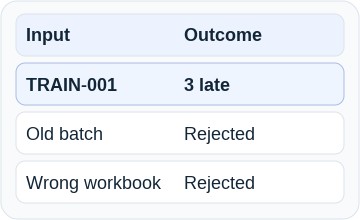
- Verify the resulting file and output. The new copied workbook should contain TRAIN-002, four checked records and four late. The first workbook still has its own earlier three; do not replace it. If the flow receives a file with the wrong batch marker, reject that run before a new Control result. Inspect which file's ID the Excel action actually used.
- Try a malformed export. In a controlled copy remove the Control sheet or move the Mins header. Expect the script to fail with the appropriate check. A file event can still be successful while a later action rejects the workbook. A no-write rejection should keep earlier output distinguishable from a freshly processed result.
Replay the timeline on paper first
Write three columns called event, file ID and expected batch. Put a known test event for the first fixture in the first row and a later event for the second in the next. Use example internal IDs A and B. In the second row route B to the Excel action and expect TRAIN-002, records four and late four. A run that still uses identifier A should reject because it sees TRAIN-001. The script examines the workbook token, while the flow builder verifies that it supplied the correct resource from its trigger. These are two checks for different possible errors.
If a training flow is approved, create just that file-event test with one known copy, inspect the trigger and chosen file ID in run history, and end the training trigger afterward. It is possible to test the sequence on paper and verify the script's computational logic without creating any live cloud automation. A simulated event does not prove connector access or actual timing. Report the observed result and the test method separately.
Follow one file from trigger to worksheet
Receive the file-created event
The training export in the chosen folder supplies its file ID. Record that ID and the independent expected batch.
Choose the script inputs
Pass the actual compatible workbook, expected TRAIN-002 and the cutoff of 15. The file from the first run remains separate.
Run the checked workbook action
The named worksheets and batch marker match. Only four distinct records are within the fixed practice contract.
Inspect both results
The returned object and the workbook output should read TRAIN-002, 4 checked and 4 late. Verify the tagged source file.
Read what an unattended script can actually do
Use supported APIs for the actual execution host
A workflow run does not give the script the same selection, view or set of interactive actions available to a person. Some selection methods throw in Power Automate, and getActiveWorksheet can resolve differently. Use named worksheets and ranges with missing-item checks. Microsoft's guidance also explains that external calls from the script are restricted in that flow context. If an authorized workflow needs another data source, use an approved connector step and pass only the required checked input. This teaching script needs no network access beyond the hosted workbook execution.
Be especially careful with data refresh. Microsoft documents that PivotTable.refresh and workbook or worksheet refreshAllPivotTables do nothing when run in Power Automate even though the call can return successfully. Workbook refreshAllDataConnections in this context only refreshes a Power BI data source. A step calling an unsupported refresh can therefore look successful without updating the data you meant to process. This exercise reads already prepared worksheet data. A separate source process must prove it is current and that it has loaded the approved batch.
Interpret timeouts and rate limits in context
The published Office Scripts limits currently specify up to 1,600 Run script calls per user per day, resetting at 00:00 UTC, which is 05:30 in India. Microsoft documents a 120-second timeout for synchronous Power Automate operations and a maximum parameter payload of 30,000,000 bytes for Run script. The connector also has its own supported workbook, size, request and concurrency limitations. Check the current official references before planning volume. These are service limits rather than targets for this lesson. Use a tiny fixture so the tests are about file routing and data validation.
Pass a small batch ID and threshold rather than putting an entire large worksheet into flow parameters. The named workbook already contains the records for this exercise. A real design that splits work needs explicit limits per call and a verified final merge. Do not assume a longer recurrence or more parallelism can fix an unsupported refresh or wrong workbook. Adjust the flow only after reviewing the actual failure and expected dataset.
Keep the result documented when the signature changes
The script returns an object with three named fields. Power Automate can use the returned result in a later Compose or condition, depending on the selected script and how the designer presents its schema. For example you can compare the result's batch ID with the expected one before recording a successful outcome. If you change main's parameters or return type after adding it to a workflow, Microsoft advises recreating the relevant Run script action so its cached signature is updated. Confirm the displayed input names and result fields again on an approved test file.
For the paper review, plan a weekday report at 18:30 India time. Set a weekly recurrence with Monday through Friday and the intended local hour, then choose the approved workbook and Daily Summary script and check its returned fields before any downstream action. In India 18:30 corresponds to 13:00 UTC. A hypothetical email belongs after a successful and verified result, with approved recipients and policy. The lab uses Compose to inspect the output and sends no message.
Prove that the report was built from the intended input
Distinguish file creation, source readiness and action completion
A file-created event means the connector observed a new file object. It does not establish that a separate import loaded all expected rows or finished writing the source marker. Your design needs a stable definition of when an export is ready. The source producer can place a validated file in the intended folder after preparing it, or provide a separate readiness flag or manifest. The training fixture uses known sample workbooks. The example code rejects missing fields or unexpected identifiers before writing. It cannot prove that an external source delivered real orders correctly.
In a scheduled reporting job, eight o'clock is the planned start, not proof that the input is current. Suppose the 08:00 action reaches the correct workbook but the input batch still says TRAIN-001 instead of TRAIN-002. A reference to the current workbook is correct and its cells might be perfectly valid for yesterday. The separate batch check lets the run fail rather than report the old count as today's. Decide which system supplies the expected ID and ensure that it represents the intended reporting period. Label the workbook's last successful batch separately.
A matching batch ID can still be stale if someone copied the label without copying the corresponding data or did not finish preparing the records. A stronger operational design could include the source file's trusted identifier, expected record count and independently verified source timestamp. The workbook script can check the shape of what it sees, and the flow can verify which source metadata it actually received. Keep the distinction between a passed example-based validation and assurance from an authoritative upstream process.
Use error messages to decide the next permitted action
- Missing connection or permissions: Check the configured identity and confirmed training storage. Being able to open a file manually with one account does not give another connection access. Ask for the already approved test environment or trace the flow and result without executing it.
- File changed or not found: Inspect the intended file binding in the latest run. Check whether the file belongs to the actual trigger or the designer is still using a picked workbook from an earlier rehearsal. Verify file type and location before adjusting your script inputs.
- Wrong batch: Compare the actual Control B1 value with the independent expected batch. Keep the previous published output labeled with its old identifying field. Do not replace an expected ID with whatever the script read just to make a bad match pass.
- Return available but workbook result uncertain: Check the specific destination cells and the run's parameters and time. An earlier stored output can look correct if the source and cutoff are unchanged. A deliberate second fixture with a different acceptable count gives an observable new result.
- Timeout or temporary lock: Read the workbook before attempting another write. A request can fail or lose confirmation after supplying some effects. The exercise script writes a deterministic fixed output block, but a flow that appends a row or sends a message would need a clearer repeat-run policy.
Choose a policy for concurrent or repeated events
Microsoft's Excel Online connector guidance cautions against simultaneous workbook modifications from different clients and actions. For a dedicated automation, consider how to limit concurrent use of the same workbook, and test any trigger concurrency setting in the approved environment before relying on it. Serializing one flow's runs does not prevent a different flow or a person from modifying that file. Use a clearly identified writer for a shared reporting workbook and avoid combining manual edits with an automated write in the same small window.
If the file-created trigger delivers another event or the operator manually retries, the script can replace the same three result values for the same file and batch. That is stable as long as the source and cutoff are unchanged. A second action that appends a log or sends an email could still run twice. Design that step with an operation identity such as the intended file ID, verified batch and rule version. Decide how to check for a previous completed action before repeating it. This lesson uses a Compose observation and does not send an email from either exercise.
Compare test outcomes in a compact run ledger
| Workbook state | Request | Observable result |
|---|---|---|
| TRAIN-001, original | TRAIN-001 at 15 | 4 checked, 3 late |
| TRAIN-001, original | TRAIN-001 at 17 | 4 checked, 1 late |
| TRAIN-001, original | TRAIN-002 at 15 | Reject mismatched batch |
| TRAIN-002, first time 20 | TRAIN-002 at 15 | 4 checked, 4 late |
For a locally reproducible check, examine the script as a pure function of its supplied workbook representation and input parameters. Model the two worksheets and expected output cell region. Treat that as evidence about the control and counting logic only. Actual connector setup, trigger conditions and data refresh remain separate behaviors. If you have an authorized tenant to test, check the run details and workbook output there with the same small data before accepting a real schedule.
Explain a misleading success: A flow action completed, but the dataset is still yesterday's workbook content. Give one check for the delivered data and one check for the connector execution. State which observation would let you publish the report.
Reconcile the source, worksheet and returned object
Use the same cutoff for two independent checks
For the known worksheet inputs, calculate the count manually by reading the four elapsed values and statuses. At cutoff fifteen, 16, 18 and 17 are above it. At cutoff seventeen, only 18 is above. These exact values show the difference between a numerical threshold parameter and a timestamp used to schedule the flow. Record the cutoff in your run notes along with the returned count. The current training result object returns the batch, records and late fields. It does not report the cutoff, so carry that configuration in the run evidence.
On the unchanged original worksheet, use the check formula below to verify the fifteen-minute count. It assumes the rows contain the known numeric durations. If the actual source has nonnumeric elapsed text, the script rejects the invalid delivered row. Pause before calling a separate formula result a verified count for that data. The source and expected output have different jobs in the flow's acceptance test. Add a check of expected record number alongside any decision to publish the count.
=COUNTIFS(Orders!C2:C5,"Delivered",Orders!B2:B5,">15")Choose a run note that supports later changes
Write down three pieces of evidence for the original success. The file chosen by the connector is the exact practice workbook. Its Control source names TRAIN-001 and the intended cutoff is 15. The result and the three cells show that four rows were checked and three qualified. If somebody later asks whether the run was executed with a different cutoff, your note can say which version it used. If somebody asks where the workbook file came from, the record names the event or selected object rather than merely repeating its body marker.
This discipline also helps when a workbook's data changes after a flow finishes. Start with a successful TRAIN-001 run and preserve its four row values in the training notes. Then change one elapsed value without running the script. The previous B3:B5 result remains, while the workbook input is now different. To establish current output, run the revised test deliberately with the correct expected batch and compare the latest inputs. In a real source handoff, a revised export needs an agreed version or batch rather than silently reusing an earlier declared state.
Observe two files with the same display name
Think of two copies named Orders.xlsx stored in separate approved training folders. Their file identifiers and source markers differ. On paper trace the first file through the static picker for the scheduled case, and then route the second through the creation event's supported identifier. If you accidentally pass the first file each time, an independently expected second batch helps the code reject it. Conversely, if the same marker has been re-used in both copies, that marker cannot distinguish them and you still need the actual file identity. This gives a concrete reason to collect both observations. Test the source identity before attributing a returned number to a particular location.
For the schedule, note the exact location and owner of the approved workbook. For the event, note the actual identifier from the particular trigger run. When verifying the target cells afterwards, open that same file rather than using a familiar worksheet tab reached from another copy.
Compare an invalid record with an intentionally excluded status
Change the first fixture's status to Cancelled and retain the original duration. The script checks that it is a recognized category and scans it without counting it as a late delivered order. The resulting count is still three. In a separate case keep Delivered and put a textual value in Mins. The script stops with a row-specific error before sending a new report. A missing or malformed numeric field on an eligible record is a reason to review the input, even when the aggregate would have happened to stay the same. This test exposes why a correct-looking returned number cannot substitute for validation of all expected rows.
When the source returns from a failed attempt, check it using the real recorded identifiers. Repeated IDs can cause rejection despite the data matching an expected four-row shape. You can still verify a file's event and schema separately. Fix the approved training data and rerun with the same scripted boundaries, then restore the original example before documenting it as the known baseline.
Quick checks
Check the execution conditions before reading the number
What argument tells the script which workbook to use?
The connector supplies the workbook to main after its File input resolves the target. The expectedBatch and cutoff are separate script parameters. A named worksheet lookup identifies sheets only within that supplied workbook, so check the file identity in the action configuration.
What result does TRAIN-001 return with cutoff 17?
All four records are checked. Only the eighteen-minute delivered row is strictly above seventeen, so late is one. The seventeen-minute row belongs to the non-late group for that cutoff. Confirm the workbook output and the returned object carry the same batch and count.
What happens if the workbook says TRAIN-001 but the flow expects TRAIN-002?
The script throws a batch mismatch before the output write. The previous worksheet result may remain. Verify the independent expected batch source and actual file binding rather than replacing the expected ID merely to obtain a successful run.
Why pass the created file's identifier to the connector?
The event describes the new file, and its supported identifier helps the connector choose that specific workbook. A fixed picker value can keep targeting the first report even when a different file caused the event. Compare the resolved file and the independent batch value in both tests.
Can a successful workbook refresh call prove all PivotTables are current in Power Automate?
No. Microsoft documents that the listed PivotTable and related refresh methods do nothing in that context despite success. The supported connection-refresh behavior is also limited. Verify fresh data with an approved upstream load and independent source evidence.
What time does 08:00 India time correspond to in UTC?
It is 02:30 UTC because India Standard Time is five hours and thirty minutes ahead of UTC. Configure the intended time zone in the current designer and check the scheduled occurrence and run history separately.
Interview and discussion
Explain a useful acceptance test for a cloud flow
What is the difference between a trigger and Run script?
The trigger starts the workflow when an event or planned time occurs. Run script is the connector action that selects the workbook and executes the script with its inputs. Verify the trigger details and actual action configuration so you know why it ran and which file it acted on.
How would you update a flow after changing the script signature?
Review the current parameter names and return type in the script. Recreate or refresh the configured Run script action as Microsoft describes so its designer schema reflects the new signature. Reconnect any downstream result references and test with your exact approved input and output before relying on the flow.
How can an automated result be repeated without duplicating the workbook report?
Use a known replacement range after verification instead of appending at each attempt. This example writes the same batch and count values for the same valid state. Any separate message or append action needs its own duplicate handling. Verify the result state before retrying a failed or timed-out request.
Why keep a separate source readiness check?
A flow trigger can start and a script can calculate from whatever values were loaded, even if the intended new export is missing. Compare a trusted expected batch with the workbook and verify its input preparation. A calculation success alone does not establish source freshness.
What would you verify before moving a test flow to unattended use?
Confirm an eligible connection and script resource, exact file and approved location, expected schema and readiness marker, recurrence or event boundary, and safe retry behavior. Use one valid and one rejected fixture and compare the output independently. Inspect unsupported APIs and separate user notifications from the verified worksheet action.
Six recall cards
- Trigger and action
A schedule or file event starts the flow; the Run script action supplies the workbook and checked inputs.
- Pin the owner
Verify the connection, storage and file identifier. Use named worksheets and an independently expected batch.
- Return a useful result
Batch ID, checked rows and late count let later actions understand what happened in the workbook.
- Refresh limitations
A successful flow call can leave PivotTables or other source connections unchanged. Check source readiness separately.
- Keep stops early
Validate the batch, headings and inputs before writing any new report. Old results can survive a rejected run.
- Run one approved rehearsal
Verify a small known result and a rejected stale input. Compare connector output with the same actual workbook.
Microsoft references
- Office Scripts platform and flow limits
- Power Automate execution and refresh differences
- Script parameters and returned values in flows
- Excel Online (Business) connector and actions
- OneDrive for Business file triggers
- Scheduled cloud flows and time zones
- Microsoft trigger-based Office Scripts tutorial
Continue practising: explore the existing Excel Task Hub for additional exercises.