12.21 VBA vs Office Scripts: Which One When?
Amir already has a working VBA report. Some colleagues now run their checks in Excel for the web, and another team wants a daily unattended summary. Decide which work needs to run in each environment. Compare the same four-order result in VBA and Office Scripts, then test whether a reported refresh actually supplied new data.
Choose from the actual execution requirement
Start with where the work must run
Summit Schools is a fictional training team reviewing report data based on a delivery workflow. The names, counts and timing rules are invented. Amir's small macro reads three source fields and records one count. That task can be implemented in different Excel automation styles. A desktop workbook event, a browser button and a scheduled cloud action require different host capabilities. Identify whether an eligible account, desktop environment or an approved cloud connection is available before making a choice.
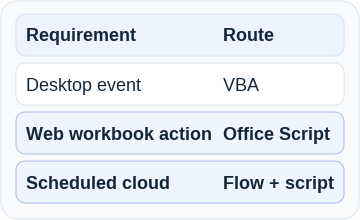
- VBA: Desktop Excel can run the VBA stored in files such as XLSM or XLSB, or installed through a reviewed package. It supports application, workbook and worksheet events when appropriate. Excel for the web can display a workbook containing VBA but cannot run or edit its macros. Windows and Mac can differ in available desktop integrations.
- Office Scripts: Eligible Excel clients run TypeScript against the ExcelScript workbook API. Scripts are stored and shared separately from the workbook. They can be started from the Automate interface and, when appropriate, by a supported flow. They do not support Excel-level event handlers like VBA worksheet change events.
- Power Automate: An eligible cloud flow can use the Excel Online (Business) connector's Run script action. Power Automate for desktop has a separate Run Excel macro action in supported desktop automation with its own runner and workbook instance. Distinguish that route from the cloud Excel connector.
- Built-in Excel: If the requested behavior is simply to highlight a row as a formula changes, conditional formatting may already solve it. If the work is to combine structured files for analysis, Power Query can be suitable with supported connector and platform conditions. An executable routine is only one possible design.
Read a capability with its exact scope
VBA can use parts of the desktop application model and, when supported and authorized, other local resources. It does not grant permission to any file or application. For example some Windows-specific integrations do not apply to Mac. Office Scripts mainly automate their supplied workbook and have documented external call support within a limited interactive context. Microsoft restricts direct external calls in flows. A workflow that needs more actions can use approved connectors and explicit data handling. Verify each capability on the intended host instead of labeling the whole task just “cloud” or “desktop.”
Remember: Compare the business rule and the execution route independently. The same rule can pass in two languages while the required scheduling, events or integrations favor one environment.
Check tools against four practical jobs
Compare actions before migrating them
| Job | Possible route | Reason to check it |
|---|---|---|
| A manually invoked desktop workbook routine | VBA | Keep its file, code and policy together |
| An eligible browser user's workbook action | Office Scripts | Verify supported account and approved script |
| Scheduled late-order report in eligible cloud storage | Power Automate and Office Scripts | Validate workbook identity and input freshness |
| Show a current cell-based highlight | Conditional formatting | May need no event macro or script |
| Consolidate structured local exports | Power Query or supported desktop VBA | Check sources, file access and supported platform |
In the first comparison an operator has approved desktop Excel and can see the Macros dialog. They can run a standard workbook-local macro. In the second, the operator uses the browser and the organization supports Office Scripts. They can use a reviewed button or editor run appropriate to their account. If the action requires reacting whenever a cell is changed on desktop, a VBA event can be relevant. If the only need is visual emphasis as a cell meets a rule, keep the condition in a worksheet formatting rule. That familiar formula route can be the closest fit.
The current Office Scripts requirements include permitted client versions, connected experiences and account storage. Microsoft describes Personal and Family as a preview under listed prerequisites. The cloud connector has separate business license and connection requirements. Check platform support rather than assuming a mobile client can execute either macro language. Cloud workbook sharing can preserve XLSX data independently of Office Script access. An Excel workbook with a VBA project similarly requires the proper macro-enabled file type for its project to be retained.
Lab one. Compare the same decision in two separate copies
Prepare one common acceptance test
Use the original four course order examples in the table below. Make two separate own practice files when both environments are available: CompareDesktop.xlsm and CompareScript.xlsx. Put an Orders sheet in each and enter Order ID, Mins and Status in A1:C1. Keep E2 reserved for the count and place a separate note in G1. If only one execution environment is available, trace the other implementation on paper with the same fixture.
| Order ID | Mins | Status |
|---|---|---|
| BLK-1001 | 9 | Delivered |
| AMN-1005 | 16 | Delivered |
| BLK-1007 | 18 | Delivered |
| BLK-1010 | 17 | Delivered |
For both versions use these rules: only Delivered can contribute, its actual elapsed measure must be a nonnegative number, and more than 15 is late. Accept Cancelled, Pending and Returned as recognized categories excluded from this count. Reject unknown status or unusable minutes on an eligible row. The examples deliberately process four known positions. They do not validate a new workbook import or ensure the field layout is supported beyond this fixed exercise.
Review and run the desktop route
In the workbook-local standard module of CompareDesktop.xlsm add the code below. It reads the status and time values as Variants before using them. The execution is deliberately invoked through the Macros dialog. It does not depend on a workbook or worksheet event or require any external file calls.
Option Explicit

Public Sub CompareDesktopLate()
    Dim ws As Worksheet
    Dim rowNo As Long, totalLate As Long
    Dim rawStatus As Variant, rawMins As Variant
    Dim statusText As String

    Set ws = ThisWorkbook.Worksheets("Orders")
    For rowNo = 2 To 5
        rawStatus = ws.Cells(rowNo, 3).Value2
        If VarType(rawStatus) <> vbString Then
            MsgBox "Review status on row " & rowNo
            Exit Sub
        End If

        statusText = UCase$(Trim$(CStr(rawStatus)))
        Select Case statusText
            Case "DELIVERED"
                rawMins = ws.Cells(rowNo, 2).Value2
                If VarType(rawMins) <> vbDouble Then
                    MsgBox "Review minutes on row " & rowNo
                    Exit Sub
                End If
                If rawMins < 0 Then
                    MsgBox "Review minutes on row " & rowNo
                    Exit Sub
                End If
                If rawMins > 15 Then totalLate = totalLate + 1
            Case "CANCELLED", "PENDING", "RETURNED"
                ' Valid record outside this measure.
            Case Else
                MsgBox "Review status on row " & rowNo
                Exit Sub
        End Select
    Next rowNo

    ws.Range("E2").Value2 = totalLate
End Sub
Review and run the Office Scripts route
The Office Script belongs to your separately approved script library and receives the CompareScript workbook when you run it. Use its named Orders sheet and read B2:C5 as a small two-column array. Both versions store one count in E2 after validating the same recognized states. The script can also return the number for an approved caller. Create and run this in the Code Editor only if your supported profile provides Office Scripts.
function main(workbook: ExcelScript.Workbook): number {
  const sheet = workbook.getWorksheet("Orders");
  if (!sheet) {
    throw new Error("The Orders sheet is missing.");
  }

  const values = sheet.getRange("B2:C5").getValues();
  let totalLate = 0;
  for (let index = 0; index < values.length; index++) {
    const [mins, rawStatus] = values[index];
    if (typeof rawStatus !== "string") {
      throw new Error("Review status on row " + (index + 2));
    }
    const status = rawStatus.trim().toUpperCase();
    if (status === "DELIVERED") {
      if (typeof mins !== "number" || !Number.isFinite(mins) || mins < 0) {
        throw new Error("Review minutes on row " + (index + 2));
      }
      if (mins > 15) totalLate++;
    } else if (!["CANCELLED", "PENDING", "RETURNED"].includes(status)) {
      throw new Error("Review status on row " + (index + 2));
    }
  }

  sheet.getRange("E2").setValue(totalLate);
  return totalLate;
}
Use the same facts for the first, changed and rejected results
- Run each supported version on its own prepared file. For the clean shared input expect 3 in E2 and the separate marker left alone. Use the check formula below in a spare cell. It expresses the same comparison for known clean names and numeric minutes.
- Change the first duration from 9 to 20 in both exercise copies. The next accepted result should rise to 4. At exactly 15, it stays 3. Restore the original input and rerun to observe 3 again. This preserves the earlier exact cutoff.
- Try a nonnumeric minutes cell on a Delivered record, such as text 18. In the desktop case expect a message and no new count. In the script case expect an error with the worksheet row and no new count. Check the actual output cells after each test. The earlier count can still remain and needs to be labeled as a previous result.
- Try 20 on a Cancelled practice row. The recognized state excludes that row. The comparison with the clean worksheet count is meaningful if you use the same status condition. Do not switch languages and quietly drop the agreed eligibility rule.
=COUNTIFS(C2:C5,"Delivered",B2:B5,">15")These are equivalent for the stated fixture and checks. Unicode trimming or other details can differ if an export uses strings outside this simple approved schema. A transfer requires exact examples representing the new business data. The choice of TypeScript or VBA determines how you express the rule and where the procedure runs. Use the common comparison to show what was preserved.
Lab two. Test whether a refresh changed the data that matters
Set two known report versions without connecting to a source
Make a worksheet called Freshness in a separate practice copy. Put Expected batch in A1, Loaded batch in B1, Report count in C1 and Decision in D1. Add Show to reader in E1. Use REPORT-02 as the expected batch in A2, and REPORT-01 as the loaded batch in B2. The report count in C2 starts at 3, the number from the previous verified four-order list. This simulates an earlier dataset remaining in place even though an action reported completion. You do not need an external connection to test what a worksheet tells the reader in that state.
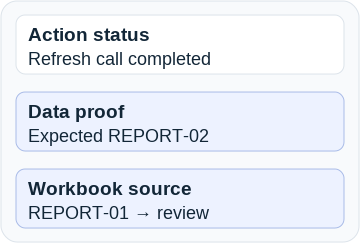
D2: =IF(A2=B2,"Expected batch is loaded","Review stale source")
E2: =IF(D2="Expected batch is loaded",C2,"Hold")- Read D2 and E2 with the old loaded batch. Expect Review stale source and Hold. Keep the prior count in C2 for comparison. A worksheet can retain data for its last successful run. Its count of three is not being generated anew merely because a macro or flow returned without an error.
- Model the arrived version in the same isolated copy. The independently verified REPORT-02 input changes BLK-1001 to 20 and the correct current late count to 4. Update the loaded marker and staged count together for this hypothetical action. Now D2 reports the expected batch and E2 can show 4. Confirm both count and version instead of changing only the visible label.
- Try changing the batch text alone while leaving 3. The worksheet gate sees the expected text but the result is still wrong. Compute the count independently from the four current source values. This demonstrates that a trusted source must write the marker as part of its verified preparation, and the distribution workflow still needs a validation of the actual data.
- Return the copied worksheet to the intended sample or retain it as a clearly labeled simulation. Record the three observations: action result, evidence the correct input loaded, and output based on that input. Leave any real connection and workplace settings in place. If a person can only use a paper trace, the same checks lead to the same four cells' expected results.
Trace a stale refresh and a verified source
Choose the expected version
The current request is REPORT-02. The old workbook result came from REPORT-01.
Read the actual loaded data
After an operation that reports completion, the loaded input may still be the older version.
Hold the old report
The example gate shows Hold while the typed version does not match. The older count remains identifiable.
Verify the new count independently
For the validated REPORT-02 source with the changed duration, four rows qualify. Check the count and version together.
Apply Microsoft's current refresh guidance to the right client
In desktop VBA, Workbook.RefreshAll can refresh external ranges and PivotTable reports in a workbook. Objects configured for background queries can continue after the call returns. Microsoft also documents a specific important failure case: if a Power Query query loaded to a worksheet Table fails during RefreshAll, the Table can retain previous data without the VBA call raising a runtime error. Other connections can refresh, and this retained-data behavior can occur even if every connection has background refresh disabled. Merely adding an On Error wrapper to RefreshAll does not establish a fresh result from all the affected worksheets.
For the documented worksheet-table Power Query case, Microsoft advises getting the target ListObject.QueryTable and refreshing that query table with BackgroundQuery set to False, then handling any error raised. This is a targeted check for that setup. It requires an approved existing query and destination. It is not a generic method for all possible connections or model loads. Inspect the actual loaded table and validate content after the call. For this offline practice, it is enough to study the shape of the targeted call below and use the simulated result cells.
Set targetQuery = ThisWorkbook.Worksheets("QueryOutput") _
    .ListObjects("OrdersQuery").QueryTable
If Not targetQuery.Refresh(BackgroundQuery:=False) Then
    MsgBox "Review the query result before publishing."
    Exit Sub
End If
The snippet belongs in a reviewed desktop procedure that declares targetQuery As QueryTable and reports failure when the required object or refresh cannot be resolved. It is not part of the fixed lesson workbook. The QueryTable reference would point to a particular loaded output table. Some environments may return errors from the method, which need an explicit error handler. A Boolean result alone does not tell you whether the four intended records belong to the new source. Application.CalculateUntilAsyncQueriesDone concerns pending OLE DB and OLAP queries; its documentation does not promise a universal check of Power Query or actual data freshness.
Distinguish those desktop checks from flow behavior
Microsoft documents that PivotTable.refresh and refreshAllPivotTables on workbook or worksheet objects do nothing when Office Scripts run in Power Automate, even if they return successfully. Workbook refreshAllDataConnections only refreshes Power BI sources in that context. A script containing a permitted method name can still have different effects in the connector than it did in an interactive Excel host. Confirm the supported action and actual data readiness separately. A flow that reads a stale worksheet can compute every number correctly for the wrong batch.
A feasible alternative can have an independently approved upstream process prepare the file, then let the workbook script operate on the known loaded data. For example a managed export may supply the verified source version and four case rows. The late-count script can validate the expected data before writing a result. The illustrative design chooses where the data is prepared and where the report is calculated rather than assuming a common refresh command solves both.
Plan a migration around tested behavior
List what the team actually needs to preserve
Begin with one existing approved workbook. Ask how the routine starts, which input indicates it is ready and where each result belongs. A code migration can preserve the logic and change the execution route. It can also change the result by accident if the translation uses different criteria. In the original late-order example a status of Cancelled always stays outside the timing count. A translation that looks only at a duration column may produce the same count on this sample and a different result as soon as one cancelled duration exceeds fifteen. Use that case to expose the mismatch.
- Record the action: Describe each affected field in spreadsheet terms. The first experiment writes a count in E2 and leaves E1 and its source untouched. It does not format rows or contact a service. When comparing a larger macro, list the specific file, window, module and external dependencies it uses.
- Record the data rules: Interpret recognized statuses, elapsed units, exact thresholds and invalid values. Both exercise programs read four rows and reject unusable eligible timings before writing. A new source with a different number of records needs its own supported boundary.
- Record the execution route: Identify whether the desktop tech runs a defined Sub, a browser user clicks a reviewed script button, or a flow uses an authorized workbook and connection. The route affects how you see a rejected row and whether a worksheet event is available.
- Compare evidence on the same fixtures: Verify 3, 4, 3 for the original, changed and restored data. Compare a cancelled row with a numeric 20 to an actual delivered duration at the boundary. Add a text-duration case and observe the previous E2 result persists when the source fails validation.
- Switch only after checking the intended path: Retain the approved original for a reproducible comparison during testing. If a teammate plans to use the browser, run the reviewed new action under those specific conditions before treating a desktop pass as a replacement. Verify the expected behavior before retiring an earlier workflow.
Decide how the work begins, not only what it computes
An interactive command can read a specific file and ask a user to review a result. If the automated requirement is a weekday handoff for an approved workbook, use an eligible flow and named input. If the requirement is to respond immediately to a hand-edited cell in a desktop workbook, investigate a reviewed worksheet event. Microsoft documents that Worksheet.Change does not fire for a value changing during recalculation. If the visible effect should follow a formula result, consider conditional formatting or a separate design based on correctly verified events. Do not assume that the phrase “cell change” describes only one kind of trigger.
Use an example to check your choice. If H2 changes indirectly because a formula recalculates and the goal is merely to color a row, a conditional-format condition that reads the current result can be enough. If a permitted desktop operator chooses a button and also needs to update checked fields, a Sub can define that action. If the browser user wants a compatible workbook action they deliberately invoke, Office Scripts provides a different route under the current account requirements. Ask what must happen after the triggering change, not just whether the displayed number changed.
Keep integrations separate from the workbook rule
A workbook macro that opens another local file may rely on an exact Windows path or an application integration. An eligible script runs against the workbook supplied to it. If another report file is part of a cloud workflow, a separate approved connector can supply it to the appropriate action. Avoid assuming the same code can inherit desktop context in the cloud. Document what each source contributes and which component acts on it. A data cleaning process can often load the necessary worksheet data first, allowing the script to stay focused on one file.
For a team with thirty local exports, first check whether Power Query can combine the files under the available platform and approved folder permissions. If the desktop automation legitimately needs another workbook's custom operations, a supported VBA macro can be a distinct choice. If the team only needs to calculate a count from a cloud worksheet, avoid adding file browsing or an unnecessary desktop dependency. A small workbook proof makes those differences clear without attempting unknown source integrations.
Read the output from each route without confusing its messages
Give both implementations the same acceptance grid
| Practice state | Correct E2 | Evidence |
|---|---|---|
| Four original numeric rows | 3 | Three Delivered durations exceed 15 |
| First row now 20 and Delivered | 4 | First record now qualifies |
| First row now 20 and Cancelled | 3 | Known status excludes it |
| First row Delivered, value is text | Previous count | Reject before a new write |
The same accepted result can be visible in both copies while their execution messages differ. A VBA macro can use a desktop message. An interactive Office Script may present an execution error or return a count. An approved flow can expose that return to later actions. The message path must fit the host and operator. This comparison exercise gives a normal result and a negative fixture so you can report whether the automated route handled both appropriately.
Separate supported feature, permitted operation and business result
- Supported: The platform provides an action or API for the actual context. An Office Scripts method available in desktop or the browser may be ineffective in a flow for the operations described in its documented limitations.
- Permitted: The user or connection has approved the exact workbook and script objects. Qualifying the sheet does not grant access. A blocked local macro or missing workbook permission needs the authorized process, not a weaker code check.
- Verified: The actual data version, expected row count and independent calculation match. A successful execution label does not identify which data was loaded or confirm the underlying amount rule. Keep these checks tied to the same source identity.
Suppose the approved cloud run returns three late and K1 from another unrelated report still shows four. Check filename, exact output cells and actual version. The comparison uses E2 on Orders, while the freshness exercise changes A2 through E2 on its own separate sheet. Readers must know which result belongs to which task. A count of four is correct for REPORT-02 in the alternate example. It only becomes a verified current result when the workbook actually contains the intended source values.
Write a migration decision in one paragraph: Name the actual required client or trigger, the data dependencies, the unchanged outcome, one negative test and the approved rollback copy. Explain how you would verify that the source batch loaded even if the action reported success.
Extend the readiness check to more than one number
Read which source rows were actually loaded
For the four-record worksheet, write down the exact keys alongside the expected elapsed values. The new REPORT-02 example changes only BLK-1001 from nine to twenty. All four records still have Delivered. If a stale query returned the same keys with the old minutes, the accepted row count would still be four. An overall list size alone cannot identify that stale value. Verify both the loaded version and a known expected field or independent exported record before calling the output current.
Consider a learner who sees four in the count cell but cannot confirm the expected batch. Perhaps a different four-order test previously produced four. The result's number can agree by coincidence. Ask them to verify the exact file and source marker, then compare the key and changed minute count against their independent fixture. Only then select the approved result to show. This leaves the previously verified status intact while a new dataset is being investigated.
Walk through three documented desktop refresh observations
First consider a connection with background work still in progress. A procedure that immediately reads its old worksheet after initiating a refresh may read earlier data. Second consider a worksheet-loaded Power Query table whose refresh fails under the documented RefreshAll behavior. The call can return with the first table unchanged while other sources update. Third consider a targeted, supported table refresh with a separately verified expected batch and field values. The third case gives the evidence the report needs. Testing with known altered source values lets you distinguish them rather than relying on how long the operation took.
A workbook can link a summary to several queries. If supplier records updated successfully but the order table retained its earlier data, a combined report might mix two reporting periods. State which inputs belong together and track the version for each one. If the job requires all sources to use REPORT-02, hold a partial update and review its specific failure. The illustrative formulas above use one batch field to make the idea accessible; a real design can include separate fields for each load you plan to verify.
Compare what a successful no-op would look like in a cloud trace
Imagine the workflow invokes a PivotTable refresh call that the Power Automate host documents as ineffective. A status report could show that the call completed. The pivot's prior values are still there. The exercise makes that failure visible by comparing a known changed input with the expected pivot or worksheet output. Treat an old count as stale until the verified source and intended operation actually changed. If the cloud workflow is read-only, it can still help identify the particular evidence the user is missing.
If the approved process can prepare both input data and the desired summary in an upstream application, your Excel workbook may only need to fetch a validated snapshot through a supported route. Or it may read the loaded rows and calculate the four-order count with a simple worksheet expression. These paths need their own exact test plans. The decision to use VBA or Office Scripts for the workbook action need not decide how every data source arrives.
Use one pass/fail observation for each route
On the desktop side demonstrate the worksheet guard with the older batch and the newer verified data. In your separate script comparison verify that the output shifts from three to four using an independently changed cell. If you cannot use either native host, use the arithmetic trace and state explicitly that you verified the logic instead of the host or connector. This is enough to compare the two code paths in the lesson, while actual scheduled or query behavior stays a separate environmental test.
When someone proposes introducing a new flow, ask for the precise result and the specific action that will cause it. If the job requires an unsupported refresh, document that constraint and test a supported data preparation route first. If the task is an ordinary count from already validated data, the two small implementations are ready to compare. Avoid carrying a test worksheet's fake labels into a production workflow. Use the actual upstream model and permissions once the report owner has agreed which path to support.
Finish with a short record of the exact input values, observed count, readout for the preserved note and any optional connection steps you did not exercise. This lets a reviewer separate confidence in the business rule from confidence in the unattended environment. It also gives the next person an exact small report they can reproduce before making a change. Include which workbook was open when you ran the desktop command and which workbook object the script received. Record which data area held the final count for each route. If a later test introduces a new versioned source, keep the old and new test results clearly identified. A fresh calculation needs a named input as well as the expected rows and numeric values. This also lets a teammate see whether the wrong workbook or the wrong source version caused a failed check.
Quick checks
Match the rule and host to evidence
Which route fits a supported user who only has Excel for the web?
Consider Office Scripts when the account, client, storage and organization settings support it. The browser does not run VBA. If the task only needs a live display or calculation, check whether a normal worksheet feature serves it first.
What do both examples report for the original four-order fixture?
They report three because the three Delivered durations of 16, 18 and 17 are strictly above 15. The nine-minute record is excluded from the late count. The numeric result is the same even though their object models and run contexts differ.
Why can a desktop refresh leave an old Power Query output?
Microsoft documents that RefreshAll can leave the old worksheet-loaded query table when that query fails without raising a runtime error. The documented case can occur even with background refresh disabled. Check a targeted refresh and independent new input evidence rather than relying on the overall call.
Will Worksheet.Change detect every recalculated value?
Microsoft distinguishes changes due to recalculation from its Worksheet.Change event. Choose a feature that matches the actual requirement. If only a visible style needs to follow a recalculated value, a conditional formatting rule can be simpler to inspect and verify.
Which version should the freshness gate show when REPORT-02 is expected and REPORT-01 is loaded?
The decision calls for review and the reader-facing result shows Hold. The prior count of three can remain in the data column as historical evidence. Compare specific source fields when deciding whether a matching loaded marker actually proves the latest data.
Can the Excel Online Run script action directly invoke the desktop VBA procedure?
That cloud connector action runs an Office Script. A supported Power Automate desktop action can run an Excel macro in an existing desktop Excel instance. Those are different execution routes with their own permissions, runners and requirements.
Interview and discussion
Explain why you chose the environment and the validation
How do you decide which VBA code to migrate?
Inventory what triggers it and which workbook, app, event and data operations it uses. Preserve the business logic with a common test fixture. Move actions only when the intended environment supports them and the approved client and account can run them. Some actions have a simpler worksheet or Power Query equivalent.
What does a fair cross-language test look like?
Give both programs identical target fields, verified input data and explicit count rules. Check the same positive, boundary and rejected outcomes, including a status change. Compare exact results and preserved markers rather than relying on the fact that each tool can display a success message.
How would you handle an automation that needs to notice stale query data?
Record an independently expected data version, verify the actual loaded content and add a readiness check before computing or consuming the result. Use documented targeted desktop refresh handling where appropriate for its query-backed Table. In a cloud flow use a supported source process and verify its actual result instead of assuming all refresh APIs work.
Why might a workbook event be the wrong way to highlight records?
The intended trigger might be a recalculated formula or another change that the chosen event does not cover. Conditional formatting can compute the highlight straight from the current worksheet rule. If you need a separate action such as writing a checked summary, design and test its trigger and destination explicitly.
Why does an Office Script example not automatically translate a desktop integration?
It uses a separate workbook object model and host. A desktop file action, Windows-specific integration or VBA event has no guaranteed equivalent inside the cloud workbook script. Define which operation remains in the workbook, and use a supported approved host or connector for separate work.
Six recall cards
- Decide from the host
Desktop events, browser actions and cloud schedules use different execution paths. Check the intended environment.
- Preserve the rule
Test the identical source data, allowed status and strict threshold when comparing the implementations.
- Control the output
The example writes E2 only after validation. A rejected run can leave previous results visible.
- Watch refreshing
Desktop RefreshAll and flow refresh APIs have documented limits. Read the actual input version and rows.
- Use built-in features
Conditional formatting and Power Query can solve display and input work with their own prerequisites.
- Prove readiness
A correct batch marker and independent data check are stronger evidence than an action status alone.
Microsoft references
- Differences between Office Scripts and VBA
- Office Scripts platform availability
- Office Scripts refresh behavior in Power Automate
- External calls and supported contexts
- Run Excel macro in Power Automate desktop flows
- VBA Worksheet.Change event
- Workbook.RefreshAll failure and background scope
- Targeted QueryTable.Refresh
- CalculateUntilAsyncQueriesDone scope
Continue practising: explore the existing Excel Task Hub for additional exercises.