12.16 The Personal Macro Workbook
Neha wants one formatting tool available while she opens different workbook copies. The Personal Macro Workbook can hold reusable VBA for her desktop Excel setup. This changes one important assumption: the file containing the code is no longer necessarily the report that needs formatting. You will verify both identities before changing two practice cells.
Separate the tool from the workbook it acts on
Describe a reusable action with a narrow target
GreenField Dairy is a fictional seller working with delivery amounts similar to a Blinkit-style report. The workbook and figures are invented. Neha has Amount cells with 64 and 110 in a training copy. She wants both values bold for a short manual review. She can keep the formatting rule in the workbook, or a utility file she uses in her own Excel environment. The two choices can call exactly the same small action, but they change where the code is found and what ThisWorkbook means.
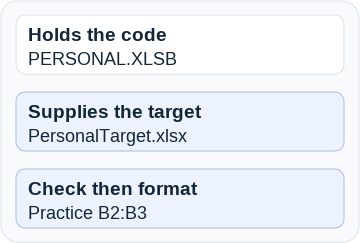
- Personal workbook: Excel can maintain a hidden workbook named PERSONAL.XLSB for this user's desktop environment. If stored in the appropriate startup folder and allowed by the environment, Excel opens it at startup so its approved procedures can be available while other workbooks are open.
- Hidden window: Hidden describes how Excel displays the workbook window. It is not a security feature. Its code can be inspected in the Visual Basic Editor when the project is available. Showing or hiding its sheet window is separate from the ability to run its procedures.
- Code owner: In code inside PERSONAL.XLSB,
ThisWorkbookrefers to PERSONAL.XLSB. If you paste a macro withThisWorkbook.Worksheets("Practice")into that project, the lookup will search for Practice there. A worksheet with that name in the visible report does not satisfy the lookup. - Target workbook: A utility can deliberately inspect the workbook in the active window and check its name and expected structure. ActiveWorkbook may be an unintended workbook or unavailable in some contexts. Check it before reading or writing the approved target. Give the utility a narrow task and state the required workbook explicitly.
Recognize what startup does
The startup folder makes the workbook available when Excel opens it. This alone does not mean every Sub in the file runs at startup. A normal public command still has to be invoked by a person or another procedure. A workbook can have events or startup routines with different behavior. Neither training helper in this lesson uses an event or automatic launch. Review what code you choose to keep in any startup location. Use the organization's current approved workflow for reusable macros.
Remember: A reusable tool depends on its actual host and code owner. Always validate the workbook it will act on before writing a worksheet.
Choose the storage route for the real users
One local workbook does not travel with the report
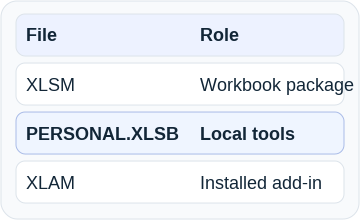
- Workbook-specific code: Choose XLSM when a particular report and its procedure belong together. A teammate who opens the authorized code file in a suitable client can inspect the same procedure. The workbook still needs to meet policy before the macro can run.
- Personal code: Choose PERSONAL.XLSB for utilities that belong to one managed desktop profile and are deliberately reused with different copies. Copying a simple XLSX report to another person does not deliver your personal utilities. A toolbar control may be different in that person's Excel settings too.
- Tool workbook: You can test the same ownership separation in a manually opened XLSM carrier. This needs no file in Excel's startup path. Open the carrier on demand, use its reviewed procedure, and close it after the exercise.
- Approved shared add-in: A maintained XLAM package can make a supported tool available to a team under an appropriate installation process. Choose it only when distribution and maintenance belong to the tool's owner. The file format itself does not grant permission to run any macro.
Use filenames as meaningful evidence
When you run a utility for a report, include both filenames in your notes. In this example PERSONAL.XLSB or PersonalToolsPractice.xlsm holds the code. PersonalTarget.xlsx is the separate exercise data. Comparing file names and an in-workbook marker makes the target clear. Record a separate source or target worksheet name when useful. Do not rely on viewing common tab names like Practice or Orders, because several open files may have them.
Lab one. Inspect the code host from two different workbooks
Use a portable carrier for the same ownership lesson
The default lab uses two local files you own. It teaches the same code-versus-data pattern without changing your normal Excel startup. Create PersonalToolsPractice.xlsm for the code and PersonalTarget.xlsx for the data. Both must be open in the same approved desktop Excel instance when you test a call. Put the code below in a standard module of the XLSM file. This first macro only prints the code host, active workbook if available, and the startup path indicated by this Excel session.
Option Explicit

Public Sub InspectWorkbookRoles()
    Dim candidate As Workbook

    Debug.Print "Code owner", ThisWorkbook.Name
    Set candidate = Application.ActiveWorkbook
    If candidate Is Nothing Then
        Debug.Print "No active workbook available"
    Else
        Debug.Print "Active data candidate", candidate.Name
    End If
    Debug.Print "Startup path", Application.StartupPath
End Sub- Save both files and keep them open. In Excel select PersonalTarget.xlsx. Open Developer Macros and choose the eligible procedure from PersonalToolsPractice. Your Macros in list may offer All Open Workbooks if the current workbook has no VBA. Inspect the workbook prefix and exact name before running.
- In the editor's Immediate window read the two different file names. In the usual visible target context expect Code owner PersonalToolsPractice.xlsm and Active data candidate PersonalTarget.xlsx. The first is determined by where the module is stored. The second is determined by the active workbook window.
- Now choose the tool workbook in Excel and invoke the same routine. Both printed roles can name PersonalToolsPractice. This is a useful negative case: a write routine that intended to change the target must refuse to act on its own code workbook. The inspection prints the distinction without changing anything.
- Read the Startup path value if useful for learning. It reflects the local app and configuration, and is different from the folder where you deliberately saved the portable tool. You do not need to move either file there. Avoid publishing screenshots containing private folder paths or other user work details.
- Close the tool file while leaving the target open. Check the Macros dialog. The code from that specific closed file should no longer be offered as an open workbook procedure. Reopen your controlled XLSM file only when you need the next lab. This deliberately models loading behavior without involving a different startup environment.
Optional path for a dedicated approved practice profile
If you have a disposable Excel environment reserved for this lesson, the Macro Recorder can create a Personal Macro Workbook there. Take a small blank workbook and use Developer Record Macro. In Store macro in choose Personal Macro Workbook. Record one small, known action such as making a selected label bold in your empty workbook, then stop. Inspect the recorded code in Project Explorer under PERSONAL.XLSB, where it normally belongs to a standard module. Do not assume a recorder-created action qualified its worksheet. The portable lab below uses a checked routine for that reason.
Closing Excel may ask whether to save changes to the Personal Macro Workbook. This is a separate question from saving the worksheet in which you recorded. In an isolated training profile, save the personal file only if keeping the lesson utility there is intended, then reopen Excel and verify the project is loaded. If you already have important personal routines in your normal profile, use the portable default lab. This exercise does not require altering a working PERSONAL.XLSB.
Microsoft documents the XLSTART approach for Windows and a different Excel startup location under the user's Office container on Mac. Paths vary by app and configuration. Read the local StartupPath and use the current platform-specific directions if your approved teaching environment needs it. Avoid placing an unknown workbook into an automatic startup folder. An organization can control startup and macro behavior according to its policy.
Read the hidden workbook without using it as a target
You can view code in the editor without showing the personal workbook window. In a dedicated practice profile you may be able to use View then Unhide to show PERSONAL.XLSB and inspect its practices. If you show it, be clear that it can then be the active workbook. The guarded routine in the next lab explicitly rejects its own host. Restore the original window state after observing it in that profile. It is not necessary to unhide a personal workbook to use one approved public command.
Lab two. Use a toolbox routine against one named target
Make the authorized target recognizable
In PersonalTarget.xlsx add a worksheet called Practice. Put the exact marker PERSONAL PRACTICE in A1. Enter 64 in B2 and 110 in B3. Place the sum formula below in B4. Keep B2 and B3 in ordinary font for the initial visual check. Put “Keep this note” into F2. Make another practice workbook with the same sheet name and similar amounts but a different file name. This second copy makes it possible to test a mistaken active workbook.
B4: =SUM(B2:B3)Add the next procedure to PersonalToolsPractice.xlsm. If you chose the dedicated profile path, you can keep it in that profile's training personal module instead after reviewing each line. Do not paste it into PersonalTarget itself, since the point is that the code host and target are distinct. The approved target is the actual workbook in the active window only after it has passed name, sheet and content checks.
Public Sub MarkPracticeAmounts()
    Dim candidate As Workbook
    Dim checkSheet As Worksheet, target As Worksheet
    Dim token As Variant

    Set candidate = Application.ActiveWorkbook
    If candidate Is Nothing Then
        MsgBox "Open the named practice workbook."
        Exit Sub
    End If

    If candidate Is ThisWorkbook Then
        MsgBox "Select PersonalTarget.xlsx in Excel first."
        Exit Sub
    End If
    If StrComp(candidate.Name, "PersonalTarget.xlsx", vbTextCompare) <> 0 Then
        MsgBox "Choose the named PersonalTarget.xlsx practice copy."
        Exit Sub
    End If

    For Each checkSheet In candidate.Worksheets
        If StrComp(checkSheet.Name, "Practice", vbTextCompare) = 0 Then
            Set target = checkSheet
            Exit For
        End If
    Next checkSheet
    If target Is Nothing Then
        MsgBox "The Practice worksheet was not found."
        Exit Sub
    End If
    token = target.Range("A1").Value2
    If VarType(token) <> vbString Then
        MsgBox "Check the practice marker in A1."
        Exit Sub
    End If
    If CStr(token) <> "PERSONAL PRACTICE" Or target.ProtectContents Then
        MsgBox "Use the prepared Practice worksheet."
        Exit Sub
    End If

    target.Range("B2:B3").Font.Bold = True
End Sub- Read the active candidate once. Capturing its object reference makes every later check address the same workbook. Using ActiveWorkbook again later could point elsewhere if the window changes. The name check also helps a user recognize the deliberate exercise target.
- Verify the expected sheet and marker. The routine checks the selected workbook's worksheet list. It uses Practice even if another tab is on screen. The text marker checks that the workbook follows the lab layout. For this training task neither the filename nor the marker is a security authority, but their combination makes mistaken inputs easy to detect.
- Write a tiny output range. Only the font of B2:B3 can change. The number in either cell is still available for an independent sum. There is no clipboard action, automatic run or write to the tool host. Setting Bold to True gives the same intended result after a repeated approved run.
Test the valid target and plausible mistakes
Run from a trusted workbook with another file visible
- Open the saved tool workbook and PersonalTarget.xlsx in the same approved Excel session. Select the Practice worksheet in PersonalTarget and verify A1, 64, 110 and the note. Start with both amount cells ordinary. Scope the Macros dialog to the correct tool project if needed, then run MarkPracticeAmounts. Confirm B2:B3 become bold, B4 calculates 174 and F2 remains. The target does not need its own VBA project for this formatting action.
- Return B2:B3 to ordinary formatting in the practice copy. Switch to a different worksheet in the same PersonalTarget file and repeat the approved call. The routine finds Practice by name after checking the workbook. As the visible tab may differ, inspect the actual Practice sheet after the run. Your test checks the named worksheet, not whichever current selection was highlighted.
- Make the wrong workbook active. It can show a Practice sheet with the same numbers and A1 text but a different file name. Run the reviewed macro from the tool project. Expect the message prompting you to select the named target, with no formatting changes in either file. Check the first target separately so an old bold effect is not mistaken for a new result.
- In the practice target change its A1 marker to a different string or clear it. Run the macro again. Expect the appropriate marker message and no changes to the font. Restore the exact marker. Confirm that switching the label only affected eligibility, not the stored source amounts.
- Temporarily open the tool file in front and run its own procedure. The code host check is meant to stop it. Inspect the worded instruction and switch back to the known PersonalTarget workbook before trying a fresh success case. When no active workbook exists the distinct no-candidate branch tells the person what is needed. Do not attempt to force an unavailable or protected workbook to act as a target.
| Active candidate | Sheet and marker | Expected effect |
|---|---|---|
| PersonalTarget.xlsx | Practice, PERSONAL PRACTICE | Bold B2:B3 |
| Another workbook | Same label and values | No write |
| PersonalTarget.xlsx | Practice, marker missing | No write |
| Tool file | Any sheet | No write |
Trace one valid call without editing the code workbook
Load the tool
PersonalToolsPractice or a dedicated PERSONAL.XLSB module holds the reviewed procedure.
Find the active file
The visible candidate is PersonalTarget.xlsx. That is distinct from the file containing VBA.
Validate the particular worksheet
Practice exists and A1 contains the approved exercise marker. The routine verifies the sheet is ready.
Write within the contract
Only the format of B2:B3 changes. Their values still sum to 174 and the separate note remains intact.
Explain why the macro stays independent of the report format
After using this utility, the recipient of PersonalTarget.xlsx can still read the bold cells and the independent worksheet formula. The file contains the effect but does not contain the tool's code. A teammate who wants to reproduce the formatting can do it manually or request the approved utility distribution. Do not infer code is missing from a local personal file merely because the workbook you shared was able to retain its formatting without code. The reusable action and its stored effects have different paths.
Trace an optional function dependency across workbooks
Use the original fee exercise only in a supported training setup
Imagine a person has placed their reviewed DeliveryFee module in a personal training workbook. The function could be called from a different workbook once the personal file is available. The cell formula's workbook-qualified name tells Excel where to find the code. This is a stronger connection than naming the worksheet currently displayed. In this example the worksheet passes an amount from G2 and a known logical flag. The function returns a value to that caller without editing the workbook from which it was loaded.
=PERSONAL.XLSB!DeliveryFee(G2,TRUE)The formula is a static example for the dedicated personal profile path only. It requires the public function with its helper in the named personal workbook and the appropriate open, approved VBA environment. For the sample amount 270, a true flag should give 25. Omitting the flag should give 15. If you use only the portable carrier, you can trace the same dependency without installing any persistent function. Keeping the fee module and data together in one XLSM is another valid example of packaging the same calculation.
- Share only a report: If a reader needs numbers but no new calculation, choose a deliberately produced snapshot and label the source date and rule. A workbook formula that references your local personal code may not be recalculable on somebody else's computer.
- Share an editable calculation: Keep the code and worksheet together in an approved package, or use a maintained built-in formula solution if it satisfies the job. A system meant for several users should document its version, distribution path and enabled client assumptions.
- Compare the workbook roles: The worksheet containing the formula passes an amount to the function. The personal workbook supplies the function definition. Neither this fact nor the filename gives the code permission to change other workbook data. Here the reviewed function simply returns a fee.
- Check before publishing: Use independent inputs 270 and 499 to test a paid result and a free result. Then close or disable nothing in your ordinary profile just to reproduce another person's missing-code error. The known portable demonstration is enough to understand availability.
Compare application availability with file portability
If a worksheet opens in the web app, visible numbers or previously displayed formatting may still be useful. Excel for the web cannot execute VBA macros. If two people open the same data copy but only one has the reviewed tool workbook open, the shared data still works as data. Their available VBA commands can differ. Understanding that difference can prevent an unnecessary repair of a perfectly usable data workbook.
Maintain a personal utility without changing its target by accident
Know which outcome belongs to your desktop configuration
Someone says that their macro worked yesterday but is missing today. First establish which engine they are using and which workbook contains the macro. A workbook-local module will require the appropriate file to be open. A manually loaded tool workbook will also need to be opened in the current instance. A personal workbook may normally be opened from a startup path for the current profile. Opening a different desktop workspace or using another account changes that context. A browser displays the worksheet but does not run its VBA. These explanations have different remedies.
- Read Project Explorer: Check whether the intended code container is listed and expand its Modules area. If PERSONAL.XLSB is present, the window can still be hidden in Excel while its project is visible in the editor. Compare names and known code, rather than unhiding files until one appears.
- Read the Macros in choice: The dialog can show This Workbook, active scope choices and a view of all open workbooks depending on the desktop version. A data file with no code could list no workbook-specific commands even when the personal or tool workbook exists. Select the actual eligible macro scoped to its owner.
- Check eligibility and active context separately: A visible entry can still be blocked by policy or can deliberately reject the current workbook. When the guarded utility says choose the named target, first check which workbook is visible and which code was invoked. Inspect its output and file marker before making any structural changes.
- Inspect first in a copy: If a personal routine is unfamiliar, use output notes or review its module with the workbook owner. Run a known seven-line inspection in a portable copy if that is all you need. There is no need to enable more code or install a second personal file to check the concept.
Keep useful reusable code portable without replacing an existing personal file
When sharing reviewed module text or an approved add-in, document what the person needs and where it will live. Avoid asking a teammate to replace an existing PERSONAL.XLSB. Their workbook can contain independent routines and settings. If compiling a workbook backup is helpful, close the training file when appropriate and retain a known reviewed copy outside automated startup. Restore an earlier version only under the established maintenance workflow and with its ownership confirmed. Overwriting an already installed workbook is not a reliable transfer plan.
Take the authoring exercise with MarkPracticeAmounts. A teammate can keep that routine in a portable tool file and open it only for the session when they need it. They can inspect the source and compare the expected filename and sheet marker. This gives them the same deliberate effect as a locally installed PERSONAL helper. They can close the portable tool afterwards, re-open it deliberately for another test and verify its path. A built-in Format Cells command may also be sufficient if they merely need to make two cells bold.
Understand what changes after an intentional name edit
The code expects PersonalTarget.xlsx. Suppose a learner saves a new workbook name, PersonalTargetCopy.xlsx, with the same path and content except the filename. The guard rejects it. That is useful evidence that the routine did not simply assume identical sheet names were sufficient. If your lesson calls for allowing a second exercise host, make an explicit allowlist in the code or pass a carefully checked target from a user-controlled selection. Retest the earlier allowed file and one definitely wrong file. Do not remove all checks to make a filename variant work.
A source marker offers a second check. A workbook could be named correctly while still using a different layout or type of data. The code expects PERSONAL PRACTICE in A1 to verify the exercise contents at a known address. This is a practical teaching guard for mistakes. On a real managed workflow, validate access and provenance before using a workbook and define an appropriate versioned schema. A copied marker cannot establish which real report is authorized for modification.
Verify portable behavior and inspect what survives
Use the formula and formatting as two different checks
At the end of the positive test two cells are bold and the amounts remain 64 and 110. Change only B3 from 110 to 120 in the disposable target. The formula becomes 184, independently of the macro. Run MarkPracticeAmounts again. Its only permitted effect is to set the display. B4 remains 184, the note remains and the changed input still belongs to your test. Restore 110 and verify the sum of 174. This demonstrates that the persistent change belongs to the cell formatting, while the worksheet calculation responds to data edits.
Save the target workbook if keeping that exercise state is useful. Close the portable tool file separately. Reopen the target by its exact name and check that it can still display the formatting and formula without that tool open. It has stored the effect. You can choose whether to return the formatting to ordinary before sharing the paper fixture. The marker and expected numeric results belong to this lesson, and files may remain in your own practice location without interacting with any startup configuration.
Compare a local toolbar with a shared entry point
A personal utility may be convenient on the Quick Access Toolbar when supported by your desktop setup. Use the Macros dialog first so you can confirm the source project. A local toolbar assignment usually stays with the app or profile, not with a data-only workbook sent to another person. The other person might have a different ordering, no toolbar entry, or differently named macro. For a shared workflow agree where the code and call belong. A separate approved add-in or a workbook-local macro-enabled package can offer more predictable distribution than expecting matching toolbars.
The tool verifies a particular target every time because it can be started while any workbook is open. Even with a convenient button, document the rule in the place an operator will see it. For the guarded sample write “open the exact target, check its Practice marker, then run the macro from its reviewed tool owner.” Describe what happens on a rejected file and what a successful result looks like. This lets the user recover by selecting the right file rather than wondering why a different workbook changed.
Notice the difference between two rejected targets
Test two copies on paper. The first is called PersonalTarget.xlsx but lacks the Practice worksheet. The guard locates the eligible workbook name and then fails the named worksheet search. The second is called PersonalTarget.xlsx and has Practice, but its marker value is a number. The sheet resolves and the type guard rejects A1. Both paths should leave the source amounts and workbook formatting as they were. Their messages tell the next person which prerequisite failed.
Now imagine the workbook file and A1 marker are correct but the approved report is intentionally protected. The target check prevents a write to that protected practice sheet. Do not change the installed permissions just to prove a formatting exercise works. Examine the original lesson's approved unlocked disposable copy instead. A document can be assigned to the correct workbook and worksheet while its environment does not permit the expected write. Report that status separately from choosing the wrong file.
Use the separate inspection routine to reproduce the difference between a missing candidate and a mistaken one. If the application has no active data workbook it can report there is no available candidate. If it has the wrong file active it can print that file's name. The macro's response is intentionally different. In the first case open the approved data file. In the second, select it deliberately and recheck the identifying marker before running.
This small observation also helps explain why an active-workbook utility is poor at sharing a hidden dependency across sessions. Its context is chosen by the active window in the current instance at the moment of invocation. A persistent modified workbook is neither implied nor needed for the portable exercise. The code itself shows which file it would accept, and the printed owner identifies which implementation it used.
Use one explicit comparison to decide where the logic should live
Imagine an exercise report has several styles specific to one layout. Storing the only formatter inside that workbook's XLSM package lets the maintainer preserve assumptions about its tables, and ThisWorkbook points at the right owner. Imagine instead a personal action that helps review one marked training sheet while the worksheet project remains data-only. Manually loading an XLSM utility offers the same separation as the personal workbook during that session. A third scenario is a maintained team tool with a named approved installation pathway. Decide who must run the tool and who maintains it before choosing a file format or location.
Prove the owner and the result: Write the code workbook name, target workbook name, expected font range, independent sum and note cell. Explain which of these observations should change when you close only the code workbook.
Quick checks
Choose the workbook that the statement refers to
What does ThisWorkbook name in a macro saved in PERSONAL.XLSB?
It names PERSONAL.XLSB, the workbook that holds the code. The active report may be another workbook. If a previously workbook-local routine relied on ThisWorkbook to find its data, review the target logic before copying it into a personal utility.
Why can a hidden workbook's macro still be available?
Hidden controls the displayed workbook window. The file can remain open and its project may still be present in an authorized Excel desktop environment. Opening the file from startup does not invoke every public Sub. Use an approved explicit command when appropriate.
Which candidate is allowed to receive the formatting change?
The reviewed macro accepts the named PersonalTarget.xlsx sample, with a Practice worksheet containing the exact marker and available formatting. An incorrect workbook name or missing marker stops it. Only B2 and B3 receive the intended font change.
Do the two original amounts change when the utility runs?
The cells remain 64 and 110 and their sum remains 174. The font setting changes. Read a nearby note and the amount formula independently to verify the action did not reach other fields.
Where can you inspect the startup folder used by the current Excel instance?
The read-only demonstration prints Application.StartupPath in the editor. Compare that with platform-specific Microsoft documentation if you need to understand the current setup. The worksheet practice does not require moving a file to that folder.
Does sending PersonalTarget.xlsx deliver the reusable code?
The data file stores the worksheet data and visible styles. The reusable macro is in another workbook. A recipient needs an approved separately distributed tool to run it again, or can apply the formatting manually. Check who needs access to the actual procedure.
Interview and discussion
Defend the scope of a reused tool
How would you test reusable VBA without altering a normal startup profile?
Store it in a manually opened training XLSM and use a separately named own data copy as the target. Print the code host and active workbook roles, then test one valid target and one wrong file. The same targeting decisions apply to a reviewed personal tool without requiring persistent changes during the lab.
Why should a reusable tool check the active workbook before writing?
The active file can be different from the source of the macro, and it can be unavailable in some window states. Checking the workbook reference, exact known filename, worksheet and practice marker avoids modifying another open file by accident. Confirm the one small allowed write to the known sheet.
How would you decide between a personal workbook and a shared add-in?
A personal workbook fits an approved tool for one profile. An add-in can serve several users with intentional deployment and support. Workbook-local code can be a better fit when its actions depend on one report's own data. Define who runs and maintains it before assuming someone else's local environment can load it.
Why qualify a personal custom function in another workbook's formula?
The calling sheet identifies the specific workbook that supplies the custom function. The amount reference belongs to the calling formula, while the code definition lives in the open approved personal workbook. The function cannot recalculate where its required project or desktop execution environment is unavailable.
How would you investigate a utility that appears on one desktop but is missing on another?
Check the app, approved policies, actual code owner, open workbook scope and user profile. Verify whether the function or macro is installed, manually opened or stored with the data workbook. Compare each person's startup behavior only when relevant. A workbook-specific inspection can distinguish a real missing module from filtering the wrong macro list.
Six recall cards
- Code ownership
ThisWorkbook points to the file containing the VBA, including a personal or portable utility workbook.
- Candidate data
ActiveWorkbook is the current visible candidate when available. Verify it before running a qualified write.
- Local availability
Personal tools can open at startup under the approved setup. A manually loaded training carrier needs no startup change.
- Hidden display
A hidden personal workbook can still have a visible project in the editor. Hidden is a window state.
- Protect a narrow area
The lab formats Practice B2:B3 after explicitly checking the file, sheet and marker.
- Share with intent
Sending the saved data copy shares its effects. Reusing the associated macro requires a reviewed available tool.
Microsoft references
Continue practising: explore the existing Excel Task Hub for additional exercises.