12.17 Office Scripts: What They Are and Who Can Use Them
Priyanka opens an order workbook in Excel for the web and wants to put the same checked note beside the order list every morning. Her desktop VBA project cannot run there. With an eligible account and client, she can use Office Scripts. You will test the workbook passed to a script and then build a four-record status summary.
Know which workbook the script receives
Separate the person, the script and the workbook file
Imagine a fictional Blinkit-style dispatch team. All records, amounts and actions here are invented. The operator sees four rows in Excel and wants a consistent note outside the original fields. The same person might run the script in a browser or a supported desktop client. The workbook and script can be stored and shared separately. Inventory these parts before relying on the automation.
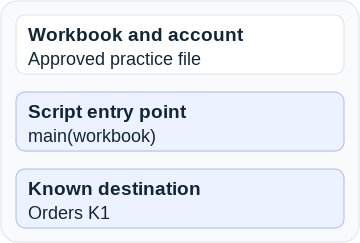
- Office Script: A program using TypeScript and the ExcelScript API to perform supported workbook operations. TypeScript adds ways to describe the kinds of values the program expects. It is a different language and workbook model from VBA.
- Action Recorder: A tool in a supported Excel environment that records supported workbook actions and can produce a script. You can review the generated code to see which references depend on the current sheet or range.
- Code Editor: The place to write or edit a script. The main function receives an ExcelScript Workbook object as its first argument. An object represents part of the workbook and exposes methods such as getWorksheet.
- Run context: In an interactive run, Excel supplies the workbook you choose to work in. With Power Automate, the configured connector action supplies the workbook and inputs. Code relying on the current cursor or sheet can behave differently in those settings.
Decide which steps replace real work
Setting a checked note is a first script because you can verify the promised cell at a glance. A working reporting task may read multiple columns, decide whether records meet known rules and write a smaller result. If the job is simply to display a result that recalculates when inputs change, a worksheet formula may already be enough. A script executes an action when invoked. You can provide it on demand through the Automate tools or consider a supported flow when the job requires scheduled execution.
Remember: Start from an exact workbook, named sheet and reserved output before deciding what the script writes. An eligible account and a visible Automate tab still leave those targeting decisions to the author.
Choose an available desktop or web environment
Read Microsoft's platform requirements with your account in mind
Microsoft documents Office Scripts for eligible business and education subscriptions on Excel for the web, supported Excel for Windows builds, beginning with version 2210 in the documented requirement, and Excel for Mac. The business and education requirements include OneDrive for Business, enabled connected experiences and the relevant sharing setting. An organization can disable or restrict Office Scripts. Client support is only one part of availability. Make this practice workbook in storage approved for your own account.
Microsoft currently documents Office Scripts for eligible Personal and Family subscriptions as a preview requiring participation in Microsoft 365 Insider alongside the stated client and connected experiences requirements. This preview is not a promise that every personal or perpetual Excel installation has the feature. Look at the current requirements and the exact signed-in identity. The Power Automate route has its own Microsoft 365 business licensing requirement and eligible connector setup.
- Start with the client. Open your own workbook in an officially supported Excel environment. Locate the Automate tab and see whether script creation or execution is available. Browser settings, including cookies needed for the feature, can also affect the tab. Work within the organization's settings and use an approved environment.
- Check the account. A person can have both a school account and a personal account with the same display name. Verify the current identity and storage before changing the workbook. Satisfying a plan requirement on one account does not transfer it to another.
- Check data permissions. A script can only work through the permissions of the running context and the available host. Being able to view a workbook does not automatically grant permission to replace a cell or share a script. Use your own scratch workbook or another explicitly approved exercise.
- Look at the feature's current documentation. Some APIs or actions may have additional platform or client-build limitations. Check the method you need rather than assuming every supported app has all features at once.
- Use a trace branch when necessary. A missing tab can reflect app, license, policy or environment. You can still read the exact scripts and calculate the fixture outputs against the known cells. Leave the settings in place. Test workbook behavior only when you have approved access.
Keep VBA and Office Scripts conditions separate
Excel for the web cannot create, run or edit VBA macros, even when it can open a file that contains them. Office Scripts may be available in the same browser for an eligible user. The Automate tab is not a way to run the VBA editor in the browser. An XLSM file stores a VBA project, while an Office Script is a separate script resource. Moving the workbook's file extension or pasting VBA into a script editor will not carry over the language or object model.
Lab one. Write a checked note and read the output log
Prepare an empty destination and a visible marker
In your authorized training storage create a workbook named ScriptPractice.xlsx. Add a worksheet named Orders and an optional separate Notes tab. Put “Keep this source note” in Orders J1. Leave K1 empty and reserve it for this exercise. Give the Notes tab a different marker. The script will not use either note to decide the action. They are controls to show the result stayed inside its intended range.
Open the workbook in your supported Excel session. Use Automate to start a new script in the code editor. The actual command grouping can vary by client. Choose a recognizable script name such as Mark Training Orders Checked. Replace the starter with the code below and review what it writes before clicking Run. Keep all changes in this personal practice workbook.
function main(workbook: ExcelScript.Workbook): string {
  const sheet = workbook.getWorksheet("Orders");
  if (!sheet) {
    throw new Error("Orders worksheet is missing from the practice file.");
  }

  const note = sheet.getRange("K1");
  const oldValue = note.getValue();
  if (oldValue !== "" && oldValue !== "Checked by script") {
    throw new Error("Reserve K1 for the practice note.");
  }

  note.setValue("Checked by script");
  console.log("Hello from Office Scripts");
  return "Orders K1 updated";
}- Entry point: Excel calls the named main function, supplying the workbook. The parameter type tells the editor we expect an ExcelScript Workbook. The function's string return describes the intended action. It is separate from any value the script writes to the sheet.
- Worksheet lookup: The requested sheet may be undefined when it does not exist. The if check catches that state before any Range call. The error message identifies the expected configuration rather than relying on whichever tab was active.
- Small scope: Find K1 and inspect its value. In this known empty practice area the authorized states are blank or the previous identical note. The check concerns current values; keep the area free of formulas or reserved report content. Do not use the code outside the stated test cells just because their current display appears blank.
- Three outputs: K1 receives an actual worksheet value, the console writes a message in the script's output area, and the function returns a separate text result. The editor may expose these differently from a flow. Read the target cell independently to verify it was written.
Run the worked example and verify two failure paths
- Run in the prepared workbook and inspect Orders K1. It should read Checked by script. The output area should show Hello from Office Scripts. Both J1 and the separate Notes marker remain. Read the workbook name and sheet tab so you can distinguish success on another open copy.
- Run again without changing the input. A second log entry may appear for that run, and K1 holds the same text. The script does not create or append another cell. Reset the note only within the safe exercise copy when you need a visible before state.
- In the disposable workbook replace K1 with different text and try again. The script should reject with the reserve-K1 message and retain that text. Remove the intentionally different note only after verifying it survived. In another exercise copy rename Orders temporarily and expect the missing worksheet error before any write.
- Restore the worksheet name and the approved reserved cell. Try the simple practice variation: select K2 as the reserved destination, change the message to Report ready, update the validation text and the returned destination description, and add a second log line named Done. Verify K1 and J1 remain unchanged and K2 holds the new note, while the log shows both messages.
The variation changes the workbook effect, not just the user-facing title. Update the guard to accept the new approved note on a repeated run and refer to K2 in its error. A rehearsal on a paper grid identifies exactly which three places must agree: target coordinates, accepted workbook values and the report of what happened.
Trace the first script from Excel to the result
Supply the workbook
Run in the known ScriptPractice file with the approved account. Excel gives that workbook to main.
Find the intended sheet
The exact Orders name identifies the input scope. If the sheet is missing, the script reports it and stops.
Check the reserved cell
The expected K1 is blank or holds the same note already. A different value needs review and stays in place.
Read the two visible effects
Orders K1 holds the note and the Output pane shows the log. The adjacent marker did not change.
Lab two. Validate four order statuses and replace a bounded summary
Give the script a table and a result area
Use the same Orders sheet or another explicitly named test file with the same layout. Put Order ID and Status in A1 and B1. The four rows below are distinct training records. Put a separate note in F1. The summary belongs in D1:E4. Keep that range reserved for this exact lab. K1, J1 and Notes stay outside it.
| Order ID | Status |
|---|---|
| SC-101 | Delivered |
| SC-102 | Cancelled |
| SC-103 | Delivered |
| SC-104 | Pending |
Create a separate script named Count Training Order Statuses. Paste the code below into the editor for that script and inspect its named worksheet and two ranges. The lookup and input guards run before it writes the result table. The known fixture is four rows. If an added input record belongs to the task, revise the practice scope intentionally before using the result as a complete report.
function main(workbook: ExcelScript.Workbook): number {
  const sheet = workbook.getWorksheet("Orders");
  if (!sheet) {
    throw new Error("Orders worksheet is missing.");
  }

  const records = sheet.getRange("A1:B5").getValues();
  if (records[0][0] !== "Order ID" || records[0][1] !== "Status") {
    throw new Error("Expected Order ID and Status in A1:B1.");
  }

  const seen = new Set<string>();
  const counts = { delivered: 0, cancelled: 0, pending: 0 };
  for (let index = 1; index < records.length; index++) {
    const [rawKey, rawStatus] = records[index];
    if (typeof rawKey !== "string" || typeof rawStatus !== "string") {
      throw new Error("Review the values on worksheet row " + (index + 1));
    }
    const key = rawKey.trim().toUpperCase();
    if (!key || seen.has(key)) {
      throw new Error("Review the order ID on worksheet row " + (index + 1));
    }
    seen.add(key);

    const status = rawStatus.trim().toLowerCase();
    switch (status) {
      case "delivered": counts.delivered++; break;
      case "cancelled": counts.cancelled++; break;
      case "pending": counts.pending++; break;
      default: throw new Error("Review the status on worksheet row " + (index + 1));
    }
  }

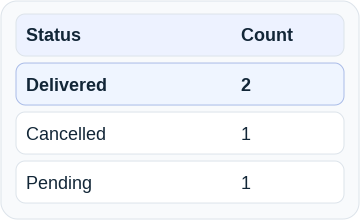
  sheet.getRange("D1:E4").setValues([
    ["Status", "Count"],
    ["Delivered", counts.delivered],
    ["Cancelled", counts.cancelled],
    ["Pending", counts.pending]
  ]);
  console.log("Validated records: " + seen.size);
  return seen.size;
}- Read a rectangle once: The source returns a two-dimensional list. Its first row is indexed as zero in TypeScript. Index one is the first order at worksheet row two, so index plus one gives the worksheet row for a message. Use the same shape for all source and input tests.
- Count only accepted rows: A Set holds seen order IDs. Storing each normalized key once catches repeated IDs before the final write; a number of records alone cannot detect a duplicate. Check for a known status before increasing its count. Unexpected input is an explicit failure.
- Put results in a matching grid: The output matrix has four rows and two columns. The first is a heading row. Each other row contains a label and count. The exact D1:E4 range fits that shape. The independent return reports the number of accepted keys, not the number of worksheet cells written.
Confirm the counts and one intentionally rejected change
- Run the script with the original four rows. Read 2 for Delivered, 1 for Cancelled and 1 for Pending. Expect the log to mention four accepted records. Sum the three counts independently and confirm the source IDs and F1 marker remain.
- Change Pending on row five to Delivered in the practice file. Run again and expect 3, 1, and 0 in the same output cells. The record count remains four. A category with no records is visible as a true zero instead of disappearing from the summary.
- Change the same cell to an unsupported status. The new run should fail with a row-five message before writing. The earlier summary of 3, 1, 0 is still a historical result, so do not present it as current. Restore Pending and verify that 2, 1, 1 returns after a successful run.
- Put an existing normalized ID in a second row temporarily. The script rejects the repeat before any output write, even if the statuses themselves would give plausible counts. Restore the initial four keys to finish. Write down which failures preserved the prior values and which successful run created the current result.
Keep the script's storage separate from the workbook's
Identify the source that a teammate actually needs
A script opened from the Automate tab is a separate resource from the current workbook. In Microsoft's business storage description, scripts ordinarily use the Office Scripts folder in OneDrive and can have the .osts file format. A script can also be stored in approved SharePoint storage for a team. Microsoft describes a move from legacy local storage toward OneDrive for Personal and Family preview. Follow the primary documentation for the actual account rather than assuming every client uses one folder structure.
Suppose a colleague opens a copy of ScriptPractice.xlsx and sees the last Checked by script note. That is a saved cell value. It does not establish that they have access to Mark Training Orders Checked. An eligible script owner can associate a script with a workbook through the supported sharing controls, subject to account and permission settings. The workbook and automation still have distinct ownership and availability. For a wider release, identify which account maintains the script and who can run it.
- Share a saved result: A recipient may only need the summary and the source count. If sharing is authorized, label the dataset and run that produced the last output. The person reading an existing summary need not be able to run the script.
- Share the automation: Use the supported script sharing route under the organization's policy. A workbook copy alone does not place a separate script file in the recipient's account. Determine whether they have the appropriate access to the workbook and the associated script.
- Add a worksheet button when available: In a supported environment, you can associate the script with the workbook and add a button through the script interface. Such a button is a way to invoke the existing action. It does not change the inputs, privileges or output range. Test direct execution before adding another trigger.
- Plan an unattended run separately: A Power Automate action uses its configured account, script and workbook. A person clicking a worksheet button is a different trigger. Validate the destination file, prepared table and permitted connector for the automated context before starting a flow.
Read the service limits in their documented scope
Excel on the web documents limits on the amount of data exchanged in individual Office Scripts requests and responses, currently five megabytes, as well as a five-million-cell range limit. Large workbook actions may need smaller explicit ranges. Estimate both the number of cells and the amount of data. A short label in many rows can behave differently from paragraphs stored in fewer cells. The four-row exercise avoids those concerns to teach the workflow first. Check current Microsoft documentation before planning a larger run.
Splitting a large input into bounded batches gives more control over resource limits, but it adds decisions about alignment and output consistency. For a status sum, each source row belongs to one batch. If an ID appears on either side of a batch boundary, an independent duplicate check may still need to remember earlier rows. Read multiple known rectangles and combine their accepted counts according to the same rules. If a later batch fails, determine whether any report area was already written and how a reviewer recognizes an earlier result. The simple lab stages one clean result and writes it once.
Explain errors from the workbook and the script separately
Match the failure message to the boundary that failed
- Automate missing: Check the actual Excel client, account and supported license requirements. Compare whether connected experiences and organization policy permit the tool. A browser condition can also affect it. Use a paper trace or another approved client if the feature is unavailable. Do not change managed policy while following a practice example.
- Script unavailable to another user: Check which script is in their account or associated with the workbook, and compare their eligible permissions. Creating a workbook copy can preserve its cells without providing the script file. Verify both resources explicitly before assuming code was lost.
- Missing Orders: Confirm that the workbook passed to main is the intended practice workbook and has a tab called Orders. An eligible editor and good source code will still fail if the chosen file lacks the sheet. The fault occurs before any range lookup.
- Duplicate or missing ID: Read the named worksheet row and inspect where its key came from. The example combines rows by unique IDs. A duplicate in a small list can still leave the total number of rows and even all status counts looking plausible. The accepted ID check protects a separate rule.
- Old summary seems current: A rejected run can leave earlier outputs in D1:E4. Look for the latest accepted count and actual results after fixing the source. A message about an unsupported status means no new verified summary was produced. Do not relabel old results with new source information.
Ask the workbook three concrete questions
First, does Orders have the expected headings at A1:B1? In the tiny dataset, replacing Status with a date field can introduce data that looks valid but belongs to a different report. The schema check rejects the changed heading. Second, are the four expected record positions complete and distinct? The Set prevents a repeat within this fixture. Third, do the counts make sense compared to the source? Delivered should be two in the original data. If you need this summary for a growing list, describe a named table or another dynamic boundary and test how the new shape affects both the read and the four-cell report.
Keep a short verification note when trying a separate eligible desktop client. Use the same lab file and input values, verify that the script has the same version and inspect the resulting worksheet cells. Observe J1, K1, F1 and the summary separately. A console message proves only that a particular code path reached the log. The actual workbook is independent evidence of what changed. A successful run on one supported client also does not guarantee that all scripts or features will be identical on another build.
Prove an edit with a worksheet calculation too
Beside the original dataset, use an independent worksheet COUNTIF on B2:B5 for Delivered, then repeat it for Cancelled and Pending. This clean data yields 2, 1 and 1. Change row five to Delivered and expect 3, 1 and 0. The worksheet formulas update on calculation, while the script's stored summary needs another successful run. Once you introduce an unsupported status, a clean subtotal may no longer cover four rows. Write a separate check for accepted count, and read the script's row error before presenting the totals.
=COUNTIF(B2:B5,"Delivered")
=COUNTIF(B2:B5,"Cancelled")
=COUNTIF(B2:B5,"Pending")
These worksheet checks assume the plain original labels for the comparison. The script normalizes case and removes ordinary surrounding whitespace. If you intentionally put leading spaces in a test row, be explicit about whether the independent formula performs the same normalization. A discrepancy between two calculations can come from different input definitions rather than a broken tool. In the original lab you know the exact source values, so no such difference should occur.
Suppose row two is delivered and row five changes to delivered with the same ID copied from row two. Your worksheet checks can still report three delivered statuses. The script fails the repeated key check and leaves the previous summary. This is the difference between counting cell values and accepting four distinct order records. Audit a duplicate and a changed status as separate cases.
Plan a more useful action after the first script passes
Choose a fixed note or a stage indicator with meaning
Checked by script in K1 is a beginner's visible write. In an operational report, define which checks that message summarizes. The hello script checks the workbook shape needed to add a note. It does not inspect whether every order contains a valid status. The summary script checks four expected records and an exact header. It does not verify source freshness. A real report can show separate state for a validated summary, checked source version and successful output. That makes a watermark useful rather than just decorative.
A scheduled flow can help if the task must occur when an analyst is away. First ask the workbook owner whether the source is already in the appropriate file and how to identify a current input. Confirm eligible licensing and permission before starting. The small script on this page runs inside an authorized interactive session and uses a named worksheet. The scheduling lesson covers how to configure which workbook is supplied, and why support for an API in Excel does not establish the same behavior inside a flow.
On a paper trace model what happens when an invalid response occurs after two loaded records. The script holds the partial counts in local variables until all records meet the rules. The known output range stays unchanged because it is written only at the end. If you propose logging provisional counts for debugging, label them as partial and do not use them as the release report. Build a successful first case, then test the intended error message using an unknown status or repeated key.
Explain the boundary in your own words: Identify the workbook file, script resource, account, input data and target cells. Say what a runner in a different Excel context would need before trying the same action.
Trace a type and shape mismatch before it reaches the workbook
Learn the minimum TypeScript needed for these two actions
TypeScript lets the reader and editor distinguish an object from a scalar value. In the first example the variable sheet is either an ExcelScript worksheet or undefined, so a lookup needs the condition before you can safely call getRange. The Range object is different from the data it represents. Use getValue to read one cell, getValues to read a grid, and setValues to send a grid to a matching target. In the second script, the array of rows is data already read from Excel. Searching it with the TypeScript loop does not move the worksheet cursor. Writing the four-by-two result is a separate action.
- A single worksheet cell: Orders K1 is a Range object referring to one cell. Its current data can be a number, Boolean or string. If the initial value is a number in this example, it fails the exact allowed-state check. The guard will not replace it with the training note.
- A two-dimensional grid: Orders A1:B5 returns five arrays, each with two fields. The input title and four records are in a known order. The program uses the first two values to check the expected header before processing the remaining rows. A flat list would not retain the row and column arrangement needed by the status reader.
- A destination with known dimensions: The summary consists of four exact rows. Replacing D1:E4 with D1:E3 while keeping the same array would create a size mismatch. Decide the target geometry and match the number of rows and columns. Describe that expectation in a test before changing the target address.
Try a paper version of a type change. Put an actual numeric 101 in A2 instead of the text SC-101. The record's ID no longer has the kind of value expected by the script. The guard will report the row before the Set comparison and before any summary write. Changing that number's display to have a prefix would not change its type. Restore the actual text ID for the original fixture. Next try a valid text ID and a blank status. The blank can return an empty string, but after normalization it cannot match an allowed status and is rejected. Both observations expose why type and business validation are separate.
Choose a clear name for each script trial
Save the note and status summary as separately named scripts in your supported practice environment when allowed. When experimenting with the K2 variation, keep the original K1 version available for the demonstrations that still refer to it. Give the changed version its own name or explicitly document it as a reviewed revision. Another learner should be able to tell which script was executed from its title, named workbook and resulting cell. An old worksheet note can otherwise give the appearance that the new variation did the expected work. Reset only the reserved K2 cell before testing that variation. Keep the first note in K1 visible as a comparison. A new Report ready message should then be traceable to the exact approved result cell.
Once you have two verified actions, consider recording a simple formatting step in the next lesson. Keep the data and method independent. One script can supply the counts while another applies a header style. Verify the sorted source and visible result to make sure the new action did not replace the data-dependent check.
Quick checks
Find the program, its workbook and the observed result
What does main receive from Excel?
It receives the workbook object supplied for that run. Your code chooses a named worksheet and source and output ranges within it. A flow receives a workbook configured by the connector. The exact name of a sheet does not choose which workbook file was supplied.
Are the two messages in the first lab saved in the same place?
The worksheet stores the text Checked by script in K1. The script prints Hello from Office Scripts to the output pane during execution. The code's returned string is a separate function result. Checking both the workbook and the log tells you where each part of the lesson ran.
Why test whether the worksheet lookup is undefined?
The intended workbook may not contain the Orders tab. Stop with a named diagnostic before trying to call a range method on a missing object. Verify the supplied file and sheet rather than using the current tab as an unreviewed fallback.
What happens if the Pending row becomes Delivered?
The next valid summary reports three Delivered, one Cancelled and zero Pending. There are still four different IDs and the same four-row scope. If the previous result appears until another run, check the script returned a current success before treating it as the new report.
Why might Automate be unavailable despite an active Excel subscription?
Check the applicable plan and client, signed-in identity, connected experiences, organization settings and supported storage. Preview eligibility for a personal subscription has specific current requirements. A single account or workbook name does not tell you which capabilities are available.
What differs between two rows with the same ID and two rows with the same status?
Different valid IDs can both have Delivered, and the script should count both. A repeated normalized ID violates the fixture's uniqueness assumption and causes rejection. The status count cannot substitute for a key check.
Interview and discussion
Explain the workflow using one real test boundary
When would an Office Script be a good choice for workbook actions?
If an eligible team wants repeatable supported actions in Excel for the web or another supported client, an Office Script can make the steps and targets explicit. It can also integrate with an approved flow when required. Verify supported APIs, user and workbook connections before relying on it for an operational result.
How would you make a simple script safe to run when a different tab is active?
Retrieve the required worksheet by name from the supplied workbook, then verify its schema and read the exact inputs. Give the report a reserved target. Handle a missing sheet before writing and confirm a known output and one unchanged marker in a test file.
How do you choose between the Action Recorder and the Code Editor?
Use the recorder for a known manual action you can observe and inspect. Use the editor when you need explicit variables, multiple cases or validation before writes. A recorder output can be a useful starting point in the editor, provided you read its assumptions and test the changed versions separately.
Why should a workbook summary record whether the last run succeeded?
A rejection can leave previously stored values in the workbook. The source may have changed since those values were accepted. Check the workbook data, accepted record count and failure or success feedback for the current run. A visible table alone may belong to another execution.
What do you verify when a script must be usable by another colleague?
The colleague needs a supported client and account, permissions for the workbook and access to the script under organization policy. Verify the named workbook and key fields and test a known result. Use the relevant support docs for sharing and the current plan constraints.
Six recall cards
- Script language
Office Scripts use TypeScript and the ExcelScript workbook API.
- Workbook supplied
The caller of main supplies the workbook. Find the expected named sheet before using a range.
- Availability
Check client build, account, license, policies and supported storage. Personal preview and flow licensing differ.
- Separate resources
The workbook can keep result cells while the automation belongs to a separately stored script.
- Know the write scope
The first script writes K1. The second writes D1:E4 only after verifying four distinct source records.
- Check the result
A successful original summary gives two Delivered, one Cancelled, one Pending and four distinct keys.
Microsoft references
Continue practising: explore the existing Excel Task Hub for additional exercises.