Bill Payment Reminder in Excel: Highlight Due and Overdue Bills Automatically with TODAY
Zoya in Solapur once paid a ₹100 late fee on a ₹740 gas bill just because the date slipped her mind. Bills arrive at different dates through the month: electricity, credit card, internet, insurance. This sheet looks at today's date every time you open it. It paints overdue bills red and bills due within a week amber, and it tells you how much you need in the bank this week.
What you'll learn on this page
- TODAY() in one cell, used by every formula
- Days left = due date − today
- An alert word with nested IF
- Whole-row colours with formula rules and the right rule order
- Overdue and due-soon totals with COUNTIF and SUMIF
- Next month's due date with EDATE
Download the template: bill-payment-reminder-template.xlsx: example data with real formulas. Yellow cells are inputs you can type over; green cells hold formulas; blue rows are headers and totals. Replace the example data with your own and everything recalculates.
Made-up data: every name, amount, shop and date on this page is made up for practice. Cities are used only to make the examples feel real.
1. The example
Zoya's bills (made-up), checked on 17 October 2026:
| Bill | Amount | Due | Days left | Alert |
|---|---|---|---|---|
| Water tax | ₹1,150 | 09-10 | −8 | Overdue |
| Electricity | ₹1,280 | 14-10 | −3 | Overdue |
| Credit card | ₹8,640 | 19-10 | 2 | Due soon |
| Piped gas | ₹740 | 21-10 | 4 | Due soon |
| Internet | ₹799 | 24-10 | 7 | Due soon |
| LIC premium | ₹6,200 | 28-10 | 11 | Later |
Mobile and society maintenance are already Paid. Summary: 2 overdue bills, ₹2,430 (1,150 + 1,280). 3 due within 7 days, ₹10,179 (8,640 + 740 + 799). Unpaid this month: ₹18,809.
The template uses =TODAY(), so when you open it on another day the days and colours change on their own.
Figure 1. One TODAY() cell drives everything: days left, the alert word and the row colours. Order of tests: Paid, Overdue, Due soon, Later.
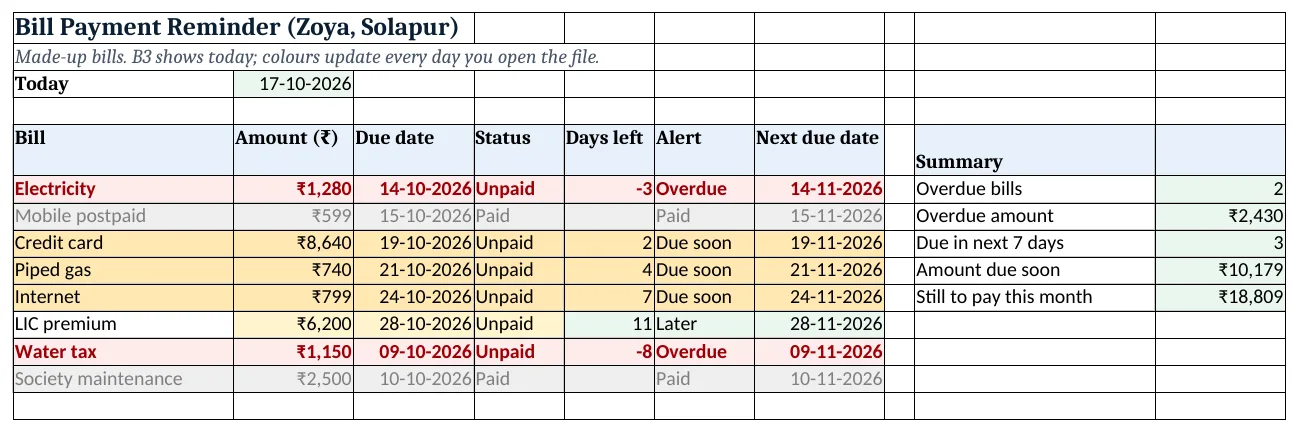
Figure 2. The template sheet, recalculated with its example data. Download it above and replace the yellow cells with your own numbers.
2. Build it step by step
Step 1. Today's date
- In A3 type Today and in B3 type
=TODAY()(TODAY).
Step 2. The bill list
- In A5:G5 type Bill, Amount (₹), Due date, Status, Days left, Alert, Next due date.
- Type bills, amounts and due dates from row 6 (yellow cells).
- Select D6:D200 > Data > Data Validation > List:
Paid,Unpaid.
Step 3. Days left
- In E6 type
=IF(D6="Paid","",C6-$B$3)and copy down. - A minus number means the due date has passed. A paid bill shows nothing.
Step 4. Alert word
- In F6 type
=IF(D6="Paid","Paid",IF(C6<$B$3,"Overdue",IF(C6-$B$3<=7,"Due soon","Later")))(nested IF). - The order matters: check Paid first, then Overdue, then Due soon.
Step 5. Next due date
- In G6 type
=EDATE(C6,1): the same day next month. After paying, copy it into the Due date.
Step 6. Colour whole rows
- Select A6:G200 > Home > Conditional Formatting > New Rule > Use a formula (formula rules).
- Rule 1:
=$D6="Paid", grey font and fill. - Rule 2:
=AND($C6<>"",$C6<$B$3), red fill. - Rule 3:
=AND($C6<>"",$C6-$B$3<=7), amber fill. - Open Manage Rules and keep the order Paid, Red, Amber with Stop If True ticked, so a paid overdue bill stays grey.
Step 7. Summary
- In J6 type
=COUNTIF(F6:F13,"Overdue"): 2. - In J7 type
=SUMIF(F6:F13,"Overdue",B6:B13): ₹2,430. - In J8 and J9 use "Due soon": 3 bills, ₹10,179.
- In J10 type
=SUMIF(D6:D13,"Unpaid",B6:B13): ₹18,809.
Ravindra Bagale's Tip
Pick one "bill day" each week, say Saturday morning. Open the sheet, pay everything amber or red, and set the Status to Paid right there.
Ravindra Bagale's Tip – मराठी
आठवड्यात एक "bill day" ठरवा, म्हणजे शनिवार सकाळ. Sheet उघडा, amber किंवा red सगळं भरून टाका आणि तिथेच Status Paid करा.
Ravindra Bagale's Tip – हिंदी
हफ्ते में एक "bill day" तय करो, जैसे शनिवार सुबह. Sheet खोलो, जो amber या red है सब भर दो और वहीं Status Paid कर दो.
3. Formulas used
| Cell | Formula | What it does |
|---|---|---|
| B3 | =TODAY() |
Today's date (changes daily) |
| E6 | =IF(D6="Paid","",C6-$B$3) |
Days left, blank if paid |
| F6 | =IF(D6="Paid","Paid",IF(C6<$B$3,"Overdue",IF(C6-$B$3<=7,"Due soon","Later"))) |
Alert word |
| G6 | =EDATE(C6,1) |
Same date next month |
| J6 | =COUNTIF(F6:F13,"Overdue") |
How many bills are overdue |
| J7 | =SUMIF(F6:F13,"Overdue",B6:B13) |
Overdue amount |
| J8 | =COUNTIF(F6:F13,"Due soon") |
Bills due in the next 7 days |
| J10 | =SUMIF(D6:D13,"Unpaid",B6:B13) |
Unpaid total |
Every formula above is written in the template, so you can click a cell and see it in the formula bar. All values on this page were recalculated in the file.
4. Common mistakes
- $C6 vs $C$6 in the rule. The rule is written for row 6 but used on every row. Lock only the column (
$C6), not the row, or every row copies row 6's colour. - Wrong rule order. If the red rule is above the Paid rule, a paid bill that was overdue stays red. Paid must be first with Stop If True.
- Due dates stored as text. C6-$B$3 then gives #VALUE!. Type real dates.
- Typing today's date by hand. A typed date never moves. Use
=TODAY()so the sheet is right every morning. - Blank rows turning red. An empty due date counts as 0, which is before today.
$C6<>""inside AND stops that.
Ravindra Bagale's Tip
Keep TODAY() in a single cell (B3) and point everything to $B$3. To test the sheet for a future date, type that date in B3 for a minute, then put =TODAY() back.
Ravindra Bagale's Tip – मराठी
TODAY() एकाच cell मध्ये (B3) ठेवा आणि सगळीकडे $B$3 वापरा. पुढच्या तारखेला sheet कशी दिसेल ते बघायचं असेल तर B3 मध्ये ती तारीख टाका, मग पुन्हा =TODAY() टाका.
Ravindra Bagale's Tip – हिंदी
TODAY() एक ही cell (B3) में रखो और हर जगह $B$3 इस्तेमाल करो. आगे की तारीख पर sheet देखनी हो तो B3 में वो तारीख डालो, फिर वापस =TODAY() लगा दो.
5. More real examples
Example 1: Credit card statement. Add a Minimum due column and alert on the full amount; the late fee hits if even the minimum is missed.
Example 2: Yearly bills. For insurance or property tax use =EDATE(C6,12) for the next due date.
Example 3: Rent collection for a landlord. Same sheet with tenant names instead of bills; Overdue means the rent has not come yet.
Quick revision cards
Quick revision
Each card shows formulas from this page, each with an example and its answer from the template. Scan the QR code on a card to open this lesson. All names and numbers are made up for practice.
झटपट उजळणी
प्रत्येक card वर या page मधले formulas, त्यांचं example आणि template मधलं उत्तर आहे. Card वरचा QR code scan केला की हा lesson उघडतो. सगळी नावं आणि आकडे सरावासाठी काल्पनिक आहेत.
झटपट दोहराई
हर card पर इस page के formulas, उनका example और template का उत्तर है. Card का QR code scan करें तो यह lesson खुलेगा. सभी नाम और आंकड़े अभ्यास के लिए काल्पनिक हैं.
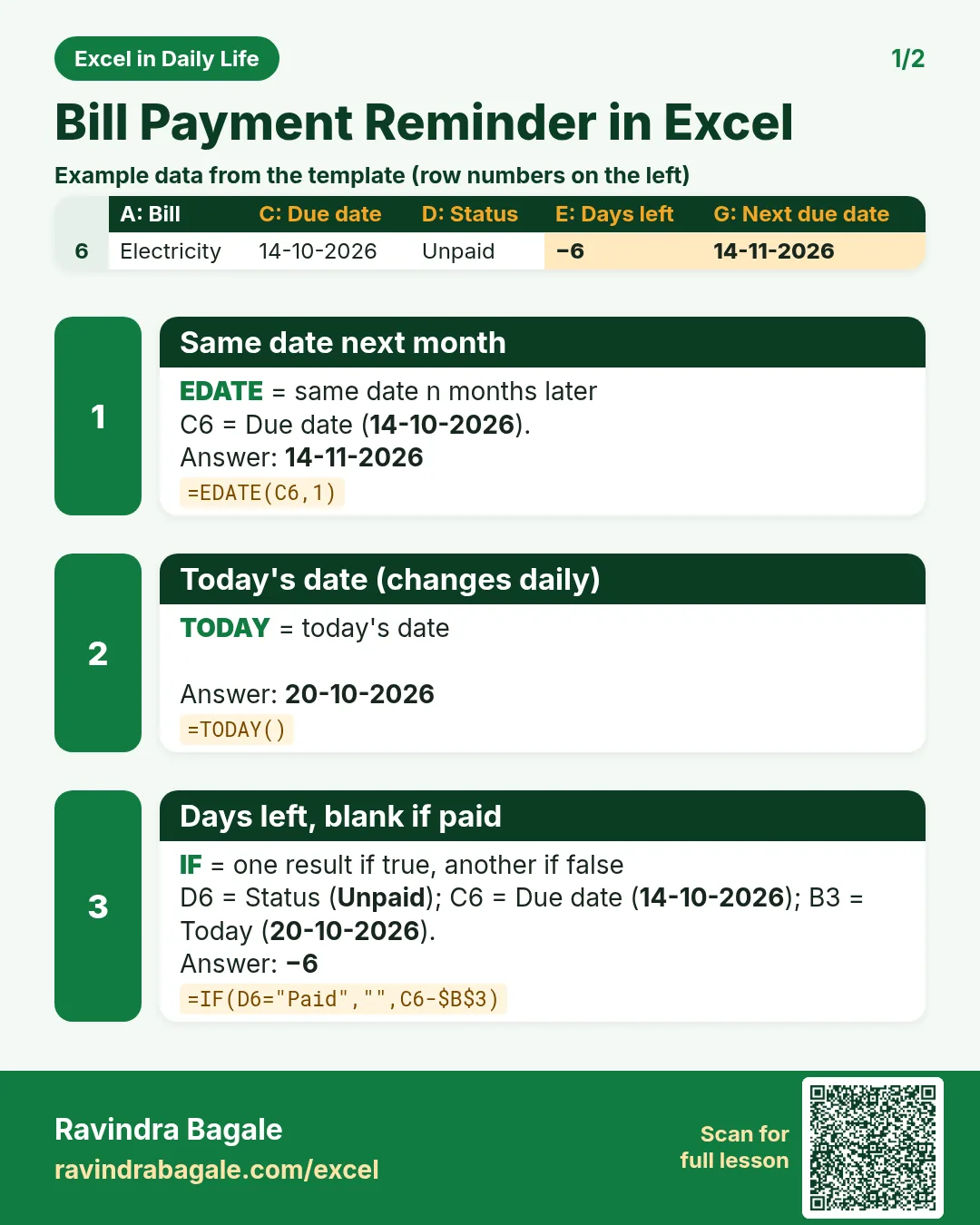

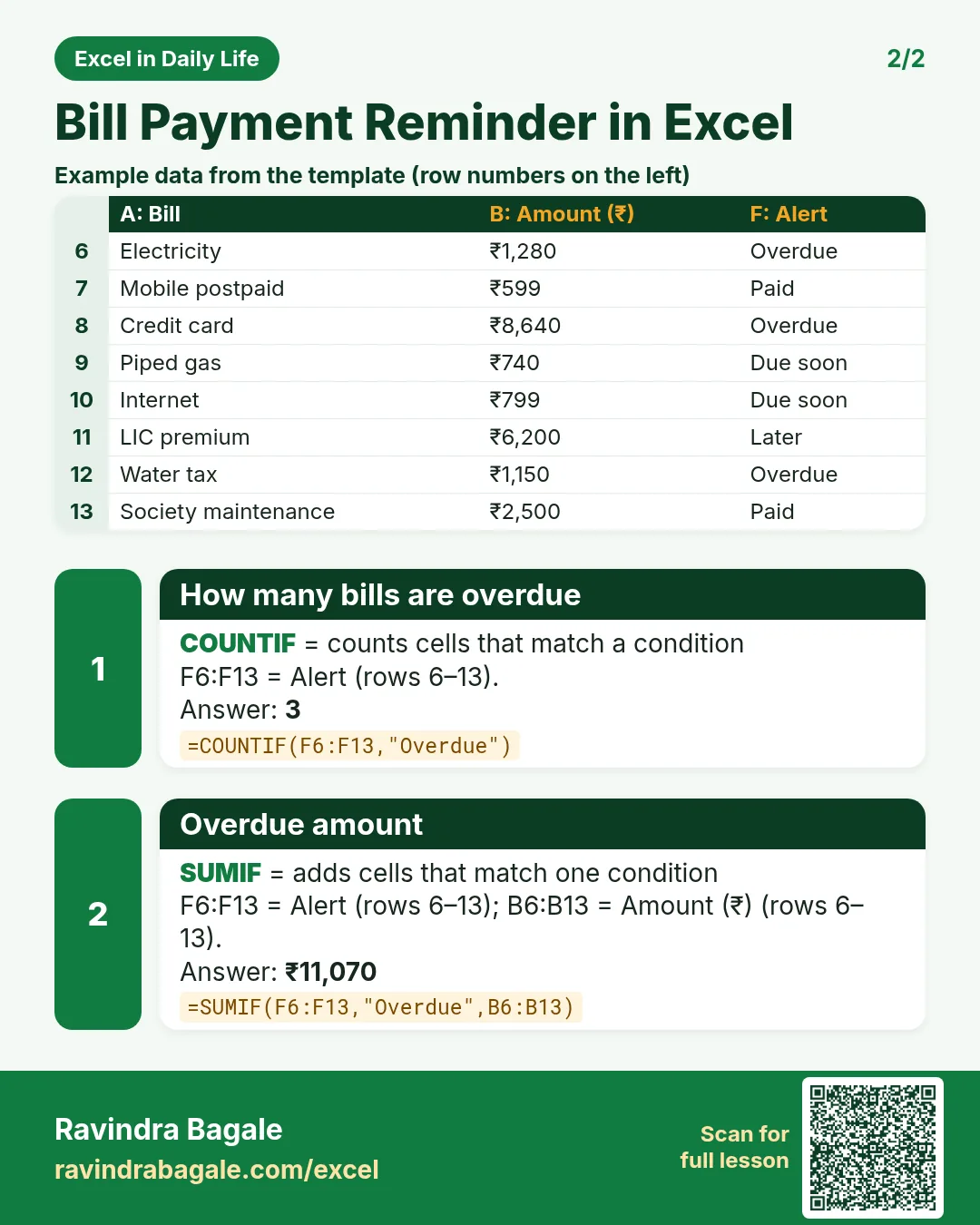

More cards: Ravi Sir's Cards.
6. Frequently asked questions
How do I highlight overdue dates in Excel?
Conditional formatting rule with a formula: =AND($C6<>"",$C6<TODAY()) and a red fill. Using a cell with TODAY() (B3) keeps every rule pointing to one date.
How do I show days remaining until a due date?
=C6-TODAY(). A negative number means it is overdue.
Will the sheet update tomorrow by itself?
Yes. TODAY() recalculates whenever the file opens or changes.
Can Excel send me a reminder?
A normal sheet cannot send messages. Open it once a week, or keep it on your phone in the Excel app.
How do I get next month's due date?
=EDATE(C6,1) adds one month and keeps the day, for example 14-10-2026 to 14-11-2026.
7. Quick quiz
Ten questions on this page. Sign in to save your score.
Loading practice tasks...
- Total amount (Easy): Add up Amount (£) in C2:C11. (sheet "Data")
- Total paid (Easy): Add up Paid (£) in E2:E11. (sheet "Data")
- Due bills (Easy): How many rows have Status "Due"? (sheet "Data")
- Min days until due (Easy): Smallest Days until due in D2:D11. (sheet "Data")
- Pune rows (Easy): How many rows have City "Pune"? (sheet "Data")
- Due amount (Medium): Total of Amount (£) where Status is "Due". (sheet "Data")
- Days under 7 (Medium): How many bills have Days until due < 7? (sheet "Data")
- Amount of Rent (Medium): Amount (£) for Bill "Rent". (sheet "Data")
- London amount (Medium): Total of Amount (£) where City is "London". (sheet "Data")
- Share Due amount (Hard): Due amount / all amount, 3 decimals. (sheet "Data")
- Unpaid gap (Hard): Total Amount (£) minus total Paid (£). (sheet "Data")
- Above avg amount? (Hard): "High" if C2 > average amount else "OK". (sheet "Data")