2. Data Entry Tools
1. Build a tracker that catches mistakes while you still have the receipts
Imagine a campus food festival. Three volunteers add supplier requests to a shared Excel workbook. One pastes orders from a message thread, another updates the pickup status, and a third needs to tell the coordinator which orders are ready. In the end, the workbook contains Ready, Redy and Ready for pickup. A filter for Ready misses some of the records. Two requests also carry the same ID. Somebody colours one row green and sends the file. The green fill says more about the last editor's choice than it says about the order.
You can avoid most of that rework with a few deliberate controls. Continue predictable dates with a fill. Create a spare column when you extract a label from text. Stop easily recognised typing mistakes with rules. Offer a small list of choices for categories. Then flag what still deserves attention. Use the same small tracker as a working example and add the controls in that order.
Keep four jobs separate. Generate entries that follow a pattern. Transform source text into a new column. Check inputs as they are entered. Highlight records to review. Each tool has a different job, so check a different result for each one.
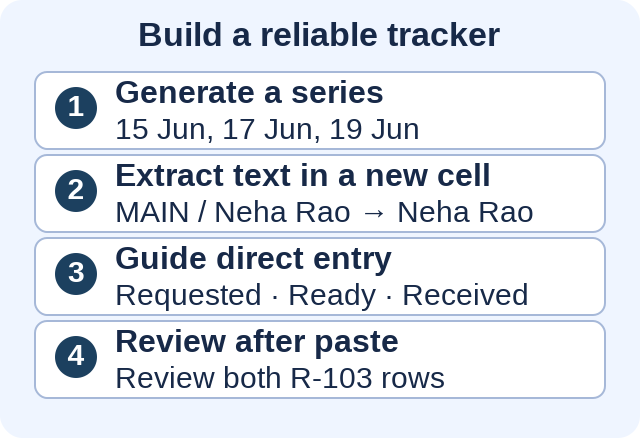
Give each field a job before adding controls
Adopt the idea from a familiar workflow. Someone placing a food order through Swiggy needs to know the items, destination and order status. A small campus food festival can build its own simple tracker with the same kinds of questions. The sample numbers, statuses and rules in this chapter are fictional, and they describe our practice workbook. They carry no information about how a real company's internal system works.
- Request ID identifies the request. Treat codes such as R-103 as text. A duplicate ID might mean a duplicate row or an identity collision. Compare the source before deleting anything.
- Contact and pickup zone name the volunteer or location. Source text can include punctuation and multiple words. Extract a working label alongside the original so that someone can check it later.
- Quantity holds a whole number of trays. Our convention is 1 through 30 while a request is active. A refund ledger could legitimately accept negative adjustments in another column, under another rule.
- Status uses a short vocabulary. The tracker offers Requested, Ready and Received. Pick words with meanings a new volunteer can distinguish. A blank status says the field remains incomplete.
- Quote (INR) holds a number. Establish the currency and use an appropriate number format. A negative adjustment or a zero quote needs its own definition before you treat it as an error.
Keep one request on one row and place the headings above the records. Avoid blank rows inside a source block unless you intend them to have a meaning. Leave a separate area for controls and totals. When the tracker grows, an Excel Table can help keep headers, data and future rows together. A source list of status options should live outside the active records. We put it on an Options sheet so the volunteer responsible for vocabulary knows where to edit it.
Choose a test record before opening a menu
For any control, name a case that should pass, a case that should fail and a case at the boundary. A span from 1 to 30 includes 1 and 30. A quantity of 0, 31 or 1.5 should fail. A duplicate alert should mark each matching request ID while leaving a similar new ID alone. A request can still lack a receipt even after its status is Ready. This short conversation about rules is more valuable than browsing every option on the ribbon.
2. Generate the planned entries, then verify the pattern
Use AutoFill for a sequence that you can describe
Start with a planned delivery over six days. If the schedule is every day, type a genuine Excel date and continue a day series. If it is every second day, make that gap visible by typing the first two dates and selecting both before filling. The fill handle is the small control at the lower-right of a selection in a desktop worksheet. Drag it across the target area and then read the first new value and the last one. Filling a worksheet is quick enough to repeat after Undo if you see a copied value instead of a series.
Think of the first entries as instructions to the tool. The numbers 1 and 2 suggest a step of 1. The numbers 2 and 4 suggest a step of 2. A single numeric seed can be copied rather than incremented, so use two seeds to show the intended pattern or choose Fill Series explicitly where available. A genuine date, a text label that looks like a date and a formula that shows a date can give different results when filled. Check the resulting data type before relying on a schedule.
- Fill a sequence for trial dates or dummy rows whose order is yours to decide. Preserve real source request IDs, supplier codes and dates as received.
- Use the Auto Fill Options control if your app offers it after dragging. Copy Cells repeats contents, and Fill Series extends a pattern. Available choices can depend on the input and edition.
- Take care when filling formulas. A reference can move with the output row. Check the formula in the first and last generated cells, especially if a multiplier or exchange rate lives in a fixed cell.
- On desktop, fill options for dates can distinguish days from weekdays or months. Weekdays exclude weekends in the built-in option. The tool does not know the festival's closure days. Use a documented business-day formula and holiday list for a real schedule requiring that policy.
Use Flash Fill when the pattern is inside text
A campus staging message might refer to MAIN / Neha Rao. The pickup zone belongs to the left of a separator and the contact belongs to the right. Flash Fill can infer an extraction from examples in a new column. Put an example immediately beside a consistent sample. Choose Data > Flash Fill in a supported desktop Excel edition. On Windows desktop, Microsoft also documents Ctrl+E. Give it another representative example if the first result guesses the wrong pattern.
Read the outputs around unusual records. A person can have two or three given names. An organisation could include slashes as part of a name. A row with no separator should not become a confidently wrong name. A prediction is fast, and its output is an ordinary filled value. If the source text changes after you ran Flash Fill, the earlier values do not recalculate. A formula or a Power Query step is a better fit when the exact extraction needs to run again on every import. Match the method to how often the task returns.
Recall. A volunteer needs a two-day schedule, short labels from text, and names that will always change when the source does. Decide which of the three tasks can use AutoFill, which can use a checked Flash Fill pass and which needs a live formula or refreshable transformation.
3. Make it easy to choose valid inputs
Set a rule that matches the field
In the Data tab, Data Validation lets you describe what belongs in the selected cells. Choose a whole-number rule for 1 through 30 trays. This gives Excel a way to catch an out-of-range number when someone types it directly. Add an input message such as Enter the number of trays. Use a whole number from 1 to 30. Configure a Stop error alert for direct entries the user must correct. Try typing 30 and then 31 in a spare test cell carrying the same rule.
If a workbook allows users to continue on a Warning or the information-style alert, that choice should match your workflow. A student draft might accept a rare override so the coordinator can investigate it later. A per-stall tray count has a firm physical maximum in this practice exercise, so Stop is appropriate when typing. Keep the user-facing message specific. Maximum 30 trays per single request tells them what to fix. Invalid value asks them to guess.
Validation helps at entry and needs a second check after import or paste. Microsoft documents that copied or filled data can get past the entry messages. Existing values also do not automatically become valid when a rule is applied. On supported desktop versions, Circle Invalid Data helps find existing entries that disagree with the surviving validation rules. A formula or a filter on a helper column makes a useful independent review and can be checked even if your edition lacks the desktop circle tool.
Offer a list when there are a few approved words
If the Status choices are Requested, Ready and Received, give people a list under Data Validation > Allow > List on editions that expose it. Switch on the in-cell drop-down. Use the three labels as a small fixed list, with the delimiter expected by your locale, or point to a range. A dropdown encourages consistent input and keeps meaningful spellings visible. Some users may type similar text, and typed case is not a reliable means of enforcing canonical case. Prefer selecting from the list and verify imported values separately.
Consider a grocery app such as Blinkit where a customer selects an available option instead of guessing how it is written. In our practice workbook, a Ready value should mean the supplies are ready for pickup. Received means the volunteer has them. Those are separate states. If they are mixed together as Done, no amount of validation can restore that distinction. Choose categories based on how the volunteer would make a decision today, then write the definitions beside the source list.
Decide whether one list depends on another
Suppose the festival lets clubs select a venue and then a pickup desk. If the venue is the Library, the desks are Ground floor and Study hall. If the venue is the Sports block, the desks are Gate A and Gate B. A dependent drop-down uses the venue cell to select the valid list for the desk cell on that same row. This shows fewer choices and makes incompatible pairs less likely during entry. A normal list offers the same items on every row.
Test what happens when a parent value changes after the desk filled in. In a simple dependent validation setup, changing Library to Sports block changes the available desk choices. The old chosen value may remain until cleared or replaced. Add an explicit pair check, use a clear entry order or review mismatches after changes. Keep the venue and desk on the same record. The dedicated lesson builds the dependency with range names and shows safe handling for a stale child.
Give a shared list an owner and a name
A defined name can point to a range of approved statuses. Use a clear workbook-level name such as RequestStatuses and inspect its reference in Name Manager. The validation Source can use =RequestStatuses where supported. This is particularly useful when the options live on another sheet. A fixed name that refers to A2:A4 still refers to those cells after you type A5 below them. It does not follow every row that looks related.
If the list needs to grow, store the options in an actual Excel Table and use a workbook name that points to its data column. Follow the table boundary when you add an item. Edits inside the table update the list used for new entry. A missing, retired or renamed option may still appear in old records because those cells hold previously entered values. Decide whether old states are kept as historical labels, flagged for migration or replaced after a documented review.
4. Choose a visual rule that helps someone make a decision
Highlight a threshold or a duplicate
After the volunteer squad enters the requests, the coordinator wants to find quotes that need a second approval. If stage approval begins above 2000 INR, use a Greater Than rule on just the numeric quote column. A quote of exactly 2000 does not meet that rule. A quote of 2250 does. If policy changes to 2000 or above, choose a rule that includes equality. Always test the exact boundary. Words like high and late need numbers or defined states before Excel can evaluate them.
Highlight duplicate IDs with the Duplicate Values rule before making decisions based on unique requests. A sibling campus office might insert a second row for the same underlying request with a later note. Another editor could have entered the ID twice by mistake. Both are review cases. Delete or merge a record only once you know the correct business action. A conditional format is a display wherever the condition is true.
Use ranking to select a shortlist, or scales to compare a range
The top two quotes show which orders consume the most budget among the displayed rule's underlying range. That can be a useful review when the team has only time for a few checks. It answers a different question from the 2000 INR approval boundary. If every quote is low, the largest quotes are still at the top. A tied cutoff can include multiple records, so inspect the actual values when someone means exactly two rows. Top and bottom items describe relative position in a selection.
Data bars put a visual measure inside the cell while preserving the number for the reader. Use them for numeric quotes measured in the same currency. Many default rules scale against the selected values. If an outsized quote arrives, shorter bars could reflect the changed scale without any change to the records themselves. Use the same stated endpoints when comparing separate blocks that should share one interpretation.
Colour scales let people see a pattern across a block. A shaded grid of pickup counts by hour and zone can show busy clusters. A column of rupees and a column of minutes are different units and should not share an automatic single-scale rule. Icon Sets can classify a percentage like trays received divided by trays requested. Set thresholds to numeric values for fixed targets such as 1.00 and 0.90. Check what the rule means by Percent if you use relative settings. An icon alone can hide the magnitude of the gap. Pair it with a readable number or status label.
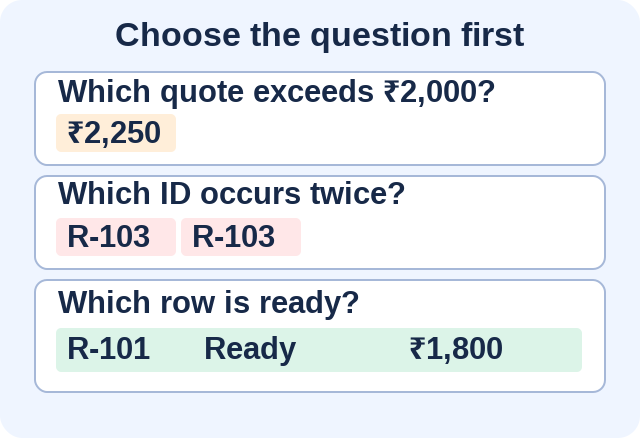
Write a row rule when the decision depends on one field in that row
You may want all columns of a Ready request to be easier to scan. Select the desired body range, such as A2:F7. Create a formula rule for =$E2="Ready". The dollar sign fixes the status column E as Excel applies the rule across the other columns. The row number 2 stays relative. When the rule applies on row 3, it checks E3. Start with a single row and a known combination of values before applying it to many rows. In the worked lab we will check additional conditions so a row with a problem does not look completed simply because its Status says Ready.
Check the Applies To range when formatting appears one row above or below a request. If the first target row is 2, a test written using E3 begins with the wrong record. If you lock the row as well as the column, every record reads the same row. Format highlights can overlap. In Manage Rules, read the order and consider which rule should win if two rules assign the same visual property. Keep an explicit audit value that filters cleanly even if multiple rules are active or the workbook is viewed without colours.
5. Lab. Prepare the schedule and contact labels
Goal. Practise two ways of speeding up data entry and choose a check for each one. Open a blank workbook. Rename the first sheet Plan. Use these dates and text samples to model a simple delivery schedule before creating the requests. Exported and pasted source records should be kept in their own worksheet or copied before transformation. Everything entered here is imaginary.
| Source tag | Expected contact label |
|---|---|
| MAIN / Neha Rao | Neha Rao |
| LIB / Zoya Jadhav | Zoya Jadhav |
| SPORT / Tenzin Dorje | Tenzin Dorje |
| MAIN / Jiya Das | Jiya Das |
Use short headings Delivery date, Visit code, Source tag and Contact in A1:D1. We assemble a schedule next to illustrative tags here to practise two operations in a small space. While entering the dates and names, leave unrelated cells outside your selection. In a real workbook each filled row should represent an actual scheduled stop.
Build a six-visit series and review a text extraction
Give Excel two genuine dates
In A2 and A3 enter
=DATE(2026,6,15)and=DATE(2026,6,17). Copy those two formula results and paste Values into the same two cells in your practice workbook, then apply a date style with a visible month. The seeds should read 15-Jun and 17-Jun in an English month view. This gives AutoFill two numeric date values rather than two formulas to copy.Extend the two-day spacing
Select A2:A3 and drag the handle down through A7. Check A4 for 19 June and A7 for 25 June. If your edition copies the pair instead of extending it, use a series option or enter
=A3+2in A4 and fill that formula down. You can verify the final step with=A7-A6as General. It should read 2. The gaps may include weekends because this example measures ordinary calendar days.Generate a visible internal code
In B2 and B3 type
V-01andV-02. Extend the two examples through B7 and check whether you get V-03 through V-06 consistently. If your edition repeats instead of incrementing, enter the four additional labels deliberately. For real externally issued codes, copy the exact source field instead of generating a similar pattern.Supply more than one example for Flash Fill
Type Neha Rao in D2 and Zoya Jadhav in D3. Try Flash Fill in a supported Excel desktop edition to complete D4:D5. Check these cells against the expected table. If Flash Fill is unavailable or guesses the wrong pattern, fill a formula such as
=MID(C2,FIND(" / ",C2)+3,LEN(C2))down the Contact field. This formula assumes the exact delimiter space-slash-space shown in the input.Prove when the output updates
Temporarily edit the last source tag to MAIN / Jiya D’Souza. The formula version follows the C5 edit. A finished Flash Fill value remains the earlier result until you update or regenerate it. Use Undo to restore the practice tag. If a future line lacks the delimiter, inspect the original manually before using either result as a contact.
Read the last planned date and last contact back to yourself. Try repeating a single date incorrectly on a copy and see which check finds the problem. Someone could drag the correct date pattern and still check the wrong last row if the selection reached A8. A good hand-off note says what you filled, the range you used and what it should end with.
6. Lab. Give the request worksheet an independent review
Goal. Protect future direct entry and find problems that already exist. Add two sheets named Requests and Options. In Options A1 put Status and in A2:A4 enter Requested, Ready and Received in that order. In Requests put the headings and six lines below in A1:F7. Enter the imperfect values intentionally before adding validation. They illustrate what a worksheet can contain after an unchecked import.
| Request ID | Contact | Pickup zone | Quantity | Status | Quote (INR) |
|---|---|---|---|---|---|
| R-101 | Neha Rao | Main Gate | 12 | Ready | 1800 |
| R-102 | Zoya Jadhav | Library | 8 | Requested | 720 |
| R-103 | Tenzin Dorje | Main Gate | 0 | Ready | 0 |
| R-103 | Aamir Khan | Sports Block | 5 | Received | 450 |
| R-105 | Mira Shah | Library | 18 | Redy | 2250 |
| R-106 | Jiya Das | Sports Block | 40 | Ready | 3600 |
- Constrain direct quantity entry. Select D2:D7 and choose Data > Data Validation > Whole number > between 1 and 30. Set a Stop alert with a short explanation. Test typing 31 into D2, reject it and keep 12. On a copy, enter the allowed endpoint 30 and confirm it accepts. Restore the supplied row. The existing 0 and 40 remain until you review them.
- Constrain new status labels. Define a workbook-level name
RequestStatusesfor=Options!$A$2:$A$4on desktop. Select E2:E7, choose List and set Source to=RequestStatuses. Enable the in-cell drop-down and the Stop alert. On an edition with fewer name tools, try a short inline list for this exercise. Test an existing legal status, then type Unavailable. The direct invalid test should be rejected under Stop without changing the stored sample. - Audit the imported data. Name G1 Repeated ID?, H1 Quantity OK? and I1 Status OK?. Put the following three formulas into row 2 and fill through row 7. The formula examples use English Excel names and comma argument separators. Use your local separators if needed.
G2  =COUNTIF($A$2:$A$7,A2)>1
H2  =IF(ISNUMBER(D2),AND(D2>=1,D2<=30,MOD(D2,1)=0),FALSE)
I2  =OR(E2="Requested",E2="Ready",E2="Received")
G4 and G5 should show TRUE because the same ID appears twice. H4 and H7 should show FALSE because 0 and 40 are outside our defined quantity range. I6 should show FALSE for the misspelling. These formulas are controls for this fixed practice table. G's COUNTIF rule is intended for its existing ID alphabet and digits. An arbitrary worksheet ID containing wildcard characters would need a literal comparison strategy. The simple status comparisons use ordinary Excel text comparison, which does not enforce case-sensitive spelling. Selecting the offered status gives the canonical label.
- Build a practical visual cue. Select A2:F7. Use Conditional Formatting > New Rule and choose the formula option on a compatible edition. Use
=AND($E2="Ready",NOT($G2),$H2,$I2). Choose a readable accent fill and apply it. Among the six practice records, only request R-101 qualifies. The others can be identified independently with their audit flags. This row cue is different from the rule that highlights duplicate IDs. - Compare before and after repair. Ask the imaginary supplier for the source before replacing an ID or quantity. For the practice check assume the correct ID for Aamir is R-104, the correct quantity for Tenzin is 3, the correct status for Mira is Ready and the correct quantity for Jiya is 30. Enter just those values. The two ID flags become FALSE, all quantity and status checks become TRUE, and the Ready rule now highlights records R-101, R-103, R-105 and R-106. Their quote amounts do not automatically change, so a different check would be needed to review price assumptions.
To practise troubleshooting, undo one correction in a copy. Predict which helper or highlight should change before pressing Undo. If the response differs, read the first row reference in the format, then look at Applies To and the exact field in the input. If the row has multiple problems, record each independently before cleaning. One green row is a useful view of this rule, and the separate flags give you a record of which checks ran.
7. Keep the tracker easy to maintain
Before handing the workbook to another shift, check one new row that sits below the old range. A rule applied only to rows 2 through 7 may not cover row 8 unless you deliberately extend it or use a suitable table setup and test the new row. A gorgeous display on existing records can miss the very next input. Enter one safe test record in a duplicate. Look at the data validation, the audit formulas and the Applies To field for conditional formatting. Undo or discard the duplicate after checking.
Leave a short note in the workbook giving ownership of the source names and the direct input rules. Suppose the coordinator replaces Received with Collected for new rows. Refresh the drop-down test and the audit formula, then decide how to handle historical rows. An itinerary report comparing yesterday and today could otherwise split the same activity across two differently named categories. The person setting the rule should explain both terms and the date when the vocabulary changes.
Use the lesson links to investigate the point where an example fails. AutoFill and Fill Series covers pattern and seed mistakes. Flash Fill covers text exceptions and recalc. Data Validation focuses on input rules and tests. Drop-down Lists, dependent lists and named lists explain options and ownership. For visual review, start with highlight and ranking rules, then explore scales and icons and whole-row formula rules.
Make each check reusable for the next shift
A change in workbook behavior is easier to investigate if you know what passed before the change. Keep a tiny test table beside the entry rules, outside the data area. Start it with one allowed and one disallowed example for each field. Use made-up records in a workbook copy. Someone preparing the next shift should be able to follow the test without guessing which source data can be edited.
| Control | Allowed example | Problem to test | Evidence |
|---|---|---|---|
| Tray quantity | 30 | 31, 1.5, or text | Direct Stop alert for invalid input, plus an independent audit |
| Request status | Ready selected from the list | Redy imported from a note | The helper can identify the misspelling even after paste |
| Request ID | A unique issued code | Two rows holding R-103 | Both duplicate records are available for review |
| Quote approval | Exactly 2000 stays outside a strict greater-than rule | 2000.01 requires review | The quote's stored number stays visible beside the flag |
Some controls should guide a person while the work is happening. Others should make records easy to review after the cut-off. Keep the status and audit fields available as plain text or TRUE/FALSE columns so users can filter without searching for a colour. If a volunteer has to read the workbook using assistive tools, the status and numeric amount still communicate the decision. A highlighted row makes the same decision easier for a sighted reader to locate. It need not carry any extra meaning by itself.
When you give a teammate the file, share two ordinary sentences alongside it. Explain where new requests go and what a valid one looks like. Explain how they can check the copied data after a paste. That note helps the next person show that an entry is ready before sorting, filtering or building a PivotTable report from it.
8. Interview questions with practical answers
When should you use AutoFill instead of Flash Fill?
Use AutoFill to continue an established sequence or copy a formula through adjacent values. Use Flash Fill to infer a text transformation from examples, such as extracting names from consistent source tags. Inspect the last planned date for AutoFill and unusual text rows for Flash Fill. The text result is a value and needs refresh or replacement if the source changes.
How would you keep a numeric input between 1 and 30?
Apply a whole-number validation for 1 through 30 with a Stop message on the input range. Test both endpoints and at least a below-range, above-range and fractional input. Add an independent audit because pasted and historical values can fall outside the rule. Check new rows after range growth.
Why would a dependent list need a separate audit?
The child choices are computed from the parent, but a change of the parent can leave the earlier stored child in place. I would test two valid pairings, change the parent on one row, then check that an incompatible old child is flagged. Document who should replace it.
When is a ranking highlight misleading?
If readers think the top two quotes passed a fixed level such as 2000, the ranking conveys the wrong thing. There are still high-ranked values in a low-quote range, and ties can widen the highlight. Use a fixed threshold for approval boundaries and a rank for workload prioritisation.
How would you diagnose whole-row shading one row out of place?
Read Applies To and the rule formula together. If the rule starts at row 2, the relative test should start with row 2. Fix the status column with a dollar sign, leave the row relative, and simulate the rule in a helper cell. Check rows that should pass and fail.
9. Predict what Excel will do
You need odd numbers 1, 3, 5, 7. How would you seed AutoFill?
Answer and reasoning
Enter 1 and 3, select both and fill the rest. The first two values describe a step of 2. Inspect the next value to ensure the controls extended the series.
You corrected the source tag after Flash Fill. Will the filled contact label change?
Answer and reasoning
The filled result is a value. Make the correction in that output or rerun the transformation. Use a formula where source changes should update the result immediately.
A workbook with a Stop rule now contains quantity 40 after an import. What would you check?
Answer and reasoning
Inspect the affected value and the rule that still applies to its cell. Copied, filled and existing data can evade the direct typing message. Use an independent quantity test or desktop invalid-data circles on the applicable range.
A new status is typed under the fixed range referred to by RequestStatuses. Should you expect it in every drop-down?
Answer and reasoning
A fixed reference to A2:A4 still covers only its cells. Edit the name explicitly or use a growing table-backed source and test the new list entry.
How many requests in the original audit lab were Ready and passed all three checks?
Answer and reasoning
One, R-101. R-103 is repeated and has zero trays, and R-106 is above the tray limit. A working Status alone cannot justify the whole-row mark.
10. Six ideas to remember
- Give each entry a job
Record one request per row. Give quantity, amount, date and status their own fields. Decide the allowable values before picking a tool.
- Show the pattern
Two seeds communicate a gap. Check the first and last generated values to catch wrong fill direction or length.
- Keep source and extracted text
Flash Fill can create regular labels quickly. Inspect exceptional rows and decide what should happen when the source changes.
- Test entry and audit after paste
Validation can catch direct typing. A helper check catches existing problems and gives you a field to filter.
- Manage vocabulary centrally
Give a shared list a documented source. Test the list after adding choices and consider existing stored responses.
- Make the colour rule explainable
Pick a readable marker, document its threshold and keep the source number or text visible. A rank or a scale has meaning inside its scope.
Microsoft references
- Fill a sequence from example data
- Fill formulas into adjacent cells
- Flash Fill and text examples
- Data Validation and entry messages
- Find existing invalid entries on supported desktop editions
- Revise drop-down sources
- Workbook and worksheet name scope
- Using table and column names
- Rules, scope, priority and formula formats
- Data bars, scales and icons