2.9 Named Lists for Drop-downs
1. Give a shared list one readable name
A student union sells merchandise for two campus events. One person enters collection points on the order sheet, another prepares the pickup schedule, and a third checks returns. A similar problem comes up when organising advance delivery for goods ordered on a site such as Amazon. The union needs its own agreed set of labels and a way to add a new pickup location. These lists are made up for practice. One scattered copy of the vocabulary per sheet would give the organisers several places to fix a spelling.
A defined name is a readable reference inside the workbook. Instead of asking each dropdown to find A2 through A4 directly, tell it to use PickupOptions. Excel can follow that name to a fixed group of cells, a column in a Table or another supported range expression. The dropdown still writes one selected value into a cell. Its name only controls where it looks for an offered list.
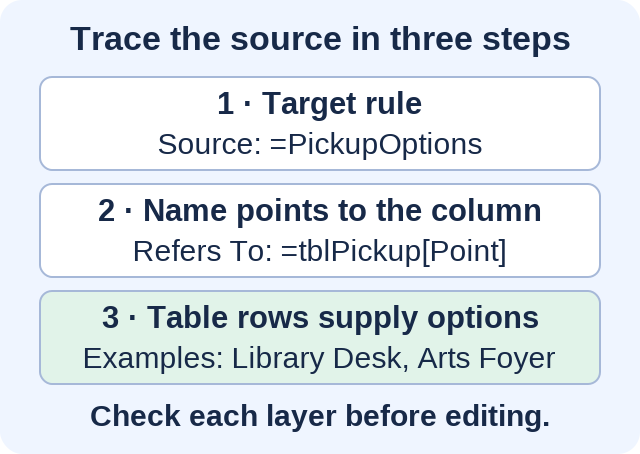
Trace three layers. The entry rule uses a defined name. The defined name points at a source. The source contains the actual options. Each layer can be tested separately when something changes.
Choose the simplest source with the right ownership
- Typed Source. A few fixed Yes or No options for a single input are easy to inspect. If several sheets have separate rules, each rule may have its own copy to maintain.
- Name pointing to a fixed address. PickupFixed can point to A2:A4 on Lists. Update a value inside those cells and the choices can reflect that edit. Append A5 and it is outside that reference until you actually expand the definition.
- Name pointing to a Table column. PickupOptions can refer to the Point data column of tblPickup. Adding or removing actual Table data rows can update the reference without rewriting every rule. Verify that the new row joined the Table.
- Name pointing to a computed list. In a newer supporting Excel build, a filtered spill can produce just active labels from a larger centre catalogue. Verify the source and spill before using it in a validation rule.
The owner of the list should be someone who knows the vocabulary's meaning. For a pickup schedule they might be the coordinator who knows when a desk opens or closes. A workbook editor can maintain the technical reference. They should not invent or delete locations without knowing how the source is used. Add short comments or companion columns with the reason for adding or changing a choice.
Understand the name and the Table as different objects
A Table is a collection of records and fields. A table name such as tblPickup identifies it. A column heading such as Point labels one field. tblPickup[Point] is a structured reference to the data entries in that column. A defined name can be the extra label that refers to that column, and the Data Validation source can call the defined name. This helps when a direct structured reference in the Source box is not accepted by an edition or setup.
Ignore the Table header and any total row for a choice list. Those cells answer different questions. A person should never be able to select the word Point just because it describes the column. A defined name can also refer to numeric data, an expression or a constant. Create the source for this exercise as an actual one-dimensional range; a name's existence does not guarantee it references a usable row or column of choices.
2. Pick a scope that works from every intended sheet
Learn which sheet can see a name
When you create a name, choose Workbook to make it available across the workbook, unless you need deliberately different definitions for different worksheets. A worksheet-level name is local to one sheet unless qualified with that sheet's name. A workbook-level name is not automatically available in other workbooks. Test it from an actual destination sheet. A list that works while selected on Lists can still be missing in Plan because the name was local.
Excel can have a local name and a workbook name with the same spelling. The local definition takes precedence in ordinary lookups on the relevant sheet. This is useful in a carefully designed template but confusing in a shared simple list. In the practice workbook, give each named list a distinct workbook-level name and avoid duplicates of that spelling on any sheet. In Name Manager read the Scope and Refers To columns together. The spelling alone is not enough evidence.
Choose a name people can enter and recognise
Use a short descriptive name such as PickupOptions. Names in Excel have syntax rules and cannot have spaces or masquerade as cell addresses. For example, using A1 for a name conflicts with the reference to column A, row 1. A name can use an underscore to separate words. The person using the workbook does not need to see that internal spelling in the offered values. The name and the values it points to are different pieces of a design.
To define a name, use Formulas > Define Name or Name Manager > New in a supported desktop edition. Type the name, choose Workbook scope and set its Refers To value. A fixed source should generally include explicit absolute references, such as =Lists!$A$2:$A$4. A relative reference within a defined name can change with the location that evaluates it. This is occasionally useful, but it is confusing for a stationary choices list. Verify the actual output from a second sheet.
If a worksheet name has spaces, the worksheet name in a formula or defined reference is typically quoted with apostrophes, such as ='Approved Lists'!$A$2:$A$4. Keep the actual sheet name and intended coordinate clear. In this exercise we use the short sheet name Lists to keep the formula readable. Do not type a display label with spaces as though it were itself the Excel-defined identifier.
Check the current definitions before you edit
Use Name Manager to inspect a source, find its current reference and check its scope. If a name shows #REF!, a deleted source or bad reference may be involved. Select the source cells or re-enter the correct Table reference on a test copy, then check the target list. Deleting the name to clear an error can break unrelated rules using it. First discover which sheets, reports and rules rely on the definition. A name used correctly from several sheets is why central management matters.
Recall. If a new pickup label exists in A5 but only three rows are offered, read the name's Refers To line. What would you expect to see if the reference is fixed? What should you check if it already points at a Table column?
3. Lab. Compare a fixed named source with a table-backed name
Goal. Add one approved option and see the effect on two otherwise similar dropdowns. Create sheets called Lists and Plan. Type the following data in Lists A1:B4. The Point field holds display labels, while Code holds separate imagined identifiers. Only Point supplies the offered list.
| Point | Code |
|---|---|
| Library Desk | LBD |
| Arts Foyer | ART |
| Gym Counter | GYM |
In Plan put From Table in C1 and From fixed range in D1. Both will start with the same three labels. Use the bound in each definition to explain the result after the list changes.
Define, test and expand the source
Create a named Table and a fixed lookup
Select Lists A1:B4 and insert a real Excel Table. Confirm the first row contains headers. Set its Table name to tblPickup under the available Table Design controls. Create the workbook-level name PickupFixed with Refers To
=Lists!$A$2:$A$4. Put the ID-like codes in their own column, outside either dropdown source.Give the Table column another name
Create a second workbook name PickupOptions with Refers To
=tblPickup[Point]. In two spare cells on Plan, use=ROWS(PickupFixed)and=ROWS(PickupOptions). Both should say 3. The check inspects the size of the reference, so also verify the three values themselves. A header or a blank included in a source could pass the size test by chance.Attach each name to a different column
For Plan C2:C7 choose Data Validation > List and set
=PickupOptionsin Source. Enable the in-cell list and Stop for unknown direct entry. Set Plan D2:D7 to Source=PickupFixedusing the same options. From both columns verify Library Desk, Arts Foyer and Gym Counter. Store Arts Foyer in C2 and D2 for the history check.Append the approved row inside the Table
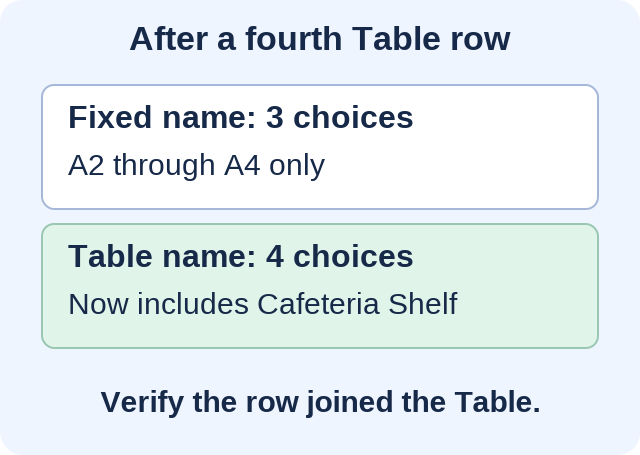
Add a Table row and put Cafeteria Shelf and CAF in A5:B5. Type directly below the table if expansion is enabled or explicitly insert or resize it. Reopen both validation lists. C should now show four choices. D should still show three. The ROWS controls should say 4 and 3 respectively when read in Table then fixed order.
Test a renamed label while keeping the recorded choice
In a duplicate change the source Arts Foyer label to Arts Entrance. Open the active lists. Both refer to a source containing that altered cell and can offer the new label. C2 and D2 already store Arts Foyer and should remain as written. Decide what the report should do with that older label before making a permanent change.
If the Table name does not expand, inspect the actual Table boundary. Typing an option in A5 is not enough when the table still ends at row 4. If the Table does include it and the list remains unchanged, verify C2's Source and the named reference. The problem can be in either place. Choose the actual destination cells before editing. Do not change D's fixed-source rule merely to make C agree.
Check duplicates and empty source rows deliberately
In another copy append a second row with the label Library Desk. The Table-backed reference includes that repeated value. A simple list presents the referenced values and is not a source-quality check. Verify whether your edition displays the repeated option and inspect the source separately. If the duplicate uses a different code, it could refer to a legitimate second desk whose display label is now too vague. If it is the same code, you need to determine which catalogue row belongs. Do not use a duplicate-removal command on the live source without first preserving and checking the expected records.
Clearing one source cell can leave its Table row in place. ROWS(PickupOptions) still counts the row position. It does not count just useful text labels. Use =COUNTIF(PickupOptions,"") to see whether the practice source contains a blank or empty text, then examine that record. If the list is meant to grow densely, deliberately remove a confirmed unused Table row or fix the owner-approved label. An empty offered entry can be hard to distinguish from a legitimate blank target.
A report often needs a stable identity through a spelling update. In this practice table the code and the label are stored separately. Simply changing a label under the same code changes the offered text for new entries. If old rows store only the old label, a future lookup needs a historical label map or a reviewed migration. For a long-lived project, capture the code in its own field where the design and validation can verify it. A normal List selection stores the actual clicked label.
4. Lab. Offer active choices and preserve older entries
Goal. Keep a small history of pickup points while showing only approved active labels for new requests. This example requires a recent Excel build with dynamic array functions if you want a computed list. The same business policy also works with a separate maintained active Table in older editions. Use a duplicate of the first workbook after adding Cafeteria Shelf. Restore the original Arts Foyer spelling if you did the rename demonstration.
| Point | Code | State |
|---|---|---|
| Library Desk | LBD | Active |
| Arts Foyer | ART | Retired |
| Gym Counter | GYM | Active |
| Cafeteria Shelf | CAF | Active |
Add the State header as the third column of tblPickup and confirm it is included in the Table. The use of a separate state keeps the retired row available for reference. Someone who was assigned Arts Foyer last week can still see a meaningful historical label. A new person should choose a currently active point. The designated report owner should decide whether an old assignment remains valid for its historical date.
- Show only active nonblank labels. In Lists H2 enter the formula below, outside the Table. Empty the cells immediately below H2 in this test area so the formula has room to spill. The three active labels should appear in this order for an English sort: Cafeteria Shelf, Gym Counter, Library Desk. Expect no Arts Foyer in the new list.
- Test the computed range before attaching it. In a nearby spare cell use
=ROWS(H2#)on a supporting build. The result should be 3. If H2 reports a spill error, inspect the intended output area. Do not overwrite an unrelated workbook entry to make the formula fit. Move the test to a blank area or remove the deliberate obstruction in a duplicate. - Give the changing spill a name where supported. Create the workbook-level name CurrentPickupOptions with Refers To
=Lists!$H$2#in a supporting desktop editor. In a new sheet called Dispatch set a small target, such as B2:B7, to List Source=CurrentPickupOptions. If your edition does not accept that spill source, use a regular named Table of approved active labels and test the audit. Do not treat the shortcut as universally available. - Add a real catalogue row and compare. On a duplicate insert Garden Booth, code GDN, state Active as an actual Table row. The sorted spill now has four rows. Its order should be Cafeteria Shelf, Garden Booth, Gym Counter and Library Desk. The retired Arts Foyer should remain recorded in the master Table but outside the list of active choices.
- Check the empty result state. Set the test rows to Retired in a disposable copy. The computed list shows No active points because the filter has no matching entries. This is an instruction in the optional menu, not a real location. The audit below never treats it as an active choice for this source. Restore the copy before continuing.
=SORT(UNIQUE(FILTER(tblPickup[Point],EXACT(tblPickup[State],"Active")*(tblPickup[Point]<>""),"No active points")))Read the result as a sequence of transformations
FILTER evaluates the state and the presence of the name on each Table row. Multiplying the two Boolean tests treats them as a combined requirement. Only records with both conditions are included. Its final argument supplies a label for the no-match case. UNIQUE can remove repeated results from the offered choices, and SORT puts them in a reproducible presentation order for the selected locale. This output helps people navigate. It does not delete an approved record or fix duplicate codes in the master Table.
The spill operator after H2 refers to the complete range generated from H2. A fixed reference to H2:H4 would end before the fourth possible option. Microsoft documents that spills may change size and that some Excel editions and contexts support or restrict those formulas. In particular, a spilled array formula should live outside an Excel Table. If a target list can read the named spill, test it with a real added item and a real removed item. A working source formula and target validation are two separately observed behaviors.
Protect the distinction between new policy and historical validity
In a separate unvalidated Dispatch copy enter the values below. Use the original four-row master with Arts Foyer retired. Put Stored choice in B1 and Current check in C1. Test these cases before restoring any rules. The stated current rule is one matching active master record with the canonical exact spelling.
| Stored choice | Current check |
|---|---|
| Library Desk | OK |
| Arts Foyer | Review point |
| Cafeteria Shelf | OK |
| Missing point | |
| library desk | Review point |
| No active points | Review point |
Put this formula in C2 and fill to C7. SUMPRODUCT counts the records whose Point exactly matches the choice and whose State is exactly Active. Use the shown canonical state labels throughout the master. With two matching active Library Desk rows, the count is two and the audit says Review point. That is why dynamic deduplication of the menu and source-data integrity are distinct checks.
=IF(B2="","Missing point",IF(SUMPRODUCT(--EXACT(B2,tblPickup[Point]),--EXACT("Active",tblPickup[State]))=1,"OK","Review point"))A Retired historical choice receives Review point under today's rule. The check does not dictate that someone remove the old record. When the report needs to know whether the choice was valid at the time, store approval timing or a versioned catalogue. Plan what happens both to a new assignment at a retired location and to last week's confirmed pickup. The data model can preserve history while guiding new entry.
5. Diagnose old and changed choices without rebuilding the sheet
Check the actual source from the actual target
- Read the Source string. In one working and one failing cell, inspect Data Validation. Check names begin with an equal sign and the rule is on the intended cells.
- Read Scope and Refers To. Inspect the named range in Name Manager. A local name can shadow the workbook-level one on the failing sheet. A fixed extent or broken reference can explain the reported choices.
- Read one option from the physical source. Confirm its characters, type and row inside the actual Table boundary. Verify who is responsible for adding a label there.
- Check the destination again. Open its list after the change and choose a test option on a copy. Confirm the cell stores the intended item. Check existing values separately.
- Keep deliberate clean-up scoped. Use a disposable copy to review duplicates and missing source labels before changing approved catalogue values. Test that another sheet consuming the name still works.
If a source lookup points at a workbook that is separate from the form, find out when that file will be available. Dynamic array links to closed workbooks have limitations. The Name Manager example here keeps source and entry in the same file. If you routinely copy the entry sheet to a different workbook, the receiving copy may have missing references or an external link to the original, depending on how it was copied. Verify the receiving workbook independently and copy approved source data with its intended rules if appropriate.
The full naming and table-editing workflows are illustrated in desktop Excel. Microsoft documents a desktop route for editing a named-range source in its guidance on changing dropdowns in Excel for the web. Don't rely on a browser or phone to expose the same ability to change names. Build and test the template in the intended editing edition, then check its actual selection behavior from the other viewing device.
Give the source an upkeep habit
Inspect the allowed list before comparing two files. One group may have copied a workbook last month. The other may be using today's list. If both choose from a workbook-level name of the same spelling, the names still live in different files and can point at different records. Version the source workbook or state when its list was refreshed. A name improves readability and can centralise options inside one workbook, but it does not synchronise copies across organisations.
Give a future maintainer one safe test. Add a practice-only choice in a copy, check the expected position and count, and remove it after testing. Add a retired choice on the copy and verify the active-only list behaves as intended. If the report includes a private origin table, share a scoped view rather than assuming a hidden worksheet is access control. Keep the master source available to the authorised team.
Use a tiny change log for the catalogue
Picture a volunteer arriving before a weekend collection shift. They read the master Table and find that Arts Foyer is marked Retired. Does that mean it stopped operating before any order was placed or only after the previous event? The current State column cannot answer that question. Keep a short note with the effective date and the changes the coordinator approved. If you need to run reports as of a past date, give the catalogue an effective date or keep a versioned approved copy.
When a label changes but the physical desk stays the same, consider keeping its stable code across both labels. In the practice workbook use =COUNTIF(tblPickup[Code],"ART") and expect one. An approved update from Arts Foyer to Arts Entrance can keep ART as the code if the owner confirms they are the same point. A separate reporting map can point either known label to ART. Duplicate code entries deserve an independent check. Count the matches and read their meaning before relying on a simple lookup.
When somebody asks for a complete report, decide whether it needs the label recorded at pickup, the current label, or both. A chart can group by stable code while a detailed record shows the original selected words. That preserves what the volunteer saw at the time. A current drop-down source is designed for entering choices now. A separate identity column and source history make it possible to answer questions about earlier events without forcing a destructive rename.
Verify the table's definition independently of its appearance
In a copy of the first lab, put the same next label below the Table with an empty row between. Open the dropdown and see whether the Table includes that cell. Check the table range rather than inferring it from a coloured band. If some display styles seem to continue under the Table, confirm that the new row participates in a structured reference such as =ROWS(PickupOptions). Enter it in a blank cell away from the source. Its count should only change once the defined source contains the actual added row.
If your insertion automatically adjusts the fixed reference you intended to demonstrate, open PickupFixed and confirm whether it still ends at A4. Restore the fixed comparison reference in the practice copy when necessary. Excel can adjust cell references on structural edits. The point of this test is to compare a definition that is still explicitly bounded to the original three data cells and a table-column reference that deliberately follows the Table.
For a second check, choose the named range in a workbook area and read its first and last values. In an ordinary worksheet cell you can use =INDEX(PickupOptions,1) to return the first option, and =INDEX(PickupOptions,ROWS(PickupOptions)) to return the last. Expect Library Desk and Cafeteria Shelf in the grown sample. If the first result is the header or the last is empty, inspect the source range before asking the next user to select from it.
Choose a fallback that older workbooks can support
On an older Excel edition, define a name pointing to a small active-only Table maintained by the source owner. Put the retired locations in a separate master table or historical log. Test a new approved row by adding it inside the active Table, reading the named list and opening the target. There is some manual upkeep. The advantage is that the simple list does not depend on a spill function the editor cannot open. Keep a stable code in both places if you maintain separate active and history lists.
Compare it with an alternative in which someone defines a dynamic reference using a count from a plain column. A count-based endpoint can work when entries form a dense uninterrupted block and the allowed range is understood. A blank in the middle could make it stop before a real choice, while unrelated notes counted in that column could extend it too far. A Table makes those boundaries visible. For this beginner workbook, use it and test the actual rows before adopting a more complicated reference formula.
For the current-only formula, deliberately type active in lower case in one source state, in a copy without strict state validation. Because the practice filter compares the exact canonical spelling Active, it excludes that row and the audit will not count it as an active match. Correct the state using the confirmed option and verify the row returns. Use a short dropdown for State itself in a real template, and check pasted state values the same way you check target input.
Give the maintainer evidence they can share
- Keep the current approved list clearly labelled and place a short meaning or reason beside choices that could confuse a new reader.
- When adding or retiring an option, check the Table and both currently entered and historical records. Verify from each actual destination that uses the source.
- When troubleshooting, read the named definition first. Check scope, reference shape, type of each option and actual range growth.
- Before copying a workbook for another team, rehearse the next added option in a disposable copy. Verify that its defined source does not point at an inaccessible external file.
- Review duplicate labels with their stable codes and records. A clean-looking menu and a reliable catalogue are two separate goals.
Leave the workbook in a state the next volunteer can test without changing real records. A scratch copy with an approved sample, a retired sample and one unrecognised label is enough to reveal most setup mistakes. Use the same cases after renewing a name or editing a Table. Reproducing the policy is the real test of a maintainable source.
Check the meaning of a name separately from the sheet that uses it
Suppose the Plan sheet and Dispatch sheet both need only active locations. Give both the same workbook name after verifying the source supports current-only policy. Use a separate definition for a historical review where the analyst needs to see retired records. These two lists have different functions even though both contain points. Names such as CurrentPickupOptions and AllPickupPoints signal which reference was intended. A reader should not have to discover the policy by choosing an unusual item.
Test a single active record and a single retired record from each destination. If Plan offers the retired item, examine whether the Source still says PickupOptions rather than the current-only name. If the name is correct, run the filter source and check its state column. It is possible for a list to be technically valid and still cover the wrong policy. A future editor should be able to repeat that check without opening every worksheet in the workbook.
Keep a blank target available for testing the next approved location. Check the value after selection and the status in a companion audit. With the four initial records, the current list has three active options and the master has four rows. Those counts answer different questions. Record both in the hand-off when you need to prove that retired history was retained as intended.
Use the existing Excel Task Hub for more practice. Use the source ranges from its own question. If you extend a named range during a task, confirm the destination reads exactly the items you expect to include.
6. Interview questions with practical answers
How do you use one list across multiple sheets?
Define a readable workbook-level name for the intended source and use it in the List rule. Verify it from two actual destinations. Document where the approved options live and test any existing local names that could shadow the shared one.
What changes when you add a row below a fixed named source?
If the name still refers to A2:A4, the new A5 is outside it. Use a deliberate name edit or a table-backed definition that follows actual data rows. Check a source-count formula and the contents of the menu.
Why can you choose a location that was already retired?
A raw Table-backed list may include all rows, regardless of status. Source a list of active labels, and check that imported or old values have not bypassed it. Preserve historical records where appropriate.
How do you test a unique-looking menu for a duplicated original record?
Inspect the master rows and count exact matching active entries. A UNIQUE output may hide repeated menu labels without removing duplicates from the catalogue. Check the code and meaning of each matching row.
What should you do if a named source returns a reference error?
Check Scope and Refers To, verify the physical source still exists, and repair the actual definition in a test copy. Test several target cells before relying on it again. Removing the name could break all its consumers.
7. Predict which choices should appear
What is the difference between PickupOptions and tblPickup?
Answer and reasoning
PickupOptions is a defined name for the chosen data range. tblPickup is the Table object holding several columns. The name can point just to its Point column.
Should the header Point appear among the options?
Answer and reasoning
No. The header labels the source column. Use its data cells or the ordinary Point column structured reference.
What does the fixed lookup show after adding an actual fourth Table row?
Answer and reasoning
It still shows the first three cells because its absolute fixed reference ends at row 4. The Table-based name can include the fourth actual data row.
What happens to an existing Arts Foyer choice when that point is retired?
Answer and reasoning
It stays stored as the selected label. A filtered menu can omit it for new choices, while an audit can route the old record for review.
Why add a separate audit when UNIQUE removes repeated offered labels?
Answer and reasoning
A duplicate in the source can remain hidden from the menu. Check the original table and its codes before relying on the values for a report.
8. Six habits for maintaining a list
- Make the purpose visible
Use a clear name and plain option labels with reasons people can understand.
- Confirm workbook scope
Read the name from the sheets that will actually use it. Watch for a local namesake.
- Check the actual extent
A fixed name keeps its address. A Table-backed name follows real Table data rows.
- Test the computed list
Look for a clear no-match state and an unobstructed spill before connecting it to validation.
- Preserve old selections
Changing a choice list does not edit past records. Decide how to interpret retired labels.
- Maintain the master
Keep the source owner, code and state known. Verify duplicates even when the dropdown looks clean.
Microsoft references
- Name syntax, reference and scope
- Inspect names and references
- Table and data column references
- Edit a drop-down and inspect the source type
- Resize the actual source Table
- Use FILTER and handle a missing match
- Read an entire computed spill range
- Where spills can expand or refer to other workbooks
- Test the exact spelling in a stored value