5. Data Cleaning A–Z
1. Find out what one row really means
A college club orders groceries and supplies for a campus festival. Volunteers consolidate their own delivery log after making purchases through apps like Blinkit. An order appears on two rows of the sheet because it had two line items. A third row looks exactly like the first line item. One city is typed with a leading space. One refund is negative. A date written 06/10/2026 has no documented order of day and month. The club needs a report that can explain each of those cases. The practice records and totals below are invented; they are not exports from the company.
Before changing a field, ask what each row represents. Are you looking at an order, a line item, a payment, a production slot or a record of one status change? If it is a line item, two rows with the same order ID can both belong. If it is one payment per row, that same pattern could be a duplicate key. A report is only trustworthy when the person cleaning the records has understood their identity and units. Excel can apply the cleaning rule quickly after that decision.
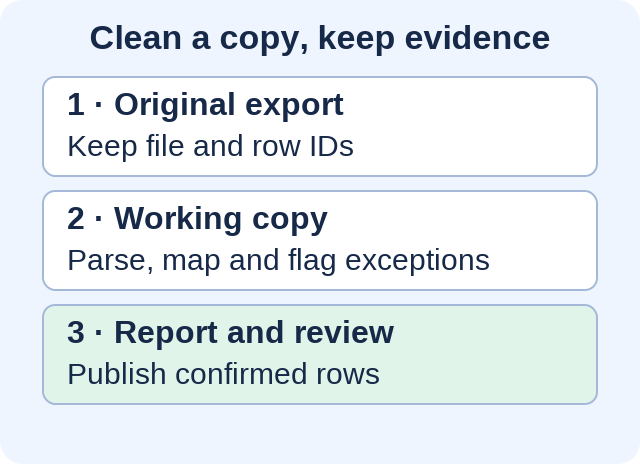
Keep the original, make a reversible change and reconcile. Each changed record should still lead you to its source and an explanation. A report can change totals if you remove a confirmed replay or hold an unresolved record, but those differences must be accounted for.
Make a data contract small enough to read
Start with a few decisions in the workbook notes. State that each row is an order line. The key is the order ID and line number together. The amount is INR with a dot decimal convention in this fictional source. A negative value is a recorded refund. Each row should have a delivery city and a known calendar date before the club can publish its city report. Once those rules are agreed, you can inspect the rows that appear to disagree.
- Identity. Write which fields distinguish one record from another. A duplicate candidate shares that identity. Confirm whether a replay, a revision or a legitimate repeated line created it.
- Type. An order code is a text label. An amount is a number with a currency unit. A date is a numeric worksheet date value after proper parsing. Different types give Excel different ways to sort, count and add them.
- Missing value. Leave an unresolved field visible as a review case. Zero, a blank, text such as N/A, and a calculation error can have different meanings.
- Scope. Define which records go into this report. A held row may remain valid source evidence even if it is not yet reportable.
- Control. Record the input row count, published count, held count, confirmed exclusions and numeric totals with their scope. Include a separate count for unknown amounts.
A cell looking like a usable figure does not establish that its type or unit fits the report. Check a few examples manually. For a fresh export choose an ordinary row and one with a leading zero, a non-ASCII space, negative sign, unfamiliar date or missing value. A lot of cleaning work begins with reading the source specification and confirming where the file came from.
2. Make the first pass on a working copy
Preserve enough evidence to repeat the import
Save the original source file as received and keep a separate working workbook. If the data provider approves it, note the file name, its date or version, its recording period and field units. An untouched Raw worksheet inside a working book is useful for comparing rows. It is not the only safe copy because an edit, workbook corruption or a copied result could alter it. Preserve the original file separately where you normally keep authorised source evidence.
If you have a CSV, consider controlled import where your Excel edition supports it. Opening the file can guess data types and interpret leading zeros or date strings before you have checked them. Ask which columns have text identifiers or ambiguous dates. In an import preview, inspect types and review automatic changes. Keep exact source labels and dates as text until you have enough information to convert them deliberately in a working stage. Do not overwrite the source CSV with the cleaned worksheet.
Give the working rows traceable IDs
Use a source row number, a name plus row number from the original file, or another stable internal row ID. Write it as data before any sorting. Calling the first line R01 is fine in this lesson. A formula based on the current ROW number may change after you sort; it is not a trustworthy link to an original record unless you captured its value. Use the identity column to verify retained and removed records after each pass.
Create helper columns alongside the raw cells. A City comparison key can remove selected space characters and harmonise case for matching. Canonical city can show the result of an approved map. Parsed amount can contain a number or a review marker. These helper columns make it possible to compare the old value and the result before deciding what goes into the release. If you make a presentation-only workbook with values, keep the reusable formula or query and the source in the controlled working file.
3. Work through types of mess in a useful order
Resolve identity, blanks and text differences first
When you notice an order ID twice, do not remove all repeated IDs. Verify what one row represents and compare the full relevant records. Sorting, highlighting or counting duplicate keys is useful before changing a table. A replay can have the same key and the same fields. Two conflicting versions of a key may need an owner to choose the current one. Duplicate removal in Excel changes the selected list, so practise only on a separate working copy with a confirmed retention rule.
Read a blank in the context where it appears. Carrying the previous city down a blank row can be correct on an export that intentionally shows a section label once. It can be wrong on a transaction sheet where a blank means unknown and the next customer lives elsewhere. When you fill down, verify a boundary after the end of each group. Keep an observation with a real zero instead of replacing every blank with zero. These choices affect the result even when the worksheet looks tidier.
Remove only space and control characters the source's meaning permits. Excel's TRIM handles ordinary ASCII spaces. It does not clear every Unicode space. CLEAN handles a defined set of ASCII control characters. It does not detect every invisible symbol or distinguish between meaningful and stray line breaks. Use an explicit replacement for known characters such as a nonbreaking space or construct a new cleaned value while leaving the original available. Compare lengths and visible output before expanding the change.
Normalise categories through an approved map
For a spelling like Nasik alongside Nashik, confirm that the source and report owner mean the same place before mapping it. A lookup table with raw or normalised key and canonical name is easier to inspect than a long collection of Replace All operations. Make unknown input a review outcome. Avoid auto-replacing substrings across the entire workbook. A replacement intended for a City field could alter an address or a remark with a different meaning.
Pick a case convention for each field. A group code written as upi could map to UPI if the source owner confirms that category. A name, personal identifier or downstream key may need its original letters. PROPER can alter acronyms or capitalisation that someone intentionally uses. Keep the canonical approved spelling for display where it matters, while using a separate search key if your matching process permits it.
Convert numbers and dates with the source convention in view
NUMBERVALUE can parse a text figure with a stated decimal and group separator. The string 1.250,50 can mean 1250.50 when the decimal mark is a comma and the grouping mark is a period. The number 1250.50 is suitable for calculations after type checks. A symbol or code can belong in a separate Currency field. Confirm it says INR before removing a symbol or treating currencies as interchangeable.
Dates can be ambiguous even after Excel accepts them. A displayed 06/10/2026 could mean 6 October or 10 June. Ask the source which convention it uses. For a fixed unambiguous source pattern, extract the known components and use DATE to assemble them, then verify the resulting year, month and day. DATE can normalise larger day values into the next month. Round-trip a parsed date back to the source format or compare those components to catch values that look parseable but are invalid under the intended pattern.
Reshape only after deciding how the report wants to use the fields
Splitting a column can separate a short code from a description or an ordered date string into fields. Merging for a report usually means constructing a text label from independent typed values. Use a new destination and keep the originals. Excel's cell merging changes the grid and can remove cell contents. It is a different feature from joining two strings in a formula. Verify the intended field labels and result count after a split or join.
Keep phone numbers, email addresses, postal identifiers and similar codes as the kinds of text their owner specified. They can contain meaningful zeros, punctuation and their own privacy requirements. Shape validation can catch a wrong length or an obvious missing character without verifying that the address, person or number is real. When you need to flag outliers, leave them in a review queue rather than treating all large or negative values as errors. A legitimate refund could look extreme in one report and still belong.
Unpivot moves a set of measurement columns into attribute and value rows. That changes the number of rows by design. A wide sheet with January, February and March as columns can become one period and amount per row. Reconcile by the appropriate record count and numeric sum, and account for missing observations. In a refreshable tool such as Power Query, write a sequence of steps and run it on a small copy when the source changes. A repeatable mistake is still a mistake, so run type, key and amount checks after every refresh.
4. Lab. Reconcile a fictional order-line export
Goal. Keep seven source rows and explain which four can go into an order report. Start a new workbook and label the original specimen Raw. Enter the A1:G8 sample exactly. Make a copy named Work before adding formulas. The practice file only uses made-up data, including the amounts and city conventions.
| Source row | Order ID | Line | City text | Amount text | Date text | Event |
|---|---|---|---|---|---|---|
| R01 | FG-101 | 1 | pune with a space on either side | 1250.00 | 2026-10-04 | Delivered |
| R02 | FG-101 | 1 | pune with a space on either side | 1250.00 | 2026-10-04 | Delivered |
| R03 | FG-101 | 2 | PUNE | 450.50 | 2026-10-04 | Delivered |
| R04 | FG-102 | 1 | Nasik | 725.00 | 2026-10-06 | Delivered |
| R05 | FG-103 | 1 | 300.25 | 2026-10-07 | Delivered | |
| R06 | FG-104 | 1 | Nashik | N/A | 06/10/2026 | Pending |
| R07 | FG-105 | 1 | Nashik | -120.00 | 2026-10-08 | Refund |
Set the city, amount and date columns to Text before entering them for this exercise. In the first two city cells enter the letters pune with one keyboard space before and one after. Leave R05's city genuinely empty. Leave the line numbers numeric. If Excel already converted the date or amount while you entered it, re-enter it into the appropriate text-formatted cell on the small raw sheet before making the Work copy. The source formats here are part of the test.
Keep the source, improve the fields and assign a disposition
Verify the row count and row identities
Use the seven source IDs as a count of actual records. Inspect the key Order ID plus Line. FG-101 has two original line identities, 1 and 2. Line 1 appears twice. The two copies match on the other supplied fields. For this fixture we have confirmation that R02 is an import replay and the earlier R01 is the accepted record. Keep its row in the working table and label its disposition.
Map the known city labels
On Work put City key in H1 and Canonical city in I1. Enter the H2 and I2 formulas shown below and fill them to row 8. Expect Pune for R01 through R03, Nashik for R04, R06 and R07, and Review city for R05. This sample deliberately maps only a few approved keys. Check the canonical city before deciding whether the row can appear in a city report.
Parse the amount and date separately
Use Parsed INR in J1, Candidate date in K1 and Date OK? in L1. Fill the corresponding formulas. Six amounts are numeric and R06 says Review amount. A SUM over the parsed samples gives 3855.75. Six date strings follow the known ISO pattern. R06 does not and needs review. Format the valid K cells as Date for reading, without changing their numeric meaning.
Record deliberate decisions separately
Put Disposition in M1. Enter Publish for R01, R03, R04 and R07, Replay for R02, and Hold for R05 and R06. These are reviewed choices for this exact practice set. R03 is a legitimate second line of FG-101, and R07 is a verified refund. R05 lacks a city and R06 lacks a confirmed amount and unambiguous date. An independent later reviewer can understand every difference.
Reconcile before issuing the report
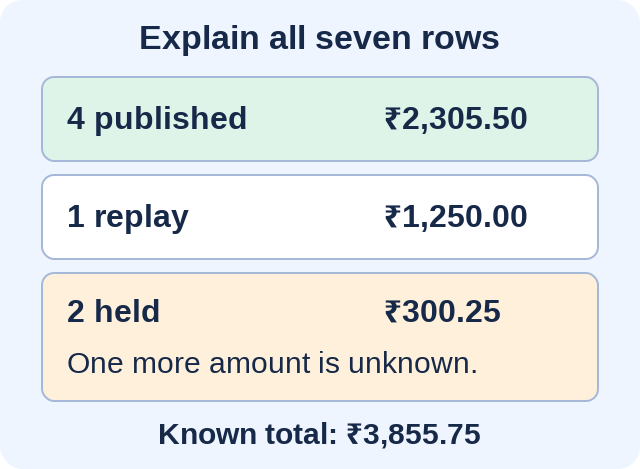
Count 4 Publish, 1 Replay and 2 Hold for all 7 input records. Sum numeric Publish and expect 2305.50. Replay accounts for 1250.00. Hold includes 300.25 of known value plus one amount still unknown. The known amounts reconcile to 3855.75. Keep the unknown count visible. It is not an amount equal to zero.
H2 =UPPER(TRIM(SUBSTITUTE(D2,UNICHAR(160)," ")))
I2 =IF(H2="PUNE","Pune",IF(OR(H2="NASHIK",H2="NASIK"),"Nashik","Review city"))
J2 =IF(E2="","Review amount",IFERROR(NUMBERVALUE(E2,".",","),"Review amount"))
K2 =IFERROR(IF(AND(LEN(F2)=10,MID(F2,5,1)="-",MID(F2,8,1)="-"),DATE(VALUE(LEFT(F2,4)),VALUE(MID(F2,6,2)),VALUE(RIGHT(F2,2))),""),"")
L2 =IF(ISNUMBER(K2),EXACT(TEXT(K2,"yyyy-mm-dd"),F2),FALSE)
Read the test assumptions before reusing a helper
The first helper substitutes one known nonbreaking space and then applies ordinary trimming and uppercase. Those choices are appropriate for our city key. They may not be appropriate for an exact ID. The second formula applies a small reviewed map. Real sources can have many approved names; put those mappings in a separate inspectable table. Unknown city text should not automatically become the most common city.
The third formula declares the source separator convention, which is appropriate for these seven compatible values. NUMBERVALUE can interpret more than this exercise's allowed money shape. It can turn a supplied empty string into zero and can parse some percentage text. This helper rejects a blank entry before parsing and does not serve as a universal currency validator. An actual mixed report should also check units and its allowed lexical shape. Confirm a negative source is an authorised refund before publishing it.
The K helper only tries an input that has the known ten-character pattern with the prescribed hyphens. Excel can normalise a date such as 31 September to a date in October. The L helper formats the parsed date back into year-month-day using an English format code and compares it with the original. That prevents accepting normalised dates under this exercise's contract. Confirm the formatting code and result in your locale. If a source reports full timestamps, check its zone, date and clock meaning separately.
Write a balance for rows and a balance for amounts
In a spare part of Work, use =COUNTIF(M2:M8,"Publish") to confirm 4. The same method with Replay and Hold gives 1 and 2. Use =SUMIF(M2:M8,"Publish",J2:J8) to check the published amount. Use the same formula with both other states to check the known amounts outside the report. Use =COUNTIF(J2:J8,"Review amount") to confirm there is one unresolved amount. That count needs its own place in the hand-off.
For an additional check, separate the included cities. The two approved Pune lines total 1700.50. The accepted Nashik delivery and refund total 605.00. Their combined 2305.50 matches the publish group. Try sorting complete rows in a duplicate by order ID or city and reconcile again. The amounts and row IDs should remain paired. A change in presentation should not silently create extra records or drop the legitimate second line.
5. Lab. Follow the counts when data changes shape
After cleaning individual cells, an organiser may ask a different reporting question. A stores table shows one row per pickup location, with months as separate columns. A comparison report wants each observed monthly count on a separate row. Reshape the data in a copy. This exercise uses three invented counters and one genuinely missing observation. The zero for Library in November was confirmed.
| Counter | October | November | December |
|---|---|---|---|
| Library | 4 | 0 | 9 |
| Gym | 3 | 5 | |
| Arts | 2 | 2 | 6 |
- Record what the source counts mean. Before reshaping, there are three counter rows and nine possible counter-month cells. Eight contain observed numbers and one contains a missing value. Their sum is 31. A zero is among those eight observed numbers.
- Write the desired long form on a copy. Start with Library and write three records, one per month. Each record has Counter, Month and Count. The second record is Library, November, 0. Gym has October 3 and November 5. Mark the Gym December observation as unresolved rather than creating a false zero. Arts has October 2, November 2 and December 6. Count eight observed rows in the result.
- Compare a refreshable version. In a compatible Excel desktop build with Power Query, load the practice Table into a query. Verify numeric types and that the missing cell is represented as null. Select the three month columns and use Unpivot Columns. Rename the generated fields to Month and Count. Microsoft's Table.Unpivot example omits null observations. You should see eight observed rows when the Gym December value is null. For an expected-months view, reconcile against the full set rather than interpreting the absent pair as zero.
- Check the outputs at one exact grain. Count the available observations and total the numeric Count values. Expect 8 and 31. The source view had three counter rows, so requiring equal data-row counts would reject a good reshape. The key becomes Counter plus Month, and each observed combination should occur once. Keep the unresolved Gym December pair in the review note.
- Decide how new months should enter. A query that explicitly unpivots three selected columns may need an update for January. Unpivot Other Columns can use the non-key columns, but a new notes column would then need attention. Confirm the expected source structure and test one month addition in a disposable copy before refreshing a regular report.
Manual formulas are good for learning a single clean inspection. For recurring files, Power Query where available can capture the steps and rerun them with fresh inputs. It still needs a tested input schema, explicit conversion assumptions and an output check. Excel platform support and connector features vary. Do the manual equivalent on this small fixture when a query editor is not available. The lesson on Unpivot develops the full worksheet example.
6. Before publishing, explain what happened to the data
Make the review trail understandable to another tutor
In the first lab the raw known amount is higher than the published sum. That is not proof the data were cleaned properly, and it is not proof the report is wrong. Read the categories. One replay of 1250 is excluded and one known amount of 300.25 is on hold. A seventh source row has an amount that could not be parsed. Identify the exact records by ID. The combined explanation is stronger than editing the total until it matches an expected figure.
Imagine a reviewer sees the amount for Nashik is 605.00. They should be able to find the accepted delivery of 725 and the accepted refund of 120 in Work. The city heading does not need to show the raw spelling, but the original string remains available for investigation. If the refund is accidentally omitted from a cleaning rule, the Nashik total would rise to 725 while the accepted row count would fall from four to three. Both controls matter. If the line itself were changed to positive 120, the row count would remain four while the total would rise by 240. Changing a sign is a data repair that needs a source reason.
When several people are approving held rows, add a reason column and write the specific missing fact. For R05 the fact is the city. For R06 the facts are the unresolved amount and the order of its date parts. Choosing Nashik or assuming 6 October before checking the source would hide work the team still needs to do. Once a correction is confirmed, enter it in a new field or working stage along with its reason. Re-run the audit and record the new disposition so the earlier unknown can still be traced.
Use known checkpoints when the layout changes
A guide for this chapter could be one page of tests. Count the raw rows and note the identity fields. Check two normal records and the unresolved ones. Preview your result and prove that a line item that should stay is still present. If you pivot or unpivot the data, count observations rather than assuming the chart has the same number of rows. Compare numeric totals only within clearly labelled units and scopes. These checkpoints help when a later analyst uses your data as input for a different report.
Remember the difference between saving a workbook and saving a flat export. A CSV can carry text and values, but it does not preserve workbook logic like a helper formula, validation or multi-sheet raw archive. If someone needs to review how you cleaned the sample, retain the workbook and source with authorised access. If a receiving script only needs the approved fields, build a separate export and verify a currency, identifier, date and missing value in that exported file. Reopening it without checking import types can change the very fields you intended to protect.
Repeat a test before reusing a cleaning rule
- Freeze a tiny test fixture with duplicate key, legitimate repeated order ID, unknown amount, real refund and date exception.
- Keep a written expected result for all test rows. A sort or format change should not move a value away from its source identity.
- Check which raw shape the rule expects. A new separator, leading zeros or different date order is a reason to check the import.
- Count the accepted, held and excluded groups. Confirm how missing entries relate to the known numeric total.
- Keep the history of manual approvals separate from the reusable transformation. Refreshing the work must not silently recycle an old decision for a different row.
Make the repeated key easy to inspect
In the first lab add an optional Key copies check in N2 with =COUNTIFS($B$2:$B$8,B2,$C$2:$C$8,C2) and fill it through N8. This check uses both current fields from the order line, and the two checked ranges stay put. It gives 2 on R01 and R02 and 1 on each other row. The value of 2 is a reason to inspect both copies, not permission to choose the first. In this fixture a source confirmation identifies R02 as the replay. Without it, a revised amount or status could require someone to choose a different source record.
Deliberately change R02's parsed amount on a duplicate to see why key identity and value comparison are different checks. With the same key and a different amount, the key count stays 2, but the group is no longer a faithful replay. The reported totals no longer match the hand-off based on the original file. Restore the test copy and document how a real correction would be investigated. Preserve the input, edited value and person or document that authorised the decision.
Understand a clean output as a particular audience's view
The city report can exclude the two Hold rows while the operations team sees both. The accepted output can use the approved city label while the source reviewer sees the raw Nasik. A reader of a countrywide report may still need one of the held records if the missing city does not matter for that report. Each publication needs its own defined criteria. Do not drop evidence from the shared working data just because one published table excludes it.
When you build a new query or formula, state the rule in its working name. City report ready tells you something specific about the data requirements. A field named Clean hides the question it was designed to answer. Carry the source identity and the particular disposition into any audit sheet. As more rules are added, an editor can rerun each stage and identify whether a change came from parsing, matching categories, reviewing identity or filtering output.
Write the expected counts beside a future refresh. If a new file arrives with seven rows but two more unresolved amounts, the row count can pass while the published figures grow less complete. If the summary total changes but all record counts match, inspect changed amounts and signs before dismissing it as a normal fluctuation. Reconciliation is a set of checks with a documented scope. No single total proves the entire cleaning process succeeded.
Before sharing that output, ask one other person to reproduce just one reviewed result from the source. Pick a normal line and a line that changed. The second reviewer should be able to find R04 by its retained ID and see the approved label Nashik beside the original Nasik. They should also be able to find R02 in the audit even though it does not appear in the city report. That is useful evidence about the workbook, beyond whether their copy has the same format.
For the next exercise, take one defect at a time. Check how the source looks, then verify the working result for that one column. Use the final chapter exercise for a combined workflow. The material is designed to make the reasoning reusable, so the same care applies when cleaning a budget, volunteer signup list or internship report.
7. Find the next lesson for the problem you see
8. Interview questions with practical answers
What do you do first when you receive a messy export?
I preserve the source, define what one row means and check the key, field types and units. I create a working copy with traceable source row IDs. Then I test the appropriate transformations on a representative subset before deciding the publish scope.
Why can the same order ID appear more than once in valid data?
The dataset may record line items rather than whole orders. In the practice file the key is order ID plus line, so line 2 belongs even when line 1 was accidentally sent twice. I check the actual row identity before changing data.
How do you explain a changed report total to the person reviewing it?
I separate the input known amount, accepted known amount and known amounts held or excluded. Unresolved amounts get their own count. In the lab 2305.50 published plus 1250 replay plus 300.25 known held equals 3855.75, and one other amount remains unknown.
How do you handle a date such as 06/10/2026?
I confirm the source order with a known record or specification. After explicit parsing I check the actual components and round-trip a fixed format where that helps. I leave a truly ambiguous date labelled for review until it can be confirmed.
Why can an unpivoted result have a different row count and remain correct?
Each original row held several measurements. A long result has one observed value per attribute and entity. I compare observed points, missing combinations and amounts instead of comparing the original count of entities with the destination count of observations.
9. Predict the safe outcome
Two FG-101 lines have different line numbers. Should one be removed because their order ID matches?
Answer and reasoning
No. Each line is a separate record. Our key includes both the order and the line number. Check a repeated full key against source evidence.
Can you assume that a blank city is the same as the city on the preceding row?
Answer and reasoning
Only if the source convention explicitly says the group label is shared. Our transaction sample treats the missing city as a review case.
What distinguishes an unknown amount from a verified zero?
Answer and reasoning
A verified zero is numeric evidence. An unresolved amount lacks a confirmed amount and needs its own count or label. Do not include it as a real zero.
Is a date format enough to correct a January versus February interpretation?
Answer and reasoning
No. Format affects display. Confirm the source order, construct the intended date value and check its components.
What should survive the unpivot in the exercise, the source's three records or its eight measured values?
Answer and reasoning
The eight observed measurements become eight long rows. Their numeric total stays 31. The nine possible combinations include one missing observation accounted for separately.
10. Six ideas for a cleaning hand-off
- Preserve the original
Keep the input file and stable source row identifiers. Work on a separate copy or derived result.
- Define one row
Use the fields that make a record distinct. A repeated order ID may be valid at line-item grain.
- Declare the format before parsing
Consider numeric separators, date order and text codes. Check the actual stored type after conversion.
- Hold uncertain rows
Keep the missing field and reason visible. Do not invent a location, date or amount to make the table look complete.
- Reconcile known money and all rows
Count every class and explain totals by scope. Track unknown amounts separately.
- Repeat the same tests after refresh
Keep your transformation and expected outputs reusable. Confirm the latest file still follows the assumed structure.
Microsoft references
- Cleaning workflow, backup and whitespace tools
- Duplicate review and removal scope
- Controlled imports and flat exports
- Protect leading zeros and exact identifiers
- Explicit numeric separators and blank treatment
- Create and validate date values from parts
- Power Query column types and source locale
- Table.Unpivot behavior with nulls