Practice and Answer Key: XLOOKUP and Delivery Fee Slabs
An evening-shift report needs more than a working formula. Each order must keep its identity, the correct manager must come from the store directory, the delivery fee must follow a stated policy, and unresolved records must remain visible. This practice brings those decisions together in one small workbook that you can build and check from beginning to end.
Shahrukh is preparing a fictional five-order report. The store IDs, people, amounts and fee rules are teaching data. Familiar app names provide context only; these are not real platform records or tariffs. A second fictional policy-register exercise will test whether you can transfer the same exact-match and band-selection reasoning to another clearly labelled dataset.
1. Define the report before building it
Separate the three sources
The Orders sheet contains events: one row for each order. The Stores sheet contains a directory: one row for each store ID. The FeeSlabs sheet contains a policy: one row for each minimum order amount at which the fee changes. These sources have different row meanings, so they need different matching rules.
The manager lookup searches an exact Store ID. The fee lookup classifies an amount into a lower-bound band. The final amount-plus-fee calculation adds two numbers. Keeping these responsibilities separate makes it easier to explain a result and diagnose a failure. You should be able to point to the source row that supplies the manager and the different source row that supplies the fee.
- Keep all five order records in the report.
- Return a manager only for the intended exact store ID.
- Show a visible status for the missing store.
- Use numeric minimum amounts for fee classification.
- Preserve a valid zero delivery fee.
- Reconcile order amounts, fees and combined amounts independently.
Use one consistent column layout
This version follows the existing Task Hub layout: Orders column A is Order ID, B is Store ID, C is Amount, D is Manager and E is Fee. We add F for Amount plus fee and G for Store status. The earlier article placed Amount in D and Manager in C, which made its cell references differ from the Task Hub. Use the layout specified here consistently.
Do not combine a formula copied from one layout with data entered using another. Before pasting an expression, read the headings of its referenced cells. A formula referring to C2 should read the numeric amount in this workbook, not a manager name. Correct syntax cannot compensate for a mistaken field mapping.
2. Enter all three complete source tables
Orders — five records to enrich
Create Orders and enter the following data in A1:C6. Add the output headings Manager, Fee, Amount plus fee and Store status in D1:G1. Leave D2:G6 empty initially. Do not enter expected answers as fixed values in the output cells; they will be calculated after you have predicted them.
| Order ID | Store ID | Amount |
|---|---|---|
| BLK-2101 | BLK-NSK-01 | 75 |
| AMN-2102 | AMN-NGP-01 | 199 |
| BLK-2103 | BLK-PUN-07 | 140 |
| BLK-2104 | BLK-KOP-01 | 650 |
| AMN-2105 | AMN-SLP-01 | 98 |
The five amounts total 1162 rupees. The Order IDs are unique in this sample. BLK-PUN-07 is deliberately absent from the initial store directory below. Keep that request in the exercise; it is a control for missing-source behaviour, not a typo you should silently replace with another Pune store.
Stores — seven exact identifiers
Create Stores and enter the complete directory in A1:F8. Each row pairs a store ID with its platform, city, area, manager and opening year. The City Manager field is column E. Keeping all fields visible helps you detect a formula that accidentally returns City or Opened year instead of Manager.
| Store ID | Platform | City | Area | City Manager | Opened year |
|---|---|---|---|---|---|
| BLK-PUN-01 | Blinkit | Pune | Kothrud | Abhishek Shinde | 2022 |
| BLK-PUN-02 | Blinkit | Pune | Hinjewadi | Priyanka Shinde | 2023 |
| BLK-NSK-01 | Blinkit | Nashik | College Road | Zoya | 2023 |
| AMN-NGP-01 | Amazon Now | Nagpur | Dharampeth | Amir | 2024 |
| BLK-KOP-01 | Blinkit | Kolhapur | Rajarampuri | Rani | 2024 |
| AMN-SLP-01 | Amazon Now | Solapur | Murarji Peth | Salman | 2025 |
| BLK-SBN-01 | Blinkit | Sambhaji Nagar | CIDCO | Raja | 2025 |
FeeSlabs — four lower starting amounts
Create FeeSlabs and enter the following numeric table in A1:B5. Its rule is one fee per order: amounts from zero up to but below 99 pay 30; amounts from 99 up to but below 199 pay 25; amounts from 199 up to but below 499 pay 15; amounts from 499 upward pay zero. The lower endpoint belongs to its new band.
| Min Order | Fee |
|---|---|
| 0 | 30 |
| 99 | 25 |
| 199 | 15 |
| 499 | 0 |
All five input amounts are valid nonnegative numbers for this exercise. Real order eligibility, discounts, taxes and service limits would need their own definitions. Here Amount plus fee means exactly the entered amount plus this single fictional delivery fee; it is not a complete model of every charge in a real checkout.
3. Predict the report before revealing formulas
Trace each order manually
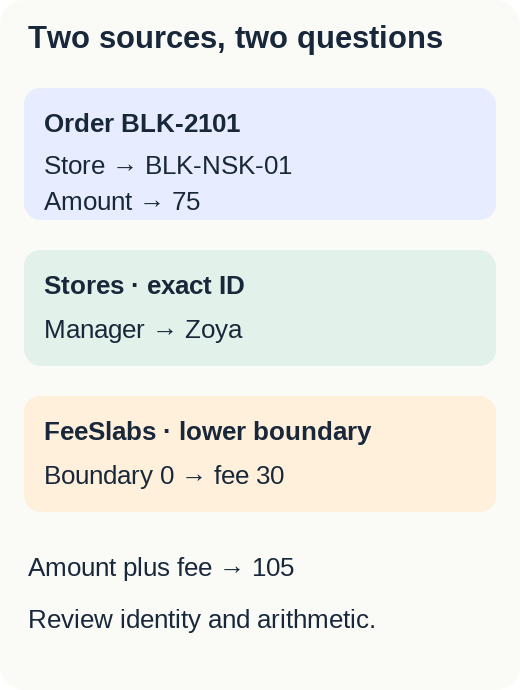
For BLK-2101, locate BLK-NSK-01 in the directory and read Zoya from the manager field. Its amount 75 is below 99, so the fee is 30 and the combined amount is 105. This record uses one exact directory match and a separate lower-bound policy selection.
For AMN-2102, the store manager is Amir. Its amount is exactly 199, so the band beginning at 199 applies and the fee is 15. The combined amount is 214. This exact-boundary case checks whether your fee rule includes the lower endpoint correctly.
For BLK-2103, the store ID BLK-PUN-07 has no source record. Its manager should remain unresolved. The amount 140 can still be classified into the 99 band, producing fee 25 and combined amount 165 under the arithmetic exercise. Keep both the calculated amount and the missing-store status visible.
For BLK-2104, the manager is Rani and the amount 650 qualifies for zero fee. Its combined amount remains 650. For AMN-2105, the manager is Salman and amount 98 is still below 99, so its fee is 30 and combined amount is 128. Moving from 98 to 99 would cross a fee boundary.
- Write the five expected manager results on paper or in a separate answer area.
- Write the selected fee boundary for each order.
- Calculate each amount-plus-fee result manually.
- Count four resolved stores and one unresolved store.
- Keep the unresolved order in the five-row arithmetic total.
- Compare your predictions with the answer key only after completing the formulas.
4. Lab one — build the enriched order report
Retrieve the exact manager
In Orders!D2, enter the first formula and copy it through D6. XLOOKUP searches the current order's Store ID in the seven-key directory and returns the aligned manager field. The missing-result message is text because a manager name cannot be replaced meaningfully by a numeric zero.
=XLOOKUP(B2,Stores!$A$2:$A$8,Stores!$E$2:$E$8,"Not in master")The source ranges are fixed with dollar signs, while B2 changes as you copy down. The first result is Zoya. The third order, in row four, shows Not in master. Do not change that request to BLK-PUN-01 just to obtain a name; it would assign another store's manager to the order.
Calculate the lower-bound fee
In E2, enter the next formula and copy it through E6. Match mode minus one selects an exact threshold or the next smaller threshold. The fallback message makes an out-of-policy lookup visible, although the five original numeric requests all have a suitable boundary.
=XLOOKUP(C2,FeeSlabs!$A$2:$A$5,FeeSlabs!$B$2:$B$5,"Review amount",-1)The default exact rule would not classify most of these amounts. However, it would still find the exact boundary 199 and return 15 for that one row. Therefore, a wrong exact-mode fee formula does not necessarily fail for every order. Test middle-of-band amounts as well as boundary amounts to expose that mistake.
Add the calculated fee and mark source status
In F2 enter =C2+E2 and copy through F6. This simple arithmetic is appropriate for the clean original numeric fixture. If your expanded report permits review messages in E, guard the arithmetic and keep unresolved amounts out of a claimed complete numeric total until they are reviewed.
In G2, use the following count-based source check and copy it through G6. These teaching store codes contain no wildcard characters, so COUNTIF's text-pattern syntax does not introduce ambiguity here. A count of zero means absent; one means one source key; a larger count indicates a duplicate-key issue to review.
=IF(COUNTIF(Stores!$A$2:$A$8,B2)=1,"One source record",IF(COUNTIF(Stores!$A$2:$A$8,B2)=0,"Missing store","Duplicate store ID"))This status checks key membership and uniqueness, not whether every source attribute is populated. A single matched store could still have a blank manager. Keep that attribute-quality check separate if you adapt the exercise to a larger source. A successful key lookup is one part of report quality, not its whole definition.
5. Inspect the complete answer key
Open the five-order answer table after trying the lab
| Order ID | Manager | Amount | Fee | Amount plus fee |
|---|---|---|---|---|
| BLK-2101 | Zoya | 75 | 30 | 105 |
| AMN-2102 | Amir | 199 | 15 | 214 |
| BLK-2103 | Not in master | 140 | 25 | 165 |
| BLK-2104 | Rani | 650 | 0 | 650 |
| AMN-2105 | Salman | 98 | 30 | 128 |
The amounts total 1162, the fees total 100, and the combined amounts total 1262. Four manager requests resolve and one remains missing. These are separate controls and all should be reported.
Create a summary that stays outside the order rows
Use J1:K6 for a compact review summary. Put Metric and Result in J1:K1. In J2:J6 type Order amount total, Fee total, Amount plus fee total, Order rows and Missing stores. Enter the following formulas in K2:K6 respectively. Keeping the summary to the side leaves room to append another order later.
=SUM(C2:C6)
=SUM(E2:E6)
=SUM(F2:F6)
=COUNTA(A2:A6)
=COUNTIF(G2:G6,"Missing store")
Expect 1162, 100, 1262, five and one. The difference between the combined total and amount total should equal the fee total. This arithmetic reconciliation does not verify the manager names, so also compare known store-to-manager pairs. A wrong manager could leave every numeric total unchanged.
Explain whether a reviewed subtotal is being used
If an operational report includes only orders with resolved stores, it would temporarily exclude the third order's 165 from that particular reviewed subtotal, leaving 1097. That is a different scope from the all-five-order arithmetic total of 1262. Label the scope explicitly and retain the unresolved order in a review list rather than making it disappear.
This exercise does not prescribe whether a real business should process an unresolved order. It teaches you to make the report's scope visible. A reader should be able to distinguish all submitted orders, orders with resolved directory records, and any remaining exceptions without reverse-engineering the workbook.
6. Test a directory update and a new order separately
Add an approved fictional source record
On an experiment copy, add an eighth store in Stores!A9:F9: BLK-PUN-07, Blinkit, Pune, Baner, Riya and 2026. This is an explicitly supplied new teaching record. Before changing the formulas, predict the result: the original fixed ranges still end at row eight, so they cannot see the new row merely because it sits directly below the directory.
Extend the manager lookup's two source ranges to A2:A9 and E2:E9. Extend the key-count status ranges to A2:A9 as well. Now the third order's manager becomes Riya and its source status becomes One source record. All five store requests resolve, but the amount total, fee total and combined total remain 1162, 100 and 1262.
This change repairs source coverage for an approved record. It should not change any order amount or fee band. If a financial total changes during this manager-only update, inspect the formulas or edited cells because the intended dependency does not justify that change. Testing an unchanged result is as useful as testing an expected changed result.
Append a sixth order in a separate controlled step
After the approved directory update, add BLK-2106, BLK-PUN-02 and 499 in Orders!A7:C7. Copy the output formulas from row six to row seven. The manager should be Priyanka Shinde, the fee zero, the combined amount 499 and the source status One source record. The amount is exactly the final fee boundary.
Update the summary ranges to include row seven. Expect six orders, amount total 1661, fee total 100, combined total 1761 and zero missing stores. If the summary still reports five orders and 1262, it is still reading the original five-row range. Source growth and summary growth are separate dependencies to review.
- Record the original five-order controls before appending anything.
- Verify the new store belongs to the directory range.
- Check that the manager and membership status update together.
- Confirm that a manager-only update leaves fee totals unchanged.
- Include the sixth order in both row formulas and summary formulas.
- Keep the original workbook copy for comparison with the first answer key.
Use Tables when recurring updates are part of the task
As an extension, convert the three sources into appropriately named Excel Tables. Structured references can make fields clearer and allow source membership to expand when rows are added to the Table. Confirm that the appended row is actually inside the Table and that calculated columns and summary formulas include it.
Tables do not resolve duplicate IDs, invent missing managers or approve policy changes. They manage a source structure. Retain the same semantic controls after converting: exact store identity, unique directory keys, valid numeric amounts and documented fee boundaries. A convenient table name is not evidence that the underlying records are correct.
7. Build equivalent formulas for an older Excel environment
Use exact VLOOKUP for the manager
XLOOKUP is available in supported Microsoft 365 and Excel 2021/2024 environments; it is not available in Excel 2016 or Excel 2019. For the original seven-store directory in an older supported workbook, the following expression returns the fifth field, City Manager, and uses an exact matching rule.
=IFNA(VLOOKUP(B2,Stores!$A$2:$F$8,5,FALSE),"Not in master")An INDEX/MATCH alternative separates the searched key field from the returned manager field. MATCH with zero requests exact matching. Both ranges must describe the same seven record rows. Use the original source and request controls to verify that the alternative produces the same four names and one missing result.
=IFNA(INDEX(Stores!$E$2:$E$8,MATCH(B2,Stores!$A$2:$A$8,0)),"Not in master")Use approximate VLOOKUP only for the ordered fee policy
=VLOOKUP(C2,FeeSlabs!$A$2:$B$5,2,TRUE)This expression is appropriate for the ascending lower-bound fee table. It is not the matching rule to reuse for the store directory. Keep the complete boundary-and-fee rows sorted together and compare all five fees with the independently predicted answers. Function availability and source prerequisites both matter when adapting a workbook for another person's Excel version.
8. Lab two — transfer the pattern to a fictional policy register
Keep this model separate from real insurance pricing
The existing Task Hub includes a small insurance-themed lookup exercise. We retain its records so the answers remain consistent, but the model is deliberately simplified and fictional. The age bands and rates are invented. They are not quotations, eligibility guidance, coverage guarantees or a method for evaluating real insurance products.
The spreadsheet skill is transferable: find an exact policy ID, retrieve its recorded fields, classify its age using a supplied lower-bound rate table, and apply the stated unit conversion. A real pricing model can involve many other conditions. Here we use only the rules explicitly supplied for the arithmetic exercise.
| Policy No | Holder | Age | Teaching cover amount |
|---|---|---|---|
| POL-501 | Zoya | 28 | 500000 |
| POL-502 | Amir | 45 | 1000000 |
| POL-503 | Rani | 61 | 300000 |
| Age from | Rate per 100000 |
|---|---|
| 18 | 800 |
| 36 | 1400 |
| 56 | 2600 |
Create separate Policies and AgeSlabs worksheets with those exact layouts. On Policies, add Rate per 100000 in E1 and Teaching annual amount in F1. The cover amounts total 1800000. Each source row is one fictional policy record; do not confuse that aggregate cover amount with the annual calculated amounts.
Find a holder by exact policy ID
Put Requested policy in H1 and POL-502 in H2. In I1 put Holder result. Enter the next formula in I2 and expect Amir. Change the request to POL-509 and expect Not in master. Restore POL-502 after checking both cases.
=XLOOKUP(H2,$A$2:$A$4,$B$2:$B$4,"Not in master")The policy number is an exact identifier. An absent policy must not be replaced by the next smaller-looking policy code. The age classification that follows uses approximate matching for a different reason: ages belong to rate bands defined by numeric starting points.
Retrieve the age rate and apply its unit
In Policies!E2, enter the first formula below and copy through E4. Then enter the second formula in F2 and copy through F4. The division by 100000 converts the cover amount into the number of rate units. It is part of the fictional model's definition, not an arbitrary scaling factor.
=XLOOKUP(C2,AgeSlabs!$A$2:$A$4,AgeSlabs!$B$2:$B$4,"Outside teaching bands",-1)
=D2/100000*E2
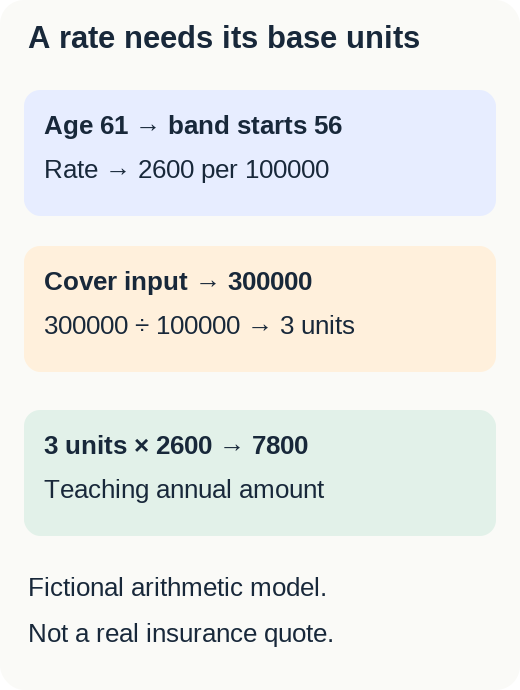
Zoya's age 28 selects the band beginning at eighteen, with rate 800. Her cover amount 500000 is five units of 100000, so the calculated annual amount is 4000. Amir's age 45 selects rate 1400, and his ten units produce 14000. Rani's age 61 selects rate 2600, and her three units produce 7800.
The three calculated annual amounts total 25800. This total is different from the cover total 1800000 and from the sum of the three rates, 4800. A rate, a base quantity and a resulting amount are different measures. Label them clearly so a reader does not add or compare them as if they represented the same unit.
Open the fictional policy-register answer key
| Policy | Holder | Rate | Cover units | Teaching annual amount |
|---|---|---|---|---|
| POL-501 | Zoya | 800 | 5 | 4000 |
| POL-502 | Amir | 1400 | 10 | 14000 |
| POL-503 | Rani | 2600 | 3 | 7800 |
Exact POL-502 returns Amir. Exact POL-509 remains missing. The annual amount for POL-503 is 7800 under the fictional calculation. These controls preserve the original Task Hub outcomes.
Test age boundaries without inventing eligibility rules
- Test age eighteen and expect rate 800.
- Test age thirty-five and expect rate 800.
- Test age thirty-six and expect rate 1400.
- Test age fifty-five and expect rate 1400.
- Test age fifty-six and expect rate 2600.
- Test age seventeen and expect no suitable lower band in this teaching table.
The missing band for seventeen does not prove that a real person cannot obtain insurance. It only means this invented table does not define a rate for that input. Likewise, the final band extends upward mathematically unless a separate maximum is specified. Never infer real eligibility or service limits from an incomplete teaching lookup table.
9. Challenge the workbook with deliberate failures
Change one assumption at a time
Use a copy of the original five-order workbook for the following tests. Record the original control values first. The purpose is to explain the failure and repair its cause, not to make every cell look successful regardless of the source. Restore the original values between independent tests.
- Add an ordinary trailing space to BLK-NSK-01 in Orders!B2. The exact manager lookup should fail until the known space is cleaned under the ID's formatting rule.
- Change the manager return range from E2:E8 to E3:E9. Trace the shifted record and explain why equal range lengths are insufficient.
- Remove dollar signs from a source range, copy down, and inspect how the searched rows move.
- Set the fee match mode to exact. Observe that amount 199 still matches a boundary while 75, 140, 650 and 98 do not.
- Replace one numeric fee boundary with descriptive text. Restore a numeric lower limit and keep descriptions separate.
- Add a duplicate store ID with a conflicting manager on a copy. Inspect the duplicate-key status and resolve the source conflict instead of relying on first-match order.
For the shifted manager range, the original Nashik request occupies the third key position. The third cell of E3:E9 is E5, containing Amir, so that wrong formula can assign Amir to the Nashik order. The result is a real name from the source, which makes the error believable. Correct alignment returns Zoya.
If the fee source accidentally contains a blank where a fee should be, inspect that source cell rather than assuming a displayed zero means an approved free-delivery band. The explicit zero at boundary 499 is valid. A missing fee attribute at another boundary has a different meaning and should be reviewed.
Review invalid inputs separately from missing keys
A negative order amount is outside the original order domain. A blank amount is an unanswered input, and a text value such as “one hundred” is not a numeric amount. Validate these cases before applying a fee. The missing-store message belongs to the directory lookup; it should not be reused as the explanation for every invalid amount.
In the policy-register exercise, an unknown policy ID and an age below the supplied rate bands are also distinct conditions. Preserve the condition that actually failed. A clear report can say which source or rule needs review instead of replacing unrelated failures with the same zero or blank cell.
10. Add a compact fee regression check
Keep a reusable test table beside the model
On a Checks sheet, enter nine test amounts: 98.99, 99, 99.01, 198.99, 199, 199.01, 498.99, 499 and 499.01. In a separate Expected fee column, enter 30, 25, 25, 25, 15, 15, 15, 0 and 0. Calculate the fee from the actual policy table in another column and compare it with the independent expectation.
These cases cover each transition from below, at and above a boundary. If the policy legitimately changes, update the expected values from the approved new rule and record the version. Do not simply copy the new formula results into the expected column, because that would make the test repeat the same mistake rather than check it.
For the original five orders, also keep the control that amount plus fee total 1262 equals amount total 1162 plus fee total 100. Use this alongside the row-level boundary checks. A grand total can conceal offsetting errors: one fee too high and another too low might still sum to the expected number.
Predict controlled changes before recalculating
Return to an untouched copy of the original five-order workbook for each experiment below. Change only the specified input or policy value, predict the new result, and then inspect the calculation. Restore the original state between experiments so the expected totals remain comparable.
First, change the second order amount from 199 to 198.99. The amount falls by one paisa but crosses into the earlier fee band. Its fee rises from 15 to 25 and its combined amount becomes 223.99. The overall amount total becomes 1161.99, fees total 110 and combined total 1271.99. A surprising increase in the combined amount follows the stated discontinuous fee policy.
Second, restore the source and change the fifth order amount from 98 to 99. Its fee falls from 30 to 25, so that order's combined amount changes from 128 to 124. The overall amount total becomes 1163, fees total 95 and combined total 1258. The increase in order value does not necessarily increase the amount-plus-fee result at a threshold.
Third, restore the original orders and change the fee attached to boundary 199 from 15 to 12. Only the second of the five original orders belongs to that band. The fee total becomes 97 and the combined total 1259, while the order amount total stays 1162. This is a policy revision, so its effect differs from changing an order input.
Finally, on a separate copy of the original policy-register lab, change Rani's age from 61 to 55. Her selected rate becomes 1400 and the teaching annual amount becomes 4200; the three-record annual total becomes 22200. Restore age 61, then change only her cover amount from 300000 to 400000. Her rate stays 2600, her cover units become four, and her annual amount becomes 10400. The annual total is now 28400.
Explain which dependency changed in each experiment: amount band, fee value, age band or number of rate units. The formulas should reflect that dependency and leave unrelated outputs unchanged. Writing these expectations before editing gives you a stronger check than accepting whatever new numbers appear on screen.
11. Trace the unresolved order without losing it
Follow order BLK-2103
Read the request
The order references store BLK-PUN-07 and amount 140. Its identity and amount are separate inputs.
Check the directory
The initial seven-store source has no BLK-PUN-07 row. Manager remains Not in master, and the source status is Missing store.
Classify the amount
Amount 140 belongs to the band beginning at 99. Its fee is 25 under the fictional policy.
Report both outcomes
The arithmetic amount plus fee is 165, while store identity remains unresolved. Keep the order in the review and label the scope of any subtotal.
Repeat the explanation after adding the approved Riya directory record and extending the ranges. The manager and source status change; the amount and fee do not. This makes the dependency structure visible and gives you a precise expectation for a controlled source update.
12. Interview questions and reasoning checks
1. Why does this report need two matching rules?
The store ID identifies one exact directory record, while the amount belongs to a numeric fee band. Exact matching protects identity. Next-smaller matching selects the applicable lower boundary. Reusing one rule for both sources would confuse their different meanings.
2. Is the total 1262 proof that all five store lookups worked?
No. The third order still has a missing manager while its amount and fee can be calculated. The report needs both arithmetic reconciliation and source-resolution controls. A correct numeric total does not validate text attributes such as manager names.
3. Why does an exact-mode fee formula succeed for 199?
The policy includes 199 as an actual lower boundary, so exact matching finds that row. The other original amounts are not listed boundaries. Testing only 199 would miss the wrong matching mode, which is why the lab includes middle-of-band values.
4. What should change after adding BLK-PUN-07 correctly?
After the lookup and status ranges include the new source row, the third order's manager becomes Riya and all five store requests resolve. The order, fee and combined totals remain unchanged. A manager-only source update should not alter the fee arithmetic.
5. Why can a new row remain invisible to a lookup?
A fixed reference ending at row eight does not include row nine. Similarly, a summary ending at row six excludes a new seventh-row order. Verify source membership and calculation coverage separately, or use well-checked Table references for recurring growth.
6. Why does the wrong manager range return Amir for Nashik?
The lookup finds the Nashik key at position three, then reads position three of the shifted return list. That cell belongs to the next source row. Equal lengths do not preserve record alignment when the two ranges start at different rows.
7. Why divide the fictional cover amount by 100000?
The supplied rate is defined per 100000 units of cover. Rani's 300000 therefore represents three rate units, and three times 2600 equals 7800. The unit conversion belongs to the stated teaching model; it is not a universal real-insurance formula.
8. Is age 17 a real-world eligibility decision?
No. It is an input below the first boundary in an invented rate table. The workbook can only report that this teaching source lacks a suitable band. Real eligibility and pricing require actual product rules and cannot be inferred from this exercise.
9. Why keep a reviewed subtotal of 1097 distinct from 1262?
The smaller value excludes the unresolved order's 165, while 1262 includes all five arithmetic rows. Both numbers can be calculated, but they describe different scopes. Label the scope and retain the exception so a reader understands the difference.
10. What does the duplicate-key status add?
A single-result lookup may return the first matching manager even when two source records conflict. Counting occurrences flags that source ambiguity. The status does not decide which record is correct; it identifies a directory issue that needs resolution.
11. How would you present this work in an interview?
I would explain each source's row meaning, justify the exact and approximate rules, show the five-row answer controls, and demonstrate missing-key and boundary tests. I would then explain source growth and report scope. The strongest evidence is a reproducible calculation with visible exceptions, not a screenshot of one final total.
13. Prepare a clear handover
Make the workbook understandable to its next reader
Keep the source sheets, calculation headings and review summary clearly named. Include a short note describing the fictional fee policy, the initial missing store and the chosen report scope. A new reader should be able to reproduce one manager result and one fee result without asking you which cells contain the source data.
- Show the source version or exercise state: original, directory updated, or sixth order appended.
- Keep expected controls for that specific state.
- Label amounts, rates and counts with their units.
- Distinguish missing keys from missing attributes and invalid numeric inputs.
- Preserve raw identifiers when applying cleanup helpers.
- Document the Excel version needed for the formulas used.
Before sharing a screenshot or PDF of the result, include the scope and exception status alongside the numeric total. A polished card showing 1262 without the missing-store context would hide a meaningful limitation of the original report. Clear presentation should make the calculation easier to assess, not conceal the records that still need review.
14. Revision cards for the lookup chapter
Exact identity
Find the requested key, preserve its type and significant characters, and review missing or duplicate records.
Aligned return
A selected position must refer to the same record in the searched and returned fields.
Band selection
Read whether keys are lower starting values or upper limits before choosing an approximate rule.
Boundary controls
Test just below, exactly at and just above every transition.
Source growth
Check new-row membership and summary coverage separately.
Report quality
Reconcile totals while keeping unresolved identities and invalid inputs visible.
Return to the Lookup Functions chapter for individual explanations, revisit Common Lookup Errors and Fixes for diagnosis practice, or continue with the expanded Data Cleaning chapter. The Excel Task Hub retains the original order and policy-register exercises used here.
References and exercise scope
Function options and availability were checked against Microsoft's XLOOKUP documentation, VLOOKUP documentation, and MATCH documentation. All business records, monetary rules and policy-register calculations are fictional teaching examples.