3.10 Date Functions: TODAY, NOW, DATE, DAY/MONTH/YEAR, EOMONTH, EDATE
Turn order dates into useful deadlines and report periods
A quick-commerce team is closing its November order report. One colleague wants the last day of the month for every record. Another wants a follow-up exactly one calendar month after each order. A third wants to count how old each case was when the report went out. All three questions start with an order date. They need different calculations and a clear idea of whether the reference date should change later.
We will use three invented orders from the course's Blinkit and Amazon Now practice setting. The transactions are synthetic. You will create dates without relying on a machine's interpretation of a typed slash date, choose between calendar offsets, and build a report that gives the same teaching answer tomorrow. You can do both labs in a fresh workbook.
- Build and inspect a date. Use DATE to combine known year, month and day values. Read the numeric result as the same date in different formats.
- Extract a part. Use DAY, MONTH and YEAR when you need the components of an existing date.
- Choose a clock. Use TODAY or NOW for a live view. Record a fixed date or time for an event that already happened.
- Choose a calendar rule. Use EDATE for a same-day monthly offset when possible, or EOMONTH for the end of the destination month.
Recognise a real Excel date under its display
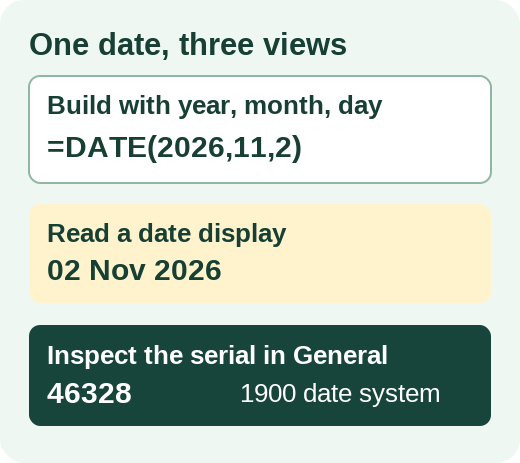
Excel represents dates as numbers. A date format translates a number into a readable calendar label. In a workbook using the 1900 date system, =DATE(2026,11,2) represents 2 November 2026 and has serial 46328. General format can display that number. A date format can display the same value as 02 Nov 2026. Change the format and the calculation still has the same underlying input.
Use a number to make dates comparable
A worksheet can sort real dates by their numerical order or compute the number of days between them. Subtract DATE(2026,11,2) from DATE(2026,11,10) and the result is 8. That measures elapsed calendar days between the dates. If a policy includes both start and end days, it may call this a nine-date span. Write the rule alongside the calculation so another person can tell what is counted.
A displayed date can also include a time. The whole-number part counts days in the workbook's date system and a fractional part represents time within the day. A value displayed as 2 November may also contain an hour and minute hidden by the format. When comparing timestamps for one day, use the day's start and the next day's start as bounds if the full value matters. Lesson 3.12 supplies a dedicated time-of-day exercise with hours and minutes.
Check a text date before trying date arithmetic
A cell containing characters that look like a date can be stored as text. Changing only its number format does not convert that text into a date. For a column expected to contain numeric dates, =ISNUMBER(E2) checks one useful condition. It returns TRUE for Excel's numeric date values. Other numbers also return TRUE, so compare an expected year, month or date range before assuming the value represents the intended date.
If you receive a text date such as 02/11/2026, ask how the producer ordered the parts. A day-first reader sees 2 November. A month-first reader sees 11 February. Prefer a source that supplies separate numeric fields, an unambiguous date standard, or an explicit documented locale. Import or parse according to that rule and verify a date with a day above twelve plus a known date with a day below thirteen.
Your result is 46328. What should you check before rewriting the formula?
Check whether the result is a numeric date being displayed in General format. In the 1900 date system, applying a date format to this expected value shows 02 Nov 2026. Compare the original formula and its year, month and day before treating the number as an error.
Construct dates with explicit parts
=DATE(2026,11,2) takes three arguments in a known order. Excel reads year 2026, month 11 and day 2. A separate number in each field is unambiguous. In a worksheet that already holds these values in B2, C2 and D2, use =DATE(B2,C2,D2). You can fill it down so each order line uses its own parts.
Check which part belongs in each position
If an export gives day, month and year in that reading order, put them in the correct formula positions even when the columns are arranged differently. Calling DATE with the day in the year position can produce an unintended date or an error. Use a four-digit year to make the meaning clear. Excel gives special treatment to year arguments from zero through 1899 by adding 1900, so typing 26 for the year is a poor habit even when the resulting date happens to be 2026.
Examples use a comma to separate the formula arguments. If your Excel expects a different list separator, use the one in your installation. The numbers and positions carry the same meaning. When an unexpected formula editing message appears, check separators and parentheses before assuming a provided date is invalid.
Know when DATE carries an overflow forward
DATE can deliberately normalise out-of-range month or day arguments. For example, =DATE(2026,12,32) returns 1 January 2027. This property can help construct dates across a boundary. It also means =DATE(2026,2,30) returns 2 March 2026 instead of acting as a strict check for a valid 30 February. Treat construction and input validation as two separate steps.
For a source that promises valid calendar components, compare the original fields with what YEAR, MONTH and DAY read back from the resulting date. If a February row changed to March, flag it for review. This simple check is useful when a source system exports free-text dates that somebody has split into three numbers. Keep the original input so you can tell which field was corrected and why.
DATE builds a date after someone types day 30 for February 2026. Is the source valid?
The constructed date is 2 March 2026, which shows that Excel carried the overflow forward. If the source expected 30 February, the original input is invalid. Compare the resulting parts with the supplied fields and record the exception.
Read DAY, MONTH and YEAR from an existing date
Once E2 holds the date 2 November 2026, each component answers a different question. =DAY(E2) returns 2, the day of the month. =MONTH(E2) returns 11. =YEAR(E2) returns 2026. These functions produce numbers you can use in further calculations. The day's position in the week is a different question for WEEKDAY, which you will use in the next lesson.
Group dates with a year and month together
A finance team might need November 2026 separated from November 2027. If you group only by MONTH, both return 11. If you group by =DATE(YEAR(E2),MONTH(E2),1), you produce 1 November of the correct year for each record. Format that date as a month and year if you want a compact label. The result remains a sortable date carrying both parts of the period.
=TEXT(E2,"mmm-yyyy") produces a text label such as Nov-2026 in an English format. A text label can help in a sentence or presentation. Month abbreviations depend on language settings, and alphabetic sorting of those labels can put April before February regardless of the year. Use a real date as the sorting or grouping key, then choose a readable display.
Handle a fiscal calendar as a business rule
Calendar years start in January. A practice fiscal year with an April start assigns March 2026 to the year that began in April 2025. April and November 2026 belong to the year that began in April 2026. One way to calculate the starting year in this convention is =YEAR(E2)-IF(MONTH(E2)<4,1,0). Check 31 March and 1 April before using the formula across a full report. A team using a different fiscal calendar needs a different rule.
For a calendar quarter, use =ROUNDUP(MONTH(E2)/3,0) for an ordinary valid date. January is in quarter 1, April in quarter 2, July in quarter 3, and November in quarter 4. Use those boundary months as evidence instead of testing only a date in the middle of one quarter.
Why does grouping only by MONTH sometimes combine two reporting periods?
MONTH gives the month number, so November has the value 11 in every year. Use a month-start date with the year and month included, and format it to display the label you want.
Choose a live date, a timestamp, or a fixed as-of date
=TODAY() returns the current date as Excel evaluates it. It is useful for an open cases report labelled Age as of today. =NOW() returns the current date and time as Excel evaluates it. It can help display a live workbook's current clock value after a calculation. The parentheses are needed even though you pass no arguments.
Understand what the live formulas update
These functions update with workbook calculation in the relevant Excel environment. They do not keep a worksheet display ticking like a continuously running clock. A workbook that has remained open without recalculating can show an old result until it calculates again. In manual calculation, follow the workbook's intended recalculation workflow. Confirm the clock and timezone context of your Excel setup before treating a value near midnight as an independent time record.
The date displayed by your workbook may differ from the business date used in the report. A ticket could arrive just after midnight in one timezone while the business day is still open in another. If a team requires a specific timezone or reporting boundary, use its documented timestamp field or a fixed date from that reporting system. Label the timezone and date rule. A NOW expression alone does not give the original event time or attach a timezone label.
Store the value when the event already happened
A cancellation on 2 November remains a 2 November event. If the cancellation field contains TODAY, opening the workbook on a later date can change the displayed date when it recalculates. Instead enter a fixed date value using a known entry convention. If you use a temporary live formula to derive a value and intend to freeze it, copy the result and paste values into a designated event field in your scratch copy, then verify its content. The event field should contain the recorded value.
For a repeatable exercise, put a fixed as-of date such as =DATE(2026,11,10) in a separate cell and label it Report date. It uses fixed arguments, so a different system clock does not change its calendar date. An age formula can read that date even when you rerun the workbook next month. If you want a second live column for current age, label it differently so readers can see which time basis belongs to each result.
Should a worksheet use NOW for the actual delivery timestamp?
Use the recorded delivery time from the source if the event already happened. NOW reads the current clock at calculation time and can change later. Keep a separate labelled clock field if you need both a current view and a stable record.
Move by calendar months or find a month end
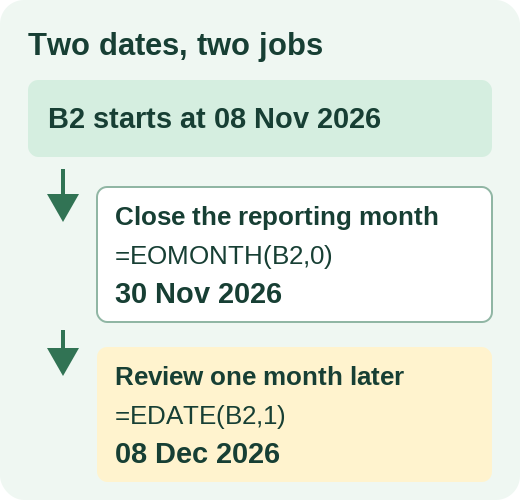
EDATE moves a date by a number of calendar months. Use it to keep the original day-of-month where that day exists. EOMONTH finds the last day of the month selected by a month offset. With EOMONTH, offset 0 means the original month, 1 means the next month and −1 means the previous month. Use whole-month offsets for clear exercises.
Test a month whose day count changes
If you start with 31 January and move one month forward, February has no day 31. EDATE uses the last available day in February. In 2024, a leap year, that is 29 February. In 2026 it is 28 February. A calendar-month instruction can therefore give a different result from adding 30 days. Test an end-of-month example whenever you use EDATE for a renewal rule.
The next step in a sequence also needs a clear base. Start 31 January 2026 and add one month to get 28 February. Add one month again to 28 February and March can land on the 28th. Calculate two months from the original 31 January and you get 31 March. Decide whether a schedule uses its original anniversary date, each prior date, or the month end every time. Those policies can agree in some months and differ near shorter ones.
Get the first date of a reporting month
For an original date in E2, =EOMONTH(E2,-1)+1 finds the previous month end and adds one day. This yields the first date of the original month. =DATE(YEAR(E2),MONTH(E2),1) constructs the same calendar boundary directly. With an order on 8 November, both give 1 November. Compare the outputs if your monthly summary uses a month-start key.
For a timestamp filter that includes the full month, use “at or after the month's first date and before the next month's first date.” A timestamp late on 30 November can be numerically larger than the date for the start of 30 November even if it displays the same day. The upper boundary avoids accidentally excluding valid times from the last day.
How do you get the last day of the next month from 8 November?
Use =EOMONTH(DATE(2026,11,8),1) and expect 31 December 2026. Using EDATE with the same offset gives 8 December, which describes a same-day monthly follow-up.
Trace a date from intake to a reporting decision
Build an unambiguous start date
Take BLK-1010. The order date parts are year 2026, month 11 and day 8. Enter
=DATE(2026,11,8). Verify the display says 8 November when formatted with a month name. The source parts tell you how to interpret it.Choose the reporting month
For the report close use
=EOMONTH(B2,0)on a worksheet where B2 contains this date. The result is 30 November. Every valid date in that November should give the same month-end period key.Schedule a different action
For a review one calendar month later use
=EDATE(B2,1). Expect 8 December 2026. The review keeps the day-of-month where possible, while the report close targets the last day of the selected month.Report the age with its clock
The report is dated 10 November. Subtract 8 November from the fixed report date and get 2 elapsed days. Mention the report date alongside the age, so the same result can be reproduced after the actual calendar changes.
Lab 1 · Build a reproducible order-date report
Goal. Turn known year, month and day fields into dates. Extract the original parts, calculate reporting boundaries, and verify elapsed days against a fixed report date. Start in an editable scratch workbook and add a blank worksheet named DateCheck. Build the small table exactly once before copying formulas. The values come from synthetic course orders.
- Set up the input fields. Put Order ID, Year, Month and Day in A1:D1. Put BLK-1001, 2026, 11 and 2 in row 2. Put BLK-1007, 2026, 11 and 5 in row 3. Put BLK-1010, 2026, 11 and 8 in row 4. Check all three month input cells hold 11.
- Build a numeric date. Label E1 Order Date and enter
=DATE(B2,C2,D2)in E2. Fill down to E4. Format E2:E4 as dates that show a month name, if supported, and compare the year, month and day with the inputs. - Check the three parts. In F1:H1 write Day Check, Month Check and Year Check. Use
=DAY(E2),=MONTH(E2)and=YEAR(E2)in F2:H2. Fill down through row 4. Format the check columns as General or numbers. Compare each with the corresponding input field. - Compute a start, close and review. In I1:K1 write Month Start, Month End and Review Date. Use
=EOMONTH(E2,-1)+1,=EOMONTH(E2,0)and=EDATE(E2,1)in I2:K2. Fill through row 4. Format the three result columns as dates. - Set the report date. Put Report Date in N1 and
=DATE(2026,11,10)in N2. Put Elapsed Days in L1 and=$N$2-E2in L2. Fill L2 down to L4 and display the differences as numbers. The reference to N2 should remain fixed as the order date moves.
| Order ID | Order date | Month start | Month end | Review date | Elapsed days |
|---|---|---|---|---|---|
| BLK-1001 | 02 Nov 2026 | 01 Nov 2026 | 30 Nov 2026 | 02 Dec 2026 | 8 |
| BLK-1007 | 05 Nov 2026 | 01 Nov 2026 | 30 Nov 2026 | 05 Dec 2026 | 5 |
| BLK-1010 | 08 Nov 2026 | 01 Nov 2026 | 30 Nov 2026 | 08 Dec 2026 | 2 |
Verify and recover. Select L4 and confirm it reads N2 with both coordinates fixed and subtracts E4. If a date column shows a whole number, inspect its format. If a days column shows a January date, set its display to General or Number. If the order and follow-up dates seem swapped into another month, compare the DATE arguments and input numbers. Save this result in your practice copy and keep the as-of date beside it.
Lab 2 · Compare monthly schedules at a date boundary
Goal. Show how a monthly follow-up differs from a month-end deadline, and why keeping the original base date matters. Add a worksheet named Renewals. Create headers Case, Start Date, Month Offset, Review Date and Period End in A1:E1. Use numeric offsets in the formula instead of estimating a month by its days.
- Use three known dates. In A2 put Leap year and in B2 enter
=DATE(2024,1,31). In A3 put Common year and B3=DATE(2026,1,31). In A4 put Crosses year and B4=DATE(2026,11,8). Enter 1, 1 and 3 in C2:C4. - Calculate both meanings. In D2 enter
=EDATE(B2,C2)and in E2 enter=EOMONTH(B2,C2). Copy down through row 4 and show B2:B4 and D2:E4 in a clear date format. - Check a leap comparison. D2 and E2 both show 29 February 2024. D3 and E3 both show 28 February 2026. They agree in these cases because EDATE had to use the last available day of February. In row 4 D4 shows 8 February 2027 while E4 shows 28 February 2027. The same-day review and month end are now easy to distinguish.
- Compare two schedules. On a blank part of Renewals calculate
=EDATE(B3,2)and=EDATE(D3,1)in different cells. The first starts from 31 January and gives 31 March 2026. The second starts from the computed 28 February and gives 28 March 2026. Label which starting value each calculation uses. - Observe the clock separately. Label two new cells Live Date and Live Timestamp. Enter
=TODAY()and=NOW()beside them. Format the second so it shows date and time. Avoid expecting a particular timestamp from this lab. Compare with the environment clock and recalculate according to your Excel setup if needed. Confirm the fixed Renewals dates and DateCheck's report date stay the same.
Expected evidence. Row 4 shows two different dates in February 2027. Both are correct given the distinct business rules. If its review shows the last day, inspect whether the cell contains EOMONTH. If February 2024 has 28 days in your result, inspect the year and the exact day sent into DATE. Keep the fixed rows for your checks. Close the scratch copy when finished or save it with the results restored.
Investigate dates that look right but calculate incorrectly
Check both workbooks before comparing old serials
Excel supports the 1900 and 1904 date systems. Modern workbooks often use the 1900 system. The serial for the same calendar date differs by 1,462 days between the systems. If you are comparing old workbook data or raw numbers, inspect the date-system settings rather than assuming two identical integers mean the same date. Preserve the originals. Test with a known calendar date before transferring data between files prepared under different settings.
It is safer to explain lab outputs as calendar dates plus an explicitly labelled serial example. The DateCheck results 02 Nov 2026 and 30 Nov 2026 are the target dates for the exercises. Serial 46328 is the example specifically for the 1900 system. Changing a workbook's date-system setting can affect existing results. Leave a shared workbook's setting alone while you diagnose a mismatch.
Use a known control row before cleaning a whole column
- Type check. Confirm a value can be used as a numeric date. A blank, a label or a malformed date string needs its own handling. Compare the actual year and month to the source.
- Locale check. Find a known date such as 23 November and a date such as 8 November. A conversion that works only for the first example may still reverse ambiguous values.
- Boundary check. Test 31 January, the last day of February and the first day of a new year where those boundaries matter. Check the year of the result when the start is close to December.
- Clock check. Review whether the report uses the current day or an as-of date. Close and reopen your scratch workbook. A reproducible report should use its agreed reference date regardless of the actual day.
When a formula returns a negative age, ask whether the record date is later than the report date, whether its components were reversed, or whether the source holds a planned event. A negative value can be correct for a future date. Confirm the business meaning before converting it to positive or hiding it. Clear labels such as Days Until Review and Elapsed Days Since Order make the intended subtraction order explicit.
The displayed date looks right but a count for the entire last day misses some records. Why?
The source may contain times hidden by its number format. A date for 30 November represents its beginning when no time is attached. Use the first instant of the next month as an exclusive upper bound when the report needs all valid timestamps through the last date.
Include every timestamp in a reporting month
A small seller at the end of November wants a report of payments received during the month. A workbook may display only a date even when a payment includes a time. For this practice exercise imagine all four payments already use the same business timezone. Determine the start and end of the required window, then test the rows nearest those limits.
Use two real dates as the limits
In a scratch sheet put =DATE(2026,11,1) in H2 and =EDATE(H2,1) in H3. H2 is the first date of November. H3 is the first date of December. In a row with a payment timestamp in B2 use =AND(B2>=$H$2,B2<$H$3) to test whether the value falls within November. The lower comparison includes the start boundary. The upper comparison excludes the next month beginning.
| Timestamp | In November | Reason |
|---|---|---|
| 31 Oct 2026, 23:59 | FALSE | Before November starts. |
| 01 Nov 2026, 00:00 | TRUE | Exactly at the lower bound. |
| 30 Nov 2026, 23:59 | TRUE | Before the first instant of December. |
| 01 Dec 2026, 00:00 | FALSE | Exactly at the excluded upper bound. |
Build a test row without relying on text parsing
To create the last November test, enter =DATE(2026,11,30)+TIME(23,59,0) in B4. TIME supplies the hour and minute portion. Use a date-and-time display and compare the formula result with the expected table. Then compare it with =B4<=EOMONTH($H$2,0). The second comparison gives FALSE because the EOMONTH result is the start of 30 November. This explains why the date-inclusive looking test can leave out nearly an entire day when the source includes times.
Keep the original time alongside a date-only reporting field
A chart may need one bar per calendar date while a service desk still needs the exact timestamp of an event. With valid modern numeric Excel timestamps, =INT(B4) returns the whole date component. Format the result as a date in a separate helper column. INT rounds the serial down to a whole number. Keeping the original in B4 preserves the time if a case needs investigation later.
Consider two genuine values for 30 November, one at the start of the day and one just before midnight. Formatted as dates they can look identical. Comparing full timestamps to midnight with an equals condition matches only a value exactly at midnight. Comparing the date helper fields groups events for the whole day. Choose the exact timestamp for event ordering and the date helper when grouping or matching by calendar day.
For this workbook keep timestamps in one agreed timezone before deriving the field. If two exports use different time bases, first confirm the source conventions and normalise them through a documented import rule. A date-only helper created before that decision can sort a record into the wrong business day even when the extracted date looks plausible.
If you already know SUMIFS from earlier in the chapter, use the same two conditions to add numeric payment amounts. The date conditions select the same rows as the Boolean check. Test the included order IDs before comparing only the sum. A positive missed payment and a similar added payment from December might offset each other in a total while the selection is wrong.
Choose a due-date rule a teammate can reproduce
A team says “send the message within seven days.” Ask whether the date of the original event is day zero or day one and whether the rule uses calendar days or working days. In this exercise the order date is day zero and every calendar day counts. For an original date of 8 November, =DATE(2026,11,8)+7 gives 15 November. If the policy counts 8 November as the first of seven calendar dates, its seventh date is 14 November. The workbook needs an agreed definition before someone adds or removes one day.
Document whether the original date changes
Consider a return pickup that was rescheduled from 12 November to 15 November. The original order date is still 8 November. Add fields for original order, planned follow-up and actual contact date when those are separate business events. A planned date can come from a formula or a revised schedule. An actual contact date is recorded from the source. Keeping these roles clear lets a reviewer compare actual timing against the plan later.
With all three dates present, a single date field called “Date” would be too vague. Give each input a label with its role. Use a fixed reporting date to derive any elapsed intervals reported last week. If a reviewer asks whether the deadline was missed, identify the promised deadline and the recorded completion date first. Add a calculation to compare them only after you know which dates represent the two events.
Check before letting a default date into the output
A blank source date is a missing observation. Some formulas and comparisons can treat a reference to an empty cell as zero in a numeric context, leading to results near the start of the workbook's date system or to very large elapsed-day counts. Check for blank entries before evaluating age. Use a separate status field, such as Date missing, so the workbook records the reason a deadline is unavailable.
- Track intent. A relative calculation uses the record's own date. Use an absolute reference for one fixed report date shared by all rows.
- Include unusual cases. Keep one future date, a blank and a year crossing in your test data. Each should produce a result or an explicit status that you can explain.
- Review the result type. A displayed date label helps a reader. Keep a numeric date for comparisons and set number formatting on any count of days.
Apply the rules to a new date
- Review a year crossing. Use
=DATE(2026,12,29)as a new order. Calculate month start, month end and a one-month review. Check. Expect 01 Dec 2026, 31 Dec 2026 and 29 Jan 2027. Explain which input controls the change of year. - Test a calendar boundary. Calculate the practice fiscal start year for 31 March 2026 and 1 April 2026. Check. Expect 2025 for March and 2026 for April. The month threshold changes between the two adjacent days.
- Keep a documented as-of report. Change DateCheck N2 to 15 November 2026 and predict L2:L4 first. Check. Expect 13, 10 and 7. The order dates and review dates remain unchanged because their formulas have no dependency on N2. Restore the report date to 10 November when done.
Check your understanding
1. What can display the same numeric date as 02 Nov 2026 instead of 46328?
- A. A date number format
- B. Replacing its formula with November text
- C. Deleting the first two digits of the serial
Answer A. In the 1900 date system, 46328 represents 2 November 2026. Applying a date format changes the display while retaining an actual date number for arithmetic and sorting.
2. You need the final day of the month containing 8 November 2026. Which expression works?
- A. EDATE with offset 1
- B. EOMONTH with offset 0
- C. DAY of the start date
Answer B. Offset zero chooses November, and EOMONTH returns its last date, 30 November. EDATE with offset 1 gives a review on 8 December. DAY gives the component 8.
3. Why use a fixed cell for the date of a report that went out yesterday?
- A. NOW must be on a separate sheet
- B. TODAY changes the source time zone
- C. The reference date should remain reproducible after the workbook recalculates
Answer C. A live formula reads the environment's current date when it calculates. A fixed date records which day the historic report used. Age calculations then have an identifiable basis.
4. What does DATE with year 2026, month 2, day 30 return?
- A. 02 Mar 2026
- B. 30 Feb 2026
- C. A blank every time
Answer A. DATE normalises those components. February 2026 has 28 days, so day 30 lands two dates into March. Validate the original parts separately if the incoming fields are supposed to describe a valid date.
5. Why does a date key based on year and month work well for multiple years?
- A. It makes months sort alphabetically
- B. It keeps November 2026 separate from November 2027
- C. It gives both Novembers the same key
Answer B. Month number alone is 11 for both. A first-of-month date contains the year too, so the two periods stay distinct and can sort chronologically.
6. What is a dependable way to test a one-month renewal formula?
- A. Test 31 January in a leap year and a non-leap year
- B. Test only the first day of a month
- C. Replace a calendar offset with 30 days and assume the same outcome
Answer A. End-of-month cases reveal the behaviour when a target month cannot hold day 31. Try January 2024 and January 2026 to measure the difference between their February results.
Interview questions with worked answers
- How do you decide between EDATE and EOMONTH?
I clarify the deadline rule. A follow-up one calendar month after 8 November is 8 December using EDATE. A period close for November is 30 November using EOMONTH with zero offset. I test a date at the end of January as well as an ordinary middle-of-month date.
- What would you do if an imported date column sorts strangely?
I inspect the field type and the original text. Values can look like dates while being stored as text. I confirm the supplier's date convention, convert a small sample, verify known year and month parts, then apply the same rule to the full column. I keep the raw source in case a date needs investigation.
- How would you make an age report reproducible?
I store and label the as-of date and subtract each valid source date from it. I freeze the reference to that report date when copying the formula. The workbook can reproduce exactly what the team reported even after the real day changes. A current dashboard can use TODAY in its own clearly labelled column.
- How do you avoid combining the same month across multiple years?
I build a period key using the full year and month and a consistent day such as the first of each month. That gives every sale in November 2026 one key and gives November 2027 a separate key. I can display the date as a short month label without losing the sortable value.
- Can a formula built with DATE prove that the source supplied a valid date?
DATE can carry an out-of-range day or month into a different date. I check the supplied year, month and day against the computed parts or use a stricter validated import rule. Testing 30 February can show whether the check catches a date that DATE alone normalises.
Quick recall cards
- DATE
Builds a date from year, month and day. Use a four-digit year and check component overflow.
- DAY, MONTH, YEAR
Read numeric parts of an existing date. Include the year for a multi-year month key.
- TODAY
Current date when evaluated. Good for a live age view with a clear calculation basis.
- NOW
Current date and time when evaluated. Use source event timestamps for historical records.
- EDATE
Moves by calendar months and keeps the day when possible. Check short months and repeated offsets.
- EOMONTH
Returns the month's last date at a given offset. Zero chooses the source month.
In the next lesson you will add weekends and chosen holidays to your date rules. Keep the difference between a calendar offset and an operational deadline in mind. A return date a month later and a service deadline five working days later answer different questions.
Official Microsoft references
Continue practising: explore the existing Excel Task Hub for additional exercises.